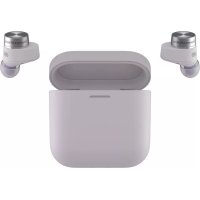
Pi5 S2 - Earphones BOWERS & WILKINS - Free user manual and instructions
Find the device manual for free Pi5 S2 BOWERS & WILKINS in PDF.


| Product Type | True Wireless In-Ear Headphones |
| Charging Case Dimensions | 61 mm (l) x 28 mm (d) x 56 mm (h) |
| Weight per Earbud | 6 g |
| Charging Case Weight | 47 g |
| Bluetooth Technology | Bluetooth 5.0 with aptX, AAC, SBC |
| Active Noise Cancellation (ANC) | Yes, adaptive |
| Ambient Pass-Through Mode | Yes, adjustable via app |
| Wear Sensors | Yes (auto pause/play) |
| Earbud Battery Life (ANC off) | Up to 5 hours |
| Total Battery Life with Case | Up to 24 hours (5 h + 19 h) |
| Fast Charging | 15 minutes = 2 hours playback |
| Wireless Charging | Yes |
| Speaker | 9.2 mm dynamic |
| Microphones | 2 per earbud (calls and ANC) |
| Voice Assistant | Yes (via multifunction button) |
| Water Resistance | IP54 (earbuds only) |
| Supported Bluetooth Codecs | aptX, AAC, SBC |
| Bluetooth Profiles | A2DP, AVRCP, HFP, HSP, BLE GATT |
| Included Accessories | USB-C cable (80 cm), ear tips S/M/L, charging case |
| Materials | Metal and plastic |
| Companion App | Bowers & Wilkins Music (iOS and Android) |
| Factory Reset | Yes (button in case) |
Frequently Asked Questions - Pi5 S2 BOWERS & WILKINS
User questions about Pi5 S2 BOWERS & WILKINS
0 question about this device. Answer the ones you know or ask your own.
Ask a new question about this device
Download the instructions for your Earphones in PDF format for free! Find your manual Pi5 S2 - BOWERS & WILKINS and take your electronic device back in hand. On this page are published all the documents necessary for the use of your device. Pi5 S2 by BOWERS & WILKINS.
USER MANUAL Pi5 S2 BOWERS & WILKINS
Welcome to Bowers & Wilkins and Pi5 S2
Thank you for choosing Bowers & Wilkins. When John Bowers first established our company, he did so in the belief that imaginative design, innovative engineering and advanced technology were keys that could unlock the enjoyment of audio in the home.
Pi5 S2 are high-performance in-ear true wireless earbuds designed to deliver the highest quality mobile personal audio experience combined with the convenience of wireless operation and the serenity of active noise cancellation. This manual will tell you everything you need to know to get the most from your Pi5 S2 earbuds.
Your Pi5 S2 can play music streamed wirelessly from your mobile phone, tablet or computer via Bluetooth. Pi5 S2 can also be used for wireless telephony.
Pi5 S2 features include our latest innovations in Active Noise Cancellation, Ambient Pass-Through and enhanced Wear Sensing technologies. Our latest generation noise cancellation was designed from the ground up to deliver an uncompromised listening experience. Ambient Pass-Through enables external sounds, such as conversation or safety announcements, to be heard clearly without any need to remove the earbuds. The Wear Sensing feature enables Pi5 S2 to respond naturally, pausing and resuming the music simply by removing an earbud from your ear. These features can be enabled and further customised via the Bowers & Wilkins Music app, available for free on iOS and Android devices.
Pi5 S2 incorporates a rechargeable case. When fully charged, the charging case can provide up to 24 hours of wireless media streaming at average playback volume levels.
1. Pi5 S2 Carton Contents
PI5 S2 True Wireless Earbuds with medium ear tips Charging case
USB-C charging cable
Small ear tip x2
Large ear tip x2
Literature pack
2. Getting to Know Your Pi5 S2
We recommend installing the Bowers & Wilkins
Music app on your iOS or Android device. This
allows you to configure
your earbuds in detail
and provides helpful
hints and tips to make
the most of your new
earbuds.

bowerswilkins.com/downloadapp
2.1 Switching Earbuds On and Off
PI5 S2 does not have a power control; instead, power management is automatic. Your PI5 S2 earbuds will automatically charge when placed into the charging case and are ready for use when removed from the case.
When your earbuds are removed from the charging case and not used for 5 minutes, they will enter a power saving mode. To exit power saving mode, start using the earbuds again by connecting your paired device, streaming audio or placing the earbuds into your ears.
2.2 Earbud Controls
Each earbud has a touch-sensitive Multi-function button located on the top cap of the earbud, see Diagram 1. The Multi-function button controls are as follows:
Media Playback
Function Action
| Play or pause | Tap the Multi-function button once. |
| Play next track | Tap the Multi-function button twice in quick succession. |
| Play previous track | Tap the Multi-function button three times in quick succession. |
Phone Call Functionality
Function Action
| Answer call | Tap the Multi-function button once with incoming call. |
| End call | When call is complete, tap the Multi-function button twice in quick succession. |
| Decline an incoming call | Tap the Multi-function button twice in quick succession with incoming call. |
3. Intelligent Features
3.1 Active Noise Cancellation
Noise cancellation is a series of advanced technologies that aid in removing undesired noise from the surrounding environment.
The noise cancellation features can be toggled on and off by pressing and holding the left (L) earbud Multi-function button for 1 second. See Diagram 2 for button location.
3.2 Voice Assistance
Voice Assistance on your source device is activated by pressing and holding the right (R) earbud Multifunction button for 1 second. See Diagram 2 for button location.
3.3 Ambient Pass-Through
PI5 S2 features Ambient Pass-Through, which allows some external noise from the surrounding environment, such as safety announcements or conversations, to be heard without removing the earbuds.
Use the Bowers & Wilkins Music app to enable/disable Ambient Pass-Through and adjust the Ambient Pass-Through level to suit your needs.
3.4 Wear Sensors
Pi5 S2 incorporate our latest enhanced wear detection sensors in both earbuds. The sensors enable intelligent battery conservation by entering power saving mode when removed from the ears. When inserted back into the ears, Pi5 S2 automatically wakes and connects to the last connected Bluetooth device.
The sensors will also pause audio when the earbuds are removed from your ears. Playback will automatically resume when the earbuds are placed back in the ears.
The Wear Sensors can be enabled or disabled from the Bowers & Wilkins Music app.
Note: Take special care when wearing your earbuds. Hair or accessories trapped between your ears and the earbuds may interfere with Wear Sensor operation.
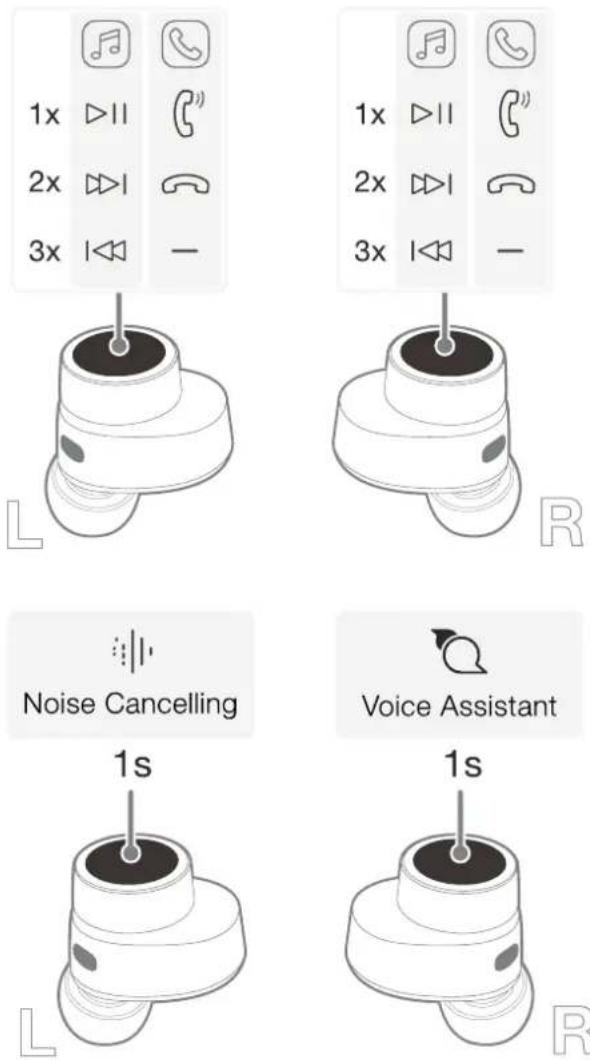
Diagram 1 Multi-function button
Diagram 2
Controlling intelligent features
4. Stowing the Earbuds
When not in use, the PI5 S2 carbuds should be stowed inside the charging case, where they will be recharged for future use.
5. Battery Charging
PI5 S2 ships with the charging case and earbud batteries partially charged and may be used immediately. However, we recommend fully charging the earbuds and case before first use. Please allow up to 3 hours to fully charge.
To charge the Pi5 S2 earbuds:
- Place the Pi5 S2 earbuds in the charging case.
- Close the charging case lid.
To charge the Pi5 S2 charging case:
- Use the supplied USB charging cable and connect one end to a USB wall charger or a powered computer USB port.
- Connect the other end to the USB-C socket on the charging case.
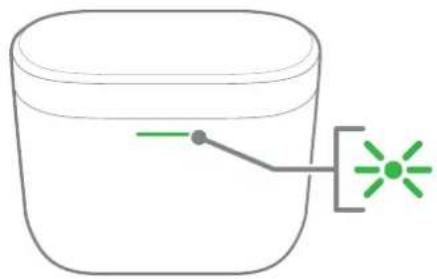
Note: While charging, the case indicator will flash green. When fully charged, the indicator will light solid green. The case can be charged with or without the earbuds being housed inside the case.
To charge the Pi5 S2 case using a wireless charging station:
- Place the charging case onto the centre of your wireless charging station (not supplied).
- Ensure that the rear of the charging case is on the charging station (with the case indicator facing up).
Note: While charging, the case indicator will flash green. When fully charged, the indicator will light solid green.
5.1 Status Indicator
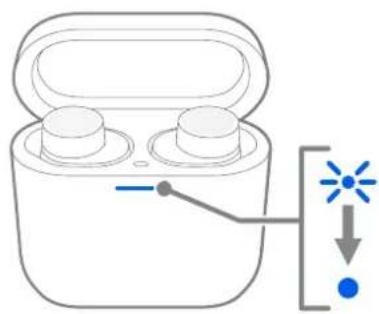
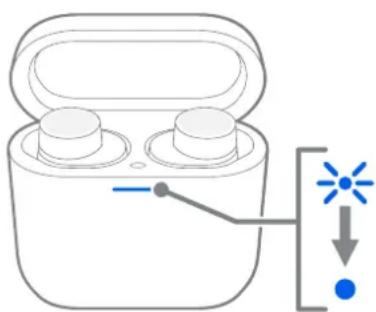
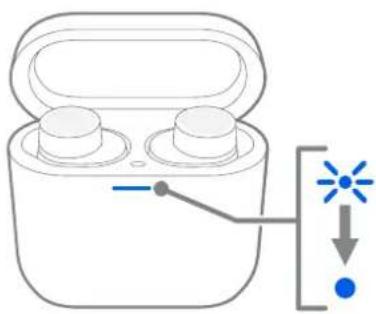
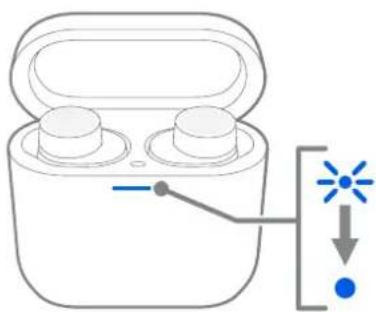
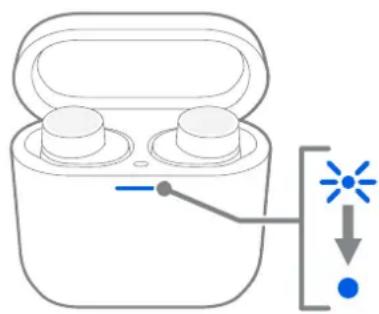
The status indicator is located on the front of the case. When the earbuds are placed in the case, the LED provides information about the earbuds. When the earbuds are removed from the case, the LED provides information on the charging case. See Diagram 3 and the tables that follow for LED states.
Battery levels can also be viewed in the Bowers & Wilkins Music app.
natural_image
Simple line drawing of a container with a green arrow pointing to a starburst symbol (no text or labels)Diagram 3
Status indicator illuminations
Status LED states with the earbuds in the charging case:
Illumination Operational state
| Flashing Green(case lid open) | Earbud battery charge >40% | |
| Flashing Yellow(after power on) | Earbud battery charge between 20% and 40% | |
| Flashing Red(after power on) | Earbud battery charge <20% | |
| Solid Red Hardware reset/system crash | ||
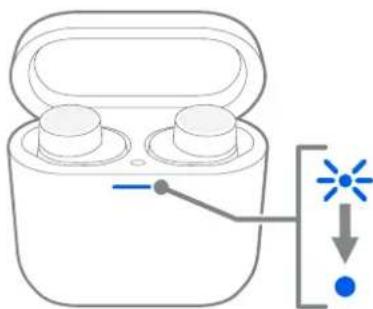
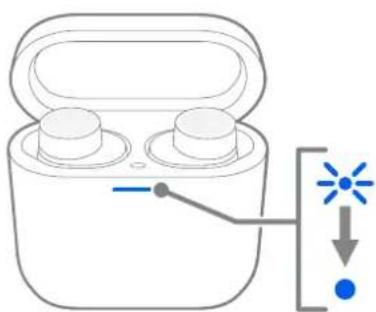
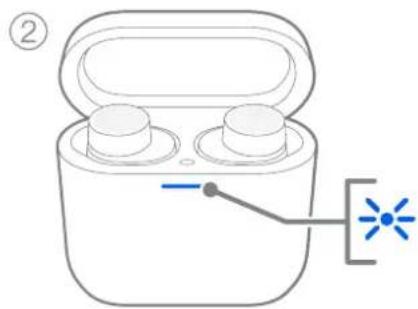
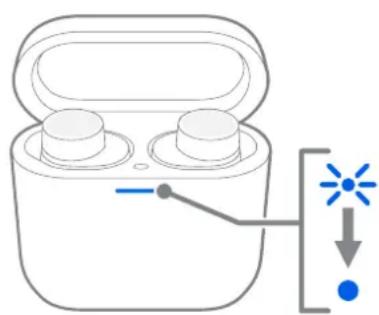
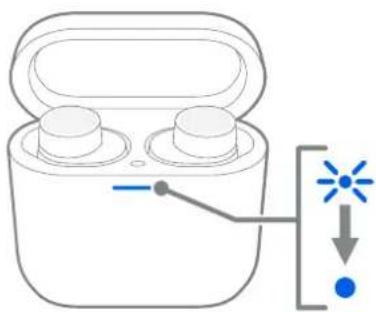
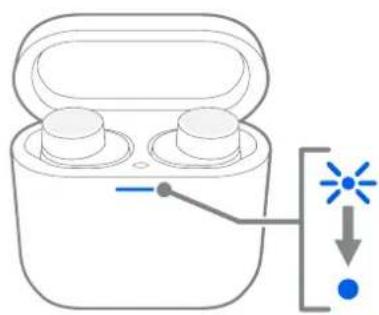
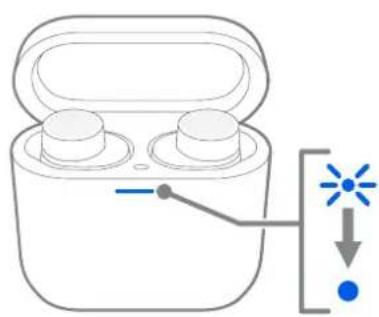
| Flashing Blue Bluetooth pairing mode enabled | ||
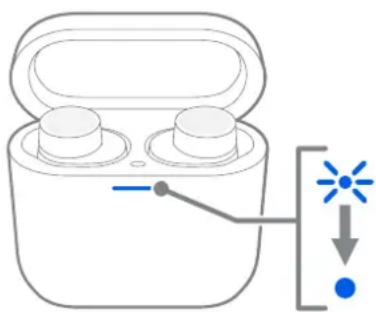
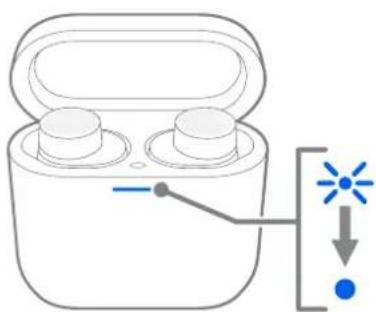
| Solid Blue(for 3 seconds) | Bluetooth pairing successful | |
Status LED states with the earbuds removed from the charging case:
Illumination Operational state
| Flashing Green(case lid open) | Case battery charge >40% | |
| Flashing Yellow(after power on) | Case battery charge between 20% and 40% | |
| Flashing Red(after power on) | Case battery charge <20% | |
| Solid Red Hardware reset/system crash | ||
6. Bluetooth Connectivity
6.1 Pairing
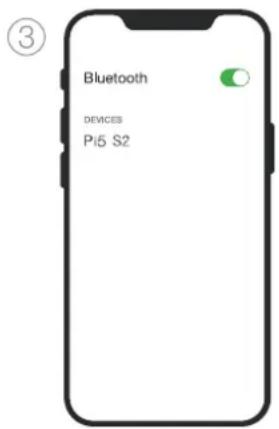
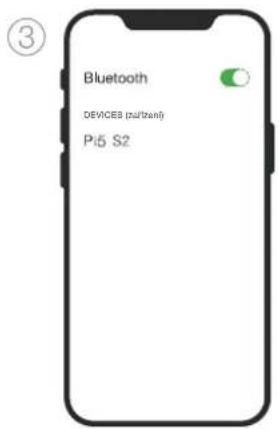
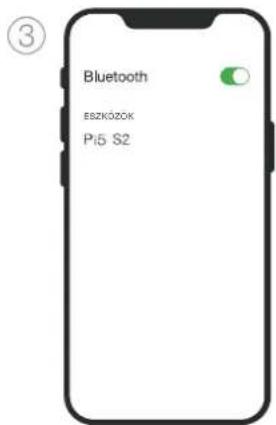
Your Pi5 S2 earbuds are designed to stream music wirelessly from Bluetooth audio devices, such as smartphones, tablets or computers. To do so, the earbuds and source audio device must first be paired.
When you receive your Pi5 S2 earbuds, they will be ready to pair to any Bluetooth audio device.
6.1.1 Pairing iOS/Android Devices without Google Fast Pair Service (GFPS), Mac or PC
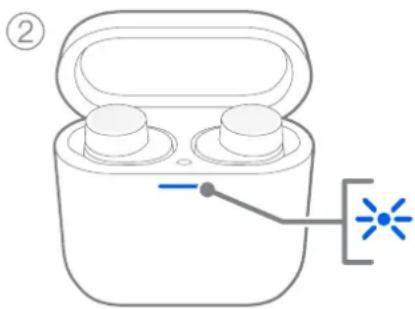
- The first time the charging case lid is opened, the earbuds will automatically enter pairing mode and the case indicator will flash blue.
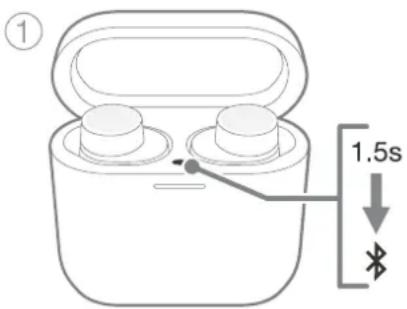
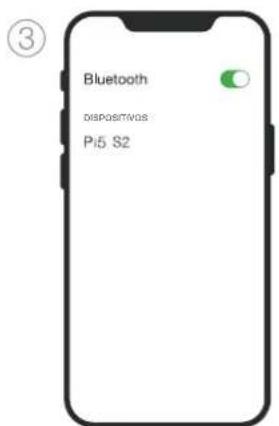
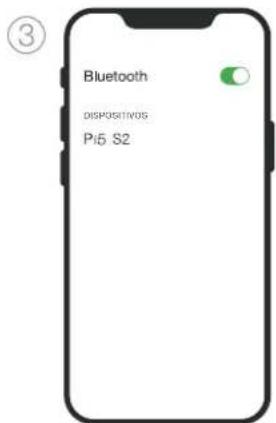
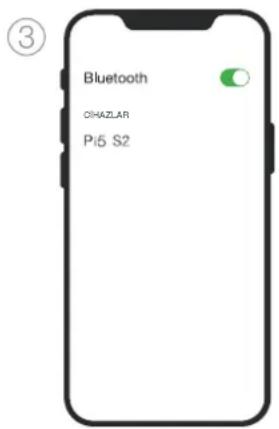
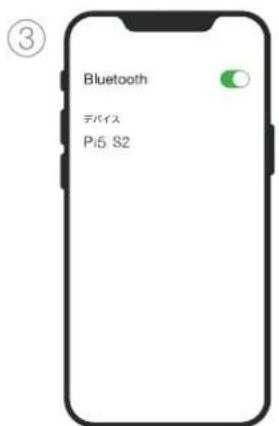
To manually place the earbuds into pairing mode, open the charging case lid and press and hold the button inside the case for 1.5 seconds until the case indicator flashes blue. See Diagram 4. - Go to the Bluetooth pairing menu of your source device and select "Pi5 S2" from the device list.
- The case indicator will change to solid blue to indicate pairing is successful.
Note: Your earbuds will automatically exit Bluetooth pairing mode if no device is paired after several minutes. If pairing fails, the indicator will rapidly flash blue; please try pairing again.
PI5 S2 can remember up to four paired Bluetooth devices in total. Repeat the above steps to pair more devices.
Note: On PC, the Pi5 S2 will appear as two Bluetooth audio profiles: Stereo (default) and Hands-Free (for telephony). The Hands-Free profile will automatically be used when making or receiving a call (e.g., Teams, Skype, Zoom, etc.). However, the system volume will continue controlling the previously selected device (Stereo profile by default). To change the volume of the earbuds while on a call, use the application volume control or ensure the system volume control is set to control the Hands-Free profile.
We recommend adding your earbuds to the Bowers & Wilkins Music app. This allows you to configure your earbuds in detail and provides helpful hints and tips to make the most of your new earbuds. Please refer to section 7 for details on installing and using your earbuds with the Bowers & Wilkins Music app.
6.1.2 Pairing Android 6.0+ Devices Supporting Google Fast Pair Service (GFPS)
- Place the case no further than 10 cm (4 inches) away from the Android device and ensure the Bluetooth connection is enabled.
- The first time the charging case lid is opened, the earbuds will automatically enter pairing mode and the case indicator will flash blue.
To manually place the earbuds into pairing mode, open the charging case lid and press and hold the button inside the case for 1.5 seconds until the case indicator flashes blue. See Diagram 4.
- A GFPS (Google Fast Pair Service) notification will pop up showing that your device has been detected and request to start the pairing process.
- Press the Connect button to enable pairing; successful connection will be shown in the popup.
- Once paired, the popup will direct you to the Google Play store to install the Bowers & Wilkins Music app.
We recommend adding your earbuds to the Bowers & Wilkins Music app. This allows you to configure your earbuds in detail and provides helpful hints and tips to make the most of your new earbuds. Please refer to section 7 for details on installing and using your earbuds with the Bowers & Wilkins Music app.
6.2 Disconnecting from a Device
You can quickly disconnect Pi5 S2 from a device by placing the earbuds back into the case. Alternatively, you can manage connections in further detail using the Bowers & Wilkins Music app, in the Connections page of the earbud Settings menu.
7. Bowers & Wilkins Music App
The Bowers & Wilkins Music app is available for free on iOS and Android devices and provides extended setup and adjustments to features such as Active Noise Cancellation, Ambient Pass-Through and Wear Sensors. The app also provides additional functions, such as Ambient Pass-Through level, connection management and software updates.
To add your earbuds:
- From your Android or iOS device, download and install the Bowers & Wilkins Music app.

bowerswilkins.com/downloadapp
- Ensure your earbuds are switched on by taking them out of the charging case.
- Launch the app, then read and follow the instructions pertaining to notifications and permissions.
- The app should detect your earbuds automatically and invite you to set up your earbuds. Follow the in-app instructions to complete the setup process.
- If your earbuds are not detected automatically, navigate to the Settings page (icon), tap Add product and follow the in-app instructions.
natural_image
Diagram of a wireless earbuds with a control panel and indicator lights (no text or symbols)Diagram 4
Bluetooth pairing
7.1 Controlling Your Earbuds
Commonly used features of your earbuds are accessible directly on the Music app home page:
- Battery status
• Environmental controls (Noise Cancellation/Pass-Through) - Connected device status (refer to the Connections section below for further details)
7.1.1 Earbud Settings Page
Other settings can be adjusted from the Settings page. Tap the icon at the bottom of the screen to enter the Settings page, then select your earbuds from the list.
Environmental Controls
Set the desired noise cancelling mode from the following options:
- Noise Cancelling On
- Noise Cancelling Off
Set the desired pass-through mode from the following options:
• Pass-Through Low
• Pass-Through High
• Pass-Through Off
Connections
The two most recently connected Bluetooth devices are shown in the Connections shortcut buttons. The buttons will appear grey if not currently connected. Tap the buttons to attempt reconnection.
Tap the CONNECTIONS heading to view more detailed connection settings, including previously connected devices (PI5 S2 will remember up to four devices).
Once in the Connections page, swipe a device left to delete it from the list. Swipe a device right to make it the preferred device to connect to when the earbuds are switched on.
Toggle Auto-connect to last device to prompt the earbuds to connect to the previously connected device when they are switched on.
Device Management
Toggle Wear sensor on to enable intelligent playback control. Once enabled, remove an earbud to pause playback; place the earbud back in your ear to resume playback.
Rename product
Tap Rename product to choose a new Bluetooth name for your earbuds. Note that devices already paired with the earbuds may still reference the previous name.
7.2 Earbud Software Update
Bowers & Wilkins will occasionally make available software updates that refine and optimise the performance of your earbuds or add new features.
The Bowers & Wilkins Music app will notify you when a software update is available. To update, tap the notification and follow the in-app instructions.
8. Wearing Your Earbuds
Correctly wearing your earbuds will help ensure the best possible experience. Like many in-ear earbuds, Pi5 S2 are designed to seal the ear canal in order to perform optimally. Ear tips come in three sizes: small, medium and large. Finding the proper size for your ear is critical to obtaining a good seal and ensuring Pi5 S2, and the advanced features, such as Active Noise Cancellation, perform optimally.
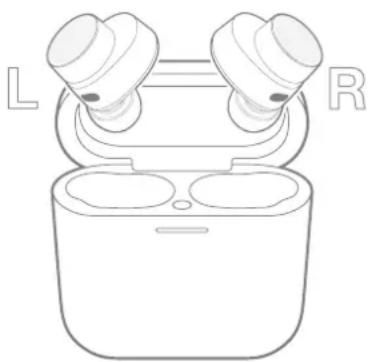
- Identify the left and right earbud by finding the L and R identification (located on the inner side of each earbud).
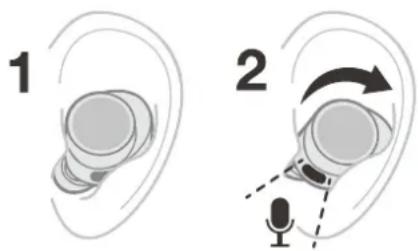
- Place each earbud in your ear and twist them backward slightly so that the tips engage comfortably with the opening of the ear canal.
- If the earbud tip feels too large or small, try another ear tip size to ensure the best fit.
Note: To optimise call quality, ensure the microphones, located underneath each earbud, are not obstructed. See Diagram 5.
9. Resetting/Troubleshooting
9.1 Factory Reset
Perform the factory reset to clear the paired device history and restore all settings to their defaults.
To factory reset the earbuds:
- Open the charging case with the earbuds placed inside.
- Press and hold the button on the inside of the case for 5 seconds and release.
- The indicator on the case will turn red to indicate the reset.
Note: If the earbuds are not functioning properly, please perform a factory reset to resolve the issue.
9.2 Hard Reset
To hard reset the earbuds:
-
Open the case with the earbuds placed inside.
-
Press and hold the button inside the case for 15 seconds until the LED indicator goes off and illuminates green to indicate completion of the hard reset process.
Note: If a serious system crash occurs (i.e., the LED is solid red), first try removing the earbuds from the case and replacing them. If this does not resolve the issue, please perform a hard reset.
10. Caring For Your Earbuds
Your earbuds can be cleaned using a soft, clean, damp cloth and gently dabbing until clean. Do not use cleaning detergents, rubbing alcohol or chemical cleaners/polish, doing so may damage your earbuds.
11. Service/Support
If you need help troubleshooting a specific problem or simply have a question you would like answered, please initially consult the Headphones Support section of the Bowers & Wilkins website: www.bowerswilkins.com.
natural_image
Line drawing of a wireless earbuds with two lenses and a base case (no text or symbols)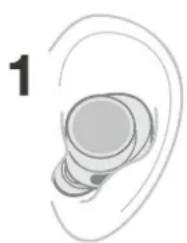
natural_image
Illustration of a medical ear with a light bulb and bulbous structure, labeled with the number 1 (no text or symbols on the diagram itself)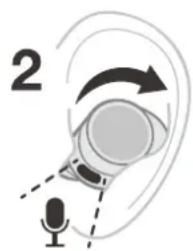
Diagram 5
Wearing your earbuds
Specifications
Technical Features True wireless technology
Bluetooth 5.0 with aptX™ technology
Active Noise Cancellation (ANC)
Wireless and USB-C charging
Fast charging support
Wearing Style In-ear noise cancelling true wireless earbuds
Bluetooth Codecs aptX™
AAC
SBC
Bluetooth Profiles A2DP v1.3.1
AVRCP v1.6.1
HFP v1.7.1
HSP v1.2
BLE GATT (Generic Attribute Profile)
Frequency Band Tx mode: 2402 MHz to 2480 MHz, ISM Band
Rx mode: 2402 MHz to 2480 MHz, ISM Band
RF Output Power <10.0 dBm
Drive Units 9.2 mm dynamic drive unit
Microphones Two microphones per earbud for calls and noise cancellation
Battery Type Rechargeable Lithium-ion (earbuds and charging case)
Battery Life and Charging Up to 5 hours for earbuds (with noise cancellation off)
Additional 19 hours from charging case
15 minute charge = 2 hours playback
Wireless Charging Support Yes
Waterproof Yes - IP54 (earbuds only)
Inputs Bluetooth
Included Accessories 80 cm USB-C to USB-C charging cable
Small/medium/large ear tips
Weight Earbuds: 6 grams (each)
Charging case: 47 grams
Surface Materials Metal, plastic

bowerswilkins.com/downloadapp
3.3 Mode Ambient Pass-Through
natural_image
Simple line drawing of a container with a horizontal line and a green starburst symbol inside, no text or labels present.Schéma 3 :

bowerswilkins.com/downloadapp
natural_image
Line drawing of an wireless earbuds with a blue indicator light and label (no text or symbols on the device itself)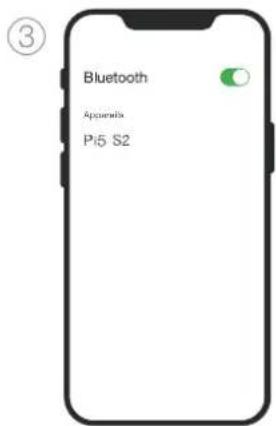
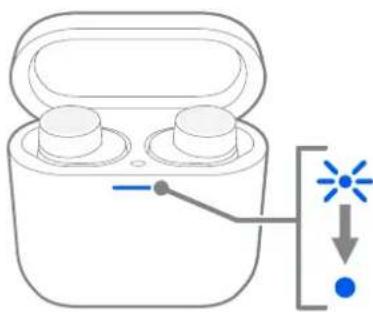
Schéma 4 :
Jumelage Bluetooth
natural_image
Line drawing of a wireless earbuds with two lenses and a base case (no text or symbols)
bowerswilkins.com/downloadapp
natural_image
Simple line drawing of a container with a horizontal line and a green starburst symbol inside, no text or labels present.
bowerswilkins.com/downloadapp
natural_image
Diagram of an open wireless earbuds with a blue indicator light symbol pointing to the base (no text or labels present)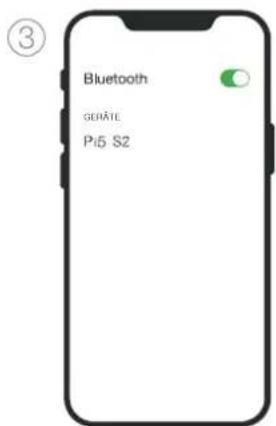
natural_image
Line drawing of a wireless earbuds with two speakers and two charging bays (no text or symbols)
bowerswilkins.com/downloadapp
natural_image
Simple line drawing of a container with a green arrow pointing to a starburst symbol (no text or labels)7. Bowers & Wilkins Music App

bowerswilkins.com/downloadapp
natural_image
Diagram of a wireless earbuds with a connector and indicator lights (no text or symbols)Diagrama 4
natural_image
Line drawing of a wireless earbuds with two lenses and two internal compartments, labeled L and R (no text or symbols on the device itself)
bowerswilkins.com/downloadapp
2.1 Ligar e desligar os auriculares
natural_image
Simple line drawing of a container with a green arrow pointing to a starburst symbol (no text or labels)
bowerswilkins.com/downloadapp
natural_image
Diagram of a wireless earbuds with a control switch and indicator lights (no text or symbols)7.1 Controlar os auriculares
• Pass-Through Low (Pass-through baixo)
• Pass-Through High (Pass-through alto)
• Pass-Through Off (Pass-through desligado)
Ligações
natural_image
Line drawing of a wireless earbuds with two lenses and two matching cups, labeled E and D (no text or symbols on the devices themselves)
bowerswilkins.com/downloadapp
natural_image
Simple line drawing of a container with a green arrow pointing to a starburst symbol (no text or labels)7. App Bowers & Wilkins Music

bowerswilkins.com/downloadapp
natural_image
Line drawing of an open wireless earbuds with a blue indicator light symbol pointing to the bottom-right connector (no text or labels)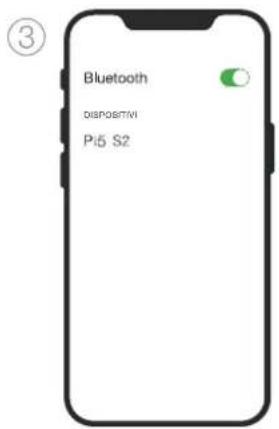
natural_image
Diagram of an open wireless earbuds with a control panel and indicator lights (no text or symbols)• Pass-Through Basso
• Pass-Through Alto
• Pass-Through Disattivato
Collegamento
natural_image
Line drawing of a wireless earbuds with two speakers and two charging bays (no text or symbols)
bowerswilkins.com/downloadapp
natural_image
Simple line drawing of a container with a horizontal line and a green starburst symbol inside, no text or labels present.
bowerswilkins.com/downloadapp
natural_image
Line drawing of a wireless earbuds with a blue indicator light symbol pointing to the base (no text or labels)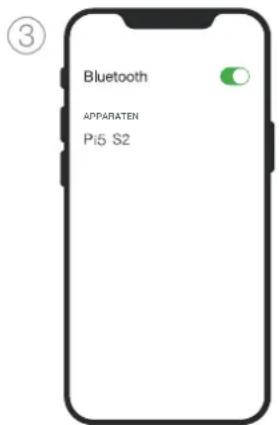
natural_image
Diagram of a wireless earbuds with a control panel and indicator lights (no text or symbols)Diagram 4
Bluetooth-koppeling
natural_image
Line drawing of a wireless earbuds with two speakers and two charging bays (no text or symbols)Diagram 5
Oordopjes dragen
Specifications
Bluetooth-codecs aptX™
AAC
SBC
Bluetooth-profielen A2DP v1.3.1
AVRCP v1.6.1
HFP v1.7.1
HSP v1.2
BLE GATT (Generic Attribute Profile)
Frequentieband Uitzendmodus: 2402 MHz tot 2480 MHz, ISM-band
Ontvangstmodus: 2402 MHz tot 2480 MHz, ISM-band

bowerswilkins.com/downloadapp
natural_image
Simple line drawing of a container with a horizontal line and a green starburst symbol inside, no text or labels present.Διάγραμμα 3

bowerswilkins.com/downloadapp
natural_image
Line drawing of a wireless earbuds with a blue indicator light symbol (no text or labels)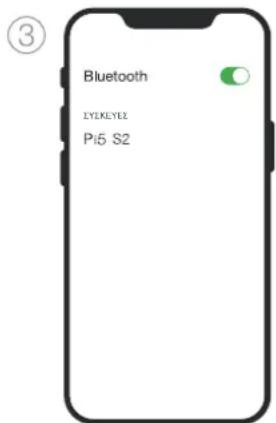
natural_image
Diagram of a wireless earbuds with a control switch and indicator light (no text or symbols)Διάγραμμα 4
Σύζευξη Bluetooth
natural_image
Line drawing of a wireless earbuds with two speakers and two charging bays (no text or symbols)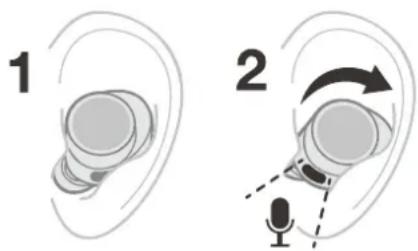

bowerswilkins.com/downloadapp
natural_image
Simple line drawing of a container with a horizontal line and a green starburst symbol inside, no text or labels present.
bowerswilkins.com/downloadapp
natural_image
Line drawing of an open wireless earbuds with a blue indicator light symbol pointing to the bottom-right device (no text or labels)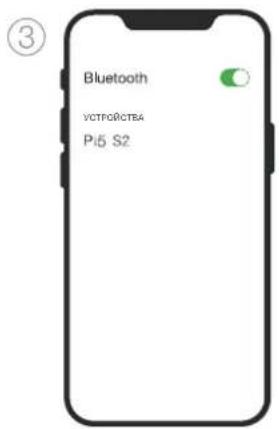
natural_image
Line drawing of a wireless earbuds with two speakers and two base cups, labeled L and R (no text or symbols on the devices themselves)Bowers & Wilkins Music

bowerswilkins.com/downloadapp
natural_image
Simple line drawing of a container with a horizontal line and a green starburst symbol inside, no text or labels present.Obrázek 3

bowerswilkins.com/downloadapp
natural_image
Diagram of a wireless earbuds with a control panel and indicator lights (no text or symbols)Obrázek 4
Bluetooth párování
natural_image
Line drawing of a wireless earbuds with two speakers and two ports, labeled L and R (no text or symbols on the device itself)
bowerswilkins.com/downloadapp
natural_image
Simple line drawing of a container with a green arrow pointing to a starburst symbol (no text or labels)- ábra

bowerswilkins.com/downloadapp
natural_image
Diagram of a wireless earbuds with a light bulb and indicator lights, showing no text or symbols.- ábra
Bluetooth párosítás
natural_image
Line drawing of a wireless earbuds with two speakers and two charging bays (no text or symbols)
bowerswilkins.com/downloadapp
natural_image
Simple line drawing of a container with a horizontal line and a green starburst symbol inside, no text or labels present.
bowerswilkins.com/downloadapp
natural_image
Line drawing of a wireless earbuds with a blue indicator light and a black connector (no text or symbols)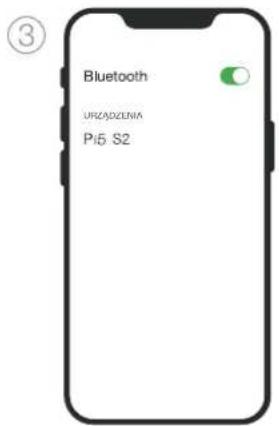
natural_image
Diagram of a wireless earbuds with a light indicator and connection point (no text or symbols)Rysunek 4
Parowanie Bluetooth
natural_image
Line drawing of a wireless earbuds with two speakers and two charging bays (no text or symbols)
bowerswilkins.com/downloadapp
natural_image
Simple line drawing of a container with a green arrow pointing to a starburst symbol (no text or labels)
bowerswilkins.com/downloadapp
natural_image
Diagram of a wireless earbuds with a control panel and indicator lights (no text or symbols)Şekil 4
natural_image
Line drawing of a wireless earbuds with two speakers and two charging bays (no text or symbols)natural_image
Simple line drawing of a container with a green arrow pointing to a starburst symbol (no text or labels)图3
状态指示灯
充电盒中耳机的状态LED指示灯状态:
灯光操作状态
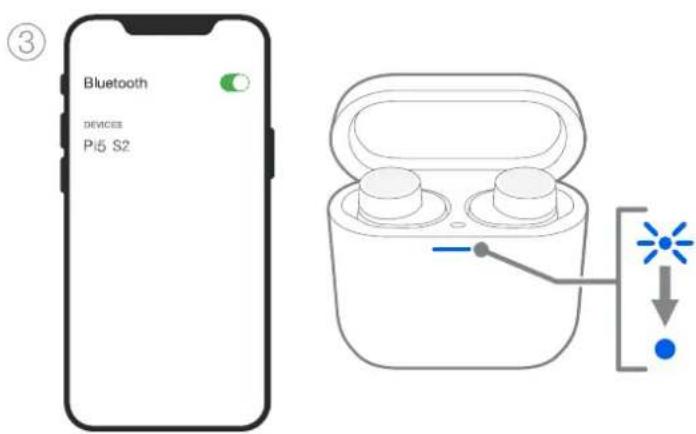
图4
蓝牙配对
7.1 控制耳塞
natural_image
Line drawing of a wireless earbuds with two speakers and two charging bays (no text or symbols)9.2 硬重置
要硬重冒耳塞:
Bowers & Wilkins Music

bowerswilkins.com/downloadapp
2.1 開啟和關閉耳機
natural_image
Simple line drawing of a container with a green arrow pointing to a starburst symbol (no text or labels)图3
狀態指示燈亮起
充電盒中耳機的狀態 LED 顯示:
指示燈 運行狀態

bowerswilkins.com/downloadapp
natural_image
Line drawing of an open wireless earbuds with a blue indicator light symbol pointing to one (no text or labels)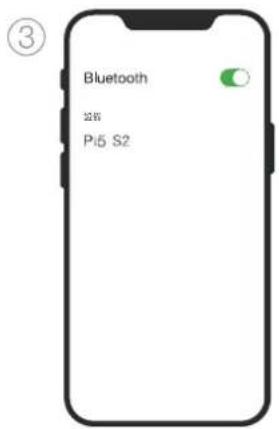
natural_image
Diagram of a wireless earbuds with a power cord and indicator lights, no text or symbols present图4
蓝牙配對
7.1 控制您的耳機

bowerswilkins.com/downloadapp
natural_image
Simple line drawing of a container with a green arrow pointing to a starburst symbol (no text or labels)图3
ステータスインジケーター

bowerswilkins.com/downloadapp
natural_image
Diagram of a wireless earbuds with a power cord and indicator lights, no text or symbols present图4
Bluetoothペアリング
7.1 イヤフォンの操作
natural_image
Line drawing of a wireless earbuds with two lenses and two charging caps, labeled L and R (no text or symbols on the device itself)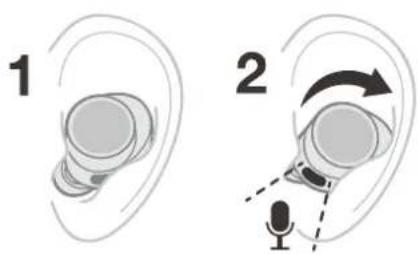
图5
イヤフォンの装着
仕様
無線周波数帯域 Tx mode: 2402 MHz to 2480 MHz, ISM Band
Rx mode: 2402 MHz to 2480 MHz, ISM Band
無線出力 10.0 dBm未満

bowerswilkins.com/downloadapp
2.1 이어버드 켜고 끄기
natural_image
Simple line drawing of a container with a green arrow pointing to a starburst symbol (no text or labels)그림 3
상태 표시등 점등

bowerswilkins.com/downloadapp
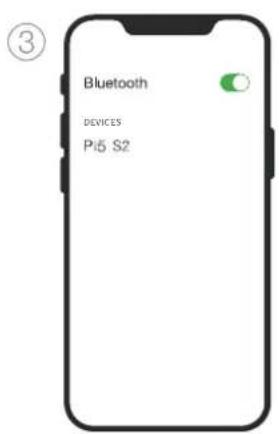
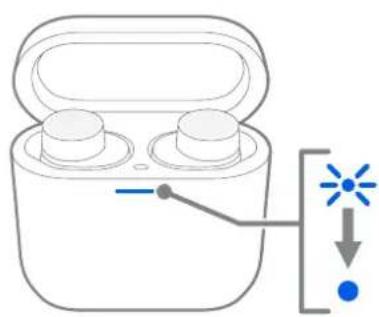
그림 4
Bluetooth 페어링
7.1 이어버드 제어
natural_image
Line drawing of a wireless earbuds with two speakers and two charging bays (no text or symbols)
그림 5
이어버드 착용
제품 사양
기술적 특징 트루 무선 기술
ANC(Active Noise Cancellation)
무선 및 USB-C 충전
빠른 충전 지원