R4i Mk2 - Radio Ruark Audio - Free user manual and instructions
Find the device manual for free R4i Mk2 Ruark Audio in PDF.



| Product Type | 2.1 stereo Hi-Fi radio with active subwoofer |
| Dimensions | H145 x W450 x D255 mm |
| Weight | 8 kg |
| Power supply | 230 V AC - 50 Hz |
| Radio tuner | DAB/DAB+ and FM 87.5-108 MHz with RDS |
| CD player | CD-DA, CD-R/RW, WMA, MP3 |
| USB connector | Supports WMA and MP3 files |
| iPod docking station | Universal (30-pin connector) compatible since 2004 |
| Amplifier power | 80 W RMS |
| Speakers | 2 x 9 cm full-range, 1 x 13 cm subwoofer |
| Antenna | Telescopic removable with F-type connector |
| Clock functions | Alarm, sleep, manual clock setting |
| Radio presets | 5 DAB stations and 5 FM stations |
| Remote control | With AAAA (LR61) batteries |
| Cleaning | With a soft, lint-free cloth, no solvents |
| Safety | Do not expose to water or splashes; ventilation >10 cm around the device |
| Operating temperature | 5 °C to 40 °C |
| Warranty | 2 years |
| Remote control batteries | Type AAAA (LR61) - available online or from retailers |
Frequently Asked Questions - R4i Mk2 Ruark Audio
User questions about R4i Mk2 Ruark Audio
0 question about this device. Answer the ones you know or ask your own.
Ask a new question about this device
Download the instructions for your Radio in PDF format for free! Find your manual R4i Mk2 - Ruark Audio and take your electronic device back in hand. On this page are published all the documents necessary for the use of your device. R4i Mk2 by Ruark Audio.
USER MANUAL R4i Mk2 Ruark Audio
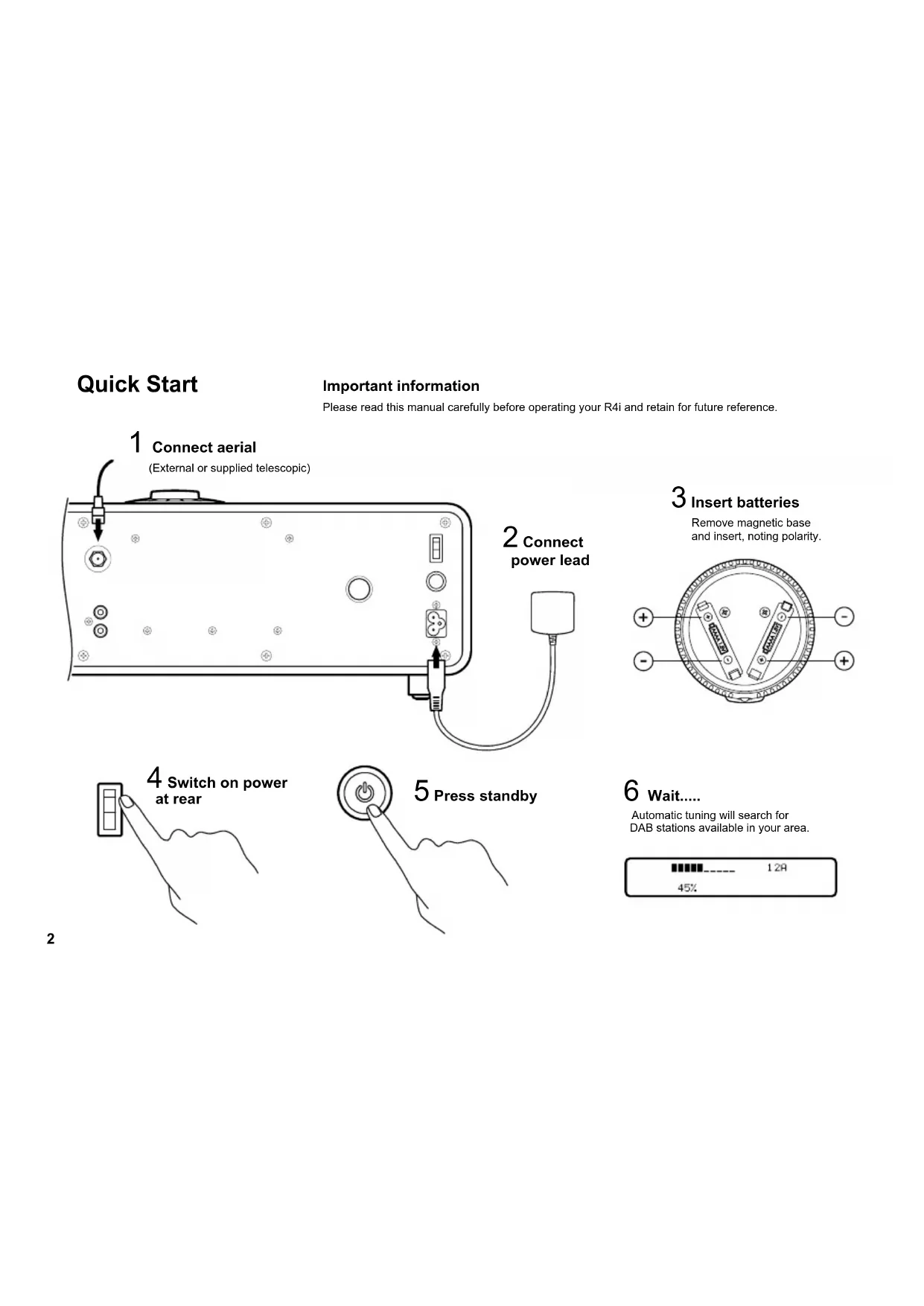
Please read this manual carefully before operating your R4i and retain for future reference.
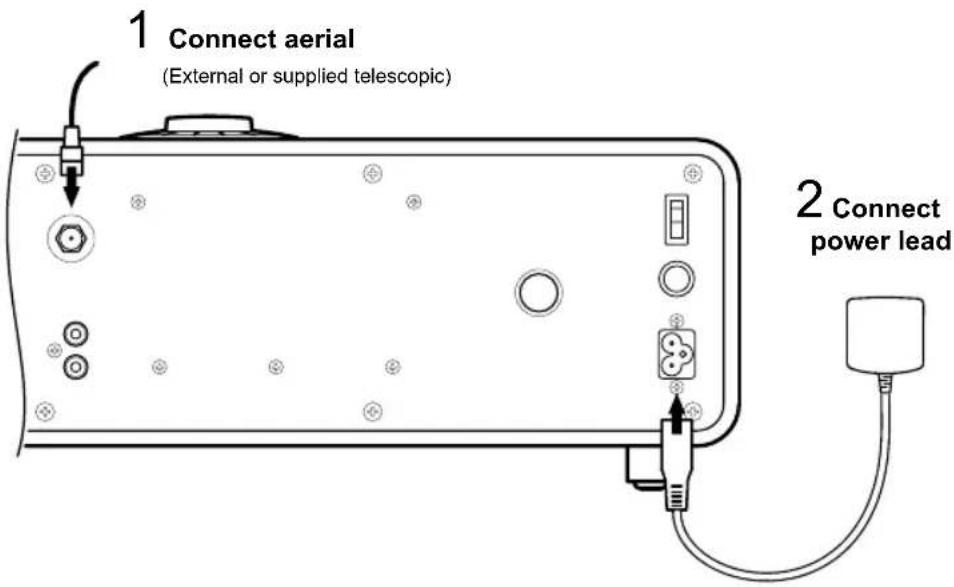
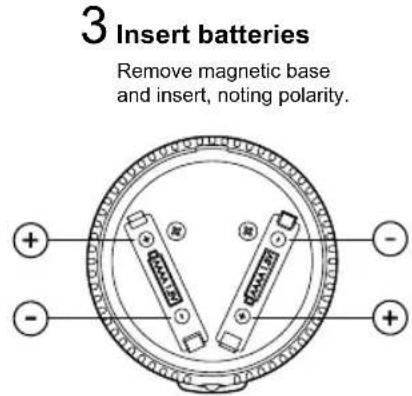
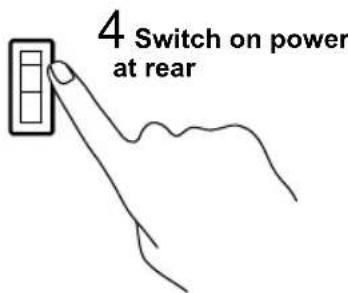
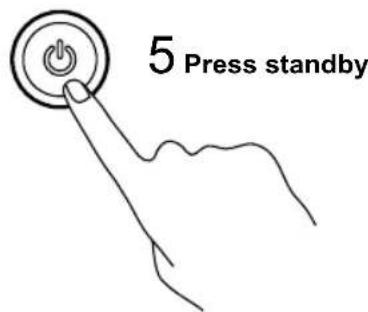
6 wait...
Automatic tuning will search for DAB stations available in your area.

...to Radio
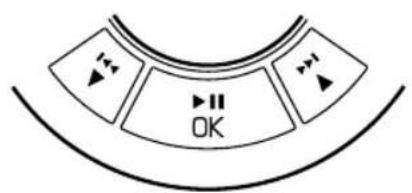
DAB: press to scroll through available stations.
OK to select station.
FM: press and hold to scan for next available station.
...to CD
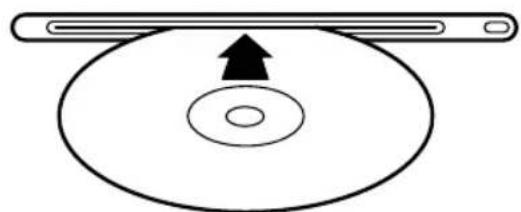
Inserting a CD into slot will automatically select CD source. CD will auto play once loaded.

7 Listen....
First select your chosen source

...to USB
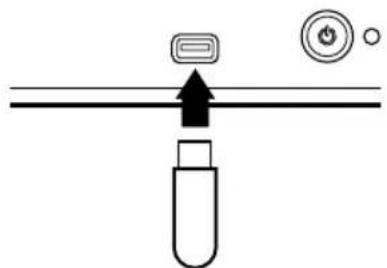
Insert USB into slot. R4i will search for MP3 / WMA music files and auto play once loaded.
...to iPod
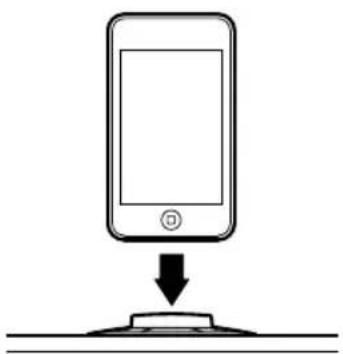
Remove dust cover and insert the correct universal dock adaptor for your model. The adaptor provides correct alignment, avoiding strain on the connector, and is available from Apple online and Apple retailers. iPod/iPhone models can be used without an adaptor but care should be taken when inserting and removing as sprain damage is not covered by your guarantee.
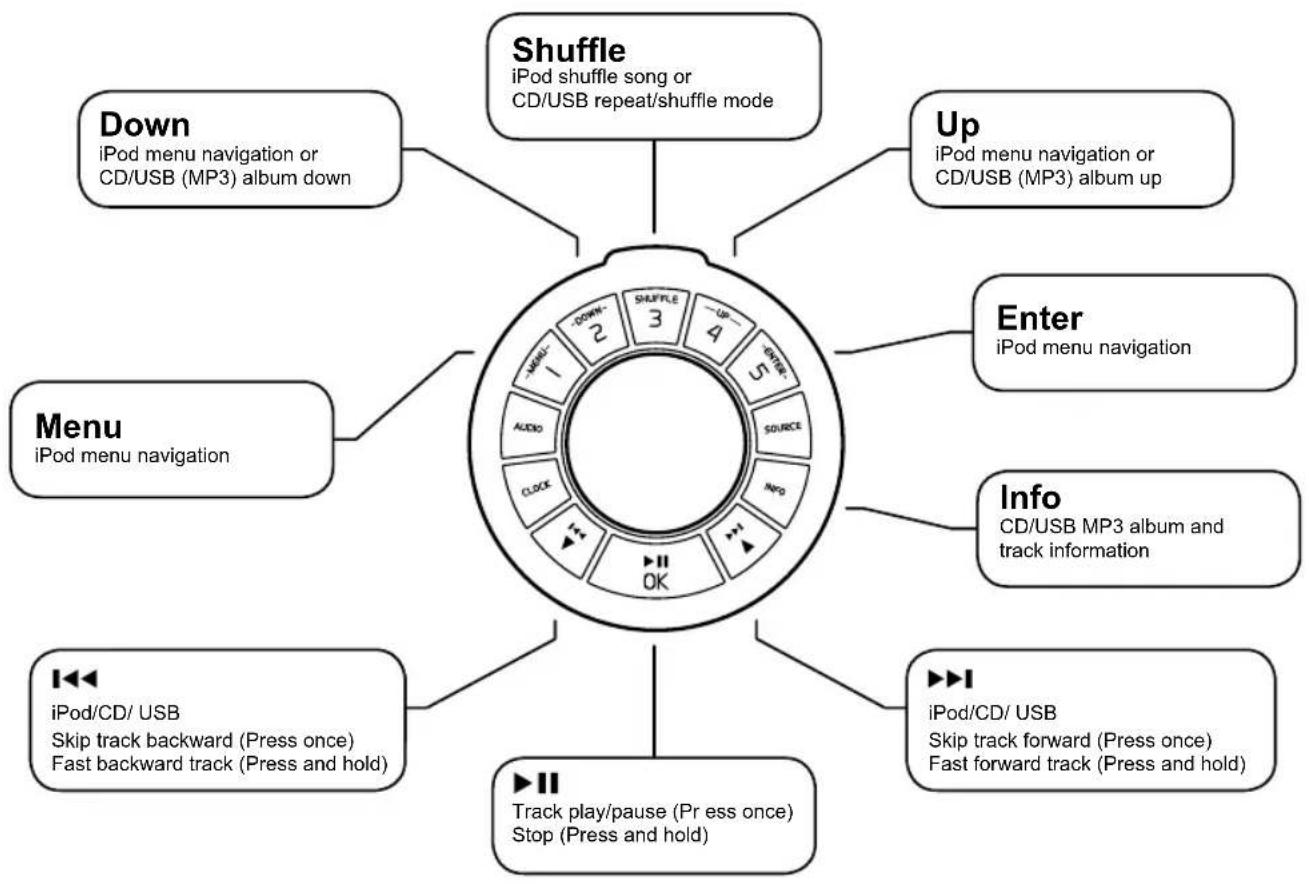
iPod, CD and USB controls

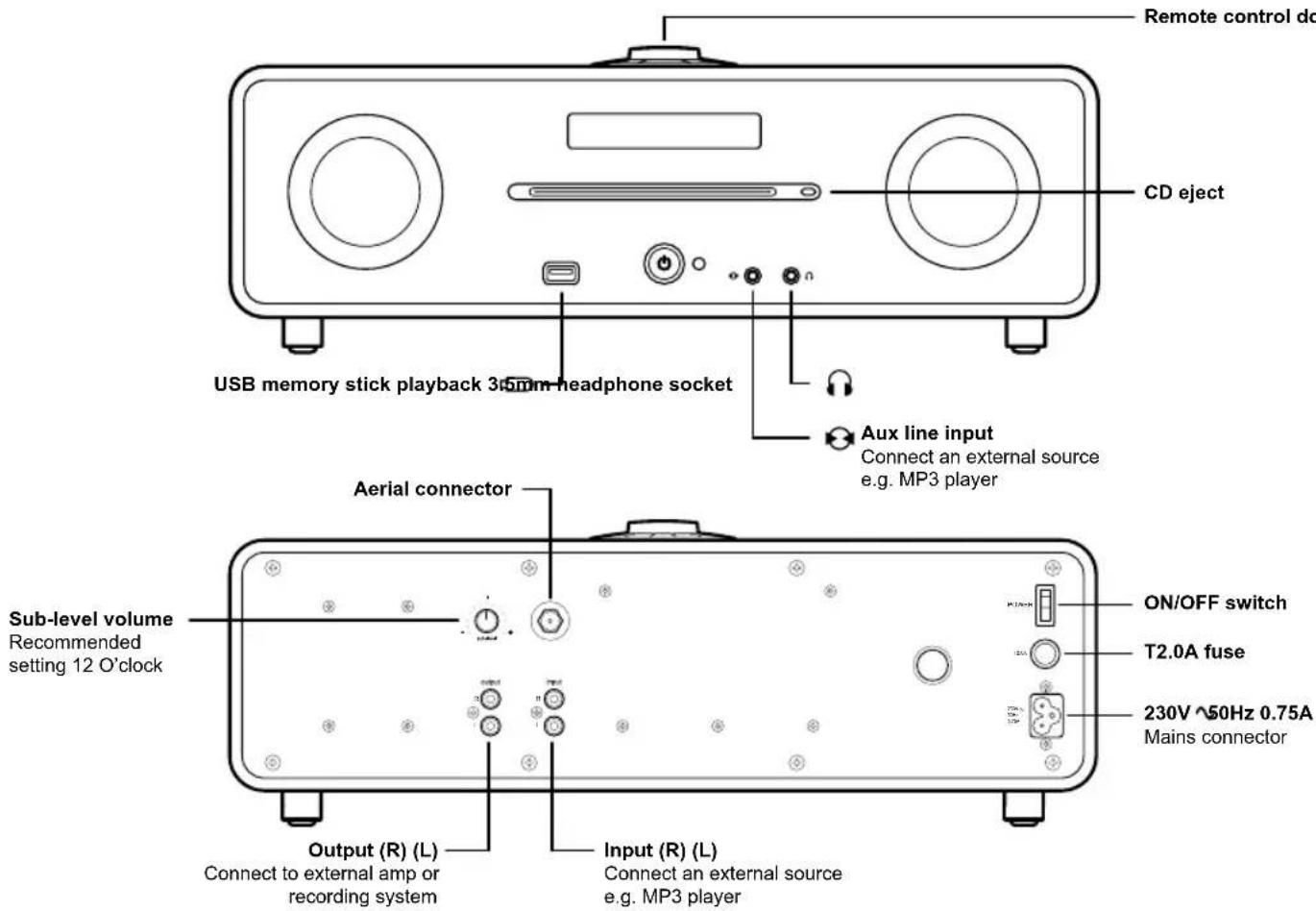
Getting to know your R4i
Other functions
Secondary stations
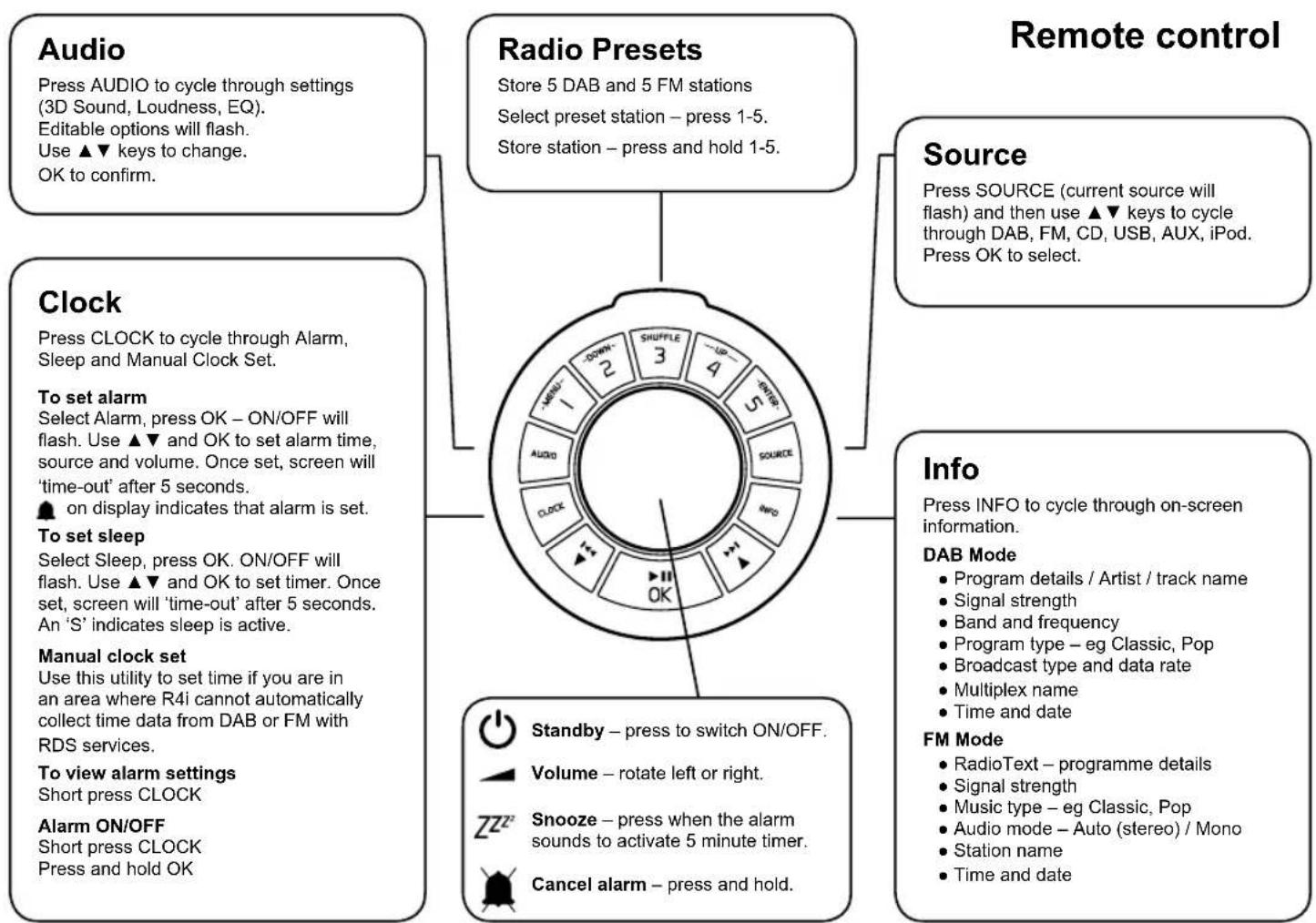
Some DAB stations have secondary services available. This is shown by a > sign after the station name. Press OK to toggle between the main station and secondary service.
FM Mode - Auto (Stereo) / Mono
In FM mode the R4i will adopt stereo as its default setting however for weak stations it is possible to reduce background noise by switching to Mono. Press and hold OK to switch between Auto (Stereo) and Mono.
Manual Tune, AutoScan and System Reset
By pressing and holding the INFO key you can cycle through subfunctions. Press OK to enter each and confirm.
- Manual Tune (DAB Mode)
If you know the channel and frequency of a DAB station you can use this feature to access stations directly. - AutoScan (DAB Mode)
This performs a new DAB scan and will add new stations as they become available. - System Reset (DAB & FM Mode)
This restores default factory settings and will initiate a new DAB station scan. If you move to a new location it is likely that the DAB services you will receive may change. Running system reset will clear stations that are no longer available and replace with those that are.
A detailed explanation on how to perform AutoScan and System Reset can be found on the FAQs section of our website.
Remote Batteries
The R4i remote uses type AAAA (LR61) batteries. These are readily available on-line and through quality electronic stores. If for any reason you have trouble finding replacements, please contact us or your distributor directly.
Cautions
- Listening through headphones or earphones at high volume can cause hearing loss.
- The unit should not be exposed to dripping or splashing and no objects containing liquids, such as vases, should be placed on the unit.
- Ensure that the power adapter, mains plug or mains connector into the unit is readily accessible in case disconnection from the mains is required.
- Remote control batteries must not be exposed to excessive heat, such as from sunshine or fire, and used batteries must be disposed of responsibly.
- The normal function of this product may be affected by strong Electromagnetic Interference. If you experience problems, simply reset the product to resume normal operation. If, after resetting, the product still fails to operate correctly, try using it in a different location.
- Keep the unit away from naked flames such as lighted candles and heat sources such as radiators.
- The unit should be positioned at least 10cm away from adjacent objects to ensure adequate ventilation.
- This audio equipment is CLASS 1 construction and must be connected to a mains outlet with a protective earth connection.
General care
- Clean with a soft, lint-free duster or slightly dampened cloth. Do not use wax sprays or other substances as these may damage the surface finish or impair performance.
- Do not expose your unit to direct sunlight, high humidity, dust, excessive vibration or extreme temperatures, all of which can affect the finish, performance and reliability of the unit.
- The recommended operating temperature range is 5^ to 40^ .
- Natural wood finish cabinets will vary and lighten or darken with age, particularly when exposed to sunlight.
Guarantee Information
We guarantee this product to be free from defects for a period of two years from date of purchase, providing due care and attention has been paid. Product failure through accidental damage (however caused), excessive wear and tear, negligence or unauthorised modification will void your guarantee.
Should you experience a problem please contact us either by sending an email to info@ruark.co.uk or calling us directly on 01702 601410 where we will advise the course of action. If your product needs to be returned it should be packaged in its original packing along with proof of purchase. If it is not possible to return the product by hand, then it should be sent carriage prepaid by a reputable parcel carrier. If the original packing is not available, replacement packing can be purchased from us.
Guarantee for Overseas Sales
The distributor in the country of purchase guarantees products purchased outside the UK. For details, please contact your local Ruark Audio distributor or outlet.
THIS GUARantee IN NO WAY VARIOUS OR REMOSES THE PURCHASER'S STATUTORY RIGHTS. E&OE
Specifications
- 80W RMS 2.1 stereo system with active subwoofer
- DAB & DAB+ Compatible Stereo Tuner
FM Tuner 87.5-108 MHz with RDS - CD player accepts CD-DA, CD-R/RW, WMA & MP3 format disks
- USB socket supports WMA & MP3 encoded music files
ID3 tag support for MP3 files on CD or USB - Universal iPod Dock supports all current iPod (30-pin) models produced from January 2004 onwards
- 2 × 3.5 custom full range speaker units
- 1 x 5" custom long throw bass speaker unit
Aerial: Removable telescopic with F-Type connector - Dimensions: H145 x W450 x D255mm (5.75 x 17.75 x 10 ins)
Weight: 8kg (17.6 lbs) - Mains Power: 230V AC - 50Hz
20130415.1

ruarkaudio
59 Tailors Court - Temple Farm Industrial Estate - Southend on Sea - Essex - SS2 5TH - UK
+44 (0) 1702 601 410 info@ruark.co.uk www.ruarkaudio.com

User guide
EN
59 Tailors Court - Temple Farm Industrial Estate - Southend on Sea - Essex - SS2 5TH - UK
+44 (0) 1702 601 410 info@ruark.co.uk www.ruarkaudio.com

User guide
59 Tailors Court - Temple Farm Industrial Estate - Southend on Sea - Essex - SS2 5TH - UK
+44 (0) 1702 601 410 info@ruark.co.uk www.ruarkaudio.com

User guide
59 Tailors Court - Temple Farm Industrial Estate - Southend on Sea - Essex - SS2 5TH - UK
+44 (0) 1702 601 410 info@ruark.co.uk www.ruarkaudio.com

User guide
59 Tailors Court - Temple Farm Industrial Estate - Southend on Sea - Essex - SS2 5TH - UK
+44 (0) 1702 601 410 info@ruark.co.uk www.ruarkaudio.com

User guide EN
59 Tailors Court - Temple Farm Industrial Estate - Southend on Sea - Essex - SS2 5TH - UK
+44 (0) 1702 601 410 info@ruark.co.uk www.ruarkaudio.com

| User guide | EN |
| Guide de l'utilisateur | FR |
| Bedienungsanleitung | DE |
| Manuale utente | IT |
| Manual de instrucciones | ES |
| Brukerveileding | NO |
| Gebruikershandleiding | NL |