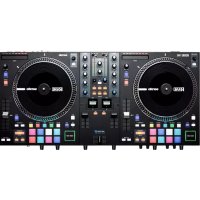
One - DJ Equipment Rane - Free user manual and instructions
Find the device manual for free One Rane in PDF.



| Product type | DJ controller with motorized platters |
| Brand | Rane |
| Model | One |
| Number of channels | 2 |
| Turntables | Direct-drive motorized, adjustable torque |
| Control disc | 18.2 cm with quick-release adapter |
| Compatible software | Serato DJ Pro |
| Power supply | 100-240 V AC, 50/60 Hz (via power cord) |
| Dimensions (approx.) | 550 x 320 x 140 mm |
| Weight (approx.) | 8.6 kg |
| Audio inputs | 2 microphone inputs (XLR/TRS), 1 aux input (RCA), 2 phono/line inputs (RCA) |
| Audio outputs | Master outputs (RCA), main (XLR), booth (XLR), headphone (6.35 mm/3.5 mm TRS) |
| USB connectivity | 2 USB type B ports (for computers) |
| Pad functions | Hot Cue, Pitch Play, Saved Loop, Roll, Auto Loop, Sampler, Scratch Bank, Slicer, Slicer Loop |
| Equalizer | 3-band (High, Mid, Low) with total kill |
| Filter | Adjustable low-pass/high-pass |
| Effects | Internal Flex FX, software effects (FX 1-6) |
| Crossfader | Adjustable (curve, reverse) |
| Microphone section | 2 microphone inputs with level and tone |
| Maintenance | Clean with a soft, dry cloth. Do not obstruct ventilation openings. |
| Box contents | ONE, power cable, USB cable, software download card, user guide, safety instructions |
Frequently Asked Questions - One Rane
User questions about One Rane
0 question about this device. Answer the ones you know or ask your own.
Ask a new question about this device
Download the instructions for your DJ Equipment in PDF format for free! Find your manual One - Rane and take your electronic device back in hand. On this page are published all the documents necessary for the use of your device. One by Rane.
USER MANUAL One Rane
Powered by Serato DJ Pro
User Guide (English)
Introduction
Thank you for purchasing the ONE. At Rane, performance and reliability mean as much to us as they do to you. That's why we design our equipment with only one thing in mind—to make your performance the best it can be.
Box Contents
ONE
Power Cable
USB Cable
Software Download Card
User Guide
Safety & Warranty Manual
Support
For the latest information about this product (documentation, technical specifications, system requirements, compatibility information, etc.) and product registration, visit rane.com.
For additional product support, visit rane.com/support.
Setup
1. Assemble the Platter System
-
Remove the ONE base from the packaging. Remove the platter assemblies from the package (underneath ONE). Place ONE on a flat, stable surface for assembly and operation.
-
Place the platters onto each deck of the ONE base by aligning the pins in the bottom of the platter with the holes in ONE's motor. Press it down firmly. Check to make sure that it rotates uniformly and does not wobble excessively.
-
Place the slipmat onto the platter. Then place the Control Disc over the spindle (with the attached Quick Release Adapter on top). To lock the Control Disc to the spindle, pinch the top of the spindle while slowly rotating the disc until you hear it click. It locks when the groove in the spindle lines up directly opposite to the button on the side of the Quick Release Adapter.

natural_image
Diagram of two concentric circular layers with internal features and dashed alignment lines (no text or symbols)
natural_image
Pure technical line drawing of layered mechanical components without any text or symbols2. Connect and Start DJing!
- Make sure you have downloaded and installed the latest version of your DJ software.
- Place ONE on a flat, stable surface.
- While the power is switched off, plug the included power cable into ONE first, then plug the cable into a power outlet.
- Power on ONE using the power switch.
- Use a standard USB cable (included) to connect the USB Port to an available USB port on your computer or a powered hub connected to the computer.
- Open Serato DJ Pro and go!
For more information on how to use Serato DJ Pro with the ONE, please visit support.serato.com.
Example

flowchart
graph TD
    A["Microphone"] --> B["Turntable"]
    C["Powered Loudspeakers"] --> B
    D["Booth Monitors"] --> B
    E["Computer"] --> B
    B --> F["RANE serato"]
    F --> G["Power"]
    style A fill:#f9f,stroke:#333
    style C fill:#f9f,stroke:#333
    style D fill:#f9f,stroke:#333
    style E fill:#f9f,stroke:#333
    style F fill:#ccf,stroke:#333
    style G fill:#ccf,stroke:#333
Items not listed under Introduction > Box Contents are sold separately.
Features
Top Panel

- Deck Source: Set this knob to the desired audio source from this channel: USB A or B (a track playing on that layer in the software), or Line (a device connected to the Deck Phono/Line In on the rear panel).
Note: If you select Line, set the Phono/Line selector switches on the rear panel properly.
Note: A deck's controls will send MIDI information only when its deck source selector is set to USB A or B.
Note: If you are using DVS with ONE, connect your turntables to the phono input, but set the Deck Source selector to USB A or B, whichever your computer is connected to.
-
Deck Level: Turn this knob to set the pre-fader, pre-EQ audio level of the corresponding channel. The meter next to this knob indicates the signal's volume level (reduce it if it begins "clipping," reaching the red part of the meter).
-
Deck EQ High: Turn this knob to adjust the high (treble) frequencies. Note: All EQ controls
-
Deck EQ Mid: Turn this knob to adjust the mid-range frequencies.
-
Deck EQ Low: Turn this knob to adjust the low (bass) frequencies.
-
Deck LP/HP: Turn this knob to adjust the filter applied to the deck. Turn the knob counterclockwise to apply a low-pass filter. Turn the knob clockwise to apply a high-pass filter. Set it to the center ("12:00") position to deactivate the filters.
-
Main: Turn this knob to adjust the output volume of the program mix. The meters next to this knob indicate the audio signal level of the program mix.
-
Booth: Turn this knob to adjust the output volume of the Booth Outs.
-
Depth: Turn this knob to adjust the "wet-dry" mix of the internal Flex FX on that deck.
-
Beat: Turn this knob to set the Time Division for the selected effects.
-
Tap: Press this button multiple times at the desired tempo to manually set the BPM rate for beat-tempo effects, per channel.
-
FX 1-6: Press one of these buttons to activate or deactivate the corresponding software effect shown in the Serato software FX 1 and FX 2. Pressing the buttons will activate one effect at a time, or pressing and holding the buttons will activate multiple effects at once.
-
Effects Toggle: Move this toggle switch away from you to activate the software effects—the toggle will latch to that position. Pull the toggle back to the center position to deactivate the effects.
Pull and hold this toggle toward you to activate the software effects momentarily, and release the toggle to deactivate the effects—the toggle will return to the center position.
-
Deck Cue: Press this button to send this deck's pre-fader signal to the cue channel for monitoring. When engaged, the button will be lit. To cue multiple channels simultaneously, press the Deck Cue buttons for both decks.
-
Deck Fader: Move this fader to adjust the volume level of the corresponding deck.
-
Crossfader: Move this fader to mix between the decks.
-
Search: The length of this strip represents the length of the entire track. Place your finger on a point along this sensor to jump to that point in the track. The LEDs above the strip indicate the approximate location of the playhead in the track.
-
Scroll/Load / Instant Doubles: Turn this knob to browse through lists and press it to select an item or load the currently selected track to the deck.
Press this knob twice quickly to load the same track to both decks ("instant doubles").
- Back / Load Prep: Press this button to view the previous screen in the software.
Hold Shift and press this button to load the currently selected track to the Prepare Crate.
- High Torque Direct Drive Platter: A powerful motor turns this aluminum platter with speed position dots. Use the Motor Torque switch on the rear panel to adjust the torque of the platters
Note: The platter itself should not be held in position for sustained periods while powered to rotate.
- Control Disc with Slipmat: This 7.2" (18.2 cm) disc controls the audio playhead in your DJ software. Place the included slipmat under the Control Disc (or a different slipmat can be used, if preferred).
Note: The Control Disc can be user replaced by attaching the Quick Release Adapter to your own modified disc. The replacement disc must have three 6 mm holes, and the included disc should be used as a reference.
-
Quick Release Adapter: This secures the Control Disc to the platter. It comes attached to the top of the Control Disc. To remove the Control Disc or slipmat from the platter, hold in the button on the side of the Quick Release Adapter while lifting the disc off the spindle. After placing the disc back on the spindle, pinch the top of the spindle while slowly rotating the disc until you hear it click. It locks when the groove in the spindle lines up directly opposite to the button on the side of the Quick Release Adapter.
-
Stop Time: Controls the rate at which the platter slows to a complete stop ("brake time").
-
Slip / Motor Off: Press this button to enable or disable Slip Mode. In Slip Mode, you can jump to Hot Cue Points, trigger Loop Rolls, or use the platters, while the track's timeline continues. In other words, when you stop the action, the track will resume normal playback from where it would have been if you had never done anything (i.e., as if the track had been playing forward the whole time).
Press and hold Shift and press this button to activate or deactivate the corresponding platter's motor. This will not affect the track's playback.
- Censor / Reverse: Press and hold this button to activate Censor, which temporarily reverses the playback of the track. Release the button to resume normal playback from where it would have been if you had never engaged the Censor function (i.e., as if the track had been playing forward the whole time).
Press Shift and press this button to activate Reverse, which will reverse the playback of the track. Press the button again to resume normal playback from wherever the audio playhead stops.
-
Pitch Fader: Move this fader to adjust the speed (pitch) of the track. You can adjust its total range with the Pitch Range buttons.
-
Pitch Range / Keylock: Press one of these buttons to adjust the range of the Pitch Fader to ±8%, ±16%, and ±50%.
Press and hold Shift and then press this button to activate or deactivate Keylock: the key of the song will lock to whatever position the pitch fader is at when Keylock is activated. This feature allows you to change the speed of the song without changing the key.
-
Pitch Bend -/+: Press and hold one of these buttons to momentarily reduce or increase (respectively) the speed of the track.
-
Shift: Press and hold this button to access secondary functions of other controls on ONE.
-
Cue / Previous: When the Deck is paused, you can set a Temporary Cue Point by moving the platter to place the playhead at the desired location and then pressing the Cue Button.
During playback, you can press the Cue Button to return the track to this Temporary Cue Point. (If you did not set a Temporary Cue Point, then it will return to the beginning of the track.)
If the Deck is paused, you can press and hold the Cue Button to play the track from the Temporary Cue Point. Releasing the Cue Button will return the track to the Temporary Cue Point and pause it. To continue playback without returning to the Temporary Cue Point, press and hold the Cue Button, then press and hold the Play Button, and then release both buttons.
Press and hold Shift and then press this button to "stutter-play" the track by returning to the beginning of the track and restarting playback.
- Sync / Sync Off: Press this button to automatically match the corresponding Deck's tempo with the opposite Deck's tempo and phase.
Press and hold Shift and press this button to deactivate Sync.
-
Start/Stop: Press this button to start and stop the platter. The LED around this button will be dim when power is on and no track is playing, bright when a track is playing, and flashing red when the track is near its end.
-
Performance Pads: These pads have different functions on each deck depending on the current pad mode.
Note: See Operation > Pad Modes to learn how to use the pads in each mode, described below.
- Hot Cue / Pitch Play: Press this button to enter Hot Cue mode. Press the button a second time to enter Pitch Play mode.
Note: The Serato Pitch N Time plugin (not included) is required to use Pitch Play mode.
-
Saved Loop: Press this button to enter Saved Loop mode.
-
Roll / Auto Loop: Press this button to enter Roll mode. Press the button a second time to enter Auto Loop mode.
-
Sampler / Scratch Bank: Press this button to enter Sampler mode. Press the button a second time to enter Scratch Bank mode. In this mode, you can assign songs to each pad in the software, and then tap the pad to quickly load the song from the specified starting point to the deck. This is useful for preparing and performing with song samples for scratching.
-
Slicer / Slicer Loop: Press this button to enter Slicer mode. Press the button a second time to enter Slicer Loop mode.
-
Parameter ◀/▶: Use these buttons for various functions in each pad mode. Press and hold Shift and use these buttons to access secondary parameters.
-
Loop On/Off / Reloop: Press this button to create an auto-loop with the length that is set in the software.
Press and hold Shift and then press this button to skip to the last-played loop and activate it immediately.
Note: Roll sizes will affect loop sizes in the software and loop based on the last roll size.
- Loop In / x1/2: Press this button to create a Loop In point at the current location.
Press and hold Shift and press this button to halve the length of the current loop.
- Loop Out / x2: Press this button to create a Loop Out point at the current location.
Press and hold Shift and press this button to double the length of the current loop.
Front Panel

flowchart
graph LR
    1 --> 2
    2 --> 3
    3 --> 4
    4 --> 5
    5 --> 6
    6 --> 7
    7 --> 8
    8 --> 9
    9 --> 10
    10 --> 11
    11 --> 12
    12 --> 13
    13 --> 14
    RANE
- Mic 1 – Off/On: When set to Off, the Mic 1 Input is disabled. When set to On, the Mic 1 Input on the rear panel is active, and its audio signal is routed directly to the program mix and cue mix.
- Mic 1 Level: Turn this knob to adjust the gain of the Mic 1 Input.
- Mic 1 Tone: Turn this knob to adjust the balance of low (bass) and high (treble) frequencies of the audio signal coming from the Mic 1 Input.
- Mic 2 – Aux/Off/Mic 2: When set to Aux, the Aux In on the rear panel is active. When set to Off, the Aux Input and Mic 2 Input are both disabled. When set to Mic 2, the Mic 2 Input on the rear panel is active, and its audio signal is routed directly to the program mix and cue mix. Both audio signals are routed directly to the program mix and cue mix when active.
- Mic 2 / Aux Level: Turn this knob to adjust the gain of the Mic 2 Input or AUX Input.
- Mic 2 / Aux Tone: Turn this knob to adjust the balance of low (bass) and high (treble) frequencies of the audio signal coming from the Mic 2 Input or AUX Input.
- Deck Reverse: Set this switch to On to reverse the direction of the deck faders. Set it to Off to use the conventional fader direction.
- Deck Contour: Adjusts the slope of the deck fader curve. Turn the knob to the left for a smooth fade (mixing) or to the right for a sharp cut (scratching). The center position is a typical setting for club performances.
- Crossfader Contour: Adjusts the slope of the crossfader curve. Turn the knob to the left for a smooth fade (mixing) or to the right for a sharp cut (scratching). The center position is a typical setting for club performances.
- Crossfader Reverse: Set this switch to On to reverse the direction of the crossfader. Set it to Off to use the conventional fader direction.
- Cue Mix: Turn to mix between the cue channel and program mix in the headphone outputs. When all the way to the left, only the cue channel will be heard. When all the way to the right, only the program mix will be heard.
- Cue Split: When this switch is in the On position, the headphone audio will be “split” such that the cue channel are summed to mono and sent to the left headphone channel while the program mix is summed to mono and sent to the right channel. When the switch is in the Off position, the cue channel and program mix will be “blended” together. In both cases, use the Cue Mix knob to control the blend of the two signals.
- Cue Level: Turn this knob to adjust the volume level of the cue channel.
- Headphone Outputs (1/4", 1/8" / 6.35 mm, 3.5 mm, TRS): Connect your 1/4" or 1/8" (6.35 mm or 3.5 mm) headphones to this output for cueing and mix monitoring.
Rear Panel

- Mic Inputs 1-2 (XLR / 1/4"/6.35 mm, TRS): Connect microphones or line-level devices to these mono inputs. Their mono audio signals are split and routed directly to the stereo program mix and cue channel. If you prefer a stereo line input, the Aux In may be used.
- Aux In (RCA): Connect these inputs to an external line-level audio source. Remember to set the Mic 2/AUX switch to Aux to play its audio signal.
- Line/Phono Selectors: Set this switch to the appropriate position, depending on the device connected to the Phono/Line Ins of the corresponding deck. If you are using phono-level turntables, set this switch to Phono to provide the additional amplification needed for phono-level signals. If you are using a line-level device, such as a line-level turntable, CD player or sampler, set this switch to Line.
- Deck Phono/Line In (RCA): Connect these inputs to an external audio source or to a turntable, CD player, or other line-level device. Remember to set the corresponding Phono/Line selector to the appropriate position and to set the deck source knob for that deck to Phono/Line to play its audio signal on that deck.
- Phono Ground: If you are using phono-level turntables with a grounding wire, connect the grounding wire to this terminal. If you experience a low "hum" or "buzz", this could mean that your turntables are not grounded.
Note: Some turntables have a grounding wire built into the RCA connection and, therefore, nothing needs to be connected to the grounding terminal.
- Master Out (RCA): Connect these outputs to another mixer, recording device, etc. The program mix will be sent to these outputs.
- Main Out (XLR): Connect these outputs to loudspeakers or an amplifier system. Use the Main knob on the top panel to control the volume level.
- Booth Out (XLR): Connect these outputs to booth monitors or a booth amplifier system. Use the Booth knob on the top panel to control the volume level.
- USB Ports (USB Type-B): Use USB cables to connect these USB ports to available USB ports on your computer. These connections send and receive audio and MIDI control information to and from the computer.
Note: Make sure you have downloaded and installed the Rane Control Panel from rane.com.
- Motor Torque: Flip this switch to adjust the torque of the platters. At the high setting, the platters will have the heavier, stronger feel of "modern" turntables. At the lower setting, they are lighter and more graceful—the feel of a "classic" turntable.
- Cooling Fan: Keep the area in front of this vent clear from obstructions. The fan behind the vent cools the ONE, preventing overheating.
- Power Input: While ONE is powered off, connect the included power cable to this input and then to a power outlet.
- Power Button: Use this button to power ONE on or off. Power on ONE only after you have connected all of your input devices and before you power on your amplifiers and loudspeakers. Power off your amplifiers and loudspeakers before powering off ONE.
Operation
Pad Modes
This chapter describes the different pad modes. Each deck has eight pads, which are always in one of these modes, and each deck's pads can be in a different mode. Press one of the Pad Mode buttons to enter the corresponding pad mode on that deck.
Hot Cue
In Hot Cue Mode, each pad assigns a hot cue point or returns the track to that hot cue point.

To enter Hot Cue Mode, press Hot Cue.
To assign a hot cue point, press an unlit Pad at the desired point in your track. The pad will light up when it is assigned (with the corresponding color, if available).
To jump to a hot cue point, press a lit Pad.
To delete an assigned hot cue point, press Shift and the corresponding pad.
Pitch Play
In Pitch Play Mode, each pad plays the track from a hot cue point at a different transposition (adjustable by semitones). The Serato Pitch 'n Time DJ Expansion Pack (sold separately) must be installed to use this mode. See Hot Cue to learn how to assign hot cue points.
To enter Pitch Play Mode, press Hot Cue a second time.
To select which hot cue point to use, press Shift and a dimly lit Pad.
To select the range of transpositions the pads will use, use the Parameter ◀/▶ buttons (see the diagrams here).
To adjust the key of the current track down or up, press Shift and the Parameter ◀/▶ buttons, respectively.
To play the track from the hot cue point, press a lit Pad. Each pad corresponds to a specific transposition (by semitones), depending on the current range of transposition (see the diagrams here). The pad with no transposition (the original pitch) will be lit white.
Up
| +4 semitones | +5 semitones | +6 semitones | +7 semitones |
| 0 (original pitch) | +1 semitone | +2 semitones | +3 semitones |
Middle
| 0(original pitch) | +1semitone | +2semitones | +3semitones |
| -4semitones | -3semitones | -2semitones | -1semitone |
Down
| -3 semitones | -2 semitones | -1 semitone | 0 (original pitch) |
| -7 semitones | -6 semitones | -5 semitones | -4 semitones |
Saved Loop
In Saved Loop Mode, each pad triggers a loop previously saved in your software.
To enter Saved Loop Mode, press Saved Loop.
To play a loop, press a lit Pad. Each deck's eight pads will correspond to Saved Loops 1–8 in your software, and the color of each pad will correspond to the color assigned to each loop in your software.
Roll
In Roll Mode, each pad triggers a momentary loop roll. Releasing the pad stops the loop roll and resumes normal playback where the playhead would be if you had not triggered the loop roll (i.e., as if the track had been playing forward the whole time).
Note: Disable Show Beat Jump Controls in the Serato Setup menu to access 8 loop rolls at once. You can also view and edit the set loop sizes in the software.
To enter Roll Mode, press Roll.
To trigger a loop roll, press and hold a Pad.
To change which eight lengths for loop rolls are shown (in the software), press either of the Parameter ◀/▶ buttons. The pad layout will shift to match it.
To shift the loop roll backward or forward, press Shift and the Parameter ◀/▶ buttons, respectively.
Auto Loop
In Auto Loop Mode, each pad triggers or releases an auto-loop of a different length.
To enter Auto Loop Mode, press Roll a second time.
Sampler
In Sampler Mode, each pad triggers a sample, which you can assign in the software.
To enter Sample Mode, press Sample.
Auto Loop Sizes
| 1/4 Beat | 1/2 Beat | 1 Beat | 2 Beats |
| 4 Beats | 8 Beats | 16 Beats | 32 Beats |
Scratch Bank
In Scratch Bank Mode, each pad loads a song to the selected deck. You can assign the song and set the starting point in the software. This is useful for preparing and performing with song samples for scratching.
To enter Scratch Bank Mode, press Sample a second time.
Slicer
Important: Your track must have a set beatgrid for this mode to work.
In Slicer Mode, the eight pads represent eight sequential beats—“slices”—in the beatgrid. The currently playing slice is represented by the currently lit pad; the light will “move through the pads” as it progresses through each eight-slice phrase. You can press a pad to play that slice. When you release the pad, the track will resume normal playback from where it would have been if you had never pressed it (i.e., as if the track had been playing forward the whole time).
To enter Slicer Mode, press Slicer. The deck will exit Slicer Mode if you load another track to the deck or enable Grid Edit Mode.
To play a slice, press the corresponding Pad.
To decrease or increase the quantize size, press the Parameter ◀/▶ buttons.
To decrease or increase the size of the slices, press Shift and the Parameter ◀/▶ buttons.
Slicer Loop
Press Slicer a second time to enter Slicer Loop mode. The pads behave identically to the pads in Slicer Mode, except the eight-Slice phrase will loop rather than moving forward continuously through the track.
natural_image
Technical line drawing of a mechanical component with two concentric ovals and a small central feature, connected by dashed lines (no text or symbols)
natural_image
Pure technical diagram of layered mechanical components without any text, numbers, or symbolsnatural_image
Technical line drawing of three views of a mechanical component with concentric rings and mounting holes (no text or symbols)natural_image
Diagram of two concentric circular layers with internal features and dashed alignment lines (no text or symbols)
natural_image
Pure technical line drawing of layered mechanical components without any text or symbolsnatural_image
Technical line drawings of two mechanical components with circular features and alignment lines (no text or symbols)Technical Specifications
Specifications are subject to change without notice.
| Digital Audio | ||
| Converters | Cirrus Logic, 24-bit PCM, 48 kHz | |
| Digital Signal Processing | 32-bit, Floating Pont, Double precision | |
| Dynamic Range(A-weighted, unity gain) | ADC | 113 dB |
| DAC | 113 dB | |
| CD Input to Analog Output | 110 dB | |
| CD Input to USB Output | 113 dB | |
| USB Input to Analog Output | 113 dB | |
| Inputs | ||
| Microphone 1/2(Combo XLR/1/4" [6.35 mm] TRS, Mic/Line switchable) | Analog Gain | 25 dB |
| Maximum Input | 110 mV | |
| Gain Trim | Off to +26 dB (unity at center) | |
| Tone Control | 2-band | |
| Aux Input(RCA stereo pair) | Maximum Input | 4 Vrms |
| Dynamic Range (A-weighted) | 114 dB | |
| Gain Trim | Off to +12 dB | |
| Tone Control | 2-band | |
| CD/Phono Inputs 1/2(RCA stereo pairs, switchable) | CD | Line |
| Maximum Input | 4 Vrms | |
| Gain Trim | Off to +12 dB | |
| Tone Control | 3-band, full-cut to +10 dB | |
| THD+N (20 kHz BW @ 1 kHz) | 0.004% | |
| Phono | RIAA | |
| RIAA Curve | +/-0.25 dB | |
| Gain (@ 1 kHz) | 31.5 dB | |
| Maximum Input (@ 1 kHz) | 106 mV | |
| Dynamic Range (A-weighted) | 102 dB | |
| Outputs | ||
| Main Outputs(XLR) | Gain Trim | Off to 0 dB |
| Maximum Output | 8 Vrms | |
| THD+N (20 kHz BW @ 1 kHz) | 0.004% | |
| Frequency Response | Flat | |
| Booth Outputs(XLR) | Gain Trim | Off to 0 dB |
| Maximum Output | 8 Vrms | |
| THD+N (20 kHz BW @ 1 kHz) | 0.004% | |
| Frequency Response | Flat | |
| Outputs (continued) | ||
| Master Outputs(RCA stereo pair) | Maximum OutputTHD+N(20 kHz BW @ 1 kHz)Frequency Response | 4 Vrms0.004%Flat |
| Headphone Outputs(1/4"/6.35 mm and 1/8"/3.5 mm TRS) | Maximum Output VoltageOutput PowerDynamic Range(A-weighted) | 4 Vrms (no load)50 mW (50 ohms)108 dB |
| General | ||
| Pads | (16) on/off multi-color bac k-lit pads (8 per deck, 8 modes each) | |
| Faders | (1) MAG FOUR tension-adjustable crossfader with independent Contour and Reverse controls(2) Standard channel faders with shared Contour and Reverse controls | |
| Connectors | (2) XLR outputs (Main)(2) XLR outputs (Booth)(1) RCA stereo output pair (Master)(2) XLR / 1/4" (6.35 mm) TRS inputs (Mic 1-2)(2) RCA stereo input pairs (Deck 1-2)(1) RCA stereo input pair (Aux)(1) 1/4" (6.35 mm) TRS output (Headphones)(1) 1/8" (3.5 mm) TRS output (Headphones)(2) USB Type-B ports(1) IEC power cable input | |
| Power Connection: IEC | Voltage: 100-240 V, 50/60 HzConsumption: 50 W | |
| Dimensions(width x depth x height) | 26.5" x 13.6" x 4.9"674 x 345 x 124.3 mm | |
| Weight(including platters) | 23.55 lbs.10.68 kg | |
Trademarks & Licenses
Rane is a trademark of inMusic Brands, Inc., registered in the U.S. and other countries.
Serato, Serato DJ Pro, and the Serato logo are registered trademarks of Serato Audio Research.
All other product names, company names, trademarks, or trade names are those of their respective owners.
rane.com


Brand : Rane
Model : One
Category : DJ Equipment