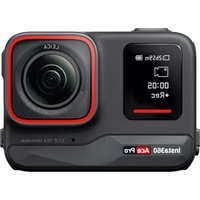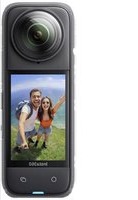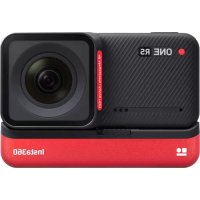
One RS - Camcorder INSTA360 - Free user manual and instructions
Find the device manual for free One RS INSTA360 in PDF.


| Product type | Modular camcorder |
| Brand | Insta360 |
| Model | One RS |
| Dimensions (approx.) | 70.1 x 48.8 x 32.6 mm |
| Weight (with battery) | 125 g |
| Power supply | Rechargeable lithium-ion battery; 5V/2A adapter recommended |
| Display | Color touchscreen |
| Max video resolution | 4K (4K boost lens) |
| Storage | MicroSD card (exFAT format, UHS-I and V30 speed classes, up to 1TB) |
| Connectivity | WiFi, Bluetooth, USB Type-C |
| Main functions | 4K video recording, photo, time-lapse, stabilization, preset modes |
| Water resistance | With protective frame (depth not specified) |
| Included accessories | Main module, 4K boost lens, battery base, protective frame, USB cable |
| Maintenance | Clean with a soft, dry cloth; avoid disassembly in humid environments |
| Safety | Use the protective frame; properly close the SD card cover |
| Spare parts | Battery, protective frame, lenses, charging cable |
| Repairability | Contact Insta360 customer service for part replacement |
| Battery type | Built-in rechargeable lithium-ion |
| App compatibility | Insta360 app (iOS and Android) |
| Warranty | Check the official Insta360 website |
Frequently Asked Questions - One RS INSTA360
User questions about One RS INSTA360
0 question about this device. Answer the ones you know or ask your own.
Ask a new question about this device
Download the instructions for your Camcorder in PDF format for free! Find your manual One RS - INSTA360 and take your electronic device back in hand. On this page are published all the documents necessary for the use of your device. One RS by INSTA360.
USER MANUAL One RS INSTA360
* The number of parts vary in different ONE RS Editions. Please refer to the packing list of your purchased Edition.
Core
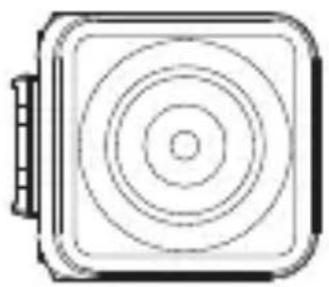
4K Boost Lens
natural_image
Simple line drawing of a rectangular device with concentric circles and a handle (no text or symbols)Battery Base
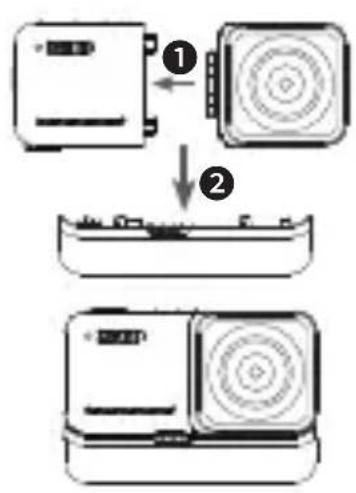
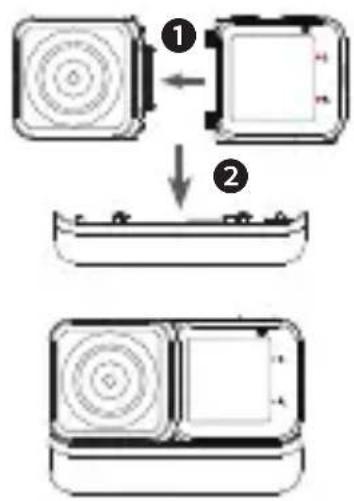
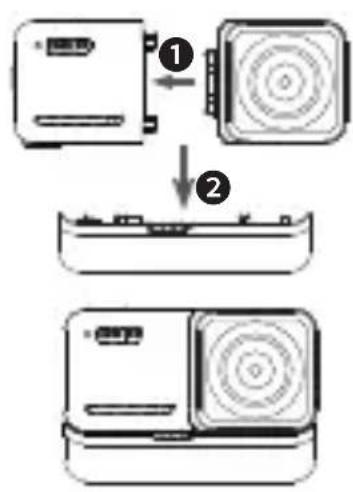
2 Camera Assembly
flowchart
graph TD
    A["Device ①"] --> B["Battery Level Change"]
    B --> C["Device ②"]
flowchart
graph TD
    A["Top Circular Component"] -->|①| B["Bottom Battery Pack"]
    B -->|②| C["Bottom Battery Box"]
4K Boost Standard Build 4K Boost Selfie Build
Assembly Steps:
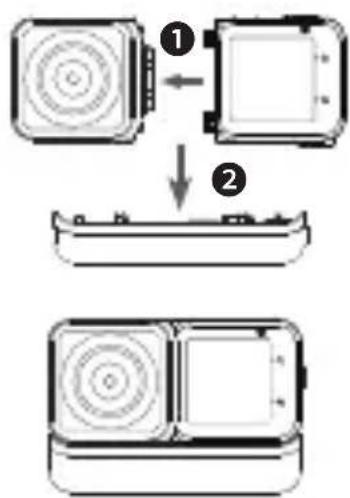
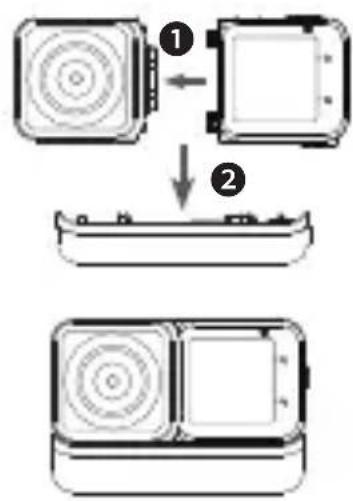
① Align the holes on the side of the lens to the points on the Core, and press the two together until they firmly connect.
② Align the already assembled Core and lens to the connecting points of the Battery Base. Then press the two parts together until they firmly connect.
\* Pro Tip:
1) Avoid disassembling or storing a disassembled ONE RS in high humidity environments, as camera could be damaged.
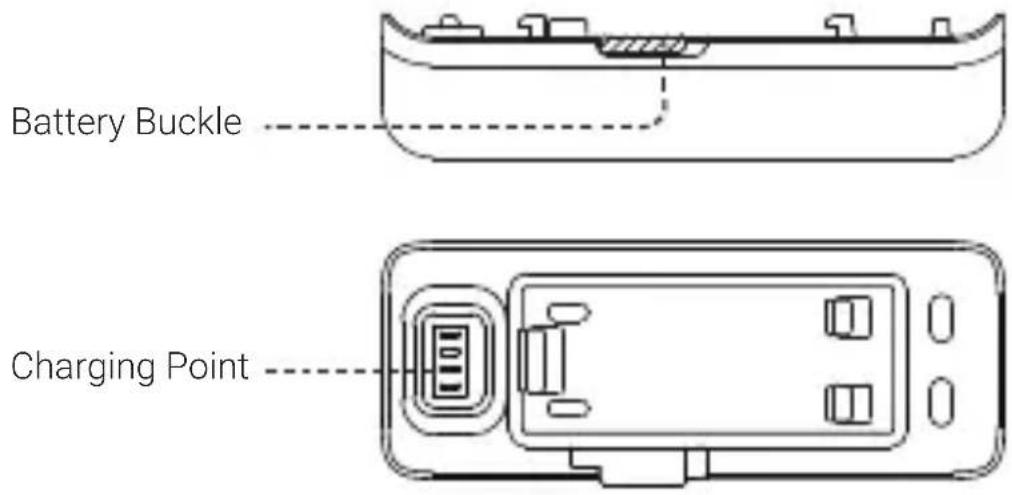
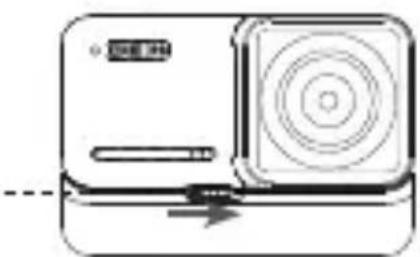
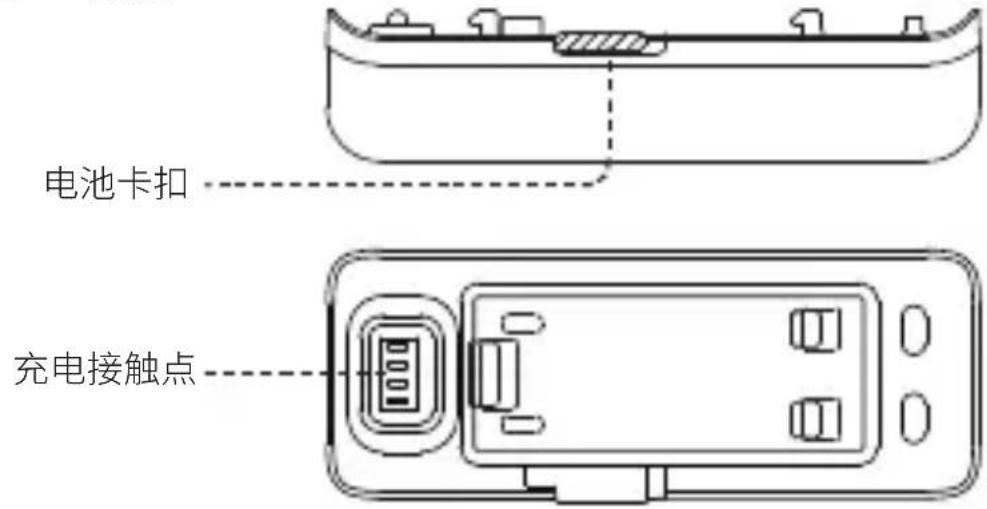
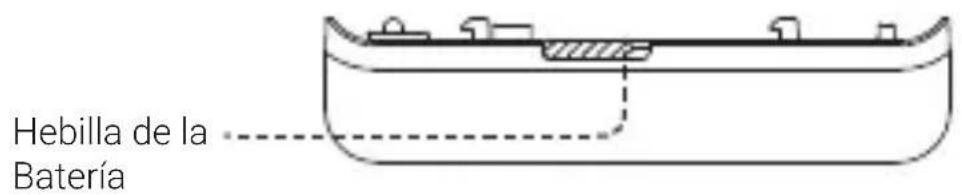
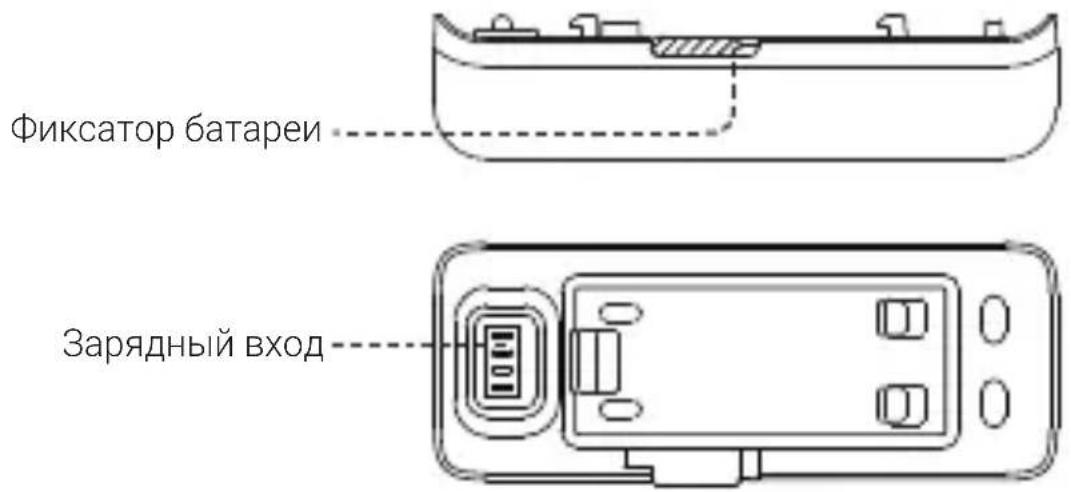
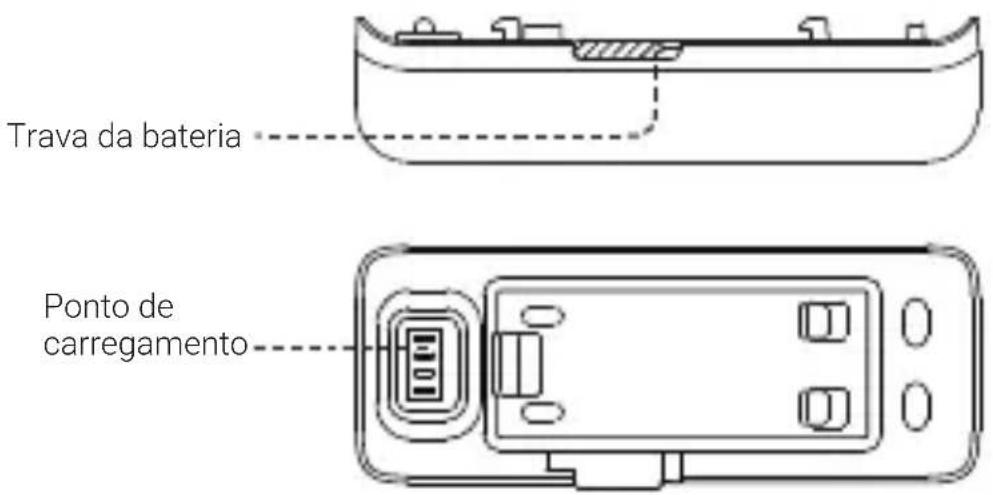
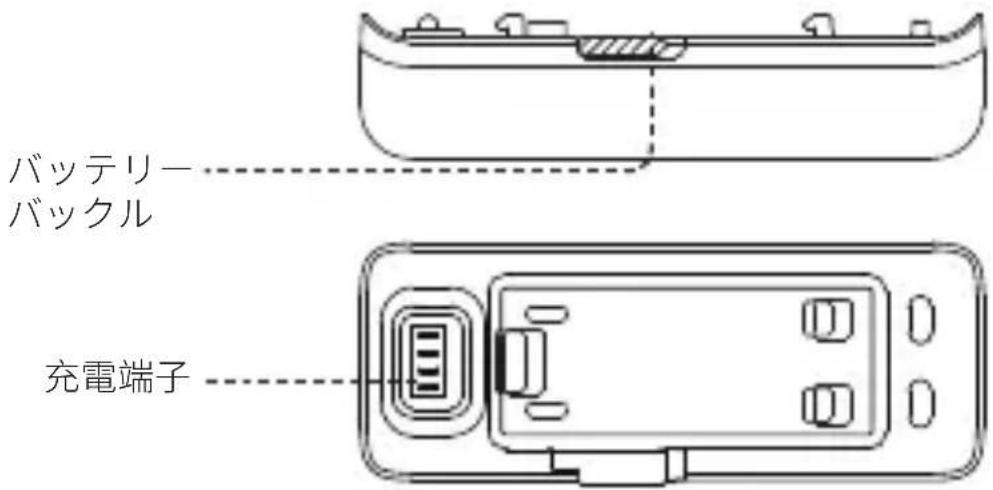
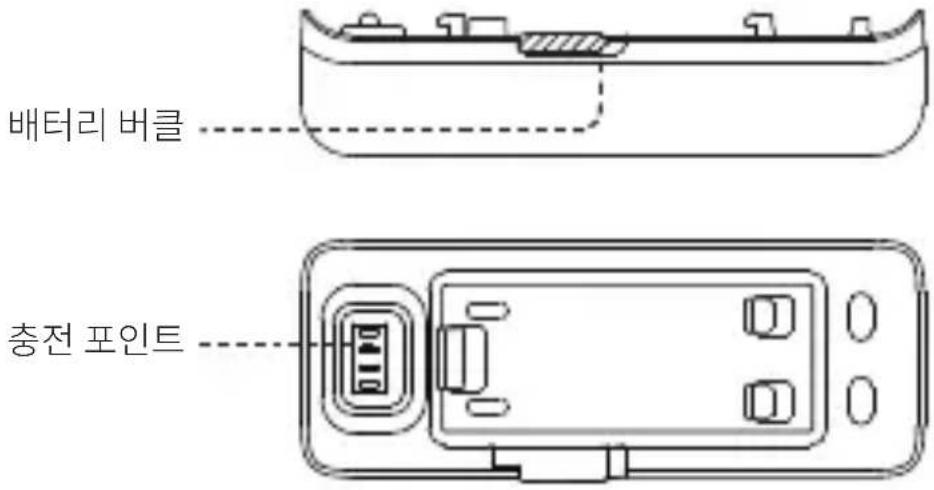
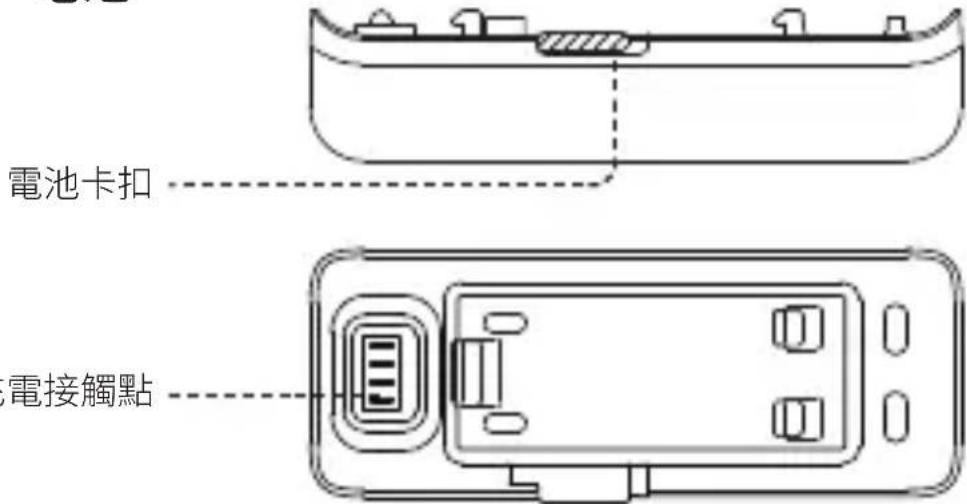
2) To remove the Battery Base, push the battery buckle to the right, then pull the Battery Base off.
Battery Buckle
natural_image
Simple line drawing of a digital camera with no text or symbols3 Before You Start
① Ensure the battery has been assembled properly. Please connect the included charge cable to ONE RS in case of low or depleted battery.
Note: Please use a 5V/2A power adapter to charge your ONE RS. You can also use the official Insta360 Fast Charge Hub (sold separately).
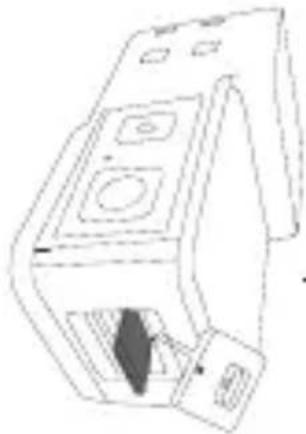
② Before use, open the lock cover and insert a MicroSD card.

natural_image
Simple line drawing of a door with a small object inside, no text or symbols present① Push the lock buckle to the right to open the lock cover
natural_image
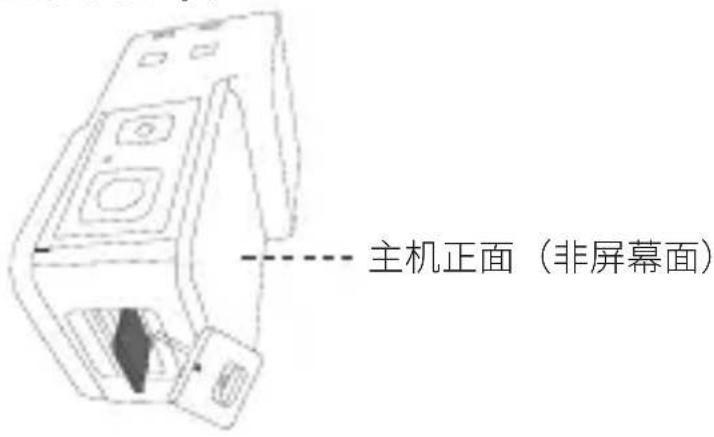
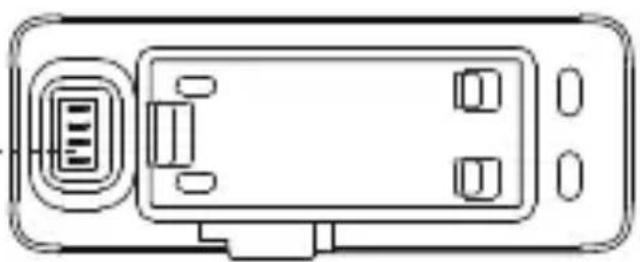
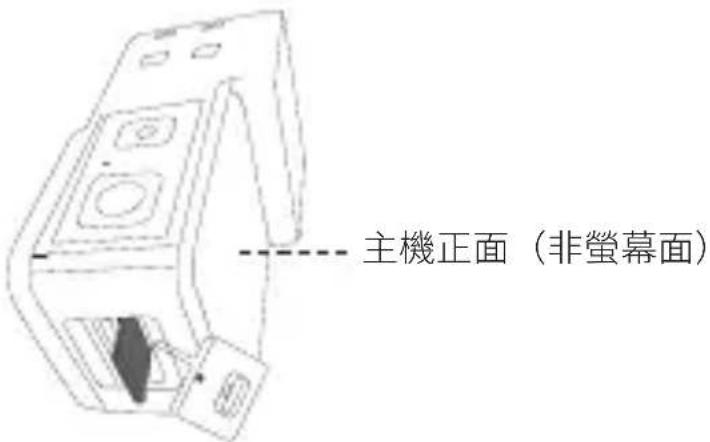
Line drawing of a mechanical device with no visible text or symbolsFront side of the Core (without the touch screen)
② Insert the MicroSD card (with the label facing the front side of the Core)
Note:
1) Please use exFAT formatted microSD cards with the UHS-I bus interface and Video Speed Class V30 rating (exactly this class, neither higher or lower) to ensure normal recording. The maximum supported storage space is 1TB. For specific info on supported MicroSD card models, see https://www.
insta360.com/r/oners\_microsd
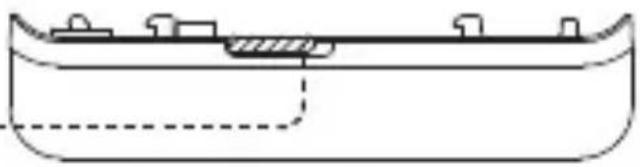
2) Be sure to close the lock cover completely to ensure the waterproofing is not affected. Align the circular indication marks as shown to the right. The yellow indication mark near the lock buckle should be covered.
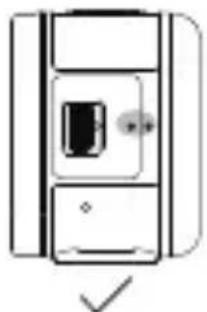
natural_image
Simple line drawing of a device with a button and checkmark (no text or symbols)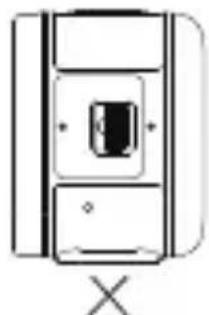
natural_image
Simple line drawing of a device with a central button and a cross mark below (no text or symbols)③ Install the Mounting Bracket on the ONE RS before capturing.
It will reinforce connections between the assembled camera mods, giving added protection and ensuring waterproofing. Please read the "Waterproofing: What to Know" manual for more waterproofing precautions.
natural_image
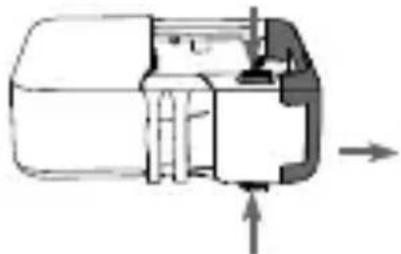
Cross-sectional diagram of a mechanical component with internal structure and directional arrows (no text or labels)① Open the Mounting Bracket
To open the frame, press the two red unlocking buttons at the bottom of the Mounting Bracket at the same time.
natural_image
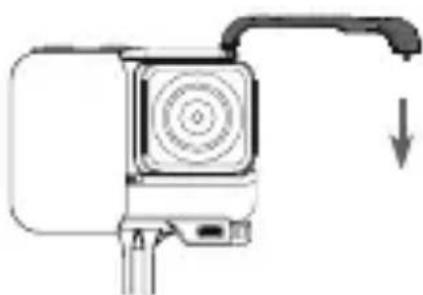
Diagram of a camera or sensor device with a circular dial and lever, showing no text or symbols.③ Close the Mounting Bracket
Push the open side of the frame down until its connecting points click in place.
Buttons should be aligned correctly
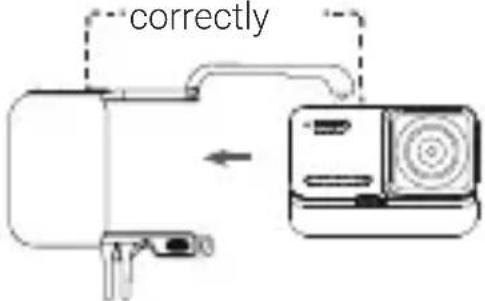
② Insert ONE RS into the Mounting Bracket
natural_image
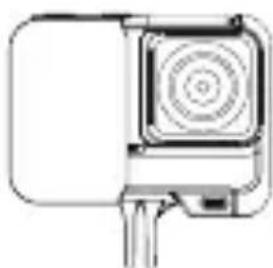
Simple line drawing of a camera with no text or symbols④ Installed successfully
natural_image
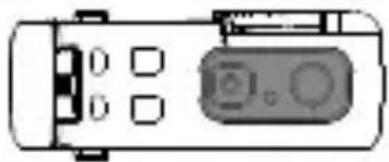
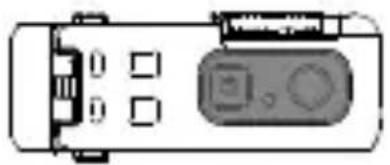
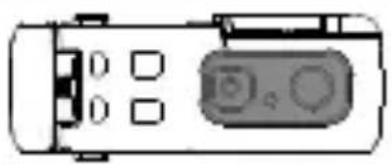
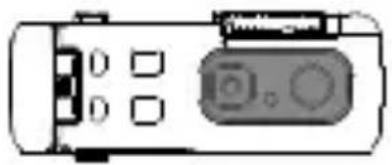
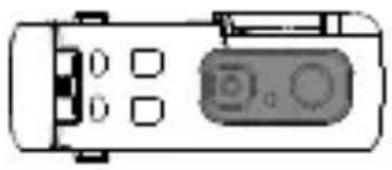
Top-down schematic of a device casing with ports and control panel (no text or symbols)Note: The button cover on the Mounting Bracket can be disassembled. If the cover or windproof foam is damaged, it can be removed and replaced. When reinstalling, the buttons should be aligned as in the picture. (Please contact Insta360's official customer service team for replacement of this part.)
4 Know Your Insta360 ONE RS
Power On / Off
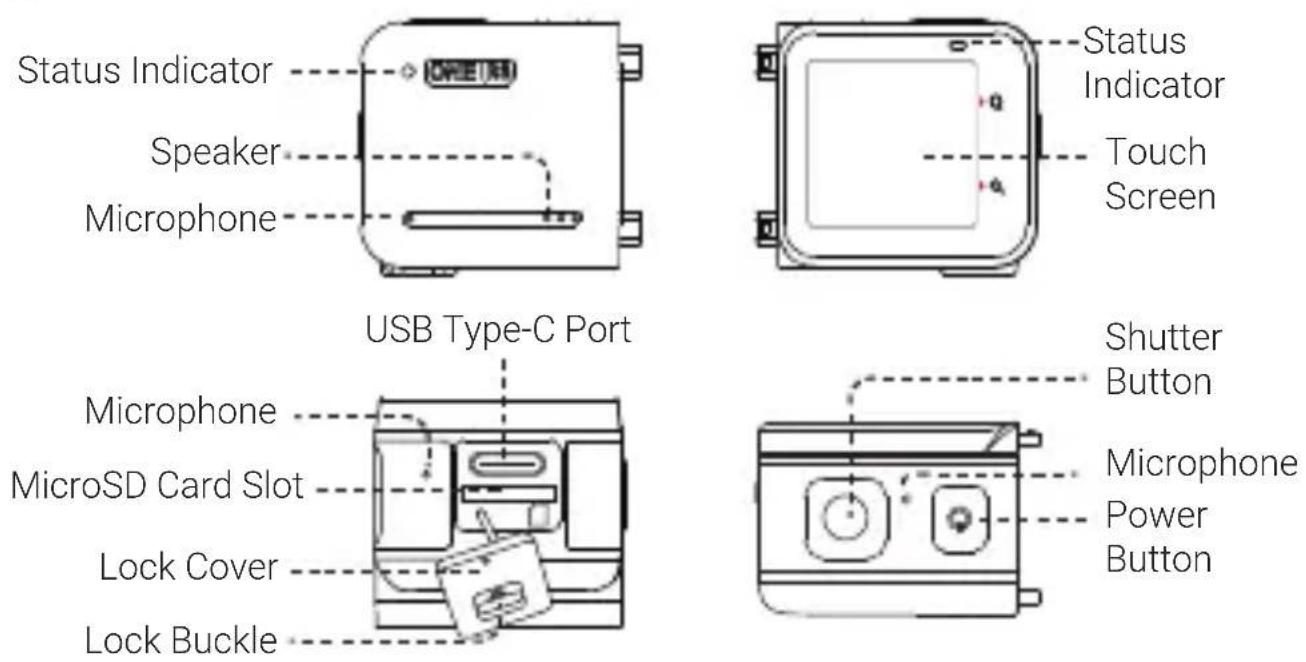
When the camera is turned off, press the Power Button to power it on. In standby mode, press the Power Button to light off / on the touch screen. In standby mode, long press the Power Button for 2 seconds to power it off.
Using the Touch Screen
Note: When using ONE RS in water, please lock the touch screen ( ) to avoid accidental presses. After locking the touch screen, you can use the Power Button to change modes.
natural_image
Simple icon showing a hand pointing up and down a downward arrow, enclosed in a rounded square (no text or symbols)Swipe down
Open the Shortcut menu: Adjust screen brightness ( ) touch screen on / off ( ) / ), LED on / off ( ), grid ( ), settings ( ) etc.
四
natural_image
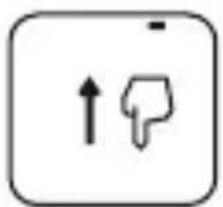
Simple icon showing a thumbs-down gesture with an upward arrow and a speech bubble (no text or symbols)Swipe up
Access media gallery.
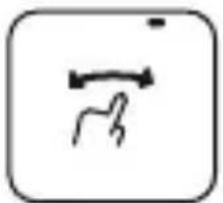
natural_image
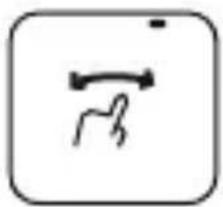
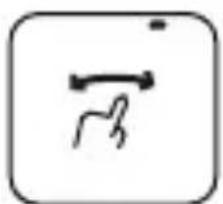
Simple line drawing of a hand holding a finger, enclosed in a rounded square frame (no text or symbols)Swipe left/right from the center
Select capture mode.
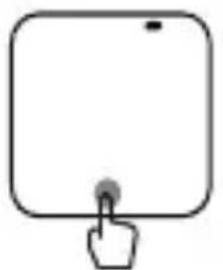
natural_image
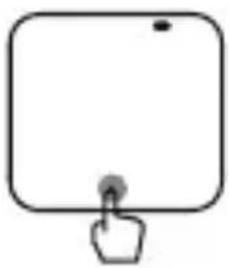
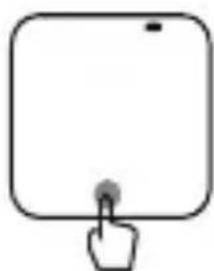
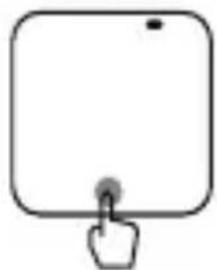
Simple line drawing of a square button with a finger pressing at the bottom (no text or symbols)Tap the parameters at the bottom
Set resolution and framerate settings.
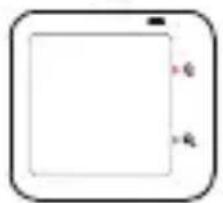
natural_image
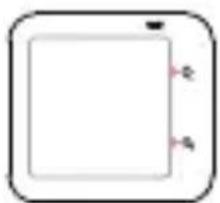
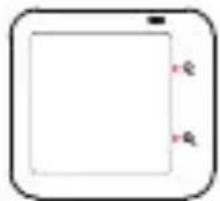
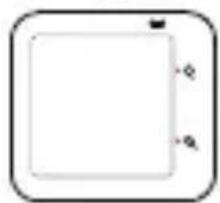
Simple rounded rectangle with a central square and two small dots on the top (no text or symbols)Tap the icon Q,
Select preset capture modes.
Tap the icon
Zoom in or out.
* Start Shooting: After you've selected mode and settings, just hit the shutter button once to start a recording, and then again to stop.
5 Download Insta360 App
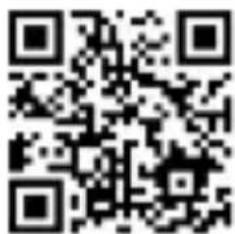
Scan the QR code on the right (https://insta360.com/r/oners-download) or search "Insta360" in the App Store / Google Play to download the companion app.
6 Control via WiFi
① Turn on the WiFi and Bluetooth of your smartphone.
② When the camera is turned off, press the Power Button to power it on.
③ After installing the app, tap the camera icon at the bottom of the app homepage and select "Connect now". Select the device you want to connect to and follow the onscreen instructions to complete the connection.
4 After successfully connecting the camera, you can take photos or shoot videos via the app.
Note:
1) The WiFi connection range is 10 meters (33 ft) in optimal conditions with no interference.
2) Cable connection is also supported for Android devices and desktop computers (Type-C and Micro USB). Cable connection is not supported for iOS devices.
3) You can also visit https://Insta360.com/r/oners-download to download the Insta360 Studio desktop software to edit your photos and videos on your computer.
* For more product information, visit https://www.insta360.com/r/onesdetail
1 认识部件
natural_image
Simple line drawing of a rectangular device with concentric circles and a handle (no text or symbols)电池
flowchart
graph TD
    A["Fan with circular indicators"] --> B["Back panel with square head"]
    B --> C["Load on battery"]
    C --> D["Back panel with circular indicators"]
natural_image
Simple line drawing of a door with a hand inside, no text or symbols present① 向右拨动护盖拨钮, 打开护盖
natural_image
Two identical diagrams of a device with internal components and directional indicators (no text or symbols)natural_image
Cross-sectional diagram of a mechanical device showing internal components and directional arrows (no text or labels)① 打开保护边框:
natural_image
Diagram of a portable air conditioner unit with a downward arrow indicating compression or cooling (no text or symbols present)③ 关闭保护边框:
natural_image
Line drawing of a camera with no visible text or symbols④ 安装完成
natural_image
Pure electrical circuit lines without any symbolsnatural_image
Simple icon showing a downward arrow and a pointing hand inside a rounded square (no text or symbols)从屏幕顶部往下滑动
natural_image
Simple icon showing a pointing up and a thumbs-down gesture inside a rounded square (no text or symbols)从屏幕底部往上滑动
访问媒体库。
natural_image
Simple line drawing of a hand holding a pen, enclosed in a rounded square frame (no text or symbols)在屏幕中央左右滑动
切换拍摄模式。
natural_image
Simple line drawing of a square button with a finger pointing at it (no text or symbols)点击下方参数
设置分辨率帧率档位。
natural_image
Simple geometric shape with rounded corners and a central square, no text or symbols present.点击 Q,
快速切换模式。
点击,
缩放视角。
手机扫描右侧二维码(https://insta360.com/r/
oners-download)或前往 App Store、应用宝搜索
“Insta360”下载安装 App。
6 WiFi 连接
https://insta360.com/r/oners-download
* 更多相关产品信息,请访问 https://www.insta360.com/r/onesdetail 16
1 Lieferumfang
natural_image
Simple line drawing of a rectangular device with concentric circles and a handle (no text or symbols)Akkubasis

2 Kamera-Aufbau
flowchart
graph TD
    A["Electronic Unit"] -->|①| B["Device with circular button"]
    B -->|②| C["Battery pack"]
natural_image
Line drawing of a digital camera with no visible text or symbols3 Bevor es losgeht
natural_image
Simple line drawing of a device inside a rectangular frame (no text or symbols)① Schiebe den
natural_image
Line drawing of a washing machine with buttons and a handle (no text or symbols)https://www.insta360.com/r/oners_microsd
natural_image
Simple line drawing of a refrigerator with a button and handle (no text or symbols)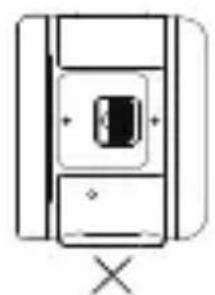
natural_image
Simple line drawing of a vehicle or device with a central button and cross symbol (no text or labels)natural_image
Cross-sectional diagram of a mechanical component with directional arrows indicating movement (no text or labels)natural_image
Diagram of a device with a circular button and a downward arrow, no text or symbols presentnatural_image
Simple line drawing of a camera with no text or symbols④ Korrekt montiert
natural_image
Top-down schematic of a vehicle or device layout with no visible text, numbers, or symbolsnatural_image
Simple icon showing a downward arrow and a pointing hand inside a rounded square (no text or symbols)Nach unten wischen
natural_image
Simple icon showing a pointing up and a thumbs-down gesture inside a rounded square (no text or symbols)Nach oben wischen
natural_image
Simple line drawing of a square button with a finger pressing the button (no text or symbols)natural_image
Simple geometric shape with a square and two small circles on top (no text or symbols)Symbol Q antippen
6 WLAN-Steuerung
https://www.insta360.com/r/onersdetail
natural_image
Simple line drawing of a rectangular device with concentric circles and a handle (no text or symbols)Base batterie
Boucle Batterie
natural_image
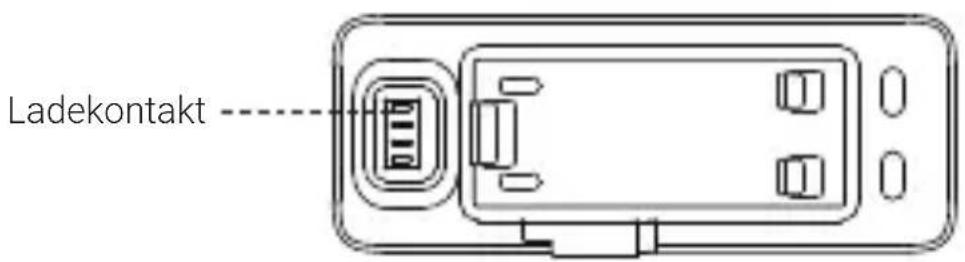
Simple line drawing of a container with a side outlet and internal components (no text or symbols)Points de recharge
natural_image
Line drawing of a device rear panel with ports and a central indicator (no text or symbols)flowchart
graph TD
    A["Original Unit"] -->|①| B["Device with Top Cover"]
    B -->|②| C["Product with Bottom Cover"]
flowchart
graph TD
    A["Component 1: Circular component"] --> B["Component 2: Battery pack"]
    B --> C["Device with battery pack"]
natural_image
Line drawing of a digital camera with a circular lens and scroll (no text or symbols)natural_image
Simple line drawing of a device inside a container with no text or symbolsnatural_image
Line drawing of a mechanical device with no visible text or symbolshttps://www.insta360.com/r/oners_microsd
natural_image
Simple line drawing of a device with a central button and two buttons (no text or symbols)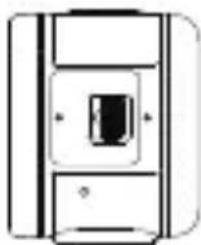
natural_image
Simple line drawing of a refrigerator with a single door and indicator lights (no text or symbols)natural_image
Cross-sectional diagram of a mechanical component with directional arrows indicating movement (no text or labels)natural_image
Diagram of a camera or projector with an arrow indicating downward motion (no text or symbols present)natural_image
Simple line drawing of a camera or sensor device with no text or symbolsnatural_image
Top-down schematic of a device casing with ports and a control panel (no text or symbols)natural_image
Simple icon showing a downward arrow and a pointing hand inside a rounded square (no text or symbols)Swiper vers le bas
natural_image
Simple icon showing a thumbs-down gesture with an upward arrow and a speech bubble (no text or symbols)natural_image
Simple line drawing of a horizontal arrow with a curved base, enclosed in a rounded square frame (no text or symbols)natural_image
Simple line drawing of a hand pressing a button on a rounded square button (no text or symbols)natural_image
Simple geometric shape with rounded corners and a central square, no text or symbols present.6 Contrôle WiFi
https://www.insta360.com/r/onersdetail
natural_image
Simple line drawing of a rectangular device with concentric circles and a handle (no text or symbols)Base batteria

flowchart
graph TD
    A["Component 1"] --> B["Component 2"]
    B --> C["Final Assembly Unit"]
Assemblaggio Boost 4K Selfie
Fasi di montaggio:
natural_image
Line drawing of a digital camera with no visible text or symbols3 Prima di iniziare
natural_image
Simple line drawing of a device inside a rectangular frame (no text or symbols)natural_image
Line drawing of a device with control panel and handle (no text or symbols)natural_image
Simple line drawing of a device with a button and arrow, no text or symbols present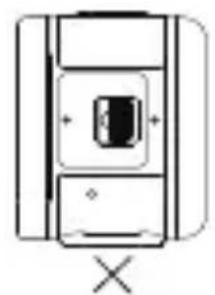
natural_image
Simple line drawing of a vehicle or vehicle interior with no text, numbers, or symbolsnatural_image
Cross-sectional diagram of a mechanical component with directional arrows indicating movement (no text or labels)natural_image
Diagram of a camera with an attached sensor and a downward arrow indicating motion (no text or symbols)natural_image
Simple line drawing of a camera with no text or symbolsnatural_image
Top-down schematic of a device layout with ports and a control panel (no text or symbols)Nota:
natural_image
Simple icon showing a downward arrow and a thumbs-up gesture inside a rounded square (no text or symbols)natural_image
Simple icon showing a pointing up and a thumbs-down gesture inside a rounded square (no text or symbols)Scorri verso l'alto
natural_image
Simple line drawing of a double-headed arrow with a small curved mark inside, enclosed in a rounded square frame (no text or symbols)natural_image
Simple line drawing of a hand pressing a button on a rounded square button (no text or symbols)natural_image
Simple geometric shape with rounded corners and a central square, no text or symbols present.Tocca l'icona Q,
6 Controllo WiFi
https://www.insta360.com/r/onersdetail
natural_image
Simple line drawing of a rectangular device with concentric circles and a handle (no text or symbols)Base de Batería
flowchart
graph TD
    A["Device with 1.2V power"] --> B["Device with 2.5V power"]
    B --> C["Device with 3.0V power"]
    C --> D["Product with 4.0V power"]
natural_image
Line drawing of a digital camera with lens and screen (no text or symbols)3 Antes de empezar
natural_image
Simple line drawing of a device with a central screen and indicator lights (no text or symbols)natural_image
Line drawing of a mechanical device with no visible text or symbolshttps://www.insta360.com/r/oners\_microsd
natural_image
Simple line drawing of a device with a button and arrow, no text or symbols present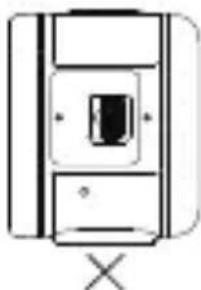
natural_image
Pure electrical circuit lines without any symbolsnatural_image
Cross-sectional diagram of a mechanical component with directional arrows indicating movement (no text or labels)natural_image
Diagram of a camera with an attached sensor and a downward arrow indicating motion (no text or symbols)natural_image
Line drawing of a camera with no visible text or symbolsnatural_image
Top-down schematic of a device casing with ports and control panel (no text or symbols)natural_image
Simple icon showing a hand pointing up and a downward arrow, no text or symbols present
natural_image
Simple icon showing a thumbs-down gesture with an upward arrow and a speech bubble (no text or symbols)
natural_image
Simple line drawing of a hand holding an object, enclosed in a rounded square frame (no text or symbols)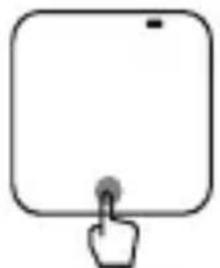
natural_image
Simple line drawing of a hand pressing a button on a square button (no text or symbols)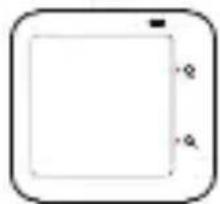
natural_image
Simple rounded rectangle with a central square and two small dots on the top (no text or symbols)6 Control Wi-Fi
natural_image
Simple line drawing of a rectangular device with concentric circles and a handle (no text or symbols)Батарейный отсек
natural_image
Line drawing of a digital camera with no visible text or symbolsnatural_image
Simple line drawing of a door with a small object inside, no text or symbols presentnatural_image
Line drawing of a device with a handle and control panel (no text or symbols)natural_image
Simple line drawing of a device with a central button and a checkmark below (no text or symbols)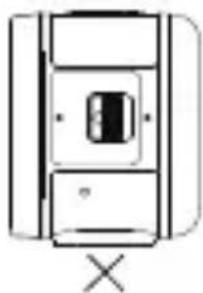
natural_image
Simple line drawing of a vehicle or vehicle interior with no text, numbers, or symbolsnatural_image
Cross-sectional diagram of a mechanical component with internal structure and directional arrows (no text or labels)natural_image
Diagram of a camera with an attached sensor and a downward arrow indicating motion (no text or symbols)natural_image
Line drawing of a camera or projector device with no visible text or symbolsnatural_image
Simple line drawing of a vehicle front view with no text or symbolsnatural_image
Simple icon showing a downward arrow and a pointing hand inside a rounded square (no text or symbols)Проведите вниз
natural_image
Simple icon showing a thumbs-down gesture with an upward arrow and a speech bubble (no text or symbols)Проведите вверх
Доступ к Галерее.
natural_image
Simple line drawing of a hand holding a pen, enclosed in a rounded square frame (no text or symbols)natural_image
Simple line drawing of a hand pressing a button on a rounded square device (no text or symbols)natural_image
Simple geometric shape with rounded corners and a central square, no text or symbols present.Коснитесь значка Q,
6 Настройки WiFi
natural_image
Simple line drawing of a rectangular device with concentric circles and a handle (no text or symbols)Base da bateria
flowchart
graph TD
    A["Front Panel"] --> B["Control Panel"]
    B --> C["Bottom Panel"]
flowchart
graph TD
    A["Circle Unit 1"] --> B["Cell with Battery"]
    B --> C["Bottom Battery"]
    style A fill:#f9f,stroke:#333
    style B fill:#ccf,stroke:#333
    style C fill:#cfc,stroke:#333
natural_image
Line drawing of a digital camera with speaker and screen (no text or symbols)3 Antes de começar
natural_image
Simple line drawing of a door with a small object inside, no text or symbols presentnatural_image
Line drawing of a mechanical device with no visible text or symbolsParte frontal do Módulo Principal (sem a tela de toque)
natural_image
Simple line drawing of a refrigerator with a door and button (no text or symbols)
natural_image
Simple line drawing of a rectangular device with a central square and two side panels, no text or symbols present.natural_image
Cross-sectional diagram of a mechanical component with internal structure and directional arrows (no text or labels)natural_image
Diagram of a camera with an attached sensor and a downward arrow indicating motion (no text or symbols)natural_image
Line drawing of a camera or projector device with no visible text or symbolsnatural_image
Top-down schematic of a device casing with ports and buttons (no text or symbols)natural_image
Simple icon showing a downward arrow and a pointing hand inside a rounded square (no text or symbols)Deslize para baixo
natural_image
Simple icon showing a thumbs-down gesture with an upward arrow and a speech bubble (no text or symbols)Deslize para cima
natural_image
Simple line drawing of a square button with a finger pressing the button (no text or symbols)natural_image
Simple line drawing of a rounded square with two small dots and a vertical line on top (no text or symbols)Toque no ícone Q,
6 Controle WiFi
https://www.insta360.com/r/onersdetail
1 部品名称
natural_image
Simple line drawing of a rectangular device with concentric circles and a handle (no text or symbols)バッテリーベース
natural_image
Line drawing of a digital camera with a circular lens and screen (no text or symbols)3 ご使用の前に
natural_image
Simple line drawing of a device inside a rectangular frame (no text or symbols)natural_image
Technical line drawing of a mechanical device with internal components and a dashed line indicating a reference point (no text or symbols)コアの正面(タッチパネルの反面)
https://www.insta360.com/r/oners_microsd
natural_image
Simple line drawing of a rectangular device with a central slot and a plus symbol, no text or labels present.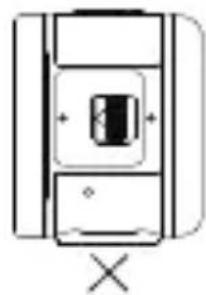
natural_image
Simple line drawing of a vehicle or car interior with no text, numbers, or symbolsnatural_image
Cross-sectional diagram of a mechanical component with directional arrows indicating movement (no text or labels)① マウントブラケットを開ける:
natural_image
Diagram of a camera or radar device with an arrow indicating direction (no text or symbols present)③ マウントブラケットを閉じる
natural_image
Simple line drawing of a camera with no text or symbols④ 組み立て完了
natural_image
Simple line drawing of a device with ports and a control panel (no text or symbols)注意:
natural_image
Simple icon showing a downward arrow and a pointing hand inside a rounded square (no text or symbols)下にスワイプ
natural_image
Simple icon showing a thumbs-up and a thumbs-down gesture inside a rounded square (no text or symbols)上にスワイプ
メディアギャラリーにアクセスします。
natural_image
Simple line drawing of a walking figure with motion arrows (no text or symbols)中央から左/右にスワイプ
撮影モードを選択
natural_image
Simple line drawing of a hand pressing a button on a rounded square button (no text or symbols)下にあるパラメータをタップ
解像度とフレームレートを設定
natural_image
Simple rounded rectangle with a central square and two small pink arrows pointing to the sides (no text or symbols)Q アイコンをタップ,
プリセット撮影モードを選択。
アイコンをタップ,
ズームインまたはズームアウト。
6 WiFi 制御
natural_image
Simple line drawing of a rectangular device with concentric circles and a handle (no text or symbols)배터리 베페이스
flowchart
graph TD
    A["Device with monitor"] -->|①| B["Monitor with circular button"]
    B -->|②| C["Battery pack with battery"]
    C --> D["Camera with screen"]
flowchart
graph TD
    A["Device 1"] --> B["Device 2"]
    B --> C["Product 3"]
natural_image
Line drawing of a digital camera with no visible text or symbols3사용 전 준비
natural_image
Simple line drawing of a door with a handle and indicator lights (no text or symbols)natural_image
Line drawing of a door with control panel and door handle (no text or symbols)본체 정면 (터치 스크린 반대편)
natural_image
Simple line drawing of a refrigerator with a door and button (no text or symbols)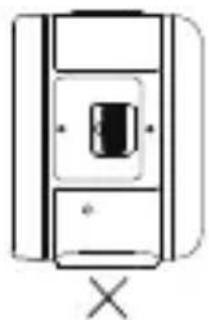
natural_image
Simple line drawing of a rectangular device with a central button and cross symbol below (no text or labels)natural_image
Cross-sectional diagram of a mechanical component with directional arrows indicating movement (no text or labels)① 보호 장치 오픈
natural_image
Simple line drawing of a camera with an attached sensor and a downward arrow indicating motion (no text or symbols)③ 마운팅 브래킷 닫기
natural_image
Simple line drawing of a camera or sensor device with no text or symbols④ 조립 성공
natural_image
Simple line drawing of a device casing with ports and a button (no text or symbols)주의사항:
natural_image
Simple icon showing a downward arrow and a thumbs-up gesture inside a rounded square (no text or symbols)아래로 밀기
natural_image
Simple icon showing a thumbs-down gesture with an upward arrow and a speech bubble (no text or symbols)위로 밀기
미디어 갤러리 방문.
natural_image
Simple line drawing of a horizontal arrow with a curved base, enclosed in a rounded square frame (no text or symbols)중앙에서 왼쪽/오른쪽으로 밀기
촬영 모드 선택.
natural_image
Simple line drawing of a square button with a finger pressing at the center (no text or symbols)하단의 파라미터 탱하기
해상도 설정 및 프레임레이트 설정.
natural_image
Simple geometric shape with a square and two small dots, no text or symbols present.Q 아이콘 누르기,
촬영 모드 프리셋 선택.
아이콘 누르기,
확대 또는 축소.
6 WiFi 연결
natural_image
Simple line drawing of a rectangular device with concentric circles and a handle (no text or symbols)電池
flowchart
graph TD
    A["Sensor Unit 1"] --> B["Device with Battery Pack"]
    B --> C["Device with Battery Pack"]
    C --> D["Device with Battery Pack"]
安裝步驟:
natural_image
Simple line drawing of a door with a handle and lid, no text or symbols present① 向右撥動護蓋撥鈕, 打開護蓋
natural_image
Simple line drawing of a device with a button and checkmark (no text or symbols)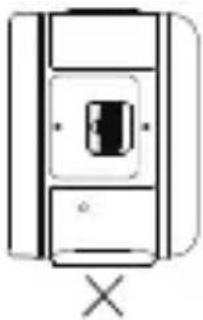
natural_image
Simple line drawing of a vertical container with a central slot and an 'X' symbol below (no text or labels)natural_image
Cross-sectional diagram of a mechanical component with internal structure and directional arrows (no text or labels)① 打開保護邊框:
natural_image
Diagram of a device with a circular vent and a downward arrow, no text or symbols present③ 關閉保護邊框:
natural_image
Line drawing of a camera with lens and screen (no text or symbols)④ 安装完成
natural_image
Simple line drawing of a device casing with ports and a control panel (no text or symbols)natural_image
Simple icon showing a downward arrow and a thumbs-up gesture inside a rounded square (no text or symbols)從螢幕頂部往下滑動
natural_image
Simple icon showing a pointing up and a thumbs-down gesture inside a rounded rectangle (no text or symbols)從螢幕底部往上滑動
查看媒體庫。
natural_image
Simple line drawing of a hand holding an object, enclosed in a rounded square frame (no text or symbols)在螢幕中央左右滑動
切换拍攝模式。
natural_image
Simple line drawing of a hand pressing a button on a rounded square button (no text or symbols)點擊下方參數
設置解析度幀率檔位。
natural_image
Simple rounded square shape with no text or symbols, featuring small red numbers inside and a small letter '0' at top (no readable text or symbols)點擊Q,
快速切換預設模式。
點擊
縮放視角。
6 WiFi 連接
natural_image
Simple line drawing of a rectangular device with concentric circles and a handle (no text or symbols)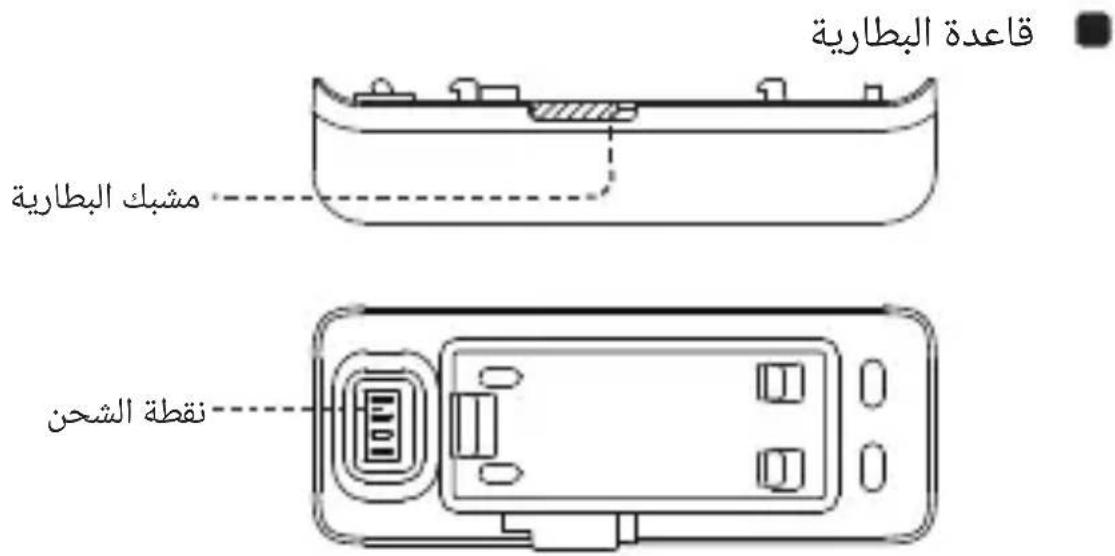
2.大规模ية الكاميرا
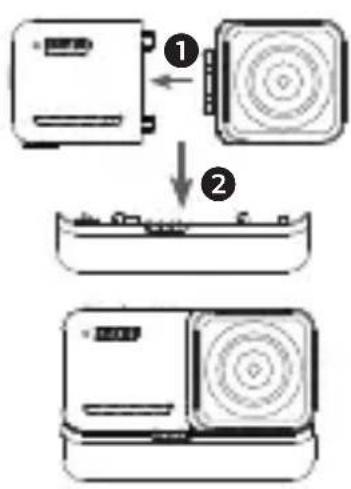
flowchart
graph TD
    A["Device 1"] --> B["Device 2"]
    B --> C["Device 3"]
flowchart
graph TD
    A["Two circular components"] -->|①| B["Battery"]
    B -->|②| C["Three circular devices"]
4K زيادة بناء سیلی
خطوات التجمع:
natural_image
Simple line drawing of a door with a small object inside, no text or symbols presentnatural_image
Line drawing of a mechanical device with no visible text or symbolsnatural_image
Simple line drawing of a refrigerator with a door and window (no text or symbols)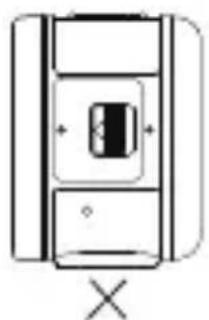
natural_image
Simple line drawing of a vehicle or container with a central component and an 'X' symbol below (no text or labels)natural_image
Cross-sectional diagram of a mechanical component with directional arrows indicating movement (no text or labels)① فتح شريحة متزايدة
natural_image
Line drawing of a camera with no text or symbols④ تم التثبيت بنجاح
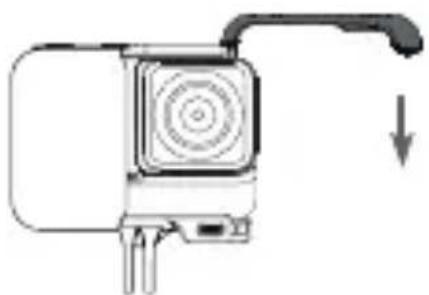
natural_image
Diagram of a device with a circular button and a downward arrow, no text or symbols presentnatural_image
Simple line drawing of a device component with ports and a button (no text or symbols)Insta360 ONE RS 4. تعرف على
السلطة على / قبالة
natural_image
Simple icon showing a downward arrow and a thumbs-up gesture inside a rounded square (no text or symbols)natural_image
Simple icon showing a thumbs-down gesture with an upward arrow and a speech bubble (no text or symbols)natural_image
Simple line drawing of a square button with a finger pointing at it (no text or symbols)natural_image
Simple geometric shape with rounded corners and a central square, no text or symbols present.5. تنزيل Sysطبيق
. https://www.insta360.com/r/onesdetail
NCC Compliance Notice
ADD: Foresea Life Center, Tower 2, 11F, 1100 Xingye Road, Haiwang Community, Xin'an Street, Bao'an District, Shenzhen, China
WEB: www.insta360.com
TEL: 400-833-4360 +1 800 6920 360
EMAIL: service@insta360.com
EC REP
Insta360 GmbH
Ernst-Augustin-Str. 1a, 12489 Berlin, Germany
+49 177 856 7813
cash.de@insta360.com
V1.0
PB.AAC1801