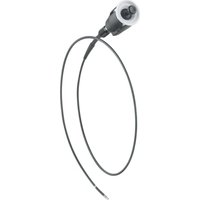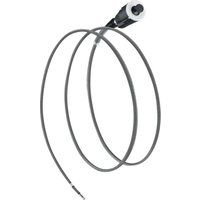
VideoFlex G4 Vario - Inspection camera Laserliner - Free user manual and instructions
Find the device manual for free VideoFlex G4 Vario Laserliner in PDF.



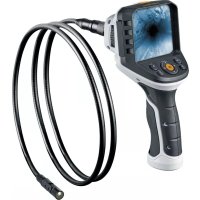
| Product type | Video inspection camera |
| Brand | Laserliner |
| Model | VideoFlex G4 Vario |
| Display | TFT 3.5 inches (320 x 240 pixels) |
| Image/video resolution | 640 x 480 pixels |
| Recording formats | JPEG (image) / AVI (video) |
| Memory support | micro SD card up to 16 GB |
| Connections | USB type C, Cinch video output |
| Power supply | Li-ion battery pack 3.7 V / 2.8 Ah |
| Battery life | Approximately 5 hours |
| Dimensions (L x H x D) | 181 x 207 x 96 mm |
| Weight (with battery) | 342 g |
| Operating temperature | 0 °C to 45 °C (RH 20-85 %) |
| Storage temperature | -10 °C to 60 °C (RH max. 80 %) |
| Main functions | Visual inspection in pipes, cavities, masonry, vehicles |
| LED lighting | Adjustable (via + and - buttons) |
| Digital zoom | Yes (via Zoom +/- buttons) |
| Image rotation | 180° (in 90° steps) and mirroring |
| Maintenance | Clean with a damp cloth, no solvents; remove battery for prolonged storage |
| Safety | Do not use near hazardous voltages, nor for medical use |
Frequently Asked Questions - VideoFlex G4 Vario Laserliner
User questions about VideoFlex G4 Vario Laserliner
0 question about this device. Answer the ones you know or ask your own.
Ask a new question about this device
Download the instructions for your Inspection camera in PDF format for free! Find your manual VideoFlex G4 Vario - Laserliner and take your electronic device back in hand. On this page are published all the documents necessary for the use of your device. VideoFlex G4 Vario by Laserliner.
USER MANUAL VideoFlex G4 Vario Laserliner
Completely read through the operating instructions, the „Warranty and Additional Information" booklet as well as the latest information under the internet link at the end of these instructions. Follow the instructions they contain. This document must be kept in a safe place and passed on together with the device.
Function / Application
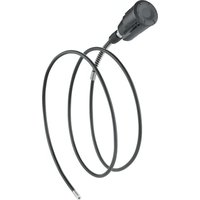
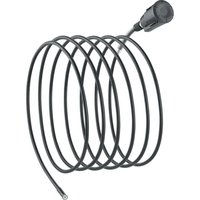
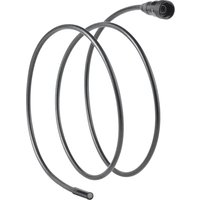
This professional video inspection system VideoFlex G4 combined with an exchangeable camera unit is suitable for easy visual inspection of hard-to-reach places in pipes, cavities, shafts, masonry and motor vehicles. Images and videos can be stored on the SDHC memory card for analysis and documentation.
General safety instructions
- The device must only be used in accordance with its intended purpose and within the scope of the specifications.
- The measuring tools and accessories are not toys. Keep out of reach of children.
- The structure of the device must not be modified in any way.
- Do not expose the device to mechanical stress, extreme temperatures, moisture or significant vibration.
- The device must no longer be used if one or more of its functions fail or the battery charge is weak.
- When using the device outdoors, make sure that the weather conditions are appropriate and/or that suitable protection measures are taken.
- The LCD unit must not be immersed in water. The base unit must not come in contact with liquids.
- It is absolutely vital to ensure that the VideoFlex G4 does not come into contact with chemicals, voltage, moving or hot objects. This can damage the device and put its user at risk of serious injury.
- The VideoFlex G4 must not be used for medical examinations / examining people.
- Please ensure compliance with the safety regulations set out by local and national authorities with regard to the correct and proper use of the device.
- The unit is not suitable for taking measurements close to dangerous voltages. Therefore always make sure that conductive parts are at zero potential when carrying out measurements in the vicinity of electrical systems. Safe isolation from the power supply and precautions to prevent systems being switched on again must be ensured by implementing suitable measures.
Safety instructions
Dealing with electromagnetic radiation
- The measuring device complies with electromagnetic compatibility regulations and limit values in accordance with EMC-Directive 2014/30/EU.
- Local operating restrictions – for example, in hospitals, aircraft, petrol stations or in the vicinity of people with pacemakers – may apply. Electronic devices can potentially cause hazards or interference or be subject to hazards or interference.
Information on maintenance and care
Clean all components with a damp cloth and do not use cleaning agents, scouring agents and solvents.
Remove the battery(ies) before storing for longer periods. Store the device in a clean and dry place.
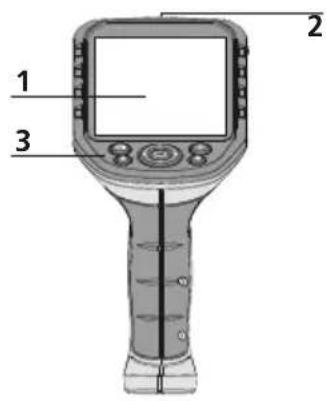
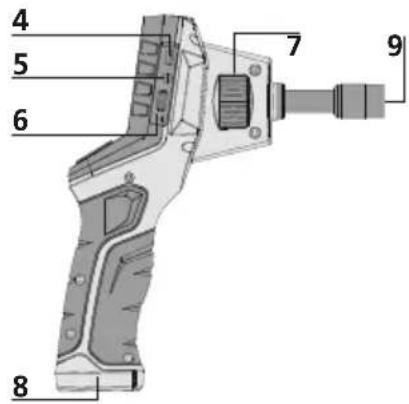
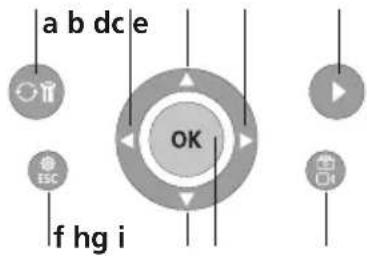
3
1 LCD
2 ON/OFF
3 Hot keys
4 Type C USB interface
5 Video output
6 Micro SD card slot
7 Camera unit with rotary control
8 Battery compartment
9 Camera unit connection
a Rotation 180^ / Mirroring/ Delete recording
b Menu control / LED lighting -
c Menu control / Zoom in
d Menu control / LED lighting +
e Media gallery
f Settings mode / Cancel
g Menu control / Zoom out
h Trigger / Record / Confirm
i Image/video selection
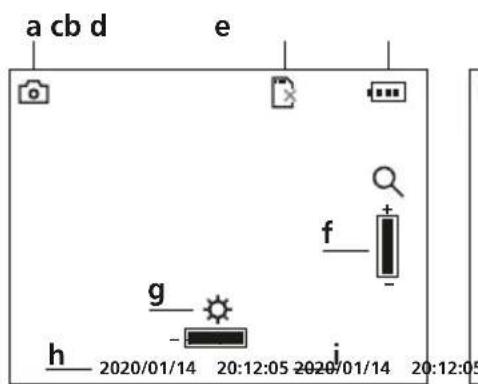
Image record mode
Video record mode
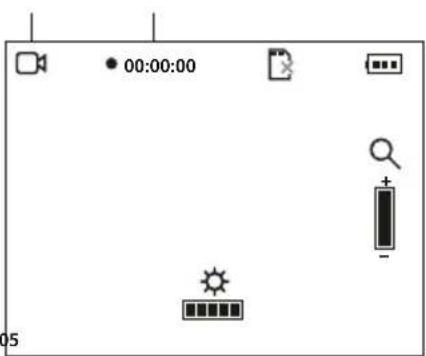
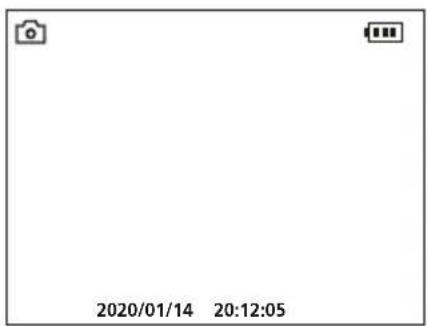
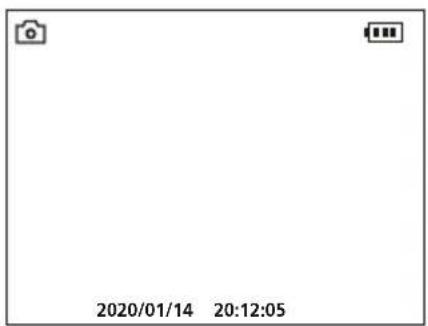
a Image recording
b Insert SD card
C Battery status
d Video recording
e REC: Recording
f Zoom
LED lighting
h Current date
i Current time
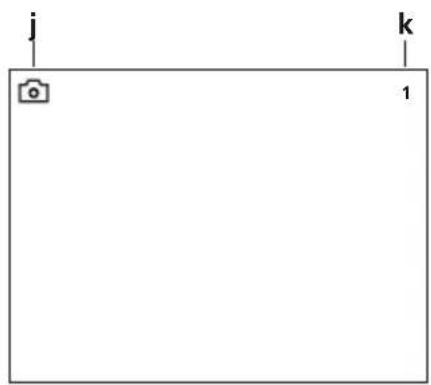
Image playback mode
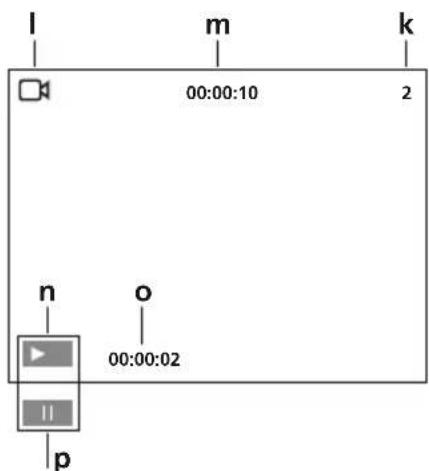
Video playback mode
j Image recording
k Number of image
Video recording
m Recording time
n Play
Play duration
p Pause
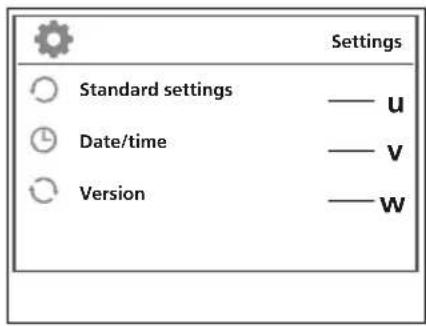
Settings mode
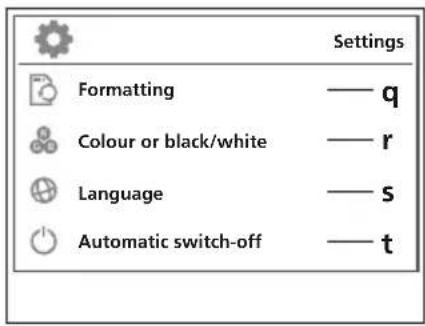
q Format data medium
r Select colour mode
5 Select language (EN, JP, FR, DE, IT, PT, NL, ES)
Auto shutdown
u Factory setting
v Set date/time
w Firmware version
First use
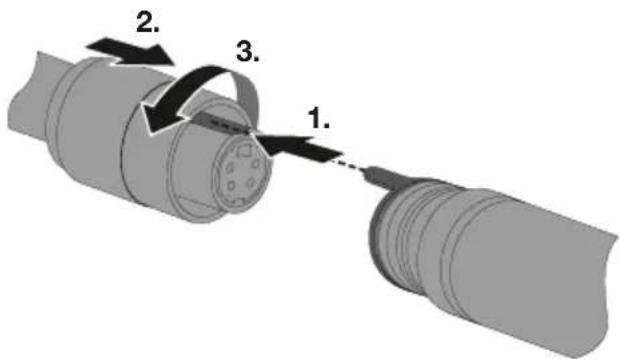
1 Connection for flex cable

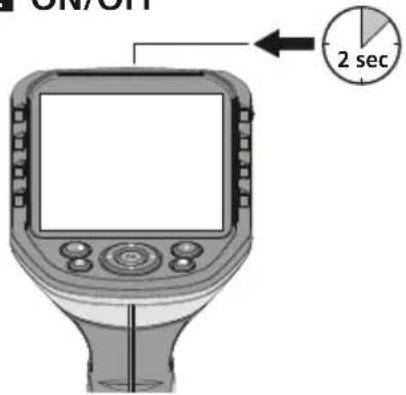
ON/OFF
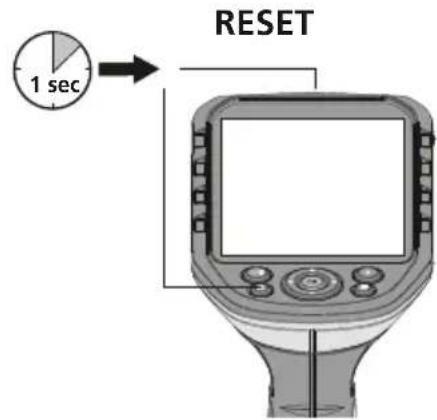
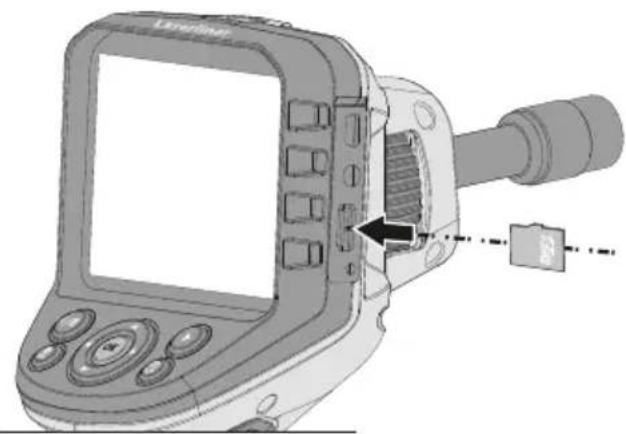
Inserting micro-SD card
To insert a micro-SD card, first open the rubber cover and then insert the memory card as illustrated. You cannot record anything without a storage medium.

The device must be switched off before removing the micro-SD.
Laserliner
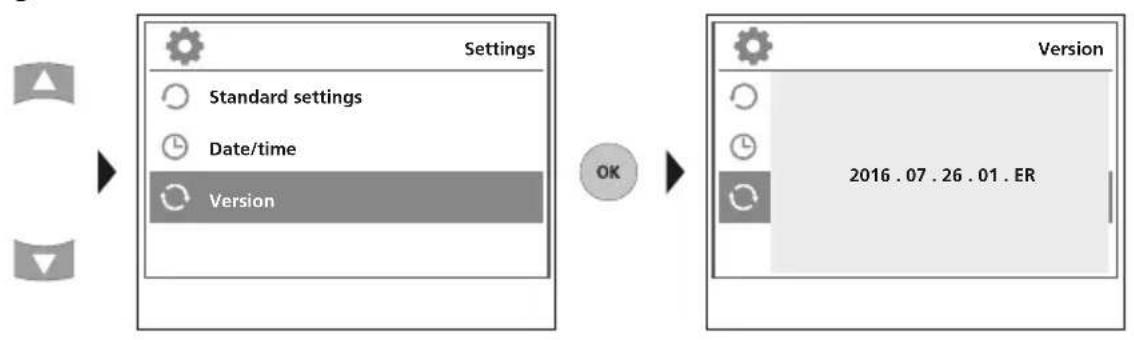
4 Settings mode
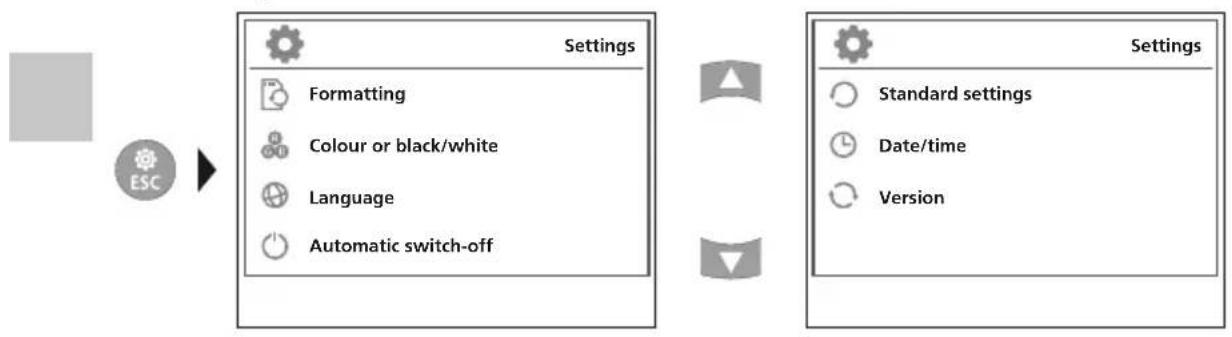
To return to recording mode, press the ESC button several times.
a. Format data medium
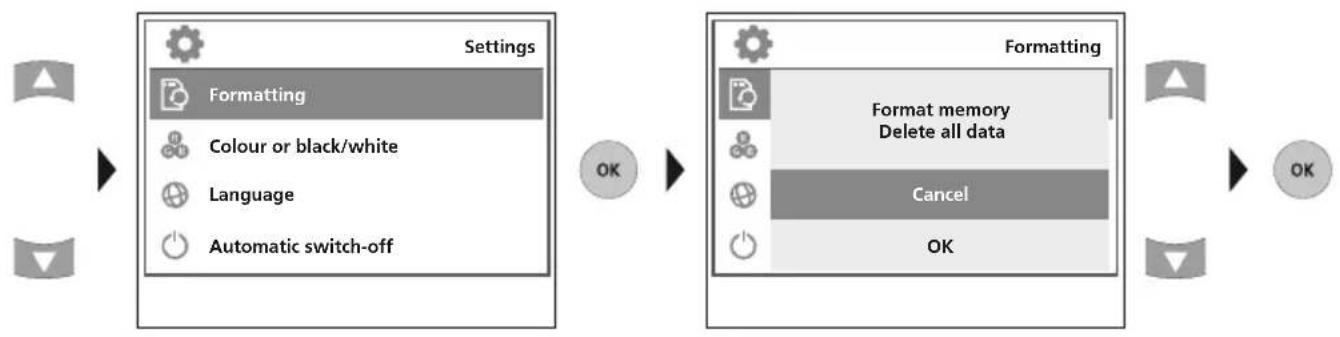
All data on the SD card will be deleted. This procedure cannot be undone. There is no further prompt to confirm deletion.
b. Select colour mode
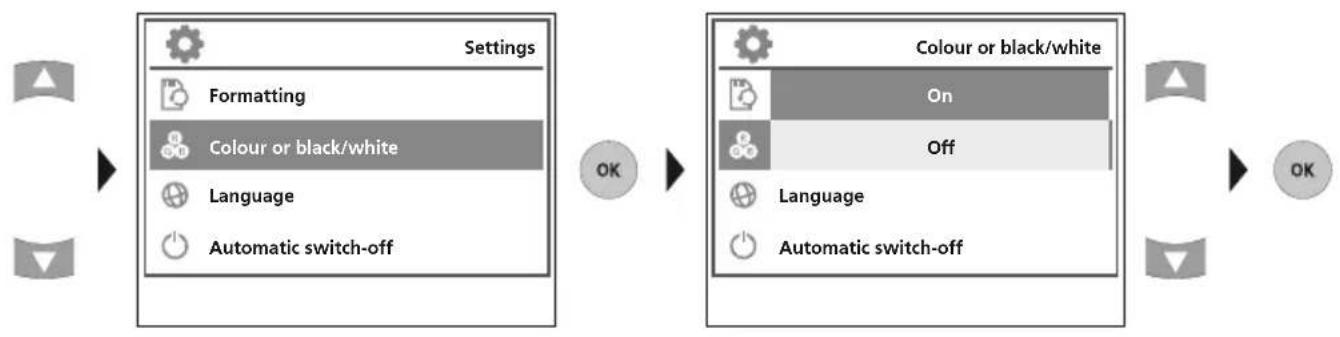
c. Select language (EN, JP, FR, DE, IT, PT, NL, ES)
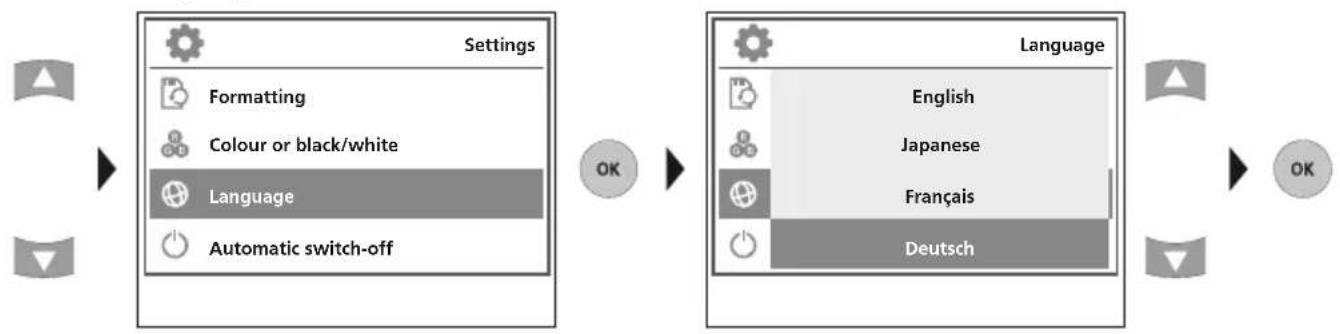
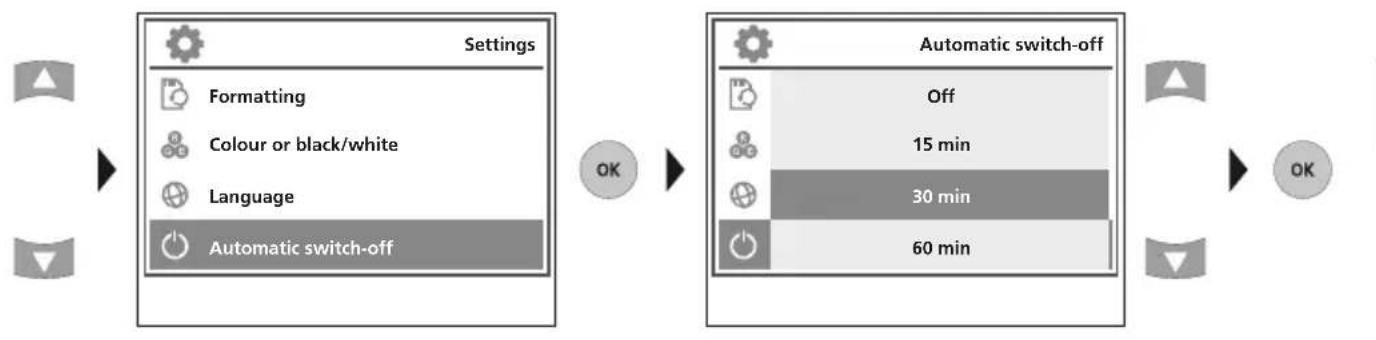
d. Auto shutdown
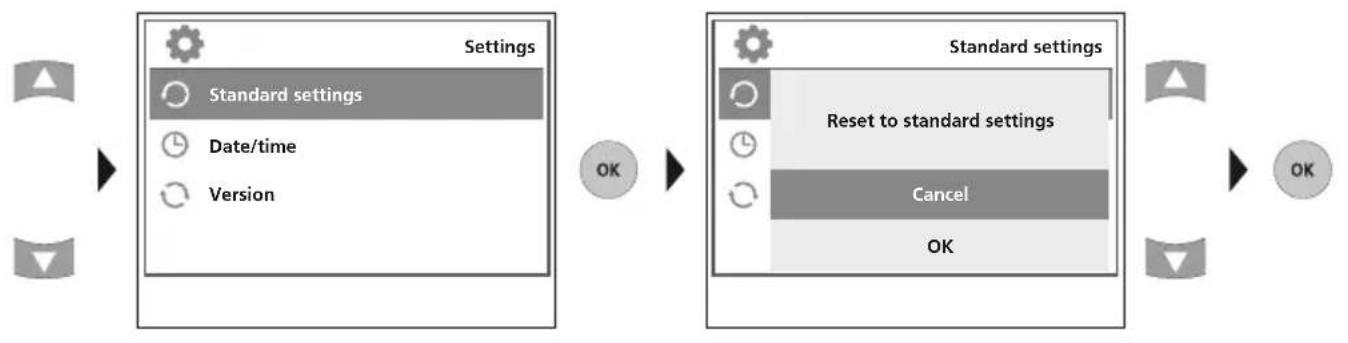
e. Factory setting
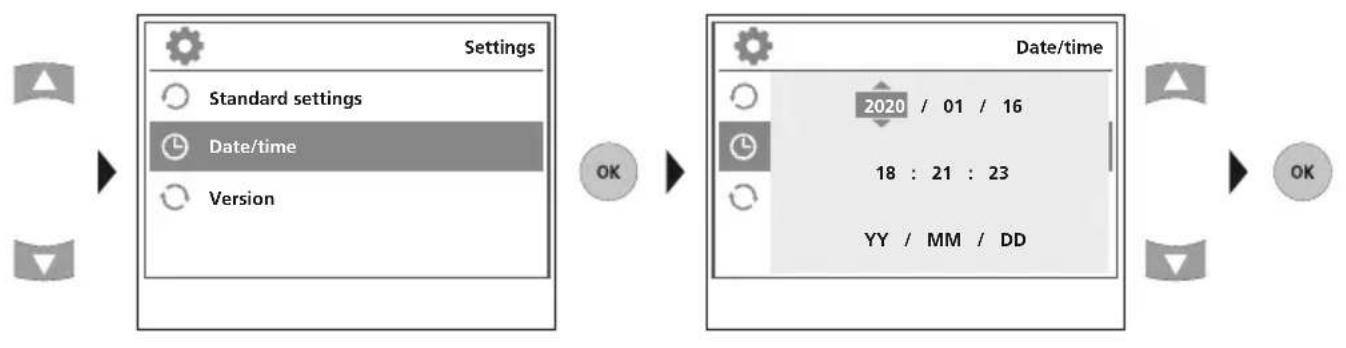
f. Set date/time
g. Firmware version
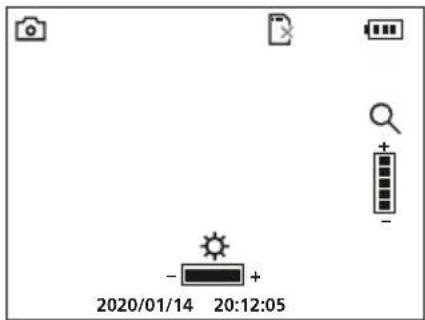
5 Record mode
Still images/Video recordings
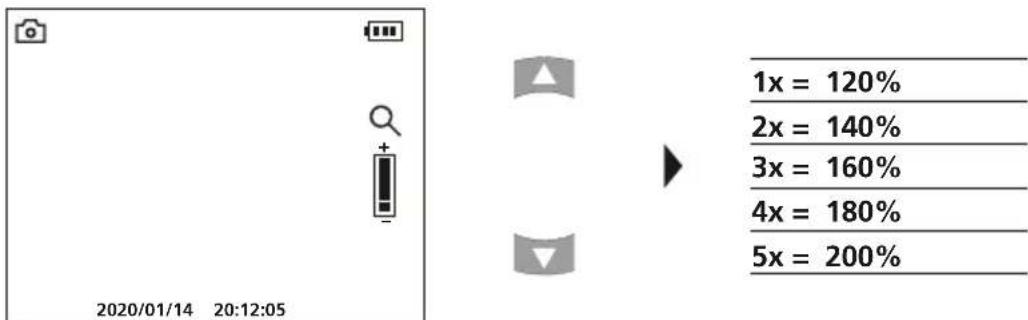
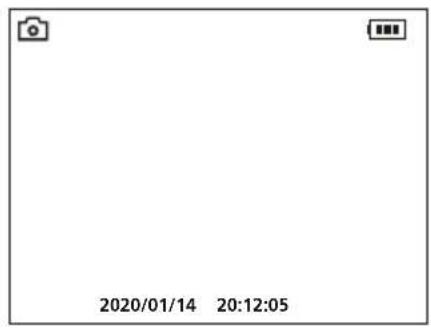
Line up the camera head on the flex cable and move it to the required position. If lighting conditions are poor, switch on the LED lighting. Zoom in on distant or small objects. The manual image rotation function enables the image to be rotated by 180^ on the monitor. Briefly press the OK button to take a still image or make a video recording and save it to the SD card. Press the button again to stop recording.
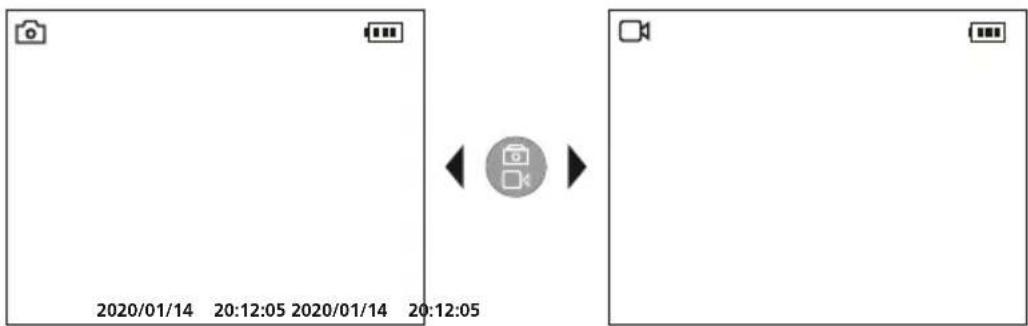
a. Image/video recording selection
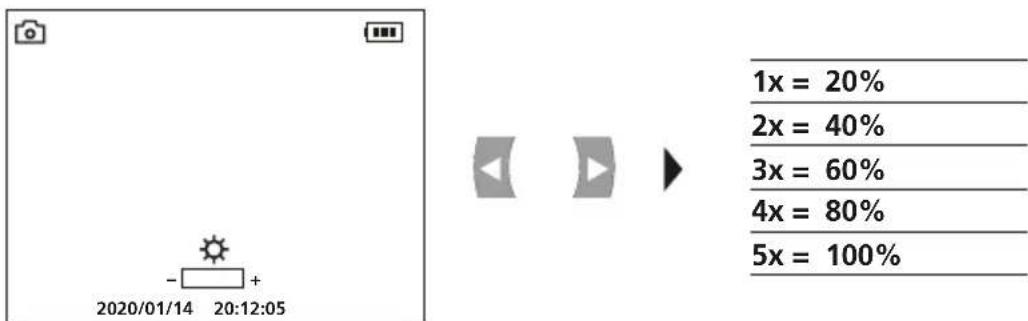
b. LED lighting
c. Zoom
d. Image rotation / Mirroring


4x
1x
From the original image
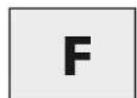
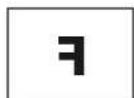
1x=horizontal mirroring
2x = Rotation 180^
3x = vertical mirrorin
4x = Original image
e. Record still image
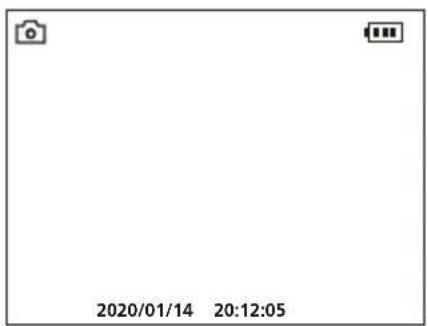

f. Start/stop video recording
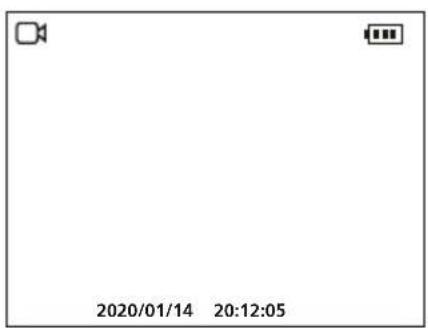
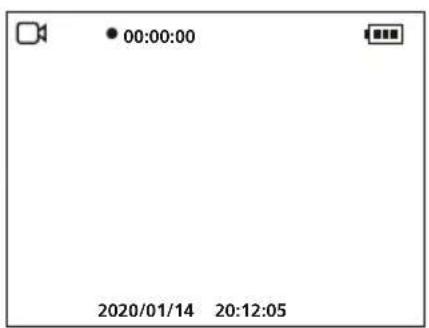

6 Manual image alignment
with fixed camera unit with flexible camera unit
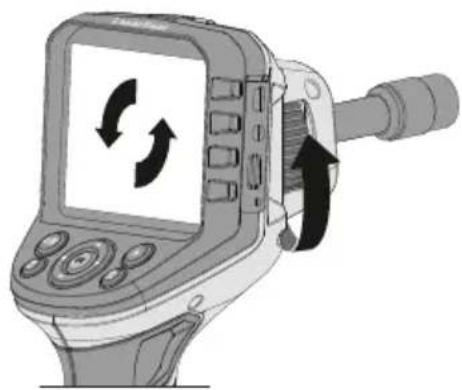
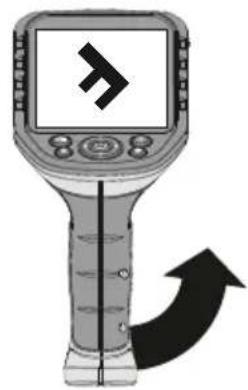
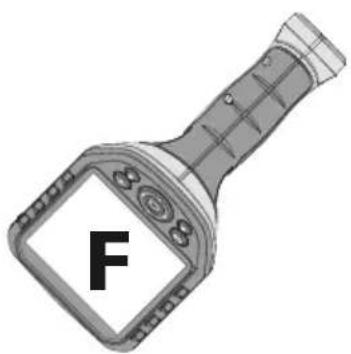
7Playback mode
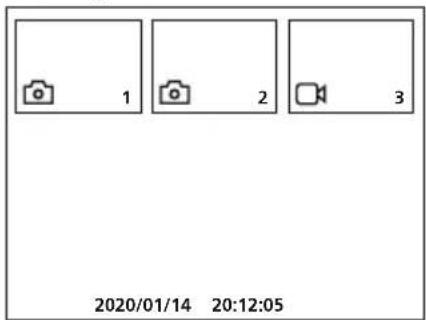
Playback of still images/video recordings
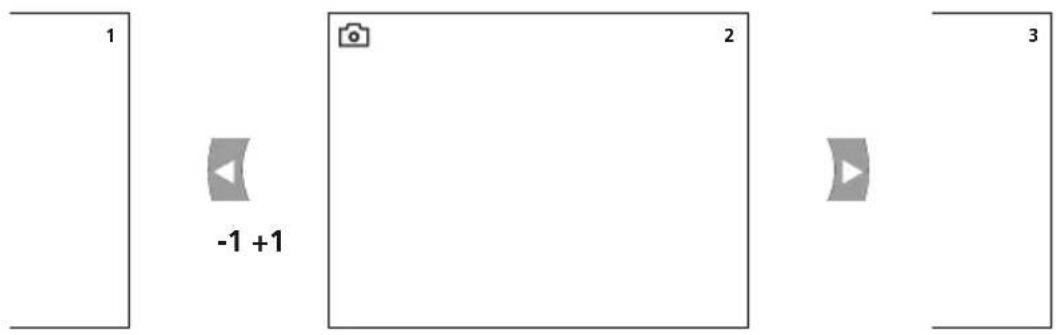
Press the "e" button to call up the media gallery. Confirm with OK to show the selected image or video in full screen mode. Use the arrow keys to navigate in the media gallery and full screen mode. Press the "f" button to exit playback mode.
a. Navigation
b. Delete recording
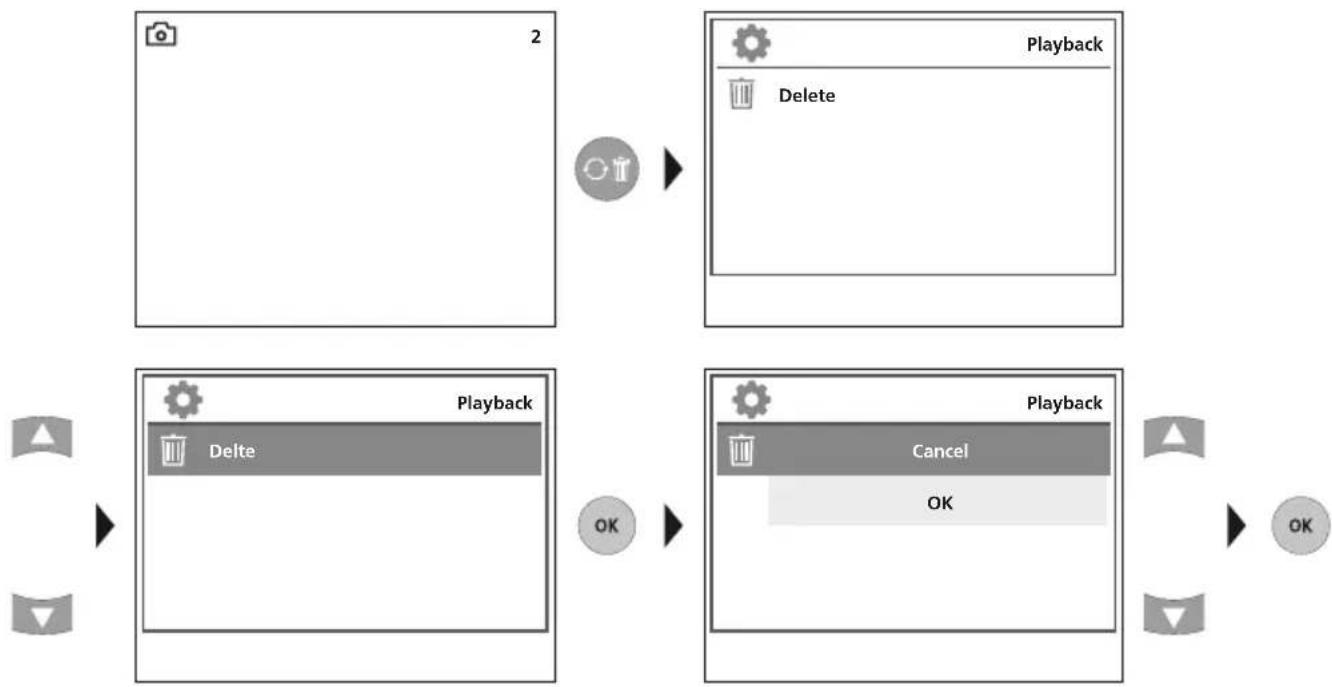
! Recordings can only be deleted in full screen mode.
! Deleting cannot be undone.
All files and folders can be deleted by reformatting the data medium. Refer to .4 a. Format Data Medium".
c. Playback
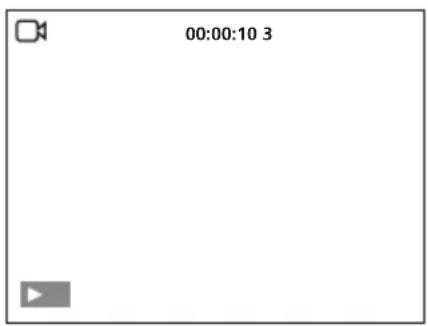
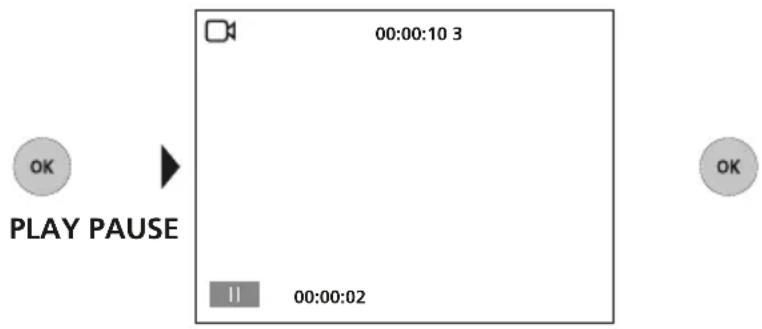
Press the „ESC“ button to stop playback.
USB data transfer
Data saved on the SD card can be transferred to PC either with a suitable card reader or directly via the USB port. Please refer to the manual supplied with your card reader for information about connecting your card adapter or card reader to a PC.
Connect power supply/battery charger
To charge the device, plug the supplied power supply/charger into the type C USB „4“ interface and connect it to a suitable power source.
| Technical Data Technical revisions reserved. 21W09 | |
| Screen type 3.5" TFT colour display | |
| Display resolution 320 x 240 pixels | |
| Image/Video resolution 640 x 480 pixels | |
| Image format/Video format JPEG / AVI | |
| Memory Micro-SD memory card up to 16 GB | |
| Connections USB type C, RCA video output | |
| Power supply Li-ion battery pack 3.7V / 2.8Ah | |
| Operating time approx. 5 hours | |
| Operating conditions | 0°C ... 45°C, max. humidity 20 ... 85% rH, no condensation, max. working altitude 4000 m above sea level |
| Storage conditions -10°C ... 60°C, max. humidity 80% rH | |
| Dimensions (W x H x D) 181 x 207 x 96 mm | |
| Weight 342 g (incl. battery pack) | |
EU directives and disposal
This device complies with all necessary standards for the free movement of goods within the EU.
This product is an electric device and must be collected separately for disposal according to the European Directive on waste electrical and electronic equipment.
Further safety and supplementary notices at: http://laserliner.com/info?an=AGG

Laserliner
!
2x = Draaiing 180^
3x = verticalc
spiegeling
2x = Drejning 180^
3x = vertical spejling
4x = Udgangsbillede
e. Optag billed

2x = Giro 180^
3x = Simetria
vertical
4x = Imagen inicial
e. TomarImagen