EasyManual
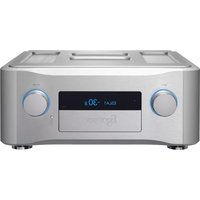
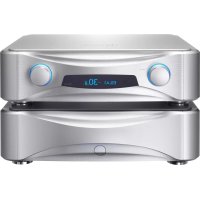
Grandioso C1 - Receiver Esoteric - Free user manual and instructions
Find the device manual for free Grandioso C1 Esoteric in PDF.



User questions about Grandioso C1 Esoteric
0 question about this device. Answer the ones you know or ask your own.
Ask a new question about this device
Download the instructions for your Receiver in PDF format for free! Find your manual Grandioso C1 - Esoteric and take your electronic device back in hand. On this page are published all the documents necessary for the use of your device. Grandioso C1 by Esoteric.
USER MANUAL Grandioso C1 Esoteric
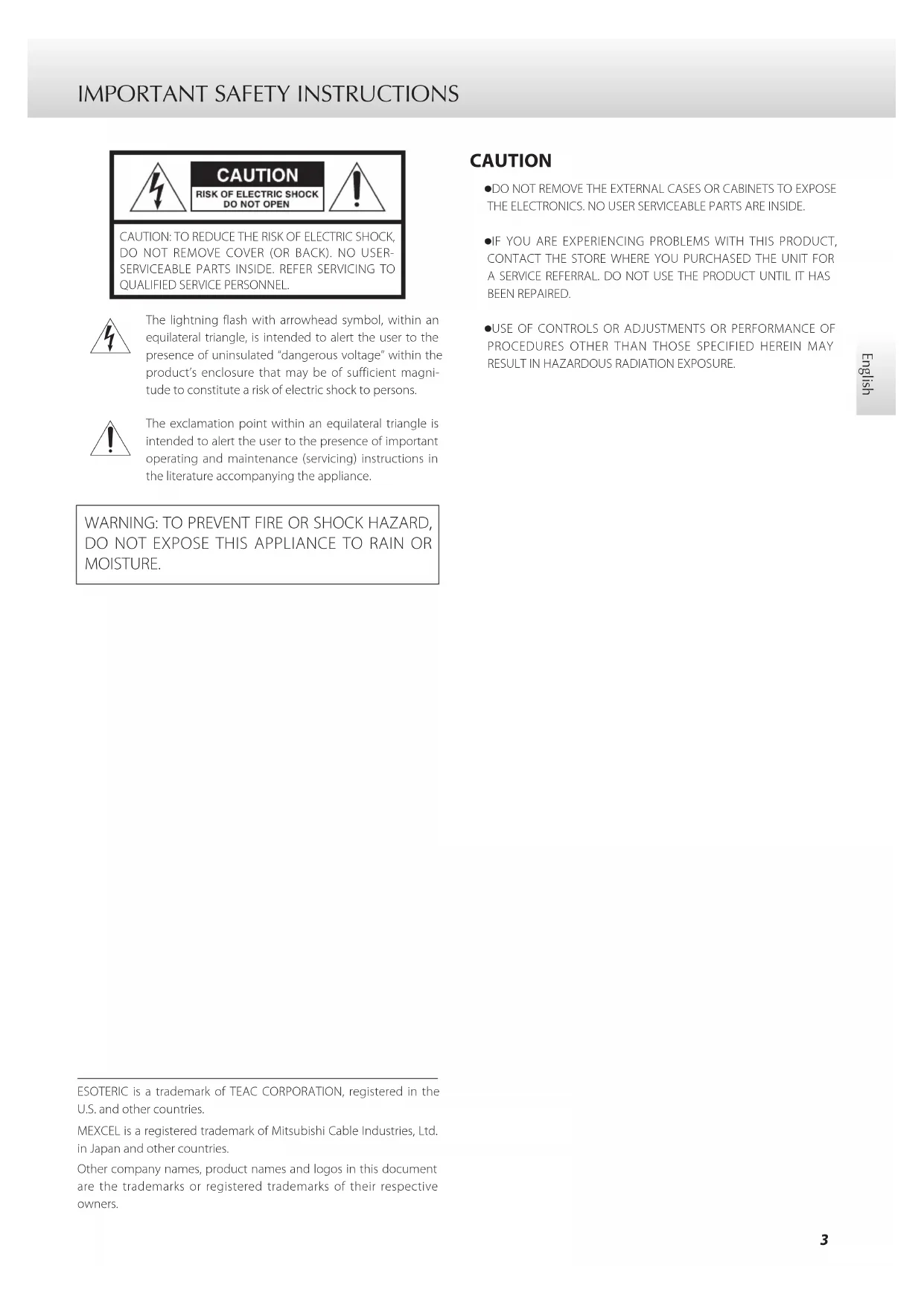
IMPORTANT SAFETY INSTRUCTIONS
CAUTION: TO REDUCE THE RISK OF ELECTRIC SHOCK, DO NOT REMOVE COVER (OR BACK). NO USER-SERVICEABLE PARTS INSIDE. REFER SERVICING TO QUALIFIED SERVICE PERSONNEL. The lightning flash with arrowhead symbol, within an equilateral triangle, is intended to alert the user to the presence of uninsulated “dangerous voltage” within the product’s enclosure that may be of sufficient magni-tude to constitute a risk of electric shock to persons. The exclamation point within an equilateral triangle is intended to alert the user to the presence of important operating and maintenance (servicing) instructions in the literature accompanying the appliance.
WARNING: TO PREVENT FIRE OR SHOCK HAZARD,
DO NOT EXPOSE THIS APPLIANCE TO RAIN OR MOISTURE. ESOTERIC is a trademark of TEAC CORPORATION, registered in the U.S. and other countries.MEXCEL is a registered trademark of Mitsubishi Cable Industries, Ltd. in Japan and other countries.Other company names, product names and logos in this document are the trademarks or registered trademarks of their respective owners. CAUTION o DO NOT REMOVE THE EXTERNAL CASES OR CABINETS TO EXPOSE THE ELECTRONICS. NO USER SERVICEABLE PARTS ARE INSIDE. o IF YOU ARE EXPERIENCING PROBLEMS WITH THIS PRODUCT, CONTACT THE STORE WHERE YOU PURCHASED THE UNIT FOR A SERVICE REFERRAL. DO NOT USE THE PRODUCT UNTIL IT HAS BEEN REPAIRED. o USE OF CONTROLS OR ADJUSTMENTS OR PERFORMANCE OF PROCEDURES OTHER THAN THOSE SPECIFIED HEREIN MAY RESULT IN HAZARDOUS RADIATION EXPOSURE.4
1) Read these instructions.
2) Keep these instructions.
3) Heed all warnings.
4) Follow all instructions.
5) Do not use this apparatus near water.
6) Clean only with dry cloth.
7) Do not block any ventilation openings. Install in accordance with
the manufacturer's instructions.
8) Do not install near any heat sources such as radiators, heat
registers, stoves, or other apparatus (including amplifiers) that produce heat.
9) Do not defeat the safety purpose of the polarized or grounding-
type plug. A polarized plug has two blades with one wider than the other. A grounding type plug has two blades and a third grounding prong. The wide blade or the third prong are provided for your safety. If the provided plug does not fit into your outlet, consult an electrician for replacement of the obsolete outlet.
10) Protect the power cord from being walked on or pinched par-
ticularly at plugs, convenience receptacles, and the point where they exit from the apparatus.
11) Only use attachments/accessories specified by the manufacturer.
12) Use only with the cart, stand, tripod,
bracket, or table specified by the manufac- turer, or sold with the apparatus. When a cart is used, use caution when moving the cart/apparatus combination to avoid injury from tip-over.
13) Unplug this apparatus during lightning storms or when unused
for long periods of time.
14) Refer all servicing to qualified service personnel. Servicing is
required when the apparatus has been damaged in any way, such as power-supply cord or plug is damaged, liquid has been spilled or objects have fallen into the apparatus, the apparatus has been exposed to rain or moisture, does not operate normally, or has been dropped. IMPORTANT SAFETY INSTRUCTIONS (continued) o The apparatus draws nominal non-operating power from the AC outlet with its POWER or STANDBY/ON switch not in the ON position. o The power plugs are used as disconnect devices; the disconnect devices shall remain readily operable. o Caution should be taken when using earphones or headphones with the product because excessive sound pressure (volume) from earphones or headphones can cause hearing loss. CAUTION o Do not expose this apparatus to drips or splashes. o Do not place any objects filled with liquids, such as vases, on the apparatus. o Do not install this apparatus in a confined space such as a book case or similar unit. o The apparatus should be located close enough to the AC outlet so that you can easily reach the power cord plug at any time. o If the product uses batteries (including a battery pack or installed batteries), they should not be exposed to sunshine, fire or excessive heat. o CAUTION for products that use replaceable lithium batter- ies: there is danger of explosion if a battery is replaced with an incorrect type of battery. Replace only with the same or equivalent type. WARNING Products with Class ! construction are equipped with a power supply cord that has a grounding plug. The cord of such a prod- uct must be plugged into an AC outlet that has a protective grounding connection. IN USA/CANADA, USE ONLY ON 120 V SUPPLY. China RoHS o The information in the following table is only applicable to products for sale in the People’s Republic of China. o The products sold in the European area are manufactured in accordance with the European RoHS Directive. *UDQGLRVR &5 English Model for USA This device complies with part 15 of the FCC Rules. Operation is subject to the following two conditions: (1) This device may not cause harmful interference, and (2) this device must accept any interference received, including interference that may cause undesired operation. This equipment has been tested and found to comply with the limits for a Class B digital device, pursuant to Part 15 of the FCC Rules. These limits are designed to provide reasonable protec- tion against harmful interference in a residential installation. This equipment generates, uses, and can radiate radio frequency energy and, if not installed and used in accordance with the instructions, may cause harmful interference to radio commu- nications. However, there is no guarantee that interference will not occur in a particular installation. If this equipment does cause harmful interference to radio or television reception, which can be determined by turning the equipment off and on, the user is encouraged to try to correct the interference by one or more of the following measures:
- Reorient or relocate the equipment and/or the receiving antenna.
- Increase the separation between the equipment and receiver.
- Connect the equipment into an outlet on a circuit different from that to which the receiver is connected.
- Consult the dealer or an experienced radio/TV technician for help. Model for Canada Industry Canada’s Compliance Statement: This Class B digital apparatus complies with Canadian ICES-003. Cet appareil numérique de la classe B est conforme à la norme NMB-003 du Canada.
DECLARATION OF CONFORMITY
We, TEAC AUDIO EUROPE, Liegnitzer Straße 6, 82194 Gröbenzell, Germany declare in own responsibility, the TEAC product described in this manual is in compliance with the corresponding technical standards. CAUTION Changes or modifications to this equipment not expressly approved by TEAC CORPORATION for compliance will void the user’s warranty. V Precautions concerning batteries Misuse of batteries could cause them to rupture or leak leading to fire, injury or the staining of nearby things. Please read and observe the following precautions carefully. o Be sure to insert the batteries with correct positive (¥) and negative (^) orientations. o Use batteries of the same type. Never use different types of bat- teries together. o If the remote control is not used for a long time (more than a month), remove the batteries to prevent them from leaking. o If the batteries leak, wipe away the leakage inside the battery compartment and replace the batteries with new ones. o Do not use batteries of types other than those specified. Do not mix new batteries with old ones or use different types of batteries together. o Do not heat or disassemble batteries. Never throw batteries into fire or water. o Do not carry or store batteries with other metallic objects. The batteries could short circuit, leak or explode. o Never recharge a battery unless it is confirmed to be a recharge- able type.6 For European Customers Disposal of electrical and electronic equipment (a) All electrical and electronic equipment should be disposed of separately from the municipal waste stream via collection facilities designated by the government or local authorities. (b) By disposing of electrical and electronic equipment correctly, you will help save valuable resources and prevent any poten- tial negative effects on human health and the environment. (c) Improper disposal of waste electrical and electronic equip- ment can have serious effects on the environment and human health because of the presence of hazardous sub- stances in the equipment. (d) The Waste Electrical and Electronic Equipment (WEEE) symbol, which shows a wheeled bin that has been crossed out, indicates that electrical and elec- tronic equipment must be collected and disposed of separately from household waste. (e) Return and collection systems are available to end users. For more detailed information about the disposal of old electri- cal and electronic equipment, please contact your city office, waste disposal service or the shop where you purchased the equipment. Disposal of batteries and/or accumulators (a) Waste batteries and/or accumulators should be disposed of separately from the municipal waste stream via collection facilities designated by the government or local authorities. (b) By disposing of waste batteries and/or accumulators correctly, you will help save valuable resources and prevent any poten- tial negative effects on human health and the environment. (c) Improper disposal of waste batteries and/or accumulators can have serious effects on the environment and human health because of the presence of hazardous substances in them. (d) The WEEE symbol, which shows a wheeled bin that has been crossed out, indicates that batteries and/ or accumulators must be collected and disposed of separately from household waste. If a battery or accumulator contains more than the specified values of lead (Pb), mercury (Hg), and/or cadmium (Cd) as defined in the Battery Directive (2006/66/EC), then the chemi- cal symbols for those elements will be indicated beneath the WEEE symbol. (e) Return and collection systems are available to end users. For more detailed information about the disposal of waste batter- ies and/or accumulators, please contact your city office, waste disposal service or the shop where you purchased them. Pb, Hg, Cd IMPORTANT SAFETY INSTRUCTIONS (continued)7 English Contents
IMPORTANT SAFETY INSTRUCTIONS ................................3
- Before use p. 7
- What’s in the box p. 7
- Precautions for use p. 8
- Note about pinpoint feet p. 8
- Notes about the remote control p. 9
- Precautions for use p. 9
- Installing batteries p. 9
- When to replace batteries p. 9
- Connections (main unit) p. 10
- Connections (power unit) p. 12
- Names and functions of parts (main unit) p. 14
- Names and functions of parts (power unit) p. 15
- Names and functions of parts (remote control) p. 16
- Basic operation p. 17
- Turning the unit off p. 18
- Dimmer p. 18
- Muting the output p. 18
- Balance and output level settings p. 19
- Left and right balance setting p. 20
- Output level setting p. 20
- Phase inversion setting p. 20
- Additional settings p. 21
- Volume display setting p. 22
- Volume curve setting p. 22
- RCA output setting p. 22
- Through (Thru) output setting (RCA 2) p. 22
- Knob illumination setting p. 23
- Knob illumination brightness setting p. 23
- Input source name setting p. 23
- Automatic display darkening setting p. 24
- Automatic power saving function setting p. 24
- Restoring factory settings p. 24
- Troubleshooting p. 25
- Maintenance p. 25
- Specifications p. 26
- Rear panel (main unit) p. 27
- Rear panel (power unit) Thank you for purchasing this Esoteric product. Read this manual carefully to get the best performance from this product. After reading this manual, keep it in a safe place with the warranty card for future reference. What’s in the box Check to be sure the box includes all the supplied accessories shown below. Please contact the store where you purchased this product if any of these accessories are missing or have been dam- aged during transportation. Power cords × 2 DC power connection cords × 2 Remote control (RC-1315) × 1 Batteries for remote control (AAA) × 2 Felt pads × 8 Owner’s manual (this document) × 1 Warranty card × 1 Before use8 Precautions for use o These units are very heavy, so take care to avoid injury during installation. o Do not install these units in locations that could become hot. This includes places that are exposed to direct sunlight or near a radiator, heater, stove or other heating equipment. Moreover, do not place them on top of another amplifier or equipment that generates heat. o Avoid locations that are subject to vibrations or exposed to excessive dust, cold or moisture. o In order to enable good heat dissipation, leave at least 20 cm (8”) between these units and walls and other equipment when installing them. If you put them in a rack, take precautions to prevent overheating by leaving at least 5 cm (2”) open above the tops of the units and at least 10 cm (4”) open behind them. o Do not install them face up or on their sides. o Place each unit in a stable location near the audio system that you will use with it. o Do not place anything, not even CDs, CD-Rs, LP records or cas- sette tapes, on top of the units. o Do not put cloth on top of the units or place them on top of bed- ding or thick carpet. o Supply voltage to the power unit that matches the voltage indi- cated on the rear panel. If you are in any doubt regarding this matter, consult an electrician. o Do not move the units during use. o Do not open the bodies of the units as doing so might result in damage to the circuitry or cause electric shock. If a foreign object should get into one of the units, contact your dealer. o When removing each power plug from an outlet, always pull directly on the plug. Never pull on the cord itself. o If a TV is turned on while the unit is on, static might appear on the TV screen depending on the characteristics of the TV broad- cast signal. This is not a malfunction of the unit nor of the TV. If this occurs, turn the unit off. Note about pinpoint feet High-precision metal pinpoint feet are attached firmly to the bottom plates of these units. The stands for these feet are loose, but when a unit is placed in posi- tion, it is supported by these pinpoint feet, which will effectively disperse vibrations. Chassis Pinpoint foot (metal) Foot-stand (metal) Screws that attach foot-stand o Apply the included felt pads to the bottoms of the foot-stands to avoid scratching the surface where the units are placed.9 English Notes about the remote control Precautions for use When using the remote control, point it toward the remote control signal receiver on the main unit from a distance of 7 m (23 ft) or less. Do not place obstructions between the main unit and the remote control. Moreover, operation from an angle can make reception difficult, so use the remote facing the front of the main unit as much as possible. 7 m (23 ft) Remote control signal receiver o The remote control might not work if the remote control signal receiver is exposed to direct sunlight or bright light. o Beware that use of this remote control could cause the unin- tentional operation of other devices that can be controlled by infrared rays. Installing batteries Remove the cover from the back of the remote control and insert two AAA batteries with their ¥/^ oriented as shown in the case. Replace the cover. When to replace batteries If the distance required between the remote and the main unit decreases or if the unit stops responding to the remote buttons, replace both batteries with new ones. Dispose of the used batteries according to the instructions on them or requirements set by your local municipality. p. 28
CAUTION Misuse of batteries could cause them to rupture or leak, which might result in fire, injury or the staining of nearby materials. Please read and observe the precautions on page 5 carefully.10 Connections (main unit)
Analog input jacks (LINE IN) Connect the analog output jacks of Super Audio CD players, DVD players, cassette decks, tuners and other equipment to these jacks. Connect this unit's R input connectors to the R output con- nectors of other devices, and its L input connectors to their L output connectors. XLR: balanced XLR audio cables Insert the balanced XLR plug until the lever locks. Press this lever when disconnecting. RCA: RCA audio cables Connect the white pin plugs to the white (L) jacks and connect the red pin plugs to the red (R) jacks. o Change the input polarity setting (Invert>) to reverse the HOT/COLD settings of the XLR jacks (page 20). o This unit does not have a phono equalizer, so record players cannot be connected to it directly. To use a record player with this unit, connect it through a phono equalizer, for example. o Use commercially available cables for connections.
Grounding connector (SIGNAL GND) Using a commercially available sheathed wire to connect this to the grounding terminal of a Super Audio CD player, power amplifier or other device might improve the audio quality. o This is not a safety ground. At Esoteric, we use ESOTERIC MEXCEL stressfree cables for reference. For detailed information, access the following website. http://www.esoteric.jp/products/esoteric/accessory/indexe.html
Analog output connectors (LINE OUT) These output 2-channel analog audio. Connect these to the analog input jacks of a power amplifier, for example. Connect this unit's R output connectors to the R input con- nectors of other devices, and its L output connectors to their L input connectors. XLR: balanced XLR audio cables Insert each balanced XLR plug in until the connector locks. RCA: RCA audio cables Connect the white pin plugs to the white (L) jacks and connect the red pin plugs to the red (R) jacks. o Use commercially available cables for connections.12 V Precautions when making connections o Complete all other connections before connecting power plugs to power outlets. o Read the owner’s manuals of all devices that will be connected, and follow their instructions. Connections (power unit)
DC power connection cord arrow mark DC power connection cord arrow mark Main unit Power unit Included power cordsWall outletWall outlet13 English
DC power input and output connectors Use the included DC (direct current) power cords to connect the DC power input connectors of the main unit with the DC power output connectors of the power unit. DC OUT L e DC IN L DC OUT R e DC IN R o The DC power connection cords have arrows printed on them. Connect them so that the arrows point in the direc- tion shown in the illustration on page 12. Check the orientation of the pins and the arrows of each DC power connection cord and hold it by its plug. Align the marks on the plug and the connector and push it in com- pletely until it clicks into place. When disconnecting, hold the ring and pull it directly out. When unplugging, do not pull the plug at an angle or rock it. o Be sure that the units are off before connecting or discon- necting a DC power connection cord. o Be careful not to pinch your fingers in the ring when con- necting or disconnecting a DC power connection cord. Connector Align the marks when connecting. When disconnecting, hold the ring and pull it directly out. Plug
Never connect this to a P-0, P-01 or P1 unit. Doing so could cause damage.
LED brightness adjustment knob Turn to adjust the brightness of the power indicator.
Power inlets Connect the included power cords to these sockets. After com- pleting all other connections, plug the power plugs into power outlets.
Use only a genuine Esoteric power cord. Use of other power cords could result in fire or electric shock. Disconnect the power plugs from the outlets if you will not use the unit for a long time.14 Names and functions of parts (main unit)
INPUT knob Turn this knob to select the active input. Select the input that is connected to the device you want to use. o You can change the names that are shown on the display for the connectors, as well as set the unit to skip them (page 23).
Remote control signal receiver This receives signals from the remote control. When using the remote control, point the end of it toward this receiver panel (page 9).
VOLUME knob Use to adjust the volume.Turn this knob clockwise to increase the volume and counter-clockwise to decrease it. o If through output (RCA2) is set to THRU and the input source is RCA 2, the VOLUME knob will not function (page 22). VAlways turn the volume to the minimum level before you turn the unit on or off. Failure to do so could cause sud-den loud noises that might result in harm to your hearing or damage to the speakers when you turn the unit on.
B C D15 English Names and functions of parts (power unit)
POWER button Press to turn the unit on or off.
Power indicator This lights blue when the unit is on.16 When the main unit and the remote control both have but-tons with the same functions, this manual explains how to use one of the buttons. The other corresponding button can be used in the same manner.
Names and functions of parts (remote control) o The buttons not explained here do not function with this product. o This remote control can also be used for other Esoteric Super Audio CD/CD players and D/A converters. o Some models will not pause when you press the playback/pause button (7/9) button.
STANDBY/ON (setting) button Use to confirm selection of some of the settings explained in “Additional settings” (pages 21-24). You can also assign a name to a connector using this button (page 23). o You cannot turn the unit on or off using this button.
INPUT (k/j) buttons Press these buttons to switch between input sources. Select the input that is connected to the device you want to use.Use to select settings for “Balance and output level settings” (page 19) and “Additional settings” (page 21).Use as cursor keys when entering an input source name.
SETUP button Use with “Balance and output level settings” (page 19) and “Additional settings” (page 21).
VOLUME (+/−) buttons Use to adjust the volume. Press the + button to increase the volume and the − button to decrease it. o If you set the RCA 2 input jacks to “THRU”, the VOLUME but- tons will not work when the input is set to RCA2 (page 22).
MUTE button Press this button to temporarily mute the sound. Press again to restore the volume setting (page 18). o When muted, “MUTE” and the ordinary display are shown alternately.17 English Basic operation 1 Turn on the connected input source devices. 2 Press the POWER button to turn the unit on. When on, the power indicator and the display light. o Turn on the power amplifier after turning on this unit. 3 Turn the INPUT knob to select an input source. 4 Play the source, and then adjust the volume by turning the VOLUME knob.
Always turn the volume to the minimum level before you turn the unit on or off. Failure to do so could cause sud- den loud noises that might result in harm to your hearing or damage to the speakers when you turn the unit on.18 Turning the unit off There might be noise from the speakers if the unit is turned off sud-denly. When you turn the unit off, follow the steps below. 1 If a connected device is playing back, stop playback. o Turn off the power amplifier first. 2 Turn the unit's VOLUME knob counterclockwise to minimize the volume. o Always turn the volume to the minimum level before you turn the unit on or off. Failure to do so could cause sudden loud noises that might result in harm to your hearing or damage to the speakers when you turn the unit on. 3 Press the POWER button to turn the unit o. 4 Turn o the connected input source devices. Dimmer Each time you press the DIMMER button, the brightness of the dis-play and indicators change as follows.3 (Standard brightness)
0 (Unlit) o Even when set to 0 (unlit), the display will light at standard bright- ness for a few seconds when you press a button or turn a knob. o In setting mode, the display lights at standard brightness. Muting the output Press the remote control MUTE button to temporarily mute the sound. Press again to restore the previous volume setting. o While the sound is muted, “MUTE” and the selected input connec- tor name appear alternately on the display. o You can also restore the sound by turning the VOLUME knob or by pressing the VOLUME (+/−) buttons. Basic operation (continued)19 English Balance and output level settings You can set the left and right balance, output level and phase inver- sion. You can set these independently for each of the inputs. 1 Turn the INPUT knob to select the input source you want to set. 2 Press the SETUP button repeatedly to select the set- ting item you want to change. Each time you press the SETUP button, the display changes. o While making these settings, the SETUP indicator appears at the top left of the display. o If you do nothing for 10 or more seconds, setting mode will end and ordinary display will resume. 3 Press the INPUT (k/j) buttons to change the setting. 4 Press the SETUP button repeatedly until the display resumes showing its usual contents. Setting mode ends when the usual contents are shown. Setting mode will also end and the ordinary display will reap- pear if nothing is done for 10 or more seconds. o These settings will be retained even if the power cords are disconnected.20 Left and right balance setting Bal>*** Adjust the balance between the left and right output channels. You can set this to values between L 6.0 dB and R 6.0 dB in 0.5 dB increments. You can also set this so that just one channel is muted. The default value is 0.0 dB (no balance adjustment). Muting just one channel Press the k button to select “Bal>R only” to output only the right channel. Likewise, press the j button to select “Bal>L only” to output only the left channel. Output level setting Level>*** You can adjust the output level for the selected input. You can set this to values between −18.0 dB and +18.0 dB in 0.5 dB increments. The default value is 0.0 dB. o If the total of the output level and volume settings exceed 0 dB, the output level indication will blink. Lower the output level or volume until it stops blinking. Note about these settings and sound quality The left-right balance and output level settings are related to the volume. This unit’s microcomputer analyzes these settings and the volume level value comprehensively to conduct unified con- trol of volume amplification. For this reason, unlike ordinary amplifiers that pass audio signals through multiple circuits, these settings will not degrade the audio quality. Phase inversion setting Invert>*** This can be used to reverse the phase of the audio signal output. For example, if the XLR output of a device that sends a signal to this unit’s input is 2 HOT, but the XLR input of the device that receives the signal output from this device is 3 HOT, set this to ON. By default, this is set to “OFF”. OFF No phase inversion
Phase inversion enabled o When the phase is inverted, “INVERT” appears at the top of the display. Balance and output level settings (continued)21 English 3 Press the INPUT (k/j) buttons to change the setting. 4 Press the SETUP button repeatedly until the display resumes showing its usual contents. Setting mode ends when the usual contents are shown. Setting mode will also end and the ordinary display will reap- pear if nothing is done for 10 or more seconds. o These settings will be retained even if the power cords are disconnected. Additional settings You can also make the following settings and restore factory defaults. Volume display Volume curve RCA output Through (RCA2) Knob illumination Knob illumination brightness Input source name Automatic display (FL) off Automatic power saving function 1 Press and hold the SETUP button for about 2seconds. Press for at least 2 seconds “Disp>***” appears on the display and the unit enters setting mode. o While making these settings, the SETUP2 indicator appears at the top left of the display. 2 Press the SETUP button repeatedly to select the set- ting item you want to change. Each time you press the SETUP button, the display changes. o If you do nothing for 10 or more seconds, setting mode will end and ordinary display will resume.22 Volume display setting Disp>*** You can set how the volume level is shown. The default value is “dB”. Step The volume is shown in steps (0 to 99).
The volume is shown in decibels (−∞ to 0.0 dB). “---” is displayed when no sound (−∞ dB) is output. o When set to dB, the dB indicator appears at the top right of the display. Volume curve setting VolTable>*** With this unit, the volume level can be adjusted from −∞ to 0 dB. This range is divided into 100 steps (called the “volume curve”) from 0 to 99. You can select from the 5 different volume curves (A, B, C, D and E) shown below. The default setting is “A”.
Steps Volume [dB] RCA output setting RCAOut>*** Use this setting to turn RCA jack output ON or OFF. The default setting is “OFF”. OFF Signals are not output from the RCA jacks.
Signals are output from the RCA jacks. Through (Thru) output setting (RCA 2) RCA2>*** You can select whether to use the RCA 2 jacks as normal input con- nectors or as signal through connectors. The default setting is “NML”. NML (normal) Select this to use the RCA 2 jacks as normal input connectors. THRU (through) The volume level adjusted using the VOLUME knob is ignored when this setting is selected. Sound signals passing through the RCA 2 jacks are output as they are. (No gain adjustment is made by the preamplifier.) After selecting “THRU”, press the STANDBY/ON (setting) button to activate the setting. “THRU” appears on the display instead of the volume level set by using the VOLUME knob. For example, if you connect the pre-out jacks (FRONT L/R) of an AV amplifier to this unit’s RCA 2 jacks, and set RCA2 to “THRU”, you can also use the speakers connected through this unit as the front speakers of the AV amplifier. (When set to “RCA2”, the AV amplifier controls volume adjustment.) o If through output (RCA2) is set to THRU and the input source is RCA 2, the VOLUME knob will not function.
Since this unit’s VOLUME knob will not function when set to “THRU”, be careful if you connect a device that does not have a volume control to the RCA 2 inputs. When you change the input source to RCA2, very loud sounds could be output suddenly, resulting in harm to your hearing and damage to the speakers. When connecting a device that does not have a volume control to the RCA 2 inputs and setting RCA2 to “THRU”, always connect a device that has a volume control to this unit’s analog output connectors (LINE OUT). Use that device to minimize the volume before switching the input source to RCA2, and then gradually raise the volume level. Additional settings (continued)23 English Knob illumination setting Light>*** You can set whether or not the rings around the knobs light. The default setting is “auto”. OFF The rings around the knobs do not light.
The rings around the knobs light. auto When the knobs are operated, their rings light. Knob illumination brightness setting LightLv>*** You can set the brightness of the illuminated rings around the knobs. The default setting is “5”. 5 (normal brightness)
0 (Off) Input source name setting XLR1= XLR2= XLR3= RCA1= RCA2= You can change the names shown on the display for the unit’s con- nectors when you change the input source. You can set the names as you like (up to five characters). You can also set the unit to skip connectors that do not have con- nected devices when you change the input source. For example, when a Super Audio CD player is connected to the RCA 1 jacks and a DVD player is connected to the RCA 2 jacks, the RCA 1 and RCA 2 jacks can be set to “SACD” and “DVD” respectively while the other connectors can be set to “*skip”. When you change the input source, only “SACD” and “DVD” will be selected, making it easier to select only the connectors you want to use. Use the INPUT (k/j) buttons to select the connector name. Connector name options: CD, DAC, SACD, DVD, CD-R, DVD-R, TAPE, MD, TUNER, PC, MP3, AUX, TV, VIDEO, VCR, *skip, (editable) o The skip function will not work when all connectors are set to “*skip”. Creating your own input connector name
1) When the input connector name (XLR1, XLR2, XLR3, RCA1 or
RCA2) and “=” are shown, press the INPUT (k/j) buttons repeatedly until the editable screen appears (default setting: “88888”).
2) Press the STANDBY/ON (setting) button.
3) Enter the characters.
Press the k/j buttons to move the cursor. Press the VOLUME (+/−) buttons to select characters.
4) When you have finished entering the characters, press the
STANDBY/ON (setting) button to confirm the selection. o While entering the name, the volume and input cannot be changed. o Available characters English letters: A-Z, a-z Numbers: 0-9 Symbols: ! " # $ % & ‘ ( ) * + , − . / : ; < = > ? @ 8 (blank)24 Automatic display darkening setting DPaOFF>*** You can set the display to darken automatically after a set amount of time has elapsed. The default setting is “ON”.
The display will automatically darken if the information shown on it does not change for 30 minutes. We recommend using the automatic display darkening function. If the display is left showing the same thing for a long time, brightness irregularities and other problems could arise. OFF Automatic display darkening will not occur. Automatic power saving function setting APS>*** The default setting is “30m”. If there is no audio input (continuous silence) from the selected input source for the set amount of time, the power will turn off automatically. o Audio input from input sources other than the one selected has no effect on the operation of the automatic power saving function. 30m 30 minutes 60m 60 minutes 90m 90 minutes 120m 120 minutes OFF The automatic power saving function is disabled. Restoring factory settings Setup>*** You can restore the factory default settings, erasing all changes in memory. Press the k/j buttons until “CLR” blinks, then press the STANDBY/ON (setting) button to execute the restoration of factory default settings. Additional settings (continued)25 English Troubleshooting If you experience a problem with this product, please take a moment to review the following information before requesting service. Moreover, be aware that the problem might be caused by something other than this product. Please also check the operation of the connected units. If this product still does not operate correctly, contact the retailer where you purchased it. The unit does not turn on. e Insert the power plugs into outlets. Remote control does not work. e Turn the main unit on (page 17). e If the batteries are exhausted, replace both of them with new ones (page 9). e The remote control will not work if there are obstructions between it and the main unit. Point the remote control toward the main unit and use it within 7 m (23 ft) of the front panel (page 9). A television or other device is operating improperly. e The use of this unit’s remote control might cause some tele- visions with wireless remote control functions to operate incorrectly. Cannot select input. e Make sure the input source is not set to be skipped (page 23). VOLUME knob does not work. e If through output (RCA2) is set to THRU and the input source is RCA 2, the VOLUME knob will not function (page 22). Volume display blinks. e The volume value exceeds the maximum total gain of this unit. Lower the volume until the display stops blinking. The unit automatically turns off. e This is because the automatic power saving function turned it off. Turn the unit on again. Change the automatic power saving function time if necessary (page 24). “Chk Power!” appears on the display. e Confirm that both power cords
and both DC power connec- tion cords
are properly connected to these units (pages 12 and 13). Since this unit uses a microcontroller, external noise and other interference can cause the unit to malfunction. If this occurs, turn the unit off once, and then restart it after waiting for about one minute. Note about condensation If this unit is brought from a cold outdoor environment into a warm room, or the heater has just been turned on in the room where it is located, for example, condensation might occur on operating parts or lenses, resulting in improper operation. If this occurs, leave the unit on and wait 1-2 hours. This should enable normal playback. Use a soft dry cloth to wipe the surfaces of the units clean. For stubborn smudges, use a damp cloth that has been thoroughly wrung out to remove excess moisture. Avoid allowing rubber or plastic materials to touch the units for long periods of time, because they could damage the cabinets. Never spray liquid directly on these units. Do not use chemically-treated wipes, thinner or similar substances because they could damage the surfaces of the units.
MA-2088A TEAC CORPORATION 1-47 Ochiai, Tama-shi, Tokyo 206-8530, Japan Phone: +81-42-356-9156 TEAC AUDIO EUROPE Liegnitzer Straße 6, 82194 Gröbenzell, Germany Phone: +49-8142-4208-141 This appliance has a serial number located on the rear panel. Please record the serial number and retain it for your records. Model name: Grandioso C1 Serial number