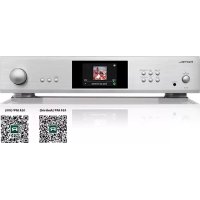
S14 - Hi-fi system ROTEL - Free user manual and instructions
Find the device manual for free S14 ROTEL in PDF.



| Product type | Network streaming integrated amplifier |
| Dimensions (W × H × D) | 430 × 93 × 345 mm |
| Net weight | 9.15 kg |
| Mains voltage | 120 V / 60 Hz (USA) or 230 V / 50 Hz (CE) depending on version |
| Power consumption | 280 W (operation), less than 0.5 W (standby) |
| Output power (continuous) | 80 W/channel into 8 ohms |
| Output power (max) | 150 W/channel into 4 ohms |
| Total harmonic distortion | Less than 0.04% |
| Frequency response (line inputs) | 10 Hz - 100 kHz (±0.5 dB) |
| Signal-to-noise ratio (line inputs) | 100 dB (A-weighted) |
| Analog inputs | 1 AUX stereo pair (RCA) |
| Digital inputs | 1 coaxial SPDIF, 1 optical SPDIF, 1 PC-USB (USB Audio Class 2.0), 1 USB host (front panel), Ethernet, Wi-Fi |
| Outputs | Preamp (RCA), Subwoofer (RCA), Headphone (3.5 mm jack), Speakers (binding posts) |
| Wireless connectivity | Bluetooth aptX™ HD, AirPlay 2, Google Cast, Spotify Connect, Roon Ready |
| Supported audio formats (USB) | MP3, AAC (MP4), FLAC, WAV, OGG |
| Supported audio formats (PC-USB) | Up to 24-bit / 384 kHz (PCM), MQA and MQA Studio |
| Care and cleaning | Clean with a dry cloth or vacuum. Do not use liquid. |
| Safety | Thermal and overload protection; double insulation (no earth connection required) |
| Spare parts and repairability | Contact an authorized Rotel dealer for any repairs or part replacements. |
| Supplied accessories | Infrared remote control, cables, Wi-Fi antennas, unlocking tool |
| Warranty | Refer to the warranty card provided or your authorized dealer. |
Frequently Asked Questions - S14 ROTEL
User questions about S14 ROTEL
0 question about this device. Answer the ones you know or ask your own.
Ask a new question about this device
Download the instructions for your Hi-fi system in PDF format for free! Find your manual S14 - ROTEL and take your electronic device back in hand. On this page are published all the documents necessary for the use of your device. S14 by ROTEL.
USER MANUAL S14 ROTEL
natural_image
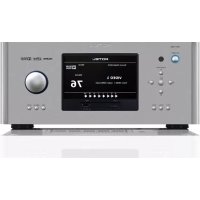
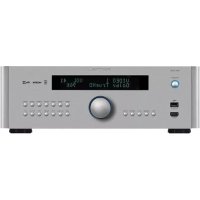
Front view of a ROTEL audio amplifier device with control knobs and a display screen (no visible text or symbols on the device body)ROTEL®
S14
Integrated Network Streamer
Important Safety Instructions
Notice
The RS232 connection should be handled by authorized persons only.
WARNING: There are no user serviceable parts inside. Refer all servicing to qualified service personnel.
WARNING: To reduce the risk of fire or electric shock, do not expose the unit to moisture or water. Do not expose the unit to dripping or splashing. Do not place objects filled with liquids, such as vases, on the unit. Do not allow foreign objects to get into the enclosure. If the unit is exposed to moisture, or a foreign object gets into the enclosure, immediately disconnect the power cord from the wall. Take the unit to a qualified service person for inspection and necessary repairs.
Read these instructions.
Keep these instructions.
Heed all warnings.
Follow all instructions.
Do not use this apparatus near water.
Clean only with dry cloth.
Do not block any ventilation openings. Install in accordance with the manufacturer's instructions.
Do not install near any heat sources such as radiators, heat registers, stoves, or other apparatus (including amplifiers) that produce heat.
Do not defeat the safety purpose of the polarized or grounding-type plug. A polarized plug has two blades with one wider than the other. A grounding type plug has two blades and a third grounding prong. The wide blade or the third prong are provided for your safety. If the provided plug does not fit into your outlet, consult an electrician for replacement of the obsolete outlet.
Protect the power cord from being walked on or pinched particularly at plugs, convenience receptacles, and the point where they exit from the apparatus.
Only use attachments/accessories specified by the manufacturer.
Use only with the cart, stand, tripod, bracket, or table specified by the manufacturer, or sold with the apparatus. When a cart is used, use with caution when moving the cart/apparatus combination to avoid injury from tip-over.

Unplug this apparatus during lightning storms or when unused for long periods of time.
Refer all servicing to qualified service personnel. Servicing is required when the apparatus has been damaged in any way, such as power-supply cord or plug is damaged, liquid has been spilled or objects have fallen into the apparatus, the apparatus has been exposed to rain or moisture, does not operate normally, or has been dropped.
The apparatus should be used in non tropical climate.
The ventilation should not be impeded by covering the ventilation openings with items, such as newspapers, table-cloths, curtains, etc.
No naked flame sources, such as lighted candles, should be placed on the apparatus.
Touching uninsulated terminals or wiring may result in an unpleasant sensation.
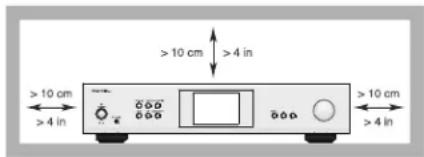
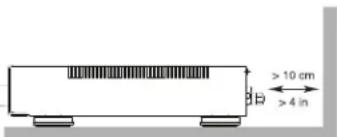
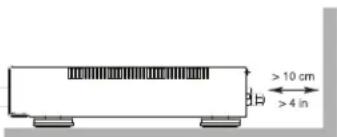
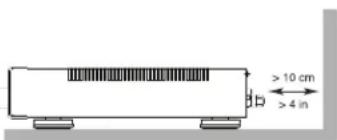
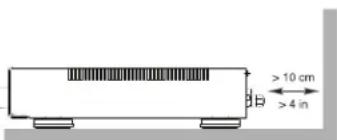
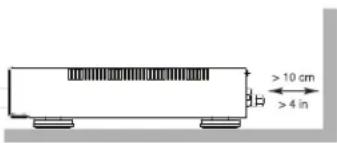
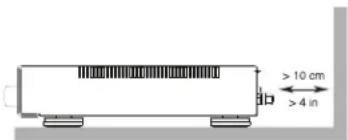
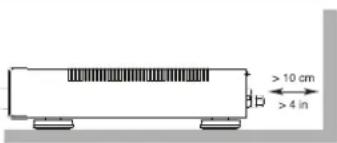
You must allow a minimum 10 cm or 4 inches of unobstructed clearance around the unit.
WARNING: The rear panel power cord connector is the mains power disconnect device. The device must be located in an open area that allows access to the cord connector.
The unit must be connected to a power supply only of the type and voltage specified on the rear panel. (USA: 120 V/60Hz, EC: 230V/50Hz) Connect the component to the power outlet only with the supplied power supply cable or an exact equivalent. Do not modify the supplied cable. Do not use extension cords.
The mains plug is the disconnect of the unit. In order to completely disconnect the unit from the supply mains, remove the main plug from the unit and the AC power outlet. This is the only way to completely remove mains power from the unit.
Use Class 2 wiring for speaker connections to ensure proper installation and minimize the risk of electrical shock.
The batteries in the remote control should not be exposed to excessive temperature such as sunshine, fire or other heat sources. Batteries should be recycled or disposed as per state and local guidelines.
This device complies with Part 15 of the FCC Rules. Operation is subject to the following to conditions: (1) This device may not cause harmful interference, and (2) this device must accept any interference received, including interference that may cause undesired operation.
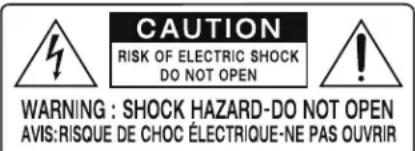
APPLICABLE FOR USA, CANADA OR WHERE APPROVED FOR THE USAGE
CAUTION: TO PREVENT ELECTRIC SHOCK, MATCH WIDE BLADE OF PLUG TO WIDE SLOT, INSERT FULLY.
ATTENTION: POUR EVITER LES CHOCS ELECTRIQUES, INTRODUIRE LA LAME LA PLUS LARGE DE LA FICHE DANS LA BORNE CORRESPONDANTE DE LA PRISE ET POUSSER JUSQU AU FOND.
This symbol is to alert the user to the presence of uninsulated dangerous voltages inside the product's enclosure that may constitute a risk of electric shock.
This symbol is to alert the user to important operating and maintenance (service) instructions in this manual and literature accompanying the product.
Rotel products are designed to comply with international directives on the Restriction of Hazardous Substances (RoHS) in electrical and electronic equipment and the disposal of Waste Electrical and Electronic Equipment (WEEE). The crossed wheelie bin symbol indicates compliance and that the products must be appropriately recycled or processed in accordance with these directives.

This symbol means that this unit is double insulated. An earth connection is not required.

Figure 1: Controls and Connections
Commandes et Branchements
Bedienelemente und Anschlüsse
Controles y Conexiones
Controlli e connessioni
De bedieningsorganen en aansluitingen
Kontroller och anslutningar
Органы управления и разъемы
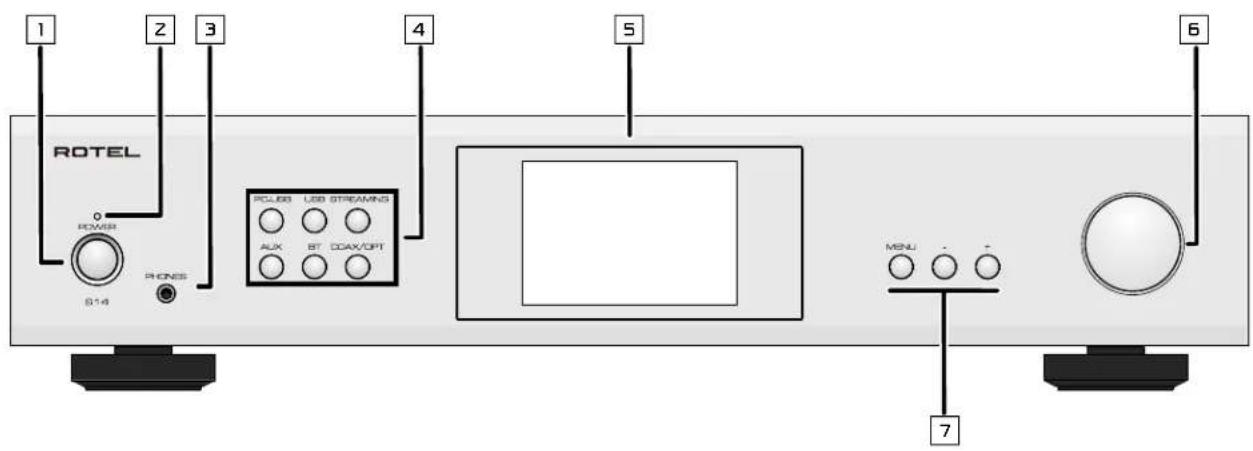
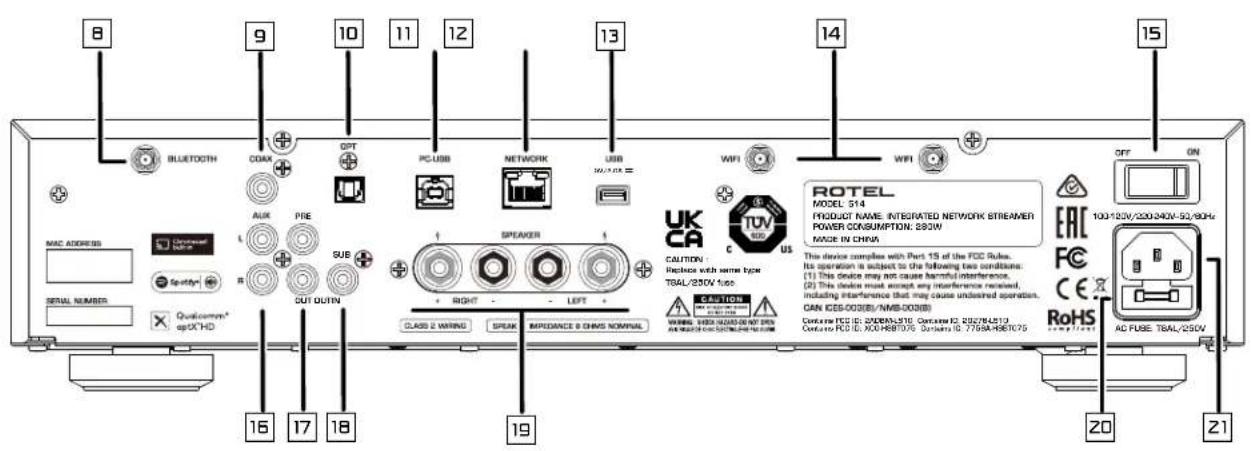
1: Power Button
Activate the unit or put it into standby mode
z: Power LED
3: Headphone Output
Connect headphones for private listening.
4: Source Button
Selects the input signal source.
5: Display
6: Volume Knob
Adjust the volume output level.
7: MENU and - / + buttons
Access the various menus and operate the Amplifier settings.
B: Bluetooth Antenna
Use for wireless streaming via Bluetooth.
9: COAX Input
10: OPTICAL Input
11: PC-USB input
12: NETWORK port
13: USB Power Port
Use for audio playback via Flash Drive.
14: Wi-Fi Antenna Use for wireless connection.
15: Master Power Switch
16: AUX input
Analog "line level" input.
17: PRE Output
Connect to the integrated amplifier or power amplifier.
18: SUB Output
Connect to a subwoofer.
19: Speaker Connectors
20: Fuse holder
21: AC Power Inlet
Figure 2: Remote Control
Télécommande infra-rouge
Fernbedienung
Mando a Distancia
Telecomando
De afstandsbediening
Fjärrkontroll
Пульт ДУ
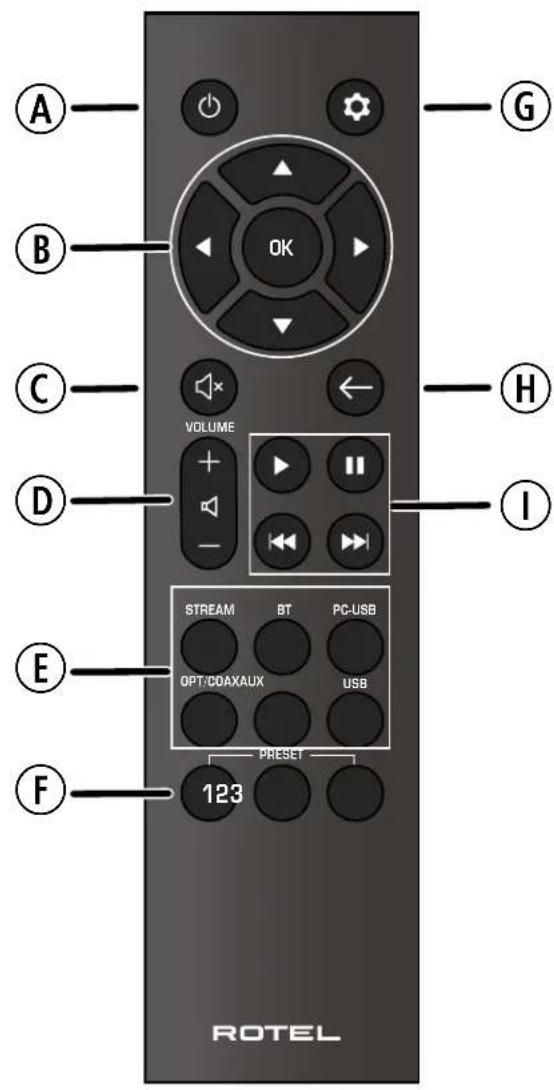
(A): Power Button ☐
Activate or deactivate the unit.
⑧: Navigation and OK Buttons Access the various menus and operate the Amplifier settings.
©: Mute Button Mute the audio.
(D): Volume Buttons
Adjust the volume output level.
⑤: Source Buttons
Selects the input signal source.
⑤: Preset Buttons
Station preset and recall buttons.
Figure 3: Antennas, Analog Input and Speaker Output Connections
Branchements d'antennes, entrée analogique et sorties enceintes acoustiques
Anschlussdiagramm
Conexiones para las antenas, Entrada analógica y Salida a las Cajas Acústicas
Aansluitingen van Antennes, Analoge ingang en de luidsprekeruitgangen
Collegamenti di antenne, ingresso analogico e diffusori
Antenner-, Signal- och högtalaranslutningar
Подсоединение Антенны, источников сигнала и акустических систем
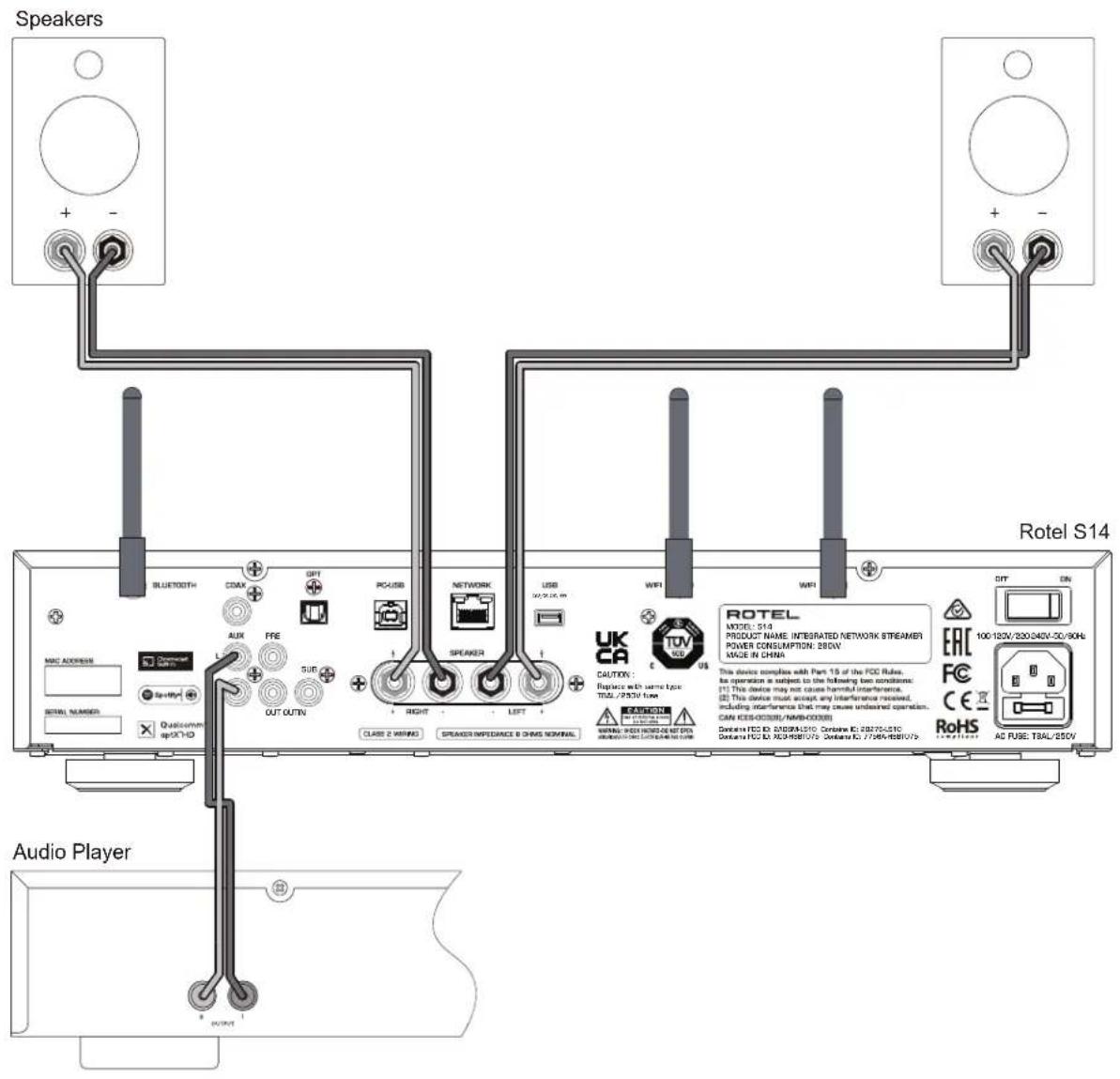
Figure 4: Digital Input Connections
Branchements Entrées numériques
Digitaleingänge-Anschlüsse
Conexiones Entradas Digitales
Digitale ingang verbinding
Collegamenti ingressi digitali
Anslutningar för digitala ingångar
Подсоединение к цифровым входам
![Computer (Supplied) Rotel S14 MAC ADDRESS SERIAL NUMBER Qualcomm* apXCHD BLUETOOTH COAX L PRE R OUT OUTIN PF PC-USB NETWORK USB ON/OFF/OSI WIFI WIFI UK CA CAUTION : Replace with some type TOTAL/250V fuse SPEAKER IMPIEANCE & CHMS NOMINAL CLASS 8 WIRING CAMERA PRODUCE NAME: INTEGRATED NETWORK STREAMER POWER CONSUMPTION: RNOW MADE IN CHINA ROTEL MODEL: S14 The device complies with Part. 15 of the FCC Roller. Its operation is subject to the following two conditions: [1] This device may not cause harmful interference, [2] This device must accept any interference received, including interference that may cause undesired operation, CAN ICS-003(B)/NMB-003(B) Continuing FCC ID: NAWIV/LBS, Cusidio ID: SEPTA1610, Extremor FCC ID: NODH/SDT075, Extremor IC: 7750AHGDT075 AC FUSE: TRIAL/250V Rotel CD14MKII CLASS 1 LASER PRODUCT APPAREIL LASER DE CLASSE 1 This Class B digital apparatus complies with Canadian ESS-HCL. Cat apparel numunique in its class B set, confluence it is normy HM/DTI do Canada. PRODUCE NAME: PLUS WITH CMOS PAGES TO OPEN PROCESSES IN EFFECT AT DATE OF WORK. DISHAL OUT ANALOG OUT RIGHT LEFT PRODUCE NAME: PLUS WITH CMOS PAGES TO OPEN PROCESSES IN EFFECT AT DATE OF WORK. DISHAL OUT RNGOE ROTEL LINK IN 12V TIME IN CAPTION WARNING: SHOCK HAZARD-DO NOT OPEN AVB-RIGUE DE CHOC ELECTRIQUE-NE PAS QUADR ROTEL CONTRACT DCC PLAYER MODE, INC. CONTAMINI POWER CONSUMPTION TOWATS SPRAL NO. RP-800A](/content/2026/04/608647/images/5b9d6f665f3c4d61c02fefe7a73b84aae4fd81016fae2ce8384036a0e6f4844b.jpg)
Important Notes
When making connections be sure to:
√ Turn off all the components in the system before hooking up any components, including loudspeakers.
√ Turn off all components in the system before changing any of the connections to the system.
It is also recommended that you:
√ Turn the volume control of the unit all the way down before the unit is turned on or off.
Remarques importantes
Important Safety Instructions 2
Figure 1: Controls and Connections 3
Figure 2: Remote Control 4
Figure 3: Analog Input and Speaker Output Connections 5
Figure 4: Digital Input Connections 6
Important Notes 7
About Rotel....8
Getting Started 8
A Few Precautions 9
Placement 9
Cables 9
The Remote Control....9
Remote Control Batteries 9
AC Power and Control 9
AC Power Input 9
Master Power Switch [15] 10
Power Switch 1 A and Power Indicator 2 10
Protection Indicator 2 10
Input Signal Connections 10
Aux Input 15 10
Digital Inputs 10
Output Connections 10
PRE Output 17 10
SUB Output 10 10
Headphone Output 10
Speaker Outputs 19 10
Speaker Wire Selection 10
Polarity and Phasing 11
Speaker Connection 11
Display 11
aptX™ HD Bluetooth Connection □ 11
Rear USB port 13 11
PC-USB Input 11 11
Network Connection 12 14 11
Streaming 12
Wi-Fi Stream Connection 12
Audio Streaming 13
Room Ready 13
Spotify ^® 13
Overview of Buttons and Controls....13
Main Menu 14
Troubleshooting 14
Power Indicator Is Not Illuminated 14
Network Does Not Work 15
Fuse Replacement 15
No Sound 15
Cannot Connect via Bluetooth 15
playable Audio Formats 15
Specifications....16
About Rotel
Our story began over 60 years ago. Over the decades, we have received hundreds of awards for our products and satisfied hundreds of thousands of people who take their entertainment seriously – like you.
Rotel was founded by a family whose passionate interest in music led them to manufacture high-fidelity components of uncompromising quality.
Through the years, that passion has remained undiminished and the family goal of providing exceptional value for audiophiles and music lovers, regardless of their budget, is shared by all Rotel employees.
Rotel's engineers work as a close team, listening to, and fine tuning, each new product until it reaches their exacting musical standards. They are free to choose components from around the world in order to make that product the best they can. You are likely to find capacitors from the United Kingdom and Germany, semiconductors from Japan or the United States, while toroidal power transformers are manufactured in Rotel's own factory.
We all have concerns about our environment. And, as more and more electronics are produced it is especially important for a manufacturer to do all it can to engineer products that have a minimum impact on the environment.
At Rotel, we are proud to do our part. We have reduced the lead content in our products by using special lead-free ROHS solder and components. Our engineers continually strive to improve power supply efficiency without compromise to quality. When in standby mode Rotel products use minimal power to meet global Standby Power Consumption requirements.
The Rotel factory is also doing their part to help the environment through constant improvements to product assembly methods for a cleaner and greener manufacturing processes.
All of us at Rotel thank you for buying this product. We are sure it will bring you many years of enjoyment.
Getting Started
Thank you for purchasing the Rotel S14 Integrated Network Streamer. When used in a high-quality music audio system, Rotel products will provide years of musical enjoyment.
This unit is a full featured, high performance component. All aspects of the design have been optimized to retain the full dynamic range and subtle nuances of your music. The unit has a highly regulated power supply incorporating a Rotel custom-designed toroidal power transformer. This low impedance power supply has ample power reserves, which enables the unit to easily reproduce the most demanding audio signals. This type of design is more expensive to manufacture, but it is better for the music.
The printed circuit boards (PCB) are designed with Symmetrical Circuit Traces. This ensures that the precise timing of the music is maintained and faithfully recreated. The circuitry uses metal film resistors and polystyrene or polypropylene capacitors in important signal paths. All aspects of this design have been examined to ensure the most faithful music reproduction.
The main functions of the S14 are easy to install and use. If you have experience with other stereo systems, you shouldn't find anything perplexing. Simply plug in the associated components and enjoy.
A Few Precautions
WARNING: To avoid potential damage to your system, turn off ALL the components in the system when connecting or disconnecting the loudspeakers or any associated components. Do not turn the system components back on until you are sure all the connections are correct and secure. Pay particular attention to the speaker wires. There must be no loose strands that could contact the other speaker wires, or the chassis of the unit.
Please read this manual carefully. It provides information on how to incorporate the unit into your system as well as information that will help you get optimum sound performance. Please contact your authorized Rotel dealer for answers to any questions you might have. In addition, all of us at Rotel welcome your questions and comments.
Save the shipping carton and all enclosed packing material for future use. Shipping or moving the unit in anything other than the original packing material may result in severe damage to your unit.
If included in the box please complete the owner's registration card or register on line. Also be sure to keep the original sales receipt. It is your best record of the date of purchase, which you will need in the event warranty service is ever required.
Placement
Like all audio components that handle low level signals, this unit can be affected by its environment. Avoid placing the unit on top of other components. Also avoid routing audio signal cables near power cords. This will minimize the chance it will pick up hum or interference.
The unit generates heat as part of its normal operation. The heat sinks and ventilation openings in the unit are designed to dissipate this heat. The ventilation holes in the top cover must be open. There should be 10 cm (4 inches) of clearance around the chassis, and reasonable airflow through the installation location, to prevent the unit from overheating.
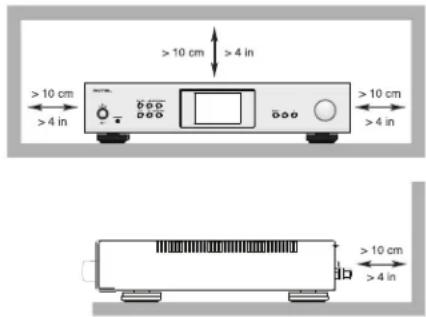
Remember the weight of the unit when you select an installation location. Make sure that the shelf or cabinet can support it. We recommend installing the unit in furniture designed to house audio components. Such furniture is designed to reduce or suppress vibration which can adversely affect sound quality. Ask your authorized Rotel dealer for advice about component furniture and proper installation of audio components.
Cables
Be sure to keep the power cords, digital signal cables and analog audio signal cables in your installation away from each other. This will minimize the chance of the analog audio signal cables picking up noise or interference from the power cords or digital cables. Using only high quality, shielded cables will also help to prevent noise or interference from degrading the sound quality of your system. If you have any questions see your authorized Rotel dealer for advice about the best cable to use with your system.
The Remote Control
Some functions can be done with either the front panel controls, or the supplied the remote control. When these operations are described, the square call out numbers refer to the main unit, while the encircled letters refer to the remote control.
Remote Control Batteries
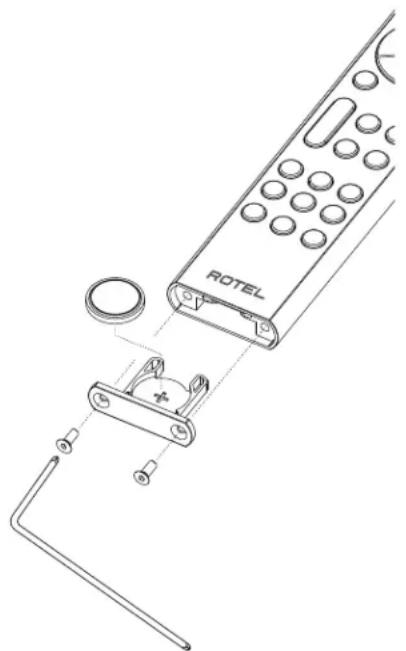
To change the battery of the remote control, first remove the two screws shown as figure 1. Then remove the battery holder by pulling it downwards. Insert a new CR 2035 battery into the battery holder according to the marking (+ on the battery facing downwards). Now insert the holder as shown and use two screws to fasten the holder.
natural_image
Line drawing of a rotary mobile phone with attached hardware components (no text or symbols)Figure 1
NOTE: Use only the tool supplied with the unit to remove the screw to avoid damage to the hex screw.
NOTE: Do NOT over-tighten the screw to avoid damage to the screw or remote control.
AC Power and Control
AC Power Input 21
Your unit is configured at the factory for the proper AC line voltage in the country where you purchased it (either 120 volts AC or 230 volts AC with a line frequency of either 50 Hz or 60 Hz). The AC line configuration is noted on the back panel.
NOTE: Should you move your unit to another country, the unit will detect and reconfigure for use on a different line voltage. Consult a qualified service person or the Rotel factory service department for information.
NOTE: Some products are intended for sale in more than one country and as such are supplied with more than one AC cord. Please only use the one appropriate for your country/region.
The unit does not draw high levels of current from the power outlet. However, it should be plugged directly into a polarized wall outlet using the supplied cable or other compatible cable as recommended by your authorized Rotel dealer. Do not use an extension cord. A heavy duty multi-tap power outlet strip may be used if it (and the wall outlet) can handle the current demanded by the unit and all the other components connected to it.
If you are going to be away from home for an extended period of time such as a month-long vacation, it is a sensible precaution to unplug your unit (as well as other audio and video components) while you are away.
Master Power Switch 15
The large rocker switch on the rear panel is a master power switch. When it is in the OFF position, power to the unit is completely off. When it is in the ON position, the front panel POWER and remote control ON/OFF buttons can be used to activate the unit or put it into standby mode.
Power Switch 1 A and Power Indicator 2
Press the front panel Power Switch button 1, to turn the unit on. The Power Indicator light 2 is illuminated when the unit is on. Press Power Switch button again to turn the unit off.
When the power switch is in the ON position, the remote control button may be used to activate the S14. In Standby mode the power light is red, but the display is turned OFF.
Protection Indicator 2
The unit has both thermal and over-current protection circuitry that protects the unit against damage in the event of extreme or faulty operating conditions. The protection circuits are independent of the audio signal and have no impact on sonic performance. Instead, the protection circuits monitor the temperature of the output devices and shut down the unit if temperatures exceed safe limits.
Most likely, you will never see this protection circuitry in action. However, should a faulty condition arise, the unit will stop playing and will display "PROTECTION" on the front panel. The power indicator 2 on the front panel will turn red.
If this happens, turn the unit off. Let it cool down for several minutes, and attempt to identify and correct the problem that caused the protection circuitry to engage. When you turn the unit back on, the protection circuit will automatically reset and the power indicator 2 should turn blue.
In most cases, the protection circuitry activates because of a fault condition such as shorted speaker wires, or inadequate ventilation leading to an overheating condition. In very rare cases, highly reactive or extremely low impedance speaker loads could cause the protection circuit to engage.
If the protection circuitry triggers repeatedly and you are unable to isolate and correct the faulty condition, contact your authorized Rotel dealer for assistance in troubleshooting.
Input Signal Connections
NOTE: To prevent loud noises that neither you nor your speakers will appreciate, make sure the system is turned off when you make any signal connections.
AUX Input 16
See Figure 3
The Aux input of the streamer is for connecting components such as CD players or other audio playback devices with an analog audio output.
The Left and Right channels are labeled and should be connected to the corresponding channels of the source component. The Left connectors are white, the Right connectors are red. Use high quality RCA cables for connecting input source components to the unit. Ask your authorized Rotel dealer for advice about cables.
Digital Inputs 9 10
See Figure 4
There is one set of digital inputs labeled COAX and OPT respectively. Connect the COAXIAL or OPTICAL outputs of your source component into these sockets. The digital signals will be decoded and played by the unit. The unit is capable of decoding PCM signals up to 24 bit, 192kHz.
Output Connections
PRE Output 17
The unit has a set of preamp outputs labeled PRE OUT. The currently selected source input is available from this output. Typically the PRE OUT output is used to connect to an external power amplifier for either a 2nd zone or to drive higher output power from the unit.
NOTE: Changes to the settings of the Volume, Balance or Tone controls affect the signal from the PRE OUT output.
SUB Output 18
There is a connector for subwoofer output to connect to the subwoofer. This sub output is summed with both the left and right audio signal. The subwoofer output is full range relying on the subwoofer to filter the signal.
Headphone Output 3
The headphone output allows you to connect headphones for private listening. This output accepts a standard 3.5mm (1/8") mini stereo headphone connector. Plugging in a set of headphones cuts off the signal to the speakers, PRE output and SUB output.
NOTE: Because the sensitivity of speakers and headphones can vary widely, always reduce the volume level before connecting or disconnecting headphones.
Speaker Outputs 19
See Figure 3
Speaker Wire Selection
Use insulated two-conductor stranded wire to connect the unit to the speakers. The size and quality of the wire can have an audible effect on the performance of the system. Standard speaker wire will work, but can result in lower output or diminished bass response, particularly over longer distances. In general, heavier wire will improve the sound. For best performance, you may want to consider special high-quality speaker cables. Your authorized Rotel dealer can help in the selection of cables for your system.
Polarity and Phasing
The polarity - the positive/negative orientation of the connections - for every speaker and streamer connection must be consistent so all the speakers will be in phase. If the polarity of one connection is reversed, bass output will be very weak and stereo imaging degraded. All wire is marked so you can identify the two conductors. There may be ribs or a stripe on the insulation of one conductor. The wire may have clear insulation with different color conductors (copper and silver). There may be polarity indications printed on the insulation. Identify the positive and negative conductors and be consistent with every speaker and streamer connection.
Speaker Connection
Turn off all the components in the system before connecting the speakers. The unit has color-coded binding post type speaker connectors on the back panel. These connectors accept bare wire, connector lugs, or dual banana type connectors. (Except in European Community countries where their use is not permitted.)
Route the wire from the unit to the speakers. Give yourself enough slack so you can move the components to allow access to the speaker connectors. If you are using dual banana plugs, connect them to the wires and then plug into the backs of the binding posts. The thumbscrews of the binding posts should be screwed in all the way (clockwise).
If you are using terminal lugs, connect them to the wires. If you are attaching bare wires directly to the binding posts, separate the wire conductors and strip the insulation from the end of each conductor. Be careful not to cut into the wire strands. Unscrew (turn counterclockwise) the binding post thumbscrews. Place the connector lug or wire around the binding post shaft. Turn the thumbscrews clockwise to clamp the connector lug or wire firmly in place.
NOTE: Be sure there are no loose wire strands that could touch adjacent wires or connectors.
Display 5
The front panel display shows the current unit status and streaming source information. Album artwork is also displayed on supported source inputs. The display provides access to the setup and configuration menu options of the unit.
aptX™ HD Bluetooth Connection □
The Bluetooth Antenna ^[8] on the S14's back panel is for wireless streaming via Bluetooth, from your device (i.e. mobile phones, tablets or computers). From your device, look for "Rotel S14 / XXX-XXXXXX (series number)" and connect to it. Connection is normally automatic, but if prompted for a password, please enter "0000" on your device. The S14 supports traditional Bluetooth, AAC and aptXTM HD Bluetooth audio streaming.
Rear USB Port 13
The rear USB port allows playback of audio from a USB Flash device. The maximum support size of the USB flash drive is 32 GB. Supported file types include MP3, AAC (mp4), FLAC, WAV and OGG. All files should be in the root folder of the flash drive and are played back in sequential order.
PC-USB Input 11
See Figure 4
Connect this input using a USB cable to the PC-USB socket of your computer.
The S14 supports USB Audio Class 2.0 modes. To use the PC-USB connection you will need to install the Windows driver supplied on the USB stick included with the S14.
Many audio playback applications do not support 384kHz sampling rate. Please confirm your audio player supports 384kHz audio and you have 384kHz audio files to properly playback this sample rate. Also, you may need to configure the audio driver in your PC to output 384kHz or your computer may "down sample" to a lower audio sample rate. For more information please refer to your audio player or operating system information.
NOTE: USB Audio Class 2.0 requires installation of the Windows PC driver on the USB stick included with the S14.
NOTE: MAC computers do not require a driver to support PC-USB Audio Class 2.0.
NOTE: Upon successful installation of the driver, you may need to select the ROTEL audio driver from the audio/speaker setup of your computer.
Network Connection 12 14
This unit can connect to a wired or wireless network. If using a wired network, connect your network cable to the socket marked NETWORK 12 then the front panel will display the wired icon using a wireless network, please connect the Wi-Fi antennas (supplied) to the connector marked Wi-Fi 14 then the front panel will display the Wi-Fi icon the depending on the wireless connection status.
The NETWORK connection allows software updates to automatically be downloaded from the Internet.
Streaming
The S14 supports the wireless streaming of audio from network attached storage devices and multiple Internet based audio streaming services.
Wi-Fi Stream Connection
To utilize the Streaming services you will need to do the following:
Connecting S14
For hardwire connections attach the network cable to the rear panel Network port on the unit.
For wireless connections ensure the Wi-Fi antennas have been installed and power on the S14 unit. The Wi-Fi icon will be displayed on the front panel. This means the S14 is ready to connect to your Wi-Fi network.
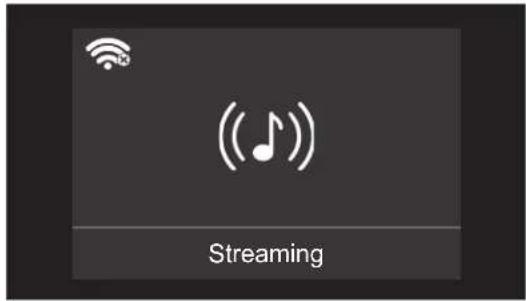
From your devices (phones, tablets), download the free Google Home App or Apple Home App from an App store, such as the Google Play or Apple Home App store. After download, launch and run the Google Home App on your devices, following the relevant steps below, dependent on your device type:
For iOS devices (using Wi-Fi Setup):
-
Go to the SETTINGS menu on your iOS device.
-
Select the Wi-Fi settings menu and ensure Wi-Fi is enabled.
-
Wait for up to 90 seconds for the list of available Wi-Fi networks to be refreshed and find the S14 enabled Streaming device listed at the bottom of the list under the "SET UP NEW AIRPLAY SPEAKER" option.
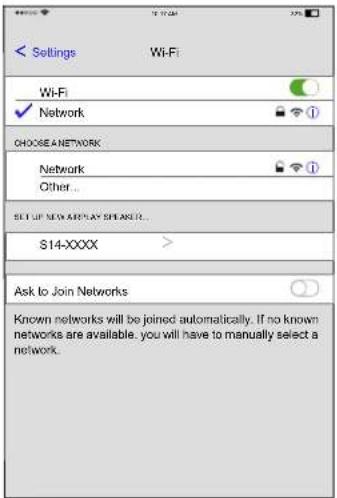
- Select the new Streaming device and confirm to add to the current Wi-Fi network by choosing the desired Network listed and selecting Next.
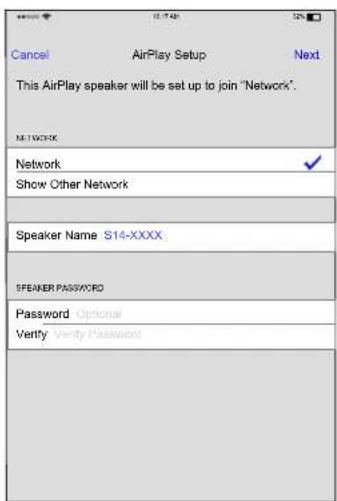
- Wait for 60-90 seconds for the Streaming device to configure the settings and attach to the wireless network. When connected, the Wi-Fi icon will show on the front display.
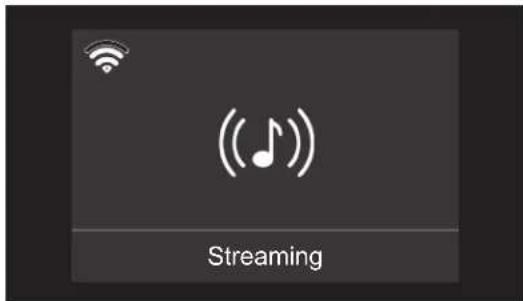
- You're connected!
For iOS devices (using Apple Home):
-
Open the Apple Home App.
-
Press the "Add Accessory" button or "+" button and select "Accessory".
-
Select the "More options" option.
-
Select the S14 unit and follow the setup wizard instructions to configure the Wi-Fi settings.
-
Wait for 60-90 seconds for the Streaming device to configure the settings and attach to the wireless network. When connected, the Wi-Fi icon will show on the front display.
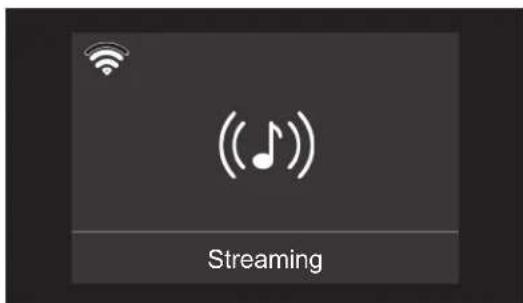
- You're connected!
For Android device:
-
Launch the Google Home App on your device.
-
Press the "+" icon in the top left corner and select "Set up device" -> "New devices". The App will search for the S14. Select the unit to begin the setup wizard.
-
If prompted, enter the Wi-Fi encryption key of your wireless network and then wait for the unit to configure and connect to the network.
-
Wait for 60-90 seconds for the unit to configure the settings and attach to the wireless network. When connected, the Wi-Fi icon will show on the front display.
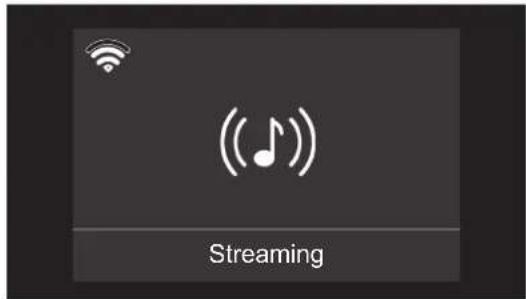
- You're connected!
Audio Streaming
Once properly configured, you can begin streaming audio to the \$14. Open your music App and select the device or multiple devices you want to control. Then select an audio service to begin streaming audio.
Roon Ready
roon READY
The unit has been certified as Roon Ready and compatible with Roon software.
Being Roon Ready means that Rotel uses Roon streaming technology, for an incredible user interface, simple setup, rock-solid daily reliability, and the highest levels of audio performance, without compromise.
To use Roon setup the S14 in the Roon software as a streaming endpoint and follow the instructions in Roon.
Spotify®

Spotify®
How to use Spotify Connect
You'll need a Spotify premium account to use Spotify connect using the steps as shown below:
-
Add your new device to the same Wi-Fi network as your phone, tablet or PC (see product user instructions for details).
-
Open the Spotify app on your phone, tablet or PC, and play any song.
-
Tap the image on the bottom of the screen.
-
Pick your device from the list. If you can't see it, just check it's connected to the same Wi-Fi network as your phone, tablet or PC.
-
Select your favorite music and start streaming.
All done! Happy listening.
Licenses:
The Spotify Software is subject to third party licenses found here: www.spotify.com/connect/third-party-licenses.
There are multiple streaming services available with the \$14 including the ability to use Airplay 2 and Google Cast to stream your favorite music.
Internet radio services can be utilized on the S14 using the supported Apps and various streaming methods.
The S14 may also include additional streaming services in the future. For the latest information on streaming services please check the Owner's Manual on the www.rotel.com website under the Support tab.
For more information on the offerings available from each streaming service please check with the service provides.
Overview of Buttons and Controls
This section provides a basic overview of the buttons and controls on the front panel and remote control. Detailed instructions on the use of these buttons are provided in the more complete operating instructions in the following sections.
Navigating and OK Ⓑ Buttons: Use the navigation buttons △/▽/∠/▽ ⑧ and the "OK" on the remote control to access the various menus and operate the unit settings.
MENU and - / + 7 Buttons : Use the MENU button and the -/+ buttons on the front panel to access the various menus and operate the unit settings.
MENU button - To access the menu setting, move the next setting and save the desired settings.
-/+ buttons - To change the value.
Power 1①: The Power button on the front panel and ⏻ on the remote control activate or deactivate the unit. To power on the unit, the rear panel master POWER switch must be in the ON position for the front panel and the remote standby function to operate.
Power On - To power on the unit push and release the Power 1 button on the front panel or PUSH-HOLD the remote control Power A button for 2 seconds until the unit powers on (up to 7 seconds).
Power Off/Standby - To power off the unit to standby push and release the front panel Power 1 button or PUSH-HOLD the remote control Power A button for 2 seconds until the unit powers off (up to 3 seconds).
Button Ⓐ: Push the button once to mute the audio. An indication appears in the front panel display. Press the button again to restore the previous volume level.
VOLUME Knob 5 and VOL +/- Buttons ①: The VOLUME +/- buttons on the remote and the rotary control on the front panel provide the master VOLUME control, adjusting the output level.
Source Button 4 E: Press the corresponding input button on the front panel 4 or remote control E to select the desired listening source.
Push the front panel source buttons to select STREAMING, BLUETOOTH, PC-USB, COAX/OPT, AUX and USB or use the dedicated source button on the remote control. The COAX/OPT is a toggle source input and will switch between the Coaxial and Optical inputs when pressed repeatedly.
Preset Buttons ①: The Preset buttons are used to memorize and recall a station. To save a station PUSH-HOLD the preset button for 3 seconds. To recall a station simply push and release the desired button.
NOTE: Preset functions are not available for all streaming services.
Button ⑥: The SETUP button activates the setup menu on the front display. Push the SETUP button again to move to the next setup menu option.
Button Ⓗ: Pressing briefly returns to the previous selection screen or exits the setup menu if you are in the top menu level.
Playback Control Buttons ①: Press the Play ▶/Pause ⑪ button to start playing or stop. ● and buttons are used to select tracks of the selected audio source.
Main Menu
You can enter the Setup menu from the front panel by pressing the ⏻ button on the remote control or the MENU 7 button on the front panel. To select the desired menu, use the MENU 7 button on the front panel or the △/▽ Ⓑ arrow buttons on the remote control to toggle between the menus and press + button 7 on the front panel or the "OK" button on the remote control to confirm. You can change the values of the selected setting by pressing the — or + button on the front panel or the ◀/▷ Ⓑ arrow buttons on the remote control then press the "OK" button on the remote control or the MENU button 7 on the front panel to save and to return to the previous menu.
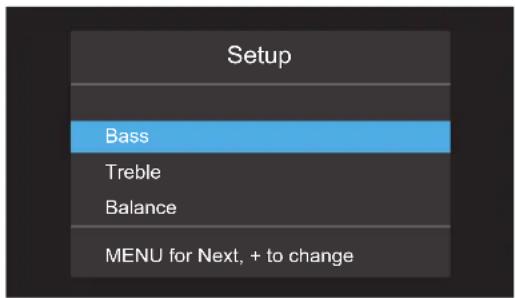
Bass: Bass level can be changed to desired settings.
Options include: -10 - +10.
Treble: Treble level can be changed to desired settings.
Options include: -10 - +10.
Balance: Adjusts the left-to-right balance of the sound output. The factory default is the center position or "0".
Options include: L15 - R15.
Dimmer: Sets the brightness of the front display. The Menu Setup will always activate at the brightest level regardless of the Dimmer setting to ensure the unit configuration options can easily be accessed and modified.
Options include: High (Default), Medium, Low.
LED Dimmer: Sets the brightness of the ON level of the front panel Power LED.
Options include: High (Default), Medium, Low.
Power On Max Volume: This sets the maximum volume level when the unit is turned on. "45" is the factory default.
Options include: 0-96.
Auto Power Off: Set the amount of time the units stays powered on when there is no audio signal. The unit will automatically go to standby mode if audio is not detected for the specified timer period. Default: 20 MINS.
Options include: 20 Minutes (Default), Disable, 1 Hour, 2 Hours, 5 Hours, 12 Hours.
Network Info: Shows the network connection status and network settings, Wi-Fi MAC, Bluetooth MAC and Ethernet MAC.
Software Info: Shows the current software version loaded into the unit.
Wi-Fi Reset: This option erases all current Wi-Fi settings in the unit.
Factory Reset: This option sets the unit back to the original setting as when it left the factory including resetting the Wi-Fi settings. All user settings will be erased.
NOTE: Use caution when resetting the unit to factory defaults as all user configured options will be erased and reset to original factory settings.
EXIT: Exits this setting menu.
Troubleshooting
Most difficulties in audio systems are the result of incorrect connections, or improper control settings. If you encounter problems, isolate the area of the difficulty, check the control settings, determine the cause of the fault and make the necessary changes. If you are unable to get sound from the unit, refer to the suggestions for the following conditions:
Power Indicator Is Not Illuminated
The Power Indicator and the basic items in the Display window should be illuminated whenever the unit is plugged into the wall power outlet and the Power button is pushed in. If it does not illuminate, test the power outlet with another electrical device, such as a lamp. Be sure the power outlet being used is not controlled by a switch that has been turned off.
Network Does Not Work
If you have trouble connecting to your wired/wireless network, check your network setting carefully, these steps may help to resolve the problem.
- Confirm that the network works, ie, PC can access the Internet using the same network.
- Check that a DHCP server is available. Please refer to Network Config section.
- Check that your network's firewall is not blocking any outgoing ports.
- Do a hard power off (unplug the AC mains) and let the unit restart the network scanning cycle.
- If using Wi-Fi connection, make sure the placement of your unit allows it to receive the Wi-Fi signal.
Fuse Replacement
If another electrical device works when plugged into the power outlet, but the Power Indicator still will not illuminate when the unit is plugged into the wall outlet, it indicates that the power fuse may have blown. If you believe this has happened, unplug the unit removing the AC power and use the tool to open the fuse holder 20 on the rear panel then replace the blown fuse with a new one of the exact type and rating, or contact your authorized Rotel dealer to get the fuse replaced.
No Sound
Check the signal source to see if it is functioning properly. Make sure the cables from the signal source to the unit inputs are connected properly. Be sure the Input Source is set to the proper input. Check the wiring between the unit and the speakers.
Cannot Connect via Bluetooth
If you cannot pair your Bluetooth enabled device to the unit, delete the memory of the previous connection on your device. On your device this is often listed as "Forget this Device". Then try to make the connection again.
playable Audio Formats
aptX™ HD and AAC Bluetooth
| Format Notes | |
| Any format supported by the sending device. | May exclude Apps designed to play formats not originally supported by the sending device. |
PC-USB
| Format Notes | |
| Format determined by the Media Player/Server software that you use. | Any supported format by the PC softwarePCM Audio:44.1k, 48k, 88.2k, 96k, 176.4k, 192k, 352.8k, 384k (16 bit, 24 bit)MQA, MQA Studio (24 bit / 384k) |
Coax/Optical
| Format Notes | |
| SPDIF LPCM | 44.1k, 48k, 88.2k, 96k, 176.4k, 192k16 bit, 24 bit |
USB Flash Drive
| Format Notes | |
| MP3, AAC (MP4),FLAC, WAV, OGG | 64k, 128k, 192k, 256k, 320k, HQ. |
Specifications
| Maximum Power Output | 150 watts/ch, 4 ohms |
| Continuous Power Output | 80 watts/ch, 8 ohms |
| Total Harmonic Distortion | < 0.04% |
| Intermodulation Distortion (60 Hz : 7k Hz, 4:1) | < 0.03% |
| Frequency Response | Frequency Response |
| Line Level Inputs 10 Hz - 100k Hz, ± 0.5 dB | |
| Damping Factor Damping Factor (20 Hz - 20k Hz, 8 ohms) | 400 |
| Input Sensitivity / Impedance | Input Sensitivity / Impedance |
| Line Level Inputs 200 mV / 47k Ohms | |
| Input Overload | |
| Line Level Inputs 4.5 V | |
| Tone Controls – Bass / Treble | ±10 dB at 100Hz / 10k Hz |
| Signal to Noise Ratio (A weighting) | |
| Line Level Inputs 100 dB | |
"Made for iPod," and "Made for iPhone," means that an electronic accessory has been designed to connect specifically to iPod or iPhone, respectively, and has been certified by the developer to meet Apple performance standards. Apple is not responsible for the operation of this device or its compliance with safety and regulatory standards. Please note that the use of this accessory with iPod, or iPhone may affect wireless performance.
iPhone, iPod, iPod classic, iPod nano, and iPod touch are trademarks of Apple Inc., registered in the U.S. and other countries.
Made for
iPhone | iPod
Digital Section
| Frequency Response | Frequency Response | 10Hz - 90k Hz | Used by MAX Works with Apple badge means that an accessory has been designed to work specifically with the technology identified in the badge and has been certified by the developer to meet Apple performance standards. |
| Signal to Noise Ratio (A weighting) | 98 dB | ||
| Input Sensitivity / Impedance | -20 dBFS / 75 ohms | ||
| Digital Inputs | SPDIF LPCM | ||
| (up to 192k Hz/24 bit) | To control this AirPlay 2-enabled speaker, iOS 11.4 or later is required. | ||
| PC-USB | USB Audio Class 2.0 | ||
| (up to 384k Hz/24 bit)* | Apple, AirPlay, Apple TV, Apple Watch, iPad, iPad Air, iPad Pro, iPhone, and Lightning are trademarks of Apple Inc., registered in the U.S. and other countries. | ||
| *Driver installation required | |||
| Support MQA and MQA Studio | |||
| (up to 384k Hz/24 bit) |
General
| Power Requirements | |
| USA | 120V, 60 Hz |
| EC | 230V, 50 Hz |
| Standby Power Consumption | |
| Normal | < 0.5 watts |
| Power Consumption | 280 watts |
| BTU (4 ohms, 1/8th power) | 733 BTU/h |
| Dimensions (W, H, D) | 430 x 93 x 345 mm |
| 17" x 3 ^5/^8 " x 13 ^1/^2 " | |
| Panel Height | 80 mm / 3 ^1/^8 ". |
| Weight (net) | 9.15 kg, 20.17 lbs. |

Works with Apple AirPlay
'MQA' or 'MQA Studio' indicates that the product is decoding and playing an MQA stream or file, and denotes provenance to ensure that the sound is identical to that of the source material. 'MQA Studio' indicates it is playing an MQA Studio file, which has either been approved in the studio by the artist/producer or has been verified by the copyright owner.
'OFS' confirms that the product is receiving an MQA stream or file. This delivers the final unfold of the MQA file and displays the original sample rate.
All specifications are accurate at the time of printing.
Rotel reserves the right to make improvements without notice.
Rotel and the Rotel HiFi logo are registered trademarks of The Rotel Co., Ltd. Tokyo, Japan.
Menu Principal (Main Menu)....25
natural_image
Line drawing of a rotary remote control with attached battery pack and cable (no text or symbols)Figure 1
Polarity and Phasing
- Vous êtes connectél
- Vous êtes connecté!
- Vous êtes connectél
Streaming audio
Menu Principal (Main Menu)....35
Bei Störungen 36
natural_image
Line drawing of a rotary remote control with attached mechanical components (no text or symbols)Figure 1
HINWEIS: Some products are intended for sale in more than one country and as such are supplied with more than one AC cord. Please only use the one appropriate for your country/region.
- Sie sind verbunden!
- Sie sind verbunden!
Für Android-Geräte:
- Sie sind verbunden!
Audio-Streaming
www.spotify.com/connect/third-party-licenses.
natural_image
Line drawing of a rotary remote control with attached hardware components (no text or symbols)Figure 1
- ¡Y listo!
- ¡Y listo!
- ¡Y listol
Specifications....60
Over Rotel
natural_image
Line drawing of a rotary remote control with attached device and cable (no text or symbols)Afbeelding 1
natural_image
Line drawing of a rotary remote control with attached device and cable (no text or symbols)Figura 1
Italiano
(up to 192k Hz/24 bit)
USB Audio Class 2.0
PC-USB
(fino a 384k Hz/24 bit)*
natural_image
Line drawing of a rotary remote control with attached mechanical components (no text or symbols)Figur 1
- Du är ansluten!
- Du är ansluten!
- Du är ansluten!
Ljudstreaming
"Made for iPod," and "Made for iPhone," means that an electronic accessory has been designed to connect specifically to iPod or iPhone, respectively, and has been certified by the developer to meet Apple performance standards. Apple is not responsible for the operation of this device or its compliance with safety and regulatory standards. Please note that the use of this accessory with iPod, or iPhone may affect wireless performance.
iPhone, iPod, iPod classic, iPod nano, and iPod touch are trademarks of Apple Inc., registered in the U.S. and other countries.
Made for
iPhone | iPod
Digitaldel
FrekvensresponsFrekvensrespons

natural_image
Line drawing of a rotary remote control with attached mechanical components (no text or symbols)- Вы подключены!
- Вы подключены!
- Вы подключены!
Стриминг аудио
2-11-4, Nakane, Meguro-ku,
Tokyo, 152-0031
Japan
Rotel USA
11763 95th Avenue North
Maple Grove, MN 55369
USA
Phone: (510) 843-4500 (option 2)
Rotel Canada
Kevro International
902 McKay Rd. Suite 4
Pickering, ON L1W 3X8
Canada
Tel: +1 905-428-2800
Rotel Europe
Dale Road
Worthing, West Sussex BN11 2BH
England
- ROTEL®
- S14
- Important Safety Instructions
- Notice
- APPLICABLE FOR USA, CANADA OR WHERE APPROVED FOR THE USAGE
- Important Notes
- When making connections be sure to:
- It is also recommended that you:
- Remarques importantes
- About Rotel
- Getting Started
- A Few Precautions
- Placement
- Cables
- The Remote Control
- Remote Control Batteries
- AC Power and Control
- AC Power Input 21
- Master Power Switch 15
- Power Switch 1 A and Power Indicator 2
- Protection Indicator 2
- Input Signal Connections
- AUX Input 16
- Digital Inputs 9 10
- Output Connections
- PRE Output 17
- SUB Output 18
- Headphone Output 3
- Speaker Outputs 19
- Speaker Wire Selection
- Polarity and Phasing
- Speaker Connection
- Display 5
- aptX™ HD Bluetooth Connection □
- Rear USB Port 13
- PC-USB Input 11
- Network Connection 12 14
- Streaming
- Wi-Fi Stream Connection
- Connecting S14
- For iOS devices (using Wi-Fi Setup):
- For iOS devices (using Apple Home):
- For Android device:
- Audio Streaming
- Roon Ready
- Spotify®
- Overview of Buttons and Controls
- Main Menu
- Troubleshooting
- Power Indicator Is Not Illuminated
- Network Does Not Work
- Fuse Replacement
- No Sound
- Cannot Connect via Bluetooth
- playable Audio Formats
- Made for
- iPhone | iPod
- Works with Apple AirPlay
- Streaming audio
- Für Android-Geräte:
- Audio-Streaming
- Over Rotel
- Italiano
- Ljudstreaming
- Стриминг аудио
- Rotel USA
- Rotel Canada
- Rotel Europe
Brand : ROTEL
Model : S14
Category : Hi-fi system