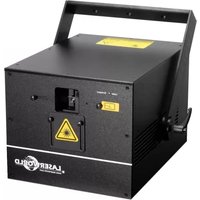
CS4000RGB FX - Laser pointer Laserworld - Free user manual and instructions
Find the device manual for free CS4000RGB FX Laserworld in PDF.



User questions about CS4000RGB FX Laserworld
0 question about this device. Answer the ones you know or ask your own.
Ask a new question about this device
Download the instructions for your Laser pointer in PDF format for free! Find your manual CS4000RGB FX - Laserworld and take your electronic device back in hand. On this page are published all the documents necessary for the use of your device. CS4000RGB FX by Laserworld.
USER MANUAL CS4000RGB FX Laserworld
Please spend a few minutes to read this manual fully before operating this laser!
Thank you for purchasing this Laserworld product. Due to continual product developments and technical improvements, Laserworld (Switzerland) AG reserves the right to make modifications to its products. This manual and its content have been made with due care but Laserworld (Switzerland) AG cannot however, take any responsibility for any errors, omissions or any resulting damages forthwith. The brands and product names mentioned in this manual are trade marks or registered trademarks of their respective owners.
Attention: This device is a show laser device for commercial use. This device is not a laser pointer, not suitable for pointing purposes and must not be used as a laser pointer.
Please read manual before operation
Use in enclosed spaces only!
Front Panel | Frontplatte | Panneau frontal
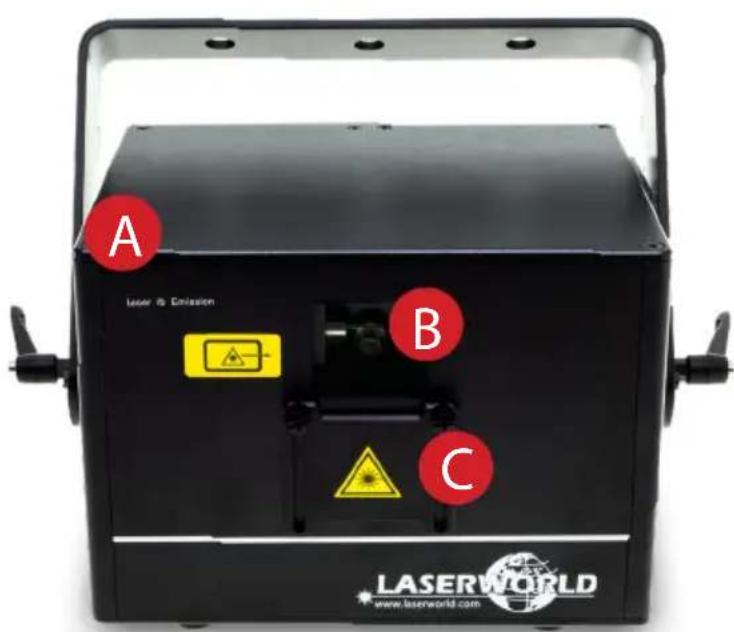
A. Emission led | LED: Laseremission | LED témoin - émission laser
B. Laser aperture | Laseraustrittsfenster | Ouverture laser
C. Beam block | Einstellbarer Strahlfang | Plaque ajustable de protection
- Product and package contents
- Preliminary warning notices
- Initial operations, safety instructions
- Working on the device
- Service notes
- General Operation
Final statement
Technical data sheet
Laser specifications
1. Product and package contents
Please check if all listed parts are included and undamaged. Included in delivery:
Laser system, USB keyboard, USB extension cable, IR remote, key, interlock bridge plug, external PSU, manual
2. Preliminary warning notices
- Please use this device only according to these operating instructions.
- Do not use the device if there are any visible damages on housing, connector panels, power supplies or power cords.
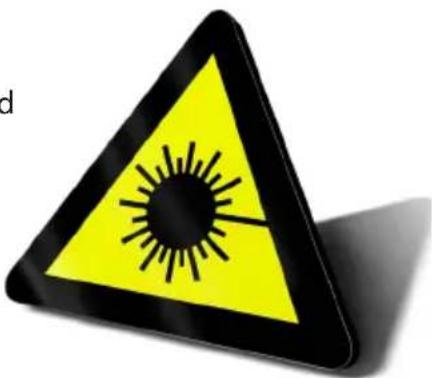
- Never look directly into the light source of a laser projector. Danger of damage to the eyes or even blindness in extreme circumstances!
- This device must not be permanently connected to mains. Disconnect it from mains or use the power button to switch if off if not in use.
- Do not operate the device at high humidity, in the rain or in dusty environments.
- Protect device against dripping or splashing water. Do not place any liquid filled containers near to this device.
Any warranty claims are void if the warranty label is removed or tampered with in any way.
3. Initial operations, safety instructions
- Make sure to use correct voltage; see information on device & in this manual.
- Make sure that the device is not connected to mains during installation.
- Installation has to be done by technical experienced and qualified persons according to safety regulations of the respective country.
- Always ensure that maximum permissible exposure (MPE) is not exceeded in areas accessible to the public or members of staff.
-
In some countries an additional inspection by technical control institutes could be necessary.
-
Connect an easily accessible interlock connector or circuit breaker to the projector.
- The power supply should be easily accessible.
- When installing the laser mount it with a minimum distance of 15cm from walls and objects.
- For safe setup e.g. on walls or ceilings please use a safety cord. The safety cord should be able to withstand tenfold the weight of the device. Please follow the accident prevention regulations of professional associations and/or comparable regulations for accident prevention.
English
- If the device has been exposed to great temperature changes, do not switch it on immediately. Condensation (or any moisture/water formed) may damage this device.
- Never use dimmer, RC or other electronically switched sockets. Whenever possible, do not use the laser projector together with large appliances (especially fog machines) on the same mains!
- Ensure sufficient ventilation and do not
place the device on any warm or heat radiating surface. Especially the ventilation openings must not be covered!
- Ensure that device does not get overheated. Make sure that the device is not exposed to spotlights (especially moving heads). Heat of spotlights could overheat laser in a little while and leads to a degradation of performance.
- This unit is intended for indoor use only.
4. Working on the device
- This product has no user serviceable parts inside and should only be maintained and serviced by a qualified engineer.
- Be sure that the mains plug is not connected to the power supply while installing the device.
- Take off all reflecting things like rings, watches, etc. before starting to work with or at the projector.
- Only use non-reflecting tools to work on device.
- Wear protective clothing (like goggles, gloves etc.) according to laser power and wavelength of the laser.
5. Service notes
- Moisture and heat can reduce lifetime of the laser system dramatically and expires any warranty claim.
- Quick on/off switching of this device will reduce durability of the laser diode dramatically.
-
Avoid sharp knocks and shocks to this device an endsure sufficient protection during transportation. Look after your Laserworld product.
To increase durability of your laser, protect device against overheating: -
Always ensure sufficient ventilation.
- Do not face spotlights (especially moving heads) to the device.
- Check temperature after approx. 30 minutes with each new installation. If necessary install the projector at a placewithdifferenttemperatures.
- Keep the device dry. Protect it from moisture, rain and damp.
- Switch off device when it is not needed. Diodes are switched on and can wear out even if there is no visible laser output.
English
-
Please ensure the fans and heatsinks are clear from dust and debris otherwise the risk of overheating may occur. If the unit or air inlets appear to be blocked, please contact a qualified service engineer to maintain and service the product.
-
Removal of the warranty label as well as damages to the device caused by improper handling, neglect of the safety instructions and service notes will void the warranty.
6. General Operation
1. Power
Connect the power cord to the device and to the mains. Make sure that your device is provided with the correct voltage. Wrong voltage could lead to irreparable damages. Please find the correct voltage data in the synoptical table at the end of this manual. Make sure that the device is not directed to people or inflammable objects during installation. To start the device, connect the interlock bridge, insert the key and switch it on, and switch the device on. The "Emission - Laser on" LED at the front side of the device begins to light up when the device is ready for use.
2. Key Switch
There is a key switch at the back of the laser system. Please plug the key to the switch and turn it on. The laser device only runs when the key is inserted and switched on. Prevent misuse! Unplug the key when the laser is unattended to prevent misuse of the system.
3. Fuse
There is a fuse at the back side of the device. If the fuse should blow, please exchange it with a new one. If the problems recurs, please contact your dealer or the Laserworld service department.
4. Modes / Functions
The different operation modes can be selected via the four buttons next to the "Settings" display. "Enter" confirms a selection or navigates to the selected menu item "Up" / "Down" allows for stepping through the current menu or to make a selection "Exit" exits the current menu item and moves one level higher.
English
4.1. SOUND-TO-LIGHT
Sound-to-light operation allows to playback the integrated patterns to the beat of music or any noises.
Select "SoUd" by navigating with the "Up" / "Down" buttons and confirm with "Enter":
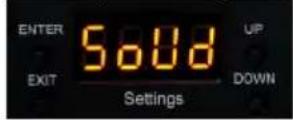
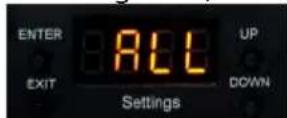
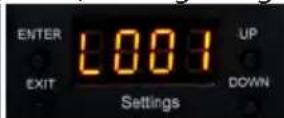
Standard selection is "ALL", which means that all patterns saved on the main board are played back. You can decide to use only a certain part of the pattern set with a certain grating by selecting L001, L002, L003, or no grating with L004:
To set the sensitivity of the internal microphone, refer to chapter 8.2.5. Settings
4.2. STAND-ALONE / AUTO
Stand-alone or Auto operation allows to random playback the internal patterns. They are played back according to the internal system settings.
Select "AUto" by navigating with the "Up" / "Down" buttons and confirm with "Enter":
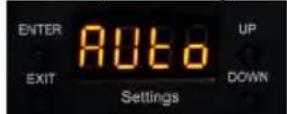
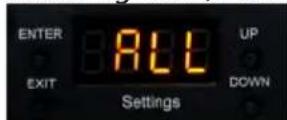
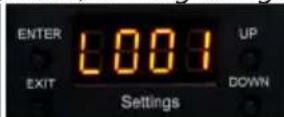
Standard selection is "All", which means that all patterns saved on the main board are played back. You can decide to use only a certain part of the pattern set with a certain grating by selecting L001, L002, L003, or no grating with L004:
4.3. MASTER-SLAVE
This laser is Master-Slave capable. This means that the Master laser system can hand on a control signal to one or more Slave lasers, so all do the same.
Master-Slave only works with lasers of the same product series of the same product generation.
A: Link lasers with DMX cable
To use Master-Slave operation, link the Master with the Slave lasers with DMX cables. Make sure to use the "DMX out" port on the Master and the "DMX in" on the Slave lasers. If several Slave lasers are used, link the first one to the Master laser and daisy-chain the control signal from the first Slave laser to the second etc..
B: Activate Master Laser
The Master laser needs to be set as control source.
Select "SEt" by navigating with the "Up" / "Down" buttons and confirm with "Enter":
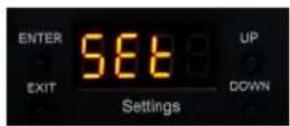
Use the "Up" / "Down" buttons to navigate to "uAST"
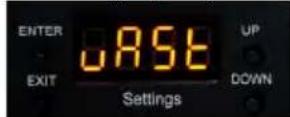
Press "Enter", use the "Up" / "Down" buttons to switch the option to "on" and confirm with "Enter".
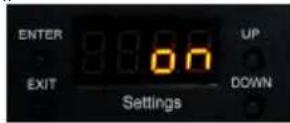
C: Deactivate Master setting on Slave lasers
As soon as the Master option is set to "on", the laser sends out the control signal for the Slave units. Make sure that all Slave units have the Master setting set to "OFF":
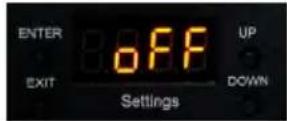
D: Set Sound-to-Light or Auto mode on Master laser
To use the Master-Slave operation: set the Master to either Sound-to-Light mode (8.2.1) or Auto mode (8.2.2.).
E: Establish link to Slave lasers
The Slave units must be set to DMX (d512^ ) mode and must be assigned address 001 (see 8.2.4. DMX 512)
4.4.DMX512
The DMX mode requires a DMX controller or a Master laser (see 8.2.3. Master-Slave operation) to be connected to the laser.
To switch to DMX mode, select "d512" by navigating with the "Up" / "Down" buttons and confirm with "Enter":
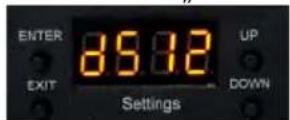
The submenu for setting the DMX address loads:
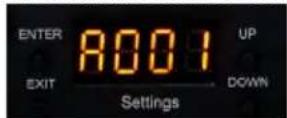
Press "Enter" and the "Up" / "Down" buttons to set the desired DMX address.
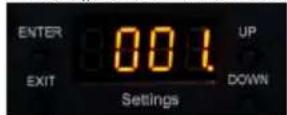
Confirm with „Enter" and press „Exit" to return to the main menu.
English
DMX Chart
The laser uses 14 DMX channels, so make sure that the next device uses an address that doesn't overlap with this range.
| Channel Value Function | |||
| 1 Operation mode 0 - 49 Laser | off | ||
| 50 - 99 Sound-to-Light mode | |||
| 100 - 149 Stand-alone mode | |||
| 150 - 255 DMX mode | |||
| 2 Pattern select 0 - 255 Patte | n selection (refer pages 44 - 46 for full pattern overview) | ||
| 3 Rotation (Z-axis) 0 - 127 Rot | rotation angle selection | ||
| 128 - 191 Rotation counter-clockwise speed | |||
| 192 - 255 Rotation clockwise speed | |||
| 4 X-axis Rotation 0 - 127 Rot | ation X position steps | ||
| 128 - 255 Rotation X speed | |||
| 5 Y-axis Rotation 0 - 127 Rot | ation Y position steps | ||
| 128 - 255 Rotation Y speed | |||
| 6 X-axis Movement 0 - 127 X | axis movement position | ||
| 128 - 255 X-axis movement speed | |||
| 7 Y-axis Movement 0 - 127 Y | axis movement position | ||
| 128 - 255 Y-axis movement speed | |||
| 8 Size X 0 - | 255 Size X from big to small | ||
| 9 Size Y 0 - | 255 Size Y from big to small | ||
| 10 | Pattern gradient 0 - 255 | Gradient speed | |
| 11 | Scan speed / Points | 0 - 127 | Scan speed |
| 128 - 255 Point speed | |||
| 12 | Color change | 0 - 24 Original color | |
| 25 - 199 | Color selection | ||
| 200 - 224 Automatic color change effect | |||
| 225 - 255 Rainbow color change effect | |||
| 13 | Color speed | 0 - 255 | Speed adjustment for automatic color change effect and multi color step through |
| 14 | Grating effect | 0 - 255 | cycle through grating effects per 50 value |
4.5. SETTINGS
To access the settings, select "SEt" by navigating with the "Up" / "Down" buttons and confirm with "Enter":
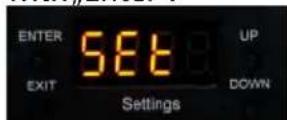
The settings menu holds several configuration options for the laser system.
English
Master Setting
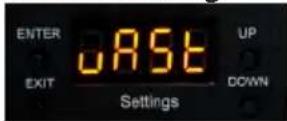
The "uAST" menu allows for the activation and deactivation of the Master mode for the laser. If the laser is set to Master > On, then it can be used as Master device in a Master-Slave setup. See more in 8.2.3. Master-Slave".
Press "Enter" to change the settings. Use the "Up" / "Down" button to change the selection.
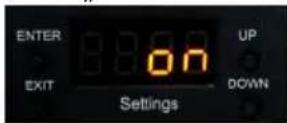
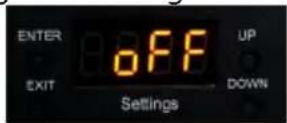
The „bEAu“ menu can switch the beam block safety on and off. The beam block safety prevents that very intense, single beams can be displayed. It is highly recommended to not switch this feature off. Switching off the beam block safety is at your own risk! Lasers with switched off beam block safety may only be used in safe areas.
Always respect the local laws!
Press "Enter" to change the settings. Use the "Up" / "Down" button to change the selection.
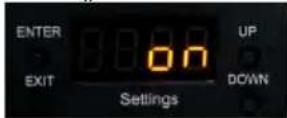
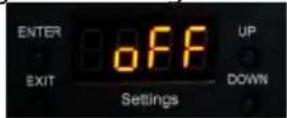
The "InuE" menu controls the orientation of the projection. You can invert the projection and flip it to match the orientation of the laser with the content.
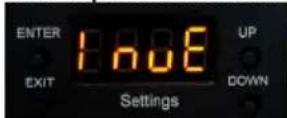
Press "Enter" to change the settings. A test picture is shown to represent the currently set orientation. Use the "Up" / "Down" button to change the selection, and confirm the selection with "Enter" to change the test picture projection
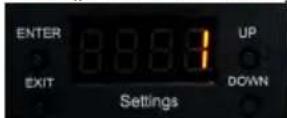
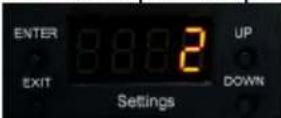
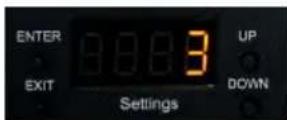
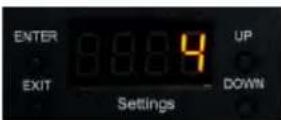
Press "Exit" to return to the settings menu.
English
Microphone Sensitivity Settings
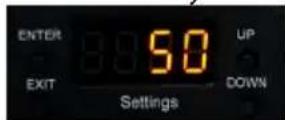
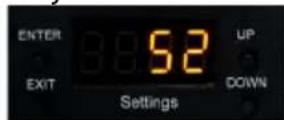
The sensitivity of the built-in microphone for the control of the sound-to-light operation can be adjusted in the "SEnS" menu. Press "Enter" to change the settings. Use the "Up" / "Down" button to change the selection.
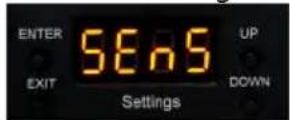
The sensitivity can be adjusted between 1 and 100. Standard value is 50.
4.6. ILDA / COMPUTER CONTROL
The laser can be used with any laser control software that supports the ILDA control signal via sub-d connector. Use an ILDA cable to connect the Digital Analog Converter (DAC / ILDA interface) of the laser software to the ILDA in port at the laser.
To operate the laser in ILDA mode the "ILdA" menu must be selected. Press "Enter" to change the settings.
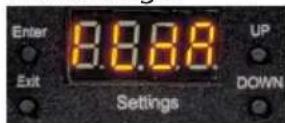
Grating Effects Settings in ILDA mode - DMX grating control on ILDA
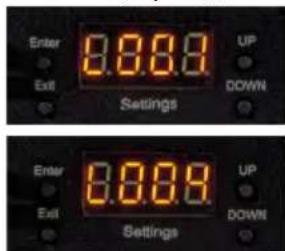
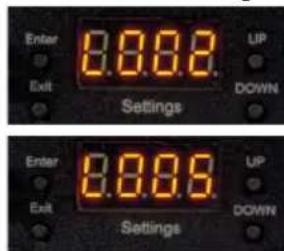
Once ILDA mode is selected, the standard selection is "L001", which means that the laser will automatically switch through the grating effects. A certain grating effect can be selected with L002, L003, L004. If L005 is selected there is no grating effect.
Use the "Up" / "Down" button to change the selection:
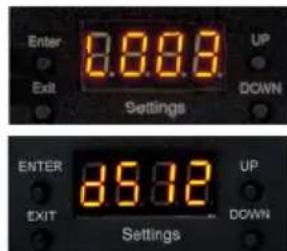
Select "d512" and press Enter if you want to control grating effects with DMX while working on ILDA mode. You must previusloy set a DMX address as specified in "4.4 DMX 512" section.
Final statement
Laserworld products are tested and product packaging is inspected before leaving our warehouse.
Users must to follow the local safety regulations and warnings within this manual and adhere to any regulations within its place of use. Damages through inappropriate use will void any liability or warranty of our products.
Due to continual product developments, please check for the latest update of this product manual at www.laserworld.com. If you do have any further questions, then please contact your dealer/place of purchase or use our contact section on our website.A
For service issues, please contact your dealer/place of purchase and ensure only genuine Laserworld spare parts are used in any service repairs.
Errors and Omissions excepted and products are subject to change.
Laserworld (Switzerland) AG
Kreuzlingerstrasse 5
8574 Lengwil
Switzerland
Registered office:
8574 Lengwil / Switzerland
Company number: CH-440.3.020.548-6
Commercial Registry Kanton Thurgau
CEO: Martin Werner
VAT no. (Switzerland): 683 180
UID (Switzerland): CHE-113.954.889
VAT no. (Germany): DE 258030001
WEEE-Reg.-No. (Germany): DE 90759352
www.laserworld.com info@laserworld.com
representative according to EMVG: Ray Technologies GmbH Managing Director: Martin Werner Muhlbachweg 2 83626 Valley / Germany
Deutsch
Inhaltverzeichnis:
representative according to EMVG:
Managing Director: Martin Werner
Mühlbachweg 2
83626 Valley / Germany
Francais
Table des matieres:
Managing Director: Martin Werner
Muhlbachweg 2
83626 Valley / Germany
Technical data | Technische Daten | Caracteristiques techniques
| Laser sources / Laserquel- len / Sources laser: | Diode |
| Laser class / Laserklasse / Classe laser: | 4 |
| Scanner: Galvo System, 28 | kpps@8° ILDA |
| Scan angle / Strahlauslen- kung / Angle de scan max.: | 40° max. |
| Operation modes: Betriebsmodi: Mode de fonctionnement: | auto, music, DMX, ILDA Automatik, Musik, DMX, ILDA automatique, musique, DMX, ILDA |
| Beam: ca. 3 mm / 1.1 mrad | |
| Power supply / Stromver- sorgung / Alimentation: | 85 V - 250 V AC |
| Power consumption / Stromaufnahme / Consommation: | 120 W |
| Operating temperature / Betriebstemperatur / tem- pérence d'opération: | +10° to +35°C |
| Dimensions / Abmessun- gen: | 190 x 274 x 160 mm (L x W x H) / (B x T x H) / (H x L x P) |
| Weight / Gewicht / Poids: 4.7 | 5 kg |
Power specifications (at laser module) / Laserleistung (am Modul) / Puisssance
| guar. - typ. Red / Rot / Rouge (635 nm) Green / Grin / Vert (520 nm) Blue / Blau / Bleu (445nm) | |||
| CS-2000RGB FX 1'600 - 2'000 mW 250 mW 250 mW 1100 mW | |||
| CS-4000RGB FX 3'500 - 4'000 mW 850 mW 850 mW 1800 mW | |||
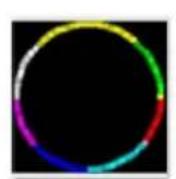
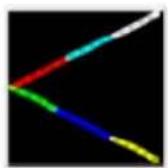
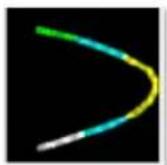
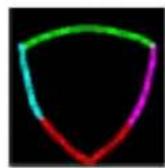
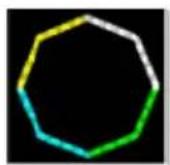
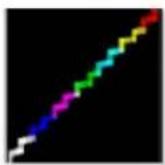
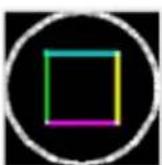
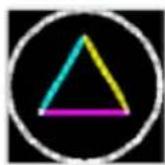
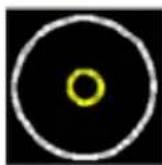
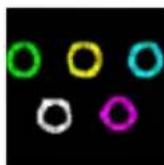
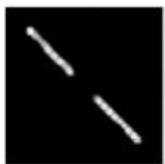
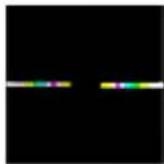
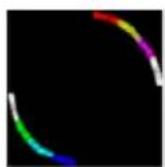
Pattern Overview
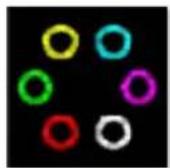
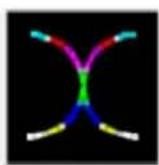
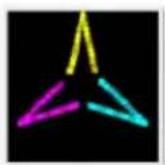
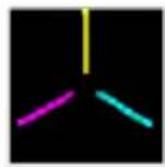
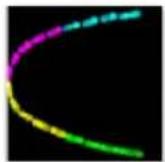
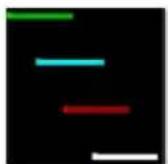
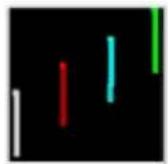
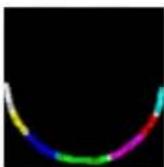
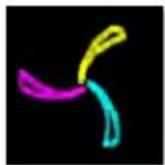
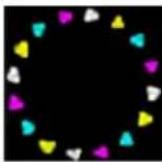
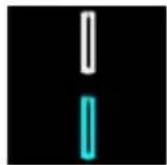
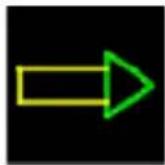
The following patterns are pre-set. Some may be pre-animated, others are static and can be custom animated. Colors may vary.
1

2
3

4

5
6
7

8

9
10

11
12
13
14
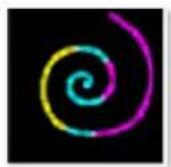
15
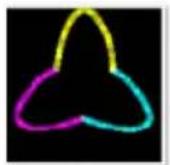
16

17

18

19
20
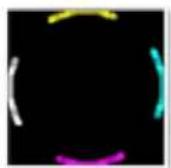
21

22

23
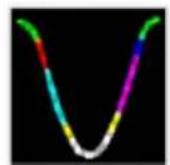
24
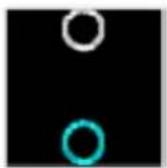
25
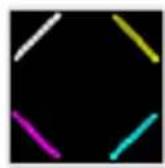
26
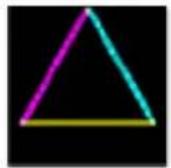
27
28
29

30
31
32
33

34
35
36

37
38

39

40
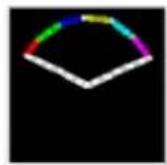
41
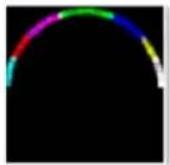
42

43
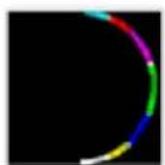
44

45
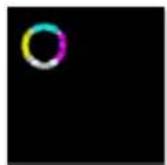
46
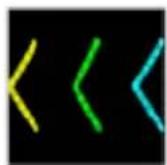
47
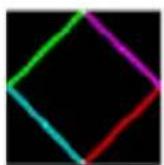
48
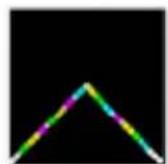
49

50
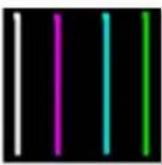
51
52
53
54
55
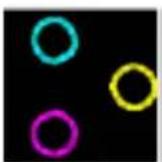
56
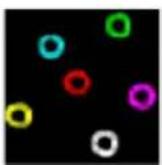
57
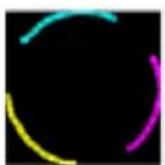
58
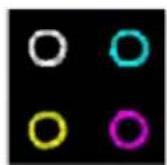
59

60

61
62
63
64
65

66
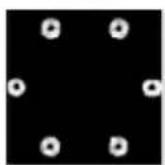
67
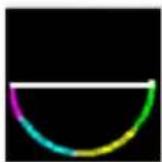
68

69
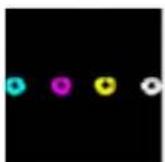
70
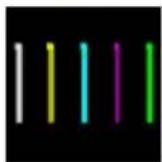
71
72

73

74

75

76

77

78

79

80

81
82
83

84
85

86
87
88
89
90
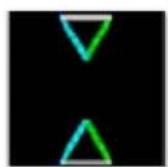
91
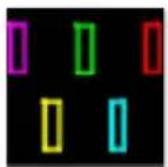
92

93
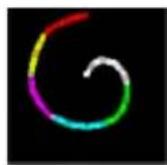
94
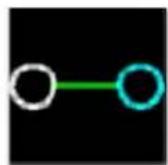
95
96
97
98
99
100
101
102
103
104
105
106
107

108

109
110
111
112
113

114
115

116
117
118
119

120
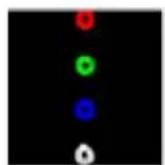
121
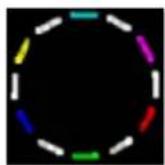
122
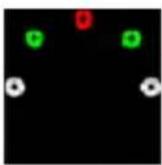
123
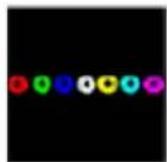
124
125
126
127
128