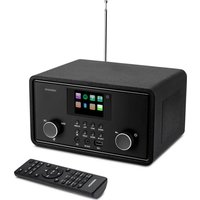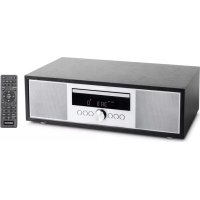
LIFE P64145 (MD 44125) - Radio MEDION - Free user manual and instructions
Find the device manual for free LIFE P64145 (MD 44125) MEDION in PDF.

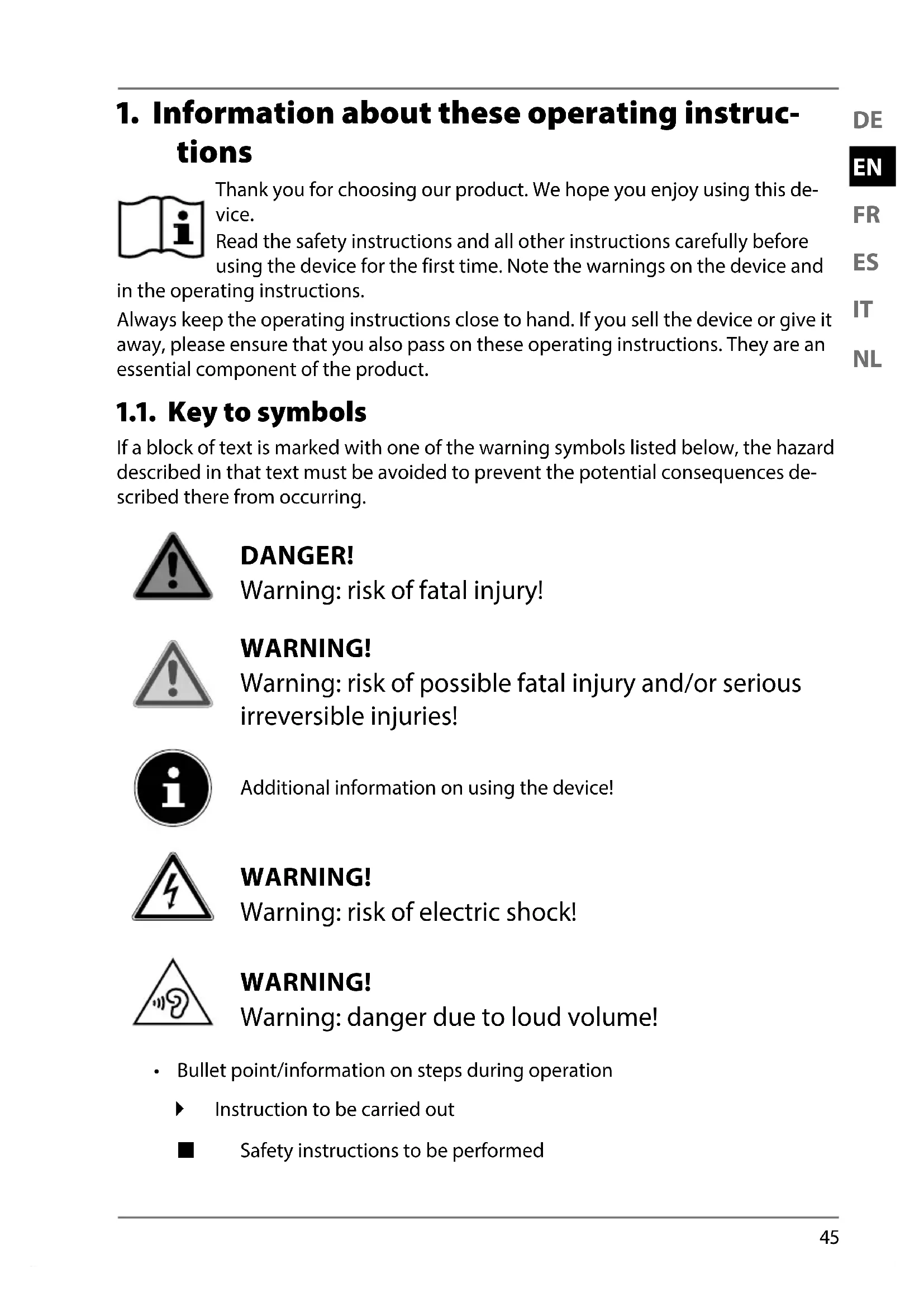


| Brand | MEDION |
| Model | LIFE P64145 (MD 44125) |
| Product type | Micro audio system with DAB+/FM radio, CD player, Bluetooth, USB |
| Power supply | 230 V ~ 50 Hz, power consumption 30 W, standby < 0.9 W |
| Output power | 2 x 15 W RMS |
| Dimensions (W x H x D) | 377 x 120 x 220 mm |
| Weight | 3.2 kg |
| Radio bands | FM 87.5 – 108 MHz, DAB III 174.928 – 239.200 MHz |
| Number of radio presets | 30 DAB + 30 FM |
| Supported CD formats | CD-R, CD-RW, CD Audio, CD MP3 |
| Bluetooth | Version 4.2, A2DP and AVRCP profiles, range up to 10 m |
| USB port | USB 2.0, up to 32 GB, MP3 decoding, output 5 V / 500 mA |
| Auxiliary inputs | LINE IN (RCA), AUX (3.5 mm jack) |
| Headphone output | 3.5 mm jack |
| Remote control batteries | 2 x 1.5 V R03/LR03/AAA |
| Display | Digital display with brightness adjustment |
| Equalizer | Presets POP, ROCK, JAZZ, CLASSIC, FLAT, bass boost |
| Timers | Sleep timer (15-90 min) and programmable alarm |
| Maintenance and cleaning | Clean with a soft dry cloth, do not use solvents |
| Safety | Class 1 laser, automatic shutdown in case of fault, overheat protection |
| Operating temperature | 5 °C to +35 °C |
| Operating humidity | < 80% |
Frequently Asked Questions - LIFE P64145 (MD 44125) MEDION
User questions about LIFE P64145 (MD 44125) MEDION
0 question about this device. Answer the ones you know or ask your own.
Ask a new question about this device
Download the instructions for your Radio in PDF format for free! Find your manual LIFE P64145 (MD 44125) - MEDION and take your electronic device back in hand. On this page are published all the documents necessary for the use of your device. LIFE P64145 (MD 44125) by MEDION.
USER MANUAL LIFE P64145 (MD 44125) MEDION
natural_image
Black electronic device with sound waves and a digital display, no visible text or symbols on the device body.All-In-One-Audiosystem
All-In-One Audio System
text_image
R LINE M L AUX USB -AC 60text_image
P LINE M L AUX USB -AC M DCtext_image
QR code image containing encoded data, no visible human-readable text1. Information about these operating instructions ....45
1.1. Key to symbols 45
EN
2. Proper use
3. EU Declaration of Conformity ....47
4. Safety information ......ES 4
IT
NL
4.1. Operating safety....47
4.2. Installation location ....48
4.3. Repairs....49
4.4. Environmental conditions ....49
4.5. Power supply 50
4.6. CD player....50
4.7. Batteries....51
4.8. Handling batteries....51
5. Package contents 5
6. Device overview....53
6.1. Front....53
6.2. Rear 54
6.3. Remote control 55
7. Setting up the device 56
7.1. Inserting/replacing batteries in the remote control....56
7.2. Connecting an external device to the LINE IN or AUX connections . 57
7.3. Connecting headphones....58
7.4. Connecting USB devices ....59
7.5. Mains connection....59
8. Getting started 60
8.1. Operation using the controls on the device or remote control .....60
8.2. Switching on the device/standby 60
8.3. Dimming the display brightness 60
8.4. Setting the menu language 60
8.5. Adjusting the aerial....60
9. Sound....61
9.1. Volume/mute....61
9.2. Equalizer....61
9.3. Bass....61
10. Clock and timer....61
10.1. Sleep function 62
10.2. Setting the timer 62
11. DAB+ and FM radio.... 63
11.1. Tuning the stations....63
11.2. Storing and selecting stations 63
11.3. Station information 64
12. Playing back CDs and USB storage media 64
12.1. Notes on the media ....64
12.2. Track information (ID3) 64
12.3. Inserting/removing a disc 65
12.4. Inserting USB memory sticks 65
12.5. Start/pause playback 65
12.6. Track selection, fast rewind/forward 65
12.7. Folder selection ....65
12.8. Programming the track playing order 66
12.9. Repeat / random playback / intro 66
13. Bluetooth mode 67
13.1. Connecting Bluetooth devices 67
13.2. Control via remote control (Bluetooth range) 67
14. Playback using the LINE IN and AUX connection 68
-
Settings in the menu 68
-
Cleaning 71
-
Storing the device when not in use....71
-
Troubleshooting....71
-
Disposal 73
-
Technical specifications ....74
-
Service information....76
-
Legal Notice....77
22.1. Supplier/Producer/Importer 77
- Privacy statement....78
1. Information about these operating instructions

Thank you for choosing our product. We hope you enjoy using this device.
Read the safety instructions and all other instructions carefully before using the device for the first time. Note the warnings on the device and in the operating instructions.
Always keep the operating instructions close to hand. If you sell the device or give it away, please ensure that you also pass on these operating instructions. They are an essential component of the product.
1.1. Key to symbols
If a block of text is marked with one of the warning symbols listed below, the hazard described in that text must be avoided to prevent the potential consequences described there from occurring.

DANGER!
Warning: risk of fatal injury!

WARNING!
Warning: risk of possible fatal injury and/or serious irreversible injuries!

Additional information on using the device!
WARNING!
Warning: risk of electric shock!
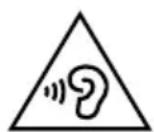
WARNING!
Warning: danger due to loud volume!
- Bullet point/information on steps during operation
▶ Instruction to be carried out
■ Safety instructions to be performed
2. Proper use
Your device can be used in a variety of ways:
- The device is intended for playing sound media (CDs, MP3 data media, USB devices, Bluetooth®), as well as for radio reception (DAB+ and FM).
- The device is only intended for private use and not for industrial/commercial use.
Note that no liability will be accepted if the device is not used for its intended purpose:
- Do not modify the device without our express agreement and do not use any accessories that have not been supplied or approved by us.
- Only use replacement parts or accessories that we have supplied or approved.
- Comply with all the information in these operating instructions, especially the safety information. Any other use is considered improper and can cause personal injury or property damage.
- Do not use the device in potentially explosive atmospheres. This includes petrol stations, fuel storage areas and areas where solvents are processed. This device must also not be used in areas with particle-laden air (for example flour or wood dust).
- Do not use the device outdoors.
- Do not expose the device to extreme conditions. Avoid:
– High humidity or wet conditions
- Extremely high or low temperatures
- Direct sunlight
- Open flames
3. EU Declaration of Conformity
MEDION AG hereby declares that this device complies with the fundamental requirements and the other relevant provisions of:
• RE Directive 2014/53/EU
• Ecodesign Directive 2009/125/EC
• RoHS Directive 2011/65/EU.
All multimedia devices that can be connected to the corresponding connections of the device must comply with the requirements of the Low Voltage Directive.
You can download the complete EU Declaration of Conformity at www.medion.com/conformity.
4. Safety information
4.1. Operating safety
This device may be used by children over the age of 8 and by persons with limited physical, sensory or mental abilities or by those without experience and knowledge, if they are supervised or have been instructed in the safe use of the device and have understood the dangers that result from it.
- Children should be supervised to ensure they do not play with this device.
- Cleaning and user maintenance may not be carried out by children unless they are supervised.
- Keep the device and accessories out of reach of children.

DANGER!
Risk of choking and suffocation!
Packaging film can be swallowed or used improperly, creating a risk of choking and suffocation.
- Keep packaging material such as plastic film or plastic bags away from children.
4.2.Installationlocation
- Keep your device and all connected components away from moisture and avoid dust, heat, direct sunlight and naked flames (such as candles, for instance). Non-compliance with these instructions can lead to faults or damage to the display.
- Do not use the device outdoors as it could be damaged by weather such as rain, snow, etc.
- Avoid exposing the device and the power pack to water droplets or spray and do not place any liquid-filled containers (vases or similar) on or next to the device or the power pack. Liquids penetrating the device may impair the electrical safety of the product.
- The slots and openings on the device are for ventilation purposes. Do not cover these openings (risk of overheating, fire hazard)!
- Position the cables so that no one can tread on them or trip over them.
- Make sure that there is enough clearance between the device and any surrounding furniture or walls. Ensure a minimum clearance of 10 cm around the device for sufficient ventilation.
- Place and operate all the components on a stable, level and vibration-free surface in order to prevent the device from falling.
4.3. Repairs
- Contact customer services if:
– the mains cable is burnt or damaged
– liquid has penetrated the device
– the device is not operating correctly
– the device has fallen or the housing is damaged.
- Repairs to your device should only be carried out by qualified specialists.
- If a repair must be carried out, please contact only our authorised service partners.
4.4. Environmental conditions
- The device may only be used and stored in accordance with the environmental conditions specified in the technical data.
DANGER!
Risk of electric shock!
Major changes in temperature or fluctuations in humidity can cause moisture to build up within the device due to condensation – this can cause an electrical short circuit.
■ After transporting the device, wait until it has reached ambient temperature before switching it on.
4.5. Power supply
DANGER!
Risk of electric shock!
Even when the mains switch is off, some components of the device are live.
In order to disconnect the power to your device or to completely isolate the device from voltage sources, remove the mains plug from the socket.
- Operate the device only from a 230 V\~ 50 Hz earthed power socket that is close by and easy to access.
- To disconnect the power supply from your device, pull the plug from the socket.
DANGER!
Risk of electric shock!
The device contains live parts. They pose a risk of electric shock or fire if an unintentional short circuit occurs.
■ Never open the housing and never insert any objects through the slots and openings into the device!
- Do not place any objects on the cables as they may be damaged.
- Keep the device at a distance of at least one metre from sources of high-frequency or magnetic interference (televisions, speakers, mobile telephones, etc.) to avoid malfunctions and data loss.
4.6. CD player

text_image
LASER KLASSE 1 CLASS 1 LASER PRODUCT APPAREIL LASER DE CATEGORIE 1The CD player is a class 1 laser product. The device has a safety system that prevents dangerous laser beams from escaping during normal use. To avoid eye injuries, never tamper with or damage the device's safety system.
4.7. Batteries
4.8. Handling batteries
The remote control is battery-operated. Please note the following:
- Keep new and used batteries out of the reach of children. Do not swallow batteries as they can cause chemical burns.

WARNING!
Risk of chemical burns!
The remote control supplied with the device contains a battery. If this battery is swallowed, it can cause serious internal chemical burns within 2 hours, which may prove fatal.
- Seek medical help immediately if you think that batteries may have been swallowed or secreted in any part of the body.
- Stop using the remote control if you cannot close the battery compartment securely, and keep it well away from children.
- Before inserting the batteries, check that the contacts in the device and on the batteries are clean and, if necessary, clean them.
- Always use new batteries of the same type. Never use old and new batteries together.
- Pay attention to the polarity (+/−) when inserting the batteries.
- There is a risk of explosion if batteries are replaced incorrectly! Only replace batteries with those of the same or an equivalent type.
- Never try to recharge non-rechargeable batteries. Risk of explosion!
-
Never expose the batteries to excessive heat (such as direct sunlight, fire or similar).
-
Store batteries in a cool, dry place. Strong direct heat can damage batteries. Do not expose the device to sources of intense heat.
- Never short-circuit batteries.
- Never throw batteries into a fire.
- Remove leaking batteries from the device immediately. Clean the contacts before inserting a new battery. Battery acid can cause chemical burns!
• Always remove flat batteries from the device. - If the device is not going to be used for long periods, remove the batteries.
5. Package contents

DANGER!
Risk of choking and suffocation!
Risk of choking and suffocation through swallowing or inhaling small parts or plastic wrap.
- Keep the plastic packaging out of the reach of children.
Remove the product from the packaging and remove all packaging material.
▶ Please check your purchase to ensure that all items are included. If anything is missing, please contact us within 14 days of purchase.
The following items are supplied with your product:
- 1 micro audio system
- 1 remote control
• 2 batteries, type 1.5 V R03/LR03/AAA - Power cord
- Documentation
6. Device overview
6.1. Front
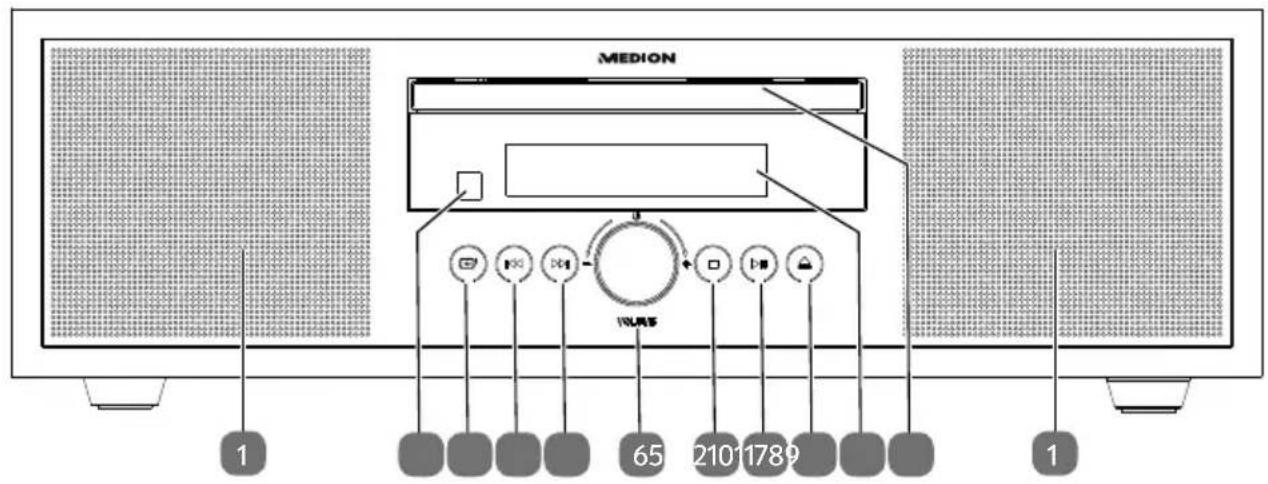
text_image
MEDION 1 65 21011789 1- Speaker
- Infrared sensor for remote control
- → - Select operating mode
- ◀◀ – Previous track
- ▶▶ – Next track
- ⏻ - Switch device on / switch to standby mode
VOLUME – Volume control - ■ - End playback
- ▶ II – Start/pause playback
- ▲ - Eject CD
- Display
- CD compartment
6.2. Rear
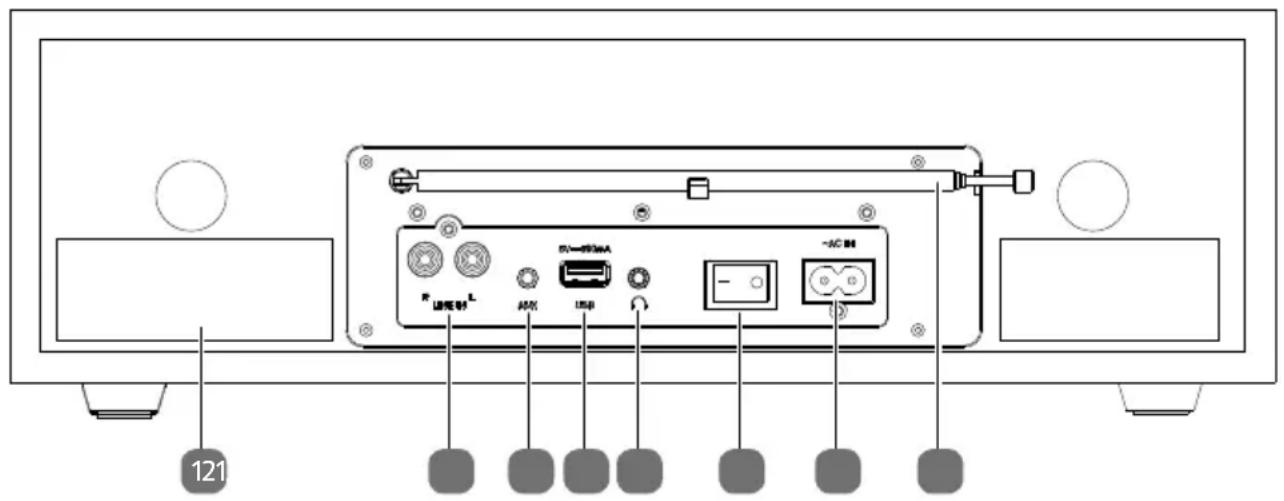
text_image
121 F_话电制_L MAX USB -AC- Type plate
- LINE IN – Connection port for external device (cinch connection)
- AUX – Connection port for external device (jack connection)
- USB – Connection port for USB storage media
- PHONES – Headphone socket
- Mains switch
- \~ AC IN – Connection port for power cable
- Telescopic aerial
6.3. Remote control
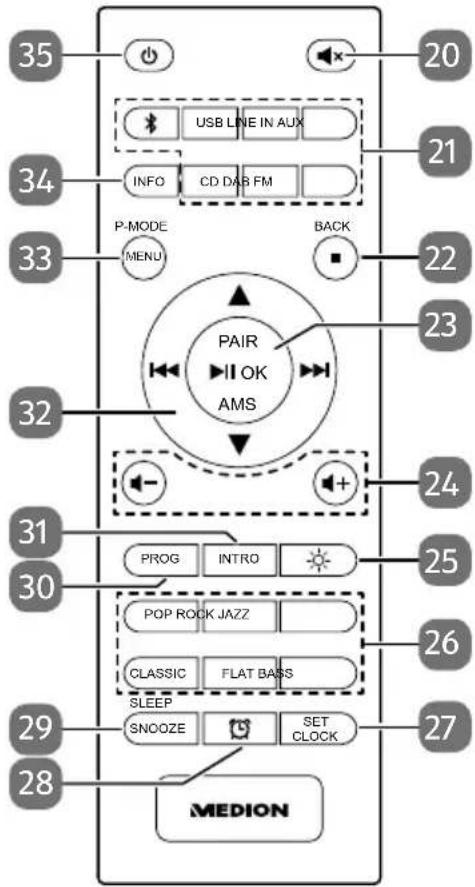
text_image
35 USB LINE IN AUX 20 34 INFO CD DAB FM P-MODE MENU BACK 33 21 22 23 32 PAIR OK AMS 24 31 PROG INTRO 25 30 POP ROCK JAZZ 26 CLASSIC FLAT BASS SLEEP 29 SNOOZE SET CLOCK 27 28 MEDION- x - Mute
- Select operating modes:
* - Bluetooth® mode
USB – USB playback
LINE IN – Playback from an external device (cinch connection)
AUX – Playback from an external device (jack connection)
CD - CD playback
DAB - DAB radio mode
FM - FM radio mode
- ■ - Stop playback
BACK – Return to previous menu
- ▶ II – Start/pause playback
OK – Confirm selection in menu
PAIR – Start Bluetooth pairing mode
AMS – Automatically store stations (FM mode only)
-
- / + - Increase/decrease volume
- ⚙ – Dim the display brightness
- Select equaliser mode
- SET CLOCK – Display/set clock time
-
- Display/set timer
-
SNOOZE – Snooze function
SLEEP – Call up sleep mode
-
PROG – Programme function / store station
-
INTRO – Play track
-
- Fast rewind/play previous track / radio station button -
▶ Fast forward/play next track / radio station button +
▲▼ – Navigate up/down through the menu
- MENU – Menu function for DAB and FM
P-MODE – Select playback mode
-
INFO – Display radio station information/track information
-
⏻ STANDBY – Switch the device on / switch to standby mode
7. Setting up the device
Place the device on a sturdy, level surface. Some aggressive varnishes can corrode the rubber feet on the device. If necessary, place the device on a suitable underlay.

Before connecting an external device, unplug the mains plug from the device!
7.1. Inserting/replacing batteries in the remote control
Insert two 1.5 V R03/LR03/AAA/micro batteries in the remote control.
▶ Open the battery compartment cover.
▶ Insert the batteries so that the negative pole contacts the springs.
▶ Replace the battery compartment cover.

WARNING!
Risk of explosion if batteries are replaced incorrectly.
■ Replace batteries only with the same or equivalent type.
7.2. Connecting an external device to the LINE IN or AUX connections
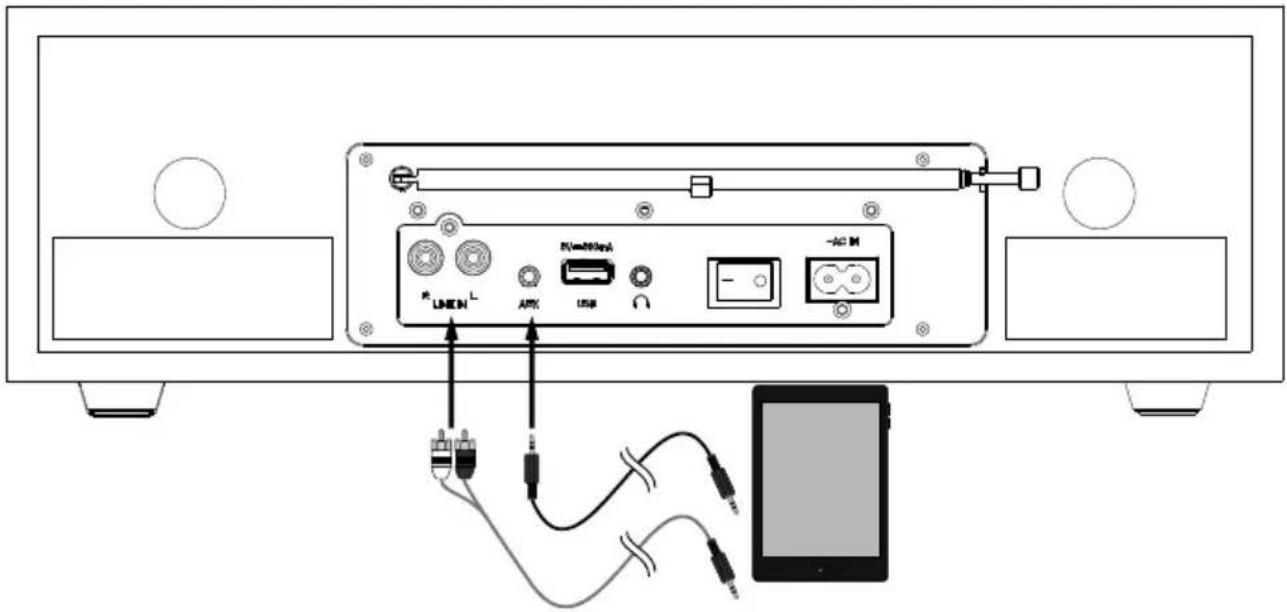
text_image
Diagram showing cable connection between a device with labeled ports and cables, including LINKEN, AMX, USB, and -ACM indicators.The device offers two ways to connect external devices. Select the appropriate connection method.
There is a 3.5 mm jack labelled AUX on the back of the device.
▶ Plug the connection cable with a 3.5 mm jack plug into the jack connection.
There is also a cinch connection labelled LINE IN on the back of the device.
▶ Plug the connection cable with cinch connectors into the connection.
7.3. Connecting headphones
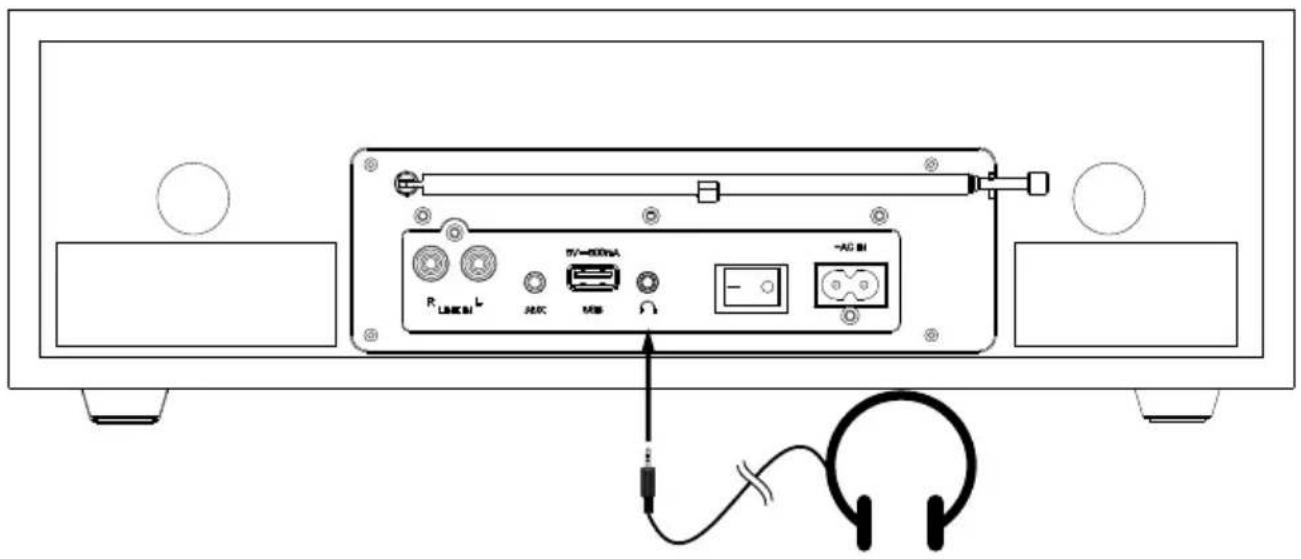
text_image
R LINK L AV-400mA M8 - AG BIThere is a 3.5 mm jack connection labelled on the back of the device.
▶ Plug the headphone connecting cable with a 3.5 mm jack plug into the jack connection.
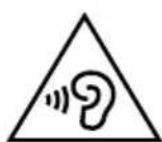
WARNING!
Possible hearing damage!
Excessive sound pressure when using earphones and headphones can result in damage to and/or loss of hearing.
Using headphones/earphones to listen to a device at high volumes for an extended period can damage your hearing.
■ Before pressing play, set the volume to the lowest setting.
7.4. Connecting USB devices
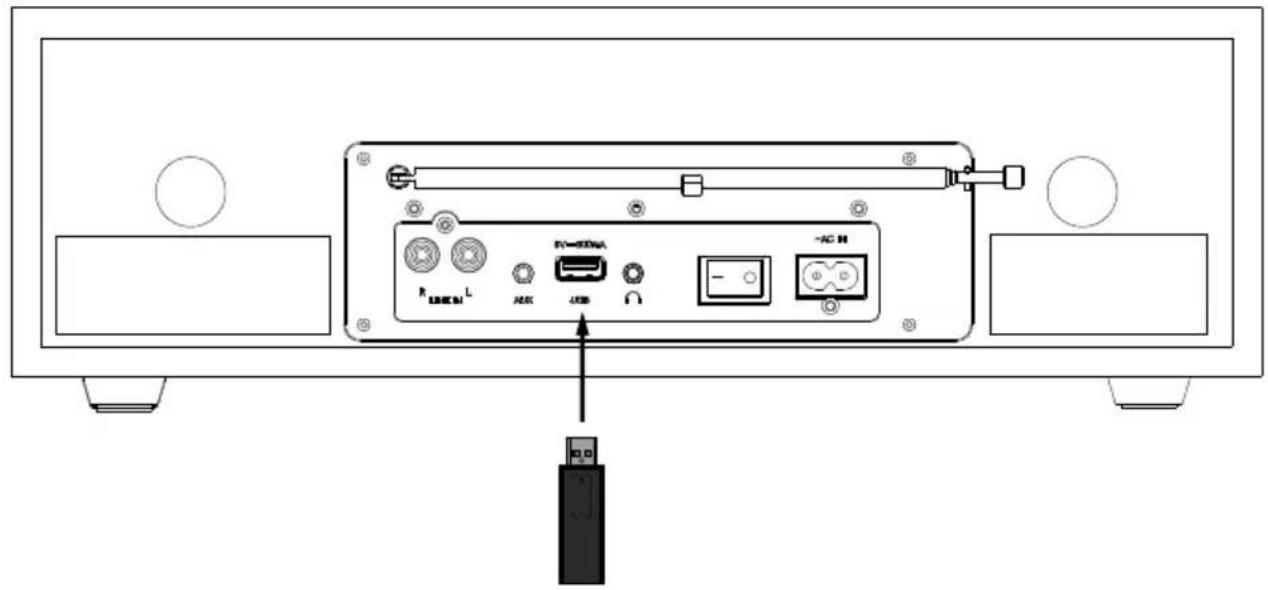
text_image
Diagram of a device rear panel with labeled ports and indicators, including USB, USB, and AC inputYou can connect USB sticks to the USB port on the back of the device. This enables music tracks to be played from a USB memory stick. The USB port does not support video playback.
▶ Plug a USB device into the USB port.
7.5. Mains connection
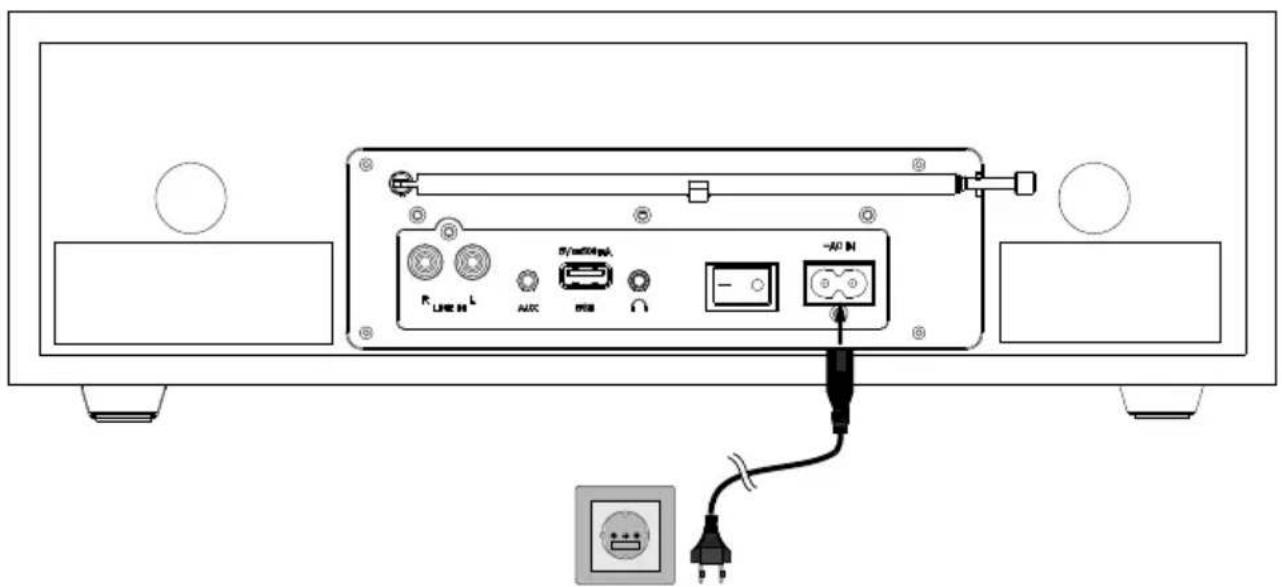
text_image
R_LINE M L AUDIO USB -ACI IN +/-Once all other components are connected, connect the power cable.
To do this, place the flat end in the \~ AC IN connection and the other end of the cable into a properly installed 230 V \~ 50 Hz earthed power socket which is accessible at all times.
8. Getting started
8.1. Operation using the controls on the device or remote control
You can activate the main play functions on your audio system using the buttons on the device. In addition to the basic controls, the remote control also provides numerous other options for using all functions of your device.
In these instructions, we refer to the remote control buttons. If reference is made to the controls on the device itself, this will be clearly indicated.
8.2. Switching on the device/standby
▶ First switch on the mains switch on the back of the device and move it to position I.
▶ Press the button to switch on the device.
▶ Press the button again to switch the device back into standby mode. The time will be displayed.

When the device is switched on for the first time or if the device has been disconnected from the mains, SYNC... is shown on the display. This automatically stores stations in FM and DAB mode. The process will complete after a few seconds.
8.3. Dimming the display brightness
Press the *button on the remote control once or several times to dim the display brightness in increments.
8.4. Setting the menu language
▶ Press and hold the MENU button until the menu opens.
▶ Turn the controller and select SYSTEM, then press the controller to confirm the selection.
▶ Turn the controller and select LANGUAGE, then press the controller to confirm the selection.
Now turn the controller to select the desired language.
▶ Then press the controller to confirm the selection.
The menu language is now set.
8.5. Adjusting the aerial
▶ Pull out the telescopic aerial on the back of the device completely.

The aerial should be fully extended to ensure good signal reception and sound quality.
9. Sound
9.1. Volume/mute
To adjust the volume, use the - and + buttons on the remote control or the controller on the device.
▶ Press to mute the sound. MUTE flashes in the display. Press the button again to cancel the mute setting. MUTE disappears from the display.
9.2. Equalizer
Press one of the equaliser buttons POP, ROCK, JAZZ, CLASSIC, FLAT to select one of the various sound presets. The selected setting is then shown on the display. If FLAT is selected, the equaliser is switched off and the sound is played back unchanged.
9.3. Bass
▶ Press the BASS button to switch on the bass amplification. BASS ON is shown on the display.
▶ Press the button again to switch off bass amplification. BASS OFF is shown on the display.
10. Clock and timer
10.3.1. Displaying the time
The time can be displayed both when the device is switched on and when it is in standby mode.
When the device is switched on, press the SET CLOCK button. The time is displayed for several seconds.
10.3.2. Setting the time
The time is set automatically using the radio reception signal. You can also set it manually:
▶ Switch the device to standby mode, and hold down the SET CLOCK button.
The hour display flashes. Press ◀ or ▶ to set the hours.
▶ Press the SET CLOCK button to confirm.
The minute display flashes. Press the ◀ or ▶ buttons to set the minutes.
▶ Press the CLOCK/SET button to confirm the setting.
The time is now set.
10.1. Sleep function
If you select the sleep timer function, the device switches off automatically after a defined period of time.
When the device is switched on, press the SLEEP button on the remote control repeatedly to set the required time: 90 minutes > 60 minutes > 30 minutes > 15 minutes.
Zzz is shown on the display to indicate that the sleep timer has been set.
▶ To switch off the sleep timer, press SLEEP until OFF appears on the display.
10.2. Setting the timer
You can set a time when the device will switch on and off automatically every day.
▶ Press and hold the button on the remote control until ON TIME is displayed followed by the start time (the hour display flashes).
▶ Use the ◀ or ▶ button to set the required switch-on time. Select the hours first and confirm by pressing 🤨. Then set the minutes and confirm again by pressing 🤨.
▶ OFF TIME will appear in the display followed by the switch-off time. Use the ◀ or ▶ button to set the required switch-off time. Select the hours first and confirm by pressing 📋. Then set the minutes and confirm again by pressing 🌐
▶ Now select the operating mode CD, USB, DAB, FM or BUZZ (wake with alarm) using the ◀◀ or ▶◀ buttons and press 📋 to confirm.
▶ Then use the ◀ or ▶ buttons to select the desired volume and then press 📋 to confirm.
Once the settings have been made and the timer has been activated, 📁 is shown on the display.
10.2.1. Switching the timer on/off
▶ To switch off the timer, briefly press the 🔊 button.
is no longer shown on the display.
▶ Briefly press to reactivate a previously set timer. The stored settings are shown on the display again, followed by 📋
11. DAB+ and FM radio
This device can receive both DAB and FM radio stations. Select the required radio mode:
▶ Press the D A B or F M button on the remote control or press → on the device several times until you reach the desired radio mode. DAB or FM is shown on the display.
11.1. Tuning the stations
DAB radio
▶ Press the ◀ or ▶ buttons once, or several times, to set a radio station. The radio station name appears in the display.
FM radio
▶ Press the ◀ or ▶ button briefly to set a particular frequency. Hold down one of the buttons to automatically search for the next station.
11.2. Storing and selecting stations
11.2.1. Storing all stations automatically (FM only)
▶ Press and hold the AMS button on the remote control.
The automatic station search is performed. All stations found are stored successively.
11.2.2. Storing individual stations
▶ Tune in a station that you would like to store.
▶ Hold down the PROG button on the remote control. The display shows the radio station that is currently stored at this position and its associated programme position. If no radio station has been stored in the selected position, EMPTY is shown and the programme position in front.
▶ Use the ◀ or ▶ buttons to select the programme position for the station to be stored.
▶ Then press the OK button to store the station. The display shows STORED for confirmation.
11.2.3. Retrieving stored stations
▶ Press the PROG button. The first storage space of the radio station is shown on the display.
▶ Use the ◀ or ▶ buttons to select the programme positions. The station name is displayed next to the programme position number.
▶ If you would like to call up the selected station, press ⬤K. The station is set.
11.3. Station information
It is possible to display additional information, such as the radio station name, track information or the current type of programme for a radio station.
▶ Press the INFO button once or several times to display this information in succession.
12. Playing back CDs and USB storage media
▶ Press the CD or USB button on the remote control or press → on the device several times until you reach the desired radio mode. CD or USB is shown on the display.
12.1. Notes on the media
USB memory sticks can be connected to the USB port. Note the following:
- Due to the numerous different file systems and file formats, connected USB memory sticks cannot be guaranteed to function.
- Depending on the size of the data medium, it may take some time for the system to be detected.
- Supported file systems are FAT16 and FAT32. The supported file format is MP3.
- Depending on the medium, certain functions may not be supported: For example, on an audio CD you might not be able to select a folder or the track information.
- External hard disks are not supported.
12.2. Track information (ID3)
If the CD or the USB memory stick contains tracks with ID3 information, press INFO while a track is playing to display the track information in succession. You will see the track, artist and album name on the display.
12.3. Inserting/removing a disc
Ensure there is approximately 15 cm of space in front of the device so that the CD can be ejected easily.
▶ Press the button to open the CD tray. OPEN will appear on the display.
▶ Always place the CD in the disc tray with the labelled side facing upwards.
▶ Preason the device again to close the CD tray. READING... will appear on the display.
The total number of tracks on the CD and the total running time are displayed. The first track then starts playing automatically.
If no disc is inserted, or if the disc cannot be read, the display reads NO DISC.
▶ Press the button to eject the CD again. OPEN will appear on the display.
12.4. Inserting USB memory sticks
Insert the USB memory stick into the USB port.
The tracks are read, and the display shows the total number of albums and tracks. Playback starts automatically with the first track in the first album.
12.5. Start/pause playback
▶ Press the ▶ II button to start playing tracks. To pause playback, press the button again. Press the button again to resume playback.
12.6. Track selection, fast rewind/forward
▶ Press the ◀ button to go back to the start of the track that is currently being played. Press the button again to skip to the previous track. Use the ▶ button to skip to the next track.
▶ Hold down the ◀ button to fast rewind within a track or hold down the ▶ button to fast forward.
12.7. Folder selection
If you are playing MP3 files, you can store them in different folders to make it easier to keep an overview of the tracks.
▶ Press either the ▲ or ▼ button to change folder on an MP3 data medium.
12.8. Programming the track playing order
Use the programme function to create your own music playlist by selecting which specific tracks you want to play. You can specify the order in which the list is played yourself. Proceed as follows:
▶ Press ■ to stop playback.
▶ Press the PROG button. The programme position P01 and the track display 000 appears in the display.
▶ Now press ◀◀ or ▶▶ to select a track.
▶ Press the PROG button to save more tracks in the same way.
▶ Press ▶ II to start playing back the programmed playlist.
▶ To delete the programmed playback, press ■ twice.
12.9. Repeat / random playback / intro
▶ Press the P-MODE button once or several times to run through the repeat modes. The device has a number of different modes:
- Repeat individual track ( ⇌ is shown on the display)
- Repeat all tracks ( ⇌ is shown on the display)
- Play tracks in random order ( ✗ is shown on the display).
If you have programmed a playlist (see previous section), ⏻ and ⏱ are shown only when the repeat function is active.
▶ Press the INTRO button to play a few seconds of the tracks, one after the other.
13. Bluetooth mode
You can use Bluetooth to play tracks wirelessly from external devices such as MP3 players or mobile phones with Bluetooth on this device.
▶ Press the button on the remote control or on the device several times until PAIRING is shown on the display.
13.1. Connecting Bluetooth devices
▶ Enable the Bluetooth function on your external device and then connect to it. Refer to the instructions for your device for more information. The audio system's name is "MD 44125".
▶ If you are prompted to enter a password on the external device, enter "0000" as the password.
▶ You have now set up the connection and can use the external device with the audio system.
You can control how tracks are played, the volume and a range of special functions on your external device and on the audio system. What functions are available is dependent on your external device and the software that you use.
▶ If you want to stop data transfer via Bluetooth, either switch off the Bluetooth function on the external device or select a different source on the audio system.
▶ If you want to connect a different device, press and hold the PAIR button. PAIRING is shown on the display.
13.2. Control via remote control (Bluetooth range)
You have the following options for controlling the tracks using the audio system's remote control:
- Press the - or + button to increase or decrease the volume.
- Press ▶ II to start or pause playback.
- Press ◀◀ or ▶▶ to go back to the previous track or skip to the next track.
Please note: not every function is available for every external device. Some functions may be displayed in the external device's display.
14. Playback using the LINE IN and AUX connection
Connect an external device as described in section „7.2. Connecting an external device to the LINE IN or AUX connections“ on page 57. Playback is controlled via the external device.
Press the LINE IN or AUX button on the remote control or press the ➕ button on the device several times until LINE IN or AUX is shown on the display.
15. Settings in the menu
System settings can only be adjusted when the device is switched on.

Any adjustments to the device settings are retained when the device is in standby mode.
Proceed as follows to navigate in the menu and change the settings:
▶ First select DAB or FM operating mode as described above. Different settings can be configured depending on the selected operating mode.
▶ Press the MENU button to open the menu.
▶ Press ◀◀ or ▶◀ to select a specific menu or item.
▶ Press the OK button to open a specific menu or to confirm a setting.
▶ You can return to the previous menu by briefly pressing the MENU button again.
▶ Press and hold MENU to exit the menu completely. The last radio station set appears in the display.
| Menu name Description | ||
| FULL SCAN (DAB operating mode only) | ||
| Automatic station search | ||
| PRESET STORE (DAB operating mode only) | ||
| Store stations in the station list | ||
| MANUAL TUNE (DAB operating mode only) | ||
| Set frequency manually | ||
| DRC (DAB operating mode only) | ||
| HIGH | Dynamic Range Control (DRC): compression selection; default setting: off | |
| LOW | ||
| OFF | ||
| PRUNE (DAB operating mode only) | ||
| YES | Delete all DAB stations that cannot be received in the current region. | |
| NO | ||
| SCAN SETTING (FM operating mode only) | ||
| STRONG STATIONS ONLY | Select whether to search for all stations (even those with weak reception) or only stations with strong reception. | |
| ALL STATIONS | ||
| AUDIO SETTING (FM operating mode only) | ||
| STEREO ALLOWED | Select whether to play mono or stereo sound (only for sound playback through headphones). | |
| FORCED MONO | ||
| Menu name Description | ||
| SYSTEM | ||
| TIME | UPDATE FROM ANY | Manually set the time and date. |
| UPDATE FROM DAB | Choose whether or not the date and time are set automatically via the DAB or FM signal. | |
| UPDATE FROM FM | Set the 12-hour or 24-hour time format. | |
| NO UPDATE | Set the date format. | |
| LANGUAGE | Select the menu language | |
| FACTORY RESET | Reset to factory settings | |
| SOFTWARE UPGRADE | Updating the software | |
| SW VERSION | Display of software version | |
16. Cleaning
Always disconnect the device from the mains before cleaning it.
Only use a dry, soft cloth to clean the device. Do not use chemical solutions or cleaning products because these may damage the device's surface and/or inscriptions.

Do not touch or clean the lens in the laser unit.
17. Storing the device when not in use
If you do not intend to use the device over a longer period of time, store it in a cool, dry place and make sure that it is protected from dust and extreme temperature fluctuations.
If the device is not to be used for a long period, remove the batteries from the remote control, and disconnect the mains plug.
18. Troubleshooting
If a fault occurs, first see whether you can resolve the problem yourself. You might find this overview useful.
| Fault Possible cause Corrective action | ||
| No sound | The current volume is set too low. | Increase the volume. |
| Mute setting is activated. Switch off the mute setting. | ||
| When the device is connected via AUX/LINE IN or Bluetooth: The volume of the external device is too low. | Increase the volume on the external device. | |
| Headphones are connected. The sound playback on the speakers is interrupted if headphones are connected. | Unplug the headphone jack plug from the headphone socket. | |
| No or poor radio reception | The station signals are too weak. | Adjust the frequency of the stations.Move the radio to a different location or change the direction of the aerial to improve the reception, if necessary. |
| CD is not played. | Condensation has formed. | Pull the mains plug out of the mains outlet and wait until the device and the CD has adapted to the environmental conditions. |
| Incorrect CD format. | The device only supports the CD formats specified in the technical data. | |
| The CD is dirty or incorrectly inserted. | Clean the CD and insert it into the CD compartment with the label facing upwards. | |
| No function | The mains plug is not inserted correctly. | Check if the mains plug is inserted in the outlet correctly. |
| The device is disrupted by a thunderstorm, static charge or another external factor. | Pull the mains plug out of the outlet and then plug it in again. | |
19. Disposal

PACKAGING
The product has been packaged to protect it from damage in transit. The packaging is made of materials that can be recycled in an environmentally friendly manner.
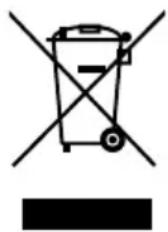
DEVICE
All old appliances marked with the symbol illustrated must not be disposed of in normal household rubbish.
In accordance with Directive 2012/19/EU, the device must be properly disposed of at the end of its service life.
This involves separating the materials in the device for the purpose of recycling and minimising the environmental impact.
Take old devices to a collection point for electrical scrap or a recycling centre. Before doing so, remove the batteries from the device and take them to a separate collection point for used batteries.
Contact your local waste disposal company or your local authority for more information on this subject.
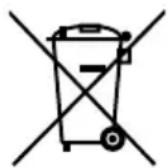
BATTERIES
Do not dispose of used batteries with household rubbish. Batteries must be disposed of correctly. Retailers that sell batteries and local collection points provide containers in which you can dispose of them. Contact your local waste disposal company or your local authority for more information.
In connection with the sale of batteries or the supply of equipment containing batteries, we are obliged to draw your attention to the following: As the end user, you are legally required to return used batteries.
The crossed-out wheelie bin symbol means that the battery must not be disposed of with household rubbish.
20. Technical specifications
| Power supply | |
| Voltage AC 230V ~ 50 Hz | |
| Power consumption Approx. 30 W | |
| Power consumption in standby mode < 0.9 W | |
| Output power 2 x 15 watt RMS | |
| Remote control batteries 2 x 1.5 V R03/LR03/AAA batteries | |
| Radio | |
| FM band 87.5–108 MHz | |
| DAB band III 174.928–239.200 MHz | |
| RDS Yes | |
| Station memory 30 (DAB), 30 (FM) | |
| CD player | |
| Laser output Class 1 laser product | |
| Supported formats | CD-R, CD-RW, audio CD, MP3 CD |
| Bluetooth | |
| Version | 4.2 |
| Profile | A2DP, AVRCP |
| Range | Up to 10 metres (without obstacles) |
| Frequency range | 2402–2480 MHz |
| Maximum transmission power | 0.5 dBm |
| Connections for external functions | |
| FM antenna Telescopic antenna | |
| Line in 2x cinch | |
| AUX 3.5 mm jack | |
| Headphone socket 3.5 mm jack | |
| USB input | Standard USB host (version 2.0) with up to 32 GB and MP3 decoding1 |
| USB output voltage DC 5 V max. 500 mA | --- |
| Environmental conditions | |
| Temperatures In operation: 5°C to +35°C | |
| Not in operation: 5°C to +35°C | |
| Humidity In operation: < 80% | |
| Not in operation: < 80% | |
| Dimensions/weight | |
| Width x height x depth 377 x 120 x 220 mm | |
| Weight 3,2 kg | |
CE
21. Service information
Please contact our Customer Service team if your device ever stops working the way you want or expect it to. There are several ways for you to contact us:
- In our Service-Community, you can meet other users, as well as our staff, and you can exchange your experiences and pass on your knowledge there. You will find our Service-Community at community.medion.com.
• Alternatively, use our contact form at www.medion.com/contact.
- You can also contact our Service team via our hotline or by post.
| Opening times Hotline number UK | |
| Mon – Fri: 08.00 – 20.00Sat – Sun: 10.00 – 16.00 | 0333 3213106 |
| Service address | |
| MEDION Electronics Ltd.120 Faraday Park, Faraday Road, DorcanSwindon SN3 5JF, WiltshireUnited Kingdom | |
text_image
QR code image containing encoded data, no visible human-readable textYou can download this and many other sets of operating instructions from our service portal at www.medionservice.com.
You can also scan the QR code on the side of the screen, to download the operating instructions onto your mobile device from the service portal.
22. Legal Notice
Copyright © 2023
Date: 8. März 2023
All rights reserved.
These operating instructions are protected by copyright.
Mechanical, electronic and any other forms of reproduction are prohibited without the written permission of the manufacturer.
Copyright is owned by the company:
MEDION AG
Am Zehnthof 77
45307 Essen
Germany
Please note that you cannot use the address above for returns. Please always contact our Customer Service team first.
22.1. Supplier/Producer/Importer
Please note that you cannot use the address below for returns. Please contact the Service Centre mentioned above.

MEDION AG
Am Zehnthof 77
45307 Essen
Germany
Importer for GB market by:
MEDION AG
c/o MEDION ELECTRONICS LTD.
120 Faraday Park, Faraday Road, Dorcan
Swindon SN3 5JF, Wiltshire
United Kingdom
23. Privacy statement
Dear customer,
We wish to inform you that we, MEDION AG, Am Zehnthof 77, 45307 Essen, Germany process your personal data as a data controller.
For matters regarding data protection, we are supported by our company data protection officer who can be contacted at MEDION AG, Datenschutz, Am Zehnthof 77, D – 45307 Essen; datenschutz@medion.com. We process your data for the purpose of warranty processing and associated processes (e.g. repairs) and therefore rely on processing your data for the sales contract concluded with us.
Your data will be provided to repairers contracted to us for the purpose of warranty processing and associated processes. We generally store your personal data for a period of three years in order to fulfil your legal warranty rights.
You have the right to be informed of the personal data concerned as well as the right to rectification, deletion, restriction of processing, the right to object to processing, as well as the right to data portability.
In case of access and cancellation rights, restrictions apply according to S 34 and S 35 of BDSG (Federal Data Protection Act) (Art. 23 GDPR). In addition, there is a right of appeal to a competent data protection supervisory authority (Article 77 GDPR in conjunction with S 19 BDSG). The state official for data protection and freedom of information for MEDION AG is Nordrhein Westfalen, P box 200444, 40212 Düsseldorf, Germany. www.ldi.nrw.de.
The processing of your data is necessary for warranty processing: it is not possible to process the warranty without the provision of the required data.