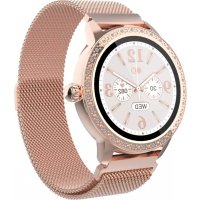
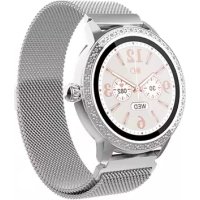
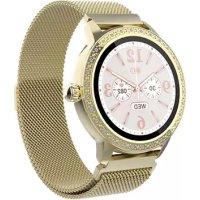
USER MANUAL SW360 DENVER
If the user manual is not printed in your local language, then please visit our website to see if it is available online for the device you have. Our website address is:
www.denver.eu
Please read the safety instructions carefully before using the product for the first time and keep the instructions for future reference.
- This product is not a toy. Keep it out of reach of children.
- Warning: This product includes lithium polymer battery.
- Keep product out of the reach of children and pets to avoid chewing and swallowing.
- Product operating and storage temperature is from 0 degree Celsius to 40 degree Celsius. Under and over this temperature might affect the function.
-
Never open the product. Touching the inside electrics can cause electric shock. Repairs or service should only be performed by qualified personnel.
-
Please remove the Smart watch in case of any leakage or excessive heat from the product to avoid burns or rash.
-
Using other accessories than the ones delivered with the product can cause abnormal functionality.
1. In the box
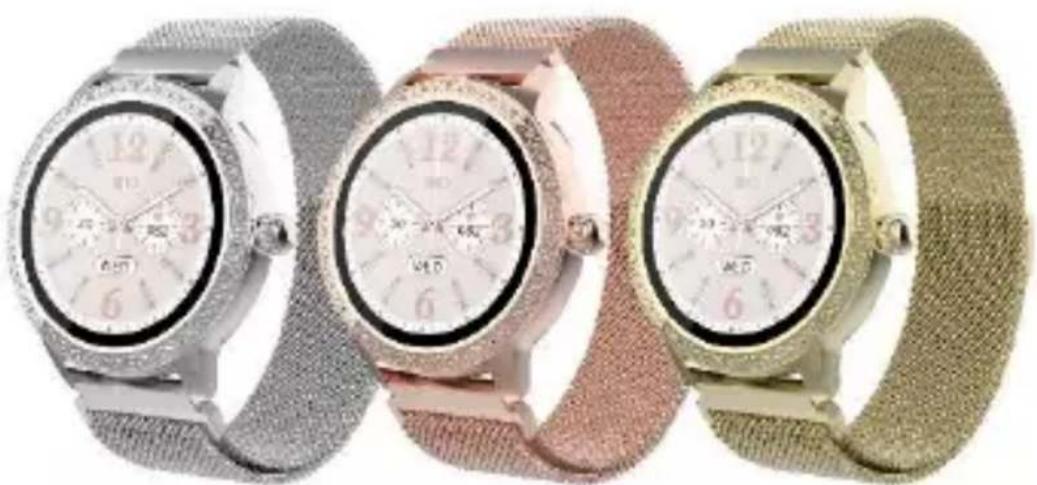
- 1 x Smartwatch
- 1 x Charging Cable
- 1 x User's Guide
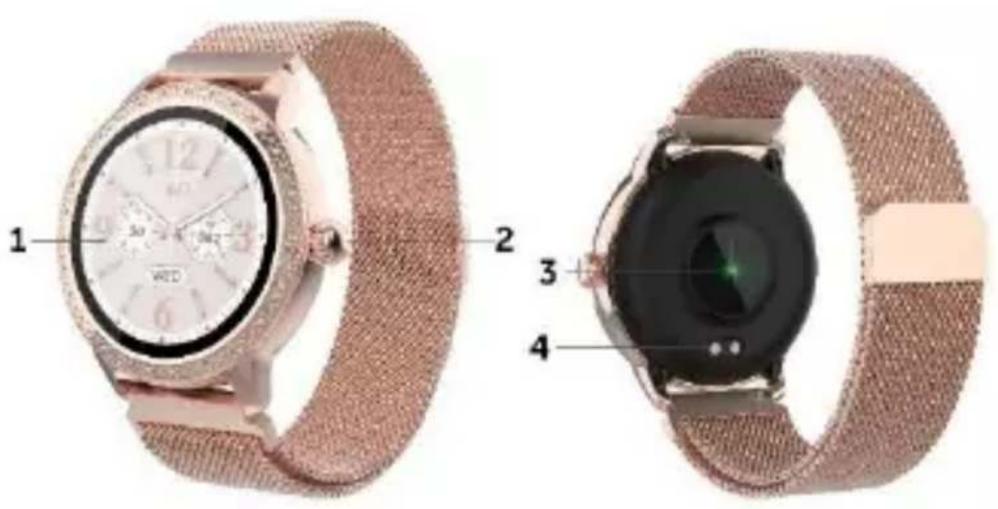
2. Front and Back View
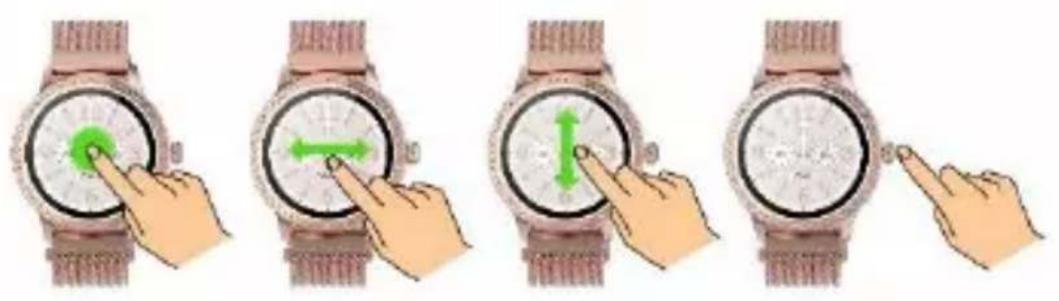
1) Touch screen: shows watch data, swipe or touch the screen to select the functions
2) Side button: press and hold the side button to power on, press to return to clock face or turn the display off/on
3) Heart rate sensor
4) Charging contacts
3. Charging Your Smartwatch
1) Before using your smartwatch for the first time, please make sure it is fully charged.
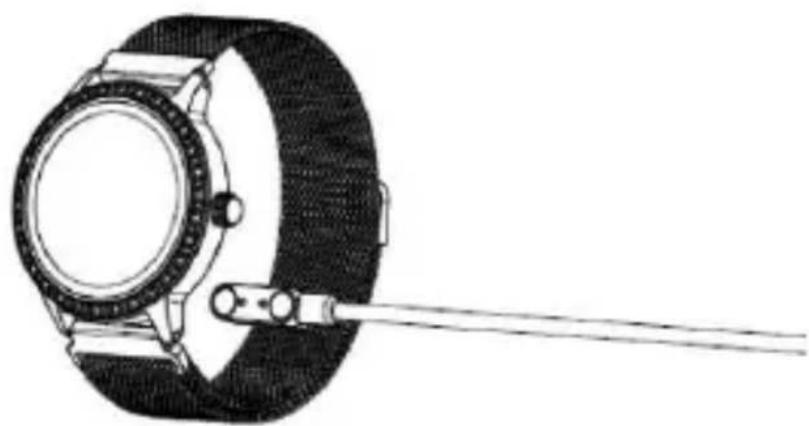
2) The smartwatch will take approximately 2 hours to fully charge. Once a power charger is connected, the smartwatch will charge automatically.
3) Make sure the charging pins on the charging cable fit correctly onto the charging contacts at the back of your Smartwatch, then connect the other end to a power source.
4. Install, Connect or Disconnect the App
1) Before downloading the “Denver Smart Life Plus” app, please make sure that it is compatible with your smartphone. The app works with iOS 10.0 or above and Android 5.0 or above.
2) Search for the "Denver Smart Life Plus" app in the Apple Store or Google Play or scan the following QR code to install.

3) Turn on Bluetooth on your smartphone, open the “Denver Smart Life Plus” app and set your profile. Then tap “Connect Smartwatch” in settings and choose your smartwatch to connect.
4) To disconnect your smartwatch, please go to the app settings and tap "Disconnect Smartwatch".
For iPhone, you also need to go to "Bluetooth" in your iPhone Settings to "Forget This Device".
5. Use Instructions
Press and hold the side button for 3 seconds to turn on your smartwatch. Swipe up/down or left/right to see more options.
6. Main Menu
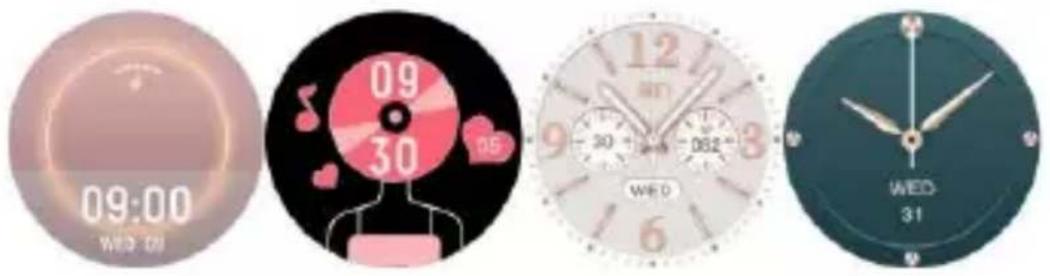
6.1 After turning on the smartwatch, the clock face is displayed. Press and hold and swipe left and right to choose a different clock face.
6.2 Shortcuts
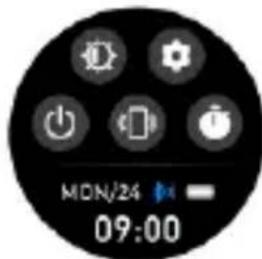
- Screen brightness; tap the brightness icon to adjust (+ / - ) then brightness.
Settings.
Find phone; to find your tphone.
Switch off your smartwatch.
Stopwatch.
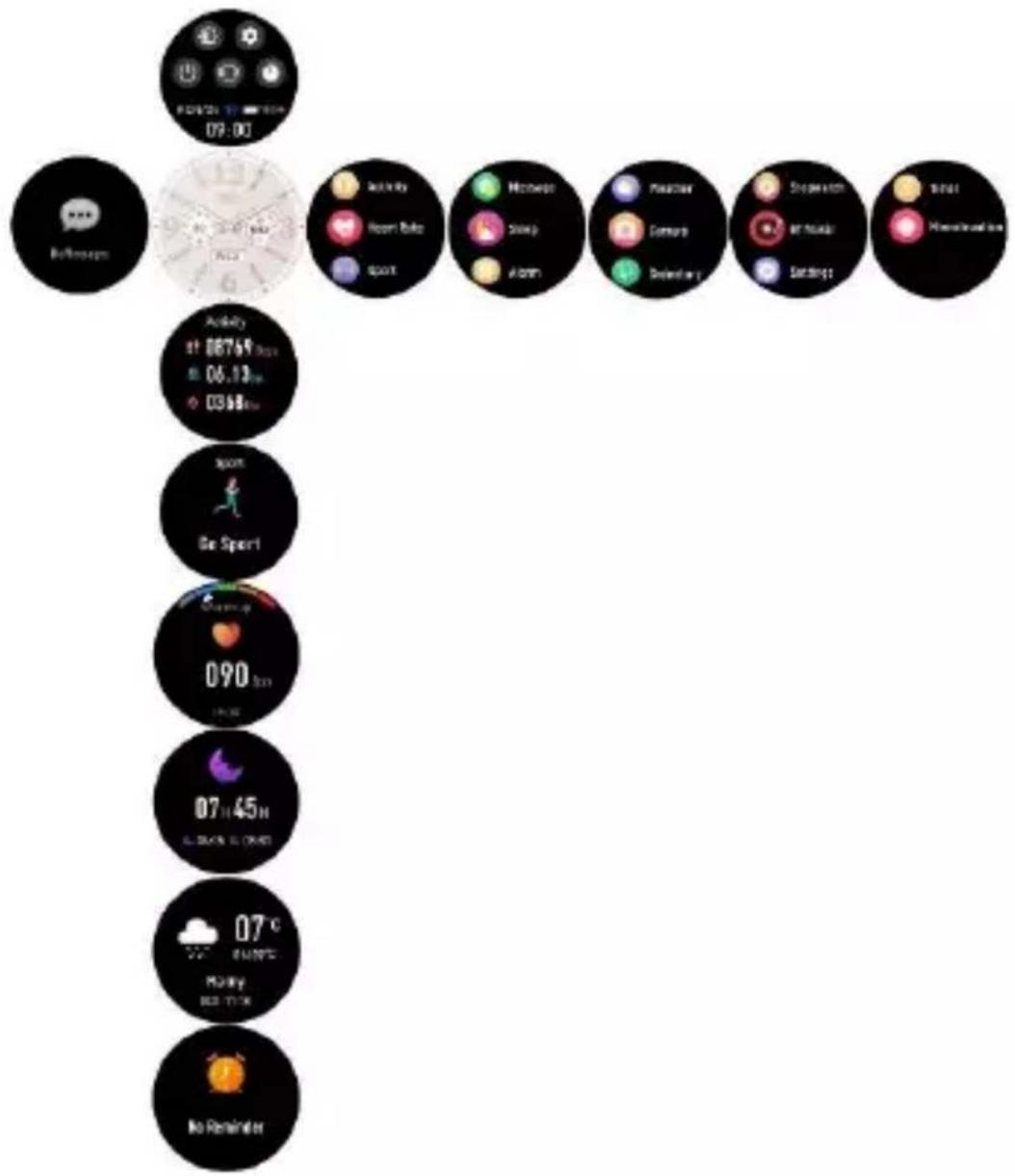
6.3 Messages: Slide from left to right on the clock face for checking your phone calls, SMS, QQ, WeChat, WhatsApp, Facebook and Twitter notifications, etc. The messages will be automatically deleted after you read them.

6.4 When the clock face is displayed, slide to the left to enter and view all menus.
Tap the icon to enter in the sub menu. Slide from left to right to return to the previous menu.
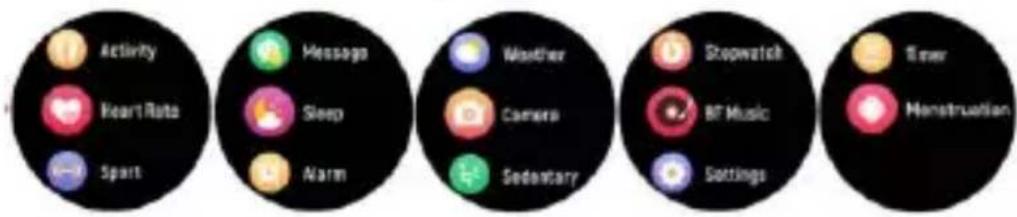
6.5 Sport: Tap the icon to enter the multiple sport modes. If you want to exit the sport menus, slide from left to right on the screen and tap the “” icon to finish your sport and save the sport data.
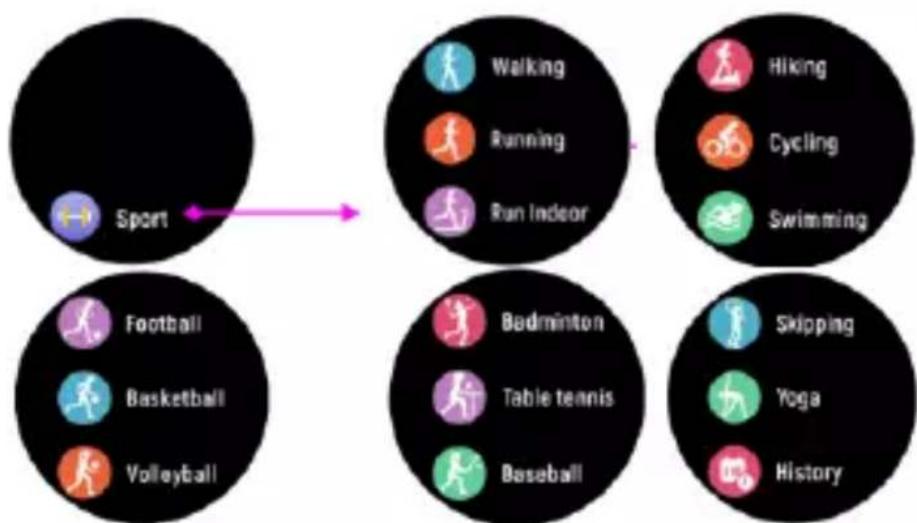
A reminder will pop up if your sport data has achieved your set goal. Too
ENG-9
little data will not be saved.
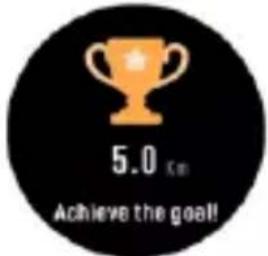
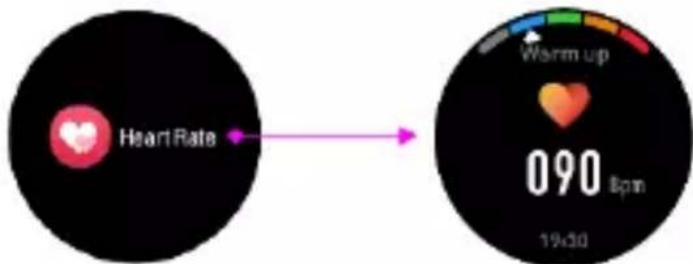
6.6 Heart rate monitor, tap the icon to monitor your current heart rate. To exit the heart rate monitor, slide from left to right on the screen.
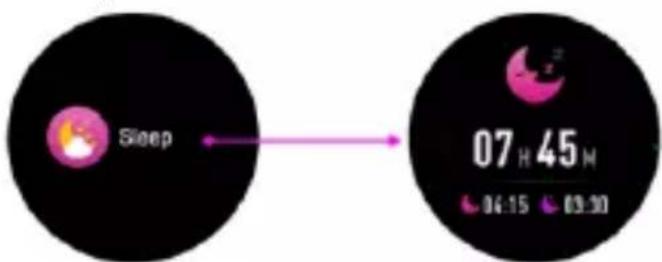
6.7 Sleep monitor, monitor your sleep between 9:00 p.m. and 9:00 a.m. automatically. When you get up the next day, the smartwatch will display your sleep report about the time of total sleep, light sleep and deep sleep.
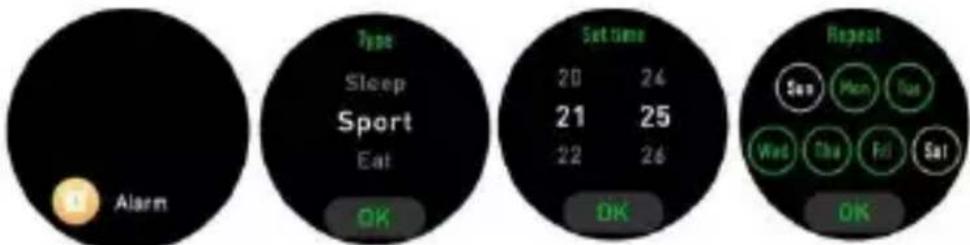
6.8 Alarm, you can set reminders in both the "Denver Smart Life Plus" app and the smartwatch itself. When the alarm time arrives, the alarm icon is animated and the smartwatch will vibrate.
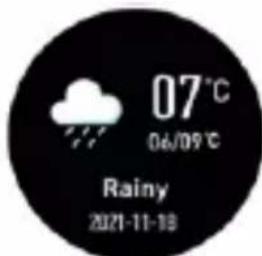
6.9 Weather, the smartwatch will display the weather when the connection with the app is established.
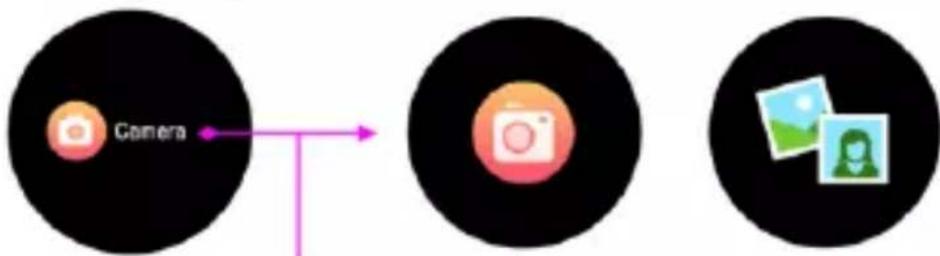
6.10 Camera, open the "Denver Smart Life Plus" app and then tap the camera icon on your smartwatch, you can take pictures remotely from your smart watch.
ENG-11
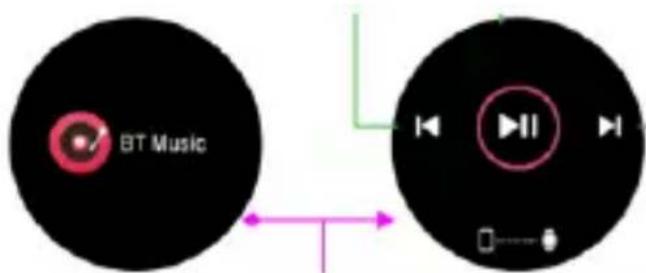
6.11 BT Music, tap the icon to control the music on your phone. You can select the previous/next song, and play/pause music. To exit music playback control, slide from left to right on the screen.
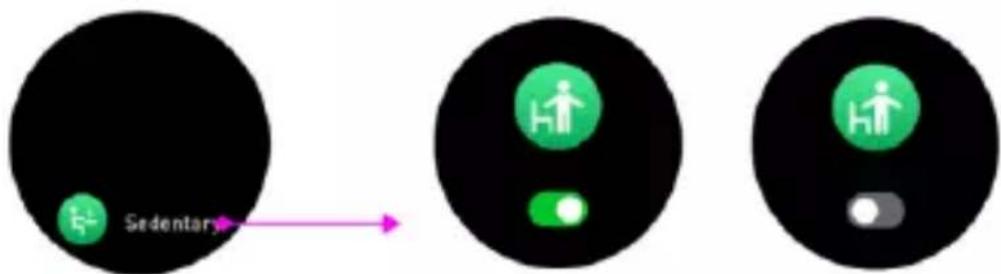
6.12 Sedentary, set the time interval (minutes), start time and end time in the app. You can turn on or off the sedentary reminder on your watch. Slide from left to right on the screen to exit.
6.13 Settings
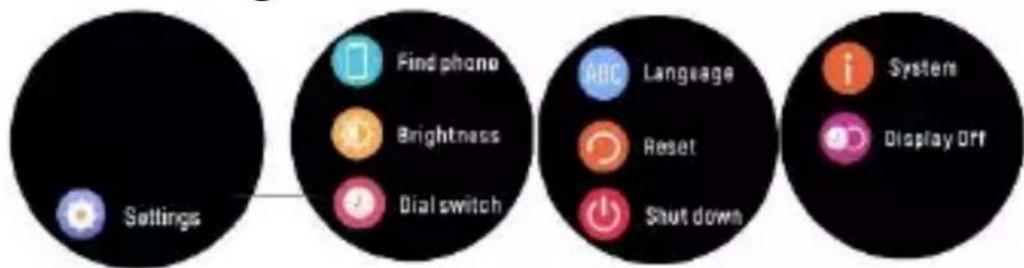
Find phone, find your
smartphone.
Brightness, tap the brightness
icon to adjust (+ / - ) the screen
brightness.
Dial switch, swipe left and right
to choose a different clock face.
Language, set the display
language of your watch.
Reset, all data on the watch
will be cleared.
Shut down.
System, to find the MAC
address, name, and software version of your smartwatch.
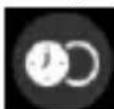
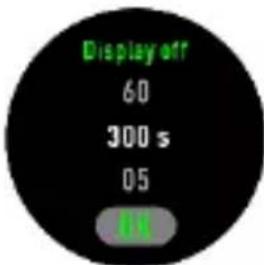
Display off, choose the display
duration up to 300s.
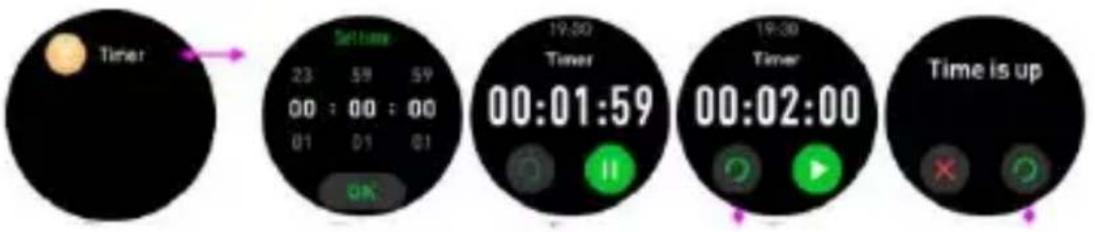
6.14 Timer
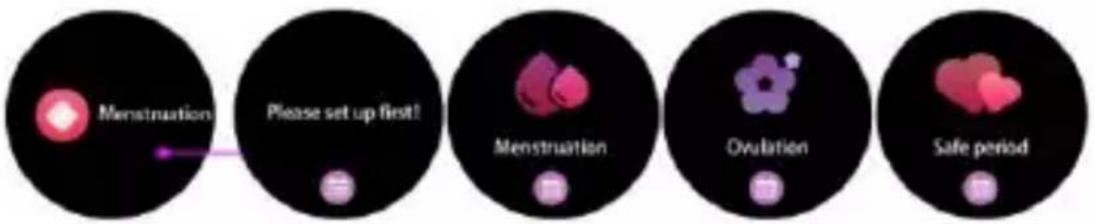
6.15 Menstruation
Please notice - All products are subject to change without any notice. We take reservations for errors and omissions in the manual.
ALL RIGHTS RESERVED, COPYRIGHT DENVER A/S

denver.eu

Electric and electronic equipment and included batteries contains materials, components and substances that can be hazardous to your health and the environment, if the waste material (discarded electric and electronic equipment and batteries) is not handled correctly.
Electric and electronic equipment and batteries is marked with the crossed out trash can symbol, seen above. This symbol signifies that electric and electronic equipment and batteries should not be disposed of with other household waste, but should be disposed of separately.
As the end user it is important that you submit your used batteries to the appropriate and designated facility. In this manner you make sure that the batteries are recycled in accordance with legislature and will not harm the environment.
All cities have established collection points, where electric and electronic equipment and batteries can either be submitted free of charge at recycling stations and other collection sites, or be collected from the households. Additional
information is available at the technical department of your city.
Hereby, Denver A/S declares that the radio equipment type SW-360 is in compliance with Directive 2014/53/EU. The full text of the EU declaration of conformity is available at the following internet address: denver.eu and then click the search ICON on topline of website. Write model number: SW-360. Now enter product page, and RED directive is found under downloads/other downloads.
Operating Frequency Range:
2.402~2.480 GHz
Max Output Power: 2.22 dBm
DENVER A/S
Omega 5A, Soeften
DK-8382 Hinnerup
Denmark
www.facebook.com/denver.eu
denver
SW-360 SMARTWATCH
Encunar telephone, encounter
o seu smartphone.
Brilho, toque no icone de
(Push “2” for support)
E-Mail
For technical questions, please write
to:
support@denver.eu
For all other questions please write
to: denver@denver.eu
Germany
Denver Germany GmbH Service
Gutenbergstraße 1
94036 Passau
Phone: +49 851 379 369 40
E-Mail
Repair-germany@denver.eu
Fairfixx GmbH
Repair and service
E-Mobility/Hoverboards/Balancebo
ards, Smartphones & Tablets)
Tel.: +49 851 379 369 69
Denver A/S Spain S.A