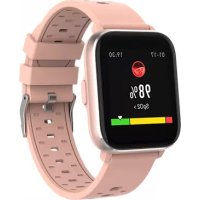
SW165 - Smartwatch DENVER - Free user manual and instructions
Find the device manual for free SW165 DENVER in PDF.



| Product Type | Smartwatch |
| Brand | Denver |
| Model | SW165 |
| Screen | Touchscreen |
| Sensors | Heart rate, temperature, blood oxygen (SpO2) |
| Wireless Connectivity | Bluetooth 2.402-2.480 GHz |
| Companion App | Denver Smart Life Plus (iOS/Android) |
| Power Source | Rechargeable lithium battery |
| Charging Mode | Charging contacts with USB cable |
| Main Functions | Notifications, activity tracking, customizable watch faces, message viewing |
| Time Display | Yes, via watch face |
| Alarm | Not specified but likely via app |
| Maintenance and Cleaning | Clean with a soft, dry cloth. Avoid water unless resistance is indicated. |
| Safety | Lithium battery inside. Recycle separately. |
| Spare Parts | No removable parts. Integrated battery. |
| Repairability | Not user-serviceable. Contact DENVER support. |
| Operating Temperature | Not specified. Normal use estimated between 0°C and 40°C. |
| Compatibility | Smartphones with Bluetooth 4.0+ and Denver Smart Life Plus app |
| Power On | Press and hold the function button for 3 seconds |
| Navigation | Slide on the touchscreen, press the function button |
| Manual Languages | French, Danish, German, English, Spanish, Finnish, Italian, Dutch, Norwegian, Polish, Portuguese, Swedish |
Frequently Asked Questions - SW165 DENVER
User questions about SW165 DENVER
0 question about this device. Answer the ones you know or ask your own.
Ask a new question about this device
Download the instructions for your Smartwatch in PDF format for free! Find your manual SW165 - DENVER and take your electronic device back in hand. On this page are published all the documents necessary for the use of your device. SW165 by DENVER.
USER MANUAL SW165 DENVER
If the user manual is not printed in your local language, then please visit our website to see if it is available online for the device you have. Our website address is: www.denver-electronics.com
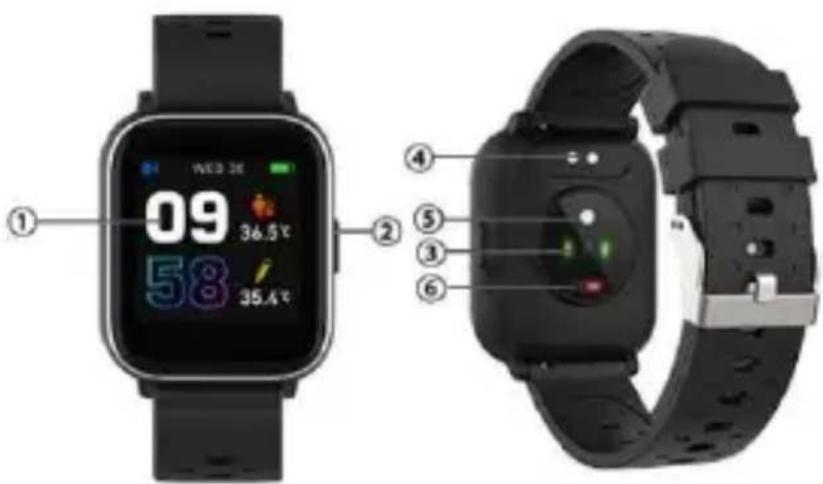
1. Quick start guide Overview
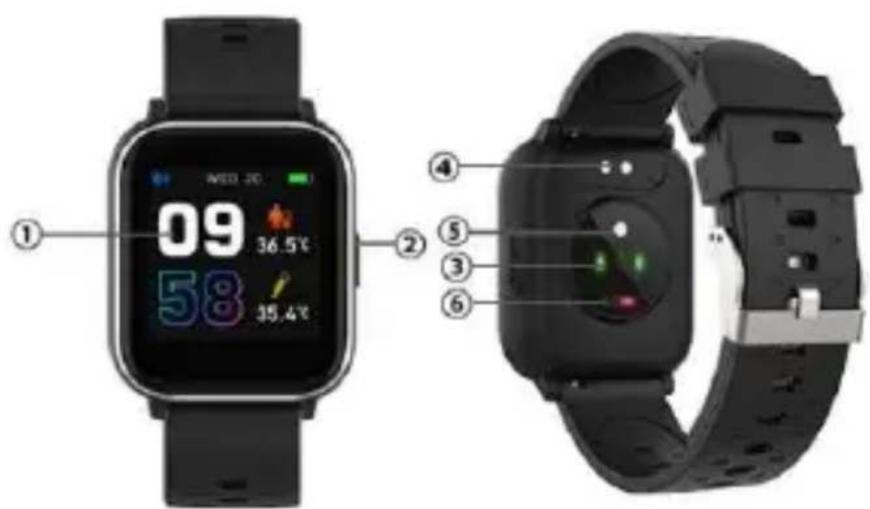
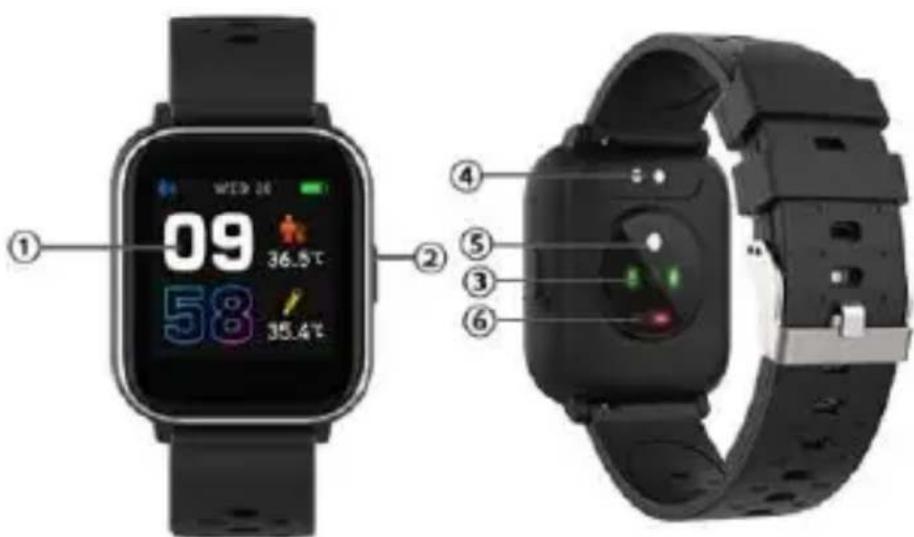
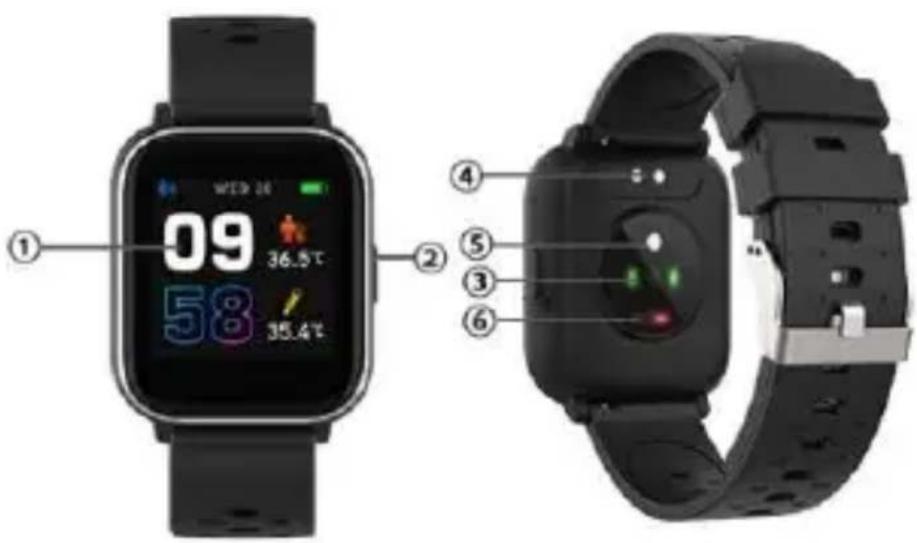
- Touch screen
- Function button
- Heart rate sensor
- Charging plate
- Temperature sensor
- Blood oxygen sensor
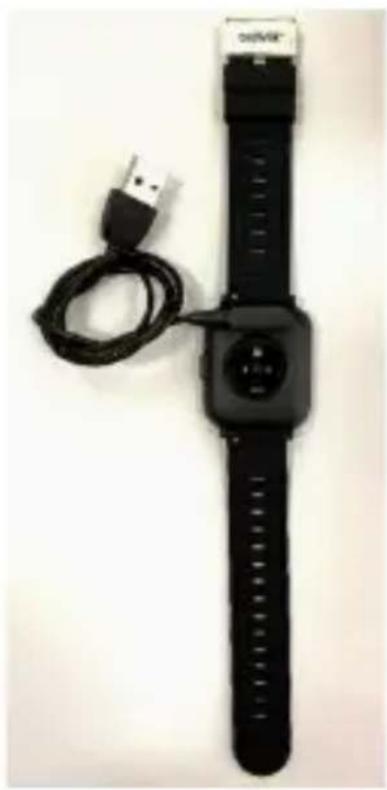
To charge the smart watch, connect the charging clip of the USB cable to the charging plate on the back
of the smart watch. If successfully connected, the charging icon appears on the screen.
natural_image
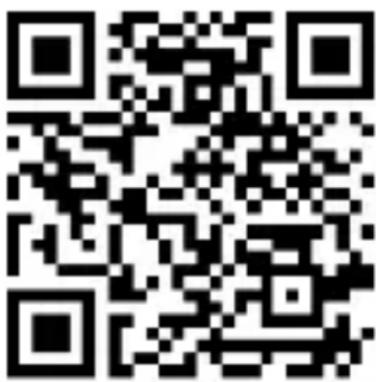
Black and white photo of a smartwatch with USB cable, no visible text or symbols on the device itself.Install “Denver Smart Life Plus” app on the phone Search and install the “Denver Smart Life Plus” app from Google Play or App Store. Or scan the
following QR code to directly install the app.
Connect the smart watch with mobile phone
- Turn on Bluetooth on your mobile phone.
- Tap the icon of DENVER SMART LIFE PLUS app to open it.
- Add device.
- Auto scan your smart watch and then pair.
Unbind the smart watch with mobile phone
- Open the “Denver Smart Life Plus” app on your smart phone.
- Long press your device.
- Remove your device.
Operation introduction
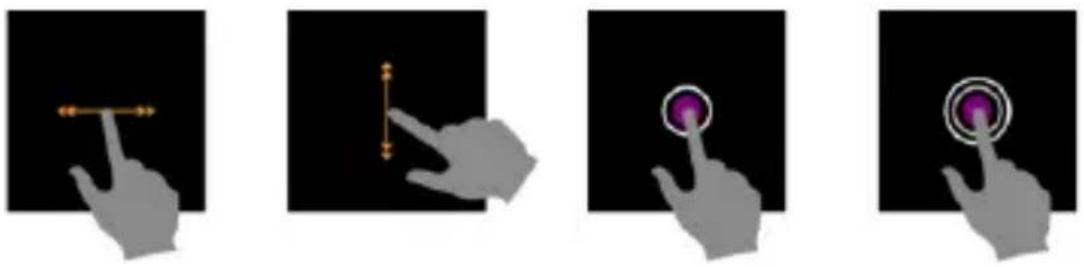
- You can raise your hand or press the function button to light the screen.
- Press and hold the watch face screen, then slide up or down to change the watch face.
- Press and hold the function button to turn
on the smart watch when powered off.
2. How to use
- Turn on: Press and hold the function button for 3 seconds.
- Go to menu screen: Slide left in the watch face screen.
- Select a function: Click on the icon.
- Exit the menu: Slide the screen from left to right.
- Return to the watch face: Short press the function button in any screen.
- Check messages: Slide from left to right in the
watch face screen.
3. Menu navigation
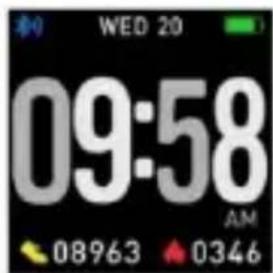

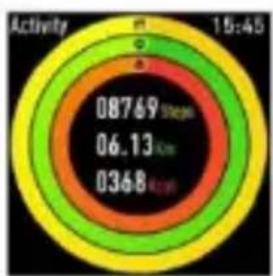
radar
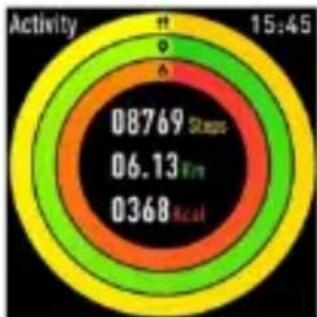
| Activity | Value | |---|---| | 08769 Steps | 08769 | | 06.13 Km | 06.13 | | 0368 Km | 0368 |After turning on the smart watch, the watch face screen is displayed.

When the watch face screen is displayed:
- Go to the menu screens
a. Slide left in the watch face screen to enter the menu screens.
b. Slide up and down to switch the menu screens.
c. Tap the icon to enter the sub menu. Slide from left to right to return to the previous menu.
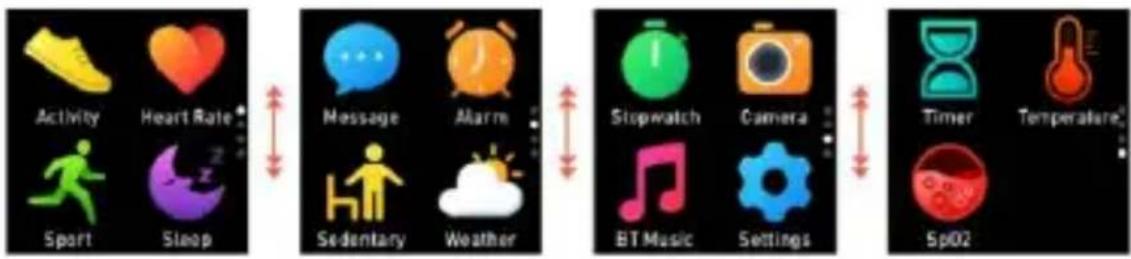
flowchart
graph LR
    A["Activity"] --> B["Heart Rate"]
    C["Sport"] --> D["Sleep"]
    E["Message"] --> F["Alarm"]
    G["Sedentary"] --> H["Weather"]
    I["Stopwatch"] --> J["Camera"]
    K["BT Music"] --> L["Settings"]
    M["Timer"] --> N["Temperature"]
    O["Sp02"] --> P["End"]
- Go to the messages shortcut screen Slide from left to right in the watch face screen.
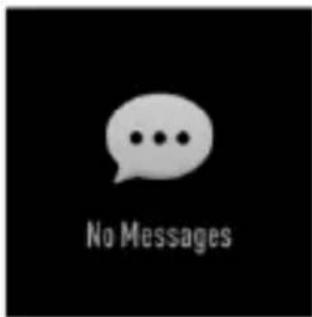
- Go to other shortcuts screen Slide up and down in the watch face screen.
other
| Activity | Value | |---|---| | 08769 Steps | 15:45 | | 06.13 Km | | | 0368 Real | |- Functions
Watch face screen
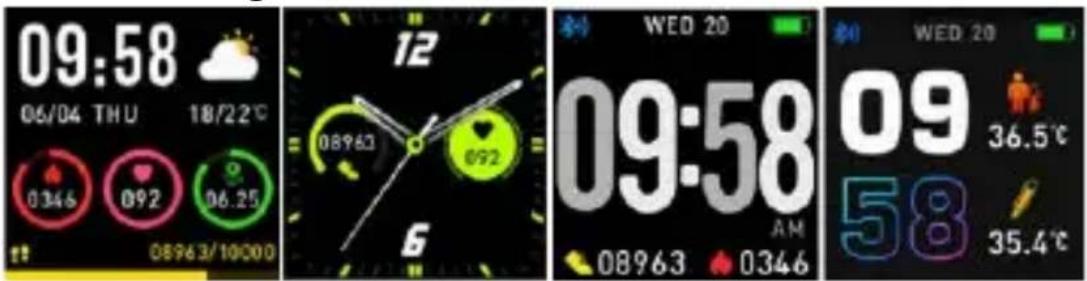
You can press the function button to go to the watch face screen quickly.
If you want to change the watch face of your smart watch, press and hold the current watch face for 3 seconds, then slide up and down to go through the different watch faces and choose the one you like.
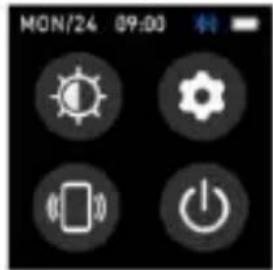
Shortcut
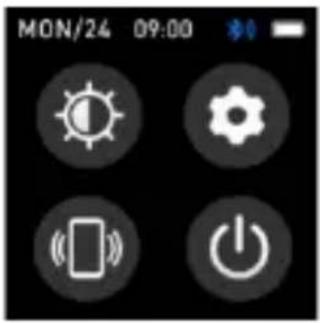
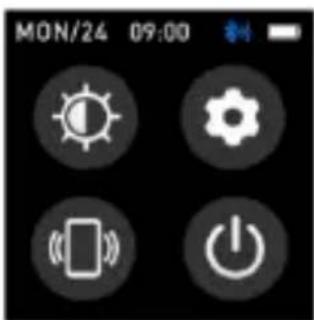
- Screen brightness You can tap the brightness icon to adjust (+/-) the screen brightness.
• Find phone If your smart watch is connected with Denver Smart Life Plus app, you can find your phone by tapping this icon and your phone will ring.
- Shut down You can shut down your smart watch by tapping this icon.
- Settings
You can go settings quickly by tapping this icon.
Multi-Sport
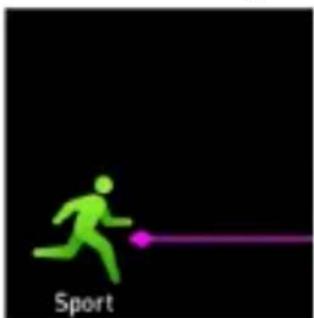
natural_image
Green silhouette of a running person with a purple line extending from it, labeled 'Sport' below (no other text or symbols)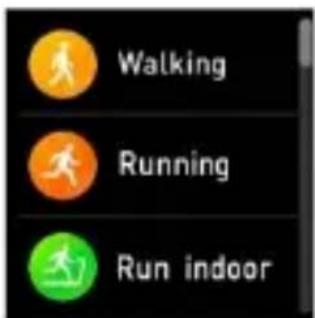
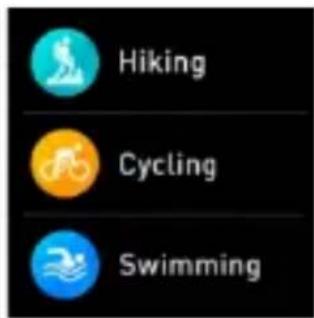
Tap this icon to enter the multi-sport mode. The smart watch has multiple sports modes: walking, running, cycling, run indoor, hiking, swimming and more. Choose a sport mode you want, and then do sports. The smart watch records your exercise data.
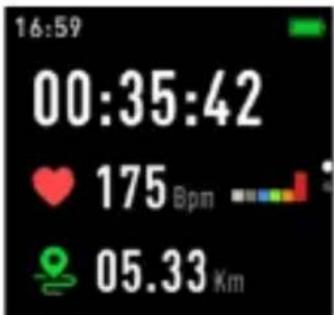
If you want to end the sports, slide the screen to right and tap the “√” icon to finish your sports and save the data. The smart watch displays your exercise data. If you’ve connected your smart watch with the “Denver Smart Life Plus” app via Bluetooth, you can also check your exercise data in the app.
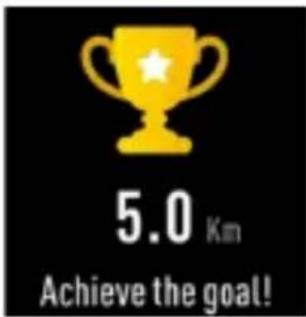
Note: Too little exercise data will not be saved.
Body temperature monitor
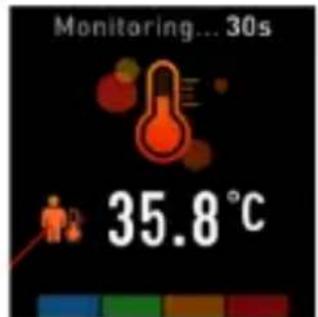
Tap the body temperature icon to monitor your current body temperature.
To exit the body temperature monitor, slide the screen to right. Please notice – this is not medical grade. If you are unsure, always use a standard
thermometer.
Measurement tolerance 0.4 degrees Celsius.
Blood oxygen monitor
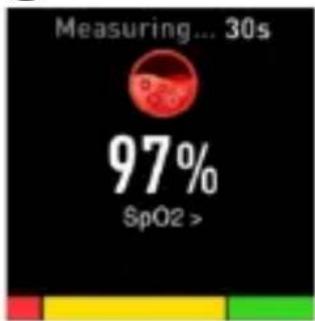
Tap the blood oxygen icon to monitor your current blood oxygen. To exit the blood oxygen monitor, slide the screen to right.
Heart rate monitor
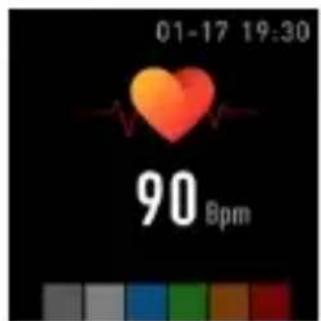
Tap this icon to monitor
your current heart rate. To exit the heart rate monitor, slide the screen to right.
If you’ve connected your smart watch with the “Denver Smart Life Plus” app via Bluetooth, you can also check your heart rate data in the app.
Sleep monitor
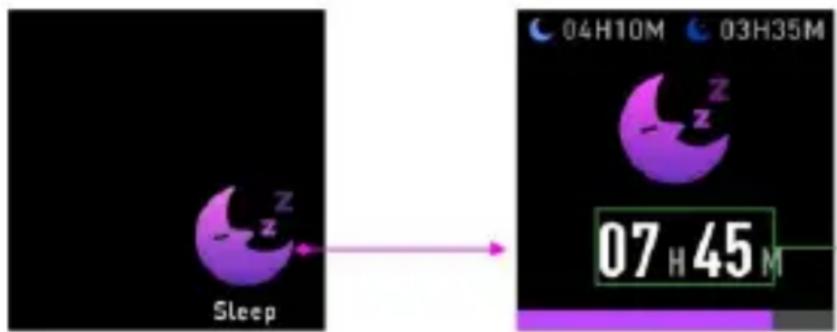
The smart watch automatically monitors your sleep between 9:00 p.m. and 9:00 a.m.
When you get up the next day, the smart watch displays your sleep report about the time of total sleep, light sleep and deep sleep. If you’ve connected your smart watch with the “Denver Smart Life Plus” app via Bluetooth, you can also check more detailed sleep report in the app.
Alarm
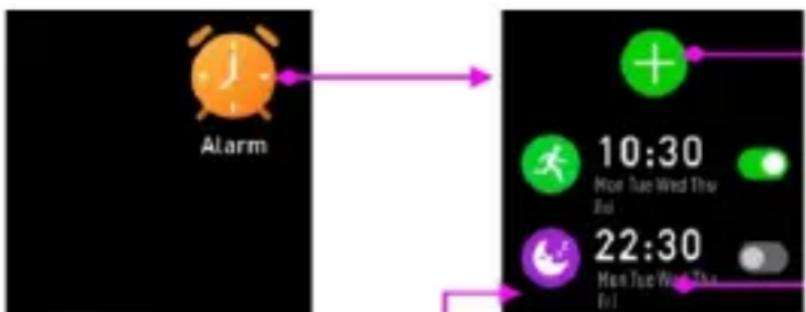
flowchart
graph LR
    A["Alarm"] --> B["10:30 Mon Tue Wed Thu Fri"]
    B --> C["22:30 Mon Tue Wed Thu Fri"]
You can set reminders in both “Denver Smart Life Plus” app and smart watch
itself. When alarm time is up, the alarm icon is animated and the smart watch vibrates.
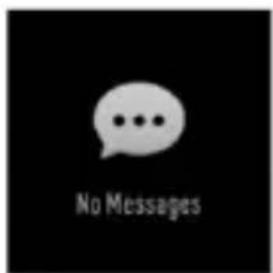
Messages
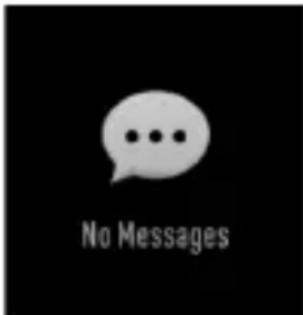
Slide the watch face from left to right, and then you can check your phone calls, SMS, QQ, WeChat, Whatsapp, Facebook and Twitter notifications, etc. The messages will be automatically deleted after reading.
Weather
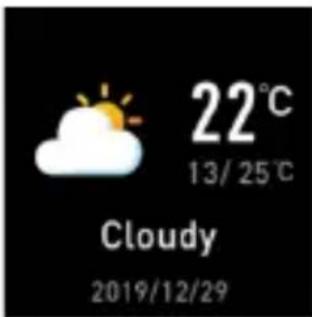
If you’ve connected your smart watch with the “Denver Smart Life Plus” app via Bluetooth, the smart watch displays the weather forecast.
Camera
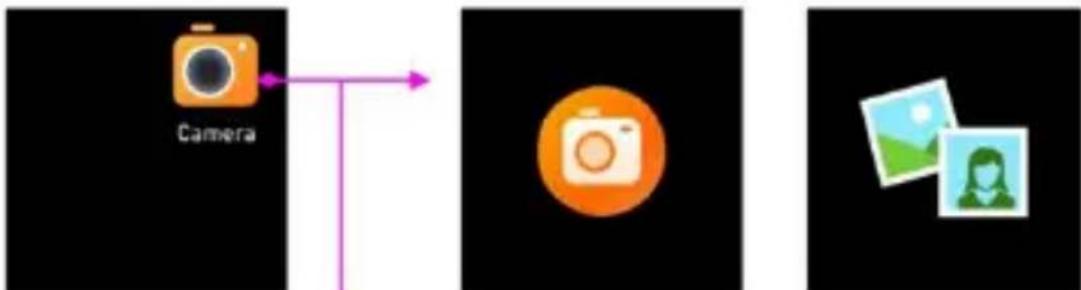
flowchart
graph LR
    A["Camera"] --> B["Photo"]
    B --> C["Image"]
After connecting with the app, you can take pictures remotely from your smart watch.
Music playback control
flowchart
graph LR
    A["BT Music"] --> B["Play Button"]
    B --> C["Video Player"]
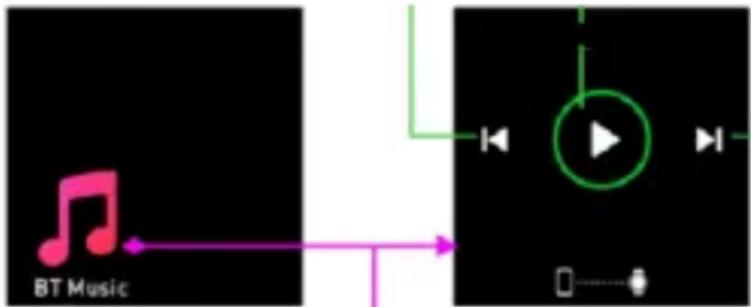
Tap the music icon to enter the music playback control interface.
You can select the previous/next song, and play/pause music. To exit music playback control, slide the screen from left to right.
Sedentary reminder
flowchart
graph LR
    A["Sedentary"] --> B["Active State"]
    B --> C["State with H icon"]
    B --> D["State with green dot"]
    B --> E["State with orange circle"]
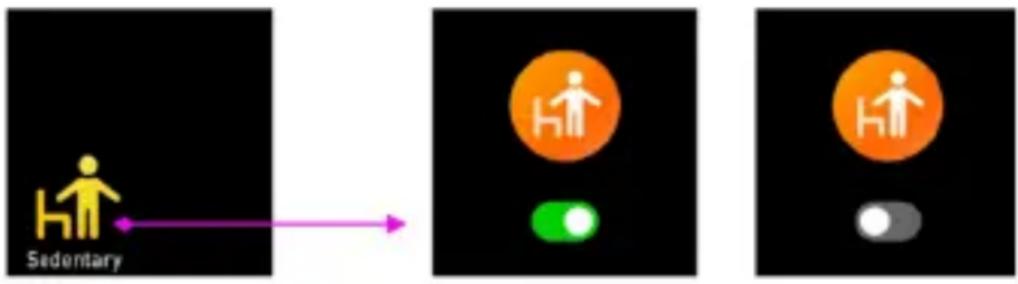
Go to the “Settings” in the “Denver Smart Life Plus” app to set the time intervals (minutes), start time and end time. Turn on/off sedentary reminder on smart watch or app.
Slide the screen to right to exit.
Settings
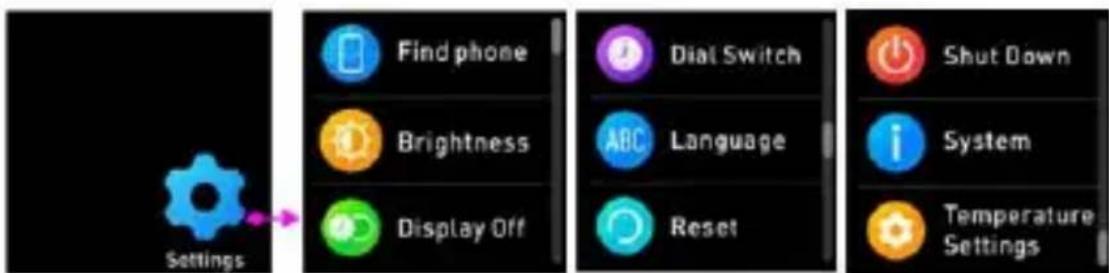
Tap this icon to enter the settings menu.
- Find phone
If your smart watch is connected with Denver Smart Life Plus app, you can find your phone by tapping this icon and your phone will ring.
- Dial Switch Tap the icon and then slide up and down to go through the different watch faces and choose the one you like.
- Screen brightness You can tap the brightness icon to adjust (+/-) the screen brightness.
- System
You can check the system of your smart watch by tapping this icon.
● Languages
You can set language here.
- Shut down
You can shut down your smart watch by tapping this icon.
- Reset
You can reset your smart watch by tapping this icon.
- Display Off
You can set time to turn off display.
● Temperature settings
You can set temperature unit here.
Please notice - All products are subject to change without any notice. We take reservations for errors and omissions in the manual.
ALL RIGHTS RESERVED, COPYRIGHT DENVER ELECTRONICS A/S

denver
denver-electronics.com

Electric and electronic equipment and included batteries contains materials, components and
substances that can be hazardous to your health and the environment, if the waste material (discarded electric and electronic equipment and batteries) is not handled correctly.
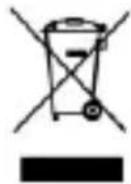
Electric and electronic equipment and batteries is marked with the crossed out trash can symbol, seen below. This symbol signifies that electric and electronic equipment and batteries should not be disposed of with other household waste, but should be disposed of separately.
As the end user it is important that you submit your used batteries to the appropriate and designated facility. In this manner you make sure that the batteries are recycled in accordance with legislature and will not harm the environment.
All cities have established collection points, where electric and electronic equipment and batteries can either be submitted free of charge at recycling stations and other collection sites or be collected from the
households. Additional information is available at the technical department of your city.
Hereby, Inter Sales A/S declares that the radio equipment type SW-165 is in compliance with Directive 2014/53/EU. The full text of the EU declaration of conformity is available at the following internet address: www.denver-electronics.com, and then click the search icon on top line of website. Write model number: SW-165. Now
enter product page, and red directive is found under downloads/other downloads.
Operating Frequency Range: 2.402GHz—2.480GHz Max Output Power: 4.0dBm Warning Lithium battery inside
DENVER ELECTRONICS A/S Omega 5A, Soeften DK-8382 Hinnerup Denmark www.facebook.com/denver electronics

natural_image
Abstract geometric logo with a stylized white letter 'D' inside a black hexagon (no text or symbols)denver
SW-165 SMARTWATCH
Bedienungsanleitung
www.denver-electronics.com

www.facebook.com/denverelectronics
DEUTSCH
natural_image
Black smartwatch with USB cable attached, no visible text or symbols on the device itselfnatural_image
Four grayscale images showing a hand interacting with a finger, demonstrating touch and click actions (no text or symbols)
natural_image
Abstract geometric logo with a stylized white letter 'D' inside a black hexagon (no text or symbols)denver
RELOJ INTELIGENTE SW-165
Guía de usuario
natural_image
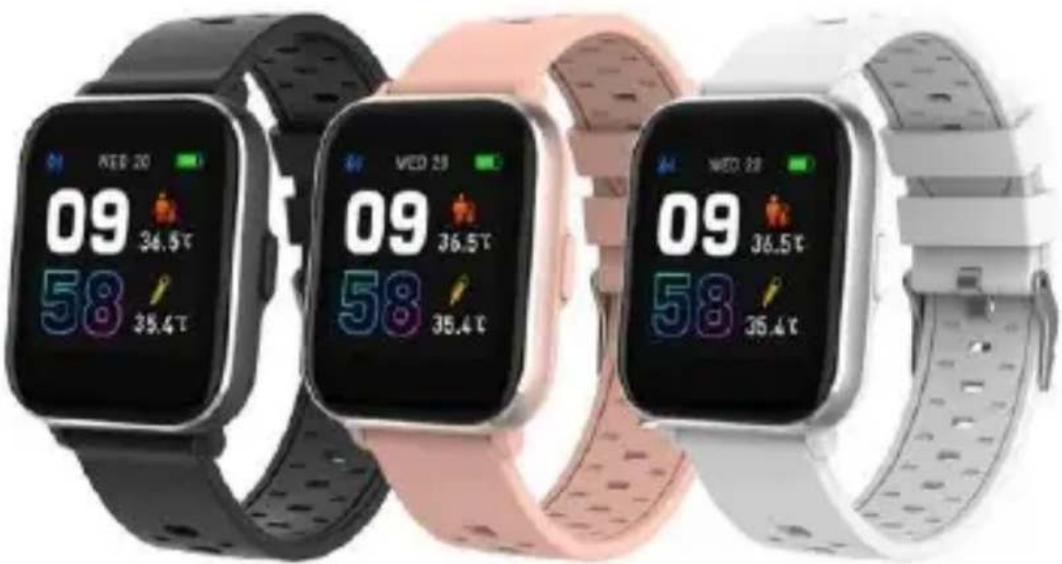
Three smartwatches displaying time, battery, and app icons (no readable text or symbols)www.denver-electronics.com

www.facebook.com/denverelectronics
ESPAÑOL
natural_image
Black wristwatch with USB cable and connector, no visible text or symbolsnatural_image
Four grayscale images showing a hand interacting with a finger, demonstrating touch and click actions (no text or symbols)denver-electronics.com

natural_image
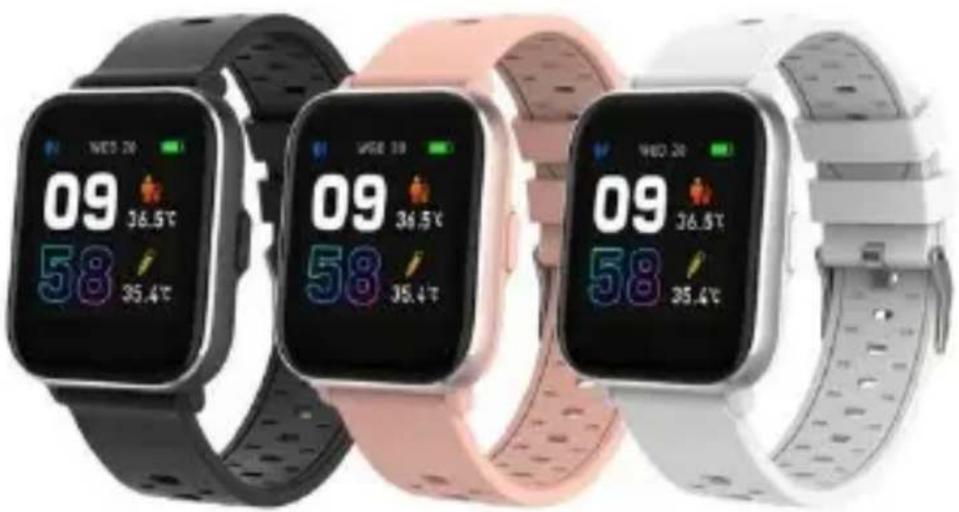
Three smartwatches displaying digital app interface with temperature and usage metrics (no readable text or symbols)www.denver-electronics.com

www.facebook.com/denverelectronics
NEDERLANDS
1. Snelstartgids
Overzicht
natural_image
Black smartwatch with USB cable and control panel, no visible text or symbolsnatural_image
Hand pointing at a finger with a horizontal line between two dots (no text or symbols)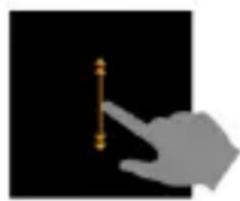
natural_image
Silhouette of a hand pointing at a vertical line on black background (no text or symbols)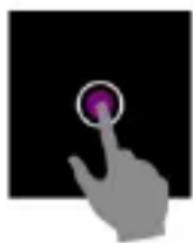
natural_image
Hand cursor clicking a purple button on a black background (no text or symbols)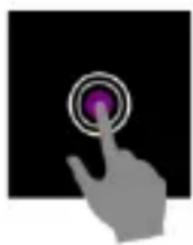
natural_image
Hand cursor clicking a purple button on a black background (no text or symbols)denver-electronics.com

Elektrische en
natural_image
Three smartwatches displaying daily temperature readings (no visible text or symbols on the devices themselves)www.denver-electronics.com

www.facebook.com/denverelectronics
SVENSKA
natural_image
Black smartwatch with USB cable attached, no visible text or symbols on the device itselfnatural_image
Hand pointing at a finger with a small number of dots on the finger (no text or symbols)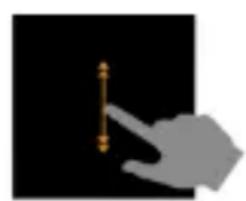
natural_image
Hand pointing at a vertical line on a black background (no text or symbols)
natural_image
Hand cursor clicking a purple button on a black background (no text or symbols)
natural_image
Hand cursor clicking a purple button on a black background (no text or symbols)denver-electronics.com
natural_image
Three smartwatches displaying digital app interface with temperature readings (no readable text or symbols)www.denver-electronics.com

www.facebook.com/denverelectronics
FRANÇAIS
natural_image
Black smartwatch with USB cable and connector, isolated on white surface (no text or symbols visible)Connector la montre intelligente au smartphone
natural_image
Four hand gestures demonstrating touch and click actions (no text or symbols)denver-electronics.com
natural_image
Abstract geometric logo with a stylized white letter 'D' inside a black hexagon (no text or symbols)denver
SW-165-ÄLYKELLO
Käyttöopas
www.denver-electronics.com

www.facebook.com/denverelectronics
SUOMI
1. Pikaopas
Yleiskatsaus
natural_image
Black smartwatch with USB cable attached, no visible text or symbols on the device itself.FIN-2
natural_image
Four grayscale images showing a hand interacting with a finger, demonstrating touch and click actions (no text or symbols)denver-electronics.com
Sähkö- ja
natural_image
Black smartwatch with USB cable and connector, no visible text or symbolsnatural_image
Hand pointing at a horizontal line with dots, against a black background (no text or symbols)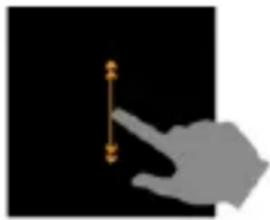
natural_image
Silhouette of a hand pointing at a vertical line with small dots, against a black background (no text or symbols)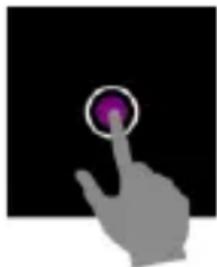
natural_image
Hand cursor clicking a purple button on a black background (no text or symbols)
natural_image
Hand cursor clicking a purple button on a black background (no text or symbols)denver-electronics.com
natural_image
Abstract geometric logo with a stylized letter 'D' inside a hexagonal shape (no text or symbols)denver
SW-165 SMARTWATCH
www.denver-electronics.com

www.facebook.com/denverelectronics
DANSK
natural_image
Black smartwatch with USB cable and connector, isolated on white surface (no text or symbols visible)Installér appen Denver Smart Life Plus på telefonen
Forbind smarturet til telefonen
natural_image
Four grayscale images showing a hand interacting with a finger, demonstrating touch and click actions (no text or symbols)
natural_image
Three smartwatches displaying digital app interface with temperature readings (no readable text or symbols beyond display)www.denver-electronics.com

www.facebook.com/denverelectronics
ITALIANO
1. Guida rapida
Panoramica
natural_image
Black smartwatch with USB cable and control panel, no visible text or symbolsCollegare lo smartwatch al telefono
natural_image
Hand pointing at a finger with a distance marker (no text or symbols)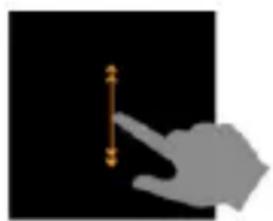
natural_image
Silhouette of a hand pointing at a vertical dimension line on black background (no text or symbols)
natural_image
Silhouette of a hand pressing a button with a purple circular icon (no text or symbols)
natural_image
Hand cursor clicking a purple circular button on a black background (no text or symbols)denver-electronics.com
natural_image
Three smartwatches displaying temperature readings and usage icons, no visible text or symbols on the devices themselves.www.denver-electronics.com

www.facebook.com/denverelectronics
PORTUGUÊS
natural_image
Black smartwatch with USB cable and connector, no visible text or symbolsnatural_image
Four grayscale images showing a hand interacting with a finger, demonstrating touch and click actions (no text or symbols)denver-electronics.com
natural_image
Black smartwatch with USB cable and connector, isolated on white surface (no text or symbols visible)Installere Denver Smart Life Plus appen på mobiltelefonen
Koble smartklokken til telefonen
- Aktiver Bluetooth på smarttelefonen din.
- Trykk på ikonet til DENVER SMART LIFE PLUS-appen for å åpne den.
- Legg til enhet.
- Skann smartklokken din automatisk, og par den deretter.
Koble smartklokken fra telefonen
natural_image
Hand pointing at a finger with a small dot on the index finger (no text or symbols)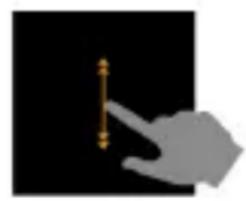
natural_image
Silhouette of a hand pointing at a vertical line on a black background (no text or symbols)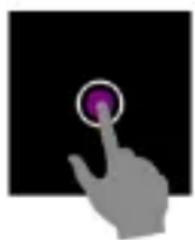
natural_image
Hand cursor clicking a purple button on a black background (no text or symbols)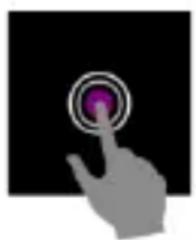
natural_image
Hand cursor clicking a purple button on a black background (no text or symbols)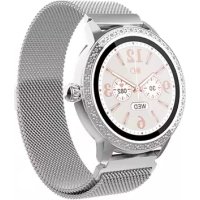
- Quick start guide Overview
- Connect the smart watch with mobile phone
- Unbind the smart watch with mobile phone
- Operation introduction
- How to use
- Menu navigation
- Watch face screen
- Shortcut
- - Settings
- Multi-Sport
- Body temperature monitor
- Blood oxygen monitor
- Heart rate monitor
- Sleep monitor
- Alarm
- Messages
- Weather
- Camera
- Music playback control
- Sedentary reminder
- Settings
- denver
- Guía de usuario
- Snelstartgids
- Overzicht
- Connector la montre intelligente au smartphone
- Pikaopas
- Yleiskatsaus
- SW-165 SMARTWATCH
- Installér appen Denver Smart Life Plus på telefonen
- Forbind smarturet til telefonen
- Guida rapida
- Panoramica
- Collegare lo smartwatch al telefono
- Installere Denver Smart Life Plus appen på mobiltelefonen
- Koble smartklokken til telefonen
- Koble smartklokken fra telefonen
Brand : DENVER
Model : SW165
Category : Smartwatch