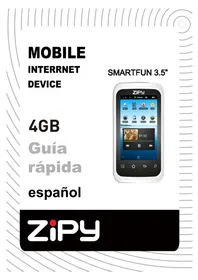
Smart Fun 3.5 - Tablet Zipy - Free user manual and instructions
Find the device manual for free Smart Fun 3.5 Zipy in PDF.


| Product type | Touchscreen tablet |
| Brand | Zipy |
| Model | Smart Fun 3.5 |
| Operating system | Android 2.3 |
| Screen | Resistive touchscreen HD LCD 8.9 cm (3.5 inches) |
| Screen resolution | 480 x 272 pixels |
| Internal storage | 4 GB |
| Camera | Digital 2.0 megapixels |
| WiFi connectivity | WiFi 802.11 b/g |
| Battery | Lithium polymer 1500 mAh |
| Battery life | 4 hours of WiFi browsing |
| Dimensions | 120 x 59 x 13.5 mm |
| Weight | 110 g |
| Supported video formats | MPEG4, Asp, Divx, RM, RMVB, WMV, FLV H.264/720P |
| Supported audio formats | MP3, WMA, OGG, APE, FLAC, AAC, WAV, AC3, DTSMP2, RA, DTS |
| Inputs | Mini-USB, 3.5 mm headphone jack, microSD card reader, microphone |
| Power supply | Charging via AC adapter or USB port |
| Main functions | Internet browsing, video/music playback, camera, voice recording, e-book reader |
| Care and cleaning | Clean with a soft, dry cloth. Avoid shocks, humidity, and magnetic fields. |
| Safety | Do not expose to heat or moisture. Use only Zipy chargers. Turn off near medical devices. |
| Spare parts and repairability | Repair exclusively by authorized technicians. Unauthorized opening voids warranty. |
| Warranty | 2 years (1st year manufacturing defects, 2nd year conditional) |
Frequently Asked Questions - Smart Fun 3.5 Zipy
User questions about Smart Fun 3.5 Zipy
0 question about this device. Answer the ones you know or ask your own.
Ask a new question about this device
Download the instructions for your Tablet in PDF format for free! Find your manual Smart Fun 3.5 - Zipy and take your electronic device back in hand. On this page are published all the documents necessary for the use of your device. Smart Fun 3.5 by Zipy.
USER MANUAL Smart Fun 3.5 Zipy
Para做不到 las的前提下, you should be able to do the same.
Toque "Go to (Ir a)".
Waste management for all of your containers and domestic packagings that you deposit in the recycling bin
The packaging contains removable materials in order to treat them later in waste management
Do not deposit the device or the battery in the bin. Please, put it in a recycling bin or carry it to your local nearby store

Deposit the packaging materials in the yellow bin
This device conforms to the EU directives
This unit conforms to the ROHS regulations
Symbol of frequency restriction in some countries of European Union
Waste management for all of your containers and domestic packagings that you deposit in the recycling bin
The packaging contains removable materials in order to treat them later in waste management
Do not deposit the device or the battery in the bin. Please, put it in a recycling bin or carry it to your local nearby store

Deposit the packaging materials in the yellow bin
This device conforms to the EU directives
This unit conforms to the ROHS regulations
Symbol of frequency restriction in some countries of European Union
CONDITIONS DE GARANTIE AID
Waste management for all of your containers and domestic packagings that you deposit in the recycling bin
The packaging contains removable materials in order to treat them later in waste management
Do not deposit the device or the battery in the bin. Please, put it in a recycling bin or carry it to your local nearby store

Deposit the packaging materials in the yellow bin
This device conforms to the EU directives
This unit conforms to the ROHS regulations
Symbol of frequency restriction in some countries of European Union
Safety precautions for Mobile Internet Devices (MID)
Your device emits radiofrequency energy (RF) that could interfere with some electronic devices inadequately protected. As a precautionary measure, switch it off whenever you are near these devices: pacemakers, hearing aids, medical devices or hospital equipment, on board an airplane.
Please respect the recommendations of Wireless Technology Research (WTR), an independent organization, maintaining a minimum distance of 15 centimeters between the Zipy device and a pacemaker to avoid any possible interference.
Your Zipy product is a sophisticated electronic device. Please, handle it carefully. Protect your device from falls and blows. Avoid exposing the MID to violent movements. Do not sit on it.
Do not use protector covers with magnetic closure. Do not allow your device to remain in prolonged contact with electromagnetic fields.
Only Zipy technicians are qualified to open and repair your Zipy device. Any use unrelated to Zipy may void the warranty of your device.
Use only rechargeable batteries and battery chargers from Zipy brand, developed for this product, otherwise any damage done to the product will void the warranty.
Never place your Zipy device within or above any heat source or high pressure element (within a car or bag under the sun, stove, etc.). Overheated batteries run the risk of exploding.
Do not use the device with wet hands or expose it to moisture (rain, steam, etc.) because in addition to damage it, you could cause an accident.
Zipy is not responsible for any damage or loss of data resulting from misuse or downloading software onto the device.
For devices that contain digital pen, you should not use the digital pen as a pointer on the touch screen because the screen may be damaged, which will result in the cancellation of your guarantee.
1. FEATURE
Operation System
Android OS V2.3 preinstalled.
Unlimited extension and expansion of functionalities with hundreds of thousands of apps available from Android Marketplace.
Wireless
Wi-Fi (802.11(b/g)
Display
3.5inch Resistive touch screen HD LCD Panel
480x272 pixels display resolution
Cameras and Photos
Features a 2.0 Megapixel Digital Camera
Easy to shoot and share photos and videos wherever you are.
Tap to control exposure for video or stills
Video
The most innovative video player ever.
Supports all major video formats(MPEG4
Music Player
The best music player ever.
Givestmusic loversanall-newaudioandvisualexperience.
Simply glide through favorite music by album covers and tap on the track list to play. Support all major music formats(MP3,WMA,OGG,APE,FLAC,AAC,WAV,AC3,DTSMP2,RA,DTS)
Power and Battery
Built-in 1500mAh li-poly Battery
Up to 4 hours of surfing the web on Wi-Fi, watching video, or listening to music
Charging via power adapter or USB to computer system
Input/Output
Micro-SD card slot
■ Mini USB jacket
3.5-mm stereo headphone minijack
Microphone
Windows System Requirements
PC with USB 2.0 port
Windows 7; Windows Vista; or Windows XP Home or Professional with Service Pack 3 or later
Internet access
Size and Weight
Size: 120mm× 59mm× 13.5mm
Weight: 110g
2.BUTTONS
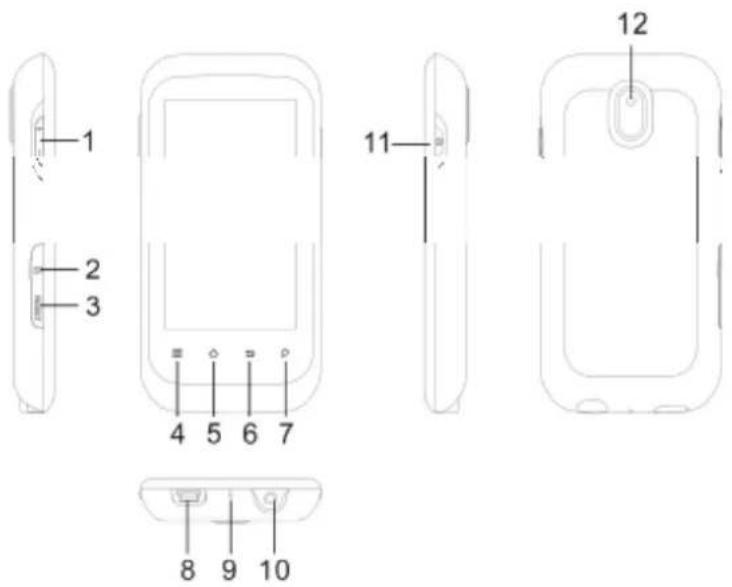
- Volume Buttons: to increase/decrease volume.
- Micro-SD card slot: To read and write to micro-SD or micro-SDHC memory cards.
- Reset Key: Restarts the device
- Menu list: By tapping on the menu icon, you can see the available options for the current screen.
- Home: Wherever you are in the interface, you can go back directly to the Central Home screen by tapping on this icon. Hold down to select and Jump to a recent application
- Go Back: You can always go back to the previous screen by pressing this button.
- Search: Brings up the quick search box which will search for key words within the specific application or on the Internet (provided there is an active Internet connection). What is searched for can be configured in Settings > Search.
- USB jacket: connects to a computer through the USB cable. (to transfer files and Charge the battery). Or as USB host port to connect a camera or other Device with the optional USB host cable.
- Power/Charge indicator: Without a power source connected, it shows the on/off status. While connected to a power source (USB cable), blinking = fully charged, solid = currently charging, quick blinking = battery too low to start (let charge for another 30 minutes).
- Earphone jacket
-
Power Button: press and hold to turn on or off the device; briefly press to turn the screen on or off.
-
Camera: To take photos and videos.
3. USER INTERFACE
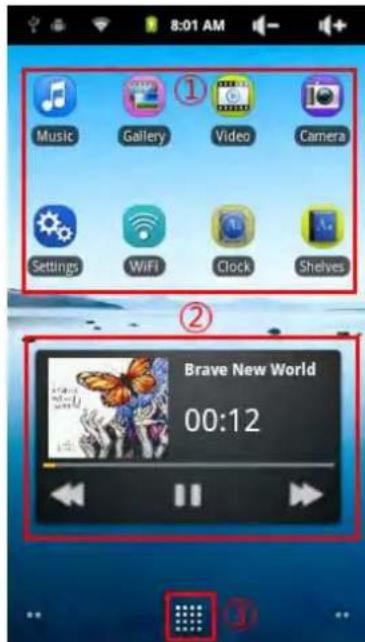
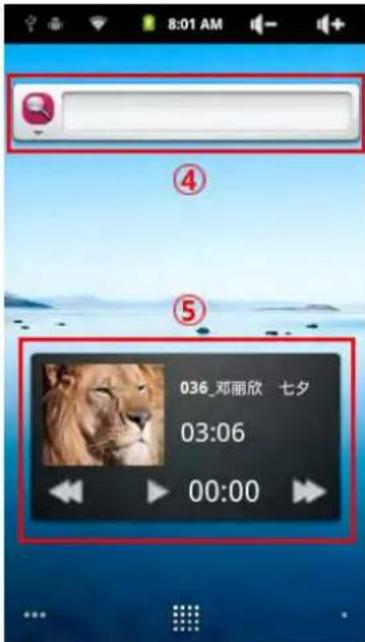
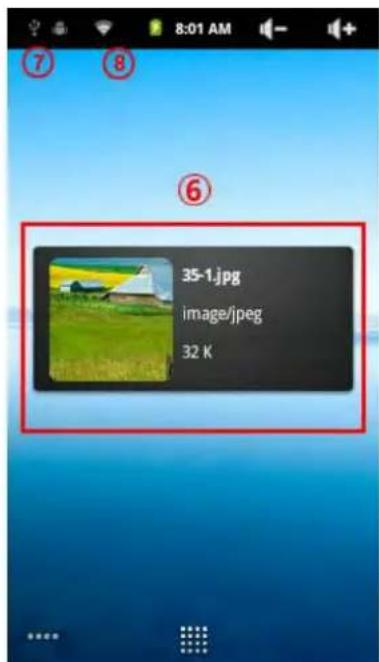
The Android™ interface is made up of five home screen panels (the home icon brings you to the center one). Slide your finger horizontally on the screen to go to two left or the two right panels of the extended Home screen. You can place Shortcut, bookmarks, and widgets on any of the five screens so long as there is free space.
-
Shortcuts: to the enhanced Android™ applications (can be moved or deleted).
-
Music shortcut: Music can be playing.
- Applications Tab: shows all the applications which are installed on your device.
- Widgets: Small programs that run continuously and have a small interface that Stays on one of the home screen panels. This widget will do a Google Web search.
- Video shortcut: Playing the video.
- Picture Viewer shortcut: View the picture.
- Notification messages: Drag the top bar downwards to reveal any notification messages.
- Status info: Time, WiFi status, battery level, Volume set.
4. CONNECTING TO WIFI

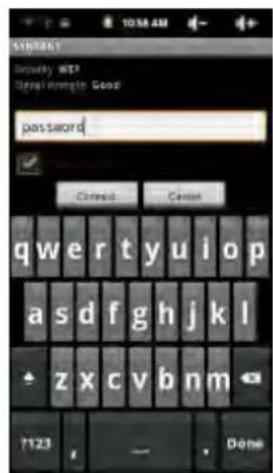
Before launching an Internet application such as the web browser, check to see if you already have a connection. The
icon in the top right of the screen is on when your device is connected to a WiFi network.
If is not connected. you need to activate the WiFi and configure a WiFi network.
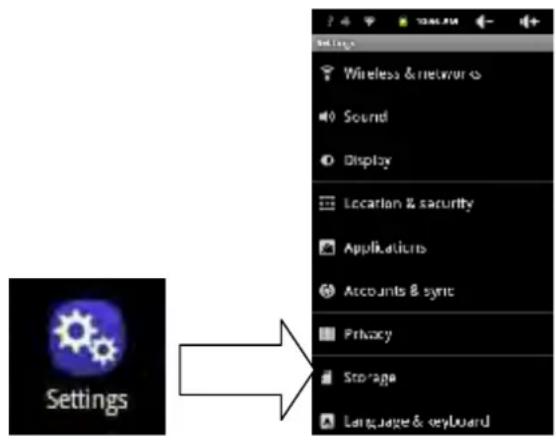
Go to the Home screen, tap on the Menu icon and then select Settings.
In the Settingsscreen, select Wireless& networks.
If the WiFi is off, tap on the Wi-Fi line to turn it on. Then select Wi-Fi settings. The device will scan automatically for available WiFi networks and show all the wireless networks in range of your device. The list is refreshed continuously.
Tap on the network you want to connect to. Networks shown with the icon are secured connections (requires a password). If it is a secured network, tap the password field to make the keyboard appear, enter the required network information* and then tap on Connect. Your device will
now attempt to establish a connection to that WiFi access point with the network parameters you entered.
Important remarks:
Turn the device sideways to go to landscape view in order to have bigger keys to type on.
For free access WiFi points, it is not necessary to enter any special information. For secured networks, you will need either a key (a series of numbers and/or letters) of the type WEP, WPA, or WPA2, or you will need to have a WiFi access point that uses the WiFi protection standard WPS (WiFi Protected Setup). Check with the person who manages the WiFi network to obtain the exact connection parameters required.
5. SETTINGS
6. VIDEO
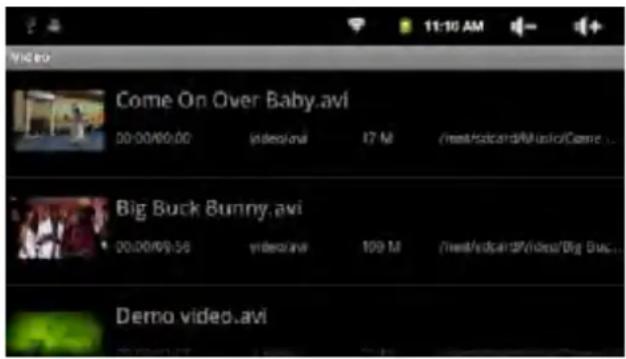
In the Home Screen, tap the Video Player icon to enter the video player mode. Optionally, you can tap the Applications shortcut to display all applications and then tap the Video Player icon to enter the video mode.
7.MUSIC
In the Home Screen, tap the Music icon to enter the music player mode. Optionally, you can tap the Applications shortcut to display all applications and then tap the Music icon to enter the music mode.
8.PHOTOS
In the Home Screen, tap the Gallery icon to enter the photo viewer mode.
Optionally, you can tap the Applications shortcut to display all applications and then tap the Gallery icon to enter the photo mode.
9. Taking photos and videos (Camera App)
The tablet has a built in camera that allows you to take still photos or video recordings. When taking still images, be careful to hold the device completely still in order to take photos that are crisp and clear. To the right is the screen for taking still pictures (and which is the same for taking videos).

- Take a photo or start/stop a video sequence depending if you are in photo or video camera mode.
- Switch between video camera and still image camera.
- Last photo or video made. Opens a view to inspect the last photos or videos
that you made.
- Settings tab. Tap on this (or tap on the menu icon then Settings) to access the various camera settings (color effect, burst mode, picture quality, etc.).
10. E-BOOK
Before reading, you need to transfer or download e-books to the device. You can copy e-books from your computer's local drive to the device by USB connection.
11. Voice Recording
11.1. Record
In the Home Screen, tap on the Application Tap to
reveal all applications.
Tap on the "Sound Recorder" icon to enter the recorder mode.
Tap on the " " icon to start recording.
Tap on the "icon to stop recording.
Tap to preview the recording if you want to.
Tap on "Use this recording" and then use the Audio Player to play the recording.
To discard the recording, tap on "Discard".
Tap on to go back to the Home Screen.
11.2. Play Recording
Enter the music library by choosing "Music" application.
Tap " Playlist" to show My Recording list.
Tap "My Recording" to display all recording files.
Tap a recording to start playing.
Optionally, you can locate the recording file with the explorer, and then tap it to start playing.
12. Exploring Files
You can explore files and folders with the Explorer application. In the Home Screen, tap the Applications shortcut to display all applications and then tap the Explorer icon to enter the file explorer mode.

DECLARATION OF CONFORMITY
ACCESORIOS INTELIGENTES DIGITAL S.A.
C/CARPINTEROS,6,OF-13 VILLAVICIOSA DE ODON.28670 MADRID
We declare under our sole responsibility that the product:
MID: SMART FUN 3.5, which belongs to the brand Zipy, made in China

0700

Conforms with the requirements of the Directives below by compliance with the following standards listed:
EN60950-1:2006/A:-2009
EN62311:2008
EN301 489-1 V1.8.1:2008-04
EN301 489-17 V2.1.1:2009-05
EN300 328 V1.7.1:2007-10
In accordance with the provisions of the Directive 99/05/EC, European Parliament and Council on March 9, 1999, transposed into Spanish legislation by Royal Decree 1890/2000, of November 20, 2000.
Place and date of issue:
Madrid, November 8, 2011
Signed by: Miguel Fauro


Waste management for all of your containers and domestic packagings that you deposit in the recycling bin
The packaging contains removable materials in order to treat them later in waste management
Do not deposit the device or the battery in the bin. Please, put it in a recycling bin or carry it to your local nearby store

Deposit the packaging materials in the yellow bin
This device conforms to the EU directives
This unit conforms to the ROHS regulations
Symbol of frequency restriction in some countries of European Union
- CONDITIONS DE GARANTIE AID
- Safety precautions for Mobile Internet Devices (MID)
- FEATURE
- Operation System
- Wireless
- Display
- Cameras and Photos
- Video
- Music Player
- Power and Battery
- Input/Output
- Windows System Requirements
- Size and Weight
- 2.BUTTONS
- USER INTERFACE
- CONNECTING TO WIFI
- Important remarks:
- SETTINGS
- VIDEO
- 7.MUSIC
- 8.PHOTOS
- Taking photos and videos (Camera App)
- E-BOOK
- Voice Recording
- Record
- Play Recording
- Exploring Files
- DECLARATION OF CONFORMITY
Brand : Zipy
Model : Smart Fun 3.5
Category : Tablet