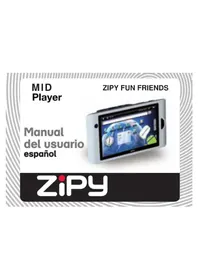
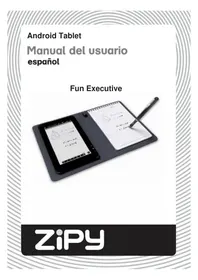
Fun Friends - Tablet Zipy - Free user manual and instructions
Find the device manual for free Fun Friends Zipy in PDF.



| Product type | MID touch tablet |
| Brand | Zipy |
| Model | Fun Friends |
| Screen | LCD 5.0 inches TFT (800 x 480 pixels) |
| Processor | Not specified, but Android compatible |
| Internal memory | NAND Flash up to 16 GB |
| External storage | Micro-SD card up to 16 GB |
| Connectivity | Wi-Fi 802.11 b/g, 3G modem via USB dongle |
| Ports | USB 2.0 (host/device), mini USB 5-pin, TV AV output, headphone jack |
| Supported audio formats | MP3, WMA, WAV, APE, FLAC, AAC, OGG |
| Supported video formats | MKV, MPEG4, AVI, FLV, RM, RMVB, H.264 (up to HD 720p) |
| Camera | Built-in, allows photo and video |
| Battery | Rechargeable lithium polymer, battery life not specified |
| Power supply | 5V ±0.25V power adapter, charging via USB PC (10 h) or adapter (4 h) |
| Operating temperature | 5°C to 35°C |
| Included accessories | Stand, USB cable, power adapter, AV cable, earphones, manual |
| Maintenance | Avoid water, excessive heat and shocks. Clean the screen with a soft, dry cloth. |
| Safety | Do not use headphones at high volume, do not expose to water, do not repair yourself |
| Warranty | 2 years (1st year manufacturing defects, 2nd year upon proof). Accessories: 6 months. |
| Repairability | Repair by authorized technical service. Reset possible via recovery button. |
Frequently Asked Questions - Fun Friends Zipy
User questions about Fun Friends Zipy
0 question about this device. Answer the ones you know or ask your own.
Ask a new question about this device
Download the instructions for your Tablet in PDF format for free! Find your manual Fun Friends - Zipy and take your electronic device back in hand. On this page are published all the documents necessary for the use of your device. Fun Friends by Zipy.
USER MANUAL Fun Friends Zipy
Waste management for all of your containers and domestic packagings that you deposit in the recycling bin

The packaging contains removable materials in order to treat them later in waste management

Do not deposit the device or the battery in the bin. Please, put it in a recycling bin or carry it to your local nearby store

Deposit the packaging materials in the yellow bin

This device conforms to the EU directives

This unit conforms to the ROHS regulations

For the first time use, please calibrate the touch panel as below steps:
Descobre-o: Home > Menu > Settings > Touch panel calibration
Descobre-o: Home > Applications Tab > Email
Descobre-o: Home > Applications Tab > Email
Descobre-o: Menu > settings > language & keyboard > Select locale
Câmara
Descobre-o: Home > Applications Tab > Audio Player
MP3WMA/WAV/APE/FLAC/AAC/OGG
Descobre-o: Home > Applications Tab > Shelves
Applications (Widgets):
Widgets (Applications)
Specifications techniques
CONDITIONS DE GARANTIE AID
When using the device, remember to follow the following precautions to prevent the deformation of the case, the breakage of the screen or glass, or also may cause loss of fluid.
All this causes a malfunction. Remember:
- Do not use the digital pen as a pointer on the touchscreen, because the screen can be damaged causing the cancelation of warranty coverage.
- The warranty does not cover damages caused by software and or firmware different from the brand Zipy
- Do not expose the device to water. The device is not waterproof.
- Be careful not to throw the device in a sink or other water container.
- Do not use the device in wet places or outside in bad weather, for example, if it rains or snows.
- If you touch the device with wet hands or is placed in a wet garment, the device may get wet and cause a malfunction.
- Be sure not to sit down with the device in your pocket.
- Do not expose the device to heat. The damage to the device may be irreversible and can cause an abnormal reaction in the battery: swelling or explosion.
- Do not bring the device to heat sources: radiators, heaters, etc..
- Do not expose to high temperatures such as in direct sunlight or in a car parked in the sun.
- When you connect the headphones take care not to damage the connection port.
-
When you disconnect the headphones from the device, try to hold the headphone plug. Pulling the headphone cord can damage it.
-
Avoid listen at very high levels, because prolonged listening could damage your hearing.
- At high levels, the external sound can be inaudible and could be dangerous, especially driving a car or bicycle.
Table of contents
Your MID 4
Let's go 5
Touch screen & keys 7
USB Host 10
Home screen 11
Web 14
Apps for all.
Manage your life 17
Text entry 1
Personalise 19
Camera. 22
Audio Player. 23
Video Player 24
Photo Browser 26
E-Book 27
Wi-Fi 29
USB & memory
Tools 32
Accessories 33
Troubleshooting.
Safety & Regulatory. 34
3G dongle support list 36
Technical Specification 41
Your MID
The important keys & connectors
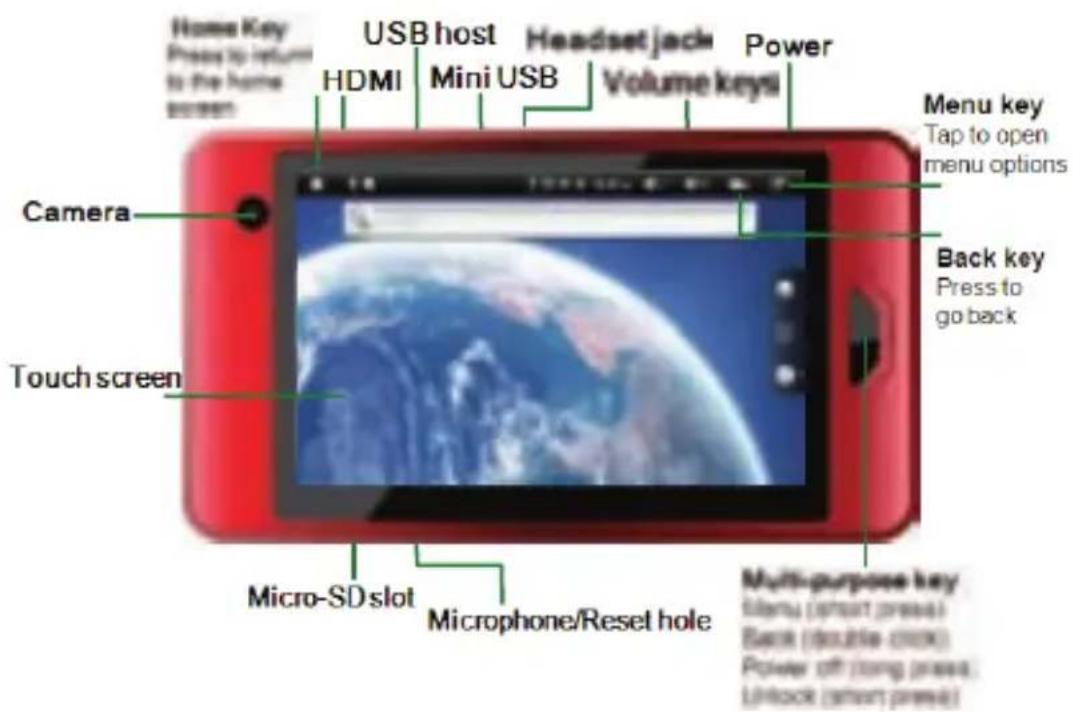

MANUAL DEL USUARIO
Let's go
Turn it on & off & Standby
To turn on your MID, press and hold Power
(Multi-purpose Key).
To turn off your MID, press and hold Power
Or press and hold

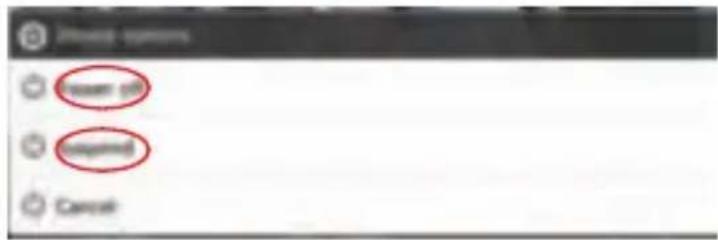
, then tap Power off.
Go standby, press and hold, then tap Suspend.
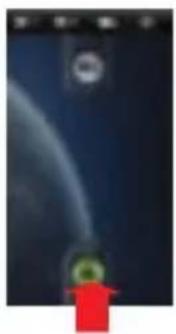
To unlock your MID, Slide up or press
Wi-Fi connect
If you want to use a Wi-Fi computer network for even faster Internet access, press Home > Menu > Settings > Wireless & networks, tap Wi-Fi to turn on, and tap Wi-Fi settings.
3G dongle connect
If you want to use a Mobile network for even faster internet access, press Home > Menu > Settings > Mobile network, tap Mobile network to turn on, and tap Mobile network settings.
Content & more
Browse and download thousands of the coolest apps on the planet from Android Market

Your MID comes with a NAND Flash — you can load it up with photos, videos and music from your computer. While connecting your MID with PC, it can identify the USB storage automatically. You can also turn off the USB storage manually.
Touch Panel Calibration
For the first time use, please calibrate the touch panel as below steps:
Find it: Home > Menu > Settings > Touch panel calibration
Touch icon in the display one by one until all the icons disappear, and it will exit the calibration mode automatically.
Note: If click cross-hair cursor deflective, it will cause touch panel not accurate.
ZiPy MANUAL DEL USUARIO.
Touch screen & keys
A few essentials
Touch tips
Here are some tips on how to navigate around your MID.
Tap
To choose an icon or option, tap it.
Tap & hold
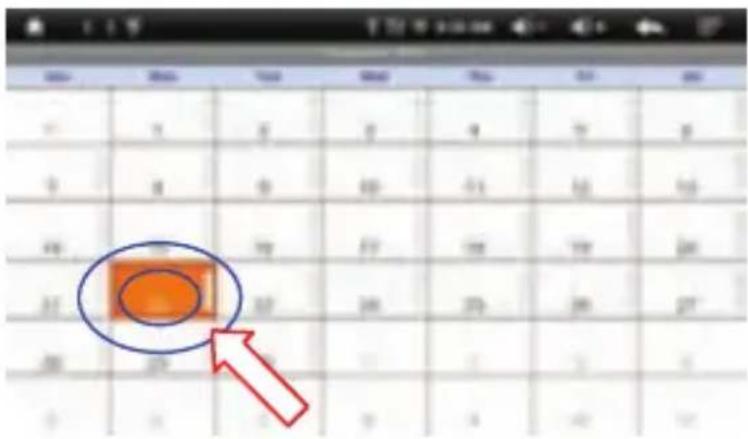
To open special options, tap and hold an icon or other item.
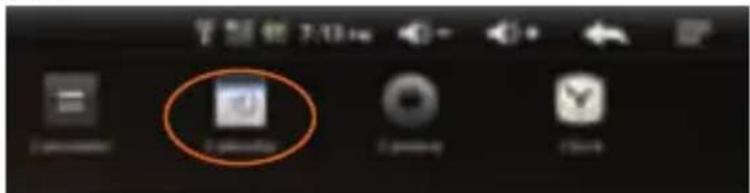
Try it: in the Applications tab, tap Calendar, then tap and hold a day to open options.
Drag
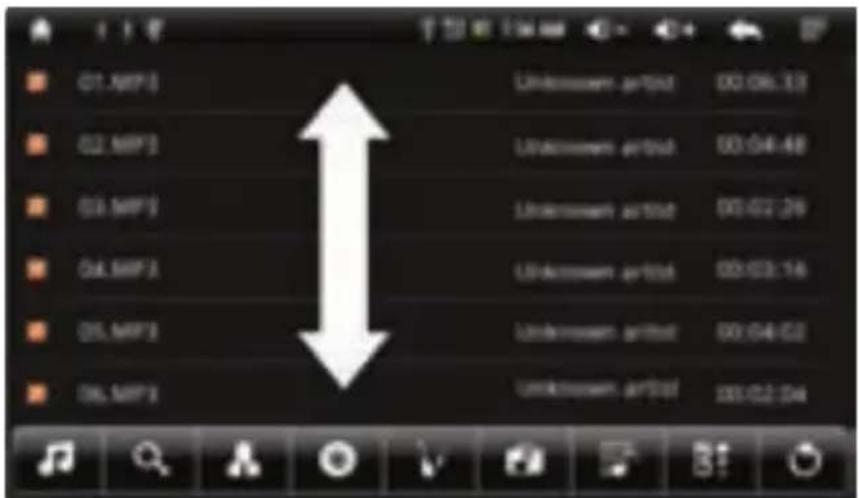
To scroll through a list or move slowly, drag across the touch screen.
Try it: in the home screen, tap Audio Player, then drag your music list up or down.
Flickr
To scroll through a list or move quickly, flick across the touch screen (drag quickly and release). Tip: When you flick a long list, tap the screen to stop it from scrolling.
Zoom
Get a closer look at web pages. To zoom in or out, drag the screen and use

ZiPy MANUAL DEL USUARIO.
Key tips
Menu, home, & back
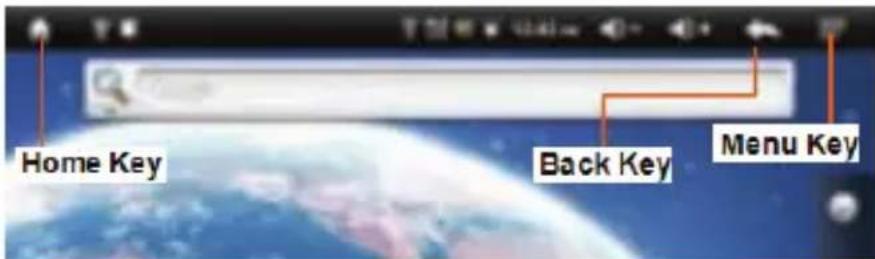
Press Home to close any menu or app and return to the home screen. In the home screen, press and hold Home to show the last few apps you used, then tap an app to open it. Press Menu to open menu options or press Back to go back.
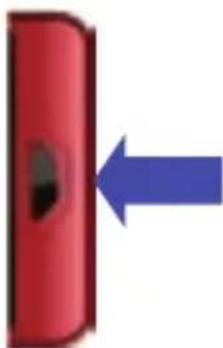
Multi-purpose key
- Long press for power off.
- Short press for menu.
Double click for back. - Short press for unlock when MID is locked.
Tip: To change how long your MID waits before the screen goes to sleep automatically, press Menu> Settings >
Display > Screen timeout.
Adjust volume
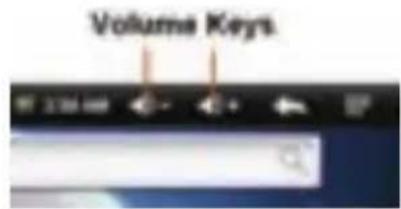
Press the volume keys to change the ringer volume (on the home screen) or the media volume (during playing music or movie).

Spin the screen
The touch screen can rotate 90 degrees to stay right—side up when you rotate your MID: Find it: Home > Menu > Settings > Display > Auto-rotate screen
You can select turn on or turn off the Auto-rotate screen function.
USB Host
Find it: Menu > Settings > USB Mode select.
Select USB work as host mode, then you can mount U-disk or SD card.
Tap Explorer, then select "SD Card", "Internal Memory" or "USB".
Select a file or a folder, and long press it, then you can select: Copy/Delete/Move/Paste/Rename.
ZiPy
MANUAL DEL USUARIO.
Note:
- While your MID connects with PC as a USB Mass Storage Device, please cancel the USB Host mode select firstly.
- While mini 5pin USB port and USB host work at the same time, please do not shut off "HOST MODE", or it will cause your MID hang up. Please remove Mini 5pin USB cable or USB host device before shut off "HOST MODE".
Home screen
Quick access to the things you need most
Quick start: Home screen
The home screen gives you all your latest information in one place. It's what you see when you turn on the MID or press Home from a menu. It's basically like this:
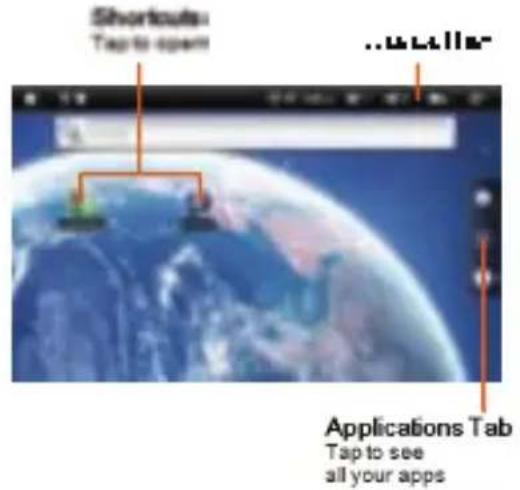
The home screen extends beyond what you see on the screen to give you more room for adding shortcuts, widgets and more. Flick the home screen left and right to see more panels or to add widgets or shortcuts.

Widgets
Add a widget, such as a clock or a calendar that shows upcoming appointments.
To open a widget, tap it. To add widgets, press Home > Menu > Add > Widgets.
Note: If you install apps from Android Market that have widgets, tap and hold the home screen, then select a widget to add to the home screen.
Shortcuts
To add shortcuts to the home screen, open the Applications tab, then tap and hold the shortcut you want. It will be added to the home screen. Or, press Home > Menu > Add > Shortcuts.
Apps
Your MID comes with some apps already and you can download and install more. To open an app, tap it.
ZiPy MANUAL DEL USUARIO.
Applications tab
All the apps on your MID, including the apps that came with your MID and the ones you download and install, are listed in alphabetical order.
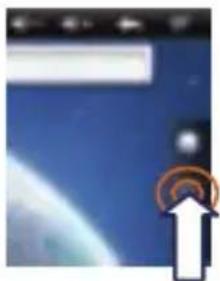
In your Applications tab. To open the Applications tab, tap
Running multiple apps
No need to close an app before opening another one. Your MID runs multiple apps, all at once. You can open a new app while already running another. Press Home to return to the home screen. Open the Applications tab and tap the app you want.
To switch from one running app to another, press and hold Home to see what apps are already open, then tap the one you want. You can view up to the last six apps that you ran.
Search
To search, tap Search bar on the front of the MID.

For a text search, tap the text box & type using the touch keypad or the QWERTY keypad. Then tap the icon for a text search.
MID status & notifications
The status bar at the top of the screen contains icons that tell you about messages and MID status. To view your notifications, tap the status bar and drag it down. Icons on the right tell you about MID status:
Tip: To see today's date, tap and hold the status bar at the top of the screen.
| event remind | removed SD card | USB connected |
| downloading | successfully installed | audio playing |
| Wi-Fi active | alarm set | sound off |
| battery (charging) | battery (full charge) | battery (no power) |
Web
Experience the Internet with your MID. As long as there is Wi-Fi LAN or 3G dongle connected, easy to browse any web page.
Note: If you can't connect, please check if Wi-Fi or 3G dongle is connected.
Connect
To use a network, press Home > Menu > Settings> Wireless & networks. 1). Tap Wi-Fi to turn it on and tap Wi-Fi settings to search for nearby wireless networks. Tap a network to connect; 2). Tap Mobile network to turn it on, and tap Mobile network settings.
Select web links
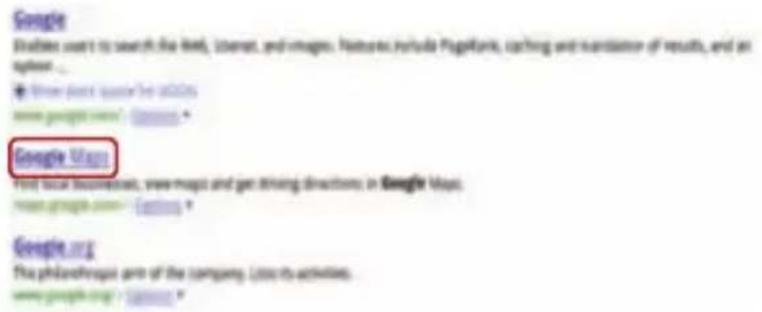
When you tap a link, your MID outlines it and goes to that page.
Browser options
Press Menu to see browser options:
| New window | Add a new browser window to your list. |
| Bookmarks | Add the current page to your bookmark list. Tap to see your bookmarks. |
| Windows Show Web address you have browsed, tap to enter a URL. | |
| Refresh Reloads the current page. | |
| Forward Navigate to previously viewed pages. | |
| More | Shows browser options, like Find on page, Select text, Page info, Share page, Downloads and Settings. |
Apps for all
Get the apps you want
Android Market
Note: You must set up a Gmail account in order to buy and download apps from the Android Market.
Find it: Home > Applications Tab > Market
Get all the fun games and cool apps you want! Market provides you with access to software developers everywhere, so you can find the apps you want. If you need help or have questions about Android Market, press Menu > Help. Browse & install apps
Scroll to and tap the app you want to install. Then, tap Install (if app is free) or Buy.
Warning: If an app you are downloading requires access to your data or control of functions on your MID, you'll be asked to give your permission. After selecting Install, the app will download. After selecting Buy, you may be asked to sign in to an additional Google account. Sign in and select Purchase now to proceed. Follow the onscreen instructions. To see the download progress, open the notifications window. After you download an app, the icon for that app appears on your Applications tab.
Manage & restore apps
To manage your apps, from your MID's home screen press Menu > Settings > Applications > Manage applications. Tap the app to open the details screen—from here you can review, uninstall and more.
To reinstall the downloaded items, press Home > Market > Downloads. All previously installed apps are listed and available for downloads.
Manage your life
Stay on top of things
What can you manage?
Email and calendar on your MID give you access to the same personal information that you add, view and edit on your computer with the use of Microsoft Outlook.
Set up an account
Find it: Home > Applications Tab >

The email setup wizard will guide you through setting up your email account.
Create a new email
Find it: Home > Applications Tab > Email
Enter the recipient email address and message, then tap Send.
Tip: Press Menu for options, like Add attachment or Add Cc/Bcc.
Calendar
Find it: Home > Applications Tab > Calendar
View your calendar in different ways: Press Menu > Agenda, Day or Week. When you highlight an event in the day and week views, more details appear.
Add calendar events
From any calendar view, press Menu > More > New event. Enter event details and tap Done.
Manage calendar events
To edit an event, tap and hold the event, then tap Edit event. Edit event details, then when you're done, tap Done.
Note: You must set up a Gmail account from the Android Market first.
Text entry
Touchscreen keypad
You can open a display keypad by tapping a text field. To close the keypad, press Back

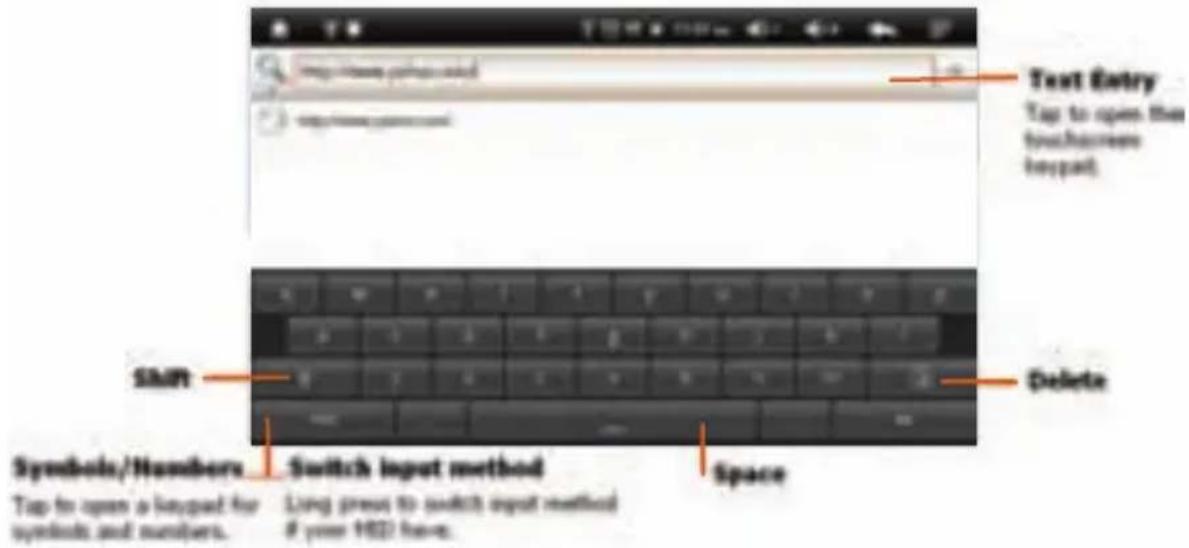
Note: To change your settings for this keyboard, from the home screen, press Menu > settings > language & keyboard > Android keyboard.
Text entry settings
When you use the touch screen keypad, your MID suggests words from your dictionary and chosen language. Your MID also automatically enters apostrophes in some words, like "dont".
Find it: Menu > settings > language & keyboard
- To change the language and the style for your touch screen keypad, tap Select locale.
- To edit your dictionary, tap User dictionary.
- To change the sounds, corrections and other settings for your touch screen keypad, tap Android keyboard.
Note: If you have installed other input method, you can switch it by long press symbols key on touch screen keypad.
Personalise
Widgets
To create a new widget:
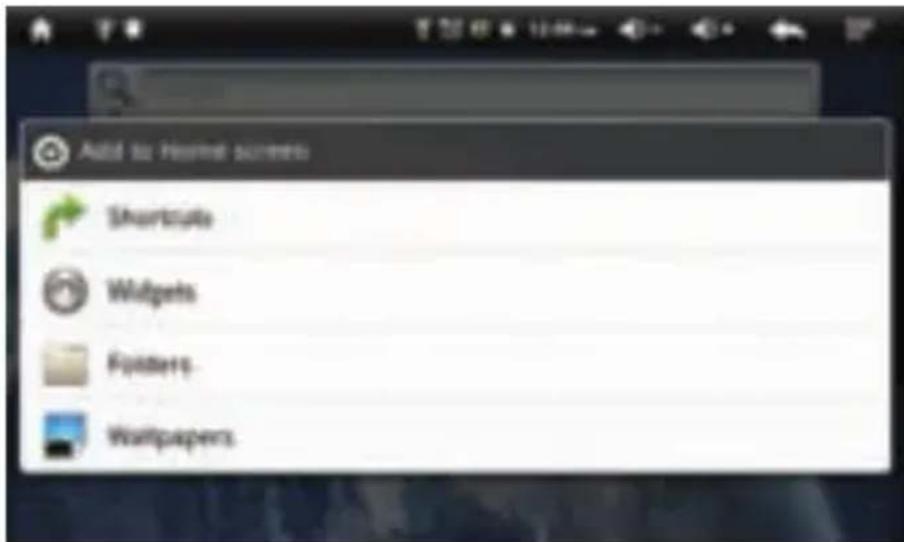
- Find an empty spot on your home screen where you want to add a widget, then tap and hold.
Tip: You can flick left or right to open other panels on your home screen. - Tap Widgets.
- Tap the type of widget. If necessary, enter the widget settings. You can personalise widgets with content that you choose.
Ringlones
To personalise your ringtones:
Find it: Home > Menu > settings >Sound > Notification ringtone
Wallpaper
To apply a new wallpaper:
- Find an empty spot on your home screen, then tap and hold.
- Tap Wallpapers.
- Tap Pictures to select a photo as your wallpaper or tap "Wallpapers" to choose a wallpaper that comes with your MID.
ZiPy
MANUAL DEL USUARIO.
Sounds
- To set volume for media, press Home > Menu > settings > Sound > Media.
- To play sound on a screen selection, press Home > Menu > settings >Sound > Audible selection.
Display settings
- To set display brightness, press Home > Menu > settings >Display > Brightness.
- To set orientation, press Home > Menu > settings > Display > Auto-rotate screen.
- To set animation, press Home > Menu > settings > Display > Animation.
Date & time
Set date, time, time zone and formats:
Find it: Home > Menu > settings > Date & time
Language & region
Set your menu language and region:
Find it: Home > Menu > settings > Language & keyboard > Select locale
Camera
Take that family photo and post it online for everyone to see.
Note: To get the clearest photos, wipe the camera lens clean with a soft, dry cloth before you take a photo.
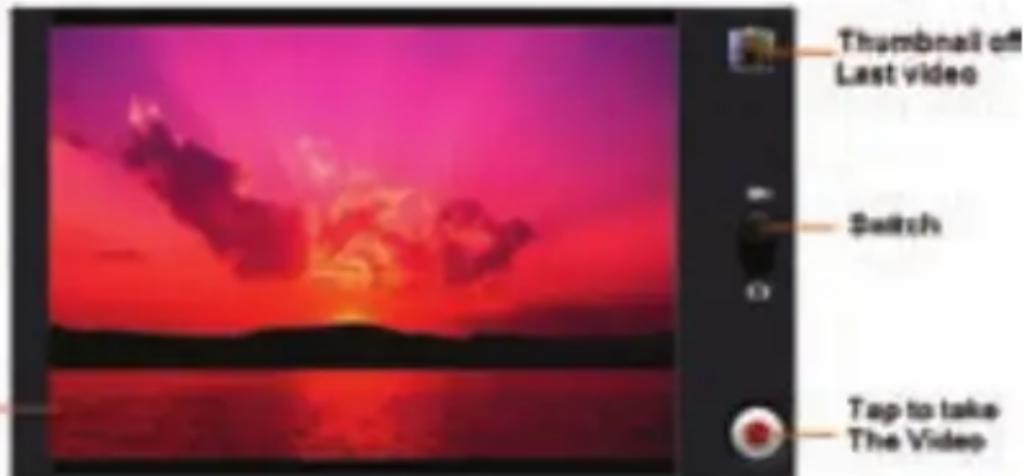
Find it: Home > Applications Tab > Camera

Note: Photos are stored on your MID-Flash memory.
To take the photo, tap and hold. A thumbnail of the photo you've just taken is shown on the top right corner. Tap the thumbnail to view it.
To record a video, slide the switch up, and tap Tap to stop the video. A thumbnail of the video you've just taken is shown on the top right corner. Tap the thumbnail to view it.
Audio Pla
My Life with
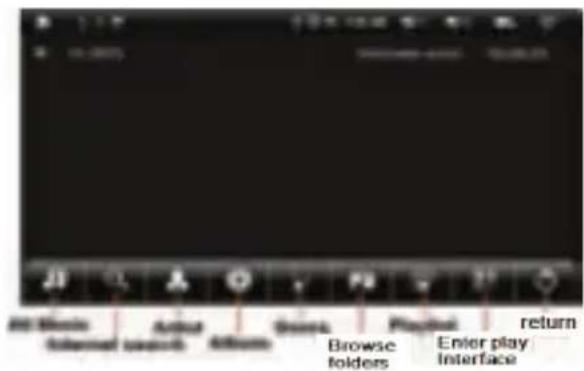
Quick start: Audio Player
Find it: Home > Applications Tab >

Audio Player
All Music: all of the music.
Internet search: you can use
internet search to listening to internet music.
Artist: list by artist.
Album: list by album.
Genre: list by genre.
Browse folders: browsing from internal memory and SD card.
[ \text{Playlist: a list of musical selections.} ]
Enter Play interface: enter to music play interface.
Return: press to return to previous interface.
What music file formats can I play?
Your MID can play many types of files: MP3/WMA/WAV/APE/FLAC/AAC/OGC
Note: Your MID does not support any DRM protected files.
Music Play
Note: Press Menu for effect, and you can setup the EQ as your opinion, just need to pitch on the adjustment frame.
Note: EQ mode is not obvious while playing WMA format music files.

ZiPy MANUAL DEL USUARIO.
Video Player
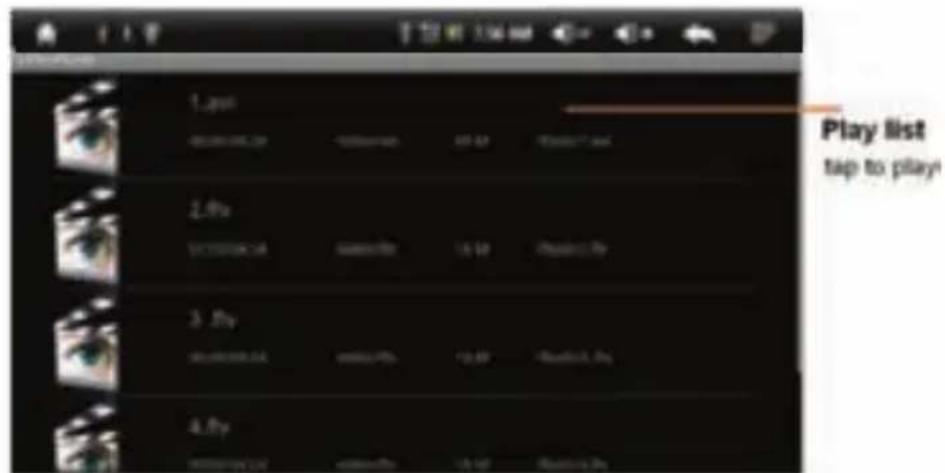
Find it: Home > Applications Tab >

Video Player
What Video file formats can I play?
Your MID can play many types of files:
MKV/MPEG4/AVI/FLV/RM/RMVB/H.264 etc. and up to HD 720P.
Video Play Tap to enter settings, such as DeleteBookmark And Play from beginning, Delete bookmark, Play mode, TV-out, HDMI, Help.
Note: When you open TV-out, please check your TV-out cable plug correctly. Note: In TV-out mode, the screen turn to black, and tap it can quit TV-out mode
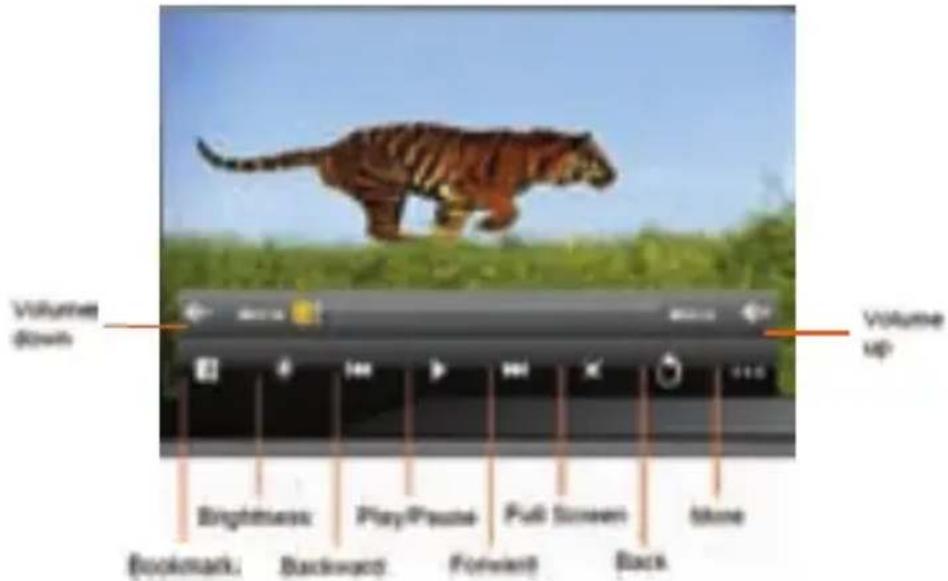
Photo Browser
Find it: Home > Applications Tab >

Photo Browser
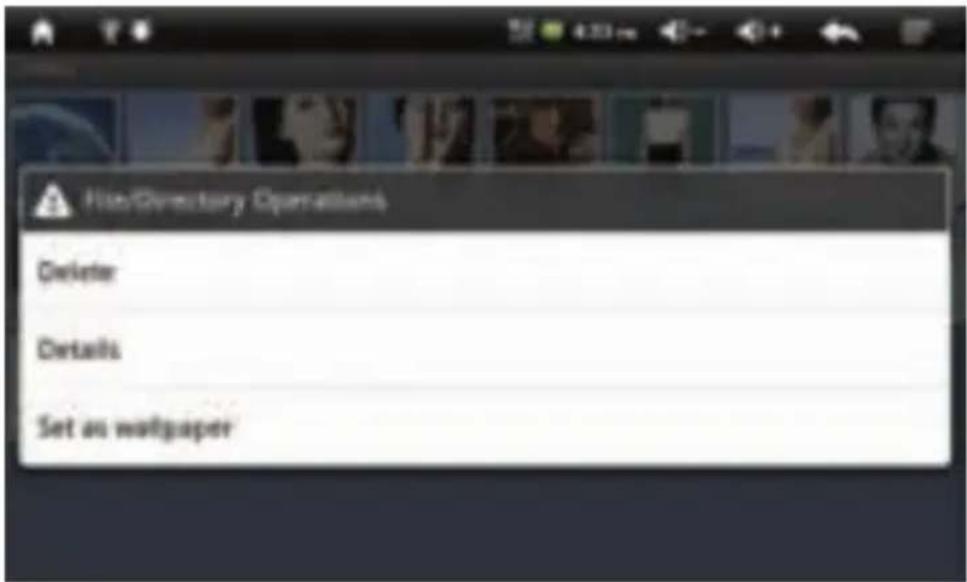
Tap a Folder to open the photo, long press a photo can enter Directory Operations, you can Delete, Details and set as wallpaper. Settings are all for slideshow.

MANUAL DEL USUARIO.
Shelves (E-book function)
Find it: Home > Applications Tab >

Shelves
Tap a .txt file to open it, long press a .txt file and you can select View or Delete.
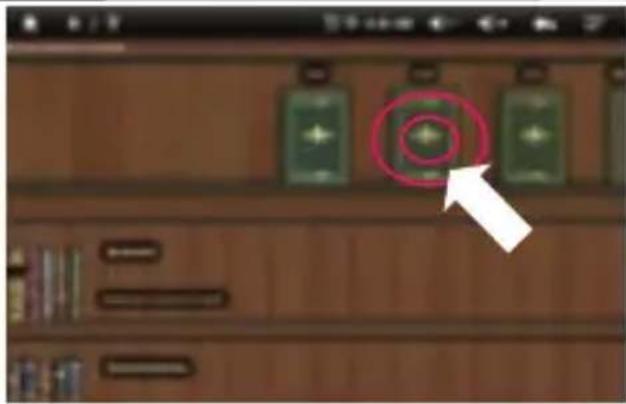
You can select Bookshelf - Browse your collection of books, Download Books - Browse the available online catalogs, Author and Title - Browse the list of authors and titles in your collection.
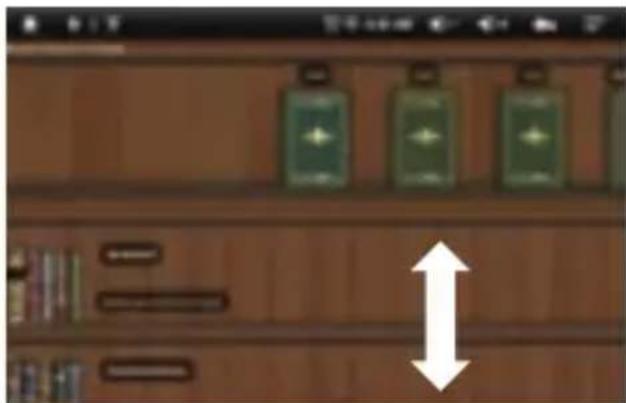
Download Books: Download Books > Search, input the book name and start to search.
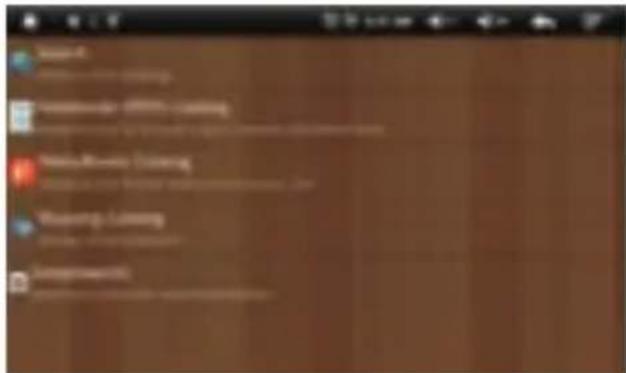
While scanning the .txt file, slide the touch screen to turn page.

Wi-Fi
Home, office or hotspot
Quick start: Wi-Fi
Find it: Home > Menu > settings > Wireless & networks > Wi-Fi settings Use a wireless network for fast Internet access and to download data.
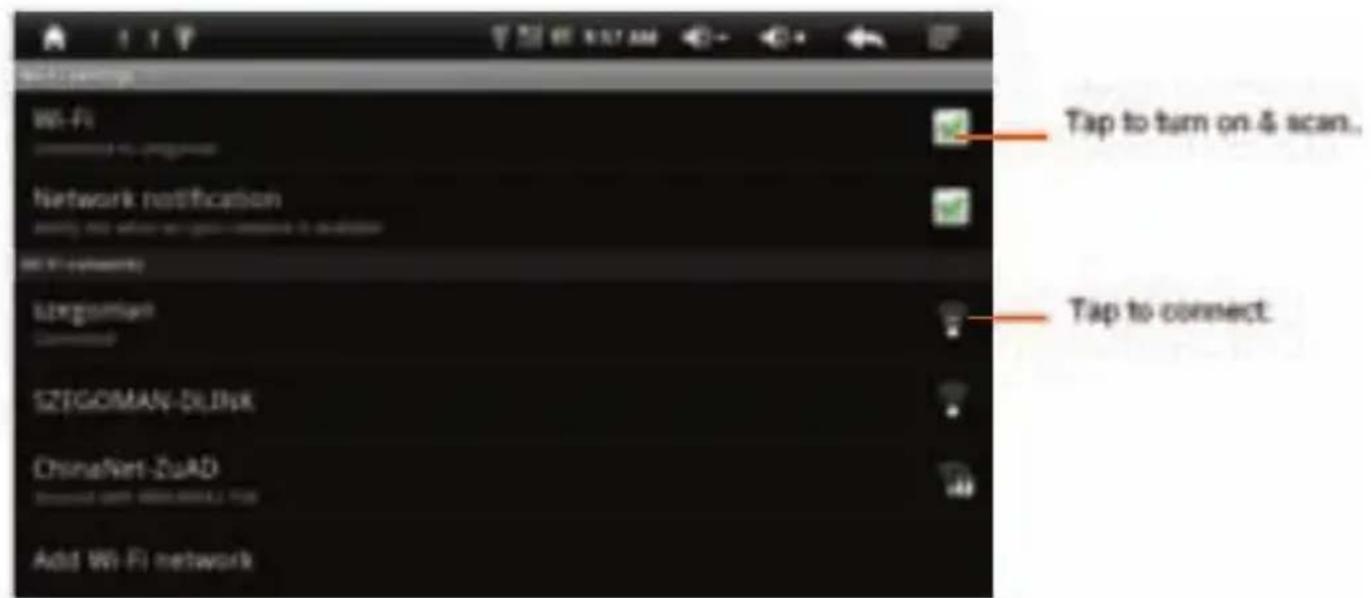
Turn Wi-Fi on or off
Find it: Menu > Settings > Wireless & networks > Wi-Fi.
Note: To extend battery life, turn off Wi-Fi power when not in use.
Wi-Fi search & connect
To find networks in your range:
1. Press Menu > Settings > Wireless & networks > Wi-Fi.
2. Tap Wi-Fi to turn on and scan. If Wi-Fi is already on, press Menu > Scan. Your MID lists the networks it finds within range.
Tip: To see your MID's MAC address or other Wi-Fi details, press Menu > Advanced.
3. Tap a network to connect.
4. If necessary, enter Network SSID, Screen unlock pattern and Wireless password, and tap Connect.
When your MID is connected to the network, the wireless indicator appears in the status bar.
Tip: When you are in range and Wi-Fi is on, you will automatically reconnect to available networks you've connected to before.
USB & Memory
Connect your MID and computer, then drag & drop
USB drag & drop
You can transfer your pictures, videos, music, ringtones and more, from your computer to your MID-FLASH.
- Connect USB cable from your MID's USB port to a USB port on your computer. Your MID should show

in the status bar.
Note: Make sure you connect the MID to a high power USB port. Typically, these are located directly on your computer.
Note: Your MID supports Windows XP, Windows Vista, Windows 7 and Apple Macintosh. Other operating systems may not be compatible.
-
Your MID shows a USB connection dialog, at the top of the screen. Flick down, then tap Turn off USB storage. You can't use the files on your MID-flash or memory card while it is connected.
-
Tap Turn on USB storage (if asked) to connect your memory card.
-
Find "MID-FLASH" in the "My Computer" window.
-
Drag and drop your pictures, videos, music, ringtones and more, to your MID folder.
-
When you're done, use the "Safely Remove Hardware" feature to finish.
To format your memory card, tap Format MID-Flash or SD card.
Warning: All data on your memory card will be deleted.
Tools
Stay on top of things
Alarm Clock
Find it: Home > Applications Tab > Alarm Clock
To turn on an alarm, tap the check box.
When an alarm sounds, tap Dismiss to turn it off or Snooze to delay.
To add an alarm, press Menu > Add alarm, then enter alarm details.
To enable or disable an alarm, tap the check box.
Calculator
Find it: Home > Applications Tab > Calculator
Your calculator has basic and advanced views. To change views, press Menu > Advanced panel. To clear history, press Menu > Clear history 32
ZiPy
MANUAL DEL USUARIO
Sound Recorder
Find it: Home > Applications Tab > Sound Recorder Press to star and press to save.
QR code Scan If you have installed Barcode Scanner software, your MID can scan QR code.
Accessories
NOTE: The following icons are only a guide and may differ slightly from the actual product appearance.

Earphones

Stand

USB Cable

User Manual

Adaptor

AV/TV-out Cable
Troubleshooting
We're here to help
Crash recovery
In the unlikely event that your MID stops responding to taps and key presses, try a quick reset. Poke the reset hole, then switch your MID on as usual.
Factory data reset
To reset your MID to factory settings and erase all the data on your MID, press Menu > Settings > Privacy > Factory data reset > Reset device.
Warning: All data on your MID will be deleted
Safety & Regulatory
Note: Please recharge the player before using it!
For your safety, read below carefully to ensure proper use of the product and to avoid any danger or physical damage.
Please use your player properly in case of explosion, fire, electric shock, etc.
- Do not repair the player by yourself, or it will cause damage.
- Do avoid getting the player wet or drop it in water.
- Do not use the player while raining.
- Please backup important data onto your personal computer as repair or other causes may result in data loss.
When using your player, pay attention to your health, especially the power of hearing.
- Do not use the earphones while driving or riding a bicycle.
34
- It may cause traffic accident if you turn up the volume of the earphones while walking down the street.
- Do not turn up the volume too high, doctors warn against prolonged exposure to high volume.
- Stop using the device or turn down the volume if you have ringing in your ears.
- Always use the accessories provided by or approved by our company, also do not spray water on the player.
- The player (including the AC/DC adaptor) shall not be exposed to dripping or splashing and that no objects filled with liquids, such as vases, shall be placed on the player.
Using the Stylus
Your MID comes with a stylus that you should use to tap on your screen.
ATTENTION: to prevent damage to your MID screen, never use any device other than the stylus that comes with the MID or an approved replacement to tap on the screen.
You can perform three basic actions using the stylus:
1 Tap-lightly touch the screen to select or open an item. Lift the stylus after you tap an item. Tapping is equivalent to clicking an item with the mouse on your personal computer.
2 Drag-place the point of the stylus on the screen and drag an item across the screen without lifting the stylus until you have completed the selection. Dragging is equivalent to dragging with the left mouse button pressed on your personal computer mouse.
3 Tap and hold-hold the stylus pointer on an item for a short time until a menu displays. Tapping and holding is equivalent to right-clicking your personal computer mouse button. When you tap and hold, a circle of red dots appears around the stylus to indicate that the menu will soon pop up.
Charging Li -polymer battery safely
- Connect the PC USB port and the player USB port with the USB cable supplied.
- Click the left mouse button on the icon then click the "Safely remove USB Mass Storage Device--
Drive (G:) column. At this time, the power sign is shown dynamic in the display when charging, once full charged, the power sign will stop moving, power is full, please shut off the power.
- The charging time is approximately 10 hours.
- To stop recharging, disconnect the USB cable.
Charge with adapter
Note: Please use the adapter provided by or approved by our company:
Connect the player and power supply with the adapter, at this time the player will enter charging state. The power sign is shown dynamic when charging, once full charged, the power sign will stop moving, power is full, please shut off the power. The charging time is approximately 4 hours.
Notes:
- The AC/DC adaptor of the player should not be obstructed OR should be easily accessed during intended use.
- To be completely disconnect the power input, the AC/DC adaptor shall be disconnected from the mains.
Notes:
- Before your first time use, please recharge your MID
- Your computer must be turned on while connected to your MID for charging.
Do not overcharge your MID, or it may shorten the battery's life.
The times of charge/discharge are no less than 300 cycles. - Don't put MID in places subject to serious shakes and don't move it while charge.
CAUTION
- Danger of explosion if battery is incorrectly replaced. Replace only with the same or equivalent type.
- Do not disassemble, crush, short-circuit or incinerate your battery as it may cause fire, injury, burns, or other hazards.
- Battery shall not be exposed to excessive heat such as sunshine, fire or the like.
-
The li-polymer battery is consumptive material, so recharge it semiannually is needed even if the player is not be used.
-
Please use the adapter provided by or approved by our company. The rated Voltage of the adapter is 5V ± 0.25V .
| 3G DONGLE SUPPORT LIST | |||
| Network Model No. Manufacture Evaluation | |||
| WCDMA E220 HUAWEI *** | |||
| WCDMA E1820 HUAWEI *** | |||
| WCDMA E182E HUAWEI *** | |||
| WCDMA E1750 HUAWEI *** | |||
| WCDMA E176 HUAWEI ** | |||
| WCDMA E1550 HUAWEI **** | |||
| WCDMA E158 HUAWEI **** | |||
| WCDMA E1820 HUAWEI **** | |||
| WCDMA E1552 HUAWEI **** | |||
| WCDMA E1786 HUAWEI **** | |||
| WCDMA E1756 HUAWEI **** | |||
| WCDMA E1612 HUAWEI **** | |||
| WCDMA E1782 HUAWEI **** | |||
| WCDMA E172 HUAWEI **** | |||
| WCDMA E1750 HUAWEI **** | |||
| WCDMA E173 HUAWEI **** | |||
| WCDMA E1630 HUAWEI **** | |||
| WCDMA E22 | 6 | HUAWEI *** | |
| WCDMA E156G HUAWEI *** | |||
| WCDMA E160E HUAWEI **** | |||
| WCDMA E160G HUAWEI **** | |||
| WCDMA E160 HUAWEI **** | |||
| WCDMA E166 HUAWEI **** | |||
| WCDMA E169 HUAWEI **** | |||
| WCDMA E1752 HUAWEI **** | |||
| WCDMA E230 HUAWEI *** | |||
| WCDMA E272 HUAWEI **** | |||
| WCDMA E169u HUAWEI **** | |||
| WCDMA E1692 HUAWEI **** | |||
| WCDMA UMG181 HUAWEI *** | |||
| WCDMA K3715 HUAWEI *** | |||
| WCDMA E270 HUAWEI *** | |||
| WCDMA E510 HUAWEI ** | |||
| WCDMA E1780 HUAWEI **** | |||
| WCDMA K3765 HUAWEI **** | |||
| WCDMA ET128 HUAWEI **** | |||
| WCDMA MF637U ZTE **** | |||
| WCDMA MF633 ZTE *** | |||
| WCDMA MF100 ZTE *** | |||
| WCDMA MF627 ZTE **** | |||
| WCDMA | MF628 | ZTE | **** |
| WCDMA L | onqtail W U-8 72 ZTE *** | |||
| WCDMA MF190 ZTE **** | ||||
| WCDMA MF10 ZTE *** | ||||
| WCDMA HD360 PLM ** | ||||
| WCDMA PLM7200 PLM *** | ||||
| WCDMA W002 PCTX *** | ||||
| WCDMA HS970 YHR *** | ||||
| WCDMA W11 TXT *** | ||||
| WCDMA ST904 Sentar *** | ||||
| WCDMA HD360 Sentar ** | ||||
| WCDMA ST907 Sentar *** | ||||
| WCDMA ST909 Sentar *** | ||||
| WCDMA HD360 ZDX *** | ||||
| WCDMA K80 | MobilePeak *** | |||
| WCDMA AL300 | Alcatel | ** | ||
| WCDMA C339 | BandLuxe | *** | ||
| WCDMA ALCATEL | Alcatel | **** | ||
| WCDMA W601 Gotok *** | ||||
| WCDMA 6260 | LMK | *** | ||
| WCDMA W71 Longcheer | **** | |||
| WCDMA W72 Longcheer | *** | |||
| WCDMA W80 | Outsella ** | |||
| WCDMA TH100 | redtg er | *** | ||
| TD-SCDMA ET188 HUAWEI | **** | |||
| TD-SCDMA ET127 HUAWEI | **** | |||
| TD-SCDMA ET12 8-2 | HUAWEI **** | |||
| TD-SCDMA A355 ZTE **** | ||||
| TD-SCDMA T003 PCTX *** | ||||
| TD-SCDMA FX310 Rousing *** | ||||
| TD-SCDMA TD2000 Star-Net *** | ||||
| TD-SCDMA TU930 PINSU ** | ||||
| TD-SCDMA TD920 Alcatel-Lucent *** | ||||
| EVDO EC122 HUAWEI **** | ||||
| EVDO EC1261 HUAWEI **** | ||||
| EVDO EC1261 HUAWEI **** | ||||
| EVDO EC122 HUAWEI **** | ||||
| EVDO EC189 HUAWEI **** | ||||
| EVDO EC167 HUAWEI **** | ||||
| EVDO EC1270 HUAWEI **** | ||||
| EVDO EC1260 HUAWEI **** | ||||
| EVDO AC58 ZTE ** | ||||
| EVDO AC560 ZTE *** | ||||
| EVDO AC2736 ZTE **** | ||||
| EVDO AC2746 ZTE **** | ||||
| EVDO AC870 ZTE *** | ||||
| EVDO AC580 ZTE **** | ||||
| EVDO AC590 ZTE **** | ||||
| EVDO AC2766 ZTE **** | ||||
| EVDO A90 | Outsella | *** | ||
| EVDO | EC690 | Outsella | *** | |
| EVDO | C819 | Outsella | *** | |
| EVDO H80 Outsella *** | ||||
| EVDO E001 PCTX *** | ||||
| EVDO SEV759 StrongRising *** | ||||
| EVDO EV-100 TXT *** | ||||
| EVDO ST804 Sentar *** | ||||
| EVDO ST809 Sentar *** | ||||
| EVDO E1916 Vtion **** | ||||
| EVDO E004 PCTX *** | ||||
| EVDO ASB Q820 Alcatel-Lucent *** | ||||
| EVDO EV99 TXT *** | ||||
| EVDO EV-100 TXT ** | ||||
| EVDO UE800 Thinkwill *** | ||||
| EVDO E1916 Vtion **** | ||||
Technical Specification
| No. | Name | Description |
| 1 | Support Micro-SD card | Support Micro SD Card, up to 16GB NAND flash up to 16GB |
| 2 | USB Interface USB2.0(High speed) | |
| 3 | LCD Display 5.0" WVGA (800x480) TFT | |
| 4 | Power supply Li-Polymer | |
| 5 | S/N ratio ≥85dB | |
| 6 | Audio Frequency Range 20Hz – 20kHz | |
| 7 | Decoding Audio Format MP3/WMA/WAV/APE/FLAC/AAC/OGG | |
| 8 | Decoding Video Format MKV/MPEG4/AVI/FLV/RM/RMVB/H.264 | |
| 9 | Operating Moisture 10%-75% | |
| 10 | Operating Temperature 5°C----35°C (41°F---95°F) | |
V1.1

AID WARRANTY CONDITIONS
AID, in compliance with the Customer Protection Law (Ley 23/2003, July 10th, of Warranty in the Sale of Consumer Goods, BOE no. 165, 11/07/2003), offers Direct Warranty to Spain and Portugal customers for all our brands' products: ZIPY, MUSE, NEW ONE, AC-RAYAN, TNB, BARKAN, BRASFORMA, THE COMPLEMENTS, and GO BY ZIPY, under the following conditions:
A - Our products have a two year warranty. During the first year original defects that may be detected are repaired. In those cases stipulated by law, the buyer will be entitled to the replacement of the device by a new one, provided that the defects are not due to the negligence or exclusive fault of the buyer in handling the device. During the second year the buyer will need to prove that the malfunctioning of the device is due to a manufacturing defect. In both cases the warranty will apply provided that:
- The product has been used for its destined purpose alone.
- It was not opened, manipulated or altered in any way by someone other than the Official Technical Service.
- It has not undergone shock, flood, overheating, electric overcharge or any other external circumstance that may constitute a possible reason of INVALIDATING the warranty.
- The product will be returned to AID in proper packaging together with the receipt where the brand and type of product, the date of the purchase, the name and address of the shop that sold it and the reason for the malfunctioning should be clearly stated.
Any of the following circumstances invalidates the present warranty:
- Breaking the ports, the screen or the glass.
-
Loss of liquid from the screen.
-
Wearing out, obvious marks of incorrect manipulation, inappropriate use, ill-treatment, shock, falls, dirt, and so on.
- The data contained in the products are under no circumstances covered by any warranty whatsoever, nor are they to be considered during the physical repairing process of the products. AID guarantees absolute confidentiality of the data.
- AID does not cover the incorrect configuration or installation of the software / hardware on the part of the client, neither as a component nor as a peripheral, included prives / controllers included.
- The legislation on guarantees sets certain limits. "the guarantee does not cover additional components such as batteries, nor any elements that are subject to maintenance due to its use such as earphones". These accessories have a 6 months guarantee.
- Waterproof bags have a 48-hour trial period, such as indicated on the product itself, therefore once this time period is elapsed they will no longer be covered by any guarantee.
- Final users do not need to send us the device accessories, especially if they are not the original ones, since we will not be held responsible for them.
CASES:
- If the product is out our guarantee, the AID technical department will facilitate a budget for the repair by fax or e-mail. Said budget will need to be authorized in writing, sealed and signed, and the user will have to satisfy the repair fee as well as the freight.
- If the budget is not accepted a diagnosis fee will be charged. (6€)
- Repairs have a 90 days guarantee, provided that the breakdown is under the same concept and in the case of budgeted breakdowns alone.
B - All the freight costs for the product will be covered by AID using only the transportation company designed by AID following the authorization procedure.

MANUAL DEL USUARIO.
The expenses derived from incorrect or unjustified returns on the part of the client will be covered by the client alone.
C - Any incidence detected at the moment of the reception of the merchandise must be immediately notified at the AID Post-Sales Department: maria@accessoriesdigital.com in compliance with Article 366 from the Code of Commerce, AID will not consider complaints about breakages, shocks or absence of boxes or pieces 24 hours after the delivery of the merchandise. In the case of shipments originated in Canarias, Ceuta and Melilla, AID will not pay the customs tax nor any kind of reimbursable expenses.
DECLARATION OF CONFORMITY
ACCESORIOS INTELIGENTES DIGITAL S.A.
C/CARPINTEROS, 6, OF-13 VILLAVICIOSA DE ODON. 28670 MADRID
We declare under our sole responsibility that the product:
MID PLAYER: ZIPY FRIENDS, which belongs to the brand Zipy, made in China

0891

Conforms with the requirements of the Directives below by compliance with the following standards listed:
EN300 328 V1.7.1 (2006-10)
EN301 489-1 v1,8,1(2008-04
EN301 489-17 V1,3,1(2009-05)
EN55022:2006+A1:2007
EN55024:1998+A1:2001+A2:2003
EN61000-3-2:2006+A1:2009+A2:2009
EN61000-3-3:2008
ZiPy MANUAL DEL USUARIO.
In accordance with the provisions of the Directive 99/05/EC, European Parliament and Council on March 9, 1999, transposed into Spanish legislation by Royal Decree 1890/2000, of November 20, 2000.
Place and date of issue:
Madrid, May 4th 2011
Signe

- Câmara
- Applications (Widgets):
- Widgets (Applications)
- CONDITIONS DE GARANTIE AID
- Table of contents
- Your MID
- Let's go
- Wi-Fi connect
- 3G dongle connect
- Content & more
- Touch Panel Calibration
- ZiPy MANUAL DEL USUARIO.
- Touch screen & keys
- Touch tips
- Tap
- Tap & hold
- Drag
- Flickr
- Zoom
- Key tips
- Menu, home, & back
- Multi-purpose key
- Adjust volume
- Spin the screen
- USB Host
- ZiPy
- MANUAL DEL USUARIO.
- Note:
- Home screen
- Quick start: Home screen
- Widgets
- Shortcuts
- Apps
- Applications tab
- Running multiple apps
- Search
- MID status & notifications
- Web
- Connect
- Select web links
- Browser options
- Apps for all
- Android Market
- Manage & restore apps
- Manage your life
- Create a new email
- Calendar
- Add calendar events
- Manage calendar events
- Text entry
- Touchscreen keypad
- Text entry settings
- Personalise
- Ringlones
- Wallpaper
- Sounds
- Display settings
- Camera
- Audio Pla
- Music Play
- Video Player
- Photo Browser
- Shelves (E-book function)
- Wi-Fi
- Quick start: Wi-Fi
- Turn Wi-Fi on or off
- Wi-Fi search & connect
- USB & Memory
- USB drag & drop
- Tools
- MANUAL DEL USUARIO
- Sound Recorder
- Accessories
- Troubleshooting
- Crash recovery
- Factory data reset
- Safety & Regulatory
- Using the Stylus
- Charging Li -polymer battery safely
- Charge with adapter
- Notes:
- CAUTION
- AID WARRANTY CONDITIONS
- CASES:
- DECLARATION OF CONFORMITY
- MID PLAYER: ZIPY FRIENDS, which belongs to the brand Zipy, made in China
Brand : Zipy
Model : Fun Friends
Category : Tablet