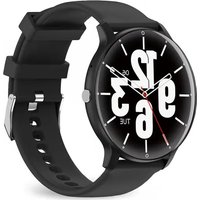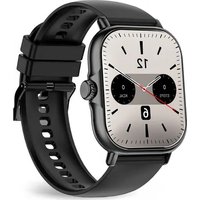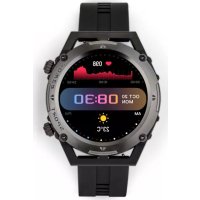
TEC616 - Smartwatch LIVOO - Free user manual and instructions
Find the device manual for free TEC616 LIVOO in PDF.



| Product type | Connected watch (Smartwatch) |
| Brand | Livoo |
| Model | TEC616 |
| Dimensions (estimated) | 42 x 36 x 10 mm |
| Weight (estimated) | 50 g |
| Battery | Built-in, rechargeable lithium-ion |
| Charging | Magnetic charger, 2 to 3 hours, max. 2A adapter |
| Connectivity | Bluetooth 4.0+ (frequency 2402-2480 MHz) |
| Compatibility | Android 5.1+ or iOS 8.0+ |
| Sensors | Heart rate, accelerometer |
| Main functions | Pedometer, sleep, heart rate, blood pressure, blood oxygen, 6 sport modes, weather, stopwatch, music control, find phone, notifications, alarms, reminders (sedentary, water, medication) |
| Display | Touchscreen (not specified) |
| Maintenance | Clean with a soft cloth, avoid dirt on sensor |
| Safety | Do not disassemble, do not expose to more than 50°C, do not charge after water damage, non-medical product |
| General information | Compliant with directive 2014/53/EU, standards EN 300 328, EN 301 489, EN 62368-1 |
Frequently Asked Questions - TEC616 LIVOO
User questions about TEC616 LIVOO
0 question about this device. Answer the ones you know or ask your own.
Ask a new question about this device
Download the instructions for your Smartwatch in PDF format for free! Find your manual TEC616 - LIVOO and take your electronic device back in hand. On this page are published all the documents necessary for the use of your device. TEC616 by LIVOO.
USER MANUAL TEC616 LIVOO
natural_image
Technical line drawing of a USB device component (no text or symbols)natural_image
Technical line drawing of a mechanical component with no visible text or symbolsTELECHARGEMENT ET INSTALLATION DE L'APP DE LA MONTRE CONNECTEE
text_image
QR code with a central orange logo, likely linking to a digital service or application.JYouPro
1.Cliquez sur "Scan for device"
text_image
Device Scan for device Home Exercise Device Motext_image
Device Name: ZL02-3986 Last User ID: 70106 Last Time: 00:00:00 Unfold device Disconnect device? CANCEL OK Message notification Alarms Inactivity reminder Water Drinking Reminder Medicine Reminder 3/07 3/07 3/07 3/07 Bluetooth Bluetooth Bluetooth ZL02-3986 Bluetooth Share System Notifications ZL02-3986 Connected Forget This Device Other Devices To put an Apple Watch with your iPhone, go to the Apple Watch area. 3/07 3/07 Bluetooth ZL02-3986 Bluetooth Share System Notifications ZL02-3986 Connected Forget This Device Forget This Device CancelFOIRE AUX QUESTIONS (FAQ)
DECLARATION'EU'DE'CONFORMITE'
Nous
DELTA
BP61071
67452 Mundolsheim – France
Thank you for buying our LIVOO product. We take great care in design, ergonomics and ease of use of our products. We hope that this product will give you complete satisfaction.
This instruction manual is also available on our website www.livoo.fr
Attention
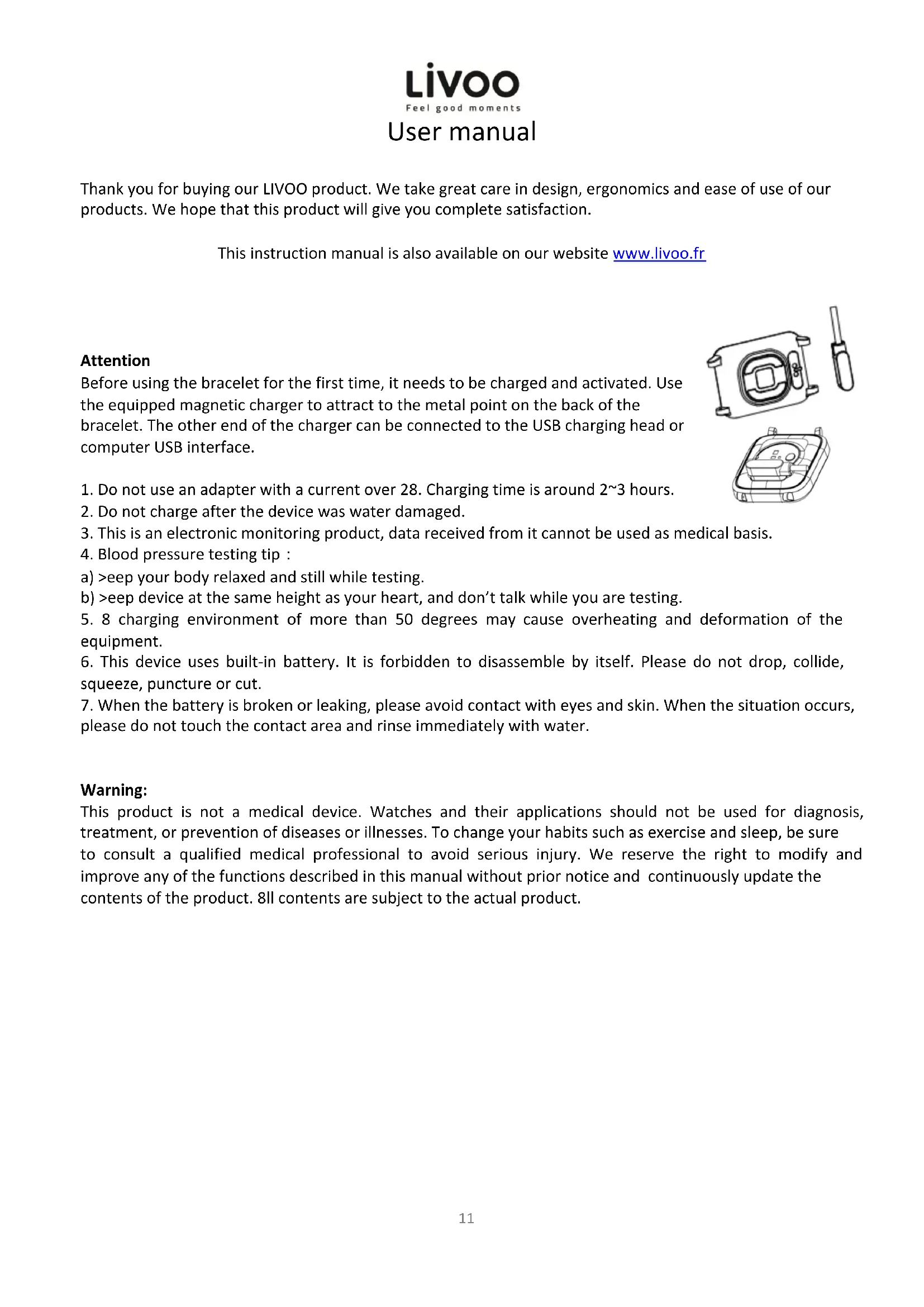
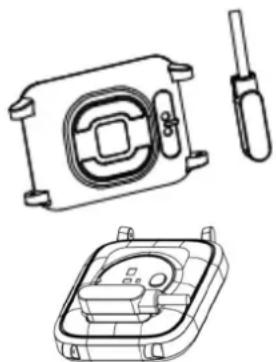
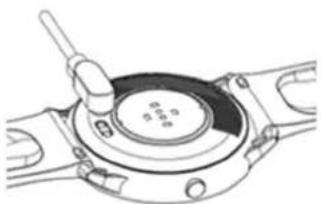
Before using the bracelet for the first time, it needs to be charged and activated. Use the equipped magnetic charger to attract to the metal point on the back of the bracelet. The other end of the charger can be connected to the USB charging head or computer USB interface.
natural_image
Technical line drawings of a device housing and internal components (no text or symbols)-
Do not use an adapter with a current over 28. Charging time is around 2\~3 hours.
-
Do not charge after the device was water damaged.
-
This is an electronic monitoring product, data received from it cannot be used as medical basis.
-
Blood pressure testing tip :
a) >eep your body relaxed and still while testing.
b) >eep device at the same height as your heart, and don't talk while you are testing.
-
8 charging environment of more than 50 degrees may cause overheating and deformation of the equipment.
-
This device uses built-in battery. It is forbidden to disassemble by itself. Please do not drop, collide, squeeze, puncture or cut.
-
When the battery is broken or leaking, please avoid contact with eyes and skin. When the situation occurs, please do not touch the contact area and rinse immediately with water.
Warning:
This product is not a medical device. Watches and their applications should not be used for diagnosis, treatment, or prevention of diseases or illnesses. To change your habits such as exercise and sleep, be sure to consult a qualified medical professional to avoid serious injury. We reserve the right to modify and improve any of the functions described in this manual without prior notice and continuously update the contents of the product. 8ll contents are subject to the actual product.
Livoo
Feel good moments
User manual
PRODUCT DESCRIPTION
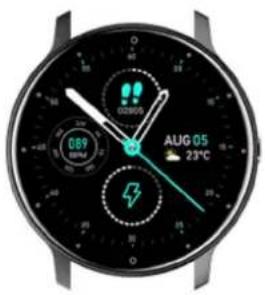
text_image
0:35 0.89 0:30 AUG 05 23°C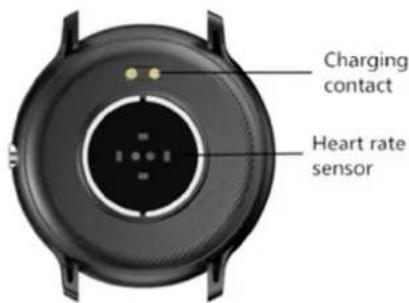
text_image
Charging contact Heart rate sensorPOWER ON
Long press the side button for 3 seconds or plug in the magnetic line to charge the smart bracelet.
natural_image
Technical line drawing of a mechanical component with a central hub and mounting flanges (no text or symbols)DOWNLOADING AND BINDING OF SMART BRACELET APP
Download and install APP
Scan QR code with mobile phone to download APP.
For IOS system, select App store; and for Android system, select good play Store to download and install JyouPro.
text_image
QR code with a central orange logo, likely linking to a digital service or website.Jyou Pro
Note : Your mobile phone must support Android 5.1 or IOS 8.0 or above, and Blooth 4.0 or above.
Livoo
Feel good moments
User manual
BIND SMART BRACELET WITH APP
- Click on « scan for device » to bind the smart bracelet.
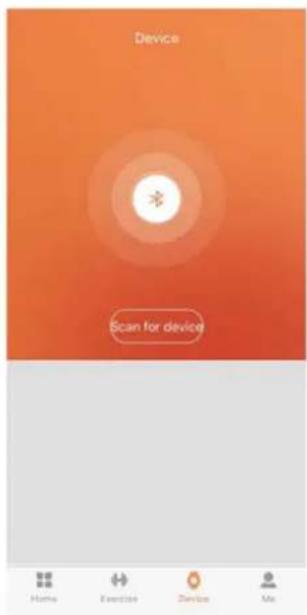
text_image
Device Scan for device Home Exercise Device Mix- The IOS system will show a Bluetooth pairing request and you can click on Bluetooth "paring" to confirm. Connect it directly to 8ndroid system.
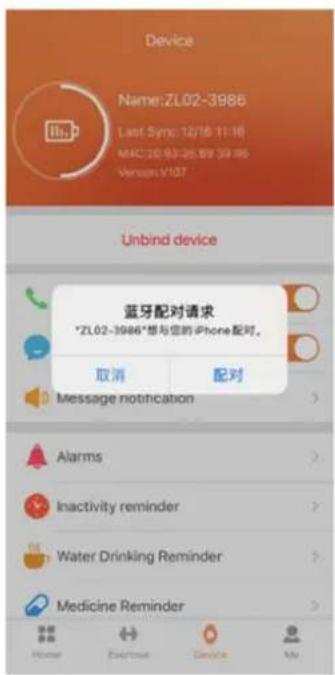
text_image
Device Name:ZL02-3986 Last Sync:12/16 11:16 MAC:70-93-26.89 39:85 Version: V107 Unbind device 蓝牙配对请求 *ZL02-3986*想与您的iPhone配对。 取消 配对 Message notification Alarms Inactivity reminder Water Drinking Reminder Medicine Reminder- Click on your device in the device list scanned.
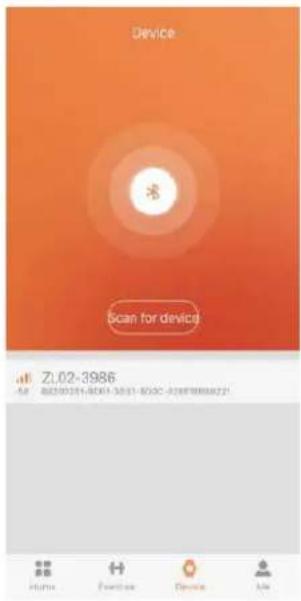
text_image
Device Scan for device Z1.02-3986 File: 80500241-8001-5031-800C-319878888221 Home Frontier Device Use- The binding is successful
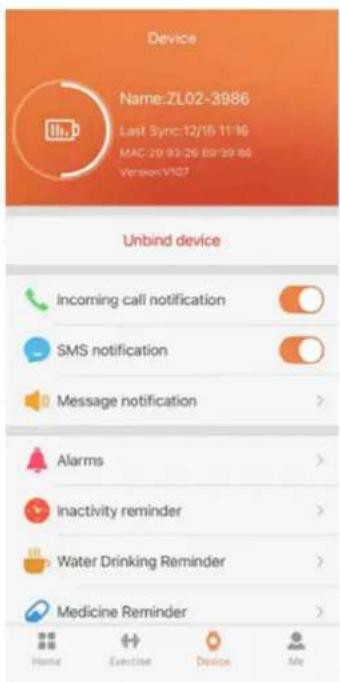
text_image
Device Name:ZL02-3986 Last Sync:12/16 11:16 MAC:20 93:29 89:39 88 Version:Y107 Unbind device Incoming call notification SMS notification Message notification Alarms Inactivity reminder Water Drinking Reminder Medicine ReminderLivoo
Feel good moments
User manual
INTRODUCTION OF SMART BRACELET FUNCTIONS
Power on, switch the menu interfaces of main screen, as the interfaces shown in the following7

INTRODUCTION OF MAIN INTERFACE FUNCTIONS
8fter the smart bracelet and 8PP are first paired, the time and date of the mobile phone will be synchronized.
Note7 Press and hold the screen for 2 seconds on the main interface to switch between multiple screen dials.
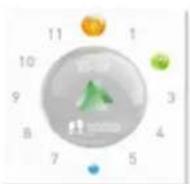
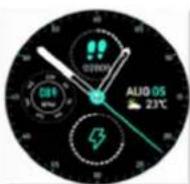
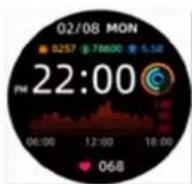
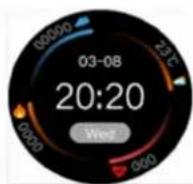
STEPS
The step-counting interface shows steps. Wear the smart bracelet on wrist, and the smart bracelet can automatically count steps, distance and calories.
MESSAGE
You can view the content pushed by the message in the information interface. 8t most seven messages can be saved. 8fter seven messages are saved, the messages displayed before will be replaced by new messages one by one.
SLEEP
Wearing the smart bracelet at night to automatically judge whether you are in the sleep state, to record deep sleep and light sleep respectively, and to summarize the total sleep time to help you monitor you sleep quality. The sensor can measure your sleep quality according to the range and frequency of wrist movements when you sleep.
HEART RATE MEASUREMENT
The heart rate measurement interface supports real-time dynamic heart rate and understands your own health data. Be sure that there is no dirt at the bottom of the heart rate sensor when conduct measurement. Skin color, hair density, tattoo and scar may affect the accuracy of the measuring results, in which cases please re-measure the heart rate.
Note7 The heart rate sensor shall be closely attached rate. The sensor light exposure in case of wearing bracelet too loosely can result in inaccurate measured figures. Don't look steadily at the greenlight of sensor which may cause eye irritation.
Livoo
Feel good moments
User manual
BLOOD PRESSURE
The blood pressure shall be measured in a quiet environment and at proper temperature. Have a rest for at least 5 minutes before measurement. 8void nervous, anxious and exciting feeling; measure three time repeatedly at an interval of 2 minutes. Record the average value of reading measured three times.
BLOOD OXYGEN
Blood oxygen saturation (Sp2) is the percentage the amount of Oxyhemoglobin (Hb2) which has been oxygenated in the blood and the total amount of hemoglobin (Hb, hemoglobin) which can be oxygenated. It means the concentration of oxygen in blood.
SPORT
There are 6 kinds of sports in the sports interface, including running, walking, mountaineering, cycling, basketball, swimming.
WEATHER
The weather page will display the current weather today and tomorrow. Click on the weather interface to display the weather forecast for the next 3 days.
For weather information, it needs to connect with the client end before data can be obtained. If the disconnection time is long, the weather information cannot be updated.
BRIGHTNESS
Click the icon to select screen brightness, slide to the right to exit and save the record.
TIMER
Enter the stopwatch page, click on the icon "Start" below to start timing, then singly click on the icon "Pause" to pause timing, and the icon in the left is for one-key resetting.
FIND MOBIL PHONE
Switch to the Find 9obile Phone interface; shake the bracelet, and the mobile phone can make a ringtone synchronically.
MUSIC
8fter connecting with the mobile phone, the smart bracelet can control the music player of the mobile phone. When the mobile phone pays music, you can use the smart bracelet to control the mobile phone for playing /pausing, the previous song and the next song.
MORE
Click the "more" icon to enter the function interface.
POWER OFF
Click on "Confirm" to turn off the smart bracelet and the smart bracelet is in a sleep state.
Livoo
Feel good moments
User manual
RESET
Click on "Confirm" to clear all data in the smart bracelet, and to restore factory settings
REMOVE DEVICE
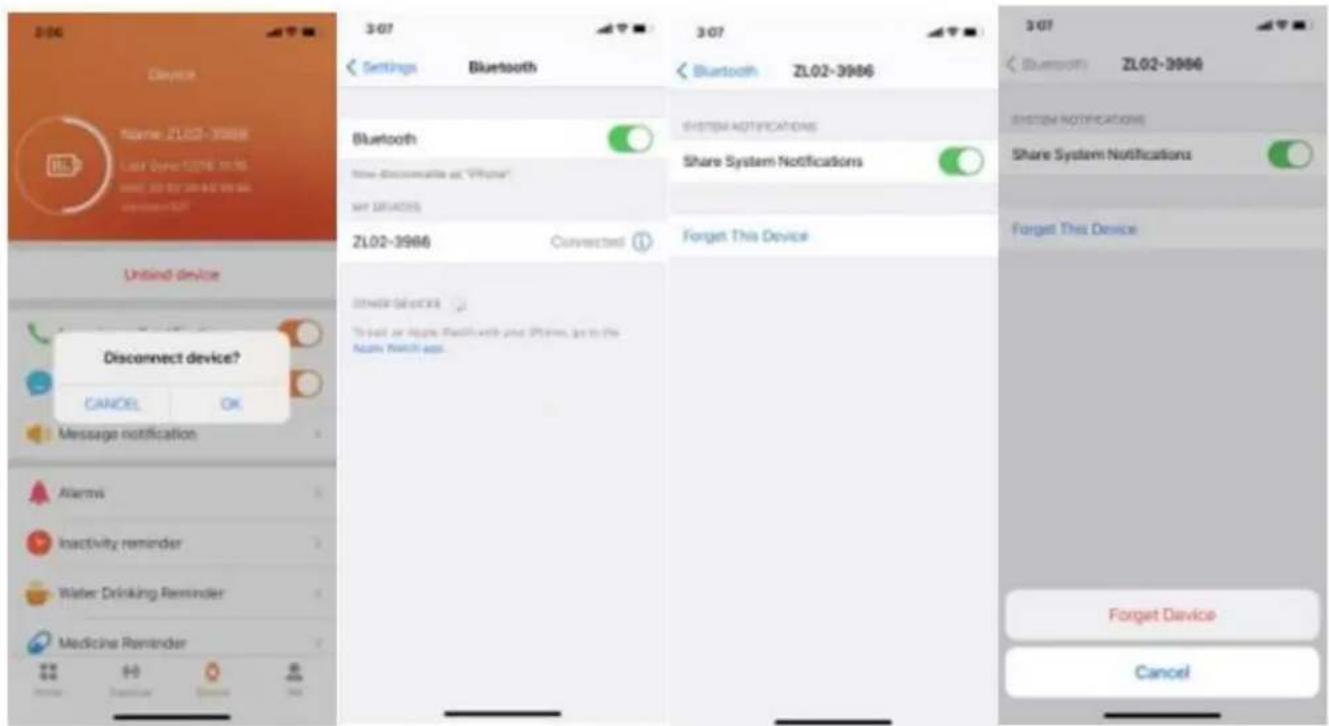
For the Android mobile phone, the device can be disconnected from your mobile phone by simply clicking on Remove device. For Apple mobile phone after binding removal, you need to click on the symbol on the right in Setting-Bluetooth, and choose to ignore the device. As shown below:
text_image
3:06 Device Name: ZL02-39866 Last Date: 10:15 Send: 30 by 20-42 00:00 Send: 30 by 20-42 00:00 Unbind device Disconnect device? CANCEL OK Message notification Alerts Inactivity reminder Water Drinking Reminder Medicine Reminder 3:07 Settings Bluetooth Bluetooth Time disconnable at "Offshore" MY REFERENCE ZL02-3986 Connected Other devices To just or please check with and then go to the Nash Network app. 3:07 Bluetooth ZL02-3986 System Notifications Share System Notifications Forget This Device 3:07 Bluetooth ZL02-3986 System Notifications Share System Notifications Forget This Device Forget Device CancelFREQUENTLY ASKED QUESTIONS (FAQs)
- Why does the smart bracelet automatically disconnect Bluetooth when the Android screen goes out?
1> Lock background APP. When the JYouPro process is cleared, the smart bracelet will be disconnected from the mobile phone.
2> Set APP self-startup
3> Unrestricted background operation. The Android mobile phone installed with APP intelligently restricts the background operation by default, and App should be set manually without any restriction.
- Why cannot the smart bracelet receive message push?
1> Please confirm that you have turned on the switch for message push at the mobile phone client.
2> Please confirm that messages can be displayed normally in the mobile phone notification bar? The message push on the smart bracelet is completed by reading the message from the mobile phone notification bar. The smart bracelet will not receive the message push if there is no message in the mobile phone notification bar. (You need to find notification settings in the mobile phone settings, and turn on the notification switch of WeChat, QQ, call, SMS and mobile phone client).
3> Turn on the mobile phone ---Setting. Enter "notification use right" on the top search box. Re-open JYouPro.
Livoo
Feel good moments
User manual
- Why can't take a hot bath with the smart bracelet?
Answer: the bath water has a relatively high temperature, and generates a lot of vapor which is the gas phase with small molecular radius and can easily infiltrate into smart bracelet from the shell gap. When the temperature drops down, the vapor will condensate into liquid-phase droplets which will easily cause the short circuit inside the smart bracelet and damage the circuit board and then damage the smart bracelet.
- Why is the Bluetooth connecting icon blinking all the time? Answer: User may encounter this problem. It mainly can prompt the users that the pushed message is not received if APP is not connected with bracelet. Launch APP to connect to bracelet and the Bluetooth icon can be displayed normally.
Note: For more frequently asked questions, please refer to the JYouPro APP User Manual.
PRECAUTIONS
- Do not use an adapter with a current over 2A. Charging time is around 2\~3 hours
- Do not charge after the device was water damaged
- This is an electronic monitoring product, data received from it cannot be used as medical basis.
- Blood pressure testing tip :
a) >eep your body relaxed and still while testing.
b) >eep device at the same height as your heart, and don't talk while you are testing.
Warning: this product is not a medical device. The Smart band and its applications should not be used in diagnosis, treatment for as a preventive treatment for diseases and sickness. Please consult medical professionals before changing exercise habit or sleep habit to avoid serious injuries. The manufacturer reserves the right to modify and improve any functions description in this user guide and continuous update of the new content without further notice. This user guide is for reference only, the smart band for selling is subject to the final product.
EU DECLARATION OF CONFORMITY
We
DELTA
BP61071
67452 Mundolsheim – France
Herewith declare under our sole responsibility, that the radio equipment
Smartwatch
TEC616 (Frequency range 2402MHz\~2480MHz)
Fulfils the essential requirements of the Directive 2014/53/UE
The following standards were applied:
Radio:
ETSI EN 300 328 V2.2.3 (2019-07)
User manual
EMC:
ETSI EN301 489-1 V2.2.3 (2019-11)
ETSI EN301 489-17 V3.2.0 (2019-03)
Health and Safety:
EN 62368-1 :2020
SAR : EN 50663:2017
Mundolsheim, 23/08/2021
Correct disposal of the unit
(Electrical and Electronic Equipment)
(Applicable in the European Union and the rest of Europe that have adopted separate collection systems countries)
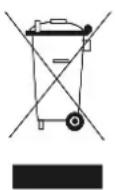
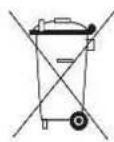
The European Directive 2012/19/EU on Waste Electrical and Electronic Equipment (WEEE), requires that old household electrical appliances must not be disposed of in the normal household waste stream. Old appliances must be collected separately in order to optimize the recovery and recycling of the materials they contain and reduce the impact on human health and the environment. The symbol of the crossed out dustbin is marked on all products to remind the obligations of separate collection. Consumers should contact their local authority or retailer for information concerning the correct disposal of their product.
CE
LIVOO
BP 61071
67452 Mundolsheim
• Non contractual illustration
- Product information is subject to change without prior notice.
Livoo
Feel good moments
natural_image
Technical line drawings of a mechanical component with three views: top view, side view, and front view (no text or symbols)natural_image
Top-down view of a black circular device with central hub and mounting feet (no visible text or symbols)Contacto de carga
Sensor de
frecuencia cardíaca
ENCENDIDO
natural_image
Technical line drawing of a mechanical component with a central circular feature and a handle (no text or symbols)DESCARGA Y VINCULE LA APLICACION DE LA PULSERA INTELIGENTE
text_image
QR code with a central orange logo containing a stylized white animal or bird.Jyou Pro
text_image
Device Scan for device Home Electrician Device Metext_image
Device Scan for device 71.02-3986 Air 86080215-8001 36015-400C -820E8888821 Home Existing Device Mailtext_image
Device Name: ZL02-3986 Last Sync:12/16 11:16 MAC:20 9526 88:39 88 Version:1/107 Unbind device Incoming call notification SMS notification Message notification Alarms Inactivity reminder Water Drinking Reminder Medicine Reminder Home Exercise Device MTLivoo
Feel good moments
text_image
3:06 Device Nashao ZL02-3986 Link 2yber 1278 1116 SBC 20 21 24 25 26 27 3:07 Settings Bluetooth Bluetooth ZL02-3986 Bluetooth Note disconnable or "Phone" SH ZL02-3986 ZL02-3986 Connected Forget This Device Unbind device Disconnect device? CANCEL OK Message notification Alarms Inactivity reminder Water Drinking Reminder Medicine Reminder Forget Device CancelLivoo
Feel good moments
natural_image
Smartwatch with dual clock and weather gauge, showing time, temperature, and battery icon (no readable text or symbols beyond brand name)Referenz: T8C616
Version: 1.6
Sprache: Deutsch
WWW.LIV99.FR
Livoo
Feel good moments
Bedienungsanleitung
natural_image
Technical line drawing of a mechanical component with a circular housing and a side view showing a tool (no text or symbols)natural_image
Top-down view of a black circular smartwatch with central display and two gold dots, no visible text or symbolsLadekontakt
natural_image
Technical line drawing of a mechanical component with a lever and central hub (no text or symbols)HERUNTERLADEN UND BINDEN DER APP DES INTELLIGENTEN ARMBANDS
text_image
QR code with a central logo, likely linking to a digital service or website.Jyou Pro
text_image
Device Scan for device Adobe Exercise Devus Mytext_image
DEVICE Scan for device ZL02-3986 4:58: 2020/02/20 16:00 15:00 15:00 14:00 13:00 12:00 11:00 Home Devices Device Asktext_image
Device Name:ZL02-3986 Last Sync:12/16 11:10 MAC:20 93-26 69:39:88 Version:7107 Unbind device Incoming call notification SMS notification Message notification Alarms Inactivity reminder Water Drinking Reminder Medicine Reminder Home Exercise Device MeLivoo
Feel good moments
Bedienungsanleitung
EINFÜHRUNG IN DIE FUNKTIONEN DES INTELLIGENTEN ARMBANDS
Betriebszustand
text_image
Three digital weather and monitoring gauges showing weather icons, time, and weather metrics with timestamps and temperature readings.SCHRITTZÄHLER
text_image
3:06 Device Name: ZL02-39866 Local Sync 5218 01:36 SNC 2019 2019 01:36 Internet 00* 3:07 Settings Bluetooth Bluetooth ZL02-3986 Bluetooth Note Communicable at "Phone" SN 100/0000 ZL02-39866 Connected Shetow Notifications Share System Notifications Forget This Device Unbind device Disconnect device? CANCEL OK Message notification Alarme Inactivity reminder Water Drinking Reminder Medicine Reminder Forget Device Cancel(Electrical and Electronic Equipment)
natural_image
Technical line drawing of a mechanical component with a circular housing and a side view showing a tool (no text or symbols)Attenzione
natural_image
Top-down view of a black circular device with internal components and mounting brackets (no text or symbols visible)natural_image
Technical line drawing of a mechanical component with no visible text or symbolsSCARICARE E COLLEGARE L'APP DEL BRACCIALE SMART
Scaricare e installare l'APP
text_image
QR code with a central orange logo, likely linking to a digital service or website.Jyou Pro
text_image
Device Scan for device Mobile Exercise Device Lifetext_image
Device Scan for device 21.02-3986 File Edit/View/Export/Export/Export/Export/Export/Export/Export/Export/Export/Export/Export/Export/Export/Export/Export/Export/Export/Export/Export/Export/Export/Export/Export/Export/Export/Export/Export/Export/Export/Export/Export/Export/Export/Export/Export/Export/Export/Export/Export/Export/Export/Export/Export/Export/Export/Export/Export/Export/Export/Export/Exchange Home Exercise Device Mixtext_image
Device Name: ZL02-3986 Last Sync: 12/16 11:10 MAC: 25 93:26 BR: 29:88 Versun: V197 Unbind device Incoming call notification SMS notification Message notification Alarms Inactivity reminder Water Drinking Reminder Medicine ReminderLivoo
Feel good moments
text_image
Four digital dashboard screenshots showing weather and temperature readings with time, date, and speed indicators.PASSI
text_image
3:07 3:07 3:07 Bluetooth ZL02-3986 Bluetooth Share System Notifications ZL02-3986 Connected Forget This Device System NOTIFICATION Share System Notifications Forget This Device Disconnect device? CANCEL OK Message notification Alerts Inactivity reminder Water Drinking Reminder Medicine Reminder Forget Device CancelDomande frequenti (FAQs)
ETSI EN 300 328 V2.2.3 (2019-07
EMC:
ETSI EN301 489-1 V2.2.3 (2019-11)
ETSI EN301 489-17 V3.2.0 (2019-03)
Salute e sicurezza:
EN 62368-1 :2020
SAR : EN 50663:2017
Mundolsheim, 23/08/2021

natural_image
Smartwatch with dual clock and weather gauge (no readable text or symbols)Referência: TEC616
Versão: 1.6
Idioma: Portuguese
WWW.LIV88.FR
Livoo
Feel good moments
Manual de instrução
natural_image
Technical line drawing of a mechanical component with a circular housing and a separate cylindrical part (no text or symbols)
natural_image
Top-down view of a black circular device with internal components and no visible text or symbolsnatural_image
Technical line drawing of a mechanical component with no visible text or symbolsBAIXANDO E VINCULANDO O APLICATIVO DO BRACELETE INTELIGENTE
Faça o download e instale o APLICATIVO
text_image
QR code with a central orange logo containing a white animal silhouette.Jyou Pro
text_image
Device Scan for device Myra Exchicon Chandra Mytext_image
Device Name: ZL02-3986 Last Sync: 12/16 11:16 MAC: 2D 95:20.88 39:48 Version: VADT Unbind device Incoming call notification SMS notification Message notification Alarms Inactivity reminder Water Drinking Reminder Medicine Reminder11
text_image
3/06 Device Name: ZL02-3986 Last Sync: 12/06 17:40 SEC: 25/03 29:40 19:40 Description: 107 3/07 Settings Bluetooth Bluetooth Enter Recommendation as "Phone" MH DEVICES ZL02-3986 Connected Other Devices To start an Apple clock with your iPhone, go to the Apple Switch app 3/07 Bluetooth ZL02-3986 SYSTEM NOTIFICATIONS Share System Notifications Forget This Device 3/07 Bluetooth ZL02-3986 SYSTEM NOTIFICATIONS Share System Notifications Forget This Device Forget Device Cancel Unbind device Disconnect device? CANCEL OK Message notification > Alarms > Imactivity reminder > Water Drinking Reminder > Medicine Reminder > Forget Device Cancel1
1
Livoo
Feel good moments
Manual de instrução
PERGUNTAS FREQUENTES (FAQS)
natural_image
Technical line drawings of a mechanical component with no visible text or symbolsnatural_image
Top-down view of a black circular device with internal components and measurement markers (no text or symbols visible)Laadcontact
Hartslagsensor
INSCHAKELEN
natural_image
Technical line drawing of a mechanical component with a central circular feature and a handle (no text or symbols)DOWNLOADEN EN KOPPELEN VAN SMART POLSHORLOGE APP
Download en installeer de A>>
text_image
QR code with a central logo, likely linking to a digital service or application.Jyou Pro
text_image
Device Scan for device Hides Devilco Devins Miotext_image
Device Name:2L02-3986 Last Sync:12/16 11:16 MAC:20 93:20 88:39:88 Version:7107 Unbind device Incoming call notification SMS notification Message notification Alarms Inactivity reminder Water Drinking Reminder Medicine ReminderLivoo
Feel good moments
text_image
3:07 Settings Bluetooth Bluetooth New disconnection or "Phone" MY BEANS ZL02-3986 Connected 3:07 Bluetooth ZL02-3986 Bluetooth Share System Notifications Forget This Device System NOTIFICATION Share System Notifications Forget This Device Disconnect device? CANCEL OK Message notification Alerts Inactivity reminder Water Drinking Reminder Medicine Reminder Forget Device CancelLivoo
Feel good moments