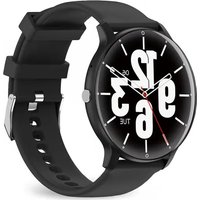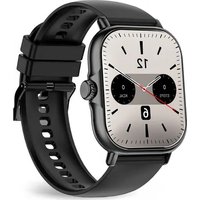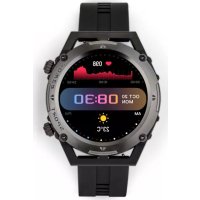
TEC615 - Smartwatch LIVOO - Free user manual and instructions
Find the device manual for free TEC615 LIVOO in PDF.



| Product type | Smartwatch (connected watch) |
| Brand | Livoo |
| Model | TEC615 |
| Power supply | Built-in battery, charges via magnetic charger (adapter max 2A, charging time 2-3 hours) |
| Connectivity | Bluetooth 4.0, compatible with Android 4.4+ and iOS 8.0+ |
| App | Gloryfit (available on App Store and Google Play) |
| Main functions | Blood oxygen (SpO2) measurement, heart rate, blood pressure, body temperature, pedometer, distance, calories, sleep (deep/light), multi-sports, weather, music control, notifications, brightness adjustment, find phone, do not disturb |
| Sensors | Photoelectric sensor, temperature sensor |
| Display | Color touch screen, multiple customizable watch faces |
| Battery life | Not specified, full charge in 2-3 hours |
| Water resistance | Not specified, avoid charging after immersion |
| Compatibility | Smartphones with Bluetooth 4.0, Android 4.4+ or iOS 8.0+ |
| Maintenance and cleaning | Clean with a soft, dry cloth, avoid excessive moisture |
| Safety | Not medical (indicative data), do not use for diagnosis; do not disassemble the battery; avoid temperatures >50°C during charging |
| Spare parts and repairability | Non-removable built-in battery, repair by an authorized professional |
| General information | Radio frequency 2402-2480 MHz; EU declaration of conformity (Directive 2014/53/EU); manufacturer: LIVOO, BP 61071, 67452 Mundolsheim, France |
Frequently Asked Questions - TEC615 LIVOO
User questions about TEC615 LIVOO
0 question about this device. Answer the ones you know or ask your own.
Ask a new question about this device
Download the instructions for your Smartwatch in PDF format for free! Find your manual TEC615 - LIVOO and take your electronic device back in hand. On this page are published all the documents necessary for the use of your device. TEC615 by LIVOO.
USER MANUAL TEC615 LIVOO
text_image
6 38 Friday Feb 16Référence : TEC615
Version: 1.6
Langue : Français
Livoo
Feel good moments
natural_image
Technical line drawing of a USB device component (no text or symbols)natural_image
Simple line drawing of a rounded square frame with two side posts and a small red horizontal line at the bottom (no text or symbols)Bouton d'alimentation O+/OFF Ecran tactile
natural_image
Pure diagram of a device casing with internal components and red alignment lines (no text or symbols)text_image
QR code with central green Android logo, likely for mobile app or service linkingAndroid

text_image
QR code with central Apple logo, likely for digital scanning and linking to online contentiOS

text_image
QR code with a central logo featuring a triangular play buttonGoogle Play
text_image
more exercise 15:25Tension artérielle
text_image
09/24 WEDAutres fonctions
natural_image
Close-up of a mechanical watch face with visible gears and numbers, no readable text or symbolstext_image
6 38 Friday Feb 16Reference7
TEC615
Version7 1.6
Language7 English
WWW.LIVOO.FR
Livoo
Feel good moments
User manual
Thank you for buying our LIVOO product. We take great care in design, ergonomics and ease of use of our products. We hope that this product will give you complete satisfaction.
This instruction manual is also available on our website www.livoo.fr
Attention
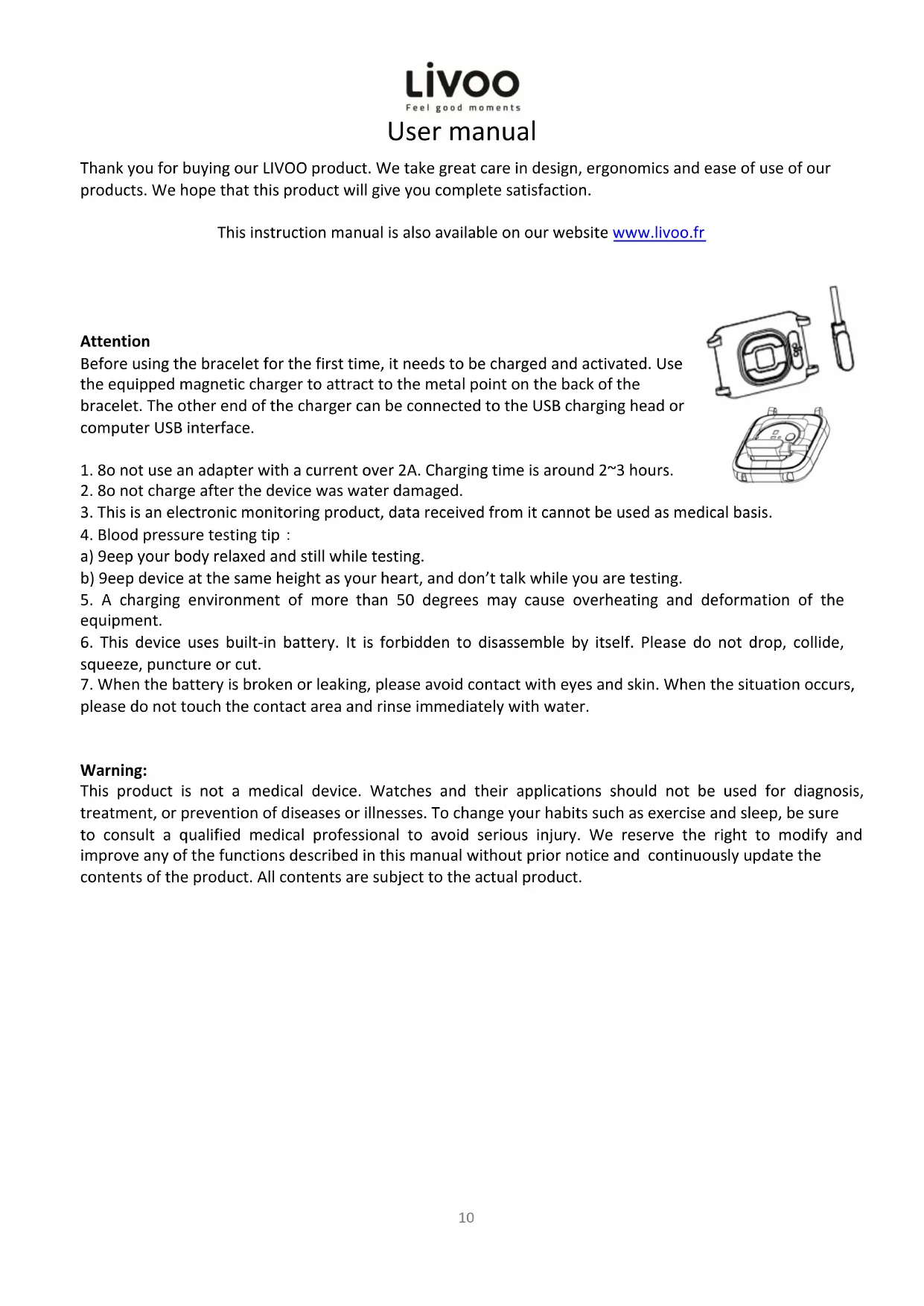
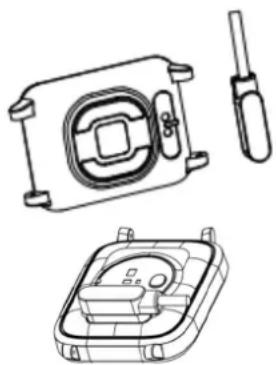
Before using the bracelet for the first time, it needs to be charged and activated. Use the equipped magnetic charger to attract to the metal point on the back of the bracelet. The other end of the charger can be connected to the USB charging head or computer USB interface.
natural_image
Technical line drawings of a mechanical device housing and mounting bracket (no text or symbols)- 80 not use an adapter with a current over 2A. Charging time is around 2\~3 hours.
- 80 not charge after the device was water damaged.
- This is an electronic monitoring product, data received from it cannot be used as medical basis.
- Blood pressure testing tip :
a) 9eep your body relaxed and still while testing.
b) 9eep device at the same height as your heart, and don't talk while you are testing. - A charging environment of more than 50 degrees may cause overheating and deformation of the equipment.
- This device uses built-in battery. It is forbidden to disassemble by itself. Please do not drop, collide, squeeze, puncture or cut.
- When the battery is broken or leaking, please avoid contact with eyes and skin. When the situation occurs, please do not touch the contact area and rinse immediately with water.
Warning:
This product is not a medical device. Watches and their applications should not be used for diagnosis, treatment, or prevention of diseases or illnesses. To change your habits such as exercise and sleep, be sure to consult a qualified medical professional to avoid serious injury. We reserve the right to modify and improve any of the functions described in this manual without prior notice and continuously update the contents of the product. All contents are subject to the actual product.
Livoo
Feel good moments
User manual
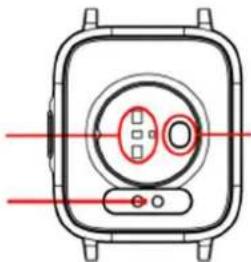
COMPONENT INTRODUCTION
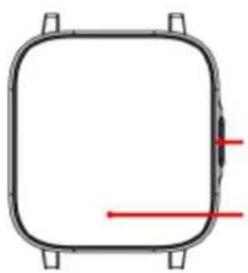
natural_image
Simple line drawing of a rounded square frame with two side posts and a central vertical line (no text or symbols)Power bouton ON/OFF
Touch the display
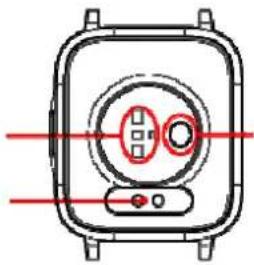
Photoelectric sensor
Charging contact
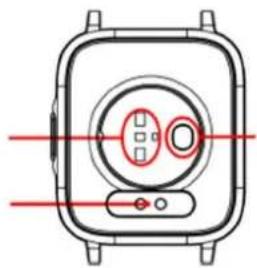
natural_image
Diagram of a device front panel with red alignment lines and control buttons (no text or symbols)Temperature Sensor
DOWNLOADING & PARING
- Long press the power button to turn on.
- Scan the following QR code and install the APP or download "GloryFit" App from App store or Google play, Android by searching for "Gloryfit".

text_image
QR code with central green Android logo, likely for mobile app or service linkingAndroid

text_image
QR code with central Apple logo, likely for digital scanning and linking to online contentiOS

text_image
QR code with a central logo, likely linking to a digital service or applicationGoogle Play
Compatibility System: Android 4.4 and above; IOS 8.0 and above. Bluetooth 4.0 is supported.
√ Step 1: Open the mobile to set up personal information
√ Step 2: Swith to the "Device" page and click on the binding device
√ Step 3 : Click on your device in the list of scanned devices
√ Step 4 : Binding completed
Livoo
Feel good moments
User manual
FUNCTIONS INTERFACE
From the main screen, briefly press the touch button to switch to the different interfaces.
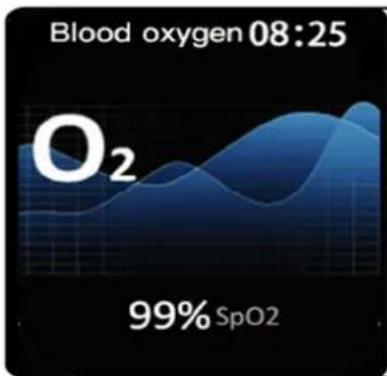
line
| Date | Value | | ---------- | --------- | | Blood oxygen | 08:25 | | SpO2 | 99% |Blood Oxygen
Switch the blood oxygen test interface to enter the blood oxygen real-time detection, the monitoring data can be updated to the APP synchronously, and there's a test report.
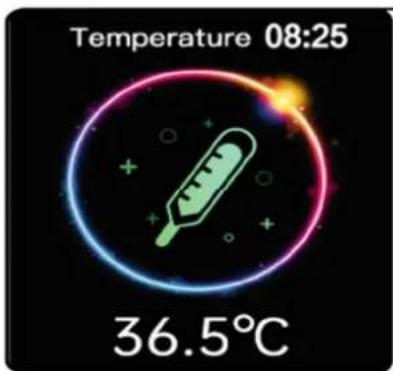
text_image
Temperature 08:25 36.5°CBody Temperature
Switch to the temperature test interface to get access to real-time temperature detection, the monitoring data can be updated to the APP synchronously, and there's a test report.
Note7 When testing body temperature, the temperature sensor must be in full contact with the skin (tested after 43 minutes of wearing). The body temperature test will be affected by the temperature difference of the environment, it only serves as a warning reminder.
For details, please refer to medical professional equipment and doctor diagnosis.
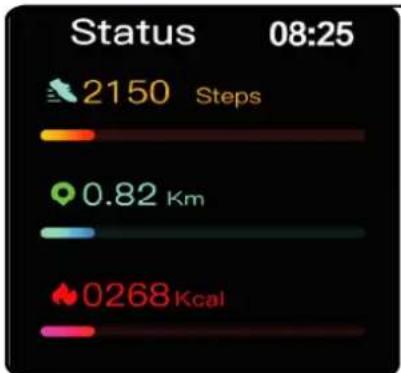
bar
| Metric | Value | |--------|-------| | Steps | 2150 | | Distance | 0.82 Km | | Calories | 0268 Kcal |State
See the number of steps you walk, the distance you walk, and calories you burn at any time of the day. You can check your motion data in the APP in a timely manner.
Livoo
Feel good moments
User manual
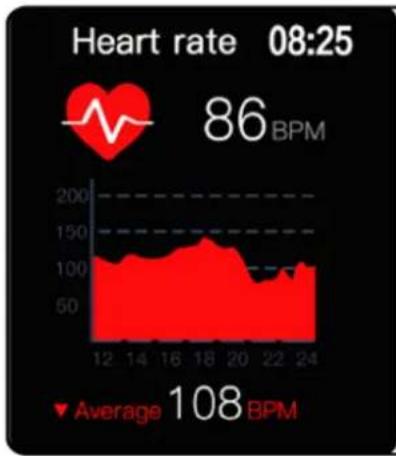
line
| Hour | Heart Rate (BPM) | | ---- | ---------------- | | 12 | ~100 | | 14 | ~120 | | 16 | ~130 | | 18 | ~140 | | 20 | ~130 | | 22 | ~100 | | 24 | ~108 |HeartRate
Switch to the heart rate test interface for real-time heart rate monitoring, the data can be updated to the APP synchronously, and there is a test report.
text_image
more exercise 15:25Blood Pressure
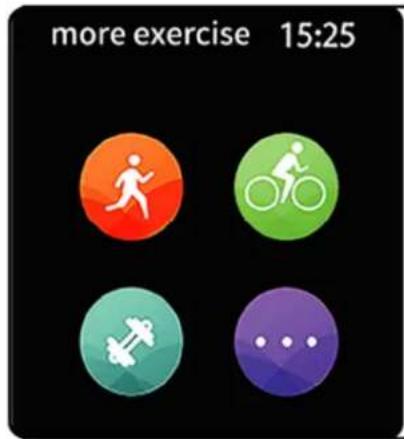
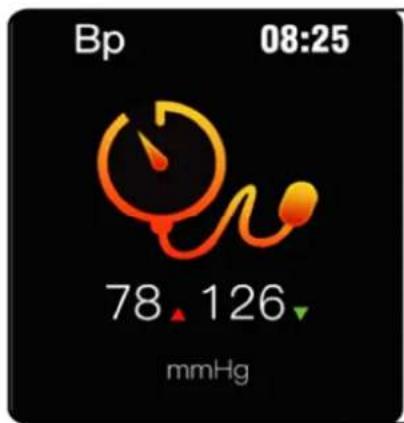
Switch to the blood pressure interface for real-time monitoring of blood pressure, the data can be updated to the APP synchronously, and there is a report.
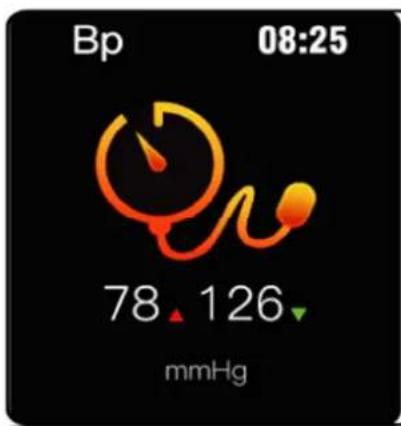
text_image
Bp 08:25 78 126 mmHgMulti-sport
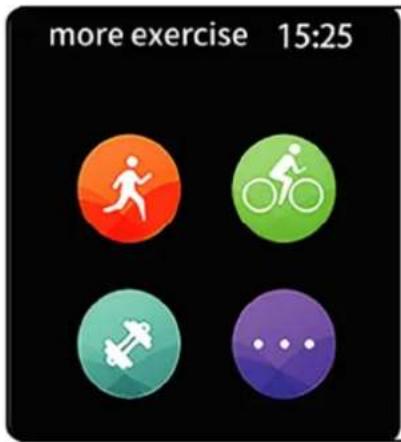
Click on the multi-motion icon to enter the Sport Mode selection, with a variety of motion modes to choose from.
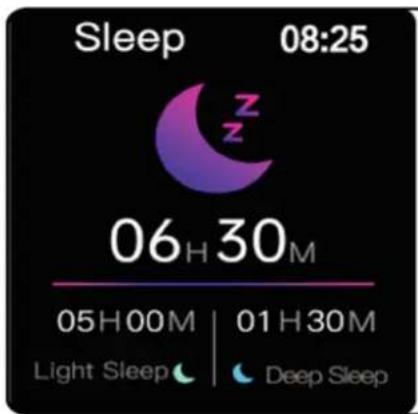
text_image
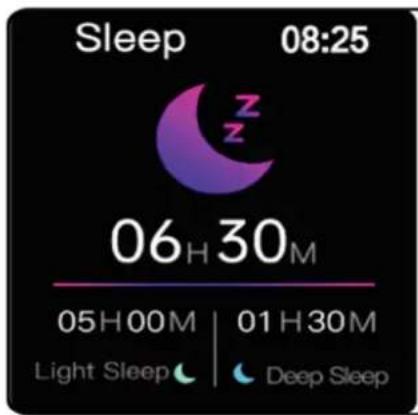
Sleep 08:25 06 H 30 M 05H00M | 01 H 30 M Light Sleep Deep SleepSleep
Your watch can record and show the total amount of sleep you had last night, as well as the length of your deep sleep and light sleep. More detailed analysis and data records can be viewed in the client.
Note7 Only when wearing the bracelet to fall asleep will there be sleep data.
Livoo
Feel good moments
User manual
X
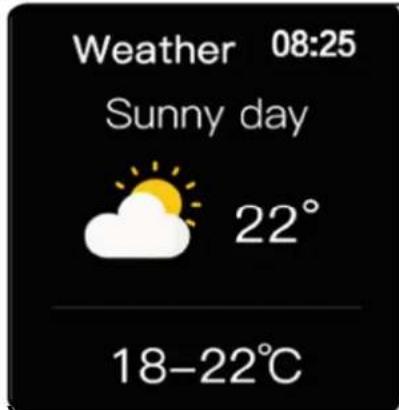
text_image
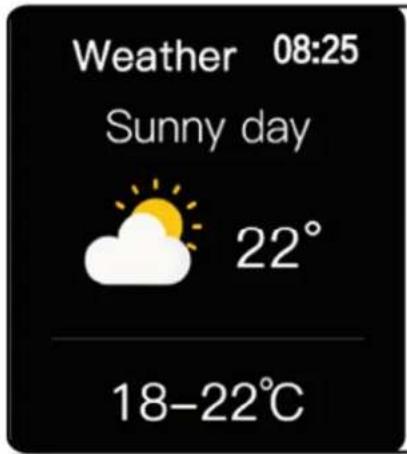
Weather 08:25 Sunny day 22° 18-22°CWeather
The weather page will display the current weather and air quality information. The weather information needs to be connected to the client to obtain data. If the connection is disconnected for a long time, the weather information will not be updated.
Note7 There is no weather interface before the bracelet is connected to the APP. After connecting the APP there is a weather inter face, the phone needs to open the positioning.
x
text_image
12:09 The End Of The WorldMusic
While connected, the watch can control the phone music player.
X
X
text_image
EmptyInformation
The watch can receive notification pushes that displays on the phone, and you can set push items to turn off in the client. Swipe up in the main interface to get to the messaging world.
X
text_image
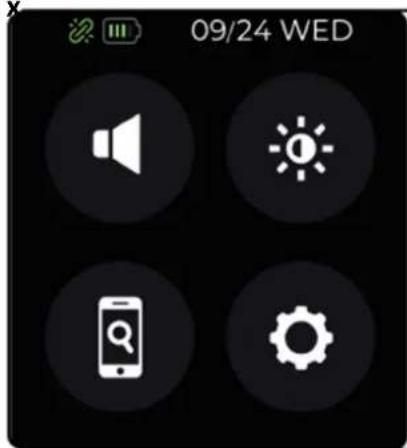
09/24 WEDOtherxfeatures
Swipe down in the main interface to enter the shortcut function boundary, you can select the "find mobile phone", "don't disturb on", "brightness adjustment" settings and other options, click on the icon to enter the corresponding function.
Livoo
Feel good moments
User manual
X
natural_image
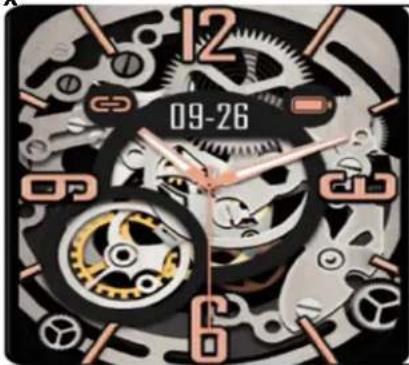
Close-up of a mechanical watch face with visible gears and numbers (no readable text or symbols)Thexdialxswitches
Press and hold the dial page, go to the dial switch, or switch the dial on the settings page. You can customize the dial by choosing your own pictures.
X
Otherxfunctionsx
Press to enter the lower menu page for more operations.
Brightnessxadjustmentxpagex
On the brightness adjustment page, click the "+" or "-" to adjust the screen brightness.

X
X
Informationx
MAC ID, watch firmware version information.
x
X
Restorexpagex
On the bracelet restore page, press the touch key to restore the bracelet.

Shutdownxpagex
On the shutdown page, press the touch button to shut off the appliance.
Livoo
Feel good moments
User manual
PRECAUTIONS
- Do not use an adapter with a current over 2A. Charging time is around 2\~3 hours
- Do not charge after the device was water damaged
- This is an electronic monitoring product, data received from it cannot be used as medical basis.
- Blood pressure testing tip :
a) Keep your body relaxed and still while testing.
b) Keep device at the same height as your heart, and don't talk while you are testing.
Warning: this product is not a medical device. The Smart band and its applications should not be used in diagnosis, treatment for as a preventive treatment for diseases and sickness. Please consult medical professionals before changing exercise habit or sleep habit to avoid serious injuries. The manufacturer reserves the right to modify and improve any functions description in this user guide and continuous update of the new content without further notice. This user guide is for reference only, the smart band for selling is subject to the final product.
x
EUxDECLARATIONxOFxCONFORMITYx
We
DELTA
BP61071
67452 Mundolsheim – France
+erewith declare under our sole responsibility, that the radio equipment
Smartwatch
TEC615 (Frequency range 2402M+z\~2480M+z)
Fulfils the essential requirements of the Directive 2014/53/UE
The following standards were applied:
Radio:
ETSI EN 300 328 V2.2.3 (2019-07)
EMC:
ETSI EN301 489-1 V2.2.3 (2019-11)
ETSI EN301 489-17 V3.2.0 (2019-03)
+ealth and Safety:
EN 62368-1 :2020
SAR : EN 50663:2017
Mundolsheim, 23/08/2021
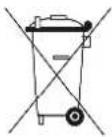

Correct disposal of the unit (Electrical and Electronic Equipment)
(Applicable in the European Union and the rest of Europe that have adopted separate collection systems countries)
The European Directive 2012/19/EU on Waste Electrical and Electronic Equipment (WEEE), requires that old household electrical appliances must not be disposed of in the normal household waste stream. Old appliances must be collected separately in order to optimize the recovery and recycling of the materials they contain and reduce the impact on human health and the environment. The symbol of the crossed out dustbin is marked on all products to remind the obligations of separate collection. Consumers should contact their local authority or retailer for information concerning the correct disposal of their product.
CE
LIVOO
BP 61071
67452 Mundolsheim
• Non contractual illustration
- Product information is subject to change without prior notice.
Livoo
Feel good moments
text_image
6 38 Friday Feb 16Referencia: TEC615
Versión: 1.6
Idioma: Español
WWW.LIV99.8R
Livoo
Feel good moments
natural_image
Technical line drawings of a mechanical component with no visible text or symbolsnatural_image
Pure diagram of a device casing with internal components and red alignment lines (no text or symbols)text_image
QR code with central green Android logo, likely for mobile app or service linkingAndroid

text_image
QR code with central Apple logo, likely for digital scanning and linking to online contentiOS

text_image
QR code with a central logo, likely linking to a digital service or applicationGoogle Play
Sistemas compatibles: Android 4.4 y superior; I9S 8.0 y superior. Admite Bluetooth 4.0.
text_image
Blood oxygen 08:25 O₂ 99% SpO₂Oxígeno en sangre
text_image
more exercise 15:25Presión arterial
text_image
09/24 WEDOtras funciones
Livoo Feel good moments
natural_image
Close-up of a mechanical watch face with visible gears and numbers (no readable text or symbols)Los interruptores de dial
text_image
6 38 Friday Feb 16Referenz: TEC615
Version: 1.6
Sprache: Deutsch
WWW.LIVOO.8R
Livoo
Feel good moments
Bedienungsanleitung
natural_image
Technical line drawing of a mechanical component with a circular housing and a separate cylindrical part (no text or symbols)natural_image
Simple line drawing of a rounded rectangular frame with four corner supports and a small red arrow pointing downward (no text or symbols)9ower bouton
ON/OFF
Berühren Sie das
Display
Fotoelektrischer
Sensor
Kontakt zum
Laden
natural_image
Pure diagram of a device casing with internal components and red alignment lines (no text or symbols)Temperatursen sor
HERUNTERLADEN & KO99ELN
text_image
QR code with central green Android logo, likely for mobile app or service linkingAndroid

text_image
QR code with central Apple logo, likely for digital scanning and linking to online contentiOS

text_image
QR code with a central logo, likely linking to a digital service or applicationGoogle Play
Switch to the heart rate test interface for real-time heart rate monitoring, the data can be updated to the &99 synchronously, and there is a test report.
text_image
more exercise 15:25Blood Pressure
Switch to the blood pressure interface for real-time monitoring of blood pressure, the data can be updated to the &99 synchronously, and there is a report.
text_image
Bp 08:25 78 126 mmHgMulti-sport
Click on the multi-motion icon to enter the Sport +ode selection, with a variety of motion modes to choose from.
text_image
Sleep 08:25 06H30M 05H00M | 01H30M Light Sleep Deep SleepSleep
Your watch can record and show the total amount of sleep you had last night, as well as the length of your deep sleep and light sleep. +ore detailed analysis and data records can be viewed in the client.
-ote: \~nly when wearing the bracelet to fall asleep will there be seen data.
Livoo
Feel good moments
Bedienungsanleitung
text_image
Weather 08:25 Sunny day 22° 18-22°CWetter
text_image
09/24 WEDAndere Funktionen
natural_image
Close-up of a mechanical watch face with visible gears and numbers, no readable text or symbolsDie Wählschalter
(Electrical and Electronic Equipment)
text_image
38 Friday Feb 16Riferimento: TE8615
Versione: 1.6
9ingua: Italiano
WWW.9IVOO.FR
Livoo
Feel good moments
natural_image
Technical line drawing of a mechanical component with a circular housing and a side view showing a pin (no text or symbols)Attenzione
natural_image
Simple line drawing of a rounded square frame with four corner handles and two red horizontal lines (no text or symbols)natural_image
Pure electrical circuit lines without any symbolsDOWN9OAD E ACCOPPIAMENTO
text_image
QR code with central green Android logo, likely for mobile app or service linkingAndroid

text_image
QR code with Apple logo in the center, likely for digital scanning and linking to online content.iOS

text_image
QR code with a central logo featuring a triangular play buttonGoogle Play
text_image
more exercise 15:25Pressione sanguigna
natural_image
Close-up of a mechanical watch face with visible gears and numbers (no readable text or symbols)I selettori
ETSI EN 300 328 V2.2.3 (2019-07
EMC:
ETSI EN301 489-1 V2.2.3 (2019-11)
ETSI EN301 489-17 V3.2.0 (2019-03)
Salute e sicurezza:
EN 62368-1 :2020
Livoo
Feel good moments
text_image
38 Friday Feb 16Referência: TEC615
Versão: 1.6
Idioma: Portuguese
+++.LIV88.FR
Livoo
Feel good moments
Manual de instrução
natural_image
Technical line drawing of a mechanical component with a circular housing and a side view (no text or symbols)
natural_image
Simple line drawing of a rounded square frame with four corner holes and two red horizontal lines (no text or symbols)Botão
Ligar/Desligar
/ Touche de
Táctil Ecran
Sensor
fotoeléctrico
natural_image
Pure electrical circuit lines without any symbolstext_image
QR code with central green Android logo, likely for mobile app or serviceAndroid

text_image
QR code with central Apple logo, likely for digital scanning and linking to online contentiOS
text_image
QR code with a central logo featuring a triangular play buttonGoogle Play
text_image
more exercise 15:25text_image
09/24 WEDOutras características
natural_image
Close-up of a mechanical watch face with clock hands and gears (no readable text or symbols)text_image
38 Friday Feb 16Referentie: TEC615
Versie: 1.6
Taal: Nederlands
WWW.LIVOO.FR
Livoo
Feel good moments
natural_image
Technical line drawings of a mechanical component with no visible text or symbolsnatural_image
Simple line drawing of a rounded rectangular frame with four corner holes and a small red arrow pointing downward (no text or symbols)Aan/uit-knop
/ return key
Raak het scherm aan
Foto-elektrisch
sensor
Oplaadcontact
natural_image
Pure electrical circuit lines without any symbolsTemperatuurs ensor
DOWNLOADEN EN KO99ELEN
text_image
QR code with central green Android logo, likely for mobile app or service linkingAndroid

text_image
QR code with central Apple logo, likely for digital scanning and linking to online contentiOS

text_image
QR code with a central logo featuring a triangular play button, likely linking to a digital content or website.Google Play