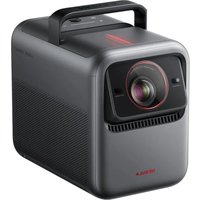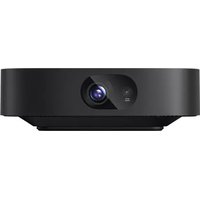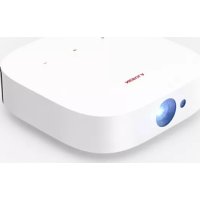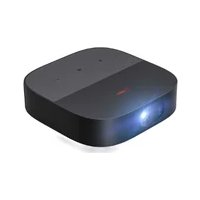
Vega - Projector NEBULA - Free user manual and instructions
Find the device manual for free Vega NEBULA in PDF.



| Product type | Projector |
| Brand | NEBULA |
| Model | Vega |
| Display technology | FHD DLP 1920 × 1080p |
| Light source | RGB LED |
| Brightness | 500 lumens ANSI |
| Contrast ratio | 1000:1 |
| Throw ratio | 1,2 |
| Projected image size | 30 to 120 inches (0.8 m to 3 m) |
| Projection distance | 0.8 m to 3.18 m |
| Native resolution | 1920 × 1080p |
| Operating system | Android TV 9.0 |
| Processor | Quad-core ARM Cortex-A55 |
| RAM | 2 GB DDR |
| Internal storage (ROM) | 8 GB eMMC |
| Speakers | 2 × 4 W |
| Wi-Fi connectivity | IEEE802.11a/b/g/n/ac dual band 2.4G/5G |
| Bluetooth | V4.2 |
| Power supply (Vega) | 19 V ⎓ 3 A |
| Power supply (Vega Portable) | 20 V ⎓ 3.25 A |
| Power consumption | < 57 W (Vega) / < 65 W (Vega Portable) |
| Standby power consumption | < 0.5 W |
| Dimensions (L × W × H) | 192.25 × 192 × 58.65 mm |
| Weight (Vega) | 1.1 kg |
| Weight (Vega Portable) | 1.4 kg |
| Maintenance and cleaning | Lint-free soft cloth; use a lens cleaning cloth |
| Safety | Do not look directly at the beam; do not expose to moisture |
| Spare parts and repairability | Do not repair yourself; contact an authorized service center |
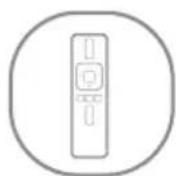
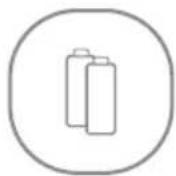
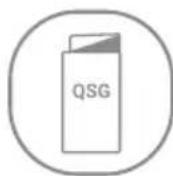
| Included accessories | Power adapter, remote control, 2 AAA batteries, quick start guide |
Frequently Asked Questions - Vega NEBULA
User questions about Vega NEBULA
0 question about this device. Answer the ones you know or ask your own.
Ask a new question about this device
Download the instructions for your Projector in PDF format for free! Find your manual Vega - NEBULA and take your electronic device back in hand. On this page are published all the documents necessary for the use of your device. Vega by NEBULA.
USER MANUAL Vega NEBULA
natural_image
Line drawing of a rectangular electronic device with a circular opening and two side holes (no text or symbols)User Manual
Nebula Vega / Nebula Vega Portable
| 01 | English |
| 23 | Deutsch |
| 42 | Español |
| 61 | Français |
| 80 | Italiano |
| 99 | Nederlands |
| 118 | Português |
| 137 | |
| 157 | |
| 176 | تَيْبِرَعَلِ |
Table of Contents
Safety Instructions 02
What's Included 04
Overview 04
Getting Started 07
Nebula Connect App 11
Settings 12
Using Nebula Vega / Nebula Vega Portable 15
Specifications 18
Troubleshooting 19
Notice 20
Trademarks 22
Warranty 22
Safety Instructions
Read all instructions before you use this device. Do not make any changes or create settings that are not described in this manual. If physical injury, loss of data or damage is caused by failure to follow instructions, the warranty does not apply.
Setup
- To reduce the risk of fire and / or electric shock, do not expose the device to rain or moisture. Objects filled with liquids, such as vases, should not be placed on this device.
- Do not place this device on soft surfaces such as tablecloths or carpets, otherwise the device could be a fire hazard.
- Do not place this device in areas susceptible to excessive dust and dirt or near any appliance generating a strong magnetic field.
- To prevent overheating, do not block or clog the ventilation openings.
- Never place this device in a confined space. Always leave enough space around this device for ventilation.
- Protect this device from overexposure to direct sunlight, heat, large temperature fluctuations and moisture. Avoid extreme temperatures. The suitable operations and storage temperature for this device and its accessories is 41°F to 95°F/ 5°C to 35°C.
- When this device is running for a long period of time, the surface may become hot. Shut it down immediately and unplug the charger. Resume operation after this device has cooled down.
- Always handle this device with care. Avoid touching the lens. Do not allow children to handle the device without supervision.
- Never place heavy or sharp objects on this device.
• To avoid electric shock, do not disassemble. - Use attachments or accessories specified by the manufacturer only.
- Avoid extreme vibrations as they may damage the internal components.
Power Supply
- Use only the provided power adapter.
- Power off the device before removing the power supply from the socket.
- Protect the power cord from being walked on or pinched, particularly at plugs, convenience receptacles, and the point where they exit from this device.
- Unplug this device if there are lightning storms or when unused for a long period of time.
- Where the power plug or an appliance coupler is used as the disconnect device, the disconnect device shall remain readily operable.
• Before you make or change any connections, ensure that all devices are
disconnected from the power outlet.
- Never touch the power cable or the power connector with wet hands.
Hearing Safety
- To prevent hearing damage, do not listen for extended periods at high volume. Set the volume to a safe level.
Charging
- The charger type for D2120 is NSA60ED-190300 with output voltage / current of DC 19V, 3A Max.
- The charger type for D2121 is PN653U with output voltage / current of 5V DC, 3A / 9V DC, 3A / 12V DC, 3A / 15V DC, 3A / 20V DC, 3.25A.
- The charger type for D2121 is A2713 with output voltage / current of 5V DC, 3A / 9V DC, 3A/ 15V DC, 3A / 20V DC, 3.25A.
- The adapter should be installed near this product and should be easily accessible.
- This adapter is for indoor use only.
- When charging, place this device in an environment that has a normal room temperature (ranges from 5°C to 25°C/41°F to 77°F recommended) and good ventilation.
- Due to the enclosure material used, this device shall only be connected to a USB interface of version 2.0 or higher.
Cleaning
- Use a soft, lint-free cloth. Never use liquid, gaseous or easily flammable cleansers to clean.
- Do not use any liquid cleaning agents to clean the lens to avoid damaging the coating film on the lens.
- Use lens cleaning paper to clean the lens.
Repairs
- Do not make any repairs to this device yourself. Only have your device repaired by an authorized service center.
- Improper maintenance can result in injuries or damage to this device.
- Refer all servicing to qualified service personnel.
Caution
- Possible hazardous optical radiation emitted from this device.
- Do not stare at the operating beam. The bright light may damage your eyes.
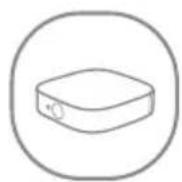
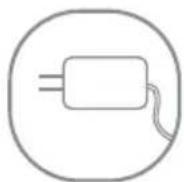
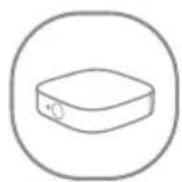
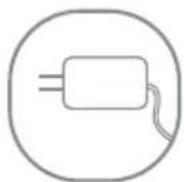
What's Included
Nebula Vega / Nebula Vega Portable
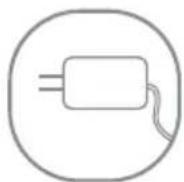
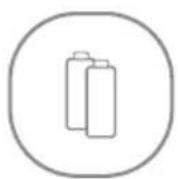
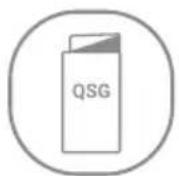
Adapter Remote Control 2 x AAA Batteries Quick Start Guide
Overview
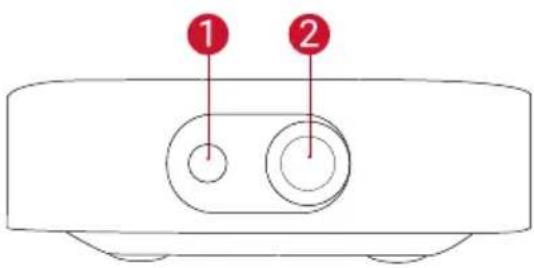
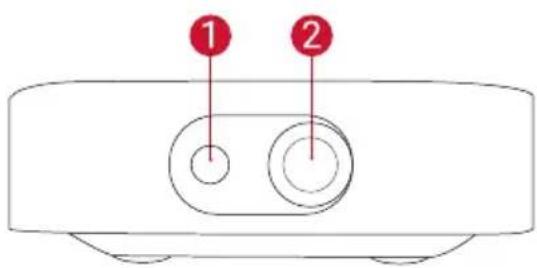
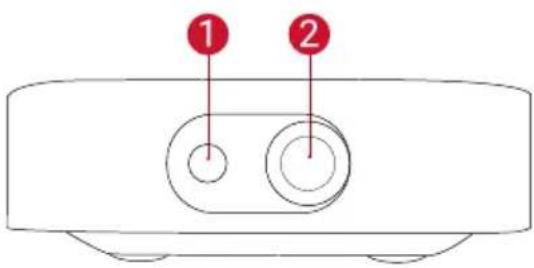
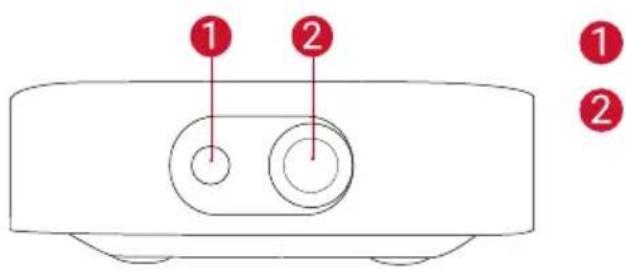
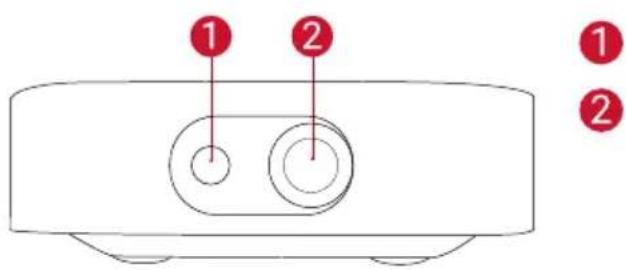
1. Front View
text_image
① ②1 Camera for Autofocus
2 Lens
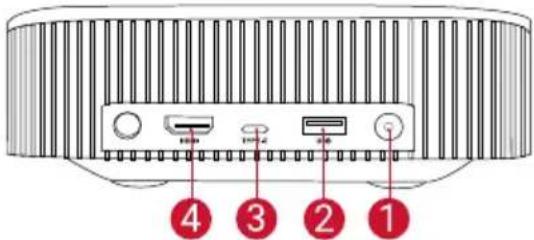
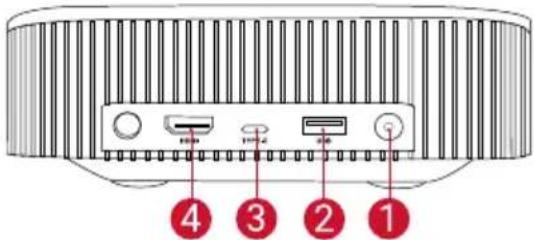
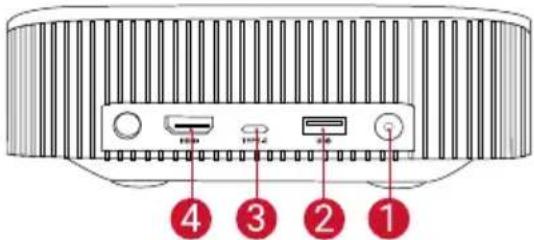
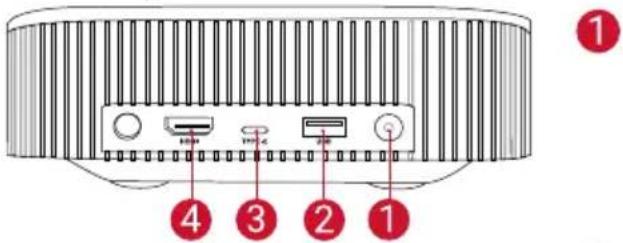
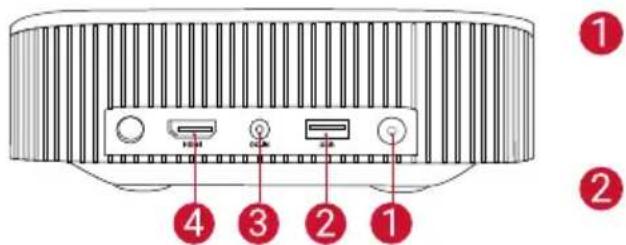
2. Rear View
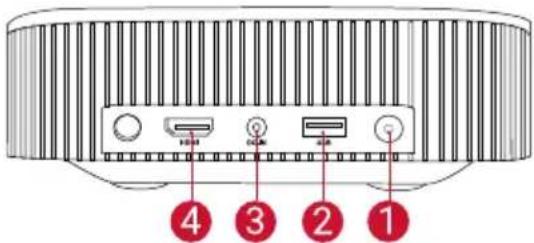
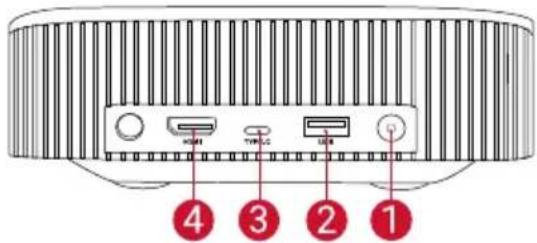
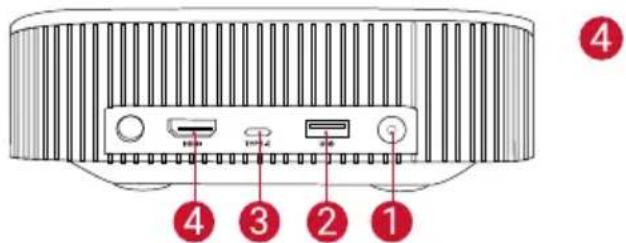
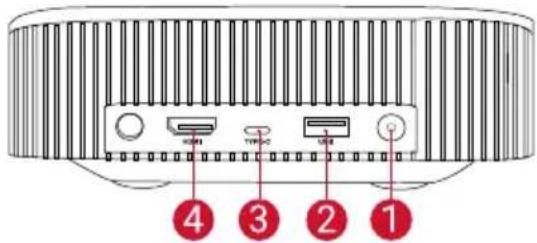
Nebula Vega
text_image
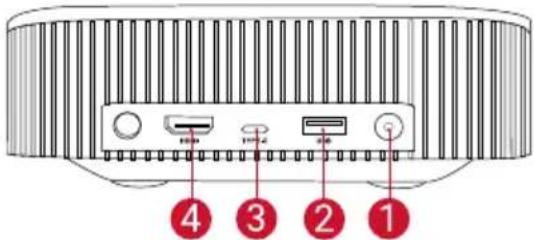
4 3 2 11 Power Button
- Press to power on
- Press and hold to power off
② USB-A Port
- Connect to a USB flash drive
3 DC Input (Nebula Vega)
USB-C Charging Port (Nebula Vega Portable)
4 HDMI Input Port
- Connect to a playback device
Nebula Vega Portable
text_image
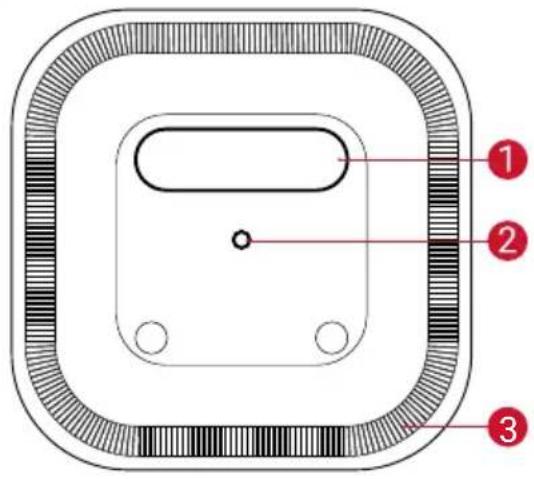
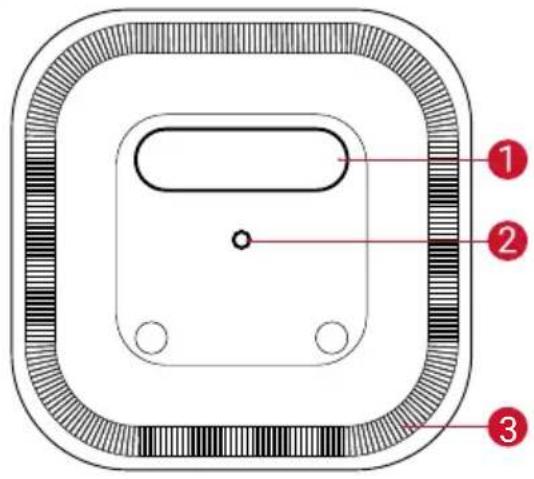
Diagram of a device rear panel with labeled ports and numbered indicators for ports 1, 2, 3, and 4.3. Bottom View
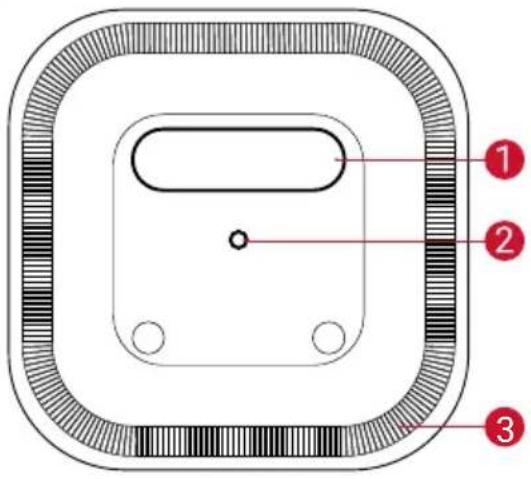
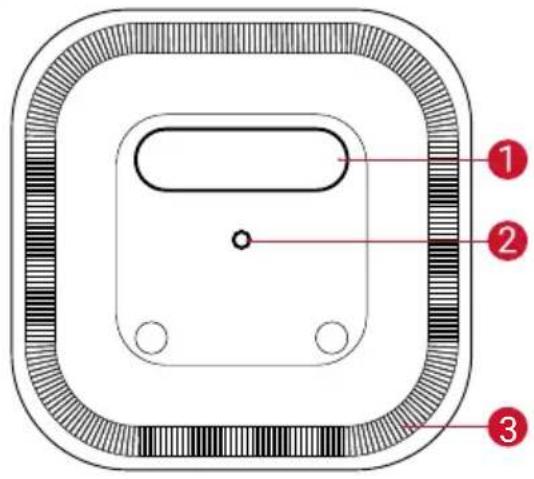
text_image
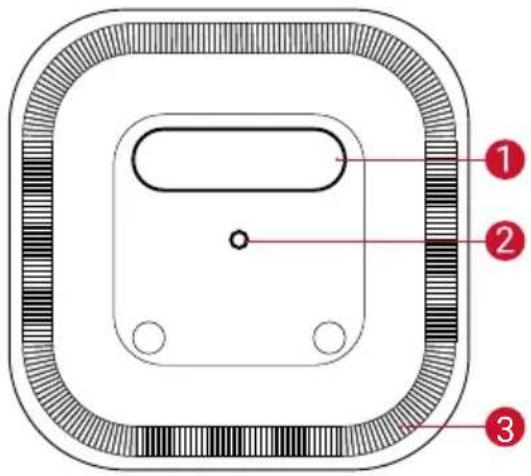
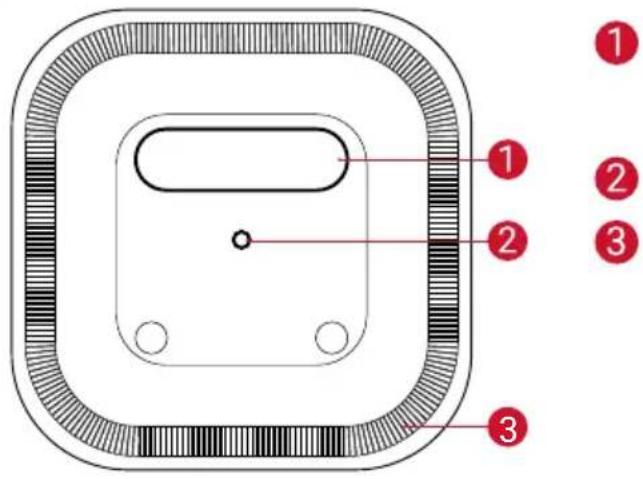
Diagram of a device with three labeled components: top, middle, and bottom.1 Vega / Vega Portable nameplate
- Open to use it as a stand
② Tripod socket
3 Speaker
4. Bottom View
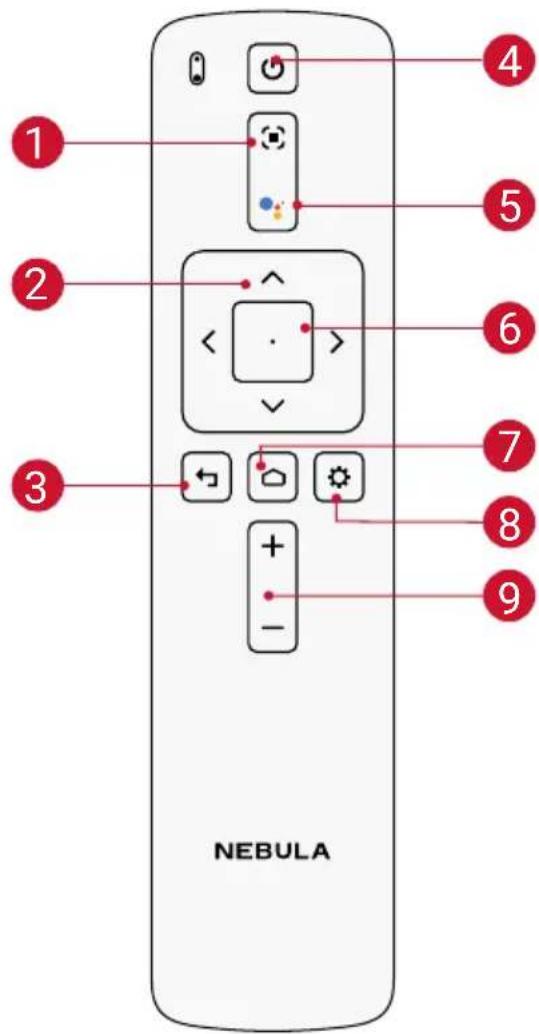
text_image
NEBULA1 Adjust Focus
② Navigation
3 Back
4 Power On / Off
5 Press to activate Google Assistant
6 Confirm the selected content
7 Home
8 System Settings
9 Volume up / down
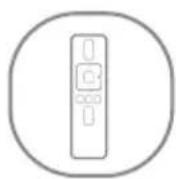
Remote Control: Nebula RC
Model: D0413
5. LED Indicator Guide
Nebula Vega:
Button LED Status Description

Solid blue Power on / operating in projector mode
Solid yellow Standby in projector mode
Off Power off
| Flashing blue | Ready to pair / Bluetooth is pairing /Bluetooth disconnected (Bluetooth speaker mode) |
| Solid blue | Bluetooth connected (Bluetooth speaker mode) |
Nebula Vega Portable:
Button LED Status Description

Solid blue Power on / operating in projector mode
Solid yellow Standby in projector mode
Solid red Charging
Solid green Fully charged
Flashing red Low battery
| Flashing blue | Ready to pair / Bluetooth is pairing /Bluetooth disconnected (Bluetooth speaker mode) |
| Solid blue | Bluetooth connected (Bluetooth speaker mode) |
Getting Started
1. Placement
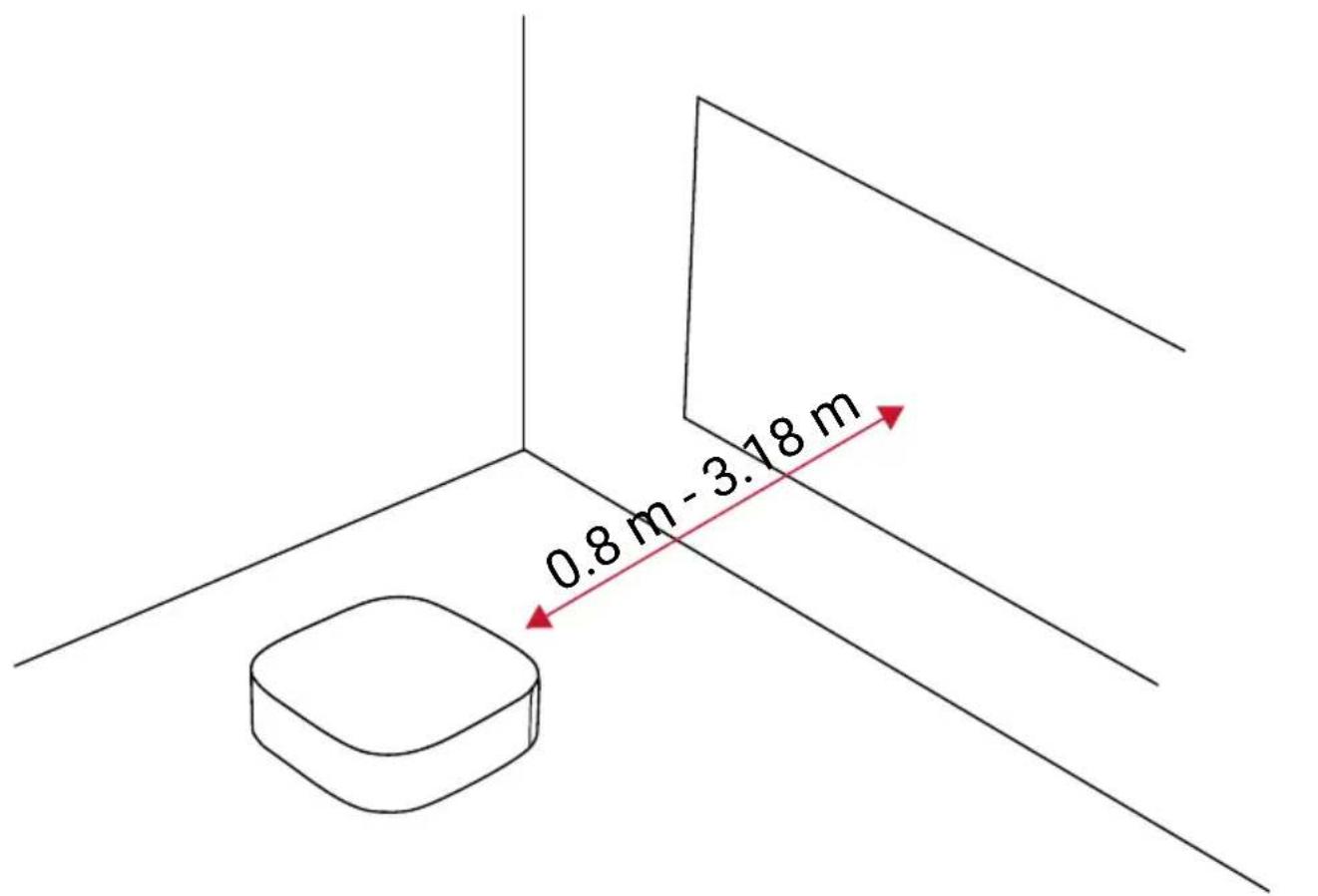
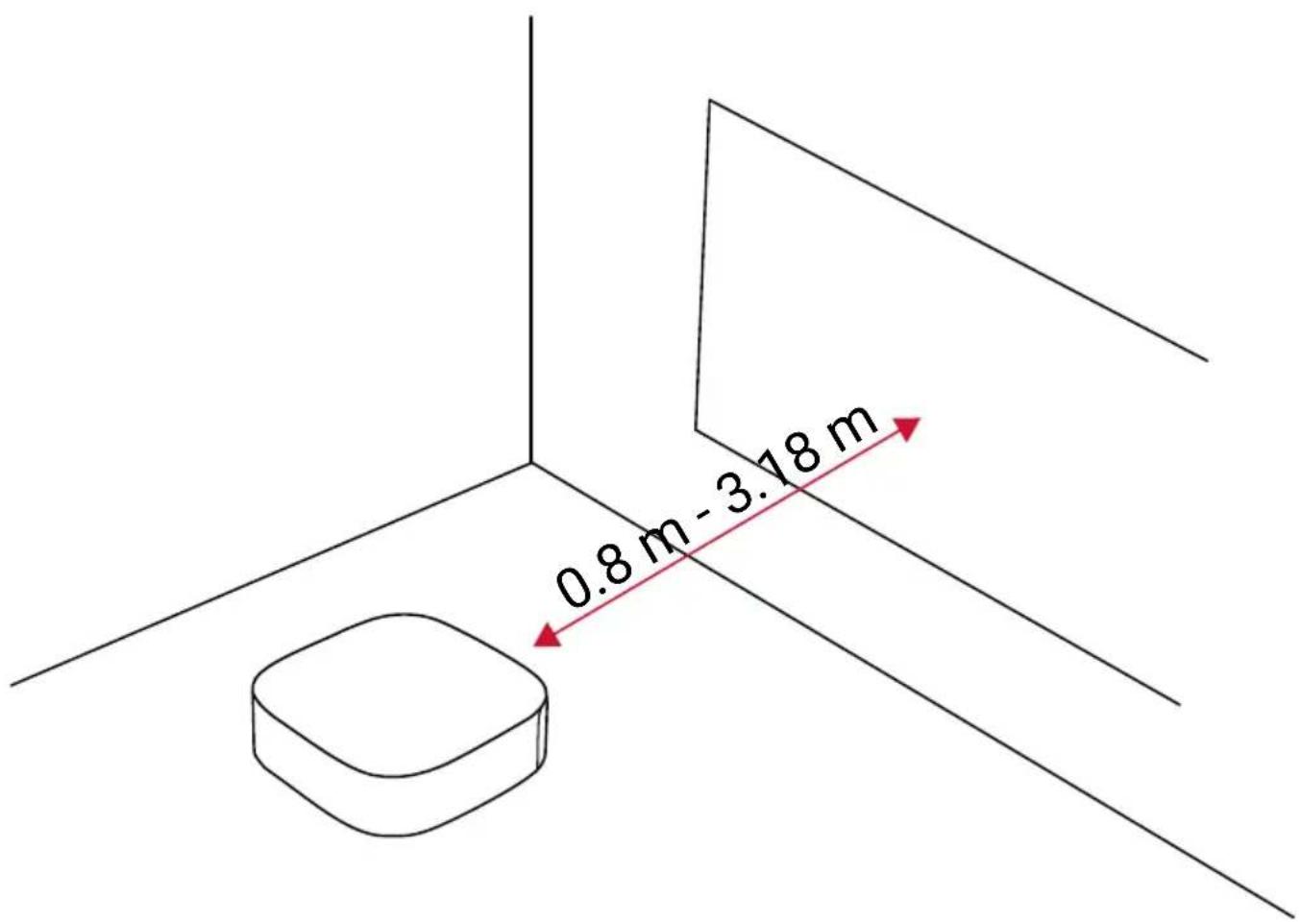
Place this device on a stable, flat surface, and squarely point it to face the projection surface. For best results, the projection surface should be white and flat. The distance between this device and the projection surface must be a minimum of 30 inches (0.8 meters) and a maximum of 120 inches (3.18 meters) to get a projection image from 30 to 120 inches.
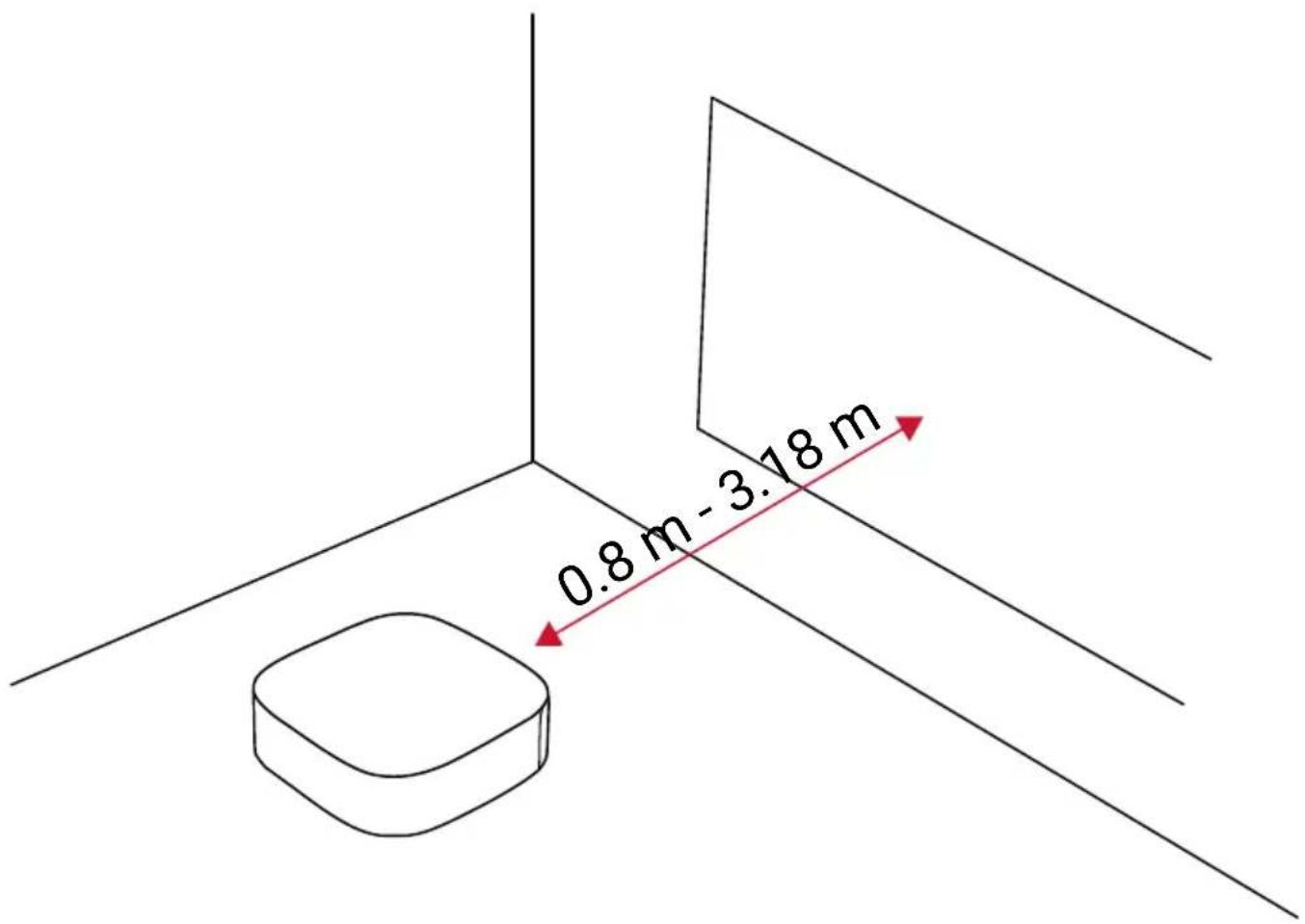
text_image
0.8 m - 3.18 m
- It is unnecessary to tilt it towards the projection surface. You can correct the projection image with the built-in keystone correction.
- The distance between the device and the projection surface determines the projection image size. For the best result, set the projector between 63 and 104 inches away.
- You can also mount your projector on the ceiling.
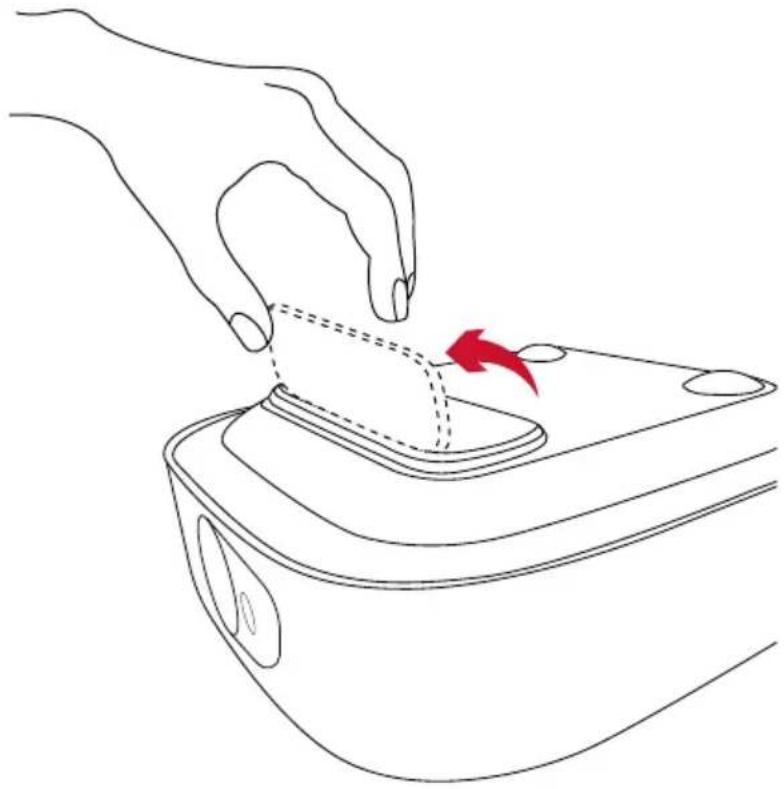
There is a nameplate on the back panel of Nebula Vega / Nebula Vega Portable. Open the nameplate to use it as a stand. After use, close the nameplate.
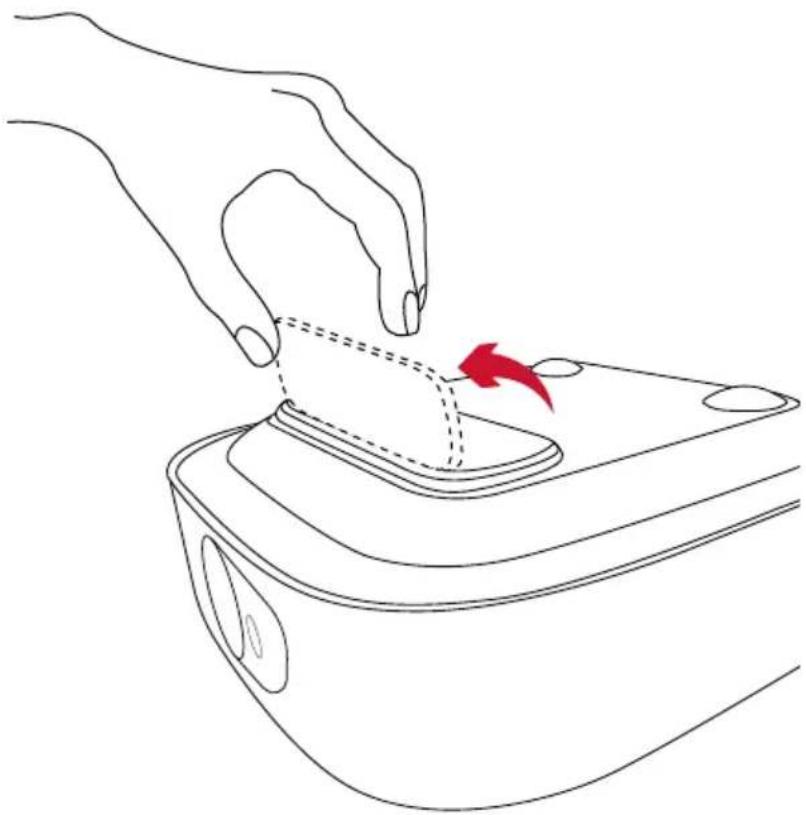
natural_image
Line drawing of a hand pressing down on a device with a red arrow indicating the motion (no text or symbols)2. Prepare the Remote Control
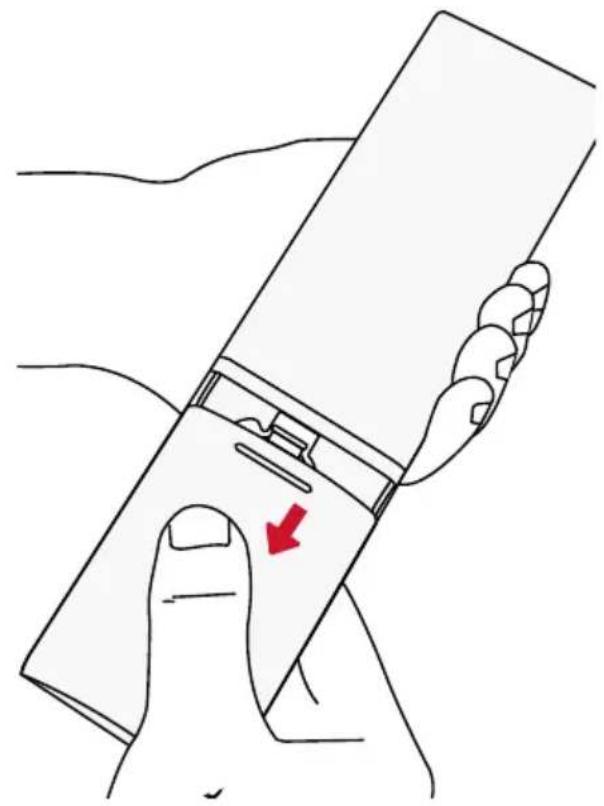
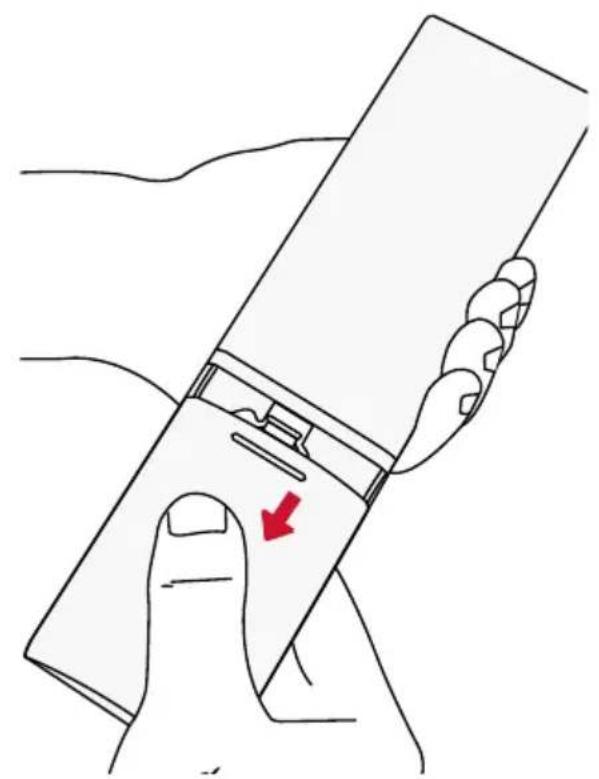
The remote control comes with two AAA batteries.
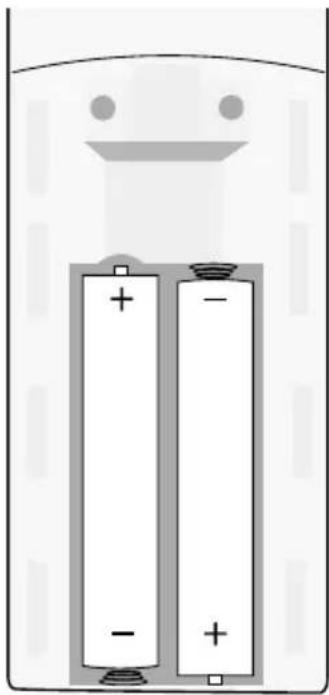
For first-time use, slide to open the battery compartment and install two AAA batteries.
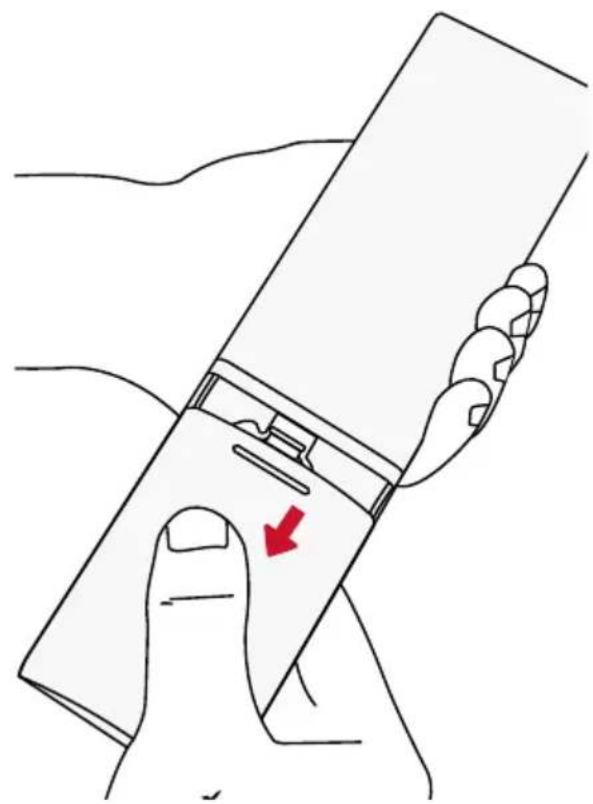
natural_image
Line drawing of a hand holding a smartphone with a red arrow pointing to the screen area (no text or symbols)To replace the battery, unlock and open the battery compartment, insert a new battery matching the polarity (+/-) as indicated, and then close and lock the battery compartment.
natural_image
Two white batteries with positive and negative charge indicators, placed in a battery-like container (no text or symbols)3. Get Started
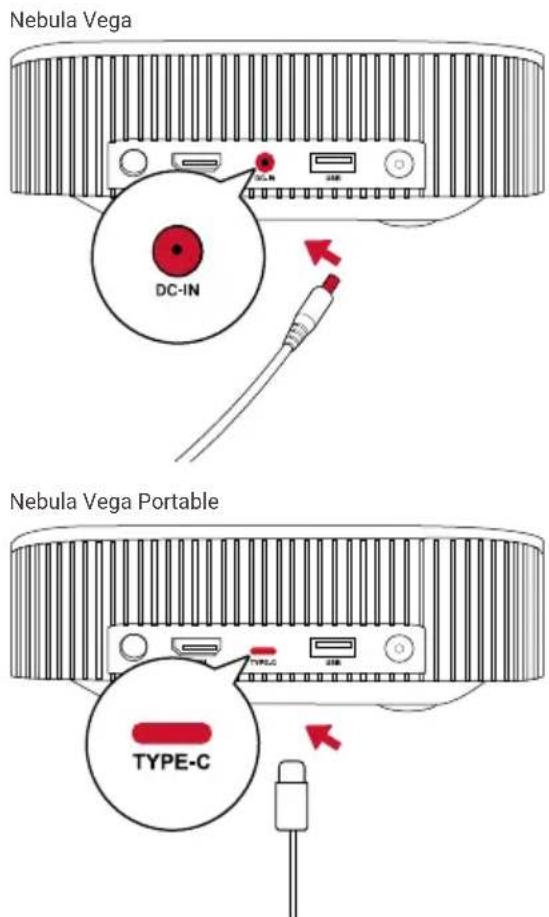
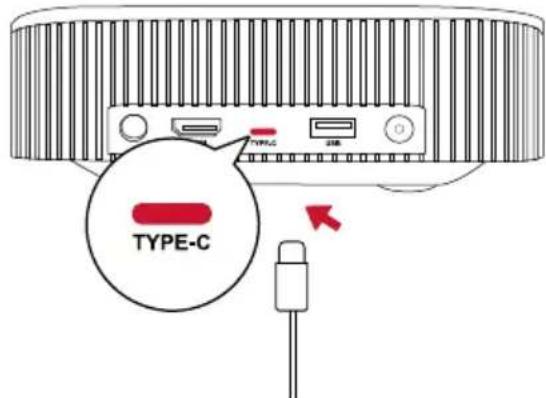
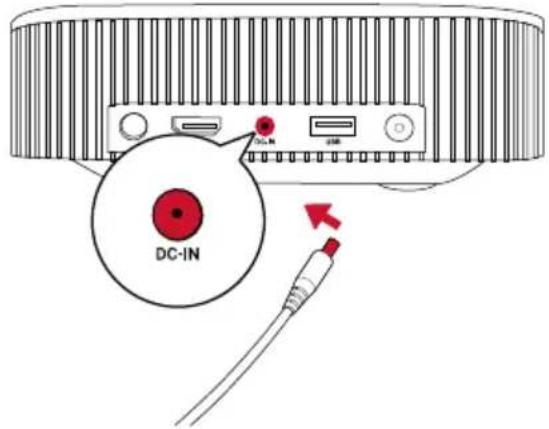
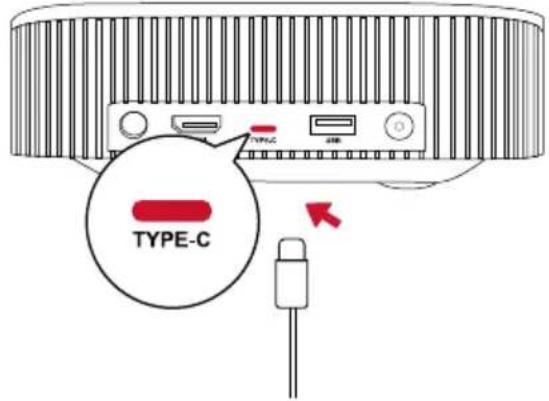
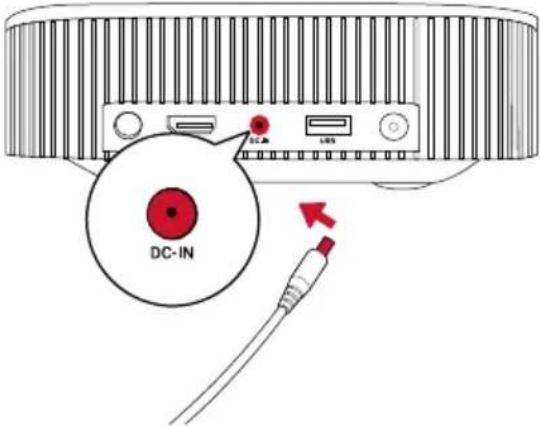
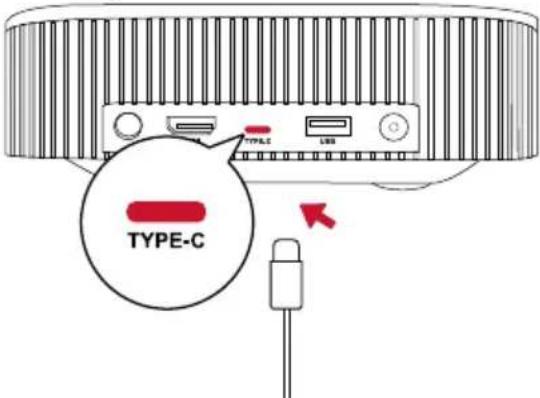
Connect Nebula Nebula Vega / Nebula Vega Portable to the power outlet by using the provided power adapter.
text_image
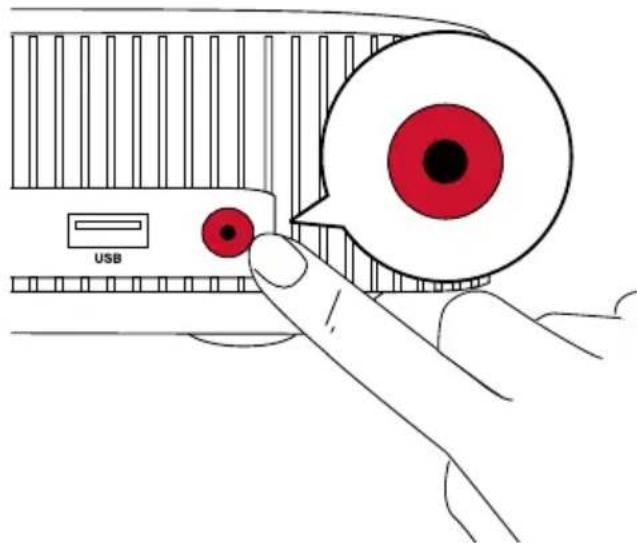
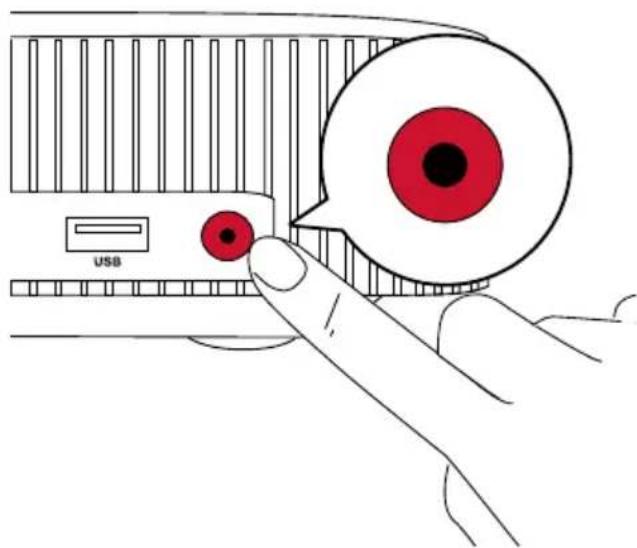
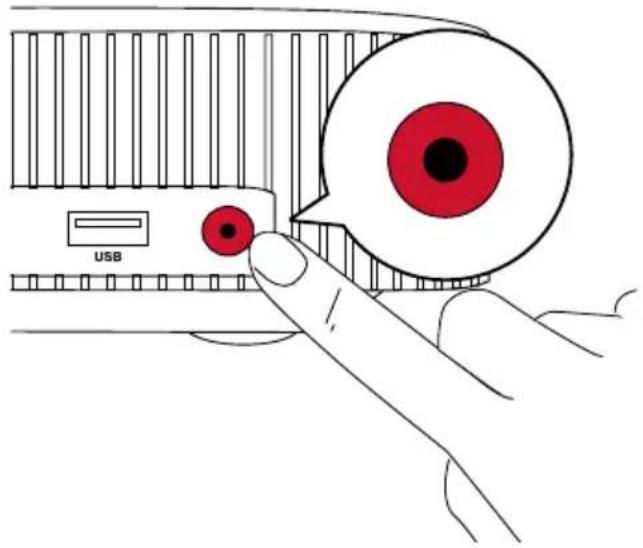
Nebula Vega DC-IN Nebula Vega Portable TYPE-CNebula Vega: Press Ⓞ to turn it on.
Nebula Vega Portable: Press and hold Ⓞ for 2s to turn it on.
text_image
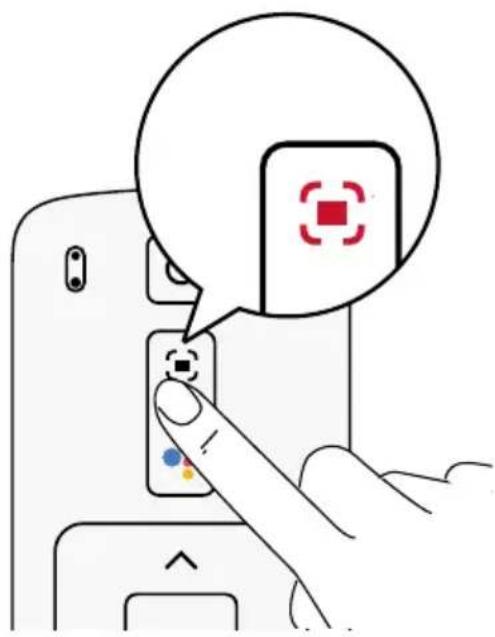
USBAngle the projector towards a suitable projection surface or wall. The built-in autofocus automatically adjusts the protector's image focus. Or you can press on the remote control to manually adjust the focus.
natural_image
Interior view of a modern office or presentation room with people viewing video screens (no visible text or symbols)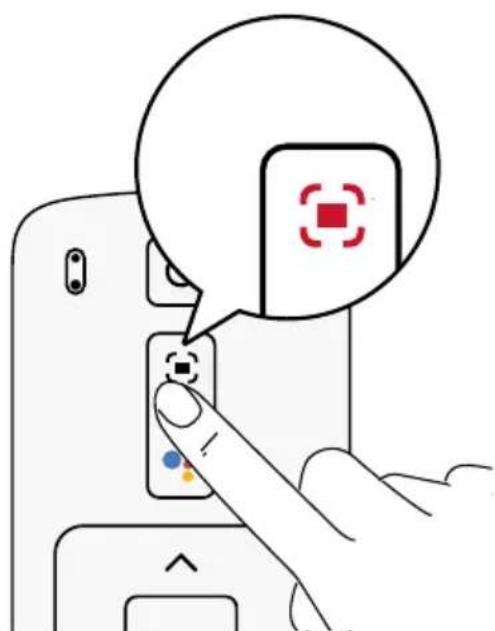
text_image
Diagram showing a finger pressing a button with a speech bubble containing a red square icon and a control symbol.When using for the first time, follow the on-screen instructions to complete the basic set-up.
Nebula Connect App
To easily control this device, we recommend downloading the Nebula Connect app. With this app, you can operate your mouse using your phone screen.
text_image
Download on the App Store GET IT ON Google Play Nebula Connect Nebula Connect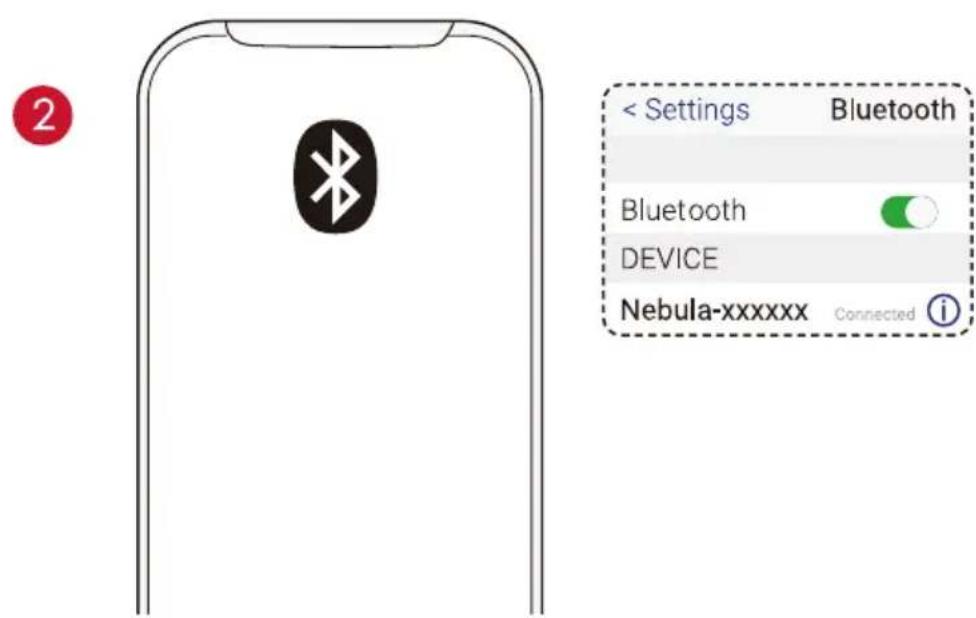
text_image
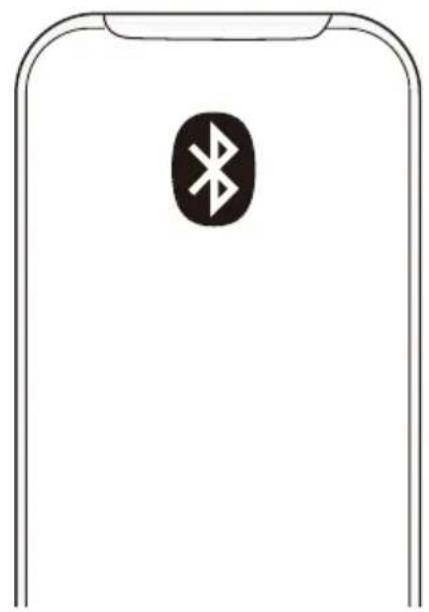
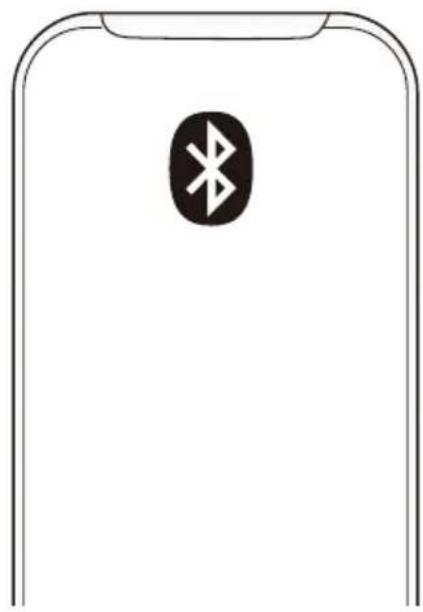
< Settings Bluetooth Bluetooth DEVICE Nebula-xxxxxx Connected iDownload the Nebula Connect app from the App Store (iOS devices) or Google Play (Android devices).
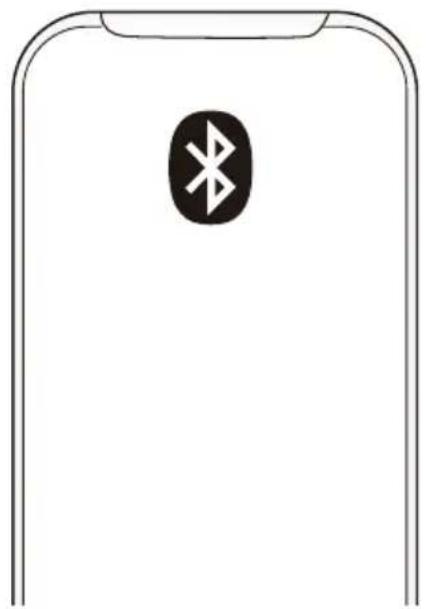
Enable Bluetooth on your smartphone and select [Nebula-XXXXXX-Vega] or [Nebula-XXXXXX-Vega P] as the device to be connected.
Open the Nebula Connect app and follow the on-screen instructions to complete the connection setup.
Powering the Nebula Vega / Nebula Vega Portable with Android TV™
Follow the on-screen instructions to complete the setup process.
Option 1. Quick setup
Android phone users can follow the instructions to quickly set up Android TV with your Android phone.
Option 2. Set up Nebula Vega / Nebula Vega Portable
For iOS users, follow the instructions to complete the process.
Skip the quick setup process.
Connect Nebula Vega / Nebula Vega Portable to the network.
Sign in with your Google account.
Your Nebula Vega / Nebula Vega Portable will be powered by Android TV after finishing the setup process.
Settings
Go through the setup process when you turn on Nebula Vega / Nebula Vega Portable for the first time.
1. Network
This device can be connected to the Internet via a wireless (Wi-Fi) connection.
On the home page, select ⚙ > [Network & Internet] and press □
Follow the on-screen instructions to complete the network connection.
2. Projector
On the home page, select ⚙ > [Projector Settings] and press ☐
| [Brightness] / [Image Mode] | [Brightness]: Adjust the brightness from 0 to 100% (for Nebula Vega) |
| [Image Mode]: Auto / Standard / Battery Mode (for Nebula Vega Portable) |
[Color Temperature] [Normal] / [Cool] / [Warm]
| [Wall Color] | [White] / [Red] / [Orange] / [Blue] / [Green] / [Cyan] / [Yellow] / [Purple] |
| [3D] | Press Enter to select 3D effect.Option: [2D] / [3D (Side by Side)] / [3D (Over-Under)] |
| [Keystone Correction] | Enable / disable auto keystone correction. |
| [Zoom] | [70-100%] |
| [Auto Focus Correction] | Press Enter to run auto focus correction.Set to On by default |
| [HDR] | Enable / disable HDR effect. |
| [Projector Mode] | [Auto]: Automatically detects whether the projector is inverted.Automatically switch between these options. |
| [Front Projection]: The projector is located in front of the projection surface. | |
| [Rear Projection]: The projector is located behind the projection surface. | |
| [Inverted Front Projection]: The projector is hanging from the ceiling in an upside down position. The image is rotated by 180 degrees. | |
| [Inverted Rear Projection]: The projector is hanging from the ceiling in an upside down position behind the projection surface. The image is rotated by 180 degrees and horizontally mirrored. |
3. Audio
Audio format can be changed via the Audio Settings.
On the home page, select ⚙ > [Audio Settings] and and press ☐
Auto change digital audio format
Enable or disable automatic digital audio format change between PCM and RAW
4. HDMI
Choose HDMI as the input source. You can also change CEC settings.
On the home page, select ⚙ > [HDMI] and and press ☐
CEC Settings
Press Enter to change CEC settings.
HDMI
When an HDMI device is connected, the projector will start playing content on the HDMI devices.
HDMI 2.0
On / Off
5. Bluetooth Speaker
You can use Nebula Vega / Nebula Vega Portable as a standalone Bluetooth speaker. To switch to Bluetooth speaker mode, you have two options:
A. Press to switch to Bluetooth speaker mode.
B. On the home page, select ⚙> [Bluetooth Speaker Mode] and press □
Enable Bluetooth on your smartphone and select [Nebula Vega] or [Nebula Vega P] as the device to be connected.
Follow the on-screen instructions to complete Bluetooth connection or quit the Bluetooth speaker mode.
6. Apps
On the home page, select ⚙ > [Apps], and press □
Select an app and check the current version, open or force stop, check the storage used, clear data or cache, or enable or disable notifications and permissions.
7. Others
On the home page, select ✿ to find more setting options.
[Device Preferences]
[About] Check the device information and firmware version.
[Date & time] Manually set the date and time.
[Language] Select the on-screen language.
[Keyboard] Select the keyboard language type.
[Sound] Select the audio output source and sound format.
[Storage] Check the device storage and removable storage.
[Reset] All data from your device's internal storage will be erased.
[Date & Time]
[Automatic date & time] Enable or disable automatic date and time.
[Set date] Manually set date.
[Set time] Manually set time.
[Set time zone] Set a time zone.
[Use 24-hour format] Enable or disable 24-hour format.
Using Nebula Vega / Nebula Vega Portable
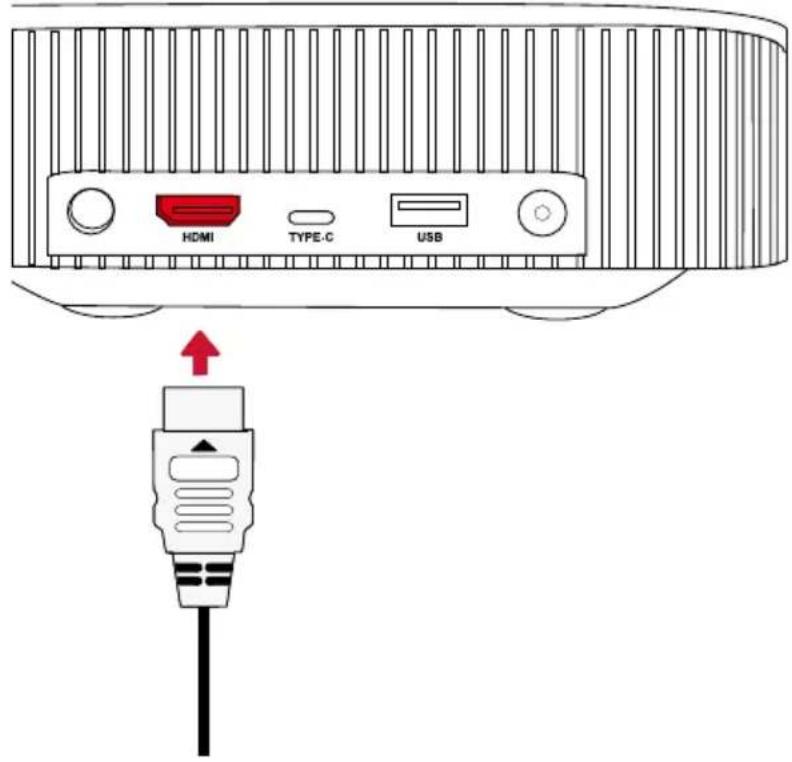
1. Play from HDMI Playback Devices
Nebula Vega / Nebula Vega Portable can be connected to various HDMI playback devices such as a TV box, TV stick, DVD player, set-top box (STB), gaming consoles or other devices.
To play from HDMI playback devices:
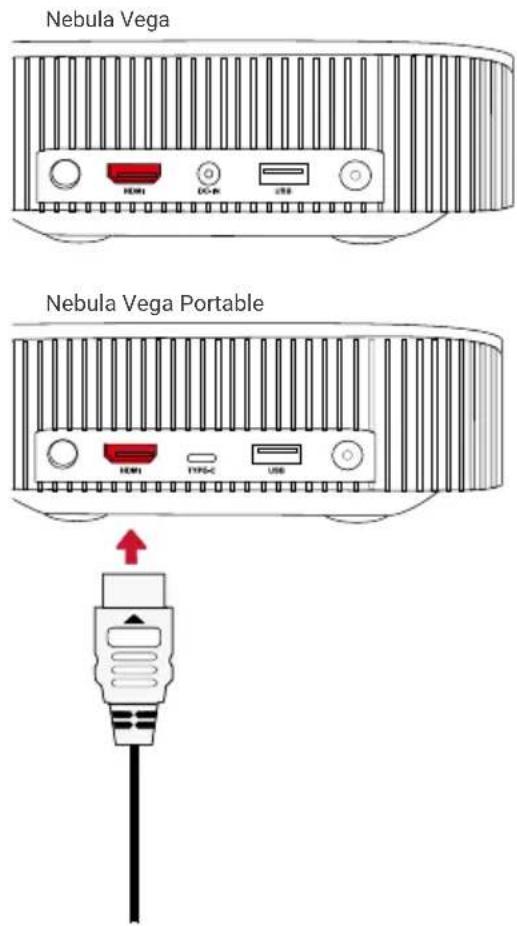
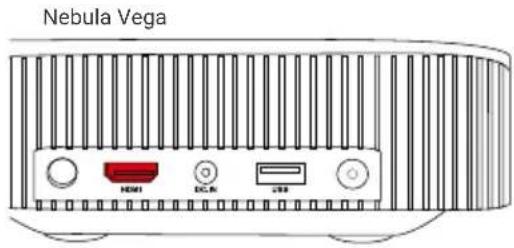
Connect Nebula Vega / Nebula Vega Portable to an HDMI playback device with an HDMI cable (not included).
- It will automatically start HDMI playback once connected to an HDMI playback device.
text_image
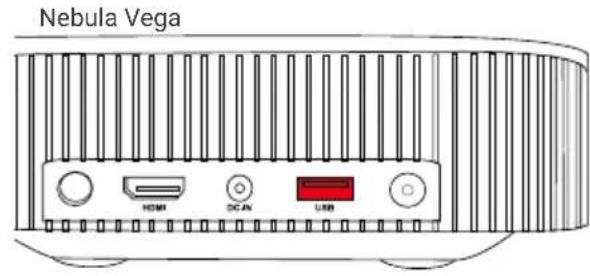
Nebula Vega Nebula Vega Portable2. Play from a USB Drive
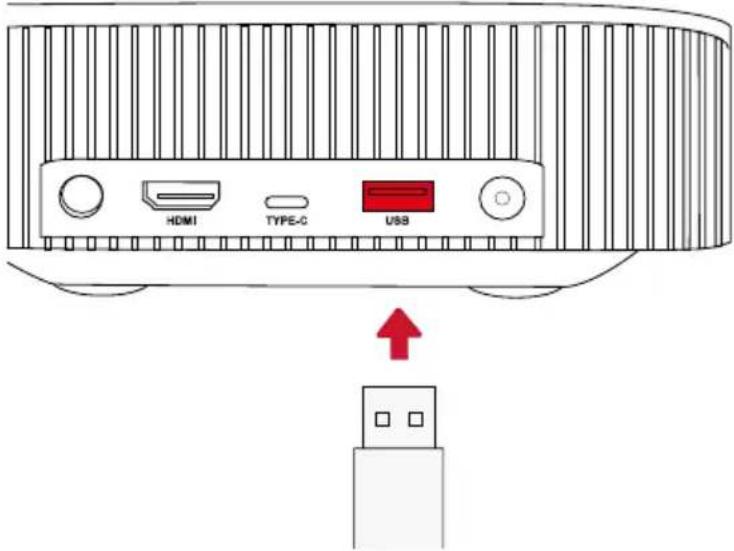
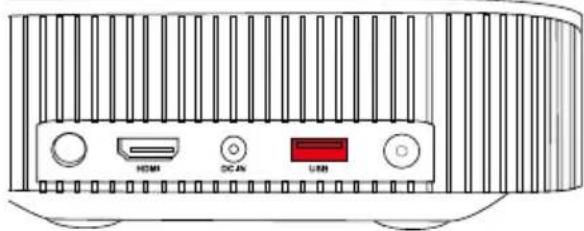
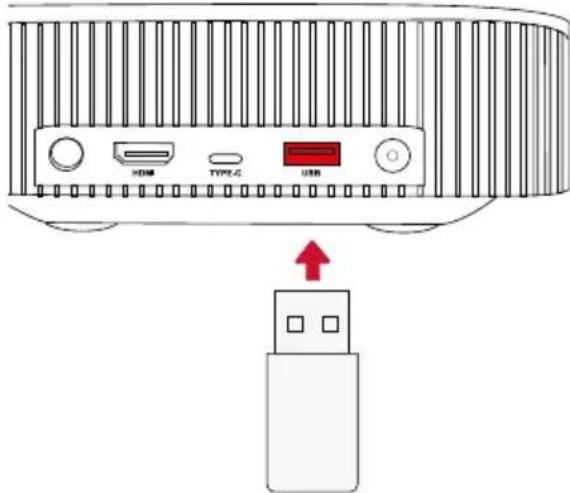
With Nebula Vega / Nebula Vega Portable, you can enjoy music, video, and pictures that are stored on a USB drive.
text_image
Nebula Vega HDMI OCA USB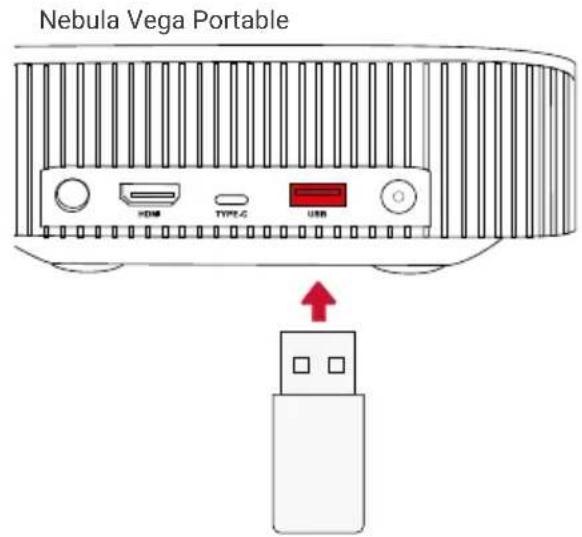
text_image
Nebula Vega Portable HDMI TYPE 4 USBTo play from a USB drive:
Download the ES File Explorer from Google Play.
Insert a USB drive into the USB port.
- The USB folder will appear on the ES File Explorer.
Select videos or photos from the USB drive that you want to play, and press □
Press □ to stop playback.
3. Connect Bluetooth Accessories
You can connect Bluetooth devices to Nebula Vega / Nebula Vega Portable.
On the home page, select ⚙ > [Remotes & Accessories] and press □
Select Add accessories.
- This projector will begin searching for accessories.
Pair your projector with the device to be connected.
Follow the on-screen instructions to complete the Bluetooth connection.
Note: Before pairing your Bluetooth devices, make sure the remote control and your projector are in pairing mode.
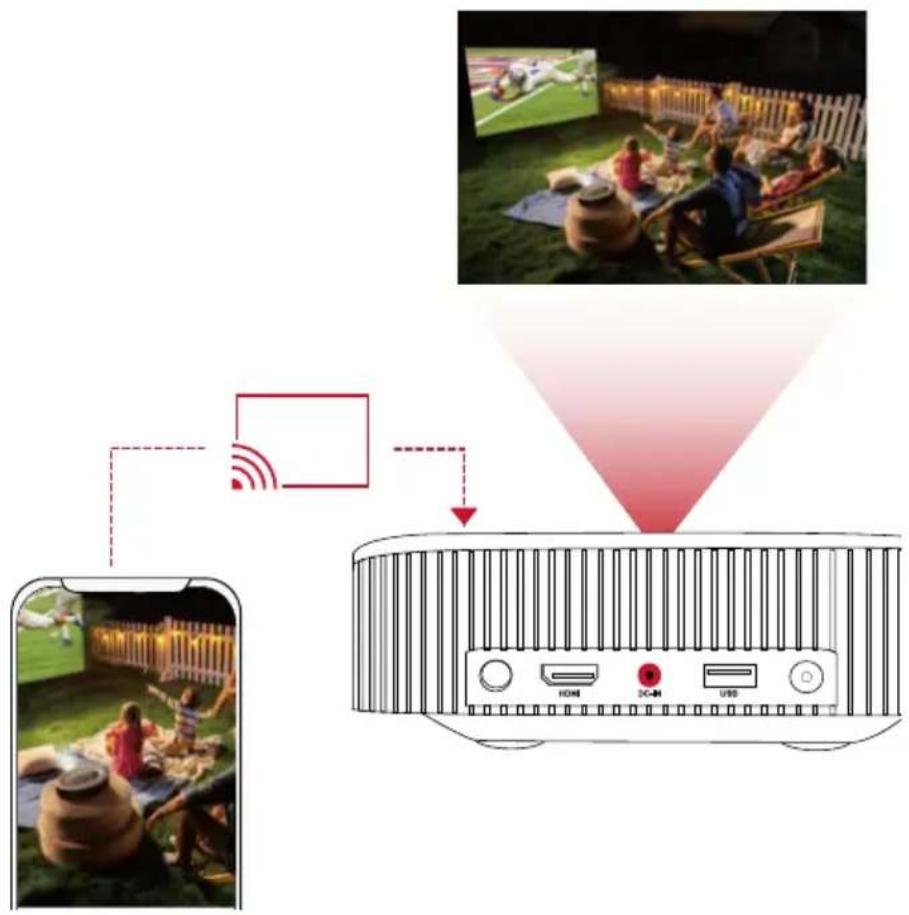
4. Use Chromecast™ Built-in
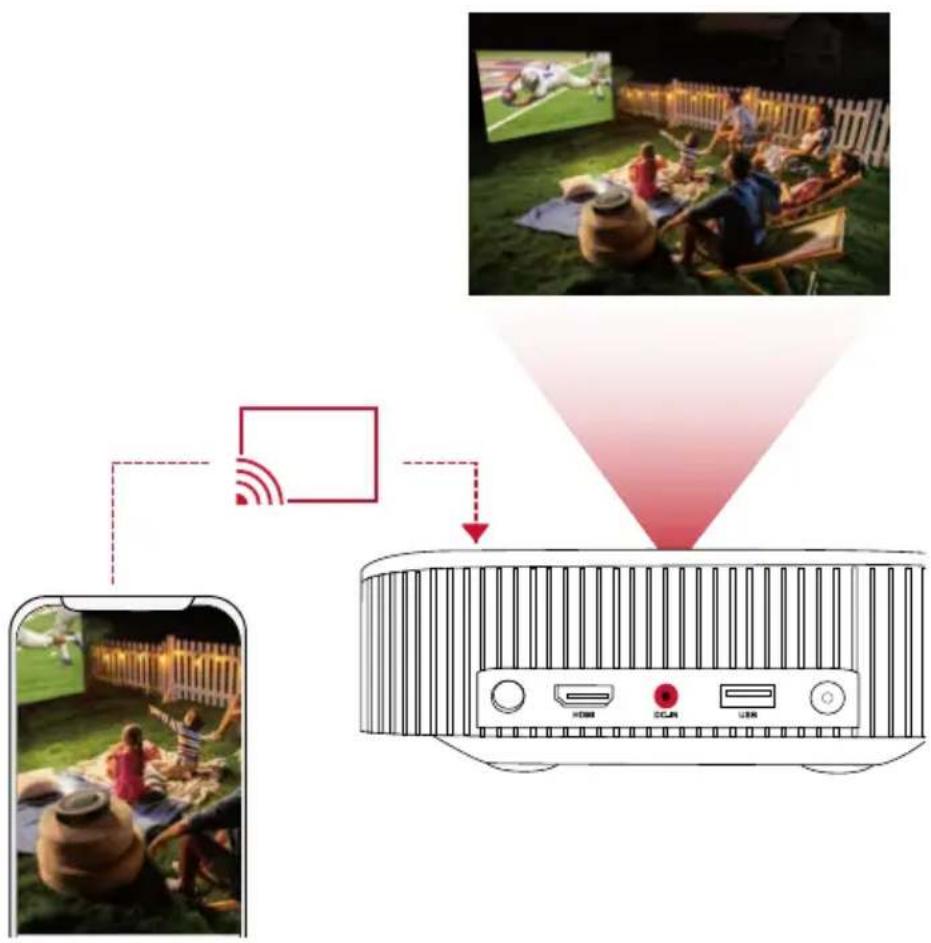
You can wirelessly cast photos, videos, and music from your phone or computer right to your Nebula Vega / Nebula Vega Portable.
Play a YouTube video clip on your phone and then tap the cast icon video screen.
on the
Select the device "D2120" or "D2121" you want to cast to.
- This projector will mirror the screen of the connected phone or computer.
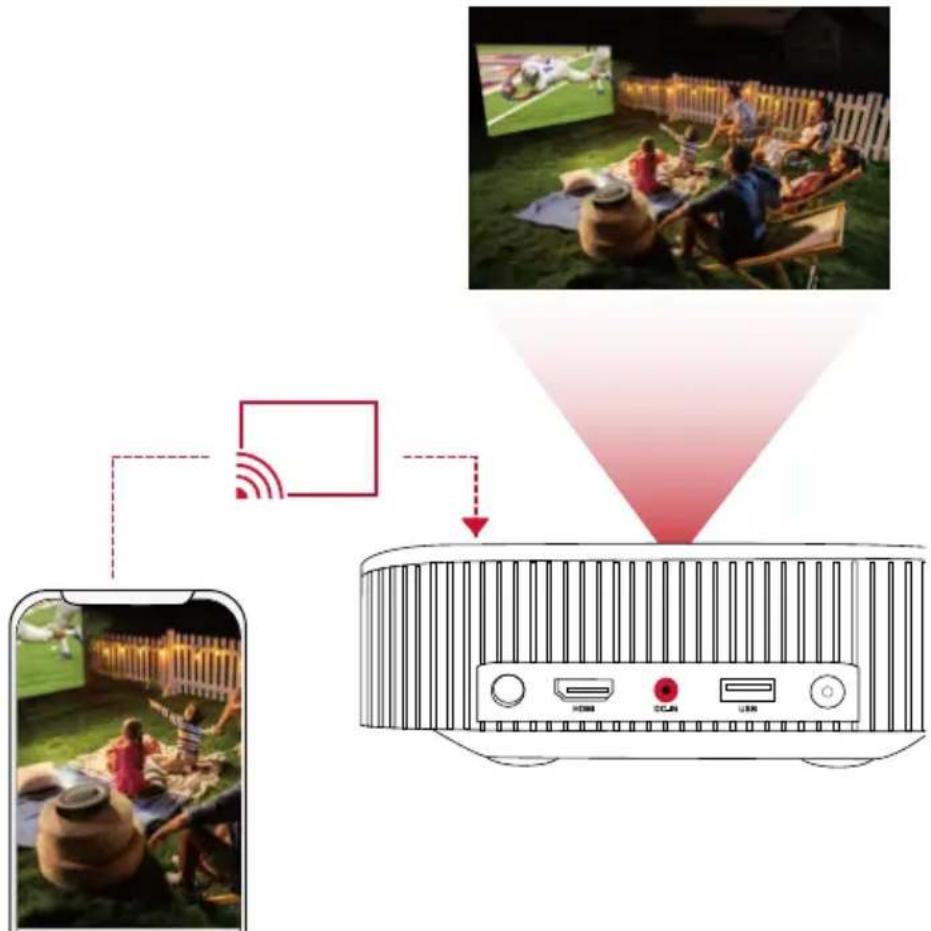
text_image
Diagram illustrating a smart TV setup with a smartphone, a device labeled 'TV 1000', and a photo of people enjoying food in the background.
- Make sure Nebula Vega / Nebula Vega Portable and your phone are connected to the same wireless network.
- Certain content may be unavailable to be casted due to copyright restrictions. In this case, you can stream the content via the same app installed in your Nebula Vega / Nebula Vega Portable.
5. Enjoy Google Features
Nebula Vega / Nebula Vega Portable also supports Google features. Once connected to a wireless network, you can access online services, enjoy movies, music and pictures, and browse online. Aside from the pre-installed apps, you can also install any other apps from Google Play, and talk to the Google Assistant to do certain tasks.
To talk to the Google Assistant:
Make sure you've followed the steps in the section "Connect Bluetooth Accessories" to connect your remote control to Nebula Vega / Nebula Vega Portable. Once connected, the LED indicator on the remote control turns solid red.
Press ● on the remote control to talk to the Google Assistant.

Specifications and design are subject to change without notice.
Nebula Vega: Nebula Vega Portable:
Power supply: 19V---3A
Power consumption: < 57W
Standby power consumption: < 0.5W
Display technology: FHD 1920 × 1080p DLP
Light source: RGB LED
Projection image size: 30-120 inch
Resolution: 1920 × 1080p
Brightness: 500 ANSI Lumens
Contrast ratio: 1000:1
Throw ratio: 1.2
Throw distance: 0.8m to 3.18m
CPU: Quad-core ARM Cortex-A55
OS: Android TV 9.0
RAM: 2GB DDR
ROM: 8GB eMMC
Speaker drivers: 4W × 2
Wi-Fi: IEEE802.11a/b/g/n/ac Dual
Frequency 2.4G/5G
Bluetooth version: V4.2
USB file system: FAT32 / NTFS / exFAT
Recommended ambient: 41°F to 95°F / 5°C to 35°C
Relative humidity: 15% \~ 85% (non-condensing)
Storage temperature and humidity: < 149°F / 65°C, < 90% humidity
Dimensions (H*D): 192.25 × 192 × 58.65
mm / 7.6 × 7.6 × 2.3 inch
Weight: 1.1 kg / 38.8 oz
Power supply: 20V = 3.25A
Power consumption: < 65W
Standby power consumption: < 0.5W
Display technology: FHD 1920 × 1080p DLP
Light source: RGB LED
Projection image size: 30-120 inch
Resolution: 1920 × 1080p
Brightness: 500 ANSI Lumens
Contrast ratio: 1000:1
Throw ratio: 1.2
Throw distance: 0.8m to 3.18m
CPU: Quad-core ARM Cortex-A55
OS: Android TV 9.0
RAM: 2GB DDR
ROM: 8GB eMMC
Speaker drivers: 4W × 2
Wi-Fi: IEEE802.11a/b/g/n/ac Dual
Frequency 2.4G/5G
Bluetooth version: V4.2
USB file system: FAT32 / NTFS / exFAT
Recommended ambient: 41°F to 95°F / 5°C to 35°C
Relative humidity: 15% \~ 85% (non-condensing)
Storage temperature and humidity: < 149°F / 65°C, < 90% humidity
Dimensions (H*D): 192.25 × 192 × 58.65
mm / 7.6 × 7.6 × 2.3 inch
Weight: 1.4 kg / 49.4 oz
Fail to turn on the projector with the remote control?
- Press Ⓞ on the projector to turn it on.
The remote control doesn't work?
- Make sure the battery is already installed in the remote control.
- Replace the batteries.
Blurred image?
- Move the projector slightly.
- Press ☐ on the remote control. The projector will adjust the focus automatically.
- When the focus-adjusting icon shows on your projector, use the navigation button to manually adjust the focus.
Cannot connect to a Wi-Fi network?
- Refresh the list of available networks and retry.
- Reboot the wireless router or the device and retry.
How do I update the firmware?
- When a new version is detected you will be asked to reboot and update.

This product complies with the radio interference requirements of the European Community.
Declaration of Conformity
Hereby, Anker Innovations Limited. declares that this device is in compliance with the essential requirements and other relevant provisions of Directive 2014/53/EU. For the Declaration of Conformity, visit the Web site www.SeeNebula.com
RF exposure information for D2120/D2121: The Maximum Permissible Exposure (MPE) level has been calculated based on a distance of d=20 cm between the device and the human body. To maintain compliance with RF exposure requirements, use products that maintain a 20cm distance between the device and human body.
CAUTION RISK OF EXPLOSION IF BATTERY IS REPLACED BY AN INCORRECT TYPE. DISPOSE OF USED BATTERIES ACCORDING TO THE INSTRUCTIONS
Wifi Operating Frequency Range (for D2120/D2121): 2412\~2472 MHz(2.4G);5150\~5250 MHz, 5725\~5850 MHz (5G)
Wifi Max Output Power (for D2120): 18.47 dBm(ERIP for 2.4G); 20.95 dBm(ERIP for 5G) Wifi Max Output Power (for D2121): 18.22 dBm(ERIP for 2.4G); 21.22 dBm(ERIP for 5G) BT Operating Frequency Range (for D2120/D2121): 2402\~2480 MHz
BT Max Output Power: 8.63 dBm (ERIP for D2120); 7.38 dBm (ERIP for D2121)
| AT | BE | BG | HR | CY | CZ | DK | |
| EE | FI | FR | DE | EL | HU | IE | |
| IT | LV | LT | LU | MT | NL | PL | |
| PT | RO | SK | SI | ES | SE | UK |
RF warning statement for D0413:
The device has been evaluated to meet general RF exposure requirements. The device can be used in portable exposure conditions without restriction.
Bluetooth Operating Frequency Range (for D0413): 2402\~2480 MHz;
Bluetooth Max Output Power (for D0413): 4.346 dBm
Anker Technology (UK) Ltd | Suite B, Fairgate House, 205 Kings Road, Tyseley, Birmingham, B11 2AA, United Kingdom

Your product is designed and manufactured with high quality materials and components, which can be recycled and reused.
This symbol means the product must not be discarded as household waste, and should be delivered to an appropriate collection facility for recycling. Proper disposal and recycling helps protect natural resources, human health and the environment. For more information on disposal and recycling of this product, contact your local municipality, disposal service, or the shop where you bought this product.
FCC Notice
This device complies with Part 15 of the FCC Rules. Operation is subject to the following two conditions: (1) this device may not cause harmful interference, and (2) this device must accept any interference received, including interference that may cause undesired operation.
Warning: Changes or modifications not expressly approved by the party responsible for compliance could void the user's authority to operate the equipment.
Note: This equipment has been tested and found to comply with the limits for a Class B digital device, pursuant to Part 15 of the FCC Rules. These limits are designed to provide reasonable protection against harmful interference in a residential installation.
This equipment generates uses and can radiate radio frequency energy and, if not installed and used in accordance with the instructions, may cause harmful interference to radio communications. However, there is no guarantee that interference will not occur in a particular installation. If this equipment does cause harmful interference to radio or television reception, which can be determined by turning the equipment off and on, the user is encouraged to try to correct the interference by one or more of the following measures: (1) Reorient or relocate the receiving antenna. (2) Increase the separation between the equipment and receiver. (3) Connect the equipment into an outlet on a circuit different from that to which the receiver is connected. (4) Consult the dealer or an experienced radio/TV technician for help.
FCC Radiation Exposure Statement:
The device has been evaluated to meet general RF exposure requirements. The device can be used in fixed/mobile exposure condition. The min separation distance is 20cm.
Notice: Shielded cables
All connections to other computing devices must be made using shielded cables to maintain compliance with FCC regulations.
The following importer is the responsible party
Company Name: Fantasia Trading LLC
Address: 5350 Ontario Mills Pkwy, Suite 100, Ontario, CA 91764
Telephone:1-800-988-7973
HDMI, and HDMI logo and High-Definition Multimedia Interface are trademarks or registered trademarks of HDMI licensing LLC in the United States and other countries.

Bluetooth®
The Bluetooth® word mark and logos are registered trademarks owned by Bluetooth SIG, Inc.
Other trademarks and trade names are those of their respective owners.

Dolby Audio
SPEAKER SYSTEM
Manufactured under license from Dolby Laboratories. Dolby, Dolby Audio, Pro Logic, and the double-D symbol are trademarks of Dolby Laboratories.
Android, Android TV, and Google Assistant
Google, Android, Android TV, Chromecast and other related marks and logos are trademarks of Google LLC.
Warranty
30-Day Money-Back Guarantee for Any Reason
You may return your undamaged product and packaging within 30 days of purchase to receive a FULL REFUND for any reason. If the reason for return isn't quality-related, the customer must pay for the return shipping..
12-Month Warranty for Quality-Related Issues
Nebula's products are warranted to be free from material and workmanship defects for 12 months from the date of purchase. Within this period, Nebula will provide a replacement and cover any return shipping costs for products that fail in normal use.
Please Note: Any provided shipping labels must be used within 20 days from the date they're issued by Nebula Support.
Inhaltsverzeichnis
Nebula Vega / Nebula Vega Portable
Nebula Vega Portable
text_image
Diagram of a rear panel with labeled ports and numbered indicators for identification3. Unterseite
text_image
Diagram of a device with three labeled components: top, middle, and bottom.1 Typenschild Vega / Vega Portable
Nebula Vega Portable:
natural_image
Line drawing of a hand pressing down on a device with a red arrow indicating the motion (no text or symbols)natural_image
Line drawing of a hand holding a smartphone with a red arrow pointing to the screen area (no text or symbols)natural_image
Two batteries with positive and negative charge indicators, no text or symbols present3. Erste Schritte
text_image
Nebula Vega DC-IN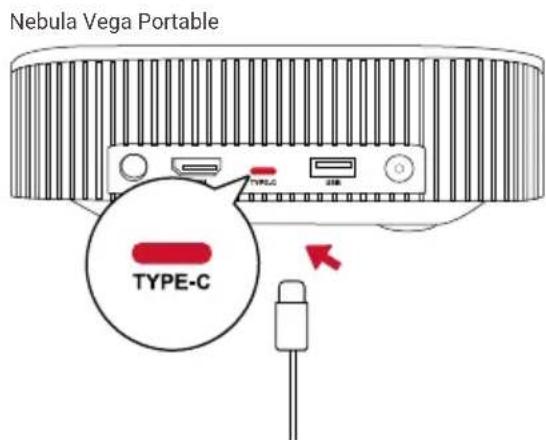
text_image
Nebula Vega Portable TYPE-Cnatural_image
Illustration of a hand inserting a red eye into a USB drive (no text or symbols)natural_image
Interior view of a modern office or presentation room with multiple video screens and people viewing; no visible text or symbols on screens or surroundings.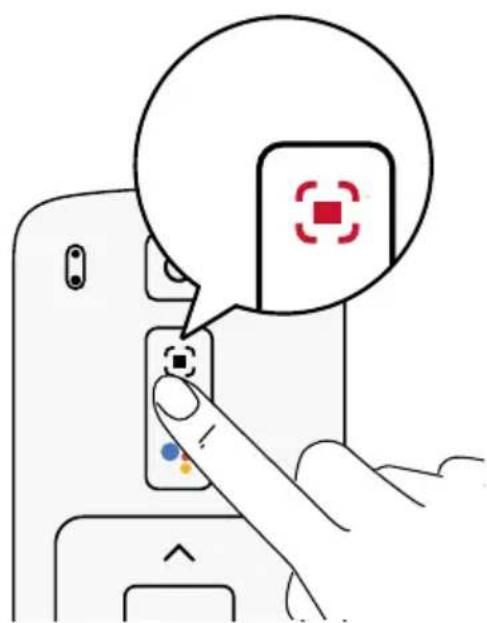
text_image
Diagram showing a finger pressing a button with a speech bubble containing a red square icon, likely indicating a notification or alert.text_image
Download on the App Store GETTON Google Play Nebula Connect Nebula Connect NEBULA < Settings Bluetooth Bluetooth DEVICE Nebula-xxxxxx Connectedtext_image
Nebula Vega Nebula Vega Portabletext_image
Nebula Vega Nebula Vega Portabletext_image
Diagram illustrating a smart TV setup with a speaker, a screen showing a person playing with a guitar, and a red signal beam projecting the speaker to a person.
Nebula Vega/
Nebula Vega
Portable
Adaptador Mando a
distancia
2 pilas AAA GUÊA DE INICIO
RçPIDO
Descripción general
1. Vista frontal
text_image
① ②Nebula Vega Portable
text_image
4 3 2 13. Vista inferior
text_image
Diagram of a device with three labeled components: top, middle, and bottom.Nebula Vega Portable:
natural_image
Line drawing of a hand pressing down on a device component with a red arrow indicating the motion (no text or symbols)natural_image
Line drawing of a hand holding a smartphone with a red arrow pointing to the screen area (no text or symbols)natural_image
Diagram of two batteries with positive and negative terminals, no text or symbols present3. Primeros pasos
text_image
Nebula Vega DC-IN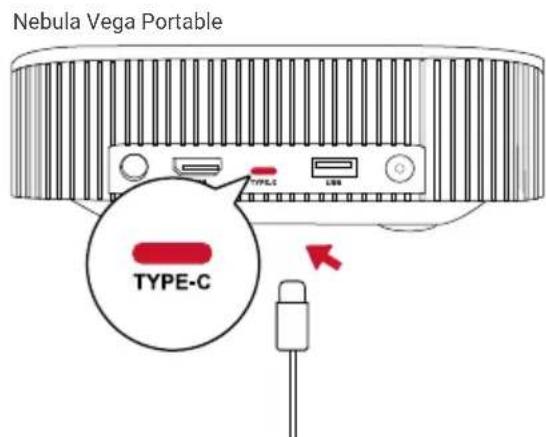
text_image
Nebula Vega Portable TYPE-Cnatural_image
Interior view of a modern office or presentation room with multiple video screens and people in the foreground (no visible text or symbols)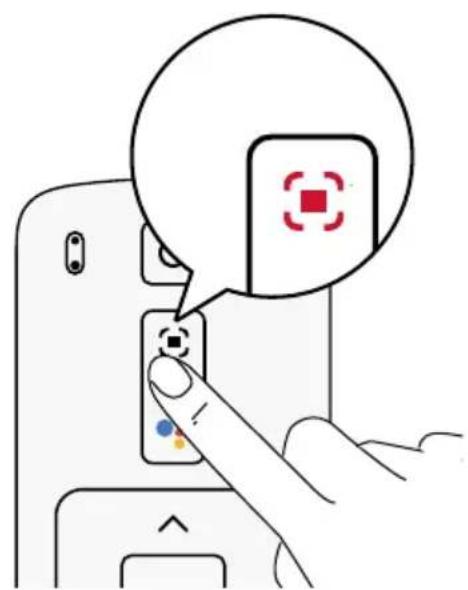
text_image
Diagram showing a finger pressing a button with a speech bubble containing a red square icon and control symbols.text_image
Download on the App Store GETTON Google Play Nebula Connect Nebula Connect < Settings Bluetooth Bluetooth DEVICE Nebula-xxxxxx Connected itext_image
Nebula Vega Nebula Vega Portabletext_image
Nebula Vega Nebula Vega Portableflowchart
graph TD
    A["Person holding drum"] -->|Signal| B["TV device"]
    C["Person playing in the background"] -->|Signal| B
    D["Person playing in the background"] -->|Signal| B

Application Nebula Connect 71
Paramètres 72
Nebula Vega/
Nebula Vega
Portable
Nebula Vega Portable
text_image
Diagram of a device rear panel with labeled ports and numbered indicators for ports 1, 2, 3, and 4.3. Vue de dessous
text_image
Diagram of a device with three labeled components: top, middle, and bottom.1 Plaque Vega/Vega Portable
natural_image
Line drawing of a hand pressing down on a device with a red arrow indicating the motion (no text or symbols)natural_image
Line drawing of a hand holding a smartphone with a red arrow pointing to the screen area (no text or symbols)natural_image
Two white batteries with positive and negative charge indicators, placed inside a container (no text or symbols)3. Pour démarrer
text_image
Nebula Vega DC-IN Nebula Vega Portable TYPE-Cnatural_image
Interior view of a modern office or presentation room with multiple video screens and people in the foreground (no visible text or symbols)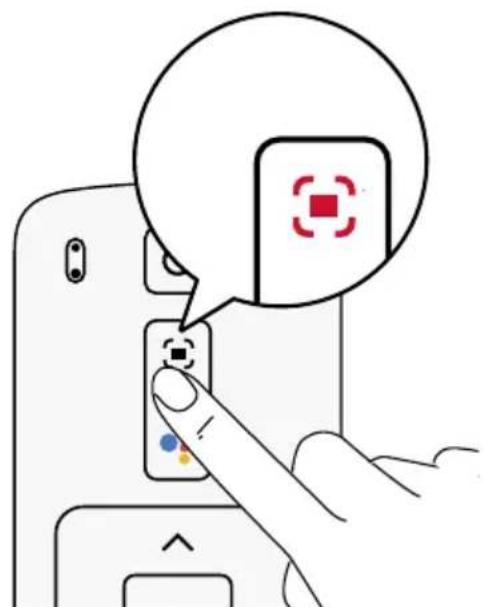
text_image
Diagram showing a finger pressing a button with a speech bubble containing a red square icon and a control symbol.Application Nebula Connect
text_image
Download on the App Store GETTON Google Play Nebula Connect Nebula Connect NEBULA < Settings Bluetooth Bluetooth DEVICE Nebula-xxxxxx Connectedtext_image
Nebula Vega Nebula Vega Portabletext_image
Nebula Vega Nebula Vega PortableApp Nebula Connect 90
Impostazioni 91
text_image
Diagram of a device with three labeled parts: top, middle, and bottom, marked with red numbers 1, 2, and 3.Nebula Vega portatile:
natural_image
Line drawing of a hand pressing down on a device component with a red arrow indicating the motion (no text or symbols)natural_image
Line drawing of a hand holding a smartphone with a red arrow pointing to the screen area (no text or symbols)natural_image
Diagram of two batteries with positive and negative terminals, no text or symbols present3. Per iniziare
text_image
Nebula Vega DC-IN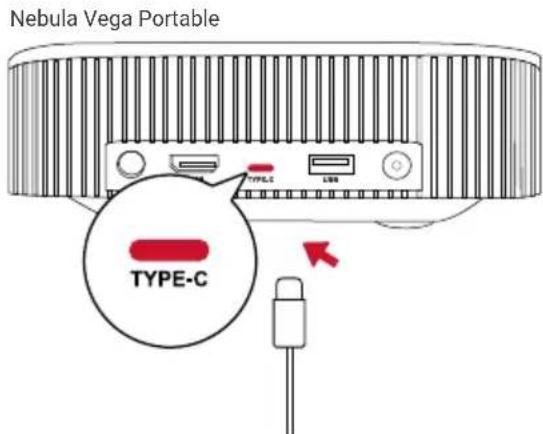
text_image
Nebula Vega Portable TYPE-C TYPE-Cnatural_image
Interior view of a modern meeting room with people watching a large screen displaying video feeds (no visible text or symbols)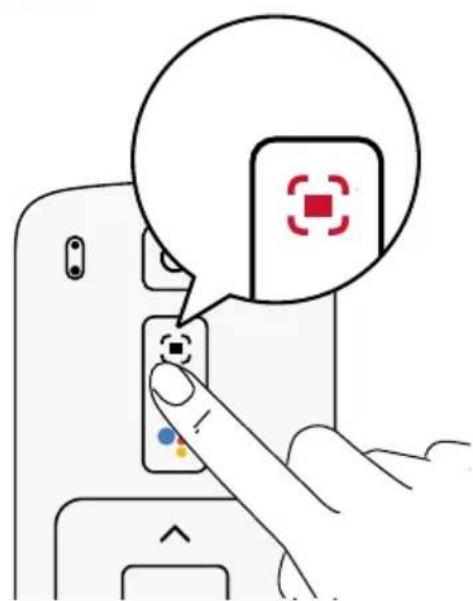
text_image
Diagram showing a finger pressing a button on a device with a speech bubble containing a red square icon and control symbols.text_image
Nebula Vega Nebula Vega Portabletext_image
Nebula Vega Nebula Vega Portableflowchart
graph TD
    A["Smartphone"] -->|Wireless Signal| B["TV"]
    C["Outdoor Play with Players"] -->|Signal Transmission| B
    D["Home Screen"] -->|Signal Transmission| B

Nebula Vega / Nebula Vega Portable
Adapter
Afstandsbediening
2 x AAA-batterijen SNELSTARTGIDS
Overzicht
1. Vooraanzicht
text_image
① ②Nebula Vega Portable
text_image
Diagram of a TV rear panel with labeled ports and connectors, marked with numbered labels 1 to 4.3. Onderaanzicht
text_image
Diagram of a device with three labeled components: top, middle, and bottom.Nebula Vega Portable:
natural_image
Line drawing of a hand pressing down on a device with a red arrow indicating the motion (no text or symbols)natural_image
Line drawing of a hand holding a smartphone with a red arrow pointing to the screen area (no text or symbols)natural_image
Two white batteries with positive and negative charge indicators, placed inside a transparent container (no text or symbols)3. Aan de slag
text_image
Nebula Vega DC-IN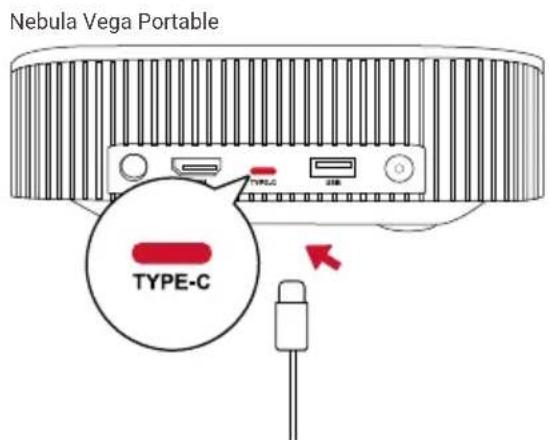
text_image
Nebula Vega Portable TYPE-Cnatural_image
Interior view of a modern office or presentation room with people viewing video screens (no visible text or symbols)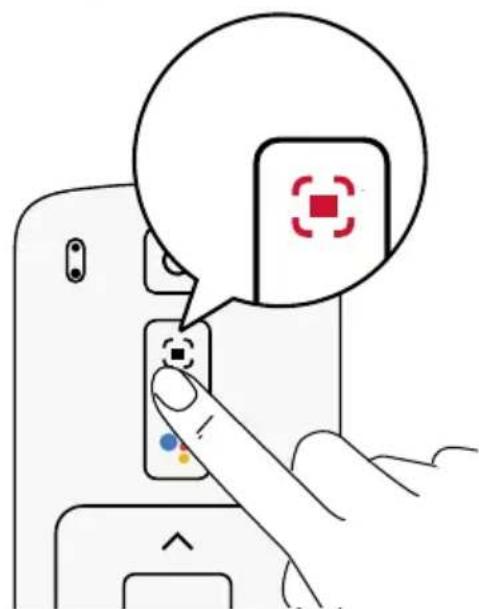
text_image
Diagram showing a finger pressing a button with a speech bubble containing a red square icon and a control symbol.text_image
Download on the App Store GET IT ON Google Play Nebula Connect Nebula Connect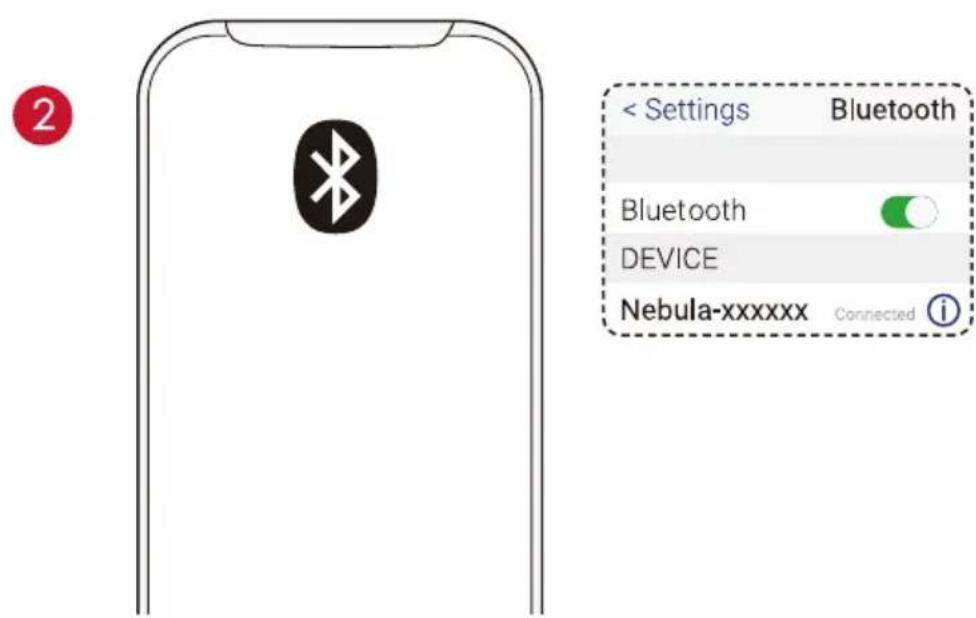
text_image
< Settings Bluetooth Bluetooth DEVICE Nebula-xxxxxx Connected iDownload de Nebula Connect-app uit de App Store (iOS-apparaten) of Google Play (Android-apparaten).
text_image
Nebula Vega Nebula Vega Portabletext_image
Nebula Vega Nebula Vega PortableVoeding: 19 V --- 3 A
Voeding: 20 V = 3,25 A
text_image
Diagram of a device with three labeled components: top, middle, and bottom.natural_image
Line drawing of a hand pressing down on a device component with a red arrow indicating the motion (no text or symbols)2. Preparar o Telecomando
natural_image
Line drawing of a hand holding a smartphone with a red arrow pointing to the screen area (no text or symbols present)natural_image
Diagram of two batteries with positive and negative terminals, no text or symbols present3. Começar
text_image
Nebula Vega DC-IN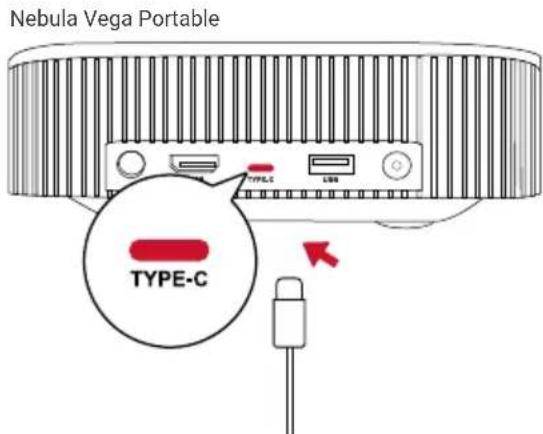
text_image
Nebula Vega Portable TYPE-C TYPE-Cnatural_image
Interior view of a video conference room with multiple screens and a person viewing; no visible text or symbols on screens or walls.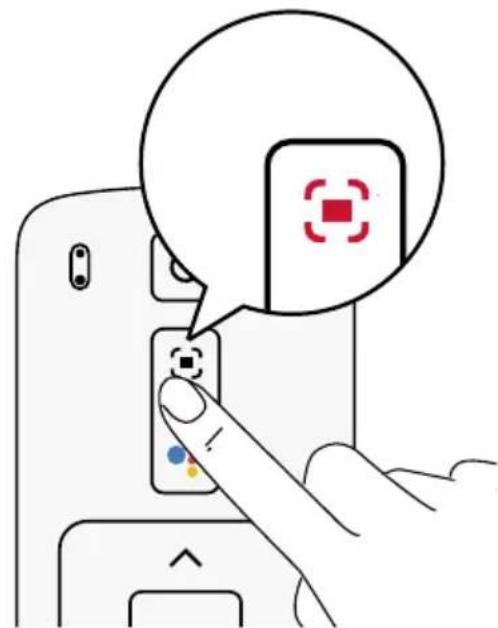
text_image
Diagram showing a finger pressing a button with a speech bubble containing a red square icon, likely indicating a notification or action.text_image
Download on the App Store GETTON Google Play Nebula Connect Nebula Connect NEBULA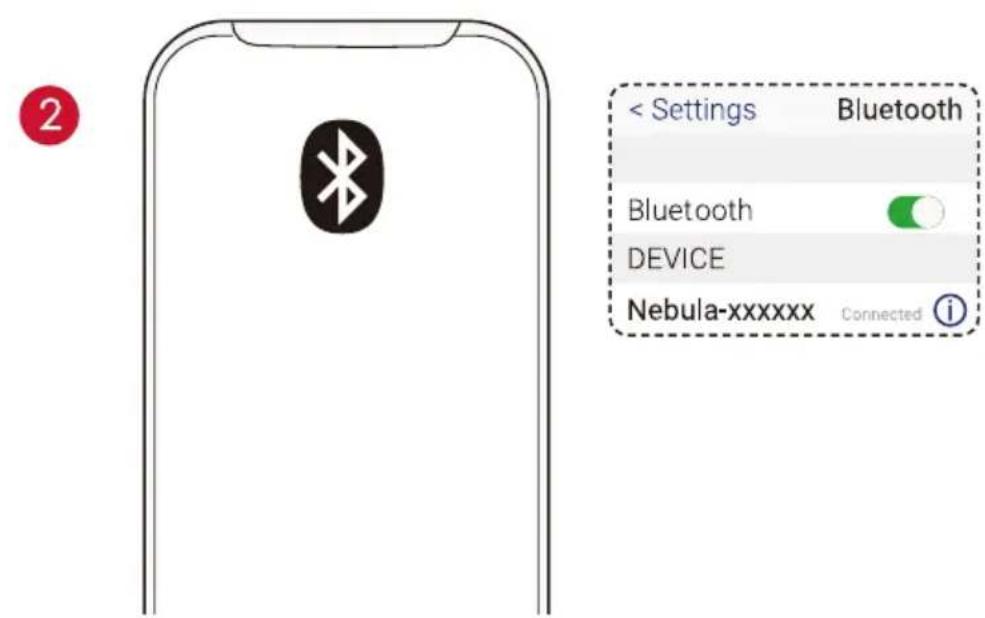
text_image
< Settings Bluetooth Bluetooth DEVICE Nebula-xxxxxx Connected itext_image
Nebula Vega Nebula Vega Portabletext_image
Nebula Vega Nebula Vega Portabletext_image
Diagram illustrating a smart home control system with smartphone, outdoor play area, and TV device connected to a red indicator light.
Nebula Vega
Portable
1.
text_image
① ② ① ②2.
Nebula Vega Portable
text_image
1 2 3 4 11
2
3
4
text_image
1 2 3 1 2 3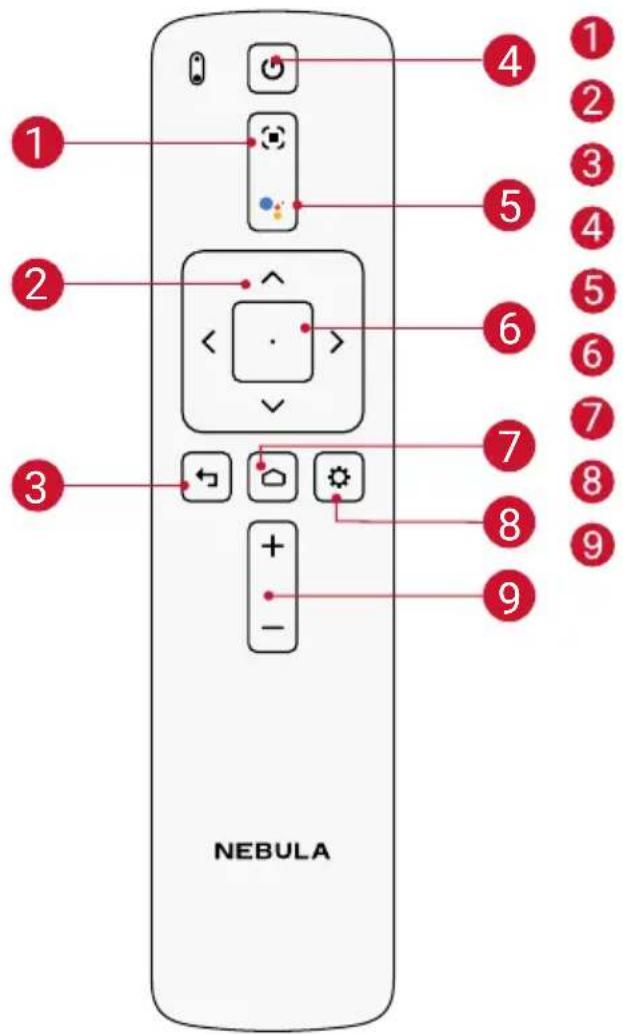
text_image
NEBULA5.


1.
text_image
0.8 m - 3.18 m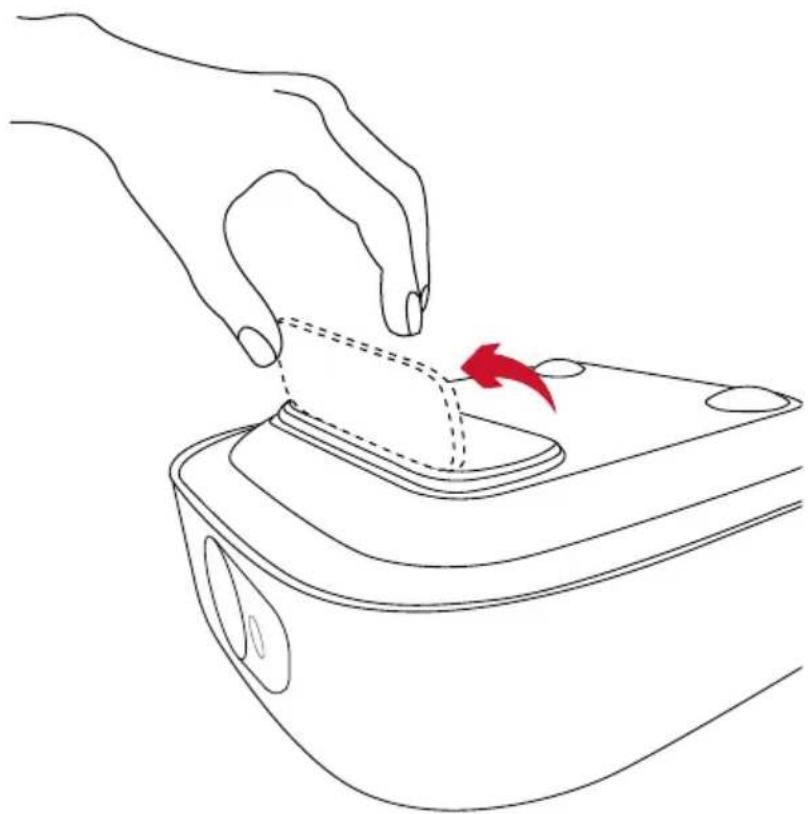
natural_image
Line drawing of a hand pressing down on a device with a red arrow indicating the motion (no text or symbols)2.
natural_image
Line drawing of a hand holding a smartphone with a red arrow pointing to the screen area (no text or symbols)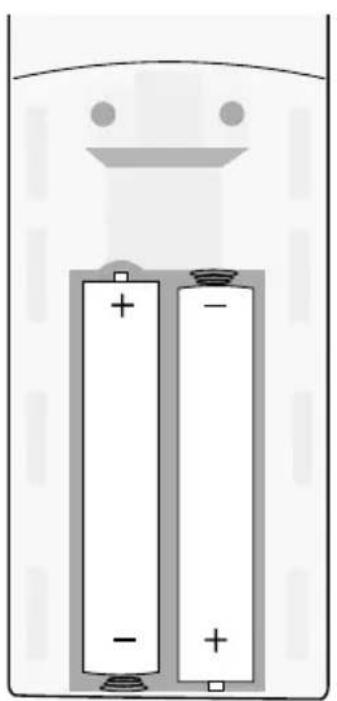
natural_image
Diagram of two batteries with positive and negative terminals, no text or symbols present3.
Nebula Vega Portable
text_image
TYPE-C
text_image
USB
natural_image
Interior view of a modern office or presentation room with people viewing multiple video screens (no visible text or symbols)
text_image
Diagram showing a finger pressing a button on a device, with a speech bubble containing a red square icon and a control symbol.1


text_image
Nebula Connect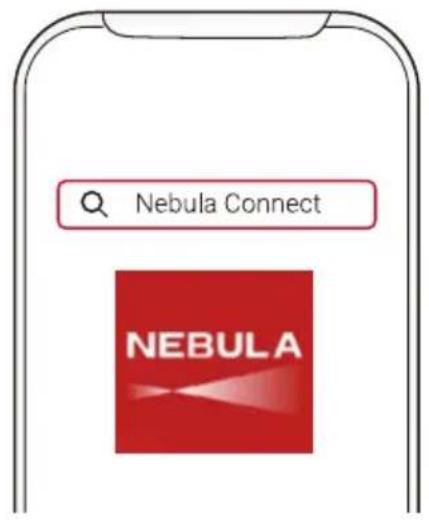
text_image
Nebula Connect NEBULA2
natural_image
Simple line drawing of a smartphone front panel with a black Bluetooth symbol on the screen (no text or labels)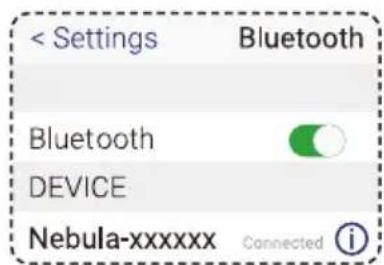
text_image
< Settings Bluetooth Bluetooth DEVICE Nebula-xxxxxx Connected ⓘVega
1.


2.



3.


4.


5.



6.


7.

1.
Nebula Vega Portable
text_image
HDMI TYPE-C USB- USB
Nebula Vega Portable
text_image
HDMI TYPE-C USB

3. Bluetooth


4. Chromecast™ Built-in

flowchart
graph TD
    A["Smart TV Device"] -->|Signal| B["TV Lamp"]
    B --> C["Outdoor Play with Players"]
    D["Smart TV Smartphone"] -->|Signal| A
    style A fill:#f9f,stroke:#333
    style B fill:#ccf,stroke:#333
    style C fill:#cfc,stroke:#333

5. Google


三



Bluetooth®

Dolby
AUDIO
Vega
Vega

Nebula Vega /
Nebula Vega
Portable
1.
text_image
① ② ① ②2.
Nebula Vega
text_image
Diagram of a computer rear panel with labeled ports and numbered annotations1
2
3
4
Nebula Vega Portable
text_image
4 3 2 1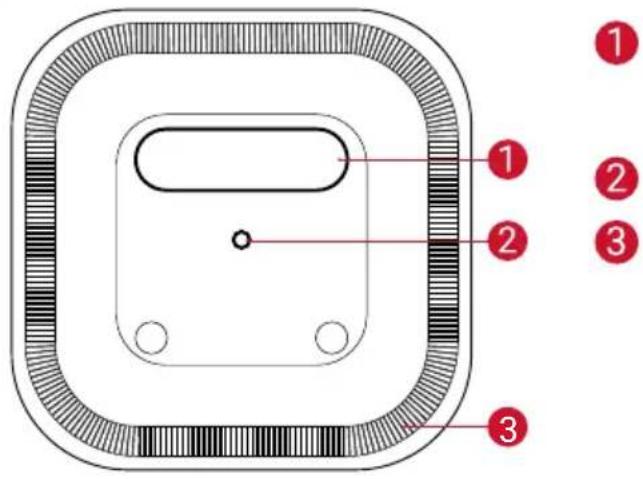
text_image
1 2 3 1 2 3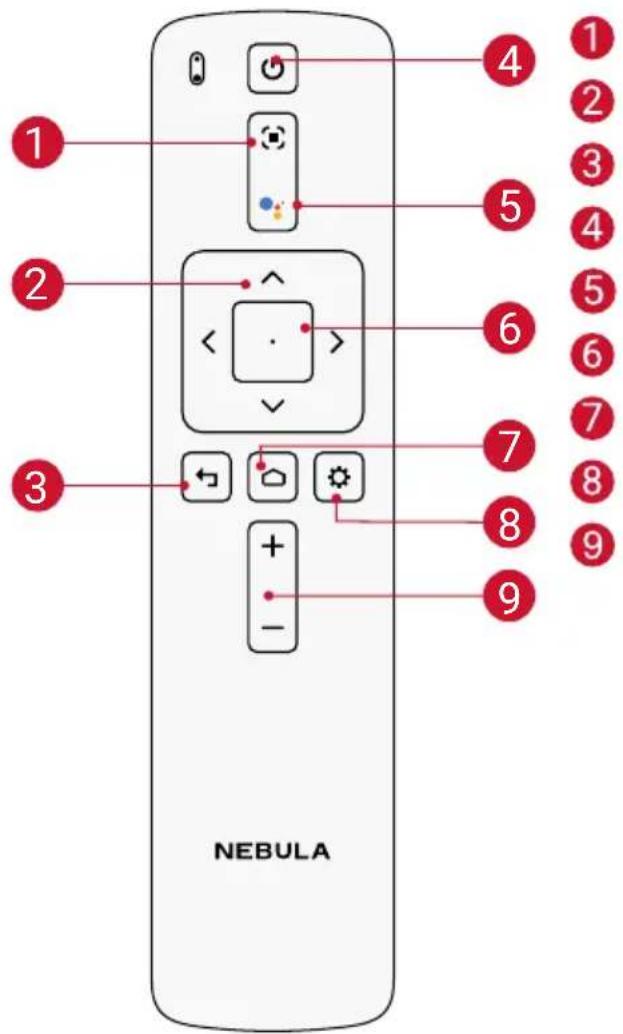
text_image
NEBULA3.
Nebula :

Nebula Portable:


1.
text_image
0.8 m - 3.18 m
natural_image
Line drawing of a hand pressing down on a device with a red arrow indicating the motion (no text or symbols)2.
natural_image
Line drawing of a hand holding a smartphone with a red arrow pointing to the screen (no text or symbols)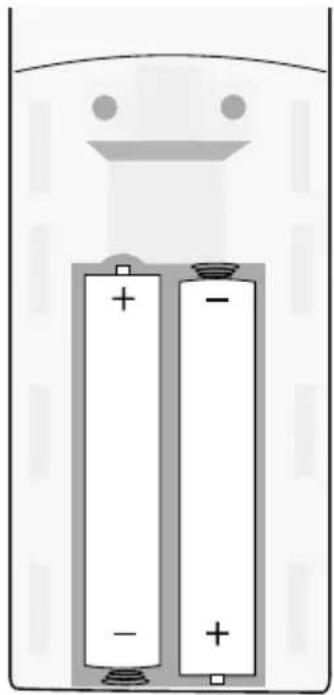
natural_image
Two white batteries with positive and negative charge markings inside a container (no text or symbols)3.
Nebula Vega
text_image
DC-INNebula Vega Portable
text_image
TYPE-C
text_image
USB
natural_image
Interior view of a modern room with people viewing a large screen displaying multiple video thumbnails (no visible text or symbols)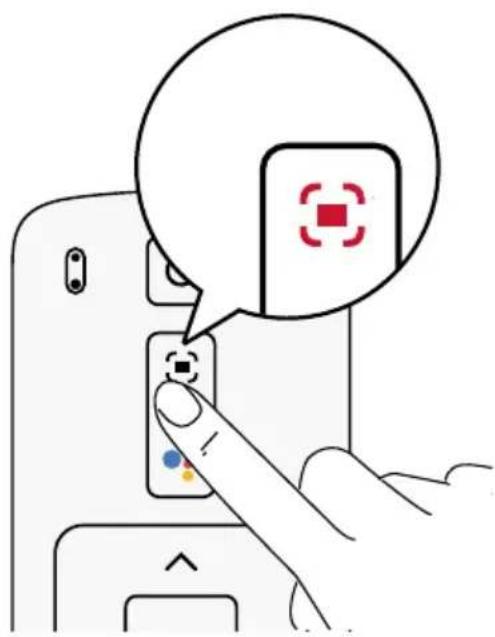
text_image
Diagram showing a finger pressing a button with a speech bubble containing a red square icon and a control symbol.
1

text_image
Nebula Connect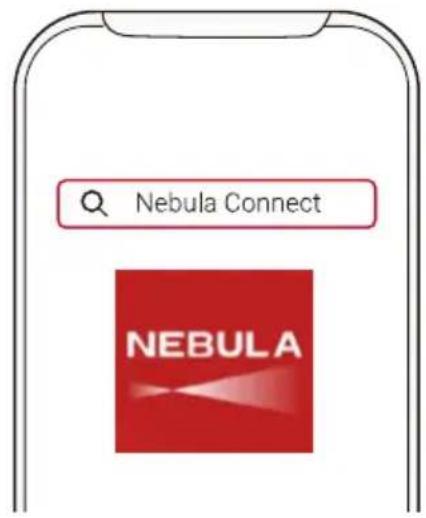
text_image
Nebula Connect NEBULA2
natural_image
Simple line drawing of a smartphone front panel with a black Bluetooth symbol on the screen (no text or labels)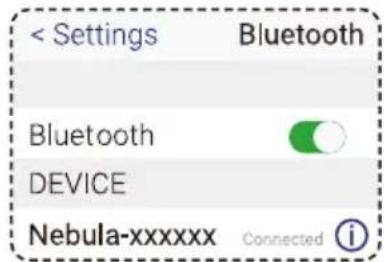
text_image
< Settings Bluetooth Bluetooth DEVICE Nebula-xxxxxx Connected ⓘVega
Vega
1.


2.



3.


4.


5.



6.


7.

1.
text_image
Nebula Vega HDMI ECL-R USB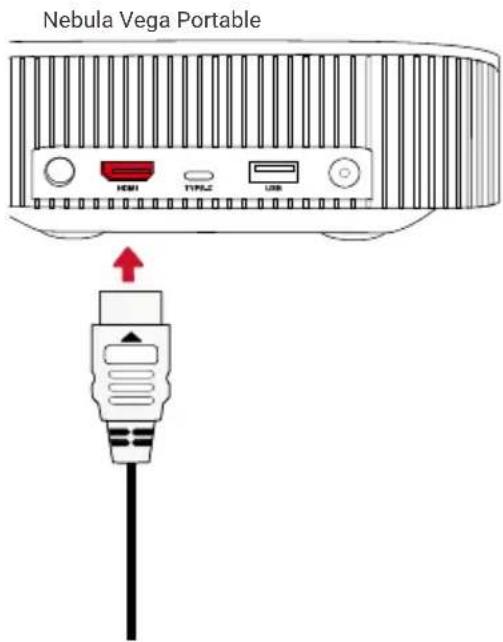
text_image
Nebula Vega Portable HDMI TYPE2 USB- USB
Nebula Vega
natural_image
Front view of a portable electronic device showing front panel, ports (HDMI, SCAN, USB), and control buttons (no text or symbols beyond labels)Nebula Vega Portable
text_image
HDMI TYPE.G USB

3. Bluetooth


4.
TM
flowchart
graph TD
    A["Smartphone"] -->|Signal| B["TV Device"]
    B --> C["Light Bulb"]
    D["Outdoor Play"] -->|Signal| B
    style A fill:#f9f,stroke:#333
    style B fill:#ccf,stroke:#333
    style C fill:#cfc,stroke:#333

5. Google

Nebula Vega: Nebula Vega Portable:
三
三



جدول المحتويات
177
إرشادات السلام
179
نَة
اللوازم المضمة
179
نظرة عامة
182
بدء استخدام
186
Nebula Conr
187
الإعدادات
190
Nebula Vega / Nebula Vega Portable استخدام
193
المواصفات
194
Nebula Vega / Nebula Vega Portable
عد محول
جهاز التحكم عن بُ
Nebula Vega Portable
text_image
4 3 2 1زر الطاقة
1
اضغط للتشغيل
text_image
Diagram of a device with three labeled components: top, middle, and bottom.:Nebula Vega Portable
natural_image
Line drawing of a hand pressing down on a device component with a red arrow indicating the motion (no text or symbols)natural_image
Line drawing of a hand holding a smartphone with a red arrow pointing to the screen (no text or symbols)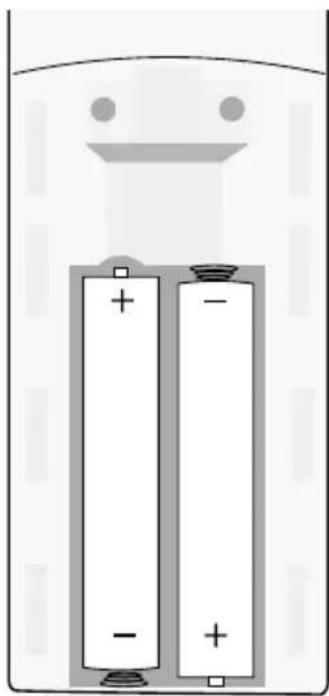
natural_image
Diagram of two batteries with positive and negative terminals, no text or symbols presentبدء الاستخدام
Nebula Vega
text_image
DC-INNebula Vega Portable
text_image
TYPE-C
natural_image
Interior view of a video conference room with multiple screens displaying video thumbnails and two people observing (no visible text or symbols)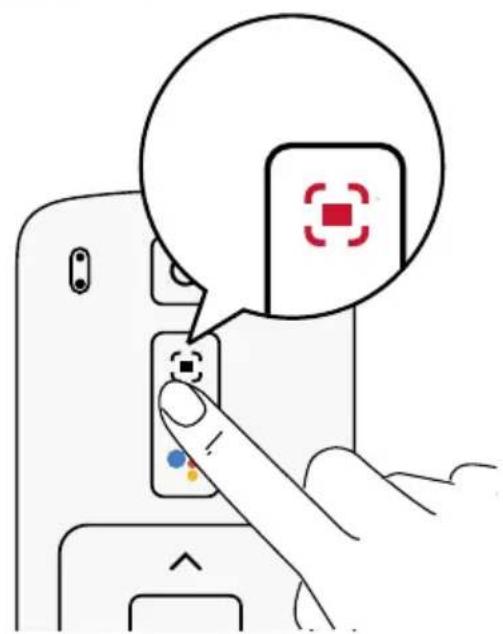
text_image
Diagram showing a hand pressing a button on a device with a speech bubble containing a red square icon and a control symbol.text_image
Nebula Connect NEBULA2
natural_image
Simple line drawing of a smartphone front panel with a black Bluetooth symbol on the screen (no text or labels)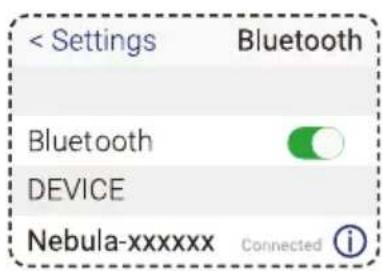
text_image
< Settings Bluetooth Bluetooth DEVICE Nebula-xxxxxx Connected ⓘCEC ل'Engir I'gada Enter
text_image
Nebula Vega Nebula Vega Portabletext_image
Nebula Vega HCDM DC-48 USB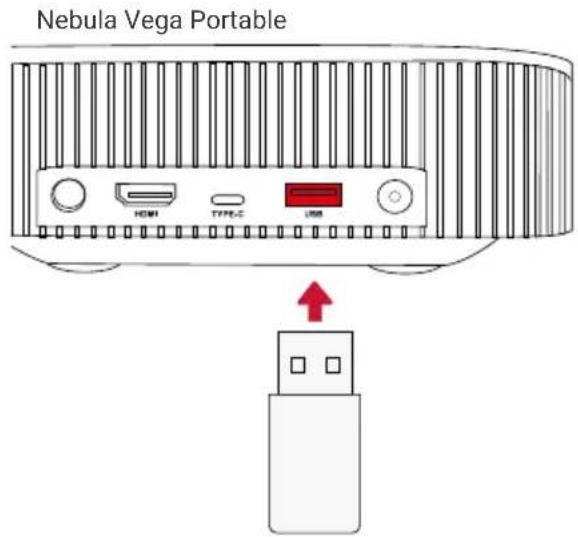
text_image
Nebula Vega Portable HDMI TYPE.C USB:Nebula Vega Portable :Nebula Vega
For FAQs and more information, please visit:
www.SeeNebula.com

support@SeeNebula.com

+1 (800) 988 7973 (US) Mon-Fri 9:00am - 5:00pm (PT)
+44 (0) 1604 936200 (UK) Mon-Fri 6:00 - 11:00 (GMT)
+49 (0) 69 9579 7960 (DE) Mo-Fr 6:00 - 11:00
+81 03 4455 7823 ( ) - 9:00-17:00
©Anker Innovations Limited. All rights reserved. NEBULA and the NEBULA logo are trademarks of Anker Innovations Limited, registered in the United States and other countries. All other trademarks are the property of their respective owners.
Model: D2120/D2121 V01