CR 214 BC - Pressure washer Kärcher - Free user manual and instructions
Find the device manual for free CR 214 BC Kärcher in PDF.



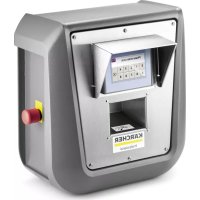
| Product type | Card reader for car wash station |
| Brand | Kärcher |
| Model | CR 214 BC |
| Category | High-pressure cleaner (control system) |
| Dimensions (W × H × D) | 418 × 441 × 278 mm |
| Weight | 7 kg |
| Power supply | 24 VDC, 5 A |
| Protection type | IP64 |
| Service temperature in shade | −15 to 50 °C |
| Service temperature under solar radiation | −15 to 35 °C |
| Number of wash programs | 16 |
| Main functions | Start, interrupt and stop wash programs; PIN entry via touchscreen; emergency stop; communication with cash PC; receipt printing |
| Care and maintenance | Daily maintenance: check emergency stop and cable inspection |
| Safety | Emergency stop, frost protection, anti-tilt safety (accessory), door safety switches |
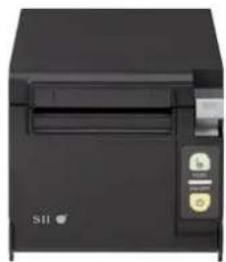
| Spare parts and accessories | Mounting foot (ref. 2.642-804.0), floor mounting kit, thermal printer (ref. 6.683-651.0), printer roll (ref. 6.683-224.0) |
| Warranty | According to distributor conditions, free repair for material or manufacturing defects |
| Intended use | Self-service automatic car wash station |
Frequently Asked Questions - CR 214 BC Kärcher
User questions about CR 214 BC Kärcher
0 question about this device. Answer the ones you know or ask your own.
Ask a new question about this device
Download the instructions for your Pressure washer in PDF format for free! Find your manual CR 214 BC - Kärcher and take your electronic device back in hand. On this page are published all the documents necessary for the use of your device. CR 214 BC by Kärcher.
USER MANUAL CR 214 BC Kärcher
1 Touchscreen
2 Not-Aus-Taster
Bedienung
natural_image
Pure diagram with directional arrows and a vehicle outline, no text or symbols presentnatural_image
3D rendering of a vertical cylindrical device with a mounted sensor or meter (no visible text or symbols)natural_image
White metal bracket with mounting holes and four small components (screw, washer, ring) arranged on a textured surface (no text or symbols visible)natural_image
Exterior view of a modern industrial control unit (no visible text or symbols)natural_image
Black SII printer with control panel and buttons (no visible text or symbols)Please read and comply with these original instructions prior
to the initial operation of your appliance and store them for later use or subsequent owners.
Contents
Contents ...... EN 1
Environmental protection....EN 1
Proper use.....EN 1
Safety instructions ..... EN 1
Danger or hazard levels ..... EN 1
Warranty....EN 1
Spare parts ....EN 1
Operation.....EN 1
Switch-off in case of emergency....EN 1 Start up....EN 1
Device elements ..... EN 2
Operation.....EN 2
Setting the language . . . EN 2
Selecting a washing programme....EN 2
Positioning the vehicle .. EN 2
Starting the washing programme ..... EN 2
Stopping the washing pro-
gramme ..... EN 3
Programme completed. . EN 3
Plant closed ..... EN 3
Technical specifications.....EN 4
Care and maintenance ..... EN 4
Maintenance instructions EN 4
Daily maintenance ..... EN 4
Troubleshooting.....EN 4
Cash register PC ..... EN 4
Start CR POS manager. EN 4
Selling washing programme EN 4
"Code Search" menu ... EN 4
Shift accounting ..... EN 5
Show statistics ..... EN 5
Settings ..... EN 5
Accessories ..... EN 7
Attachment kit support leg EN 7
Tipping protection.....EN 7
Upgrade kit for floor installa-
tion....EN 7
Thermal printer.....EN 7
Receipt roll thermal printer EN 7
Environmental protection

The packaging material can be recycled. Please do not throw the packaging material into household waste; please send it for recycling.

Old appliances contain valuable materials that can be recycled; these should be sent for recycling. Batteries, oil, and similar substances must not enter the environment. Please dispose of your old appliances using appropriate collection systems.
Notes about the ingredients (REACH)
You will find current information about the ingredients at:
www.kaercher.com/REACH
Proper use
The wash card reader is used by the operate to operate automatic self-service washing stations.
Here, the wash card reader performs the following functions:
- Starting a washing programme with pin-code entry on the touchscreen.
- Interrupt programme
- Continue programme
- Stopping the washing station in case of danger via the emergency stop switch.
The wash card reader is connected to a cash register PC via a network cable.
The receipt is printed via the POS system.
Safety instructions
Please follow the national rules and regulations of the respective country.
Follow safety messages of the washing station.
Danger or hazard levels
△DANGER
Immediate danger that can cause severe injury or even death.
⚠ WARNING
Possible hazardous situation that could lead to severe injury or even death.
△CAUTION
Pointer to a possibly dangerous situation, which can lead to minor injuries.
ATTENTION
Pointer to a possibly dangerous situation, which can lead to property damage.
Warranty
The warranty terms published by the relevant sales company are applicable in each country. We will repair potential failures of your appliance within the warranty period free of charge, provided that such failure is caused by faulty material or defects in manufacturing. In the event of a warranty claim please contact your dealer or the nearest authorized Customer Service centre. Please submit the proof of purchase.
Spare parts
- Only use accessories and spare parts which have been approved by the manufacturer. The exclusive use of original accessories and original spare parts ensures that the appliance can be operated safely and trouble free.
- For additional information about spare parts, please go to the Service section at www.kaercher.com.
Operation
Switch-off in case of emergency
→ Press emergency-stop button.
The washing station will stop immediately.
→ After the problem is solved, start the system back up as per the operating instructions.
Start up
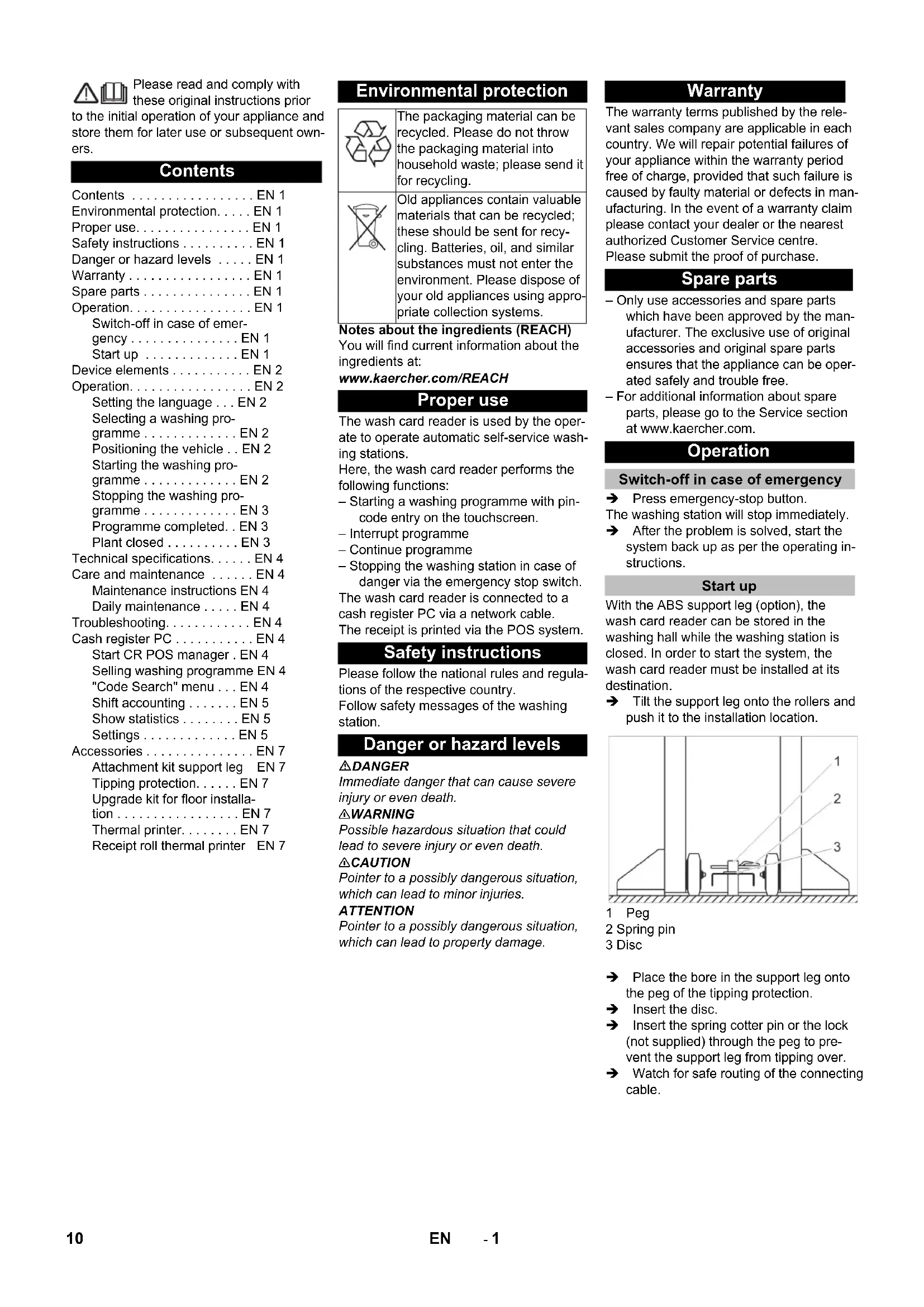
With the ABS support leg (option), the wash card reader can be stored in the washing hall while the washing station is closed. In order to start the system, the wash card reader must be installed at its destination.
→ Tilt the support leg onto the rollers and push it to the installation location.
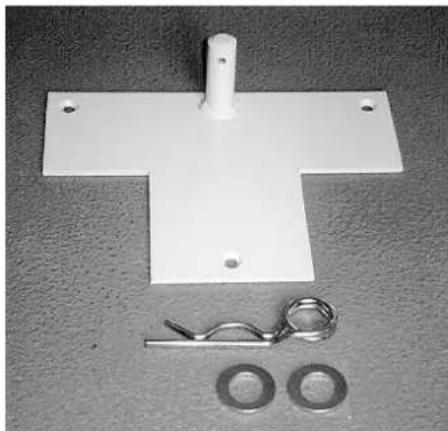
1 Peg
2 Spring pin
3 Disc
→ Place the bore in the support leg onto the peg of the tipping protection.
→ Insert the disc.
→ Insert the spring cotter pin or the lock (not supplied) through the peg to prevent the support leg from tipping over.
→ Watch for safe routing of the connecting cable.
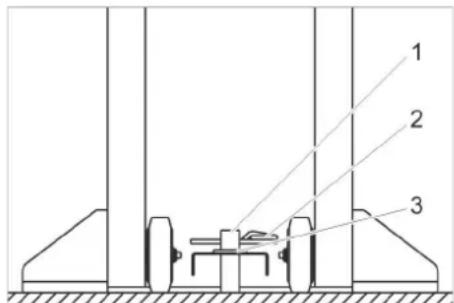
Device elements
1 Touchscreen
2 Emergency-stop button
Operation
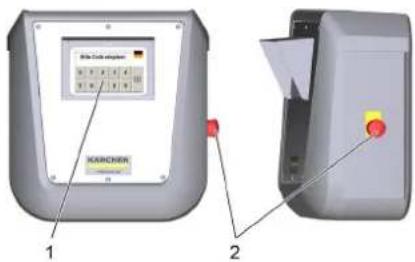
If the washing bay is ready for operation, the following messages appear on the touchscreen:
Setting the language
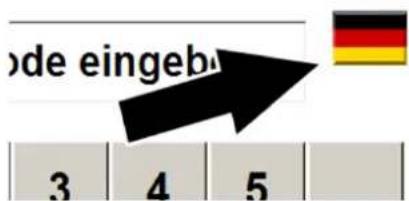
→ Press flag.
→ Next language appears.
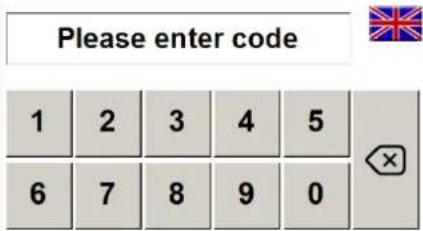
Selecting a washing programme
Enter the PIN code via the keyboard
The washing programme selected with the purchase can be started.
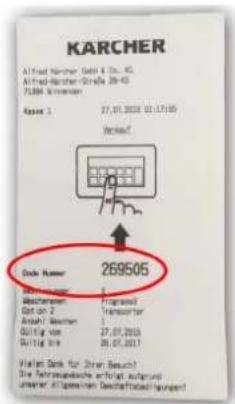
→ Read the code number from your receipt and enter it via the keyboard on the touchscreen.
After the entry the following message appears:
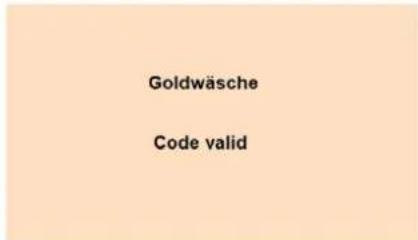
The receipt was valid for one wash.
- Then the display asks you to position the vehicle (see "Positioning the vehicle").
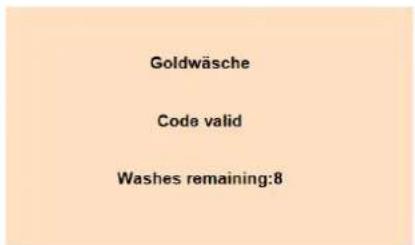
The receipt is valid for several washes.
- Then the display asks you to position the vehicle (see "Positioning the vehicle").
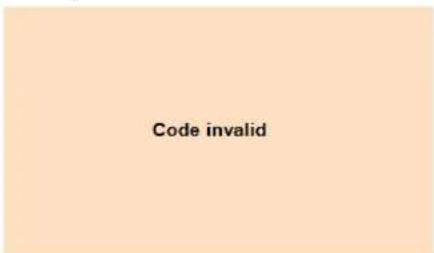
Typing error or the receipt has already been used.
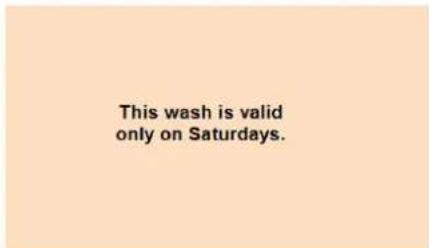
The receipt is only valid on a certain week day.
Positioning the vehicle
Position vehicle
Please position your vehicle
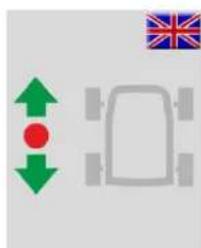
→ Drive the vehicle in the washing plant and position it in accordance with the prompts of the positioning light.
Position vehicle
Please drive vehicle in and position it until the light says STOP.
Then start wash
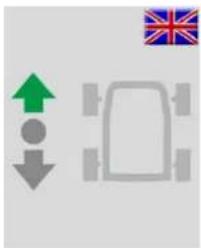
→ Drive the vehicle forwards in the washing plant and position it in accordance with the prompts of the positioning light.
Position vehicle
Please drive vehicle back until the light says STOP
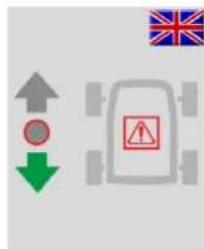
→ Please drive back until light shows stop.
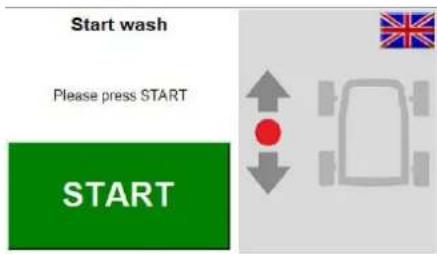
The vehicle is correctly positioned in the washing plant.
Starting the washing programme
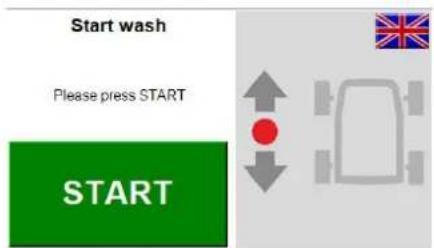
→ Press the "Start" button on the touchscreen.
Note:
On some washing bay versions, the washing programme starts automatically. In such cases, the window is not displayed.
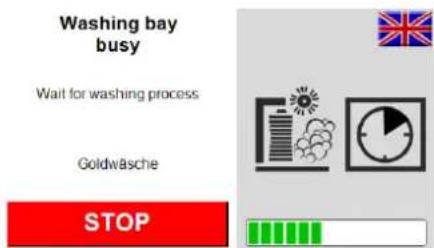
The washing programme is active.
Stopping the washing programme
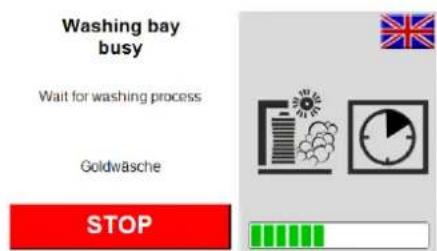
→ Stop the washing programme by touching the "Stop" button on the touchscreen.
Note:
With some washing plant designs stopping the washing programme is not possible. In this case, the "Stop" button is not displayed.

Washing stopped.
→ Select "continue" to continue wash.
Programme completed
The end of the washing programme and the drive-out direction are shown on the touchscreen.
Programme completed
Please reverse vehicle out.
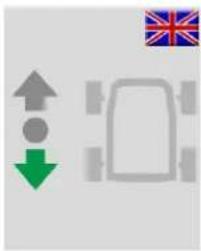
→ Program end: Reverse vehicle out of the washing bay
Programme completed
Please move vehicle out forward
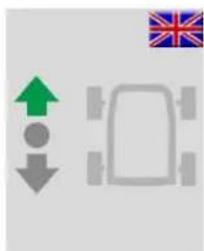
→ Program end: Drive vehicle forwards out of the washing bay.
Plant closed
Bay closed!
Our bay is open today from
7:00 - 20:00
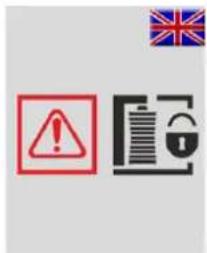
Display outside opening hours.
Note:
The opening times are set on the washing bay. The CR 214 receives the times and displays them outside of opening times.
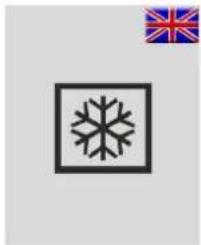
Frost protection active
No programme entry possible
-2°C
natural_image
Symbol of a snowflake inside a square frame, with the Union Jack flag in the corner (no text or labels)Frost protection active.
Safety button
Front left safety button was actuated
After troubleshooting please press Continue
Continue
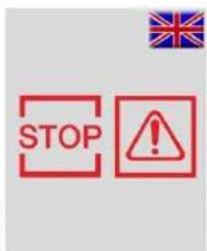
A safety switch was actuated.
The affected safety button is displayed.
→ Eliminate reason.
→ Reset safety switch.
→ Press "Continue" on the touch screen.
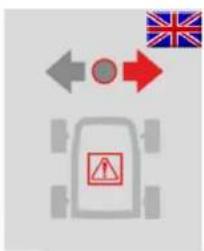
Position vehicle
Vehicle is too far to the left
After troubleshooting please press Continue
Continue
Position vehicle
Vehicle is too far to the right
After troubleshooting
please press Continue
Continue
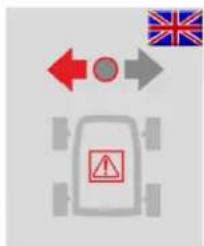
Vehicle is incorrectly positioned.
→ Eliminate reason.
→ Reset safety switch.
→ Press "Continue" on the touch screen.
Washing bay faulty!
Please inform operating personnel

Washing plant failure!
→ Rectify failure using the operating instructions of the washing plant.
Note:
A programme started prior to the failure cannot be continued.
Malfunction!
No network connection to the washing bay
Please inform operating personnel

Network connection to washing bay is inter- rupted.
→ Check network connection and restore.
Emergency Off actuated
Please inform operating personnel

Emergency off has been pressed.
Door
Main cabinet open
Please inform operating personnel

Continue
Main cabinet is not closed on washing bay.
→ Close and lock door.
→ Press "Continue" on the touch screen.
Door
Water distribution open
Please inform operating personnel
Continue
Water distribution doors are not closed on washing bay.
→ Close and lock door.
→ Press "Continue" on the touch screen.
Technical specifications
| Control | ||
| Voltage VDC 24 | ||
| Power Input A 5 | ||
| Type of protection IP64 | ||
| Operating temperature in the shade * | °C -15...50 | |
| Operating temperature with sunlight * | °C -15...35 | |
| Washing programmes | 16 | |
| Weight without cable kg | 7 | |
| Dimensions | ||
| Width mm 418 | ||
| Height | mm | 441 |
| Depth | mm | 278 |
* In order to ensure frost resistance, the appliance must remain switched on even outside the operating hours.
Care and maintenance
Maintenance instructions
The bases of a safe operating of the equipment is thr regularly maintenance according to the following maintenance plan. Use only original parts of the manufacturer or part suggested by him, such as – replacement and wear parts – Accessory parts
Daily maintenance
→ Operate the emergency stop switch while the washing station is running and check whether the system comes to a halt.
→ Check the cables for damages, call customer service if necessary.
Troubleshooting
Fault messages are shown on the touchscreen.
Fault elimination, see "Operation" and "Control" chapter.
System malfunctions are described in the operating instructions for the washing bay.
Cash register PC
The program "CR POS-Manager" is installed on the cash register PC. Using the cash register and this program, the following functions are performed:
– Sell washing programme via cash register.
- Print out receipt with code number using the CR POS manager.
- Performing settings.
Start CR POS manager
13 14
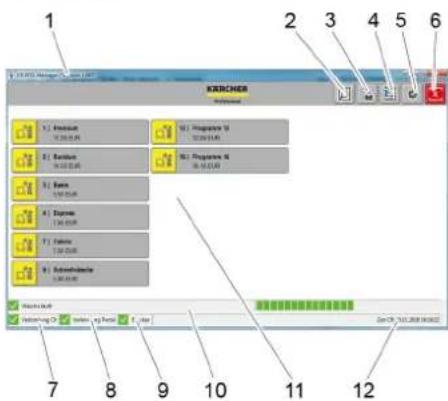
1 Software version
2 "Code Search" button
3 "Selection shift operation" button
4 "Statistics" button
5 "Settings" button
6 "Quit program" button
7 Network connection status display for CR 214
8 Network connection to washing bay status display
9 Printer status display
10 Washing bay status display
11 Buttons for washing programme
12 Date and time of CR 214
13 Symbol for "OK" status
14 Symbol for "Not OK/malfunction" status
Note:
In the washing bay status display, a progress bar appears for a washing programme that is in progress.
Selling washing programme
→ Select the button of the desired washing programme.
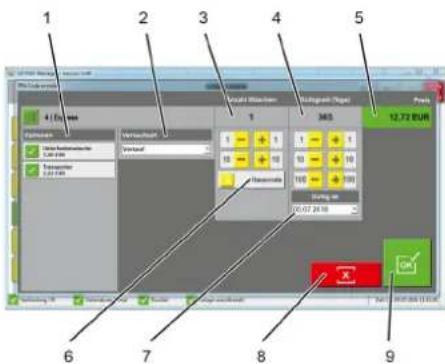
1 Select options
2 Sale type:
Sale
Gratis
Complaint
Promotion
Test wash technician
- Monday promotion
- Tuesday promotion
- Wednesday promotion
- Thursday promotion
- Friday promotion
- Saturday promotion
- Sunday promotion
- Time-period promotion
3 Buttons "+1", "+10", "-1", "-10" for changing the count of washes
4 Buttons "+1", "+10", "+100" "-1", "-10", "-100" for changing the validity period
5 Display of total price
6 Activate/deactivate long-term code
7 Start of validity period
8 Cancel selection
9 Confirm selection and print receipt
"Code Search" menu

→ Click on the "Code search" button.
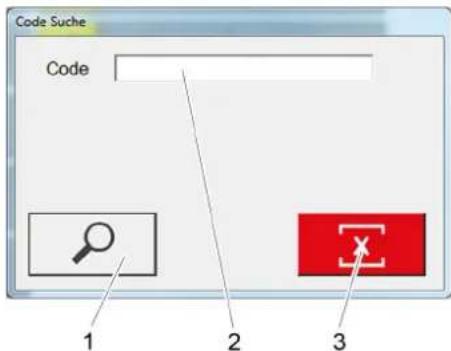
1 Search code
2 Field code input
3 Delete the entry
→ Enter the searched code in the input field.
→ Press the "Search code" button.
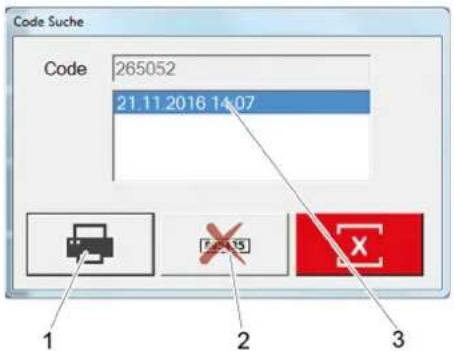
1 Print statistics of the code
2 Deactivate code
3 Date of sale of the code
→ If necessary, print statistics of the code.
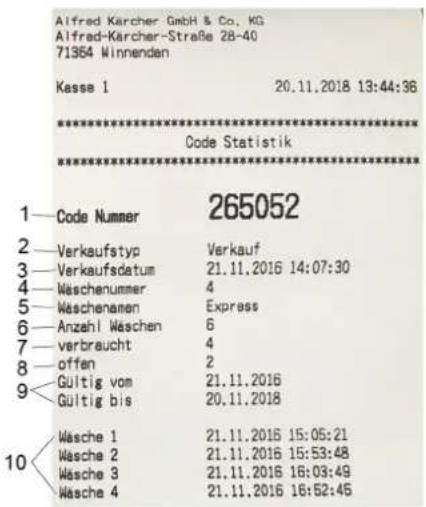
1 Code number
2 Sales type
3 Sales date
4 Washing program number
5 Washing program name
6 Number of washes
7 Used washes
8 Remaining balance
9 Validity period
10 Date of used washes
Delete the code
Generated codes can be deleted:
→ Enter the searched code in the input field.
→ Press the "Search code" button.
→ Press the "Deactivate code" button.
→ Window with password query opens up.
→ Enter password.
Preset password:
"code"
The selected code will be deleted.
Shift accounting
→ Click on the "Select shift operation" button.
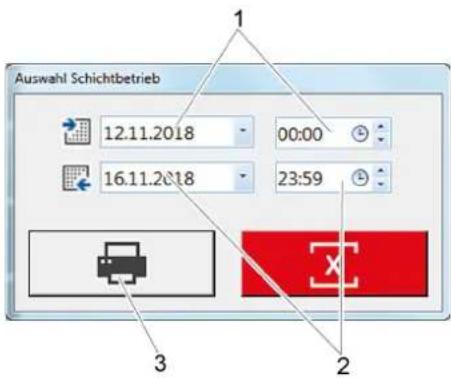
1 Start time of billing
2 End time of billing
3 Print billing
→ Enter start and end time of billing.
→ Click the "Print Billing" button.
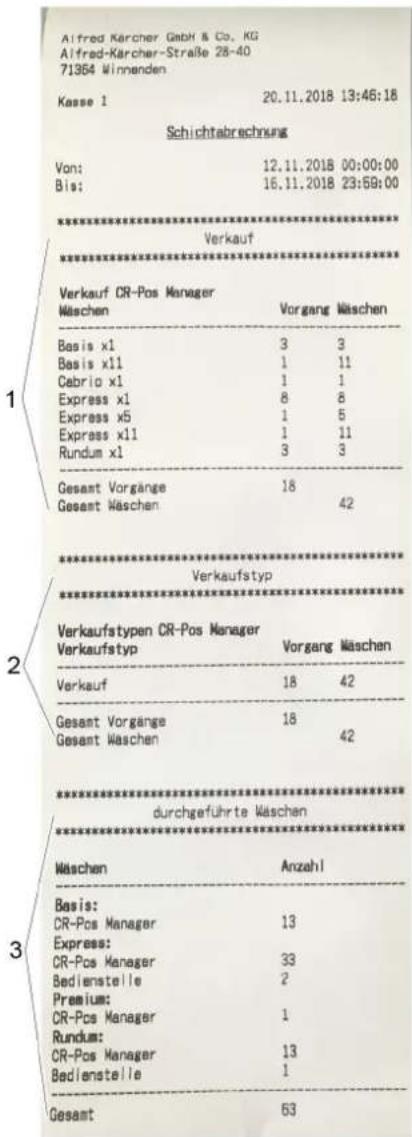
1 Washes sold
2 Sales type
3 Washes carried out
Show statistics
→ Click "Statistics" button.

→ Window with password query opens up.
→ Enter password.
Preset password:
"code"
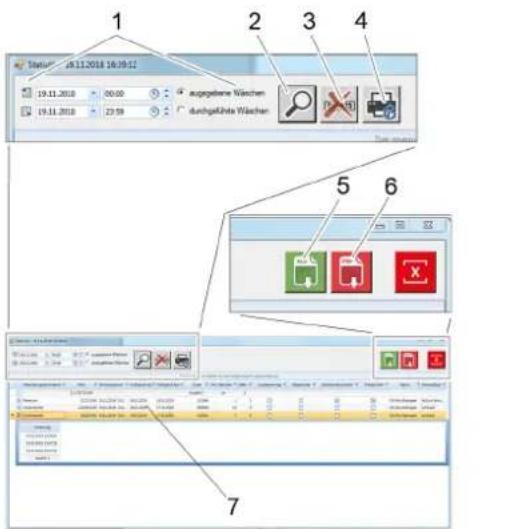
3 Disable selected code
4 Print selected code again
5 Export as an Excel file
6 Export as a pdf file
7 Statistics
→ Enter filter settings.
→ Perform the desired function.
Settings
→ Click "Settings" button.
→ Window with password query opens up.
→ Enter password.
Preset password:
"code"
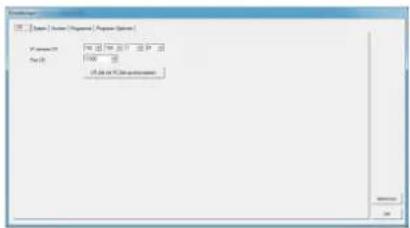
Display of connection settings for CR 214
To change time/date, click the "Syn- chronise CR time with PC" button. Current time/date are transferred from the cash register PC to CR 214.
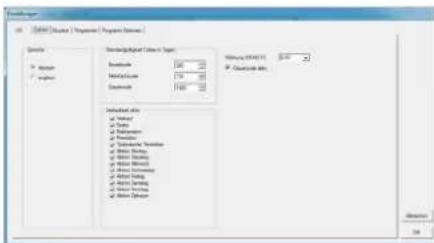
System setting for:
Language
■ Number of days code is valid
■ Selecting the sales types
Currency
■ Time-unit code
→ Select Required settings.
→ Confirm the selection using "OK"
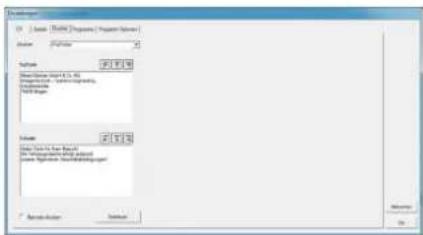
Printer settings:
■ Printer selection
■ Header and footer
→ Input desired text.
→ Click the "Test print" button in order to check input.
→ Confirm the selection using "OK"
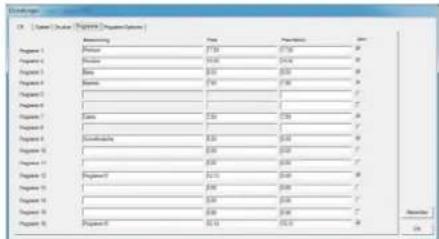
Names and prices of washing programmes.
→ Enter name of washing programme.
→ Enter price.
→ Enter price for promotion.
→ Insert tick to activate washing programme.
→ Confirm the selection using "OK"
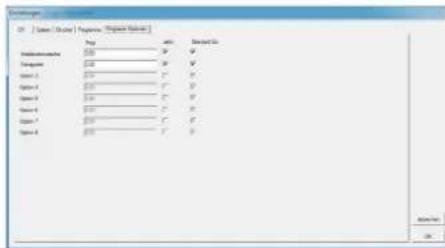
Entering price for the available options.
→ Enter price for the option.
→ Select whether option should be active (insert tick).
→ Select whether option should be standard (insert tick).
On = must be actively deselected on sale.
→ Confirm the selection using "OK"
Accessories
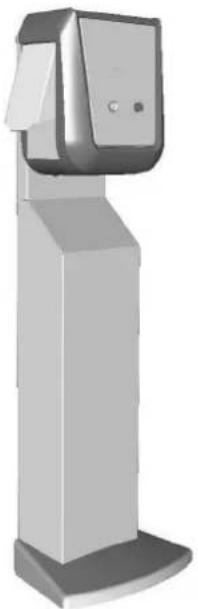
Attachment kit support leg
natural_image
3D rendering of a vertical cylindrical device with a mounted sensor or meter (no visible text or symbols)Support leg for the installation of the wash card reader at any location.
- Order no. 2.642-804.0
High version, for operation by a person standing up
- Order no. 2.643-138.0
Low version, for operation from the vehicle
Tipping protection.
natural_image
White metal bracket with mounting holes and four small components (screw, washer, ring) on a textured surface (no text or symbols visible)Order no. 2.638-693.0
To secure the support leg against tipping over.
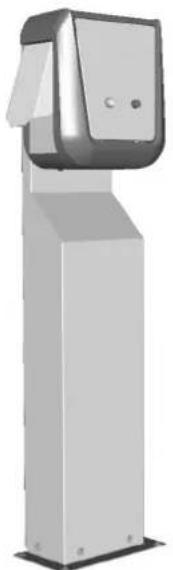
Upgrade kit for floor installation
natural_image
Exterior view of a modern industrial control unit (no visible text or symbols)Leg to mount the wash card reader to the floor.
- Order no. 2.642-808.0
High version, for operation by a person standing up
- Order no. 2.643-137.0
Low version, for operation from the vehicle
Thermal printer
natural_image
Black SSI printer with control panel and buttons (no visible text or symbols)Order no. 6.683-651.0
For printing the receipts.
Receipt roll thermal printer
Order no. 6.683-224.0
www.kaercher.com/REACH
natural_image
Simple black snowflake icon inside a square frame with a French flag in the corner (no text or symbols)natural_image
3D rendering of a vertical cylindrical device with a mounted sensor or meter (no visible text or symbols)natural_image
Exterior view of a white metal bracket with mounting holes and four small components (no text or symbols visible)Réf. 2 638-693.0
natural_image
Exterior view of a modern industrial vertical platform with a mounted sensor or meter (no visible text or symbols)natural_image
Black SSI printer with control panel and buttons (no visible text or symbols)www.kaercher.com/REACH
natural_image
3D rendering of a vertical cylindrical device with a mounted sensor or meter (no visible text or symbols)natural_image
White metal bracket with mounting holes and three small components (screw, washer, ring) on a textured surface (no text or symbols visible)natural_image
Exterior view of a modern industrial or laboratory device with a vertical support structure (no visible text or symbols)natural_image
Exterior view of a black SSI printer with control panel and buttons (no visible text or symbols)www.kaercher.com/REACH
Uso previsto
natural_image
3D rendering of a vertical rectangular device with a mounted sensor or meter (no visible text or symbols)-N.° ref. 2.643-138.0
natural_image
White metal bracket with mounting holes and four small components (screw, washer, ring) on a textured surface (no text or symbols visible)Ref. 2.638-693,0
natural_image
Exterior view of a modern office building (no signage)-N.° ref. 2.643-137.0
natural_image
Exterior view of a black industrial scanner or printer (no visible text or symbols)N.° ref. 6.683-651.0
N.° ref. 6.683-224.0

natural_image
Simple diagram with directional arrows and a vehicle silhouette, no text or symbols presentnatural_image
3D rendering of a vertical rectangular device with a mounted sensor or meter (no visible text or symbols)natural_image
White metal bracket with mounting holes and four small components (screw, washer, ring) arranged on a textured surface (no text or symbols visible)natural_image
Exterior view of a modern industrial or laboratory device with a vertical support structure (no visible text or symbols)natural_image
Black industrial printer with control panel and buttons (no visible text or symbols)www.kaercher.com/REACH
→ Ťuknite na ikonu „Štart“ na dotykovej obrazovke.
Upozornenie:
→ Koniec programu: Spiatočkou vyjdite vozidlom z umývacej linky
Program je ukončený
Vyjdite s vozidiom smerom dopredul
natural_image
Simple snowflake icon inside a square frame, with a flag of Slovakia in the corner (no text or symbols on the snowflake itself)Porucha umývacej linky.
natural_image
3D rendering of a vertical cylindrical device with a mounted sensor or meter (no visible text or symbols)natural_image
Exterior view of a white metal bracket with mounting holes and four small components (no text or symbols visible)natural_image
Exterior view of a modern industrial vertical platform with a mounted device (no visible text or symbols)natural_image
Black SSI printer with control panel and buttons (no visible text or symbols)Objednávacie číslo 6.683-651.0 Na tlač dokladov.