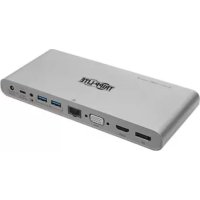
U442DOCK4INT - Docking Station Tripp Lite - Free user manual and instructions
Find the device manual for free U442DOCK4INT Tripp Lite in PDF.


| Product Type | USB-C Docking Station |
| Brand | Tripp Lite |
| Model | U442DOCK4INT |
| Input Connectors | 1x USB-C (host), 1x DC (power) |
| Output Connectors | 4x USB-A 3.2 Gen 1, 1x USB-C (data/charge), 1x RJ45 Gigabit, 1x VGA, 1x HDMI, 1x DisplayPort, 2x 3.5 mm mini-jack (front and rear audio) |
| External Power Supply | Power adapter 100-240 V, 50/60 Hz, 1.8 A; output 20 V 3.6 A (72 W) |
| USB-C PD Charging | Up to 20 V 5 A (100 W) input |
| Supported Video Resolutions | VGA: 1920x1200 @ 60 Hz; HDMI and DisplayPort: 3840x2160 @ 30 Hz |
| Multi-Monitor | Up to 3 simultaneous monitors via DisplayPort MST (on Windows) |
| Ethernet | 10/100/1000 Mbps, IEEE 802.3az (Energy Efficient Ethernet) |
| USB Speed | Up to 5 Gbps (USB 3.2 Gen 1) |
| Shared USB Port Power | 12 W (5 V 2.4 A) for the 5 hub ports (4 USB-A + 1 USB-C) |
| Dedicated Charging Port | 1x USB-A 5 V 1.5 A (7.5 W) |
| Operating Temperature | 0 to 45 °C |
| Storage Temperature | -10 to 70 °C (note: probably -10 to 70 °C according to the manual) |
| Humidity | 10% to 90% RH non-condensing |
| System Compatibility | Computer with USB-C or Thunderbolt 3 port supporting DisplayPort alternate mode |
| Additional Features | Plug-and-play, support for sleep and hibernation mode, Wake-on-LAN, WEEE compliance |
| Warranty | 3-year limited |
| Package Contents | Docking station, USB-C M/M cable (79.2 cm), 72 W power adapter, BS1363 and CEE 7/16 power cords, user manual |
Frequently Asked Questions - U442DOCK4INT Tripp Lite
User questions about U442DOCK4INT Tripp Lite
0 question about this device. Answer the ones you know or ask your own.
Ask a new question about this device
Download the instructions for your Docking Station in PDF format for free! Find your manual U442DOCK4INT - Tripp Lite and take your electronic device back in hand. On this page are published all the documents necessary for the use of your device. U442DOCK4INT by Tripp Lite.
USER MANUAL U442DOCK4INT Tripp Lite
USB 3.2 Gen 1 USB-C Docking Station
Models:
U442-DOCK4-S
U442-DOCK4-INT
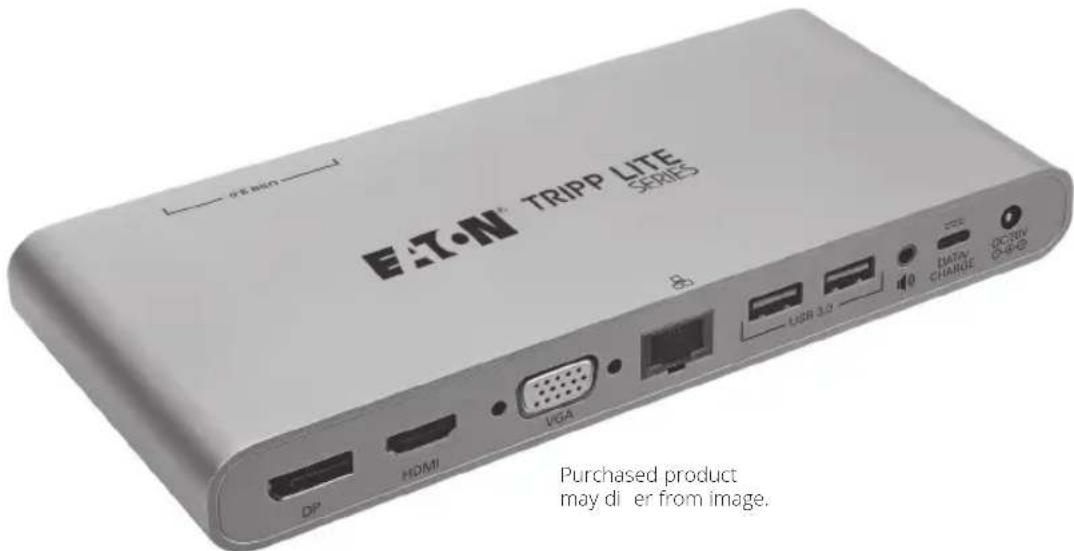
Purchased product may di er from image.
Espanol 12
Français 23
Deutsch 34
Italiano 45
Product Features
Supports USB DisplayPort Alternate Mode for connecting a VGA, DisplayPort or HDMI monitor via a USB-C or Thunderbolt 3 port
Supports the connection of three monitors at the same time through DisplayPort MST Mode
- Supports connection of DVI monitor via HDMI to DVI adapter (see Optional Accessories)
Supports connection of Mini DisplayPort monitor via DP to Mini DisplayPort adapter (see Optional Accessories)
- DisplayPort and HDMI ports support 4K x 2K video resolutions up to 3840 × 2160 @ 30Hz
VGA port supports video resolutions up to 1920 x 1200, including 1080p @ 60 Hz
- Ethernet port supports true 10/100/1000 Mbps network speeds
- USB-A hub ports support data transfer rates up to 5 Gbps
- Dedicated 5V/1.5A USB port provides fast charging power to mobile devices
- USB-C port supports both data and PD Charging; supports power input up to 20V 5A (100W)
- USB-C and 4 USB-A ports share a max 12W (5V 2.4A) of power
- 3.5 mm Mini Stereo jack on front of unit for connection of speaker and microphone
- 3.5 mm Mini Stereo jack on back of unit for connection of speaker
- Automatically resumes operation from hibernation and suspend mode
- IEEE 802.3az (Energy Efficient Ethernet) compliant
Supports full duplex and half duplex operations
Supports IPv4 and IPv6 pack Checksum Offload Engine (COE) to reduce CPU loading
Supports Wake-on LAN
- Plug-and-play operation with no software required for easy, immediate installation
See Multi-Monitor Requirements section for details
System Requirements
- Computer with USB-C or Thunderbolt 3 port that supports USB DisplayPort Alternate Mode
- DisplayPort, Mini DisplayPort,* VGA, DVI* or HDMI monitor
- Ethernet network with speeds up to 10/100/1000 Mbps
*Requires an adapter. See Optional Accessories
Package Includes
U442-DOCK4-S or U442-DOCK4-INT
USB Type-C Cable, M/M (2.6 ft.)
- External Power Supply (Input: 100-240V, 50/60 Hz, 1.8A; Max Output: 20V 3.6A)
BS1363 UK and CEE 7/16 EU Power Cords (U442-DOCK4-INT Only)
- Owner's Manual
Optional Accessories
N201-Series Cat6 Gigabit Snagless Patch Cables
P502-Series High-Resolution VGA Cables
P566-Seires HDMI to DVI Adapter Cables
P568-Series High-Speed HDMI Cables
P580-Series DisplayPort Cables
P583-Series mDP to DP Adapter Cables
U322-Series USB A/B Device Cables
U326-Series USB Micro-B Device Cables
U420-003-G2-5A USB 3.2 Gen 2 USB-C M/M Cable (3 ft.)
Product Overview


USB-A 3.2 Ports (Female) - Connect up to four USB peripherals*
3.5 mm Mini Stereo Audio Input (Female) - Connect headphones on a microphone
USB-C Host Port (Female) - Connect your USB Type-C enabled laptop or computer
DC Power Input (Female) - Connect included power supply for external power
USB-C Charging and Data Port (Female) - Connect your device to its USB-C PD charger for charging, or connect a USB-C device
3.5 mm Mini Stereo Audio Output (Female) - Connect speakers or headphones
7 RJ45 Port (Female) - Connect to a 10/100/1000 Mbps network
VGA Port (Female) - Connect a VGA monitor
9 HDMI Port (Female) - Connect a HDMI monitor
10 DisplayPort Port (Female) - Connect a DisplayPort monitor
*12W of power is dedicated to the USB-A and USB Type-C hub ports when a USB charger is connected to the USB-C charging port. The USB-A dedicated charging port supports 5V 1.5A (7.5W). When maxing out one port's power, the other ports' power is reduced. All ports will not be able to provide full power simultaneously, meaning external power may be required for some connected peripherals.
Installation
Notes:
1) Supports the connection of three monitors at the same time through DisplayPort MST Mode.*
2) To ensure proper function of the five USB (4 USB-A and 1 USB-C) hub ports, make sure to plug in the included external power supply or the host device's PD charging power supply to the unit.
3) When the included 72W power adapter is connected to the DC port, it supplies power to charge the host PC first (up to 60W) with the rest of the power being supplied to the dock.
4) When the PD charging power adapter is connected, 15W of total power will be reserved first to guarantee the functioning of the product. The rest of the power will be used to charge the host PC (the power that the host PC can get depends on the result of PD protocol negotiation).
5) When the DC port is connected prior to the Type-C PD Charging port, the docking and host PC are powered from the DC port, with the Type-C port as an alternative power source.
6) When the Type-C PD Charging port is connected (with a PD power adapter) prior to the DC port, the docking and host PC are powered from the Type-C port with the DC port as an alternative power source.
7) If the active power source (power source that is supplying power) is unplugged, the alternative power port will be switched on automatically to be the active power source. In this case, the connected devices will get disconnected for a few seconds and then reconnect automatically.
8) See Optional Accessories section for suggested cables.
9) When the unit is connected to the USB-C port on your computer and to a network via Cat5e/6 cabling, a network connection will be automatically established. If no connection is made, you can manually establish one by going to your computer's network settings page. For example, on a Mac, you would navigate to the Network section found in System Preferences, click the "Assist Me" button to get to the Network Setup Assistant, then follow the prompts to establish a connection.
-
See Multi-Monitor Requirements section for details.
-
Connect the included power supply between the unit and a power source and/or the included USB Type-C cable between the unit and a PD charging adapter (not included).
Note: The USB hub ports may go into overcurrent protection if high-powered USB peripherals are attached without the external power adapter being connected. The USB Type-C PD Charging port can also be used for data transfer.
Installation
- Connect a USB Type-C enabled laptop or computer to the unit's USB Type-C host port using a USB Type-C cable.
- Connect a 3.5 mm Mini Stereo cable to the back of the unit to connect a speaker.
- Connect up to four USB devices to the dock's USB-A hub ports.
- Connect the adapter's RJ45 port to a network using a UTP cable.
- Connect the dock's VGA port to the VGA port on a monitor using a VGA cable.
OR
- Connect the dock's HDMI port to the HDMI port on a monitor using a HDMI cable.
OR
- Connect the dock's DisplayPort port to the DisplayPort port on a monitor using a DisplayPort cable.
- Connect a 3.5 mm Mini Stereo cable to the front of the unit to connect a microphone or headphones.
Multi Monitor Requirements
The U442-DOCK4-S and U442-DOCK4-INT support the connection of three monitors at the same time through DisplayPort Multi-Stream Transport (MST) mode. Below are limitations that must be taken into account when connecting multiple monitors at the same time.
Note: If a triple monitor installation is desired, it is important to connect all three display outputs before connecting the power supply and powering the unit. If only two of the three connected displays are illuminating, the power must be cycled by removing power from the unit with the three displays still connected and re-connecting the power.
Does the Source Computer Support DisplayPort MST Mode?
When connecting to a USB-C source that supports DisplayPort MST mode, the EDID information of the two or three connected monitors will be read by the computer and appear as separate displays that can be shown in mirror mode or extended mode. When connected in MST mode, the computer graphics card will have a total bandwidth of 10.8 Gbps for all video ports.
When connecting to a USB-C source that does not support DisplayPort MST mode, Single-Stream Transport (SST) mode is used instead. In SST mode, only the EDID of the first connected monitor is read by the computer, forcing the connected monitors to display in mirror mode. The default resolution of the first monitor will then be sent to the second monitor and/ or third monitor, with all monitors displaying the same resolution. If the second monitor is not capable of supporting the same resolution as the first, no video will display on that monitor. Before connecting the second monitor, the first monitor's resolution must be changed to the second monitor's resolution in order for video to be displayed.
Note: The following table depicts the maximum resolution achieved on each video port, based on the connected monitors. Mac does not support DisplayPort MST; therefore, multiple monitor setups are not guaranteed.
Multi Monitor Requirements
| Windows Source (Single display) | ||
| VGA HDMI DisplayPort | ||
| 1920 x 1200 @ 60 Hz * | ||
| * 3840 x 2160 @ 30 Hz * | ||
| * * 3840 x 2160 @ 30 Hz | ||
| Windows Source (Dual display) | ||
| VGA HDMI DisplayPort | ||
| 1920 x 1200 @ 60 Hz 1 | 920 x 1080 @ 60 Hz * | |
| 1920 x 1200 @ 60 Hz * | 1920 x 1080 @ 60 Hz | |
| * 1920 x 1080 | @ 60 Hz 1920 x 1080 @ | 60 Hz |
| Windows Source (Triple display) | ||
| VGA HDMI DisplayPort | ||
| 1) Supports 3 displays to work simultaneously under MST mode, 3 videos share max 10.8 Gbps bandwidth (e.g., dual 1080p/60 Hz, or 1 x 1080p @ 60 Hz + dual 720p @ 60 Hz). 2) Some host PCs only support output of 3 video streams/monitors. To ensure the output of the 3 displays, turn off the screen of the host PC. | ||
- Port not in use.
Specifications
| Connectors-Input | |
| DC Port DC Power (Female) | |
| USB PD Charging and Data USB-C (Female) | |
| Connectors-Output | |
| USB-A (4x) USB 3.2 Gen 1 (Female) | |
| USB-C (1x) USB 3.2 Gen 1 (Female) | |
| Ethernet RJ45 (Female) | |
| VGA VGA (Female) | |
| HDMI HDMI (Female) | |
| DisplayPort DisplayPort (Female) | |
| Audio Port 3.5 mm Mini Stereo | Audio (Female), x2 |
| Environmental | |
| Operating Temperature 32 to 13°F (0 to 45°C) | |
| Operating Humidity 10% to 90% RH, Non-Condensing | |
| Storage Temperature 14 to 158°F (-10 to 70°C) | |
| Storage Humidity 10% to 90% RH, Non-Condensing | |
| Power Requirements | |
| USB-C Charging Port Supports | up to 20V 5A (100W) Input |
| DC Port Supports up to 20V 3.6A (72W) Input | |
| Power Supply Specs | |
| Power Input 100-240V, 50/60 Hz, 1.8A | |
| Power Output 20V 3.6A (72W) | |
Warranty
3-YEAR LIMITED WARRANTY
We warrant our products to be free from defects in materials and workmanship for a period of three (3) years from the date of initial purchase. Our obligation under this warranty is limited to repairing or replacing (at its sole option) any such defective products. Visit Tripplite.
Eaton.com/support/product-returns before sending any equipment back for repair. This warranty does not apply to equipment which has been damaged by accident, negligence or misapplication or has been altered or modified in any way.
EXCEPT AS PROVIDED HEREIN, WE MAKE NO WARRANTYES, EXPRESS OR IMPLIED, INCLUDING WARRANTYES OF MERCHANTABILITY AND FITNESS FOR A PARTICULAR PURPOSE. Some states do not permit limitation or exclusion of implied warranties; therefore, the aforesaid limitation(s) or exclusion(s) may not apply to the purchaser.
EXCEPT AS PROVIDED ABOVE, IN NO EVENT WILL WE BE LIABLE FOR DIRECT, INDIRECT, SPECIAL, INCIDENTAL OR CONSEQUENTIAL DAMAGES ARISING OUT OF THE USE OF THIS PRODUCT, EVEN IF ADVISED OF THE POSSIBILITY OF SUCH DAMAGE. Specifically, we are not liable for any costs, such as lost profits or revenue, loss of equipment, loss of use of equipment, loss of software, loss of data, costs of substitutes, claims by third parties, or otherwise.
Regulatory Compliance Identification Numbers
For the purpose of regulatory compliance certifications and identification, your product has been assigned a unique series number. The series number can be found on the product nameplate label, along with all required approval markings and information. When requesting compliance information for this product, always refer to the series number. The series number should not be confused with the marking name or model number of the product.
FCC Notice, Class B
This device complies with part 15 of the FCC Rules. Operation is subject to the following two conditions: (1) This device may not cause harmful interference, and (2) this device must accept any interference received, including interference that may cause undesired operation.
Note: This equipment has been tested and found to comply with the limits for a Class B digital device, pursuant to part 15 of the FCC Rules. These limits are designed to provide reasonable protection against harmful interference in a residential installation. This equipment generates, uses and can radiate radio frequency energy and, if not installed and used in accordance with the instructions, may cause harmful interference to radio communications. However, there is no guarantee that interference will not occur in a particular installation. If this equipment does cause harmful interference to radio or television reception, which can be determined by turning the equipment off and on, the user is encouraged to try to correct the interference by one or more of the following measures:
Reorient or relocate the receiving antenna.
- Increase the separation between the equipment and receiver.
- Connect the equipment into an outlet on a circuit different from that to which the receiver is connected.
- Consult the dealer or an experienced radio/TV technician for help.
Any changes or modifications to this equipment not expressly approved by Eaton could void the user's authority to operate this equipment.
Warranty
WEEE Compliance Information for Customers and Recyclers (European Union)
Under the Waste Electrical and Electronic Equipment (WEEE) Directive and implementing regulations, when customers buy new electrical and electronic equipment from Eaton, they are entitled to:
- Send old equipment for recycling on a one-for-one, like-for-like basis (this varies depending on the country)
- Send the new equipment back for recycling when this ultimately becomes waste
Eaton has a policy of continuous improvement. Specifications are subject to change without notice. Photos and illustrations may differ slightly from actual products.
Multi Monitor Requirements
| Fuente con Windows (Una pantalla) | ||
| VGA HDMI DisplayPort | ||
| 1920 x 1200 @ 60 Hz * * | ||
| * 3840 x 2160 | @ 30 Hz * | |
| * * 3840 x 2160 | 0 @ 30 Hz | |
| Fuente con Windows (Dos Pantallas) | ||
| VGA HDMI DisplayPort | ||
| 1920 x 1200 @ 60 Hz 19 | 20 x 1080 @ 60 Hz * | |
| 1920 x 1200 @ 60 Hz * 1 | 920 x 1080 @ 60 Hz | |
| * 1920 x 1080 | @ 60 Hz 1920 x 1080 @ 60 Hz | |
Docking Station USB 3.2 Gen 1 USB-C
Modelli:
U442-DOCK4-S
U442-DOCK4-INT
English 1
Espanol 12
Français 23
Deutsch 34
Requisiti multi monitor
Requisiti multi monitor
| Sorgente di Windows (Display singolo) | ||
| VGA HDMI DisplayPort | ||
| 1920 x 1200 @ 60 Hz | * * | |
| * 3840 x 2160 | @ 30 Hz * | |
| * * 3840 x 2160 | 60 @ 30 Hz | |
| Sorgente Windows (Doppio display) | ||
| VGA HDMI DisplayPort | ||
| 1920 x 1200 @ 60 Hz | 1920 x 1080 @ 60 Hz * | |
| 1920 x 1200 @ 60 Hz | * 1920 x 1080 @ 60 Hz | |
| * 1920 x 1080 | @ 60 Hz 1920 x 1080 @ | 60 Hz |
Powering Business Worldwide
Eaton
1000 Eaton Boulevard
Cleveland, OH 44122
Stati Uniti
Eaton.com
© 2023 Eaton
Tuttirinitriservati

- USB 3.2 Gen 1 USB-C Docking Station
- Product Features
- System Requirements
- Package Includes
- Optional Accessories
- Product Overview
- Installation
- Notes:
- OR
- Multi Monitor Requirements
- Does the Source Computer Support DisplayPort MST Mode?
- Specifications
- Warranty
- 3-YEAR LIMITED WARRANTY
- Regulatory Compliance Identification Numbers
- FCC Notice, Class B
- WEEE Compliance Information for Customers and Recyclers (European Union)
- Docking Station USB 3.2 Gen 1 USB-C
- Requisiti multi monitor
Brand : Tripp Lite
Model : U442DOCK4INT
Category : Docking Station