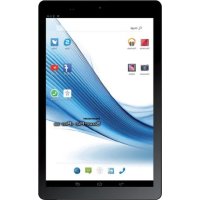
SmartPad 10.1 HD iPro 111 3G - Tablet Mediacom - Free user manual and instructions
Find the device manual for free SmartPad 10.1 HD iPro 111 3G Mediacom in PDF.


| Product type | Touchscreen tablet |
| Brand | Mediacom |
| Model | SmartPad 10.1 HD iPro 111 3G |
| Screen size | 10.1 inches (HD) |
| Operating system | Android |
| Wi-Fi connectivity | Yes |
| Bluetooth connectivity | Yes |
| 3G connectivity | Yes (SIM card) |
| Expandable storage | Micro-SD (external card) |
| Rear camera | Yes |
| Front camera | Yes |
| Ports | USB, 3.5mm headphone jack, DC-in |
| Built-in speakers | Yes |
| Power supply | Power adapter (DC-in) and internal battery |
| Care and cleaning | Do not use liquids or chemicals; clean with a soft dry cloth |
| Safety | Do not expose to moisture, dust, extreme temperatures; do not open; use only compatible accessories |
| Weight | Approximately 500 g (estimated) |
| Dimensions | Approximately 240 x 170 x 10 mm (estimated) |
Frequently Asked Questions - SmartPad 10.1 HD iPro 111 3G Mediacom
User questions about SmartPad 10.1 HD iPro 111 3G Mediacom
0 question about this device. Answer the ones you know or ask your own.
Ask a new question about this device
Download the instructions for your Tablet in PDF format for free! Find your manual SmartPad 10.1 HD iPro 111 3G - Mediacom and take your electronic device back in hand. On this page are published all the documents necessary for the use of your device. SmartPad 10.1 HD iPro 111 3G by Mediacom.
USER MANUAL SmartPad 10.1 HD iPro 111 3G Mediacom
For safe and efficient operation of your Tablet PC, please observe the following rules:
Keep the computer away from extreme heat, cold, moisture and dust.
- Do not spill any liquids on the Tablet PC as it may damage the device or cause a fire.
Do not use liquids and chemical cleaners for cleaning the Tablet PC.
- Do not insert any objects in the computer's air vents or other slots.
- Do not keep the device near magnetic sources, heaters, microwave ovens, heating up kitchen appliances, or in high pressure containers, as it may cause the battery leaking, the device overheating and inflammation.
- Do not disassemble the Tablet PC, only a certified service technician should perform repairs on your computer.
- Use only the AC adapters, power cords and batteries that are approved for use with this device. Use of another type of battery or AC adapter may cause fire or explosion.
Note: The device pictures, as well as data on the device appearance, color and design features are given in the manual for reference only. 3Q company reserves the right to change the appearance and technical parameters of its products without prior notice.
About your device (Picture 1)
Power button1.
Volume Bottons2.
USB port - connecting 3.
your computer
4.5.SIM card slot (optional)
Micro SD card slot6.
Speaker 7.
Earphone port8.
Reset port (if available)9.
- Rear camera (optional)
- Front camera
- DC-in (if available)
- Microphone (if available)
- Back (if available)
Switching on/off
To switch on the Tablet PC, press and hold the Power button. When startup window appears, release the button. The system initialization may take several minutes. Please wait patiently.
To switch off the tablet PC, press and hold the Power button. When "Power off" message appears, release the button. Touch the message, then press OK.
Recommendation: To save the battery charge, the device is set to sleep mode: the screen is locked and sensor functions become inactive (in accordance with the settings of screen lock time). To "wake up" the device, short press the power button.
Unlocking the screen (Picture 2)
If you do not use the screen during certain period of time, the screen will be locked. To unlock the screen, press the power button once and drag "Lock" image right.
Main screen (Picture 3)
Voice search (if available)
Application menu2.
Battery charge indicator3.
.4 emiT
Connected to PC 5.
Recently used applications6.
.7 entHo
- Back
- Google search
- Clock
11.Standard application button
Restarting the device
If the screen does not response to key press or tap, press the reset button (located in the hole) using any thin object (paper clip, pin, etc.) to restart your Tablet PC or keep power button for long time
Factory reset
To delete all data and restore your Tablet PC to factory defaults, touch Settings > >Recovery and reset; touch menu item Reset > Reset to factory defaults.
Contents
Tablet, USB Cable, OTG Cable, Power adapter AC / DC, Quick Guide
Charging the battery
Device is provided with built in rechargeable battery. There is no need of supplemental batteries. Important: The battery must be charged for at least 5 hours before using it for the first time. When related icon or warning message alerts you please charge the battery using proper adapter (do not use different adapter from original one).
Wireless networks
Prior to starting an Internet-application, activate Wi-Fi connection and set up Wi-Fi network.
Touch the icon "Applications" > "Settings" > "Wireless connections".1.
Select Wi-Fi item and set the switch to On position.
- The device will automatically start searching for available networks and will display them on the right panel.
Select any network from the list and press "Connect". If the network 3.
you selected i s protected by WEP-protocol, type the security key, then press "Connect" button.
When the connection is successfully created, "Connected to" (Network name) message will appear on the screen.
3G networks (Optional)
Note that your Tablet PC will only have signal if you are in an area covered by your 3G provider's 3G or EDGE network.
Before inserting a SIM card, you must turn off the device.
A Pin number may be requested. Enter the SIM card pin number.
Your device will attempt to connect to the 3G network of your provider.
NOTE: If your device does not connect to your 3G provider's network
Contact your 3G provider to obtain the connection parameters.1.
On your device, tap the Menu icon, then settings.2.
Select Wireless & networks > Mobile networks > Select your operator.3. In Access Point Names, select the correct access point name and enter the exact connection parameters.
Bluetooth (Optional)
Tap "Settings" > Select "Wireless connections/Bluetooth" > Tap "On" to switch on the Bluetooth function. The device will automatically search for available Bluetooth device.
Select the Bluetooth device and start data transmission.
KpaTKoe pyKOBoDCTBO noIb30BaTeJIa Mepbl npedoctopoXhOCTn
Bceta6e3oNaCHOHn 000eKTHBHOJ3KcNpyaTuIN PnaHweta co6IouaTe HeckolbKO npabn:
Bepere KOMnbIOTep OT BO3dEICTBnA 3KCTpeMaJIbHbIX TeMnepaTyp, BlaRn nblnn
He npolnBaIte Ha nlaHweT Hkakx XuKoCTe - 3TO MOKe T npUBeCTN K erO pONOMKe Nnn K noXapy
He nCnoIb3yIte XnDkoCTn I XmMueckne YnCTaIe cpeIcTBA IJI. YnCTKN PnHaHWeTa
He BCTaBnaIe B BeHTnlaUHOHbIe I pyrIe OTBepCTnY cTpoNcTBa NOCTOpOHnE ppeMTebl
He xpaHnTe yCTpOInCTBO pAOM C nCTOuHNkAMM MaHHTHO rONJ, oBorpeBaTeIaMn, MIKPOBOJHOBbIM NeuaMn, HArpeBaIOUIMcK KyxOHhIM O6OpyIDoBAHHeM, INN B KOHTeINHePax C BbICOKIM DaBJIeHNMe - yCTpOInCTBO MoKeT neperpeTBcR N Bbl3BaTb BO3rOpAHne
He pa36npaIte pIaanHiet camOCToTeIbHo. Texnueckoe 06cIyXINBaHne yctpoiCTBa IOnxHOCTbOCUeCTBJIaTbCRAKBAJIINΦNUPOBaHHbIM CNEuaJIInCTOM.
Icnojb3ynte Toblko aadantepbl, Ka6eJn nHTaHn y aKKymyJrTOpbI, pa3peweHHbIe K npImeHeHIO COBMeCTHO C daHbIM yCTpOiCTBOM. Icnojb3OBaHne aKKymyJrTOpa nn aadantepa HenoDxOJaero Tnpa MoKTe npNBecTNI K BO3rOpaHIO NII B3PbIBY.
IpnBedeHbIe B HactoJem pyKOBoDCTBe IJIIOCTpaUIN n CBeJeHnO BHeSHem BIne, ZBeTe N KOHCTpyKTHBbIX OCO6EHHOCTaX yCTPOiCTBa HOcT NCKJIIOHTeNbHO cnpaBOuHbI XapaKTep. Dn3aIH N TexHNueckne XapaKTepNCIKn npOdyKTOB 3Q moryt 6bITb IN3MeHehbl 6e3 yBeOMLeHnA.
0630p yctpoiCTBa (PucyHok 1)
KhoKa BKnIoueH 1.
KnaBnwa perynn poBaHn2.
rPOMKoCTn
Pazbem USB- noKluoyHne 3.
KOMnbIbTepaJIn6o
πeρnΦeρnHbIX yCTPOIcTB
4.5.Pa3bemДЯ SIM KapTbi
Pa3bEm nЯ Kap Tbl Micro-SD 6.ДиHamnkn 7.
- PazbemДЯHayuHnkoB
OTBepTne C6p oc>9.
Kamepa Tbilova 10.
Kamepa pOHTaJIbHa 11.
Pa3bem nodkJIOUeHn 12.
aandaTepa nHTAHN
Eniotpoipn otic epyoostaiakec puthetaic
Tia va δiaypaopouv ola ta δεδομéva kai va επavaφεpεte tic ερyooTaiakec puθμioεic tnc taμπλétac, με εva ayyiyμa επiλεγεte Puθμioεic > anokataoTaon kai επavaopap, ayyiετο το μενού επavaopapuθμioεωv > Enavaopap Taμλεtac.
Aoupuatadelta
Tel.0962/905175-Fax 0962/905175
Imported and distributed by Datamatic S.p.A.
Via Agordat, 34 - 20127 - Milano - Italy
www.mediacomeurope.it