WIFICBO30WT - Surveillance Camera NEDIS - Free user manual and instructions
Find the device manual for free WIFICBO30WT NEDIS in PDF.



User questions about WIFICBO30WT NEDIS
0 question about this device. Answer the ones you know or ask your own.
Ask a new question about this device
Download the instructions for your Surveillance Camera in PDF format for free! Find your manual WIFICBO30WT - NEDIS and take your electronic device back in hand. On this page are published all the documents necessary for the use of your device. WIFICBO30WT by NEDIS.
USER MANUAL WIFICBO30WT NEDIS
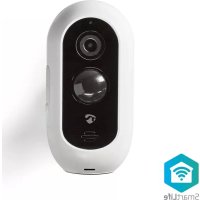
Battery Wi-Fi Camera for indoor and outdoor use (IP65)
WIFICBO30WT
EN Quick start guide 5
DE Kurzanleitung 10
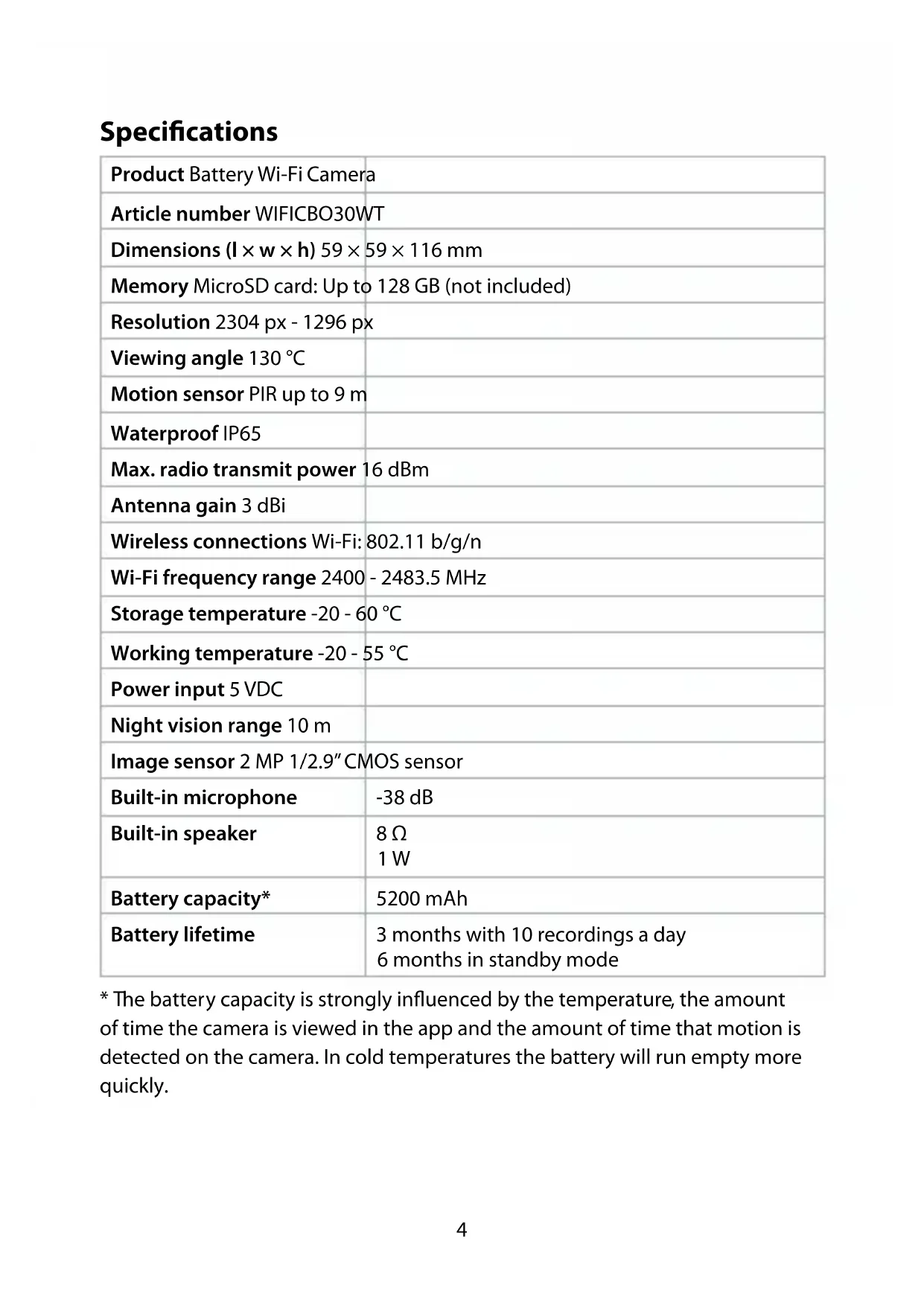
| Product Battery Wi-Fi Camera | |
| Article number WIFICBO30WT | |
| Dimensions (l × w × h) 59 × 59 × 116 mm | |
| Memory MicroSD card: Up to 128 GB (not included) | |
| Resolution 2304 px - 1296 px | |
| Viewing angle 130 °C | |
| Motion sensor PIR up to 9 m | |
| Waterproof IP65 | |
| Max. radio transmit power 16 dBm | |
| Antenna gain 3 dBi | |
| Wireless connections Wi-Fi: 802.11 b/g/n | |
| Wi-Fi frequency range 2400 - 2483.5 MHz | |
| Storage temperature -20 - 60 °C | |
| Working temperature -20 - 55 °C | |
| Power input 5 VDC | |
| Night vision range 10 m | |
| Image sensor 2 MP 1/2.9" CMOS sensor | |
| Built-in microphone | -38 dB |
| Built-in speaker | 8 Ω 1 W |
| Battery capacity* | 5200 mAh |
| Battery lifetime | 3 months with 10 recordings a day 6 months in standby mode |
- The battery capacity is strongly influenced by the temperature, the amount of time the camera is viewed in the app and the amount of time that motion is detected on the camera. In cold temperatures the battery will run empty more quickly.
Battery Wi-Fi Camera
WIFICBO30WT
For more information see the extended manual online:
ned.is/wificbo30wt
Intended use
The product is intended as an IP security camera for indoor and outdoor use.
Consult the local laws and regulations for security cameras before using and installing.
The product is not intended for professional use.
Any modification of the product may have consequences for safety, warranty and proper functioning.
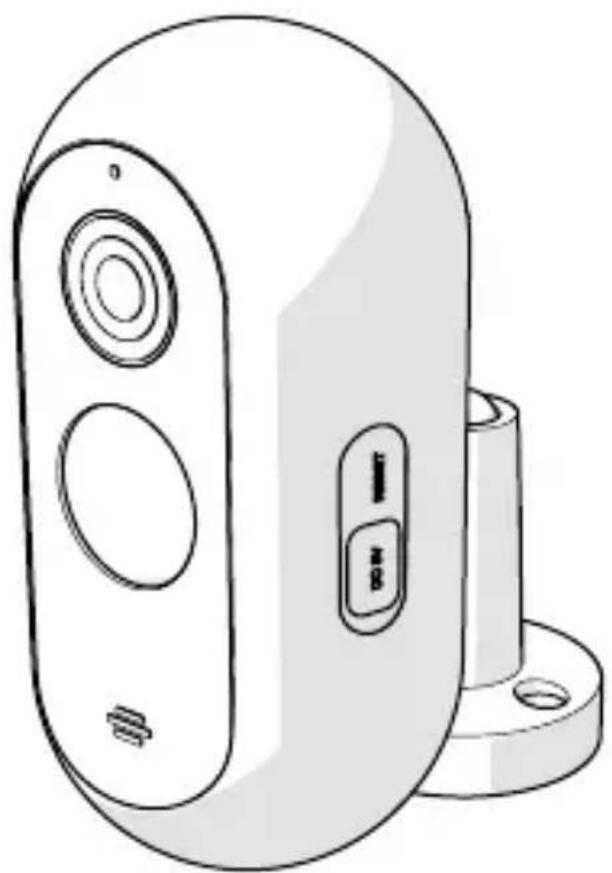
Main parts (image A)
Status indicator LED
2 Camera lens
3 Power button
4 PIR sensor
5 Microphone
USB-C cable
Speaker
8 Main lid
9 USB lid
10 Mounting bracket
11 Reset button
12 MicroSD card slot
13 USB-C port
Safety instructions
WARNING
- Ensure you have fully read and understood the instructions in this document before you install or use the product. Keep the packaging and this document for future reference.
- Only use the product as described in this document.
- Do not use the product if a part is damaged or defective. Replace a damaged or defective product immediately.
- Do not drop the product and avoid bumping.
- Do not dismantle, open or shred cells or batteries.
- Do not short-circuit a cell or a battery.
-
Do not store cells or batteries haphazardly in a box or drawer where they may short-circuit each other or be short-circuited by other metal objects.
-
Do not subject cells or batteries to mechanical shock.
- Do not mix cells of different manufacture, capacity, size or type within a product.
- Only use the battery type(s) recommended in this document.
- Keep cells and batteries clean and dry.
- Do not expose cells or batteries to heat or fire. Avoid storage in direct sunlight.
- In the event of a cell leaking, do not allow the liquid to come in contact with the skin or eyes. If contact has been made, wash the affected area with copious amounts of water and seek medical advice.
- Do not use any cell or battery that is not designed for use with the product.
- Wipe the cell or battery terminals with a clean dry cloth if they become dirty.
- Battery usage by children should be supervised.
- Dispose of the cell or battery properly.
- Seek medical advice immediately if a cell or a battery has been swallowed.
- Disconnect the product from the electrical outlet and other equipment if problems occur.
- Clean the product regularly with a soft, clean, dry cloth. Avoid abrasives that can damage the surface.
- Do not use aggressive chemical cleaning agents such as ammonia, acid or acetone when cleaning the product.
- Only use the provided USB cable.
- Consult the local laws and regulations for this product before installing and using.
- This product may only be serviced by a qualified technician for maintenance to reduce the risk of electric shock.
- Before first use charge the camera for 8 hours, even if the camera says it is already fully charged.
Preparing the security camera
- Open the main lid A 8
- Insert a microSD card (not included) into the microSD card slot A 12
- Plug the USB cable A 6 into the USB port A13. For watertight charging:
- OpenA 8.
- Push the USB lid A9 outofA 8.
- InsertA 6 throughtheopeninginA 8 intoA 13.
-
CloseA 8.
-
Plug the other end of A 6 into a USB adapter (not included).
- Connect the USB power adapter to a power outlet to charge the camera. Before use charge the camera for 8 hours, even if the camera says it is already fully charged.
- Hold the power button A 3 for 5 seconds to switch on the product. The status indicator LED A1 starts blinking.
Installing the Nedis SmartLife app
- Download the Nedis Smartlife app for Android or iOS on your phone via Google Play or the Apple App Store.
- Open the Nedis Smartlife app on your phone.
-
Create an account with your mobile phone number or your e-mail address and tap Continue. You will receive a verification code on your mobile phone or e-mail address.
-
Enter the received verification code.
- Create a password and tap Done.
- Tap Add Home to create a SmartLife Home.
- Set your location, choose the rooms you want to connect with and tap Done.
Connecting the Nedis SmartLife app
- Tap + in the top right corner in the Nedis SmartLife app.
- Select the product type you want to add from the list.
- Confirm the status indicator LED A 6 is blinking red.
- Enter the Wi-Fi network data and tap Confirm.
- Tap Continue and a QR-code will appear.
- Hold your phone with a 15 - 20cm distance in front of the camera.
If the camera has detected the QR-code, you will hear a sound.
-
Tap to confirm you heard the sound.
-
Give the product a name and tap Done. A ① lights up blue. The product is now ready for use.
If the product failed to connect, A lights up red.
To reset the camera:
Press and hold the reset button A11 for 5 seconds until you heard the sound. Then repeat step 1 to 8 closer to the router.
Important instructions to reduce false alarms
- Do not install the camera facing any objects with bright lights, including sunshine, etc.
The ideal viewing distance is 2 - 10 meters. - Do not place the camera close to frequently moving vehicles. The recommended distance between the camera and moving vehicles is 15 meters.
- Stay away from air outlets, including air conditioner and heat transfer vents, etc.
- Do not install the camera facing a mirror.
- Keep the camera at least 1 meter away from any wireless devices, including Wi-Fi routers and phones, in order to avoid wireless interference.
The start screen of the Nedis SmartLife app
After making a successful connection with the security camera, the Nedis SmartLife app displays an overview of the products that are connected. Select the desired product in the overview.
Making video recordings and screenshots
You can make video recordings and screenshots on your phone, by tapping Record and Screenshot.
Playing back motion detected videos
Motion detected videos are automatically saved on the microSD card. (If inserted in the camera).
- Tap Playback to open the stored videos.
- Select the day of the recording.
- Zoom and drag the timeline to select the recording.
Settings
Tap the settings key to open the settings screen.
| Modify product name | Change the name of the security camera. |
| Share products Share access to the product with others. | |
| Product info View information of the product. | |
| Power manage View the battery status and set the low battery signal. | |
| Basic feature settings | Change the camera settings. |
| PIR switch Adjust the sensitivity of the motion detection. | |
| SD card settings View the microSD card settings and set recording settings. | |
| Feedback Send product related feedback to Nedis. | |
| Firmware info View the version of the software. | |
| Remove product Remove the product from the Nedis SmartLife app. | |
Firmware updates are not required for the functionality of the camera, but they can prevent potential technical issues in the future.
Disposal
The product is designated for separate collection at an appropriate collection point. Do not dispose of the product with household waste.
For more information, contact the retailer or the local authority responsible for the waste management.
Declaration of Conformity
We, Nedis B.V. declare as manufacturer that the product WIFICBO30WT from our brand Nedis®, produced in China, has been tested according to all relevant CE standards and regulations and that all tests have been passed successfully. This includes, but is not limited to the RED 2014/53/EU regulation.
The complete Declaration of Conformity (and the safety datasheet if applicable) can be found and downloaded via:
nedis.com/wificbo30wt#support
Akku-WiFi-Kamera
WIFICBO30WT
Telecamera Wi-Fi a battery
WIFICBO30WT
Installation of Nedis SmartLife-appen
Tua ubaatooteync opption: