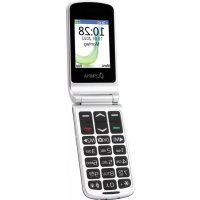
Style Duo - Smartphone OLYMPIA - Free user manual and instructions
Find the device manual for free Style Duo OLYMPIA in PDF.



| Product type | Smartphone |
| Dimensions | 105 × 52.6 × 20.8 mm |
| Weight | 105 g (battery included) |
| Power supply | Li-Ion battery 3.7 V / 1000 mAh |
| Standby time | Up to 80 hours |
| Talk time | Up to 6 hours |
| Charging time | 3 to 5 hours |
| Display | 2.4" + 1.77" backlit LCD |
| Dual SIM | Yes |
| Bluetooth | Version 5.0 |
| Network | GSM 850/900/1800/1900/2100 MHz, 4G LTE B1/B3/B7/B8/B20 |
| Connectivity | USB-C, 3.5 mm headphone jack |
| Camera | Built-in |
| Radio | Built-in FM |
| Memory | 48 MB RAM + 128 MB ROM, microSD expansion |
| Main functions | Calls, SMS, Phonebook 500 contacts, SOS emergency call, FM radio, Camera, Calendar, Alarm, User profiles |
| Maintenance | Clean with a soft dry cloth, do not use solvents |
| Security | PIN code request, phone lock, SOS emergency call |
| Spare parts and repairability | Removable battery, repair by qualified personnel |
| General information | Manufacturer: GO Europe GmbH, Germany |
Frequently Asked Questions - Style Duo OLYMPIA
User questions about Style Duo OLYMPIA
0 question about this device. Answer the ones you know or ask your own.
Ask a new question about this device
Download the instructions for your Smartphone in PDF format for free! Find your manual Style Duo - OLYMPIA and take your electronic device back in hand. On this page are published all the documents necessary for the use of your device. Style Duo by OLYMPIA.
USER MANUAL Style Duo OLYMPIA
Mobile Phone in Detail 116
Front View. 116
Rear View 118
Putting the Mobile Phone into Operation 120
Inserting SIM Cards 121
Inserting a MicroSD Memory Card 122
Inserting the Battery 122
Charging the Battery 123
Charging the Battery, Charging Adapter 123
Charging the Battery, Charging Cradle 124
Switching the Mobile Phone On and Off 125
Start Screen. 126
Other Icons on the Start Screen 128
Using the Mobile Phone 129
Navigating in the Menu 129
Entering Phone Numbers and Letters 130
Making Calls 132
Taking, Ending and Rejecting Calls 132
Making an Emergency Call 133
Quick Access. 134
Mobile Phone Menu 135
Menu Structure 135
Display Texts 135
Menu Options Available During a Call 136
Volume During a Call. 136
Handsfree Function 136
Muting the Microphone 137
Putting a Call on Hold 137
Conference Facility 138
Call History 139
Options for the Call Lists 139
Phone Book 143
Phone Book Settings 147
Speed Dialling 147
Messages 149
Writing a Text Message 150
Viewing a Text Message 150
Replying to a Text Message 151
Calling the Sender of a Text Message 151
Saving Phone Numbers in the Phone Book 152
Saving a Text Message as a Draft 153
Settings for Text Messages 153
Settings 155
Phone Settings 156
Setting the Time and Date 156
Setting the Language 156
More Phone Settings 157
Call Settings 159
Transmitting Your Own Caller ID 159
Call Waiting 160
CallDivert. 161
Security Settings 162
Switching the PIN request On/Off 162
Changing the PIN 163
Switching the Phone Lock On/Off 164
Changing the Phone Lock Password 164
Network Settings 165
Bluetooth 166
Switching Bluetooth On/Off 166
Visibility 166
Connecting Devices via Bluetooth. 167
Changing the Device Name 167
Emergency Call Key (SOS) 168
Switching the Emergency Call Function On/Off 168
Cancelling an Emergency Call 169
Emergency Call Function Settings 169
Low Battery Power Alert 171
Switching the Low Battery Alert On/Off 171
Settings for Low Battery Power Alert. 172
Restoring the Default Factory Settings 173
Tools 174
Calendar 174
AlarmClock 176
File Manager 178
Camera 179
Radio 182
User Profiles 186
Activating the User Profile. 186
Adapting the User Profile 187
Dialling Picture Contacts 189
Transferring Photos from a Computer 190
Adding Contacts to Picture Contacts. 190
Adding a Picture to the Picture Contacts. 191
Dialling Via the Caller Picture Menu 192
Sending Text Messages to Picture Contacts 192
Other Settings 193
What You Also Need to Know 194
Technical Data 194
Simplified EU Declaration of Conformity 195
Warranty 195
Manufacturer 196
Symbols 196
Cleaning 196
Disposal 197
Frequently Asked Questions (FAQ) 198
For Your Safety
The information on the following pages will help to ensure you can use the mobile phone safely.

The operating manual represents a component part of the device. It contains important information regarding safety, use and disposal. Familiarize yourself with all the operating and safety information before starting to use the device. Only use the device as described and for the purpose for which it is intended. Hand over all the documents with the device if it is transferred to third parties.

Pay attention to this symbol. Texts which are highlighted by this symbol provide helpful information on handling the mobile phone.

This symbol indicates warnings regarding certain situations which could lead to personal injuries or damage to the mobile phone.
Observe the Safety Information
Pay attention to the following safety instructions to protect yourself from any possible personal injury.

WARNING!
The mobile phone can be used by children from eight years of age and by persons with restricted physical, sensory or mental capabilities or a lack of experience and/or knowledge when they are under supervision or have been instructed with regard to safe use of the mobile phone and have understood the potential risks which result if the instructions are ignored. Children may not be allowed to play with the mobile phone. Children must not be allowed to complete any cleaning or service work on the device without adequate supervision.

WARNING!
There is a risk of an electric shock! Never attempt to open and repair the mobile phone or accessories yourself. Never touch bare contacts with metallic objects. Never plug in or unplug the charging adapter when your hands are wet.

WARNING!
Risk of suffocation! Risk to health through packaging material and protective foil! Keep packaging material and protective foil out of reach of children. Small children can swallow small parts.

WARNING!
Risk of suffocation through batteries.
- Keep batteries out of reach of children.
- Seek medical attention immediately if one is swallowed.

WARNING!
Prevent life-threatening interference to heart pacemakers! Maintain a safety distance of at least 15 cm! Never carry the mobile phone in a breast pocket when switched on. Always hold the mobile phone to the ear furthest away from the pacemaker during calls. Switch the mobile phone off immediately if you notice or suspect any adverse effects.

CAUTION!
There are different risks involved when dealing with batteries.
- Never attempt to recharge standard batteries, never short circuit batteries and/or open batteries. Doing so leads to a potential risk of overheating, fire or explosion.
- Improper handling of batteries can put your health and the environment at risk. Batteries may contain toxic, ecologically hazardous heavy metals.
- Ensure the connection terminals are not short-circuited.
- Never throw batteries into a fire or water.
-
Never expose batteries to any mechanical loads.
-
Leaking batteries could cause damage to the device. If a battery should start to leak, remove it from the device immediately to prevent any further damage. Take the utmost care when handling damaged or leaking batteries and always wear protective gloves.
- Avoid any contact with the skin, eyes and mucous membranes. In the event of contact with battery acids, wash the affected area immediately with plenty of fresh water and seek medical attention straight away. Avoid extreme conditions and temperatures which could affect the batteries, e.g. by placing them on radiators or exposing them to direct sunlight.
- Only use batteries of the type specified.
- Never use batteries of different types or new and old batteries together.
- Ensure batteries are inserted with the correct polarity.
- If the device will not be used for a longer period, switch the device off and remove the batteries.
- Remove empty batteries from the device and dispose of them according to the applicable directives.
- The batteries must be removed from the device before its disposal.
- You are obliged by law to dispose of batteries and power packs according to your dealer or at a collection point provided by the local public waste authorities.

CAUTION!
Risk of injury to the retina. The LED for the torch is very bright and could cause damage to eyes. Never look directly into the LED torch beam when the torch is switched on.

CAUTION!
The ring tone is issued via the loudspeaker. Take an incoming call first and then hold the mobile phone to your ear. This prevents any possible hearing damage.

CAUTION!
Do not use the phone in prohibited areas! Prohibited areas could include hospitals, petrol stations, aeroplanes, etc. Observe local regulations!

CAUTION!
Reduce exposure to radio waves! Use an appropriate headset for longer calls. Do not keep the mobile phone near your head.

CAUTION!
With regard to emergencies, do not rely on the mobile phone alone! For technical reasons, it is not possible to guarantee a reliable connection in every situation.
Prevent damage to your mobile phone and observe the instructions!

IMPORTANT!
Protect your mobile phone from moisture, dust, liquids, chemicals, vapours, heat and direct sunlight. The phone is not waterproof; therefore, keep it dry.

IMPORTANT! With regard to emergencies, do not rely on the mobile phone alone! For technical reasons, it is not possible to guarantee a reliable connection in every situation.

IMPORTANT!
Only use original accessories. Only connect accessories approved by the manufacturer to the device.

IMPORTANT!
The mobile phone may only be repaired by qualified customer services technicians.

IMPORTANT!
When using mobile communication equipment, interference can cause disturbances.

IMPORTANT!
Telephoning while driving is only permitted when the applicable legal regulations are observed.
Tips Concerning the Battery
The following tips and information help to ensure the mobile phone battery works properly.
The battery can be charged/discharged hundreds of times but its service life is limited. Replace the battery when the battery power has decreased noticeably.
- The battery only reaches its full capacity after several full charging processes.
Intended Use
The mobile phone is designed for telephoning when connected to a mobile phone network. Any other use is considered unintended use.
Unauthorised modification or alterations are not permitted.
Under no circumstances open the mobile phone or try and complete any repair work yourself.
Checking the Package Contents
Before starting up the mobile phone, check the package contents.
The following are enclosed with the mobile phone supplied:
Mobile phone STYLE DUO
USB connection cable
Desktop charging station
Power adapter
Lithium-ion battery
Quick reference guide

Mobile Phone in Detail
Familiarise yourself with the elements on the mobile phone before actually starting to use the mobile phone.
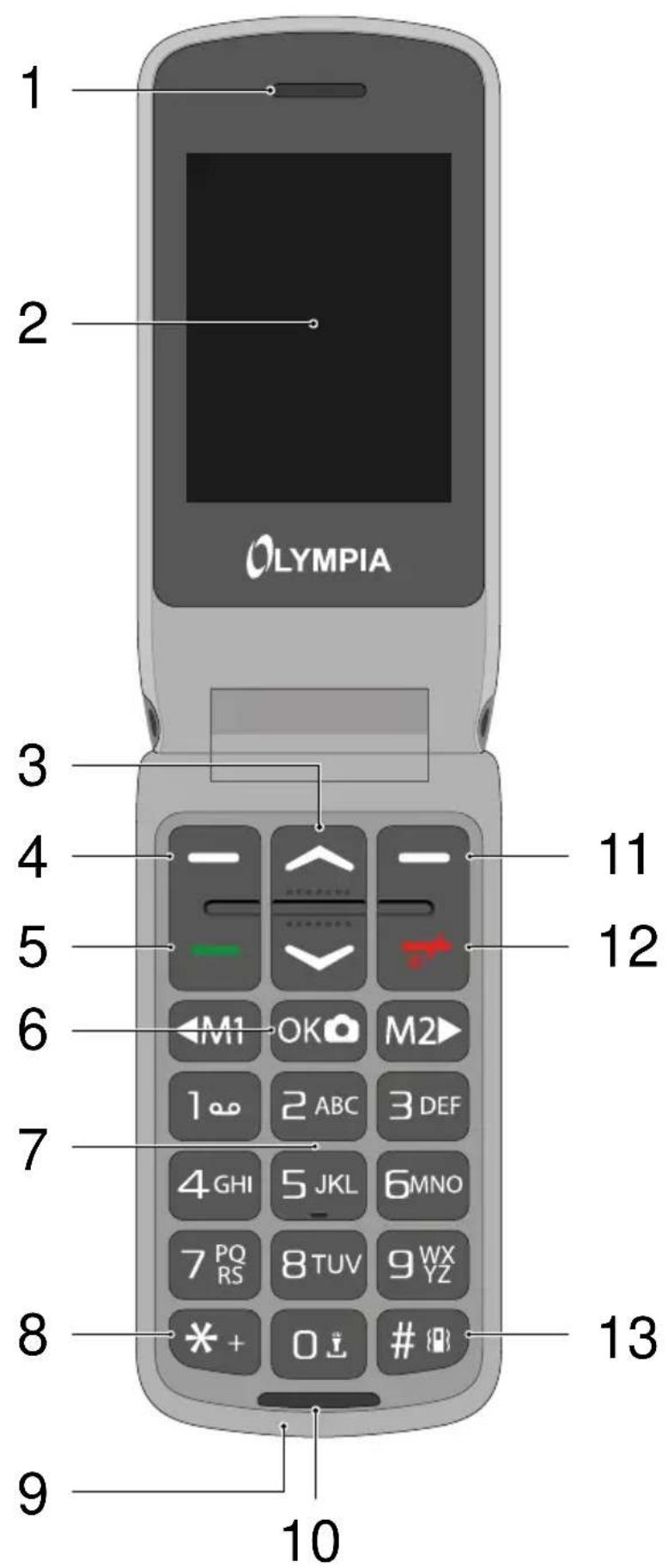
Front View
The following diagrams illustrate the keys and operating elements which you can use to exploit the functional scope of the mobile phone to the full.
1 | Loudspeaker
2 2,4" display
3 Navigation keys
4 Softkey, left
5 Call key
6 OK / Camera key
7 Keypad
8 Star key
9 USB-C connection port
10 Microphone
11 Softkey, right
12 On-hook key
13 Hash key
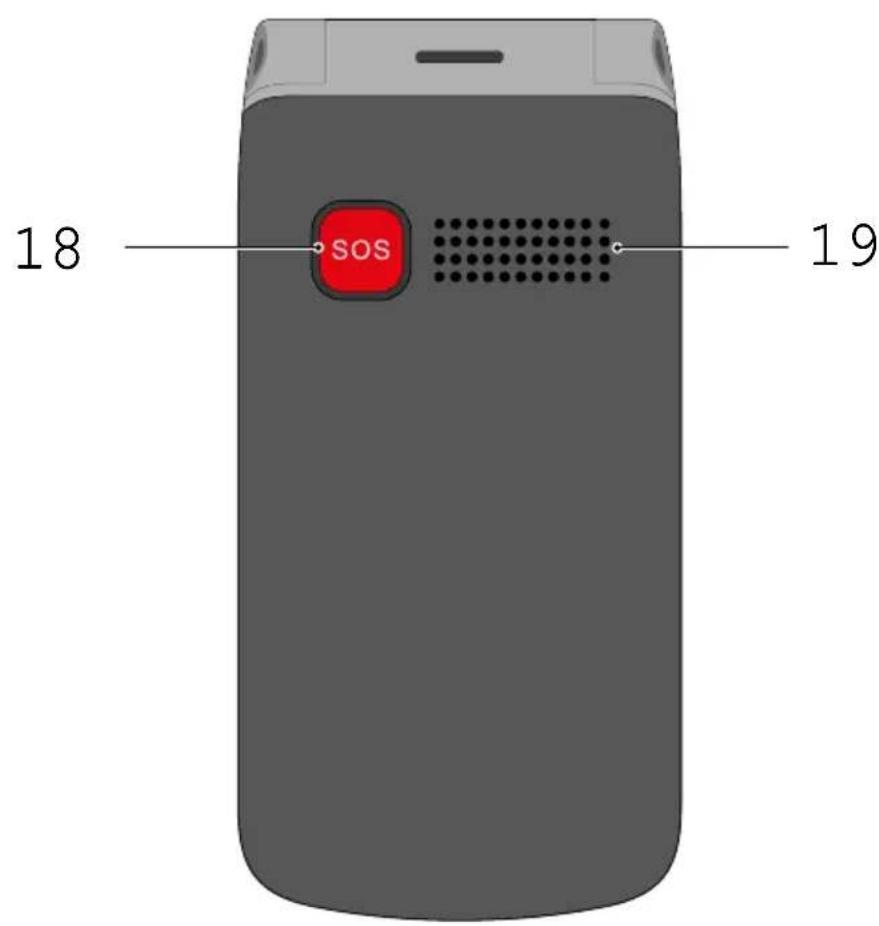
Rear View
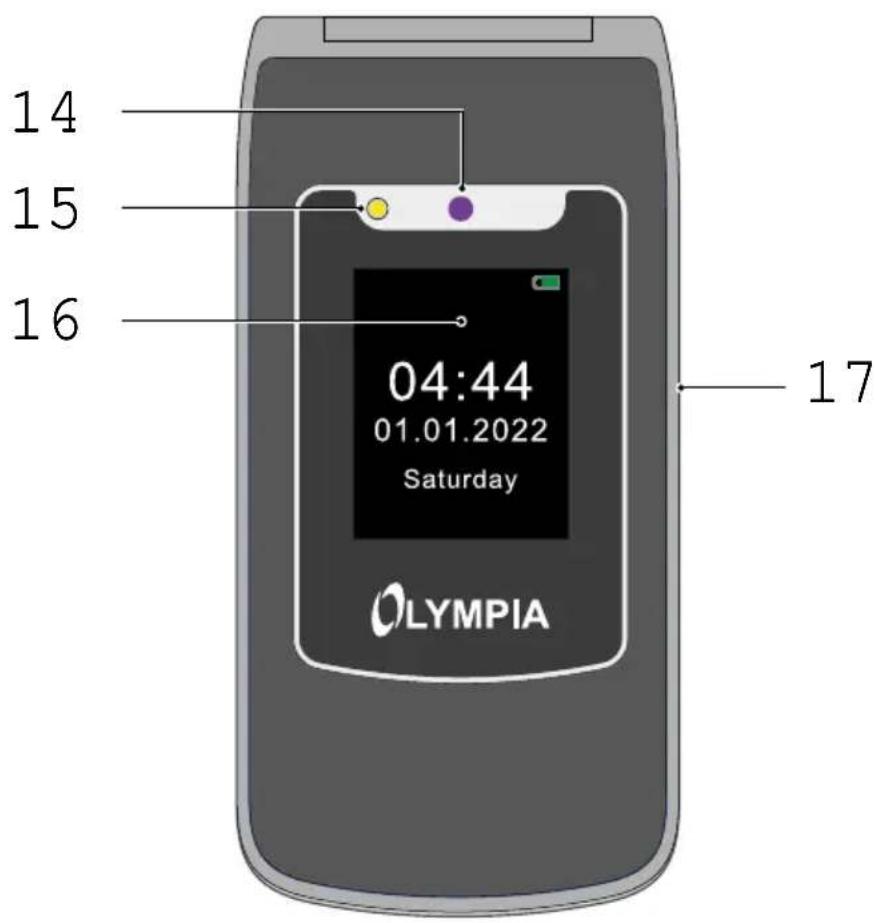
Further elements are provided on the rear side of the mobile phone and on the rear side of the top cover which you can use to perform various functions.
14 Camera
15 Flash / Torch
16 1,77" display
17 Volume key
18 Emergency call key (SOS)
19 | Loudspeaker
Style Duo
Putting the Mobile Phone into Operation
This chapter provides information on how to put your mobile phone into operation. Your mobile phone is ready for use in just a few steps.

Before you start, please read the information in Section 1. Observe the Safety Information on Page 109.
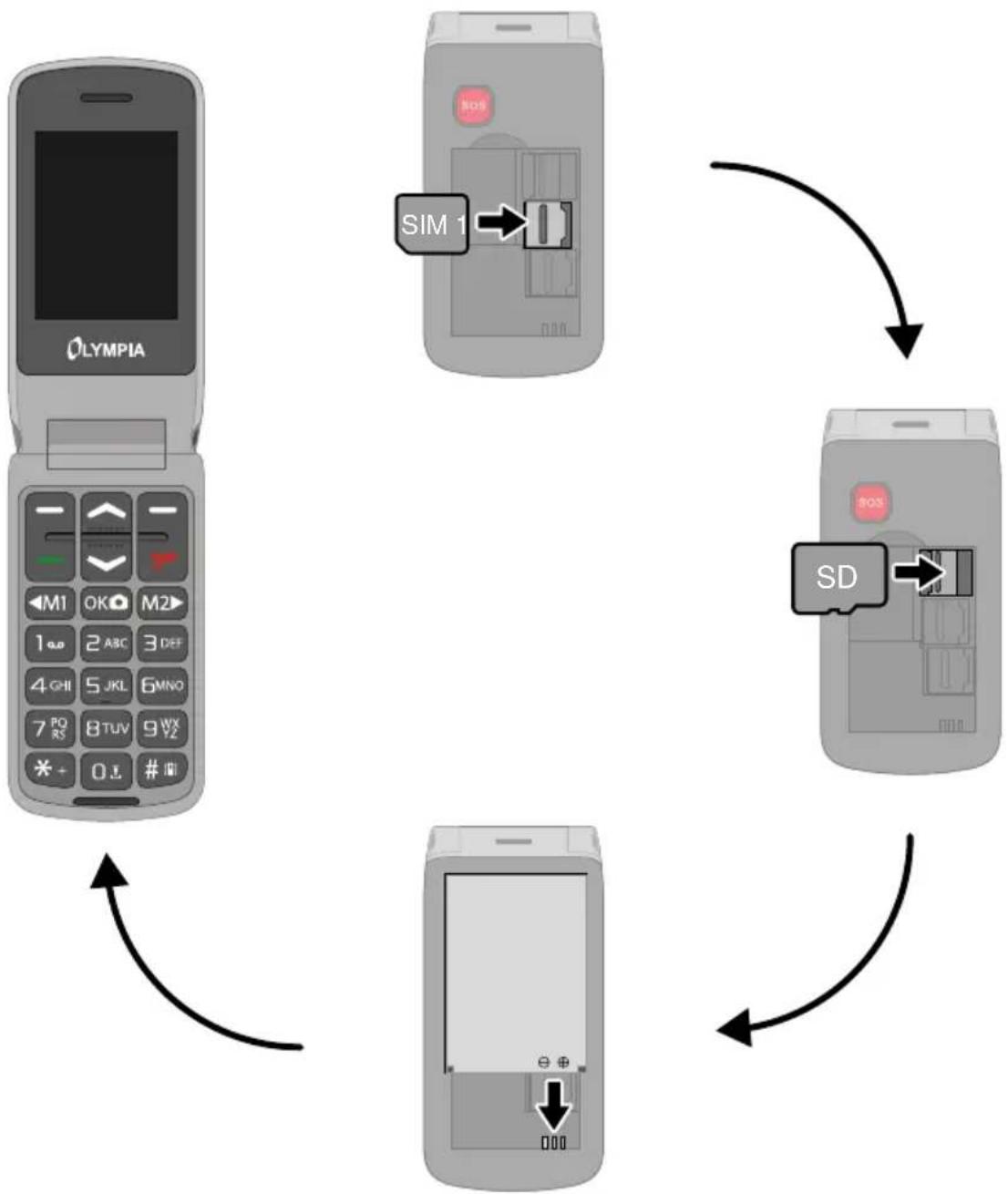
Inserting SIM Cards
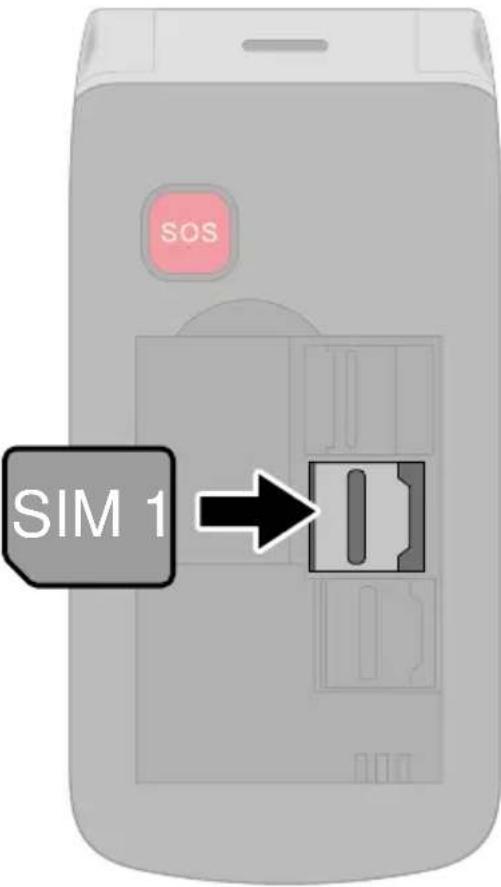
Before you can use your mobile phone, you must insert your SIM card (not included).
Only use SIM cards of the size illustrated (nano SIM card).
The battery compartment contains a shaped mould which indicates how to position and align the SIM card correctly in the compartment.
1 Remove the battery compartment cover. To do this, use the recess in the battery compartment cover on the rear of the mobile phone.
2 Remove the battery.
3 Open the metallic bar of the SIM card compartment by sliding it in the direction OPEN.
4 Insert the SIM card as shown.
5 Close the metallic bar of the SIM card compartment by sliding it in the direction LOCK.

The compartment shape makes it impossible to insert the card incorrectly.
Inserting a MicroSD Memory Card
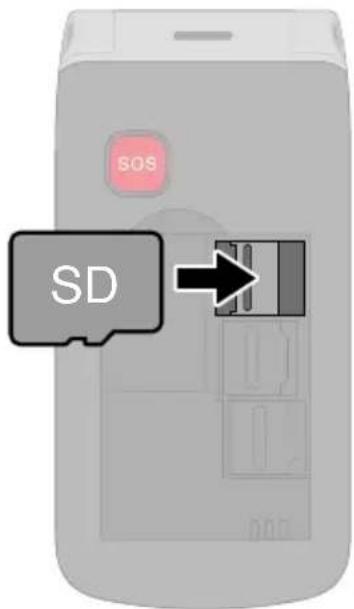
You have the option of inserting a microSD memory card (not included in the equipment supplied) in your mobile phone. This increases the data volume (e.g. for photos) which you can store on your mobile phone.
1 Insert the microSD memory card into the open compartment as shown.

The compartment shape makes it impossible to insert it incorrectly.
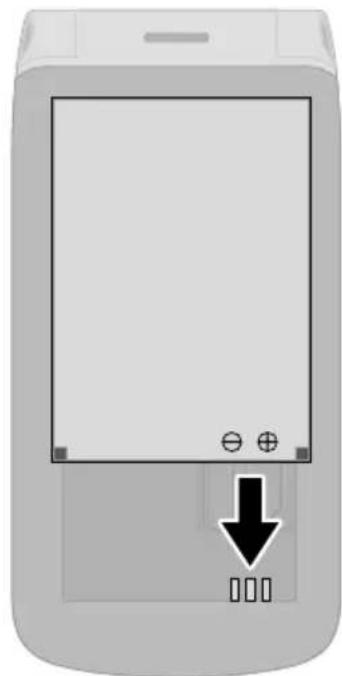
Inserting the Battery
Before you can use your mobile phone, you must insert the battery.
1 Insert the battery as shown.

The compartment shape makes it impossible to insert it incorrectly.
2 Replace the battery compartment cover. The battery compartment cover latches audibly into place.
Charging the Battery
Your mobile phone battery is fully charged after approx. 2 hours. Some batteries only reach their full capacity after several complete charge/discharge cycles. If the battery is fully discharged, it may take some time before the mobile phone switches on and displays the charging process.
Before starting to charge the battery, check that it has been installed properly.

IMPORTANT! Do not remove the battery while the battery is being charged. This could damage the mobile phone. Do not leave the mobile phone unattended when it is charging
Charging the Battery, Charging Adapter
1 Connect the power plug to a properly installed power socket.
2 Connect the USB plug to the USB connection port on the mobile phone.

The charging process is indicated in the display by means of a charging battery
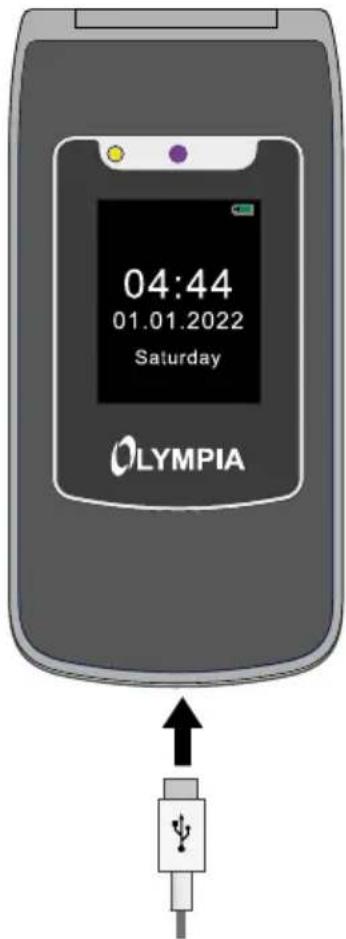
icon.
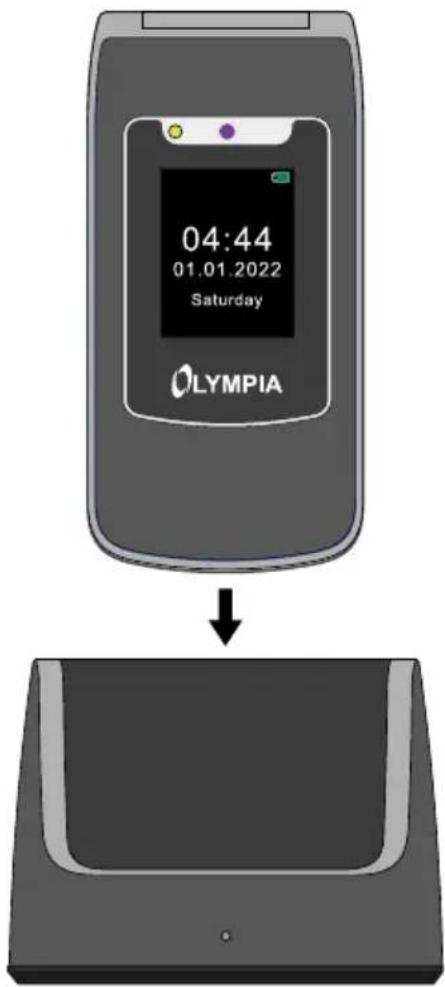
Charging the Battery, Charging Cradle
1 Connect the power plug to a properly installed power socket.
2 Connect the USB plug to the USB connection port on the rear side of the charging cradle.
3 Place the mobile phone in the charging cradle as illustrated.
Switching the Mobile Phone On and Off
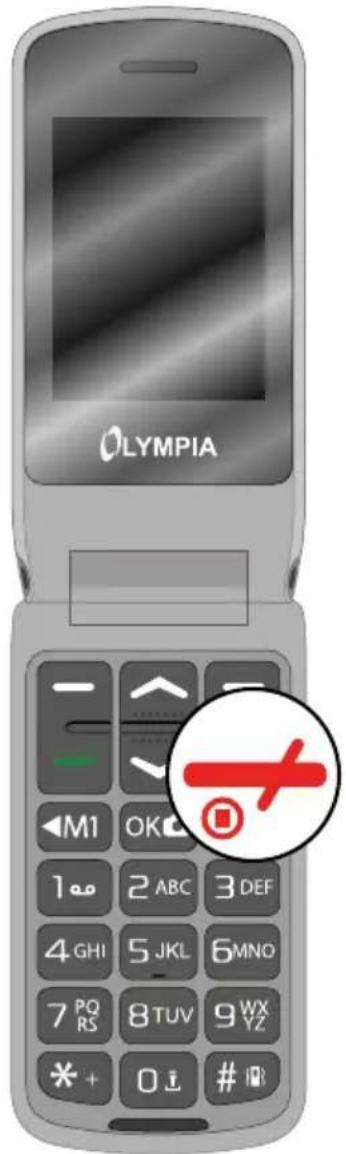
1 Press and hold the On-hook key for 3 seconds.
Some SIM cards will require you to enter a PIN code. Follow the instructions on the screen.
2 The display shows an animated graphic, followed by the start screen.
3 As soon as the display shows the name of your network operator, the SIM card has established a connection with the mobile phone network.
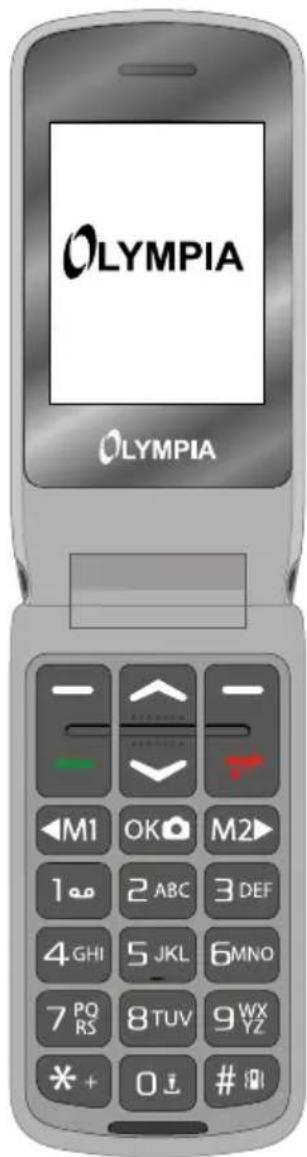
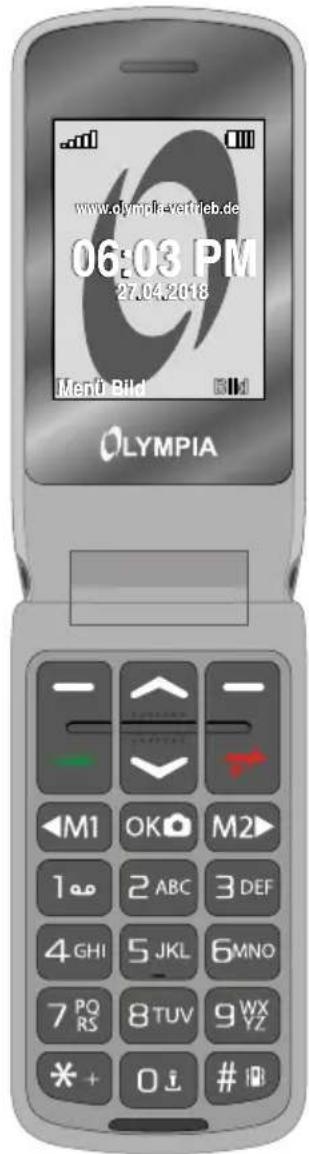
Start Screen
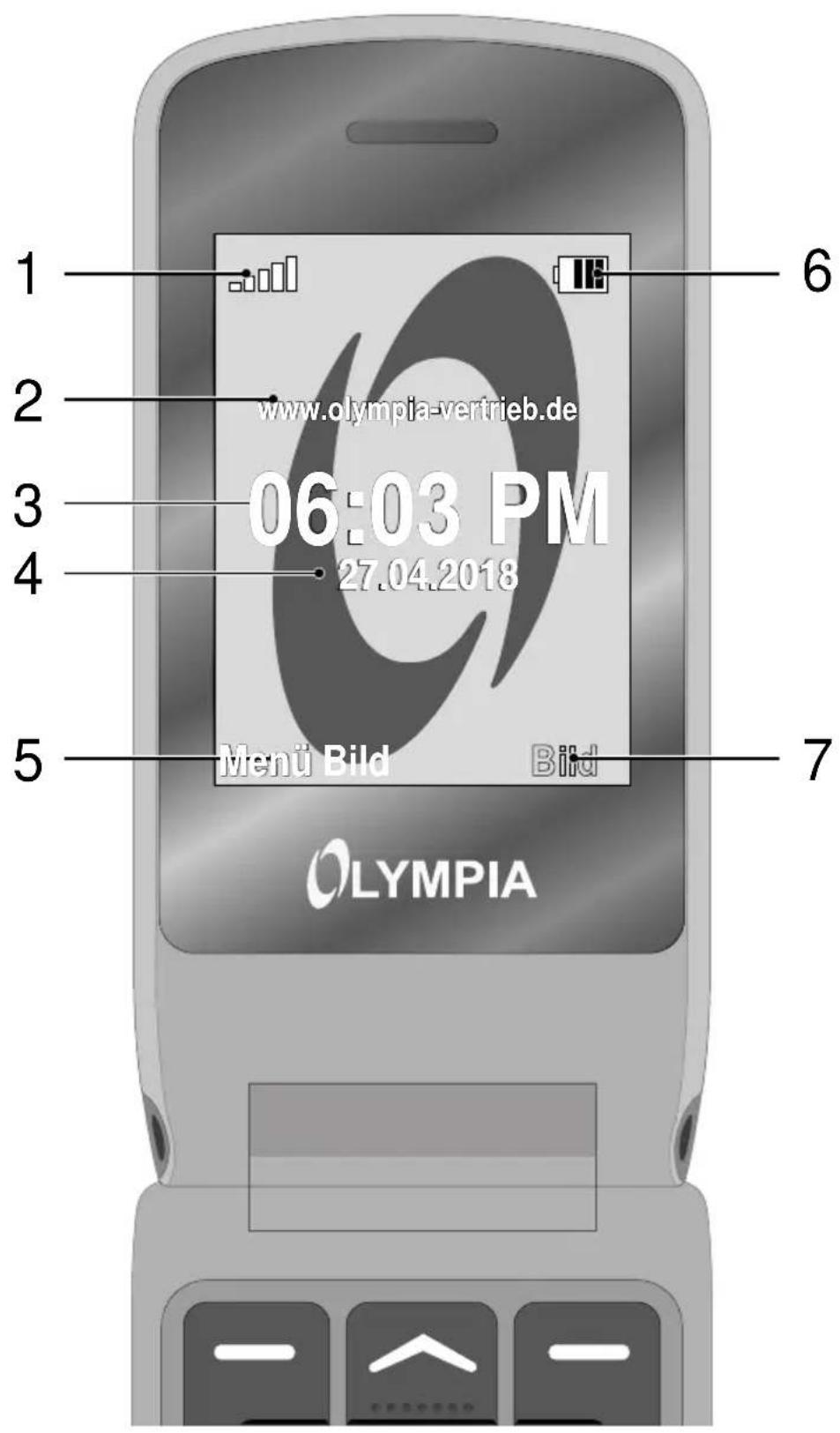
The start screen is the standard display which appears when the mobile phone is switched on. The start screen shows you useful information.
Switch the mobile phone on to open the start screen.

You can open the start screen at any time by pressing the On-hook key.
1 Network availability
2 Network operator
3 Time
4 Date
5 Display text MENU - changes according to the context
6 Battery charge
7 Display text IMAGE - changes according to the context
Other Icons on the Start Screen
Apart from the icons permanently on the start screen, other icons appear at the top edge of the start screen according to the current settings.
The following overview provides a selection of the most frequently used symbols:

The Bluetooth function is activated.

The mobile phone vibrates when calls or texts are received.

The mobile phone is muted.

The mobile phone is in Outdoor mode.

A text (SMS) which has not yet been read is in your inbox.

Headphones have been connected to the mobile phone.
Please note that using roaming services can incur additional charges.
Using the Mobile Phone
This section explains how to navigate through the mobile phone menus, enter phone numbers and letters and how you can respond to incoming and outgoing calls.
Navigating in the Menu
Use the following keys to navigate through the menus provided by the mobile phone.
Navigate up in the menu.

Navigate down in the menu.
Open submenus or confirm your entries.
Navigate one menu level back or discard all your entries and settings.
Entering Phone Numbers and Letters
In order to enter phone numbers and letters or delete entries, use the digit keys or the softkeys on the mobile phone keypad.
When the mobile phone is initially supplied, the multi-tap input method De (German) is set. You can change the input method (e.g. to UPPER CASE, lower case or digits 123) by pressing the Hash key as often as necessary.
If you want to enter text, press the key containing the letter/ character you want the corresponding number of times. The letters/characters assigned to a key are imprinted on the respective key.
Punctuation and Special Characters
Press the Star key while writing a message or other text.
All the punctuation marks and special characters available are displayed. Select the character you want with the navigation keys and confirm with the left-hand softmax.
Repeatedly pressing the 1 key in Edit mode scrolls through a list of frequently used punctuation and special characters.
Other Entries and Functions
Press the 0 key to enter a space.
Press the right-hand softkey to delete characters.
Press and hold the right-hand softkey for 2 seconds to delete all the characters.
Making Calls
Proceed as follows to make a call:
Enter the required phone number using the keypad and then press the Call key.
Taking, Ending and Rejecting Calls
When you want to take, end or reject calls, use the following keys:
Take an incoming call.
End a call in progress.
Reject an incoming call.
Making an Emergency Call
If you want to or need to make an emergency call, use the following key on the rear of the mobile phone:

Press and hold the Emergency Call key (SOS) for 3 seconds.

If you want to cancel an emergency call for any reason, press and hold the Emergency Call key (SOS) again for around 5 seconds.
Quick Access
You can use some keys on your phone as quick access keys. A quick access is performed directly on the start screen.
User Profiles
Press and hold the Hash key to switch between the available user profiles. Further information is provided in Section User Profiles on Page 186.
Writing a Message
Write a message. Further information is provided in Section Messages on Page 149.
Camera
Open the Camera menu. Further information is provided in Section Camera on Page 179.
Mobile Phone Menu
The main mobile phone menu is divided into topically organised groups (submenus).
The following descriptions always assume that the starting point for the operation is the mobile phone's start screen.
Menu Structure
The higher level menus, such as the Phone Book, Messages and Settings menus, are located on the start screen of the mobile phone.
Use the navigation keys and softkeys to navigate through the entire menu provided on the mobile phone.
Display Texts
In this operating manual, all important functions are explained with the help of texts, illustrations and examples.
You will find display texts illustrated in many sections of this operating manual. These display texts correspond to the texts which appear on the screen of your mobile phone.
If several display texts are shown in succession, navigate with the navigation keys and the softkeys to the display texts shown.
Menu Options Available During a Call
While a call is in progress, it is possible to change the volume, activate the handsfree function, mute the microphone and activate a conference with other call participants.
Volume During a Call
Change the volume during a call using the navigation keys, up and down.
Handsfree Function
You can select whether to hear the caller via the loudspeaker.
1 When a call is in progress, select [MENU] → [HANDSFREE]. The microphone is switched off, the caller cannot hear you.
2 Select, MENU to hear the caller via the loudspeaker again.
Muting the Microphone
You can switch the microphone off while the call is in progress. Muting the phone means that the call continues to be connected, you can still hear the caller but the caller can no longer hear you.
1 When a call is in progress, select . The microphone is muted, the caller can no longer hear you.
2 Select MUTE . The muting function is deactivated and the caller is able to hear you again.
Putting a Call on Hold
You can select whether to put the call in progress on hold. Putting a call on hold means putting it into holding mode. The call is put into a waiting loop while you set up a call with another person. The first caller cannot hear this call.
1 When a call is in progress, select . The caller is put on hold.
2 Navigate to MENU UNHOLD to resume the call.
Conference Facility
You can set up a conference call, meaning communicating with at least two other parties at the same time.
1 When a call is in progress, select [MENU] [CONTACTS] and select the number of a third participant.
2 Press the Call key.
3 The number of the contact selected is dialled.

During this time, the call with the first caller is held until the second caller has taken the call and you start the conference.
4 Wait until the second caller has taken the call and then select [MENU] [CONFERENCE]. The conference call facility is activated and you can talk to both parties (or more).
5 Press the On-hook key to end the conference. Alternatively, select [MENU] [END CONFERENCE] if you only want to end the call with one of the contacts involved in the conference.
Call History
The Call History menu displays the numbers last dialled as well as calls received or missed in different lists.
If a number in one of the call lists matches an entry in your phone book, the corresponding name is displayed.
Options for the Call Lists
The following descriptions of the call history options apply to missed calls, received calls and numbers called. Navigation and use is the same in all the submenus.
Making a Call
You can call an entry from the call lists.
1 Press the left-hand softkey to open the main menu.
2 Navigate to CALL HISTORY.
3 Select the required call list.
4 Select the required entry.
5 Press the Call key. The entry selected is dialled.
View
This option provides more detailed information (e.g. time and date of the call and number of calls) regarding the entry selected.
1 Press the left-hand softkey to open the main menu.
2 Navigate to CALL HISTORY.
3 Select the required call list.
4 Select the required entry.
5 Select [OPTIONS] → [DETAILS]. An overview of more detailed information on the selected entry is displayed.
Writing a Text Message
You can write and send a text message to the selected entry.
1 Press the left-hand softkey to open the main menu.
2 Navigate to CALL HISTORY.
3 Select the required call list.
4 Select the required entry.
5 Select OPTIONS WRITEMESSAGE.
6 Enter your text.
7 Select OPTIONS DISPLAY.
8 The text message is sent.
Saving in the Phone Book
You can transfer entries stored in the call list to your phone book.
1 Press the left-hand softkey to open the main menu.
2 Navigate to CALL HISTORY.
3 Select the required call list.
4 Select the required entry.
5 Select OPTIONS ADD TO CONTACTS.
6 Select a storage location for the phone book entry.
7 Enter a name for the phone book contact.
8 Confirm with SAVE. The setting is saved.
Deleting Entries
You can delete an entry from the call history lists.
1 Press the left-hand softkey to open the main menu.
2 Navigate to CALL HISTORY.
3 Select the required call list.
4 Select the required entry.
5 Select OPTIONS DELETE and confirm the prompt. The contact is deleted.
Alternatively, you can delete all the call lists in one operation.
Navigate to CALL HISTORY DELETE ALL. Confirm the prompt. All the entries in the call history lists are deleted.
Phone Book
The phone book in the phone can store up to 500 contacts. You can store more contacts on the SIM card.
If the mobile phone or SIM card memory is full, a corresponding message appears in the display. In order to add new entries, you must first delete old entries or select a different storage location.
The contacts are arranged in alphabetical order.
Adding a Contact
Save your contacts in the phone book in order to be able to access important phone numbers quickly.
1 Press the left-hand softkey to open the main menu.
2 Navigate to CONTACTS NEW CONTACT.
3 Select the storage location for the new contact.
4 Enter the name and phone number.
5 Confirm with SAVE. The new contact is saved.
You can also assign pictures to contacts stored in the phone book. Further information is provided in Section Speed Dialling on Page 147 or Dialling Picture Contacts on Page 189.
Calling a Contact
You can call contacts stored in the phone book as follows.
1 Press the left-hand softkey to open the main menu.
2 Navigate to CONTACTS and select a contact.
Enter the first letters of the stored name using the keypad to jump to a specific entry. It may be necessary to press a key several times. Further information is provided in Section Entering Phone Numbers and Letters on Page 130.
3 Press the Call key. The phone number is dialled.
Deleting a Contact
You can delete contacts from the phone book.
1 Press the left-hand softkey to open the main menu.
2 Navigate to CONTACTS.
3 Select the required contact.
4 Select OPTIONS DELETE and confirm the prompt. The contact is deleted.
Editing a Contact
You can edit contacts in the phone book.
1 Press the left-hand softkey to open the main menu.
2 Navigate to CONTACTS.
3 Select the required contact.
4 Select OPTIONS EDIT.
5 Edit the contact details.
6 Confirm with SAVE. The modifications are saved.
Phone Book Settings
You can set more settings in the phone book. You can define, for example, where new phone book entries should be stored.
Memory Status
This provides information regarding the number of contacts stored and storage locations available:
1 Press the left-hand softkey to open the main menu.
2 Navigate to CONTACTS OPTIONS OTHERS MEMORY STATUS. The storage locations still available are displayed.
Speed Dialling
If you want to be able to dial certain phone numbers even more quickly, you can assign the respective phone book entries to digit keys 2 to 9.
Firstly, the speed dialling function must be switched on.
Adding a Contact to Speed Dialling
Assign the contacts that you want to call via the speed dialling keys to the keys M1/M2 or keys 2 to 9.
1 Press the left-hand softkey to open the main menu.
2 Navigate to SETTINGS SPEED DIAL M1/M2 KEY or 2-9 NUMBER OK SET NUMBERS.
The memory locations displayed correspond to the digit keys on the mobile phone.
3 Choose a free memory location and then select OPTIONS oder ENTER NUMBER
4 Choose a contact from the phone book or enter the phone number of the contact required.
5 Confirm with OK. The contact is added to speed dialling.
Calling Using Speed Dialling
You can use the speed dialling function from the start screen.
Press and hold one of the M1/M2 keys or keys 2 to 9 for three seconds. The phone number saved as a speed dial number is dialled.
Messages
You can use the menu (also called "SMS") to write messages and view, answer, forward and delete received and sent text messages, write draft messages and make further settings.
The following descriptions apply to the DRAFTS submenu. Navigation and use is the same in all the submenus.

A standard message normally contains maximally 160 characters.
Sending a text message with more than 160 characters could result in additional costs, depending on the terms of your SIM card.
It is possible that not all functions described are supported by every mobile service provider. Therefore, please contact your local mobile service provider for details.
Writing a Text Message
Write a text message.
1 Press the left-hand softkey to open the main menu.
2 Navigate to
3 Select OPTIONS ADD CONTACT.
4 Select the required phone book contact.
5 Enter your text.

Alternatively, select [MESSAGE] [WRITEMESSAGE] and enter the phone number manually.
6 Select OPTIONS DISPLAY. The text message is sent.
Viewing a Text Message
Open any text message in order to view the full content of the message.
1 Press the left-hand softkey to open the main menu.
2 Navigate to
3 Select the required text message.
4 Press the OK/Camera button. The text message is opened.
Replying to a Text Message
Send a reply to the sender of a received text message.
1 Press the left-hand softkey to open the main menu.
2 Navigate to
3 Select the required text message.
4 Select OPTIONS REPLY.
5 Enter your text.
6 Select OPTIONS DISPLAY. The text message is sent.
Calling the Sender of a Text Message
Call the sender of a text message received.
1 Press the left-hand softkey to open the main menu.
2 Navigate to [MESSAGEs] [INBOX].
3 Select the required text message.
4 Select OPTIONS CALL. The sender of the message received is called.
Deleting a Text Message
Delete a text message.
1 Press the left-hand softkey to open the main menu.
2 Navigate to
3 Select the required text message.
4 Select OPTIONS DELETE and confirm the prompt. The text message is deleted
Saving Phone Numbers in the Phone Book
You can save a phone number, from which you have received a text message, in your phone book.
1 Press the left-hand softkey to open the main menu.
2 Navigate to
3 Select the required text message.
4 Select OPTIONS ADD TO CONTACTS.
5 Select ADD TO NEW oder ADD TO EXISTED CONTACT.
6 Select the storage location.
7 Enter the name and confirm your entry by selecting SAVE.
8 The phone number from which a text message was received is stored as a phone book entry.
Saving a Text Message as a Draft
Write a text which you want to save as a draft.
1 Press the left-hand softkey to open the main menu.
2 Navigate to
3 Enter your text.
4 Confirm by selecting [OPTIONS] SAVE AS DRAFT. The text message is saved as a draft.
Settings for Text Messages
You can make further settings, such as the preferred storage location of your text messages or saving delivery reports for sent messages.
Preferred Storage
This defines whether the text messages are stored on the mobile phone or SIM card.
1 Press the left-hand softkey to open the main menu.
2 Navigate to LOCATION
3 Select the storage location for your text messages.
4 Confirm by pressing the OK/Camera button.
Delivery Reports
You can define whether you want to receive a delivery (transmission) report for text messages sent.
1 Press the left-hand softkey to open the main menu.
2 Navigate to
3 Select STATUS REPORT.
4 Switch the status report on or off by pressing the OK/Kamera button.
Memory Status
You can check how much memory space is available for your text messages.
1 Press the left-hand softkey to open the main menu.
2 Navigate to [MESSAGES] [MESSAGE CAPACITY]. The memory capacity of the SIM card and mobile phone is displayed.
Settings
Use the Settings menu to alter the basic settings of your mobile phone such as time, language, call settings, phone settings, plus network and security settings.
Settings also contains the Emergency Call function (SOS), Battery Low reminder function when the battery power is getting low and Dual SIM settings, for example.
Phone Settings
Setting the Time and Date
Set the time and date before using the mobile phone for the first time.
1 Press the left-hand softkey to open the main menu.
2 Navigate to SETTINGS PHONE TIME & DATE.
3 Enter the current time and date using the keypad.

Adapt the settings for the time zone as well as the time and date format according to your needs.
4 Confirm with COMPLETED. The setting is saved.
Setting the Language
Set one of the six menu languages available on your mobile phone.
1 Press the left-hand softkey to open the main menu.
2 Navigat to SETTINGS PHONE LANGUAGEES.
3 Select the required setting.
4 Confirm by pressing the OK/Camera button. Your mobile phone menu will be shown in the selected language.
More Phone Settings
Setting the Back-Lighting
You can define how bright the back-lighting of the screen display should be and how long it should be active.
1 Press the left-hand softkey to open the main menu.
2 Navigate to SETTINGS DISPLAY DISPLAY BRIGHTNESS.
3 Select the required settings. Change the settings using the M1 key and M2 key.
4 Confirm wiht COMPLETED. The setting is saved.
Setting the Background Image (Wallpaper)
You can select a picture which should appear on the start screen.
1 Press the left-hand softkey to open the main menu.
2 Navigate to SETTINGS DISPLAY BACKGROUND PICTURE.
3 Navigate to the storage location of the wallpaper (background image).
4 You can select from a total of seven wallpapers stored.
5 Confirm by pressing the OK/Camera button. The setting is saved. The wallpaper selected appears permanently on the start screen.
If you have installed a microSD memory card in your mobile phone and you have stored a suitable image on it, you can use this image as your wallpaper.
Call Settings
You can define various settings in order to specify certain telephone reactions and features for your mobile phone.
Transmitting Your Own Caller ID
You can define whether your own phone number is transmitted to the call partner, not transmitted or the setting should be defined by your mobile phone provider.
1 Press the left-hand softkey to open the main menu.
2 Navigat to SETTINGS CALL HIDE ID SIM.
3 Select the setting you want [HIDE PHONE NUMBER], [DISPLAY] or [DISPLAY BY NETWORK].
4 Confirm by pressing OK/Camera button. The setting is saved.
Call Waiting
Define whether a new, incoming call should be indicated by means of the call waiting signal while a call is already in progress.
1 Press the left-hand softkey to open the main menu.
2 Navigate to SETTINGS CALL CALL WAITING SIM.
3 Select ACTIVATE bzw. CANCEL. The setting is saved.
Select CHECK STATUS to check whether the service is available. Contact your mobile phone provider if you want to enable the service. Please note that the range of functions available can vary according to the mobile phone provider.
Call Divert
Define whether and in what situations incoming calls to the mobile phone should be diverted to another, specified phone number.
1 Press the left-hand softkey to open the main menu.
2 Navigate to SETTINGS CALL CALL FORWARDING SIM.
3 Select the required call divert setting.
4 Select between FORWARD ALL CALLS, FORWARD WHEN BUSY, FORWARD BY NO REPLY, FORWARD IF NOT REACHABLE.
5 Select ACTIVATE or DEACTIVATE.
6 Select between FORWARD TO VOICEMAIL or FORWARD TO NUMBER.
7 Enter a number or select a contact from the phone book.
8 The setting is saved.
If necessary, deactivate all the call diversions you have set up.
Navigate to SETTINGS CALL CALL FORWARDING SIM CANCEL ALL FORWARDS.
Security Settings
Define an individual PIN (Personal Identification Number) to secure the SIM card and a phone lock password to secure the mobile phone.

If you change your PIN or phone lock password, we urgently recommend that you make a note of the new PIN or password and keep it in a safe place.
Switching the PIN request On/Off
You can deactivate the request for your PIN from the SIM card if so required. This entails the risk that if you lose your mobile phone, your data can be misused by a third party, and costs may be charged to you.
1 Press the left-hand softkey to open the main menu.
2 Navigate to SETTINGS SECURITY PIN SIM PIN.
3 Enter the PIN. The standard PIN is contained with the documents provided with the SIM card.
4 Confirm with OK. The setting is saved. The PIN request is switched on or off.
Changing the PIN
Change the pre-set PIN to a combination of numbers you can remember easily.

We recommend that you choose your PIN so that it is not possible for unauthorised persons to determine the number combination simply by trial and error with easy combinations (such as 1-2-3-4 or 0-0-0-0).

1 Press the left-hand softkey to open the main menu.
2 Navigate to SETTINGS SECURITY PIN SIM CHANGE PIN.
3 Enter your PIN.
You can find the standard PIN in your SIM card documents.
4 Enter the new PIN.
5 Enter the new PIN again.
6 Confirm the prompt. The setting is saved.
The PIN is saved on your SIM card. If you pass your SIM card on to a third party or use another mobile phone yourself, the PIN last set remains valid.
If you forget your PIN, you can reset your SIM card to its factory settings using the PUK. More detailed information on this is available from your mobile phone provider.
Switching the Phone Lock On/Off
1 Press the left-hand softkey to open the main menu.
2 Navigate to SETTINGS SECURITY PHONE LOCK.
3 Enter the phone lock password. The setting is saved.
In its default setting, the phone lock password is 1234.
The phone lock is also active if no SIM card is installed in the mobile phone.
Changing the Phone Lock Password
1 Press the left-hand softkey to open the main menu.
2 Navigate to SETTINGS SECURITY CHANGE PHONE PASSWORD.
3 Enter the phone lock password.
4 Enter the new phone lock password.
5 Enter the new phone lock password again. The setting is saved.
Network Settings
The mobile phone searches for and automatically selects the mobile network assigned to the SIM card or mobile phone provider (network operator).
The presettings in this menu are set up by the SIM card or network operator.

We recommend that you do not alter the settings in this menu.
Bluetooth
With the Bluetooth function, a standard for wireless data transfer, you can exchange data with other Bluetooth-capable devices free of charge.
Switching Bluetooth On/Off
1 Press the left-hand softkey to open the main menu.
2 Navigate to TOOL BLUETOOTH.
3 Select BLUETOOTH. The Bluetooth function is switched on or off, accordingly.
Visibility
You can define whether your mobile phone should be visible for other Bluetooth-capable devices in the environment.
1 Press the left-hand softkey to open the main menu.
2 Navigate to TOOL BLUETOOTH.
3 Select BT VISIBILITY. The mobile phone is visible or not visible for other Bluetooth-capable devices.
Connecting Devices via Bluetooth
Search for other Bluetooth-capable devices in your environment with which you want to connect your mobile phone.
1 Press the left-hand softkey to open the main menu.
2 Navigate to TOOL BLUETOOTH PAIRED DEVICE.
3 Select ADD DEVICE.
4 Follow the instructions on the screen. Your mobile phone is connected to the device selected.
Changing the Device Name
You can give your mobile phone a name under which other Bluetooth-capable devices can find it.
1 Press the left-hand softkey to open the main menu.
2 Navigate to TOOL BLUETOOTH.
3 Select DEVICE NAME.

The name of the mobile phone is limited to 18 characters.
4 Enter a name for the mobile phone.
5 Confirm with OK . The setting is saved.
Emergency Call Key (SOS)

CAUTION! The acoustic alarm signal is very loud and can cause hearing damage if sounded close to the ear. When you press the Emergency Call key (SOS), hold the mobile phone away from your head.
The Emergency Call key (SOS) on your mobile phone has an emergency call function. Press and hold the Emergency Call key (SOS) for approx. 3 seconds to trigger an emergency call. An alarm signal sounds and emergency text messages are sent to stored phone numbers. After that, the respective phone numbers stored are dialled in succession in handsfree mode. You can assign up to four phone numbers to the Emergency Call key (SOS).

If you inadvertently activate an emergency call, you can stop the process. Press and hold the Emergency Call key (SOS) for 5 seconds.
Inform all the people who are to be entered in the list to receive the emergency call in advance before actually storing the list of emergency numbers.
Switching the Emergency Call Function On/Off
Switch the emergency call function on or off.
1 Press the left-hand softkey to open the main menu.
2 Navigate to SETTINGS SOS EMERGENCY CALL STATUS.
3 Select ENABLE bzw. DEACTIVATED. The emergency call function is activated or deactivated, accordingly.
Cancelling an Emergency Call
Have you sent the emergency call successfully or do you want to stop the emergency call for other reasons?
1 Press and hold the Emergency Call key (SOS) for about 5 seconds. The emergency call function is stopped.
Emergency Call Function Settings
Defining the List of Emergency Call Numbers
Save up to five phone numbers which will receive an emergency call and text message in an emergency when you press the Emergency Call key (SOS) on the rear of the mobile phone.
1 Press the left-hand softkey to open the main menu.
2 Navigate to SETTINGS SOS SOS NUMBERS.
3 Select a storage location which is empty.
Do not assign any official emergency call service numbers. A false alarm can lead to considerable costs which could be charged to you.
4 Select OPTIONS EDIT.
5 Enter the necessary phone number.
Alternatively, select OPTIONS IMPORT CONTACTS and then choose a contact from the phone book.
6 Confirm with OK. The phone number saved is called and receives an emergency text message when you press the Emergency Call key (SOS) in an emergency.
Defining a Text Message for the Emergency Call
Enter a text from which it is clearly evident to the recipient that you are in an emergency situation and require help.
1 Press the left-hand softkey to open the main menu.
2 Navigate to SETTINGS SOS SOSMESSAGE.

In the standard settings, the text of your emergency text message is SOS - help! The length of the emergency text message is limited to eighteen characters.
3 Edit the emergency text message.
4 Confirm with SAVE. The emergency text message you have saved is sent to the emergency call numbers when you press the Emergency Call key (SOS) on the rear of your mobile phone.
Low Battery Power Alert
The alert function in the case of low battery power can be used to initiate the dispatch of a text message to any phone numbers informing you that the battery in your mobile phone is almost empty and must be recharged.
Switching the Low Battery Alert On/Off
Switch the function on or off.
1 Press the left-hand softkey to open the main menu.
2 Navigate to SETTINGS CHARGE REMINDER STATUS.
3 Select ENABLE bzw. DEACTIVATED. The charge remind function is activated or deactivated.
Settings for Low Battery Power Alert
Defining the List of Phone Numbers
Set up a list not exceeding three phone numbers to which the text message should be sent.
1 Press the left-hand softkey to open the main menu.
2 Navigate to SETTINGS CHARGE REMINDER NUMBER LIST.
3 Select a storage location which is empty.
4 Select OPTIONS ENTER NUMBER or CONTACTS.
5 Enter the required phone number or select a contact from the phone book.
6 Confirm with OK. The phone number stored is called and receives an alert text message when the battery in your mobile phone is almost empty.
Restoring the Default Factory Settings
Restore the default factory settings of your mobile phone before handing it over to a third party, e.g. for repair or sale.
First, save your personal data (e.g. phone book entries, photos or text messages) to your SIM card or a microSD memory card.
1 Press the left-hand softkey to open the main menu.
2 Navigate to SETTINGS PHONE RESTORE FACTORY SETTINGS.
3 Enter the phone lock password.
In its default setting, the phone lock password is 1234.
4 Confirm the prompt. The default factory settings of your mobile phone are restored.
Tools
You can save important tasks in the Tools services provided on the mobile phone. You can enter tasks you want to be reminded of, use your mobile phone as an alarm clock or use the calendar function.
Calendar
The calendar provides an overview of the days, weeks and months of the year.
1 Press the left-hand softkey to open the main menu.
2 Navigate to TOOL CALENDAR. An overview of the current month with the weekdays appears.
3 Use the navigation keys to navigate horizontally and vertically.
Jump to Date
You can skip directly to a date in the future or past as necessary. This may be useful, for example if you want to know on which weekday a birthday, wedding or other important events fall in the following year.
1 Press the left-hand softkey to open the main menu.
2 Navigate to TOOL CALENDAR OPTIONS GO TO DATE.
3 Enter the required date using the keypad.
4 Confirm with OK. The date entered is highlighted in the calendar overview on the screen.
Alarm Clock
You can use the mobile phone as an alarm clock.
Switching the Alarm Clock On
1 Press the left-hand softkey to open the main menu.
2 Navigate to TOOL ALARM.
You can set up to three different alarm clocks.
3 Select the alarm clock you want and confirm with OPTIONS.
4 Select ENABLE or DEACTIVATED. The selected alarm clock is activated or switched off.
Subsequently, you can make further settings to adapt the alarm clock to your requirements.
Setting the Time
1 Press the left-hand softkey to open the main menu.
2 Navigate to TOOL ALARM.
3 Select the alarm clock you want and confirm with OPTIONS.
4 Select EDIT.
Set the time at which the alarm should ring.
Use the keypad to enter the alarm time.
5 Confirm with OK.
Setting Repeat Alarm
You can define whether and how often the alarm clock call is repeated (once, daily or on weekdays).
1 Select REPEAT.
2 Select the required entry.
3 Confirm with OK.
Define other settings to the weekdays according to the selection or set the days on which the alarm should wake you.
Setting the Ring Tone
Set the ring tone you want to be woken by.
1 Select RINGTONE.
2 Select one of the 15 alarm tones available and confirm with OK. The selected ring tone is set.
File Manager
With the file manager, you can manage the memory of your mobile phone and the memory of an installed microSD memory card.
1 Press the left-hand softkey to open the main menu.
2 Navigate to TOOL MY FILES.
3 You can manage the files according to your needs.
Camera
The camera can be used to take photos. Insert a microSD memory card into your mobile phone before you use the camera. Observe the information in the section Inserting a MicroSD Memory Card on Page 122.
Observe local regulations and respect other peoples' rights of privacy.
1 Press the left-hand softkey to open the main menu.
2 Press the OK/Camera button on the start screen.
Alternatively, navigate to MULTIMEDIA CAMERA.
The subject in front of the camera lens appears on the mobile phone screen.
3 Press the OK/Camera button. The camera integrated in the mobile phone stores the photo.
You can adjust the quality of the photos taken, activate various effects on the camera, change the white balance and define a variety of other settings.
Some settings assume an in-depth knowledge of photography. Test the most convenient way of presenting photos for yourself.
Storage Location
The photos you take are automatically saved on the installed microSD memory card.

The photos stored on the microSD memory card can be assigned to contacts in the picture dialling function, for example. Observe the information in the section Dialling Picture Contacts on Page 189.
Image Viewer
You can use the image viewer to view and organise your photos.
1 Select MULTIMEDIA PHOTOS.
Select OPTIONS DETAILS to view further information about your photos. The photos can also be used as wallpaper, sent via Bluetooth, renamed, deleted or used as an image when switching the mobile phone on and off.
Camera settings
Image Settings
Define the settings for image size and image quality.
1 Select OPTIONS MORE OPTIONS. Adjust and define the settings as required.
Camera Settings
Define the settings for shutter time, exposure value, contrast, self-timer and serial exposure.
1 Select [OPTIONS] → [ SETTINGS]. Adjust and define the settings as required.
Radio
The mobile phone is equipped with an integrated radio with which you can receive radio stations in the FM frequency range.
1 Connect the headphones (not contained in the scope of delivery) to the headphones connection port on your mobile phone.
2 Press the left-hand softkey to open the main menu.
3 Navigate to MULTIMEDIA FM RADIO.
Searching For and Storing Radio Stations Manually
Enter the transmission frequency manually to access a radio station directly.
1 Press the left-hand softkey to open the main menu.
2 Navigate to MULTIMEDIA FM RADIO OPTIONS MANUAL SEARCH.
3 Enter the transmission frequency of the radio station using the Navigation keys.
4 Confirm with OK. You will hear the manually entered radio station.
Save your radio stations in the channel list.
1 Select OPTIONS SAVE.
2 Select a memory location which is empty.
3 Select SELECT
4 Enter the name of a channel and the transmission frequency of the channel.
5 Confirm with OK. The radio station is saved in the channel list.
Searching For and Storing Radio Stations Automatically
The mobile phone can search for all the locally available radio stations over the entire frequency band automatically and save those found in the channel list.
1 Press the left-hand softkey to open the main menu.
2 Navigate to MULTIMEDIA FM RADIO OPTIONS AUTO SEARCH AND SAVE.
3 Confirm the prompt. All the locally available radio stations are saved in the channel list.
4 Change the channel names in the channel list, if necessary.
Volume Control
You can increase or reduce the volume of the radio station being played to various levels.
1 Press the Louder key or Quieteter key. The volume is raised or lowered correspondingly.
A change in the volume level affects the volume being played on both the loudspeaker and the headset.

CAUTION! Exposure to the receiver earpiece at full volume for a long period could cause hearing damage. Do not hold the mobile phone directly on the ear when listening to the radio via the loudspeaker.
More Settings for the Radio
Make any necessary adjustments to the background playback of the radio and the mobile phone loudspeaker.
Background Play
Define whether the radio should remain on in the background (meaning that the radio continues to be played although the menu is no longer selected and the mobile phone has been closed).
1 Press the left-hand softkey to open the main menu.
2 Navigate to MULTIMEDIA FM RADIO OPTIONS BACKGROUND PLAYBACK.
3 Confirm with OK. The setting is saved.
Loudspeaker
You can set the radio up so that it can be played via the telephone loudspeaker as well as the headset.
1 Press the left-hand softkey to open the main menu.
2 Navigate to MULTIMEDIA FM RADIO OPTIONS LOUDSP.

CAUTION! Exposure to the receiver earpiece at full volume for a long period could cause hearing damage. Do not hold the mobile phone directly on the ear when listening to the radio via the loudspeaker.
3 Confirm with OK. The setting is saved.

The radio only works when the headphone is connected. The headset must also be connected in order to play the radio via the mobile phone loudspeaker.
User Profiles
A user profile compiles various settings, such as ringing tone, ringing volume, vibration alert, text message tones, switching on/off tones and other acoustic signals, together in a personalised menu.
You have the option of choosing a preinstalled user profile and/or adapting it to suit your own needs.
We recommend that you use the General user profile if you want to complete personal adjustments.
Activating the User Profile
Switch on any user profile. All settings that define the user profile (such as ring tones, volume etc.) are active.
1 Press the left-hand softkey to open the main menu.
2 Navigate to SETTINGS PROFILES.
3 Select the user profile required.
4 Confirm with OPTIONS ACTIVATE. The user profile selected is activated.
Adapting the User Profile
Adapt your user profile according to your needs. You can customise all user profiles.
1 Press the left-hand softkey to open the main menu.
2 Navigate to SETTINGS PROFILES.
3 Select the user profile required.
4 Select OPTIONS SETTINGS.
Setting the Ring Tone
You can define whether the mobile phone should issue a single acoustic signal (single signal), a slowly increasingly loud signal (ascending) or if the set signal tone should be played repeatedly (repeat).
1 Navigate to SETTINGS PROFILES.
2 Select the profile that you want to change.
3 Select OPTIONS SETTINGS
4 Select RING TYPE.
5 Select the required setting.
6 Confirm with COMPLETED.
Setting the Ring Tones
You can select your favourites from the different ring tones available.
1 Navigate to SETTINGS PROFILES.
2 Select the profile that you want to change.
3 Select OPTIONS SETTINGS.
4 Select RING SETTINGS.
5 Select the required setting.
6 Confirm with COMPLETED.
Adjusting the Volume
Adapt the volume of the incoming calls.
1 Navigate to SETTINGS PROFILES.
2 Select the profile that you want to change.
3 Select OPTIONS SETTINGS.
4 Select ADJUST VOLUME.
5 Select the tone that you want to set.
6 Set the required volume.
7 Confirm your setting with COMPLETED.
Dialling Picture Contacts
Assign pictures to your favourite contacts. These pictures are displayed in the picture menu. On selecting a picture, the phone number of the contact assigned to the picture is dialled.
You can import your own images from a computer to your mobile phone or the memory card and use these images for your picture contacts. To ensure optimal display quality of the pictures, only use photos with a resolution of 58 × 68 pixels. Otherwise, pictures could be blurred or not shown at all. Only pictures in ".jpeg" format can be displayed.
If you want to crop your images to the proper format, use our practical image converter at
www.go-europe.com.
Transferring Photos from a Computer
Transfer photos from your computer to a microSD memory card.
1 Connect the mobile phone to a computer using the USB connection cable.
2 Select Mass storage.
3 Transfer the pictures required to the mobile phone.
Adding Contacts to Picture Contacts
Assign pictures to any contacts.
1 Press the right-hand softkey to open the Picture Contacts menu.
2 Select a memory location which is empty.
3 Select EDIT OPTIONS CONTACTS.
4 Select the required phone book entry.
5 Confirm with OK. The required phone book entry is stored in the picture selection.
Adding a Picture to the Picture Contacts
You can use pictures which you have transferred from your computer onto the mobile phone for the picture contacts.
1 Press the right-hand softkey to open the Picture menu.
2 Select the required picture contact.
3 Select EDIT OPTIONS EDIT CALLER PICTURE SELECT PHOTO oder TAKE PHOTO.
4 Select the required picture. Confirm with SELECT.
5 Select SAVE.
6 The picture is added to the picture contact selected and can be viewed in the menu.
Dialling Via the Caller Picture Menu
You can call the phone book entry by selecting the corresponding picture. You can then see the person to be called on the screen before actually making the call.
1 Press the right-hand softkey to open the Picture menu.
2 Select the required picture contact.
3 Press the Call button. The picture contact is dialled.
Sending Text Messages to Picture Contacts
1 Press the right-hand softkey to open the Picture menu.
2 Select the required picture contact.
3 Select EDIT OPTIONS WRITEMESSAGE.
4 Enter the required recipient and the text.
5 Select OPTIONS DISPLAY.
6 The text message is sent.
Other Settings
If you require, make other settings for your picture contacts.
Editing a Picture Contact
1 Press the right-hand softkey to open the Picture menu.
2 Select the required picture contact.
3 Select EDIT OPTIONS EDIT. Edit the name and phone number of the selected picture contact.
4 Confirm with SAVE. The settings are saved.
Deleting a Picture Contact
1 Press the right-hand softkey to open the Picture menu.
2 Select the required picture contact.
3 Select EDIT OPTIONS DELETE.
4 The picture contact is deleted.
What You Also Need to Know
Technical Data
| Frequency 3G (GSM): 850 / 900 / 1800 / 1900 / | |
| Transmission power (max.): | 2100 MHz 4G (LTE): B1 / B3 / B7 / B8 / B20 Bluetooth (V5.0): 2,402 - 2,480 GHz |
| GSM: 1.86 W Bluetooth: 3.1 mW | |
| Power supply Input: 100 | - 240 V~, 50/60 Hz, 0,3 A Output: 5 V-, 500 mA, 2,5 W |
| Battery 3.7 V, 1000 mAh | Li-lon |
| Charging time 3 - 5 hours | |
| Standby Up to 80 hours | |
| Max. talk time Up to 6 hours | |
| Display 2.4" + 1.77" LCD | with back-lighting |
| Ports USB-Typ-C, 3,5-mm-jack | |
| Dual SIM Yes | |
| Dimensions 105 x 52,6 x | 20,8 mm |
| Weight 105 g including battery | |
| Memory RAM 48 MB + ROM 128 MB | |
| Permissible ambient conditions | -10 °C to 40 °C at 30 to 75% relative humidity |
Subject to change without notice!
Simplified EU Declaration of Conformity

Hattingen, DEUTSCHLAND, declare, under our sole responsibility, that the product is compliant

with the requirements stipulated in the EU Directives:
2014/53/EU and 2011/65/EU. The full text of the EU
Declaration of Conformity can be viewed at the following internet address or by scanning the QR code:
http://productip.com/?f=7a42d
Warranty
Dear customer,
We are delighted that you have chosen this equipment.
In the case of a defect, please return the device together with the receipt and original packing material to the point of sale.
Manufacturer
GO Europe GmbH
Zum Kraftwerk 1
D-45527 Hattingen
Germany
www.go-europe.com
Symbols
The following symbols are provided on the packaging or on the device itself. This section explains the significance of the individual symbols.

Only use the product indoors.

The symbol indicates that the design of the product complies with Protection Class II (double insulation).
A safety connection to the electrical earthing (ground) is not necessary.

There is a risk of explosion if the battery is exposed to open flames.
Cleaning
Switch the machine off.
Clean the surfaces of the housing with a soft, dry, lint-free cloth. Do not use any cleaning agents or solvents.
Disposal

Obtain information on the possibility of returning old devices and used batteries to your handler free of charge.
Delete any personal data on the device before disposing of it (refer to Restoring the Default Factory Settings on Page 173).
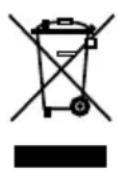
The adjacent symbol indicates that electrical and electronic apparatus and batteries no longer required must be disposed of separate from domestic waste in accordance with legal directives. Remove batteries from the device. Dispose of the device and the batteries at a collection point provided by your local waste authorities. Dispose of the packaging materials according to local regulations.

Defective and used batteries must be recycled in accordance with the Directive 2006/66/EC and its amendments. Return batteries and/or the device via the collection points provided.

Packaging materials must be disposed of according to local regulations.

The packaging is made of environmentally friendly materials which can be disposed of at local recycling centres. Contact your local authorities for information on the various options available to ensure correct disposal.

Observe the identifications on the packaging material when sorting the waste; these identifications relate to abbreviations (a) and numbers (b) which have the following significance: 1-7: plastics / 20-22: paper and cardboard / 80-98: composite materials.
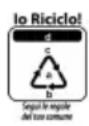
The device and the packaging material can be recycled, so sort them prior to disposal for better waste management. Contact your local authorities for information on the various options available to ensure correct disposal. Observe the following identifications of the packaging materials: (a) numbers, (b) abbreviations and (c) materials which have the following significance: 1-7: plastics / 20-22: paper and cardboard / 80-98: composite materials and (d) type of packaging. The logo is only applicable to Italy.


The device and the packaging material can be recycled. Sort them prior to disposal for better waste management. The Triman logo is only applicable to France.
Frequently Asked Questions (FAQ)
In the event of a problem, use the information on the following pages first to try and identify it and implement the solutions proposed.
The mobile phone cannot be switched on.
There is no battery inserted or the battery is not sufficiently charged. Insert or charge the battery, whichever is necessary. Further information is provided in Section Putting the Mobile Phone into Operation on Page 120.
When the battery charge drops below a minimum status, the mobile phone switches off automatically. Charge the battery in the mobile phone.
When I press the SOS key, the mobile phone's emergency call function does not react.
Create emergency call contacts as described in the Emergency Call Key (SOS) on Page 168 and save the phone numbers to be called and/or to receive an emergency text message in the event of an emergency.
Neither the signal strength nor my mobile phone network are displayed on the start screen.
There is no network connection. Your mobile phone could be in a location without any network coverage. Move to a different location or contact your mobile phone provider (network operator).
Check that the SIM card is inserted correctly. Further information is provided in Section Inserting SIM Cards on Page 121.
If you use the Dual SIM function offered by the mobile phone, the network availability and name of each mobile phone network used are displayed. Some mobile phone networks offer better coverage than others in different areas.
The keypad does not function or only reacts very slowly to my input.
The operating speed of the display is reduced in the case of low temperatures, for example. Use the mobile phone within the ambient conditions specified in the Technical Data. Further information is provided in Section Technical Data on Page 194.
Restart your mobile phone, if necessary. Further information is provided in Section Switching the Mobile Phone On and Off on Page 125.
In the case of some function, a message appears indicating it cannot be executed.
Some services only function when you have enabled or activated the service. Please contact your mobile service provider for details.
The display of my mobile phone has "frozen" and the mobile phone does not react when keys are pressed.
Your mobile phone can occasionally crash. Remove the battery, wait 30 seconds, replace the battery in the phone and start it up again. Further information is provided in Section Switching the Mobile Phone On and Off on Page 125.
The battery cannot be charged or is empty within a short time.
Charge the mobile phone for at least two hours. Please note that the battery only reaches its full capacity after several full charging processes.
If the problem continues, the battery may be defective and need to be changed. Please contact our service department in such cases.
My mobile phone does not ring, either for incoming calls or incoming text messages.
Check the user profile which is currently active. Adapt the ringing behaviour in the active user profile of the mobile phone to your needs. Further information is provided in Section User Profiles on Page 186.
The caller is too quiet or difficult to understand.
Increase the volume of the caller using the navigation keys or the function keys on the side of the mobile phone. Further information is provided in Section Volume During a Call on Page 136.
The camera on my mobile phone works but I cannot save any pictures.
Expand the memory of the mobile phone by inserting a microSD memory card. You can purchase a microSD memory card from specialist retailers. Further information is provided in Section Camera on Page 179 and Inserting a MicroSD Memory Card on Page 122.
I want to execute a function. A message in the mobile phone display requests that I enter the phone lock password.
The default setting for the mobile phone's phone lock password is 1-2-3-4. If required, switch off the prompt to enter the phone lock password
(refer to Switching the Phone Lock On/Off on Page 164).
If the proposed solutions above do not lead to the mobile phone working as expected:
Refer to the FAQs in the Internet under www.go-europe.com or contact our Service department (refer to Warranty on Page 195).
TABLE DES MATIÈRES
Pourvoiresecurite 208
1 Selecteer MULTIMEDIA AFBEELDING.