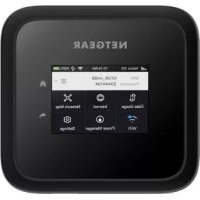
Nighthawk M6 MR6110 - Router NETGEAR - Free user manual and instructions
Find the device manual for free Nighthawk M6 MR6110 NETGEAR in PDF.



| Product type | 5G mobile router |
| Brand | NETGEAR |
| Model | Nighthawk M6 MR6110 |
| Supported bands | 5G NR, LTE, 3G, 2G |
| WiFi | Dual-band 2.4 GHz and 5 GHz, up to 802.11ax |
| Ports | 1 Ethernet port, 1 USB-C port, 2 TS-9 external antenna ports |
| Display | LCD touchscreen |
| Battery | Lithium-ion rechargeable (included) |
| Power supply | AC adapter 5V/2A (included) or USB-C port |
| Dimensions (approx.) | 170 x 120 x 25 mm |
| Weight (approx.) | 350 g (with battery) |
| Main features | 5G mobile router, WiFi hotspot, data management, connection QR code, power manager |
| Security | WPA2, customizable WiFi password, administrator authentication |
| Care and cleaning | Clean with a soft dry cloth. Do not use solvents. |
| Spare parts and repairability | Removable battery, AC adapter. Consult NETGEAR support for repairs. |
| General information | Requires a nano SIM card with data plan. NETGEAR mobile app available. |
Frequently Asked Questions - Nighthawk M6 MR6110 NETGEAR
User questions about Nighthawk M6 MR6110 NETGEAR
0 question about this device. Answer the ones you know or ask your own.
Ask a new question about this device
Download the instructions for your Router in PDF format for free! Find your manual Nighthawk M6 MR6110 - NETGEAR and take your electronic device back in hand. On this page are published all the documents necessary for the use of your device. Nighthawk M6 MR6110 by NETGEAR.
USER MANUAL Nighthawk M6 MR6110 NETGEAR
Before setting up your mobile router, note that it requires a nano SIM card to connect to your mobile provider's network. To get a valid and provisioned nano SIM card, contact your mobile provider. For information about contacting mobile providers and information you might need to provide your mobile provider, use the QR code or visit https://www.netgear.com/mobile-setup.
To download the user manual, scan the QR code or visit http://www.netgear.com/m6usermanual.
text_image
Two identical QR codes, no accompanying text or symbolsWhat's in the box
- Nighthawk® M6 Pro 5G Mobile Router
- Battery cover
- Battery
- USB Type C cable
- AC adapter
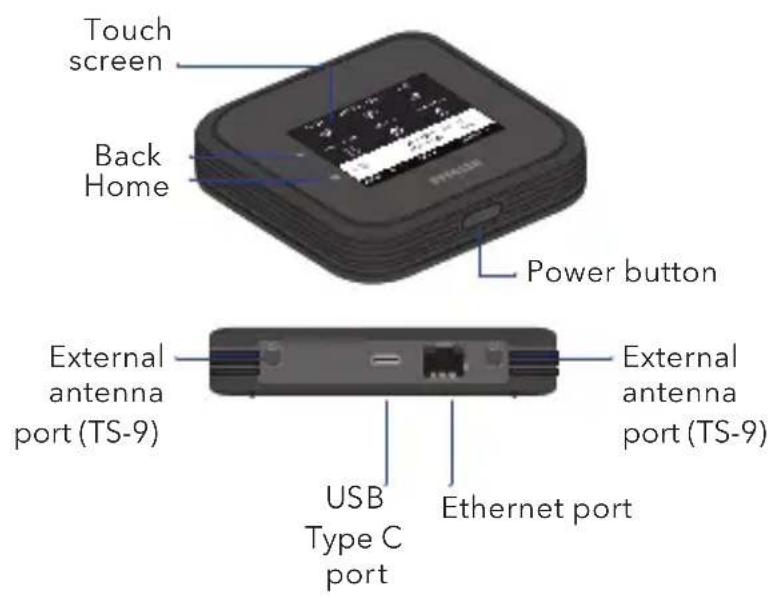
Get to know your mobile router
text_image
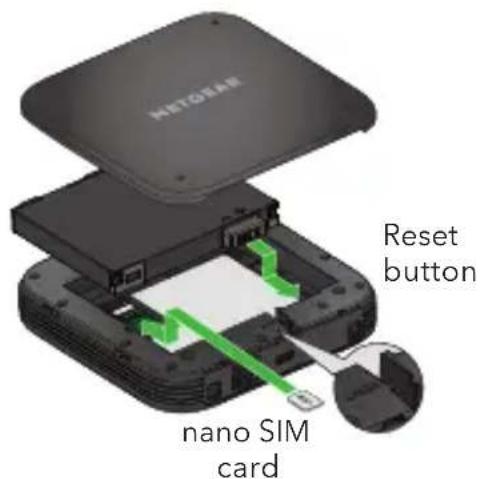
Touch screen Back Home Power button External antenna port (TS-9) External antenna port (TS-9) USB Type C port Ethernet portInstall the SIM and battery
Do not use a tool, pen, or paperclip to insert or remove the nano SIM card. Doing so might cause damage to your mobile router that is not covered by the warranty.
- Verify the SIM orientation as shown on the product label.
- Gently insert the nano SIM card.
The nano SIM card must have an active data plan with your operator.
- Insert the battery.
-
Install the back cover.
-
To charge the battery, connect the USB cable to the mobile router and then plug it into either:
-
A wall socket, using the AC adapter (faster charge option).
• A USB port on your laptop.
text_image
HETOEM Reset button nano SIM cardSet up your mobile router
- Press and hold the Power button for 2 seconds.
text_image
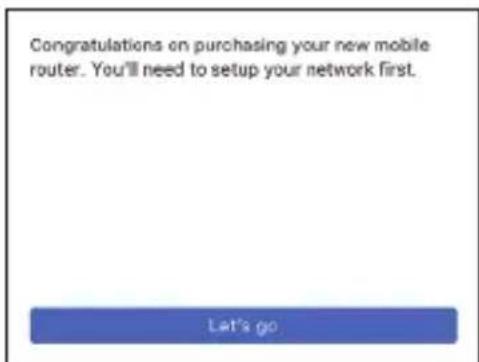
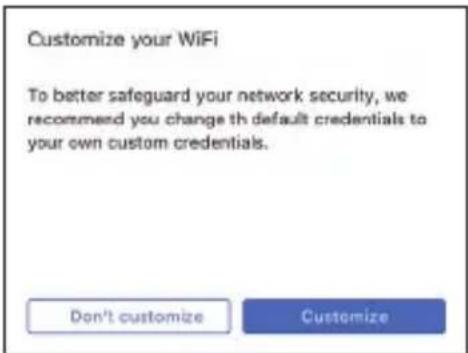
Congratulations on purchasing your new mobile router. You'll need to setup your network first. Let's goTo better safeguard your network, the first time you turn on your mobile router, you are asked to set up your login credentials.
- Follow the onscreen instructions to customize your mobile router settings.
text_image
Customize your WiFi To better safeguard your network security, we recommend you change th default credentials to your own custom credentials. Don't customize CustomizeLCD home screen
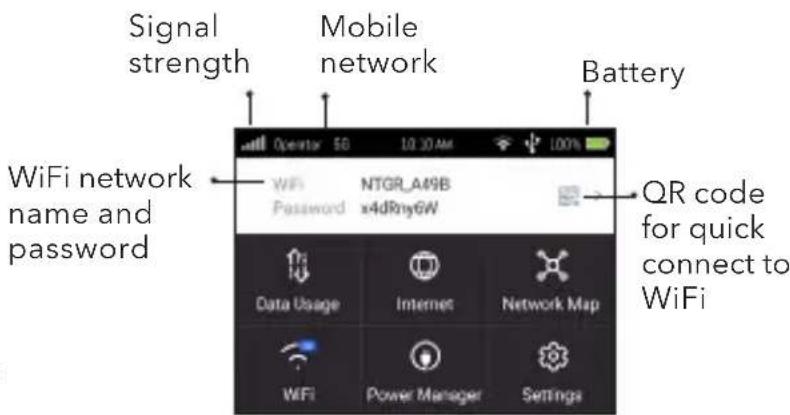
The home screen displays your mobile router WiFi network name and password, and the mobile network signal strength and connection type.
text_image
Signal strength Mobile network Battery WiFi network name and password Operator 5G 10:30 AM 100% NTGR_A49B Password x4dRny6W QR code for quick connect to WiFi Data Usage Internet Network Map WiFi Power Manager SettingsUse the battery or AC power
This mobile router can operate on battery when you're away from your home or the office. The Power Manager settings allow you to further optimize battery life.
This mobile router can also operate without a battery using the supplied AC adapter. For extended periods on AC power, we recommend removing the battery to extend the battery life.
Connect to the Internet
The mobile router LCD screen goes dark to save power. A quick press and release of the Power button wakes the screen.
QR code connect from a smartphone
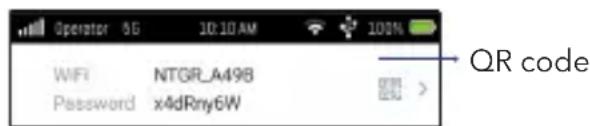
- Tap the QR code icon on the mobile router's LCD home screen.
text_image
Operator 5G 10:10 AM 100% WIFI NTGR_A498 Password x4dRny6W QR codeA QR code displays.
- Point your phone's camera to the QR code.
Your phone connects to the mobile router WiFi network.
On your laptop or other WiFi-capable device
- Open your WiFi network manager.
- Find your mobile router's WiFi network name (NTGR_XXXX) and connect.
- Enter your mobile router's WiFi password.

Note: To reduce power consumption and extend the battery life, this mobile router by default has Ethernet disabled. You can go to Power Manager to change to custom profile settings.
LCD WiFi Manager
You can manage the WiFi network and change the WiFi settings from the LCD screen.
Change the WiFi network name and password
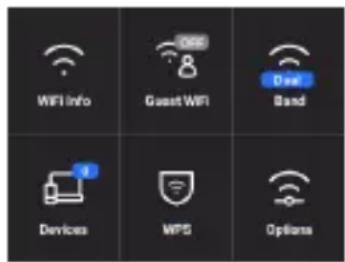
- On the home screen, tap the WiFi tile.
text_image
WiFi Info Guest WiFi Band Devices MPS Options- Tap WiFi Info to see name and password.
- Tap WiFi Name, enter your changes, and tap Done.
- Tap WiFi Password, enter your changes, and tap Done.
If your device is not connecting to this mobile router, we suggest enabling Dual-Band (2.4 & 5 GHz) in WiFi Band settings.

Note: To reduce power consumption and extend the battery life, this mobile router is default set to the WiFi 5 GHz Only band.
LCD Settings
View or change the settings
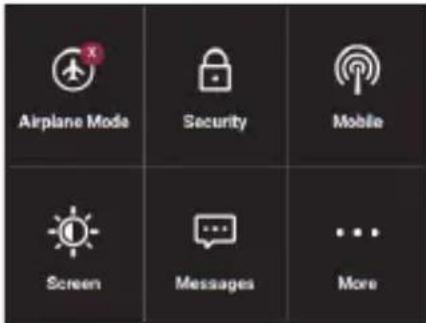
On the home screen, tap the Settings tile.
text_image
Airplane Mode Security Mobile Screen Messages MoreFrom the Settings page, tap any of the menus to view or change the settings. Tap More to view additional information and settings.
Web Admin Portal
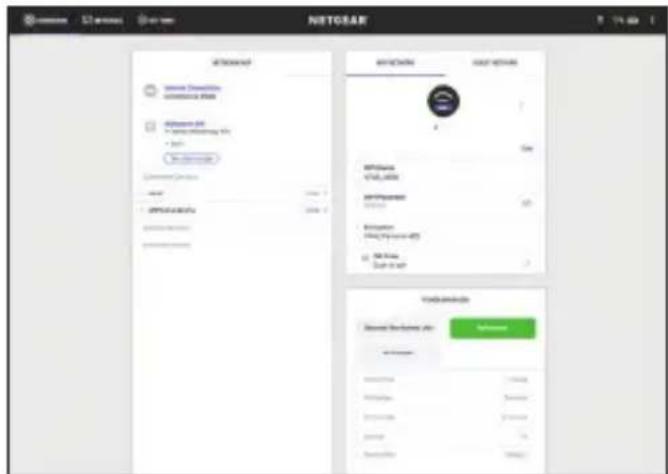
You can use a web browser to view and change more advanced mobile router settings.
Log In
- To find the URL for the Web Admin Portal, on your mobile router, tap Settings > More > Device Information.
The URL displays. It is either http://mywebui.net or http://192.168.1.1
-
On a WiFi-capable device that is connected to your mobile router, type the URL in the browser bar.
-
Log in as administrator.
text_image
NETGEAR Network Address Connective Site Network ID: * 2014-03789 * 2014-03789 Network Address Connective Site Network ID: * 2014-03789 Network Address Network Address Network Address Network Address Network Address Network Address Network Address Network Address Network Address Network Address Network Address Network Address Network Address Network Address Network Address Network Address Network Address Network Address Network Address Network Address Network Address Network Address Network Address Network Address Network Address Network Address Network Address Network Address Network Address Network Address Network Address Network Address Network Address Network Address
Note: The default administrator login is printed on the mobile router label, which is inside the battery compartment.
Support and Community
From the Web Admin Portal home page, click the three-dot icon in the upper-right corner to access help and support files.
For additional information, visit netgear.com/support to access the user manual and to download firmware updates.
You can also check out our NETGEAR Community for helpful advice at community.netgear.com.
Regulatory and Legal
For regulatory compliance information, visit https://www.netgear.com/about/regulatory/.
See the regulatory compliance document before connecting the power supply.
Manage settings using the NETGEAR Mobile app
natural_image
Purple square icon with a white megaphone and Wi-Fi signal symbol, labeled 'NETGEAR' below (no additional text or symbols)Use the NETGEAR
Mobile app to change your WiFi network name and
password. You can also use it to play and share media, and access advanced mobile router features.
- Make sure your mobile device is connected to the Internet.
- To download the NETGEAR Mobile app, scan the QR code below. The QR code connects you to the Apple Store or Google Play Store, depending on your mobile device.
text_image
QR code image containing encoded data, no visible human-readable texttext_image
Congratulations on purchasing your new mobile router. You'll need to setup your network first.text_image
Customize your WiFi To better safeguard your network security, we recommend you change th default credentials to your own custom credentials. Don't customize Customizetext_image
WIFI Info Guest WiFi Band Devices WPS Optionstext_image
NETGEAR Network Security General Network SNR SNR SNR SNR SNR SNR SNR SNR SNR SNR SNR SNR SNR SNR SNR SNR SNR SNR SNR SNR SNR SNR SNR SNR SNR SNR SNR SNR SNR SNR SNR SNR SNR SNR
Opmerking: De
natural_image
Purple square icon with a white megaphone and wireless signal symbol, labeled 'NETGEAR' below (no additional text or symbols)text_image
QR code image containing encoded data, no visible human-readable textLieferumfang
text_image
Congratulations on purchasing your new mobile router. You'll need to setup your network first. Let's gotext_image
Customize your WiFi To better safeguard your network security, we recommend you change th default credentials to your own custom credentials. Don't customize CustomizeLCD-Startbildschirm
text_image
WiFi Info Guest WiFi Band Devices MPS Optionsnatural_image
Purple square icon with a white megaphone and Wi-Fi signal symbol, labeled 'NETGEAR' below (no additional text or symbols)text_image
QR code image containing encoded data, no visible human-readable texttext_image
Congratulations on purchasing your new mobile router. You'll need to setup your network first. Let's gotext_image
Customize your WiFi To better safeguard your network security, we recommend you change th default credentials to your own custom credentials. Don't customize CustomizeEcran d'accueil
text_image
WIFI Info Guest WiFi Band Devices WPS Optionsnatural_image
Purple square icon with white megaphone and Wi-Fi signal symbol, labeled 'NETGEAR' below (no additional text or symbols)text_image
QR code image containing encoded data, no visible human-readable texttext_image
Congratulations on purchasing your new mobile router. You'll need to setup your network first. Let's gotext_image
Customize your WiFi To better safeguard your network security, we recommend you change th default credentials to your own custom credentials. Don't customize Customizetext_image
WiFi Info Guest WiFi Band Devices WPS Optionsnatural_image
Purple square icon with a white megaphone and Wi-Fi signal symbol, labeled 'NETGEAR' below (no additional text or symbols)text_image
QR code image containing encoded data, no visible human-readable texttext_image
Congratulations on purchasing your new mobile router. You'll need to setup your network first. Let's gotext_image
Customize your WiFi To better safeguard your network security, we recommend you change th default credentials to your own custom credentials. Don't customize Customizetext_image
WiFi Info Guest WiFi Band Devices MIPS Optionsnatural_image
Purple square icon with a white megaphone and wireless signal symbol, labeled 'NETGEAR' below (no additional text or symbols)text_image
QR code image containing encoded data, no visible human-readable textAugust 2022
NETGEAR, Inc.
350 East Plumeria Drive
San Jose, CA 95134, USA
text_image
Black and white barcode image with vertical lines and a central 'S' character201-29786-01
© NETGEAR, Inc., NETGEAR and the NETGEAR Logo are trademarks of NETGEAR, Inc. Any non-NETGEAR trademarks are used for reference purposes only.