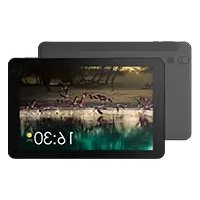
121 Neon - Graphic tablet ARCHOS - Free user manual and instructions
Find the device manual for free 121 Neon ARCHOS in PDF.



| Brand | Archos |
| Model | 121 Neon |
| Product type | Touchscreen tablet |
| Screen | 12.1 inches (approx. 30.7 cm) |
| Screen resolution | 1280 x 800 pixels |
| Processor | Quad-core 1.3 GHz |
| RAM | 1 GB |
| Internal storage | 16 GB |
| Expandable storage | MicroSD up to 64 GB |
| Dimensions (L x W x H) | 302 x 203 x 10 mm |
| Weight | 650 g |
| Battery | Lithium-ion 7000 mAh |
| Estimated battery life | Up to 8 hours |
| Wireless connectivity | Wi-Fi 802.11 b/g/n, Bluetooth 4.0 |
| Ports | Micro-USB, Mini-HDMI, 3.5 mm jack |
| Front camera | 0.3 megapixels |
| Rear camera | 2 megapixels |
| Operating system | Android 4.4 KitKat |
| Box contents | Tablet, USB cable, charger, quick guide |
| Care and cleaning | Soft dry cloth, avoid chemicals |
| Safety | Do not immerse, avoid shocks and excessive heat |
| Spare parts and repairability | Non-removable battery, repair by authorized center |
Frequently Asked Questions - 121 Neon ARCHOS
User questions about 121 Neon ARCHOS
0 question about this device. Answer the ones you know or ask your own.
Ask a new question about this device
Download the instructions for your Graphic tablet in PDF format for free! Find your manual 121 Neon - ARCHOS and take your electronic device back in hand. On this page are published all the documents necessary for the use of your device. 121 Neon by ARCHOS.
USER MANUAL 121 Neon ARCHOS
Congratulations for the purchase of an ARCHOS device!
This quick start guide helps you to start using your device properly.
If you have more questions concerning the use of your device,
- You can consult the frequently asked questions on our website: go to http://faq.archos.com/
- You can send us a message on Facebook:
go to www.facebook.com/ARCHOS
- You can contact our After-sales department: go to www.archos.com, click Support > After-sales support >
- You can consult the declaration of conformity: go to www.archos.com, click Support > Downloads >
As we are often updating and improving our products, your device's software may have a slightly different appearance or modified functionality than presented in this Quick Start Guide.
Package Content
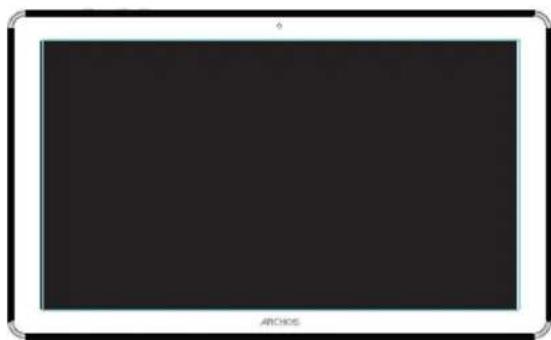
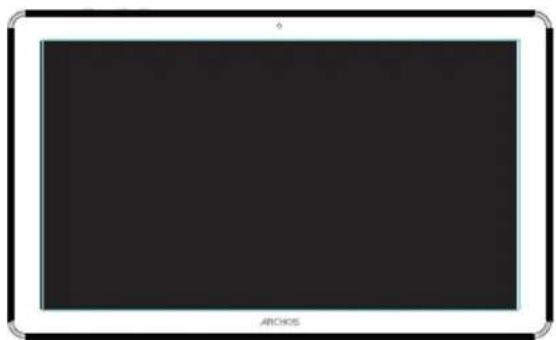
ARCHOS 121 Neon
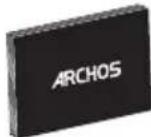
QSG booklet
Warranty, legal & safety booklet
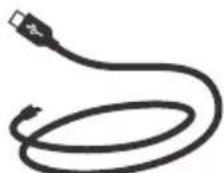
USB cable

Charger
Getting Started
Charging
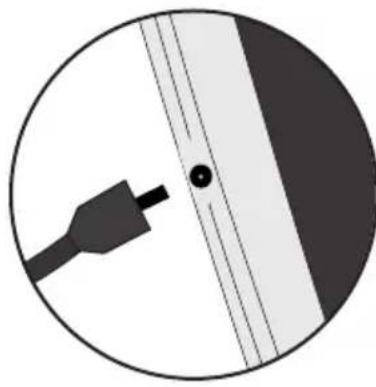
Charge your device by plugging your power cable into the power connector. The ARCHOS device will start charging.
-You can use your ARCHOS whilst it charges.
- Let your device charge completely the first time you use it.
-Use only the supplied charger.
When your device is completely discharged, you need to charge it for at least 10 minutes before the charging battery icon can be displayed.
TIP:
To receive more complete service, please register your product. From a computer, go to www.archos.com/register.
Description of the device
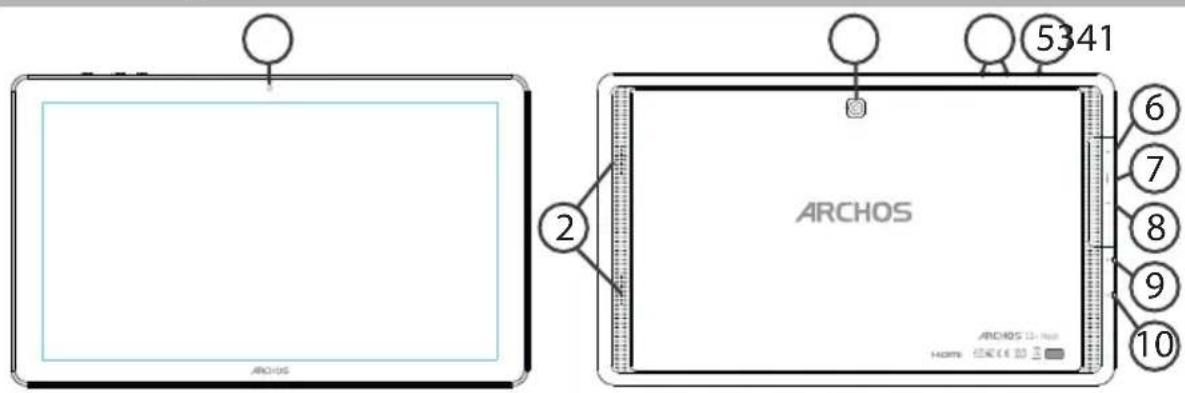
① Webcam
ON/OFF button
9 Power connector
② Loudspeaker
Micro-SD card slot
10 Headphone jack
3 Camera
⑦ Mini-HDMI
Volume buttons
Micro-USB port
Through the Wizard
The first time you start up your ARCHOS, the installation wizard will help you set up your device:
-Language
-WiFi connection
-Date & time
-Your name
-Location service options
-3rd party apps
TIP:
We recommend that you set up your device in the WiFi zone of the network that you will regularly be using.
Connecting to a WiFi Network
WARNING: Make sure that you are in a WiFi zone.
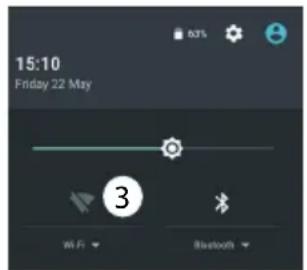
You can access the WiFi settings quickly from the status bar.
- Touch and pull down the status bar to display it.
- Touch again the bar to reveal the quick settings.
- Select the WiFi icon to activate the WiFi connection
- Select "WiFi" below the WiFi icon.
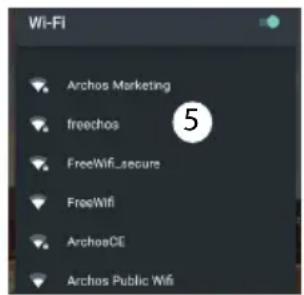
- Touch the name of network you want to connect to.
Private networks are shown with a lock icon and will require you to enter your password.
TIPS:
- When entering a WiFi password, we recommend that you select "Show password" so you can see the characters you are typing. To get the correct WiFi password (or settings) for the network, contact the WiFi network provider. If your WiFi is on and you are in range of a network that you previously connected to, your ARCHOS will automatically attempt to connect to it.
-To keep your WiFi connection ON when the device is on sleep, select the Menu icon in the "WiFi" page. Then, select Advanced > Keep WiFi on during sleep > Always.
Connecting to WiFi using WPS
| 1. Touch and pull down the status bar to display it. | Wi-Fi | Add network Saved networks Refresh Advanced |
| 2. Touch again the bar to reveal the quick settings. | ||
| 3. Select the WiFi icon to activate the WiFi connection | ||
| 4. Select "WiFi" below the WiFi icon. | Wi-Fi Direct | |
| 5. Select the Menu button, then Advanced. | WPS Push Button— | |
| 6. Select WPS Push Button. | ||
| 7. Press the WiFi Protected Setup button on your router. It may be called "WPS" or contain a symbol: | WPS Pin Entry | |
The Android™ Interface
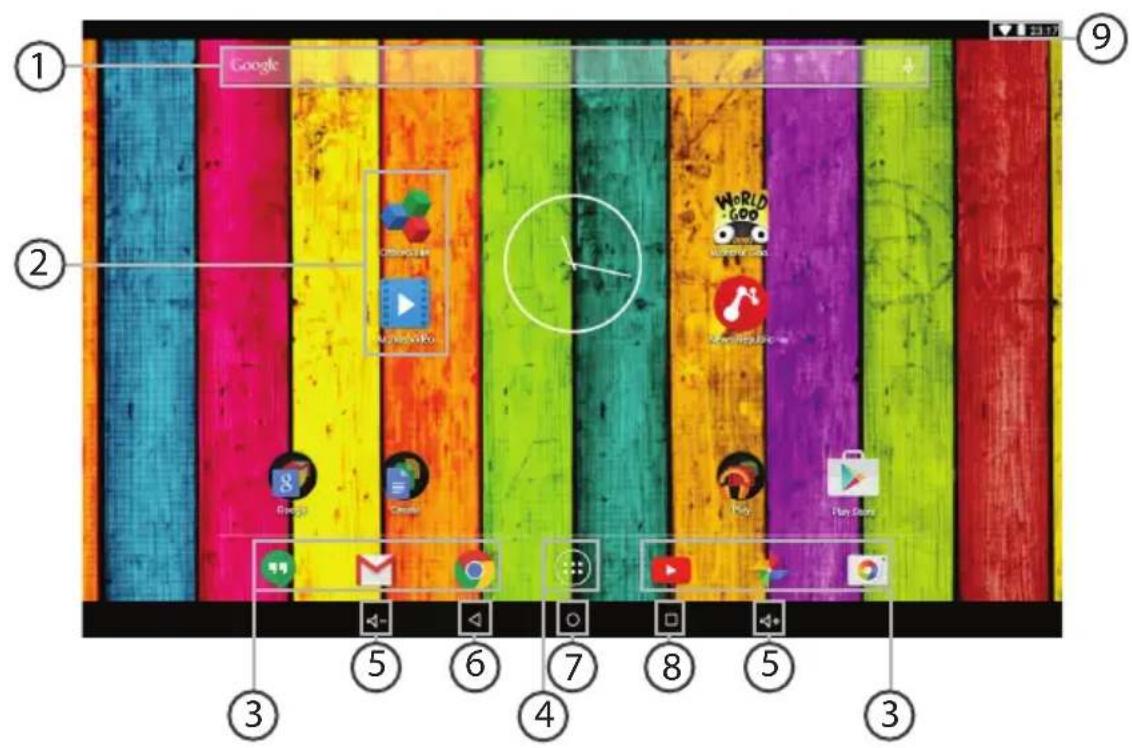
GoogleTM Search
Touch "Google" for text search or touch the microphone icon for voice search.
2 AndroidTM apps shortcuts
Touch to start an application.
3 Permanent Android™ apps shortcuts
Touch to start an application
4 All Apps button
Touch this icon to show all the applications and widgets installed on your
ARCHOS. All your downloaded applications are here.
Volume buttons
Back button
Home button
Recent apps buttons
The status bar > Displays notifications and quick settings
The Android™ Interface
*New multi-user support for tablets lets different users have their own separate, customizable spaces on a single device. Add users in Settings > Device.
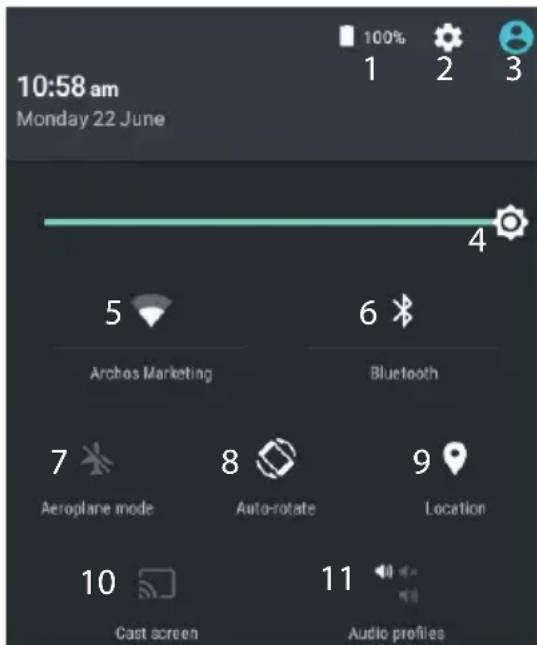
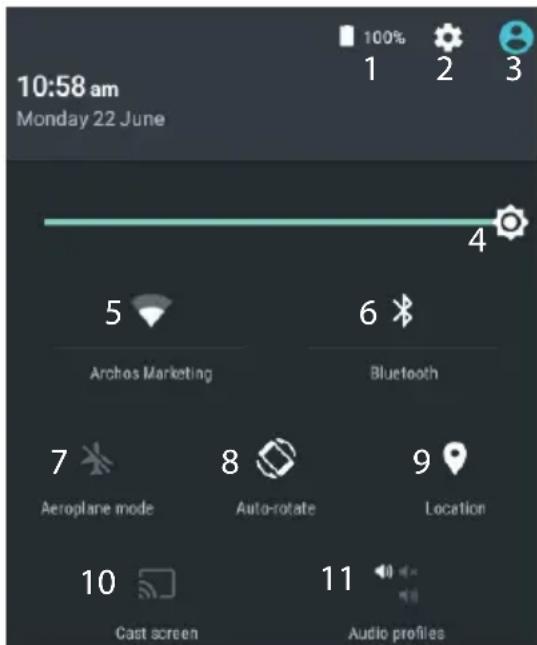
The Quick settings
1 Percentage of battery remaining
2 To access all your settings.
3 Current user
4 To adjust the screen brightness.
5 To turn on/off your WiFi connection.
6 To turn on/off your Bluetooth connection.
7 To activate/deactivate all wireless connections, especially when flying.
8 To activate/deactivate automatic screen orientation as you turn your ARCHOS.
9 Location services
10 To mirror your Android device to the TV so you can enjoy your great content exactly as you see it on your mobile device.
11 To select a notification type

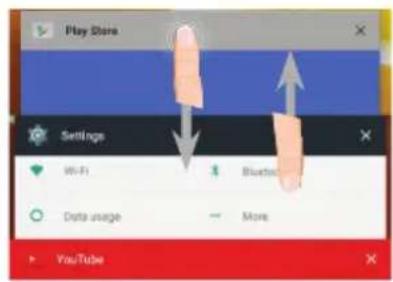
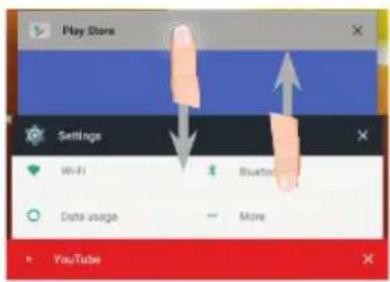
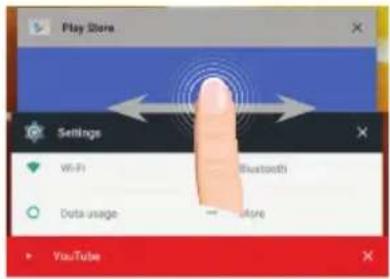
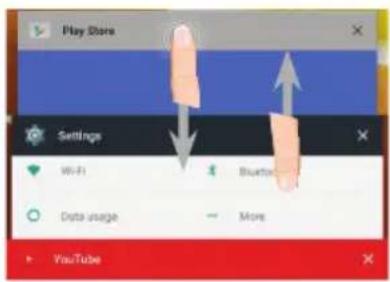
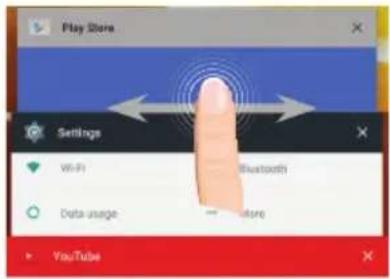
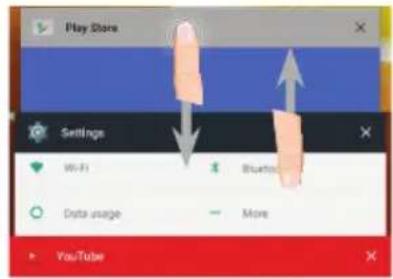
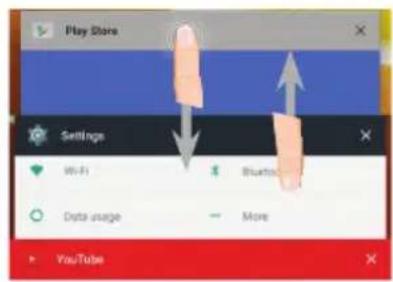
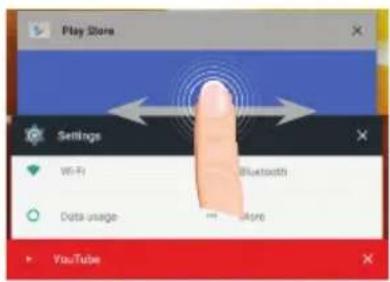
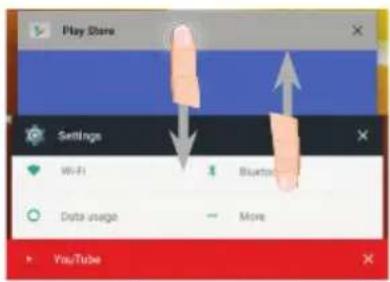
The Recent Apps
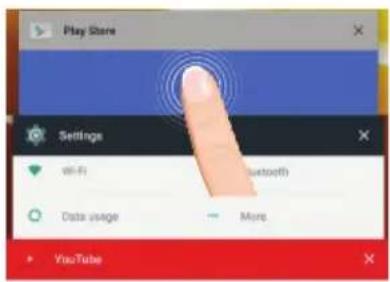
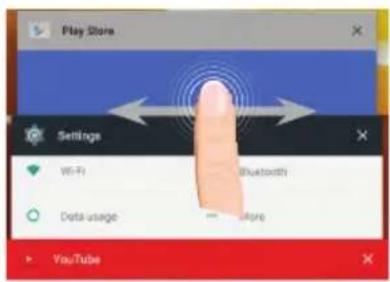
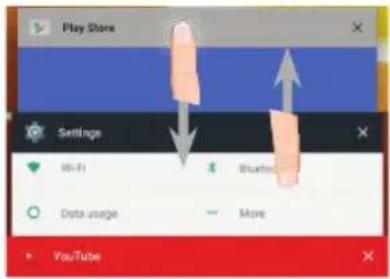
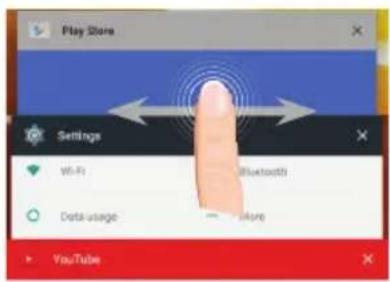
Opens a list of thumbnail images of apps you've worked with recently:
Anther Game-End 2 Loboting
Country - annual revenue: 2000 € million
archae GamePad 2 Unbending
Assessment 1. optimal pre-ICR: 2000, infliximab
Anthony GamePad 2 Unrehearing
nomenon
I love you. I love you.
Touch: to open an app.
Swipe left or right: to close an app.
Scroll up or down: to view other recent apps
Getting familiar with Android™
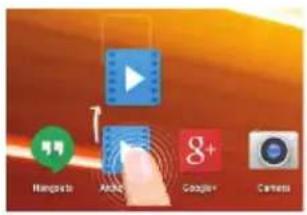
Moving a home screen item:
Touch and hold your finger onto it until the positioning gridlines appear, then slide it to the desired location, and release your finger.
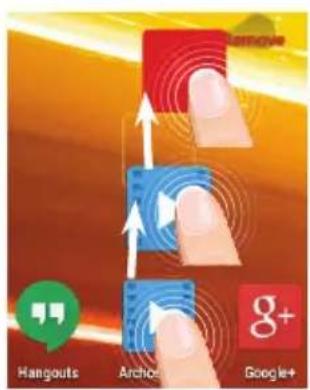
Removing a home screen item:
Touch and hold it, slide your finger towards the top of the screen and drop it over the Remove icon.
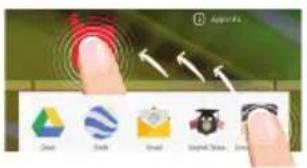
Uninstalling an item:
From the All apps screens, touch and hold it, slide your finger towards the top of the screen and drop it over Uninstall bin.
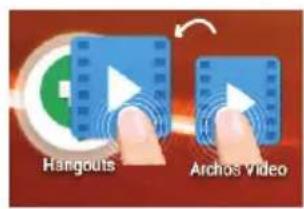
Creating application folders:
Drop one app icon over another on a home screen and the two icons will be combined.
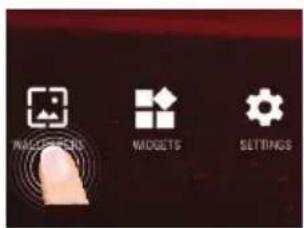
Changing your wallpaper:
Hold your finger on a home screen at an empty location, then choose from the list: Wallpaper.
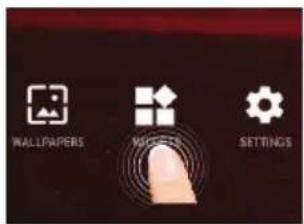
Widgets:
Hold your finger on a home screen at an empty location, then choose from the list: Widgets.
Troubleshooting
If your device is frozen:
Press the ON/OFF button for 10 seconds.
If your device doesn't turn on:
- Charge your device.
- Press the ON/OFF button for 10 seconds.
If you want to extend the life of your battery:
Decrease the screen brightness and turn off the wireless connections if not in use.
If your device functioning is too slow:
Close all apps which are not currently used.
If your WiFi reception is too low:
Make sure you are not far from the WiFi hotspot.
Update the firmware of the device: http://www.archos.com/support.
Reset and redefine your connection parameters.
Contact your WiFi connection provider.
Bienvenue
Félicitations, you venez d'acquerir un apparéil ARCHOS!
monitors 10 total pro. 2016 revenues
Artha GamePad 2 Unveiling
monday 1 usual gas 200 street
Bases: 7-day skin - 2019 + trend
Anteas GamePad 2 Unloading
Treatment 1. Clinical cure: 20% recovery
Artha GamePad 2 Unveiling
TANMACAO TELISYOMO
go to www.archos.com, click Support > After-sales support >
Andrew GameFard 2 Unbusing
mation: 7.5dolat d 2000/1986
Anteas GamePad 2 Unloading
- 100% free price - 20% savings
Antibio GamePad 2 Unveiling
Institute 1 Uralal gas DSA history
support [After Sales] >
WiFi-networkverbinding
necrotic? Solid signs: 2019 vs.3 years
Arthos GamePad 2 Unboxing
Location 1 total area pre 2014 surveys
Artha GamePad 2 Unveiling
mixture 1 natural gas 200 words
Location 1 total area pre 2014 surveys
Antebas GamePad 2 Unwinning
Session:10.54 hours
- 06paTntbCRA K DeKnapaunu COOTBeTCTBnA:
nepennte ha Be6-caNT www.archos.com, ueKHTe Support (noDepkka) > Downloads (3arpy3kn) >
IocKobky Mbl yacto yctaHaBnBaem 6HOBHeHn I yCOBepseHCTByeM CBOI npOyKtbl, INTepeic n fYHKUHOHaBbIe BO3MOxHOctn PO BaWero ycTpoiCTBa MOrYT He3HaHTeNbHO OTnuaTbcra OT Bercn, npNBedeHHbIX B KpaTKOM pyKOBoDCTBe IOnb3OBaTeJIa.
CodelpKIMoe ynaKOBKn
ARCHOS 121 Neon
KpaTKoe pyKOBOdCTBO
TapaHTN IN HCTpyKcUN NO 6e3OpacHOCTN
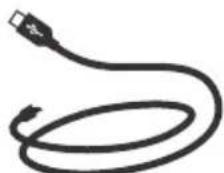
Ka6eIb USB

3apHoe yctpoCTBO
Hauano pa60tbl
3apraKa
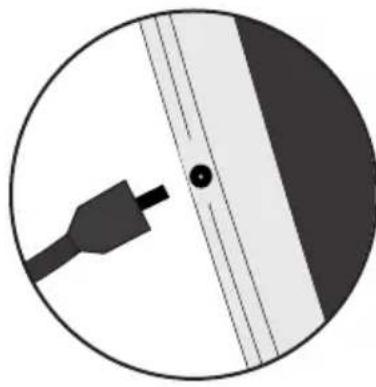
3apdnte Bawe yctpoiCTBO, noKJIIOuINB Ka6bI nITaHnK Pa3bem nITaHnA. ARCHOS yctpoiCTBO NaHcT 3apJkaTbcR.
- Bbl mojkeTe noJIb3OBaTbcra yCTpoIcTBOM ARCHOS BO BpeM 3apJKN.
-ПердпьIMИСПОЛБ3OBAHNE yCTpoIcTBOДOLЖHO NOHOCbIO 3apdntbca.
-Pa3pewaaetcnsnoBb3ObaTbTOJbKO 3apAHOe yCTPOINCTBO N3 KOMnIeKTA NOCTaBKN.
EcnBawe yctpoiCTBO NOJIHOCTbIO pa3pIINIOcb, Heo6xOIMo 3apAINTb erO B TeueHne MHNmym 10 MNHyT, npexKe che CMOKeT OTo6pa3NTbcr 3HaQOK 3apJkaIoUeROcAKKymyTAtopa.
COBET:
3apernctpuyntcboe n3dene, yto6blnonyuatabocnykunbaHne B 60nee noNHom o6beMe.
Ppna p6ote c KOMnbIOTepom nepeyniTe no CcbInke www.archos.com/register.
Описné устюква
5341
6
7
8
9
10
9
1 Be6-kaMepa
5 KhoNka BkJI/BblKJI
9 Pa3bem nHTaHnA
2 rpoMkoROBOpnteIb
6 Cnot nla KapTbI Micro-SD
10 Pa3bem nЯ hayshnKOB
3 Kamepa
7 NopT Micro-USB
4 KhoNKn rpoMkoCTn
8 Mini-HDMI
Mactep Hactpoikn
monsoon 17th April 2019 16:30pm
Kochntecb: yTo6bl OTkpblb npInloxeHne.
PpOBeIte nalbueM BnEBo nnBnpaBO:
3aKpbItne npniloxKeHH.
PpOBeaIte no 3KpaHny naIbUcEM BBePx nII
BHN3,HTO6bI npocMOTpTe bpyrne nocJeHne npINOJXeHHa
3HaKOMCTBO C AndroidTM
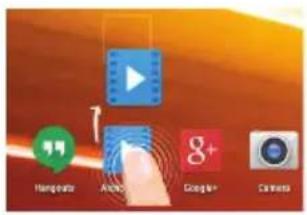
PepemeueHne 3IeMeHTa DomauHero 3KpaHa:
PnKoCHNTecb K 3JIeMeHtU yIepXuBaIte napeU, noka He NOBHTcR cETka N03NIOHUPOBaHn, 3aTeM nepemecTnte erO B Tpe6yEmoe noJoxHeHne, n OTnyCTnte napeU.
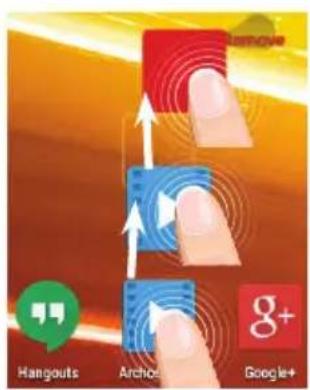
YdaneHne 3nemeHTa DomauHero 3KpaHa:
Ecn yctpoiCTBO He BkIouaTc:
1.3apndte yctpoonCTBO.
2. HaxmTe Ha KhoNkBy BKJI/BblKJI u ydepXnBaIte B TeueHne 10 ckyHd.
Ecn ceHcOpHbI 3KpaH YHKUHOHpyeT HenpaBnIbHo:
BbI6epnte 3HaQoK Settings > BocCTaHOBJIeHne I opMaTnpOBaHne), HaxMnTe Ha 3HaQoK
Touch-screen calibration (kaII6poBka cehcOpHoro 3KpaHa).
EcnBbXOTnTe npoDnTb cpoK pa6Otb 6aTapen:
YMeHbIInTe npKoCTb 3KpaHa N BblKnIOUHTe 6ecnpOBOHbIE coEINHeHn, eCNI OHn He NCNOJIb3yIOTc.
Ecn yctpoiCTBO fynKcuHpye TnWkOM MeJeHHo:
3akpoTe Bce npnoXeHn, KOToPbIe B daHHbIM MOMENT He nCNOJb3yOTc.
Ecn npHmMaembui ciHaJ Wi-Fi cnHsKom cna6:
y6eINTecb, yTO He HaxoNTecb CnIshKOM daJIeKO OT y3la doCTyna Wi-Fi.
O6HOBiTe BCTpoEHHyIO MmKpOpporpaMMy ycTpoIcTba: http://www.arnovatech.com/ support.
C6pocbte n IOBTOPO BBeUNTe npaMeTpbi CoeINHeHn.
06paTnTeCb K npoBaIepy cEt Ni-Fi.
Witamy
*New multi-user support for tablets lets different users have their own separate, customizable spaces on a single device. Add users in Settings > Device.
Szybka konfiguracja
Archer GameFid 2 Unbusing
A
Ants GamePad 2 UWBing
References: 1. Stroop's test, 2004 reference
Antenna GamePad 2 Unlearning
TANMAMATZ
National restrictions
This device is intended for home and office use in all EU countries (and other countries following the EU directive 1999/5/EC) without any limitation except for the countries mentioned below:
Country Restriction ReasonRemark
Bulgaria None General authorization required for outdoor use and public service
France Outdoor use limited
to 10mW e.i.r.p.
within the band
2454-2483.5 MHz
Military Radiolocation use. Refarming of the 2.4 GHz
band has been ongoing in recent years to allow
current relaxed regulation. Full implementation
planned 2012
Italy None If used outside of own premises, general
authorization is required.
Luxembourg None General authorization required for network and
service supply (not for spectrum)
Norway Implemented This subsection does not apply for the geographical
aera within a radius of 20km from the centre of
Ny-Alesund
Russian Federation None Only for indoor applications
Note: Frequency 2454-2483.5MHZ are restricted to indoor use in France.
Consult the declaration of conformity on http://www.archos.com/products/declaration_conformity.html
Open Source Software Offer
The software bundled with this product includes software files subject to certain open source license requirements. Such open source software files are subject solely to the terms of the relevant open source software license. Such open source software is provided on an "AS IS" basis to the maximum extent permitted by applicable law.
For the open source files contained herein, please access "Open source license" section located at: Settings\About tablet\Legal information on the device for the relevant copyright and licensing terms. You may obtain a copy of Apache License, Version 2.0 at http://www.apache.org/licenses/License-2.0. You may also obtain a copy of GNU General Public License, Version 2 at the Free Software Foundation, INC, 51 Franklin Street, Fifth Floor, Boston, MA 02110-1301, USA.
Until the date that is three years after our last shipment of this product, you may obtain a copy of the source code corresponding to the binaries for any GPL-Licensed file by contacting ARCHOS customer service at http://www.archos.com and ARCHOS will send you a link to such source code or will provide instructions to get the source on a physical medium. This offer is valid to anyone in receipt of this information.
Archos company declares that this device is in compliance with the essential requirements and other relevant provisions of Directive 1999/5/EC