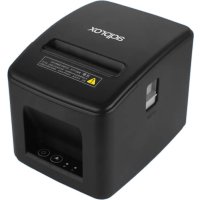
appPOS80AMUSB - Printer Aqprox - Free user manual and instructions
Find the device manual for free appPOS80AMUSB Aqprox in PDF.



| Product Type | Direct Thermal Printer |
| Print Speed | 200 mm/s |
| Paper Width | 79.5 ± 0.5 mm |
| Max Roll Diameter | 83 mm |
| Print Density | 576 or 512 dots/line |
| Interfaces | USB, RJ11 |
| Cutter | Automatic Partial Cutter |
| Head Life | 150 km |
| Supported Barcodes | UPC-A/UPC-E, JAN13, JAN8, CODE39, ITF, CODABAR, CODE93, CODE128 |
| 2D Codes | QR Code, PDF417 |
| Buffer Memory | 256 kbytes |
| Flash NV | 256 kbytes |
| Power Supply | DC 24V / 2.5A |
| Power Adapter | AC 110-220V, 50-60Hz |
| Power Consumption | Low (not specified) |
| Operating Temperature | 0 to 45 °C |
| Operating Humidity | 10 to 80% |
| Storage Temperature | -10 to 60 °C |
| Storage Humidity | 10 to 90% |
| Weight | Approximately 2 kg (estimated) |
| Dimensions | Approximately 200 x 150 x 120 mm (estimated) |
| Supported Drivers | Win 8.1/10/11, Linux, Mac OS |
| Maintenance | Clean the head with ethyl alcohol |
| Safety | Unplug before cleaning, do not use in explosive environments |
Frequently Asked Questions - appPOS80AMUSB Aqprox
User questions about appPOS80AMUSB Aqprox
0 question about this device. Answer the ones you know or ask your own.
Ask a new question about this device
Download the instructions for your Printer in PDF format for free! Find your manual appPOS80AMUSB - Aqprox and take your electronic device back in hand. On this page are published all the documents necessary for the use of your device. appPOS80AMUSB by Aqprox.
USER MANUAL appPOS80AMUSB Aqprox
natural_image
Red diagonal line segment on white background (no text or symbols)
natural_image
Two solid red circles of different sizes on a white background (no text or symbols)Notas
Carga de papel
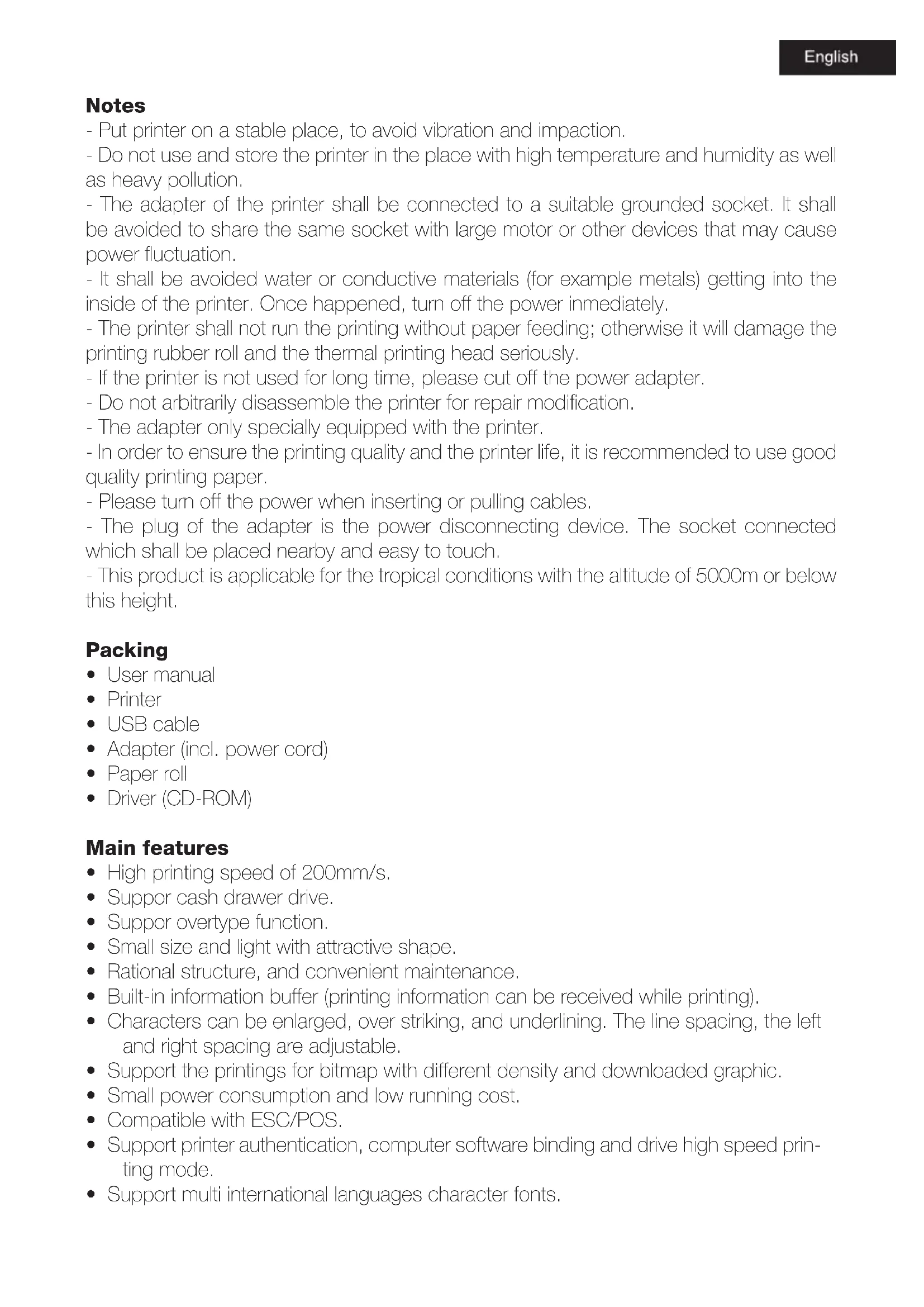
- Put printer on a stable place, to avoid vibration and impaction.
- Do not use and store the printer in the place with high temperature and humidity as well as heavy pollution.
- The adapter of the printer shall be connected to a suitable grounded socket. It shall be avoided to share the same socket with large motor or other devices that may cause power fluctuation.
- It shall be avoided water or conductive materials (for example metals) getting into the inside of the printer. Once happened, turn off the power immediately.
- The printer shall not run the printing without paper feeding; otherwise it will damage the printing rubber roll and the thermal printing head seriously.
- If the printer is not used for long time, please cut off the power adapter.
- Do not arbitrarily disassemble the printer for repair modification.
- The adapter only specially equipped with the printer.
- In order to ensure the printing quality and the printer life, it is recommended to use good quality printing paper.
- Please turn off the power when inserting or pulling cables.
- The plug of the adapter is the power disconnecting device. The socket connected which shall be placed nearby and easy to touch.
- This product is applicable for the tropical conditions with the altitude of 5000m or below this height.
Packing
- User manual
- Printer
- USB cable
- Adapter (incl. power cord)
- Paper roll
- Driver (CD-ROM)
Main features
• High printing speed of 200mm/s.
- Support cash drawer drive.
- Support overtype function.
- Small size and light with attractive shape.
• Rational structure, and convenient maintenance.
• Built-in information buffer (printing information can be received while printing).
- Characters can be enlarged, over striking, and underlining. The line spacing, the left and right spacing are adjustable.
- Support the printings for bitmap with different density and downloaded graphic.
- Small power consumption and low running cost.
- Compatible with ESC/POS.
- Support printer authentication, computer software binding and drive high speed printing mode.
- Support multi international languages character fonts.
Technical parameters
| Printing method Direct thermal | |
| Printing speed | 200mm/s |
| Roll paper Width: 79,5+0,5mm. Max. outside diam: 83mm. | |
| Printing density 576 o 512 dots/line | |
| Printing command Compatible with ESC/POS commands | |
| Interface | USB, RJ11 |
| Auto cutter | Partial |
| Reliability Printing head life: 150 km. | |
| 2D Code QR Code, PDF417 | |
| Barcode | UPC-A/UPC-E/JAN13(EAN13)/JAN8(EAN8)/CODE39/ITF/CODABAR/CODE93/CODE128 |
| NV flash | 256 kbytes |
| Input buffer 256 kbytes | |
| Paper thickness | 0.06-0.08mm. |
| Adaptor input voltage AC 110V/220V, 50-60Hz | |
| Printer input voltage DC 24V=2.5A | |
| Cash drawer control DC 24V=1A | |
| Working environment Temperature 0-45°C, humidity 10-80% | |
| Storage environment Temperature -10-60°C, humidity 10-90% | |
| Drivers Win 2000/Win 2003/Win XP/Win 7/Win 8/Win 8.1/Win 10/Win 11/Linux/Mac OS | |
Installation and configuration
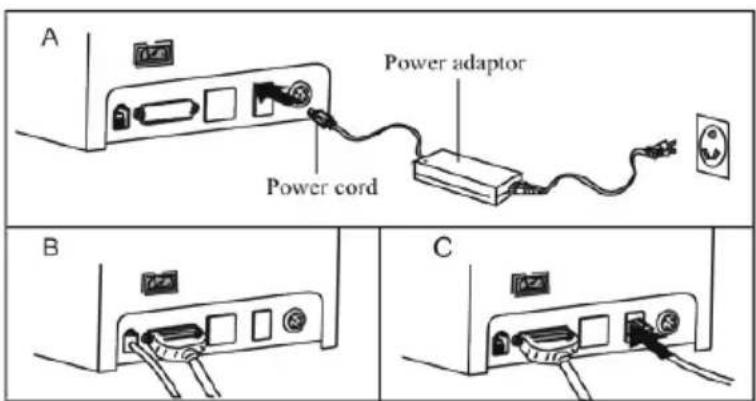
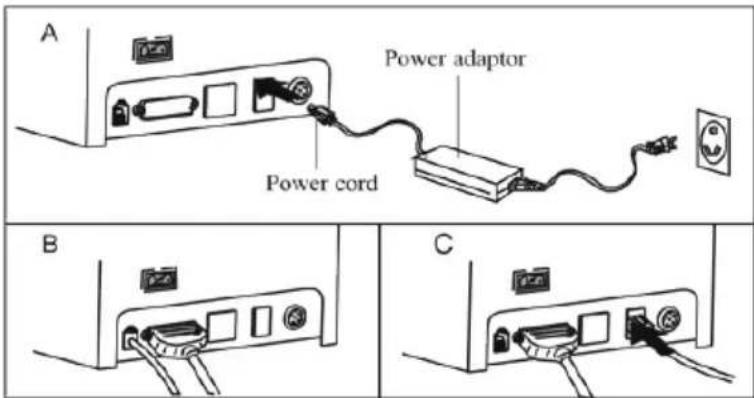
- Connect the power adapter from the electrical outlet to the DC port on the printer.
- Connect the printer to the PC with the USB cable.
- Connect the printer to any cash drawer device if necessary through its RJ11 port.
- Push the switch ON/OFF.
Paper roll loading
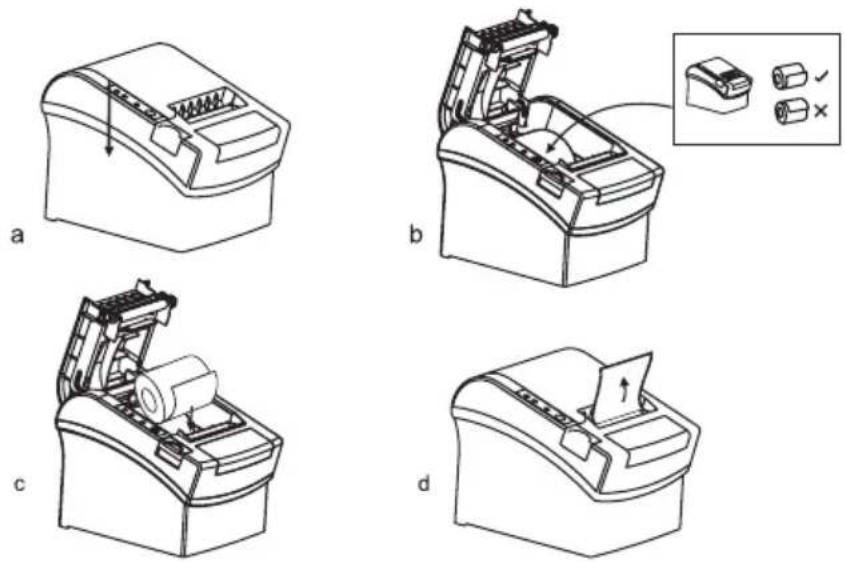
Wireless printer uses the thermal paper roll with 80mm., with easy loading structure. Installation method of thermal paper as below:
a. Open the top cover of the printer.
b. Place the thermal paper roll in the compartment shown as the icon below.
c. Pull out a length of paper to the outside of the cover, then close the cover.
Name of keys and indicator functions
- FEED: Press this key to feed the paper, and hold it to feed papers continuously.
- PAPER: When it lights on together with the Error indicator, it shows that the printer is lack of paper, and when both indicators of (paper out) and the Error indicator light off, it shows that there are papers in the printer.
- POWER: If the indicator lights on, it shows that the printer is powered on, and if it is off, the printer is powered off.
- ERROR: It will flash when paper out, error cutting, printing head overheat and so on occur.
Self Test
Method of self-test: After the printer is connected, turn off the power, press and hold Feed key and turn on the power of the printer simultaneously for about 2 seconds, then release the key, the printer will print the current state and the setting.
Method of entering hexadecimal
After the printer is connected, press and hold Feed key and turn on the power of the printer for about 10 seconds, then release the Feed key to enter hexadecimal dump mode. The printer will print out "Hexadecimal Dump" receipt.
Printer initialization
When the printer is connected, press and hold Feed key and turn on the power of the printer simultaneously for about 20 seconds, the printer will beeper, it has been initialized to recover to factory settings.
Maintenance for cutter stuck
Method 1: Press down the power switch key to turn off the power and then turn it on again to initialize the printer and recovery the cutter.
Method 2: Open the top cover of the printer, turn the gear on the cutter of the printer to make the cutter return its initial position, the open the front cover and put the paper roll again, the printer will operate normally.
Caution! Do not pry the cover with force to avoid damaging the printing head and the auto cutter.
Installing drivers
- Insert the installation CD printer.
- Run autorun.exe.
- Run the driver installer.
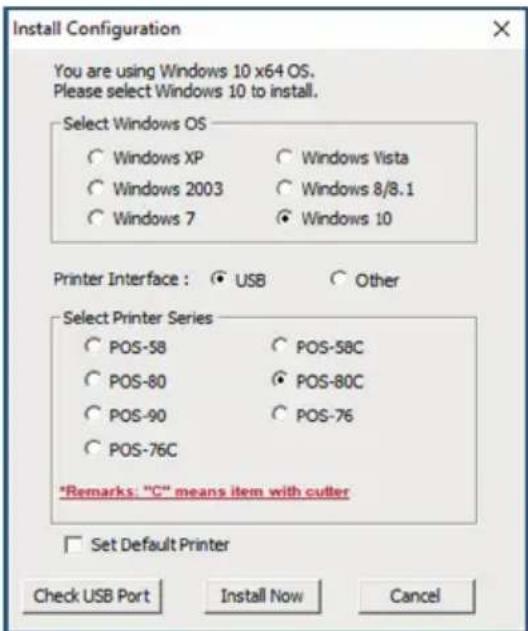
- Follow the steps in the installation wizard until the next window.
- Select the desired operating system and POS-80C printer.
- To complete the installation click on "Install Now" and a message that the installation has been successful will show.
- If you choose interface "Other", go to Control Panel, Hardware and Sound, printers and devices. Click with the right mouse button on the printer icon created POS-80C, select Printer Properties, go to the Ports tab and manually select the appropriate port. Finally click the OK button.
Printing via port directly
For direct printing requires printer control commands. Command ESC / POS are integrated internally.
Printer cleaning
When any of the following occurs, the printing head shall be cleaned:
- Printing is not clear
• Certain column on the printed page is not clear
• Paper feeding makes louder noise
Printing head cleaning procedures:
- Turn off the power of the printer, open the upper cover, remove the paper if any
- If just printing, wait till the printing head becomes cool completely
• Take the absolute ethyl alcohol with cotton cloth (shall wring up) to erase the dust and dirt on the surface of the printing head
- When the absolute ethyl alcohol is evaporated completely, close the upper cover, and print the test page again.
Notice!
- It shall make sure the power is off for daily maintenance.
- Do not touch the surface of the printing head with hands or metal parts, and do not use tools like tweezers to scratch the printing head, printing rubber roll and the surface of the sensor.
- Do not use the organic solutions such as gasoline and acetone and so on.
- Printing can be continued only after the absolute ethyl alcohol evaporates completely.
Safety and Maintenance Instructions
- Do not use this product in a location with volatile substances such as alcohol or paint thinner, or near a fire. Doing so may cause an electric shock or fire.
- Turn off your equipment immediately if it produces smoke, a strange smell or unusual noise.
- Improper use can cause a fire. Unplug the equipment immediately and contact your dealer or Approx technical service for advice.
- Never try to repair this product yourself. Improper repair work can be dangerous and void the warranty.
- Never disassemble or modify this product. The handling of this product may cause injury or fire.
- Be sure to use the supplied power adapter and connect the power connector correctly, an incorrect connection may cause a short circuit.
- Do not allow foreign objects to enter the equipment. Penetration of foreign objects can cause a short circuit in the device.
- If water or other liquid is poured into this equipment, do not continue to use it. Continued use can lead to fire or electric shock. Disconnect the equipment immediately and contact your dealer or the Approx technical service for advice.
- Do not use this product in an environment where flammable gas or explosive gas may be present. Do not use aerosols containing flammable gas in or around this product. Doing so can cause fire.
- Do not connect cables in ways other than those mentioned in this manual. Different connections can cause equipment damage and burns.
- Do not touch the areas inside the product other than those mentioned in this manual. Doing so can cause an electric shock or burns.
- Be careful not to drop this product. This may cause the product to break.
- Do not use it in places subject to high levels of humidity or dust. Excessive moisture and dust can cause damage to the equipment.
- Do not place heavy objects on top of this product. Never stand or lean on this product. Equipment may fall or collapse, causing breakage and possible injury.
- To ensure safety, unplug this product before leaving it unused for an extended period.
- Before moving the product, unplug it and unplug all cables connected to it.
- Do not use this product in places with high temperatures 60 °C or more. Also, do not leave or store this product in places that are 60 °C or more. Doing so could cause heat, smoke, ruptures, fire or leakage. Be sure to use within the limits of the environment and respect its temperature conditions for use.
Recycled
AEEREI-RAE 558 - In this manual, the container (bien) symbol indicates that the product is subject to the European directive 2002/96/EC, electrical and electronic products, batteries, and other accessories must necessarily be subject to a selective collection.
At the end of the life of the devise, make use of the recycling bins. This gesture will help reduce the health risks and preserve the environment.
Municipalities and distributor, will provide essential details on recycling your old device. If this device carries an internal battery, it must be removed and deposited separately for proper management.
Notes