DK01 Mini - Drone Dragon Touch - Free user manual and instructions
Find the device manual for free DK01 Mini Dragon Touch in PDF.


| Product Type | Quadcopter Drone |
| Brand | Dragon Touch |
| Model | DK01 Mini |
| Drone Battery | Li-Po 3.7V 500mAh |
| Drone Charging Time | 60 minutes |
| Flight Autonomy | 6 minutes |
| Maximum Range | 60 meters |
| Included Controllers | 3 types: standard, gravity sensor, water drop |
| Standard Controller | AAA batteries (not included) |
| Gravity Sensor Controller | Rechargeable battery 3.7V 150mAh, charge 30 min, autonomy 10 h |
| Water Drop Controller | Non-rechargeable, batteries not included |
| Main Functions | Auto takeoff/landing, infrared obstacle avoidance, 360° flips, headless mode, altitude hold, 3 speeds, emergency stop |
| Calibration | Required before each flight |
| Box Contents | Drone, 3 controllers, 2 drone batteries, 2 USB cables, 4 spare propellers, screwdriver, manual |
| Maintenance | Clean with soft cloth, avoid exposure to sun, heat or water |
| Safety | Keep out of reach of children, safety distance 2-3 m, do not charge non-rechargeable batteries |
| Spare Parts | Propellers (marked A and B), drone battery, USB cables |
Frequently Asked Questions - DK01 Mini Dragon Touch
User questions about DK01 Mini Dragon Touch
0 question about this device. Answer the ones you know or ask your own.
Ask a new question about this device
Download the instructions for your Drone in PDF format for free! Find your manual DK01 Mini - Dragon Touch and take your electronic device back in hand. On this page are published all the documents necessary for the use of your device. DK01 Mini by Dragon Touch.
USER MANUAL DK01 Mini Dragon Touch
Please read this manual before operating your drone, and keep it for further reference.
DRAGON TOUCH
CONTENTS
01 - 19 20 - 38
English
Deutsch
39 - 57
58 - 76
Español
Français
77 - 95
Italiano
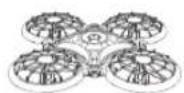
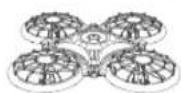
DK01 Mini Drone × 1
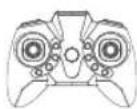
Standard Remote Control × 1
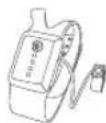
Gravity Sensor Remote Control x 1
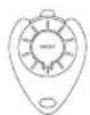
Water Droplet-shaped Remote Control × 1

Battery × 2
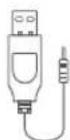
USB Cable × 1
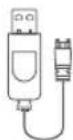
USB Cable × 1
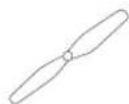
Spare Propeller × 4
Screwdriver × 1
User Manual × 1
PRODUCT SPECIFICATIONS
Drone
Dimensions: 170mm x 170mm x 38mm
Battery capacity: 3.7V/500mAh
Charging time: 60 minutes
Flight time: 6 minutes
Remote distance: 60 meters
Gravity Sensor Remote Control
Battery capacity: 3.7V/150mAh
Charging time: 30 minutes
Usage time: 10 hours
Note:
- Remote control will automatically turn off after 1 minute of inactivity.
- When the remote control is under low-voltage protection mode (as shown by the indicator light flashing slowly), please charge it before use.
PRODUCT FEATURES
Drone
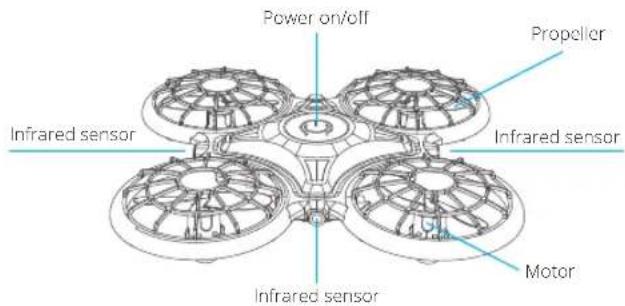
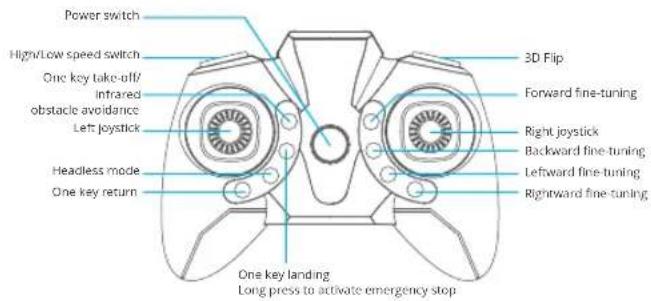
Standard Remote Control
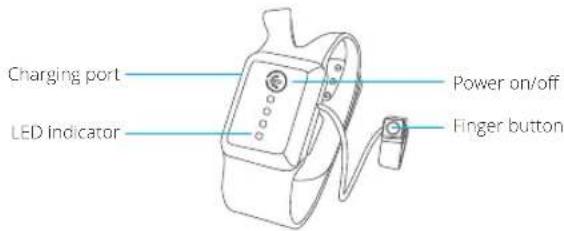
Gravity Sensor Remote Control
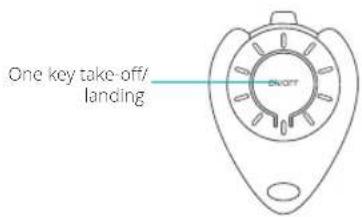
Waterdrop Remote Control
GETTING STARTED
Charging and installing the battery
- Charge the drone battery.
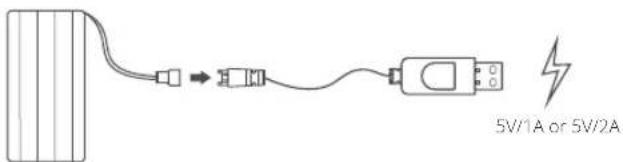
Charging: red LED Fully charged: green LED
- Install the drone battery when fully charged.
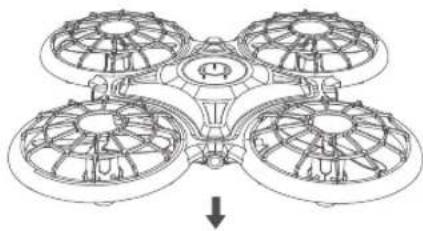
natural_image
Diagram of four identical mechanical components arranged in a symmetrical pattern with a central hub and downward arrow (no text or symbols)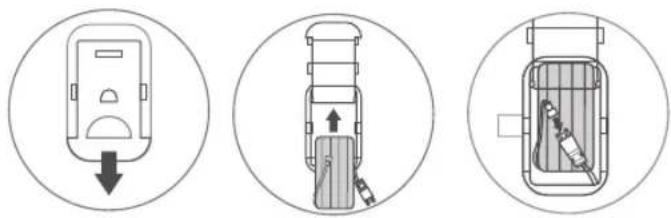
- Charge the gravity sensor remote control.
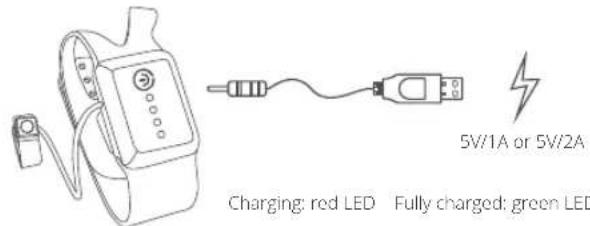
- Wear the gravity sensor remote control on your palm when fully charged.
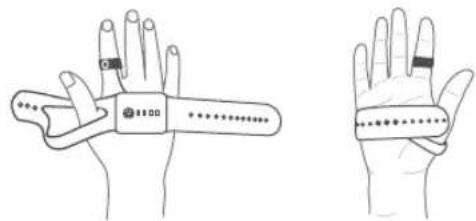
natural_image
Line drawings of a hand with a wristband and a dotted band, shown from different angles (no text or symbols)- Purchase 3*AAA 1.5V batteries (not included) and install in the standard remote control.
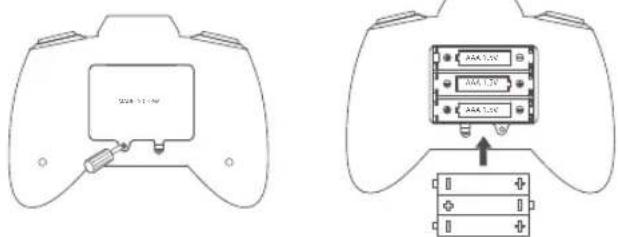
Note: Ensure batteries are installed correctly. DO NOT use old batteries and new batteries at the same time.
5
- The battery of the waterdrop remote control is not rechargeable.
Note:
- For your safety, please use the original battery and USB cables provided.
• The battery life will be reduced when it is used in cold weather. - Please avoid exposing the battery to sunlight, heat or high temperatures.
FLIGHT OPERATION
Note:
- For each flight, power on the drone first and then power on the remote.
- Please repeat the pairing procedure each time when the drone or remote is restarted.
- Calibration is a must to avoid losing your drone.
- Flying in the open air and within the control range is highly recommended for beginners.
FLIGHT WITH THE STANDARD REMOTE CONTROL
-
Power on and pair the remote with the drone
-
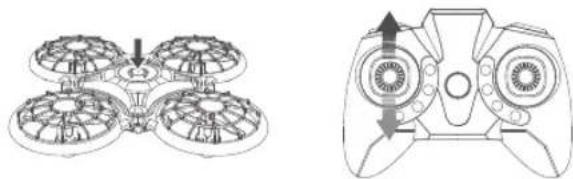
Place the drone on a flat surface. Press and hold the Power button on the drone to power on. The drone's LEDs will start flashing.
- Press the Power button on the remote control to power on. Wait for a few seconds and the pairing will be completed automatically, the LEDs on the drone will change from white to colorful and solid on.
natural_image
Diagram showing a four-peta drone and a game controller with directional arrows (no text or symbols)6
2. Calibrate
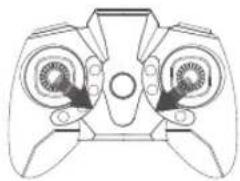
Simultaneously move the left joystick to the bottom right at a 45° angle and move the right joystick to the bottom left at a 45° angle and hold for 3 seconds to calibrate the drone. The LED lights on the drone will blink white for about 3 seconds. The calibration is complete when the colorful LED lights turn on, and you will hear a beep from the remote control.
natural_image
Line drawing of a handheld device with two circular buttons and directional arrows (no text or symbols)3. Flight instructions
Take-off
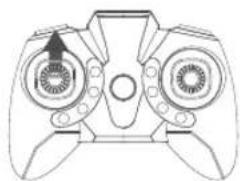
Option 1: After finishing the pairing, push the Left joystick forward to unlock. The four propellers will then start rotating. Push the Left joystick forward again, the drone will take off.
natural_image
Line drawing of a handheld gaming controller with dual motors and a central hub (no text or symbols)Option 2: After finishing the pairing, push the Left joystick forward to unlock. The four propellers will then start rotating. Press the One key take-off button to take off.
DIRECTIONS
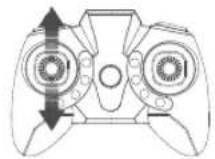
Left joystick
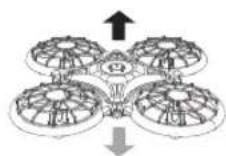
Ascend and descend: Push the Left joystick forward and the drone will ascend; pull it backward and the drone will descend.
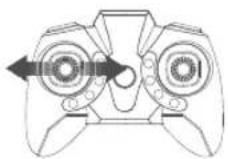
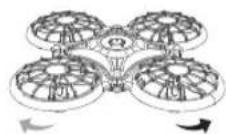
Rotate left and rotate right: Pull the Left joystick leftward and the drone will rotate to the left; pull it rightward and the drone will rotate to the right.
Right joystick
Forward and backward: Push the Right joystick forward and the drone will fly forward; pull it backward and the drone will fly backward.
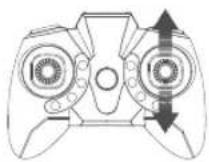
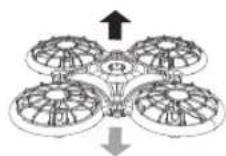
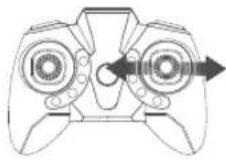
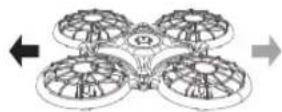
Leftward and rightward: Pull the Right joystick leftward and the drone will fly leftward; pull it rightward and the drone will fly rightward.
Flight trimming
Trimming can be important in helping you control your drone.
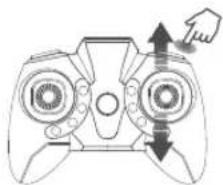
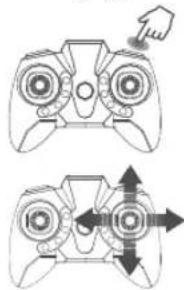
If the drone drifts forward or backward during the flight, press and hold the 360°
Flip button, then gently move the Right joystick backward or forward to adjust.
natural_image
Line drawing of a handheld gaming controller with directional arrows indicating movement (no text or symbols)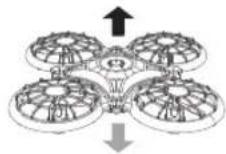
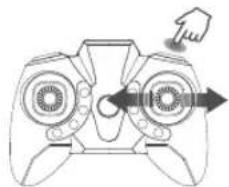
If the drone drifts leftward or rightward during the flight, press and hold the 360° Flip button, then gently move the Right joystick rightward or leftward to adjust.
natural_image
Line drawing of a game controller with directional arrows indicating motion (no text or symbols)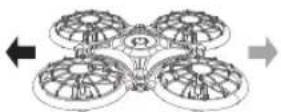
Release the Right joystick and the 360° Flip button to exit the trimming mode.
360° Flip
After flying the drone to an altitude of over 2 meters, press the Right joystick and 360° Flip button to activate 360° Flip function. Release once the flip is completed. Move the Right joystick forward/backward/leftward/rightward to flip the drone 360" in the corresponding direction. Please note that this function cannot be activated when the battery power of the drone is low.
Release the Right joystick and the 360° Flip button to exit the trimming mode.
natural_image
Two identical line drawings of a game controller with directional arrows indicating movement or force (no text or symbols)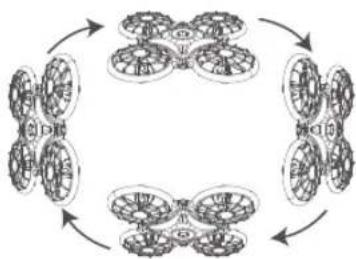
flowchart
graph TD
    A["开始"] --> B["步骤1"]
    B --> C["步骤2"]
    C --> D["步骤3"]
    D --> E["结束"]
    style A fill:#f9f,stroke:#333
    style B fill:#ccf,stroke:#333
    style C fill:#cfc,stroke:#333
    style D fill:#fcc,stroke:#333
    style E fill:#cff,stroke:#333
Speed switch
Low speed is the drone's default setting. Press the Speed switch button once for medium speed, indicated by two beeps from the remote. Press it again for high speed, indicated by three beeps from the remote. A third press will return the drone to low speed, indicated by one beep from the remote.
One key return
Press and hold the One key return button, the drone will fly backwards in the reverse direction of its original flight path. Press and hold the button again to exit this mode:
Headless mode
Press the Headless mode button to activate the function. The LEDs on the drone will flash and users will hear a beeping sound from the remote. In this mode, the drone will fly following the direction of the Right joystick regardless of the position of your drone's head or tail. Press the same button again to exit this mode.
Infrared obstacle avoidance
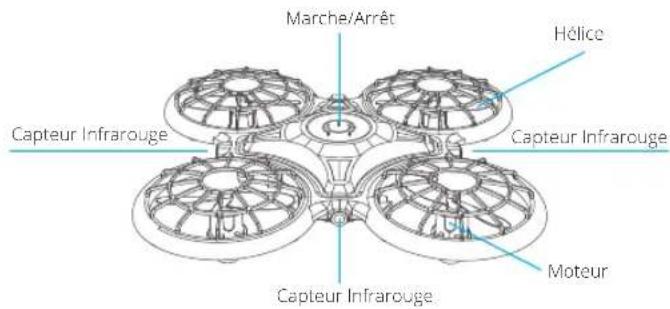
Press down the One key take-off/Infrared obstacle avoidance button to activate the Infrared obstacle avoidance mode. The drone will fly in another direction when it detects an obstacle. Press it down again to exit this mode.
Emergency stop
Press down and hold the One-key Landing button for 3 seconds, the drone will stop flying and fall to the ground. To avoid any unpleasant accidents, please make sure there is nobody under the drone when using emergency stop.
Altitude hold/Hover
This is one of the drone's default settings. When you release the Left joystick after the ascending/descending action, the drone will hover at its current flight altitude. Proper trimming can help achieve a stable flight.
Landing
Option 1: Press down the One key landing button to land.
Option 2: During the flight, pull the Left joystick backward as far as possible to land the drone, and hold it for 3 seconds until all the rotor blades stop rotating.
FLIGHT WITH THE GRAVITY SENSOR REMOTE CONTROL
1. Power on and pair the remote with the drone
Place the drone on a flat surface. Press and hold the Power button on the drone to power on. The LEDs on it will start flashing.
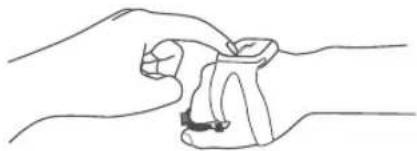
Press and hold the Power button to power on the remote control. The LEDs on it will start flashing and the remote will automatically pair with the drone. When the
pairing is completed, the LEDs on both the drone and remote will remain on.
natural_image
Line drawing of two hands holding a small object, no text or symbols present2. Calibrate
Press the Power button on the drone. The LEDs on the drone will then start flashing quickly. The calibration is complete when the LEDs on the drone remain on constantly.
3. Flight instruction
Take-off
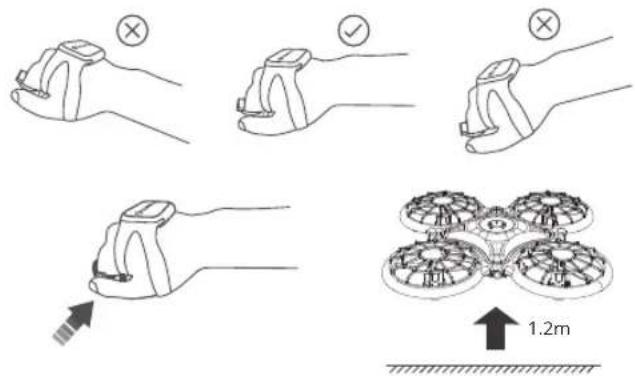
Clench your fist, then make sure the remote is parallel with the surface on which you are stood. Press the Finger button, then release it. The drone will take off vertically to an altitude of 1.2 meters.
Directions
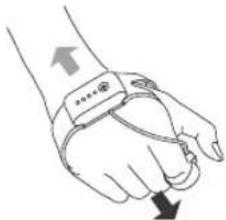
Forward: Release the Finger button during the flight, then tilt your fist downward. Backward: Release the Finger button during the flight, then tilt your fist upward.
natural_image
Illustration of a human wrist with a sensor tape and finger pointing upward (no text or symbols)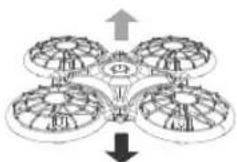
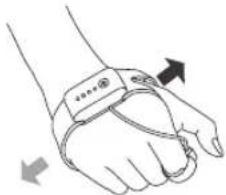
Leftward: Release the Finger button during the flight, then lean your fist leftward. Rightward: Release the Finger button during the flight, then lean your fist rightward.
natural_image
Illustration of a human hand wearing a smartwatch with directional arrows indicating movement (no text or symbols)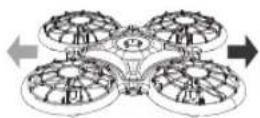
Ascend: Press and hold the Finger button during the flight, then tilt your fist upward. Descend: Press and hold the Finger button during the flight, then tilt your fist downward.
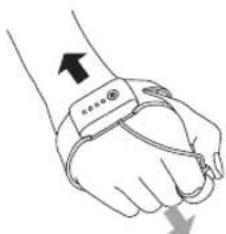
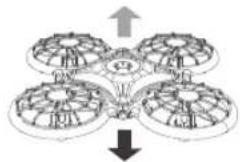
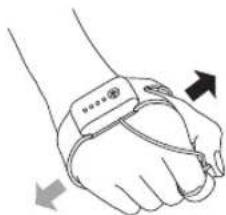
Rotate left: Press and hold the Finger button during the flight, then lean your fist leftward.
Rotate right: Press and hold the Finger button during the flight, then lean your fist rightward.
natural_image
Illustration of a human hand wearing a smartwatch with directional arrows indicating movement (no text or symbols)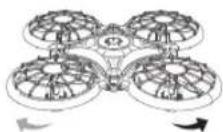
360° Flip
Move your fist to make sure the remote is parallel with the surface on which you are stood during the flight (as you were before take-off). Press the Finger button, then release it. The LEDs on the drone will start flashing quickly. Then move your fist forward/backward/leftward/rightward to flip the drone accordingly.
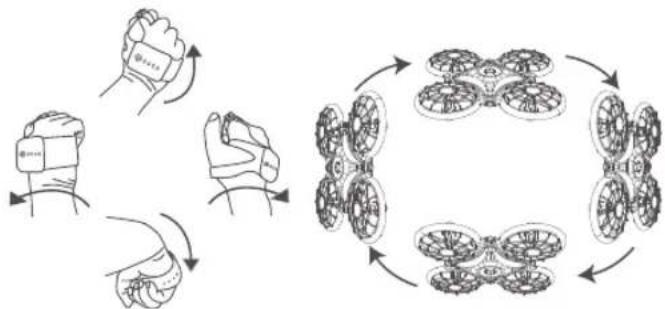
flowchart
graph TD
    A["Hand gestures"] --> B["Actuator with four dotor-like units"]
    B --> C["Control unit with four dotor-like units"]
    C --> D["Output: 100%"]
    style A fill:#f9f,stroke:#333
    style B fill:#ccf,stroke:#333
    style C fill:#cfc,stroke:#333
    style D fill:#fcc,stroke:#333
Infrared obstacle avoidance
Continuously press the Finger button 3 times to activate infrared obstacle avoidance mode during the flight. The LEDs on the drone will flash 3 times, then remain on constantly. The drone will fly in another direction when it detects an obstacle. Continuously press the Finger button 3 times again to exit the mode.
Emergency stop
Press and hold the Power button on the remote for 2 seconds, the drone will stop flying and fall to the ground. To avoid any unpleasant accidents, please make sure there is nobody under the drone when using the emergency stop.
Landing
Move your fist to make sure the remote is parallel with the surface during the flight. Release the Finger button, then press the Power button on the remote to land.
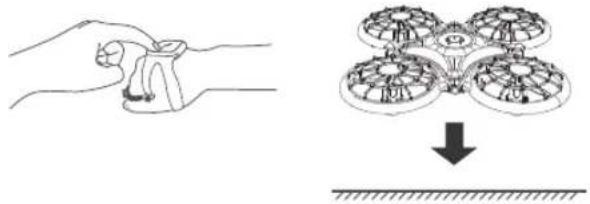
natural_image
Illustration showing a hand holding a tool and a four-peta drone with a downward arrow indicating impact (no text or symbols)FLIGHT WITH THE WATERDROP REMOTE CONTROL
Note: Please turn off the standard remote control and gravity sensor remote control before using the waterdrop remote control.
1. Power on
Place the drone on a flat surface. Press and hold the Power button on the drone to power on. The LEDs on it will start flashing. You do not need to power on and pair the waterdrop remote control with the drone.
2. Calibrate
Press the Power button on the drone. The LEDs on the drone will start flashing quickly. The calibration is complete when the LEDs flash slowly.
3. Flight instructions
Take-off
Option 1: Press the button on the waterdrop remote control to commence take-off.
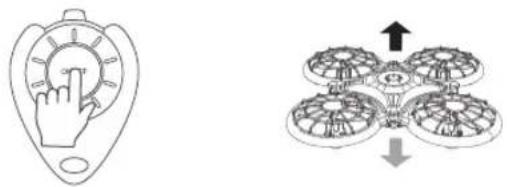
natural_image
Diagram showing a hand pressing a circular button on a device and a four-pole antenna with directional arrows (no text or symbols)Option 2: Place the drone in the palm of your hand with the head of the drone facing forwards. Gently throw it into the air.
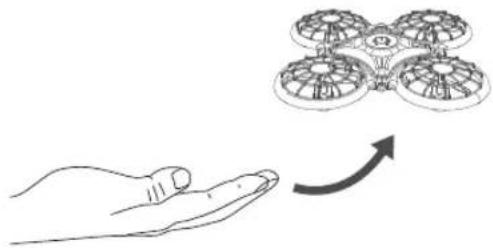
natural_image
Illustration of a hand holding a four drones with an upward arrow indicating rotation (no text or symbols)Note: Please make sure there is enough space while throwing the drone up. We recommend this option only for skilled drone-users.
Directions
Ascend: Put your hand under the drone.
Descend: When the drone flies over an altitude of 1.2 meters, it will slowly descend automatically.
Leftward: Put your hand to the right side of the drone.
Rightward: Put your hand to the left side of the drone.
Landing
Press the button on the remote to land the drone during the flight.
MAINTENANCE
- Frequently clean this product with a soft clean cloth.
- Avoid exposing this product to sunlight, heat or high temperatures.
- Keep away from water.
- Regularly check the plugs and other components, please repair the product before using it if something is broken or damaged.
SAFETY GUIDANCE
- Keep the small components away from children.
- Please make sure the drone ascends slowly to avoid any potential damage at high speed.
- After landing, please turn off the remote control first, and then power off the drone.
- Please keep the drone a safe distance of 2-3 meters from other people to avoid crashes or accidents during landing.
- Children should be under the supervision of an adult when using this product.
- Please do not charge the battery which is not rechargeable. Make sure that the batteries are installed correctly. DO NOT use old batteries and new batteries at the same time.
- Users are highly recommended to power off the drone and the remotes, and take out the batteries when they are not in use for a long time.
- Be aware of the risk of short circuits.
CAUTION
- When the battery status of the drone or remote control is low, it may affect the remote distance.
- If the battery status of the drone is low, it may have difficulty in maintaining take-off or flight altitude.
- Please stop using this product and repair it as soon as possible if something is broken or damaged. Failure to do so could pose a safety hazard.
- Please take out the batteries in case of battery leakage if it is not in use for a long time.
- Avoid falls or collisions as these will severely shorten the product life.
- This product contains many metallic alloy parts. Please be cautious not to hurt your fingers.
TROUBLESHOOTING GUIDANCE
-
Drone LEDs are not lighting up.
-
Press the Power button on the drone.
-
Replace or charge the battery of the drone.
• Make sure the connectors of the battery are firmly plugged in. -
Drone LEDs keep flashing, but the drone is not responding to any commands from the standard remote control.
• Pair the drone and the remote again.
- Replace or charge the battery of the drone.
- Make sure the batteries in the remote have enough power.
• Make sure to turn off the gravity sensor remote control.
-
The flight is not stable.
-
Return the drone and restart to do calibration as instructed.
• Make the flight trimming accordingly.
• Fly the drone when the weather is good. -
The response from the drone to the control is not sensitive.
- Make sure the distance between the drone and remote is effective.
English
- The drone will fly beyond the control range.
- Activate the Headless mode, then move the Right joystick to fly the drone back.
- The rotor blades need to be replaced.
• The propellers and motors are marked A and B. Please pair them when replacing the rotor blades.
- The waterdrop remote control does not work.
• Make sure you turn off the gravity sensor remote and the standard remote.
CONTACT US
For any inquiries about Dragon Touch products, please feel free to contact us, and we will respond within 24 hours.
E-mail: cs@dragontouch.com
Tel: 888-811-1140 (US) Mon-Fri 9am-5pm (EST)
Official website: www.dragontouch.com
PACKUNGSINHALT
DK01 Mini Drohne × 1
natural_image
Line drawings of a human hand with wristband and wristpin, showing two views (no text or symbols)natural_image
Line drawing of a handheld gaming controller with directional arrows indicating motion (no text or symbols)2. Kalibrieren
natural_image
Line drawing of a handheld gaming controller with two circular buttons and directional arrows (no text or symbols)3. Fluganweisungen
Abheben
natural_image
Line drawing of a handheld device with dual circular buttons and a central hub (no text or symbols)natural_image
Line drawing of a handheld gaming controller with directional arrows indicating movement (no text or symbols)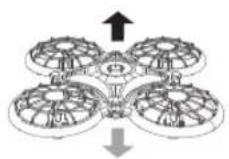
natural_image
Line drawing of a game controller with directional arrows indicating motion (no text or symbols)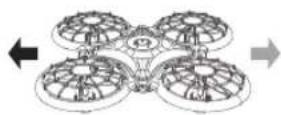
natural_image
Line drawing of two hands holding a small object, no text or symbols present2. Kalibrieren
Richtungen
natural_image
Illustration showing a hand holding a wristwatch and a four-petaled mechanical device with arrows indicating motion (no text or symbols)natural_image
Illustration of a hand wearing a smartwatch and four dicofoles arranged in a circle (no text or symbols)natural_image
Illustration showing a hand wearing a smartwatch and a four-peta drone with directional arrows (no text or symbols)natural_image
Illustration of a human hand wearing an ESI-style wristband with directional arrows indicating movement (no text or symbols)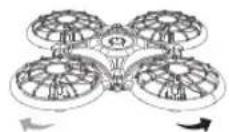
360° Flip
natural_image
Illustration showing a hand holding a small object and a four-peta drone with a downward arrow, no text or symbols present.FLUG MIT DER WASSERFAHRT-FERNBEDIENUNG
natural_image
Illustration of a hand holding a four-tac-toe drone with an upward arrow, no text or symbols presentnatural_image
Line drawings of a hand with wristband and finger, showing two different palm designs (no text or symbols)natural_image
Diagram showing a four-peta drone and a game controller with directional arrows (no text or symbols)2. Calibrar
natural_image
Line drawing of a handheld device with two circular buttons and directional arrows (no text or symbols)natural_image
Line drawing of a handheld gaming controller with two circular buttons and a black arrow indicating the left side (no text or symbols)natural_image
Line drawing of a handheld gaming controller with directional arrows indicating movement (no text or symbols)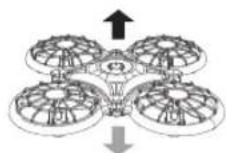
natural_image
Line drawing of a game controller with directional arrows indicating motion (no text or symbols)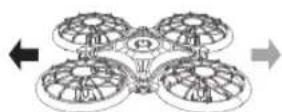
natural_image
Two identical line drawings of a game controller with directional arrows indicating motion (no text or symbols)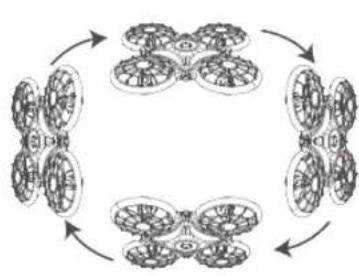
flowchart
graph TD
    A["Unit 1"] --> B["Unit 2"]
    B --> C["Unit 3"]
    C --> D["Unit 4"]
    D --> A
    style A fill:#f9f,stroke:#333
    style B fill:#f9f,stroke:#333
    style C fill:#f9f,stroke:#333
    style D fill:#f9f,stroke:#333
natural_image
Line drawing of two hands gripping a small object (no text or symbols)2. Calibrar
Direcciones
natural_image
Diagram of four identical mechanical components with an upward arrow and downward arrow indicating direction (no text or symbols)natural_image
Diagram of four identical mechanical components with a downward arrow indicating rotation or disassembly (no text or symbols)
VUELO CON EL MANDO A DISTANCIA WATERDROP
natural_image
Illustration of a hand holding a four-tet drone with an arrow indicating rotation (no text or symbols)SPÉCIFICATIONS DU PRODUIT
Drone
Dimensions: 170 mm x 170 mm x 38 mm
CARACTÉRISTIQUES DU PRODUIT
Drone
natural_image
Line drawings of a hand with a wristband and a finger, showing two different hand positions (no text or symbols)natural_image
Symmetrical mechanical component diagram with four circular components and a central hub, no text or symbols present.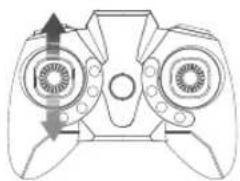
natural_image
Line drawing of a handheld gaming controller with directional arrows indicating motion (no text or symbols)2. Étalonner
natural_image
Line drawing of a handheld device with two circular buttons and a central hub (no text or symbols)3. Instructions de vol
Décollage
natural_image
Line drawing of a handheld device with dual circular ports and a black arrow pointing to the left side (no text or symbols)natural_image
Line drawing of a handheld gaming controller with directional arrows indicating movement (no text or symbols)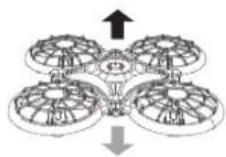
natural_image
Line drawing of a game controller with directional arrows indicating motion (no text or symbols)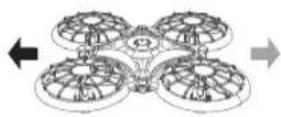
natural_image
Line drawing of two hands holding a small object, no text or symbols present2. Étalonner
Instructions
natural_image
Illustration showing a hand holding a smartwatch and a four-peta drone with directional arrows (no text or symbols)natural_image
Illustration of a hand wearing a smartwatch and four circular dials with arrows indicating motion (no text or symbols)natural_image
Illustration of a hand wearing an ESI with a four-petaled device, showing mechanical components and directional arrows (no text or symbols)natural_image
Illustration of a human hand wearing a wristwatch with directional arrows indicating movement (no text or symbols)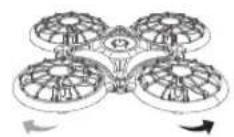
Retournement 360°
flowchart
graph TD
    A["Hand gestures"] --> B["Control loop"]
    B --> C["Two circular units with internal components"]
    C --> D["Circular motion path"]
    D --> E["Final unit with four arms"]
natural_image
Diagram of four identical mechanical components with a downward arrow indicating rotation or assembly (no text or symbols)VOL AVEC LA TÉLÉCOMMANDE EN FORME DE GOUTTE D'EAU
natural_image
Illustration of a hand holding a four-tent drone with an upward arrow indicating flight motion (no text or symbols)natural_image
Line drawings of a human hand with a wristband and finger, showing two views (no text or symbols)natural_image
Diagram showing a multi-lane drone with four wheels and a game controller with directional arrows (no text or symbols)2. Calibrare
natural_image
Top-down line drawing of a handheld device with two circular buttons and a central hub (no text or symbols)natural_image
Line drawing of a handheld gaming controller with dual front panels and a central rotary knob (no text or symbols)natural_image
Line drawing of a handheld game controller with directional arrows indicating movement (no text or symbols)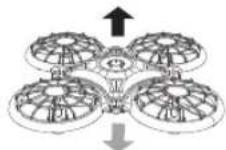
natural_image
Line drawing of a game controller with directional arrows indicating motion (no text or symbols)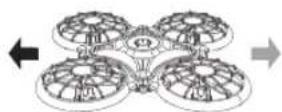
natural_image
Two identical line drawings of a handheld game controller with directional arrows indicating motion (no text or symbols)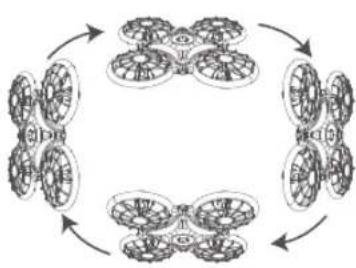
flowchart
graph TD
    A["Stage 1"] --> B["Stage 2"]
    B --> C["Stage 3"]
    C --> D["Stage 4"]
    D --> E["Stage 5"]
    E --> F["Stage 6"]
    F --> A
    style A fill:#f9f,stroke:#333
    style B fill:#f9f,stroke:#333
    style C fill:#f9f,stroke:#333
    style D fill:#f9f,stroke:#333
    style E fill:#f9f,stroke:#333
    style F fill:#f9f,stroke:#333
natural_image
Line drawing of two hands holding a small object, no text or symbols present2. Calibrare
Indicazioni
natural_image
Diagram of four identical mechanical components with an upward arrow and downward arrow, no text or symbols present.natural_image
Diagram showing four identical mechanical components with upward and downward arrows indicating motion or force (no text or symbols)natural_image
Illustration of a human hand wearing an easert with directional arrows indicating movement (no text or symbols)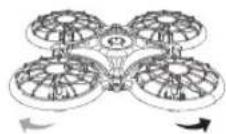
Capovolgere 360°
flowchart
graph TD
    A["Hand gestures"] --> B["Step 1: Hand press"]
    B --> C["Step 2: Hand press with hand gesture"]
    C --> D["Step 3: Step 2: Robot arm with four wheels"]
    D --> E["Step 4: Step 3: Robot arm with four wheels"]
    E --> F["Step 5: Step 4: Robot arm with four wheels"]
    F --> G["Step 6: Step 5: Robot arm with four wheels"]
natural_image
Diagram showing a four-peta roof structure with a downward arrow indicating compression or damage (no text or symbols)VOLO CON IL TELECOMANDO WATERDROP
natural_image
Illustration of a hand holding a four-tet drone with an arrow indicating rotation (no text or symbols)Official website: www.dragontouch.com