Y80 - Tablet Dragon Touch - Free user manual and instructions
Find the device manual for free Y80 Dragon Touch in PDF.


| Product Type | Tablet |
| Brand | Dragon Touch |
| Model | Y80 |
| Display Size | 8 inches |
| Display Resolution | 1280 x 800 pixels |
| Processor | Quad-core 1.3 GHz |
| RAM | 1 GB |
| Internal Storage | 16 GB |
| Expandable Storage | microSD up to 64 GB |
| Operating System | Android 8.1 Oreo |
| Battery Capacity | 4000 mAh |
| Battery Life | Up to 6 hours of mixed use |
| Weight | 380 g |
| Dimensions | 210 x 125 x 10 mm |
| Rear Camera | 2 MP |
| Front Camera | 0.3 MP |
| Connectivity | Wi-Fi 802.11 b/g/n, Bluetooth 4.0 |
| Ports | Micro USB, 3.5 mm headphone jack, microSD slot |
| Sensors | Accelerometer, G-sensor |
| Maintenance | Clean with a soft, dry cloth; avoid liquids |
| Safety | Do not expose to extreme temperatures or moisture |
| Spare Parts | Available from third-party retailers; screen and battery replaceable with care |
| Repairability | Moderate; requires careful disassembly |
| General Information | Suitable for kids, e-books, light gaming |
Frequently Asked Questions - Y80 Dragon Touch
User questions about Y80 Dragon Touch
0 question about this device. Answer the ones you know or ask your own.
Ask a new question about this device
Download the instructions for your Tablet in PDF format for free! Find your manual Y80 - Dragon Touch and take your electronic device back in hand. On this page are published all the documents necessary for the use of your device. Y80 by Dragon Touch.
USER MANUAL Y80 Dragon Touch
Tablet with Android™
Please read this manual before operating your tablet, and keep it for further reference.
DRAGONTOUCH®
CONTENTS
01 - 14
English
15 - 28
日本語
English
FEATURES
Browse the Web
Visit your favorite websites.
Check your E-mail
Keep in touch with friends and family.
Watch YouTube™ videos
Browse the world's most popular video-sharing community.
Read your favorite books
Download thousands of books with the included E-book reader *.
Discover thousands of apps for Android™ Games, applications, and more with Play Store (Customer need to download it from Google Play Store).
Connect to the Internet wirelessly
High-speed Wi-Fi 802.11 a/b/g/n networking.
Enjoy your media library anywhere.
Portable powerhouse plays popular music, video, and photo formats.
Micro SD memory card reader.
Increase your storage capacity (up to 64 GB supported)
Built-in camera
Convenient Front-facing Camera 2.0MP / Rear Camera 2.0MP.
Automatic orientation detection
Read any way you want; the display adjusts automatically!
Reading books in the ePub format requires the included E-book reader application.
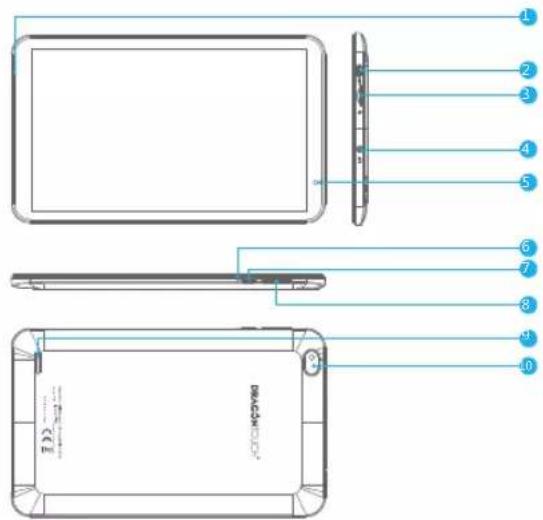
- MIC
- USB Port: Connect to a USB device / power port.
- MicroSD Card Slot: Load external microSD memory cards here.
- Headphone: Audio output connection for headphones.
- Front Camera
- Reset Hole
- Power Button / Screen Saver
- VOL1 / VOL
- Speaker
- Rear Camera
GETTING STARTED
Turning on / off the tablet
To turn on the tablet:
Press and hold the Power button until the LCD screen turns on. Wait until the Home screen appears, the tablet is now ready for use.
To turn off the tablet:
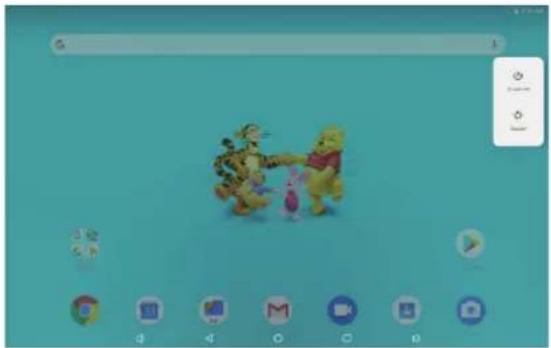
- Press and hold the Power button until the Device Options menu appears.
natural_image
Desktop screenshot showing a cartoon character interacting with a pink pig, surrounded by icons and a browser window (no readable text or symbols on the character or background)- Tap "OK" to turn off the tablet.
Turning on / off the screen (Sleep mode)
When the tablet is on, you can turn off the screen to save battery power. Simply press the power button once to turn the screen off. Press the power button again to turn the screen back on.
To save battery power, the screen can be set to turn off automatically when the tablet is not in use (between 1 minute and 30 minutes).
This screen timeout option can be found in the Display menu.
Home Screen
① Back: Press to check previous operating display.
② Home Screen: Press to go to home screen.
② Background: Press to check applications running on background. Existing idle Apps may provide a better performance.
④ Application Panel: Press to check all available Applications.
Wallpaper
Tap and hold your finger in any blank space of the home screen, you will see a pop-up menu; you can choose wallpaper from Gallery or your downloaded files or those listed as options; set the one you like to be wall paper.
Widgets
Tap and hold your finger in any blank space of home screen, you will see a pop-up menu with widget.
Tip:
- Tap one icon and move on to top of another icon, you can create a new folder on home screen. Open the folder; click 'Unnamed Folder' to rename the folder.
- Swipe down vertically from top part of a display to enter quick notification menu.
Screen Lock
Set a screen lock to secure your tablet.
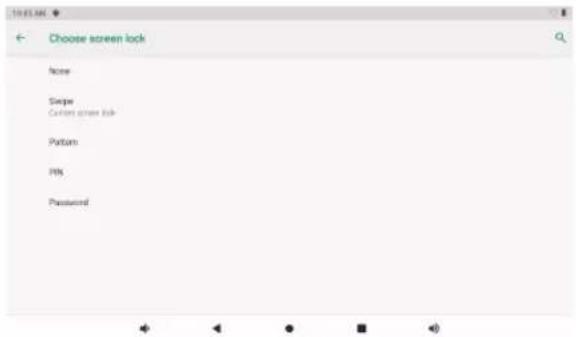
Tap - Selling Security-Screen security Select screen lock, and select a mode from None, Swipe, Pattern, PIN and Password. You can create a Backup PIN as a safety measure in case you forget your code.
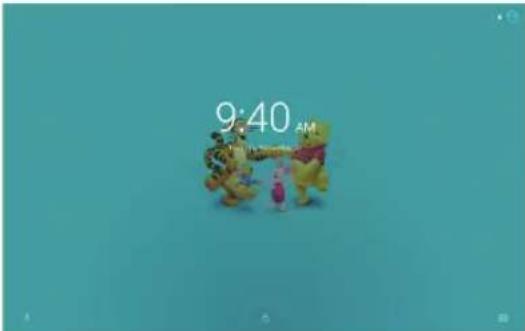
Unlocking the Screen
When the screen turns off, you will have to unlock the screen when you turn it back on. To unlock the screen, swipe up the lock icon.
Screen shot
Press and hold the power button and volume "-" at the same time to screenshot. The screenshot will be saved in the photos file.
ABOUT APPLICATIONS
To open an application, tap the application icon on the home screen or in the Launcher where you can tap the icon right up on the home screen to get in. Launcher screen:
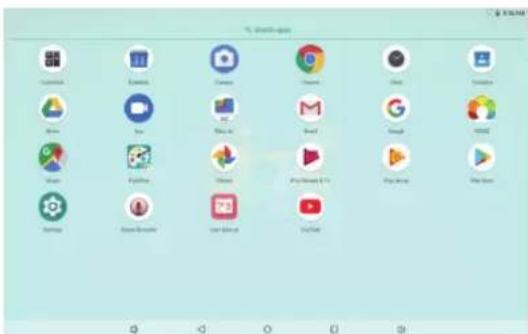
The screen shown above is for illustrative purposes only. We reserve the right to modify and improve the final list of applications available on the tablet.
ABOUT APPLICATIONS
Preinstalled Applications
Some applications have been installed on your tablet for your convenience. These applications include:

Browse the web.

Perform simple mathematical operations.

Take pictures or videos with the camera.

Check your e-mail.

Play music.

Access the Settings menu to adjust the tablet's options.
PREINSTALLED APPLICATIONS
Installing Applications
You can also download an install additional applications from the device's applications marketplace, the web browser, or other sources.
The tablet must be set to allow installation of applications from non-Market sources. The Unknown sources option can be set in the Application settings menu.
Note:
- Users are responsible for all charges with concerned Apps if there is any.
- Manufacturers/sellers are not responsible for apps that are incompatible with the device.
- In some cases, there may be no icon in the App Panel after an App is installed. Possible reasons may be that this App is not compatible with your OS or the downloaded file is a broken one so you may need to download a full version.
If you install and use an OS other than the one provided by the manufacturer, it may cause your device to malfunction, therefore, your device will no longer be covered by the warranty in this condition.
CONNECT TO A WI-FI NETWORK
The Notification bar displays icons that indicate your tablet's Wi-Fi status.
Notification that an open Wi-Fi network is in range.
Connected to a Wi-Fi network (waves indicate connection strength).
[no icon] There are no Wi-Fi networks in range, or the Wi-Fi radio is off.
1. Turn on the Wi-Fi radio if it is not already on.
a. Go to the Home screen: Press the Home button.
b. Open the Settings menu: tap the icon right up on the home screen to get into the launcher, then tap Settings icon.
c. Open the Wireless & networks menu: Slide the icon to ON status.
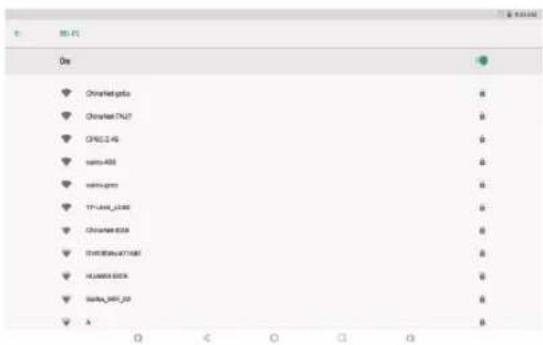
When Wi-Fi is on, the tablet will look for and display a list of available Wi-Fi networks.
Notes: If a network that you have connected to previously is found, the tablet will connect to it. If you don't see your network in the list, you can force the tablet to re-scan. To scan for networks, tap the Menu button, and then touch Scan.
2. Select an available Wi-Fi network to connect:
In the same Wi-Fi settings menu above, lap a network in the list.
If the network is open, the tablet will prompt you to confirm connection to the network. Tap "Connect" to confirm.
If the network is secured (as indicated by a Lock icon), the tablet will prompt you to enter a password or other credentials. Tap the Wireless password box to show the on-screen keyboard and then use it to enter the password.
Tao "Connect" to confirm.
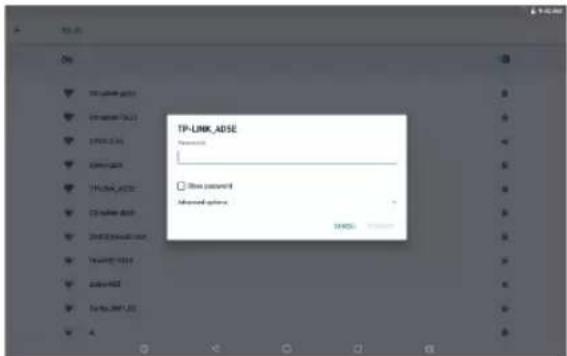
When you have successfully connected to a Wi-Fi network, the Notifications bar at the upper right of the screen will show a Wi-Fi signal indicator.
Notes: To learn about how to add a Wi-Fi network when it is not in range or when the router is set to obscure the network name (SSID), or to configure advanced Wi-Fi options, please refer to the manual.
INTERNET NAVIGATING
Before using your browser, make sure Wi-Fi or internet is connected.
Setting Browser
You can use the browser preinstalled, or download others you prefer. Tap the icon on top right corner of the browser page to open the submenu for more detailed setting.
Navigating
Tap the browser icon to open your browser. You can access a website quickly by entering the URL on screen keypad. Websites are optimized for viewing on your actual devices.
Bookmarks
- Tap★ on any webpage to add a bookmark. You can then tap "OK" to save or rename the website.
- Tap★ to view bookmarked sites, pages you saved and your browsing history.
- To delete a bookmark, go to bookmarks page, tap and hold the bookmark you want to delete. Tap "Delete bookmark". At the Delete confirmation window, tap OK.
Cookies
Cookie placed on your device by a website during navigation contains some site specific information. It can also contain some personal information (such as a username and password) which can pose a security risk if not properly managed. You can clear these cookies from your device at any time. Go to Home webpage, press, Settings – Privacy & security – Clear all cookie data.
CONNECT TO A BLUETOOTH DEVICE
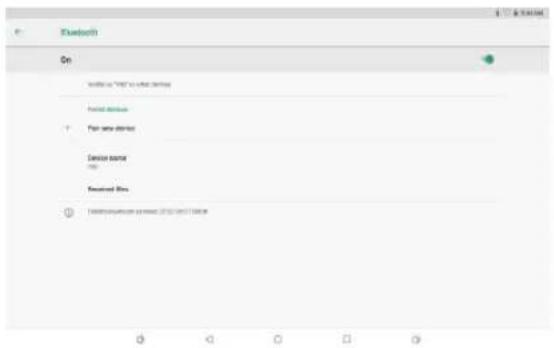
Turn on Bluetooth
You must pair your device with another device before you can transfer files between them. Under 'Settings', choose 'Bluetooth'. Tap Bluetooth to 'ON', the Bluetooth indicator then appears in the status bar. It will start searching available devices nearby. If you need to rescan, tap the menu on top right corner, and tap 'Refresh'.
Scan Device
After scanning, there will be a list of all available Bluetooth devices in range. If the device you want to pair with isn't in the list, ensure that the other device is turned on and set to be discoverable.
Pair with Bluetooth Device
Tap the name of an available Bluetooth device you want to pair with. On the target device you will get a 'Bluetooth pairing request' dialog. Tap 'Pair', it will then show you paired devices.
Device Reset
You may reset your tablet when necessary. Such as forgotten password or PIN of tablet. You can reset your tablet. This will clear all info in your tablet and get your device back to factory mode.
WARNING!
If you perform a Hard Reset, all user applications, user data will be deleted. Please remember to backup any important data before performing a Hard Reset.
OPTIONAL CONNECTIONS
Connecting to a Computer
Connect the tablet to a computer to transfer files.
1. Connect your tablet to the computer.
With the included USB cable: Plug the small end of the cable into the USB 2.0 high speed connector of the tablet. Plug the large end of the cable into an available USB 2.0 high speed port on the computer.
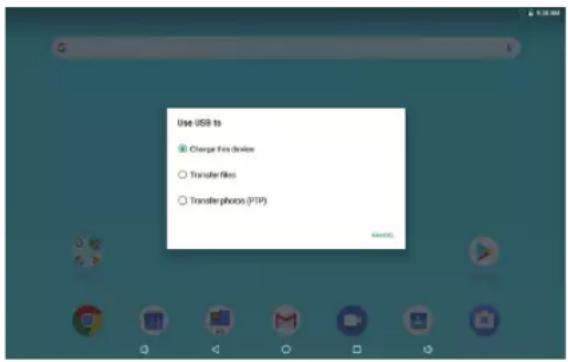
2. When your tablet is connected, slide down the USB icon then tap icon USB connected.
3. Mount the storage.
Tap button Transfer files (MTP) to mount the tablet's built-in storage. When it is mounted, you can copy files to or from your tablet.
SPECIFICATIONS
| Processor | RK3326 (Quad-core Cortex-A35 up to 1.5Ghz) |
| RAM | 2GB DDR3 |
| Storage | 16 GB flash built-in; Micro SD card slot (max.64GB supported) |
| Display | 8" 800*1280, Capcitive touchscreen |
| Wi-Fi Networking | IEEE 802.1 1 b/g/n |
| Audio Output | 3.5mm headphone |
| PC Interface | USB 2.0 high speed |
| Additional Features | Built-in microphoneFront facing camera (2.0MP) Rear camera (2.0MP)1X1W speaker |
| Bluetooth 4.0 | |
| Operating System | Android 8.1 OreoTM |
| Power | Rechargeable Li-poly battery Power Adapter (USB 5V, 2A) |
| Playback Time (hours) | Up to 6 hours music, 4 hours video, 3 hours web browsing |
TROUBLESHOOTING
1. Device doesn't power on.
- Reboot your device after charging it for 30 minutes.
- Shortly press your power button to check if it lights up in case your device is in sleep mode.
- Press the power button for 20 seconds.
- Start a hard reset by pressing the reset button with a pin if there is reset button on your actual device.
2. Device doesn't take charge.
- Keep your device into power for 30 minutes if it was completely drained.
- Check and make sure the charger is properly inserted into charging port.
- Try another outlet or compatible charger.
3. Error message during operation.
- Uninstall the application with error message and download to install again. You can also update certain application with error.
- Delete and clear the system to factory mode with a system reset.
4. Device can't be detected by PC.
• Make sure your device is in 'on' status.
- Try with another USB cable
- Connect your device to a different port on your PC.
5. Device can't be connected with Wi-Fi.
• Make sure your turn Wi-Fi to "ON" status.
- Unplug Wi-Fi router, wait for 2 minutes and plug to connect again.
- Make sure you input correct password by selecting "show password" when you input it.
- Check and make sure there is no filtering setting or device connection limit in your router setting.
- Forget original Wi-Fi connection, reset Wi-Fi router, and connect again.
6. Storage not enough.
- Delete applications you don't use often to spare some space.
- Clean caches in your device regularly Setting-APPs-Click the app and clear cache or data.
• Install a third party system cleaner.
• Factory reset your tablet to clear all data. - Get an extended memory card to expend storage.
CONTACT US
For any inquires, issue or comments concerning our products, please send E-mail to the address below, and we will respond as soon as possible.
E-mail: cs@dragontouch.com
Tel: 1-888-811-1140 (US) Mon-Fri 9am-5pm (EST)
Google, Android, Google Play and other marks are trademarks of Google LLC.
Oreo is a trademark of Mondelez International, Inc. group.
日本語
機能
ウェブページの閲覧
natural_image
Desktop screenshot showing a cartoon character and a dog interacting with a pink bottle, surrounded by application icons (no readable text or symbols)Google, Android, Google Play, YouTube and other marks are trademarks of Google LLC.