NotePad 102 - Tablet Dragon Touch - Free user manual and instructions
Find the device manual for free NotePad 102 Dragon Touch in PDF.


User questions about NotePad 102 Dragon Touch
0 question about this device. Answer the ones you know or ask your own.
Ask a new question about this device
Download the instructions for your Tablet in PDF format for free! Find your manual NotePad 102 - Dragon Touch and take your electronic device back in hand. On this page are published all the documents necessary for the use of your device. NotePad 102 by Dragon Touch.
USER MANUAL NotePad 102 Dragon Touch
natural_image
Abstract blue and white swirling pattern on a tablet screen (no text or symbols)USER MANUAL
V1.3
bar
| Range | Value | |---|---| | 01 - 15 | 15 | | 16 - 30 | 30 | | 29 - 42 | 42 | | 46 - 60 | 60 | | 61 - 75 | 75 | | 76 - 90 | 90 |CONTENTS
Features 02
Unit at A Glance 03
Getting Started----04
About Applications 07
Installing Applications 08
Conneting to A Wifi Network---- 08
Internet Navigating---- 10
Connecting to A Bluetooth Device 11
Optional Connections 12
Specifications---- 13
Troubleshooting---- 14
Contact Us 15
Browse the web
Visit your favorite websites.
Check your E-mail
Keep in touch with friends and families.
Make watching your favorite videos easier with the YouTube app
Explore brand new content, music, news and more with the official YouTube app.
Download your favorite apps on Google Play
Discover thousands of apps such as music, movies, TV, books, magazines, apps and games all on Google Play (Customers need to download these apps on Google Play).
Connect to the Internet wirelessly
With high-speed Wifi 802.11 a/b/g/n/ac (2.4GHz/5GHz) networking, you can enjoy your media library anytime and anywhere.
The 6000mAh battery makes you feel free to listen to popular music, watch videos, and search for photos.
Memory card reader
Increase your storage capacity (up to 256GB supported).
Built-in camera
Convenient front-facing camera 8MP/rear camera 13MP (support flash).
Automatic orientation detection
Read any way you want, the display adjusts automatically!
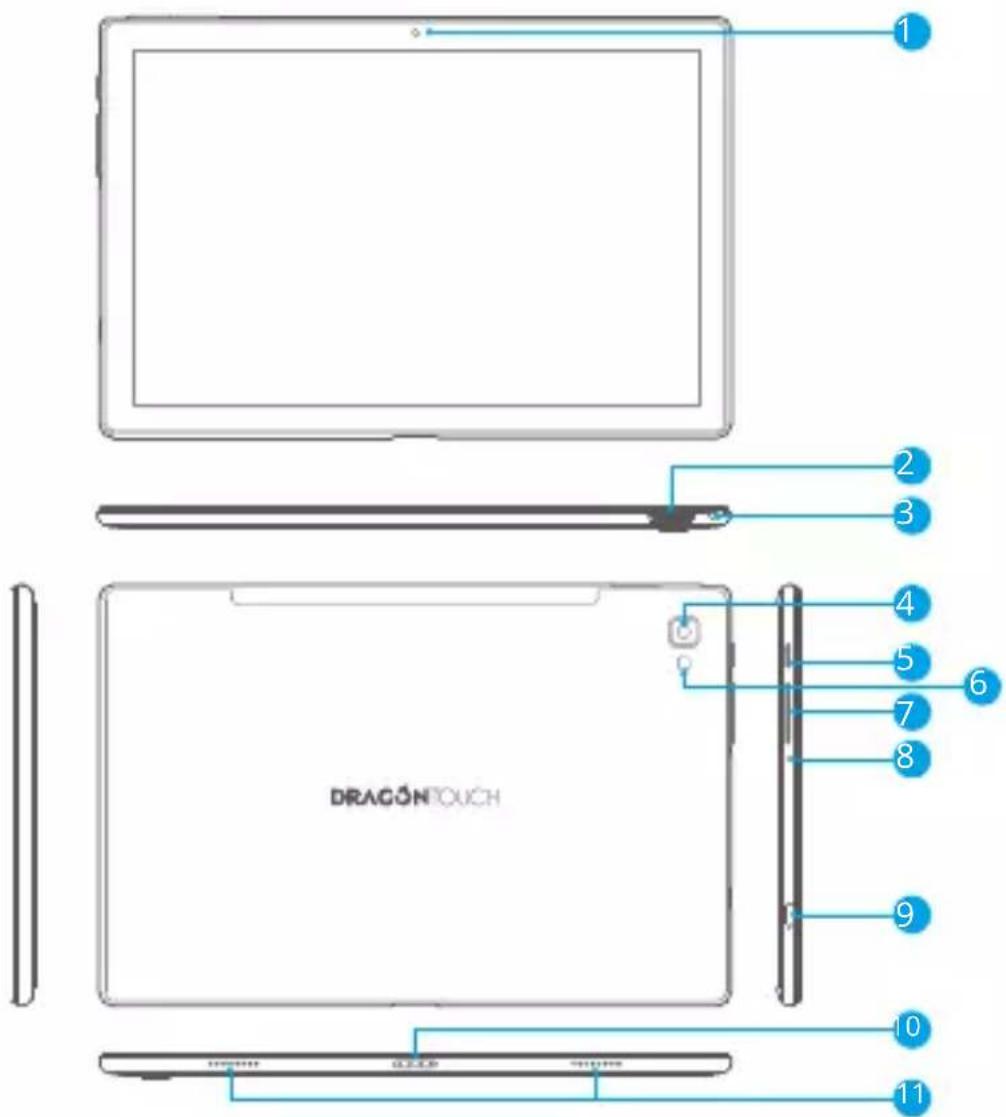
UNIT AT A GLANCE
text_image
1 2 3 4 5 6 7 8 9 10 11 DRAGONTOUCH1 Front Camera
2 Memory Card Slot
3 Headphone Jack
4 Rear Camera
5 Power Button/Screen Saver
6 Flash
7 VOL +/VOL -
8 Reset
9 USB Type-C Port
10 Docking Connector
11 Speaker
GETTING STARTED
Turning on/off the tablet
To turn on the tablet:
Press and hold the power button till the LCD screen turns on. Wait until the Home screen appears, the tablet is now ready for use.
To turn off the tablet:
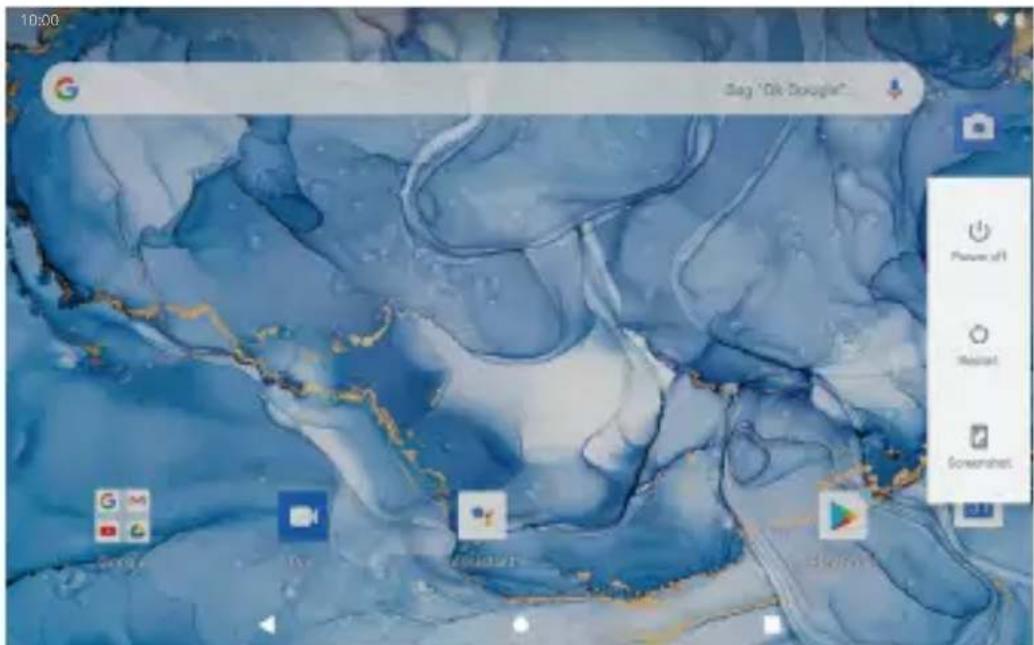
- Press and hold the power button till the Device Options menu appears.
text_image
10:00 Sag "Ok Google" Picture 61 Microsoft Greneshout- Tap "Power off" to turn off the tablet.
Turning on/off the screen (Sleep mode)
When the tablet is on, you can turn off the screen to save battery power. Simply press the power button once to turn the screen off. Press the power button again to turn the screen back on.
To save battery power, the screen can be set to turn off automatically when the tablet is not in use (between 15 seconds and 30 minutes).
To change the screen timeout, tap Settings → Display → Screen timeout.
Changing the language
You can change the display language to your preferred language at any time.
- Tap Settings → System → Languages & input → Languages → Add a language.
-
Select your preferred language from the list by tapping on it. If prompted, select the region for your chosen language.
-
Tap and hold your preferred language and drag it to the top of the list. To remove a language from the list, tap " :" → Remove, mark the language you would like to remove, and tap " 🔒".
Home Screen
① Back: Press to check the previous operating display.
② Home Screen: Press to go to the home screen.
③ Background: Press to check applications running in the background. Closing idle apps may help improve performance.
④ Application Panel: Swipe up to check all available applications.
Wallpaper
- On your tablet's home screen, touch and hold an empty space.
- Tap Wallpapers.
- Pick your wallpaper.
- Tap Set wallpaper.
- If available, pick which screen(s) show the wallpaper.
Widgets
- On your tablet's home screen, touch and hold an empty space.
- Tap "Widgets".
Tip:
-
To make a folder on the home screen, drag an app or a shortcut on top of another. To rename the folder, tap the folder, tap "Unnamed Folder", and then enter the new name.
-
To access the quick notification settings, swipe down from the top of your screen.
Screen Lock
Set a screen lock to secure your tablet.
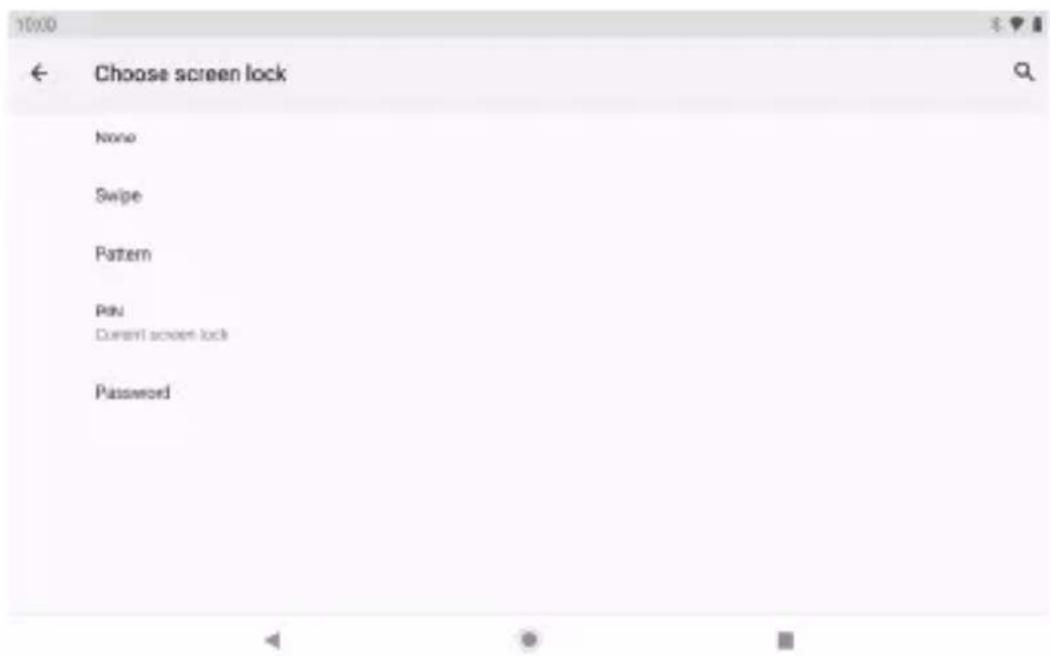
Go to Settings, tap "Security" → "Screen lock", and select a mode from None, Swipe, Pattern, PIN and Password. You can create a Backup PIN as a safety measure in case you forget your code.
text_image
Choose screen lock None Swipe Pattern Pou Current screen lock PasswordUnlocking the Screen
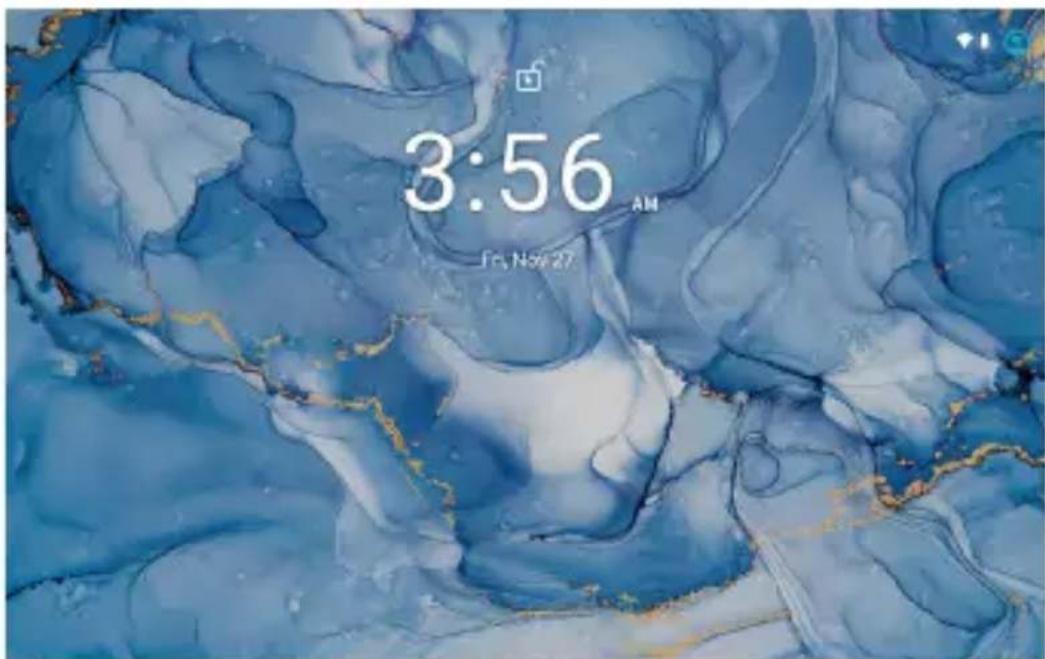
When the screen turns off, you will have to unlock the screen when you turn it back on. To unlock the screen, swipe up the lock icon.
text_image
3:56 AM Fri, Nov 27Taking a Screenshot
Press and hold the power button and volume down button at the same time to take a screenshot. The screenshots will be saved in the photos file.
ABOUT APPLICATIONS
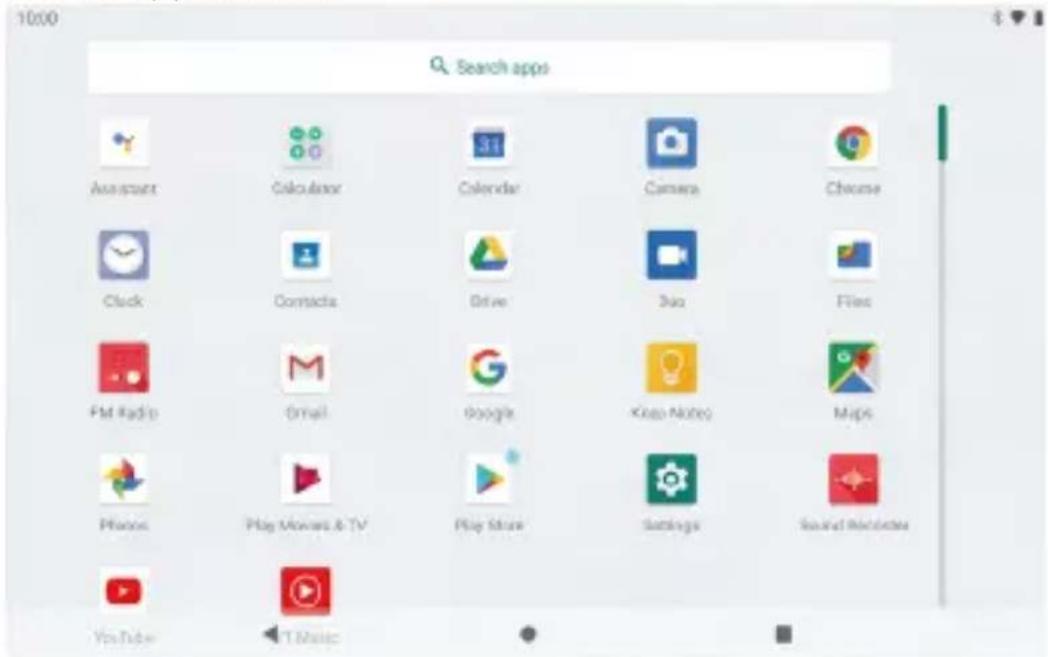
To open an application, tap the application icon on the home screen or swipe up to check all available applications.
text_image
1000 Search apps Assortert Calculator Calendar Camera Cheese Clock Contacts Drive 3oo Files FM Radio Email Google Keep Notes Maps Phone: Play Movies & TV Play Share Settings Sound Modules YouTube T MusicThe screen shown above is for illustrative purposes only. We reserve the right to modify and improve the final list of applications available on the tablet.
Pre-installed Applications
Some applications have been installed on your tablet for your convenience. These applications include:

Browse the web.

Perform simple mathematical operations.

Take pictures or videos with the camera.

Check your e-mail.

Play music.

Access the Settings menu to adjust the tablet's options.
INSTALLING APPLICATIONS
You can also download and install additional applications from Google Play, the web browser, or other sources.
To download apps from sources other than Google Play, your tablet must be set to allow app installations from unknown sources. Go to Settings, tap "Apps & notifications" → "Advanced" → "Special app access" → "Install unknown apps".
Select the app then tap the Allow from this source switch to turn on or off.
Note:
- Users are responsible for all charges from specific apps if it is necessary.
- Manufacturers/sellers are not responsible for apps that are incompatible with the device.
- In some cases, there may be no icon in the App Panel after an app is installed.
Possible reasons may be that this app is not compatible with your OS or the downloaded file is a broken one so you may need to download a full version.
If you install and use an OS other than the one provided by the manufacturer, it may cause your device to malfunction, therefore, your device will no longer be covered by the warranty in this condition.
CONNECTING TO A Wifi NETWORK
The Notification bar displays icons that indicate your tablet's Wifi status.
Notification that an open Wifi network is in range.
Connected to a Wifi network (waves indicate connection strength).
[no icon] There are no Wifi networks in range, or the Wifi radio is off.
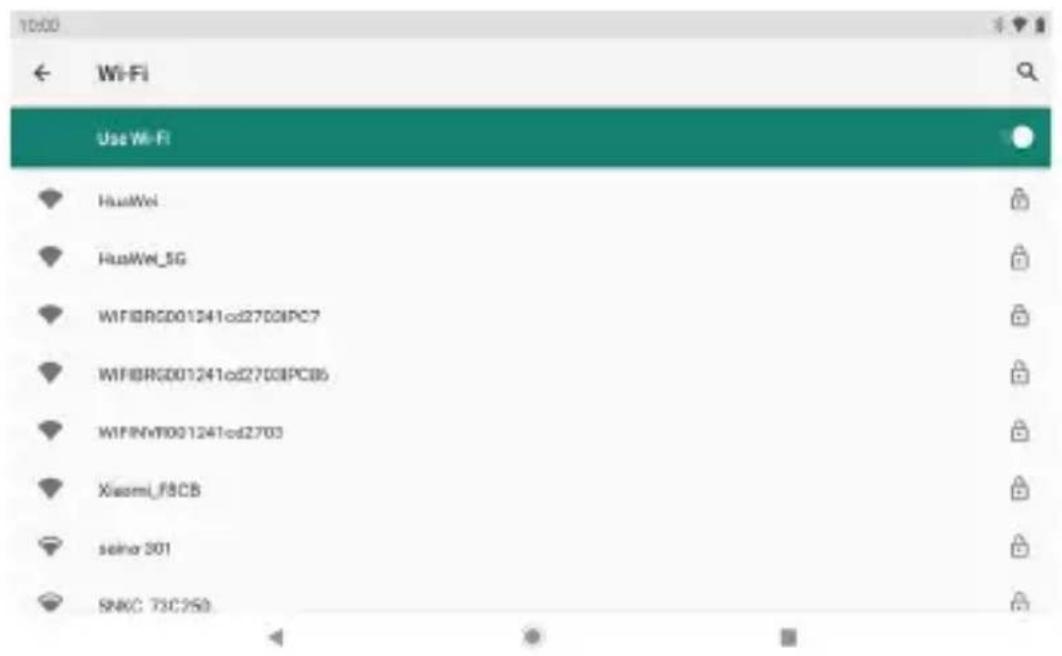
1. Turning on Wifi
a. Swipe up on the screen and tap Settings.
b. Tap Network & internet, and then Wifi.
c. Turn on Use Wifi.
text_image
10:00 Wi-Fi Use Wi-Fi HuaWei HuaWei_5G WIF8RG001241cd2703IPC7 WIF8RG001241cd2703IPC6 WIF8RG001241cd2703 Xiaomi_F8CB seina 301 SNKC 73C25DYour device will automatically search for available Wifi networks.
Note: If a network that you've connected to before is available, the tablet will connect to it. If the network you want isn't listed, but is nearby, wait for the list to refresh. Or, tap Add network, enter the network name (SSID) and security details, and tap Save.
2. Connecting to Wifi
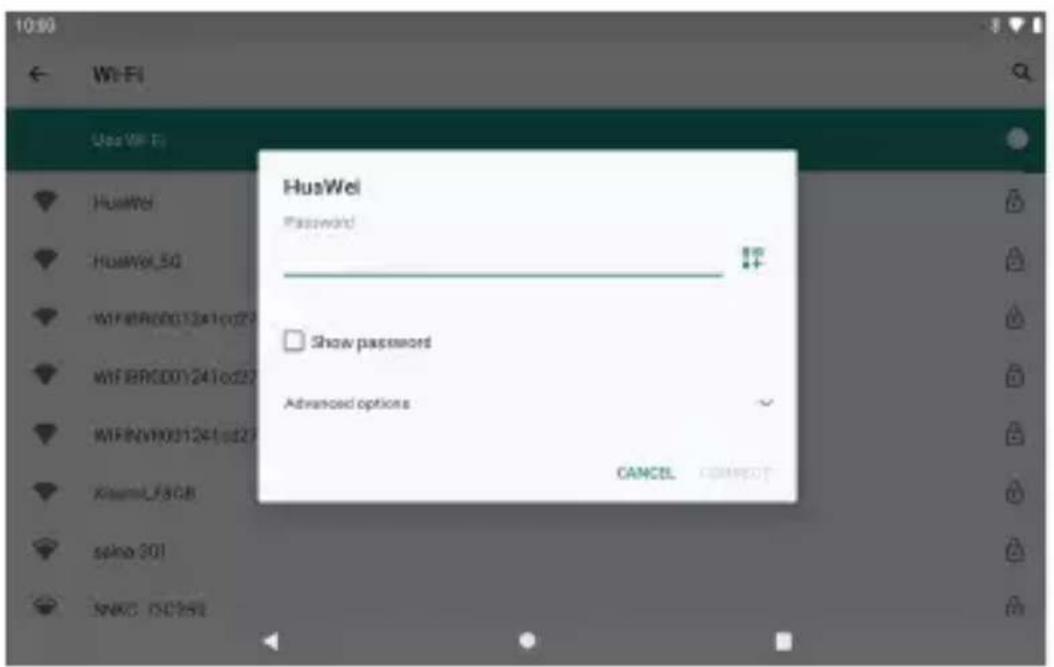
Tap the Wifi network you would like to connect to.
text_image
10:00 ← Wi-Fi Use Wi-Fi HusWel Password Show password Advanced options CANCEL CONNECTIf the network is open, the tablet will prompt you to confirm the connection to the network. Tap "CONNECT" to confirm.
If the network is secured (as indicated by a Lock icon), the tablet will prompt you to enter a password or other credentials. Enter the network password using the onscreen keyboard, and tap "CONNECT".
You will see "Connected" below your selected Wifi network as well as a Wifi icon in the Status Bar indicating that you are connected.
INTERNET NAVIGATING
Before using your browser, make sure Wifi or mobile data is turned on.
Setting Browser
You can use the pre-installed browser or download others you prefer. Tap " : " for more detailed settings.
Navigating
Tap the browser icon to open your browser. You can access a website quickly by entering the URL using the onscreen keyboard. Websites are optimized for viewing on your actual devices.
Bookmarks
- Tap ☆ on any web page to add a bookmark. You can then tap "Edit" to save or rename the website.
- At the top right, tap " :" → "Bookmarks" to see a list of your bookmarks. You can manage your bookmarks.
Cookies
You can clear cookies from your device at any time. On a webpage, tap "‡" → "Settings" → "Privacy & security" → "Clear browsing data".
CONNECTING TO A BLUETOOTH DEVICE
Turning Bluetooth on
- Go to Settings.
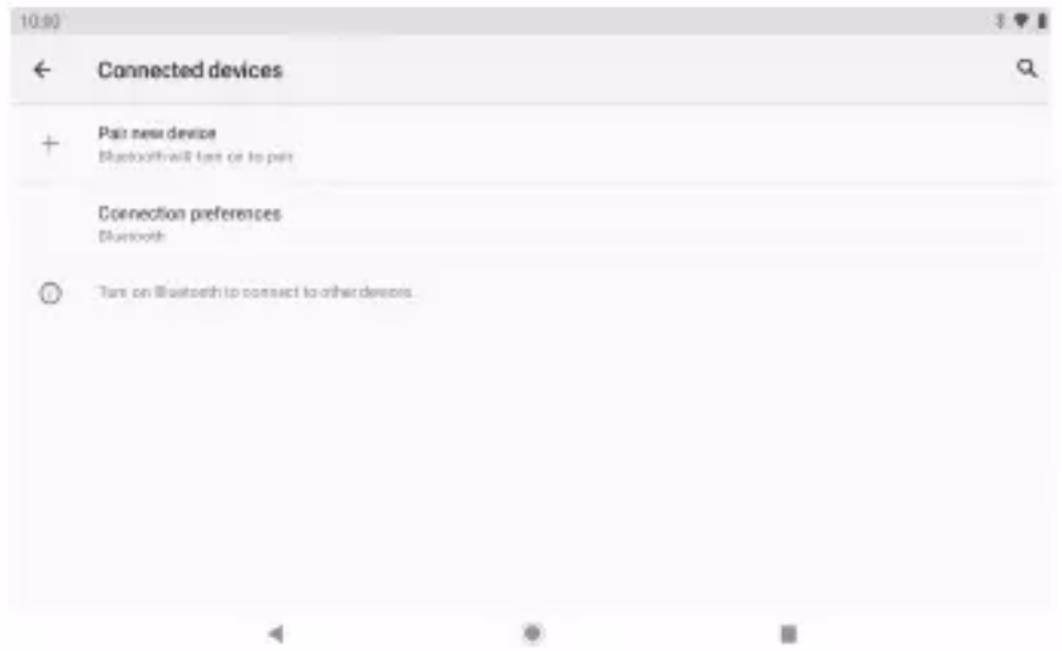
- Tap "Connected devices" → "Connection preferences" → "Bluetooth" and tap the slider to turn it on. You will see the BT icon in the Status Bar.
Pairing a Bluetooth Device
- Swipe down from the top of the screen.
- Tap and hold the Bluetooth icon.
- Tap "Pair new device".
It will automatically scan and you will see a list of available devices. If the device you want to pair with isn't in the list, ensure that the other device is in Paring Mode and set to be discoverable.
text_image
10:00 ← Connected devices + Pair new device Bluetooth will turn or to pair Connection preferences Bluetooth © Turn on Bluetooth to connect to other devices.- Tap the name of the Bluetooth device you want to pair with.
- Tap "PAIR". On the other device, accept the pairing if prompted.
Device Reset
You may reset your tablet when necessary. For example, you can choose to reset your tablet if you forgot its password or PIN. Resetting your tablet will clear all info in your tablet and restore it to factory default settings.
Warning: If you perform a Hard Reset, all data from your tablet, including your account configuration, apps, music, pictures, and files, will be deleted. Please remember to back up any important data before performing a Hard Reset.
OPTIONAL CONNECTIONS
Connecting to a Computer
Connect the tablet to a computer to transfer files.
1. Connect your tablet to the computer.
Connect the tablet to your computer's USB port after plugging the included USB cable into its Type-C port.
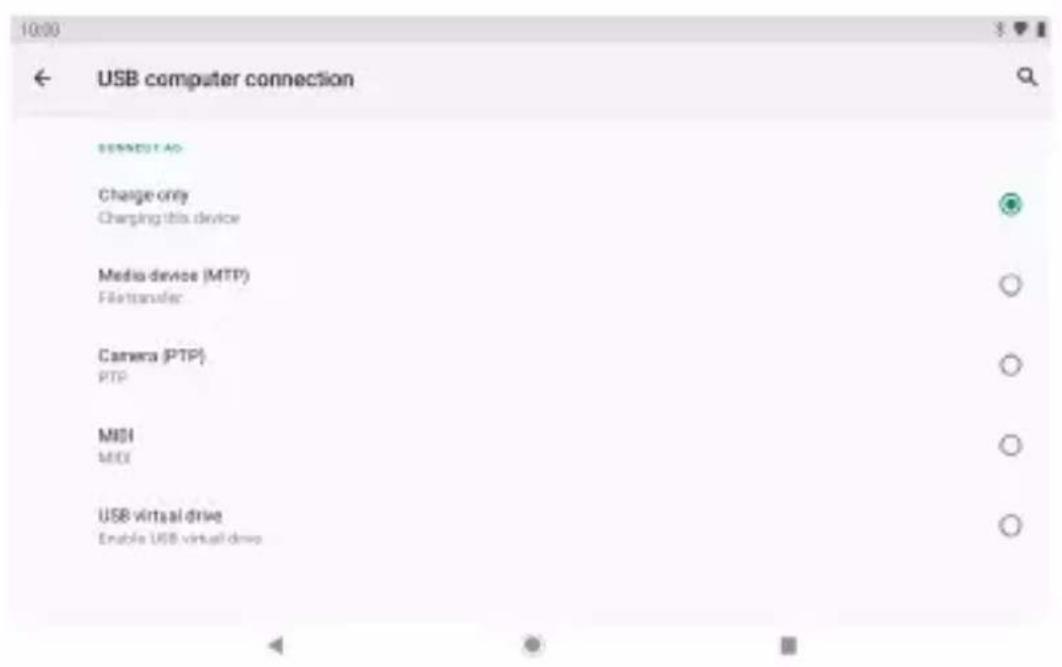
2. Change the USB computer connection
Swipe down the notification panel and tap "Charging this device via USB" for more options.
text_image
USB computer connection SENNEUT AG Charge only Charging this device Media device (MTP) File transfer Camera (PTP) PTP MSI MSI USB virtual drive Enable USB virtual driveSPECIFICATIONS
| Processor | MT8183 (Octa-core Cortex A73+A53) 2.0GHz |
| RAM | 8GB |
| Storage | 128GB flash built-in, MicroSD card slot (max 256GB supported) |
| Display | 10.1" IPS Capacitive Touchscreen |
| Wifi Networking | 802.11 a/b/g/n/ac (2.4GHz/5GHz) |
| Audio Output | φ3.5mm CTIA headphone jack |
| PC Interface | USB 2.0 high speed |
| Additional Features | Built-in microphone and 2X1W speakers, Front camera 8MP and Rear camera 13MP |
| Bluetooth | BT 4.2 |
| Operating System | Android 12 |
| Power | Rechargeable Li-poly battery with USB Type-C Power Adapter(5V/2A) |
| Playback Time (hours) | Up to 8 hours music, 5 hours video, 5 hours web browsing |
TROUBLESHOOTING
1. Device doesn't power on.
- Reboot your device after charging it for 30 minutes.
- Shortly press your power button to check if it lights up in case your device is in sleep mode.
- Press the power button for 20 seconds.
- Start a hard reset by pressing the reset button with a pin.
2. Device doesn't take charge.
- Charge your tablet for at least 30 minutes before restarting.
- Check that the cable is securely connected to the charger and to your tablet.
- Try another outlet or compatible charger.
3. Error message appears during operation.
- If an error message appears, uninstall the app and then reinstall it. Or update the app to the latest version.
- Reset it to factory settings.
4. Device can't be detected by a PC.
- Make sure your device is in "ON" status.
- Try with another USB cable.
- Connect your device to a different port on your PC.
5. Device can't be connected with Wifi.
- Make sure your turn Wifi to "ON" status.
- Unplug the Wifi router, wait for 2 minutes and plug to connect again.
- Make sure you input the correct password by selecting "show password" when you input it.
- Check and make sure there is no filtering setting or device connection limit in your router setting.
- Forget original Wifi connection, reset the Wifi router, and connect again.
6. Insufficient storage available.
- Delete applications you don't use often to spare some space.
- Clean caches in your device regularly. Tap "Settings" → "Apps & notifications" to see all apps. Tap on an app, then tap "Storage & cache" to clear cache or data.
• Install a third-party system cleaner.
• Factory reset your tablet to clear all data. - Insert a memory card to expand its memory.
CONTACT US
For any inquiries about DragonTouch products, please feel free to contact us. We will respond within 24 hours.
Tel: 888-811-1140 (US)
Email: cs@dragontouch.com
Web: www.dragontouch.com
Google, Android, Google Play, YouTube and other marks are trademarks of Google LLC.
INHALT
- To make a folder on the home screen, drag an app or a shortcut on top of another. To rename the folder, tap the folder, tap "Unnamed Folder", and then enter the new name.
- To access the quick notification settings, swipe down from the top of your screen.
Bloqueo de pantalla
text_image
10:00 Nees "Oh Doppie" Framnay Healthcare Capturtext_image
04:00 on accountA PROPOS DES APPLICATIONS
INSTALLATION DES APPLICATIONS
INSTALLATION DES APPLICATIONS
6. Insufficient storage available.
text_image
QR code with a green logo in the center, likely linking to a digital service or website.dragontouch_jp
Google, Android, Google Play, YouTube and other marks are trademarks of Google LLC.