DF01 - Drone Dragon Touch - Free user manual and instructions
Find the device manual for free DF01 Dragon Touch in PDF.


User questions about DF01 Dragon Touch
0 question about this device. Answer the ones you know or ask your own.
Ask a new question about this device
Download the instructions for your Drone in PDF format for free! Find your manual DF01 - Dragon Touch and take your electronic device back in hand. On this page are published all the documents necessary for the use of your device. DF01 by Dragon Touch.
USER MANUAL DF01 Dragon Touch
Please read this manual before operating your drone, and keep it for further reference.
DRAGONTOUCH
CONTENTS
01 - 11 12 - 22
English
Deutsch
23 - 33
Español
34 - 44
Français
45 - 55
Italiano
English
DISCLAIMER & SAFETY GUIDELINES
- For novices, please fly no higher than 20 meters (65 feet).
- Do not look directly into the drone light.
- Do not treat this product as household waste.
- Do not fly above or near obstacles, crowds, open water, public roads, high-voltage power lines, or trees.
- Do not use the drone in severe weather conditions such as wind, snow, rain, smog, hail, lightning, tornadoes, or hurricanes.
- Stay away from the rotating propellers and motors.
- Keep your drone in eyesight at all times. Please do not rely solely on a first-person-view camera to control your drone.
- This product is NOT a toy and is not recommended for users under the age of 14.
- Be sure to observe all local regulations, obtain appropriate authorizations, and understand the risks.
Note: It is solely your responsibility to comply with all flight regulations.
DRAGON TOUCH accepts no liability for damage, injury, or any legal responsibility incurred directly or indirectly from the use of this product. The user shall observe safe and lawful practices including, but not limited to, those set forth in these Safety Guidelines.
MAINTENANCE AND CARE
- Thoroughly check the drone after a crash or violent impact.
- Do not charge the battery before it cools down.
- Remove the batteries if you don't plan on using the drone for a long time.
- Do not overcharge the battery. Unplug the charger once it's fully charged.
- Store the drone and remote in a cool dry place away from direct sunlight.
- Avoid bringing the camera into direct contact with water or other liquids. Wipe dry with a soft absorbent cloth if it gets wet.
- Do not charge the battery next to flammables, such as carpets, timber floors, or on the surface of electro-conductive objects. Please always keep an eye on the battery while charging.
- To avoid losing your drone, fly it in the open air after you've gained plenty of experience and are very confident in handling it.
1
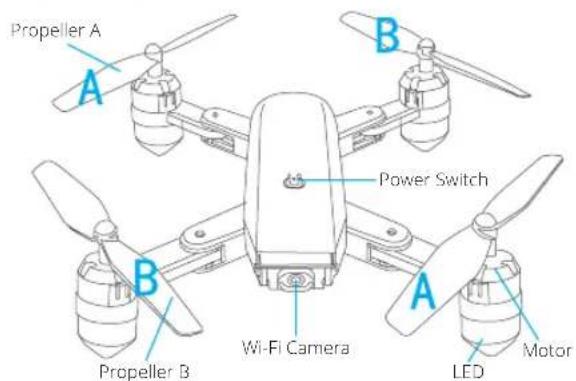
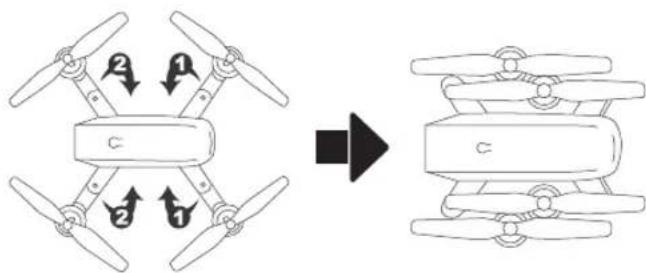
DRONE DIAGRAM
2
REPLACING THE PROPELLER
- The propellers are not identical. Propellers have either an "A" or "B" mark at the bottom and they should be installed in the position with a corresponding mark. Make sure you install them in the correct positions. Failure to do so will result in an inability to control the drone.
- When flying, propeller A rotates clockwise and propeller B rotates counterclockwise.
INSTALLING THE PROTECTIVE COVER
Snap the protective frame connectors into the shackles.
TRANSMITTER DIAGRAM
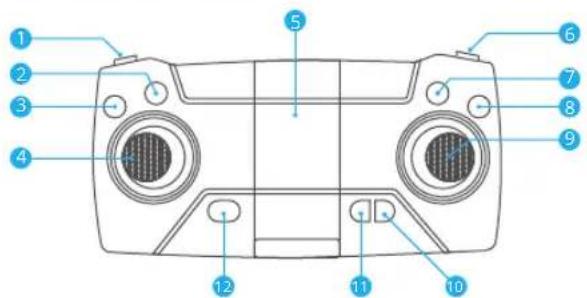
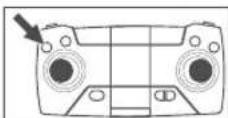
1 Speed switch
4 Turn left/turn right ascend/descend
7 Headless Mode
10 Video
11 Photo
12 Turn on/off
2 One key Return
5 Phone Clamps
8 Emergency stop
3 One key Takeoff/landing
6 360° Flip
(Short press to enter fine-tuning mode, press the joystick to slightly adjust the front, back, left and right. Press again to exit fine adjustment. Long press for an emergency stop.)
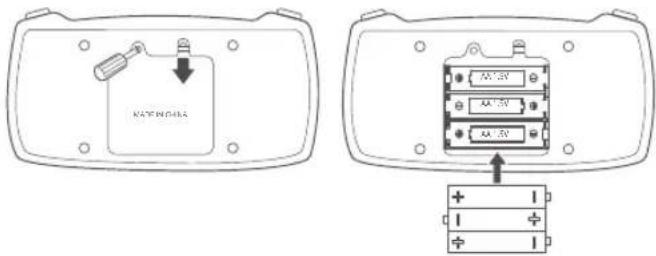
INSTALLING THE BATTERY
Transmitter: 3x 1.5V AA Battery (Batteries not included)
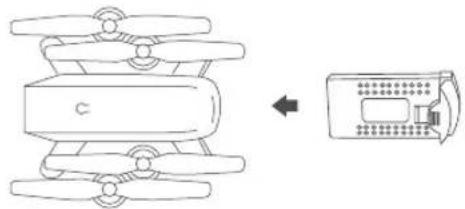
Insert the battery into the drone (3.7V 1000mAh Li-Po battery included)
natural_image
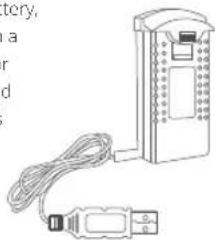
Diagram showing a mechanical device with a left-side transformation arrow (no text or symbols present)RECHARGING THE DRONE BATTERY
Take the battery out of the drone. To charge the battery, plug the battery's USB connector into a USB port on a computer (or USB power adapter). The LED indicator light on the cable will turn red while it is charging and turn off when it is fully charged. The charging time is about 120-150 minutes.
Note: Only use the provided charging cable to charge the battery. It is forbidden to use the provided charging cable to charge other products.
natural_image
Illustration of a connected electronic device with a cable and connector (no text or symbols visible)READY TO FLY
Note:
① Make sure the propellers and propeller protective covers are correctly installed and tightened.
② Before flying, please pair the drone with the remote control and calibrate the drone and the remote control.
1. HOW TO PAIR YOUR DRONE WITH THE REMOTE CONTROL
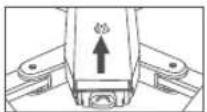
① Turn on the fuselage power switch and place the drone on a level surface.
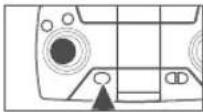
② Turn on the remote control power switch.
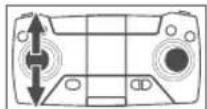
③ Place the drone on a level surface. Push the left joystick upwards to the top, then pull downwards as far as possible. At this time, you will hear two beeps from the remote control, and the indicator light will change from quick flashing to constant on, indicating that pairing is successful.
①
②
③
2. HOW TO CALIBRATE AND TAKE OFF
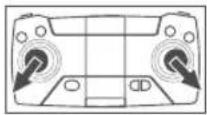
① Place the drone on a level surface. Push the left and right joysticks as shown above simultaneously for 2-3 seconds. The drone lights will flash fast and turn to constant 'on' in 2-3 seconds, indicating the calibration is successful.
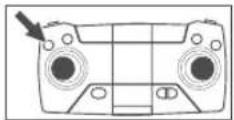
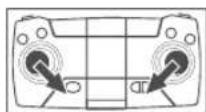
② To take off, the first method is to press the one-key takeoff button. The second method is to operate the two joysticks at the same time as shown above for 2-3 seconds to unlock the drone, then slowly push the left joystick upwards.
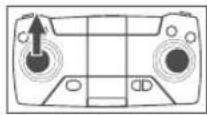
3. HOW TO LAND
Method 1: Slowly push the left joystick down until the drone descends slowly to the ground. Hold the left joystick at the lowest position for 2 seconds, the motor will stop and the drone is landed successfully.
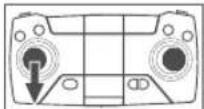
Method 2: When the drone is flying, press the one-key takeoff button again and the drone will land slowly.
| Ascending/ Descending | Push up or pull down the left joystick, and the drone will ascend or descend. | 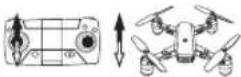 |
| Turning | Push the left joystick to the left or right, and the drone will turn left or right. | 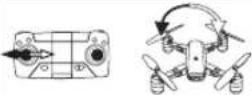 |
| Forward/ Backward | Push up or pull down the right joystick, and the drone will fly forward or backward. | 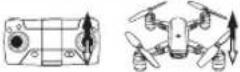 |
| Side Fly | Push the right joystick to the left or right, and the drone will fly horizontally to the left or right. | 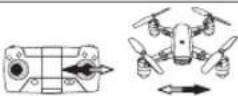 |
| Side-fly Fine-tuning | When the drone is hovering in the air, in the event that the drone is automatically flying sideward on the left or right, it can be rectified by pushing the right joystick to the right or left until the drone keeps the balance. | 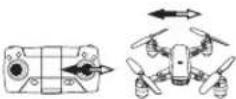 |
| Forward/ Backward Fine-tuning | When the drone is hovering in the air, in the event that the drone is automatically advancing forward or backward, it can be rectified by pushing the right joystick upward or downward until the drone keeps the balance. | 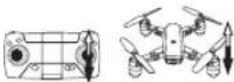 |
CONNECTING YOUR MOBILE DEVICE
- Download the VS FPV app onto your mobile device from the App Store/Google Play or by scanning the QR code below.
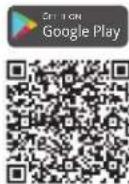
- Power on the drone and the LED lights will flash. Go to Wi-Fi settings on your mobile device. Connect to the network (DF01-xxxx).
APP OPERATION PANEL
- RUN THE APP "VS FPV"
① Tap the ⏻ button to enter the Help interface.
② Tap the CONNECT button to enter the control interface.
- CONTROL INTERFACE
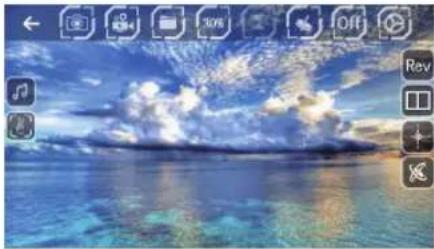
① Tap the button to open the control interface.
② Tap the button to open the altitude hold mode control button.
natural_image
Tropical beach scene with ocean and sky, no visible text or symbols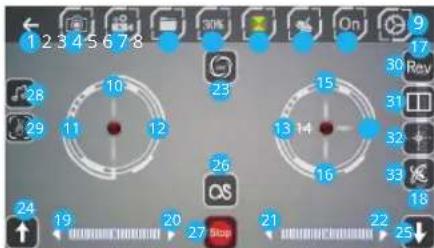
1 Back
2 Photo
3 Video
4 Files
5 Speed Switch
6 Altitude Hold
7 Gravity Induction
8 App ON/OFF
9 More Settings
10 Left Joystick (Accelerator)
11 12 Left/Right Flip and Roll
13 4 Left/Right Sideward
15 16 Forward/Backward
17 18 Forward/Backward Fine-tuning
19 20 Left/Right Flip and Roll Fine-tuning
21 2 Left/Right Sideward Fine-tuning
23 360° Flip&Roll
24 25 One-key Takeoff/Landing
26 Trajectory Flight
27 Emergency Stop
28 Music
29 Gestures For Photo
30 Camera Reverse
31 3D Display
32 Headless Mode
33 Calibration
Press the Headless Mode button to activate. In this mode, the drone will fly in the direction as controlled by your right joystick regardless of the position of your drone's head or the tail. Press the same button to exit this mode.
ONE-KEY RETURN
Press the One-key Return button, the drone will roughly fly back along its original take off path. Press the button again to exit the mode.
360° FLIP
Fly the drone to a height of over 3 meters, press the Flip button, and move the right joystick to flip the drone 360° accordingly.
TRAJECTORY FLIGHT
Tap to activate the Trajectory Flight mode. Draw a path in the blank area on the screen and the drone will fly following the path. Tap again to exit this mode.
SPEED SWITCH
The drone's default speed is low speed. Press the Speed Switch button once for medium speed, press again for high speed. A third press will revert back to low speed.
ALTITUDE HOLD/HOVER
This is one of the default settings on the drone. When you release the Left Joystick after an ascending/descending action, the drone will hover at the current flight height.
GESTURES FOR PHOTO
Tap to activate. Facing 2-3m from the camera, make a V sign and the camera will take a photo.
English
FAQ
Q1: Why aren't the drone LEDs lighting up?
- Press the power switch on the drone.
- Replace or recharge your drone's battery.
• Make sure the battery connectors are firmly plugged in.
Q2: Why do the drone's LEDs keep flashing, but it never responds to any command from the transmitter?
• Pair the drone with the transmitter again.
- Replace or recharge the drone's battery.
• Make sure the transmitter's batteries have enough power.
Q3: Why is the flight unstable?
- Return the drone and perform a flight calibration as instructed.
- Ensure flight trimming accordingly.
• Fly the drone in suitable weather conditions.
Q4: Why is the drone unresponsive control inputs?
• Make sure the distance between the drone and the mobile device is within range.
- Stay away from open water, high-voltage power lines, or trees.
CONTACT US
For any inquiries about Dragon Touch products, please feel free to contact us, and we will respond within 24 hours.
E-mail: cs@dragontouch.com
Tel: 888-811-1140 (US) Mon-Fri 9am-5pm (EST)
Official website: www.dragontouch.com
natural_image
Diagram showing a mechanical device with three blades and a control panel connected by an arrow (no text or symbols)AUFLADEN DER DROHNENBATTERIE
BEREIT ZU FLIEGEN
HINWEIS:
- RUN THE APP "VS FPV"
natural_image
Coastal landscape with blue sky, clouds, and distant figures (no text or symbols visible)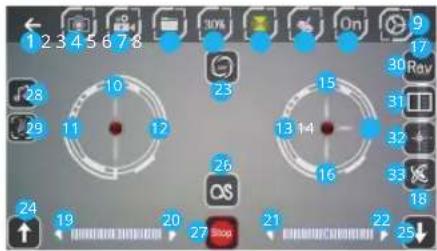
Official website: www.dragontouch.com
Español
REEMPLAZO DEL PROPULSOR
natural_image
Diagram showing a mechanical component transforming into a device (no text or symbols present)RECARGANDO LA BATERÍA DRONE
natural_image
Coastal landscape with ocean and sky, no visible text or symbols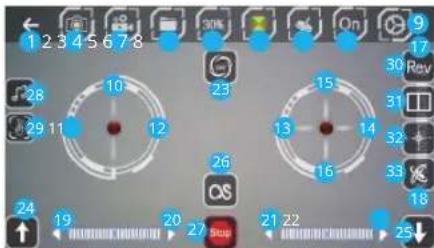
natural_image
Diagram showing a mechanical device with a left-side transformation arrow (no text or symbols present)RECHARGE DE LA BATTERIE DU DRONE
natural_image
Line drawing of a handheld electronic device with a coiled cable and connector (no text or symbols)PRÊT À VOLER
REMARQUE:
natural_image
Coastal landscape with blue sky, clouds, and distant camera icons (no readable text or symbols)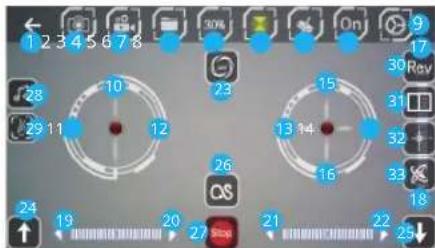
MAINTIEN D'ALTITUDE/HOVER
natural_image
Diagram showing a mechanical device with a circular component and an adjacent rectangular device (no text or symbols)CARICARE LA BATTERIA DEL DRONE
natural_image
Illustration of a USB device with a coiled cable and connector (no text or symbols visible)PRONTO A VOLARE
Nota:
natural_image
Tropical beach scene with turquoise water and scattered clouds under a blue sky (no text or symbols visible)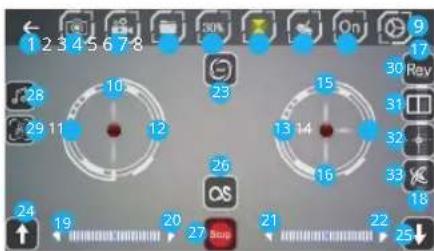
1 Indietro
2 Foto
3 Video
4 File
Tap 📋 to activate. Facing 2-3m from the camera, make a V sign and the camera will take a photo.
Italiano
FAQ
Official website: www.dragontouch.com