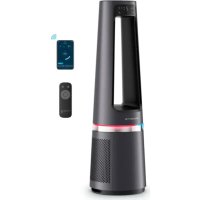
USER MANUAL Eclipse 3in1 Connect QU5072 ROWENTA
QU507x
FR Veuillez lire attentivement le livret « Consignes de sécurité et d'utilisation » avant la première utilisation / EN Please read carefully the "Safety and use instructions" booklet before first use / DE Bitte lesen Sie vor der ersten Verwendung die „Sicherheits- und Gebrauchsanweisungen” sorgfältig durch / NL Neem vóór het eerste gebruik aandachtig het boekje met de veiligheids- en gebruiksvoorschriften door / IT Leggere con attenzione il libretto «Norme di sicurezza e d'uso» al primo utilizzo / ES Lea atentamente el folleto «Instrucciones de seguridad y de uso» antes de utilizar el aparato por primera vez / PT Leia atentamente o folheto «Instruções de segurança e utilização» antes da primeira utilização / RO Citiți cu atenție broșura „Instrucțiuni de siguranță și utilizare” însainte de prima utilizare / BG Molia, прочете внимателно книжката „Инструкции за безопасност и употреба” преди първа употреба / SL Pred prvo uporabo natančno preberite knjižico «Varnostna navodila in navodila za uporabo » / HR Prije prve uporabe pažljivo pročitajte knjižicu „Sigurnosne upute i upute za uporabu” / SR Pažljivo pročitajte brošuru „Uputstva za bezbednost i korišcjenje” pre prve upotrebe / BS Prije prve upotrebe pažljivo pročitajte knjižicu „Upute o sigurnosti i korištenju” / CS Pred prvním použítím si pečlivé přečtete přiručku „Bezpećnostni pokyny a návod k použăti” / SK Pred prvým použítim si pozorne prečitajte brožuru „Bezpećnostně pokyny a pokyny na použitie” / HU Az első hasznălat előtt figyelmesen olvassa el a „Biztonsági és hasznălati utasitások” cimů kézikönyvet / UK Уважно процитайте брошуру «Инструкції з техніки безпеки й використання» перед першим використанням виробу
FR Pour plus d'informations / EN For more information / DE Weitere Informationen / NL Voor meer informatie / IT Per ulteriori informazioni / ES Para más informaci Ï / PT Para obter mais informações / RO Pentru mai multe informații / BG 3a poveche informații / SL Za več informacij / HR Za više informacija / SR Za više informacija / BS Dodatne informacije / CS Pro vice informaci / SK Pre viac informacii / HU Tovabbi informaciok / UK Dokladnišha informația
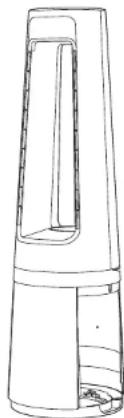
DESCRIPTION
https://www.compatibility.groupeseb.com/CompatibilityList-Pureair-Rowenta.pdf
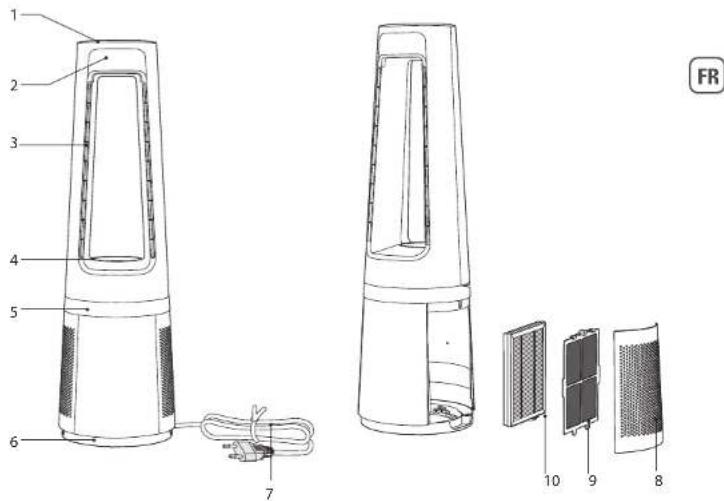
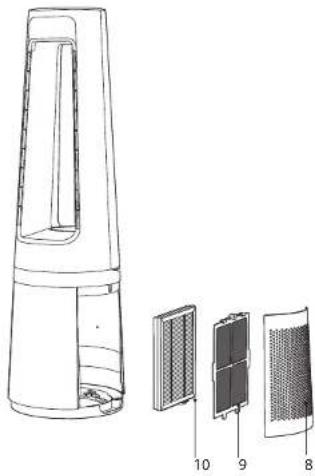
1 Control panel 6 Base
2 Screen 7 Power cord
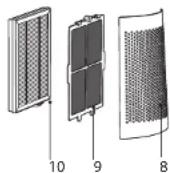
3 Air outlet 8 Air inlet grid
4 Magnetic remote control holder 9 Pre-filter
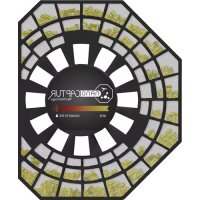
5 Air quality indicator light 10 Particle filter XD6520F0
INSTALLATION
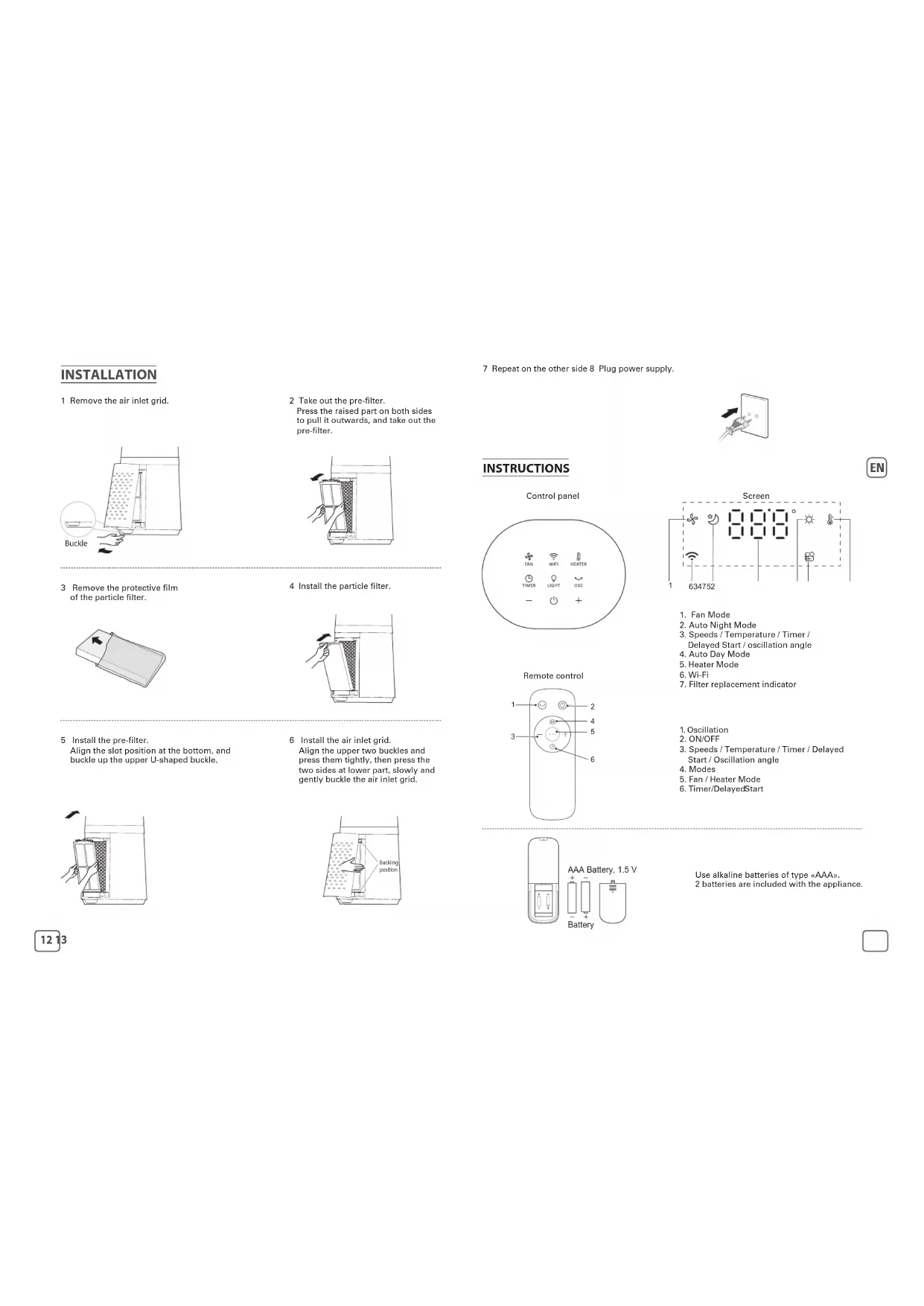
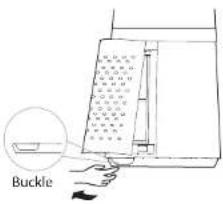
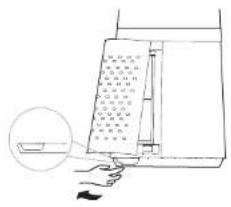
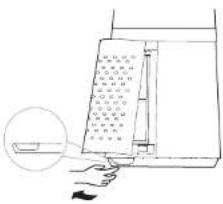
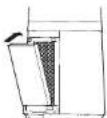
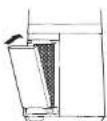
1 Remove the air inlet grid.
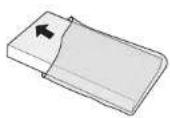
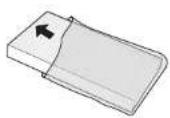
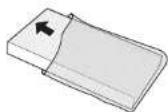
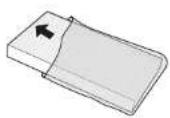
3 Remove the protective film of the particle filter.
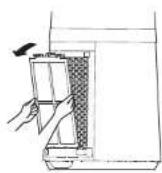
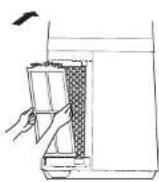
5 Install the pre-filter.
Align the slot position at the bottom, and buckle up the upper U-shaped buckle.
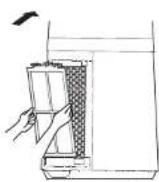
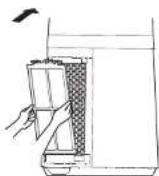
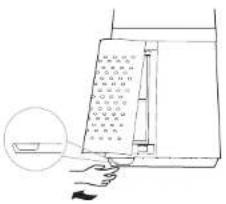
2 Take out the pre-filter.
Press the raised part on both sides to pull it outwards, and take out the pre-filter.
4 Install the particle filter.
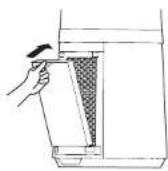
6 Install the air inlet grid. Align the upper two buckles and press them tightly, then press the two sides at lower part, slowly and gently buckle the air inlet grid.
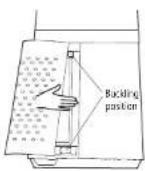
7 Repeat on the other side 8 Plug power supply.

INSTRUCTIONS
Control panel
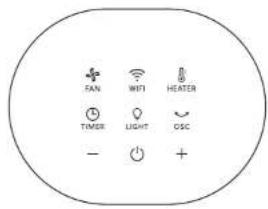
Remote control
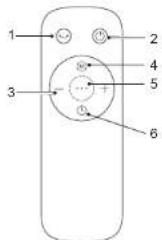
Screen
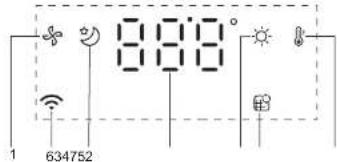
- Fan Mode
- Auto Night Mode
- Speeds / Temperature / Timer /
Delayed Start / oscillation angle
- Auto Day Mode
- Heater Mode
- Wi-Fi
-
Filter replacement indicator
-
Oscillation
2.ON/OFF
- Speeds / Temperature / Timer / Delayed Start / Oscillation angle
- Modes
- Fan / Heater Mode
- Timer/DelayedStart
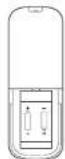
Use alkaline batteries of type «AAA».
2 batteries are included with the appliance.

| Button Function Description |
 | ON/OFF |
 | Press to activate the fan function. By default the product will be in Auto mode.InAuto mode, the fan speed will adjust itself according to the ambient temperature & pollution level (speeds 2 to 8).Press a second time to activate theAuto night mode: the fan speed is adjusted decrescendo (speeds 3 to 2 after 30mn) and the lights are off.Press + or - to switch tomanual modeand select your desired speed. |
 | Press to activate the heater function. By default the product will be in Auto mode.InAuto mode, the target temperature is 19 ° C .Press a second time to activate theAuto night mode: the target temperature is 17 ° C and the lights are off.Press + or - to switch tomanual mode.The maximum operating temperature is 35 ° C . |
 | Press to manually set fan speed, heater target temperature, oscillation angle, timer and delayed start. |
| [3HW] | Press to activate or stop the oscillation function.Then press + or - to select the desired angle ( 30 ° - 60 ° - 90 ° ).Filter reset: Long press (5s) to reset the filter. The bip sound indicates that the reset has been completed. |
| [GOZA] | Timer: Press once to activate the timer.Then press + or - to program the automatic shutoff from 1h to 12h.Delayed start: When the appliance is OFF, press the button to program the delayed start, then, press + or - to turn on the appliance from 1h to 12h later.Timer reset: Long press (5s) to stop the timer before completion. |
| [GCGO] | In Fan mode: the light is an air quality indicator (5-color index ranging from blue to red depending on the level of pollution in the room).In Heater mode: the light is always red.In both modes, press twice to switch the light off. |
NB : on the first use, the product default setting is fan function in auto mode.
When plugged, the product will save its last mode after each use.
Important: When in standby mode, the product will display « o » on the screen.
WARNING
- Never cover the appliance, it may cause overheating in both heater and fan modes.
- In case of overheating, switch off and unplug the appliance to let it cool down.
- Once the appliance cooled down, you can re-plug it and use it again.
INDICATION OF AIR QUALITY
The Air quality indicator is the ring light at the base of the product (5), operating on purification/fan mode. The LED will indicate the air quality level:
| Air Quality Air quality indicator color |
| Excellent Blue | |
| Slight pollution Green | |
| Moderate pollution Yellow | |
| High pollution Orange | |
| Extreme pollution Red | |
The LED will remain red in heater mode.
HOW TO CONNECT YOUR PURIFIER TO INTERNET
Download the app «Pure Air By Rowenta» & follow the instructions on your smartphone :
- Sign in to create your Rowenta account if you are new. Or log in the app if you already have an account.
- Make sure to stand close to the purifier during the pairing (2 meters maximum) and make sure the purifier is located near a strong Wi-Fi signal.
- Make sure your phone is connected to your local Wi-Fi network.
- Turn your purifier on & hold the Wi-Fi button for 5 seconds (you'll hear a «ding» sound and the Wi-Fi indicator will flash to indicate that your purifier is successfully connected to Wi-Fi.)
- Choose your Wi-Fi network and enter the network password to connect to your local Wi-Fi network.
- And you're done!
The Wi-Fi indicator lights to indicate that your purifier is successfully connected to your Pure Air app.
Wi-Fi function
To launch a new pairing press the Wi-Fi button for 5 seconds.
- When the light is on, the product is paired/connected.
- When the light is flashing quickly then slowly, the product is pairing/connecting to the WIFI/
servers.
- When the light is off, the product is not connected.
Product reset
To reset your product: press together the Wi-Fi + Fan buttons for 5 seconds (valid to reset within 5 minutes after the product is plugged in to avoid misoperation by user).
You will then hear a «bip» sound, indicating that the reset has been successful.
Connection issues
In case of pairing issues between the appliance and your domestic Wi-Fi network, refer to the information listed on the following link:
https://www.compatibility.groupeseb.com/CompatibilityList-Pureair-Rowenta.pdf
The appliance is not compatible with WiFi 5Ghz networks.
MAINTENANCE & CLEANING
Always switch the appliance off and unplug it before conducting any maintenance or cleaning operation. Use a damp cloth to clean the surface of the product. Clean the air inlet (8) and outlet (3) using a soft brush or cloth. Important: Do not use any abrasive materials, as these may damage the surface of the product.
Filter replacement
1 Filter model: XD6520F0 (including 2 sets)
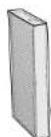
3 Replace a new filter
2 The indicator is lighted when the particle filter needs to be replaced.

4 Long press the oscillation button for 5 seconds to turn off the indicator light for filter replacement.
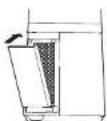
Forced reset:
If you have replaced a filter before its end of life, force the reset of the filter replacement cycle:
Hold the oscillation button for 5 seconds. ∪ (beep sound).
IMPORTANT: it is recommended to change the filters as soon as the replace filter alert indicator is triggered to avoid a product malfunction.
Filters Action Cycles
| Pre-filter | Clean with vaccum cleaner | Every 2 weeks |
| Particle filter (ref: XD6520F0) | Replace when is lighted | Every 6 months (on average, according to the use environment). |

- Avoid handling used filters if you suffer from allergies or asthma.
- Wear gloves when changing the filters, or wash your hands well afterwards.
- Put used filters directly into a closed, air-tight bag before throwing them away to avoid spreading pollutants.
PARTICLE SENSOR
Particle sensor inlets must be cleaned regularly (every 2 months) and properly. Be sure to switch off and unplug the unit before cleaning the sensor inlets, and follow the recommendations below: Use a soft brush or vacuum cleaner to clean the sensor inlets near the remote control holder (4).
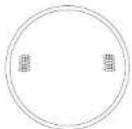
IMPORTANT: DO NOT use cleaning products on the particle sensor. It could alter its performance.

« HOW TO ACHIEVE CLEANER INDOOR AIR »
In addition to using your appliance, here are some tips on how to improve the quality of your indoor air:
- Ventilate the rooms for at least 10 min. every day, in summer and winter.
- Maintain your ventilation system.
- Limit the use of household products.
- Do not smoke indoors.
- Avoid home fragrances, incense sticks, scented candles, etc.
- Ventilate whenever any work is being conducted in your home and for several weeks afterwards.
- Avoid green plants that are allergenic or need frequent watering
STORAGE
When you are not using the appliance, store it in a cool, dry place with ambient conditions (no higher than 35° C) and no dust, to avoid clogging the sensor and filters.
IN THE EVENT OF A PROBLEM
- Do not disassemble the appliance yourself. A poorly repaired appliance may be dangerous for the user.
- Check the troubleshooting table below before contacting an Approved Service Center:
IMPORTANT: IN CASE OF ANOMALY OR LOSS OF CONNECTION, PLEASE UNPLUG YOUR PURIFIER FOR A FEW MINUTES AND THEN PLUG IT BACK IN.
| Problem Check Solution |
| The appliance does not switch on. | Is the power cord connected? | Connect the power cord to a plug with the correct voltage. |
| Are all the display elements off? | Connect the power cord to a plug with the correct voltage. |
| Is these a power outage? | You can use your purifier once the power turns on again. |
| The air flow does not change automatically. | Is the appliance in manual mode? | Select the correct operating mode. |
| The flow is a lot weaker than before. | Does the filter need to be cleaned or replaced? | Check the filter replacement frequencies and replace the filter if necessary. |
| There is an unpleasant smell coming from the air outlet. | Does the light still indicate poor air quality? | Check the filter replacement frequencies and replace the filter if necessary. |
| The air quality indicator does not change color. | Is the sensor covered with dust? | Clean the sensor with soft brush. |
| The purifier doesn't connect | Is your phone connected to your personal Wi-Fi network at the beginning of the process? | Verify that you are conneted to your personal Wi-Fi network. |
| The purifier doesn't seem to connect? | Check that your purifier is plugged in and turned on. |
| The Wi-Fi led of your purifier is not flashing? | Hold the Wi-Fi button for 5 seconds. |
| The first pairing didn't work? | Restart the product to retry. |
| My phone is connected to the Wi-Fi but not the purifier ? | Make sure the two devices are in close enough proximity to one another and close to the WIFI router. |
| My phone isn't connecting to the Wi-Fi? | Check that your Wi-Fi router is connected to the InternetCheck that the Wi-Fi password didn't change |
| Why did the pairing not work? | Check the compatibility : https://www.compatibility.groupeseb.com/CompatibilityList-Pureair-Rowenta.pdf | Supported encryption type: WPA_1/WPA_2,TIPK; PSK,AES Supported networks: 2,4GHz |
WARRANTY
Do not use the appliance and contact an Approved Service Centre if:
- Your appliance has been dropped;
- Your appliance or its power cord are damaged;
- Your appliance no longer functions properly.
- You can find a list of Approved Service Centres on the Rowenta international warranty card. www.rowenla.com
BESCHREIBUNG
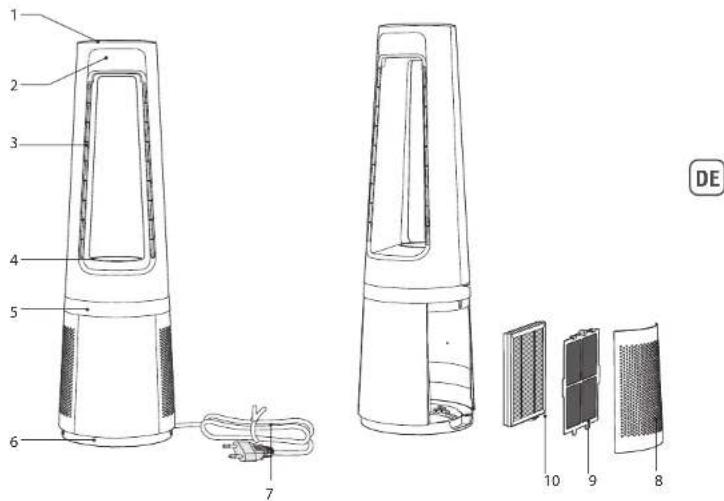
https://www.compatibility.groupeseb.com/CompatibilityList-Pureair-Rowenta.pdf
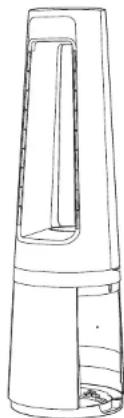
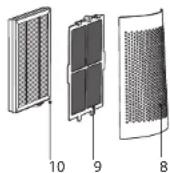
https://www.compatibility.groupeseb.com/CompatibilityList-Pureair-Rowenta.pdf
https://www.compatibility.groupeseb.com/CompatibilityList-Pureair-Rowenta.pdf
PT
1 Painel de controlo 6 Base
2 Ecra 7 Cabo de alimentacao
3 Saída de ar 8 Grelha de entrada de ar
4 Suporte magnético para controlo remoto 9 Pre-filtro
5 Indicador da qualidade do ar 10 Filtro de partículas XD6520F0
INSTALAÇÃO
1 Retire a grelha de entrada de ar.
https://www.compatibility.groupeseb.com/CompatibilityList-Pureair-Rowenta.pdf
3 Scoateți película protectoare a filtrului de particule.
Sinstalatipre-filtrul.
https://www.compatibility.groupeseb.com/CompatibilityList-Pureair-Rowenta.pdf
https://www.compatibility.groupeseb.com/CompatibilityList-Pureair-Rowenta.pdf
https://www.compatibility.groupeseb.com/CompatibilityList-Pureair-Rowenta.pdf
1 Upravljačka ploča 6 Postolje
2 Zaslon 7 Kabel za napajanje
3 Izlaz zraka 8 Rešetka otvora za ulaz zraka
4 Magnetski držač daljinskog upravljača 9 Predfilter
5 Indikator kvalitete zraka 10 Filter za čestice XD6520F0
INSTALACIJA
1 Skinite rešetku otvora za ulaz zraka.
3 Skinite zaštitni film s filtera za čestice.
5Postavitepredfilter.
Poravnajte položaj utora na dnu i zatvorite gornju kopču u obliku slova U.
2Izvaditepredfilter.
Pritisnite izdignuti dio na obje strane kako biste ga izvukli van i izvadite predfilter.
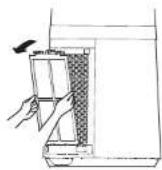
4 Postavite filter za čestice.
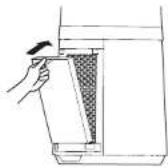
https://www.compatibility.groupeseb.com/CompatibilityList-Pureair-Rowenta.pdf
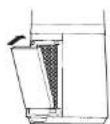
3 Postavite novi filter
1 Kontrolna tabla 6 Baza
2 Ekran 7 Kabl za napajanje
3 Izlaz za vazduh 8 Rešetka ulaza za vazduh
4 Magnetni držač za daljinski upravljač 9 Predfilter
5 Indikator kvaliteta vazduha 10 Filter za čestice XD6520F0
INSTALACIJA
1 Uklonite rešetku ulaza za vazduh.
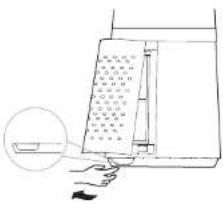
https://www.compatibility.groupeseb.com/CompatibilityList-Pureair-Rowenta.pdf
Uredaj nije kompatibilan sa Wi-Fi mrežama od 5 GHz.
ODRŽAVANJE I ČIŠĆENJE
3 Stavite novi filter
4 Držite dugo pritisnuto dugme za oscilaciju u trajanju od 5 sekunde da biste isključili indikator za zamenu filtera

Nametnuto resetovanje:
Ako ste zamenili filter pre nego što mu je istekao vek trajanja, nametnite resetovanje ciklusa zamene filtera:
Držite taster za oscilaciju 5 sekunde.
VAŽNO: Preporučljivo je da promenite filtere čim se aktivira indikator upozorenja za zamenu filtera kako biste izbegli kvar proizvoda.
1 Upravljačka ploča 6 Postolje
2 Ekran 7 Kabal za napajanje
3 Izlaz zraka 8 Rešetka otvora za ulaz zraka
4 Magnetni držač daljinskog upravljača 9 Predfilter
5 Indikator kvaliteta zraka 10 Filter za čestice XD6520F0
INSTALIRANJE
1 Skinite rešetku otvora za ulaz zraka.
3 Skinite zaštitni film s filtera za čestice.
5Postavitepredfilter.
Poravnajte položaj utora na dnu i zatvorite gornju kopču u obliku slova U.
https://www.compatibility.groupeseb.com/CompatibilityList-Pureair-Rowenta.pdf
Aparat nije kompatibilan sa Wi-Fi mrežama od 5 GHz.
ODRŽAVANJE I ČIŠĆENJE
3 Postavite novi filter
4 Dugo pritisnite tipku za oscilaciju na 5 sekunde da biste isključili indikator radi zamjene filtera.

Prisilno resetiranje:
Ako ste zamijenili filter prije nego što mu je istekao životni vijek, izvršite prisilno resetiranje ciklusa za zamjenu filtera:
Pritisnite i držite tipku za oscilaciju 5 sekunde.
VAŽNO: preporućuje se filtere zamijeniti odmah kada se uključi indikator za upozorenje o zamjeni filtera da ne bi došlo do kvara aparata.
Filteri Radnja Ciklusi
| Predfilter Očlstite usislvačem Svake 2 sedmice | |
| Filter za čestice (ref: XD6520F0) | Zamijenite ☐ kad zasvijetli | Every 6 months (on average, according to the use environment). |

«SAVJETI ZA ZAMJENU FILTERA »
- Izbjegavajte rukovanje iskorištenim filterima ako bolujete od alergije ili astme.
- Nosite rukavice tokom zamjene filtera ili nakon zamjene dobro operite ruke.
- Iskorištene filtere stavite direktno u zatvorenu, hermetički nepropusnu vrećicu prije
nego što ih bacite kako biste izbjegli širenje onečišćivača.
SENZOR ZAGAĐENJA
https://www.compatibility.groupeseb.com/CompatibilityList-Pureair-Rowenta.pdf
1 Ovladaci panel 6 Zakladna
2 Obrazovka 7 Napajaci kabel
3 Vystup vzduchu 8 Mriežka na privod vzduchu
4 Magnetický držiak dialkového ovládania 9 Predfilter
5 Indikátor kvality vzduchu 10 Časticovy filter XD6520F0
INSTALÁCIA
https://www.compatibility.groupeseb.com/CompatibilityList-Pureair-Rowenta.pdf
Zariadenie nie je kompatibilné so sietami Wi-Fi 5 GHz.
ÚDRŽBA A ČISTENIE
https://www.compatibility.groupeseb.com/CompatibilityList-Pureair-Rowenta.pdf
https://www.compatibility.groupeseb.com/CompatibilityList-Pureair-Rowenta.pdf