DVD-LS84 - DVD player PANASONIC - Free user manual and instructions
Find the device manual for free DVD-LS84 PANASONIC in PDF.



| Product Type | Portable DVD Player |
| Brand | Panasonic |
| Model | DVD-LS84 |
| Dimensions (W × D × H) | 242.6 mm × 173.5 mm × 46.0 mm (without battery 23.9 mm at thinnest point) |
| Weight (with battery) | Approx. 1010 g |
| Weight (without battery) | Approx. 866 g |
| LCD Screen | 8 inches, widescreen active matrix (480 × 234 pixels RGB) |
| Power Supply | AC adapter 100-240 V, 50/60 Hz ; DC adapter for vehicle (12 V) ; rechargeable lithium-ion battery 7.2 V, 2100 mAh |
| Power Consumption | 11 W (unit alone 9 W), standby 0.4 W, charging 12 W |
| Disc Playback Formats | DVD-Video, DVD-RAM, DVD-R/RW, DVD-R DL, +R/+RW, +R DL, CD, CD-R/RW, SVCD, VCD, MP3, WMA, JPEG, MPEG4, DivX, HighMAT |
| Main Functions | Play, pause, stop, search, repeat, zoom, angle selection, subtitles, on-screen menus, programming, slideshow, A-B playback, resume playback |
| Audio/Video Outputs | 3.5 mm stereo headphone jack, composite video output, stereo audio output (via supplied cable) |
| Speakers | 2 × 0.5 W (distortion 10 %) |
| Maintenance and Cleaning | Clean with a soft, dry cloth; for the LCD screen, use a glasses cleaner; lens can be cleaned with a blower (recommended kit SZZP1038C) |
| Safety | Laser Class 1M/1; do not open; avoid exposure to humidity and heat; parental lock |
| Supplied Accessories | AC adapter, power cord, audio/video cable, DC adapter for vehicle, headrest mounting bracket, rechargeable battery |
| Operating Temperature | +5 °C to +35 °C, humidity 5-85 % RH (without condensation) |
| Repairability | Refer all repairs to qualified personnel; no user-repairable parts inside |
| Region Codes | Region 2 or ALL (for DVD-Video) |
Frequently Asked Questions - DVD-LS84 PANASONIC
User questions about DVD-LS84 PANASONIC
0 question about this device. Answer the ones you know or ask your own.
Ask a new question about this device
Download the instructions for your DVD player in PDF format for free! Find your manual DVD-LS84 - PANASONIC and take your electronic device back in hand. On this page are published all the documents necessary for the use of your device. DVD-LS84 by PANASONIC.
USER MANUAL DVD-LS84 PANASONIC
Operating Instructions
Bedienungsanleitung
Mode d'emploi
The player plays DVD-Video marked with labels containing the region number "2" or "ALL".
Regionalcode
Thank you for purchasing this product.
For optimum performance and safety, please read these instructions carefully.
Before connecting, operating or adjusting this product, please read the instructions completely. Please keep this manual for future reference.
Precautions
Read these operating instructions carefully before using the unit. Follow the safety instructions on the unit and the applicable safety instructions listed below. Keep these operating instructions handy for future reference.
1) Read these instructions.
2) Keep these instructions.
3) Heed all warnings.
4) Follow all instructions.
5) Do not use this apparatus near water.
6) Clean only with dry cloth.
7) Do not block any ventilation openings.
Install in accordance with the manufacturer's instructions.
8) Do not install near any heat sources such as radiators, heat registers, stoves, or other apparatus (including amplifiers) that produce heat.
9) Protect the AC mains lead from being walked on or pinched particularly at plugs, convenience receptacles, and the point where they exit from the apparatus.
10) Only use attachments/accessories specified by the manufacturer.
11) Use only with the cart, stand, tripod, bracket, or table
specified by the manufacturer, or sold with the apparatus. When a cart is used, use caution when moving the cart/apparatus combination to avoid injury from tip-over.
12) Unplug this apparatus during lightning storms or when unused for long periods of time.
13) Refer all servicing to qualified service personnel. Servicing is required when the apparatus has been damaged in any way, such as AC mains lead or plug is damaged, liquid has been spilled or objects have fallen into the apparatus, the apparatus has been exposed to rain or moisture, does not operate normally, or has been dropped.
WARNING:
TO REDUCE THE RISK OF FIRE, ELECTRIC SHOCK OR PRODUCT DAMAGE,
DO NOT EXPOSE THIS APPARATUS TO RAIN, MOISTURE, DRIPPING OR SPLASHING AND THAT NO OBJECTS FILLED WITH LIQUIDS, SUCH AS VASES, SHALL BE PLACED ON THE APPARATUS.
- USE ONLY THE RECOMMENDED ACCESSORIES.
DO NOT REMOVE THE COVER (OR BACK); THERE ARE NO USER SERVICEABLE PARTS INSIDE. REFER SERVICING TO QUALIFIED SERVICE PERSONNEL.
CAUTION!
DO NOT INSTALL OR PLACE THIS UNIT IN A BOOKCASE, BUILT-IN CABINET OR IN ANOTHER CONFINED SPACE. ENSURE THE UNIT IS WELL VENTILATED. TO PREVENT RISK OF ELECTRIC SHOCK OR FIRE HAZARD DUE TO OVERHEATING, ENSURE THAT CURTAINS AND ANY OTHER MATERIALS DO NOT OBSTRUCT THE VENTILATION VENTS.
- DO NOT OBSTRUCT THE UNIT'S VENTILATION OPENINGS WITH NEWSPAPERS, TABLECLOTHS, CURTAINS, AND SIMILAR ITEMS.
- DO NOT PLACE SOURCES OF NAKED FLAMES, SUCH AS LIGHTED CANDLES, ON THE UNIT.
- DISPOSE OF BATTERIES IN AN ENVIRONMENTALLY FRIENDLY MANNER.
CAUTION!
THIS PRODUCT UTILZIES A LASER.
USE OF CONTROLS OR ADJUSTMENTS OR PERFORMANCE OF PROCEDURES OTHER THAN THOSE SPECIFIED HEREIN MAY RESULT IN HAZARDOUS RADIATION EXPOSURE. DO NOT OPEN COVERS AND DO NOT REPAIR YOURSELF. REFER SERVICING TO QUALIFIED PERSONNEL.
The socket outlet shall be installed near the equipment and easily accessible.
The mains plug of the power supply cord shall remain readily operable.
To completely disconnect this apparatus from the AC Mains disconnect the power supply cord plug from AC receptacle.
This product may receive radio interference caused by mobile telephones during use. If such interference is apparent, please increase separation between the product and the mobile telephone.
THIS UNIT IS INTENDED FOR USE IN MODERATE CLIMATES.
Product Identification Marking is located on the bottom of units.
Precautions for Listening with the Headphones or Earphones
- Do not play your headphones or earphones at a high volume. Hearing experts advise against continuous extended play.
- If you experience a ringing in your ears, reduce volume or discontinue use.
- Do not use while operating a motorized vehicle. It may create a traffic hazard and is illegal in many areas.
- You should use extreme caution or temporarily discontinue use in potentially hazardous situations.
- Even if your headphones or earphones are the open-air type designed to let you hear outside sounds, don't turn up the volume so high that you can't hear what's around you.
- Excessive sound pressure from earphones and headphones can cause hearing loss.
To prevent damage
Avoid the following:
- Spraying flammable insecticides near the unit.
- Pressing the LCD.
- Touching the lens and other parts of the laser pickup. Do not use the unit in the following places:
- Sandy places such as beaches.
- On top of cushions, sofas, or hot equipment such as amplifiers.
Do not leave in an unventilated automobile or exposed to direct sunlight and high temperatures.
WARNING
DRIVER MUST NOT OPERATE OR VIEW THIS UNIT WHILE OPERATING THE VEHICLE.
Doing so will distract the driver and could cause a collision resulting in serious injury or property damage.
Do not rest the unit on your lap for a long time while using it. The unit can become hot and cause burns.
Batteries
1 Battery pack (Lithium ion battery pack)
- Use the specified unit to recharge the battery pack.
- Do not use the battery pack with equipment other than the specified unit.
- Do not use the player outside if it is snowing or raining. (The battery pack is not waterproof.)
- Do not get dirt, sand, liquids, or other foreign matter on the terminals.
- Do not touch the plug terminals (+ and -) with metal objects.
- Do not disassemble, remodel, heat or throw into fire.
- Do not heat or expose to flame.
- Do not leave the battery(ies) in an automobile exposed to direct sunlight for a long period of time with doors and windows closed.
- Do not store the battery pack in temperature over 60^ C .
If any electrolyte should come into contact with your hands or clothes, wash it off thoroughly with water.
If any electrolyte should come into contact with your eyes, never rub the eyes.
Rinse eyes thoroughly with water, and then consult a doctor.
2 Disposing of the batteries
Check and follow your local regulations before disposal.
Notice about the rechargeable battery
The battery is designated recyclable
Please follow your local recycling regulations.
AC adaptor
This AC adaptor operates on AC between 100 V and 240 V. But
- Obtain a suitable plug adaptor if the plug does not fit the AC mains socket.
Warning
Risk of fire, explosion and burns. Do not disassemble, heat above 60^ or incinerate.
CAUTION
Danger of explosion if battery is incorrectly replaced. Replace only with the same or equivalent type recommended by the manufacturer. Disposc of used batteries according to the manufacturer's instructions.
Information for Users on Collection and Disposal of Old Equipment and used Batteries


These symbols on the products, packaging, and/or accompanying documents mean that used electrical and electronic products and batteries should not be mixed with general household waste.
For proper treatment, recovery and recycling of old products and used batteries, please take them to applicable collection points, in accordance with your national legislation and the Directives 2002/96/EC and 2006/66/EC. By disposing of these products and batteries correctly, you will help to save valuable resources and prevent any potential negative effects on human health and the environment which could otherwise arise from inappropriate waste handling.
For more information about collection and recycling of old products and batteries, please contact your local municipality, your waste disposal service or the point of sale where you purchased the items.
Penalties may be applicable for incorrect disposal of this waste, in accordance with national legislation.

For business users in the European Union
If you wish to discard electrical and electronic equipment, please contact your dealer or supplier for further information.
[Information on Disposal in other Countries outside the European Union]
These symbols are only valid in the European Union. If you wish to discard these items, please contact your local authorities or dealer and ask for the correct method of disposal.
![PANASONIC DVD-LS84 - [Information on Disposal in other Countries outside the European Union] - 1](/content/2020/05/56185/images/dcc9dce5750fc99fa1cf635c20809bce82efdf8bce39ea5c57f119d83fae408e.jpg)
Cd
Note for the battery symbol (bottom two symbol examples):
This symbol might be used in combination with a chemical symbol. In this case it complies with the requirement set by the Directive for the chemical involved.
Table of contents
Getting started
Precautions 2
Accessories 3
Preparations
1Attaching the battery 4
Recharging the battery 4
3Adjusting the LCD angle 4
Discs that can be played. 5
Playback
Playing discs 6
Useful functions. 7
Playing CD using menus. 7
Playing programs/playlists 7
Playing HighMAT™ discs 8
Playing WMA/MP3, JPEG and MPEG4/DivX 8
About DivX VOD content. 9
About DivX subtitles text display 9
Tips for making data discs 9
Settings
Using On-Screen Menus 10
Changing the player settings 13
Enjoying in various situations
Enjoying in a car 14
Using this unit with other equipment. 16
Reference
Maintenance. 17
Specifications. 17
Troubleshooting guide 18
Frequently asked questions 19
Index . Inner page of the back cover
Accessories

1 Audio/video cable
1 AC adaptor
1 AC mains lead
- For use with this unit only. Do not use it with other equipment. Also, do not use cords for other equipment with this unit.
1 Car DC Adaptor
1 Headrest Mounting Bracket
1 Rechargeable battery pack
| Included | Optional |
| CGR-H711 | CGR-H701 CGR-H712 |
Depending on the battery pack, playback time may differ.
[ 4 Approximate recharging and play times (Hours)]
- CGR-H711 is not available as option. When purchasing a replacement, request one of the optional batteries listed above.
Preparations
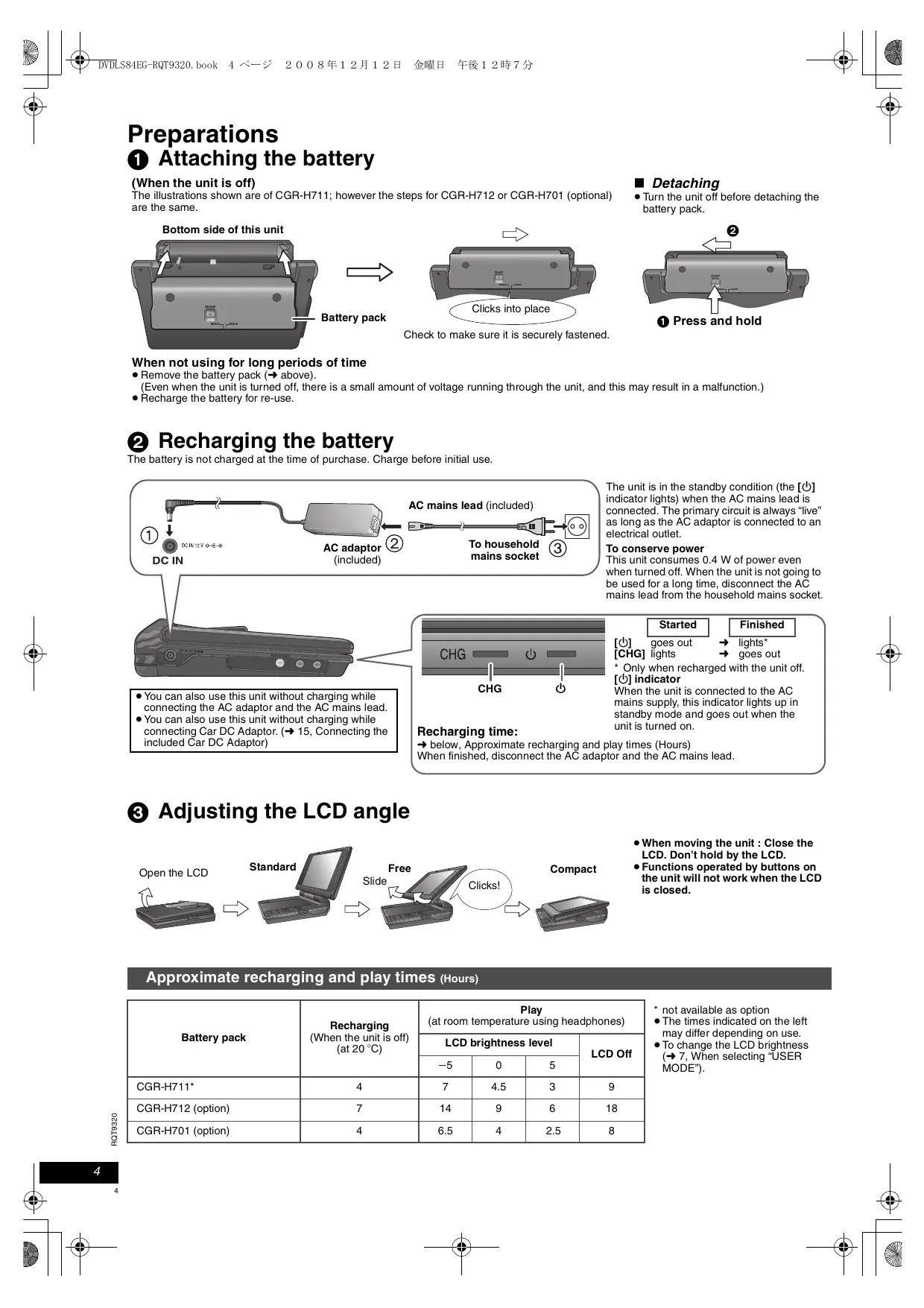
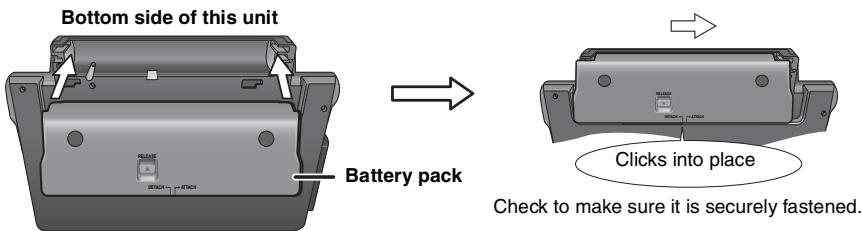
Attaching the battery
(When the unit is off)
The illustrations shown are of CGR-H711; however the steps for CGR-H712 or CGR-H701 (optional) are the same.
Detaching
- Turn the unit off before detaching the battery pack.
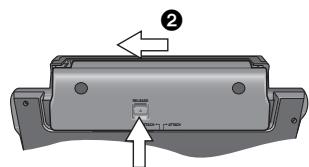
1 Press and hold
When not using for long periods of time
- Remove the battery pack ( above)
(Even when the unit is turned off, there is a small amount of voltage running through the unit, and this may result in a malfunction.) - Recharge the battery for re-use.
Recharging the battery
The battery is not charged at the time of purchase. Charge before initial use.
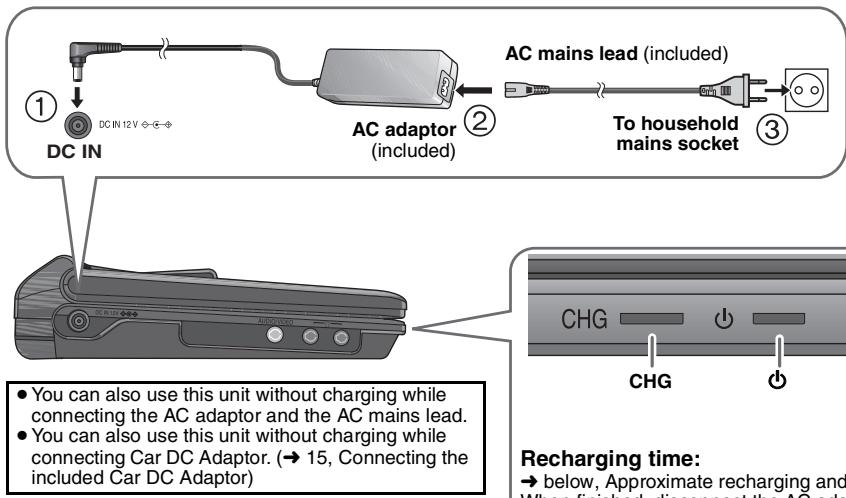
The unit is in the standby condition (the [Indicator lights) when the AC mains lead is connected. The primary circuit is always "live" as long as the AC adaptor is connected to an electrical outlet.
To conserve power
This unit consumes 0.4 W of power even when turned off. When the unit is not going to be used for a long time, disconnect the AC mains lead from the household mains socket.
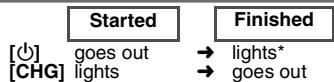
- Only when recharged with the unit off. [小] indicator
When the unit is connected to the AC mains supply, this indicator lights up in standby mode and goes out when the unit is turned on.
Recharging time:
below, Approximate recharging and play times (Hours) When finished, disconnect the AC adaptor and the AC mains lead.
Adjusting the LCD angle

- When moving the unit : Close the LCD. Don't hold by the LCD.
- Functions operated by buttons on the unit will not work when the LCD is closed.
Approximate recharging and play times (Hours)
| Battery pack | Recharging (When the unit is off) (at 20 °C) | Play (at room temperature using headphones) | |||
| LCD brightness level | LCD Off | ||||
| -5 | 0 | 5 | |||
| CGR-H711* | 4 | 7 | 4.5 | 3 | 9 |
| CGR-H712 (option) | 7 | 14 | 9 | 6 | 18 |
| CGR-H701 (option) | 4 | 6.5 | 4 | 2.5 | 8 |
- not available as option
- The times indicated on the left may differ depending on use.
To change the LCD brightness ( 7 When selecting "USER MODE").
When the unit is on ( 6) and powered by the battery pack
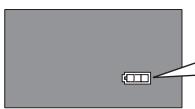
Press [DISPLAY] to check on the LCD (Displays for a few seconds).
屏幕

(FLASHING)
Recharge
Appears automatically when there is only a few minutes of charge remaining.
Discs that can be played
Commercial discs
| Disc Logo | Indicated in these instructions by | Remarks |
| DVD-Video DVD VIDEO VIDEO | DVD-V | High quality movie and music discs |
| Video CD COMPACT DISC DIGITAL VIDEO | VCD | Music discs with video Including SVCD (Conforming to IEC62107) |
| CD COMPACT DISC DIGITAL AUDIO TEXT | CD | Music discs |
Discs that cannot be played
Blu-ray, HD DVD, discs recorded with AVCHD format, DVD-Audio, Version 1.0 of DVD-RW, DVD-ROM, CD-ROM, CDV, CD-G, SACD, Photo CD, DVD-RAM that cannot be removed from their cartridges, 2.6-GB and 5.2-GB DVD-RAM and "Chaoji VCD" available on the market including CVD, DVD and SVCD that do not conform to IEC62107.
Recorded disc (O: Available —: Not available)
| DiscLogo | Recorded on a DVD recorder, etc. | Recorded on a personal computer, etc. | Necessity of finalize*4 | |||||
| DVD-VR *2 | DVD-V *3 | WMA | MP3 | JPEG | MPEG4 | DivX | ||
| DVD-RAM | Not Necessary | |||||||
| DVD R AM RAM 4.7 | ○ | - | - | ○ | ○ | ○ | ○ | |
| DVD-R/RW | Necessary | |||||||
| DVD DVD R R4.7 RW | ○ | ○ | - | ○ | ○ | ○ | ○ | |
| DVD-R DL | Necessary | |||||||
| DVD R RL | ○ | ○ | - | - | - | - | - | |
| +R/+RW - | - | (○) | - | - | - | - | - | Necessary |
| +R DL - | - | (○) | - | - | - | - | - | Necessary |
| CD-R/RW*1 - | - | - | ○ | ○ | ○ | ○ | ○ | Necessary*5 |
- It may not be possible to play the above discs in all cases due to the type of discs, the condition of the recording, the recording method and how the files were created ( 9, Tips for making data discs).
This unit can play CD-R/RW recorded with CD-DA or Video CD format. (WMA MP3 JPEG This unit also plays HighMAT discs.)
12 Disco r on d t, . 1.1 of the Video Recording Format ( a unified video recording standard). For DVD-R DL: Disco recorded on DVD recorders or DVD video cameras, etc. using Version 1.2 of the Video Recording Format (a unified video recording standard).
^13 Discs recorded on DVD recorders or DVD video cameras,etc. using DVD-Video Format.
For +R / + RW and +R DL: Discs recorded using a format different from DVD-Video Format, therefore some functions cannot be used.
4 A process that allows play on compatible equipment. To play a disc that is displayed as "Necessary" on this unit, the disc must first be finalized on the device it was recorded on.
Closing the session will also work.
Playing discs
Headphone terminals [O]
3.5 ~mm stereo mini jack
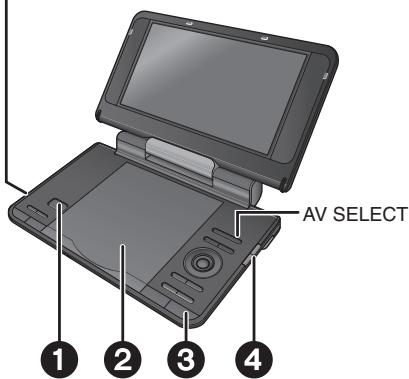
| 1 | OPEN | Open the lid. |
| 2 | Click into place | Insert a disc and close the lid. • Load double-sided discs so the label for the side you want to play is facing up. • DVD-RAM: Remove discs from their cartridges before use. • Some discs start to play automatically when the unit is on. |
| 3 | ON | Press and hold. The unit turns on and play begins. • When “AUX” is displayed, press [AV SELECT] to select “DISC”. (→ 16, Watching video from other equipment) |
| 4 | VOL | Adjust the volume. When using headphones, turn down the volume before connection. |
- To change the language on the display 13, Menu Language
To play audio (MP3), picture (JPEG) or video (MPEG4 DivX) on DVD-RAM with recorded titles (DVD-VR), select "Play as Data Disc" ( 12 Other Menu).
- While stopped, the unit automatically turns off once about 15 minutes (about 5 minutes when using the battery pack) have elapsed.
Total title number may not be displayed properly on +R / + RW
- If you are experiencing problems, refer to troubleshooting guide ( 18) .
Note
DISC CONTINUE TO ROTATE WHILE MENUS ARE DISPLAYED. Press [■ -OFF] when you finish to preserve the unit's motor.
Operations
| ON | Turn unit on/play | When the unit is off: Press and hold and the power comes on and play begins. When the unit is on: Press and play begins. |
| II | Pause | Press [ON] to restart play. |
| OFF | Stop | The position is memorized when “Press PLAY to resume play” appears on the screen. • Press [ON] to resume. (Resume play) Opening the disc lid or pressing [OFF] while “Press PLAY to resume play” is displayed on the screen cancels the memorized position. |
| Turn unit off | Press and hold until “OFF” is displayed. | |
| Skip | Press [←, ➔]. DVD-VR Can also skip to the markers. | |
| Search | Press and hold [←, ➔] (up to 5 steps). Press [ON] to return to normal play. | |
| Slow play | DVD-VR DVD-V VCD Press and hold [←, ➔] (up to 5 steps) while paused. Press [ON] to return to normal play. VCD [→] only | |
| TOP MENU | Top menu | DVD-V |
| Playing programs | DVD-VR (→7) | |
| Playback Menu | WMA MP3 JPEG MPEG4 DivX (→8) | |
| MENU | Menu | DVD-V |
| Playing playlists | DVD-VR (→7) | |
| Navigation Menu | WMA MP3 JPEG MPEG4 DivX (→8) | |
| RETURN | Return | Returns to the previous screen. VCD (with playback control) Returns to the menu. |
| ENTER | Menu operation | Press [▲▼◇] to select an item and press [ENTER] to confirm. |
| Number Select | VCD (with playback control) 1 While the disc menu is displayed, press [DISPLAY] to display On-Screen Menus. 2 Press [▲▼] to select “Number Select”. 3 Press [▶] then [▲▼] to enter number. ●Press and hold [▲▼] to alter faster. 4 Press [ENTER]. | |
| Frame-by-frame | DVD-VR DVD-VC D While paused, press [←]. VCD [▶] only | |
| Group skip | WMA MP3 JPEG MPEG4 DivX Press [▲▼]. ●Does not work while paused. |
Useful functions
Selecting how to show 4:3 aspect pictures on the LCD
MONITOR NORMAL:
MONITOR FULL:
MONITOR OFF:
Normal Stretched horizontally No picture
- If you are not using the LCD on this unit, select "MONITOR OFF" to conserve power. (The [C] indicator flashes.)
- The LCD turns off automatically if you close it.
Selecting the picture quality on the LCD

Displays the picture a bit brighter. Displays the picture a bit darker. below
Press to change.
When selecting "USER MODE"
Press [ ] to select the item, and [ ] to change the setting.
BRIGHT: Adjusts the brightness of the picture (-5 to 5)
COLOUR: Adjusts the shade of the picture's color (-5 to 5)
- To exit the screen: Press [RETURN].
Displaying current playback condition (Quick OSD)
Basics

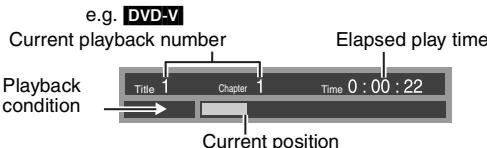
Press twice.
Details

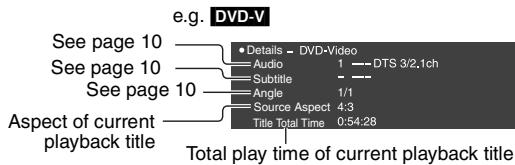
Press three times.
- MPEG4 DivX Video and audio information is not displayed during search.
- To exit the screen: Press [RETURN].
Repeat play
(Only when the elapsed play time can be displayed. JPEG: you can use even if there is no elapsed time display.)

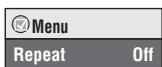
During play, press several times to select the content to be repeated.
Playing CD using menus
CD
Titles appear with CD text playback.
1

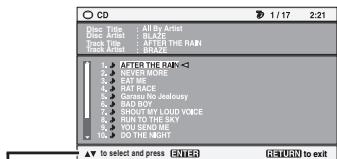
e.g. CD text
Press [DISPLAY] to switch between guide messages and the playback condition indicator.
2
Press [▲▼] to select the track and press [ENTER].
- To exit the screen: Press [RETURN].
Playing programs/playlists
DVD-VR
- Titles appear only if they have been entered.
- You cannot edit playlists and titles.
1 To play programs:
To play playlists:
- Only when the disc contains a playlist.
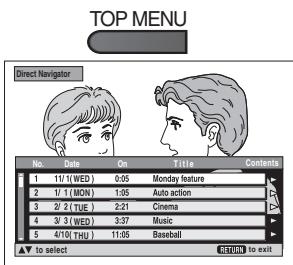
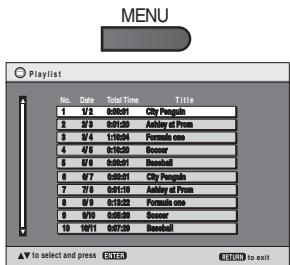
2

Press [▲▼] to select the program or playlist and press [ENTER].
- Press [▶] to show the contents of the program (only when playing the program).
- To exit the screen: Press [RETURN].
Playing HighMAT™ discs
WMA MP3 JPEG

While the menu is displayed
Press [▲▼▲] to select items and press [ENTER].

Menu:
Takes you to the next menu which shows playlists or another menu.

- To return to the menu screen, press [TOP MENU] then press [RETURN] several times.
To change the menu background, press [DISPLAY]. The background changes to the one recorded on the disc. - To display/exit the screen: press [TOP MENU].
Selecting from the list
- Press [MENU].
- Press [ ] then [▲▼] to switch among " Playlist", "Group" and "Content" lists.
- Press [▶] then [▲▼] to select an item and press [ENTER].
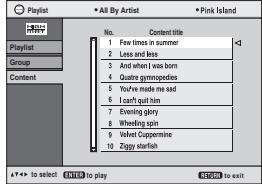
- To exit the screen: Press [MENU].
Playing WMA/MP3, JPEG and MPEG4/DivX
WMA MP3 JPEG MPEG4 DivX
Select "Play as Data Disc" ( 12 Other Menu) in the following cases:
- To play HighMAT discs without using the HighMAT function
- To play audio (MP3), picture (JPEG) or video (MPEG4 DivX) on
DVD-RAM with recorded titles (DVD-VR)
- To return to playing titles (DVD-VR), select "Play as DVD-VR" in "Other Menu" ( 12) .
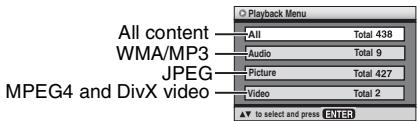
Playing items in order (Playback Menu)
While the menu is displayed
Press [ ] to select "All", "Audio",
"Picture" or "Video" and press [ENTER].
To display/exit the screen:
Press [TOP MENU].
Playing from the selected item (Navigation Menu)
1
2
Press [▲▼▲] to select the group and press [ENTER].

Press once.
To play content in the group in order: Press [ENTER].
- To start play from the selected content:
Press [▲▼] to select and press [ENTER].
Group and content number currently playing
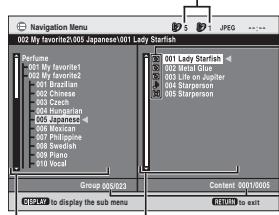
Group
:JPEG
WMA/MP3
MPEG4 and DivX video
Number currently selected
- To listen to WMA/MP3 while showing a JPEG image on the screen
- Select a JPEG file first, and then select WMA/MP3. (The opposite order is not effective.)
- To exit the screen: Press [MENU].
Using the submenu
1 Press [MENU].
2 Press [DISPLAY].
3 Press [▲▼] to select the sub menu and press [ENTER].
Submenu
| √Multi | Groups and content |
| List | Content only |
| Tree | Groups only |
| Thumbnail | Thumbnail images JPEG |
| Next group | To the next group |
| Previous group | To the previous group |
| √All | All content |
| Audio | WMA/MP3 only |
| Picture | JPEG only |
| Video | MPEG4 and DivX video only |
| √Help display | To switch between guide messages and the playback condition indicator |
| Find | |
| To search by group or content title (→ below) |
Searching by a group or content title
1 Press [MENU].
2 Press [▶] to highlight a group title to search a group, or a content title to search its content.
3 Press [DISPLAY].
4 Select "Find" and press [ENTER].
5 Press [▲▼] to select a character and press [ENTER].
Repeat to enter another character.
- Lower case is also searched.
- Press and hold [I], to skip between A, E, I, O and U.
- Press [ ] to erase a character.
- Erase the asterisk (*) to search for titles starting with that character.
6 Press [▶] to select "Find" and press [ENTER].
The search result screen appears.
7 Press [▲▼] to select the group or content and press [ENTER].
About DivX VOD content
DivX Video-on-Demand (VOD) content is encrypted for copyright protection. In order to play DivX VOD content on this unit, you first need to register the unit.
Follow the on line instructions for purchasing DivX VOD content to enter the unit's registration code and register the unit. For more information about DivX VOD, visit www.divx.com/vod.
Display the unit's registration code
( 13 ,DivX Registration)
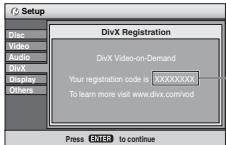
8 alphanumeric characters
- We recommend that you make a note of this code for future reference.
- After playing DivX VOD content for the first time, another registration code is then displayed in "DivX Registration". Do not use this registration code to purchase DivX VOD content. If you use this code to purchase DivX VOD content, and then play the content on this unit, you will no longer be able to play any content that you purchased using the previous code.
- If you purchase DivX VOD content using a registration code different from this unit's code, you will not be able to play this content. ("Authorization Error" is displayed.)
Regarding DivX content that can only be played a set number of times
Some DivX VOD content can only be played a set number of times. When you play this content, the remaining number of plays is displayed. You cannot play this content when the number of remaining plays is zero. ("Rented Movie Expired" is displayed.)
When playing this content
-
The number of remaining plays is reduced by one if - you turn off the unit or display "Setup" menu.
you press [■] twice. -
you press [▶,▶] (Skip or search) etc. and arrive at another content.
About DivX subtitles text display
You can display subtitles text recorded onto the DivX video disc on this unit.
This function has no relation to the subtitles specified in DivX standard specifications and has no clear standard. Depending on the methods used to create the file, the following functions may not work.
Displaying subtitles text ( 10 , Subtitle)
- DivX video files that do not display "Text" do not contain subtitles text.
Subtitles text cannot be displayed. - If the subtitles text are not displayed correctly, try changing the language settings ( 13, Subtitle Text).
Types of subtitles text file that can be displayed
Subtitles text that satisfy the following conditions can be displayed on this unit.
- File format: MicroDVD, SubRip, or TMPlayer
- File extension:“.SRT”,“.srt”,“.SUB”,“.sub”,“.TXT”, or“.txt”
- File name: No more than 44 characters excluding the file extension
- The DivX video file and subtitles text file are inside the same folder, and the file names are the same except for the file extensions.
- If there are more than one subtitles text files inside the same folder, they are displayed in the following order of priority: ".srt", ".sub", ".txt".
Limitations of this unit
- In the following situations, the subtitles cannot be displayed as recorded.
Furthermore, depending on the methods used to create the file or the state of the recording, only parts of the subtitles may be displayed, or the subtitles may not be displayed at all. - When special text or characters are included in the subtitles text.
- When the file size is larger than 256 KB.
- When characters with styling specified are included in the subtitle data.
Codes that specify the character style within files are displayed as subtitle characters. - When data with a different format exists within the subtitle data.
- If the file name of the DivX video file is not displayed correctly on the menu screen (the file name is displayed as “_”), the subtitles text may not be displayed correctly.
- The subtitles text cannot be displayed when search, Time Slip, and other such operations are being performed.
- The subtitles text cannot be displayed when Quick OSD, On-Screen Menus, Navigation Menu and other such menu screens are being displayed.
Tips for making data discs
Format: WMA
Disc: CD-R/RW
Extension:“.WMA”,“.wma”
Reference:
- Compatible compression rate: between 48 kbps and 320 kbps
- You cannot play WMA files that are copy protected.
- This unit is not compatible with Multiple Bit Rate (MBR: a file that contains the same content encoded at several different bit rates).
Format: MP3
Disc: DVD-RAM, DVD-R/RW, CD-R/RW
Extension:“.MP3”,“.mp3”
Reference:
- Sampling frequency:
DVD-RAM, DVD-R/RW: 11.02, 12, 22.05, 24, 44.1 and 48 kHz CD-R/RW: 8, 11.02, 12, 16, 22.05, 24, 32, 44.1 and 48 kHz
- Compatible compression rate: between 32 kbps and 320 kbps
- This unit is not compatible with ID3 tags.
Format: JPEG
Disc: DVD-RAM, DVD-R/RW, CD-R/RW
Extension:".JPG",".jpg",".JPEG",".jpeg"
Reference:
- JPEG files taken on a digital camera that conform to DCF (Design rule for Camera File system) Standard Version 1.0 are displayed.
- Files that have been altered, edited or saved with computer picture editing software may not be displayed.
- This unit cannot display moving pictures, PROGRESSIVE JPEG, MOTION JPEG and other such formats, still pictures other than JPEG (e.g. TIFF) or play pictures with attached audio.
Format: MPEG4
Disc: DVD-RAM, DVD-R/RW, CD-R/RW
Extension:“.ASF”,“.asf”
Reference:
- You can play MPEG4 data [conforming to SD VIDEO specifications (ASF standard)/MPEG4 (Simple Profile) video system/G.726 audio system] recorded with the Panasonic SD multi cameras or DVD recorders with this unit.
The recording date may differ from that of the actual date.
Format: DivX
Disc: DVD-RAM, DVD-R/RW, CD-R/RW
Extension:“.DIVX”,“.divx”,“.AVI”,“.avi”
Reference:
- Plays all versions of DivX video (including DivX® 6) [DivX video system/MP3, Dolby Digital or MPEG audio system] with standard playback of DivX® media files.
Functions added with DivX Ultra are not supported.
- DivX files greater than 2 GB or have no index may not play properly on this unit.
- This unit supports all resolutions up to maximum of 720 × 480 (NTSC)/ 720 × 576 (PAL).
-
You can select up to 8 types of audio and subtitles on this unit.
-
If groups were created away from the root like "002 group" in the illustration below, the eighth one and onwards is displayed on the same vertical line in the menu screen.
-
There may be differences in the display order on the menu screen and computer screen.
- This unit cannot play files recorded using packet writing.
Naming folders and files on data discs
(Files are treated as contents and folders are treated as groups on this unit.)
At the time of recording, prefix folder and file names. This should be with numbers that have an equal number of digits, and should be done in the order you want to play them (this may not work at times).
DVD-BAM
- Discs must conform to UDF 2.0.
DVD-B/BW
- Discs must conform to UDF bridge (UDF 1.02/ISO9660).
- This unit is not compatible with multi-session. Only the default session is played.
CD-R/RW
- Discs must conform to ISO9660 level 1 or 2 (except for extended formats).
- This unit is compatible with multi-session but if there are a lot of sessions it takes more time for play to start. Keep the number of sessions to a minimum to avoid this.
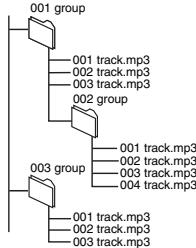
e.g. MP3 root
Using On-Screen Menus
1
DISPLAY
Press once.
e.g. DVD-V
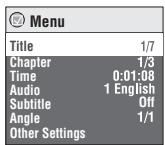
2

① Press [▲▼] to select the menu.
② Press [ENTER] to go to the next menu and [ ] to select the item.
③ Press [ENTER] to confirm.
Repeat steps if necessary.
- Items shown differ depending on the type of software.
- Some items can be changed by pressing [▶] instead of [ENTER].
- Some functions only work during playback
- Press [<] to go to the previous menu. If this is not possible, exit the screen (→ below) and repeat the above steps to go to the previous menu.
- To exit the screen: Press [RETURN].
Main menu
| Program, Group, Title Chapter, Track, Playlist Content | To start from a specific item • Press [▲▼] to select and press [ENTER]. • Press and hold [▲▼] to alter faster. | |
| Time | To skip incrementally or decrementally (Time Slip for play only) DVD-VR DVD-V (Except +R/+RW) Divx 1. Press [ENTER] twice to show Time Slip indicator. 2. Press [▲▼] to select the time and press [ENTER]. • Press and hold [▲▼] to alter faster. To change remaining/ elapsed time display | |
| Video | To display pixel number Divx fps (frame per second) is also displayed. | |
| Audio | To change soundtracks (Motion pictures) DVD-VR Divx "L", "R" or "L R" can be selected. VCD "L", "R", "L R" or "L + R" can be selected. DVD-VR (Karaoke discs) ① Press [▲▼] to select "Vocal". ② Press [ENTER] then [▲▼] to select the item. ③ Press [ENTER]. Read the disc's instructions for details. Signal type/data LPCM/Digital/DTS/MP3/MPEG: Signal type kHz (Sampling frequency)/bit/ch (Number of channels) Example: 3/2 .1ch 1: Low frequency effect (not displayed if there is no signal) 0: No surround 1: Mono surround 2: Stereo surround (left/right) 1: Center 2: Front left+Front right 3: Front left+Front right+Center | |
| Number Select VCD (with playback control) | To enter number (→6) • Press and hold [▲▼] to alter faster. | |
| Thumbnail | To show thumbnail images | |
| Subtitle | To change subtitles (Discs with subtitles) ① Press [ENTER] then [▲▼] to select "Off" or "On" and the subtitle language. ② Press [ENTER]. • On +R/+RW, a subtitle number may be shown for subtitles that are not displayed. • DVD-VR (with subtitle on/off information) - On or Off only can be selected. - Subtitle on/off information cannot be recorded using Panasonic DVD Recorders. | |
| Marker (VR) | To recall a marker recorded on DVD recorders | |
| Angle | To select angles DVD- with multiple angles | |
| Rotate Picture | To rotate the picture ("Right" or "Left") | |
| Slideshow | To turn on/off slideshow To change the slideshow timing ("1 Fast" to "5 Slow") • When using Slideshow, Skip/Rotate picture may not work correctly depending on the play position. | |
| Other Settings | (→11) | |
| Play Speed | DVD-VR Normal ×0.6 to ×1.4 (in 0.1 units) Press [▶ ON] to return to normal play. After you change the speed, H.Bass, Advanced Surround and Sound Enhancement (→ below) do not work. This may not work depending on the disc's recording. | Play Speed ×1.4 ×1.3 ×1.2 ×1.1 √Normal ×0.9 ×0.8 ×0.7 ×0.6 |
Play Menu (Only when the elapsed play time can be displayed.
JPEG: The Repeat function can be used.)
| Repeat | Select an item to be repeated. |
| A-B Repeat Repeating a specified section | Except DVD-VR (still picture part) MPEG4 DivX and JPEG Press [ENTER] at the starting and ending points. • Press [ENTER] again to cancel. |
| Advanced Disc Review Reviewing titles/ programs to play | DVD-VR DVD-V (Except +R/+RW) Press [▶ON] when you find a title/program to play. • You can also review each 10 minutes. Select “Interval Mode” (→13, “Advanced Disc Review” in “Disc”tab). • This may not work depending on the play position. • DVD-VR Does not work: - with still picture part. - when playing a playlist. |
Picture Menu
| Picture Mode ·Providing the suitable picture quality for enjoying movies (Cinema1/Cinema2) ·Reducing noise in pictures (Depth Enhancer/MPEG DNR) | Normal: Normal images Cinema1: Mellows images and enhances detail in dark scenes. Cinema2: Sharpens images and enhances detail in dark scenes. User: Picture Adjustment (→ below) ·This feature may not work depending on the disc's recording. | |
| Picture Adjustment Depth Enhancer: Reduces the rough noise in the background to give a greater feeling of depth. MPEG DNR: Smoothes block noise and reduces the smudging that appears around contrasting sections of the picture ① Press [▲▼] to select “Picture Adjustment” and press [ENTER]. ② Press [▲▼] to select “Depth Enhancer” or “MPEG DNR”. ③ Press [▲▼] to change the setting. (Depth Enhancer: 0 to +4, MPEG DNR: 0 to +3) ·This feature may not work depending on the disc's recording. | ||
| Source Select | DivX When you select “Auto” the constructing method of the DivX contents is automatically distinguished and output. If the picture is distorted, select “I (Interlace)” or “P (Progressive)” depending on which constructing method was used when the contents were recorded to disc. Auto, I (Interlace), P (Progressive) | |
Audio Menu
| H.Bass Enjoying heavy bass with the speakers | DVD-V DVD-VR On ←→ Off · This is effective on 5.1 channel DVD-Video and DVD-VR discs. This is also effective on some portions of 2 channel discs as well. · If the sound is distorted or there is noise, set to “Off”. · This feature may not work depending on the disc's recording. | Menu H.Bass Off |
| Advanced Surround Enjoying virtual surround | Motion pictures with 2 or more channels “SP 1 Natural”, “SP 2 Enhanced”, “HP 1 Natural” or “HP 2 Enhanced” A surround sound effect can be made using 2 speakers (on other equipment). · When using headphones, press to select “HP 1 Natural” or “HP 2 Enhanced”. · When using discs recorded with surround sound, sound seems to come from speakers on either side of you. · Optimum seating position is 3 to 4 times the distance between the front left and right speakers or the width of the television if using the television's speakers. · This does not work when H.Bass (→ above) is on. · Do not use in combination with surround effects on other equipment. | |
| Dialogue Enhancer Making the dialogue in movies easier to hear | DVD-V (Dolby Digital, DTS, MPEG, 3-channel or over, with the dialogue recorded in the center channel) DivX (Dolby Digital, 3-channel or over, with the dialogue recorded in the center channel) On ←→ Off | |
| Sound Enhancement Enjoying comfortable, analog-like sound | DVD-VR DVD-V (recorded with 48 kHz only) VCD CD WMA MP3 (recorded with other than 8 kHz, 16 kHz or 32 kHz) On ←→ Off · This feature does not work with MP3 on DVD-RAM or DVD-R/RW. · This does not work when H.Bass or Advanced Surround (→ above) is on. · This may not work depending on the disc's recording. | |
(Continued on the next page)
Display Menu
| Information | On → Off |
| Subtitle Position | 0 to -60 (in 2 units) |
| Subtitle Brightness | Auto, 0 to -7 |
| Just Fit Zoom | Motion pictures To expand the letterbox picture to fit the screen. Press [▲▼] to select the preset aspect ratio or "Auto". DVD-VR DVD-V VCD Auto → 4:3 Standard → European Vista → 16:9 Standard ↑→ Cinemascope2 → Cinemascope1 → American Vista ← · Depending on the disc, the preset aspect ratio may not be displayed. MPEG4 DivX Standard ← Original ← Full ← |
| Manual Zoom | Motion pictures Press [▲▼] for fine adjustments. (Press and hold to alter faster.) - from ×1.00 to ×1.60 (in 0.01 units) - from ×1.60 to ×2.00 (in 0.02 units) MPEG4 DivX only - from ×2.00 to ×4.00* (in 0.05 units) * It may not be possible to zoom up to ×4.00 depending upon the connected television and its settings or recording conditions. |
| Bit Rate Display | Motion pictures On ← → Off |
| GUI See-through | Off, On, Auto (Switches on automatically when the images appear on the display.) |
| Other Menu | |
| Setup | (→ 13) |
| Play as DVD-VR | Select "Play as Data Disc" in the following cases: - To play HighMAT discs without using the HighMAT function |
| Play as HighMAT or | - To play audio (MP3), picture (MP3) or video (MP3, DivX) on DVD-RAM with recorded titles (DVD-VR) |
| Play as Data Disc | - To return to playing titles (DVD-VR), select "Play as DVD-VR". |
Language code list
| Abkhazian: | 6566 | Bulgarian: | 6671 | French: | 7082 | Italian: | 7384 | Malay: | 7783 | Quechua: | 8185 | Spanish: | 6983 | Urdu: | 8582 | |
| Afar: | 6565 | Burmese: | 7789 | Frisian: | 7089 | Japanese: | 7465 | Malayalam: | 7776 | Rhaeto-Romance: | Sundanese: | 8385 | Uzbek: | 8590 | ||
| Afrikaans: | 6570 | Byelorussian: | 6669 | Galician: | 7176 | Javanese: | 7487 | Maltese: | 7784 | 8277 | Swahili: | 8387 | Vietnamese: | 8673 | ||
| Albanian: | 8381 | Cambodian: | 7577 | Georgian: | 7565 | Kannada: | 7578 | Maon: | 7773 | Romanian: | 8279 | Swedish: | 8386 | Volapuk: | 8679 | |
| Ameharic: | 6577 | Catalan: | 6765 | German: | 6869 | Kashmiri: | 7583 | Marathi: | 7782 | Russian: | 8285 | Tagalog: | 8476 | Welsh: | 6789 | |
| Arabic: | 6582 | Chinese: | 9072 | Greek: | 6976 | Kazakh: | 7575 | Moldavian: | 7779 | Samoan: | 8377 | Tajik: | 8471 | Wolof: | 8779 | |
| Armenian: | 7289 | Corsican: | 6779 | Greenlandic: | 7576 | Kirghiz: | 7589 | Mongolian: | 7778 | Sanskrit: | 8365 | Tamil: | 8465 | Xhosa: | 8872 | |
| Assamese: | 6583 | Croatian: | 7282 | Guarani: | 7178 | Korean: | 7579 | Nauru: | 7865 | Scotts Gaelic: | 7168 | Tatar: | 8484 | Yiddish: | 7473 | |
| Aymara: | 6589 | Czech: | 6783 | Gujarati: | 7185 | Kurdish: | 7585 | Nepali: | 7869 | Serbian: | 8382 | Telugu: | 8469 | Yoruba: | 8979 | |
| Azerbaijani: | 6590 | Danish: | 6865 | Hausa: | 7265 | Laotian: | 7679 | Norwegian: | 7879 | Serbo-Croatian: | Thai: | 8472 | Zulu: | 9085 | ||
| Bashkir: | 6665 | Dutch: | 7876 | Hebrew: | 7387 | Latin: | 7665 | Oriya: | 7982 | 8372 | Tibetan: | 6679 | ||||
| Basque: | 6985 | English: | 6978 | Hindi: | 7273 | Latvian, Lettish: | Pashto, Pushto: | Shona: | 8378 | Tigrinya: | 8473 | |||||
| Bengali, Bangla: | 6678 | Esperanto: | 6979 | Hungarian: | 7285 | 7686 | Persian: | 8083 | Sindhi: | 8368 | Tonga: | 8479 | ||||
| Bhutani: | 6890 | Estonian: | 6984 | Icelandic: | 7383 | 7678 | Persian: | 7065 | Singhalse: | 8373 | Turkish: | 8482 | ||||
| Bihari: | 6672 | Faroe: | 7079 | Indonesian: | 7378 | 7684 | Polish: | 8076 | Slovak: | 8375 | Turkmen: | 8475 | ||||
| Breton: | 6682 | Fiji: | 7074 | Interlingua: | 7365 | 7775 | Portuguese: | 8084 | Slovenian: | 8376 | Twi: | 8487 | ||||
| Irish: | 7165 | Malagasy: | 7771 | Punjabi: | 8065 | Somali: | 8379 | Ukrainian: | 8575 |
| Manufactured under license from Dolby Laboratories. Dolby and the double-D symbol are trademarks of Dolby Laboratories. |
| Manufactured under license under U.S. Patent #s:5,451,942; 5,956,674; 5,974,380; 5,978,762; 6,487,535 & other U.S. and worldwide patents issued & pending. DTS is a registered trademark and the DTS logos, Symbol and DTS 2.0 Channel are trademarks of DTS, Inc. © 1996-2008 DTS, Inc. All Rights Reserved. |
| U.S. Patent Nos. 6,836,549; 6,381,747; 7,050,698; 6,516,132; and 5,583,936. |
| This product incorporates copyright protection technology that is protected by U.S. patents and other intellectual property rights. Use of this copyright protection technology must be authorized by Macrovision, and is intended for home and other limited viewing uses only unless otherwise authorized by Macrovision. Reverse engineering or disassembly is prohibited. |
| Official DivX® Certified product. Plays all versions of DivX® video (including DivX®6) with standard playback of DivX® media files. DivX, DivX Certified, and associated logos are trademarks of DivX, Inc. and are used under license. |
This product is licensed under the MPEG-4 Visual patent portfolio license for the personal and non-commercial use of a consumer for (i) encoding video in compliance with the MPEG-4 Visual Standard ("MPEG-4 Video") and/or (ii) decoding MPEG-4 Video that was encoded by a consumer engaged in a personal and non-commercial activity and/or was obtained from a video provider licensed by MPEG LA to provide MPEG-4 Video. No license is granted or shall be implied for any other use. Additional information including that relating to promotional, internal and commercial uses and licensing may be obtained from MPEG LA, LLC. See http://www.mpegla.com.
HighMAT and the HighMAT logo are trademarks or registered trademarks of Microsoft Corporation in the United States and/or other countries.

Windows Media and the Windows logo are trademarks or registered trademarks of Microsoft Corporation in the United States and/or other countries. This product is protected by certain intellectual property rights of Microsoft Corporation and third parties. Use or distribution of such technology outside of this product is prohibited without a license from Microsoft or an authorized Microsoft subsidiary and third parties.
Changing the player settings
- Referring to the table below, change as required.
- Underlined items are the factory presets.
- Items shown differ depending on the type of software.
The settings remain intact even if you switch the unit to standby.
1
2
Press once.
① Press [▲▼] to select "Other Settings".
② Press [ENTER] then [▲▼] to select "Other Menu".
③ Press [ENTER] then [▲▼] to select "Setup".
④ Press [ENTER].
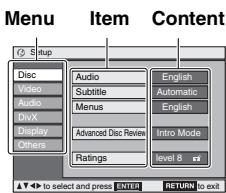
- Press [▲▼▲] to select the menu, item, content and press [ENTER].
- To enter number: press [▲▼] to select and press [ENTER].
- To return to the previous screen: press [RETURN].
To exit the screen: Press [RETURN] several times.
"Disc" tab
| Audio | • English • Original*1 • Other*********3 | Language Options | |
| • French | • Spanish | ||
| Subtitle | • Automatic*2 • English • Other*********3 | • German | • Italian |
| • Dutch | • Swedish | ||
| Menu | • English • Other*********3 | • Polish | |
| Advanced Disc Review Select how to review (→11). | • Intro Mode: Reviews each title/program. • Interval Mode: Reviews each 10 minutes. | ||
| Ratings Set a ratings level to limit DVD-Video play. • Follow the on-screen instructions. | Setting ratings (When level 8 is selected) • 8 No Limit • 1 to 7: To prohibit play of DVD-Video with corresponding ratings recorded on them. • 0 Lock All: To prevent play of discs without ratings levels. When setting a ratings level, a password screen is shown. Follow the on-screen instructions. Do not forget your password. A message screen will be shown if a DVD-Video exceeding the ratings level is inserted in the unit. Follow the on-screen instructions. | ||
1 The original language designated on the disc is selected.
2 If the language selected for "Audio" is not available, subtitles appear in that language (If available on the disc).
3 Input a code number referring to the table on page 12.
"Video" tab
| TV Aspect Choose the setting to suit your television and preference. | 4:3 Pan&Scan: Regular aspect television (4:3) The sides of the widescreen picture are cut off so it fills the screen (unless prohibited by the disc). 4:3 Letterbox: Regular aspect television (4:3) Widescreen picture is shown in the letterbox style. 16:9: Widescreen television Use the television's screen modes to change the way the picture is shown. |
| Still Mode Specify the type of picture shown when paused. | Automatic Field: The picture is not blurred, but picture quality is lower. Frame: Overall quality is high, but the picture may appear blurred. |
| NTSC Disc Output Choose PAL 60 or NTSC output when playing NTSC discs. | PAL60: When connected to a PAL television NTSC: When connected to an NTSC television |
| Picture/Video Output Choose the video signal format to be output for JPEG, MPEG4 and DivX video. | Automatic PAL NTSC/PAL60: Output will depend on "NTSC Disc Output" setting (→ above). If picture output is not smooth during playback, change the setting. |
"Audio" tab
| Dynamic Range Compression | • Off • On: Adjusts for clarity even when the volume is low through compressing the range of the lowest sound level and the highest sound level. Convenient for late night viewing. (Only works with Dolby Digital.) |
"DivX" tab
| Subtitle Text* | • Latin1 • Latin2 • Cyrillic • Turkish |
| DivX Registration | You need this registration code to purchase and play DivX Video-on-Demand (VOD) content. (→ 9) |
- This item is displayed only after playing back a DivX file with Subtitle text.
"Display" tab
| Menu Language | • English • Nederlands | • Français • Svenska | •spanol • Polski | • Deutsch | • Italiano |
| On-Screen Messages | • On | • Off | |||
| Background during Play Select background during JPEG, MPEG4 and DivX video playback. | • Black | • Grey |
"Others" tab
| Re-initialise Setting This returns all values in the Setup menus to the default settings. | ● Yes: The password screen is shown if “Ratings” (→ above) is set. Please enter the same password and press [ENTER]. When “Initialised” appears on the screen, wait for about 10 seconds. Press [ENTER] and turn the unit off and on again. ● No | |
Enjoying in a car
-
Do not leave the unit on a surface that may become hot such as a dashboard. The unit is not heat-resistant so may malfunction.
-
DRIVER MUST NOT OPERATE OR VIEW THIS UNIT WHILE OPERATING THE VEHICLE.
Doing so will distract the driver and could cause a collision resulting in serious injury or property damage.
Enjoying video in the back seat with the Headrest Mounting Bracket
You can enjoy video in the back seat attaching the unit to the back of the front seat.
-
Please insert the disc before attaching the unit to the headrest mounting bracket.
-
Do not attach or detach the unit or the bracket while the car is moving.
-
Do not attach the unit in the following locations: - anywhere other than the back of the front seat
- where it can be viewed or operated by the driver
- where it interferes with the driver's operation of the vehicle
- where it interferes with the operation of an airbag
- Ensure that the bracket belt is securely fastened and check the lock on the unit. Refer to installation instructions. In the event of an accident, sudden acceleration or braking, the unit could become loose and cause injury or property damage.
- Only use the Panasonic bracket supplied to attach the unit to the car seat.
1 Attach the headrest mounting bracket to the front seat.
① Adjust the headrest so there is an open space of about 3cm
Attach to the seat so that the label side of the bracket can be seen from the rear of the seat.
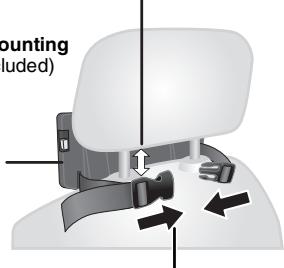
Headrest Mounting Bracket (included)
② Close the buckle and adjust the belt until it fits tightly around the headrest.
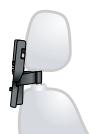
Side view
DO
DO NOT
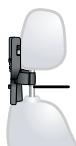
If this space is larger than 3cm the unit could become loose and cause injury in the event of an accident etc.
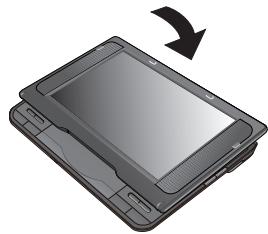
2 Adjust the monitor.
Rotate the monitor backwards so the screen is facing out.
4 , Adjusting the LCD angle
3 Attach the unit to the bracket.
While holding the unit with both hands, line up the unit just below the protruding sections on the bracket. Press the unit down about 4 to 5mm so that the protrusions on the bracket fit into the holes on the bottom of the unit.
-
Please check the following points before use.
-
The bracket is securely fastened to the unit.
- The unit is not loose and cannot be lifted upwards.
Line up the protruding sections here.
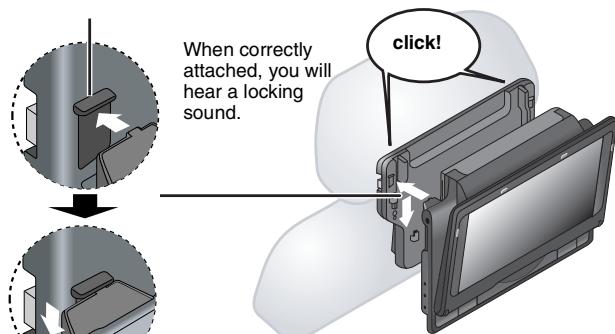
Diagram of the attached bracket and unit
Use the monitor in the open position as shown in the illustration below to prevent abnormal audio or damage resulting from vibrations in the car. The angle of the monitor can be adjusted up to about 30^ .
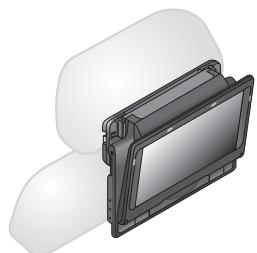
The angle of the monitor may shift while driving due to vibration, etc.
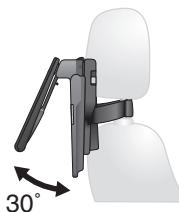
- Depending on the type of headrest, you may not be able to attach the bracket.
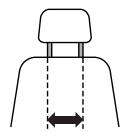
DO
23 cm or less
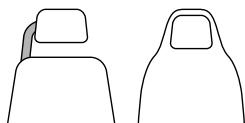
DO NOT
In the event of an accident etc., the unit could become loose and cause injury.
Releasing the unit from the bracket
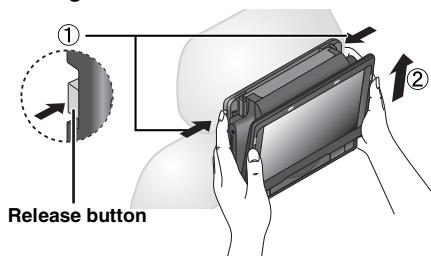
① Press the release buttons (left and right) in towards the center of the bracket.
② Lift the unit up to release it.
- Do not press the release buttons any time other than when detaching the unit from the bracket.
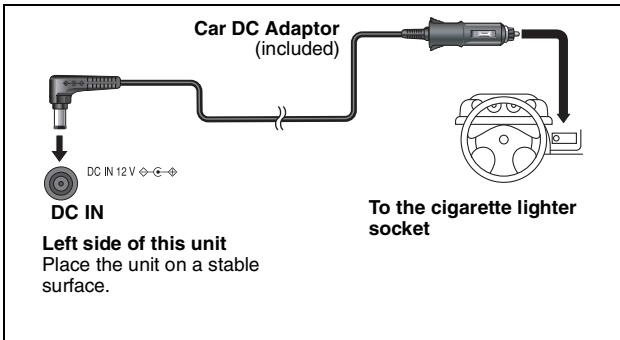
Connecting the included Car DC Adaptor
Before connection, consult your car owner's manual or your dealer.
- Connect to the cigarette lighter socket of a vehicle that has a 12V battery. It is not compatible with a vehicle that has a 24V battery.
This is a special negative grounded Car DC Adaptor. Using this Car DC Adaptor with a plus grounded car can cause malfunction and lead to fire.
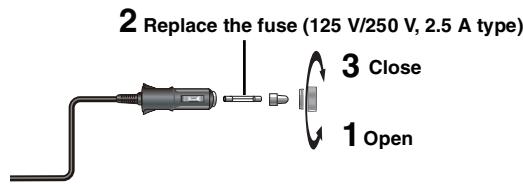
Replacing the fuse
Replace only with the specified 125 V/250 V, 2.5 A fuse. Use of any other type can cause fire.
Cautions
- To avoid draining your car battery
- Disconnect the Car DC Adaptor from the cigarette lighter after use. The Car DC Adaptor continues to consume some power even if it is not being used, and if a battery pack is attached to this unit, it will start recharging which uses more power.
- Do not use the Car D C Adaptor for long periods when the engine is not running.
- Turn the unit off before stopping the engine while using Car DC Adaptor, otherwise resume play ( 6) may not work.
- Leave some slack in the cord.
- No responsibility will be taken for damage that occurs due to faulty installation.
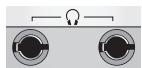
Left side of this unit
You can enjoy audio through your car audio system by connecting a car stereo cassette adaptor (not included) to the headphone jack on the left side of this unit.
Using this unit with other equipment
Turn off all equipment before connecting and read the appropriate operating instructions.
Enjoying stereo audio

Enjoying with a television
Connect the video output from this unit directly to the television.

Use the RCAJ adaptor (not included) if your TV has a 21-pin SCART terminal.

RCAJ adaptor (not included)
The unit's speakers do not have magnetic shielding. Do not place the unit near televisions, personal computers or other devices easily influenced by magnetism. Do not keep this unit and magnetized cards (bank cards, commuter passes, etc.) close together.
- If you raise the volume on the television while playing this unit, the volume may abruptly become very loud when you switch to a television broadcast. Return the volume to its normal level before changing.
Watching video from other equipment
1 Connect the equipment to this unit.

2 Press [AV SELECT] to switch to "AUX".
"AUX" lights on the unit's display.
- Operate playback using the connected equipment. (Please read the operating instructions for the connected equipment)
- The unit does not turn off automatically while "AUX" mode is on. Turn the unit off when you have finished using it.
Maintenance
To clean this unit, wipe with a soft, dry cloth.
- Use eyeglass cleaner to remove stubborn dirt from the LCD.
- Never use alcohol, paint thinner or benzine to clean this unit.
Maintenance of the lens
- Remove dust carefully with an air blower for camera lenses (optional).
- Recommended product:
Lens cleaner kit (SZZP1038C) (Available from Panasonic dealers.)
- You cannot use a CD type lens cleaner.
- Be careful not to touch the lens with your fingers.
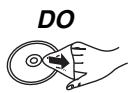
To clean discs
- Wipe with a damp cloth and then wipe dry.

Specifications
Operating temperature range:
+5 to +35 °C
Operating humidity range:
5 to 85% RH (no condensation)
Discs played (8 cm or 12 cm):
(1) DVD (DVD-Video, DivX6.8)
(2) DVD-RAM (DVD-VR9, JPEG4,6,7, MP32,6, MPEG45,6, DivX6,8)
(3) DVD-R (DVD-Video, DVD-VR*9, JPEG*4,6,7, MP3*2,6, MPEG4*5,6,DivX*6,8)
(4) DVD-R DL (DVD-Video, DVD-VR9)
(5) DVD-RW (DVD-Video, DVD-VR*9, JPEG*4,6,7, MP3*2,6, MPEG4*5,6, DivX*6,8)
(6) +R / RW (Video)
(7) +R DL (Video)
(8) CD, CD-R/RW [CD-DA, Video CD, SVCD, MP3, WMA, JPEG, MPEG4, DivX*, HighMAT Level 2 (Audio and Image)]
Signal system: PAL/PAL 60 (NTSC) selectable LCD screen: 8^ -Si, TFT wide-screen LCD (480× 234× RGB)
AUDIO/VIDEO output/output:
Output/output terminal: 3.5mm mini jack Number of terminals: 1 system (output/input selectable)
Composite-video:
Output/input level: 1 Vp-p (75 Ω)
Audio:
Output/Input level: 1.5 Vrms (1 kHz, 0 dB, 10 kΩ)
Audio performance:
(1) Frequency response: DVD (linear audio):
4 Hz to 22 kHz (48 kHz sampling)
4 Hz to 44 kHz (96 kHz sampling)
CD audio: 4 Hz to 20 kHz
(2) S/N ratio: 100 dB
(3) Dynamic range: 90 dB
(4) Total harmonic distortion: 0.015 %
Speaker: Output: 0.5 W+0.5 W (10 % Distortion)
Headphone output:
Output: 3.5mm stereo mini jack Number of terminals: 2 systems
Pickup: Wave length: 655 nm/790 nm (DVD/CD) Laser power: CLASS 1M/CLASS 1 (DVD/CD)
Power supply: DC 12 V (DC IN terminal)/DC 7.2 V (Exclusive battery terminal)
Power consumption (using included AC adaptor): 11 W (Unit only: 9 W)
Power consumption in Standby mode (using included AC adaptor): approx. 0.4 W
Power consumption in Recharge mode (using included AC adaptor): 12 W
AC adaptor:
Power source: AC 100 to 240 V, 50/60 Hz
Power consumption: 22 W
DC output: 12 V, 1.3 A
Car DC Adaptor: DC output: 12 V, 1.5 A (Vehicle with 12 V battery only)
Disc handling precautions
- Do not attach labels or stickers to discs (This may cause disc warping, rendering it unusable).
- Do not write on the label side with a ball-point pen or other writing instrument.
- Do not use record cleaning sprays, benzine, thinner, static electricity prevention liquids or any other solvent.
- Do not use scratch-proof protectors or covers.
- Do not drop stack, or impact discs. Do not place objects on them.
- To protect discs from scratches and dirt, return them to their cases or cartridges when you are not using them.
-
Do not use the following discs:
-
Discs with exposed adhesive from removed stickers or labels (rented discs etc.).
-
Discs that are badly warped or cracked.
- Irregularly shaped discs, such as heart shapes.
Battery pack (lithium ion)
CGR-H711 (included):
Voltage:
7.2V
2100 mAh
Dimensions (W× D× H) (excluding protrusions and battery):
242.6 mm (W)×173.5 mm (D)×46.0 mm (H) 23.9 mm at lowest point
(D = 173.5 ~mm including battery)
(H = 46.6 ~mm including battery)
Mass:
(including battery):
approximately 1010g
(without battery):
approximately 866g
Note
Specifications are subject to change without notice.
1 Conforming to IEC62107
2 MPEG-1 Layer 3, MPEG-2 Layer 3
3 Windows Media Audio Ver 9.0 L3 Not compatible with Multiple Bit Rate (MBR)
4 Exif Ver 2.1 JPEG Baseline files Picture resolution: between 160× 120 and 6144× 4096 pixels (Sub sampling is 4:0:0, 4:2:0, 4:2:2 or 4:4:4)
^15 MPEG4 data recorded with the Panasonic SD multi cameras or DVD recorders Conforming to SD VIDEO specifications (ASF standard)/MPEG4 (Simple Profile) video system/G.726 audio system
^6 The total combined maximum number of recognizable audio, picture and movie contents and groups: 4000 audio, picture and movie contents and 400 groups.
7 Extremely long and slender pictures may not be displayed.
*8 Plays all versions of DivX® video (including DivX®6) with standard playback of DivX® media files. Certified to the DivX® Home Theater Profile.
CPRM doesn't cope with it.
Troubleshooting guide
Before requesting service, make the following checks. If you are in doubt about some of the check points, or if the solutions indicated in the chart do not solve the problem, consult your dealer for instructions. (Reference pages are shown in parentheses.)
The following do not indicate malfunction.
Sound from the AC adaptor during recharging.
- The battery pack warming up when recharging or during use.
- The surface and area around the unit becoming warm when used for long periods.
Power
| No power. | ·Check connections to the AC adaptor or battery pack. (4) ·The unit has protection circuitry that is activated if it becomes too hot or too cold. The unit will not work if this occurs. Use the unit between 5 °C and 35 °C. |
| Unit turns off automatically. | ·The unit turns off after it has been stopped for about 15 minutes (about 5 minutes when the unit is powered by the battery pack) to conserve power. Turn the unit on again. |
| Cannot charge or the [CHG] indicator fails to light. | ·The charging time increases when the temperature is too hot or too cold, and charging may not be possible under some circumstances. ·Check connections to the AC adaptor or battery pack. (4) |
| Play time dramatically reduced after recharging. | ·The battery pack has reached the end of its service life (It can be recharged about 300 times). |
No operation
| No response when any buttons pressed. | ·This unit cannot play discs other than the ones listed in these operating instructions. (5) ·The unit may not be operating properly due to lightning, static electricity or some other external factor. Turn the unit off and then back to ON. Alternatively, turn the unit off, disconnect the power source (AC or battery pack), and then reconnect it. ·Condensation has formed: Wait 1 to 2 hours for it to evaporate. ·Please insert the disc correctly. (6) |
| You have forgotten your ratings password. | ·While stopped, press and hold [←] and [■] on the unit and then also press and hold [▶ON] on the unit until “Initialised” disappears from the screen. Turn the unit off and on again. All settings will return to the default values. |
| No picture or sound. | ·Check that the disc has something recorded on it. |
Specific operation impossible or incorrect
| It takes time before play starts. | ●Play may take time to begin when an MP3 track has still picture data. Even after the track starts, the correct play time will not be displayed; however, this is normal. ●This is normal on DivX video. |
| Menu doesn’t appear. VCD (with playback control) | ●Press [■-OFF] twice and then press [▶ON]. |
| Subtitle position is wrong. | ●Adjust the position. ("Subtitle Position" in Display Menu) (12) |
| No subtitles | ●Display the subtitles. (10) |
| In A-B repeat, point B is automatically set. | ●If you have set only the starting point (point A), the end of an item becomes point B when it is reached. |
| Play doesn’t start. | ●This unit may not play WMA and MPEG4 that contains still picture data. ●If playing DivX VOD content, refer to the homepage where you purchased the DivX VOD content. (Example: www.divx.com/vod) ●If a disc contains CD-DA and other formats, proper playback may not be possible. |
Picture incorrect
| Picture distorted. | ● There may be some video distortion during search, but this is normal. ● Picture quality may worsen or some frames may be skipped when viewing MPEG4, but this is normal. ● DivX Change “Source Select” in Picture Menu. (11) |
| Picture stops. | ● Picture may stop if the DivX files are greater than 2 GB. |
| No picture on the LCD. | ● Check connections. (4) ● Select a LCD-SIZE other than “MONITOR OFF” (No picture). (7, Selecting how to show 4:3 aspect pictures on the LCD) |
| The LCD is dark. | ● Select “DAYLIGHT” or adjust the brightness. (7) |
| LCD pixels turn black or radiate different colors. | ● The LCD is constructed with precision technology so 99.99 % of the pixels are active, but of the remaining of 0.01 %, there are pixels that may be black or emit light constantly. This phenomenon is not a malfunction. |
| Picture doesn’t appear on the television (or the size of the picture seems wrong). | ● Check connections. (16) ● Check that the television is on. ● Check that the input mode on the television is correct. ● Check the settings of “TV Aspect” in “Video” tab. (13) ● Turn off the zooming feature on your television if you are using Zoom. (12) ● Ensure that the unit is connected directly to the television, and is not connected through a video cassette recorder. (16) ● Use the television to change the aspect. ● Adjust “Just Fit Zoom” in Display Menu. (12) |
(Continued on the next page)
Picture incorrect (Continued)
| Menu not displayed correctly. | •Restore the zoom ratio to ×1.00. (12) •Set “Subtitle Position” in Display Menu to “0”. (12) |
| Auto zoom function does not work well. | •Turn off the zooming feature on your television. •Use the other preset aspect ratios or manual adjustment. (12) •Zoom function may not work well, especially in dark scenes and may not work depending on the type of disc. |
| Sound incorrect | |
| Sound distorted. | •Select “Off” in “Advanced Surround”. (11) •Move unit away from mobile phones. •Noise may occur when playing WMA or MPEG4 files. |
| Effects do not work. | •Some audio effects do not work or have less effect with some discs. •H.Bass, Advanced Surround and Sound Enhancement do not work if you have changed the play speed. |
| No sound from the unit's speaker. | •The speaker is off if the LCD is closed or headphones are connected. •Turn up the volume. (6) |
| No sound from other speakers. | •Check all connections and settings. (16) |
| No sound when you change the play speed. | •There may be a pause in sound. This is not a malfunction. |
| No sound. | •DivX Audio may not be output due to how files were created. (9) |
Displays
| “?” | ●The operation is prohibited by the unit or disc. |
| No On-Screen display. | ●Select “On” for “On-Screen Messages” in “Display” tab. (13) |
| “Check the disc.” | ●Clean the disc. (17) |
| “U11” | ●You inserted a disc that has not been finalized. (5) |
| “ERROR 01” | ●A problem has occurred with the battery pack. Consult your dealer. |
| “ERROR 02” | ●The battery pack has been recharging for 20 hours but has failed to recharge for some reason. Recharge again. |
| “ERROR 03” | ●You are recharging in a location that is too hot or too cold. Recharge at normal temperature (+5 to +35 °C). |
| “H□□” | ●Trouble has occurred. The number appearing after “H” depends on the problem. Turn the unit off and on again. Alternatively, turn the unit off, disconnect the power source (AC or battery pack), reconnect the power and turn the unit on again. If the service numbers fail to clear, note the service numbers and consult your dealer. |
| “□ stands for a number. | |
| “Cannot display group xx, content xx” | ●You are trying to play incompatible groups or content. (9) |
| “Authorization Error” | ●You are trying to play the DivX VOD content that was purchased with a different registration code. You cannot play the content on this unit. (9) |
| “Rented Movie Expired” | ●The DivX VOD content has zero remaining plays. You cannot play it. (9) |
[O] and [CHG] indicators
| The [◇] indicator flashes rapidly. | ● The unit has malfunctioned. Consult your dealer. |
| The [◇] indicator flashes slowly. | ● The unit is on and the LCD is closed or the LCD-SIZE is set to “MONITOR OFF” (No picture). Turn the unit off when you have finished. |
| The [CHG] indicator flashes rapidly. | ● There is a problem with the battery pack. Turn the unit on and check the message on the LCD. (above) |
| The [CHG] indicator flashes slowly. | ● Battery pack charge is low. The unit will turn off automatically after a few minutes. |
Frequently asked questions
Reference pages are shown in parentheses.
| Can I play a DVD-Video bought in another country? | You can play if the region number includes “2” or “ALL”. Check the disc jacket. (Cover) |
| Can I use on an airplane or in a hospital? | Electromagnetic waves that are emitted from this unit may affect equipment on an airplane or in a hospital. Please obey the rules and/or instructions indicated by the hospital or airline. |
| Can I use in a car? | • You can use this unit by connecting with the included Car DC Adaptor for power. Damage may occur if you do not use the specified car adaptor. (15) • You can enjoy video in the back seat with the included Headrest Mounting Bracket. (14) |
| Can I connect with a computer? | You can enjoy use of the computer as a television monitor when connecting with the AV input terminal on a computer. However, you cannot operate this unit as peripheral equipment. |
Werter Kunde!
1 Bloc-pile (Bloc-pile lithium-ion)
La lecture commence.
12 V CC (borne DC IN)/7,2 V CC (Borne batterie exclusive)
- Cuando se cambie de situ lo unidad: cierra la pantalla LCD. No sujete la unidad por la pantalla LCD.
Lasmerican Association of Reconstructive Surgeons (AAS) has recently announced a new program that will be designed to improve the performance of patients with unilateral shoulder dislocation. The program will be designed to improve the performance of patients with unilateral shoulder dislocation.
Laser: CLASS 1M/CLASS 1 (DVD/CD)
Alimentazione:
Play Speed 11
Playback Menu. 8
Playlists 7
Programs 7
Quick OSD 7
Re-initialise Setting. 13
Repeat. 7, 11
Resume play. 6
Rotate Picture. 10
Setup. 13
Sound Enhancement. 11
Subtitle. 10
Time Slip for play only. 10
TOP MENU. 6, 7, 8
WMA. 8, 9
Index DEUTSCH
CAUTION - CLASS 1M VISIBLE AND INVISIBLE LASER RADIATION WHEN OPEN AND
INTERLOCKS DEFeated. DO NOT VIEW DIRECTLY WITH OPTICAL INSTRUMENTS.
IEC60825-1 +A2/Class 1M
WARNING - KLASS 1M SYNLIG OCH OSYNLIG LASERSTRALNING
NAR DENNA DEL AR OPPNAD OCH SPARREN AR URKOPPLAD
BETRAKTA EJ STRALEN DIREKT GENOM OPTISKT INSTRUMENT
EORSIGTIG-SYNLIGOGUSYNLIGLASERSTRALINGKLASSE1
ABENT,ONG,SIKKERHEDSAEBRDERF,ER UDE,AE FUNKTION
ADEN. 0G SIRKENTEDORB DRYDENE LIGUE P A MED OPTISKE INSTRUMENTER
VARO -AVATTAESSA JA SUOJALUKITUS OHITETTAESSA
OLET ALTIINA LUOKAN 1M NAKYVAA JA NAKYMATONTA LASERSATEILYA.
ÄLÄ KATSO OPTISELLA LAITTEELLA SUORAAN SATEESEEN.
CLASS 1 LASER PRODUCT
LUOKAN 1 LASERLAITE KCLASS 1 LASER APPARAT