DR 56 C - Audio Receiver ALBRECHT - Free user manual and instructions
Find the device manual for free DR 56 C ALBRECHT in PDF.

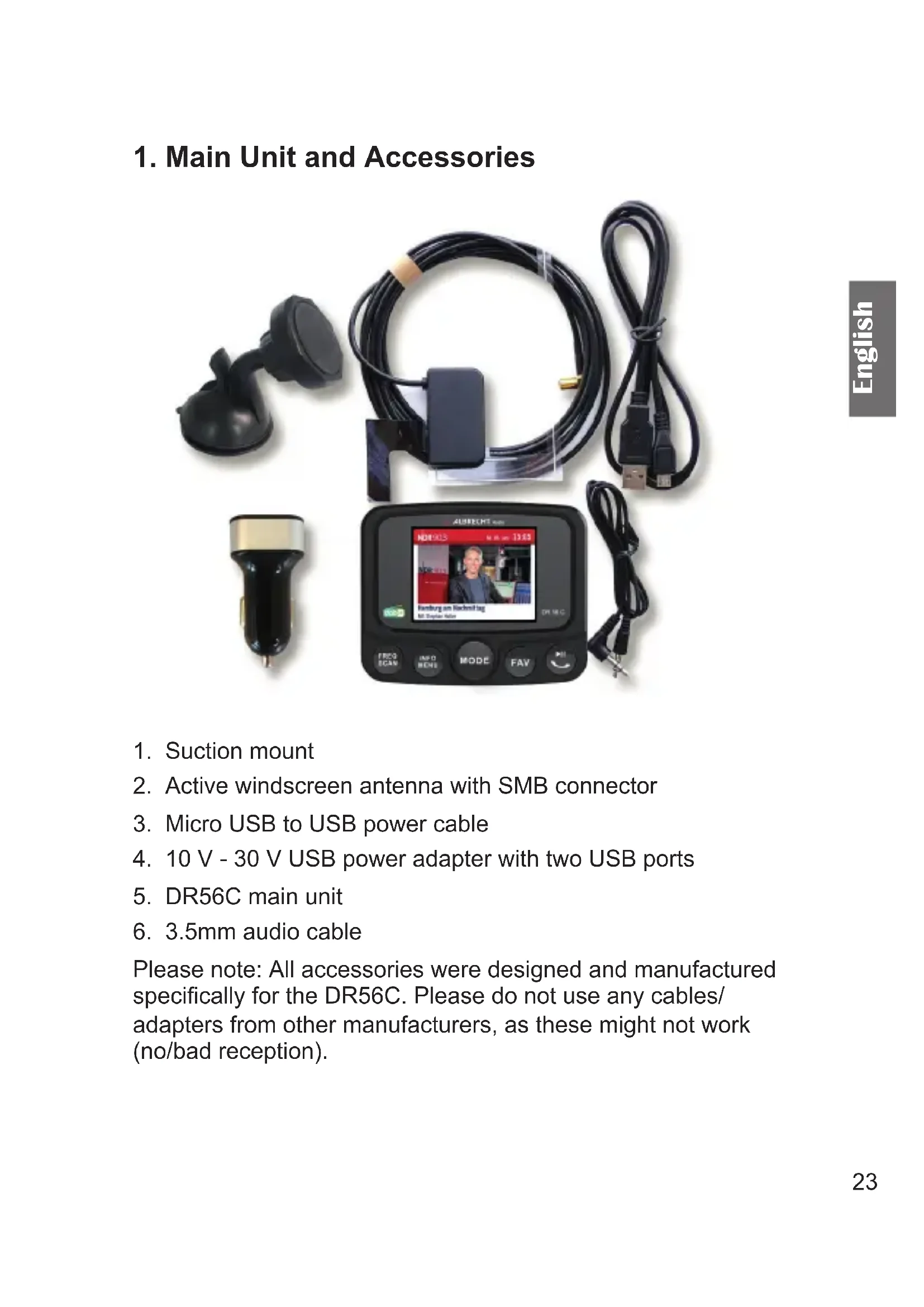


| Product Type | DAB+ Car Radio Adapter with Audio Receiver |
| Brand | Albrecht |
| Model | DR 56 C |
| Supported Radio Formats | DAB/DAB+, FM (transmitter 87.6-107.9 MHz) |
| Bluetooth | Version 4.0, hands-free and audio streaming compatible |
| Audio Input | 3.5 mm stereo jack (AUX IN) |
| Audio Output | 3.5 mm stereo jack (AUX OUT) and FM transmitter |
| Card Reader | Micro SD (MP3 playback, resume from last position) |
| Display | TFT color with adjustable backlight |
| Built-in Microphone | Yes, for hands-free calls |
| Power Supply | Micro USB 5 V / 2.1 A (10-30 V car cigarette lighter adapter included) |
| Dimensions (W x D x H) | 19 x 88 x 68 mm |
| Net Weight | Approx. 78 g |
| Antenna | Active DAB+ antenna with suction cup and adhesive film |
| Service Following (SF) | Automatic DAB+ frequency switching while driving |
| Favorites | Up to 20 preset stations |
| Care and Cleaning | Clean with a dry cloth; do not block the openings |
| Safety | Do not expose to rain, moisture or excessive heat |
| Warranty | 2 years (excluding normal wear, unsuitable accessories, misuse) |
| Included Accessories | Main unit, suction cup mount, antenna, micro USB cable, 10-30 V USB adapter, 3.5 mm audio cable |
Frequently Asked Questions - DR 56 C ALBRECHT
User questions about DR 56 C ALBRECHT
0 question about this device. Answer the ones you know or ask your own.
Ask a new question about this device
Download the instructions for your Audio Receiver in PDF format for free! Find your manual DR 56 C - ALBRECHT and take your electronic device back in hand. On this page are published all the documents necessary for the use of your device. DR 56 C by ALBRECHT.
USER MANUAL DR 56 C ALBRECHT
text_image
Diagram showing car interior with a camera and navigation cable, highlighting the red route from inside to outside.natural_image
Simple line drawing of a trash bin with crossed lines indicating no waste or restriction (no text or symbols)- Main Unit and Accessories ......23
- Controls and connections....24
- Before first use: 26
3.1. Installing the DAB+ antenna 27
- Connecting the DR56C to the car radio 28
4.1. Setting the FM transmitter frequency 28
4.2. Connecting to the car radio via audio cable....28
4.3. Adjusting the volume....28
- Main functions ......29
5.1. Station List ......29
5.2. Search and select DAB/DAB+ stations: 29
5.3. Manual Tune 29
5.4. Station Order 29
5.5. DRC 30
5.6. Prune Invaild 30
5.7. Station information: DAB+ mode....30
5.8. Service Following (SF)....31
5.9. Dim down display brightness 31
5.10. Illumination of buttons ....31
5.11. Selecting a language:....31
5.12. Restoring factory settings ....32
5.13. Software version ...... 32
- Favorites (station memory)....32
6.1. Saving favorites....32
6.2. Recall favorites....32
- Bluetooth mode ....33
7.1. Turning Bluetooth on/off....33
7.2. Pairing a phone 33
7.3. Phone calls....34
7.4. Bluetooth music playback 34
- Aux In....34
- SD player....35
- Charging USB devices 35
- Specifications....36
- Troubleshooting....37
- Safety instructions ....37
- Warranty and information on recycling 38
- CE declaration of conformity 38
- EEAG and Recycling 39
- Service address....39
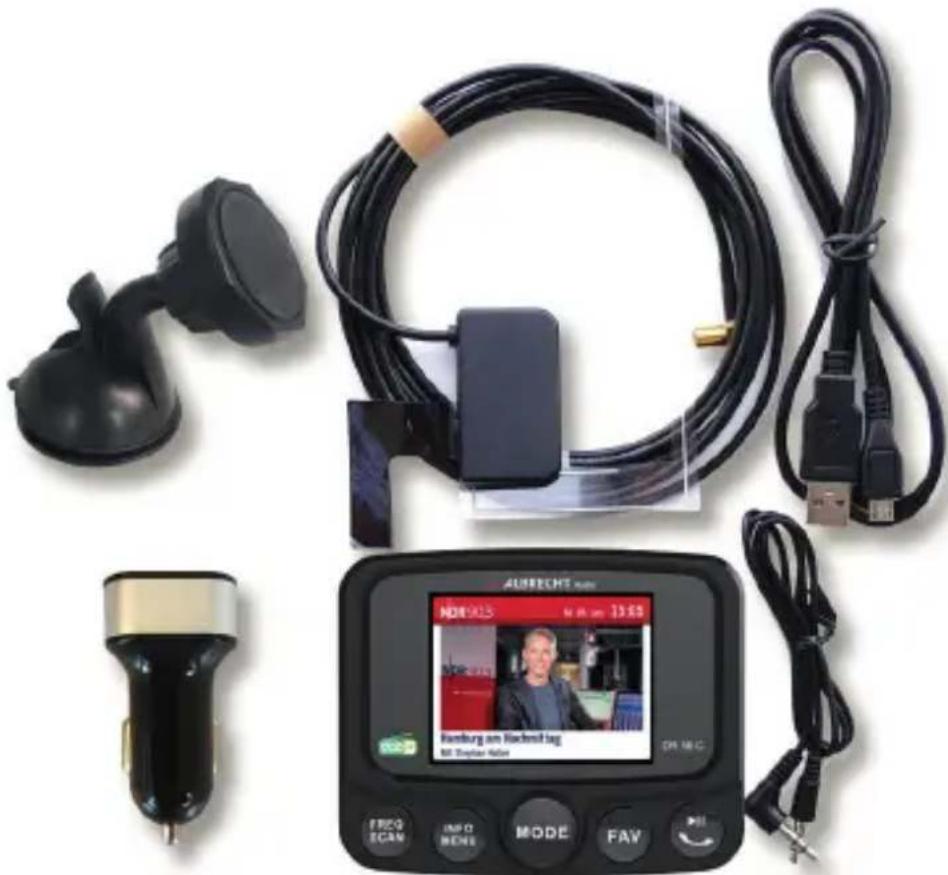
1. Main Unit and Accessories
text_image
AURECHS NORI 2015 Hamburg am Rückendlag M. Taylor Nieder DR. M.C. FREQ ECAM INFO MORE MODE FAV →- Suction mount
- Active windscreen antenna with SMB connector
- Micro USB to USB power cable
- 10 V - 30 V USB power adapter with two USB ports
- DR56C main unit
- 3.5mm audio cable
Please note: All accessories were designed and manufactured specifically for the DR56C. Please do not use any cables/adapters from other manufacturers, as these might not work (no/bad reception).
2. Controls and connections
text_image
1 2 3 4 5 6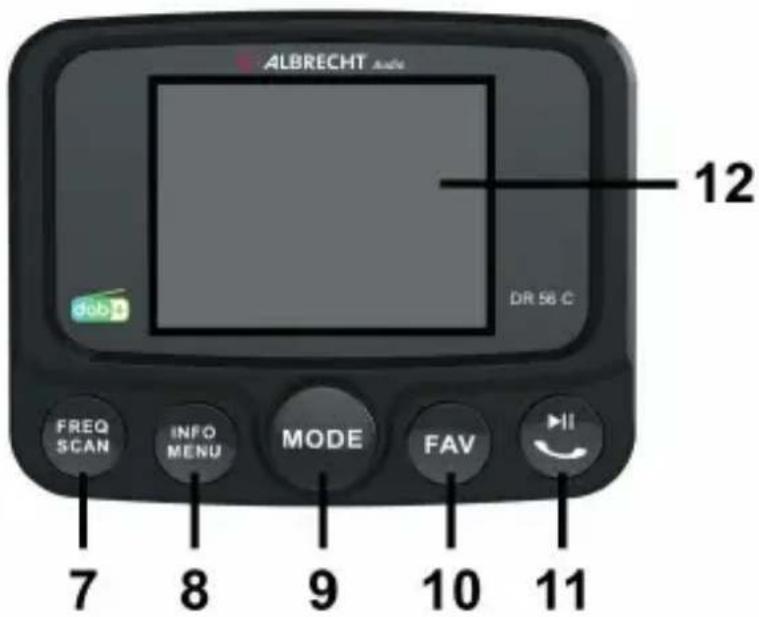
text_image
ALBRECHT Audio 12 DR 58 C FREQ SCAN INFO MENU MODE FAV II 7 8 9 10 11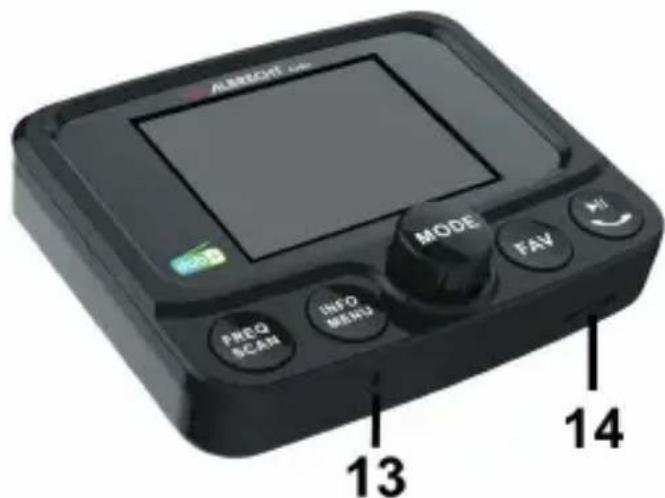
text_image
ALBERCHEL MODE FAV INFO MEANJ 13 14| Description | Function | |
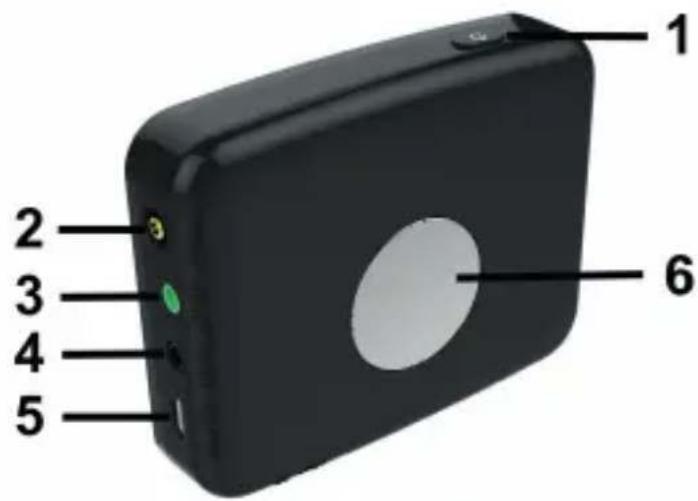
| 1 | ➊ | Press to switch ON/OFF |
| 2 | Antenna S | MB socket for the DAB/DAB+ antenna |
| 3 | Aux out Audio | dio out socket |
| 4 | Aux in Audio | dio in socket |
| 5 | Micro USB | Micro USB port for power supply |
| 6 | Magnetic mounting plate | |
| 7 | FREQSCAN | FM transmission frequency settingLong press to perform a DAB+ full scan |
| 8 | INFORMENU | Press to change station informationLong press to enter the menu |
| 9 | ◀ ▶OKMODEVolume | Rotate to navigate in menusRotate, next/previous stationRotate, next/previous song (SD-Player)Press to confi rm a selectionPress to change the modeLong press to adjust the volume |
| 10 | FAV | Press to open the favourites listLong press to open DAB Slideshow |
| 11 | Play/Pause button (Music-Streaming)Phone buttonPress once: accept/hang up callLong press during ringing: reject callLong press to dim down display illumination | |
| 12 | Display TFT colour display | |
| 13 | Mic Built-in microphone for hands-free operation | |
| 14 | Micro SD SD player slot for Micro SD card | |
3. Before first use:
- Attach the DR56C car radio adapter to the windscreen using the suction mount included in the product contents.
- Connect one end of the USB power cable to the Micro USB port on the right side of the DR56C and the other end to the USB power adapter. Plug the USB power supply into the cigarette lighter of your car.
- Install the antenna as described in chapter 3.1.
- Connect the supplied antenna to the antenna input on the right side of the DR56C.
- Switch on the device by pressing the On/Standby button on top of the device, and the Albrecht logo appears in the display. When used for the first time, the device automatically searches for available DAB/DAB+ stations and stores them in the device's station memory until another DAB station scan is performed. During the DAB Autoscan, a bar indicates the progress of the scan.
- If the Full Scan is not started automatically, long press the SCAN button or select Full Scan from the main menu.
- As soon as the station scan is completed, you can select any of the stored DAB/DAB+ radio stations by turning the ◀▶ knob.
3.1. Installing the DAB+ antenna
text_image
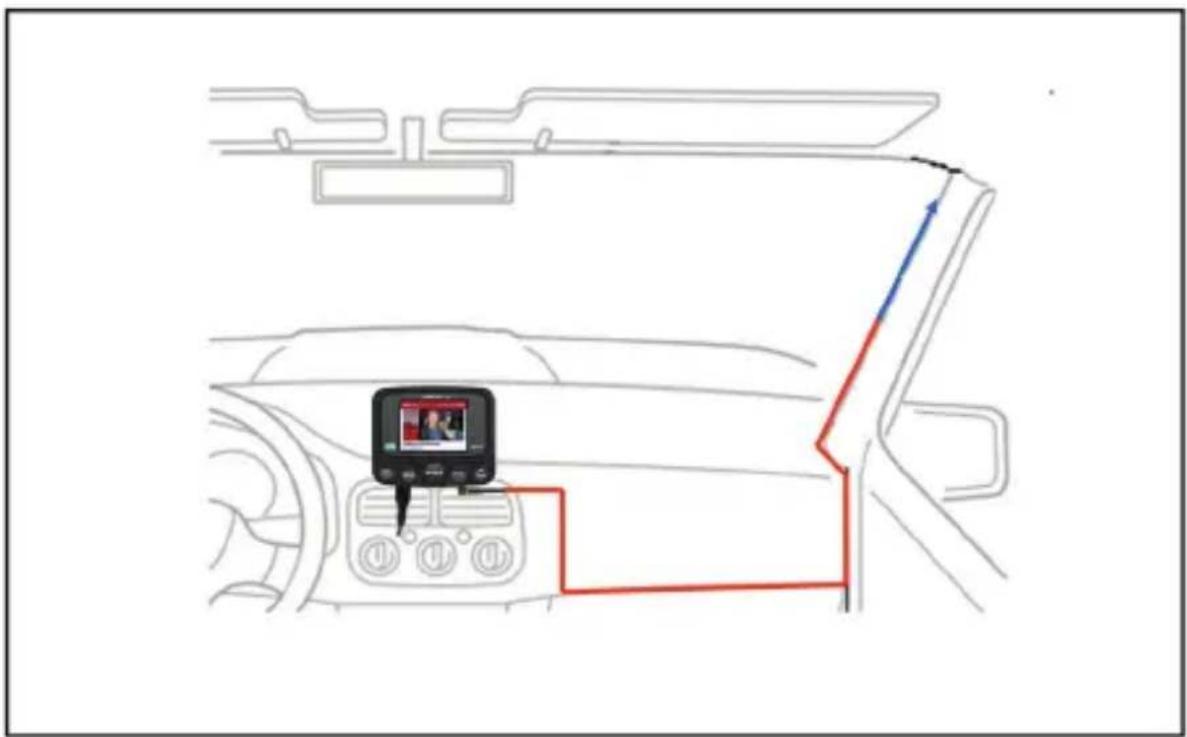
Diagram showing car interior with a camera, navigation arrows, and a red rectangular path indicating navigation or movement.- Use a damp cloth to clean the windscreen.
- Stick the black L-shaped copper film to the A-pillar (without trim) of the vehicle.
Attention: Do not remove the A-pillar if it has an Airbag!
-
Remove the adhesive protective film of the antenna amplifier and stick it to the intended position on the windscreen.
-
Now stick on the film antenna. Remove air bubbles by applying light pressure to the edge.
-
The antenna should be mounted vertically and not horizontally.
-
Route the antenna cable along the A-pillar up to where the DR56C is to be installed.
-
Do not attach the DAB antenna over heating wires, at a location where the driver's view is impaired, or in a place where the windscreen is metallized (sun protection). This could adversely affect the reception.
4. Connecting the DR56C to the car radio
You can either send the audio signal via FM transmitter or transmit it directly with the 3.5mm audio cable via the Aux out (audio out) output to your car radio.
4.1. Setting the FM transmitter frequency
- Press the FREQ button and then rotate the ◀▶ knob until you find the desired free frequency.
- The transmission frequency is displayed at the top of the screen as TX frequency (e.g. „TX107.0Mhz“).
- The DAB+ station name will be transmitted via RDS to your car radio (if supported by your radio)
Please note: "Free frequency" means that no FM station and no interference signals are transmitted on the selected frequency.
4.2. Connecting to the car radio via audio cable
- Plug the supplied 3.5mm audio cable into the AUX OUT socket of the DR56C and into the line-in socket of your car radio.
Please note: As soon as a plug is inserted in the AUX OUT socket, transmission via FM transmitter is switched off!
4.3. Adjusting the volume
Press and hold the MODE knob. A volume bar appears on the display. You can now adjust the volume.
5. Main functions
5.1. Station List
Select Station List from the main menu to view the list of available DAB+ stations.
Alternatively you can press ▲/TUNING+ oder ▼/TUNING- to go to the station list directly.
5.2. Search and select DAB/DAB+ stations:
If you are not in DAB+ mode, press the MODE knob until the „DAB+ Radio“ mode is selected. Rotate the ◀▶ knob to select the desired DAB/DAB+ station. You can also open the complete station list through the main menu.
If you would like to scan for new DAB+ stations, long press the SCAN button or select Full Scan from the main menu.
Please note: During normal use, you do not have to perform the DAB scan again every time you use DAB+ radio. Only perform a new scan if you are driving to a different area (for example during travelling) where there are new/different DAB+ stations.
5.3. Manual Tune
As well as the normal method of scanning described above, you can also tune manually to a particular channel/frequency. To manually tune, choose a particular channel/frequency and press OK to confirm
5.4. Station Order
The stations can be sorted by Alphanumeric, Ensemble or Active order.
5.5. DRC
If you are listening to music with a high dynamic range in a noisy environment, you may wish to compress the audio dynamic range. This makes quiet sounds louder, and loud sounds quieter. Select DRC (high/low/off) and press OK to confirm.
5.6. Prune Invaild
Use this function to remove stations from the station list that are not available anymore.
5.7. Station information: DAB+ mode
The station information is displayed as text or graphic (DAB slideshow). To open the DAB slideshow (if supported by the current station), long press the FAV button.
While listening to DAB+ radio you can change the information being displayed by pressing the INFO button (if available):
- Program type
- Channel
- Date
- Bit Rate
- Signal strength
• Information of the current song/artist (DLS)
5.8. Service Following (SF)
The SF function automatically changes the reception frequency when leaving the reception range of a known station.
Press and hold the MENU button in "DAB mode" to go to the menu. Select Service Following with ◀▶ and confirm with OK. A "SF" icon appears at the bottom right in the display.
If the current station supports Service Following function, the icon will be green. If it is not supported, the icon will be red.
Please note: If you always drive within the same broadcasting area, we recommend that you switch off the SF function.
Otherwise the DR56C will automatically search for an alternative frequency at weaker reception and interrupt the current transmission.
5.9. Dim down display brightness
If driving at night you might want to reduce the display brightness. Press and hold the 📋 button do dim down the display. Long press 📋 again to return to the normal brightness level.
5.10. Illumination of buttons
Long press MENU and select Main menu/button light. Select if you would like to turn on or off the button lights.
5.11. Selecting a language:
Press and hold MENU to access the menu and select Main Menu/Language. Select the desired language and confirm your selection with OK.
5.12. Restoring factory settings
Please note that all station memories, settings and configurations will be lost when restoring the factory settings.
Press and hold MENU to access the menu and select Main Menu/Factory Reset. Now select Yes or No and confirm your selection with OK.
The adapter will perform an automatic Full Scan after the factory reset.
5.13. Software version
Press and hold MENU to access the menu and select Main Menu/Software version. You will now see the current software version of the device. Press OK again to exit the menu.
6. Favorites (station memory)
6.1. Saving favorites
There are a total of 20 memory locations available:
Select a DAB+ station. Press the FAV button to go to the Preset Station list.. Rotate the ◀▶ knob to select the preset memory number to which you would like to save your favorite. Confirm your selection by long pressing FAV. The message "Stored Successfully" appears.
You can always overwrite a favorite station with a new one.
6.2. Recall favorites
In DAB mode, press the FAV button to display Select Preset Stations. Select the desired favorite station and confirm your selection with OK.
7. Bluetooth mode
To connect a phone with Bluetooth to the DR56C, both devices must be paired with each other. This operation only needs to be performed on the first connection. As soon as both devices are paired, they connect automatically once they are within range.
Up to eight devices can be paired with the DR56C. If there is more than one device within the Bluetooth range of the DR56C, the adapter connects to the last connected device. If you want to connect another phone, you must manually turn off Bluetooth on the currently connected phone.
7.1. Turning Bluetooth on/off
Press and hold MENU to access the menu. Rotate the ◀▶ knob to go to Bluetooth setting and confirm with OK. Now turn Bluetooth On or Off.
The Bluetooth icon at the top of the display indicates whether Bluetooth is on or off.
- Bluetooth icon not present: Bluetooth off
- Bluetooth icon flashing: Bluetooth on but not connected
- Bluetooth icon continuously lit: Bluetooth on and connected
7.2. Pairing a phone
- Turn on Bluetooth in the DR56C as described above.
- Turn on Bluetooth on your smartphone and search for Bluetooth devices.
- Select DR56C from the list.
- As soon as the connection is established, the name of the connected phone is displayed at the bottom of the DR56C display and the Bluetooth icon is continuously lit at the top of the display.
7.3. Phone calls
When a phone call comes in, a ringtone is heard and an arrow appears on the display that points to a telephone handset. The caller's phone number is displayed.
• To accept a call: Press
once while ringing
• To reject a call: Press
twice while ringing
• To end a call: Press
during the call
The talk time is shown on the display during the call.
For outgoing calls, the arrow points away from the handset.
7.4. Bluetooth music playback
Bluetooth-enabled smartphones connected to the device can play music via the DR56C (Please refer to the manual of your smartphone for more information).
Press ▶ to play or pause the music playback. Rotate the
◀▶ knob to select the next or previous song.
8. Aux In
To connect an external audio device, such as smartphones/tablets/iPods/MP3 players and the like, proceed as follows:
Press MODE until AUX IN is displayed.
Connect the external audio source to the „AUX IN“ socket on the right side of the DR56C via the supplied 3.5mm audio cable.
9. SD player
Insert a Micro SD card with the contacts facing forward and upward into the SD player card slot on the bottom of the DR56C. The device automatically starts playing the songs. By pressing the FAV button, you can choose between different playback options:
• Endless loop: All songs are played in an endless loop.
• ✗ Random: The songs are played randomly.
• Single item: The selected song is played in an endless loop.
You can select SD player at a later time by pressing the MODE button. Press ▶ to play or pause the music playback. Rotate the ◀▶ knob to select the next or previous song.
The SD player will resume your music or audio book at the same spot you stopped the last time listening.
Please note: The SD player menu item can only be selected when a Micro SD card is inserted. You can remove the Micro SD card by applying light pressure on the card in the direction of insertion.
10. Charging USB devices
Connect the USB cable of your mobile phone to the lower USB port of the USB power adapter. (5 V/2.1 A)
11. Specifications
| 1 | Model: DR56C |
| 2 | Supported radio format: DAB/DAB+, FM transmitter and DAB to DAB alternative frequency |
| 3 | DAB+ frequency: Band III (174.00 – 240.00 MHz) |
| 4 | FM transmission frequency: 87.6-107.9 MHz |
| 5 | Bluetooth: Version 4.0 |
| 6 | Audio input / output: 3.5mm stereo socket |
| 7 | Antenna: SMB connector |
| 8 | Charging power: 5 V/2.1 A(charging smartphones/tablets/iPods/MP3 players, etc.) |
| 9 | USB power supply input voltage range: (10 V - 30 V) |
| 10 | Dimensions (LxWxH): 19 x 88 x 68 mm |
| 11 | Net weight: approx. 78g |
12. Troubleshooting
Poor DAB reception on some roads, part 1.
Since the DAB network has not yet been fully developed, this can lead to poor reception, especially in rural areas that have not yet been fully developed. Therefore, test the DR56C adapter in a better-developed area before sending the device for repair due to poor reception.
Problem: Poor DAB reception, part 2.
Commercially available USB adapters without interference suppression are suitable for many purposes, but not for strong DAB receivers. Therefore, for the best possible reception, you should use the USB cable and the USB power supply supplied in the product contents and specifically designed for the DR56C adapter.
Problem: Poor DAB reception, part 3.
Please check if the supplied DAB antenna has been installed exactly as described in the assembly instructions. Also check if the antenna is properly grounded. Other electronic devices that have no interference suppression (such as low-cost dashcams) can cause interference in the DAB reception, especially inside the vehicle.
13. Safety instructions
- Clean the device only with a dry cloth.
- Do not block any ventilation openings.
- Use only the accessories supplied by the manufacturer.
- Do not expose this radio to rain or moisture.
- Do not expose the radio to excessive heat.
14. Warranty and information on recycling
We are legally obligated to enclose for each device information on disposal and warranty, as well as an EU declaration of conformity with the instructions for use in different countries. You will find this information on the following pages.
2-year warranty from the date of purchase
The manufacturer/dealer provides a two-year warranty from the date of purchase for this product. This warranty covers all failures due to defective components or faulty functions within the warranty period, except for wear and tear such as empty batteries, scratches on the display, defective housing, defective antenna and defects due to external influences such as corrosion, overvoltage due to improper external power supply or the use of unsuitable accessories. Defects caused by improper use are also excluded from the warranty.
In the event of a warranty claim, please contact your dealer. The dealer will repair or replace the device or pass it on to an authorised service centre.
You can also contact our service partner directly. Please enclose your proof of purchase with the device and describe the malfunction as accurately as possible.
15. CE declaration of conformity
Standards and directives

text_image
C€Alan Electronics GmbH hereby declares that the radio device model DR56C is in accordance with Regulation 2014/53/EU. The full text of the EU declaration of conformity can be found at the
following Internet address:
http://service.alan-electronics.de/CE-Papiere/
16. EEAG and Recycling
natural_image
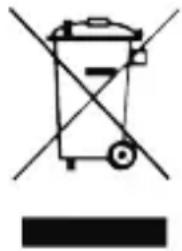
Simple line drawing of a trash bin with crossed lines indicating no waste or restriction (no text or symbols)European laws prohibit the disposal of old or defective electrical or electronic equipment via household waste. To dispose of the device, return it to a collection point in your municipality for recycling. This system is financed by the industry and ensures environmentally friendly disposal and recycling of valuable raw materials.
17. Service address
Technical hotline (for devices sold in Germany)
Call our service hotline +49 (0) 6103/9481 - 66 (normal rates on the German landline network) or send us an e-mail:
service@albrecht-midland.de
Please refer to Chapter 12, "Troubleshooting", before sending back the device.
There you will find some tips and tests. Alternatively, please contact our hotline.
Printing errors may occur.
The information in this manual is subject to change without notice.
© 2020 Alan Electronics GmbH