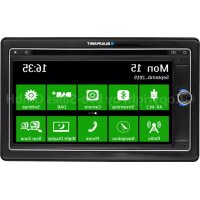
Las Vegas 690 DAB - Car radio BLAUPUNKT - Free user manual and instructions
Find the device manual for free Las Vegas 690 DAB BLAUPUNKT in PDF.

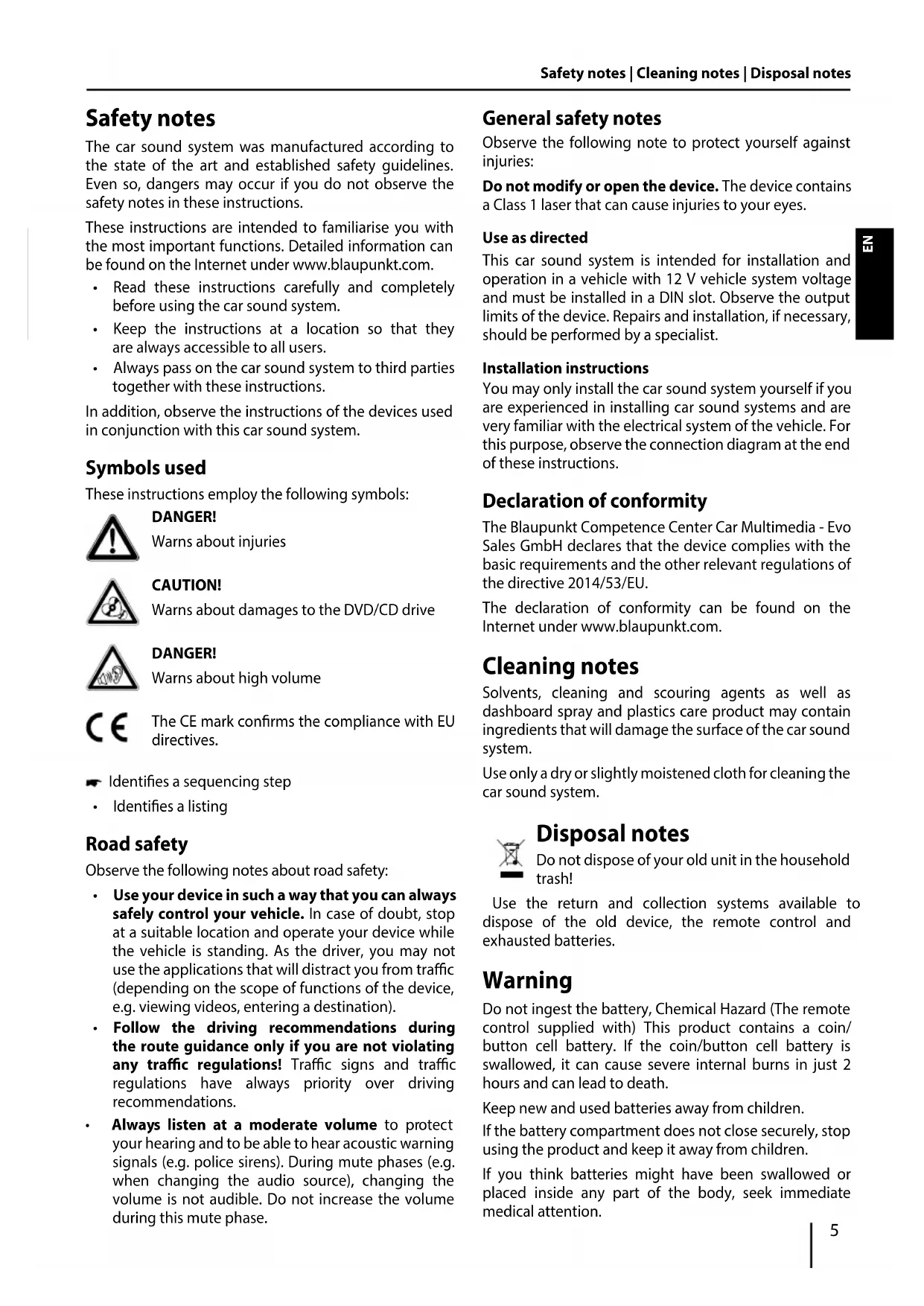


| Product type | Car radio with DVD/CD player, DAB+ tuner |
| Brand | Blaupunkt |
| Model | Las Vegas 690 DAB |
| Category | Multimedia car radio |
| Power supply | 12 V DC (DIN connector) |
| Supported audio formats | MP3, WMA, CD-DA, DVD audio |
| Supported video formats | DVD video, VCD, video from USB/microSD |
| Radio reception | FM (RDS), AM, DAB+ |
| Bluetooth | Hands-free (HFP), audio streaming (A2DP/AVRCP) |
| GPS navigation | Via microSD card (dedicated slot, software to download) |
| Inputs | Front USB, front microSD, front and rear AV input, rear camera |
| Outputs | Video output for external screen (passengers) |
| Screen | Touchscreen (size not specified) |
| Equalizer | Presets (Rock, Pop, Classic, etc.) + user adjustment, Loudness |
| Steering wheel controls | Programmable (SWC) |
| Safety | Video only when stopped (handbrake), Class 1 laser |
| Cleaning | Dry or slightly damp cloth, no solvents |
| OSD languages | Multilingual, including French |
| Dimensions | Standard DIN (not specified) |
Frequently Asked Questions - Las Vegas 690 DAB BLAUPUNKT
User questions about Las Vegas 690 DAB BLAUPUNKT
0 question about this device. Answer the ones you know or ask your own.
Ask a new question about this device
Download the instructions for your Car radio in PDF format for free! Find your manual Las Vegas 690 DAB - BLAUPUNKT and take your electronic device back in hand. On this page are published all the documents necessary for the use of your device. Las Vegas 690 DAB by BLAUPUNKT.
USER MANUAL Las Vegas 690 DAB BLAUPUNKT
Operating instructions
Návod k obsluze
Brugervjledning
Mode d'emploi
Istruzioni d'uso
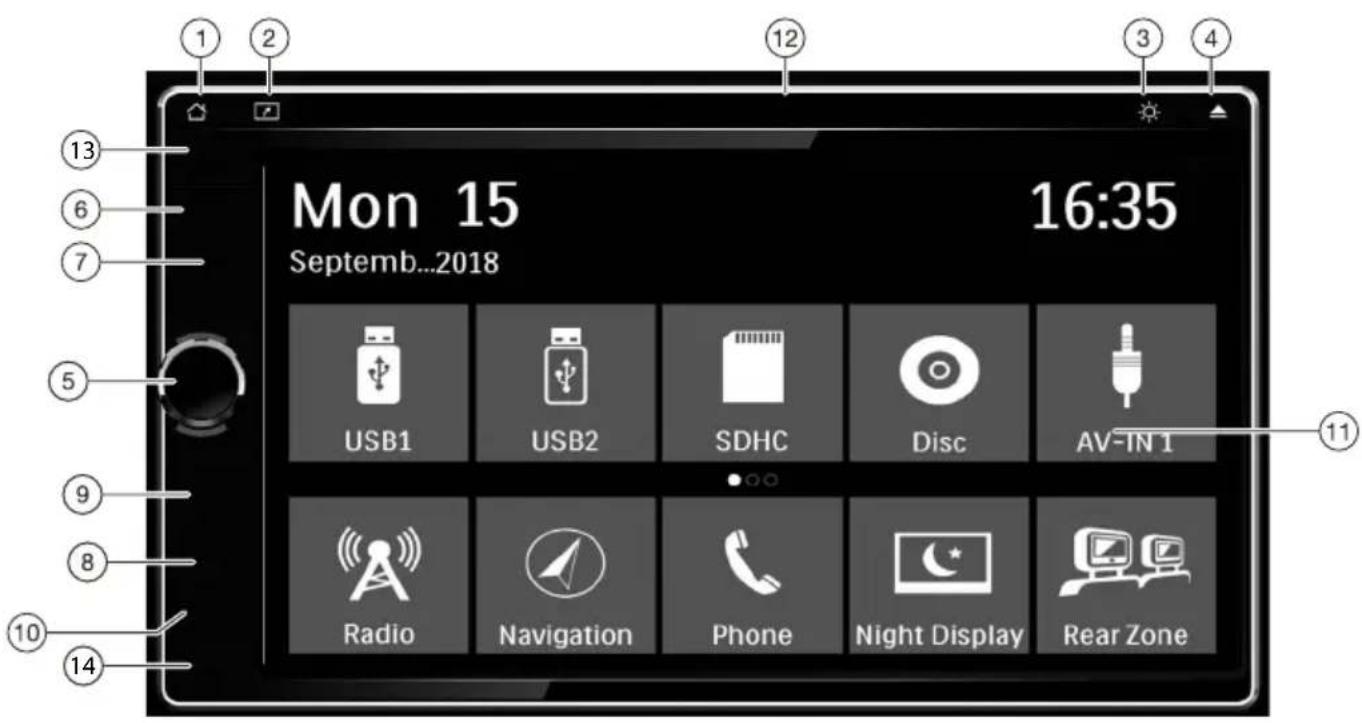
Short press: Return to home page at any point Long press: Go to BT mode
2 NAVI shortcut key
Go to Navigation
3 DISPLAY button
Short press: Adjust the display brightness (4steps)
Long press: Switch off the display
4 button (Eject)
Eject a DVD/CD
5 Rotary/pushbutton
Short press: Switch on device
In operation: Mute audio source
Long press: Switch off device
Turn: Adjust volume
6 Navigation SD Card Slot
7 Media SD Card Slot
Access only with open cover
The card reader supports microSD cards on which audio/video files can be stored.
8 Reset button
Access only with open cover
Restore to default factory settings of the device.
Caution! All personal settings will be lost!
9 USB socket - Front
Access only with open cover
10 AV-IN 1 socket
Access only with open cover
11 Touchscreen user interface
12 DVD/CD drive
13 Infrared receiver for remote control
14 Microphone
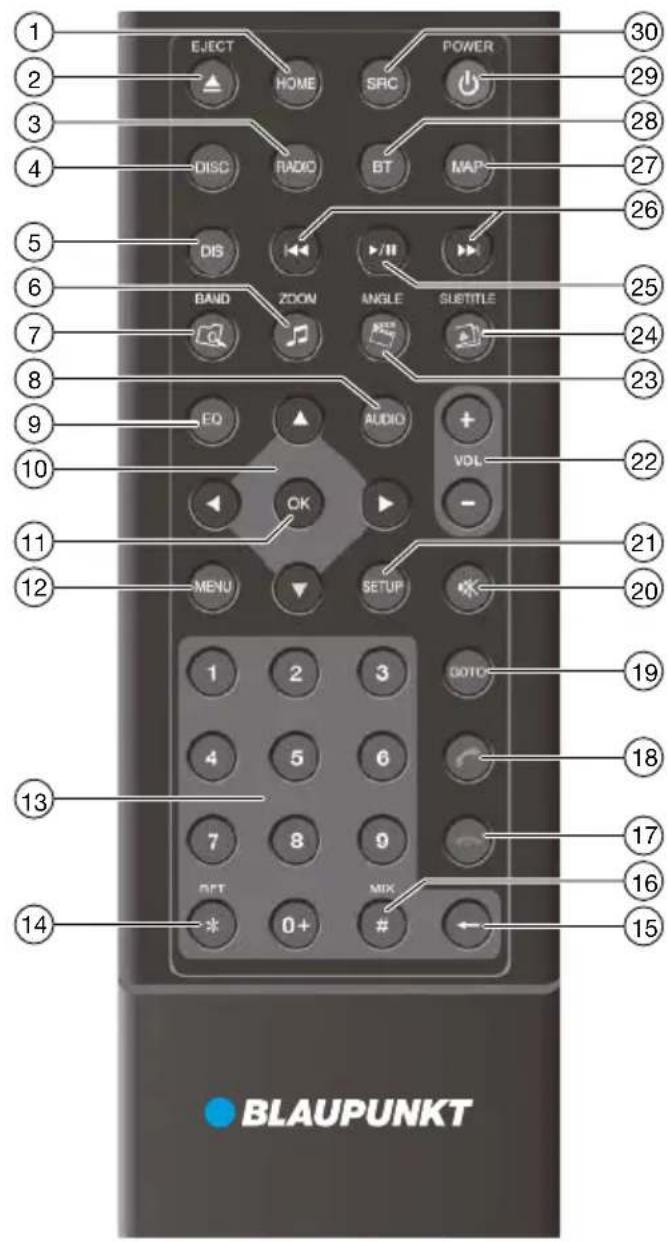
- HOME button
Call up main menu
In the main menu: Call up menu of active source
- /EJECT button
Eject a DVD/CD
- RADIO button
Start radio mode
- DISC button
Starting DVD/CD mode
- DIS button
Short press: Adjust the display brightness the display
Long press: Switch off the display
- ZOOM button
Call up overview of audio files
Zoom in on image area
- BAND button
Call up folder overview
Select waveband/memory bank
- AUDIO button
Select playback language (if available on DVD)
- EQ button
Call up equaliser menu
- / button
Navigate in menus/lists
Tuning into stations manually ( ▲/▼)
Calling stored stations (
- OK button
Confirm selection
- MENU button
Call up DVD menu
Display the folder/file list
-
Number buttons 0-9
-
/RPT button
Repeat function
- ← button
Delete last character of an entry
-
/MIX button
Random track play
- button
Ending/rejecting a phone call
- button
Answer a call
- GOTO button
Directly select title, chapter, movie or playtime
- button
Mute audio source
- SETUP button
Call up settings menu
- VOL+/- button
Adjusting the volume
- / ANGLE button
Call up overview of movies
Select camera viewing angle (if available on DVD)
- SUBTITLE button
Call up overview of images
Select subtitle language (if available on DVD)
- /llbutton
Start and interrupt playback
- / button
Select title, chapter, movie
Fast searching
- MAP button
Starting the navigation
- BT button
Starting Bluetooth mode
- POWER button
Switching device on/off
- SRC button
Select source
Safety notes 5
Symbols used 5
Road safety. 5
General safety notes. 5
Declaration of conformity. 5
Scope of delivery 6
Placing the device in operation. 6
Switching on/off. 6
Volume. 6
Main menu(Home) 6
Setting the reception area.. 6
Radio mode 7
Start radio mode 7
Select memory bank. 7
Tuning into a station. 7
Storing stations manually 7
Storing stations automatically (Travelstore) 7
Scanning stations. 7
Adjusting the seek tuning sensitivity. 7
Switching RDS on/off 8
Switching the REG (regional programmes) function on/off. 8
Switching the AF (alternative frequencies) function on/off. 8
Selecting the programme type and starting seek tuning. 8
Switching priority for traffic announcements on/off.8
Navigation 8
Insertion of navigation microSD: 8
DVD/CD/USB/microSDHC playback 9
Basic information 9
DVD/CD mode 9
USB data carrier 9
microSDHC cards 9
DVD movie playback 10
Audio playback from DVD/CD, USB, microSDHC....10
Video playback from DVD/CD, USB or microSDHC..11
Image playback from DVD/CD, USB or microSDHC.12
Bluetooth mode 12
Starting Bluetooth mode 12
Registering Bluetooth devices. 12
Telephone mode 12
Alphabetic search 13
Audio playback via Bluetooth streaming. 13
Bluetooth settings 13
External audio/video sources 14
Rear Camera input. 14
External monitor. 14
Sound settings 15
Equalizer 15
Volume distribution (fader/balance) 15
Steering wheel control 15
Basic settings 16
General 16
Video. 16
Sound 16
Time 16
Language 16
Bluetooth 16
Volume. 16
Useful information 17
DAB mode(only for models with DAB) 14
Safety notes
The car sound system was manufactured according to the state of the art and established safety guidelines. Even so, dangers may occur if you do not observe the safety notes in these instructions.
These instructions are intended to familiarise you with the most important functions. Detailed information can be found on the Internet under www.blaupunkt.com.
- Read these instructions carefully and completely before using the car sound system.
- Keep the instructions at a location so that they are always accessible to all users.
- Always pass on the car sound system to third parties together with these instructions.
In addition, observe the instructions of the devices used in conjunction with this car sound system.
Symbols used
These instructions employ the following symbols:

DANGER!
Warns about injuries

CAUTION!
Warns about damages to the DVD/CD drive

DANGER!
Warns about high volume

The CE mark confirms the compliance with EU directives.
Identifies a sequencing step
- Identifies a listing
Road safety
Observe the following notes about road safety:
- Use your device in such a way that you can always safely control your vehicle. In case of doubt, stop at a suitable location and operate your device while the vehicle is standing. As the driver, you may not use the applications that will distract you from traffic (depending on the scope of functions of the device, e.g. viewing videos, entering a destination).
- Follow the driving recommendations during the route guidance only if you are not violating any traffic regulations! Traffic signs and traffic regulations have always priority over driving recommendations.
- Always listen at a moderate volume to protect your hearing and to be able to hear acoustic warning signals (e.g. police sirens). During mute phases (e.g. when changing the audio source), changing the volume is not audible. Do not increase the volume during this mute phase.
General safety notes
Observe the following note to protect yourself against injuries:
Do not modify or open the device. The device contains a Class 1 laser that can cause injuries to your eyes.
Use as directed
This car sound system is intended for installation and operation in a vehicle with 12V vehicle system voltage and must be installed in a DIN slot. Observe the output limits of the device. Repairs and installation, if necessary, should be performed by a specialist.
Installation instructions
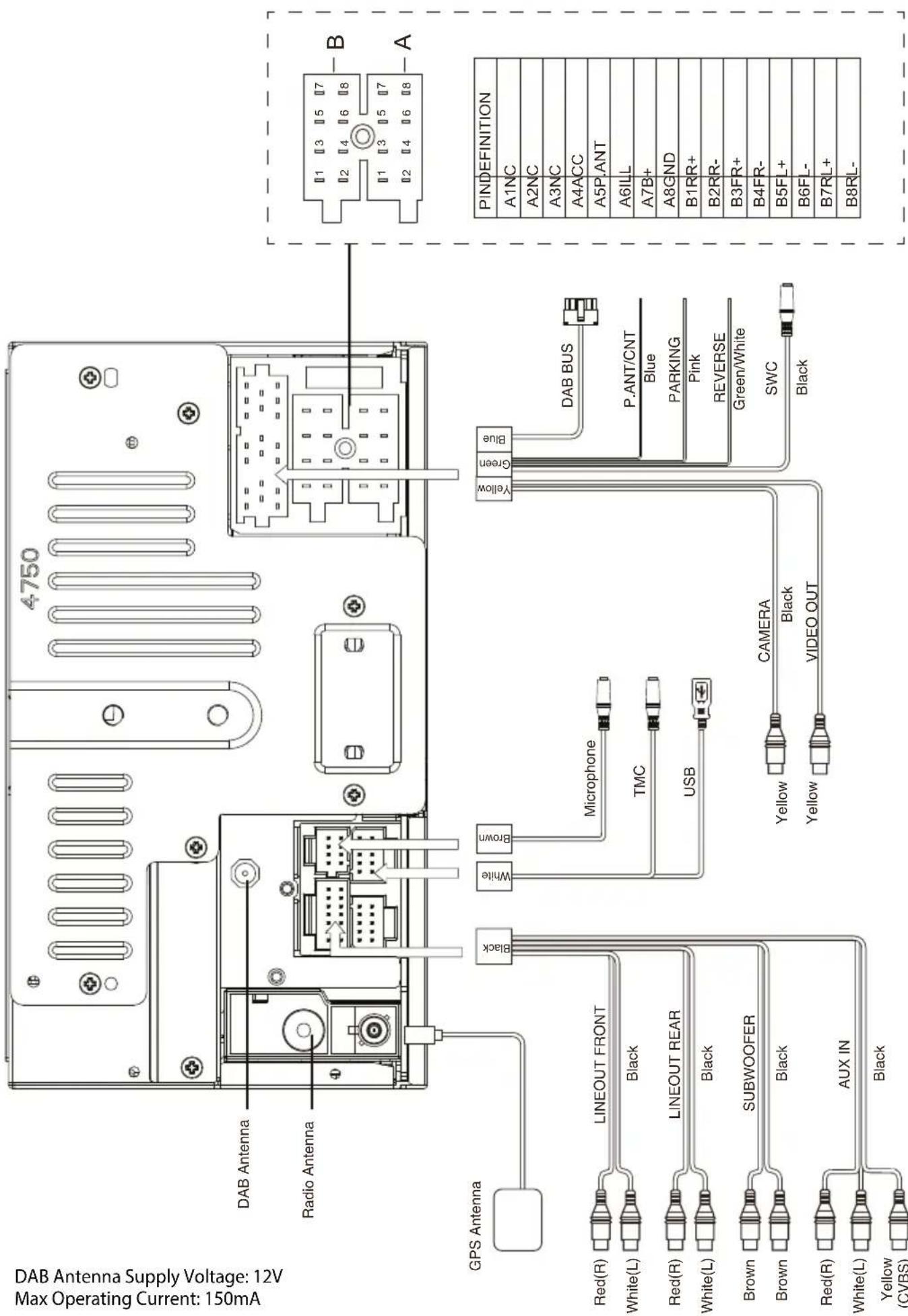
You may only install the car sound system yourself if you are experienced in installing car sound systems and are very familiar with the electrical system of the vehicle. For this purpose, observe the connection diagram at the end of these instructions.
Declaration of conformity
The Blaupunkt Competence Center Car Multimedia - Evo Sales GmbH declares that the device complies with the basic requirements and the other relevant regulations of the directive 2014/53/EU.
The declaration of conformity can be found on the Internet under www.blaupunkt.com.
Cleaning notes
Solvents, cleaning and scouring agents as well as dashboard spray and plastics care product may contain ingredients that will damage the surface of the car sound system.
Use only a dry or slightly moistened cloth for cleaning the car sound system.

Disposal notes
Do not dispose of your old unit in the household trash!
Use the return and collection systems available to dispose of the old device, the remote control and exhausted batteries.
Warning
Do not ingest the battery, Chemical Hazard (The remote control supplied with) This product contains a coin/ button cell battery. If the coin/button cell battery is swallowed, it can cause severe internal burns in just 2 hours and can lead to death.
Keep new and used batteries away from children.
If the battery compartment does not close securely, stop using the product and keep it away from children.
If you think batteries might have been swallowed or placed inside any part of the body, seek immediate medical attention.
Scope of delivery
The scope of delivery includes:
- Car sound system
GPS antenna
External Bluetooth microphone
Getting started
Support frame
Small parts set
Installation material - Connecting cable
Placing the device in operation
Caution!
Transport securing screws
Ensure that the transport securing screws at the top side of the device are removed before the startup of the device.
Switching on/off
Switching on/off with the rotary/pushbutton
For switch-on, press the rotary/pushbutton.
For switch-off, hold the rotary/pushbutton pressed for more than 2 seconds.
Switching on/off via vehicle ignition
If the car sound system is connected with the vehicle ignition and it was switched off with the rotary/ pushbutton, it is switched on or off with the ignition.
Volume
Adjusting the volume
You can adjust the volume in steps from 0 (off) to 50 (maximum).
Turn the rotary/pushbutton to change the volume.
Muting the car sound system (Mute)
Briefly press the rotary/pushbutton to mute the device or to reactivate the previous volume.
Main menu(Home)
In the main menu, you press the buttons on the touchscreen to call up the different sources and operating modes.
Press the button.
-Or-
In the current source, press the [ button.
The main menu is displayed.
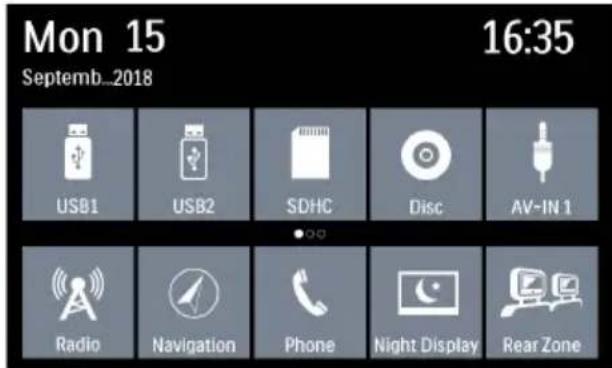
As long as you do not select a new audio source, the last active audio source is played back.
Note:
The figures used in these instructions are intended to facilitate the explanations and details may deviate from your device.
Setting the reception area
This car sound system is designed for operation in different regions with different frequency ranges and station technologies. The factory default of the reception area is "Europe (FM/AM)". You can set a different reception area.
In the main menu, press the [Settings] button.
The Settings menu is displayed.
If the [ Settings ] icon isn't on the menu, flip right the screen to show more icons.
In the upper area of the Settings menu, press the [General] button.
The current setting is displayed behind "Radio region".
Tap twice (double-click) on the [Radio region] button to display the list of available reception areas.
- Select the desired reception area by double-clicking. The list is hidden, the selected reception area is set.
Press the [ button.
The main menu is displayed again.
Radio mode
Start radio mode
In the main menu, press the [Radio] button.
The radio playback menu is displayed.

Select memory bank
Different memory banks and wavebands are available. Up to 6 stations can be stored in each memory bank.
Press the [ ] button repeatedly until the desired memory bank is displayed.
Tuning into a station
Tuning into stations manually
Briefly press the [1] or [▶] button once or several times to change the frequency in increments.
Enter broadcast frequency directly
If the frequency of the desired stations is known, it can be entered directly via the touchscreen.
Press the [ ] button to display additional operating options.
Press the [ button.
A numeric keypad is displayed for the frequency input.
Enter the frequency of the desired station with the numeric keypad.
Press the [OK] button.
The radio playback menu is displayed, the station of the frequency entered is played back.
Starting station seek tuning
Press the [or] button for approx. 2 seconds to start station seek tuning.
The radio tunes into the next receivable station.
Note:
For the reception area Europe: In the FM waveband, only traffic information stations are tuned into if the priority for traffic information is switched on.
Storing stations manually
- Select the desired memory bank with the [ ] button.
Set the desired station.
Press one of the memory buttons [P1] - [P6] for approx. 2 seconds to store the current station at the button.
The station is stored.
Storing stations automatically (Travelstore)
With Travelstore, you can automatically search for and store the 6 FM stations offering the strongest reception in the region in the current memory bank. Any previously stored stations in this memory bank are deleted in the process.
Select a memory band.
Press the [ ] button to display additional operationg options.
Press the [TS] button.
The tuner starts the automatic station seek tuning. After the storing is completed, the radio plays the station at memory location 1 of the previously selected memory band.
Note:
For the Erurope reception area: If traffic information is switched-on, only traffic informations are stored.
Scanning stations
You can use the scan function to play all the receivable stations of the current waveband for a few seconds.
Press the [ ] button.
The seek tuning searches for stations in the current waveband. Each receivable station is played for a few seconds in the process.
- Pressing the [ ] button again selects the currently scanned station and plays it back.
Adjusting the seek tuning sensitivity
The seek tuning sensitivity decides whether the automatic station seek tuning finds only strong stations or also weaker stations that may be noisy.
Press the [DX/LO] button to adjust the sensitivity of station seek tuning.
If Local is displayed, only stations with a strong signal are found during seek tuning.
If Distance is displayed, stations with a strong and weak signal are found during seek tuning.
Switching RDS on/off
Many FM stations broadcast an RDS (Radio Data System) signal in addition to their programme in the reception area Europe that allows additional functions, such as the display of the station name.
Press the [... ] button to display additional operating options.
Press the [RDS] button to switch the RDS function on or off.
If RDS function is switched on, RDS is displayed in white.
Press the [V] button to hide the additional operation options, or wait until they are automatically hidden.
Switching the REG (regional programmes) function on/off
Some RDS stations divide their programmes into regional programmes with different content at certain times.
Press the [REG] button to switch the REG function on or off.
If the REG function is switched on, REG is illuminated.
Switching the AF (alternative frequencies) function on/off
If the AF function is activated, the car sound system automatically tunes into the best receivable frequency for the station that is currently set.
Press the [AF] button to switch the AF function on or off.
The AF button is illuminated if the AF function is switched on.
Selecting the programme type and starting seek tuning
You can select a programme type with the PTY function to purposefully search for stations, for example, that broadcast rock music or sport events.
Press the [ ] button to display additional operating options.
Press the [PTY] button to display the programme types.
Flip up/down to scroll through the list and tap on the desired programme type to select it.
Press the [PTY] button to start PTY seek tuning.
If a station broadcasts a programme with the selected programme type, this station is played back.
Switching priority for traffic announcements on/off
In the reception region Europe, an FM station can identify traffic announcements via an RDS signal. If priority for traffic reports is switched on, a traffic report is automatically switched through, even if the car sound system is currently not in radio mode.
Press the [TA] button to switch the priority for traffic announcements on or off.
The TA button is illuminated if the priority for traffic announcements is switched on.
Navigation
Please visit www.blaupunkt.com to download relevant map user information.
Insertion of navigation microSD:
Insert the navigation microSD card with its contacts right sided ahead into the left card slot.
DVD/CD/USB/microSDHC playback
Basic information
The car sound system can be used to play audio DVDs/ CDs (CDDA) and DVD/CD-R/RWs with audio or MP3 files as well as MP3 or WMA files on USB data carriers and microSDHCcards.
In addition, you can view movies and images from DVDs/ VCDs/CDs, USB data carriers and microSDHC cards on the display or a connected monitor.
For safety reasons, the playback of movies and images on the integrated monitor is allowed only while the vehicle is standing and the hand brake is applied. The "BRAKE" cable must be connected with the hand brake connection of the vehicle (see Connection diagram at the end of these instructions). The movie playback on an external monitor is also possible while driving.
Notes:
To ensure proper functioning, use only CDs with the Compact-Disc logo and DVDs with the DVD logo.
- Blaupunkt cannot guarantee the flawless function of copy-protected DVDs/CDs and all DVD/CD blanks, USB data carriers and microSD cards available on the market.
Note the following information when preparing an MP3/ WMA data carrier:
- Naming of tracks and directories: Max. 32 characters without the file extension ".mp3" or ".wma" (the use of more characters reduces the number of tracks and folders that the car sound system can recognise)
DVD/CD formats: DVD/CD-R/RW, 0: 12 cm
DVD/CD data formats: ISO 9669 Level 1 and 2, Joliet
CD burn speed: Max. 16x (recommended) - USB format/file system: mass storage device / FAT/ FAT16/FAT32
-
microSD card file system: FAT/FAT16/FAT32
File extension of audio files: -
.MP3 for MP3 files
-.WMA for WMA files
WMA files only without Digital Rights Management (DRM) and created with Windows Media Player version 8 or later
- MP3 ID3 tags: Version 1 and 2
- Bit rate for creating audio files:
- MP3: 32 to 320 kbps
WMA: 32 to 192 kbps
Maximum number of files and directories:
- USB medium: Up to 10,000 entries
- microSD cards: Up to 10,000 files.
DVD/CD mode
Inserting a DVD/CD

Risk of severe damage to the DVD/CD drive!
Noncircular contoured DVDs/CDs and DVDs/ CDs with a diameter of 8cm (mini DVDs/CDs) must not be used.
We accept no responsibility for any damage to the drive that may occur as a result of the use of unsuitable DVDs/CDs.
Insert the DVD/CD with its printed side up into the DVD/CD tray until you feel a slight resistance.
The drive automatically draws in the DVD/CD and checks its data. Afterwards, the playback starts in DVD/CD or MP3 mode.
Note:
You must not hinder or assist the drive as it automatically draws in the DVD/CD.
Ejecting a DVD/CD
Press the button to eject an inserted DVD/CD.
Note:
You must not hinder or assist the drive as it ejects the DVD/CD.
USB data carrier
This device features a USB port under the cover at the front of the device.
Connecting a USB data carrier
- Open the cover located on the bottom left of the panel.
Insert the USB data carrier in the USB socket.
The device automatically switches to USB mode. The data are read, the playback starts with the first media file recognized by the device.
Removing the USB data carrier
Turn off the car sound system.
Disconnect the USB data carrier.
microSDHC cards
This device features a microSDHC card slot under the cover at the front of the device.
Inserting the microSDHC card
- Open the cover located on the upper left of the panel.
Insert the microSD/SDHC card with its contacts left sided ahead into the right card slot until it clicks into place.
The device automatically switches to microSDHC mode. The data are read, the playback starts with the first media file recognized by the device.
Removing the microSDHC card
If necessary, open the cover.
Push on the microSDHC card until it disengages.
Pull the microSDHC card out of the card slot.
DVD movie playback
The car sound system can play video DVDs and VCDs. After inserting the DVD, the playback starts automatically. The DVD menu is displayed.
You can navigate in the DVD menu by touching the corresponding buttons in the DVD menu on the touchscreen.
After starting the movie via the menu of the DVD, the movie is displayed. The playback menu for DVDs is hidden.
Briefly touch the touchscreen once to display the playback menu again.
The playback menu is shown.

[1]elect previous chapter.
[Interrupt playback and continue playback.
[ ] Select next chapter.
[ ] Call up keypad for direct selection of titles, chapters or playing time.
[ ] Pause playback, call up DVD menu.
[ ] Show additional operating options.
Tapon[ todisplay additional operating options of the playback menu.

Hide additional operating options.
[ ] Display equalizer.
[A-B] Define range for repeat function.
[ ] Select playback language (only if supported by the DVD).
[ ] Show subtitles (only if supported by the DVD).
[ ] switch repeat function for title, chapter on area A-B on/off.
[ ] Adjust image.
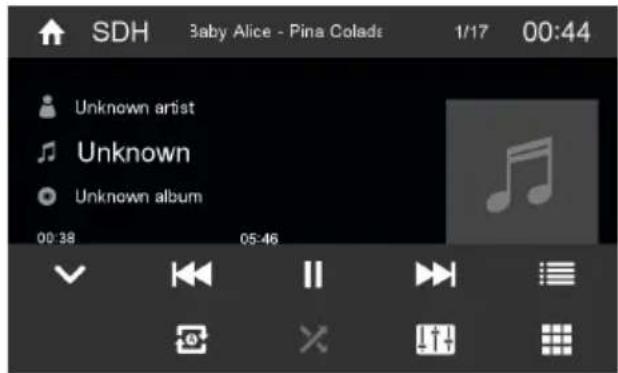
Audio playback from DVD/CD, USB, microSDHC
The principles of the audio playback (MP3/WMA) from data carriers are identical for all sources.
Select the desired source via the main menu.
The device changes to the desired source and the playback starts.
If the playback does not start with the audio playback,
press the [ ] button to change to the folder/file list.
Press the I button to display all the folders and files of the data carrier.
-Or-
Press the [ ] button to display all the audio files of the data carrier.
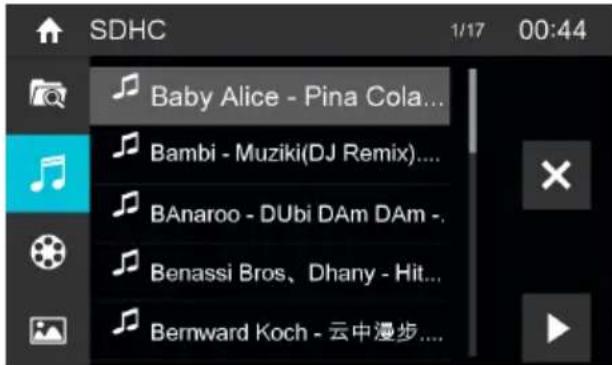
Briefly tap twice (double-click) on the name of the folder/track. The folder is opened/the track is started. After starting a title, the playback menu is displayed.

[ ]short press: Title selection. Long press: Fast searching.
Interrupt playback and continue playback.
[ ] Short press: Title selection. Long press: Fast searching.
[ ] Display the folder/file list.
[ ] Show additional operating options.
Tapon[ todisplay additional operating options of the playback menu.
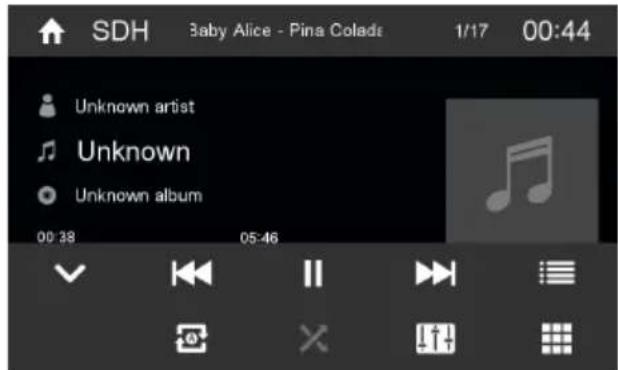
[ ] Hide additional operating options.
[ ] Display keypad to directly enter the number of the desired title.
Audio playback from DVD/CD, USB or microSDHC:
[ ] Start and end REPEAT function.
The REPEAT mode changes each time the
[ ] button is pressed.
Repeat single: Play the current single repeatedly.
Repeat folder: Play the current folder repeatedly.
[ ] Repeat off: Cancel repeat play.
[X] Start MIX random track play and end it again.
If the MIX function is switched on, the symbol is displayed in white.
The MIX mode depends on the selected REPEAT function.
[14] Display equalizer.
Video playback from DVD/CD, USB or microSDHC
- Select the desired source via the main menu.
The device changes to the desired source and the playback starts.
If the playback does not start with the video playback,
press the [ ] button to change to the folder/file list.
Press the [ button to display all the folders and files of the data carrier.
-Or
Press the [ button to display all the video files of the data carrier.
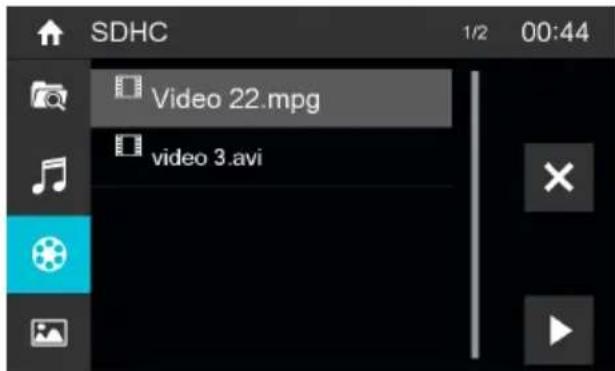

Note:
Folders and videos are selected and started as described under audio playback.
If you selected a movie, the playback is started. During the movie playback, the playback menu is hidden.
Briefly touch the touchscreen once to display the playback menu again.
The playback menu is shown.

[ ] Select previous movie.
Interrupt playback and continue playback.
[1] Select next movie.
[ ] Call up keypad for direct selection of movie or playing time.
[ ] Display the folder/file list.
[ ] Show additional operating options.
Tap on [ ] to display additional operating options of the playback menu.
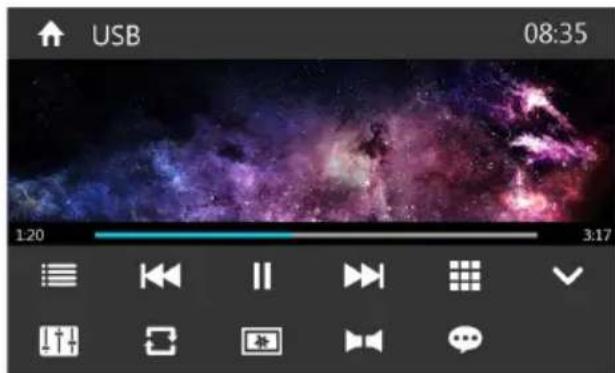
Hide additional operating options.
[ ] Display equalizer.
Switch repeat function for movie or folder on/off.
[ ] Adjust image.
[ ] Select playback language (only if supported by the movie).
[ ] Show subtitles (only if supported by the movie).
Image playback from DVD/CD, USB or microSDHC
- Select the desired source via the main menu.
The device changes to the desired source and the playback starts.
If the playback does not start with the image playback,
press the [ button to change to the folder/file list.
Press the [ button to display all the folders and files of the data carrier.
-Or-
Press the [ button to display all the images of the data carrier.
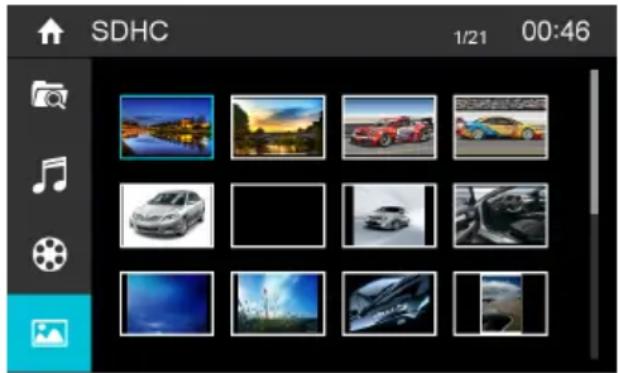
Note:
Folders and images are selected and started as described under audio playback.
Bluetooth mode
The Bluetooth® function allows registering cell phones and media playback devices with the car sound system.
When you register a cell phone with the car sound system, you can make phone calls with the built-in hands-free function. You can access the lists of dialled numbers and the phone book of the registered cell phone.
If the connected Bluetooth device supports the functions A2DP and AVRCP, you can play the music via the car sound system and control the playback. During a call, the music playback is interrupted and continued again after the call.
If a cell phone is registered via Bluetooth® and a call is received during the playback of another source, the source playback is interrupted and the call menu is displayed.
Starting Bluetooth mode
In the main menu, press on [Bluetooth].
The Bluetooth® menu is displayed. It contains the list of known Bluetooth® devices. Other audio sources are switched off.

[ Add new Bluetooth device.
[ ] Display options menu.
Press the [Connect] button of the Bluetooth device with which you want to establish a connection.
When the device is in range, the connection is established and the menu for the device is displayed.
Press the [Delete] button if you want to delete the Bluetooth device from the list.
Registering Bluetooth devices
If you want to register a device with the car sound system for the first time, proceed as follows:
Ensure that Bluetooth® is activated at the car sound system and at your Bluetooth® device.
In the options menu of the Bluetooth mode, enter a pairing code (see Bluetooth settings).
Search for new devices/connections on your Bluetooth device.
The car sound system appears as "BLAUPUNKT" in the list of Bluetooth® devices.
Establish the connection; you may have to enter the pairing code that was previously entered on the car sound system.
The connection is being established and the menu for the registered device is displayed.
Note:
If a telephone is connected with the car sound system, the Bluetooth® icon is displayed at the top right edge of the display in all audio/video sources.
Telephone mode
If you connected a phone with the car sound system via Bluetooth, the following menu appears.
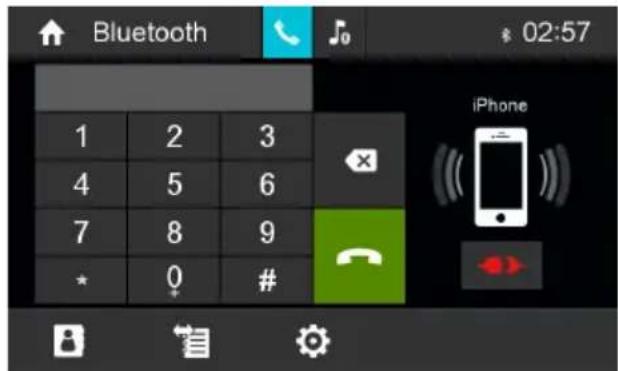
Display the phone menu.
[ ] Display the playback menu for Bluetooth® streaming.
[ ] Disconnect connection with current device.
[ ] Call up the phone book.
[省]Callup caller lists.
[ ] Display options menu.
Enter a phone number with the keypad and press the [ ] button.
-Or-
- Select a contact/number via the caller lists or phone book and press the [Dial] button in the pop-up window.
The connection is being established. If a call is coming in, the call menu is displayed.
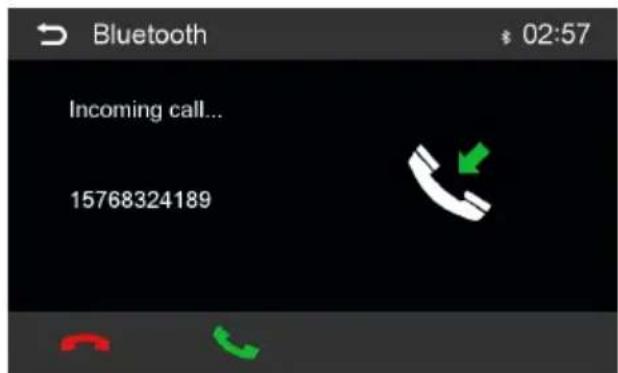
[ hang up): Reject a call.
Alphabetic search
Press [B] on the left bottom of the screen to access Phonebook. If you want to search a contact, press [Q] and enter the characters via the keypad.
Audio playback via Bluetooth streaming
If an audio streaming device is connected with the car sound system via Bluetooth, you can play back the music via the car sound system and control the playback.
Press the button to change to the audio playback.
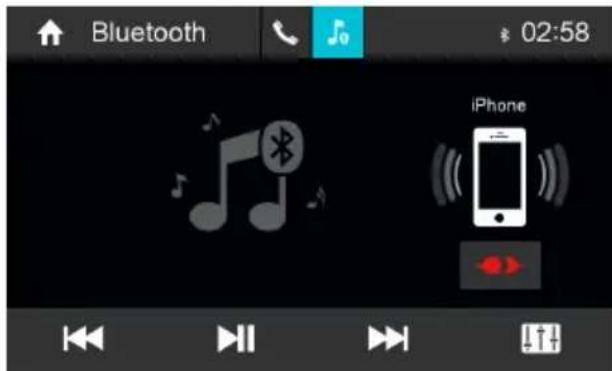
Display the phone menu.
[ ] Display the playback menu for Bluetooth® streaming.
[ ] Disconnect connection with current device.
[ ] Short press: Title selection. Long press: Fast searching.
[II/▶] Interrupt playback and continue playback.
[ ] Short press: Title selection. Long press: Fast searching.
[ ] Display equalizer.
Bluetooth settings
In the options menu for Bluetooth, you can make the basic settings for the Bluetooth mode.
Press the [ ] button.
The options menu is displayed.

Bluetooth - Bluetooth® can be switched on or off.
Auto connect - If "Auto Connect" is activated, the device automatically connects with known Bluetooth® devices as soon as they are in range.
Auto answer - If "Auto Answer" is activated, incoming phone calls are automatically answered.
Pairing code - Many Bluetooth® devices request the pairing code before establishing the connection. You can define it here.
Phone book sync - To be able to access the phone book of a connected telephone, you must first synchronise it via this menu entry.
Press [ ] to exit the options menu.
DAB mode(only for models with DAB)
The function allows you to receive the DAB stations.
Starting DAB mode
In the main menu, press on [DAB].
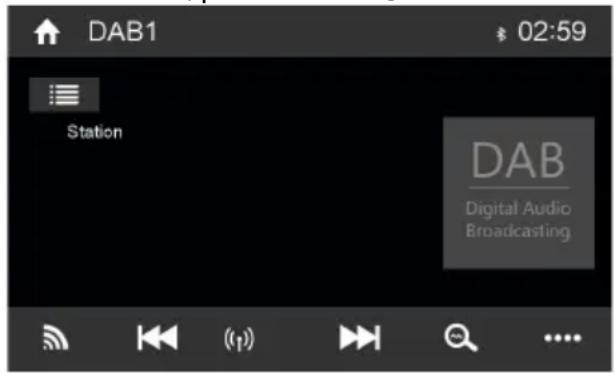
[ Select DAB band from DAB1, 2 and 3.
[ ] Short press: Manual tune backward. Long press: Auto tune backward.
[1] Select search mode.
[ ] Short press: Manual tune forward. Long press: Auto tune forward.
[ ] Store stations automatically.
[ ] Show additional operating options.

[ ] Hide additional operating options.
[ ]Turn on/o L-Band.
[ ] Search all service available.
[PTY] Search service by Programme Type.
[TA] Turn on/off Traffic Announcement.
[DAB-FM]Turn on/o DAB-FM.
[ ] Display equalizer.
External audio/video sources
AV inputs
This device features two external AV inputs for audio and video playback. The 1st AV-IN input is located under the cover at the front of the device below the rotary knob and the second at the rear of the radio.
Danger!
Increased risk of injury from connector.
In case of an accident, the protruding connector in the front AV-IN socket may cause injuries. The use of straight plugs or adapters leads to an increased risk of injury.
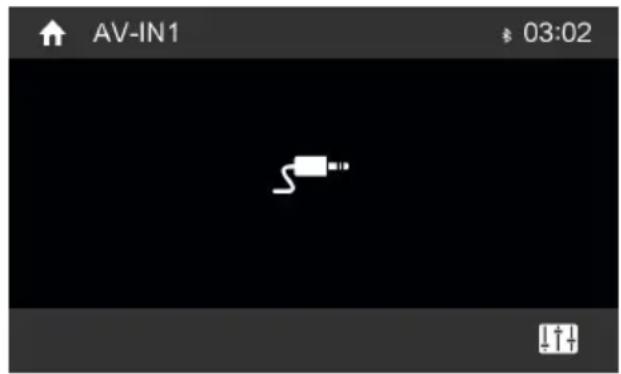
Start the AV-IN mode with the button [AV-IN 1] / [AV-IN 2].
The display shows the audio or video playback of the selected AV source.
Rear Camera input
This device features a video input at the rear of the device for connecting a camera that is available as an option. If a rear camera is connected, the image is displayed on the screen, when the rear gear is engaged.
External monitor
This device features an output for connecting an external monitor for passengers in the rear (see Connection diagram at the end of these instructions).
Select the desired source via the main menu and start movie playback.
The movie is displayed on the monitor of the device.
Turn the Video out on with icon "Rear Zone".
The film is also displayed on the external monitor.
Sound settings
Equalizer
You can adjust the equalizer for all sources.
Press the [ ] icon on the main menu, or press [ ] on the control bar of the current audio source.
The equalizer menu is displayed.
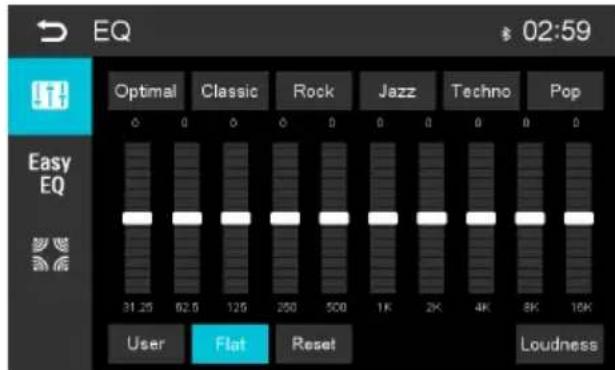
- Select a preset equalizer via the buttons.
-Or
Press the [User] button to adjust the level of the available frequency bands according to your preferences.
Note:
With the [Reset] button, you can reset the customised setting again.
-Or-
Press the [Flat] button for a linear sound playback.
Press the [Loudness] button to switch increasing the bass at low volume on or off.
Next, press [ ]
The setting is stored, the current source is displayed again.
Volume distribution (fader/balance)
You can adjust the volume distribution in the vehicle for all sources.
Press the [ ] button in EQ menu.
The menu for fader and balance is displayed.
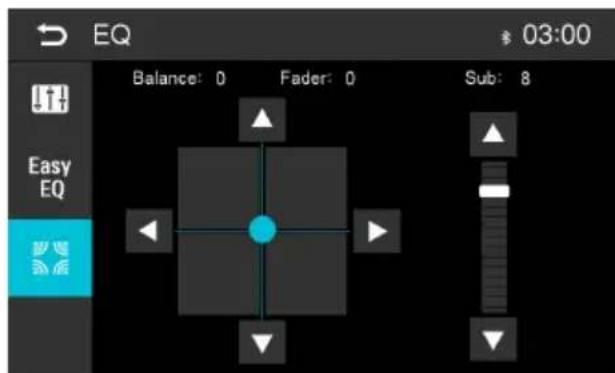
Adjust fader and balance with [ ] / [ ] or [ ] / [ ]
Next, press [ ]
The setting is stored, the current source is displayed again.
Steering wheel control
Select [SWC] on the manin menu to enter SWC setting menu.
Touch number button to select a SWC button.
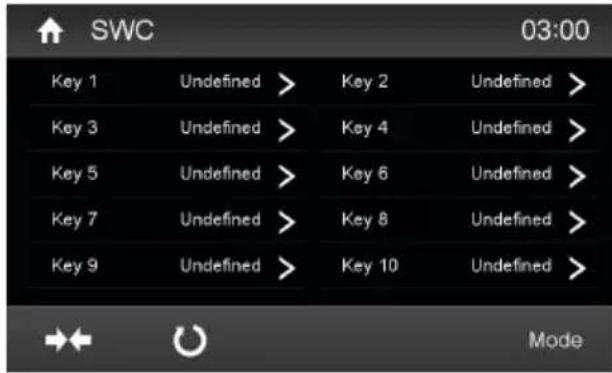
Select a function.
Press each individual steering wheel control button for each corresponding function.
Touch [program.
Once the final steering wheel control button is programmed, the functions are saved and the programming will end.
Touch [T]o reset he programming.
Basic settings
In the settings menu, you can adjust the basic settings for the different functions of the device to your requirements.
In the main menu, press the [Settings] button.
The settings menu is displayed, the General submenu is activated.
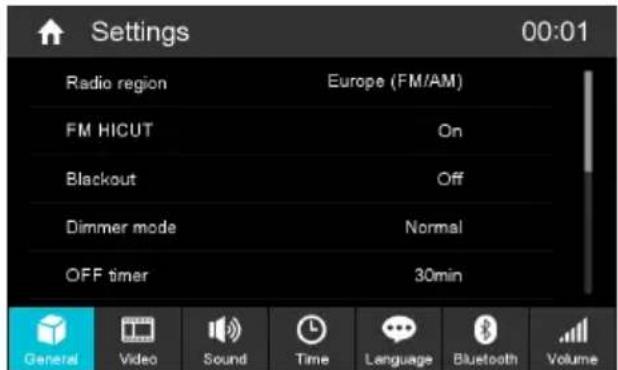
Call up the submenus with the buttons in the lower area of the settings menu.
General
The following settings are possible:
Radio region - Select the reception region for the radio reception.
FM HICUT - Turn on the function to enhance the signal of FM.
Blackout - If this value is set, the display of the radio is completely switched off after 10 or 20 sec. without use.
Dimmer mode - Adjust the display brightness
OFF timer - Set the switch-off time. To protect the vehicle battery, the device is automatically switched off after the set time period if the vehicle ignition is switched off.
Beep - Switch confirmation beep on/off
TFT calibration - The touchscreen can be calibrated here.
Software version - Show the version of software
RGB - Set the backlight color of the buttons.
UI Color - Select the UI color of the main menu.
Load factory settings - Resets all personalised settings.
Video
The following settings are possible:
Set password - Define a password if you want to use the parental controls.
Rating level - The rating of DVDs can be defined here.
If set to "Adult", all movies can be played back. If a password was configured, the rating level can be changed only with the password.
Video out - Switch the rear seat monitor on/off.
Aspect ratio - Adjust the aspect ratio
Sound
The following settings are possible:
Subwoofer - Switch subwoofer on/off
Subwoofer filter - Make the setting according to the subwoofer used (settings: 80/120/160 Hz).
Dynamic sound - Switch dynamic bass on/off.
Time
The following settings are possible:
Date - Set the date
Clock mode - Selection between 12 and 24-h mode
Time - Set the time
Auto clock - Activating/deactivating automatic time via RDS.
Language
The following settings are possible:
OSD - Language for the user interface of the device.
DVD audio - The audio playback of DVDs is started in the language defined here.
DVD subtitle - The subtitles of DVDs are shown in the language defined here.
DVD menu - The DVD menu is displayed in the language defined here.
Bluetooth
The following settings are possible:
Bluetooth - Bluetooth® can be switched on or off.
Auto connect - If "Auto Connect" is activated, the device automatically connects with known Bluetooth devices as soon as they are in range.
Auto answer - Phone calls from connected telephones are automatically answered if this option is enabled.
Pairing code - Many Bluetooth® devices request the pairing code before establishing the connection. You can define it here.
Microphone - Select the microphone to be used for the hands-free system via Bluetooth.
Volume
You can adjust the volume ratio for all audio sources in the volume menu.
Useful information
Warranty
We provide a manufacturer's warranty for products bought within the European Union. For devices purchased outside the European Union, the warranty terms issued by our respective responsible domestic agency are valid.
Subject to technical changes!
This item incorporates copy protection technology that is protected by U.S. patents and other intellectual property rights of Rovi Corporation. Reverse engineering and disassembly are prohibited.
Windows® und Windows Media® are registered trademarks of the Microsoft Corporation in the U.S.A. and/or other countries.
This product is protected by certain intellectual property rights of Microsoft. Use or distribution of such technology outside of this product is prohibited without a license from Microsoft.
The Bluetooth® word mark and logos are registered trademarks owned by Bluetooth SIG, Inc.
Manufactured under license from Dolby Laboratories.
"Dolby" and the double-D symbol are trademarks of Dolby Laboratories.
1 Tlačítko HOME
Scanning after stationer
[ ] is folder/filliste.
[……] Viser supplerende betjeningsmuligheder.
Klik [ ]... for at vise supplendere betjeningsmuligheder fra afspilningsmenuen.
Produceret under licenses fra Dolby Laboratories.
Confirmer la selection
- Bouton MENU
Ouvrir le menu DVD
Activation/désactivation du RDS
Lecture audio via Bluetooth streaming
Montage-instructions
Voer de frequently direct in
[ Werberg extra opties.



- MIX BUTTON
- SAFETY NOTES
- SYMBOLS USED
- DANGER
- CAUTION
- ROAD SAFETY
- GENERAL SAFETY NOTES
- USE AS DIRECTED
- INSTALLATION INSTRUCTIONS
- DECLARATION OF CONFORMITY
- CLEANING NOTES
- DISPOSAL NOTES
- WARNING
- SCOPE OF DELIVERY
- PLACING THE DEVICE IN OPERATION
- TRANSPORT SECURING SCREWS
- SWITCHING ON/OFF
- SWITCHING ON/OFF WITH THE ROTARY/PUSHBUTTON
- SWITCHING ON/OFF VIA VEHICLE IGNITION
- VOLUME
- ADJUSTING THE VOLUME
- MUTING THE CAR SOUND SYSTEM (MUTE)
- MAIN MENU(HOME)
- NOTE
- SETTING THE RECEPTION AREA
- RADIO MODE
- START RADIO MODE
- SELECT MEMORY BANK
- TUNING INTO A STATION
- TUNING INTO STATIONS MANUALLY
- ENTER BROADCAST FREQUENCY DIRECTLY
- STARTING STATION SEEK TUNING
- STORING STATIONS MANUALLY
- STORING STATIONS AUTOMATICALLY (TRAVELSTORE)
- SCANNING STATIONS
- ADJUSTING THE SEEK TUNING SENSITIVITY
- SWITCHING RDS ON/OFF
- SWITCHING THE REG (REGIONAL PROGRAMMES) FUNCTION ON/OFF
- SWITCHING THE AF (ALTERNATIVE FREQUENCIES) FUNCTION ON/OFF
- SELECTING THE PROGRAMME TYPE AND STARTING SEEK TUNING
- SWITCHING PRIORITY FOR TRAFFIC ANNOUNCEMENTS ON/OFF
- NAVIGATION
- INSERTION OF NAVIGATION MICROSD
- DVD/CD/USB/MICROSDHC PLAYBACK
- BASIC INFORMATION
- NOTES
- DVD/CD MODE
- INSERTING A DVD/CD
- RISK OF SEVERE DAMAGE TO THE DVD/CD DRIVE
- EJECTING A DVD/CD
- USB DATA CARRIER
- CONNECTING A USB DATA CARRIER
- REMOVING THE USB DATA CARRIER
- MICROSDHC CARDS
- INSERTING THE MICROSDHC CARD
- REMOVING THE MICROSDHC CARD
- DVD MOVIE PLAYBACK
- AUDIO PLAYBACK FROM DVD/CD, USB, MICROSDHC
- AUDIO PLAYBACK FROM DVD/CD, USB OR MICROSDHC
- VIDEO PLAYBACK FROM DVD/CD, USB OR MICROSDHC
- IMAGE PLAYBACK FROM DVD/CD, USB OR MICROSDHC
- BLUETOOTH MODE
- STARTING BLUETOOTH MODE
- REGISTERING BLUETOOTH DEVICES
- TELEPHONE MODE
- ALPHABETIC SEARCH
- AUDIO PLAYBACK VIA BLUETOOTH STREAMING
- BLUETOOTH SETTINGS
- DAB MODE(ONLY FOR MODELS WITH DAB)
- STARTING DAB MODE
- EXTERNAL AUDIO/VIDEO SOURCES
- AV INPUTS
- INCREASED RISK OF INJURY FROM CONNECTOR
- REAR CAMERA INPUT
- EXTERNAL MONITOR
- SOUND SETTINGS
- EQUALIZER
- VOLUME DISTRIBUTION (FADER/BALANCE)
- STEERING WHEEL CONTROL
- BASIC SETTINGS
- GENERAL
- VIDEO
- SOUND
- TIME
- LANGUAGE
- BLUETOOTH
- USEFUL INFORMATION
- WARRANTY
- SCANNING AFTER STATIONER
- ACTIVATION/DÉSACTIVATION DU RDS
- LECTURE AUDIO VIA BLUETOOTH STREAMING
- MONTAGE-INSTRUCTIONS
- VOER DE FREQUENTLY DIRECT IN
Brand : BLAUPUNKT
Model : Las Vegas 690 DAB
Category : Car radio