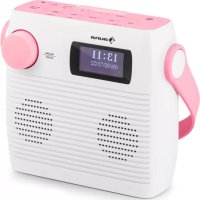
Splash - Radio Auna - Free user manual and instructions
Find the device manual for free Splash Auna in PDF.



| Product Type | CD DAB+ FM Bluetooth Radio with IPX4 Waterproofing |
| Power Supply | 5V 1A mains adapter (USB Type-C); Non-removable 2000 mAh lithium-ion battery |
| CD Player | CD-DA, CD-R, CD-RW, MP3, WMA |
| USB Port | Plays MP3 and WMA files, up to 32 GB, USB 1.1/2.0 |
| FM Radio | 87.5 - 108 MHz, 20 presettable stations |
| DAB+ Radio | 174 - 240 MHz, 20 presettable stations |
| Bluetooth | Range 2402-2480 MHz, range up to 8 m, A2DP and AVRCP profiles |
| Audio Power | 2 x 1 W RMS |
| Waterproof Rating | IPX4 (protected against water splashes) |
| Alarm and Timer | Programmable alarm, auto-off (SLEEP) from 5 to 120 minutes |
| Display | LCD screen with backlight |
| Input/Output | 3.5 mm headphone jack, USB Type-C port, USB-A port |
| CD Playback Modes | Repeat one track, repeat all, random playback, playlist creation (20 CD tracks / 99 MP3 tracks) |
| DAB+ Search | Automatic and manual, dynamic range compression (DRC), removal of unavailable stations |
| FM Search | Automatic (SCAN) and manual, search setting (all stations / strong only), forced mono switch |
| Direct Memories | 2 preset buttons (①, ②) and memory list for 20 stations |
| Menu Languages | Multiple languages available (selectable in system) |
| Reset | Possible via menu (deletes all saved stations) |
| Cleaning | With a dry cloth only |
| Included Accessories | USB Type-C cable, remote control (with button cell) |
Frequently Asked Questions - Splash Auna
User questions about Splash Auna
0 question about this device. Answer the ones you know or ask your own.
Ask a new question about this device
Download the instructions for your Radio in PDF format for free! Find your manual Splash - Auna and take your electronic device back in hand. On this page are published all the documents necessary for the use of your device. Splash by Auna.
USER MANUAL Splash Auna
DLS (Dynamic Label Segment)
Member of Berlin Brands Group
Handwerkerstr. 11
15366 Dahlwitz-Hoppegarten
Deutschland
Berlin Brands Group UK Limited PO Box 42
272 Kensington High Street
London, W8 6ND
United Kingdom
Congratulations on purchasing this device. Please read the following instructions carefully and follow them to prevent possible damages. We assume no liability for damage caused by disregard of the instructions and improper use. Scan the QR code to get access to the latest user manual and more product information.
CONTENTS
Technical Data 26
Safety Instructions 27
Product Description 30
Getting started 32
CD Operation 33
USB operation 35
DAB+ Operation 36
FM Operation 39
Setting Alarms and Timers 41
BT Operation 43
Disposal Considerations 44
Declaration of Conformity 44
TECHNICAL DATA
Item number
10037795, 10037796, 10037797
Power supply
Main unit DC
5V = (1A)
Built-in battery (DC)
Lithium-ion rechargeable battery (2000 mAh)
CD player
CD-DA / CD-R / CD-RW / MP3 / WMA
USB input
Playing MP3 and WMA files
FM radio
Tuning range 87.5 MHz-108 MHz
Presets 20
DAB radio
Tuning range 174 MHz-240 MHz
Presents 20
BT
Frequency range 2402-2480 MHz
Radio-frequency power -6.81 dBm (EIRP)
RMS power
2×1W RMS
SAFETY INSTRUCTIONS
Explanation of the symbols on the appliance
| CAUTION RISK OF ELECTRIC SHOCK DO NOT OPEN |
WARNING: TO REDUCE THE RISK OF ELECTRIC SHOCK; DO NOT REMOVE THE COVER OR BACK. NO USER-SERVICEABLE PARTS INSIDE: REFER SERVICING TO QUALIFIED PERSONNEL.
| 4 | The lightning symbol is intended to alert you to the presence of uninsulated, dangerous voltage within this product's enclosure that might be of sufficient magnitude to constitute a risk of electric shock. Do not open the product case. |
| ! | The exclamation symbol is intended to inform you that important operating and maintenance instructions are included in the literature accompanying this product. |
Children over the age of 8 and persons with reduced physical, sensory or mental capabilities or those with a lack of experience and knowledge may only use the device if they are instructed on how to do so by a person responsible for their safety, or if they are supervised and understand the hazards associated with the use of the device.
If the mains cord is damaged, you must have it replaced by supplier, or a service centre or similarly qualified persons in order to avoid a hazard.
On protection against laser energy exposure
- As the laser beam used in this compact disc player is harmful to the eyes, do not attempt to disassemble the casing.
- Stop operation immediately if any liquid or solid object should fall into the cabinet.
- Do not touch the lens or poke at it. If you do, you may damage the lens and the player may not operate properly.
- Do not put anything in the safety slot. If you do, the laser diode will be "ON" when the CD door is still open.
- If the unit is not to be used for a long period of time, make sure that the power source is disconnected from the unit. Unplug the AC cord from the wall outlet. Make it a practice to remove the AC cord by grasping the main body and not by pulling the cord.
-
This unit employs a laser. The use of controls or adjustment or performance of procedures other than those specified here may result in exposure to hazardous radiation.
-
Read, heed and retain these instructions - All the safety and operating instructions should be read before this product is used and retained for future reference. All warnings on the appliance and in the operating instructions should be followed
- Failure to install or use the product in accordance with these instructions may impair the safety of the product and invalid the warranty.
- Use only power supply listed in these user manual/user instructions to power the equipment and do not use the power supply for any other purpose.
- The direct plug-in adapter is used as a disconnect device, the disconnect device shall remain readily operable and accessible.
- Do not immerse the power-connected appliance in water.
- Do not remove screws from or open the product casing. Product repairs are only to be carried out by competent and authorised personnel. Do not use the product if any damage is noticed.
- Keep the product away direct sunlight and from heat sources such as radiators, heaters or other appliances that produce heat.
- Remote Control - Danger of explosion if the battery is incorrectly replaced (ensure correct polarity). Replace only with the same or equivalent type. The battery shall not be exposed to excessive heat such as sunshine, fire or similar. Attention is drawn to the environmental aspects of battery disposal.
- Warning - DO NOT INGEST BATTERY, CHEMICAL BURN HAZARD - The remote control supplied with this product contains a coin/burner cell battery. If the battery is swallowed, it can cause internal burns in just 2 hours and can lead to death. Keep new and used batteries away from children.
- Do not expose the product to naked flame sources, such lighted candles which should not be placed on or near the product.
- Ventilation should not be impaired by covering the product or power supply.
- Clean only with a dry cloth.
- This product is intended for use in moderate climates.
On waterproof performance of the this product
The water resistant specifications of this product are equivalent to IPX4 in IEC 60529 "Degrees of protection against ingress of water (IP Code)", which specifies the degree of protection provided against the entry of water. The this product cannot be used in water.
Unless the unit is used correctly, water may get into the this product and cause fire, electrocution, or malfunctions. Note the following cautions carefully and use the product correctly.
IPX4: Protected against water splashing from any direction.
Liquids that the water resistant performance specifications apply to:
Applicable: fresh water, tap water
- Not applicable: liquids other than those above (examples: soapy water, detergent water, water with bath agents, shampoo, hot spring water, pool water, seawater, etc.)
The water resistant performance is based on measurements performed under the conditions described above. Note that malfunctions resulting from water immersion caused by customer misuse are not covered by the warranty.
To maintain water resistant performance
Carefully note the precautions below to ensure proper use.
- Do not splash water forcibly into the sound output holes.
- Do not fall into the water, and do not use underwater.
- Do not allow the this product to remain wet in a cold environment, as the water may freeze. To prevent malfunction, make sure to wipe off any water after use.
- Do not place the this product in water or use it in a humid place such as a bathroom.
- Do not drop expose it to mechanical shock. Doing so may deform or damage the this product, resulting in deterioration of water resistance performance.
- Use a soft dry cloth to wipe off any water that gets on the this product. If water remains in the speaker output holes, the speaker may become muffled or completely inaudible. If this happens, position the Speaker holes facing downward, and shake several times to get the water out.
PRODUCT DESCRIPTION
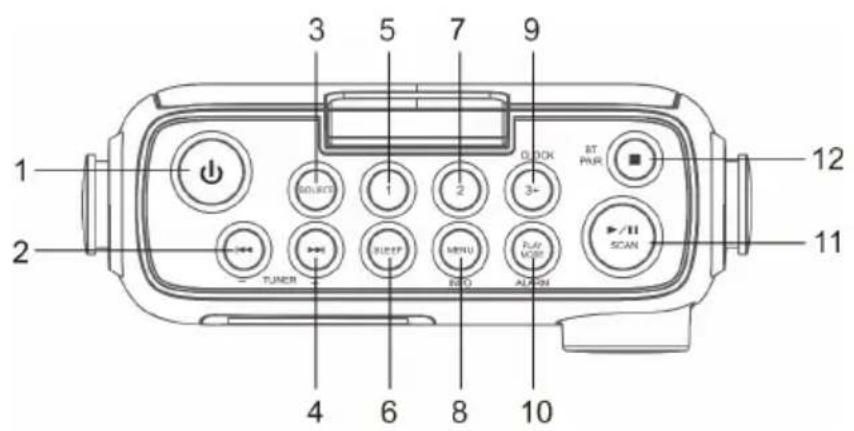
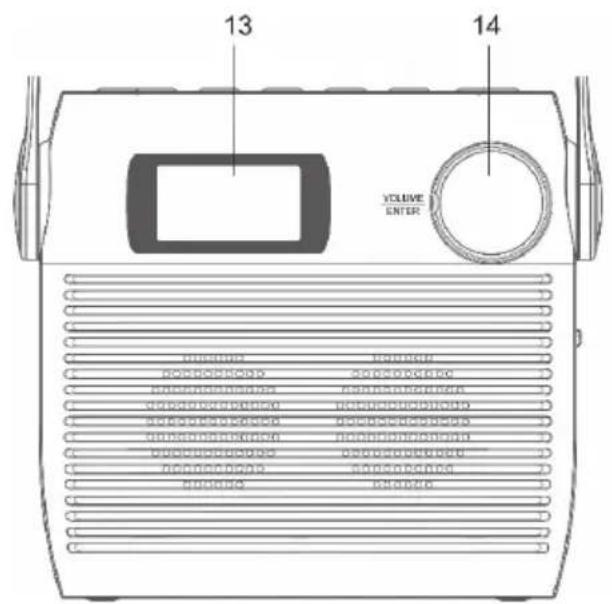
1 STANDBY button
2 CD/BT SKIP PREVIOUS/TUNE- button
3 SOURCE BUTTON
4 CD/BT SKIP NEXT/TUNE+ button
5 PRESET1button
6 SLEEP button
7 PRESET 2 button
8 MENU/INFO button
9 Clock set/preset 3+ button
10 Play mode /alarm set buttonN
11 CD/BLUETOOTH PLAY/PAUSE/DAB/FM SCAN BUTTON
12 CD STOP button/ BT PAIR BUTTON
13 LCD display
14 Volume control knob /snoopze/enter button
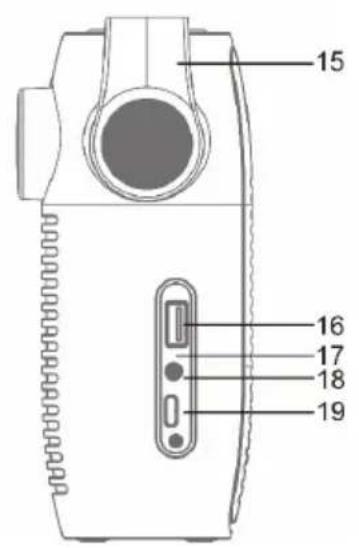
15 Carrying handle
16 USB jack
17 Charge indicator
18 3.5mm headphone jack
19 Type-C jack
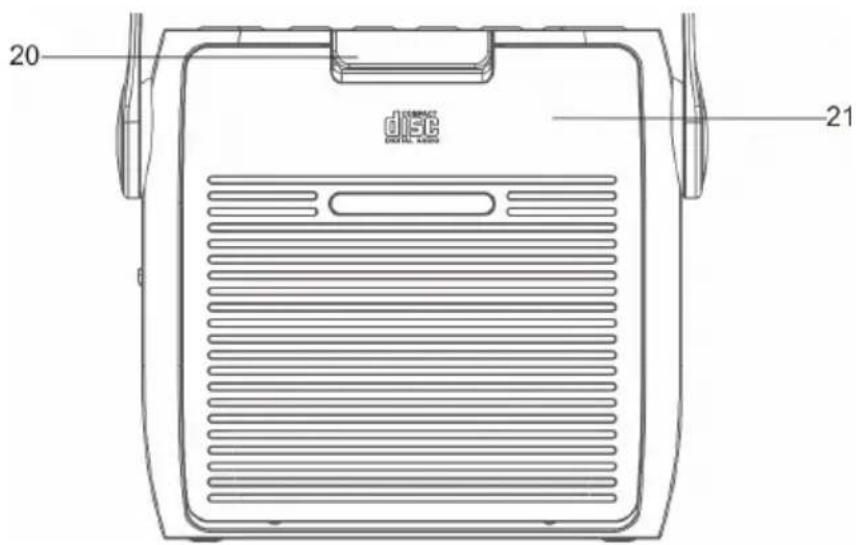
20 CD door lock
21 CD door
GETTING STARTED
- Connect the Type-C cable to the Type-C port.
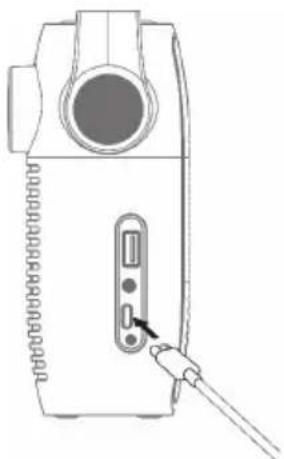
-
Connect the other end of the Type-C cable to a power outlet, using a USB power adapter. You can also charge the battery by connecting Type-C cable to a computer's USB port. The charging indicator shows the battery charging.
-
Press the POWER button to turn on the unit. To turn off, Press the Power button again.
Before you switch on for the first time, charge the battery for at least 3 hours.
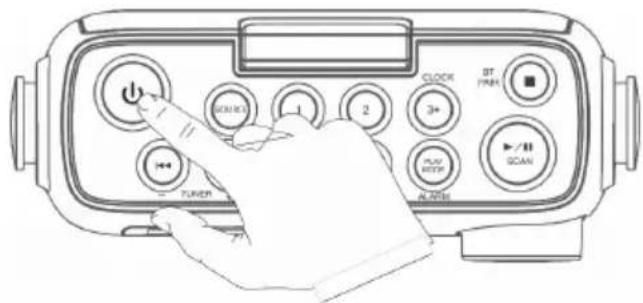
- Press and hold the POWER Button for 3 seconds or Power 'off'.
Adjusting and muting the volume
Turn the Volume dial to increase or decrease the volume
CD OPERATION
Press the SOURCE button repeatedly on the unit
Inserting a CD
While the Secpress the fuselage, to remove the CD door-lock lever, opening the CD door, CD is set to the CD applied part with the printing aspect as forward.
- Place an audio CD on the center spindle with its label side facing out.
- Please insert CD to the axis securely.

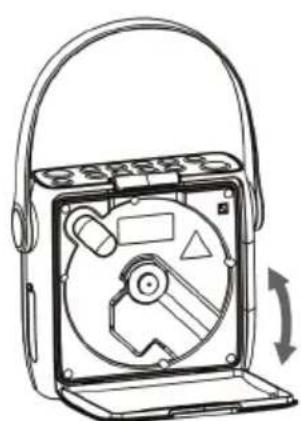
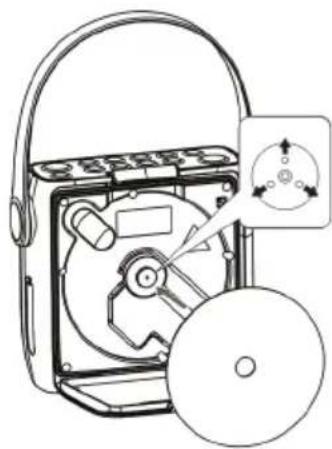
- Unit starts to read the disc, "CD READING" shows in display. After few seconds, the total number of tracks show one second and then total time of the CD will be shown on the LCD DISPLAY
- If there is no disc or the disc can't be read, "NO DISC" will show on the display.
To pause playback
- Press the button to pause the playback.
- To resume playback, press the button again.
To stop playback
Press the button to stop playback.
Skipping to another track
-
Press the or buttons to skip backwards to the beginning of the track or previous track or skip forwards to the next track.
-
Press and hold the or buttons to perform fast forward/reverse playback.
Repeat playback
- During playback mode, press the PLAY MODE button ① will show on the display. The CD will play the current track repeatedly.
- Press the PLAY MODE button twice, will show on the display. The CD will play all tracks repeatedly.
- Press the PLAY MODE button once more again, The indicator will show on the display. All tracks will be played randomly. Press the or buttons to playback the next random track.
- Press the PLAY MODE button once more again, the RANDOM function will turn off.
Programme setting
User can program up to 20 tracks in CD mode or 99 tracks in MP3 in any desired order. Program mode is activated while in STOP mode.
- Press the PLAY MODE button to enter program mode.
- Press the or buttons to select the track that you want to preset.
- Press the PLAY MODE button to confirm the track.
- Repeat steps 2-3 to program more tracks. Once it is completed, press the button to start playback of the programmed tracks.
Programme cancel
To cancel the program, press the button twice, or open the disk tray and then close it again.
USB OPERATION
- There is an USB socket located at the front of the unit. When a USB device is connected to the unit, press the SOURCE button select USB mode.
- The unit will automatically display the total number of tracks.
- All playback features are the same as if you were playing an MP3 CD.
Notes
- The unit can only play MP3 file format in USB operation.
- If your USB device is loaded with MP3's but the display keeps showing "NO" on the display, the format of your USB device might not be compatible with the unit.
This unit supports USB versions 1.1 and 2.0. - The unit can support USB devices with up to 32GB of memory.
- The unit may not be compatible with all USB devices and memory cards, this is not an indication of a problem with the unit.
DAB+ OPERATION
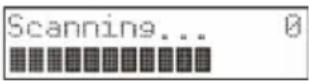
Full scan
- To activate auto scan, press the SCAN button and the display will show "Scanning ..." and a progressing slide bar.
- All the stations that have been found will be stored automatically. To explore and listen to the found stations, press the or buttons to select. Then press the ENTER button confirm into stations.
Manual Tuning
As well as the auto tune function, you can manually tune the receiver.
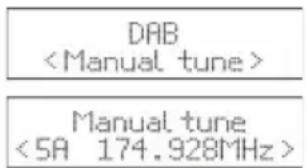
- Press the MENU button to display the menu.
- Press or buttons select 'select MANUAL TUNE' then press the ENTER button to confirm.
- Press the or buttons to cycle through the DAB+ channels, which are numbered from 5A to 13F.
- After your desired channel number is selected, press the ENTER button to confirm. The display will show the multiplex. Press the MENU button again to add selected channel to station list.
DRC (Dynamic compression)
- Press the MENU button to display the menu.
- Press the or buttons to select "DRC" and then press the ENTER button to confirm DRC menu.
- Press the or to select off / high / low.
- Press the ENTER button to confirm.
Prune
You may remove all unavailable stations from the list
- During DAB mode, press the MENU button to display the menu.
- Press the or buttons to select "Prune" and then press the ENTER button to confirm.
- Press the or to select <Prune> , and then press the ENTER button to delete the unavailable stations.
- You can press the or to select <NO> , and then press the ENTER button to cancel.
Software information
- In DAB mode, press and hold the MENU button to display the menu.
- Press the or buttons to select "SYSTEM" and then press the ENTER button to confirm.
- Press the or buttons to select "SW version".
-
Press the ENTER button to display the software version.
-
Press the MENU button to exit.
Language selection
In DAB or FM mode press the menu button, select with the or buttons or "SYSTEM" and press enter to confirm then select language" and choose the desired language from English/Danish/Dutch/French/German/Polish/Italian/Spanish.
System reset
This setting will restore the factory default settings of the unit. Press and hold the MENU button, press the or buttons select "SYSTEM".
- Press the or buttons select "Factory Reset" menu.
- Press the ENTER button to select Reset.
Note: After the system reset, all the tuned stations, FM/DAB+ preset stations will be erased.
Secondary Devices
You may see a >'' symbol after the name of the station, this indicates that there are secondary services available to that station. These secondary services contain extra services that are related to the primary station. e.g. a sports station may want to add extra commentaries. The secondary services are inserted directly after the primary station in the station list.
To select the secondary station, press the MENU button when >'' appears in the display before the station name. When the secondary service ends, the unit will automatically switch back to the primary station.
Preset stations
You can store up to 20 DAB radio and 20 FM radio stations for quick access.
To quick-store a station to a preset button (1-2)
Tune to the DAB or FM radio station you want to store. Press and hold one of the numbered Preset buttons (1-2) for two seconds until you see a message to confirm that the preset has been stored.
To store a station to the preset list (3-20)
- Tune to the DAB or FM radio station you want to store.
- Hold the 3+ button to view the numerical list of stored presets, then turn and press the Select dial to choose any Preset number between 3 and 20. You can overwrite existing presets.
To recall a preset when listening to DAB radio or FM radio
- To tune to Presets 1 to 2, press the corresponding numbered button on the front panel.
- To access presets 3 to 20 on the front panel press the 3+ button, turn the Select dial right or left to scroll through the list of presets, then push and release the Select dial to tune to the selected preset.
DAB Display modes
Press the INFO button, the display will switch through the following display modes. The information of each display mode is displayed on the lower segment of the display.
Signal strength
The display will show a slide bar to indicate the signal strength, the stronger the signal, the longer the bar will be from left to right.
Programme type
This describes the "style" or "genre" of the programme that is being broadcast.
Ensemble
This displays the name of the multiplex that contains the station you are listening to. A multiplex is a collection of radio stations that are bundled and transmitted on one frequency. There are national and local multiplexes. Local ones contain stations that are specific to that area.
Note: DAB – unlike normal radio, groups together several radio stations and transmits them on one frequency.
Frequency
This displays the frequency of the present station, such as "11C 220.352 MHz".
Signal Error
This displays a number showing the error rate. If the number is 0, it means the signal received is error free and the signal strength is strong. If the error rate is high, it is recommended to re-orient the aerial or re-position the unit.
Audio Bit Rate
The display will show the digital audio bit rate being received.
Time / Date
This displays the current time and date provided automatically by the broadcaster.
DLS (Dynamic Label Segment)
Dynamic label segment is a scrolling message that the broadcaster may include with their transmissions. The message usually includes information, such as program me details etc.
FM OPERATION
To switch the unit to FM mode, press the SOURCE button repeatedly to select FM mode. The display will show the frequency.
Auto scan
Press the SCAN button until the tuner starts searching for a station. After scanning the FM band, the first 20 receivable stations will be stored in the PRESETS.
Manual Scan
To search for FM stations manually, press the or ,buttons repeatedly until your desired frequency is reached.
Scan setting
This is a scanning option to scan all stations, or just scan stations with a strong signal.
- Press the MENU button, then press the or buttons to select "Scan setting". Press the ENTER button to confirm.
- Press the or buttons to select "All stations" or "Strong stations only". Press the ENTER button to confirm.
The asterisk shown at the top right of the display determines the currently selected option.
Audio setting
This unit will automatically switch between stereo and mono mode, but you can override this and switch this function manually. This can be helpful when receiving poor signal reception.
- Press the MENU button, then press the buttons to select "Audio setting". Press the ENTER button to confirm.
- Press the buttons to select "Stereo allowed" or "Forced mono" and then press the ENTER button to confirm.
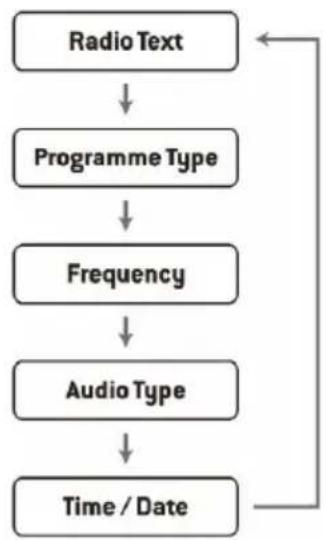
FM display modes
Press the INFO button on the remote control, the display will switch through the display modes.
- Radio text: The broadcaster can include a scrolling text that displays information about the current program.
- Programme type: This describes the "style" or "genre" of the programme that is being broadcast.
Frequency: This displays the frequency of the present station, such as "87.50 MHz".
Audio type:This displays if the station being received is in mono or stereo.
SETTING ALARMS AND TIMERS
Auto clock setting
The clock can be updated automatically if you can receive a DAB+ signal in your location.
Clock setting
- Press the CLOCK button .The data digits flash on the display.
- Press the or buttons to adjust the year digits, and then press the CLOCK button to confirm. The month digits will flash on the display.
- Press the or buttons to adjust the month digits, and then press the CLOCK button to confirm. The day digits will flash on the display.
- Press the or buttons to adjust the day digits, and then press the CLOCK button to confirm. The 12/24H digits will flash on the display.
- Press the or buttons to adjust the 12H/24 digits, and then press the CLOCK button to confirm. The hour digits will flash on the display.
- Press the or buttons to adjust the hour digits, and then press the CLOCK button to confirm. The minute digits will flash on the display.
- Press the or buttons to adjust the minute digits. press the CLOCK button to confirm the setting.
Note: If the unit cannot receive any DAB/DAB+ signal, you can set the clock manually. Once the DAB+ signal is received, the time will be automatically updated.
Setting the alarm
- Press and hold the ALARM button display shows "On Timer", and the hour digits flash.
- Press the or buttons to adjust the hour digits, and then press the ENTER button to confirm. The minute digits will flash on the display.
- Press the or buttons to adjust the minute digits, and then press the ENTER button to confirm.
- When the or On Timer Clock set is set, the display will show "Off Timer" and the hour digits will flash.
- Press the buttons to select FM, USB, DAB or CD mode, then press the ENTER button to confirm.
- Press the ALARM button to select "Timer On", and the Timer is now set.
- In standby mode, the icon will show on the display to indicate the Timer is On.
To cancel the alarm
Press the ALARM button select ALARM Off mode. The indicator will disappear from the display.
Notes
- If "Wake to CD of USB "is selected but a CD of USB is not inserted, the alarm will default to the DAB automatically when the alarm wake time is reached.
- For 'Wake to Radio", the system will default to the last FM radio station listened to before switching off.
Snoopze function
Press the ENTER/SNOOZE Button to temporarily terminate the alarm mode. The SNOOZE icon shows in display, the alarm will re-start again after 9 minutes on each press. To cancel the ENTER/SNOOZE mode, press the button once, the ENTER/SNOOZE icon disappears from display.
Setting the sleep timer
Use the sleep timer to turn the unit off after a certain time in play mode. By setting the sleep timer, you can fall asleep with music by knowing that your unit will turn off by itself rather than playing all night.
- To set the sleep timer press the SLEEP button repeatedly to select the desired sleep timer as below:
$$ 1 2 0 \Rightarrow 6 0 \Rightarrow 3 0 \Rightarrow 2 0 \Rightarrow 1 5 \Rightarrow 1 0 \Rightarrow 0 5 \Rightarrow O F F $$
- The sleep timer is now set.
- Press the SLEEP button to show the reminding time before the unit turn off automatically.
- To cancel the sleep timer, press the SLEEP button repeatedly to select "Sleep OFF".
BT OPERATION
The unit has a Bluetooth function that can receive a signal within 8 meters (without obstacles)
Pairing the unit with a Bluetooth device to listen to music:
- Turn the unit on and press the SOURCE button select Bluetooth mode.
- If the unit is not paired with any Bluetooth device, the display will flash "BT PAIRING"
- Activate your Bluetooth device and select the search mode.
- "Splash" will appear on your Bluetooth device list.
- Select "Splash" and enter "0000" for the password if necessary.
- To disconnect the Bluetooth function, press the SOURCE button to switch to another mode or disconnect the function from your Bluetooth device.
Notes:
- If the signal strength is weak, your Bluetooth receiver may disconnect, but it will re-enter pairing mode automatically.
- For a better signal reception, remove the obstacles between the unit and the Bluetooth device.
- This unit supports A2DP (Advanced Audio Distribution Profile) and AVRCP (Audio Video Remote Control Profile) functions. This can only be paired with one Bluetooth device at one time.
- Compatibility with all devices and media types is not guaranteed.
- Some mobile phones with the Bluetooth function may connect and disconnect as you make and end calls. This is not an indication of a problem with your unit.
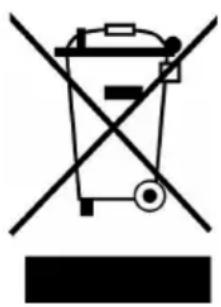
If there is a legal regulation for the disposal of electrical and electronic devices in your country, this symbol on the product or on the packaging indicates that this product must not be disposed of with household waste. Instead, it must be taken to a collection point for the recycling of electrical and electronic equipment. By disposing of it in accordance with the rules, you are protecting the environment and the health of your fellow human beings from negative consequences. For information about the recycling and disposal of this product, please contact your local authority or your household waste disposal service.
This product contains batteries. If there is a legal regulation for the disposal of batteries in your country, the batteries must not be disposed of with household waste. Find out about local regulations for disposing of batteries. By disposing of them in accordance with the rules, you are protecting the environment and the health of your fellow human beings from negative consequences.
DECLARATION OF CONFORMITY
CE UK CA
Manufacturer:
Chal-Tec GmbH, Wallstrasse 16, 10179 Berlin, Germany.
Importer for Great Britain:
Berlin Brands Group UK Limited
PO Box 42
272 Kensington High Street
London, W8 6ND
United Kingdom
Hereby, Chal-Tec GmbH declares that the radio equipment type Splash is in compliance with Directive 2014/53/EU. The full text of the EU declaration of conformity is available at the following internet address: use.berlin/10037797
For Great Britain: Hereby, Chal-Tec GmbH declares that the radio equipment type Splash is in compliance with the relevant statutory requirements. The full text of the declaration of conformity is available at the following internet address: use.berlin/10037797
Cher client, chere clientele,
DLS (Dynamic Label Segment)
Berlin Brands Group UK Limited
PO Box 42
272 Kensington High Street
London, W8 6ND
United Kingdom
Berlin Brands Group UK Limited
PO Box 42
272 Kensington High Street
London, W8 6ND
United Kingdom
DLS (Dynamic Label Segment)
Berlin Brands Group UK Limited
PO Box 42
272 Kensington High Street
London, W8 6ND
United Kingdom
DRC (Dynamic Range Compression)
DLS (Dynamic Label Segment)
Berlin Brands Group UK Limited PO Box 42
272 Kensington High Street
London, W8 6ND
United Kingdom

- DLS (Dynamic Label Segment)
- CONTENTS
- TECHNICAL DATA
- SAFETY INSTRUCTIONS
- On protection against laser energy exposure
- On waterproof performance of the this product
- To maintain water resistant performance
- PRODUCT DESCRIPTION
- GETTING STARTED
- Adjusting and muting the volume
- CD OPERATION
- Inserting a CD
- To pause playback
- To stop playback
- Skipping to another track
- Repeat playback
- Programme setting
- Programme cancel
- USB OPERATION
- Notes
- DAB+ OPERATION
- Full scan
- Manual Tuning
- DRC (Dynamic compression)
- Prune
- Software information
- Language selection
- System reset
- Secondary Devices
- Preset stations
- To quick-store a station to a preset button (1-2)
- To store a station to the preset list (3-20)
- To recall a preset when listening to DAB radio or FM radio
- DAB Display modes
- Signal strength
- Programme type
- Ensemble
- Frequency
- Signal Error
- Audio Bit Rate
- Time / Date
- FM OPERATION
- Auto scan
- Manual Scan
- Scan setting
- Audio setting
- FM display modes
- SETTING ALARMS AND TIMERS
- Auto clock setting
- Clock setting
- Setting the alarm
- To cancel the alarm
- Snoopze function
- Setting the sleep timer
- BT OPERATION
- Notes:
- DECLARATION OF CONFORMITY
- CE UK CA
- Cher client, chere clientele,
- DRC (Dynamic Range Compression)
Brand : Auna
Model : Splash
Category : Radio