
Archer TXE75E - Network card / adapter TP-LINK - Free user manual and instructions
Find the device manual for free Archer TXE75E TP-LINK in PDF.
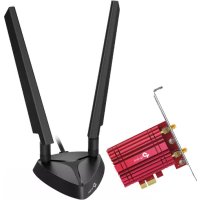

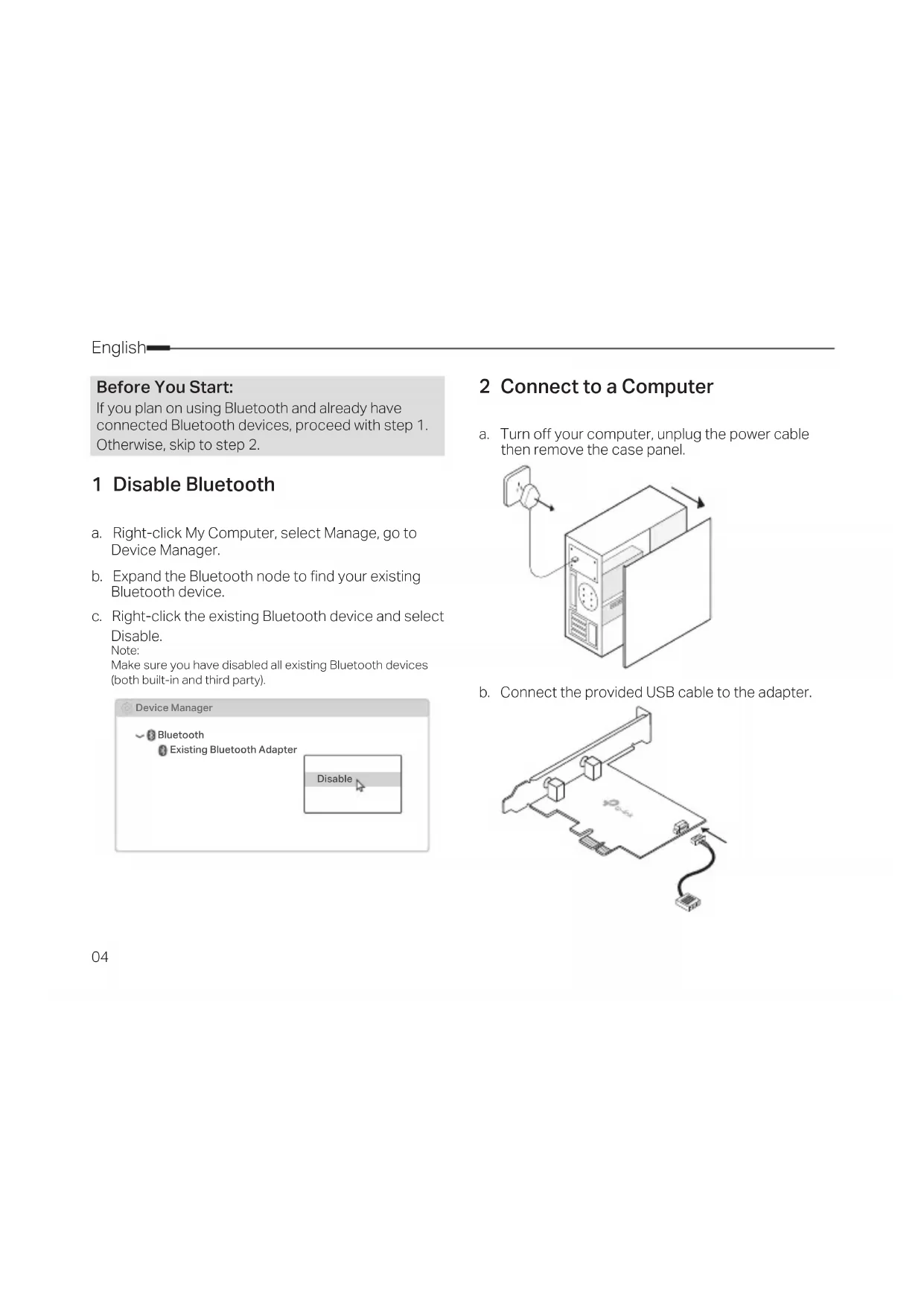


| Product Type | Network card / PCI Express adapter |
| Model | Archer TXE75E |
| Brand | TP-Link |
| WiFi Standards | WiFi 6 (802.11ax), backward compatible with 802.11a/b/g/n/ac |
| Frequency Bands | 2.4 GHz and 5 GHz |
| Maximum Theoretical Throughput | Up to 2402 Mbps on 5 GHz, 574 Mbps on 2.4 GHz |
| Bluetooth Version | Bluetooth 5.2 |
| Host Interface | PCI Express x1, USB 2.0 (for Bluetooth) |
| Antennas | 2 external detachable antennas |
| Dimensions (approx.) | 121 mm x 22 mm x 120 mm (with standard bracket) |
| Weight (approx.) | 80 g |
| Wireless Security | WPA / WPA2 / WPA3, WPS |
| Supported Operating Systems | Windows 10, Windows 11 (32/64-bit) |
| Operating Temperature | 0°C to 40°C |
| Operating Humidity | 10% to 90% (non-condensing) |
| Package Contents | Archer TXE75E card, 2 antennas, USB cable, low-profile bracket, driver CD, quick installation guide |
| Maintenance and Cleaning | Unplug the computer, use a dry soft cloth to clean the card. Do not use solvents. |
| Safety | Keep away from water, fire, and humidity. Do not disassemble. Do not use in areas where wireless communications are prohibited. |
| Spare Parts and Repairability | The antennas and low-profile bracket are replaceable. For any other repairs, contact TP-Link support. |
| Warranty | Manufacturer's warranty (see packaging for duration) |
Frequently Asked Questions - Archer TXE75E TP-LINK
User questions about Archer TXE75E TP-LINK
0 question about this device. Answer the ones you know or ask your own.
Ask a new question about this device
Download the instructions for your Network card / adapter in PDF format for free! Find your manual Archer TXE75E - TP-LINK and take your electronic device back in hand. On this page are published all the documents necessary for the use of your device. Archer TXE75E by TP-LINK.
USER MANUAL Archer TXE75E TP-LINK
Quick Installation Guide
WLAN Bluetooth PCI Express Adapter
For technical support, the user guide and other information, please visit https://www.tp-link.com/support/
2023 TP-Link 7106510489 REV1.20
Images may differ from actual products.
CONTENTS
01 / Deutsch 04 / English 07 / Español 10 / Ελληνικά 13 / Français 16 / Italiano 19 / Português 22 / Suomi 25 / Nederlands 28 / Svenska 31 / Norsk 34 / Dansk
Before you start:
If you plan on using Bluetooth and already have connected Bluetooth devices, proceed with step 1. Otherwise, skip to step 2.
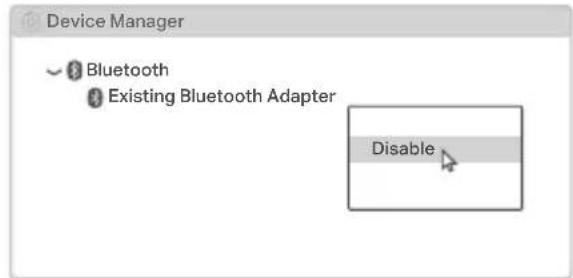
1 Disable Bluetooth
a. Right-click My Computer, select Manage, go to Device Manager. b. Expand the Bluetooth node to find your existing Bluetooth device. c. Right-click the existing Bluetooth device and select Disable. Note: Make sure you have disabled all existing Bluetooth devices (both built-in and third party).
2 Connect to a Computer
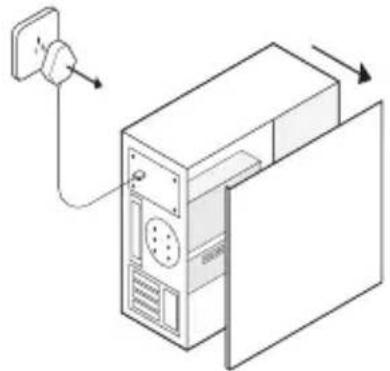
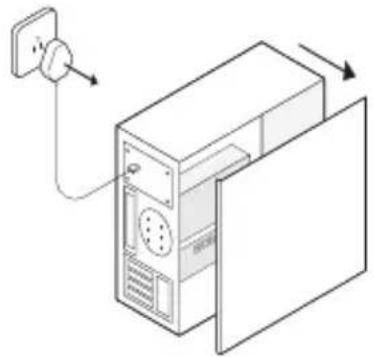
a. Turn off your computer, unplug the power cable then remove the case panel.
b. Connect the provided USB cable to the adapter.
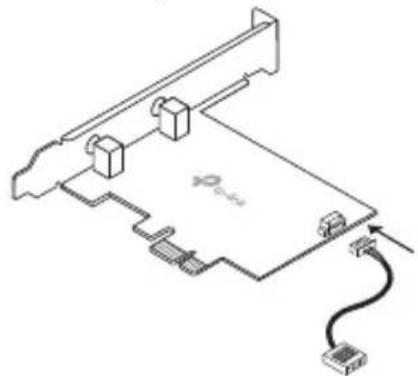
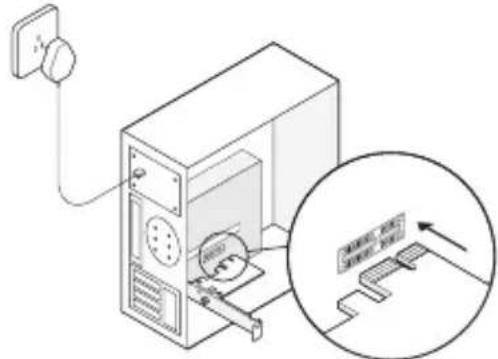
c. Locate an available PCIEX1 slot and carefully insert the adapter.
Note:
If the bracket is not suitable for your computer, detach it from the adapter's board and replace it with the low-profile bracket.
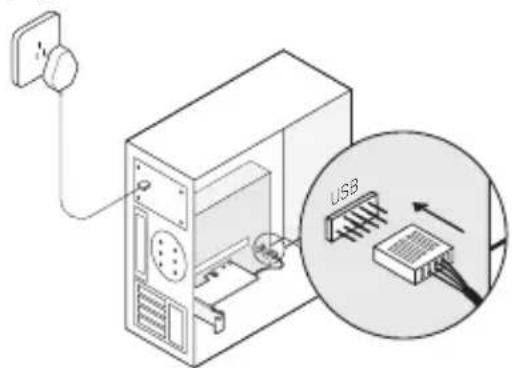
d. Locate an available F_USB connector and carefully plug the USB cable into it.
e. Connect the antenna(s) to the adapter. Note:
To maximize performance, make sure the path between the antenna(s) and your router is clear.
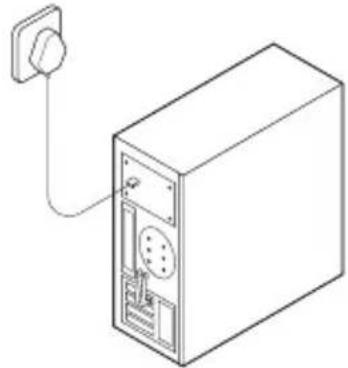
f. Replace the case panel, plug in the power cable and turn on your computer.
3 Install Drivers
a. Insert the CD and run the Autorun.exe.
Note:
You can also check the new release and download the driver at https://www.tp-link.com/support/download/
b. Install the Wi-Fi and Bluetooth drivers.
- Wi-Fi: Click and follow the onscreen instructions to complete the Wi-Fi installation.
- Bluetooth: Click and follow the onscreen instructions to complete the Bluetooth installation.
English
4 Join a Wireless Network
a. Click the network icon (or) on the taskbar. b. Select your Wi-Fi network, click Connect, and enter the password when prompted.
5 Pair With Bluetooth Devices
a. Right-click the Bluetooth icon on the taskbar. If it's not displayed, turn on Bluetooth in your PC settings first.

b. Select Add a Bluetooth Device or Add a Device to scan for available devices. c. Select your Bluetooth device from the list and follow the onscreen instructions to complete pairing.
Note:
Make sure your device's Bluetooth is enabled and discoverable.
Before you start:
https://www.tp-link.com/it/support/download/
b. Install the Wi-Fi and Bluetooth drivers.
https://www.tp-link.com/support/download/
EU declaration of conformity
English
TP-Link hereby declares that the device is in compliance with the essential requirements and other relevant provisions of directives 2014/53/EU, 2011/65/EU and (EU)2015/863.
The original EU declaration of conformity may be found at https://www.tp-link.com/en/support/ce/.
German
https://www.tp-link.com/en/support/ce/.
French
- Keep the device away from water, fire, humidity or hot environments.
- Do not attempt to disassemble, repair, or modify the device. If you need service, please contact us.
- Do not use the device where wireless devices are not allowed.
Please read and follow the above safety information when operating the device. We cannot guarantee that no accidents or damage will occur due to improper use of the device. Please use this product with care and operate at your own risk.
German
For TP-Link Branded Products Only. For the information about warranty period, policy and procedures, please visit https://www.tp-link.com/en/support THIS WARRANTY GIVES YOU SPECIFIC LEGAL RIGHTS, AND YOU MAY HAVE OTHER RIGHTS THAT VARY FROM STATE TO STATE (OR BY COUNTRY OR PROVINCE). TO THE EXTENT ALLOWED BY LOCAL LAW, THIS WARRANTY AND THE REMEDIES SET FORTH ARE EXCLUSIVE AND IN LIEU OF ALL OTHER WARRANTY TIES,
REMEDIES AND CONDITIONS.
TP-Link warrants the TP-Link branded hardware product contained in the original packaging against defects in materials and workmanship when used normally in accordance with TP-Link's guidelines for a period that depends on local service, starting from the date of original retail purchase by the end-user purchaser.
Brand : TP-LINK
Model : Archer TXE75E
Category : Network card / adapter