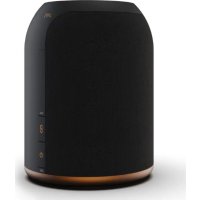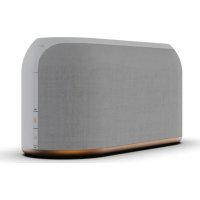
sLiving Three - Speaker JAYS - Free user manual and instructions
Find the device manual for free sLiving Three JAYS in PDF.



User questions about sLiving Three JAYS
0 question about this device. Answer the ones you know or ask your own.
Ask a new question about this device
Download the instructions for your Speaker in PDF format for free! Find your manual sLiving Three - JAYS and take your electronic device back in hand. On this page are published all the documents necessary for the use of your device. sLiving Three by JAYS.
USER MANUAL sLiving Three JAYS
Getting started, safety and warranty
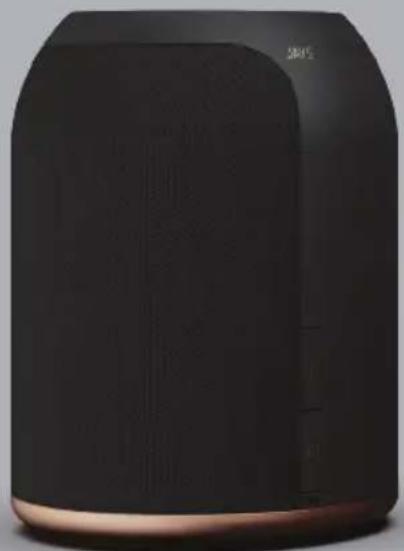
natural_image
Black and beige product device with curved surface and textured body (no visible text or symbols)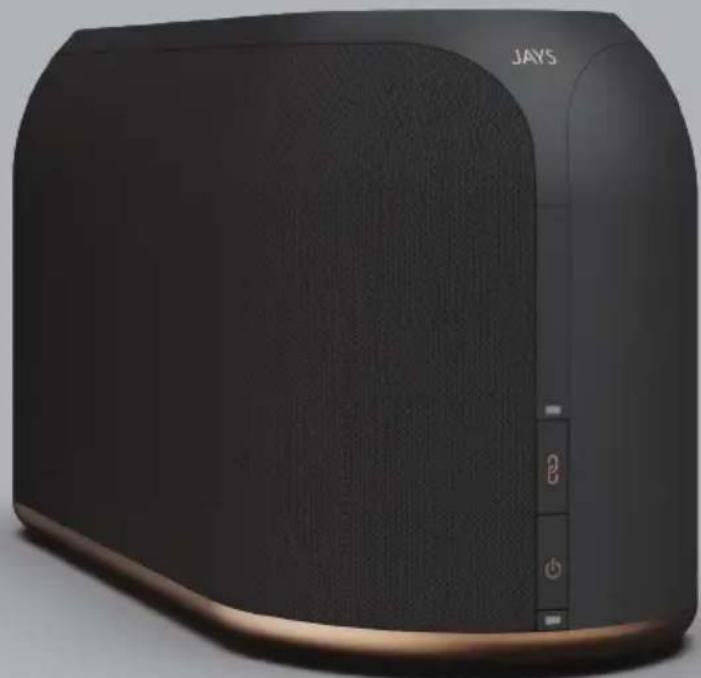
natural_image
Black JAYS brand air conditioner with visible sound grille and control buttons (no text or symbols on body)USER GUIDE - INDEX
Thank You!
Welcome to the new world of JAYS speakers.
Designed and developed with elegance and simplicity as key factors by our Scandinavian team.
Our s-Living line are all wireless speakers using the newest Wi-Fi streaming technology, so that music can be enjoyed in many different settings.
We are very excited to present our new speaker line and hope you will enjoy the divine sound performance.
Enjoy,
Henrik Andersson
CEO, JAYS
EN: User guide in English....4-19
US Compliance Information....100
Canada Compliance Information....101
EU Declaration of Conformity....102
Appendix....103
Check our website for user guide in other languages
Getting started, safety and warranty
s-Living One
1 x s-Living One smart home speaker
1 x AC/DC power adapter
1 x User guide in multiple languages
s-Living Three
1 x s-Living Three smart home speaker
3 x AC power cables for EU, US and UK plugs
1 x User guide in multiple languages
FIRE UP YOUR
s-LIVING SPEAKER
s-Living One - Rears-Liv
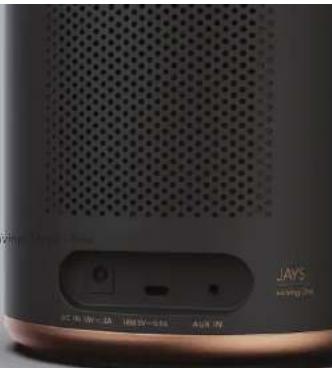
text_image
JAYS JAY'S HAWING 2016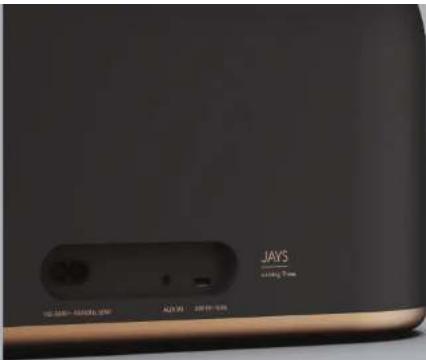
text_image
JAYS +100% TTMFIRE UP YOUR
s-LIVING SPEAKER
How to start
- Connect power to your speaker. Use included AC/DC power adapter for s-Living One or AC power cables for s-Living Three, and connect to an AC power outlet.
- Press power button for 2-3 seconds to power ON the speaker and it will boot up, which takes around 35 seconds (need to power OFF, then press 2-3 seconds again).
- Once you hear a voice message from the speaker, you are ready to continue.
The speaker modes
When the speaker is powered ON and ready, you can switch between different modes. Pressing power button once will switch among different speaker modes.
You can choose:
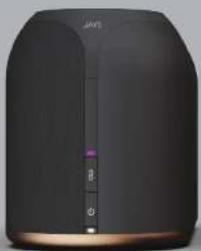
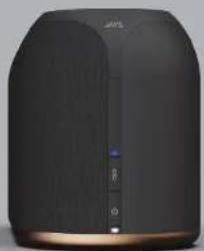
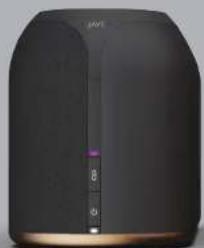
- Wi-Fi mode System LED will show PURPLE color (this is default mode)
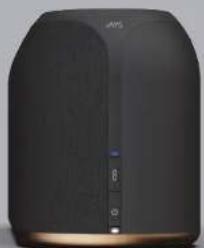
- Bluetooth mode System LED will show BLUE color
- AUX-In mode System LED will show GREEN color
6-ENGLISH ENGLISH-7
Note
Wi-Fi mode operation require the speaker to be connected to a Wi-Fi network. And this is also needed if you want to use Wi-Fi features such as Google Cast, AirPlay or Spotify Connect. Furthermore, the speaker is compatible with voice assistants from Google and Apple (Google Assistant and Sir) if the speaker is also "paired" with Google Home and/or Apple Home (Apple Homekit). The speaker DO NOT have the voice assistant function built-in directly.
Important note
If LED's shortly after power ON is flashing RED, or if you suddenly notice LED's flashing RED, then DO NOT remove the power plug. Speaker is then doing an automatic software update.
LED INDICATIONS AND START UP
LED INDICATIONS AND START UP
Power on
During start up (power ON the speaker) the power LED will flash fast. Note: When you power ON the speaker it will always start up in Wi-Fi mode.
Search state
When the speaker is powered ON it will start by being in "search state" trying to search for and connect to the last Wi-Fi network. During this state, both LED's will be doing a double flash. The same will happen (double flash) if the speaker is put into "Bluetooth mode", where you are now able to establish connection with a previously paired Bluetooth device.
Setup mode or pairing mode
In "Wi-Fi mode" the speaker will automatically enter the "setup mode" within 20 seconds, if the speaker during "search state" does not successfully re-connect to the previous Wi-Fi network. In "setup mode" both LED's will flash continuously. Same LED behavior will occur if the speaker is set into "Bluetooth pairing mode". For "setup mode" and "pairing mode", read more on page 10.
Playback state
During playback both LED's will be ON (solid) and the color of the system LED (Purple, Blue, Green) will indicate what "mode" the speaker is in (Wi-Fi playback, Bluetooth playback, AUX playback).
Idle mode / network standby mode (sleep mode)
LED or LED's will be breathing slowly indicating "no action" or "I am sleeping", "Idle mode" will happen as soon as music is paused (no action). "Network standby mode" will happen if there is no action for 20 mins. When speaker is in Network standby mode, the speaker power consumption is less than 2W.
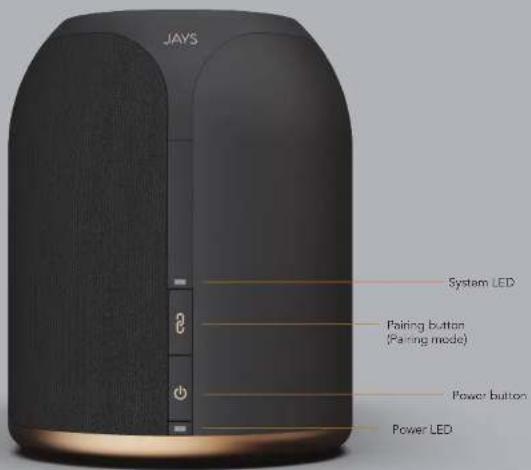
text_image
JAYS System LED Pairing button (Pairing mode) Power button Power LEDs-Living One & Three - Buttons
SETUP MODE
natural_image
Exterior view of a modern black and gold device with no visible text or symbols on the bodyPurple LED - "Wi-Fi mode" Blue LED - "Bluetooth mode"
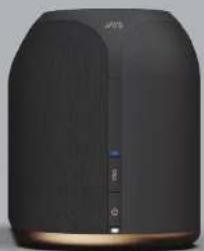
natural_image
Black and gold electronic device with control buttons (no visible text or symbols)"Wi-Fi setup mode" or "Bluetooth pairing mode" is needed for either connecting the speaker to a Wi-Fi network or connecting a new Bluetooth device to the speaker. (See page 12)
- For "Wi-Fi setup", the speaker will automatically enter "setup mode" if the previous connection cannot be established. But even though the speaker is already connected to a Wi-Fi network you can manually force this "mode" by pressing the "pairing button" for 3 seconds. NB: The speaker must be in "Wi-Fi mode" first (see page 6). Forcing this setup mode will only enable Apple setup mode (WAC).
- For "Bluetooth pairing mode" (if you need to pair a new Bluetooth device with your speaker), you need to press the "pairing button" for 3 seconds. NB: The speaker must be in "Bluetooth mode" first (see page 6).
Reset speaker / disable wireless connections: The speaker can be reset to factory defaults by pressing and holding "pairing button" and "power button" for 4-5 seconds. This will clear all speaker settings and afterwards it will be ready for Wi-Fi setup again. A reset will also disable all wireless connections.
10 - ENGLISH ENGLISH - 11
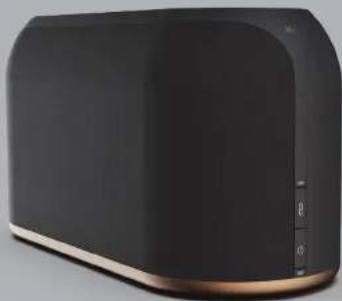
VOICE MESSAGES

natural_image
Exterior view of a modern black and gold electronic device with a curved top and side panel (no visible text or symbols)Voice messages from your speakerSetting up your speaker
WAITING FOR CONNECTION
If you hear this message, the speaker is either in "Wi-Fi setup mode" waiting for Wi-Fi connection to be set up or the speaker is in "Bluetooth mode" waiting for previous paired devices to connect.
CONNECTION SUCCESSFUL, TIME TO PLAY
If you hear this message, the speaker is successfully connected to a Wi-Fi network or you have successfully re-connected a previous paired Bluetooth device. You are now ready to play music.
READY FOR PAIRING
If you hear this message you have put the speaker into "Bluetooth pairing mode", enabling you to pair new devices to the speaker.
PAIRED
If you hear this message, you have successfully paired a new Bluetooth device to the speaker, and you are ready to play music.
CONNECT TO WI-FI OR BLUETOOTH PAIRING USING YOUR SPEAKER FOR PLAYBACK
Wi-Fi setup Wi-Fi playback
There are two methods of connecting your speaker to a Wi-Fi network, while the speaker is in "Wi-Fi setup mode". In either case you need to follow the Google or Apple setup methods, and you must be within close range of your speaker while doing so.
NB: The speaker will reply "Connection Successful, Time To Play" once connection is ready.
Using the Google Home App
You need to download and install the Google Home App on any of your compatible devices (e.g. smart phone or tablet). Your device must be connected to the same Wi-Fi network of which you want the speaker(s) to be connected. Open the Google Home App and follow the on-screen guidelines for setting up a new device (in this case, connecting your speaker).
NOTE: For more information about using Google Home App and setting up your speaker to Google Home, and to Wi-Fi networks through the Google Home App, please refer to Google's website.
Using Apple setup methods
-
(WAC setup) Open Wi-Fi settings on your iOS device. On the "Choose a network..." list, you will find your speaker listed with the headline "Setup new AirPlay speaker". Follow these steps and your speaker will connect to the Wi-Fi network.
-
Download and install the Apple Home App to setup the speaker to your Wi-Fi and the Apple Homekit universe. Please refer to Apple's website for using the Apple Home App.
Bluetooth pairing
Set your speaker into "Bluetooth pairing mode" (See page 6) and open the Bluetooth settings screen on your device. The speaker will appear on the list, simply choose it to pair it to your device. If your device support NFC, then bring it close to the speaker to make the pairing much easier. The speaker's "pairing mode" is only active for 2 minutes.
NB: The speaker will reply "paired" when your device is successfully paired to the speaker.
12 - ENGLISH ENGLISH - 13
With the speaker connected to a Wi-Fi network you can use any of the following streaming technologies for playback:

Apple AirPlay: Requires an Apple device. Please refer to Apple's website about using AirPlay.

Chromecast Built-in: This is supported by many devices and apps including, but not limited to, Android devices. Many apps support Google Cast and some TV's have Google Cast built-in. Please refer to Google's website for information about using Google Cast.

Spotify Connect: Supported in the Spotify App only, but on multiple platforms.
Ready to play some music?
Listen on your speakers or TV, using the Spotify app as a remote.
Learn More: https://www.spotify.com/int/connect/
Bluetooth playback
Switch to "Bluetooth mode" first (System LED will turn blue). Then make sure your device has established the Bluetooth connection to the speaker. Now you are ready to play music.
AUX playback
Simply switch the speaker to "AUX mode" (System LED will turn green) and connect a device to the AUX-Input on the back of the speaker.
NB: Remember that in this mode you can control the volume on your device as well as on the speaker.
USING YOUR SPEAKER USING YOUR SPEAKER
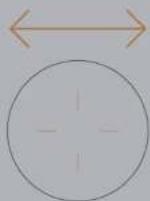
Touch panel control - see next page for image reference
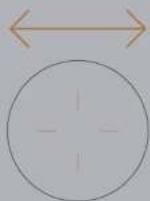
- Slide in circles over the dots, to adjust the volume.
Clockwise is "Volume up". Counterclockwise is "Volume down".
-
Single tap in the middle to PAUSE/PLAY.
-
Slide from left to right for PREVIOUS song.
Slide from right to left for NEXT song.
- Slide up or down, to toggle between our pre-defined EQ settings.
JAYS Signature Sound - POP - ROCK - JAZZ - CLASSICAL - JAYS Signature Sound (default)
NOTE: You will hear "Beep" every time you switch. When you hear "Beep-Beep" you have returned to
default EQ (JAYS Signature Sound)
- Each corner, East, West, North, South has a number for Preset (I - II - III - III)
Presets are currently only for "presetting" your favorite Spotify playlists or albums etc.
Press and hold for 3 seconds to store a new preset, the speaker will reply 'beep-beep'. To play a preset,
double tap on the preset number.
NOTE: To store a Spotify preset it is required that you are using Spotify Connect streaming. You cannot
preset an AirPlay or Google Cast audio stream.
-
Volume
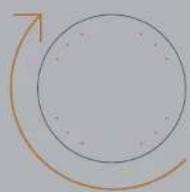
-
Presets
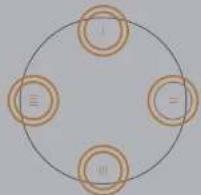
flowchart
graph TD
    A["1"] --> B["2"]
    B --> C["3"]
    C --> D["4"]
- Play/Pause

3. Next / Previous

4.EQ
14-ENGLISH ENGLISH-15
MAIN TECHNICAL SPECIFICATIONS MAIN TECHNICAL SPECIFICATIONS
s-Living One s-Living Three
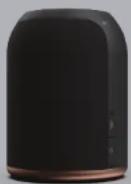
General
• 2-way compact desktop mono speaker
• 15V DC power input
• 1,8KG. ∅140mm × 185mm
Technical
• Power out.: 1x10W tweeter, 1x20W woofer
• Amp.: TPA3118D (Class D)
• 5PL: 84dB (1m/1W), 97dB(max)
General
• 2-way large desktop stereo speaker
• 100-240V AC 50/60Hz power input
• 3,9KG. 360mm x 150mm x 190mm
Technical
• Power out.: 2x10W tweeter, 2x25W woofer
• Amp.: TAS5715 (Class D)
• SPL: 87dB (1m/1W), 103dB(max)
Both models
• Dual band Wi-Fi 2.4GHz / 5GHz & Bluetooth v4.1 BLE
• Wi-Fi standards 802.11a/b/g/n/ac
• Frequency response: 60Hz – 22KHz (-3dB)
• Streaming: Apple AirPlay, Google Cast, Spotify Connect & Bluetooth
• Streaming module: Librewireless L59AD
• DSP, Sigma DSP ADAU1761
Mode: 802.11 a/b/g/n/ac
Frequency:
2.4GHz: 2.412 \~ 2.483 GHz
5.0 GHz: 5.180GHz - 5.825GHz
Transmitting power max
2.4 GHz
802.11b : 18 dBm (11Mbps)
802.11g : 15 dBm (54Mbps)
802.11n : 14 dBm (MCS 7)
5.0 GHz
802.11a : 14 dBm (54Mbps)
802.11n : 13 dBm (MCS 7)
802.11ac: 15 dBm (MCS 0)
802.11ac: 13 dBm (MC57)
802.11ac : 10 dBm (MCS 9)
WARRANTY AND SAFETY INFORMATION
Warranty
Your JAYS s-Living speaker(s) is of course covered by warranty according to regional laws depending on country of purchase. Please always consult your local dealer about warranty issues.
Safety
- Only use a compatible power source to power the speaker/s.
- Do not use your JAYS s-Living speaker/s in wet or dusty environments as it might damage your device and void warranty.
- JAYS s-Living speaker/s should not be used in direct sunlight. Damages caused by sunlight or severe heat will risk voiding your warranty.
- Never try to open or repair your JAYS s-Living speaker(s). It will void warranty and you will risk personal injury. Risk of electric shock.
- Always place your s-Living speaker(s) on a flat and stable surface. Failure to do so will increase risk of speaker falling, hence getting damaged or you might get a personal injury.
- Warning. This product contains magnets which might be harmful to pacemaker wearers.
• Always disconnect your speaker from power before cleaning. Do not use any liquids and chemicals when cleaning.
INDHOLD I KASSEN
DANSK
text_image
JAYS Hanging 70s DC 12V-3A 18W-6A 42W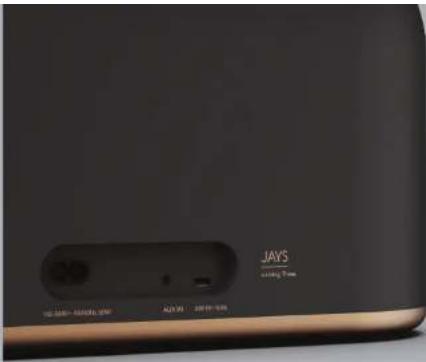
text_image
JAYS +100g/3mmOPSTART AF DIN s-LIVING H∅JTTALER
Sådan starter du
LED INDIKATIONER OG OPSTART
LED INDIKATIONER OG OPSTART
Tænd (Power on)
natural_image
Black and gold electronic device with visible ports and a logo (no readable text or symbols)Dila LED - "Wi-Fi island" Bia LED - "Bluetooth island"
natural_image
Black and gold electronic device with a vertical control panel (no visible text or symbols)text_image
"WATING FOR CONNECTION"WAITING FOR CONNECTION
flowchart
graph TD
    A["1"] --> B["2"]
    B --> C["3"]
    C --> D["4"]
- Play/Pause

Mode: 802.11 a/b/g/n/ac
Frekvens:
2.4GHz: 2.412 \~ 2.483 GHz
5.0 GHz: 5.180GHz - 5.825GHz
Sendestyrke - max
2.4 GHz
802.11b : 18 dBm (11Mbps)
802.11g : 15 dBm (54Mbps)
802.11n : 14 dBm (MCS 7)
5.0 GHz
802.11a : 14 dBm (54Mbps)
802.11n : 13 dBm (MCS 7)
802.11ac: 15 dBm (MCS 0)
802.11ac: 13 dBm (MC57)
802.11ac : 10 dBm (MCS 9)
GARANTI OG SIKKERHEDSINFORMATION
Garanti
text_image
JAYS Hanging 70s DC 12V-3A 18W-6A 42W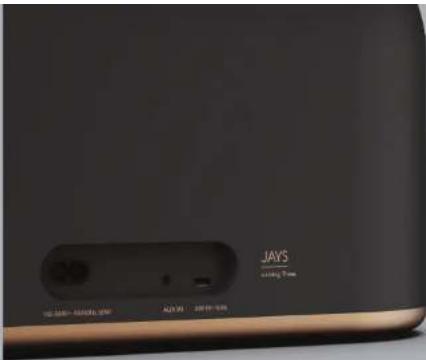
text_image
JAYS +100% TTMSTARTA UPP DIN s-LIVING HÖGTALARE
Kom igang
natural_image
Black and gold electronic device with a vertical indicator on the right side (no visible text or symbols)natural_image
Black and gold electronic device with control panel (no visible text or symbols)text_image
"WATING FOR CONNECTION"WAITING FOR CONNECTION
natural_image
Close-up of a JAYS brand electronic device with visible speaker grille and control buttons (no readable text or symbols)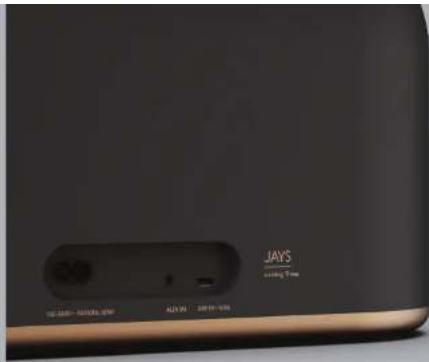
text_image
JAY'S www.jay.comSTARTEN SIE IHREN s-LIVING-LAUTSPRECHER
Erste Schritte
natural_image
Black and gold electronic device with purple indicator lights (no visible text or symbols)LED Mie - Wi-Fi-Modus" LED blau - Bluetooth-Modus"
natural_image
Black and gold product device with control buttons (no visible text or symbols)text_image
"WAITING FOR CONNECTION"WAITING FOR CONNECTION
flowchart
graph TD
    A["1"] --> B["2"]
    B --> C["3"]
    C --> D["4"]
- Wiedergabe / Pause

3. Weiter / Zurück

4.EQ
text_image
JAYS Hanging 70s DC: 12V-3A 18W-4B 42Wtext_image
JAYS sailing TimeALLUMEZ VOTRE ENCEINTE s-LIVING
Remarque
INDICATIONS LED ET MISE EN MARCHE
INDICATIONS LED ET MISE EN MARCHE
Mettre sous tension
s-Living One at Three - Boutons
MODE DE CONFIGURATION MESSAGES VOCAUX
natural_image
Black and gold electronic device with purple indicator lights (no visible text or symbols)LED violet - × mode Wi-Fi × LED bleu - × mode Bluetooth ×
natural_image
Black and gold product device with control buttons (no visible text or symbols)text_image
"WAITING FOR CONNECTION"WAITING FOR CONNECTION
flowchart
graph TD
    A["1"] --> B["2"]
    B --> C["3"]
    C --> D["4"]
- Lecture / Pause

natural_image
Close-up of a JAYS brand electronic device with visible speaker grille and control buttons (no readable text or symbols)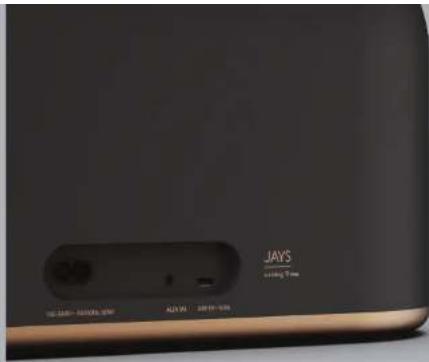
text_image
JAY'S www.jayy.comВКЛЮЧИТЕ СВОЮ КОЛОНКУ s-LIVING
s-Living Three - вид сзади
Начало работы
natural_image
Exterior view of a modern black and gold electronic device (no visible text or symbols)natural_image
Black and gold product device with control buttons (no visible text or symbols)text_image
"WAITING FOR CONNECTION"WAITING FOR CONNECTION
This device complies with Part 15 of the FCC Rules. Operation is subject to the following two conditions:
(1) This device may not cause harmful interference, and
(2) This device must accept any interference received, including interference that may cause undesired operation.
Note: This product has been tested and found to comply with the limits for a Class B digital device, pursuant to Part 15 of the FCC Rules. These limits are designed to provide reasonable protection against harmful interference in a residential installation. This product generates, uses, and can radiate radio frequency energy and, if not installed and used in accordance with the instructions, may cause harmful interference to radio communications. However, there is no guarantee that interference will not occur in a particular installation. If this product does cause harmful interference to radio or television reception, which can be determined by turning the equipment off and on, the user is encouraged to try to correct the interference by one or more of the following measures:
• Reorient or relocate the receiving antenna.
- Increase the separation between the equipment and receiver.
- Connect the equipment into an outlet on a circuit different from that to which the receiver is connected.
- Consult the dealer or an experienced radio/TV technician for help.
Please take attention that changes or modification not expressly approved by the party responsible for compliance could void the user's authority to operate the equipment.
This equipment complies with FCC/IC RSS-102 radiation exposure limits set forth for an uncontrolled environment. This equipment should be installed and operated with minimum distance 20cm between the radiator & your body.
This device complies with Industry Canada licence-exempt RSS standard(s). Operation is subject to the following two conditions:
- this device may not cause interference, and
- this device must accept any interference, including interference that may cause undesired operation of the device.
Under Industry Canada regulations, this radio transmitter may only operate using an antenna of a type and maximum (or lesser) gain approved for the transmitter by Industry Canada. To reduce potential radio interference to other users, the antenna type and its gain should be so chosen that the equivalent isotropically radiated power (e.i.r.p.) is not more than that necessary for successful communication.
This equipment complies with FCC/IC RSS-102 radiation exposure limits set forth for an uncontrolled environment. This equipment should be installed and operated with minimum distance 20cm between the radiator & your body.
EU DECLARATION OF CONFORMITY

APPENDIX
JAYS Group AB
Nellickevägen 22
412 63 Göteborg
Sweden
Hereby declare that JAY5 s-Living One and s-Living Three Wireless speakers
(Item: SLIVING101 and item: SLIVING301):
Comply with European CE-RED Directive 2014/53/EU, standards:
ETSI EN EN 301 489-1/-3/-17
ETSI EN 300 328
ETSI EN 301 893
ETSI EN 300 330
ETSI EN 62311
ETSI EN 62368-1
Comply with European RoHS Directive 2011/65/EU.
Göteborg, Sweden, October 2019
René Larsen
Head of Product Development

Chromecast built-in
Chromecast is a trademark of Google LLC.

Spotify

The Spotify Software is subject to third party licenses found here: www.spotify.com/connect/third-party-licenses.

Works with
Apple AirPlay
Use of the Works with Apple badge means that an accessory has been designed to work specifically with the technology identified in the badge and has been certified by the developer to meet Apple performance standards.
Apple, iPad, iPad Air, iPad Pro, iPhone and AirPlay are trademarks of Apple Inc., registered in the U.S. and other countries.
To control this AirPlay 2-enabled speaker, iOS 11.4 or later is required


102-ENGLISH ENGLISH-103
JAYS
s-Living
Getting started, safety and warranty
User Guide Rev. 2.0 for
JAYS s-Living One and s-Living Three, Wi-Fi multiroom speakers
We accept no liability for printing errors
Specifications are subject to change without notice - JAYS 2019
www.jaysheadphones.com