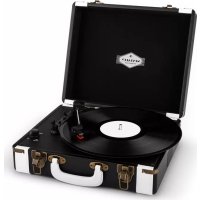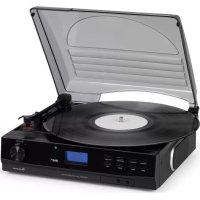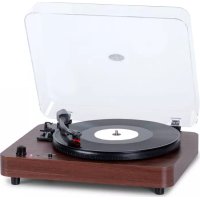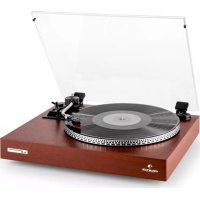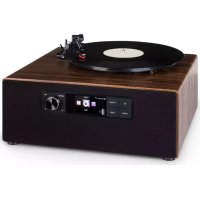
Connect Vinyl Cube - Media player Auna - Free user manual and instructions
Find the device manual for free Connect Vinyl Cube Auna in PDF.

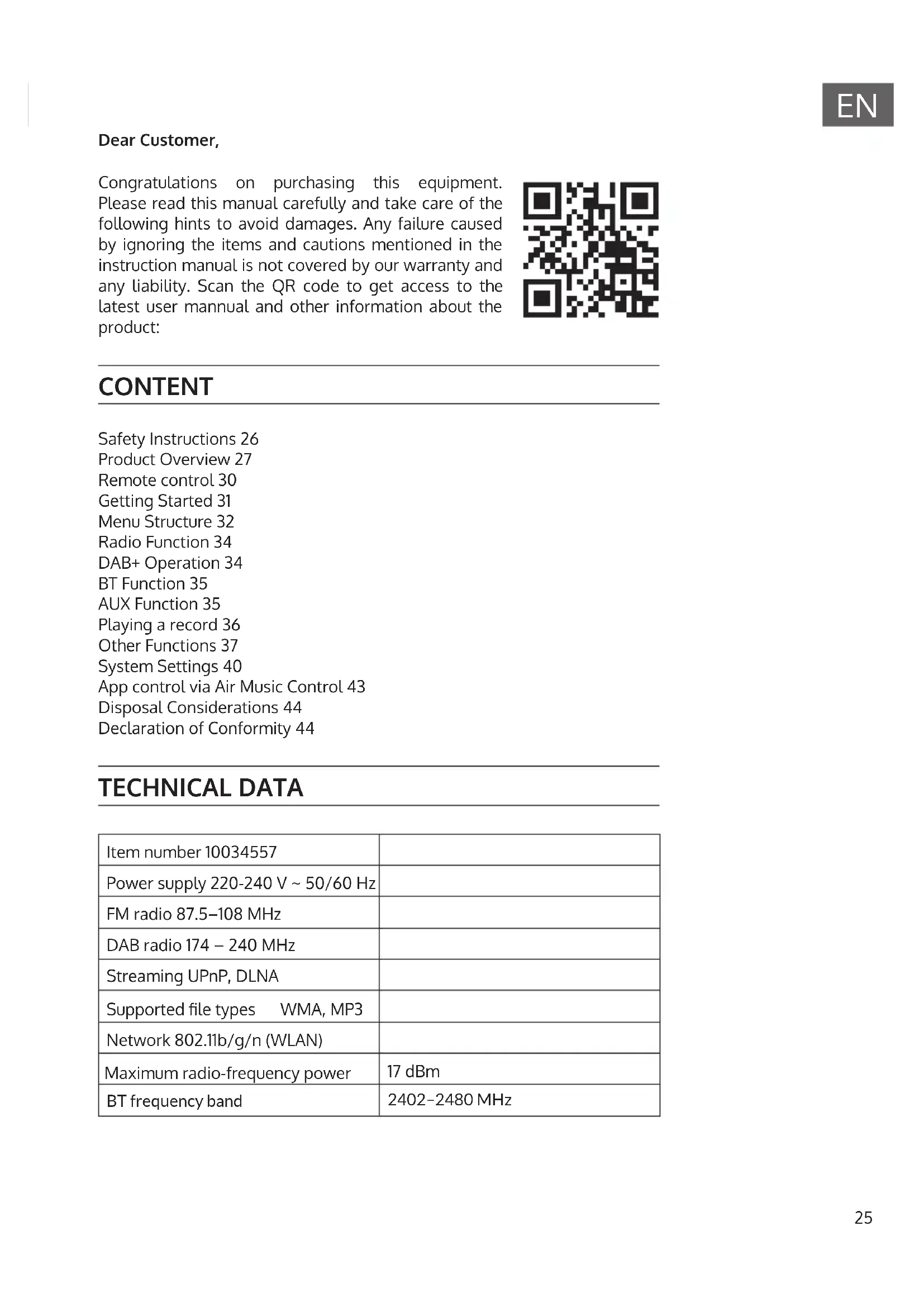


| Product type | Multimedia player with turntable, Internet radio, DAB+, FM, Bluetooth |
| Brand | Auna |
| Model | Connect Vinyl Cube |
| Item number | 10034557 |
| Power supply | 220-240 V ~ 50/60 Hz |
| FM Radio | 87.5 - 108 MHz |
| DAB+ Radio | 174 - 240 MHz |
| Network streaming | UPnP, DLNA |
| Supported audio formats | WMA, MP3 |
| Wireless connectivity | WiFi 802.11b/g/n, Bluetooth 4.0 (band 2402-2480 MHz) |
| Maximum RF power | 17 dBm |
| Turntable | 3 speeds: 33/45/78 RPM, auto play |
| Inputs/outputs | AUX input 3.5 mm, headphone output 3.5 mm, USB port (read only) |
| Display | Color/monochrome LCD screen, adjustable brightness |
| Alarms | 3 independent alarms (2 absolute + 1 nap) with radio or melody source |
| Additional functions | Sleep timer, equalizer (7 modes), Air Music Control app (iOS/Android) |
| Remote control | Yes, included |
| Maintenance and cleaning | Disconnect before cleaning; use a soft dry cloth; do not use abrasive products |
| Safety | Do not open the device, do not expose to water or heat sources, observe ventilation distances |
| Spare parts and repairability | No user-serviceable parts; contact customer service for any intervention |
| General information | Importer: Chal-Tec GmbH; EU Declaration of Conformity available online |
Frequently Asked Questions - Connect Vinyl Cube Auna
User questions about Connect Vinyl Cube Auna
0 question about this device. Answer the ones you know or ask your own.
Ask a new question about this device
Download the instructions for your Media player in PDF format for free! Find your manual Connect Vinyl Cube - Auna and take your electronic device back in hand. On this page are published all the documents necessary for the use of your device. Connect Vinyl Cube by Auna.
USER MANUAL Connect Vinyl Cube Auna
INHALTSVERZEICHNIS
Member of Berlin Brands Group
Handwerkerstr. 11
15366 Dahlwitz-Hoppegarten
Deutschland
natural_image
Symbol of a trash bin crossed out by a diagonal line, with no text or labels present.Congratulations on purchasing this equipment. Please read this manual carefully and take care of the following hints to avoid damages. Any failure caused by ignoring the items and cautions mentioned in the instruction manual is not covered by our warranty and any liability. Scan the QR code to get access to the latest user manual and other information about the product:
CONTENT
Safety Instructions 26
Product Overview 27
Remote control 30
Getting Started 31
Menu Structure 32
Radio Function 34
DAB+ Operation 34
BT Function 35
AUX Function 35
Playing a record 36
Other Functions 37
System Settings 40
App control via Air Music Control 43
Disposal Considerations 44
Declaration of Conformity 44
TECHNICAL DATA
| Item number 10034557 | |
| Power supply 220-240 V ~ 50/60 Hz | |
| FM radio 87.5–108 MHz | |
| DAB radio 174 – 240 MHz | |
| Streaming UPnP, DLNA | |
| Supported file types WMA, MP3 | |
| Network 802.11b/g/n (WLAN) | |
| Maximum radio-frequency power | 17 dBm |
| BT frequency band | 2402–2480 MHz |
SAFETY INSTRUCTIONS
- Observe all notes listed in the operating instructions.
- Do not use the unit near water or in a humid environment.
- Make sure that no liquid is spilled over the unit and the unit openings.
- Move the unit carefully to avoid damaging it.
- Do not block the device outputs.
- Do not place the unit near heat sources (e.g. heating). Do not expose the device to direct sunlight.
- Plug the power plug of the unit into the power outlet in the manner intended.
- The device is equipped with overload protection. Should this need to be replaced, contact customer service or a similarly qualified person.
- Unplug the unit from the wall outlet if it will not be used for a long period of time.
- Do not attempt to service or repair the unit yourself. In this case, the warranty expires.
- The mains plug is used to disconnect the device from the mains after it has been switched off. Make sure that the mains plug is always freely accessible.
- Do not expose the device to splash water or place objects filled with liquid, such as vases, on the device.
- Do not expose the batteries to extreme heat such as sunlight or fire.
- Do not obstruct the ventilation of the unit by blocking the ventilation openings with objects such as newspapers, tablecloths, curtains, etc..
- Ensure that a minimum distance of 5 mm to all sides of the unit is maintained.
- Do not place sources of open flame ignition, such as lit candles, on the unit.
- Dispose of used batteries in an environmentally friendly manner.
- Use the device only in temperate climate, not in tropical climate.
- This device may be only used by children 8 years old or older and persons with limited physical, sensory and mental capabilities and / or lack of experience and knowledge, provided that they have been instructed in use of the device by a responsible person who understands the associated risks.
WARNING
Risk of injury! To reduce the risk of electric shock, do not open either the cover or the back of the unit. The device does not contain any parts that could be serviced by the customer. Please contact customer service or similarly qualified personnel for maintenance and repair.
PRODUCT OVERVIEW
Front view
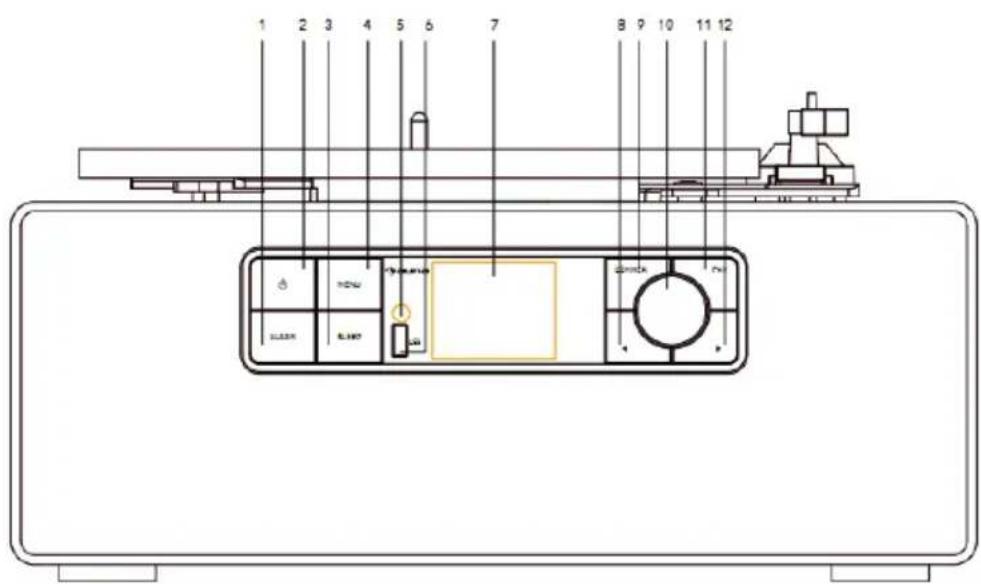
| 1 | Alarm button | 7 | Display |
| 2 | Standby button | 8 | Left button |
| 3 | Sleep button | 9 | Dimmer button |
| 4 | Menu button | 10 | Navigate – Vol+/Vol-/OK knob |
| 5 | Remote control receiver | 11 | FAV button |
| 6 | USB port | 12 | Right button |
Side view
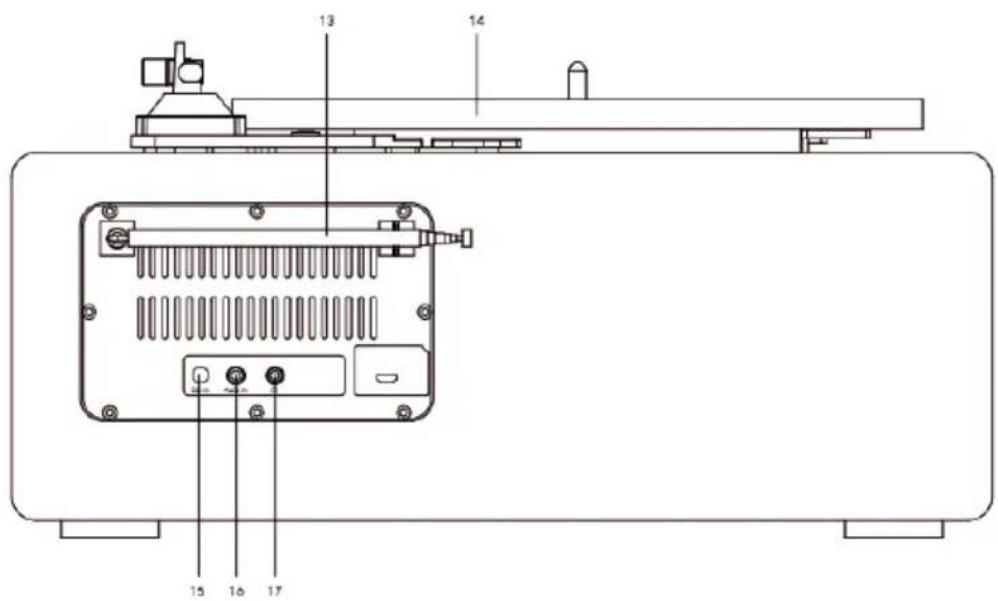
| 13 | Telescopic antenna | 16 | AUX in socket |
| 14 | Turntable | 17 | Headphone out socket |
| 15 | DC IN socket |
Turntable
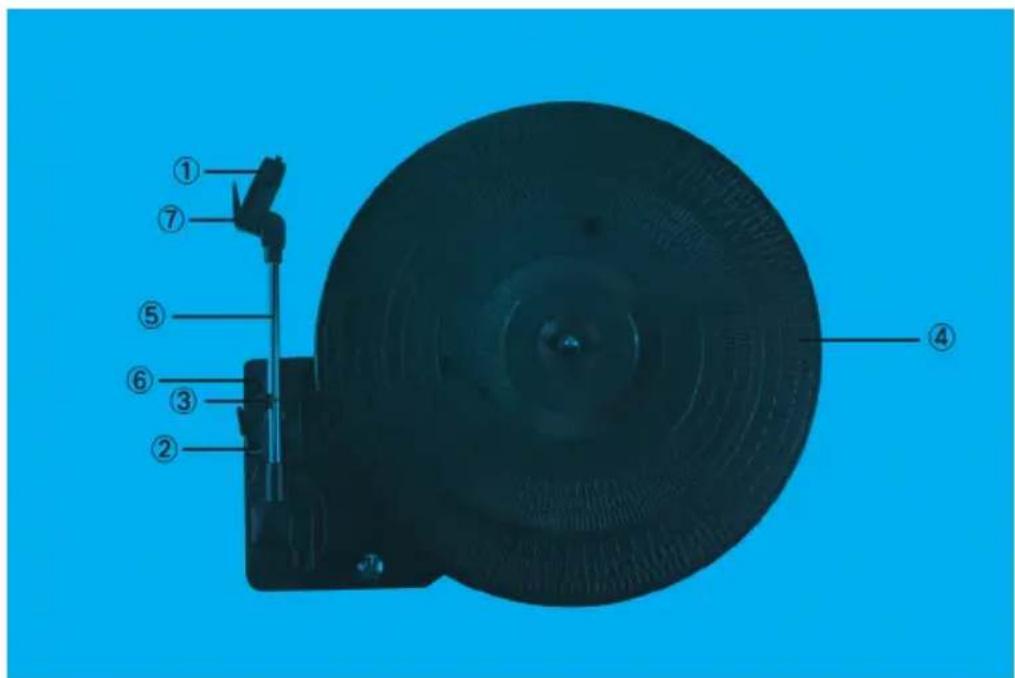
| 1 | Stylus cover | 5 | Tone arm |
| 2 | Tone arm lift control | 6 | Platter speed button |
| 3 | Tone arm holder | 7 | Cartridge |
| 4 | Platter |
REMOTE CONTROL
| 1 Standby / On |
| 2 Mute |
| 3 EQ button |
| 4 Dimmer |
| 5 Sleep |
| 6 Alarm |
| 7 Backward button |
| 8 Forward button |
| 9 Stop |
| 10 Play / Pause button |
| 11 Mode |
| 12 Home |
| 13 Up |
| 14 Left |
| 15 Right |
| 16 Down |
| 17 OK |
| 18 Vol- |
| 19 Vol+ |
| 20 Number buttons |
| 21 Fav |
| 22 Fav+ |
GETTING STARTED
Plug the adaptor into the DC in socket (on the rear of the product).
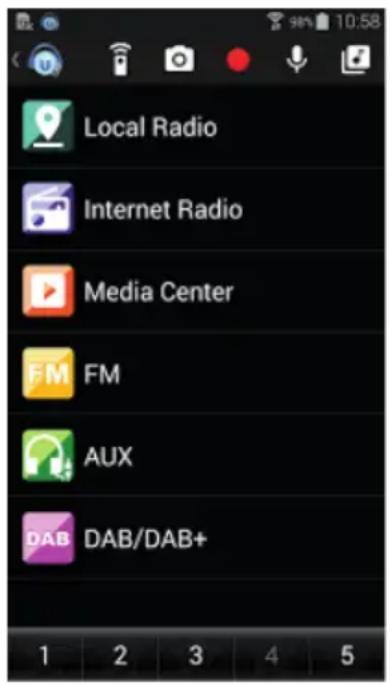
"Welcome" will be shown on the screen. Meanwhile, the radio will scan the available access point automatically. You can use the Volume/Navigator button to choose the internet, and then press OK to confirm the internet.
The steps are as below for first use:
- There will be a prompt: Would you like to configure Network now? Press Navigator knob to Choose YES. Then the internet radio will scan available network.
- Choose the network you want to connect by switching the navigator knob and press it to confirm.
- It will remind you to enter your password by switching the navigator button to input the number, letter or character. After finishing input, press the navigator knob to confirm your input.
- Then your internet radio will be connected to your network.
Note: When you need input the internet password, please press Navigator button to choose the characters. In this condition, press Left button can turn left and delete the left characters at the same time.
Below characters are available for the radio:
- Numbers (from 0-9)
- English letters (from A to Z and from a to z)
- Other characters ( DEL ,@, lank,!,",#,\$,%,&,*,'+ and ().
MENU STRUCTURE
| Level 1 Level 2 | Level 3 Level 4 | ||
| Configuration | Time Display | Analog | |
| Digital | |||
| Manage My MediaU | On | ||
| Off | |||
| Network | Wireless Network Configuration | ||
| Wireless Network (WPS PBC) | |||
| Manual Configuration | |||
| Check Network when Power On | |||
| Date & Time | Set Date and Time | ||
| Set Time Format | |||
| Set Date Format | |||
| Alarm | Alarm 1 | On | |
| Off | |||
| Alarm 2 | On | ||
| Off | |||
| NAP Alarm (off) | |||
| Alarm Volume | |||
| Timer | |||
| Language | |||
| Dimmer | Power Saving | ||
| On | |||
| Display | Color | ||
| Monochrome | |||
| Power Management | |||
| Sleeptimer | |||
| Buffer | |||
| Weather | Set Location | ||
| Temperature Unit | |||
| Show on the Standby | |||
| Level 1 Level 2 Level 3 Level 4 | |||
| Configuration | FM Setup | Mode | |
| Threshold | |||
| Local Radio Setup | |||
| Playback Setup | |||
| Device | |||
| Equaliser | |||
| Resume When Power On | |||
| Software Update | |||
| Reset to Default | |||
| Local Radio | Internetradio | My Favorite | |
| Radio Station/Music | |||
| Local Radio | |||
| Sleep Radio | |||
| History | |||
| Service | Search Radio Station | ||
| Add New Radio Station | |||
| Media Center | USB | ||
| UPnP | |||
| My Playlist | |||
| Clear My playlist | |||
| FM | |||
| DAB | |||
| Vinyal | |||
| Information Center | Weather Information | ||
| Financial Information | |||
| System Information | |||
| AUX | |||
| BT | |||
RADIO FUNCTION
- Select [FM mode] on the main display screen with the navigation knob or with the navigation buttons on the remote. Once selected, the FM mode will start on 87.5 MHz
- To save all stations with strong signal, press the navigation knob, it will show [auto scan?] choose YES. Then it will start auto scan. Once the auto-scan is complete, stations will be saved in your favourites.
- You will then be able to browse through these saved stations by press the Fav button then press [<] or [>] to skip between saved stations.
- To manually scroll through FM frequency, simply press the [<] or [>] buttons to go backwards or forwards through the frequency wave.
Pre-setting your favourite FM stations
- To save presets manually, select and listen to the station frequency number for the station you wish to save.
- Follow by holding down the FAV button for 1-2 seconds and the number [01] will display on the screen. Use the navigation knob to browse through preset numbers (up to 99) and select the preset number you wish to save it as by pressing the navigation knob.
Recalling preset FM stations
- View your favourite FM stations when you are on FM mode by simply selecting the 'Fav' button and begin scrolling through saved stations.
DAB+ OPERATION
Select 'DAB/DAB+' on the main display screen by turning the knob and pressing the navigation knob or with the remote navigation buttons.
On first use of the DAB on your radio, your radio will begin scanning for DAB stations and will show 'Scanning' on the display screen. It will display how many stations have been found as the search continues.
Once all of the available stations have been found, the screen will display the choice of available stations. Scroll through using the navigation knob or navigation buttons to select the station you wish to listen to.
When you have selected a station, the screen will display the station and press navigation knob to play. To choose previous or next station, use the navigation knob to scroll accordingly.
To go back to the list to scroll through manually, select the '<' button to go
back. To rescan your stations, go on the main list page for the DAB stations and there will be reminder 'Delete station list?' .Choose 'YES' to do rescan. When on your chosen station, select the '>' button to show information on the station. The screen will automatically scroll through information and display genre,MHz, song playing, KHz and Kbps.
Pre-setting your favourite DAB/DAB+ stations
When you have found your desired station, hold down 'Fav' for a few seconds to go to the 'Add to my Favourites' screen. Turn the select dial to choose the preset number(1 to 6) and select your option.
Alternatively, when you are on the list screen of DAB stations you are able to highlight the chose station and hold down 'Fav' to go to the 'Add to my Favourites' screen.
Recalling preset DAB/DAB+ stations
View your favourite DAB/DAB+ stations when you are on DAB mode by simply selecting the 'Fav' buton and begin scrolling through saved stations.
BT FUNCTION
Either press MODE until the display shows BT or select BT under Main menu. It will have remind sound, search the pairing name [Connect Vinyl Cube] in your phone and click it to pair. It will have reminding sound after paired successfully. You now can play music via BT. You can adjust volume from the radio or your phone.
AUX FUNCTION
Aux in mode plays audio from an external source such as an MP3 player. To play audio with Aux in mode:
- Turn the volume low on both the Radio and if adjustable, the audio source device.
- Connect the external audio source to the AUX IN 3.5mm stereo socket.
- Either press MODE until the display shows AUX or selects AUX under Main menu.
- Adjust the volume of the Radio (and, if necessary, the audio source device) as required.
PLAYING A RECORD
- Put your vinyl on top of the platter
- Take off the stylus cover
- Release the lock of the tone arm holder
- Move the tone arm lift control backwards, the tone arm will be lifted and use your hand to move the tone arm on the top of vinyl, right now the platter will rotate and vinyl will rotate together.
- Move the tone arm lift control forwards, the tone arm will down slowly and when stylus touches the vinyl, the turntable will play.
- During playing, you can adjust speed through platter speed button (three options: 33/45/78 rpm)
- The vinyl playing will stop automatically after last song finished and tone arm will return to originally position.
- During playing, if you want to stop playing please move the tone arm lift control backwards so tone arm will be lifted, use your hand to move tone arm back to holder.
- If you don't use your turntable for long time, lock the tone arm and add the cover to stylus.
OTHER FUNCTIONS
Information Center
Weather Information
- There are weather information and forecasts for 2000 cities. Select the country and then the city for the weather details.
- Press [<] or [>] to see the weather forecasts.
- The device is able to display the weather information on the standby mode. On the weather information page, press OK to set the city to display on the standby mode. Then turn on the weather display.
Financial Information
View the stock index
System Information
View details of units and of connect network. The information includes MAC address which you are required to fill in when registration of "my mediaU" membership.
Media Center
Select the USB/UPnP mode or playlist mode with Navigate/OK or with the Mode button.
UPnP
- If you have set up shared media, you should see the shared media from UPnP.
- If you have more than one computer sharing media, the alternatives are listed.
- Select the shared media you want to play.
- Use Play/Pause, Next/Prev and Stop. Press Right button to view the display information of the playing track.
Note: The radio can only read the track with the file name less than 40 characters. The characters should be in European Language. If you encounter failure of reading the track under UPnP mode, you may try to rename the file. However, if the track is still unable to play, you can try converting the file to different formats.
USB
- From this point on, menus are generated from the folders on the USB device.
- Browse folders with the NAV wheel or direction keys on the remote control.
- The display shows folder and file names (not necessarily track names).
- Once you have found a track you want to play, press the navigate knob on the device or press OK on the remote control
Note: The USB port does not support charging or data transfer with computer.
My Playlist
You can create a playlist of favourite's music from UPnP. When you playing the music, press and hold OK from unit or remote control to save it into My Playlist.
Clear My Playlist
Please select this option for clearing the playlist. Please confirm the questions.
Local Radio
Stations are categorized to the country/location which the unit is operated.
Internet Radio
- Press [Standby] to go to working mode and rotate Navigate to scroll through the main menu. Press OK (to enter sub menus or confirm settings)
- Press [<] to return to the previous menu. After connection of any station successful, station information will be shown and information content can be changed with [<] or [>] button.
My Favourites
List of my favourite preset stations. It supports 250 favourite entries including stations and folder. During the station playing screen, press and hold FAV on the device or FAV+ on the remote control to save the station as my favourite. You may replace the previous saved station to the new one.
If the Selected station has been saved, you cannot save it again. The saved stations are showed under this menu. You may also press Fav to enter the saved station list. You may enter the number key on the remote control to recall the saved station.
Under the preset station list, move to your station; press OK from unit or OK from remote control to listen.
Enter its submenu with [>] button, Delete, Shift Up/Down along the list, Rename, Play, or Use as Alarm (if you chose internet as alarm sound in alarm configuration).
Radio Station / Music
Stations are categorized into Global Top 20, Genre, Country/Location (Africa, Asia, Europe, Middle East, North America, Oceania/Pacific and South America) and Highlight. Enter to continue the subcategories and choose the station to listen.
For each station, press OK from unit or remote control to play directly. Press [>] to enter its submenu. When you choose Auto Scan, it becomes the playback of marquee of each station in the subcategory. Each station plays 30 seconds until all have played or you press "OK" to stop the marquee listening. Press [>] button to view the display information of the playing station.
Local Radio
Stations are categorized to the country/location which the unit is operated.
Sleep Radio
You can choose Birds, Piano, Rain, Spa, Space, and Wave as sleep radio.
History:
List of the ten recently listened stations.
Service:
Search radio station-Enter your keyword to search radio station from the list. Add new radio by adding IP address, the added stations will be stored in My Favourite. Note that the maximum character of the station name is 250.
SYSTEM SETTINGS
| Time Display | Analog / Digital |
| My MediaU | When it is enabled, my mediaU will exist on the main menu. If various mediaU accounts exist in the Radio, Select the default login account in here. |
| Network | Wireless Network Configuration: Enable/disable WiFi network. When you enable the WiFi network, the system will automatically select the required AP. Enter WEP or WPA code to connect the WiFi. |
| Wireless Network (WPS PBC): If you are using a router with WPS/QSS button, you may set up the network connection simple via WPS function. Enter it and go to press the WPS/QSS button on your router within 120 seconds. The connection between the router and device will then be configured automatically. | |
| Manual Configuration: You can choose DHPC (which IP assigned automatically) or manually input IP address for wireless network connection. When you select manual setting for wired connection, the following have to be entered: SSID (name of access point), IP Address, subnet mask, default gateway, preferred DNS server, alternate DNS server. | |
| Network | Check Network When Power On: Enable/disable WiFi network. When you enable the WiFi network, the system will automatically search the available AP. Select required AP. |
| Date and Time | Setup the date and time |
| Set time format display as 12 Hour or 24 Hour | |
| Set date format YYYY/MM/DD or DD/MM/YYYY or MM/DD/YYYY | |
| Alarm | There are three independent alarms-2 alarms of absolute time setting (Alarm 1 and Alarm 2) and 1 alarm for relative time setting (Alarm NAP).Press Alarm on the remote control to enter this menu directly.Note that the alarm source is from the preset Internet radio if Alarm Sound is set to be Internet Radio. It can only set one same IR station for Alarm 1 and Alarm 2. When the alarm is reached the unit connects to the Internet if the set network is available. Therefore there may be some delay from the alarm to the radio play. If no network is connection can be established within one minute, the alarm will change to Melody automatically.When Alarm" NAP" is set, it alarms once in 5/10/20/30/60/90/120 minutes depending on which one you have set.Choose Alarm Volume to configure the volume of the alarms. |
| Timer | Countdown timer (max. 100min) |
| Language | English / Deutsch / Espanol / Francais / Portugese / Nederlands / Italiano / Pyccknn / Svenska / Norske / Dansk / Magyar / Cesky / Slovensky / Polski / Turkce / Suomi |
| Dimmer | Power Saving / Turn On |
| Display | Color / Monochrome |
| Power Management | Configure to go to standby mode automatically during in the menu or/ and without Wifi signal. Choose the power management timer (5/15/30mins) to set the duration of the radio to switch standby mode automatically when you are not controlling it. Choose Turn off to ignore the power management function. |
| Sleeptimer | Turn off or set the sleep timer of 15/30/60/90/120/150/180 minutes. Once the time is set, there will be a bed icon with remaining minutes at the top right corner and the device will turn to standby then .Press Sleep on the remote control for the shortcut of this function. |
| Buffer | Configure the buffer time of the music playback,2/4/8 seconds. |
| Weather | Activate/deactivate the weather forecast for the standby display. Choose your preferred temperature unit (☐ or ☐) and then proceed entering your location. When activated, the weather forecast is shown in turns with the clock display on the standby screen (each 10 secs). |
| Radio Setup | You can choose the mode and threshold of the FM easily |
| Local Radio | There is a shortcut Local Radio under Internet Radio so that you can easily go to the station list of your location. You may Manual Setup your location, or let the system Auto Detect your current location. The system detects the location according to the IP address of your connected network. Press Local Station to enter this local radio list directly. |
| Playback Setup | Select the playback mode of media center-Off (no repeat or shuffle), Repeat all, Repeat one, or Shuffle. |
| Device | Default device name for DLNA is “AirMusic”. You may rename it for DLNA setup on the PC or mobile. QR code for downlode and install “AirMusic” control App. |
| Equalizer | Default equalizer is Normal, you may change to Flat, Jazz, Rock, Soundtracks, Classical, Pop, News or my EQ. Press EQ on the remote control to swap among the EQ mode for shortcut. |
| Resume When Power On | The system is default to resume internet radio playback if you were listening to internet radio or media center before switch off the unit. If turn this setting off, the system will remain in the main menu when switching on the unit. |
| Software Update | Update software. If there is an updated software version on the server, the system will notify you .Before starting a software upgrade; ensure that the unit is plugged into a stable mains power connection. Disconnected power during a software update may permanently damage the unit. |
| Reset to Default | Restore the default settings. After the device is reset, the system will move to language is selected. |
APP CONTROL VIA AIR MUSIC CONTROL
You can control the Internet radio from your smartphone or tablet.
Download the Air Music Control app from the Google Play Store or the Apple Store.
The devices must be connected to the same network.
DISPOSAL CONSIDERATIONS
natural_image
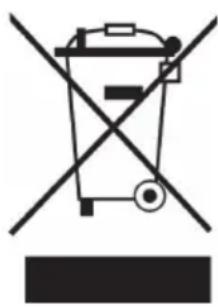
Symbol of a trash bin crossed with a diagonal line, representing no waste or discharge (no text or labels)If there is a legal regulation for the disposal of electrical and electronic devices in your country, this symbol on the product or on the packaging indicates that this product must not be disposed of with household waste. Instead, it must be taken to a collection point for the recycling of electrical and electronic equipment. By disposing of it in accordance with the rules, you are protecting the environment and the health of your fellow human beings from negative consequences. For information about the recycling and disposal of this product, please contact your local authority or your household waste disposal service.
This product contains batteries. If there is a legal regulation for the disposal of batteries in your country, the batteries must not be disposed of with household waste. Find out about local regulations for disposing of batteries. By disposing of them in accordance with the rules, you are protecting the environment and the health of your fellow human beings from negative consequences.
DECLARATION OF CONFORMITY

Manufacturer:
Chal-Tec GmbH, Wallstrasse 16, 10179 Berlin, Germany.
Importer for Great Britain:
Berlin Brands Group UK Ltd
PO Box 1145
Oxford, OX1 9UW
United Kingdom
Hereby, Chal-Tec GmbH declares that the radio equipment type Connect Vinyl Cube is in compliance with Directive 2014/53/EU. The full text of the EU declaration of conformity is available at the following internet address: use.berlin/10034557
For Great Britain: Hereby, Chal-Tec GmbH declares that the radio equipment type Connect Vinyl Cube is in compliance with the relevant statutory requirements. The full text of the declaration of conformity is available at the following internet address: use.berlin/10034557
Estimado cliente:
ÍNDICE DE CONTENIDOS
RETIRADA DEL APARATO
natural_image
Symbol of a trash bin crossed out by a diagonal line, with no text or labels present.Berlin Brands Group UK Ltd
PO Box 1145
Oxford, OX1 9UW
United Kingdom
SOMMAIRE
CONSEILS POUR LE RECYCLAGE
natural_image
Symbol of a trash bin crossed with a diagonal line, representing no waste or discharge (no text or labels)DÉCLARATION DE CONFORMITÉ

Fabricant :
Chal-Tec GmbH, Wallstraße 16, 10179 Berlin, Allemagne.
Berlin Brands Group UK Ltd
PO Box 1145
Oxford, OX1 9UW
United Kingdom
INDICE
Gestione tramite app air music control 103
Smaltimento 104
SMALTIMENTO
natural_image
Symbol of a trash bin crossed out by a diagonal line, with no text or labels present.Berlin Brands Group UK Ltd
PO Box 1145
Oxford, OX1 9UW
United Kingdom