ManualGo.com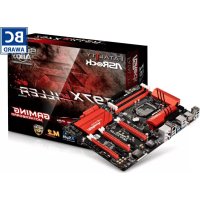
Fatal1ty Z97X Killer - Motherboard ASROCK - Free user manual and instructions
Find the device manual for free Fatal1ty Z97X Killer ASROCK in PDF.



Download the instructions for your Motherboard in PDF format for free! Find your manual Fatal1ty Z97X Killer - ASROCK and take your electronic device back in hand. On this page are published all the documents necessary for the use of your device. Fatal1ty Z97X Killer by ASROCK.
USER MANUAL Fatal1ty Z97X Killer ASROCK
Version 1.1 Published March 2015 Copyright©2015 ASRock INC. All rights reserved. Copyright Notice: No part of this documentation may be reproduced, transcribed, transmitted, or translated in any language, in any form or by any means, except duplication of documentation by the purchaser for backup purpose, without written consent of ASRock Inc. Products and corporate names appearing in this documentation may or may not be registered trademarks or copyrights of their respective companies, and are used only for identication or explanation and to the owners’ benet, without intent to infringe. Disclaimer: Specications and information contained in this documentation are furnished for informational use only and subject to change without notice, and should not be constructed as a commitment by ASRock. ASRock assumes no responsibility for any errors or omissions that may appear in this documentation. With respect to the contents of this documentation, ASRock does not provide warranty of any kind, either expressed or implied, including but not limited to the implied warranties or conditions of merchantability or tness for a particular purpose. In no event shall ASRock, its directors, ocers, employees, or agents be liable for any indirect, special, incidental, or consequential damages (including damages for loss of prots, loss of business, loss of data, interruption of business and the like), even if ASRock has been advised of the possibility of such damages arising from any defect or error in the documentation or product. is device complies with Part 15 of the FCC Rules. Operation is subject to the following two conditions: (1) this device may not cause harmful interference, and (2) this device must accept any interference received, including interference that may cause undesired operation.
CALIFORNIA, USA ONLY
e Lithium battery adopted on this motherboard contains Perchlorate, a toxic substance controlled in Perchlorate Best Management Practices (BMP) regulations passed by the California Legislature. When you discard the Lithium battery in California, USA, please follow the related regulations in advance. “Perchlorate Material-special handling may apply, see www.dtsc.ca.gov/hazardouswaste/ perchlorate” ASRock Website: http://www.asrock.come terms HDMI™ and HDMI High-Denition Multimedia Interface, and the HDMI logo are trademarks or registered trademarks of HDMI Licensing LLC in the United States and other countries. Manufactured under license under U.S. Patent Nos: 5,956,674; 5,974,380; 6,487,535; 7,003,467 & other U.S. and worldwide patents issued & pending. DTS, the Symbol, & DTS and the Symbol together is a registered trademark & DTS Connect, DTS Interactive, DTS Neo:PC are trademarks of DTS, Inc. Product includes soware. © DTS, Inc., All Rights Reserved.Who knew that at age 19, I would be a World Champion PC gamer. When I was 13, I actually played competitive billiards in professional tournaments and won four or ve games o guys who played at the highest level. I actually thought of making a career of it, but at that young age situations change rapidly. Because I’ve been blessed with great hand-eye coordination and a grasp of mathematics (an important element in video gaming) I gravitated to that activity. GOING PRO I started professional gaming in 1999 when I entered the CPL (Cyberathlete Professional League) tournament in Dallas and won $4,000 for coming in third place. Emerging as one of the top players in the United States, a company interested in sponsoring me ew me to Sweden to compete against the top 12 players in the world. I won 18 straight games, lost none, and took rst place, becoming the number one ranked Quake III player in the world in the process. Two months later I followed that success by traveling to Dallas and defending my title as the world’s best Quake III player, winning the $40,000 grand prize. From there I entered competitions all over the world, including Singapore, Korea, Germany, Australia, Holland and Brazil in addition to Los Angeles, New York and St. Louis. WINNING STREAK I was excited to showcase my true gaming skills when defending my title as CPL Champion of the year at the CPL Winter 2001 because I would be competing in a totally dierent rst person shooter (fps) game, Alien vs. Predator II. I won that competition and walked away with a new car. e next year I won the same title playing Unreal Tournament 2003, becoming the only three-time CPL champion of the year. And I did it playing a different game each year, something no one else has ever done and a feat of which I am extremely proud. At QuakeCon 2002, I faced o against my rival ZeRo4 in one of the most highly anticipated matches of the year, winning in a 14 to (-1) killer victory. Competing at Quakecon 2004, I became the World’s 1st Doom3 Champion by defeating Daler in a series of very challenging matches and earning $25,000 for the victory. Since then Fatal1ty has traveled the globe to compete against the best in the world, winning prizes and acclaim, including the 2005 CPL World Tour Championship in New York City for a $150,000 rst place triumph. In August 2007, Johnathan was awarded the rst ever Lifetime Achievement Award in the four year history of the eSports-Award for “showing exceptional sportsmanship, taking part in shaping eSports into what it is today and for being the prime representative of this young sport. He has become the gurehead for eSports worldwide”. Fatal1ty StoryLIVIN’ LARGE Since my rst big tournament wins, I have been a “Professional Cyberathlete”, traveling the world and livin’ large with lots of International media coverage on outlets such as MTV, ESPN and a 60 Minutes segment on CBS to name only a few. It's unreal - it's crazy. I’m living a dream by playing video games for a living. I’ve always been athletic and took sports like hockey and football very seriously, working out and training hard. is discipline helps me become a better gamer and my drive to be the best has opened the doors necessary to become a professional. A DREAM Now, another dream is being realized – building the ultimate gaming computer, made up of the best parts under my own brand. Quality hardware makes a huge difference in competitions…a couple more frames per second and everything gets really nice. It’s all about getting the computer processing faster and allowing more uid movement around the maps. My vision for Fatal1ty hardware is to allow gamers to focus on the game without worrying about their equipment, something I’ve preached since I began competing. I don’t want to worry about my equipment. I want to be there – over and done with - so I can focus on the game. I want it to be the fastest and most stable computer equipment on the face of the planet, so quality is what Fatal1ty Brand products represent. Johnathan “Fatal1ty” Wendel e Fatal1ty name, Fatal1ty logos and the Fatal1ty likeness are registered trademarks of Fatal1ty, Inc., and are used under license. © 2014 Fatal1ty, Inc. All rights reserved. All other trademarks are the property of their respective owners.1 English Fatal1ty Z97X Killer/3.1 Series Motherboard Layout Intel Z97 DDR3_A2 (64 bit, 240-pin module)DDR3_A1 (64 bit, 240-pin module)DDR3_B2 (64 bit, 240-pin module)DDR3_B1 (64 bit, 240-pin module)ATX 12V1USB 2. 0T: USB0B: USB 1 PS2 Keyb oard/Mous e ATXPWR1
English Fatal1ty Z97X Killer/3.1 Series
- ere are two LEDs on each LAN port. Please refer to the table below for the LAN port LED indications. Activity / Link LED Speed LED Status Description Status Description O No Link O 10Mbps connection Blinking Data Activity Orange 100Mbps connection On Link Green 1Gbps connection ** If you use a 2-channel speaker, please connect the speaker’s plug into “Front Speaker Jack”. See the table below for connection details in accordance with the type of speaker you use. Audio Output Channels Front Speaker (No. 9) Rear Speaker (No. 7) Central / Bass (No. 6) Line In (No. 8) 2 V -- -- -- 4 V V -- -- 6 V V V -- 8 V V V V ACT/LINK LEDSPEED LEDLAN PortTo enable Multi-Streaming, you need to connect a front panel audio cable to the front panel audio header. Aer restarting your computer, you will nd the “Mixer” tool on your system. Please select “Mixer ToolBox” , click “Enable playback multi-streaming”, and click “ok”. Choose “2CH”, “4CH”, “6CH”, or “8CH” and then you are allowed to select “Realtek HDA Primary output” to use the Rear Speaker, Central/Bass, and Front Speaker, or select “Realtek HDA Audio 2nd output” to use the front panel audio.
Chapter 1 Introduction
ank you for purchasing ASRock Fatal1ty Z97X Killer Series motherboard, a reliable motherboard produced under ASRock’s consistently stringent quality control. It delivers excellent performance with robust design conforming to ASRock’s commitment to quality and endurance.
1 x I/O Panel Shield
1 x Screw for M.2_SSD (NGFF) Socket 35 English Fatal1ty Z97X Killer/3.1 Series
Chapter 1 Introduction
ank you for purchasing ASRock Fatal1ty Z97X Killer Series motherboard, a reliable motherboard produced under ASRock’s consistently stringent quality control. It delivers excellent performance with robust design conforming to ASRock’s commitment to quality and endurance.
1 x I/O Panel Shield
1 x Screw for M.2_SSD (NGFF) Socket 3 Because the motherboard specications and the BIOS soware might be updated, the content of this manual will be subject to change without notice. In case any modica-tions of this manual occur, the updated version will be available on ASRock’s website without further notice. If you require technical support related to this motherboard, please visit our website for specic information about the model you are using. You may nd the latest VGA cards and CPU support list on ASRock’s website as well. ASRock website http://www.asrock.com.6 English Fatal1ty Z97X Killer/3.1 Series
High Density Glass Fabric PCB CPU
8 Power Phase design
Supports Intel® Turbo Boost 2.0 Technology
Supports Intel® K-Series unlocked CPUs
Supports ASRock BCLK Full-range Overclocking Chipset
Dual Channel DDR3 Memory Technology
- Please refer to Memory Support List on ASRock's website for more information. (http://www.asrock.com/)
Max. capacity of system memory: 32GB (see CAUTION)
Intel® HD Graphics Built-in Visuals and the VGA outputs can be supported only with processors which are GPU integrated.
Supports Intel® HD Graphics Built-in Visuals : Intel® Quick Sync Video with AVC, MVC (S3D) and MPEG-2 Full HW Encode1, Intel® InTru
Supports Triple Monitor
Supports HDMI with max. resolution up to 4K x 2K (4096x2160) @ 24Hz
Supports DVI-D with max. resolution up to 1920x1200 @ 60Hz
Supports D-Sub with max. resolution up to 1920x1200 @ 60Hz
Supports Auto Lip Sync, Deep Color (12bpc), xvYCC and HBR (High Bit Rate Audio) with HDMI Port (Compliant HDMI monitor is required)
Supports HDCP with DVI-D and HDMI Ports
Supports Full HD 1080p Blu-ray (BD) playback with DVI-D and HDMI Ports Audio
7.1 CH HD Audio with Content Protection (Realtek ALC1150
Supports Surge Protection (ASRock Full Spike Protection)
Supports Purity Sound™ 2 - Nichicon Fine Gold Series Audio Caps - 115dB SNR DAC with Dierential Amplier - TI® NE5532 Premium Headset Amplier (Supports up to 600 Ohms headsets) - Direct Drive Technology - EMI Shielding Cover - PCB Isolate Shielding
Supports DTS Connect LAN
Supports Wake-On-LAN
Supports Lightning/ESD Protection (ASRock Full Spike Protection)
Supports Energy Ecient Ethernet 802.3az
Supports PXE8 English Fatal1ty Z97X Killer/3.1 Series Rear Panel I/O
1 x USB 2.0 Port (Supports ESD Protection (ASRock Full Spike Protection))
1 x RJ-45 LAN Port with LED (ACT/LINK LED and SPEED LED)
HD Audio Jacks: Rear Speaker / Central / Bass / Line in / Front Speaker / Microphone ASRock USB 3.1/ A+C
1 x USB 3.1 Type-A Port (10 Gb/s) (Supports ESD Protection (ASRock Full Spike Protection))
6 x SATA3 6.0 Gb/s Connectors, support RAID (RAID 0, RAID 1, RAID 5, RAID 10, Intel Rapid Storage Technology 13 and Intel Smart Response Technology), NCQ, AHCI, Hot Plug and ASRock HDD Saver Technology
1 x SATA Express Connector (shared with SATA3_4, SATA3_5 and M.2_SSD (NGFF) Socket 3)
- Support to be announced
2 x CPU Fan Connectors (1 x 4-pin, 1 x 3-pin)
3 x Chassis Fan Connectors (1 x 4-pin, 2 x 3-pin)9 English Fatal1ty Z97X Killer/3.1 Series
- For detailed product information, please visit our website: http://www.asrock.com
1 x Power Fan Connector (3-pin)
1 x 8 pin 12V Power Connector (Hi-Density Power Connector)
1 x Front Panel Audio Connector
2 x USB 2.0 Headers (Support 4 USB 2.0 ports) (Supports ESD Protection (ASRock Full Spike Protection))
1 x USB 3.0 Header (Supports 2 USB 3.0 ports) (Supports ESD Protection (ASRock Full Spike Protection)) BIOS Feature
Supports Secure Backup UEFI Technology
ACPI 1.1 Compliant wake up events
CPU/Chassis temperature sensing
CPU/Chassis Quiet Fan (Auto adjust chassis fan speed by CPU temperature)
CPU/Chassis Fan multi-speed control
ErP/EuP ready (ErP/EuP ready power supply is required)10 English Fatal1ty Z97X Killer/3.1 Series Please realize that there is a certain risk involved with overclocking, including adjusting the setting in the BIOS, applying Untied Overclocking Technology, or using third-party overclocking tools. Overclocking may aect your system’s stability, or even cause damage to the components and devices of your system. It should be done at your own risk and expense. We are not responsible for possible damage caused by overclocking. Due to limitation, the actual memory size may be less than 4GB for the reservation for sys- tem usage under Windows® 32-bit operating systems. Windows® 64-bit operating systems do not have such limitations. You can use ASRock XFast RAM to utilize the memory that Windows® cannot use.11 English Fatal1ty Z97X Killer/3.1 Series is is an ATX form factor motherboard. Before you install the motherboard, study the conguration of your chassis to ensure that the motherboard ts into it. Pre-installation Precautions Take note of the following precautions before you install motherboard components or change any motherboard settings.
Make sure to unplug the power cord before installing or removing the motherboard components. Failure to do so may cause physical injuries and damages to motherboard components.
In order to avoid damage from static electricity to the motherboard’s components, NEVER place your motherboard directly on a carpet. Also remember to use a grounded wrist strap or touch a safety grounded object before you handle the components.
Hold components by the edges and do not touch the ICs.
Whenever you uninstall any components, place them on a grounded anti-static pad or in the bag that comes with the components.
When placing screws to secure the motherboard to the chassis, please do not over- tighten the screws! Doing so may damage the motherboard.
Chapter 2 Installation12
English Fatal1ty Z97X Killer/3.1 Series
2.1 Installing the CPU
1. Before you insert the 1150-Pin CPU into the socket, please check if the PnP cap is on
the socket, if the CPU surface is unclean, or if there are any bent pins in the socket. Do not force to insert the CPU into the socket if above situation is found. Otherwise, the CPU will be seriously damaged.
B13 English Fatal1ty Z97X Killer/3.1 Series
English Fatal1ty Z97X Killer/3.1 Series Please save and replace the cover if the processor is removed. e cover must be placed if you wish to return the motherboard for aer service.15 English Fatal1ty Z97X Killer/3.1 Series
2.2 Installing the CPU Fan and Heatsink
N16 English Fatal1ty Z97X Killer/3.1 Series
2.3 Installing Memory Modules (DIMM)
is motherboard provides four 240-pin DDR3 (Double Data Rate 3) DIMM slots, and supports Dual Channel Memory Technology. Dual Channel Memory Conguration e DIMM only ts in one correct orientation. It will cause permanent damage to the motherboard and the DIMM if you force the DIMM into the slot at incorrect orientation. Priority DDR3_A1 DDR3_A2 DDR3_B1 DDR3_B2 1 Populated Populated 2 Populated Populated 3 Populated Populated Populated Populated
1. For dual channel conguration, you always need to install identical (the same
brand, speed, size and chip-type) DDR3 DIMM pairs.
2. It is unable to activate Dual Channel Memory Technology with only one or three
memory module installed.
3. It is not allowed to install a DDR or DDR2 memory module into a DDR3 slot;
otherwise, this motherboard and DIMM may be damaged.17 English Fatal1ty Z97X Killer/3.1 Series
English Fatal1ty Z97X Killer/3.1 Series
2.4 Expansion Slots (PCI Express Slots)
ere are 6 PCI Express slots on the motherboard. PCIe slots: PCIE1 (PCIe 2.0 x1 slots) is used for PCI Express x1 lane width cards. PCIE2 (PCIe 3.0 x16 slot) is used for PCI Express x16 lane width graphics cards. PCIE3 (PCIe 2.0 x1 slots) is used for PCI Express x1 lane width cards. PCIE4 (PCIe 3.0 x16 slot) is used for PCI Express x8 lane width graphics cards. PCIE5 (PCIe 2.0 x1 slots) is used for PCI Express x1 lane width cards. PCIE6 (PCIe 3.0 x16 slot) is used for PCI Express x4 lane width graphics cards PCIe Slot Congurations
Single Graphics Card x16 N/A N/A Two Graphics Cards in CrossFireX
Mode x8 x4 x4 For a better thermal environment, please connect a chassis fan to the motherboard’s chassis fan connector (CHA_FAN1, CHA_FAN2 or CHA_FAN3) when using mul- tiple graphics cards. Before installing an expansion card, please make sure that the power supply is switched o or the power cord is unplugged. Please read the documentation of the expansion card and make necessary hardware settings for the card before you start the installation.19 English Fatal1ty Z97X Killer/3.1 Series
e illustration shows how jumpers are setup. When the jumper cap is placed on the pins, the jumper is “Short”. If no jumper cap is placed on the pins, the jumper is “Open”. e illustration shows a 3-pin jumper whose pin1 and pin2 are “Short” when a jumper cap is placed on these 2 pins. Clear CMOS Jumper (CLRCMOS1) (see p.1, No. 16) CLRCMOS1 allows you to clear the data in CMOS. To clear and reset the system parameters to default setup, please turn o the computer and unplug the power cord from the power supply. Aer waiting for 15 seconds, use a jumper cap to short pin2 and pin3 on CLRCMOS1 for 5 seconds. However, please do not clear the CMOS right aer you update the BIOS. If you need to clear the CMOS when you just nish updating the BIOS, you must boot up the system rst, and then shut it down before you do the clear-CMOS action. Please be noted that the password, date, time, and user default prole will be cleared only if the CMOS battery is removed. Clear CMOSDefault20 English Fatal1ty Z97X Killer/3.1 Series BIOS Selection Jumper (BIOS_SEL1) (see p.1, No. 18) is motherboard has two BIOS onboard, a main BIOS (BIOS_A) and a backup BIOS (BIOS_B), which enhances protection for the safety and stability of your system. Normally, the system works on the main BIOS. However, if the main BIOS is corrupted or damaged, please use a jumper cap to short pin2 and pin3, then the backup BIOS will take over on the next system boot. Aer that, use “Secure Backup UEFI“ in BIOS setup utility to copy the BIOS le to the main BIOS to ensure normal system operation. For the sake of system safety, users cannot update the backup BIOS manually. Users may refer to the BIOS LED (BIOS_A_ LED or BIOS_B_LED) to identify which BIOS is activated currently. Backup BIOS Default (Main BIOS)21 English Fatal1ty Z97X Killer/3.1 Series
2.6 Onboard Headers and Connectors
System Panel Header (9-pin PANEL1) (see p.1, No. 20) Connect the power switch, reset switch and system status indicator on the chassis to this header according to the pin assignments below. Note the positive and negative pins before connecting the cables. PWRBTN (Power Switch): Connect to the power switch on the chassis front panel. You may congure the way to turn o your system using the power switch. RESET (Reset Switch): Connect to the reset switch on the chassis front panel. Press the reset switch to restart the computer if the computer freezes and fails to perform a normal restart. PLED (System Power LED): Connect to the power status indicator on the chassis front panel. e LED is on when the system is operating. e LED keeps blinking when the system is in S1/S3 sleep state. e LED is o when the system is in S4 sleep state or powered o (S5). HDLED (Hard Drive Activity LED): Connect to the hard drive activity LED on the chassis front panel. e LED is on when the hard drive is reading or writing data. e front panel design may dier by chassis. A front panel module mainly consists of power switch, reset switch, power LED, hard drive activity LED, speaker and etc. When connecting your chassis front panel module to this header, make sure the wire assign- ments and the pin assignments are matched correctly. Onboard headers and connectors are NOT jumpers. Do NOT place jumper caps over these headers and connectors. Placing jumper caps over the headers and connectors will cause permanent damage to the motherboard.
GNDR ESET#PWRBTN#PLED-PLED+GNDHDLED-HDLED+
GND22 English Fatal1ty Z97X Killer/3.1 Series Power LED Header (3-pin PLED1) (see p.1, No. 19) Please connect the chassis power LED to this header
indicate the system’s power status. Serial ATA3 Connectors (SATA3_0: see p.1, No. 8) (SATA3_1: see p.1, No. 10) (SATA3_2: see p.1, No. 12) (SATA3_3: see p.1, No. 9) (SATA3_4: see p.1, No. 11) (SATA3_5: see p.1, No. 13) ese six SATA3 connectors support SATA data cables for internal storage devices with up to
6.0 Gb/s data transfer rate.
e SATA3_4, SATA3_5 are shared with the SATA Express connector. Serial ATA Express Connector (SATAE_1: see p.1, No. 14) Please connect either SATA or PCIe storage devices to this connector. e SATA Express connector is shared with the SATA3_4, SATA3_5 and the M.2_SSD (NGFF) Socket 3. *e SATA Express interface is a combination of SATAE_1, SATA3_4, and SATA3_5. USB 2.0 Headers (9-pin USB2_3) (see p.1, No. 23) (9-pin USB4_5) (see p.1, No. 22) Besides two USB 2.0 ports on the I/O panel, there are two headers on this motherboard. Each USB
2.0 header can support
English Fatal1ty Z97X Killer/3.1 Series USB 3.0 Headers (19-pin USB3_4_5) (see p.1, No. 6) ere is one header on this motherboard. Each USB 3.0 header can support two ports. Front Panel Audio Header (9-pin HD_AUDIO1) (see p.1, No. 26) is header is for connecting audio devices to the front audio panel. Chassis Speaker Header (4-pin SPEAKER1) (see p.1, No. 15) Please connect the chassis speaker to this header. Chassis and Power Fan Connectors (4-pin CHA_FAN1) (see p.1, No. 17) (3-pin CHA_FAN2) (see p.1, No. 28) (3-pin CHA_FAN3) (see p.1, No. 27) Please connect fan cables to the fan connectors and match the black wire to the ground pin.
1. High Denition Audio supports Jack Sensing, but the panel wire on the chassis must
support HDA to function correctly. Please follow the instructions in our manual and chassis manual to install your system.
2. If you use an AC’97 audio panel, please install it to the front panel audio header by
the steps below: A. Connect Mic_IN (MIC) to MIC2_L. B. Connect Audio_R (RIN) to OUT2_R and Audio_L (LIN) to OUT2_L. C. Connect Ground (GND) to Ground (GND). D. MIC_RET and OUT_RET are for the HD audio panel only. You don’t need to con- nect them for the AC’97 audio panel. E. To activate the front mic, go to the “FrontMic” Tab in the Realtek Control panel and adjust “Recording Volume”.
ATX 12V Power Connector (8-pin ATX12V1) (see p.1, No. 1) is motherboard pro- vides an 8-pin ATX 12V power connector. To use a 4-pin ATX power supply, please plug it along Pin 1 and Pin 5. PCIe Power Connector (4-pin PCIE_PWR1) (see p.1, No. 25) Please connect a 4 pin molex power cable to this connector when more than three PCI Express cards are installed. HDD Saver Connector (4-pin SATA_PWR_1) (see p.1, No. 7) Please connect the HDD Saver Cable to this connector to manage the power state of HDD.
+12V DETECT GND25 English Fatal1ty Z97X Killer/3.1 Series Serial Port Header (9-pin COM1) (see p.1, No. 24) is COM1 header supports a serial port module. TPM Header (17-pin TPMS1) (see p.1, No. 21) is connector supports Trusted Platform Module (TPM) system, which can securely store keys, digital certicates, passwords, and data. A TPM system also helps en- hance network security, protects digital identities, and ensures platform integrity.
RRI#126 English Fatal1ty Z97X Killer/3.1 Series
2.7 M.2_SSD (NGFF) Module Installation Guide
e M.2, also known as the Next Generation Form Factor (NGFF), is a small size and versatile card edge connector that aims to replace mPCIe and mSATA. e M.2_SSD (NGFF) Socket 3 can accommodate either a M.2 SATA3 6.0 Gb/s module or a M.2 PCI Express module up to Gen 2 x2 (10 Gb/s). Please be noted that the M.2_SSD (NGFF) Socket 3 is shared with the SATA Express connector; you can only choose either the M.2_ SSD (NGFF) Socket 3 or the SATA Express connector to use. *e M.2_SSD (NGFF) Socket 3 supports SSD drives. Please note that the WiFi or other non-SSD M.2 modules are not supported. Installing the M.2_SSD (NGFF) Module Step 1 Prepare a M.2_SSD (NGFF) module and the screw.
Step 3 Move the stando based on the module type and length. e stando is placed at the nut location D by default. Skip Step 3 and 4 and go straight to Step 5 if you are going to use the default nut. Otherwise, release the stando by hand. BCDE
Step 4 Peel o the yellow protective lm on the nut to be used. Hand tighten the stando into the desired nut location on the motherboard.
Step 6 Tighten the screw with a screwdriver to secure the module into place. Please do not overtighten the screw as this might damage the module. M.2_SSD (NGFF) Module Support List For the latest updates of M.2_SSD (NFGG) module support list, please visit our website for details: http://www.asrock.com29 English Fatal1ty Z97X Killer/3.1 Series
2.8 HDD Saver Cable Installation Guide
The HDD Saver Connector on this motherboard allows you to switch on and off the connected HDDs via soware when needed. is design secures more privacy, saves more energy, and extends the HDDs' lifespans. Please follow the steps below to install the HDD Saver Cable. Connection Diagram *e diagram shown here is for reference only.
1. Connect one end of the HDD Saver Cable to the HDD Saver Connector (SATA_
PWR _1) placed near the SATA ports. en connect the SATA power connector(s) to your SATA HDD(s).
- e HDD Saver Connector supports up to two SATA HDDs.
2. Connect one end of the SATA data cable to a SATA port on the motherboard. en
connect the other end to your SATA HDD(s).
HDD Saver CableSATA data cable For the soware conguration, please refer to the section 3.2 “F-Stream” in the user manual.30 English Fatal1ty Z97X Killer/3.1 Series
Compliant with PCI Express 1.1, 2.0 and 3.0 specications
Supports data rates up to 10 Gbps
Compliant with x4, x8 or x16 PCI Express Slots Connector
- For charging Type-A USB devices, we suggest using the Type-A connectors on your motherboard.
- is port supports power outputs up to 5V/3A. For charging Type-C USB devices, the device should support Type-C standards to adjust the current because it will be dierent in Power On state (3 Amp) and Sleep state (1 Amp).
- Some Type-C USB devices may only be charged by its own adapter.
x2 lane) USB 3.1 Port (Type-A) USB 3.1 Port (Type-C)31 English Fatal1ty Z97X Killer/3.1 Series Installation Procedure e ASRock USB 3.1/A+C provides two external USB 3.1 ports which support transfer rates up to 10 Gbps. Follow the simple steps below to install the ASRock USB 3.1/A+C. Step 1 Power o the PC and unplug the power cord. Detach all other cables from the PC. Step 2 Remove the side panel from the computer case. *Refer to the documentation that comes with your PC for details. Step 3 Locate an available x4, x8 or x16 PCI Express slot on your motherboard and remove its slot bracket. *To maximize the performance of ASRock USB 3.1/A+C, it is highly recommended to insert the card into the PCIE6 (from CPU). Step 4 Align the ASRock USB 3.1/A+C with the PCI Express slot and press down rmly until it is fully seated in the slot. en secure the card with the slot bracket’s holding screw. Step 5 Replace the side panel. Reconnect the power cord and any other cables that were disconnected. *Jumper Setup: Jumper J1 is set to Pin1-2 by default and allows device charging during S3 (Sleep), S4 (Suspend) or S5 (Power O) power states. To disable device charging during S3/ S4/S5 (Power O) power states, you need to move the jumper cap placed on Pin1-2 (default) to Pin2-3. *Please install driver for Windows® 7 (32-bit and 64-bit).Deutsch
Supporta DTS Connect LAN
Supporta Wake-On-LAN
Supporta Energy Ecient Ethernet 802.3az
Fatal1ty Z97X Killer/3.1 Series Panel I/O Belakang