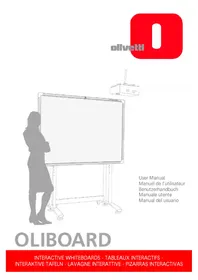
Oliboard ePEN - Interactive whiteboard OLIVETTI - Free user manual and instructions
Find the device manual for free Oliboard ePEN OLIVETTI in PDF.



| Product Type | Electromagnetic Induction Interactive Whiteboard |
| Dimensions (outer area) | 174 x 127 cm (model 78S), 223 x 127 cm (model 95D), model 78D dimensions not specified |
| Active Area | 160 x 119 cm (model 78S), 210 x 118 cm (model 95D) |
| Net Weight | 17 kg (model 78S), 25.5 kg (model 95D) |
| Power Supply | USB 5 V DC, 100 mA |
| Accuracy | +/- 0.05 mm |
| Tracking Speed | 17 m/s (model 78S), 8 m/s (models 78D and 95D) |
| Main Functions | Electronic pen (mouse, writing, annotation), tools (compass, ruler, set square, protractor), modes (command, annotation, window, full screen), dual pen (models 78D and 95D), magnification, reflector, camera, customizable wallpaper |
| Maintenance and Cleaning | Clean the panel with a wrung-out damp cloth to prevent water infiltration. For non-erasable marker stains, use a cotton ball soaked in alcohol. Do not use markers or pens. |
| Safety | Do not install in humid or smoky environments. Avoid looking directly at the projector beam. Do not touch the hot projector. Do not hang on the mount. Hide cables to prevent tripping hazards. |
| Spare Parts and Repairability | Electronic pen (AAA 1.5 V battery included), special USB cable 10 m, wall mount kit, optional pedestal (model B5848). Pen batteries replaceable; lifetime approximately 3 months. |
| General Information | Compatibility: Windows 2000/XP/Vista/7, Linux Ubuntu 7.0/8.0 and later, Mac OS X 10.4 and later (Intel). Minimum configuration: CPU 1 GHz, RAM 512 MB, USB port, VGA/HDMI port for projector. |
Frequently Asked Questions - Oliboard ePEN OLIVETTI
User questions about Oliboard ePEN OLIVETTI
0 question about this device. Answer the ones you know or ask your own.
Ask a new question about this device
Download the instructions for your Interactive whiteboard in PDF format for free! Find your manual Oliboard ePEN - OLIVETTI and take your electronic device back in hand. On this page are published all the documents necessary for the use of your device. Oliboard ePEN by OLIVETTI.
USER MANUAL Oliboard ePEN OLIVETTI
natural_image
Illustration of a person standing beside a large whiteboard with a small electronic device above (no text or symbols on the main subject)User Manual
PUBLICATION ISSUED BY:
Olivetti S.p.A.
Copyright © 2011, Olivetti
All rights reserved
EDITION 1.1
The label applied to the product certifies that the product satisfies the basic quality requirements.

The manufacturer reserves the right to carry out modifications to the product described in this manual at any time and without any notice.
Your attention is drawn to the following actions which could compromise the conformance guaranteed above, as well as the technical features of the product:
- incorrect electrical power supply;
- incorrect installation, incorrect or improper use or use not in compliance with the warnings provided in the User's Manual supplied with the product;
- replacement of original components or accessories with others of a type not approved by the manufacturer, or performed by unauthorised personnel.
All rights reserved. No part of this material may be reproduced or transmitted in any form or by any means, electronic or mechanical, including photocopying, recording or similar, without prior permission in writing from Olivetti S.p.A.
The content of this manual can be modified without warning. Every care has been set in the creation, realization, verification and documentation of the software related to the Oliboard whiteboard and of the documentation written in this manual; nevertheless Olivetti S.p.A. disclaims any liability of any kind for any damages whatsoever resulting from the use of the software and of the manual. The same thing can be said for any person or company involved in the creation, realization, production and verification of the software and of the manual.
The registered trademarks are the property of their respective owners.

INSTRUCTION: provides additional software instructions.

NOTE: describes problems that could occur when using the whiteboard and how to avoid and resolve them.

WARNING: draws attention to the danger of personal injury or product damage if improperly used.
Caution Warning

- In order to avoid electric shocks, do not install the interactive whiteboard in damp or smoky environments.
- After the interactive whiteboard is installed, avoid touching its power and data cables.
- Keep the interactive whiteboard away from open flames, electrical contacts and direct sunlight.
• After the interactive whiteboard is installed, make sure that it is fixed securely. - Avoid looking directly at the beam of light emitted by the projector onto the whiteboard.
- Do not touch the projector because it could be hot even after only a few minutes of operation. Refer to the projector manual for all warnings and rules relating to its use.
- Do not hang onto the support stand of the projector.
When the whiteboard is mounted on a pedestal, be careful not to trip over the pedestal.
Important notes
- The interactive whiteboard must be used only with the special electronic pens. Do not use marker pens, pencils or other types of pen. If necessary, clean the whiteboard using alcohol.
- Make sure that the whiteboard is correctly connected to the computer and to the electrical mains. The decision to lay the connection and power cables in a hidden way is preferable, so as to avoid them being pulled and disconnected. Do not leave the cables lying on the floor to avoid any possibility of them being tripped over.
- Do not scratch the surface or the frame of the whiteboard with sharp or hard objects. Environmental conditions: no strong magnetic fields must be present. If there is a wall made of metal or other magnetic materials, a distance of 10 meters must be maintained between the whiteboard and the wall.
- When writing on the whiteboard with the electronic pen, keep the pen vertical to the board and do not press.
- When fixed onto a wall, the whiteboard must be vertical to the wall surface.
- Do not hang objects or weights onto the whiteboard and, if present, the pedestal.
- When it is installed on the pedestal, use caution whenever you move it to avoid it tipping over.
This manual relates exclusively to the Oliboard whiteboard and the software provided with it. Although references are made to the computer connected to the whiteboard (notebook, PC and so on) and to the video-projector, for these devices you should refer to the original documentation provided by their manufacturers.

FURTHER WARNINGS FOR INSTALLATIONS IN SCHOOL ENVIRONMENTS
The warnings and precautions for using the whiteboard and projector must be recommended to students as well. The following in particular must be stressed:
- Do not look directly at the beam of light emitted by the projector onto the whiteboard.
- Do not touch the projector because it could be hot, even after only a few minutes of operation.
- Pay attention to the connection cables and, if the whiteboard is mounted on a pedestal, be careful not to trip over it. In any case, it is recommended not to run near the whiteboard and the pedestal.
- Do not hang onto the support stand of the projector and, if present, the pedestal.
Page left intentionally blank
TABLE OF CONTENTS
INTRODUCTION....1
Overview....1
System Requirements....2
Unpacking the Interactive Whiteboard and accessories 3
Main Features 6
External View 6
Whiteboard Function Keys....7
Technical Specifications 8
Hardware Installation 9
Installing the Battery of the Electronic Pen 10
WINDOWS SOFTWARE INSTALLATION 11
Express Installation....11
Step-by-step Installation 12
Installing the Oliboard Software Driver....12
Installing the Oliboard Software.... 13
Installing the Software Driver for the USB Cable....13
Removing the Oliboard Software.... 14
Running the Software 14
Starting the Driver of the Interactive Whiteboard 14
Orienting the Interactive Whiteboard.... 15
Starting the Whiteboard Application Software.... 17
Creating a Personal Account and Password 18
Setting Up the Oliboard Functions 20
LINUX-UBUNTU SOFTWARE INSTALLATION 21
Installing the oliboard software 21
Removing the Software....23
Running the Software 24
Starting the Oliboard Driver 24
Orienting the Interactive Whiteboard 25
Running the Whiteboard Software Application 27
MAC SOFTWARE INSTALLATION 28
Installing the Oliboard software....28
Installing the USB cable software driver 29
Removing the Software....32
Running the Software 32
Starting the Oliboard Driver 32
Orienting the Interactive Whiteboard....33
Running the Whiteboard Software Application 35
SOFTWARE REGISTRATION 36
TROUBLESHOOTING 37
Page left intentionally blank
INTRODUCTION
OVERVIEW
The Interactive Whiteboard is an input peripheral device that, thanks to the application of stable, advanced technologies, allows an interactive environment to be created that, by connecting a computer and a video-projector, can be used for teaching and demos.
Features
- The Oliboard whiteboard is furnished with a hard surface to ensure resilience to wear and a protection against acts of vandalism; featuring high tracing precision, rapid response and operational sensitivity it allows intuitive use by even less expert users.
- The software provided offers sophisticated functions such as partial magnification, searchlight, replay, camera, customised background, specialized tools (compass, ruler, set square, etc),
- With the electronic pen, you can write, take notes, erase, trace geometrical figures, copy, run and save files.
- The electronic pen can also be used as a mouse to send commands to the computer.
SYSTEM REQUIREMENTS
The whiteboard must be connected to a computer that displays images on the whiteboard by means of a video-projector.
| Minimum Configuration Recommended Configuration | ||
| HardwareConfiguration | CPU: 1GHz CPU: 1.7 GHz or higher | |
| RAM: 512 MB RAM: 1 GB or higher | ||
| USB port (for connecting whiteboard) | USB port (for connecting whiteboard) | |
| VGA port (female, type SUB-D15) for connecting the video-projector.NOTE:some computers (e.g. MAC) are not equipped with this type of port. In this case you must use an adapter (not supplied with the whiteboard and projector). | VGA port (female, type SUB-D15) for connecting the video-projector.NOTE:some computers (e.g. MAC) are not equipped with this type of port. In this case you must use an adapter (not supplied with the whiteboard and projector). | |
| SoftwareConfiguration | Windows 2000, XP, Vista, 7 Windows 2000, XP, Vista, 7 | |
| Linux Ubuntu7.0/8.0(I386/AMD64) | Linux Ubuntu7.0/8.0 and later(I386/AMD64); | |
| Mac OS X V10.4 and later(Intel platform) | Mac OS X V10.4 and later(Intel platform) | |
Recommended Computer Setup:
1) To obtain the best picture on the whiteboard, the format of the computer video output (its resolution) and of the projector must be the same as that of the whiteboard.
Therefore, for whiteboards in format 4/3 (Oliboard 78S and Oliboard 78D), it is recommended to use an output resolution corresponding to the 4/3 format (e.g. 1024x768 or 800x600).
For a whiteboard in format 16:9 (Oliboard 95D), it is recommended to use an output resolution corresponding to the 16:9 format (e.g. 1280x800).
2) While using the whiteboard, the computer connected could enter "stand-by" mode. To avoid this, it is advisable to deactivate the screen-saver and energy-saving functions.
UNPACKING THE INTERACTIVE WHITEBOARD AND ACCESSORIES
The standard Interactive Whiteboard kit contains the following components:
- Interactive Whiteboard
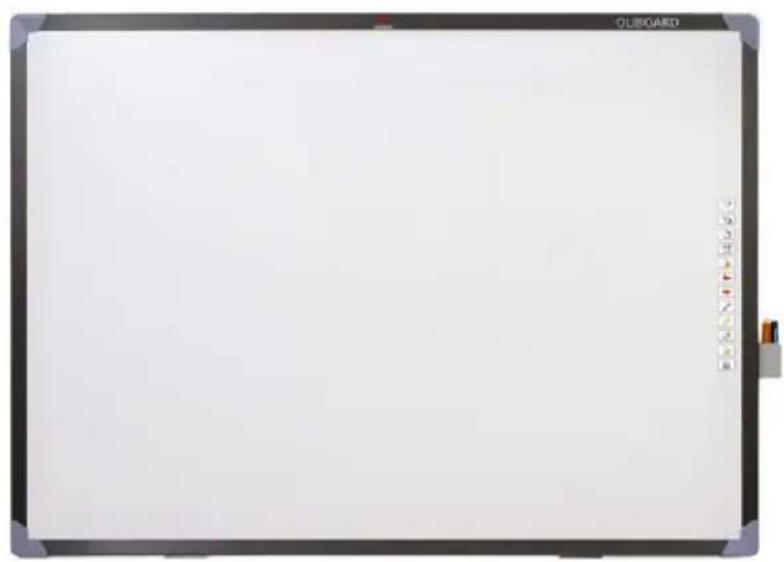
natural_image
Blank whiteboard with black frame and toolbar at top (no text or symbols on the board)(the colour of the product could vary)
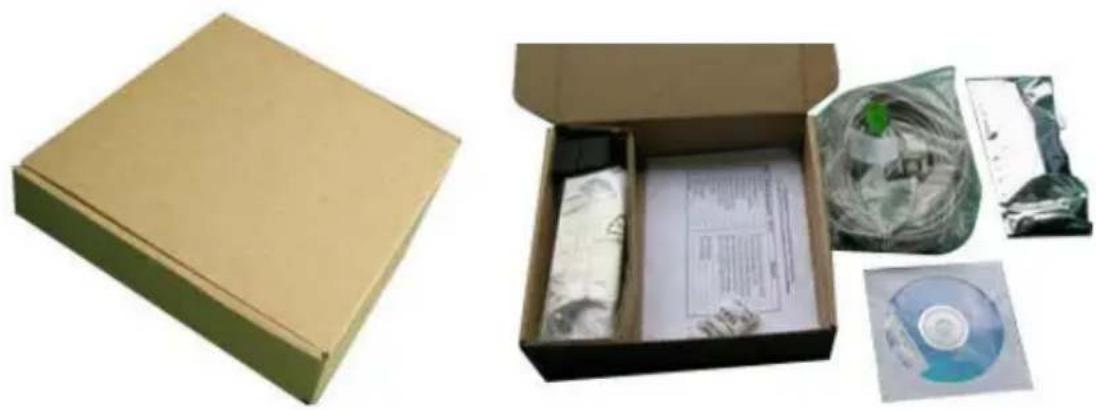
- Accessories
natural_image
Two open boxes: one beige cardboard case and one packaged with a CD or DVD, both with visible printed materials (no text or symbols)The standard accessories provided include:
| Description Quantity Purpose Image | |||
| Electronic pen 2 | Special pen for Interactive Whiteboard. Each pen has one 1.5V AAA battery (mini-Style). | 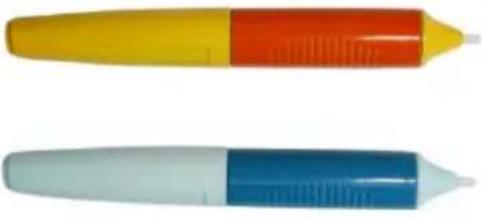 Colours can vary Colours can vary | |
| Special 10-meter cable | 1 | Cable for connecting the computer to the Interactive Whiteboard | 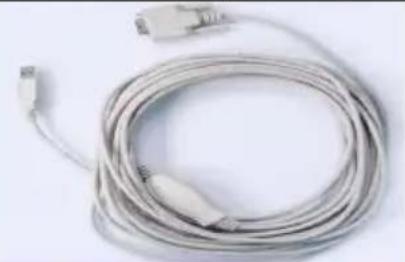 |
| Oliboard Installation Disk | Up to 3 disks | Drivers and application software for Windows, Linux and Mac |  |
| User Manual 1 User Guide |  | ||
| Installation brackets and accessories for wall fixing | 1 Wall fixing kit Various mechanical parts | ||
- Optional Accessories
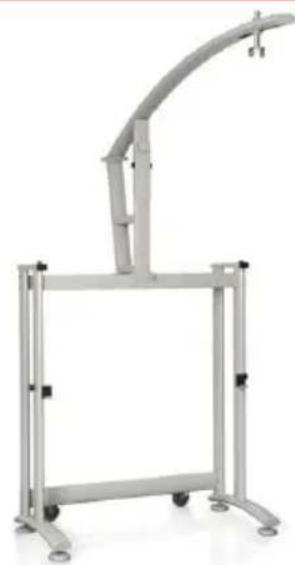
Instead of wall installation, you can also choose to install the Interactive Whiteboard on a special floor stand, available on order. In the following, the model B5848.
natural_image
Modern vertical metal stand with curved arm and wheels, no visible text or symbolsOptional floor stand (mod. B5848)
Floor stand dimensions (without whiteboard or projector) model B5848:
- width: 127 cm; depth: 75 cm;
- height: 246 cm (max. height of projector stand when assembled).
natural_image
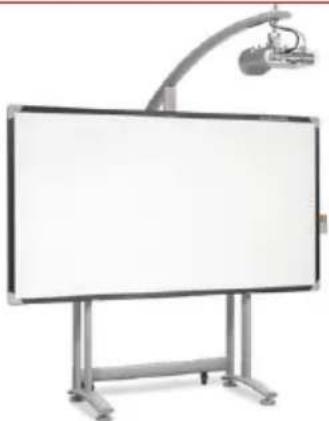
Whiteboard-mounted projector with overhead lamp (no visible text or symbols)OLIBOARD 95D whiteboard on floor stand (mod. B5848)
Model B5848 comes into two packages:
- package 1: cm. 1680 x 770 x 110, gross weight \~ 34,5 Kg
- package 2: cm. 2030 x 750 x 170, gross weight \~ 28 Kg
MAIN FEATURES
External View
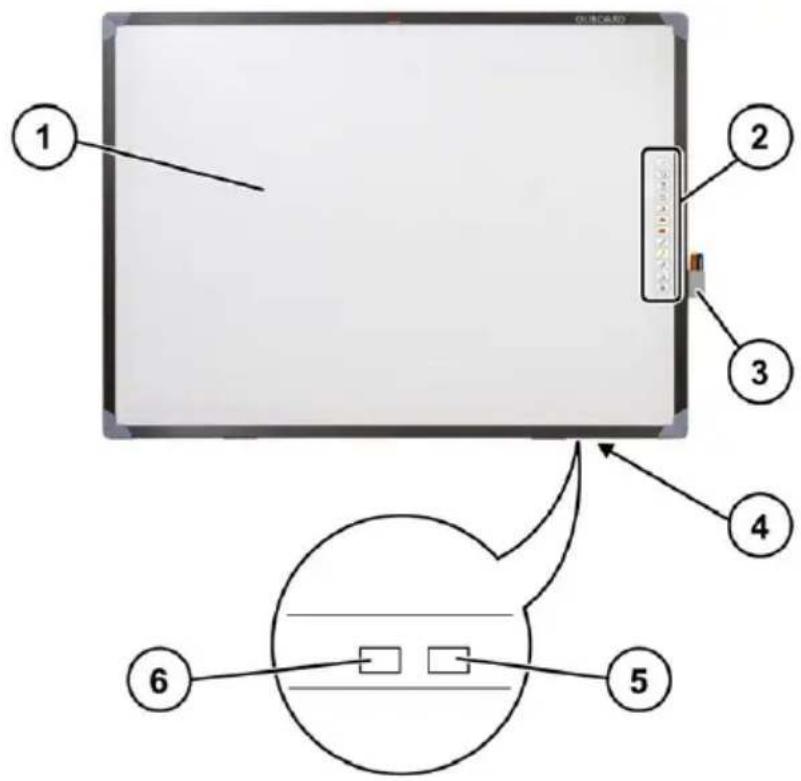
(The colour varies according to the model).
Ref. Description
| 1 | Writing | Area |
| 2 | Function | Keys |
| 3 | Pen | Holder |
| 4 | Interface | Board |
| 5 | Interface for the special cable to connect to the USB port of the computer (the whiteboard is normally powered via this same cable). | |
| 6 | Power Socket (normally not used). | |
WHITEBOARD FUNCTION KEYS
| Function keys | Definition Control Mode | Window Mode | Annotation Mode | |
 | Orientation (tuning) | Orientation | Orientation | Orientation |
 | Control Mode (mouse-like) | No effect | Switch to Control Mode | Switch to Control Mode |
 | Annotation Mode | Switch to Annotation Mode | Switch to Annotation Mode | No effect |
 | Window Mode No effect | Front Page Front Page | ||
 | Creates a blank page | Create a blank page | Create a blank page | Create a blank page |
 | Page Up No effect | Page Up Page Up | ||
 | Page Down No effect | Page Down Page Down | ||
 | Normal Pen | Switch to Annotation Mode, using Normal Pen | Normal Pen | Normal Pen |
 | Transparent Pen | Switch to Annotation Mode, using Transparent Pen | Transparent Pen | Transparent Pen |
 | Eraser | Eraser | Eraser | Eraser |
 | Replay Replay pages | Replay pages Replay pages | ||
 | ||||
Technical Specifications
| Hardware Platform Peripheral device for computer, notebook. | |
| Tracking rate | Oliboard 78S: 17m/s (669 inch/s)Oliboard 78D, Oliboard 95D: 8 m/s (314 inch/s) |
| Precision +/- 0.05 mm | |
| Operating Principle Electromagnetic induction | |
| Operation Modes | Control ModeWindow ModeAnnotation ModeFull-screen Mode |
| USB Power Supply 100mA 5V DC | |
| Electronic pen battery service life | The service life of the batteries varies according to their type; common alkaline batteries can last for up to approximately three months. |
| Operating Temperature | +20 °C ÷ +55 °F |
| Operating Humidity | RH 30% ÷ 80% |
| Power capability < 2W | |
Models
| OLIBOARD 78S | OLIBOARD 95D | |
| OLIBOARD 78D | ||
| External area | ||
| - diagonal | 85" | 101" |
| - dimensions | 174 x 127 cm | 223 x 127 cm |
| Active area | ||
| - width | 78" | 95" |
| - height | 160 x 119 cm | 210 x 118 cm |
| Aspect ratio 4:3 16:9 | ||
| Net weight (+/- 1 kg) 17 Kg | 25.5 Kg | |
| Packaging | ||
| - dimensions | 1860 x 1400 x 120 cm | 2350 x 1400 x 120 cm |
| - gross weight (+/- 2 Kg) | 29 Kg | 32 Kg |
HARDWARE INSTALLATION
Wall or stand installation must be carried out by authorised personnel according to the requirements stated in the Olivetti documentation.
The cable for connecting the whiteboard must be connected to the USB port of the computer. The VGA (or HDMI) cable of the video-projector must be connected to the VGA (or HDMI) port of the computer.
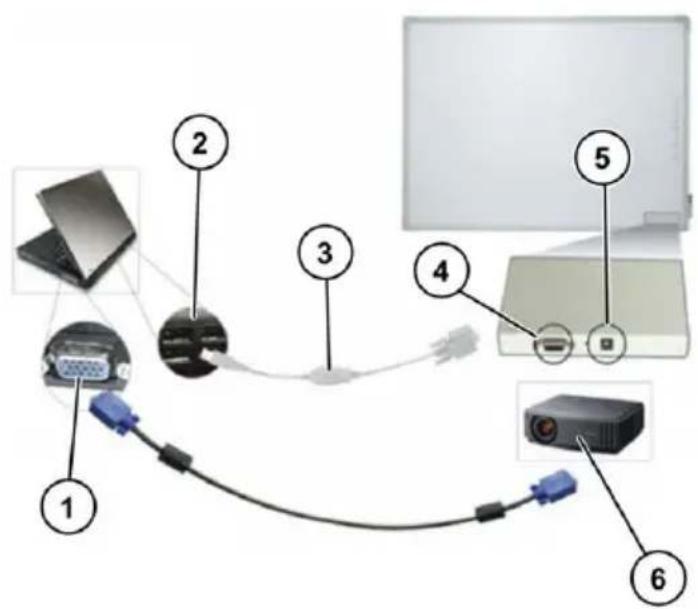
Ref. Description
| 1 VGA (or HDMI) | |
| 2 | USB |
| 3 | USB special cable |
| 4 | Whiteboard interface port for special-purpose cable provided |
| 5 | Power socket (not used normally) |
| 6 | Video-Projector |

NOTE: When connecting the computer to the video-projector both devices must be switched off.
INSTALLING THE BATTERY OF THE ELECTRONIC PEN
Unscrew the rear cap of the electronic pen, turning it in an anti-clockwise direction. Insert one 1.5V AAA (mini Style) battery, as shown in the figure below, then tighten the rear cap again, turning in a clockwise direction.

natural_image
Close-up of an orange and yellow pen-shaped tool with a white plastic tip (no visible text or symbols)The external colour of the pen can be different from the photo.

NOTE: The electronic pen is equipped with a lateral button that, depending on operating way of the software, works as the right button of a mouse.
WINDOWS SOFTWARE INSTALLATION
The Oliboard software provides two types of installation: “Express installation” and “Step-by-step installation”.
Express installation includes the following phases that are carried out automatically in sequence:
- Installation of Oliboard software driver.
- Installation of Oliboard application software.
- Installation of software driver for USB cable.
Step-by-step installation allows the software to be installed one step at a time.
EXPRESS INSTALLATION
Do not connect the cable of the whiteboard to the computer (if the USB cable is already connected to the computer, disconnect it). During the installation procedure, a message is displayed on the screen indicating when you should connect the cable.
(If installation is started with the cable already connected, afterwards you will have to install the software driver for the USB cable).
- Insert the Oliboard Software disk.
- Click on the program logo (this is equivalent to running the “autorun” program).
- The Installation Guide window opens.
- Click "Install All" to perform the express installation.
- Choose the language you want to install and confirm with "Next".
- Select the installation path and confirm with "Next". Software installation starts; at the end, the driver for the USB cable is installed.
-
When the system asks if you want to install the FTDI USB driver, click on "YES" to perform the installation. At the end (after a few seconds), a message is displayed asking you to connect the USB cable to the computer.
Connect the cable to a USB port on the computer (the other end of the cable must be connected to the Interactive Whiteboard).
After connecting the cable, click "OK". -
When the installation completed message is displayed, click on "Finish" then, on returning to the main screen, click "Exit".
- Follow the instructions in the paragraph "Running the Software".
STEP-BY-STEP INSTALLATION
This type of installation is recommended only when upgrading the software provided with the whiteboard.
- Insert the Oliboard Software disk.
- Click the program logo.
- The Installation Guide window opens.
- Click "Install Step By Step" to install the Oliboard driver and software, and the driver for the USB cable following the step-by-step procedure.
Installing the Oliboard Software Driver

- Click to install the driver for the Interactive Whiteboard.
- Choose the language you want to install and confirm with "Next".
- Select the installation path and confirm with "Next".
- End the installation by clicking the "Finish" button. Connect the cable to a USB port on the computer (the other end of the cable must be connected to the Interactive Whiteboard). After connecting the cable, click on "OK".
Installing the Oliboard Software
natural_image
Blue square icon with a white pencil symbol, no text or numbers present.-
Click
-
Choose the language you want to install.
- Select the installation path. The software installation starts.
- When installation completes a message appears; click on "Finish".
Installing the Software Driver for the USB Cable
Normally it is not necessary to execute this procedure if the “Express installation” has already been performed.
natural_image
Close-up of a coiled cable or wire with no visible text or symbols- Click "Install USB Driver" to install the driver for the USB cable.
- Click “Install FTDI Driver” to install the driver.
After connecting the cable, click "OK". If the installation completes correctly, a message to this effect is displayed.
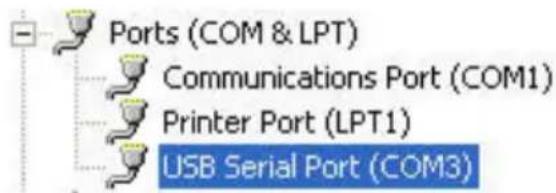
You can check if the USB cable driver has been installed by clicking with the mouse right button on “Computer Resources”, then with the mouse left button on “Properties” → “Hardware” → “Device Manager” → “Port” (COM and LPT)". The device “USB Serial Port” is shown. Make sure that the COM port assigned is less than 10 (e.g. COM 5) and that the transmission speed is 57600.
REMOVING THE OLIBOARD SOFTWARE
Click on "Start" → "Control Panel" → "Add or Remove Programs", select "Oliboard" then click on "Add/Remove".
Select the option for removing all the features installed and follow the instructions shown on the screen.
Alternatively, insert the software disk, click on the Oliboard program logo and run the software removal guide following the instructions on the screen.
At the end of removal, it is recommended that you restart the computer.
RUNNING THE SOFTWARE
The whiteboard cable must be connected to the USB port of the computer.
To run the software, first of all the software driver of the whiteboard must be started, the orientation operation performed if necessary, after which the whiteboard software can be started.
Starting the Driver of the Interactive Whiteboard
Click "Start" → "All programs" → "Olivetti" → "Oliboard Software" and start
the Oliboard Driver. The Communications module icon 📋 appears in the lower right corner of the Status bar on the desktop.

NOTE: If the message “Communication with whiteboard failed”, first make sure that the cable of the whiteboard is connected correctly between the computer and the whiteboard. Click on the Oliboard Driver icon and select “Reconnect” in the popup menu. If this warning persists, make sure that the driver of the USB cable is installed correctly (see the note on how to check installation of the USB cable on page 13).

NOTE: After having started the driver, click on the icon of the Oliboard driver to activate or deactivate the “autostart” parameter, depending on whether or not you want the Oliboard driver to be run automatically the next time the computer is powered on. If the computer is permanently connected to the whiteboard, it is advisable to activate “autostart”. On the other hand, if the computer could be disconnected from the whiteboard, it is advisable to deactivate “autostart” to avoid an error message appearing the next time the computer is powered on which indicates that no whiteboard is connected.
Orienting the Interactive Whiteboard
This function serves to tune the whiteboard for the image to be projected onto it.
- Using the mouse left button, click on the Oliboard Driver icon in the control bar at the bottom. Select "Orientation" in the popup menu, then select the type of orientation required (see the INSTRUCTION note at the end of this paragraph).

NOTE: The orientation operation can also be activated by means of the special key at the top of the Function Key panel on the whiteboard.
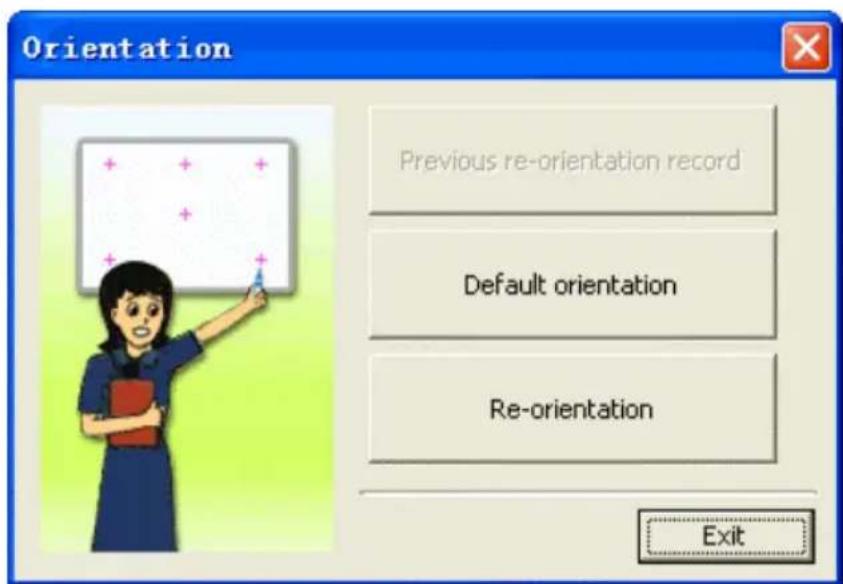
- Wth the mouse left button click on “Re-orientation” to open the popup window for Orientation. With the electronic pen, click on the mid-point of the flashing cross “+” on the whiteboard. Repeat this same operation for all the other orientation points (there are six in all), being careful to canter well the mid-point of the flashing cross with the electronic pen.
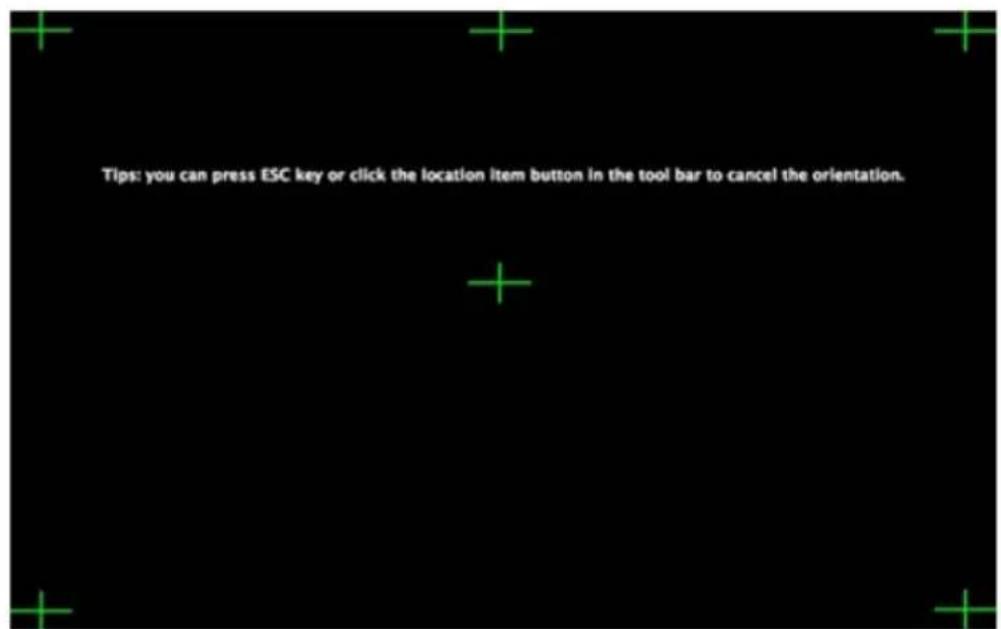

INSTRUCTION:
Select “Re-orientation” the first time you install the Oliboard Driver or if the position of the projector or the Interactive Whiteboard changes, or if the display mode changes (e.g. the image size or resolution). To perform a rapid re-orientation, you can select “Previous re-orientation record” as long as no changes have been made since it was last used. If an accurate orientation is not required, you can select “Default orientation”.
Starting the Whiteboard Application Software
- Click “Start” → “All programs” → “Olivetti” → “Oliboard Software” and start the application program. A Logon window opens in which you can enter the user name and the password.
- To start the software using the default account, click simply on the "Login" button without entering any data, otherwise you can enter your own personal account. When a personal account is used, the user can customise the tool bar, resources and templates.

NOTE: Before starting the application software, make sure that the Interactive Whiteboard is connected correctly to the computer and that the Interactive Whiteboard driver is running.

NOTE: For how to operate the software, refer to the instructions in the ONLINE HELP selectable from main menu of the Oliboard software.
Creating a Personal Account and Password
- Click "Start" → "All Programs" → "Olivetti" → "Oliboard Software" → "User Manager" to display the following window:
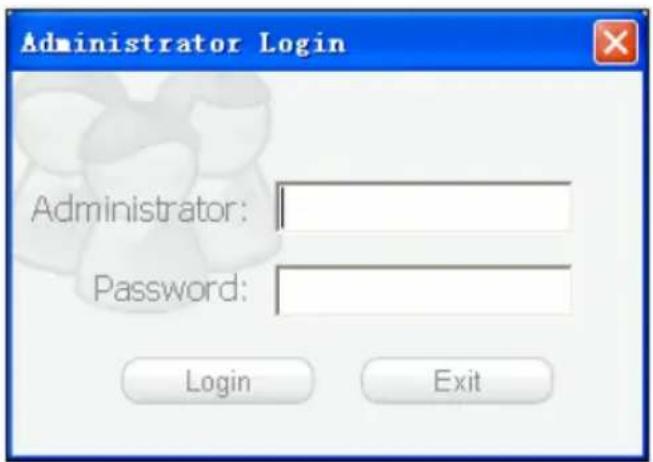
Key-in the administrator account data to access the software. The default administrator account is Administrator and the Password is Oliboard.
- The User Manager window is displayed.
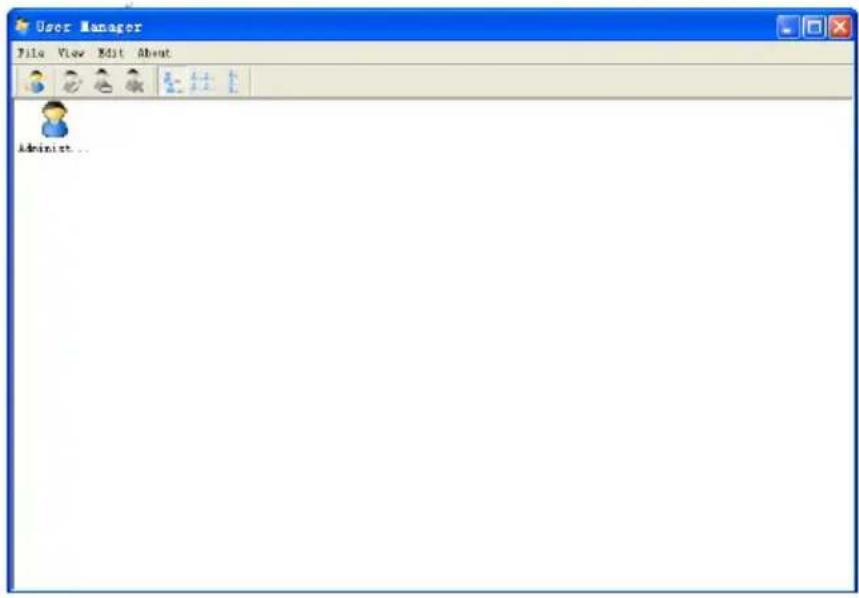
- Select "Edit" → "New User" to create a personal account.
- Key-in the user name and password and select "Create".
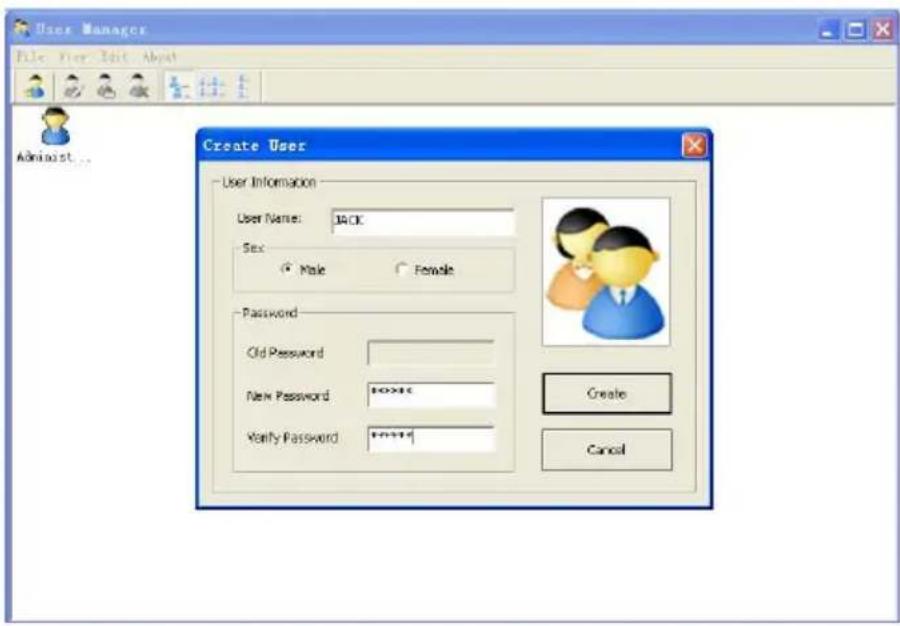
- When the process completes, the new user appears in the window:
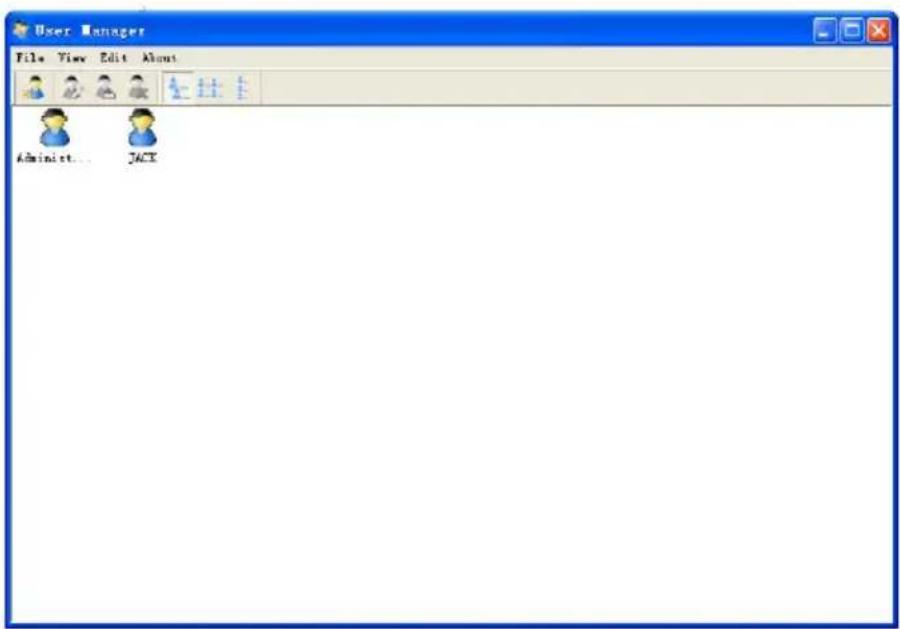
Setting Up the Oliboard Functions
Click "Options"

to open the window shown below.
For the Oliboard 78D and Oliboard 95D models of whiteboard, set the "Double Pen" function as shown below.
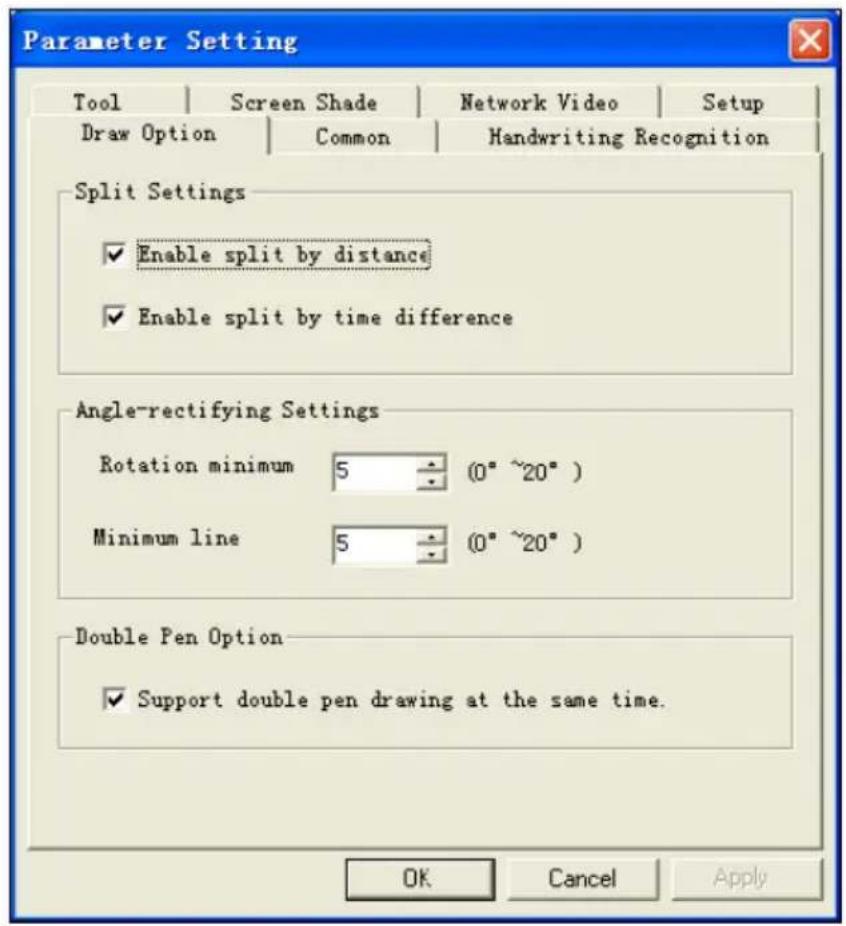
LINUX-UBUNTU SOFTWARE INSTALLATION
INSTALLING THE OLIBOARD SOFTWARE
Note that you must have Administrator access and its related password, if set, to be able to install the software and drivers.
In the installation folder, two installation procedures are present for the Ubuntu software distribution: one for Intel processors (i386 architecture and derivations) and the other for AMD64 processors.
Select the procedure for the processor installed on your computer.
Connect the whiteboard cable to the USB port of the computer.
At this point, two installation methods are possible:
1. First method:
Double-click on Oliboard_for_Linux_V2.1.deb
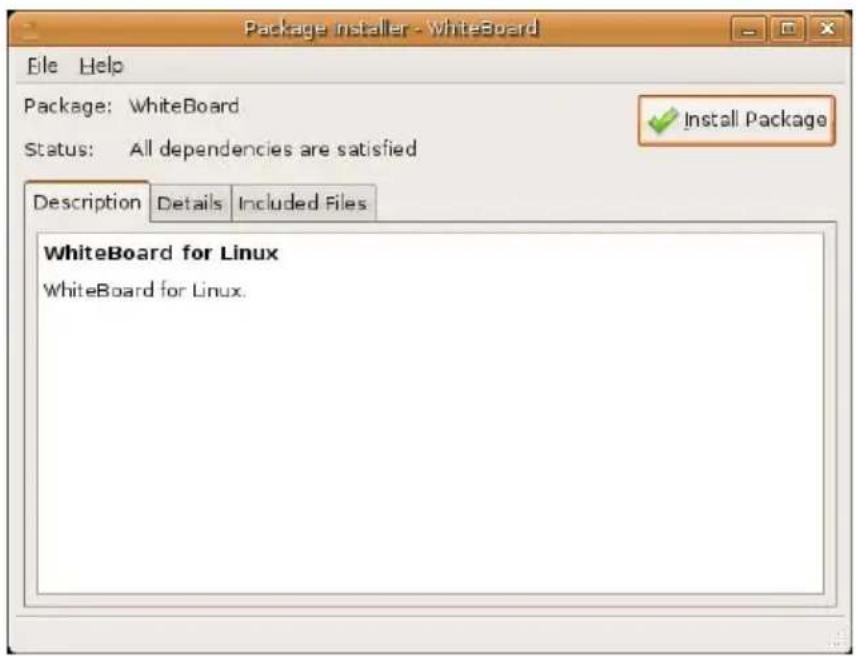
The installation procedure consists of the following steps (follow the instructions on the screen):
- Click "Install Package".
- Enter the password (depends on the permissions the user account has on the operating system).
- The installation procedure is performed. At the end, a message is displayed to the effect that installation has completed.
- Second method:
- Open a terminal window.
- Enter the commands necessary for accessing the directory where Oliboard_for_Linux_V2.1.deb resides.
- Type the following command (in case of processor i386): sudo dpkg -i Oliboard_for_Linux_V2.1_Packet2101_I386.deb. and enter the password for root.
- If a problem occurs, enter the command using this other sequence:
su - root password.
Enter the commands necessary for accessing the folder where Oliboard_for_Linux_V2.1.deb resides.
dpkg -i Oliboard_for_Linux_V2.1.deb.
REMOVING THE SOFTWARE
Before removing the software, deactivate the software driver (via the “Exit” command that can be activated by clicking on the driver icon in the control bar) and exit from the application if it is still running.
The Oliboard for Linux software can be removed from your computer in one of two ways. The first way is to follow the on-screen instructions, the second way is to use the command line.
-
First method:
-
Launch the Synaptic Package Manager (System -> Administration)
- Type the following word in the search bar: Oliboard.
-
Select the Oliboard item to remove Oliboard for Linux from your computer and confirm with "Apply"
-
Second method:
-
Open a terminal window.
- Type the following command:
sudo dpkg -P Oliboard.
Oliboard for Linux is removed from your computer.
RUNNING THE SOFTWARE
The whiteboard cable must be connected to the USB port of the computer.
To run the software, you must first of all run the whiteboard software driver, then perform the orientation operation if necessary before finally starting the whiteboard software.
Starting the Oliboard Driver
-
Click "Applications" → "Oliboard" → "Oliboard Driver" to run the Oliboard Driver.
-
When the Oliboard Driver starts, the related icon appears on the panel in the top right corner of the desktop:
- When the driver starts, the whiteboard runs a connection check. If an error is encountered, make sure that the whiteboard cable is connected correctly between the computer and the whiteboard. Click on the driver icon and select the "Reconnect" option from the popup menu.

NOTE: After having installed the driver, it is automatically run the next time the computer is powered on. If the computer is often disconnected to the whiteboard, it is advisable to deactivate the automatic execution by means of the Startup Applications Preferences panel to avoid an error message appearing the next time the computer is powered on indicating that no whiteboard is connected.
Orienting the Interactive Whiteboard
This function is used to tune the whiteboard for the image projected on it.
- Click on the driver icon in the panel at the top of the desktop and select "Re-orientation" in the popup menu, then select the orientation mode required (see the INSTRUCTION note at the end of this paragraph).

NOTE: The orientation operation can also be activated using the related key at the top of the Function Key panel on the whiteboard.
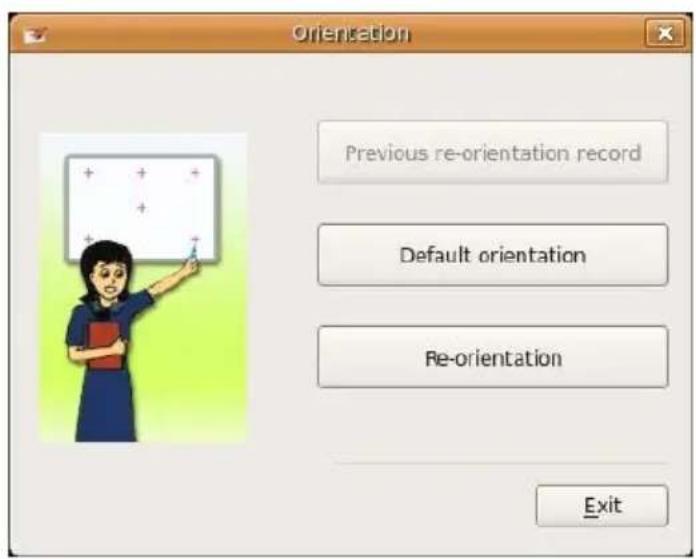
- Clicking with the mouse left button on “Re-orientation”, a popup window appears. With the electronic pen, click at the mid-point of the flashing cross “+” on the whiteboard. Repeat this same operation for all the other orientation points (there are six in all), being careful to center precisely the mid-point of the flashing cross with the electronic pen.
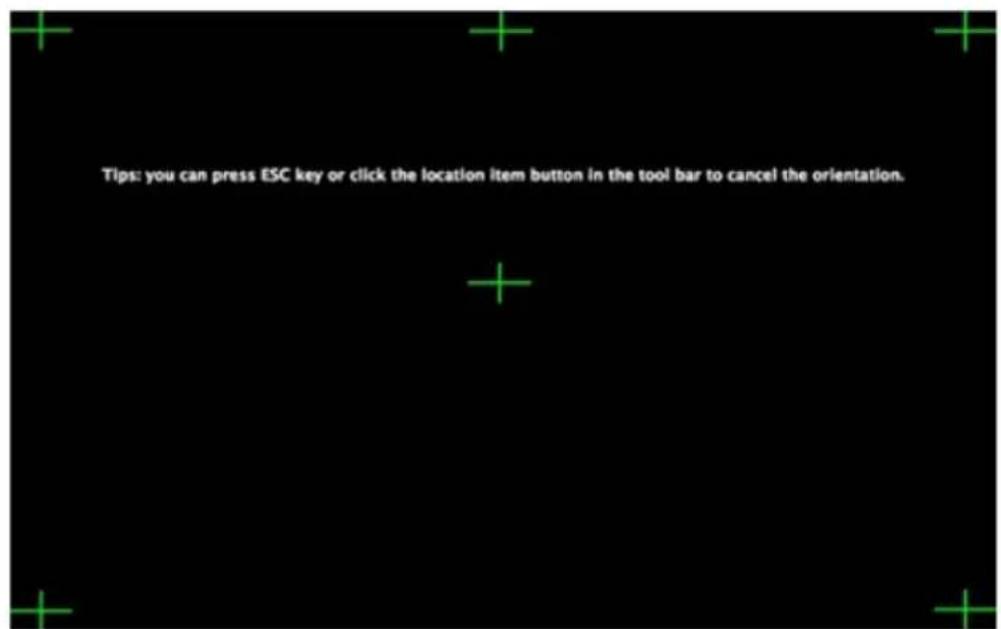

INSTRUCTION: Select “Re-orientation” the first time the Oliboard Driver is installed or if the position of the projector or of the Interactive Whiteboard changes, or if the display mode changes (e.g. image size or resolution).
To perform a rapid orientation, you can select “Previous re-orientation record” as long as no changes have been made since it was last used. If an accurate orientation is not required, select “Default Orientation”.
Running the Whiteboard Software Application
- Click "Applications" → "Oliboard" → "Oliboard" to start the application.
- A login window is displayed into which you can enter a user name and password. To start the software using the default account, just click on the "Login" button without entering any data, otherwise enter your personal account details. When a personal account is used, the user can customise the tool bar, resources and templates.

NOTE: In order to start the software, the Oliboard driver must be running and the whiteboard connected to the cable in the correct manner.

NOTE: For how to operate the software, refer to the instructions in the ONLINE HELP.
MAC SOFTWARE INSTALLATION
Note that Administrator access rights and its related password, if any, are necessary for installing both the software and the drivers.
INSTALLING THE OLIBOARD SOFTWARE
- Insert the Oliboard Software disk. Don't connect the USB whiteboard cable.
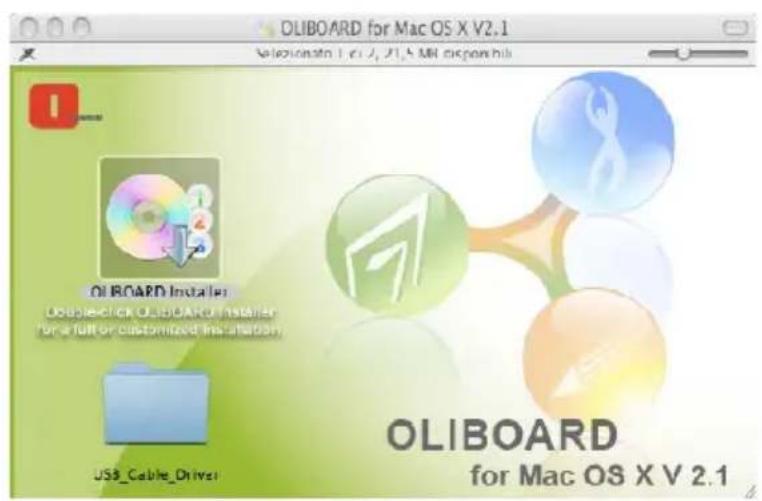
- Click Oliboard Installer to start.
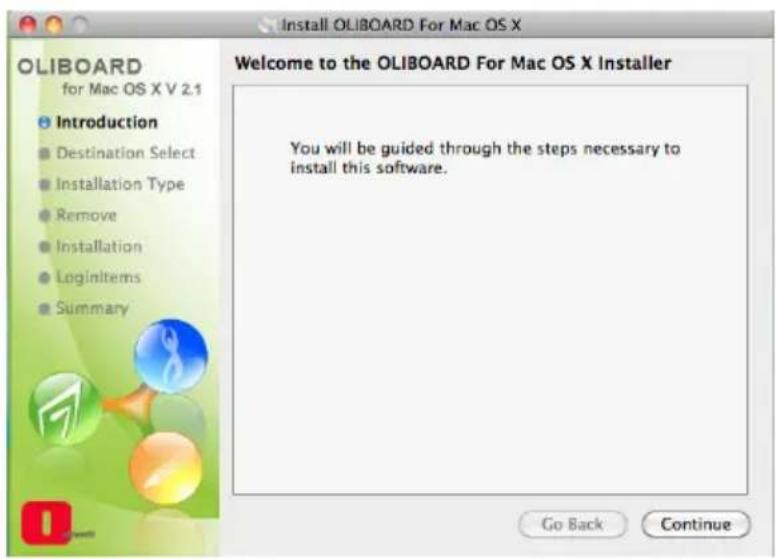
- Click on "Continue" and follow the instructions displayed until installation completes.
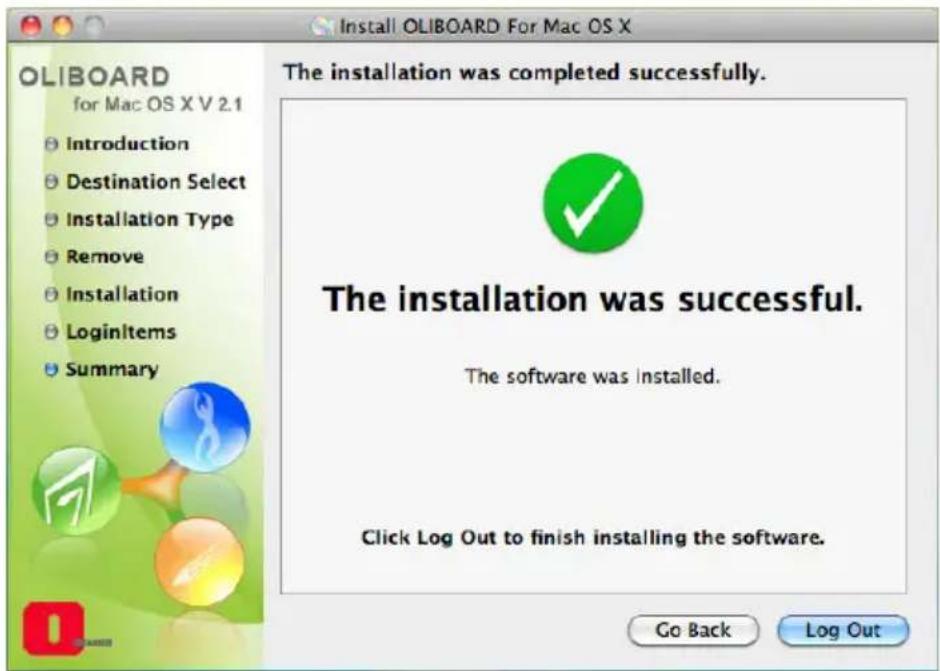
At this point, you must install the software driver for the USB cable.
INSTALLING THE USB CABLE SOFTWARE DRIVER
Go back to the main installation display mask and click on "USB_Cable_Driver" and then to FTDI driver to enter in the folder containing two installation drivers:
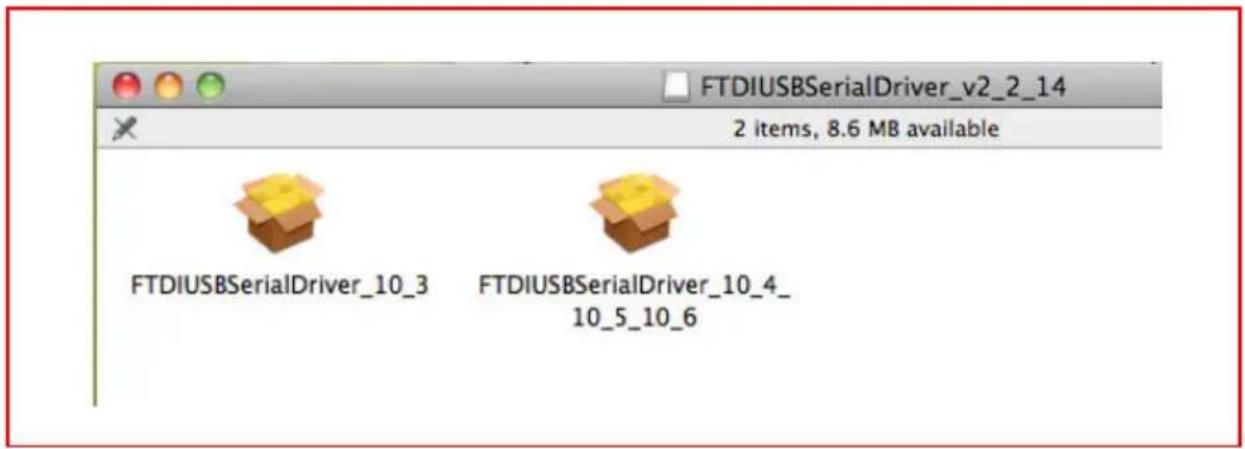
- FTDIUSBSerialDriver_10_3.dmg (for MAC OS 10.3)
- FTDIUSBSerialDriver_10_4_10_5_10_6.dmg, (for MAC OS 10.4, 10.5 and 10.6)
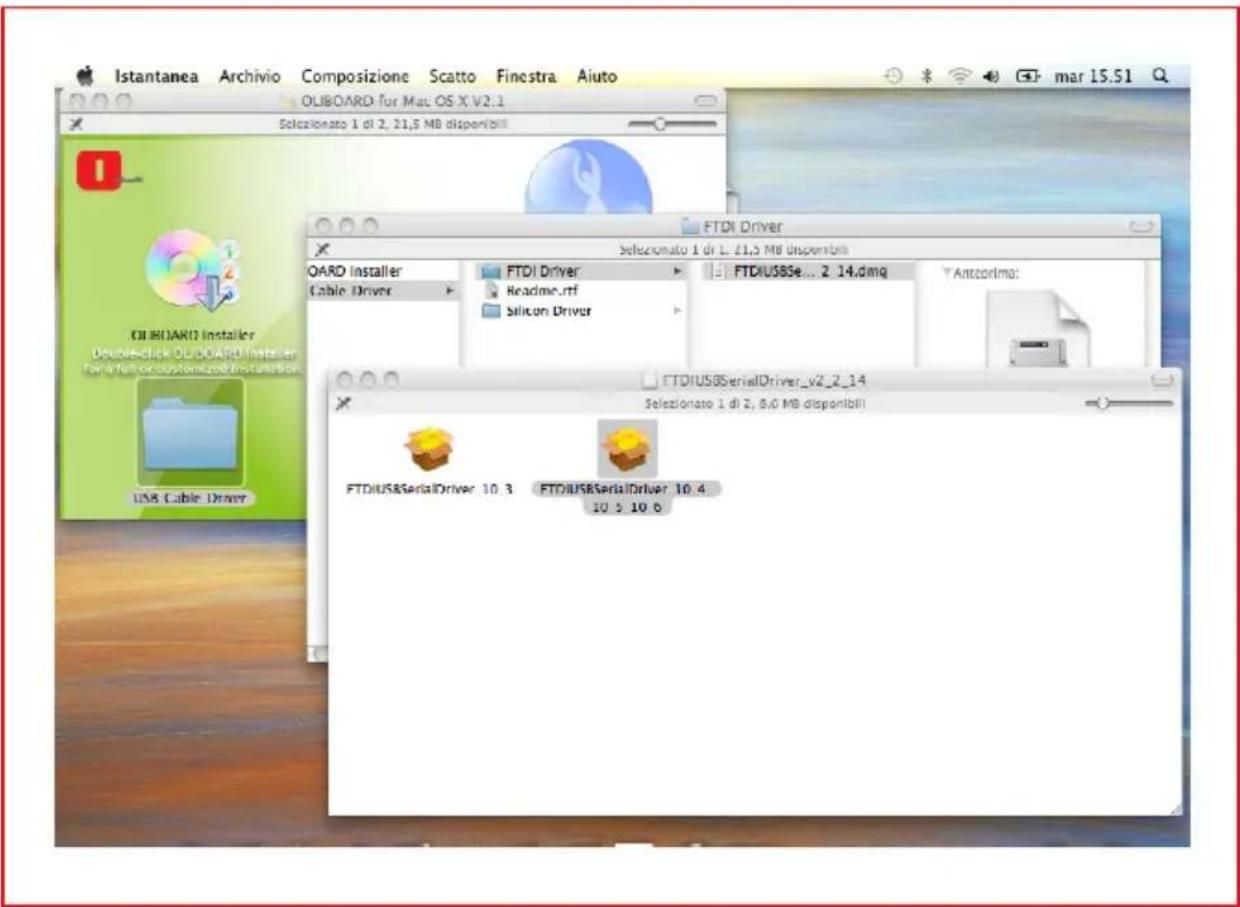
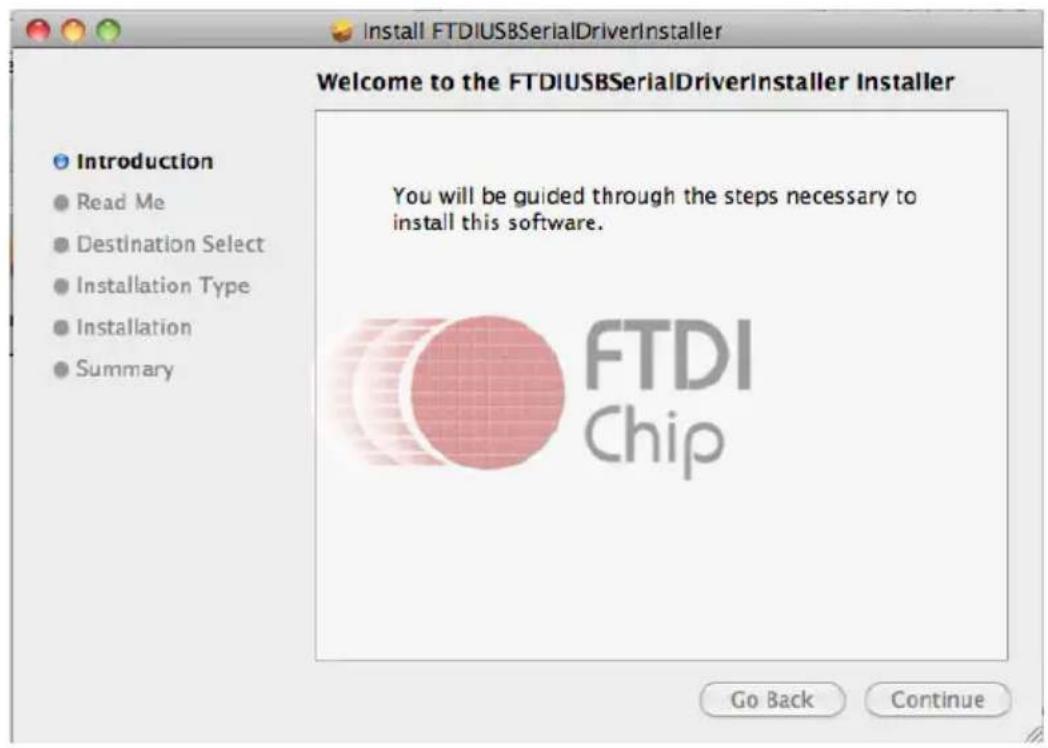
At this point you must double-click on the driver to start the installation.
Then follow the instructions displayed on the video.
REMOVING THE SOFTWARE
-
Select the Oliboard software in "Applications" then click "Uninstall" to start the software removal procedure and confirm the software removal.
-
Click "YES" to start the software removal.
RUNNING THE SOFTWARE
To run the software, you must first of all start the software driver of the whiteboard, then if necessary perform the orientation operation before starting the whiteboard software.
Starting the Oliboard Driver
-
Connect the whiteboard USB cable to the computer. Click "System" → "Applications" → "Oliboard Software" → "Driver" → "V2.1" → "Oliboard Driver" to run the Oliboard driver.
-
After starting the Oliboard Driver, the related icon is displayed on the desktop.
- When the Oliboard driver is run, it automatically checks the whiteboard. If an error message appears, check the connection between the whiteboard and the computer. Click the driver icon and select the "Reconnect" option from the popup menu "Settings".

NOTE: After having installed the driver, it is automatically run the next time the computer is powered on. If the computer is often disconnected to the whiteboard, it is advisable to deactivate the automatic execution (click on the driver icon with the right button of the mouse and deactivate option for driver execution at login).
Orienting the Interactive Whiteboard
This function calibrates the whiteboard for the image projected onto it.
- Click the driver icon, select "Orientation" from the popup menu then select the orientation mode you require (see the INSTRUCTION note at the end of this paragraph).

NOTE: The orientation operation can also be activated using the related key at the top of the Function Key panel on the whiteboard.
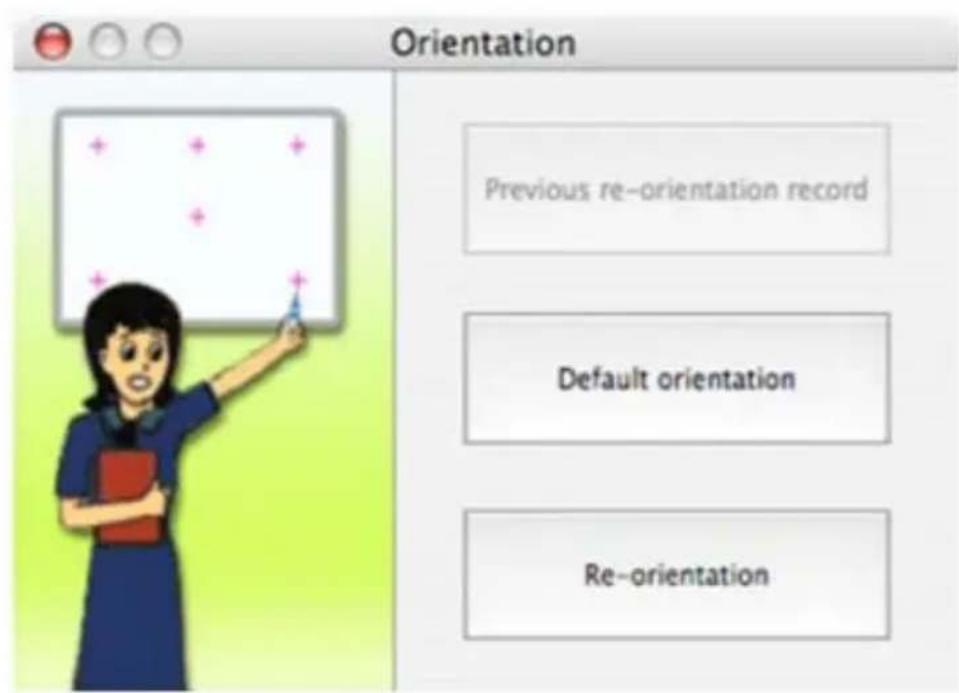
- With the mouse left button click on “Re-orientation” to open the popup window for Orientation shown below. With the electronic pen, click at the midpoint of the flashing cross “+” on the whiteboard. Repeat the same operation for all the other orientation points (there are six in all), being careful to center precisely the mid-point of the flashing cross with the electronic pen.
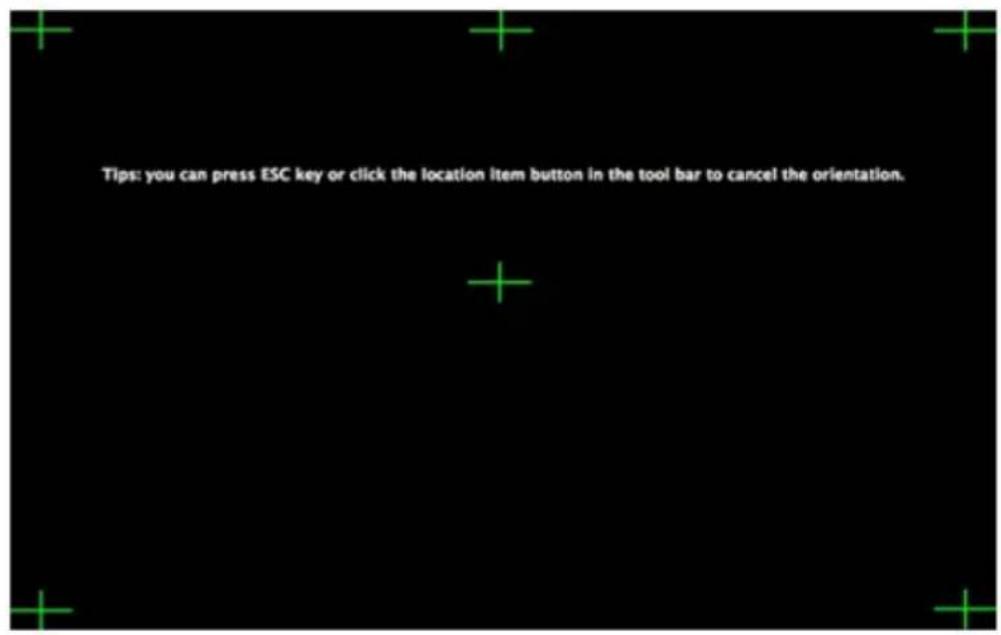

INSTRUCTION: Select “Re-orientation” the first time you install the Oliboard Driver, when the position of the projector or the Interactive Whiteboard changes or when the display mode changes (e.g. the image size or resolution).
To perform a rapid re-orientation, you can select “Previous re-orientation record” as long as no changes have been made since it was last used. If an accurate orientation is not required, select “Default orientation”.
Running the Whiteboard Software Application
-
Click "System" → "Applications" → "Oliboard Software" → "Software" → "Oliboard" to start the application.
-
A login window is displayed into which you can enter a user name and password. To start the software using the default account, just click on the "Login" button without entering any data, otherwise enter your personal account details. When a personal account is used, the user can customise the tool bar, resources and templates.

NOTE: In order to start the software, the Oliboard driver must be running and the whiteboard must be connected correctly to computer.
The application appears as follows:
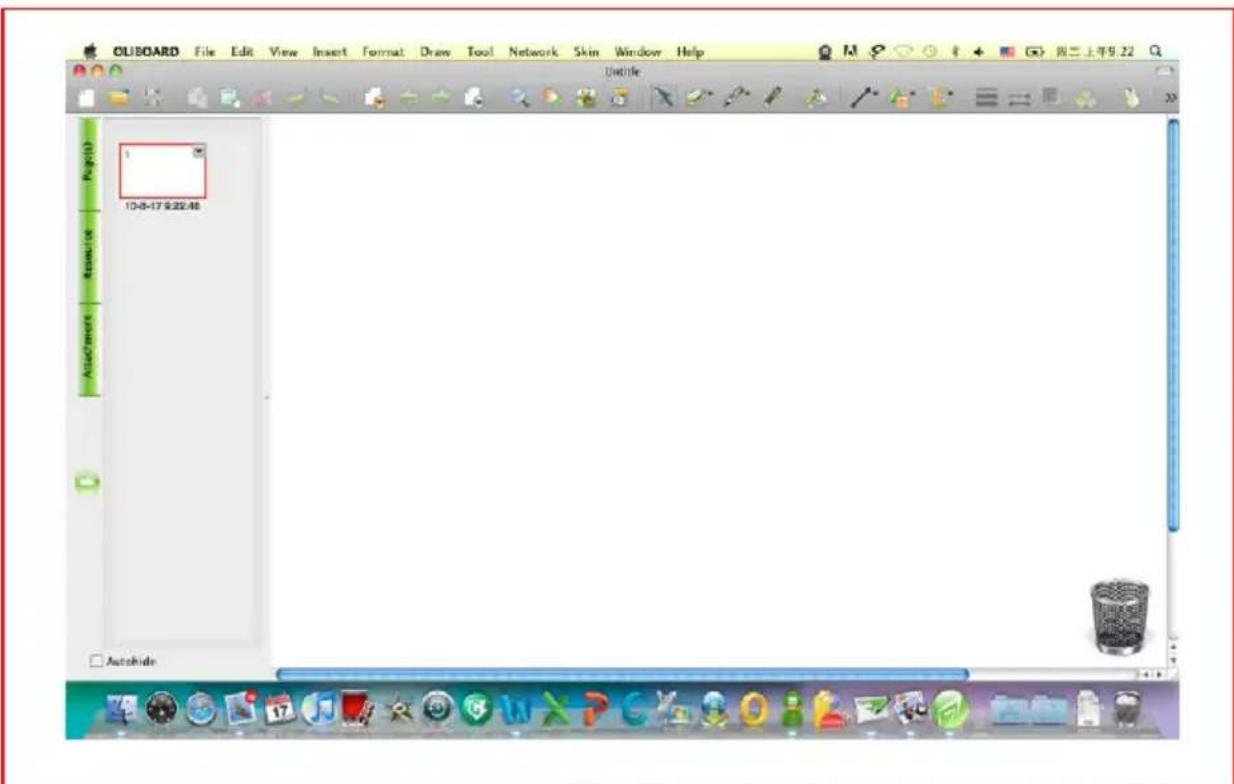

NOTE: For how to operate the software, refer to the instructions in the ONLINE HELP.
SOFTWARE REGISTRATION
First time Oliboard software runs on a computer not connected to the whiteboard, the registration of the software is requested.
It is possible to immediately execute the procedure, or it is possible to postpone the registration.
When the number of execution without registration is finished, it is necessary to remove the software.
In order to execute the registration process, it is necessary a direct connection to Internet and to insert the activation code (normally included in the CD-ROM).
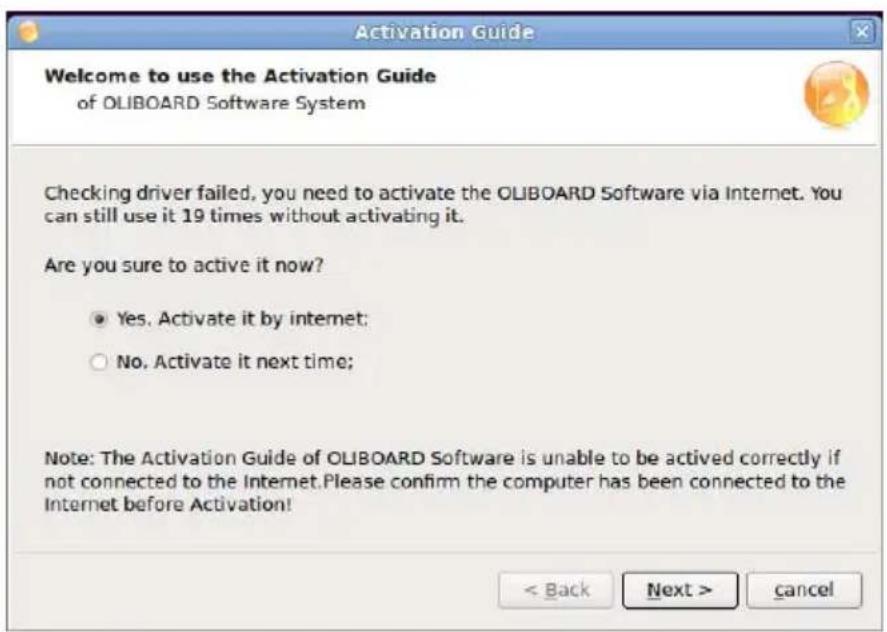

NOTE: Registration is not requested if whiteboard is connected to the computer.
TROUBLESHOOTING
-
If a message is displayed: "Failed to verify the whiteboard, the program can't run further!", check whether there is a good connection between whiteboard and the computer.
-
Make sure that the special-purpose connection cable of the whiteboard has been used, and that the cable has been connected correctly.
- Check that the whiteboard is powered-on (the red indicator lamp on the rear, right side, must be lit).
- Check that the software driver of the whiteboard is running.
- Check that the software driver of the USB cable has been correctly installed (see the note in the paragraph related to its installation).
-
If this message appears when the computer should not be connected to the whiteboard, make sure that the “autostart” parameter of the Oliboard driver has been deactivated (click on the icon to deactivate the parameter).
-
When the software starts, a message appears: "Error while loading the XML File".
Check the version of Internet Explorer. Update to Internet Explorer version 6.0 if the version in use is 5.0 or earlier.
- Only certain parts of whiteboard can be written on.
Carry out the procedure for orienting the whiteboard.
- Some orientation points cannot be found when orienting the whiteboard.
Make sure that the lateral deviation and the vertical offset of the projector are correct. Ensure that all contents of the computer screen can be entirely projected onto the whiteboard.
-
Electronic pen does not write normally.
-
Check the current working mode of the software. The writing functionality is only effective in Draw Mode or Annotation Mode, not in Control Mode.
- Do not press the electronic pen button while writing.
- Keep the nib of the electronic pen vertical to the whiteboard panel.
- Avoid pressing the electronic pen.
-
Check that the battery is charged, if not replace it with a new one.
-
How to exit from the Oliboard software?
- Click on the Operation Round Plate in "Control Mode", then on "Exit" in the popup menu.
- Click "File" (in the main menu), then "Exit", or Click the Oliboard icon in the "Main Tool Bar", then click "Exit" in reply to the prompt.
- Why is the image projected in the shape of a trapezium? Why must it be adjusted, and how to do so?
- It sometimes happens that the projector is not level (for example, because the front is higher than the back, or vice-versa) and consequently the image projected is trapezoidal in shape.
- A trapezoidal image is a distorted image and it must be adjusted until a normal projection is achieved.
- Generally speaking, the image can be adjusted by using a remote control device or by correcting the height of the projector. For detailed information, refer to the User Manual provided with the projector.

natural_image
Solid black trapezoid shape on white background (no text or symbols)Trapezium

natural_image
Completely black image with no visible content or text.Rectangle
8. What type of projector must be used with the Interactive Whiteboard?
The projector must satisfy the three following requisites. It must:
- be a front projector;
• support the computer resolution;
• have a minimum luminous flux exceeding 500 Lumens. For the precise amount, the room size must be taken into account.
9. What to do when an unerasable colour pen has been used to write on the whiteboard?
Never use colour pens to write on the Oliboard! Should this happen, clean the whiteboard lightly using cotton-wool dampened with alcohol.
10. How to clean the panel of the whiteboard?
Clean the panel passing over it lightly with a damp cloth.

CAUTION: After wetting the cloth, you must wring it out to remove any excess water. This is to avoid water penetrating inside the whiteboard.
11. Why is it not possible to use network functions?
- If the Double Pen function is chosen for the configuration, the network functionality is not available.
- Click "Operation Round Plate" → "Option" to change the configuration of the Double Pen function if you want to use network functionality.
Page left intentionally blank
OLIBOARD
TABLEAUX INTERACTIFS
PUBLICATION EMISE PAR :
Olivetti S.p.A.
Copyright © 2011, Olivetti
natural_image
Blank whiteboard with black frame and toolbar at top (no text or symbols on the board)natural_image
Plain beige square book or cardboard box with no visible text or symbols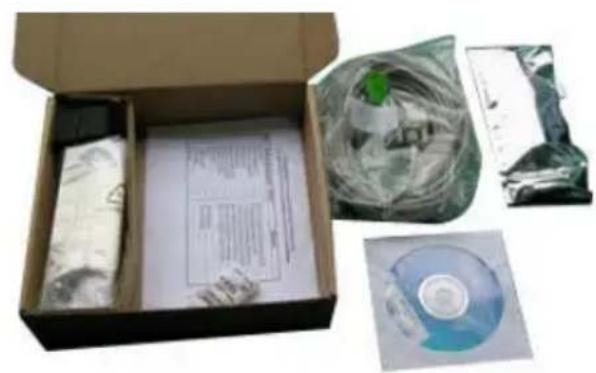
natural_image
Open cardboard box containing printed materials, a plastic bag with green label, and a CD (no visible text or symbols)natural_image
Modern vertical metal stand with curved arm and mounting base (no text or symbols visible)Piédestal en option (mod. B5848)
natural_image
Exterior view of a modern office building (no signage)Tableau OLIBOARD 95D sur piédestal mod. B5848
Réf. Description
natural_image
Close-up of an orange and yellow pen-shaped tool with a white plastic tip (no visible text or symbols)natural_image
Simple line drawing of a whiteboard on a stand (no text or symbols)natural_image
Blue square icon with a white rocket symbol, no text or numbers visibleDESINSTALLATION DU LOGICIEL OLIBOARD

INSTALLATION DU LOGICIEL SOUS LINUX-UBUNTU
INSTALLATION

Z
DESINSTALLATION DU LOGICIEL


natural_image
Solid black trapezoid shape on white background (no text or symbols)Trapèze

natural_image
Completely black image with no visible content or text.Rectangle
Copyright © 2011, Olivetti
natural_image
Blank whiteboard with black frame and toolbar icons on the right (no text or symbols on the board)natural_image
Two open boxes: one beige cardboard box and one packaged with plastic film and a CD, both without any visible text or symbols.natural_image
Exterior view of a modern office building (no signage)natural_image
Whiteboard with overhead lamp and metal stand (no visible text or symbols)Tafel OLIBOARD 95D im Ständer Mod. B5848
Ref. Bezeichnung
natural_image
Close-up of a yellow and orange cylindrical electronic device with a white plastic connector (no visible text or symbols)natural_image
Close-up of a coiled, ring-shaped object with no visible text or symbols- Klicken Sie auf
OLIBOARD-SOFTWARE DEINSTALLIEREN

SOFTWARE FÜR LINUX-UBUNTU INSTALLIEREN
INSTALLATION DER OLIBOARD SOFTWARE

SOFTWARE DEINSTALLIEREN


natural_image
Solid black trapezoid shape on white background (no text or symbols)Trapez

natural_image
Completely black image with no visible content or text.Rechteck
Copyright © 2011, Olivetti
natural_image
Blank whiteboard with black frame and toolbar at top (no text or symbols on the board)natural_image
Two open boxes: one with a beige cardboard box and another with packaged items including a CD and plastic wrap (no visible text or symbols)natural_image
Modern vertical metal stand with curved arm and wheels, no visible text or symbolsnatural_image
Whiteboard-mounted electronic device with overhead lamp (no visible text or symbols)Lavagna OLIBOARD 95D su piedistallo mod. B5848
Rif. Descrizione
natural_image
Close-up of an orange and yellow pen-shaped tool with a white plastic tip (no visible text or symbols)natural_image
Simple line drawing of a whiteboard on a stand (no text or symbols)natural_image
Blue square icon with a white geometric symbol inside, no text or numbers present.natural_image
Close-up of a coiled cable or wire with no visible text or symbols
INSTALLAZIONE DEL SW PER LINUX-UBUNTU
INSTALLAZIONE


natural_image
Solid black trapezoid shape on white background (no text or symbols)Trapezio

natural_image
Completely black image with no visible content or text.Rettangolo
Copyright © 2011, Olivetti
natural_image
Blank whiteboard with black frame and toolbar at top (no text or symbols on the board)natural_image
Two open boxes: one cardboard with a lid, the other with a CD and plastic cover (no visible text or symbols)natural_image
Exterior view of a modern office building (no signage)natural_image
Whiteboard-mounted projector with overhead lamp (no visible text or symbols)natural_image
Close-up of an orange cylindrical electronic device with a white plastic housing and a small battery (no visible text or symbols)natural_image
Simple diagram of a computer monitor with stand and keyboard (no text or symbols)natural_image
Blue square icon with a white rocket symbol, no text or numbers visiblenatural_image
Simple line drawing of a coiled wire or rope (no text or symbols)
INSTRUCCIÓN:



natural_image
Solid black trapezoid shape with no text or symbolsTrapecio

natural_image
Completely black image with no visible content or text.Rectángulo
DIRECTIVE 2002/96/CE ON THE TREATMENT, COLLECTION, RECYCLING AND DISPOSAL OF ELECTRIC AND ELECTRONIC DEVICES AND THEIR COMPONENTS
1. FOR COUNTRIES IN THE EUROPEAN UNION (EU)
The disposal of electric and electronic devices as solid urban waste is strictly prohibited: it must be collected separately. The dumping of these devices at unequipped and unauthorized places may have hazardous effects on health and the environment.
Offenders will be subjected to the penalties and measures laid down by the law.
TO DISPOSE OF OUR DEVICES CORRECTLY:
a) Contact the Local Authorities, who will give you the practical information you need and the instructions for handling the waste correctly, for example: location and times of the waste collection centres, etc.
b) When you purchase a new device of ours, give a used device similar to the one purchased to our dealer for disposal.

The crossed dustbin symbol on the device means that:
- When it to be disposed of, the device is to be taken to the equipped waste collection centres and is to be handled separately from urban waste;
- Olivetti guarantees the activation of the treatment, collection, recycling and disposal procedures in accordance with Directive 2002/96/CE (and subsequent amendments).
2. FOR OTHER COUNTRIES (NOT IN THE EU)
The treatment, collection, recycling and disposal of electric and electronic devices will be carried out in accordance with the laws in force in the country in question.
DIRECTIVE 2002/96/CE SUR LE TRAITEMENT, LA COLLECTE, LE RECYCLAGE ET LA MISE AU REBUT DES EQUIPEMENTS ELECTRIQUES ET ELECTRONIQUES ET DE LEURS COMPOSANTS
1. POUR LES PAYS DE L'UNION EUROPEENNE (UE)
Applicable in European Union countries and in other countries with recycling collection systems

The symbol shown on batteries, on their packaging or on their documentation means that the batteries supplied with the product must not be disposed of as solid urban waste but must be collected separately. Take used batteries to the authorised recycling centres.
Improper disposal could have dangerous effects on the environment and on health.
When any of the chemical symbols Hg (mercury), Cd (cadmium) or Pb (lead) are present, they indicate that the battery contains a higher quantity of the related substance than stipulated in the directive.
DIRECTIVE 2006/66/CE RELATIVE AUX PILES ET ACCUMULATEURS AINSI QU'AUX DECHETS DE PILES ET D'ACCUMULATEURS
INFORMATIONS
- PUBLICATION ISSUED BY:
- Important notes
- FURTHER WARNINGS FOR INSTALLATIONS IN SCHOOL ENVIRONMENTS
- TABLE OF CONTENTS
- INTRODUCTION....1
- WINDOWS SOFTWARE INSTALLATION 11
- LINUX-UBUNTU SOFTWARE INSTALLATION 21
- MAC SOFTWARE INSTALLATION 28
- SOFTWARE REGISTRATION 36
- TROUBLESHOOTING 37
- INTRODUCTION
- OVERVIEW
- Features
- SYSTEM REQUIREMENTS
- Recommended Computer Setup:
- UNPACKING THE INTERACTIVE WHITEBOARD AND ACCESSORIES
- - Optional Accessories
- MAIN FEATURES
- External View
- HARDWARE INSTALLATION
- INSTALLING THE BATTERY OF THE ELECTRONIC PEN
- WINDOWS SOFTWARE INSTALLATION
- EXPRESS INSTALLATION
- STEP-BY-STEP INSTALLATION
- Installing the Oliboard Software Driver
- Installing the Oliboard Software
- Installing the Software Driver for the USB Cable
- REMOVING THE OLIBOARD SOFTWARE
- RUNNING THE SOFTWARE
- Starting the Driver of the Interactive Whiteboard
- Orienting the Interactive Whiteboard
- INSTRUCTION:
- Starting the Whiteboard Application Software
- Creating a Personal Account and Password
- Setting Up the Oliboard Functions
- Click "Options"
- LINUX-UBUNTU SOFTWARE INSTALLATION
- First method:
- REMOVING THE SOFTWARE
- Starting the Oliboard Driver
- Running the Whiteboard Software Application
- MAC SOFTWARE INSTALLATION
- INSTALLING THE USB CABLE SOFTWARE DRIVER
- SOFTWARE REGISTRATION
- TROUBLESHOOTING
- What type of projector must be used with the Interactive Whiteboard?
- What to do when an unerasable colour pen has been used to write on the whiteboard?
- How to clean the panel of the whiteboard?
- Why is it not possible to use network functions?
- OLIBOARD
- TABLEAUX INTERACTIFS
- PUBLICATION EMISE PAR :
- DESINSTALLATION DU LOGICIEL OLIBOARD
- INSTALLATION DU LOGICIEL SOUS LINUX-UBUNTU
- INSTALLATION
- DESINSTALLATION DU LOGICIEL
- OLIBOARD-SOFTWARE DEINSTALLIEREN
- SOFTWARE FÜR LINUX-UBUNTU INSTALLIEREN
- INSTALLATION DER OLIBOARD SOFTWARE
- SOFTWARE DEINSTALLIEREN
- INSTALLAZIONE DEL SW PER LINUX-UBUNTU
- INSTALLAZIONE
- INSTRUCCIÓN:
- DIRECTIVE 2002/96/CE ON THE TREATMENT, COLLECTION, RECYCLING AND DISPOSAL OF ELECTRIC AND ELECTRONIC DEVICES AND THEIR COMPONENTS
- FOR COUNTRIES IN THE EUROPEAN UNION (EU)
- TO DISPOSE OF OUR DEVICES CORRECTLY:
- FOR OTHER COUNTRIES (NOT IN THE EU)
- DIRECTIVE 2002/96/CE SUR LE TRAITEMENT, LA COLLECTE, LE RECYCLAGE ET LA MISE AU REBUT DES EQUIPEMENTS ELECTRIQUES ET ELECTRONIQUES ET DE LEURS COMPOSANTS
- POUR LES PAYS DE L'UNION EUROPEENNE (UE)
- DIRECTIVE 2006/66/CE RELATIVE AUX PILES ET ACCUMULATEURS AINSI QU'AUX DECHETS DE PILES ET D'ACCUMULATEURS
- INFORMATIONS
Brand : OLIVETTI
Model : Oliboard ePEN
Category : Interactive whiteboard