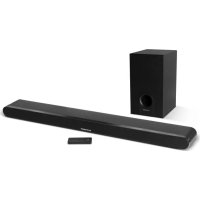
SC800SND - Soundbar SCHNEIDER - Free user manual and instructions
Find the device manual for free SC800SND SCHNEIDER in PDF.



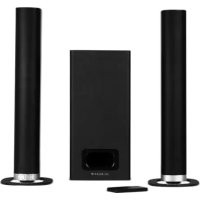
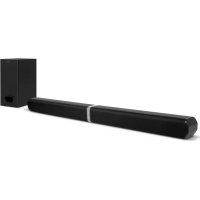
| Product type | 2.1 soundbar with wireless subwoofer |
| Brand | Schneider |
| Model | SC800SND |
| Dimensions (soundbar) | 900 x 57 x 70 mm (W x D x H) |
| Dimensions (subwoofer) | 300 x 370 x 150 mm (W x D x H) |
| Power supply | 200-240 V ~ 50-60 Hz (soundbar and subwoofer) |
| Power consumption (soundbar) | 12 W |
| Power consumption (subwoofer) | 7 W |
| Standby consumption | ≤ 0.5 W |
| Output power | 2 x 15 W + 40 W (total 70 W) |
| Frequency response | 40 Hz - 20 kHz |
| Connectivity | Bluetooth 2.1+EDR, HDMI ARC, optical, coaxial, AUX 3.5 mm, USB |
| Main functions | Bluetooth, USB playback, remote control, EQ modes (User, Movie, Flat, Jazz, Pop, Rock), bass/treble adjustment, mute function |
| Care and cleaning | Wipe with a soft, dry cloth. Do not use abrasive products. |
| Safety | Do not expose to water or moisture. Do not open the device. Unplug if not used for an extended period. |
| Spare parts and repairability | Repair by qualified professional only. Remote control batteries are replaceable (AAA, not included). |
| Box contents | Soundbar, subwoofer, remote control, 3.5 mm audio cable, 2 power cables, wall bracket, screws and dowels, user manual |
| General information | Brand: Schneider, model SC800SND, manufactured by ADMEA/LOGISAV, France. Compliant with RED Directive 2014/53/EU. |
Frequently Asked Questions - SC800SND SCHNEIDER
User questions about SC800SND SCHNEIDER
0 question about this device. Answer the ones you know or ask your own.
Ask a new question about this device
Download the instructions for your Soundbar in PDF format for free! Find your manual SC800SND - SCHNEIDER and take your electronic device back in hand. On this page are published all the documents necessary for the use of your device. SC800SND by SCHNEIDER.
USER MANUAL SC800SND SCHNEIDER
- Getting started 24
- Overview of controls 24
- Power Connection 27
- Wall mounting installation 27
- Battery installation 29
- TV Connections 30
- Connecting an MP3 player 33
- Connecting a USB device 33
- Using the subwoofer 34
- General operation 34
- Bluetooth operation 36
- Specification 37
- Trouble shooting 38
Espanol
Ventilation adequate
Important safety instructions - please read carefully and keep for future reference

To reduce the risk of fire or electric shock, do not expose this product to water, rain or moisture. To prevent the risk of electric shock, do not remove the cover or back of this product. In case of product failure, only qualified personnel can repair. There are no user-serviceable parts inside.
CAUTION!
Dangerous tension inside the product! Do not open. Risk of electric shock! No parts can be repaired by the end-user. Only qualified personnel can repair and maintain this product.
If the electric cord is damaged, it must be replaced by the manufacturer or qualified after-sales personnel in order to avoid any danger.
The product must be installed in accordance with local laws.
Damaged batteries must be properly disposed. In order to protect the environment, please dispose the batteries properly, in accordance with local laws (information is available at your reseller).
Remote control battery (not included) shall not be exposed to excessive heat (e.g. from sun or fire).
Note: Device operates in frequency range 2454-2483.5MHz is restricted to indoor use in France
Where to install the product
- Place the product on a straight, rigid and stable place. Do not place the product on a carpet.
- Do not place the product on top of another that may cause overheating (for example, a receiver or amplifier).
- Do not place anything underneath the product (for example, CDs or magazines).
Proper ventilation
- Place the product in a sufficiently-aerated place to avoid overheating. Allow at least 10cm spacing at the back and top of the product, and 5cm spacing on both sides to prevent overheating.
- Do not place items such as newspapers, tablecloth, curtains, in front of the ventilating openings.
Do not expose the product to high temperatures, moisture, water and dust.
-
The apparatus shall not be exposed to dripping or splashing. No object filled with liquids, such as vases, shall be placed on the apparatus.
-
Do not place other items close to this product that may damage it (for example, objects containing water or lightened candles).
-
No naked flame sources, such as lighted candles, should be placed on the apparatus.
Electric supply
- Please unplug the product in case of prolonged non-use.
- If the supply cable is damaged, it must be replaced by the manufacturer or qualified after-sales personnel to avoid any danger.
- This product must be connected to an electrical supply 230V 50Hz .
- The mains plug is used as the disconnect device, so the disconnect device shall remain readily operable
EU declaration of conformity
Hereby, Admea declares that this Bluetooth sound bar is in compliance with the essential requirements and other provisions of the Radio Equipment Directive (RED) 2014/53/EU.
The full text of the EU declaration of conformity is available at the following internet address: http://www.schneiderconsumer.com

Technical Specification:
Device:Sound bar
Operation Frequency: 2402 MHz to 2480MHz (BT 2.1)
RF Transmission Power: 2dBm W (power per channel)
Operation Environment: 0 - 40 Deg C
- This logo set on the product means that the recycling of this apparatus comes within the framework of the directive 2012/19/EC of July 4, 2012 concerning the waste on electrical and electronic equipment (WEEE).
- The presence of dangerous substances in the electrical and electronic equipments can have potential consequences on the environment and human health in the cycle of reprocessing this product.
- Therefore, at the end of its lifetime, this product shall not be disposed with other non-recycled waste.
- As the end user, your role is of prime importance in the cycles of re-using, recycling, and other forms of valorization of this electrical and electronic equipment. Local authorities and resellers have set special procedures for the purpose of collecting and recycling this product.
- You have the obligation to use the selective waste collection systems put in place by your local authorities.
1. Getting started
What's included?
- Sound bar x 1
- B-type Screws x 2
- Subwoofer x 1
- Instruction manual x 1
- Wall-mount brackets x 2
- A-type screws x 4
- B-type screws x 4
- Dowels B x 2
- Remote control x 1
- 3.5mm to 3.5mm audio cable
- AC power cables x2 (both compatible with the sound bar and the subwoofer)
2. Overview of controls
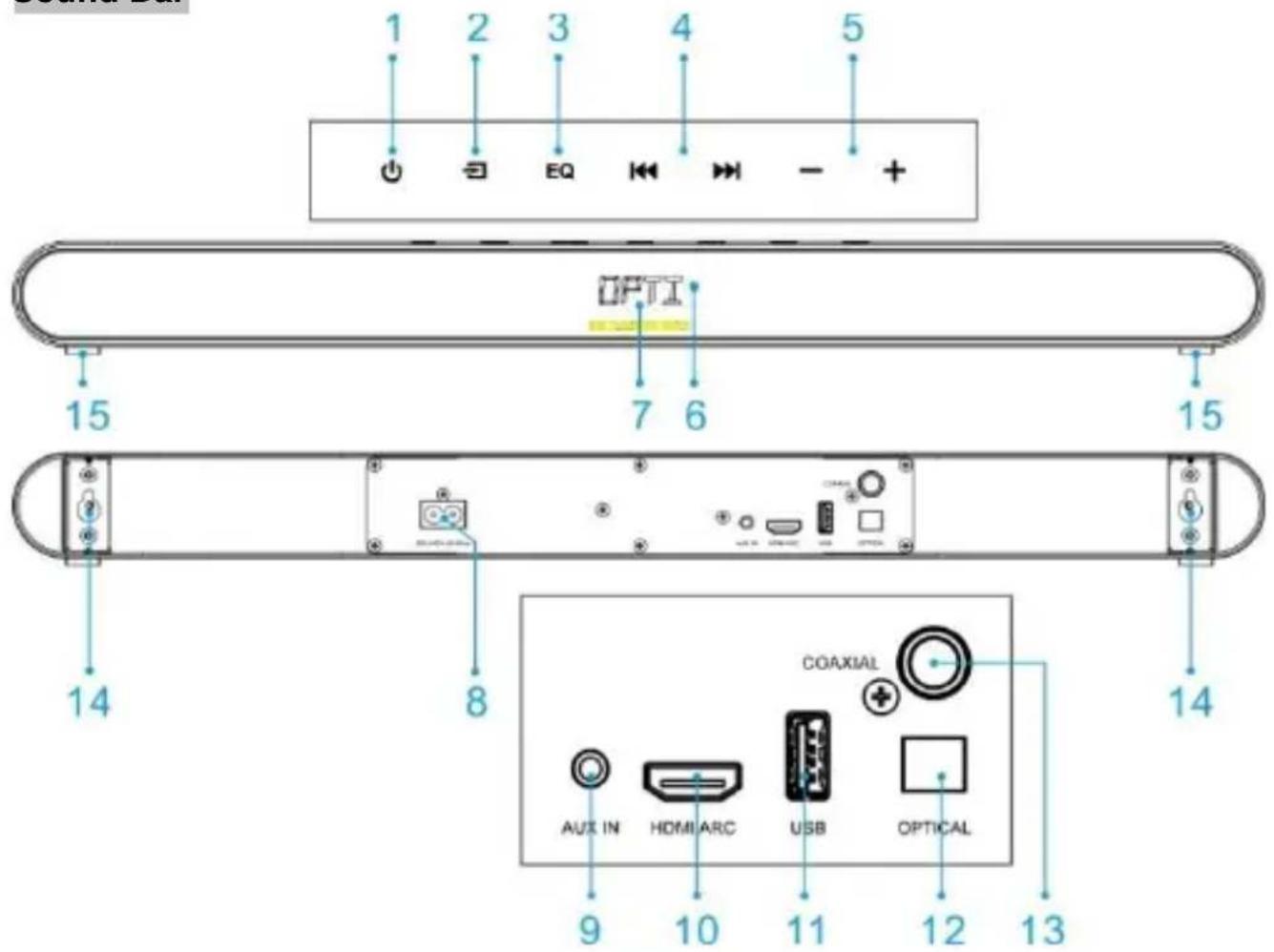
Sound Bar
- Standby: Switch on the Sound bar or switch to STANDBY mode.
- Source: Select an audio source inputs.
-
EQ: Tap repeatedly to assign different sound.
4. -
Tap to select the previous/ next track (BLUETOOTH/USB mode only)
-
Touch and hold for fast backward/forward for USB playback;
-
VOLUME + / - buttons: Increase or decrease the output volume.
- LED display:
- LED indicator: Red light in standby mode, white light in idle mode.
- AC INPUT SOCKET: Only connect to one of the two AC power cables provided.
- AUX AUDIO INPUT (3.5mm): Connect the analog audio output from an MP3 player or similar using a 3.5mm audio cable.
- HDMI ARC INPUT: Connect to HDMI ARC-compatible TVs
- USB SLOT: Connect to a USB device
- OPTICAL AUDIO INPUT: Connect the digital audio output from a TV, DVD or Blu-ray player.
- COAXIAL AUDIO INPUT (RCA): Connect the digital audio output from a TV, DVD or Blu-ray player
- Wall-mount bracket
- Non-skid Pad
Subwoofer
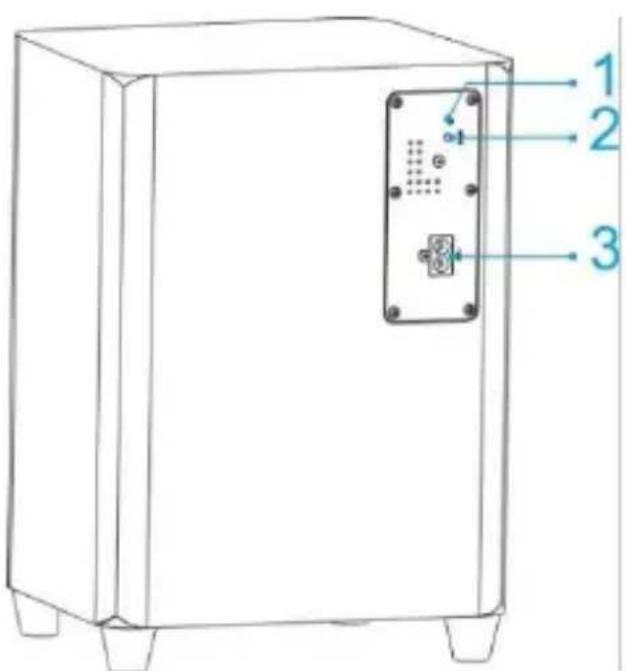
- PAIR button
- PAIR INDICATOR: Subwoofer pairing status.
- AC INPUT SOCKET: Only connect to one of the two AC power cables provided.
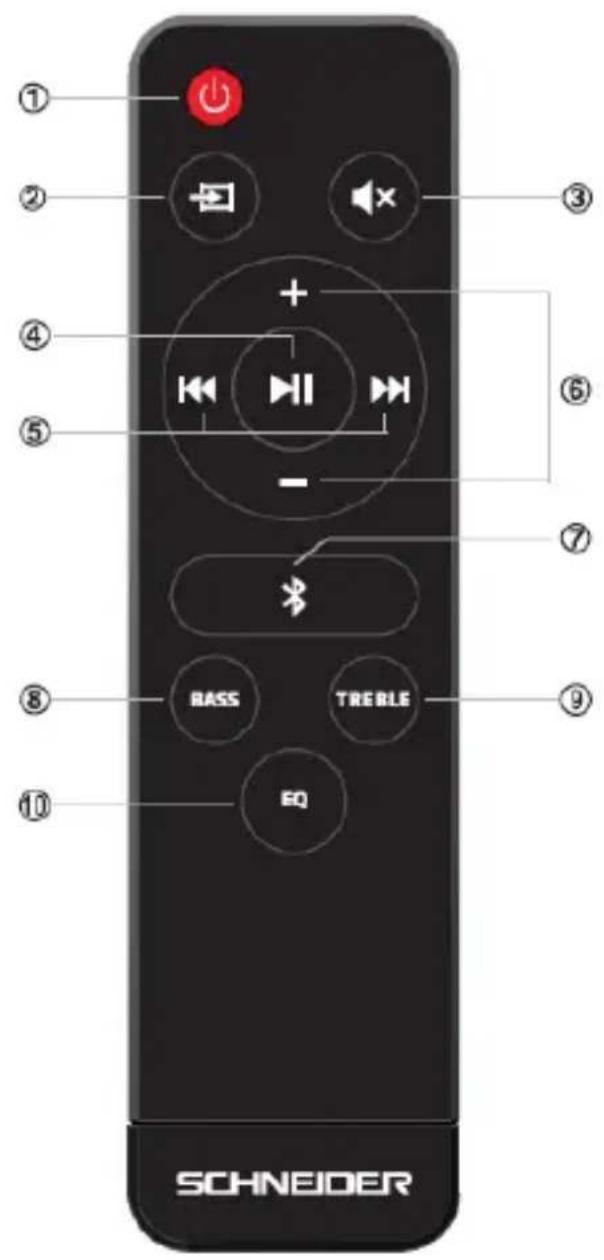
- Switch on the Sound bar or switch to STANDBY mode.
- Select an audio source from USB,HDMI ARC,AUX,BT, COAXIAL or OPTICAL inputs.
- Press to mute or restore the sound output
- /lt PLAY or PAUSE for Bluetooth/USB playback.
- Press to select the previous/ next track for BLUETOOTH/USB playback; Press and hold for fast backward/forward for USB playback;
- VOL- / +: Increase or decrease the volume output.
- :Press to enter Bluetooth mode; Press and hold to disconnect the existing paired Bluetooth device and activate the pairing function again.
- BASS: Press it once then adjust the output by pressing - / + in USER EQ mode only.
- TREBLE: Press it once then adjust the output by pressing - / + in USER EQ mode only.
- EQ: Press repeatedly to assign different sound. EQ modes: USER,FILM,FLAT,JAZZ,POP, ROCK.
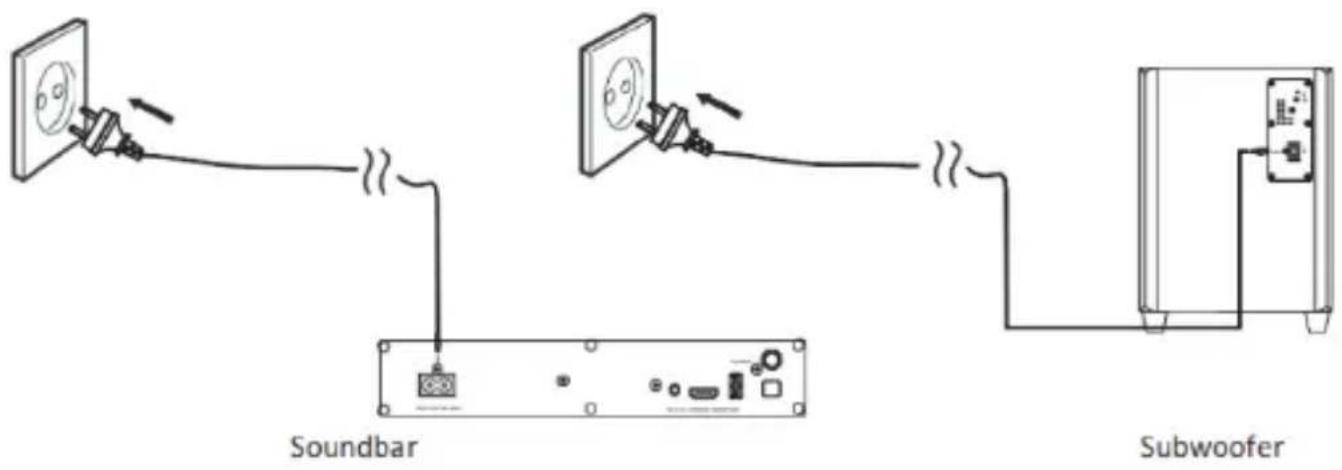
3. Power Connection
- Connect the small end of power socket at the back of unit and insert the plug of power cable into standard AC wall outlet.
- Be sure to unplug the power cable from the outlet when the system is not in use for an extended period of time
Caution:
- Risk of product damage! Ensure that the power supply voltage corresponds to the voltage printed on the rating label on the back or on the underside of the unit
4. Wall mounting installation
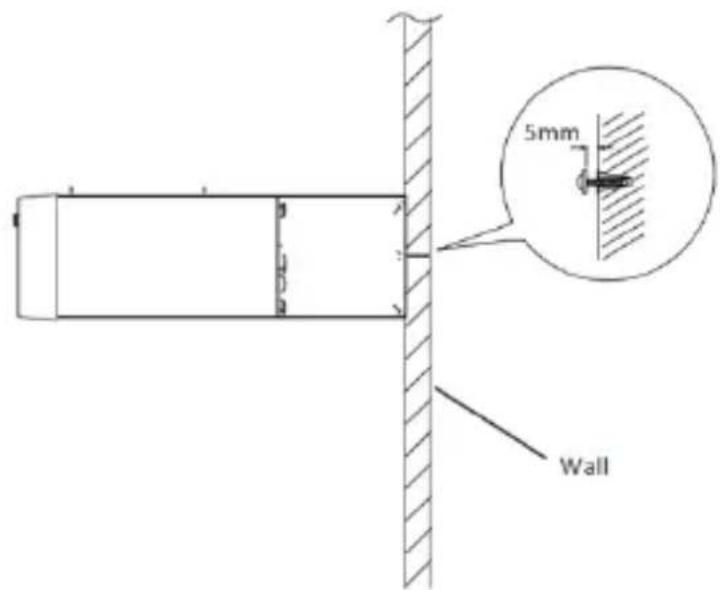
When drilling the screw B into the dowel B, please reserve a 5mm space between the cap and the wall
- Parts
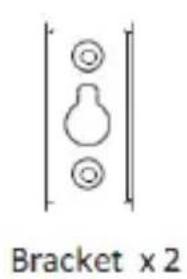
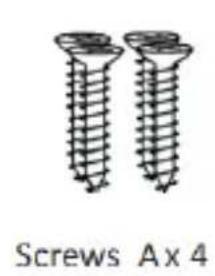
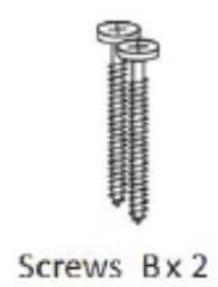

2.Drill holes, distance for those two holes should be 744mm, install dowels B x 2 firstly into those two holes, then install screws B x 2 thereafter

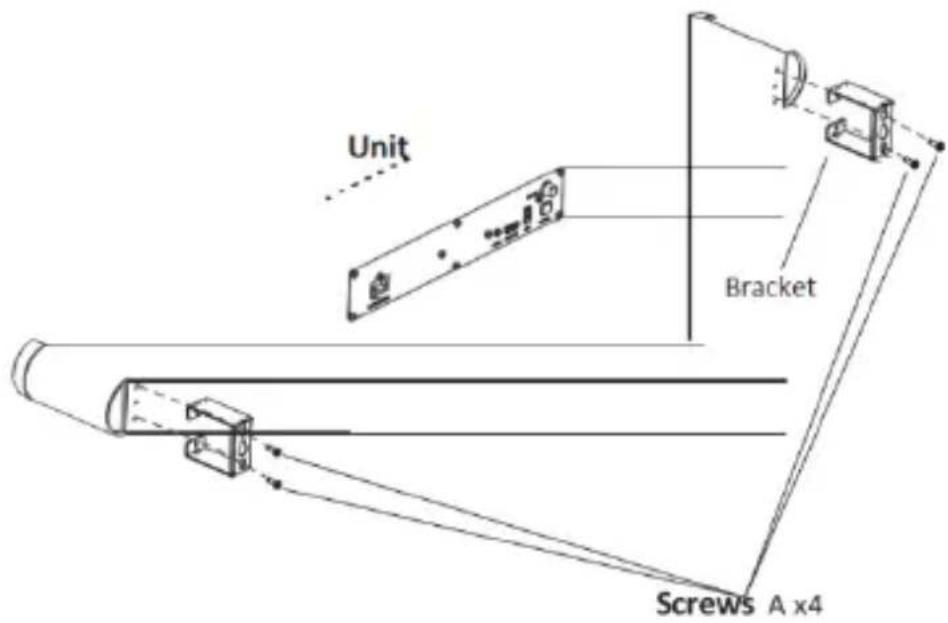
- Install Brackets x2 onto sound bar by using Screw A x4.
- Hang the sound bar on the cap of screw B x2.
Wall mounting advice
- In order to avoid damage to the equipment and personal injury you should get a qualified person to drill the fixing surface and fit the appropriate wall fixings.
- Take care not to allow the main unit to fall while attempting to hook onto the wall mount brackets.
- Before mounting, check the wall strength; consult qualified personnel if necessary.
- When drilling into walls, always check that there are no hidden wires or pipes etc.
- Make sure the screws and wall plugs are suitable for supporting the unit.
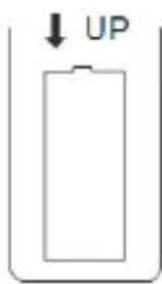
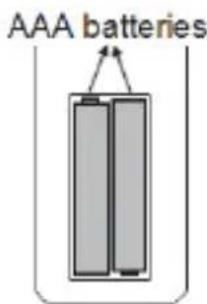
5. Battery installation
Use 2xAAA batteries (not provided).
Battery Installation
- Remove the battery compartment cover.
- Insert the battery with correct polarity (+ / -) as indicated.
- Put the battery compartment cover back on the remote control.
①
②
6. TV Connections
6.1 Connecting a TV, DVD, GAMES CONSOLE or SET-TOP BOX using a RCA-3.5mm audio cable (not provided).
NOTE: Ensure that the TV PHONO connectors are audio OUTPUTS and not audio INPUTS. If they are INPUTS then use connection 5.4

- Connect one end of the RCA cable to the TV, DVD or CONSOLE audio output RCA sockets.
- Connect the 3.5mm (small) end to the AUX inputs on the back of the Sound bar.
NOTE: Take care to match the RED plug to the RED socket and the WHITE plug to the WHITE socket.
6.2 DIGITAL connection to a TV, DVD or Blu-ray player using the COAXIAL cable (not provided).

- Connect one end of the COAXIAL cable to the TV, DVD or Blu-ray COAXIAL audio output socket.
- Connect the other end to the COAXIAL input on the back of the Sound bar.
6.3 DIGITAL connection to a TV, DVD or Blu-ray player using the OPTICAL cable (not provided).
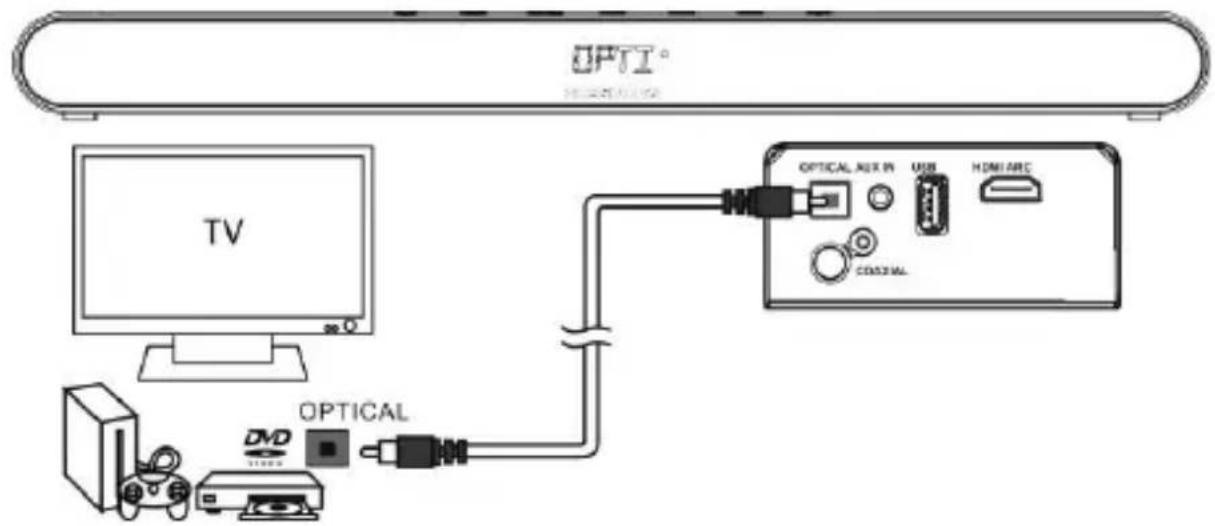
- Connect one end of the OPTICAL cable to the TV, DVD or Blu-ray OPTICAL audio output socket.
- Connect the other end to the OPTC input on the side of the Sound bar.
6.4 Connection to a TV using the 3.5mm-3.5mm audio cable provided.
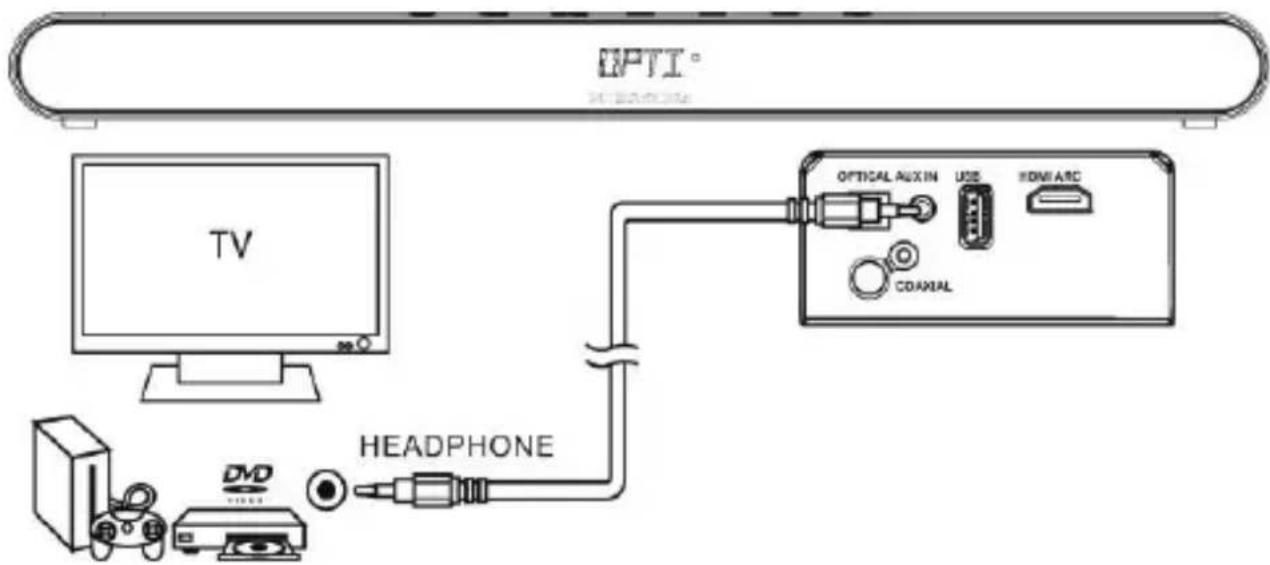
- Connect one end of the 3.5mm cable to the TV headphone 3.5mm audio output socket.
- Connect the other end of the cable to the AUX input on the back of the sound bar.
NOTE: In some cases the Sound bar volume output is affected by the volume level on the TV. In this case adjust the TV volume to increase the audio output from the sound bar.
6.5 Connection to a HDMI ARC-compatible TV using a High-Speed HDMI cable that supports the ARC function (not supplied)
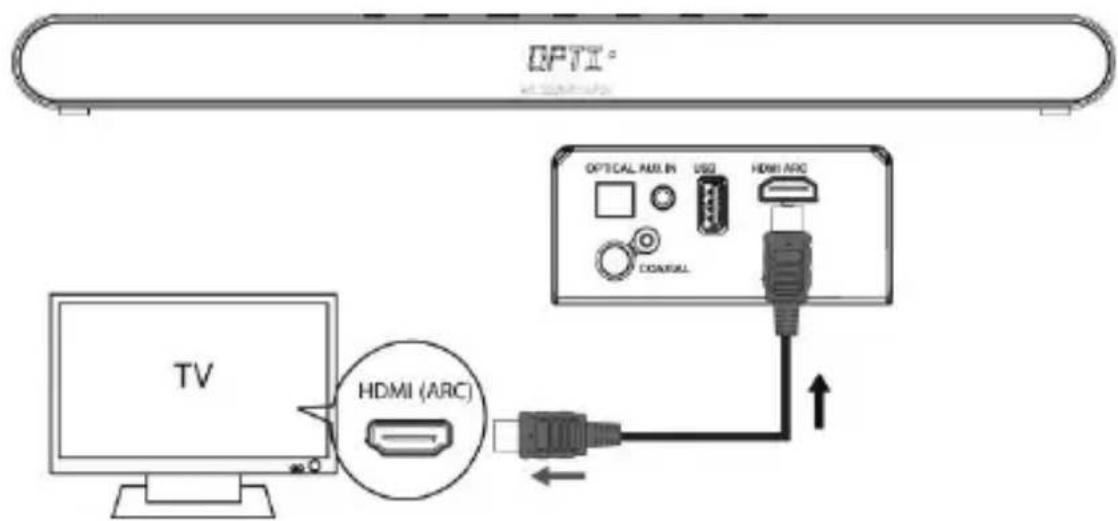
- Connect one end of High-Speed HDMI cable to the TV HDMI ARC output socket.
- Connect the other end of the cable to the HDMI ARC input on the back of the sound bar.
- Turn on HDMI ARC function on your TV. For this, please refer to TV instructions.
- Repeatedly press to select the input source to HDMI ARC.
- Long-press the button for 2 seconds on the remote control, then sound bar display will show ON or OFF. When it shows ON, sound bar will automatically power ON/OFF when the TV is power ON/OFF; when it shows OFF, please power on/off sound bar by pressing button.
HDMI ARC (Audio Return Channel): With the ARC, you can simplify the cable connections in your installation! If you have an ARC-enabled home theater, simply connect it to the HDMI port of the TV. From the home cinema, the picture and the sound of the video player will be transmitted to the TV; and vice versa, from the TV (DTV mode for example), the sound will be transmitted to the home theater, all in one cable.
NOTE:
- For better experience, when using the digital signal channels on multimedia input devices, please set the SPDIF output option to PCM, since the device doesn't with Dolby decoder.
- If your TV does not support HDMI ARC, you must connect an audio cable to play sound from your TV through the speakers of your sound bar.
- If the audio signal input exceeds the maximum power of the product, it will trigger the protective mode (automatically power-off).
Important: ARC connection will only work with ARC-compatible TV. HDMI only-TVs are NOT compatible. Check your TV output. If it doesn't say "ARC", it means that it probably won't be compatible. Additionally, depending on the TV manufacturer, only one HDMI port may actually support ARC.
7. Connecting an MP3 player
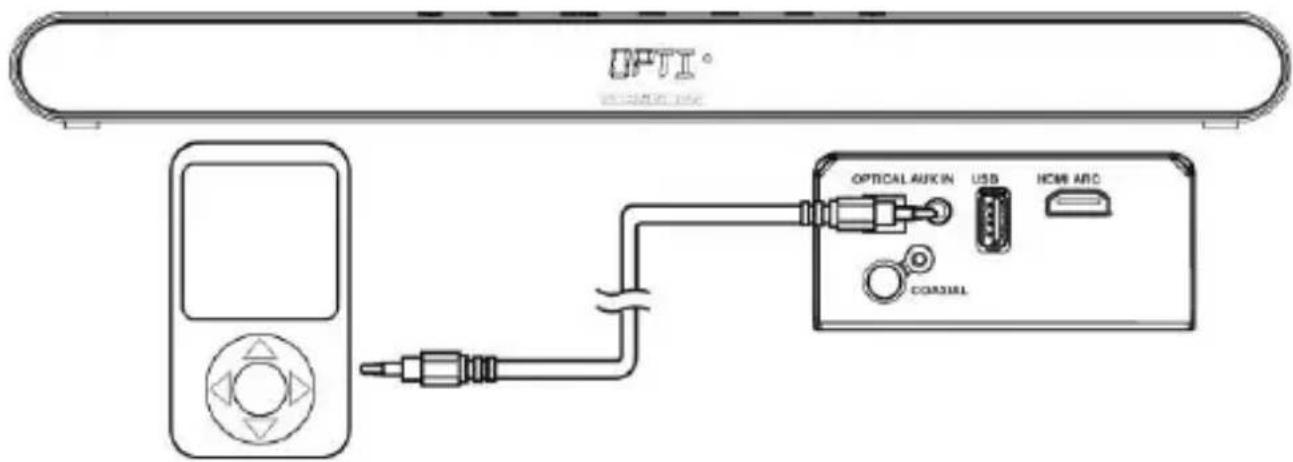
- Connect one end of the 3.5mm audio cable to the headphone output of your MP3 player.
2: Connect the other end to the AUX input (3.5mm socket) on the back of the Sound bar.
8. Connecting a USB device
- Power on the unit.
- Insert a USB key to the interface
- The speaker will automatically read audio files in USB
Remark: Depending on the capacity of the device, the reading can take more than 1 minute.
The unit cannot read my USB device.
- Once you have plugged your device to the unit, you may need to switch on the USB device before it can operate.
- This unit does not support a direct USB connection with a computer. You need to use a USB device, a MP3 player or a PMP (Portable Multimedia Player with hard disk).
- If you are using a USB external hard disk: you need to connect your device simultaneously to an external power source and to the unit. If you are using a self-powered PMP, make sure that the battery is sufficiently loaded.
- Check that the files system of your USB device is formatted into the FAT or FAT 32 format. USB device formatted into NTFS are not compatible with this unit. Caution: if you attempt to modify your file system, formatting your device will erase all data. Please refer to your USB device's instruction manual first.
9. Using the subwoofer
Pair indicator status table
| Description | indicator Status |
| Connecting mode | Red (flash) |
| Connected | Green (solid ) |
| Disconnected | Red (solid) |
Connecting sound bar and subwoofer
For the first time using, you need to check the wireless connection between sound bar and subwoofer. Please follow below steps to
- Power on the subwoofer, and press button on Sound bar to power on it.
-
The pair indicator starts to flash red light, wait for about 10 seconds:
-
If the indicator turns to solid green, Subwoofer and Sound bar has been connected successfully.
- If the indicator still flash red light slowly, long press PAIR button on the subwoofer until it flashes red light quickly, then subwoofer will pair with Sound bar automatically. When the light turns to solid green, subwoofer and Sound bar has been connected successfully.
- If the light turns to solid red, long press PAIR button on the subwoofer until it flashes quickly, then the subwoofer will pair with sound bar automatically. When the light turns to solid green, subwoofer and sound bar has been connected successfully.
10. General operation
Standby mode
- Press the button to wake the unit from STANDBY mode.
- To enter STANDBY mode, press either buttons.
NOTE: As part of the power saving mode the unit will enter Standby mode automatically after 20 minutes (approx.) of no audio input, The LED indicator will turn to red light when the unit enters STANDBY mode
Idle mode
The unit will enter IDLE mode automatically after 1 minute (approx.) of no operation. When the unit enters IDLE mode, the input mode name on the display will disappear and LED indicator starts to show white light. Any operations will bring the unit out of IDLE mode and resume showing the input mode name again on the display.
Switching inputs
Follow the below steps to switch inputs among: USB, HDMI ARC, Auxiliary, Bluetooth, Coaxial or Optical.
- Ensure the Sound bar is powered ON by pressing the button.
- Tap the button repeatedly on the unit until you see source name that you selected shows on the LED display.

USB input: USB
HDMI ARC input: .ARC
Auxiliary input: AUX
Coaxial input: COAX
Bluetooth input: BT
Optical input: OPTI
NOTE: When switching inputs there will be a 5 second pause after selecting BT while the unit scans for paired devices.
Adjusting the volume level
Press the VOLUME+/- button repeatedly to increase or decrease the volume level.
NOTE: If you adjust the volume to above 26 then power off, when you power on again, the volume will automatically be restored to the factory setting16.
Sound effect presets
During playback, press the EQ button repeatedly to change the sound modes between USER,FILM,FLAT,JAZZ,POP,ROCK.
NOTE: When you select a sound mode, it will show the EQ mode names on the LED display to confirm the mode you selected. When adjust the BASS and TREBLE value, unit will switch EQ mode to USER mode automatically.
Bass and Treble enhancement
Press Bass/Treble button once on the remote control, then press - / + button repeatedly to change the BASS/ TREBLE level ranging from -5 to +5 in User mode.
Mute function
- Press the button on the remote control will temporarily silence the audio output.
- Press the button again to resume the audio output.
NOTE: The LED display will show "MUTE" to confirm the mute function is active.
During playback, you can
-
Press button on the remote control to play or pause playback of the selected track on the audio device for BT/USB playback mode.
-
Press to skip to previous or next track for BT/USB playback mode.
- Press and hold for last backward/forward for USB playback mode.
11. Bluetooth operation
Pairing a Bluetooth device
Before you can use the sound bar with your phone or other Bluetooth capable device you will need to pair the device to the sound bar.
- Tap button repeatedly on the sound bar or press button on the remote control until you see the display shows "BT", "BT" will flash if no paired device is detected.
- Enable the Bluetooth function on your smart phone and search for a device labelled "SC800SND" in the available list.
- Select and enable pairing for the device "SC800SND".
- If pairing is successful the sound bar will beep and "BT" on LED display stops flashing.
- If the connected device goes out of range, the sound bar will attempt to connect for 2 minutes. When the device comes into range the sound bar will reconnect again automatically.
- To disconnect the currently paired device, press and hold button on the remote control until the "BT" on LED display begin flashing again.
Bluetooth status table
| Operation | LED Status |
| Connected | BT (solid) |
| Auto re-connecting with last paired device. | BT (flash) |
| Pairing mode |
NOTE:
- The operation range of Bluetooth is approximately 10 meters (30 feet). Any obstacles in the path between devices may reduce this range.
- Only one Bluetooth device can be paired at a time.
12. Specification
| Amplifier | |
| Power output | 2X15W+40W |
| Frequency response | 40Hz-20KHz |
| Input sensitivity | 500 mV |
| Main unit | |
| Power supply | Input:200-240V ~ 50-60Hz Output: 500mA |
| Power consumption | Sound bar:12W Subwoofer:7W |
| Standby power consumption | ≤ 0.5W |
| Full range speaker drivers | Sound bar Impedance: 8 Ohm |
| Subwoofer | Impendance: 4Ohm |
| Dimensions | Sound Bar: W900xD57xH70 mm External subwoofer: W300xD370xH150 mm |
| Cable length | 1.0m |
| Remote control | |
| Battery | AAA batteries |
| Bluetooth | |
| Bluetooth compatibility | V2.1+EDR |
| Bluetooth version | 2.1 |
13. Trouble shooting
In the unlikely event of difficulties with your appliance please follow the trouble shooting guide below.
| PROBLEM | POSSIBLE SOLUTION |
| No Power | ·Ensure the mains plug is connected to a power supply, and is switched ON. ·Make sure there is power to the mains socket. |
| No Sound | ·When playing from the AUX input, Make sure the external source has the volume tuned up and is playing a track. ·Make sure the volume is tuned up. ·Bluetooth device not paired. Refer to “10. Bluetooth operation”. ·When playing in LINE-IN mode, Make sure the other device's connection is Output not Input. ·When using the digital signal channels on multimedia input devices, please set the SPDIF output option to PCM, since the device doesn't with Dolby decoder. ·When playing form HDMI ARC INPUT, ARC connection will only work with ARC-compatible TV. HDMI only-TV are NOT compatible. Check your TV output. If it doesn't say “ARC”, it means that it probably won't be compatible. Additionally, depending on the TV manufacturer, only one HDMI port may actually support ARC. ·Subwoofer not paired. Refer to “8.Using the subwoofer”. |
| No response from the unit | ·Unplug the power cable for 1 minute then plug back in again. |
| Not sync with TV for AUTO power ON/OFF | ·In ARC mode, long press ▷/■to set the value as ‘ON’. Refer to step 5 of ‘5.5 HDMI ARC connection’ |
| Remote control does not work | ·Reduce the distance between the remote control and main unit. ·Check the batteries are installed correctly. ·Replace the batteries. ·Aim the remote control directly at the Sound bar |
SAV
ADMEA/LOGISAV
Utilice bateri as 2xAAA (no incluidas).
- Espanol
- Ventilation adequate
- Important safety instructions - please read carefully and keep for future reference
- CAUTION!
- Where to install the product
- Proper ventilation
- Do not expose the product to high temperatures, moisture, water and dust.
- Electric supply
- EU declaration of conformity
- Technical Specification:
- Getting started
- What's included?
- Overview of controls
- Subwoofer
- Power Connection
- Caution:
- Wall mounting installation
- Wall mounting advice
- Battery installation
- Battery Installation
- TV Connections
- Connecting a TV, DVD, GAMES CONSOLE or SET-TOP BOX using a RCA-3.5mm audio cable (not provided).
- DIGITAL connection to a TV, DVD or Blu-ray player using the COAXIAL cable (not provided).
- DIGITAL connection to a TV, DVD or Blu-ray player using the OPTICAL cable (not provided).
- Connection to a TV using the 3.5mm-3.5mm audio cable provided.
- Connection to a HDMI ARC-compatible TV using a High-Speed HDMI cable that supports the ARC function (not supplied)
- NOTE:
- Connecting an MP3 player
- Connecting a USB device
- The unit cannot read my USB device.
- Using the subwoofer
- Connecting sound bar and subwoofer
- General operation
- Standby mode
- Idle mode
- Switching inputs
- Adjusting the volume level
- Sound effect presets
- Bass and Treble enhancement
- Mute function
- During playback, you can
- Bluetooth operation
- Pairing a Bluetooth device
- Specification
- Trouble shooting
- SAV
Brand : SCHNEIDER
Model : SC800SND
Category : Soundbar