
RTAX53U - Wireless Router ASUS - Free user manual and instructions
Find the device manual for free RTAX53U ASUS in PDF.
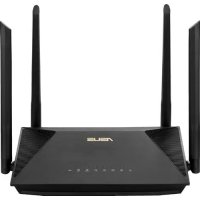



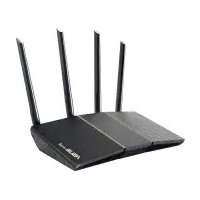
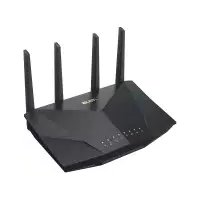
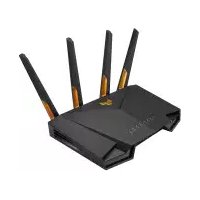
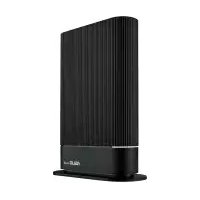
| Product type | Wireless router Wi-Fi 6 |
| Brand | ASUS |
| Model | RT-AX53U |
| Dimensions (approx.) | 230 x 134 x 56 mm |
| Weight | Approximately 400 g |
| Power supply | Power adapter 12V DC, 1.5 A |
| Frequency bands | 2.4 GHz and 5 GHz (dual band) |
| Wi-Fi standard | IEEE 802.11ax (Wi-Fi 6) |
| Maximum speed | Up to 1775 Mbps (2.4 GHz: 574 Mbps, 5 GHz: 1201 Mbps) |
| Ports | 1 WAN RJ-45 port, 3 LAN RJ-45 ports, 1 USB 2.0 port |
| Antennas | 4 external antennas |
| Indicators | Power, LAN 1-3, WAN, 2.4 GHz, 5 GHz, USB |
| Operating temperature | 0°C to 40°C |
| Storage temperature | 0°C to 70°C |
| Operating humidity | 50% to 90% |
| Storage humidity | 20% to 90% |
| Main features | Configuration via web interface or ASUS Router app, parental control, firewall, guest network, QoS, VPN client compatibility |
| Security | WPA2-PSK, WPA3-PSK, AES encryption |
| Care and cleaning | Clean with a soft dry cloth, do not use chemicals |
| Spare parts and repairability | Power adapter and network cable included; online technical support |
Frequently Asked Questions - RTAX53U ASUS
User questions about RTAX53U ASUS
0 question about this device. Answer the ones you know or ask your own.
Ask a new question about this device
Download the instructions for your Wireless Router in PDF format for free! Find your manual RTAX53U - ASUS and take your electronic device back in hand. On this page are published all the documents necessary for the use of your device. RTAX53U by ASUS.
USER MANUAL RTAX53U ASUS
U17979/First Edition/April 2021
Table of contents
English 3
Bulgarian 9
Croatian 15
Czech 21
Danish 27
Dutch 33
Estonian 39
French 45
Finnish 51
German 57
Greek 63
Hungarian 69
Italian 75
Lithuanian 81
Latvian 87
Norwegian 93
Portuguese 99
Polish 105
Russian 111
Romanian 117
Spanish 123
Serbian 129
Slovak 135
Slovenian 141
Swedish 147
Turkish 153
Ukrainian 159


Package contents
RT-AX53U Wireless Router AC adapter Network cable (RJ-45) Quick Start Guide
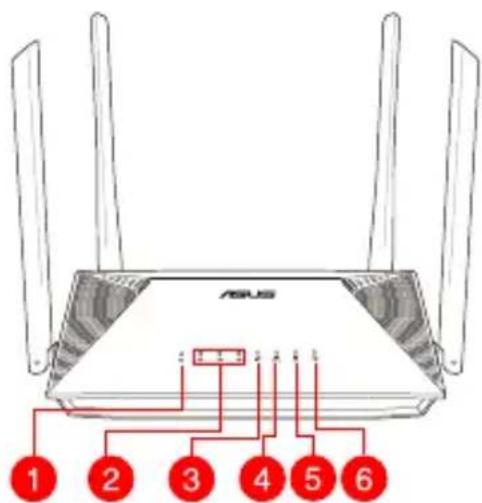
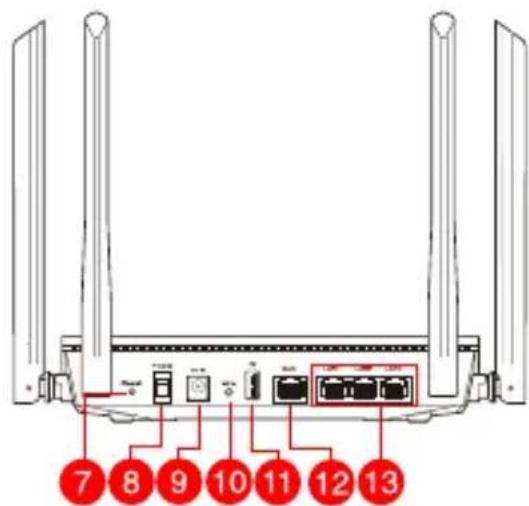
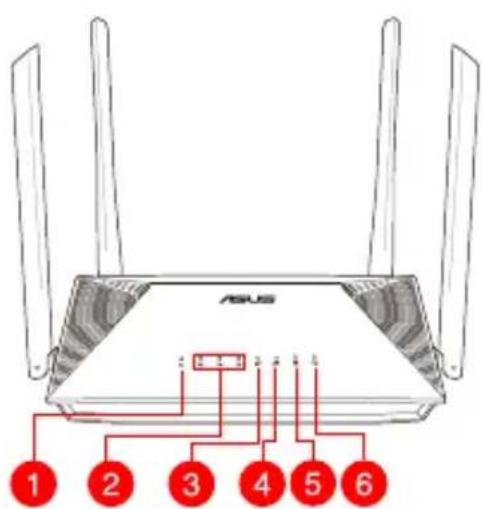
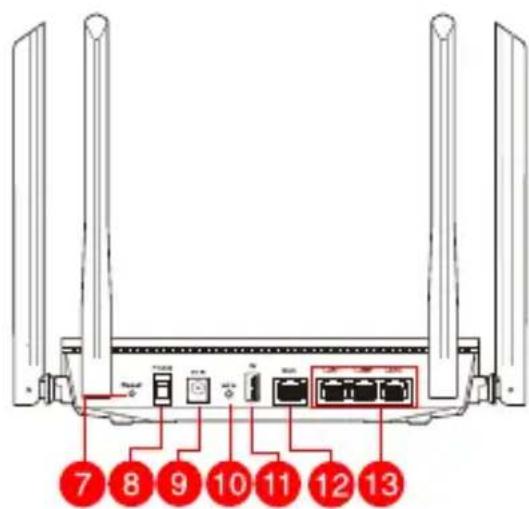
A quick look at RT-AX53U
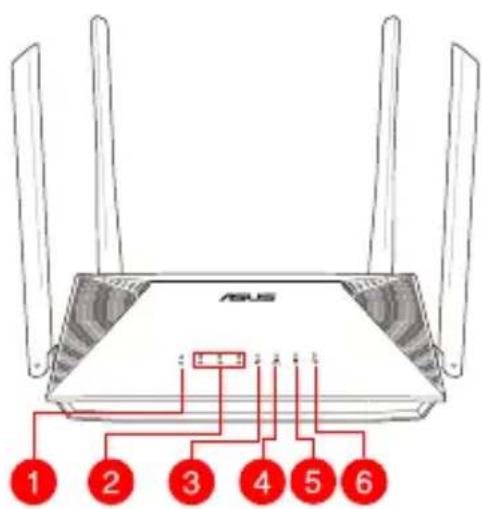
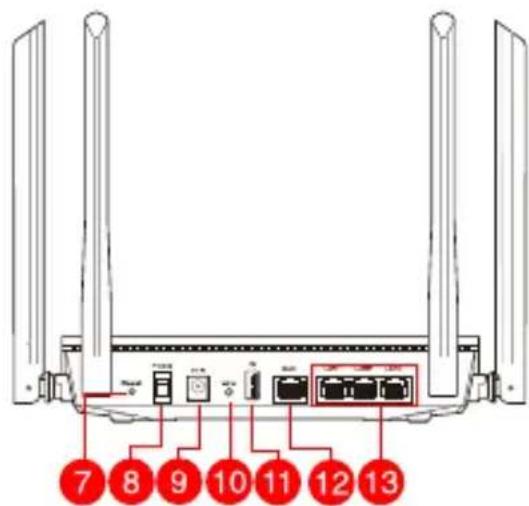
| 1 | Power LED Power switch | 8 |
| 2 | LAN 1~3 LEDs Power (DCIN) port | port |
| 3 | WAN (Internet) LED WPS button | |
| 4 | 2.4GHz LED USB 2.0 port | 11 |
| 5 | 5GHz LED WAN (Internet) port2 | |
| 6 | USB 2.0 LED LAN 1 ~ 3 ports | 13 |
| 7 | Reset button |
Positioning your wireless router
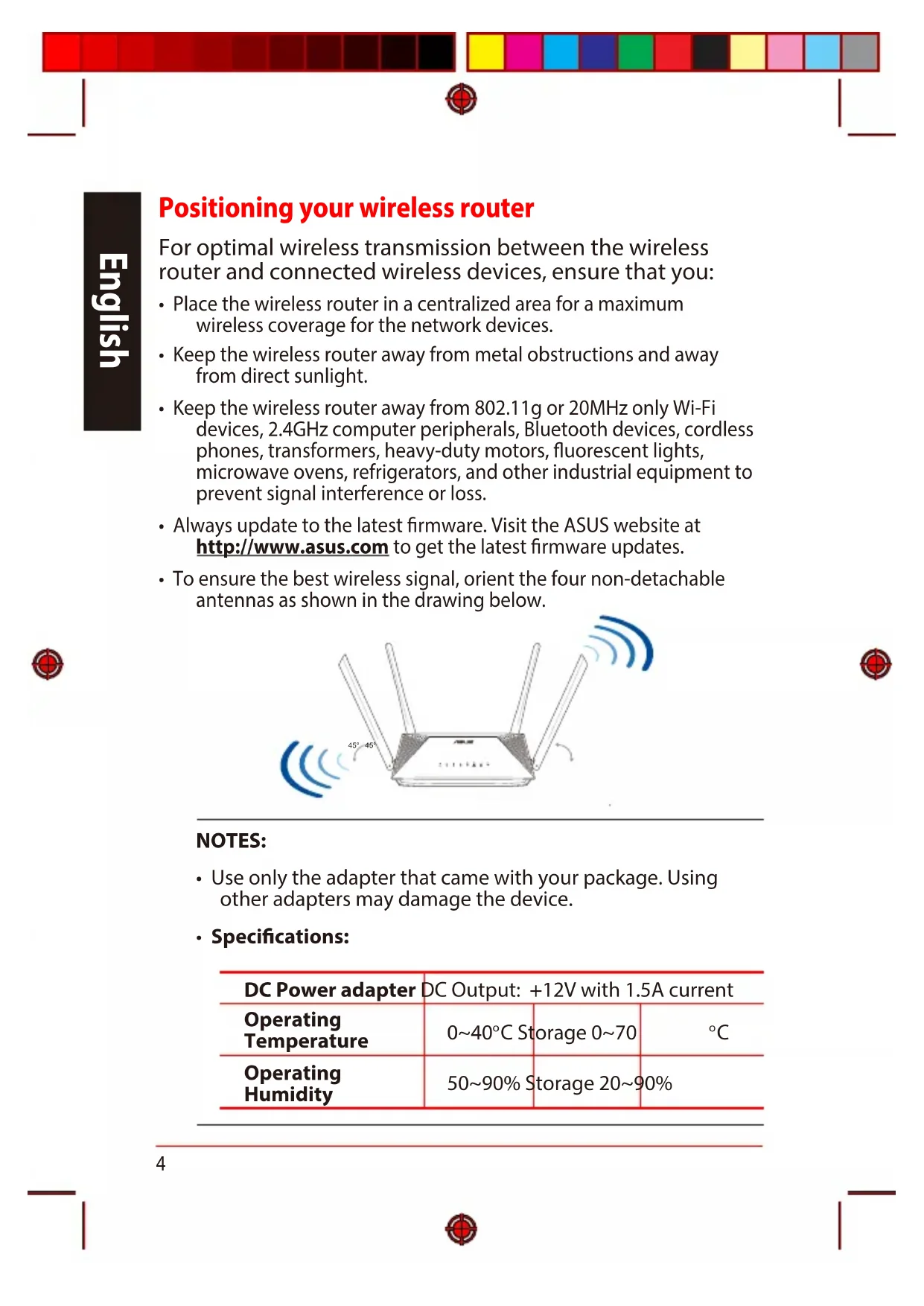
For optimal wireless transmission between the wireless router and connected wireless devices, ensure that you:
- Place the wireless router in a centralized area for maximum wireless coverage for the network devices.
- Keep the wireless router away from metal obstructions and away from direct sunlight.
- Keep the wireless router away from 802.11g or 20MHz only Wi-Fi devices, 2.4GHz computer peripherals, Bluetooth devices, cordless phones, transformers, heavy-duty motors, fluorescent lights, microwave ovens, refrigerators, and other industrial equipment to prevent signal interference or loss.
- Always update to the latest firmware. Visit the ASUS website at http://www.asus.com to get the latest firmware updates.
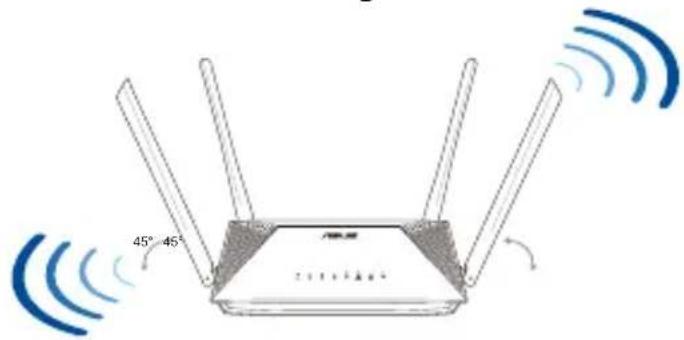
- To ensure the best wireless signal, orient the four non-detachable antennas as shown in the drawing below.
NOTES:
- Use only the adapter that came with your package. Using other adapters may damage the device.
- Specifications:
| DC Power adapter | DC Output: +12V with 1.5A current | ||
| Operating Temperature | 0~40°C | Storage 0~70 | °C |
| Operating Humidity | 50~90% | Storage 20~90% | |
Preparing your modem
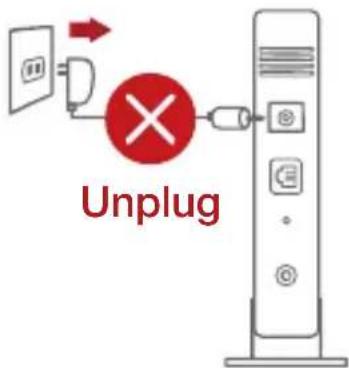
- Unplug the power cable/DSL modem. If it has a battery backup, remove the battery.
NOTE: If you are using DSL for Internet, you will need your username/password from your Internet Service Provider (ISP) to properly configure the router.
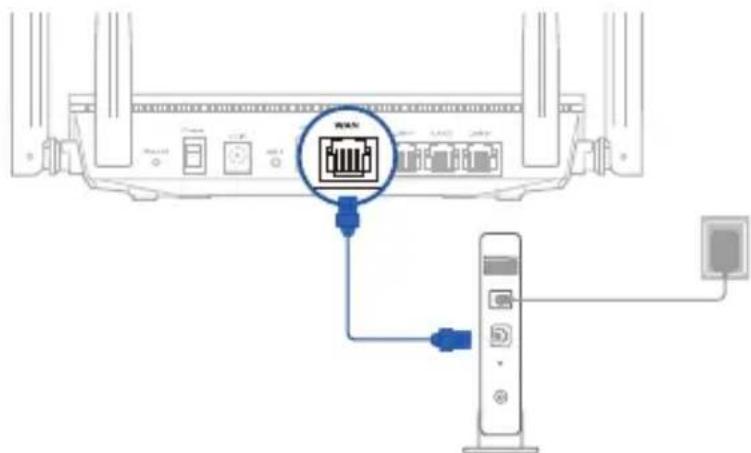
- Connect your modem to the router with the bundled network cable.
- Power on your cable/DSL modem.
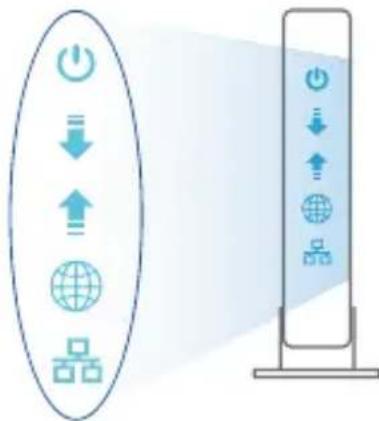
- Check your cable/DSL modem LED lights to ensure the connection is active.


Setting up your RT-AX53U
You can set up your router via wired or wireless connection.
A. Wired connection
- Plug your router into a power outlet and power it on. Connect the network cable from your computer to a LAN port on your router.
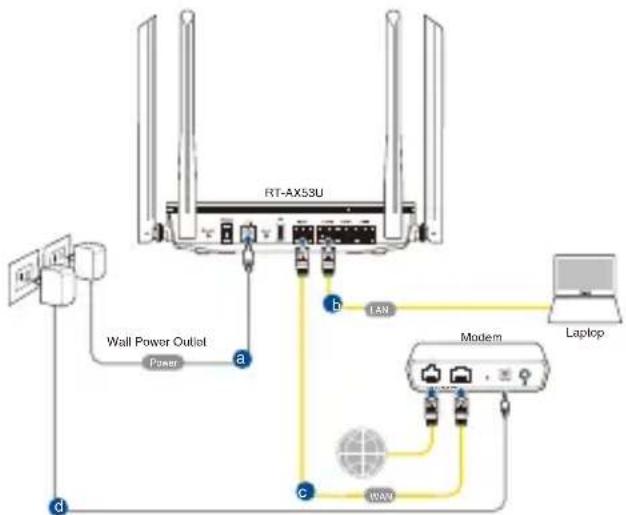
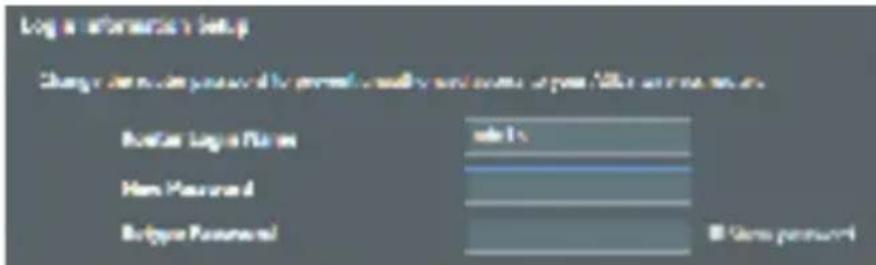
- The web GUI launches automatically when you open a web browser. If it does not auto-launch, enter http://router.asus.com.
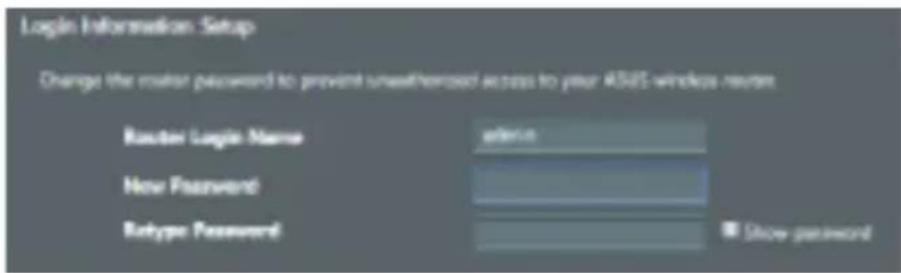
- Set up a password for your router to prevent unauthorized access.
B. Wireless connection
- Plug your router into a power outlet and power it on.
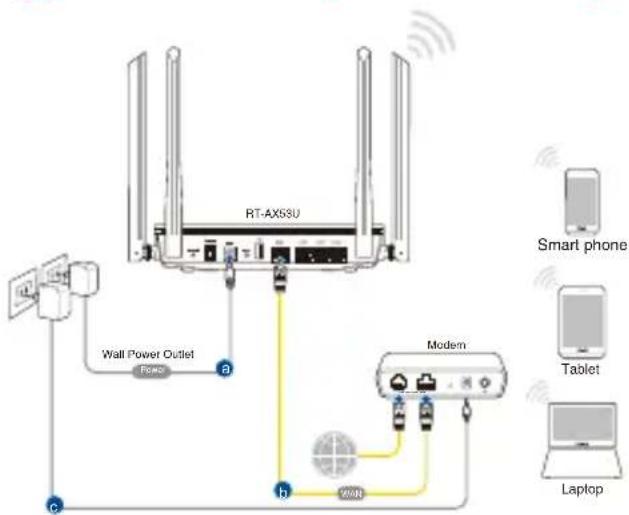
- Connect to the network with SSID shown on the product label on the bottom side of the router. For better network security, change to a unique SSID and assign a password.
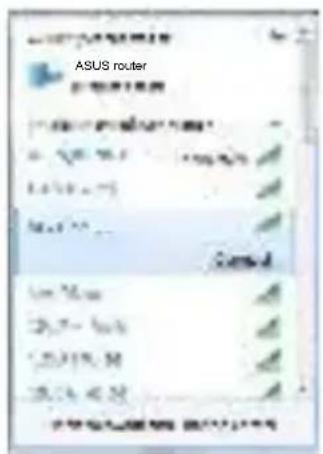
Wi-Fi Name (SSID): ASUSXX
* XX refers to the last two digits of the MAC address. You can find it on the label on the bottom of your router.
- You can choose either the web GUI or ASUS Router app to set up your router.
a. Web GUI Setup
- Once connected, the web GUI launches automatically when you open a web browser. If it does not auto-launch, enter http://router.asus.com.
- Set up a password for your router to prevent unauthorized access.


b. App Setup
Download ASUS Router App to set up your router via your mobile devices.
- Turn on Wi-Fi on your mobile devices and connect to your router's network.
- Follow ASUS Router App setup instructions to complete the setup.
ASUS Router
ASUS Router


Remembering your wireless router settings
- Remember your wireless settings as you complete the router setup.
| Router Name: Password: | |
| 2.4 GHz network SSID: Password: | |
| 5GHz network SSID: Password: |
FAQ
Where can I find more information about the wireless router?
- Technical support site: https://www.asus.com/support
- You can get the user manual online at https://www.asus.com/support
Quick Start Guide

RT-AX53U Power adapter

Network cable (RJ-45) Quick Start Guide
https://www.asus.com/support
You can download the user manual
Online at https://www.asus.com/support
Package contents
RT-AX53U Power adapter Network cable (RJ-45) Quick Start Guide
Quick overview of the RT-AX53U device
| 1 LED napajanja | 8 Sklopka za uključivanje/ isključivanje |
| 2 LAN 1~3 LEDs Ulaz za napajanje (DCIN) | |
| 3 WAN (Internet) LED WPS gumbo | |
| 4 LED za 2,4 GHz USB 2.0 prikljucak | |
| 5 LED za 5 GHz WAN (Internet) priključak | |
| 6 LED za USB 2.0 LAN 1~3 priključci | |
| 7 Gumb za resetiranje |
H
ASUS Router, to complete
the setup.
ASUS Router
G
Q
ASUS Router


How to remember your wireless router settings
https://www.asus.com/support
Package contents

RT-AX53U Power adapter


Network cable (RJ-45) Quick start guide
A quick look
| 1 Voedings-LED Voedingssschakelaar | |
| 2 LAN-LED 1~3 | 9 Netstroomaansluiting (DCIn) |
| 3 LED WAN (Internet) WPS-knop | 10 |
| 4 2.4GHz LED USB 2.0 poort | 11 |
| 5 5GHz LED WAN-poort (Internet) | 12 |
| 6 USB 2.0 LED LAN 1~3 | 13 poorten |
| 7 Reset-knop | |
Technical support website: https://www.asus.com/support
- TABLE OF CONTENTS
- PACKAGE CONTENTS
- A QUICK LOOK AT RT-AX53U
- POSITIONING YOUR WIRELESS ROUTER
- NOTES
- PREPARING YOUR MODEM
- SETTING UP YOUR RT-AX53U
- WIRED CONNECTION
- WIRELESS CONNECTION
- APP SETUP
- REMEMBERING YOUR WIRELESS ROUTER SETTINGS
- FAQ
- QUICK START GUIDE
- QUICK OVERVIEW OF THE RT-AX53U DEVICE
- H
- HOW TO REMEMBER YOUR WIRELESS ROUTER SETTINGS
- A QUICK LOOK
Brand : ASUS
Model : RTAX53U
Category : Wireless Router