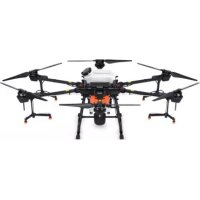
Agras T20 - Drone DJI - Free user manual and instructions
Find the device manual for free Agras T20 DJI in PDF.



| Product Type | Agricultural spraying drone |
| Brand | DJI |
| Model | Agras T20 |
| Dimensions (unfolded) | 2509 × 2213 × 732 mm |
| Dimensions (folded) | 1100 × 570 × 732 mm |
| Weight (without battery) | 21.1 kg |
| Max. takeoff weight | 47.5 kg |
| Flight battery | AB3-18000mAh-51.8V (LiPo 14S) |
| Hovering flight time | 15 min (27.5 kg) / 10 min (42.6 kg) |
| Tank capacity | 20 L |
| Max. spray flow rate | 6 L/min (depending on nozzles) |
| Transmission range | 5 km (FCC) / 3 km (CE) |
| Positioning system | GNSS + RTK (GPS, GLONASS, BeiDou, Galileo) |
| Obstacle avoidance | Omnidirectional digital radar (horizontal) |
| Protection rating | IPX6 (overall) / IP67 (electronic components) |
| Operating temperature | 0 to 40 °C |
| Main functions | Automatic spraying, flight planning, Route and A-B modes, smart return to home |
| Maintenance and cleaning | Clean the tank, nozzles, propellers and motors after each use with clean or soapy water |
| Safety | Do not fly over people/animals, avoid winds >28 km/h, respect GEO zones |
| Spare parts and repairability | Replaceable propellers, nozzles, battery, tank, motors and ESC |
| General information | Professional agricultural drone, Smart Controller 2.0 remote controller with 5.5" touchscreen |
Frequently Asked Questions - Agras T20 DJI
User questions about Agras T20 DJI
0 question about this device. Answer the ones you know or ask your own.
Ask a new question about this device
Download the instructions for your Drone in PDF format for free! Find your manual Agras T20 - DJI and take your electronic device back in hand. On this page are published all the documents necessary for the use of your device. Agras T20 by DJI.
USER MANUAL Agras T20 DJI
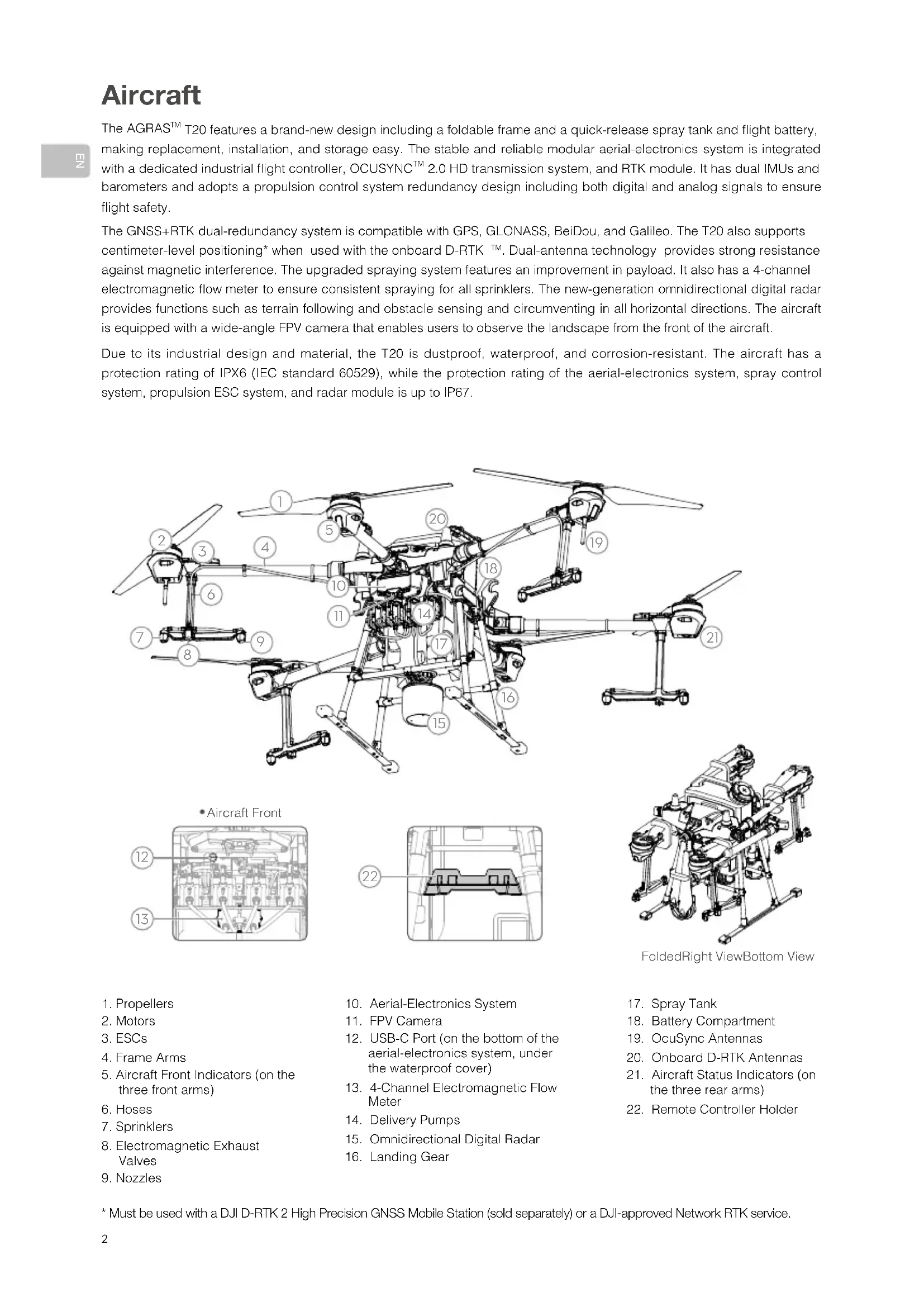
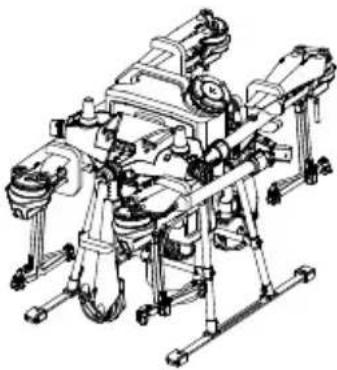
The AGRAST™ T20 features a brand-new design including a foldable frame and a quick-release spray tank and flight battery, making replacement, installation, and storage easy. The stable and reliable modular aerial-electronics system is integrated with a dedicated industrial flight controller, OCUSYNC™ 2.0 HD transmission system, and RTK module. It has dual IMUs and barometers and adopts a propulsion control system redundancy design including both digital and analog signals to ensure flight safety.
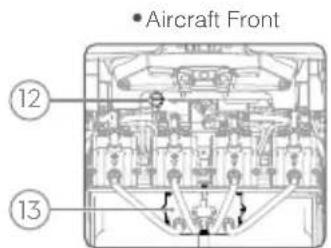
The GNSS+RTK dual-redundancy system is compatible with GPS, GLONASS, BeiDou, and Galileo. The T20 also supports centimeter-level positioning* when used with the onboard D-RTK™. Dual-antenna technology provides strong resistance against magnetic interference. The upgraded spraying system features an improvement in payload. It also has a 4-channel electromagnetic flow meter to ensure consistent spraying for all sprinklers. The new-generation omnidirectional digital radar provides functions such as terrain following and obstacle sensing and circumventing in all horizontal directions. The aircraft is equipped with a wide-angle FPV camera that enables users to observe the landscape from the front of the aircraft.
Due to its industrial design and material, the T20 is dustproof, waterproof, and corrosion-resistant. The aircraft has a protection rating of IPX6 (IEC standard 60529), while the protection rating of the aerial-electronics system, spray control system, propulsion ESC system, and radar module is up to IP67.
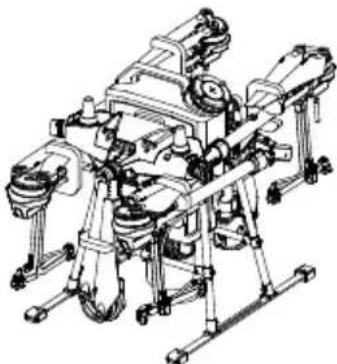
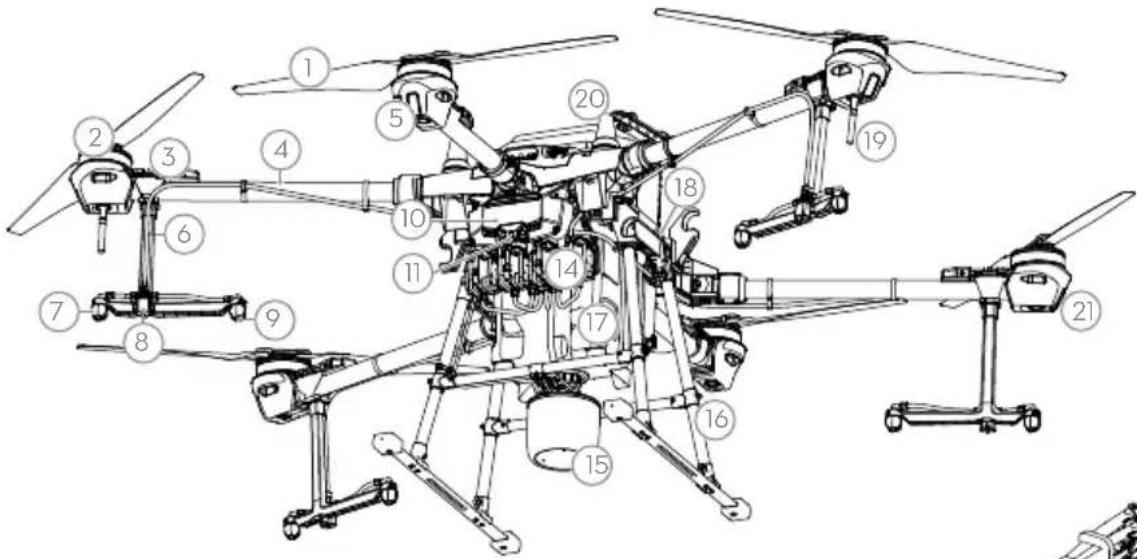
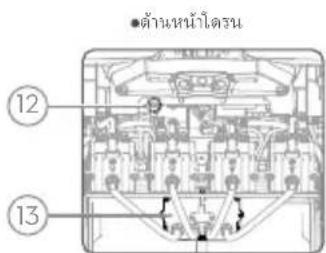
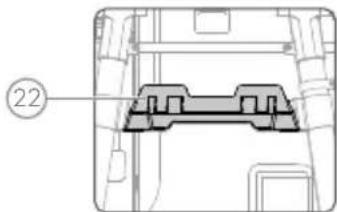
FoldedRight ViewBottom View
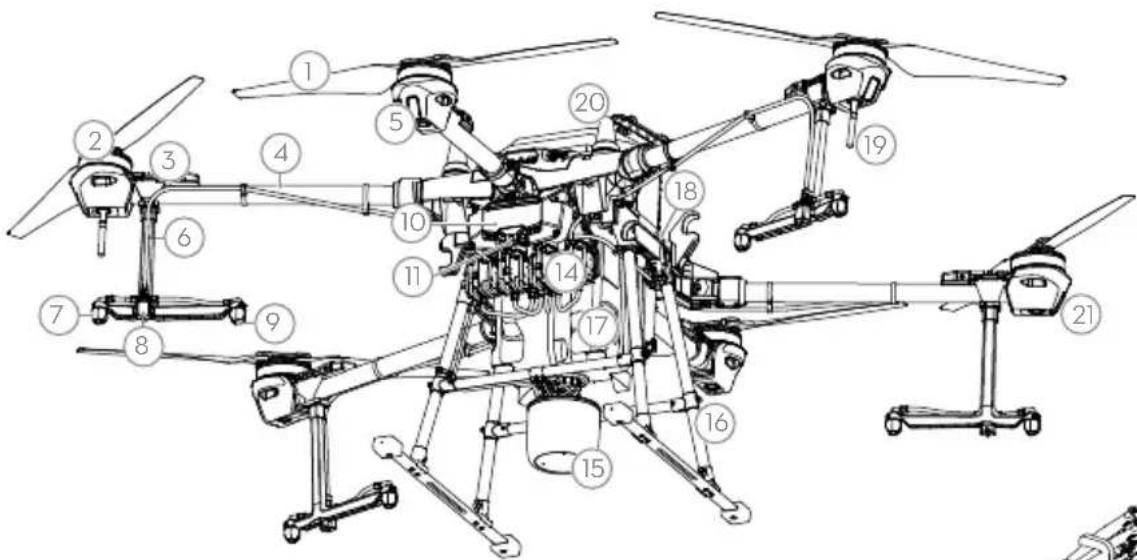
- Propellers
2.Motors - ESCs
- Frame Arms
- Aircraft Front Indicators (on the three front arms)
- Hoses
7 Sprinklers - Electromagnetic Exhaust Valves
-
Nozzles
-
Aerial-Electronics System
- FPV Camera
- USB-C Port (on the bottom of the aerial-electronics system, under the waterproof cover)
- 4-Channel Electromagnetic Flow Meter
- Delivery Pumps
- Omnidirectional Digital Radar
-
Landing Gear
-
Spray Tank
- Battery Compartment
- OcuSync Antennas
- Onboard D-RTK Antennas
- Aircraft Status Indicators (on the three rear arms)
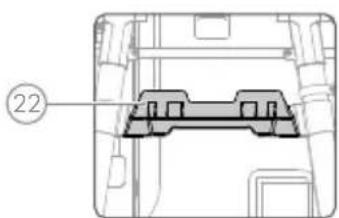
- Remote Controller Holder
Remote Controller
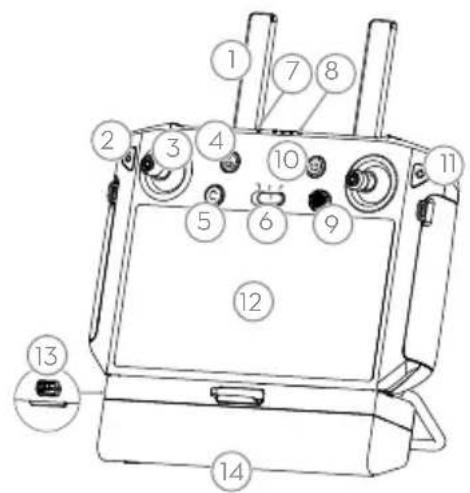
The Smart Controller 2.0 uses the DJI™ OcuSync 2.0 transmission system, has a maximum control distance of up to 5km^ , and supports Wi-Fi and Bluetooth functions. The remote controller is equipped with a 5.5-inch bright, dedicated screen that has the DJI Agras app built in, significantly improving smoothness and stability. When the RTK dongle is connected to the remote controller, users can plan operations to centimeter-level precision. The Multi-Aircraft Control mode of the remote controller can be used to coordinate the operation of up to three aircraft at the same time, enabling pilots to work efficiently. Both the built-in battery and external battery can be used to supply power to the remote controller. The total working time is up to 4 hours, which fully meets the requirements for long and high-intensity operations.
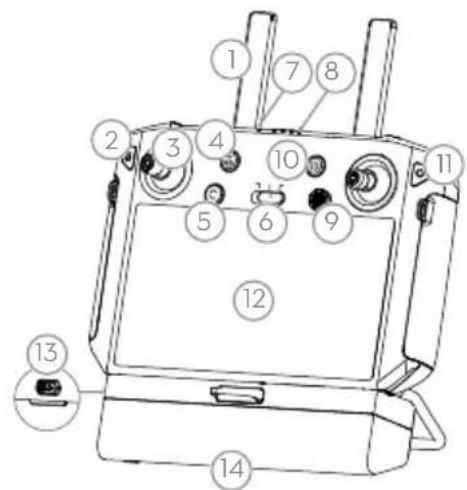
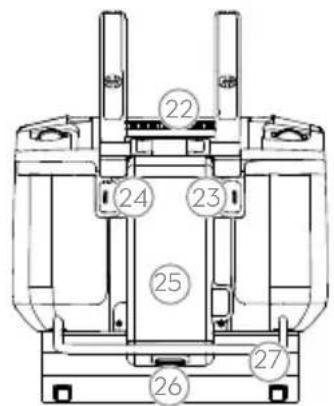
- Antennas
- Back Button / Function Button
- Control Sticks
- RTH Button
- Button C3 (customizable)
- Flight Mode Switch
7.StatusLED -
Battery Level LEDs
9.5D Button (customizable) -
Power Button
- Confirm Button
- Touch Screen
- USB-C Charging Port
- Dongle Compartment Cover
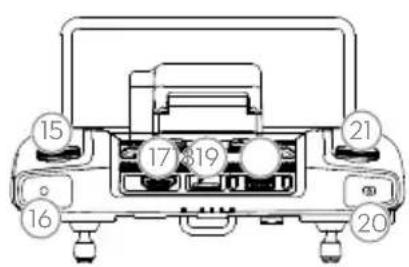
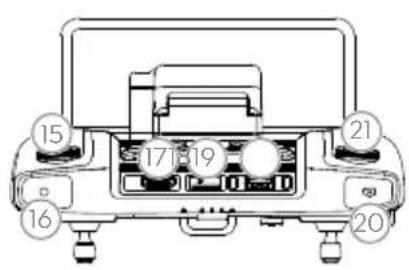
- Spray Rate Dial
- Spray Button
17.HDMI Port -
microSD Card Slot
-
USB-A Port
- FPV / Map Switch Button
- Work Efficiency Dial
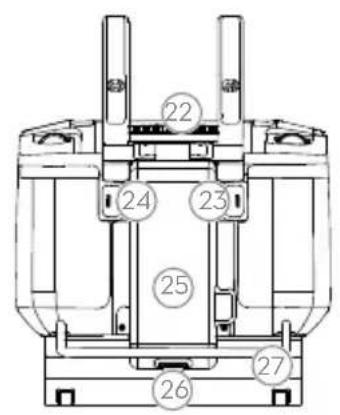
- Air Outlet
- Button C1 (customizable)
- Button C2 (customizable)
- Battery Cover
- Battery Cover Release Button
- Handle
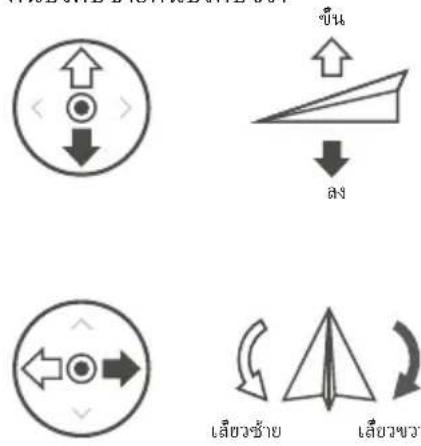
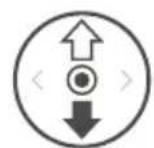
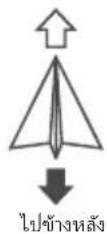
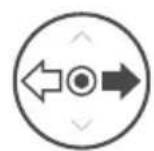
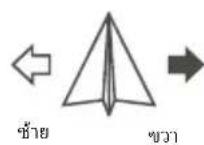
The figure below shows the function that each control stick movement performs, using Mode 2 as an example. In Mode 2, the left stick controls the aircraft's altitude and heading, while the right stick controls its forward, backward, and left and right movements.

Left Stick Right Stick
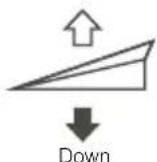
Up
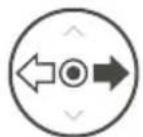
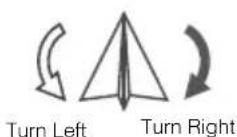
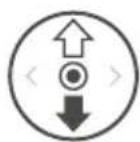
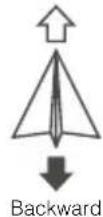
Forward
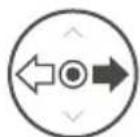
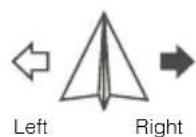
- The remote controller is able to reach its maximum transmission distance (FCC / NCC: 5 km (3.11 mi); CE / KCC / MIC / SRRC: 3 km (1.86 mi)) in an open area with no electromagnetic interference, and at an altitude of approximately 2.5 m (8.2 ft). Make sure to comply with local laws and regulations when using Multi-Aircraft Control mode.
Fly Safe
It is important to understand some basic flight guidelines, both for your protection and for the safety of those around you.
- Flying in Open Areas: Pay attention to utility poles, power lines, and other obstacles. DO NOT fly near or above water, people, or animals.
- Maintain Control at All Times: Keep your hands on the remote controller and maintain control of your aircraft when it is in flight, even when using intelligent functions such as the Route and A-B Route operation modes and Smart Return to Home.
- Maintain Line of Sight: Maintain visual line of sight (VLOS) with your aircraft at all times and avoid flying behind buildings or other obstacles that may block your view.
- Monitor Your Altitude: For the safety of manned aircraft and other air traffic, fly at altitudes lower than 30m (98 ft) and in accordance with all local laws and regulations.

Visit https://www.dji.com/flysafe for more information on critical safety features such as GEO zones.
Flying Considerations
- DO NOT use the aircraft to spray in winds exceeding 18 kph (11 mph).
- DO NOT use the aircraft in adverse weather conditions such as winds exceeding 28 kph (17 mph), heavy rain (precipitation rate exceeding 25 mm (0.98 in) in 12 hours), snow, or fog.
- The recommended maximum operating altitude is 2km (6,560 ft) above sea level. DO NOT fly over 3 km (9,842 ft) above sea level.
- Once the operating altitude reaches 1 km (3,280 ft), the payload capacity of the spray tank is reduced by 2 kg. For every additional km, the payload capacity will reduce by a further 2 kg.
- Make sure that there is a strong GNSS signal and the D-RTK antennas are unobstructed during operation.
Return to Home (RTH)
The aircraft will automatically return to the Home Point in the following situations:
Smart RTH: You press the RTH button.
Failsafe RTH: The remote controller signal is lost.*
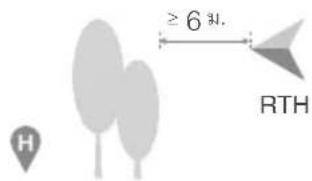
If there is an obstacle within 20m of the aircraft, the aircraft decelerates and then stops and hovers. If the aircraft comes within 6 m of the obstacle while decelerating, the aircraft stops, flies backward to a distance of approximately 6 m from the obstacle, and hovers. The aircraft exits the RTH procedure and waits for further commands.
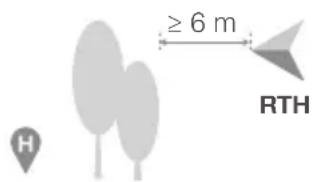
- If Failsafe RTH is disabled (the default setting in the DJI Agras app), the aircraft hovers in place when the remote controller signal is lost.

- Obstacle avoidance is disabled in Attitude mode (which the aircraft enters in situations such as when the GNSS signal is weak) and is not available if the operating environment is not suitable for the radar module. Extra caution is required in such situations.
Pesticide Usage
- Avoid the use of powder pesticides as much as possible as they may reduce the service life of the spraying system.
- Pesticides are poisonous and pose serious risks to safety. Only use them in strict accordance with their specifications.
- Use clean water to mix the pesticide and filter the mixed liquid before pouring into the spray tank to avoid blocking the strainer.
- Effective use of pesticides depends on pesticide density, spray rate, spray distance, aircraft speed, wind speed, and wind direction. Consider all factors when using pesticides.
- DO NOT compromise the safety of people, animals, or the environment during operation.

It is important to understand some basic flight guidelines, both for your protection and for the safety of those around you. Make sure to read the disclaimer and safety guidelines.
Using the T20
1. Preparing the Intelligent Flight Battery
Only use official DJI flight batteries (model: AB3-18000mAh-51.8V). Check the battery level before flying, and charge it according to the corresponding document.
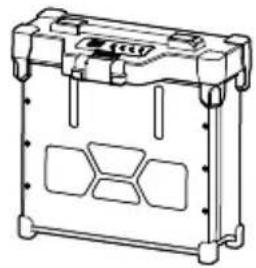

2. Preparing the Aircraft
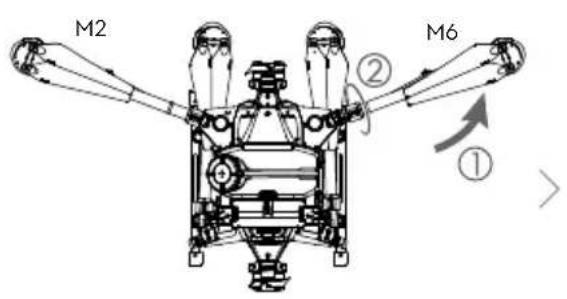
Unfold the M2 and M6 arms, and tighten the two arm sleeves.
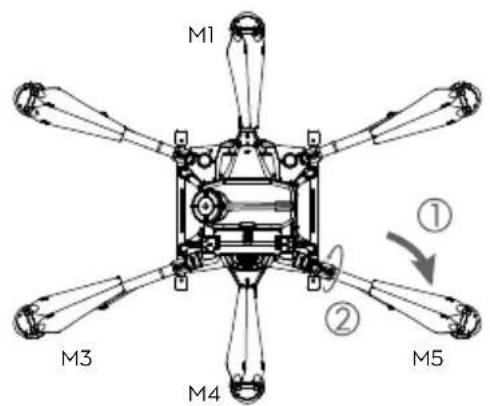
Unfold the M3 and M5 arms followed by M1 and M4, and then tighten the four arm sleeves.
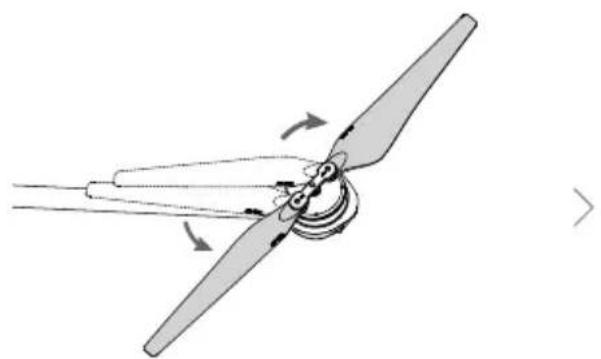
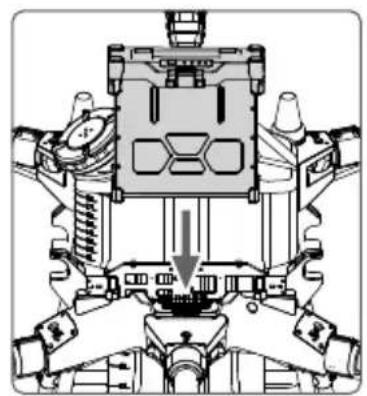
Unfold the propeller blades. Insert the Intelligent Flight Battery into the aircraft until you hear a click.

- Make sure that the battery is firmly inserted into the aircraft. Only insert or remove the battery when the aircraft is powered off.
- To remove the battery, press and hold the clamp, and then lift the battery up.
- When folding the arms, make sure to fold the M3 and M5 arms first, and then the M2 and M6 arms. Otherwise, the arms may be damaged. Lift and lower the M1 and M4 arms gently to reduce wear and tear.
3. Preparing the Remote Controller
Charging the Batteries
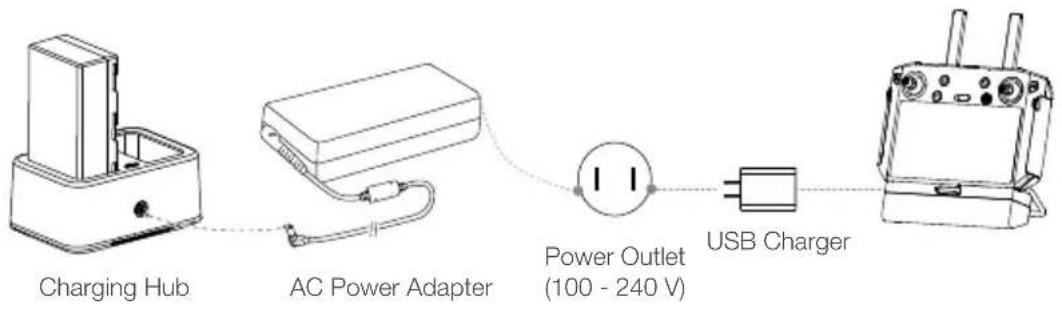
Charge the external Intelligent Battery using the charging hub and AC power adapter. Charge the internal battery of the remote controller using the USB charger and USB-C cable. Fully charge the batteries before using for the first time.
Mounting the External Battery
① Press the battery cover release button on the back of the remote controller to open the cover.
② Insert the Intelligent Battery into the compartment and push it to the top.
③ Close the cover.
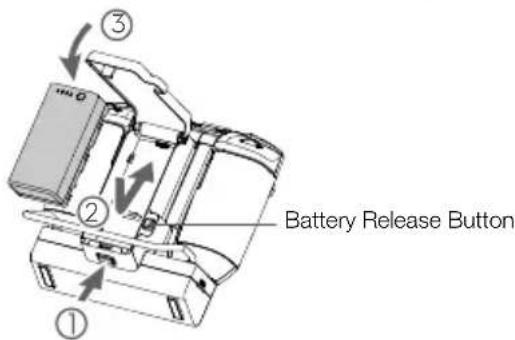

- To remove the Intelligent Battery, press and hold the battery release button, then push the battery downward.
Mounting the 4G Dongle and SIM Card

- Only use a DJI-approved dongle. The dongle supports various network standards. Use a SIM card that is compatible with the chosen mobile network provider, and select a mobile data plan according to the planned level of usage.
- The dongle and SIM card enable the remote controller to access specific networks and platforms, such as the DJI AG platform. Make sure to employ them correctly. Otherwise, network access will not be available.
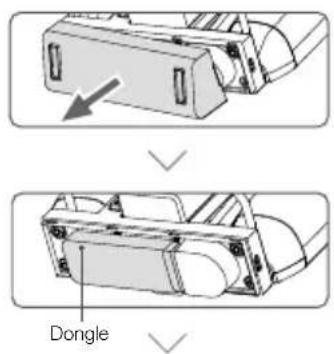
Remove the dongle compartment cover.
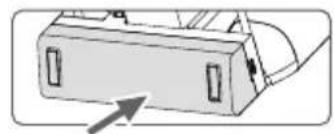
Insert the dongle into the USB port with the SIM card inserted into the dongle, and test the dongle.
Reattach the cover firmly.
- Test procedure: Press the remote controller power button once, then press again and hold to power the remote controller on. In DJI Agras, tap , and select Network Diagnostics. The dongle and SIM card are functioning properly if the status of all the devices in the network chain are shown in green.
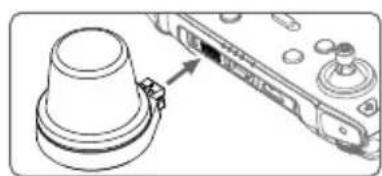
Mounting the RTK Dongle
When using the RTK planning method to plan the operation area, attach the RTK dongle to the USB-A port on the remote controller.
Checking the Battery Levels
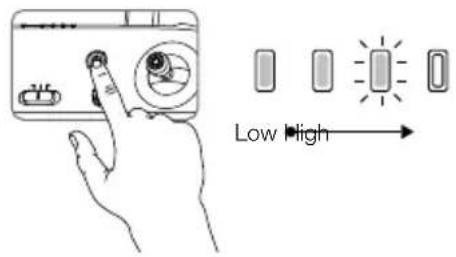
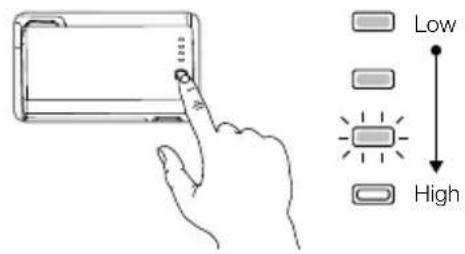
Press the power button on the remote controller once to check the internal battery level. Press once, then press again and hold for two seconds to power on or off.
Press the battery level button on the external Intelligent Battery once to check the battery level.

- When using an external Intelligent Battery, it is still necessary to make sure that the internal battery has some power. Otherwise, the remote controller cannot be powered on.
Adjusting the Antennas
Lift the antennas and adjust them. The strength of the remote controller signal is affected by the position of the antennas. When the angle between the antennas and the back of the remote controller is 80^ or 180^ , the connection between the remote controller and aircraft can reach its optimal performance.
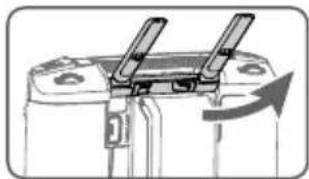
Try to keep the aircraft inside the optimal transmission zone. If the signal is weak, adjust the antennas or fly the aircraft closer.
Optimal Transmission Zone

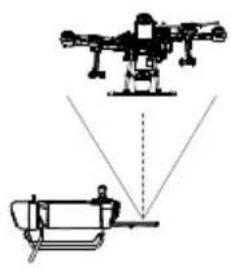
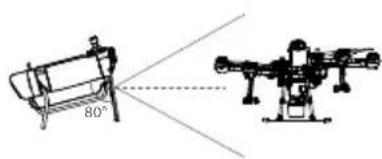

- Avoid using wireless devices that use the same frequency bands as the remote controller.
- If the RTK dongle is used for field planning, the module should be disconnected from the remote controller after planning is completed. Otherwise, it will affect the communication performance of the remote controller.
4. Getting Ready for Takeoff
A. Place the aircraft on open, flat ground with the aircraft rear facing toward you.
B. Make sure that the propellers are securely mounted, there are no foreign objects in or on the motors and propellers, the propeller blades and arms are unfolded, and the arm sleeves are firmly tightened.
C. Make sure that the spray tank and flight battery are firmly in place.
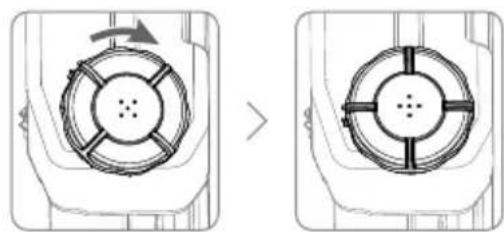
D. Pour liquid into the spray tank, and tighten the cover. Make sure that the four lines on the cover are aligned to the horizontal or vertical direction.
E. Power on the remote controller, make sure that the DJI Agras app is open, and then power on the aircraft.

Internet
- When using for the first time, activate the aircraft using the DJI Agras app. Your DJI account and an internet connection are required.
Calibrating the Compass
When the app prompts that compass calibration is required, tap then slide to the bottom, and select Advanced Settings, then Sensors. Tap Calibration in the compass calibration section, then follow the on-screen instructions.

DO NOT calibrate your compass where there is a chance of strong magnetic interference. This includes areas where there are utility poles or walls with steel reinforcements.
DO NOT carry ferromagnetic materials with you during calibration such as keys or mobile phones.
Calibrating the Flow Meter
Make sure to calibrate the flow meter before your first operation. Otherwise, the spraying performance may be adversely affected.
A. Preparation before calibration: Discharging the bubbles in the hoses
① Fill the spray tank with approximately 2L of water.
② Use the automatic bubbles discharge function to discharge the bubbles according to the descriptions in the Discharging the Bubbles in the Hoses section below. Users can also manually discharge the bubbles. Press the spray button to spray the bubbles and press the button again once all bubbles are discharged.
B. Flow Meter Calibration
① In the app, tap Execute Operation to enter Operation View. Tap then and tap Calibration on the right of the flow meter section.
② Calibration starts automatically. After 25 seconds, the result of the calibration is displayed in the app.
After calibrating successfully, users can proceed with the operation.
- If calibration fails, tap "?" to view and resolve the problem. Afterward, recalibrate.
Discharging the Bubbles in the Hoses
The T20 features an automatic bubbles discharge function. When it is necessary to discharge bubbles, press and hold the spray button for two seconds. The aircraft will discharge automatically until the bubbles are fully discharged.
5. Flight
In the app, go to Operation View. Make sure that there is a strong GNSS signal, and the system status bar indicates Manual Route (GNSS) or Manual Route (RTK).* Otherwise, the aircraft cannot take off.
It is recommended to create a plan for a field and select an operation to enable the aircraft to take off and perform the operation automatically. Refer to the Starting Operations section for more information. In other cases, take off and land manually.
Takeoff
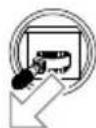
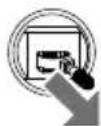
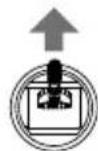
Perform a Combination Stick Command (CSC) and push the throttle stick up to take off.

Landing
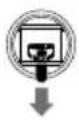
To land, pull down on the throttle stick to descend until the aircraft touches the ground. There are two methods to stop the motors.
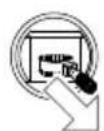
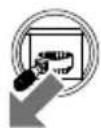
Method 1: When the aircraft has landed, push and hold the throttle stick down. The motors will stop after three seconds.
Method 2: When the aircraft has landed, push the throttle stick down, and perform the same CSC that was used to start the motors. Release both sticks once the motors have stopped.
RTK positioning is recommended. In the app, go to Operation View, tap , then RTK to enable Aircraft RTK, and select a method for receiving RTK signals.
Method 1 Method 2
- Spinning propellers can be dangerous. Stay away from spinning propellers and motors. DO NOT start the motors in confined spaces or when there are people nearby.
- Keep your hands on the remote controller when the motors are spinning.
DO NOT stop the motors mid-flight unless in an emergency situation where doing so will reduce the risk of damage or injury.
Method 1 is the recommended method for stopping the motors. When using Method 2 to stop the motors, the aircraft may roll over if it is not completely grounded. Use Method 2 with caution. - After landing, power off the aircraft before turning off the remote controller.
Starting Operations
After the operation area and obstacles have been measured and settings have been configured, DJI Agras uses a built-in intelligent operation planning system to produce a flight route based on the user's input. Users can invoke an operation after planning a field. The aircraft will begin the operation automatically and follow the planned flight route.
In scenarios with complicated terrain, users can use the Phantom 4 RTK and DJI TERRA™ to plan 3D flight routes, and then import the routes to the DJI Agras app for operation. Refer to the Agras T20 User Manual for more information.
Field Planning
The DJ Agras app supports flight route planning by flying the aircraft to waypoints, obstacles, and calibration points or by walking to these points carrying a remote controller, a remote controller with an RTK dongle, or an RTK device. The following route has been planned by walking to the points with a remote controller that has a RTK dongle connected. Before planning, make sure that the RTK dongle is mounted to the remote controller.
DJI Agras
RTK
Power on the remote controller. Launch DJI Agras.
Tap Plan Field, select Walk with RTK, then Walk with RTK Dongle.
In RTK settings, select a method for receiving RTK signals and configure corresponding settings. Make sure the aircraft status bar on top of the screen is green.
Walk with the remote controller alongside the boundary of the operation area and tap Add Waypoint C2 at turning points.
Walk to each obstacle* in turn and tap Obstacle Mode C1.*
Walk around the obstacle and tap Add Obstacle C2 at several points around the obstacle.
Tap Waypoint Mode C1 to return to add edge points to the operation area.
Walk to the location of each calibration point and tap Calibration Point.
The waypoints and flight route can be edited. Fine-tune waypoint positions, configure distance and line spacing, and adjust the route direction by tapping or dragging the icon.
Save the field plan.
Once you have finished planning, tap in the upper left corner of the screen to return to the home screen.
-
If any obstacles are in the operation area.
-
Calibration points are used to rectify flight route biases caused by positioning deviations. Choose one or more fixed reference points for calibration like a metal peg or obvious marker that is easy to identify for bias rectification when using the operation.
Performing an Operation


Tap Invoke, and then tap Rectify Offset.
Tap Start. Set the operation
parameters, then confirm.
Set the auto-takeoff height and move the slider to take off. The aircraft will perform the operation automatically.

- Only take off in open areas and set an appropriate auto-takeoff height according to the operating environment.
- An operation can be paused by moving the control stick slightly. The aircraft will hover and record the breakpoint, and then the aircraft can be controlled manually. To continue the operation, select it again from the Executing tag in list, and the aircraft will return to the breakpoint automatically and resume the operation. Pay attention to aircraft safety when returning to a breakpoint.
- In Route Operation mode, the aircraft is able to circumvent obstacles, which is disabled by default and can be enabled in the app. If the function is enabled and the aircraft detects obstacles, the aircraft will slow down and circumvent the obstacles, and then return to the original flight path.
- Users can set the action the aircraft will perform after the operation is completed in the app.
More Operation Modes
Refer to the Agras T20 User Manual for more information about the A-B Route, Manual, and Manual Plus Operation modes.
More Functions

Operation Resumption

System Data Protection

Empty Tank
Refer to the Agras T20 User Manual for more information.
6. Maintenance
Clean all parts of the aircraft and remote controller daily and immediately after spraying:
- Fill the spray tank with clean water or soapy water and spray the water through the nozzles until the tank is empty. Repeat the step two more times.
- Detach the spray tank and spray tank connector to clean them. Remove the spray tank strainer, nozzle strainers, and nozzles to clean them and clear any blockage. Afterwards, immerse them in clean water for 12 hours.
- Use a water-filled spray washer to clean the aircraft body and wipe it with a soft brush or wet cloth before cleaning water stains with a dry cloth.
- If there is dust or pesticide liquid on the motors and propellers, wipe them with a wet cloth before cleaning water stains with a dry cloth.
- Wipe the surface and screen of the remote controller with a clean wet cloth that has been wrung out with water daily after operations.
Refer to the disclaimer and safety guidelines for more information on product maintenance.
Specifications
Product Model 3WWDZ-15.1B
Airframe
Max Diagonal Wheelbase 1883 mm
Dimensions 2509× 2213× 732mm (Arms and propellers unfolded)
1795× 1510× 732mm (Ams unfolded and propellers folded)
1100× 570× 732mm (Arms and propellers folded)
- Propulsion System
Motors
Stator Size 100× 15mm
KV 75 rpm/V
Max Thrust 13.5 kg/rotor
Max Power 2400 W/rotor
Weight 666 g
ESCs
Max Working Current 40 A
(Continuous)
Max Working Voltage 58.8 V (14S LiPo)
Foldable Propellers (R3390)
Diameter × Pitch 33× 9 in
Weight (Single propeller) 90 g
- Spraying System
Spray Tank
Volume Full: 20 L
Operating Payload Full: 20 kg
Nozzles
Model XR11001VS (Standard); XR110015VS, XR11002VS (Optional, purchase separately)
Quantity 8
Max Spray Rate XR11001VS: 3.6 L/min, XR110015VS: 4.8 L/min, XR11002VS: 6 L/min
Spray Width 4 - 7 m (8 nozzles, at a height of 2 - 3 m above crops)
Droplet Size XR11001VS: 130 - 250 m, XR110015VS: 170 - 265 m, XR11002VS: 190 - 300 m (Subject to operating environment and spray rate)
Flow Meter
Measurement Range 0.25 - 20 L/min
Error <±2%
Measurable Liquid Conductivity >50~ S / cm (Liquids such as tap water or pesticides that contain water)
- Omnidirectional Digital Radar
Model RD2428R
Operating Frequency CE/FCC/NCC:24.05-24.25 GHz
MIC/KCC:24.05-24.25GHz
Transmitter Power (EIRP) MIC / KCC / CE / FCC / NCC: < 20 dBm
Power Consumption 18 W
Altitude Detection & Terrain Altitude detection range: 1 - 30 m
Follow[1] Stabilization working range: 1.5 - 15 m
Max slope in Mountain mode: 35^
Obstacle Avoidance System[1] Obstacle sensing range: 1.5 - 30 m
FOV: Horizontal: 360^ , Vertical: ± 15^
Working conditions: Flying higher than 1.5m over the surface below at a speed lower than 7m / s
Safety distance: 2.5m (Distance between the front of propellers and the obstacle after braking)
Obstacle avoidance direction: Omnidirectional obstacle avoidance in the horizontal direction
IP Rating IP67
FPV Camera
FOV Horizontal: 98^ Vertical: 78^
Resolution 1280x960 30fps
FPV Spotlight FOV: 110^ Max brightness: 12 lux at 5 m of direct light
Flight Parameters
OcuSync 2.0 Operating CE/MIC/KCC/FCC/NCC/SRRC:2.4000-2.4835GHz
Frequency [2] FCC/NCC/SRRC:5.725-5.850GHz
OcuSync 2.0 Transmitter Power 2.4 GHz
(EIRP) SRRC/CE/MIC/KCC:18.5dBm,FCC/NCC:25.5dBm
5.8 GHz
SRRC/FCC/NCC:25.5dBm
Total Weight (Excluding battery) 21.1 kg
Max Takeoff Weight 47.5 kg (At sea level)
Max Thrust-Weight Ratio 1.70 (Takeoff weight of 47.5kg )
Hovering Accuracy Range D-RTK enabled: Horizontal: ± 10 cm, Vertical: ± 10 cm
With strong GNSS signal D-RTK disabled:
Horizontal: ± 0.6m Vertical: ± 0.3m (Radar module enabled: ± 0.1m )
RTK/GNSS Operating RTK: GPS L1/L2, GLONASS F1/F2, BeiDou B1/B2, Galileo E1/E5[3]
Frequency GNSS: GPS L1, GLONASS F1, Galileo E1[3]
Battery DJI-approved flight battery (AB3-18000mAh-51.8V)
Max Power Consumption 8300 W
Hovering Power Consumption 6200 W (Takeoff weight of 47.5kg )
15 min (Takeoff weight of 27.5 kg with an 18000 mAh battery)
10 min (Takeoff weight of 42.6kg with an 18000 mAh battery)
Max Tilt Angle 15^
Max Operating Speed 7 m/s
Max Flying Speed 10 m/s (With a strong GNSS signal)
Max Wind Resistance 8 m/s
Max Service Ceiling Above Sea 2000 m
Level
Recommended Operating 0^ to 40^ (32^ to 104^)
Temperature
- Remte Controller
Model RM500-AG
Screen 5.5-inch screen, 1920× 1080 1000 cd/m 2Android system
RAM 4 GB LPDDR4
ROM 32 GB + scalable storage;
microSD cards supported;
Max Capacity: 128 GB. UHS-I Speed Grade 3 rating required
Built-in Battery 18650 Li-ion (5000 mAh @ 7.2 V)
GNSS GPS+GLONASS
Power Consumption 18 W
Operating Temperature -10o to 40o C (14o to 104o F)
Charging Temperature 5^ to 40^ (40^ to 104^)
Storage Temperature -30° to 25°C (-22° to 77°F)
OcuSync 2.0
Operating Frequency CE/MIC/KCC/FCC/NCC/SRRC:2.4000-2.4835GHz
FCC/NCC/SRRC:5.725-5.850GHz
Max Transmission Distance FCC/NCC:5 km,SRRC/MIC/KCC/CE:3 km(Unobstructed,free of interference)
Transmitter Power (EIRP) 2.4 GHz
SRRC/CE/MIC/KCC:18.5dBm,FCC/NCC:25.5dBm
5.8 GHz
SRRC/FCC/NCC:25.5dBm
Wi-Fi
Protocol Wi-Fi Direct, Wi-Fi Display, 802.11a/g/n/ac
Wi-Fi with 2× 2 MIMO is supported
Operating Frequency 2.4000 - 2.4835 GHz
5.150 - 5.250 GHz
5.725-5.850GHz
Transmitter Power (EIRP) 2.4 GHz
SRRC/CE:18.5dBm,FCC/NCC/MIC/KCC:20.5dBm
5.2 GHz
SRRC/FCC/NCC/CE/MIC:14dBm,KCC:10dBm
5.8 GHz
SRRC/FCC/NCC:18dBm,CE/KCC:12dBm
Bluetooth
Protocol Bluetooth 4.2
Operating Frequency 2.4000 - 2.4835 GHz
Transmitter Power (EIRP) SRRC / FCC / NCC / CE / MIC / KCC: 6.5 dBm
Remote Controller Intelligent Battery
Model WB37-4920mAh-7.6V
Battery Type 2S LiPo
Capacity 4920 mAh
Voltage 7.6 V
Energy 37.39 Wh
Charging Temperature 5^ to 40^ (40^ to 104^)
- Intelligent Battery Charging Hub
Model WCH2
Input Voltage 17.3 - 26.2 V
Output Voltage and Current 8.7 V, 6 A
Operating Temperature 5^ to 40^ (40° to 104° F)
- AC Power Adapter
Model A14-057N1A
Input Voltage 100 - 240 V, 50/60 Hz
Output Voltage 17.4 V
Rated Power 57 W
[1] The effective radar range varies depending on the material, position, shape, and other properties of the obstacle.
[2] Local regulations in some countries prohibit the use of the 5.8 GHz and 5.2 GHz frequencies. In some countries, the 5.2 GHz frequency band is only allowed for indoor use.
[3] Support for Galileo will be available at a later date.
[4] Hovering time acquired at sea level with wind speeds lower than 3m / s
認識飛行器
·產品型號 3WWDZ-15.1B
·機架
最大軸距 1883mm
等效全向輻射功率(EIRP)NCC/MIC/KCC/CE/FCC:<20dBm
運作功率消耗 18W
射功率 (EIRP) SRRC/CE/MIC/KCC:18.5dBm;NCC/FCC:25.5dBm
5.8 GHz
SRRC/NCC/FCC:25.5dBm
整機重量(不含電池) 21.1kg
SRRC/NCC/FCC:25.5dBm
Wi-Fi
協議 Wi-Fi Direct, Wi-Fi Display, 802.11a/g/n/ac
支援 2 × 2 MIMO Wi-Fi
運作頻率
2.4000 GHz 至 2.4835 GHz
5.150 GHz至5.250 GHz
5.725 GHz至5.850 GHz
等效全向幅射功率 (EIRP) 2.4 GHz
SRRC/CE:18.5dBm;NCC/FCC/MIC/KCC:20.5dBm
5.2 GHz
等效全向輻射功率(EIRP)SRRC/NCC/FCC/CE/MIC/KCC:6.5dBm
- 遥控器智能電池
- 电列R1TnBnTnBnTnBnTnBnTnBnTnBnTnBnTnBnTnBnTnBnTnBnTnBnTnBnTnBnTnBnTnBnTnBnTnBnTnBnTnBnTnBnTnBnTnBnTnBnTnBnTnB
4G同龙网SIM卡三马运

- 連拉連拉連拉連拉連拉連拉連拉連拉連拉連拉連拉連拉連拉連拉連拉連拉連拉連拉連拉連拉連拉連拉連拉連拉連拉連拉連拉連拉連拉連拉連拉連拉連拉連拉連拉連拉連拉連拉連拉連拉連拉連拉连拉连拉连拉连拉连拉连拉连拉连拉连拉连拉连拉连拉连拉连拉连拉连拉连拉连拉连拉连拉连拉连拉连拉连拉连拉连拉连拉连拉连拉连拉连拉连拉连拉连拉连拉连拉连拉连拉连拉连拉连拉连拉连拉连拉连拉连拉连拉连拉连拉连拉
著作用

肌賊到集RlBraE1E 一

的基本音用表,

自上而上
用在 言 用在
首言将不原名歌王贝
正言将不原名

事将用不言。
書成定海二
自達依則者,自達依則者。

MIC/KCC:24.05\~24.25GHz
通心肌(EIRP)MIC/KCC/CE/FCC/NCC<20dBm
Sbi
高坡 camiT Terrain Follow
(JiH
常歌歌
SRRC/CE/MIC/KCC:18,5dBm,FCC/NCC:25,5dBm
5.8 GHz
SRRC/FCC/NCC:25.5dBm
前战用(B)21.1kg
封大 47.5 kg (海多
[2] CE/MIC/KCC/FCC/NCC/SRRC:2.4000~2.4835 GHz
FCC/NCC/SRRC:5.725\~5.850GHz
FCC/NCC:5km,SRRC/MIC/KCC/CE:3km(首部未开)
2.4 GHz
SRRC/CE/MIC/KCC:18.5dBm,FCC/NCC:25.5dBm
5.8 GHz
SRRC/FCC/NCC:25.5dBm
Wi-Fi
Vi-Fi Direct, Wi-Fi DiS plerle1, 802.11a/g/n/ac
2× 2 MIMO有JiWi-FiJi
2.4000~2.4835 GHz
5.150~5.250 GHz
5.725~5.850 GHz
通身机EIRP)2.4GHz
SRRC/CE:18.5dBm,FCC/NCC/MIC/KCC:20.5dBm
5.2 GHz
SRRC/FCC/NCC/CE/MIC:14dBm,KCC:10dBm
5.8 GHz
SRRC/FCC/NCC:18dBm,CE/KCC:12dBm
告
丘豆戎 贼早
2.4835GHz
通心机(EIRP)SRRC/FCC/NCC/CE/MIC/KCC:6.5dBm
- 歉応態の連続を保持。
MOVELMGWB37-4920mAh-7.6V
BabruiyU2SLiPo
4920mAh
AGRAS T20 laumannuunnaa n aanlauuwwuulaae wuuuuaa aauuauauau uunnuuunuau uun uauuauau uun uuuuuuuuuuuuuuuuuuuuuuuuuuuuuuuuuuuuuuuuuuuuuuuuuuuuuuuuuuuuuuuuuuuuuuuuuuuuuuuuuuuuuuuuuuuuuuuuuuuuuuuuuuuuuuuuuuuuuuuuuuuuuuuuuuuuuuuuuuuuuuuuuuuuuuuuuuuuuuuuuuuuuuuuuuuuuuuuuuuuuuuuuuuuuuuUU
GNSS RTK GONSS,BeiDou Galileo T20 8nunnnnnnnnnnnnnnnnnnnnnnnnnnnnnnnnnnnnnnnnnnnnnnnnnnnnnnnnnnnnnnnnnnnnnnnnnnnnnnnnnnnnnnnnnnnnnnnnnnnnnnnnnnnnnnnnnnnnnnnnnnnnnnnnnnnnnnnnnnnnnnnnnnnnnnnnnnnnnnn
xP67
100
1
2.
3. ESCs
4.
5. (wunnnnnaaannnnaa)
6. 10
7. 1
8. 2nlaouaiuwrwn
9. 作
- (Aerial-Electronics System)
11.nFPV - USB-C (w#u#nuu#auun#nunu u
- 4
-
15.
- www.wjw.net
- 100000000000000000000000000000000000000000000000000000000
- D-RTK
-
1uuaaunau (naunannn)
22. -
iDJD-RTK2 aGNS (uunnnnnaaiae (unnnnn) vannnnnne RTK wannnnnnnnn DJI
ynnnnaun
Smart Controller 2.01 DJI™ OcuSync 2.0 wuueaegauusaeauuuaagaae 5 nuw. wauu uauu Wi-Fi uae Bluetooth fluunulnaaunwauuauauauauauauuuu 5.5 uuuuau DJI Agras luw duw uauu uauuauauauauuuu uuuuauuauauuuu uuuuauuuuuuuuuuuuuuuuuuuuuuuuuuuuuuuuuuuuuuuuuuuuuuuuuuuuuuuuuuuuuuuuuuuuuuuuuuuuuuuuuuuuuuuuuuuuuuuuuuuuuuuuuuuuuuuuuuuuuuuuuuuuuuuuuuuuuuuuuuuuuuuuuuuuuuuuuuuuuuuuuuuuuuuuuuuuuuuuuuuuuuuuuuuuuuuuuUU
- 1
- 1
- RTH
- C3()
- 1w LED uanumn
- LED
-
5D(
- 甲醇的性质
- woty (USB-C)
- di Iaiaeaiaeaiaeaiaeaiaeaiaeaiaeaiaeaiaeaiaeaiaeaiaeaiaeaiaeaiaeaiaeaiaeaiaeaiaeaiaeaiaeaiaeaiaeaiaeaiaeaiaeaiaeaiaeaiaeaiaeaiaeaiaeaiaeaiaeaiaeaiaeaiaeaiaeaiaeaiaeaiaeaiaeaiaeaiaeaiaeaiaeaiaeaiaeaiaeaiaeaiaaa
- www.hDMI
-
devadummi microSD
-
USB-A
- 1
- C1(
- C2(
- 27.
yauuuaaunauuunuuuunuuuuuuuuuuuuuuuuuuuuuuuuuuuuuuuuuuuuuuuuuuuuuuuuuuuuuuuuuuuuuuuuuuuuuuuuuuuuuuuuuuuuuuuuuuuuuuuuuuuuuuuuuuuuuuuuuuuuuuuuuuuuuuuuuuuuuuuuuuuuuuuuuuuuuuuuuuuuuuuuuuuuuuuuuuuuuuuuuuuuuuUU
y
y
u
https://www.dji.com/flysafe
100377777777777
- mkiuunnuuunueauan uuaaunn 18 muaaonodj (11 laedaij)
- 11111111111111111111111111111111111111111111111111111
- 1984
- 1 m. (3,280) 1 m.
- 5
Return to Home (RTH)
Home Point
Smart RTH: 1980-2000 RTH
Failsafe RTH (RTH wuuguaanwaae)
mnnnne nnnnne 20nnnnnne nnnnnnne nnnnnnne nnnnnnne nnnnnnne nnnnnnne nnnnnnne nnnnnnne nnnnnnne nnnnnnne nnnnnnne nnnnnnne nnnnnnne nnnnnnne nnnnnnne nnnnnnne nnnnnnne nnnnnnne nnnnnnne nnnnnnne nnnnnnne
- unolaln Failsafe RTH (ntaunuul DUI Agras)

Attitude (a) GNSs e) a
mian
- nanae baaenrnnnnaaennnnnnaanennnne aannnnnne anannnne
- anrnnnne nnnnnnnnnnnnnnnnnnnnnnnnnnnnnnnnnnnnnnnnnnnnnnnnnnnnnnnnnnnnnnnnnnnnnnnnnnnnnnnnnnnnnnnnnnnnnnnnnnnnnnnnnnn
- 1
- nnnnnae aenannnne anennnne annnnnne anennnne anennnne anennnne anennnne anennnne anennnne anennnne anennnne anennnne anennnne
5.

aennnnnne nnnnnnnnnnnnnnnnnnnnnnnnnnnnnnnnnnnnnnnnnnnnnnnnnnnnnnnnnnnnnnnnnnnnnnnnnnnnnnnnnnnnnnnnnnnnnnnnnnnnnnnnn
1. m5698u6u6u6u6u6
JUANNUANUUUUNUUUUUUUUUUUUUUUUUUUUUUUUUUUUUUUUUUUUUUUUUUUUUUUUUUUUUUUUUUUUUUUUUUUUUUUUUUUUUUUUUUUUUUUUUUUUUUUUUUUUUUUUUUUUUUUUUUUUUUUUUUUUUUUUUUUUUUUUUUUUUUUUUUUUUUUUUUUUUUUUUUUUUUUUUUUUUUUUUUUUuuuuuuuuuuuuuuuuuuuuuuuuuuuuuuuuuuuuuuuuuuuuuuuuuuuuuuuuuuuuuuuuuuuuuuuuuuuuuuuuuuuuuuuuuuuuuuuuuuuuuuuuuuuuuuuuuuuuuuuuuuuuuuuuuuuuuuuuuuuuuuuuuuuuuuuuuuuuuuuuuuuuuuuuuuuuuuuuuuuuuuuuuuuuuuuuuuuuuuuu uu
mnnnnae
aannnnnnaanennnnnnnnnnnnnnnnnnnnnnnnnnnnnnnnnnnnnnnnnnnnnnnnnnnnnnnnnnnnnnnnnnnnnnnnnnnnnnnnnnnnnnnnnnnnnnnnnnnnnnnnnnnnnnnnnnnnnnnnnnnnnnnnnnnnnnnnnn

eannnnnne nnnnnnne annnnnne aennnnnne eannnnnne
mawauuFlow Meter(
aannnnnne aen ane ean ane ae ane ane ane ane ane ane ane ane ane ane ane ane ane ane ane ane ane ane ane ane ane
n. nissnnnnnnnnnnnnnnnnnnnnnnnnnnnnnnnnnnnnnnnnnnnnnnnnnnnnnnnnnnnnnnnnnnnnnnnnnnnnnnnnnnnnnnnnnnnnnnnnnnnnnnnnnnnnnnnnnnnnnn
① 1
2 1
Flow Meter (in)
1uueuuee Execute Operation ueng'Operation View uennnnunennnnnnnnnnnnnnnnnnnnnnnnnnnnnnnnnnnnnnnnnnnnnnnnnnnnnnnnnnnnnnnnnnnnnnnnnnnnnnnnnnnnnnnnnnnnnnnnnnnnnnnnnnnnnnnnnnnnnnnnnnnnnnnnnn
2 2
·
Wannnntuusuaaunluiueo?" woutaaunluduywn wadmuknnnnautusua
Ueul Ucll Operation View 0000000000000000000000000000000000000000000000000000000000000000000000000000000000000000000000000000
m
Combination StickCommand(CSC) Throttle
图
Throttle
(2)
#
Tnnnne nnnnne nnne nnnnne nnnnne nnnnne nnnnne nnnnne nnnnne nnnnne nnnnne nnnnne nnnnne nnnnne nnnnne nnnnne nnnnne nnnnne nnnnne nnnnne nnnnne nnnnne nnnnne nnnnne nnnnne nnnnne nnnnne nnnnne nnnnee
1: 1
RTKwAeAeAeAeAeAeAeAeAeAeAeAeAeAeAeAeAeAeAeAeAeAeAeAeAeAeAeAeAeAeAeAeAeAeAeAe
活

9


2

Wvwnwuyegnntuueeotelk aunlntalnuwauwneovwivnns wannrnnnssluw uwnu wouwaaugglna
eaeenee eaeenee
-
371 1 w335uusutumunuonrnnnne rannnne aennnnnne nnnnne 2 uennnnnnne ennnnnnnnnnnnnnnnnn 2 anannnnnnnn
mnnnnaaannnne nnnnne annnnnna
m
nannnnnnnnnnnnnnnnnnnnnnnnnnnnnnnnnnnnnnnnnnnnnnnnnnnnnnnnnnnnnnnnnnnnnnnnnnnnnnnnnnnnnnnnnnnnnnnnnnnnnnnnnnnnnnnnnnnnnnnnnnnnnnnnnnnnnnnnnn
luanunrtaaigulusumauu Phantom 4RTK uDJI TERRATMauoennnnnannnna 3 aannnnaaannnnnnae DJI AgraswotnsuulnuuugaaonuAgrasT20 wovmeyaa
M

Plan Field, Walk with RTK Walk with RTK Dongle
mnnn nRTK taanennnnnnae RTK aannnnnnnnnne

LauuWouwUanuuaeauaue 1uuuueuueuueuuuuuuuuuuuuuuuuuuuuuuuuuuuuuuuuuuuuuuuuuuuuuuuuuuuuuuuuuuuuuuuuuuuuuuuuuuuuuuuuuuuuuuuuuuuuuuuuuuuuuuuuuuuuuuuuuuuuuuuuuuuuuuuuuuuuuuuuuuuuuuuuuuuuuuuuuuuuuuuuuuuuuuuuuuuuuuUU
Obstacle Mode C1
aennnnnnaeAddObstacleC2unane qneae
Waypoint Mode C1 wanaiuwaeguaauiuauw

calibration Point
yannnnnnaaennnnnnnnnnnne
y
100000000000000000000000000000000000000000000
mnnnne nnnnne nnnnne

aannnnnne aannnnnne nnnnnnnnnnnnnnnnnnnnnnnnnnnnnnnnnnnnnnnnnnnnnnnnnnnnnnnnnnnnnnnnnnnnnnnnnnnnnnnnnnnnnnnnnnnnnnnnnnnnnnnnnnnnnnnnnnnnnnnnnnn
mnnnna

unusuulusumuaa aaganns

Execute Operation

eennnnnne
Wes Edit
Invoke uae Rectify Offset

Start
mnnnnaeennnnn nnnnne
eannnnnne nnnnnnnnnnnnnnnnnnnnnnnnnnnnnnnnnnnnnnnnnnnnnnnnnnnnnnnnnnnnnnnnnnnnnnnnnnnnnnnnnnnnnnnnnnnnnnnnnnnnnnnnnnnnnnnnnnnnnnnnnnnnnnnnnnnnnnnn nn

Agras T20 arTuTuyuayuauuA-B Route, Manual Manual Plus
W

1

mndnneeyas

y
aemn Agras T20 womnuoyauw
6. mU
yannnnnnaaennnnnnnnnnnnnnnnnnnnnnnnnnnnnnnnnnnnnnnnnnnnnnnnnnnnnnnnnnnnnnnnnnnnnnnnnnnnnnnnnnnnnnnnnnnnnnnnnnnnnnnnnnnnnnnnnnnnnnnn
- 1
- 1
- 1
- ynnnnaeaeanrnnnneaaenrnnnne aee nnnnne ane ane ane ane ane ane ane ane ane ane ane
- 1
Tnannnnnnnnnnnnnnnnnnnnnnnnnnnnnnnnnnnnnnnnnnnnnnnnnnnnnnnnnnnnnnnnnnnnnnnnnnnnnnnnnnnnnnnnnnnnnnnnnnnnnnnnnnnnnn
yaaanw7%
3WWDZ-15.1B
Airframe
y
91419
1883
2509×2213×732 4.
1795×1510×732(
1100×570×732(
-
1
444761646666666
KV75
1
m
unie)
100× 15
sewpleumN
13.5mm/
2400W/1500s
666
ESCs
mssaaaawwwwaaagaae (oeae) 40
wuwuwlwlwnrnnnrnng
1998-2006 (R3390)
wunwnnnauxx
imn (nuwadm) 90
A
58.8(14SLiPo)
33×9
n
-
unnnn
1
imnnnssnn
2
1
y
T
4446164466
:20
:20nn
XR11001VS(annn);XR110015VS,XR11002VS(annnnnnnnnn)
8
XR11001VS:3.6/XR11001VS:4.8/XR11002VS:6/
4-7(w82w2-3
XR11001VS: 130 - 250μm, XR110015VS: 170 - 265μm, XR11002VS: 190 - 300μm
()
1
yuaan 1
0.25-20/
<±2%
50uS/cm(w)
- taen
914
mnnnne
RD2428R
CE/FCC/NCC:24.05-24.25GHz
MIC/KCC:24.05-24.25GHz
/KCC/CE/FCC NCC: < 20 dBm
18W
Iannnnnnae (EIRP) MIC
m
mssssssssssssssssssssssssssssssssssssssssssssssssssssssssssssssssssssssss
1-30
15-15n
CE/MIC/KCC/FCC/NCC/SRRC:2.4000-2.4835GHz
FCC/NCC/SRRC:5.725-5.850GHz
GHz
SRRC/CE/MIC/KCC:18.5dBm,FCC/NCC:25.5dBm
5.8GHz
SRRC/FCC/NCC:25.5dBm
nn.
47.5nn.(n
1.70( 47.5nm)
D-RTK: 100, 100
D-RTK:
0.63L.1.3:±0.3(104
L1/L2, GLONASS F1/F2, BeiDou B1/B2, Galileo E1/E5
GNSS: GPSL1, GLONASSF1, Galileo E1
DJI(AB3-18000mAh-51.8V)
8300W
6200W(47.5m)
CE/MIC/KCC/FCC/NCC/SRRC:2.4000-2.4835GHz
FCC/NCC/SRRC:5.725-5.850GHz
FCC/NCC:5SRRC/MIC/KCC/CE:3.
GHz
SRRC/CE/MIC/KCC:18.5dBm,FCC/NCC:25.5dBm
5.8GHz
SRRC/FCC/NCC:25.5dBm
Wi-Fi
Iwslmna
21
Wi-Fi Direct, Wi-FiDisplay, 802.11a /g /n/ac
Wi-Fi 2x2MIMO
2.4000-2.4835GHz
5.150-5.250GHz
5.725-5.850GHz
Wemnndan (EIRP) 2.4
GHz
SRRC/CE:18.5dBm,FCC/NCC/MIC/KCC:20.5dBm
5.2GHz
SRRC/FCC/NCC/CE/MIC:14dBm,KCC:10dBm
5.8 GHz
SRRC/FCC/NCC:18dBm,CE/KCC:12dBm
1
wimnnaa
4.2
1
2.4000-2.4835GHz
wnneae (EIRP) SRRC
/FCC/NCC/CE/MIC/KCC:6.5dBm
mnnnnaaannnnnne
26
WB37-4920mAh-7.6V
1
2S LiPo
0
4920mAh
w
7.6V
1
37.39Wh
1
5°-40°(40°-104°)
·
华
WCH2
wuwu wuwu wuwu
17.3-26.2V
y
8.7V.6A
H
5°-40°(40°-104°)
aucuaiaeaiaial
A14-057N1A
wouuulwun
100-240V,50/60
wunulwnneon
17.4V
mwl
57W
Bam Execute Operation (Thuc thi Hoat dong) tiên min,hinh chinh cua ng dung.

Xem Huong dan cho Nguroi dung cua Agras T20 de biet them thong tin vé cac che do A-B Route (Tuyen A-B), Manual (Thu cong), va Manual Plus (Thu cong Nang cao).
Cac Chuc nang Khac

Tiép tuc Hoat dong
Mau san pham 3WWDZ-15,1B
- Khung may bay
Kich thuc stator 100x15mm
KV75rpm/V
LuydayToida13,5kg/dongco
Cóng suài Tói dà 2400W/dǒng co
Khoiluong 666g
ESC
Dong Cong tac Tia 40A
(Lien tuc)
Dien ap Cong tac T'oi da 58,8V (14SLiPo)
Canh qat gap (R3390)
Durong kinh x Buoc canh 33x9in (83,82 x 22,86cm)
Khoi Iuong (Môt canh quat) 90g
- Hé thong Phun
Binh thucc phun
Dung tich Day binh: 20L
Mau XR11001VS (Tieu chuain); XR11001VS, XR11002VS (Tuy chon, mua rieng)
Só luong 8
Tóc do Phun Tói da XR11001VS: 3,6L/phút, XR110015VS: 4,8L/phút, XR11002VS: 6L/phút
Dó róng Phun 4 - 7m (8 vòi phun, ò do cao 2 - 3m bèn trèn cay trǒng)
Kich thuc Giot phun XR11001VS: 130 - 250 μm, XR110015VS: 170 - 265 μm, XR11002VS: 190 - 300 μm (Tuy
thuoc vao dieu kien van hanh va toc do phun)
Dong hò Luru lurong
Pham vi Do luong 0,25 - 20L/phut
Sai s^ < ± 2%
Chat long Co the do luong Do dan dien > 50 S/cm (Chat long nhur nuoc may hoac thuoc trsau co chu nauc)
Ra-da Ky thuat so Da hroung
Mau RD2428R
MIC/KCC:24,05-24,25GHz
Cóng suát Truyen (EIRP) MIC/KCC/CE/FCC/NCC: < 20dBm
Tieu thu Dien nang 18W
Phat hién Do cao & Bay bam Dja hinh[1]
Pham viphat hiendocao:1-30m
Pham vi on dinh: 1,5 - 15m
Dó doc tí da o ché do Mountain (Vung nui): 35°
Hé thong Tranh vát can[1]
Pham viphat hien vát can: 1,5 - 30m
Truong Quan sát (FOV): Ngang: 360^ , Doc: ± 15^
Dieu kien lam viec: Bay cao hon 1,5m so voi be mát ben duroi á tóc do bay thap hon 7m/gay
Khoang cach an toan: 2,5m (Khoang cach giura dau canh quat va vat can tau khi giam toc)
Hurong tranh vat can: Tranh vat can da huong theo phuong ngang
Phan cap IP IP67
- Camera FPV
Truong Quan sát (FOV) Ngang: 98^ , Doc: 78^
Dophan giai 1280x96030fps
Den roi FPV Truong Quan sat (FOV): 110°, Do sang toci da: 12 lux o cy ly 5m chieu sang truc tiep
Các Thóc So Bay
Tán sǒ Cóng tác OcuSync 2.0[2] CE/MIC/KCC/FCC/NCC/SRRC: 2,4000 - 2,4835GHz FCC/NCC/SRRC: 5,725 - 5,850GHz
Cong suat Phat song OcuSync 2,4GHz
2.0 (EIRP) SRRC/CE/MIC/KCC: 18,5dBm, FCC/NCC: 25,5dBm 5,8GHz SRRC/FCC/NCC: 25,5dBm
Tong Khoi luong (Khong bao 21,1kg gom pin)
Khoi Iuong CAt canh TTo da 47,5kg (O muc nuoc biin)
Tyle Lrc day-Khui luong 1,70 (Khoi luong cat canh 47,5kg) Toida
Pham vi Chinh xac Bay treo Co bhat D-RTK: Ngang: ± 10cm Doc: ± 10cm (Khiti hieu GNSS manh) Khong bhat D-RTK:
Ngang: ± 0,6m Doc: ± 0,3m (Có dung mo-dun rda: ± 0,1m )
Tán sǒ Cong tác cuà RTK/GNSS RTK: GPS L1/L2, GLONASS F1/F2, BeiDou B1/B2, Galileo E1/E5 GNSS: GPS L1, GLONASS F1, Galileo E1
Pin Pin may bay dà duoc DJI phe chuàn (AB3-18000mAh-51,8V)
Tieu thu Dien nang Tia da 8300W
Tieu du Dien nang Bay treo 6200W (Khoi lrong cat canh 47,5kg)
Thoi gian Bay treo[4] 15phut (Khoi Iurong cat canh 27,5kg voi mot pin 18000mAh) 10phut (Khoi Iurong cat canh 42,6kg voi mot pin 18000mAh)
Goc Nghieng Toida 15^
Toc do Cong tac Tói da 7m/giay
Toc do Bay Tói da 10m/giay (Voi tin hieu GNSSmanship)
Pin lap trong 18650 Li-ion (5000mAh @ 7,2V)
GNSS GPS+GLONASS
Tieu thu Dien nang 18W
Nhiét do Cóng tác -10° dén 40°C (14° dén 104°F)
Nhiét do Sac pin 5° dén 40°C (40° dén 104°F)
Nhiét do Bao quan -30° dén 25°C (-22° dén 77°F)
OcuSync 2.0
Tàn sǒ Cóng tác [2] CE/MIC/KCC/FCC/NCC/SRRC: 2,4000 - 2,4835GHz
FCC/NCC/SRRC:5,725-5,850GHz
Cuiy Truyen Toi da FCC/NCC: 5km, SRRC/MIC/ KCC/CE: 3km (Khong vat can, khong can nhieu)
Cong suat Truyen (EIRP) 2,4GHz
SRRC/CE/MIC/KCC:18,5dBm,FCC/NCC:25,5dBm
5,8GHz
SRRC/FCC/NCC:25,5dBm
Wi-Fi
Giao thuc Wi-Fi Direct,Wi-Fi Display,802.11a/g/n/ac
Co hô tro Wi-Fi vovi 2x2 MIMO
Tàn sǒ Cóng tác [2] 2,4000 - 2,4835GHz
5,150-5,250GHz
5,725-5,850GHz
Cong suat Tuyen (EIRP) 2,4GHz
SRRC/CE:18,5dBm,FCC/NCC/MIC/KCC:20,5dBm
5,2 GHz
SRRC/FCC/NCC/CE/MIC:14dBm,KCC:10dBm
5,8GHz
SRRC/FCC/NCC:18dBm,CE/KCC:12dBm
Bluetooth
Giao thuc Bluetooth 4.2
Cóng suài Truyen (EIRP) SRRC/FCC/NCC/CE/MIC/KCC: 6,5dBm
Pin Thong minh cua Bociu khien Tu xa
MaWWB37-4920mAh-7,6V
Loai pin 2S LiPo
Cóng suat 4920mAh
Dien ap 7,6V
Náng luǒng 37,39Wh
Nhiét do Sac pin 5^ dén 40^ (40^ dén 104^)
Coc sac Pin Thong minh
Mau WCH2
Dien ap Dau vao 17,3 - 26,2V
Dien ap va Cuong do Dau ra 8,7V,6A
Nhiét do Cong tac 5^ den 40^ (40^ den 104^)
Bó Dài dièn AC
Mau A14-057N1A
Dien ap Dau vao 100 - 240V, 50/60Hz
Dien ap Dau ra 17,4V
Cóng suài Dinh mué 57W
[1] Pham vi hiieu qua cua ra-da phu thuc vao vat lieu, vi tri, hinh dang, va cac dac tinh khac cua vat can.
[2] Quy dinh cua mot so quoc gia cām viec sür dung tan so 5,8GHz va 5,2GHz. O' mot so quoc gia, chi duoc phép sur dung bang tan 5,2GHz o' trong nhà.
[3] Galileo se duoc h'trong thoi gian toi.
[4] Thoi gian bay treo do duoc o muc nuoc bién voi toci goi thap hon 3 m/giay.
Fluggerät
(EIRP) SRRC/CE/MIC/KCC:18,5dBm,FCC/NCC:25,5dBm
5,8 GHz
SRRC/FCC/NCC:25,5dBm
CE/MIC/KCC/FCC/NCC/SRRC:2,4000-2,4835GHz
FCC/NCC/SRRC:5,725-5,850GHz
SRRC/CE/MIC/KCC:18,5dBm,FCC/NCC:25,5dBm
5,8GHz
SRRC/FCC/NCC:25,5dBm
Wi-Fi
Protokoll
Wi-Fi Direct, Wi-Fi-Anzeige, 802.11a/g/n/ac
SRRC/CE:18,5dBm,FCC/NCC/MIC/KCC:20,5dBm
5,2 GHz
SRRC/FCC/NCC/CE/MIC:14dBm,KCC:10dBm
5,8 GHz
SRRC/FCC/NCC:18dBm,CE/KCC:12dBm
Bluetooth
Protokoll Bluetooth 4.2
- Radar digital omnidirectional
Modelo RD2428R
Frecuencia de functionamento CE/FCC/NCC:24.05-24.25 GHz
MIC/KCC:24.05-24.25GHz
Transmisor de potencia (PIRE) MIC/KCC/CE/FCC/NCC: <20 dBm
Consumoelectrico 18W
SRRC/CE: 18.5 dBm; FCC/NCC/MIC/KCC: 20.5 dBm
5.2 GHz
SRRC/FCC/NCC/CE/MIC: 14 dBm; KCC: 10 dBm
5.8 GHz
SRRC/FCC/NCC:18 dBm;CE/KCC:12 dBm
Bluetooth
Protocolo Bluetooth 4.2
Frecuencia deFuncionamento 2.4000-2.4835 GHz
Transmisor de potencia (PIRE) SRRC/FCC/NCC/CE/MIC/KCC: 6.5 dBm
Bateria Inteligente del control remoto
Modelo WB37 - 4920 mAh - 7.6 V
Tipde bateria 2S LiPo
Capacidad 4920 mAh
Voltaje 7.6 V
Energía 37.39 Wh
Temperatura de energia De 5 a 40^ (de 40 a 104^ )
Hélices repliables (R3390)
MIC/KCC:24,05-24,25GHz
Puisance de I'emeteur (EIRP) MIC/KCC/CE/FCC/NCC: < 20 dBm
OcuSync 2.0 SRRC/CE/MIC/KCC:18,5 dBm,FCC/NCC:25,5 dBm
5,8GHz
SRRC/NCC/FCC:25,5dBm
SRRC/CE/MIC/KCC:18,5dBm,FCC/NCC:25,5dBm
5.8 GHz
SRRC/NCC/FCC:25,5dBm
Wi-Fi
Protocol Wi-Fi Direct, Wi-Fi Display, 802.11 a/g/n/ac
SRRC/CE:18,5dBm,FCC/NCC/MIC/KCC:20,5dBm
5,2 GHz
SRRC/FCC/NCC/CE/MIC:14dBm,KCC:10dBm
5,8 GHz
SRRC/FCC/NCC:18 dBm,KCC/CE:12 dBm
Bluetooth
Protocole Bluetooth 4.2
- Radar digital omnidirectional
Modelo RD2428R
Frequencia de funciona CE/FCC/NCC:24,05 a 24,25 GHz
MIC/KCC: 24,05 a 24,25 GHz
obstaculos FOV: Horizontal: 360^ Vertical: ± 15^
OcuSync 2.0[2] FCC/NCC/SRRC:5,725 a 5,850 GHz
SRRC/FCC/NCC:25,5dBm
SRRC/CE/MIC/KCC:18,5dBm,FCC/NCC:25,5dBm
5,8 GHz
SRRC/FCC/NCC:25,5dBm
Wi-Fi
Protocolo Wi-Fi Direct, Wi-Fi Display, 802.11a/g/n/ac
Wi-Fi com MIMO 2×2 suportado
SRRC/CE: 18,5 dBm, FCC/NCC/MIC/KCC: 20,5 dBm
5,2 GHz
SRRC/FCC/NCC/CE/MIC: 14 dBm, KCC: 10 dBm
5,8 GHz
SRRC/FCC/NCC: 18 dBm, CE/KCC: 12 dBm
Bluetooth
Protocolo Bluetooth 4.2
For the latest information on Agras products, scan the Facebook or YouTube QR code.
AGRAS T20
- Remote Controller
- Fly Safe
- Flying Considerations
- Return to Home (RTH)
- Pesticide Usage
- Using the T20
- Preparing the Intelligent Flight Battery
- Preparing the Aircraft
- Preparing the Remote Controller
- Charging the Batteries
- Mounting the External Battery
- Mounting the 4G Dongle and SIM Card
- Mounting the RTK Dongle
- Checking the Battery Levels
- Adjusting the Antennas
- Optimal Transmission Zone
- Getting Ready for Takeoff
- Calibrating the Compass
- Calibrating the Flow Meter
- Discharging the Bubbles in the Hoses
- Flight
- Takeoff
- Landing
- Method 1 Method 2
- Starting Operations
- Field Planning
- RTK
- Performing an Operation
- More Operation Modes
- More Functions
- Maintenance
- Specifications
- Flight Parameters
- - Remte Controller
- Wi-Fi
- 認識飛行器
- 4G同龙网SIM卡三马运
- 著作用
- 告
- ynnnnaun
- u
- 100377777777777
- mian
- m5698u6u6u6u6u6
- mnnnnae
- eannnnnne nnnnnnne annnnnne aennnnnne eannnnnne
- mawauuFlow Meter(
- m
- #
- W
- mU
- yaaanw7%
- -
- ESCs
- A
- - taen
- Cac Chuc nang Khac
- Các Thóc So Bay
- Bluetooth
- Pin Thong minh cua Bociu khien Tu xa
- Coc sac Pin Thong minh
- Bó Dài dièn AC
- Fluggerät
- Bateria Inteligente del control remoto
- AGRAS T20
Brand : DJI
Model : Agras T20
Category : Drone