PCGADDRW1 - Other computer accessories SONY - Free user manual and instructions
Find the device manual for free PCGADDRW1 SONY in PDF.



| Product Type | External DVD±RW burner |
| Brand | Sony |
| Model | PCGADDRW1 |
| Dimensions | 144 x 21 x 154 mm (w x h x d) |
| Weight | 410 g (main unit) |
| Power Supply | AC adapter 100-240 V, 50/60 Hz, output 10 V 1.5 A |
| Power Consumption | 8 W (read/write) |
| Interface | 2 x i.LINK (IEEE 1394) 4-pin |
| DVD+R/RW Write Speed | 2x (2700 KB/s) |
| DVD-R/RW Write Speed | 1x (1350 KB/s) |
| CD-R Write Speed | 16x (2400 KB/s) |
| CD-RW Write Speed | 8x (1200 KB/s) |
| DVD-ROM Read Speed | 5x max. |
| CD-ROM Read Speed | 24x max. |
| Compatible Discs | DVD+R, DVD+RW, DVD-R, DVD-RW, DVD-ROM, DVD-Video, CD-R, CD-RW, CD-ROM, CD-DA, CD Extra, CD Text, Photo CD |
| Main Features | DVD/CD burning and reading, DVD video creation from DV camcorder, operating system recovery |
| Compatible Operating System | Windows XP (only) |
| Operating Temperature | 5 °C to 35 °C |
| Operating Humidity | 20 % to 80 % (non-condensing) |
| Maintenance and Cleaning | Clean the housing with a soft dry cloth; clean the lens if necessary; clean discs from center to edge |
| Safety | Class 1 laser; do not open the housing; use only supplied adapter; avoid exposure to laser beam |
| Spare Parts and Repairability | Supplied accessories (cables, adapter, stand); repair by Sony authorized technician |
| General Information | Compatible with Sony VAIO laptops running Windows XP |
Frequently Asked Questions - PCGADDRW1 SONY
User questions about PCGADDRW1 SONY
0 question about this device. Answer the ones you know or ask your own.
Ask a new question about this device
Download the instructions for your Other computer accessories in PDF format for free! Find your manual PCGADDRW1 - SONY and take your electronic device back in hand. On this page are published all the documents necessary for the use of your device. PCGADDRW1 by SONY.
USER MANUAL PCGADDRW1 SONY
Dangerously high voltages are present inside the unit. Do not open the cabinet. Refer servicing to qualified personnel only.
DANGER - VISIBLE AND INVISIBLE LASER RADIATION WHEN OPEN.
AVOID DIRECT EXPOSURE TO BEAM.
- Use this product only with the supplied AC adapter.
- To disconnect this product completely from mains voltage, unplug the AC adapter.
- Make sure that the socket outlet is easily accessible.
For customers in the U.S.A. Owner's Record
The model number and the serial number are located on the bottom of the drive. Record the serial number in the space provided below. Refer to this number whenever you call your Sony dealer regarding this product.
Model No. PCGA-DDRW1
Serial No.
FCC Notice
This equipment has been tested and found to comply with the limits for a Class B digital device, pursuant to Part 15 of the FCC Rules. These limits are designed to provide reasonable protection against harmful interference in a residential installation. This equipment generates, uses, and can radiate radio frequency energy and, if not installed and used in accordance with the instructions, may cause harmful interference to radio communications. However, there is no guarantee that interference will not occur in a particular installation. If this equipment does cause harmful interference to radio or television reception, which can be determined by turning the equipment off and on, the user is encouraged to try to correct the interference using one or more of the following measures:
- Reorient or relocate the receiving antenna.
-
Increase the separation between the equipment and receiver.
-
Connect the equipment into an outlet on a circuit different from that to which the receiver is connected.
- Consult the dealer or an experienced radio/TV technician for help.
The shielded interface cable recommended in this manual must be used with this equipment in order to comply with the limits for a digital device pursuant to subpart B of Part 15 of FCC.
You are cautioned that any changes or modifications not expressly approved in this manual could void your authority to operate this equipment.
For questions regarding your product or for the Sony Customer Information Service Center nearest you, call 1-888-476-6972 in the United States or 1-800-961-7669 in Canada.
The number below is for FCC related matters only.
Declaration of Conformity
Trade Name:SONY
Model No.:PCGA-DDRW1
Responsible Party: Sony Electronics Inc.
Address: 680 Kinderkamack Road
Oradell.
NJ 07649 USA
Telephone No.: 201-930-6972
This device complies with Part 15 of the FCC Rules. Operation is subject to the following two conditions: (1) This device may not cause harmful interference, and (2) this device must accept any interference received, including interference that may cause undesired operation.
Caution
The use of optical instruments with this product will increase eye hazard.
As the laser beam used in this product is harmful to eyes, do not attempt to disassemble the cabinet. Refer servicing to qualified personnel only.
For customers in Canada
This Class B digital apparatus complies with Canadian ICES-003.
For customers in Europe
This product conforms with the following European Directives: 73/23/EEC (Low Voltage Directive), 89/336/EEC, 92/31/EEC (EMC Directives), 93/68/EEC (CE-Marking Directive)
This equipment complies with EN 55022 Class B and EN 55024 for use in the following areas: residential, commercial and light-industrial.
Audio and picture distortion may occur if this equipment is positioned in close proximity to any equipment emitting electromagnetic radiation.
This equipment has been tested and found to comply with the limits set forth in the EMC Directive for using connection cables not longer than 3 metres (9,8 feet).
- Both a UK and continental power cord are supplied with this product.
- Use the UK version only in the United Kingdom. The continental one can be used in all other countries.
This DVD±RW drive is classified as a CLASS 1 LASER PRODUCT and complies with the Laser Products Safety Standard EN 60825-1.
Repair and maintenance only by authorized Sony technicians.
Improper use and repairs can create a safety hazard.
Before using the PCGA-DDRW1, be sure to read the End User Software License Agreement that accompanies it.
Copyright laws prohibit reproducing the software or the manual accompanying it in whole or in part, or renting the software without the permission of the copyright holder.
- In no event will SONY be liable for any financial damages, or loss of profits, including claims made by third parties, arising out of the use of the software supplied with this drive.
- In the event a problem occurs with this product as a result of defective manufacturing, SONY will replace it. However, SONY bears no other responsibility.
- The software provided with this drive cannot be used with other drives.
- Please note that, due to continued efforts to improve quality, the software specifications may be changed without notice.
- Making copies of and using CD-ROMs, DVD-ROMs, DVD video discs, or music CDs may violate copyright laws or the terms of the End-user Licenses provided with such discs. Be sure to comply with the copyright laws and terms of the End User Software License when making or using original CDs and DVDs.
If you have any questions regarding the copyright laws or the terms of the End-user Software License, please consult with the appropriate legal experts.
Operation of this drive with software other than that provided is not covered by the warranty.
AVVERTENZA
Supplied Accessories 12
Locating the Controls and Connectors... 13
Setting up the Drive 14
Vertical installation 14
Connecting the Drive. 15
Connecting the drive to your notebook with the supplied peripheral cable 17
Connecting the drive to your notebook with the supplied i.LINK cable 19
Connecting a Digital Video Camera Recorder 21
Limitations (wrong connection example) 26
Disconnecting the drive from the notebook. 26
Basic Operation 27
Power management information ... 27
Inserting a disc 27
Removing a disc 29
Transporting the unit (using the cable clip) 30
Installing the software 32
About the supplied software. 32
Installing 33
Precautions before use 36
Precautions when writing data .... 36
Playing an Audio CD. 40
Playing a DVD video. 40
Notes about playing a DVD video. 40
Notes about DVD video discs 41
Performing a System Recovery on a Notebook. 42
Precautions 43
Maintenance 44
Getting Help 45
Specifications 46
Troubleshooting 48
VAIO and are trademarks of Sony Corporation.
- Microsoft and Windows are registered trademarks of Microsoft Corporation in the United States and/or other countries.
i.LINKTM is a designation referring to IEEE 1394-1995 and IEEE 1394a-2000. i.LINK and the i.LINK logo " " are trademarks of Sony Corporation.
- Click to DVD is a trademark of Sony Corporation.
Copyright © 2001 DigiOn Inc. and Easy Systems Japan Ltd. All rights reserved. Drag'n Drop CD+DVD is a trademark of Easy Systems Japan Ltd and DigiOn Inc.
- All other names of systems, products and services are trademarks of their respective owners. In the manual, the TM or marks are not specified.
In this manual, Microsoft Windows XP Home Edition and Microsoft Windows XP Professional are referred to as Windows XP.
Overview
This product is a DVD±RW drive compatible with i.LINK™ (IEEE 1394) interface. The drive has the following features.
Supports 2: writing speed for DVD+R discs (2700 KB/s).
Supports 2- writing speed for DVD+RW discs (2700 KB/s).
Supports 1 writing speed for DVD-R discs (1350 KB/s).
Supports 1- writing speed for DVD-RW discs (1350 KB/s).
Supports 16- writing speed for CD-R discs (2400 KB/s).
Supports 8: writing speed for CD-RW discs (1200 KB/s).
- Reads DVD+R, DVD+RW, DVD-R, DVD-RW, DVD-ROM, CD-R, CD-RW, and CD-ROM discs. DVD-ROM discs are read at a speed of 5· max. (6750 KB/s), and CD-ROM discs at a speed of 24· max. (3600 KB/s).
- Can be used either horizontally or vertically (see page 14).
- If the notebook you are using comes equipped with a VAIO notebook peripheral device DC OUT connector, by connecting the VAIO notebook peripheral cable (80 cm) you can use this drive with power supplied from the notebook (see page 15).
- Can connect a Digital Video Camera Recorder equipped with a DV terminal to the drive, and use the video captured with the Digital Video Camera Recorder to create your own original DVD videos (Using the supplied DVD video software) (see page 32).
- Can play back digital audio CD using the notebook speakers, if the notebook supports this function (see page 40).
- Can easily reinstall the operating system on the notebook using a recovery disc, if the notebook supports this function (see page 42).
Note
This drive is only for use in the country of purchase.

What is i.LINKTM?
i.LINK is a digital serial interface supporting very high transfer rates. It facilitates the exchange of high-volume digital audio and video data between components equipped with an i.LINK connector, and enables the control of other components. For details, refer to the manuals provided with your Sony notebook.
Compatible notebooks
You can use the drive with Sony VAIO notebooks* with the Microsoft® Windows® XP operating system.
(As of June, 2003)
- Except those with a built-in DVD-RW or DVD±RW drive.
Notes
- This drive cannot be used with computers other than the Sony VAIO series computers.
- This drive does not support Microsoft Windows Millennium Edition, Microsoft Windows 2000 Professional, Microsoft Windows 98 Second Edition or earlier versions of the Windows operating system.
- This drive does not support DTLA copy protection. It cannot be used in conjunction with digital CS tuners, D-VHS recorders, or other equipment using the DTLA copy protection system.
- The connection method for this drive differs depending on the notebook model. For details, see "Connecting the Drive" on page 15.
- This drive can be used for performing a system recovery on a notebook using a recovery disc. See "Performing a System Recovery on a Notebook" on page 42 for devices with which recovery is possible.
DVD+R
Write-once discs for storing computer programs and data, video data, etc. Note that DVD+R and DVD-R are distinct standards. DVD+R discs can store up to 4.7 GB of data, roughly 7 times that of a CD-R.
DVD+RW
Discs for storing computer programs and data, video data, etc. These discs can be erased and rewritten many times. Note that DVD+RW and DVD-RW are distinct standards. DVD+RW discs can store up to 4.7 GB of data, roughly 7 times that of a CD-RW.
DVD-R
Write-once discs for storing computer programs and data, video data, etc. DVD-R discs can store up to 4.7 GB of data, roughly 7 times that of a CD-R.
DVD-RW
Discs for storing computer programs and data, video data, etc. These discs can be erased and rewritten many times. DVD-RW discs can store up to 4.7 GB of data, roughly 7 times that of a CD-RW.
DVD-ROM
Read-only discs with a high data capacity.
CD-R
Write-once discs for storing computer programs and data. After having been written, data cannot be erased from these discs. However, data can be added to them, depending on the writing method and if there is enough space.
- CD-RW
Rewritable discs for storing computer programs and data. The contents of these discs can be erased and rewritten many times.
- CD-ROM
Read-only discs on which you cannot write your data. Many computer programs, games, etc., are delivered on CD-ROM discs.
On this drive, you can use all the discs with the following icons.
| Disc type Icon | ||
| DVD+R *1 *3 | DVD+R | |
| DVD+RW *1 *3 | DVD+RW | |
| DVD-R *1 *2 *3 | DVD-R | |
| DVD-RW *1 *2 *3 | DVD-R | |
| DVD-ROM | DVD-ROM | |
| DVD-Video | DVD-VIDEO | |
| CD-R | COMPACT DISC Recordable | COMPACT DISC Digital Audio Recordable |
| CD-RW *4 | COMPACT DISC ReWritable | COMPACT DISC High Speed ReWritable |
| CD-ROM | COMPACT DISC | |
| Audio CD | COMPACT DISC DIGITAL AUDIO | |
| CD EXTRA | COMPACT DISC+ DIGITAL AUDIO | CD EXTRA TM |
| CD TEXT | COMPACT DISC DIGITAL AUDIO TEXT | CD TEXT |
| Photo CD—— | ||
1 Replay may not be possible, depending on the disc, settings and system used.
2 When using DVD-R discs, use DVD-R for general ver.2.0 or later.
DVD-R for Authoring is not compatible.
When using DVD-RW discs, use DVD-RW ver.1.1 or later.
3 Recording in DVD video format is possible. The Video Recording (VR) format is not supported.
4 Ultra Speed CD-RW not supported.
The following discs cannot be used in this drive:
DVD-RAM
- Double Density CD-R/CD-RW (DDCD)
Notes
- Use only circular discs in this drive. Do not use discs with any other shape (star, heart, etc.), as this may damage the drive.
- Do not use scratched or damaged discs, as this may damage the drive.
- To use photo CDs, special front-end software to search or access such discs must be installed on the notebook.
- Some types of CD players do not play music CDs created on CD-R discs. Music CDs created on CD-RW discs cannot be played in conventional CD players. To play these discs, use a drive that supports CD-RW.
- To play discs containing program material, the playback software installed on the notebook must support the type of disc. For details, refer to the documentation of the playback software.
- Some types of DVD players do not play DVD videos created on DVD+R, DVD+RW, DVD-R, or DVD-RW discs.
- This drive uses special software to play DVD video discs. Depending on the type of disc used, some operations or functions may be limited, and normal playback may not be possible.
Supplied Accessories
After unpacking the unit, make sure that the accessories listed below are present. If anything is missing, contact the Sony dealer where you purchased this product or a Sony service representative in your area.
DVD±RW drive (1) • Software CD-ROM (1)
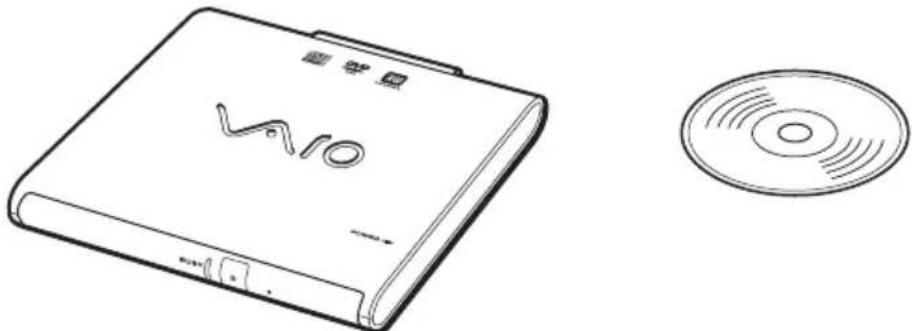
VAIO notebook peripheral cable · i.LINK cable (1) (80~cm) 1
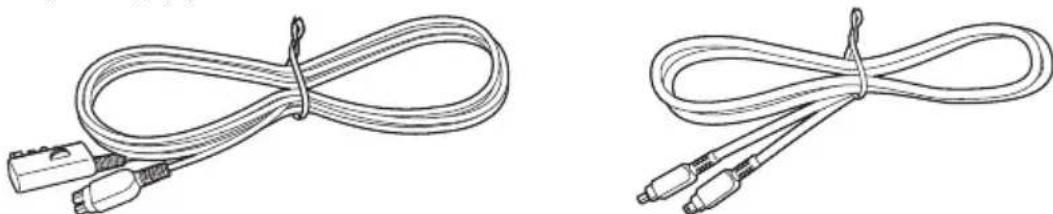
- AC adapter (1)

Vertical installation base (1) Cable clip (1)
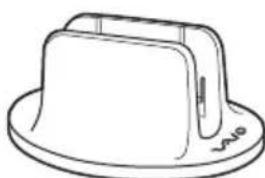
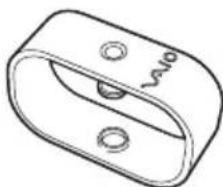
- Manual eject pin (1) (stored at bottom of drive)
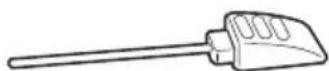
- AC power cord (1 or 2^* )
DVD±RW drive Operating Instructions (this document) (1)
Warranty Card (1)
Locating the Controls and Connectors
Front
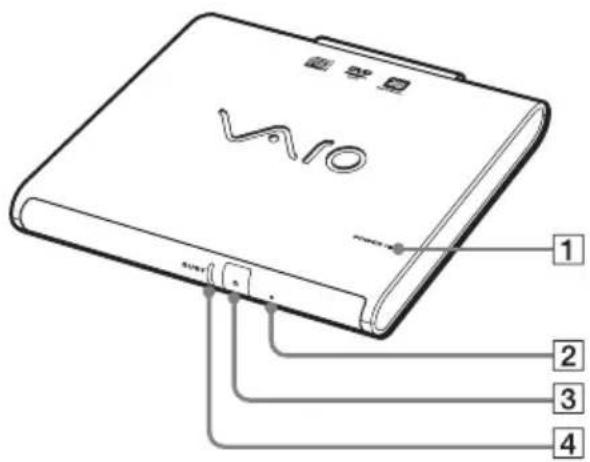
1 POWER indicator
2Manual eject hole
3Eject button
4BUSYindicator
Rear
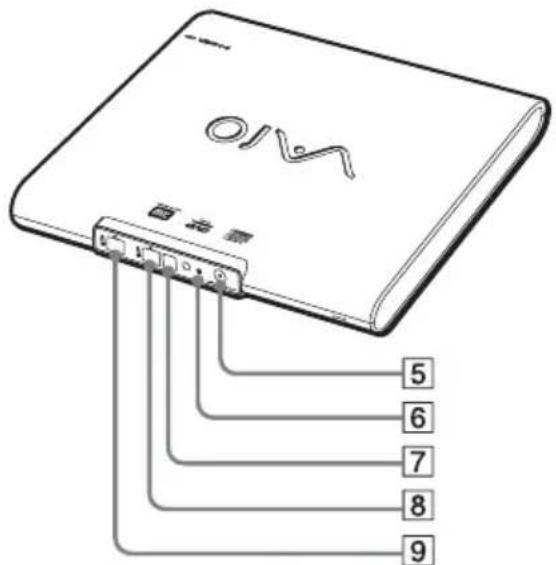
5DC IN connector
6VAIO notebook peripheral cable screw hole
7VAIO notebook peripheral device DC IN connector
8i.LINK connector
9i.LINK connector
Bottom
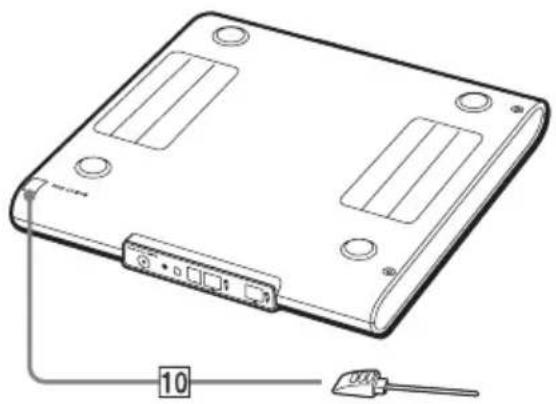
10Manual eject pin (see page 30)
Setting up the Drive
This drive can be used in either a horizontal or a vertical position. Positioning the drive vertically may help to save space.
Vertical installation
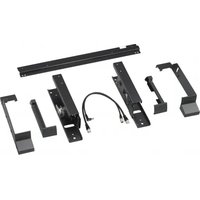
To use the drive in a vertical position, the supplied vertical installation base is used. Positioning the drive as illustrated below, place it into the vertical installation base. Push the drive all the way to the bottom of the vertical installation base.
Notes
-
To use this drive in a vertical position, always attach the supplied base. To attach the drive in the vertical position, first position the vertical installation stand with the "VAIO" logo facing forward. Insert the drive into the stand with its front facing forward and the POWER indicator up, as illustrated below.
-
Install the drive on a flat, stable surface.
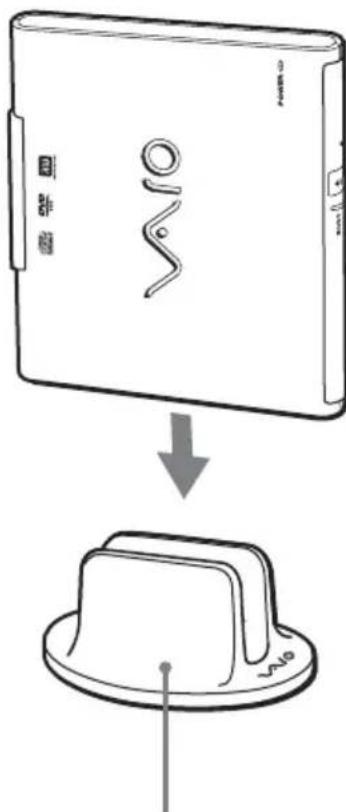
Vertical installation base
Connecting the Drive
The procedure for connecting this drive varies depending on what notebook you are using.
- If the notebook is equipped with a VAIO notebook peripheral device DC OUT connector (see page 17)
If the notebook is equipped with a VAIO notebook peripheral device DC OUT connector, use the supplied VAIO notebook peripheral cable (80 cm) to connect the drive to the notebook. If this method is used, power for the drive is supplied by the notebook, allowing you to use the drive in locations without a power outlet.
If you use a Digital Video Camera Recorder, you can connect it to the drive using the supplied i.LINK cable (see page 21).
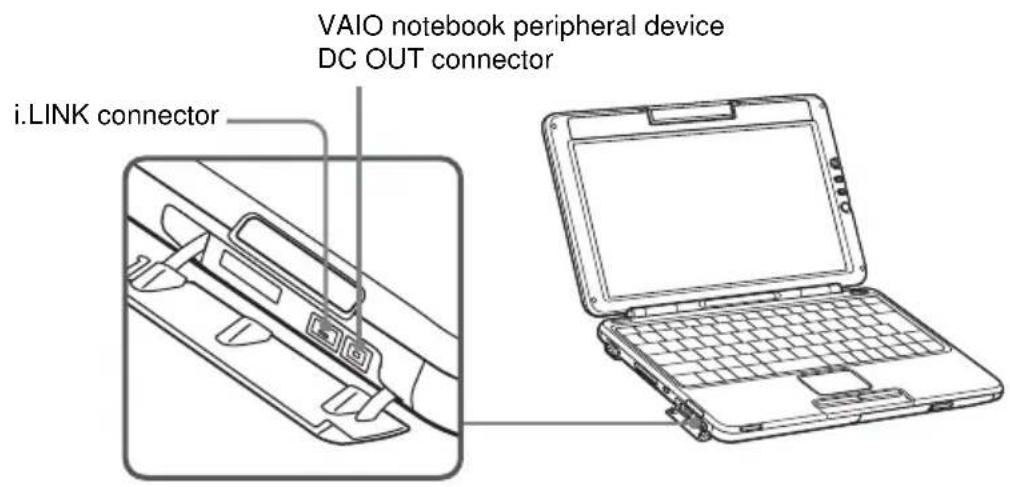
- If the notebook is not equipped with a VAIO notebook peripheral device DC OUT connector (see page 19)
If your notebook is not equipped with a VAIO notebook peripheral device DC OUT connector, use the supplied i.LINK cable to connect the drive to the notebook. In this case, the supplied AC adapter and AC power cord must be used.
If you use a Digital Video Camera Recorder, you can connect it to the drive using an i.LINK cable available separately (see page 21).
Notes
-
If your notebook is not equipped with a VAIO notebook peripheral device DC OUT connector, use the supplied i.LINK cable to connect the drive to the notebook. For details about connection, see page 19.
-
Whenever an i.LINK device is connected, disconnected, or powered on or off, the computer performs processing that is referred to as a "bus reset". If this happens while data is being read or written, data could be erased or corrupted. Before connecting or disconnecting this drive, be sure to close any active applications.
Connecting the drive to your notebook with the supplied peripheral cable
If your notebook has a VAIO notebook peripheral device DC OUT connector, use the supplied VAIO notebook peripheral cable to connect the drive to the notebook.
If your notebook is not equipped with a VAIO notebook peripheral device DC OUT connector, use the supplied i.LINK cable to connect the drive to the notebook (see page 19).
If you use a Digital Video Camera Recorder, you can connect it to the drive using the supplied i.LINK cable (see page 21).
Note
When connecting this drive to a notebook that has multiple i.LINK connectors, please do not connect other i.LINK devices together with this drive. Furthermore, disconnect this drive before connecting any other i.LINK devices to your notebook.

Hint
Also refer to the manuals provided with your notebook.
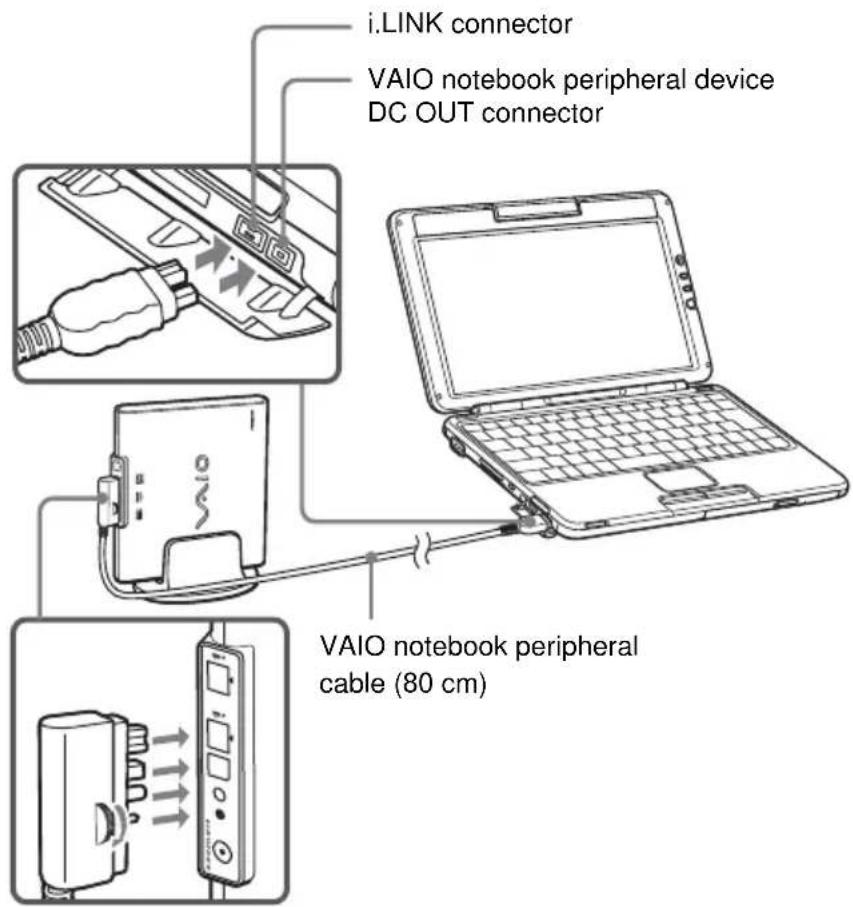
1 Turn on the power of the notebook.
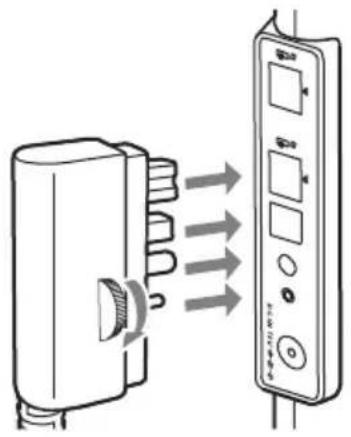
2 Insert the L-shaped plug of the supplied VAIO notebook peripheral cable (80 cm) into the matching connector on the rear of the drive, and secure the plug with the screw.
Turn the screw until it is fully fastened.
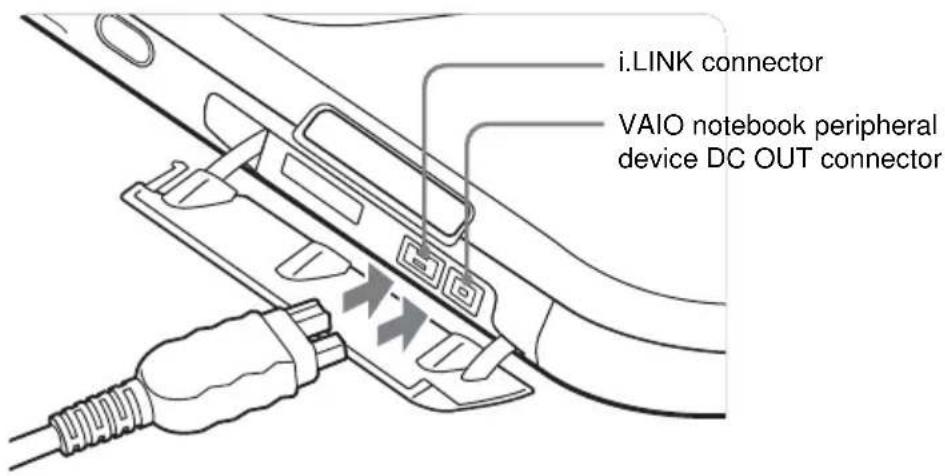
3 Insert the straight-shaped plug of the supplied VAIO notebook peripheral cable (80 cm) into the i.LINK connector on the notebook and into the VAIO notebook peripheral device DC OUT connector.
The green POWER indicator of the drive lights up, and the drive is detected and identified by the notebook.

When connecting this drive to your notebook for the first time, it takes a moment for the drive to be detected.
4 Click the [Start] button, and then click [My Computer] to verify that (E: or other drive name) has been added in the "My Computer" window.
Connecting the drive to your notebook with the supplied i.LINK cable
If your notebook is not equipped with a VAIO notebook peripheral device DC OUT connector use the supplied i.LINK cable to connect the drive to the notebook.
If you use a Digital Video Camera Recorder, you can connect it to the drive using a separately sold i.LINK cable (see page 21).
Note
When connecting this drive to a notebook that has multiple i.LINK connectors, please do not connect other i.LINK devices together with this drive. Furthermore, disconnect this drive before connecting any other i.LINK devices to your notebook.
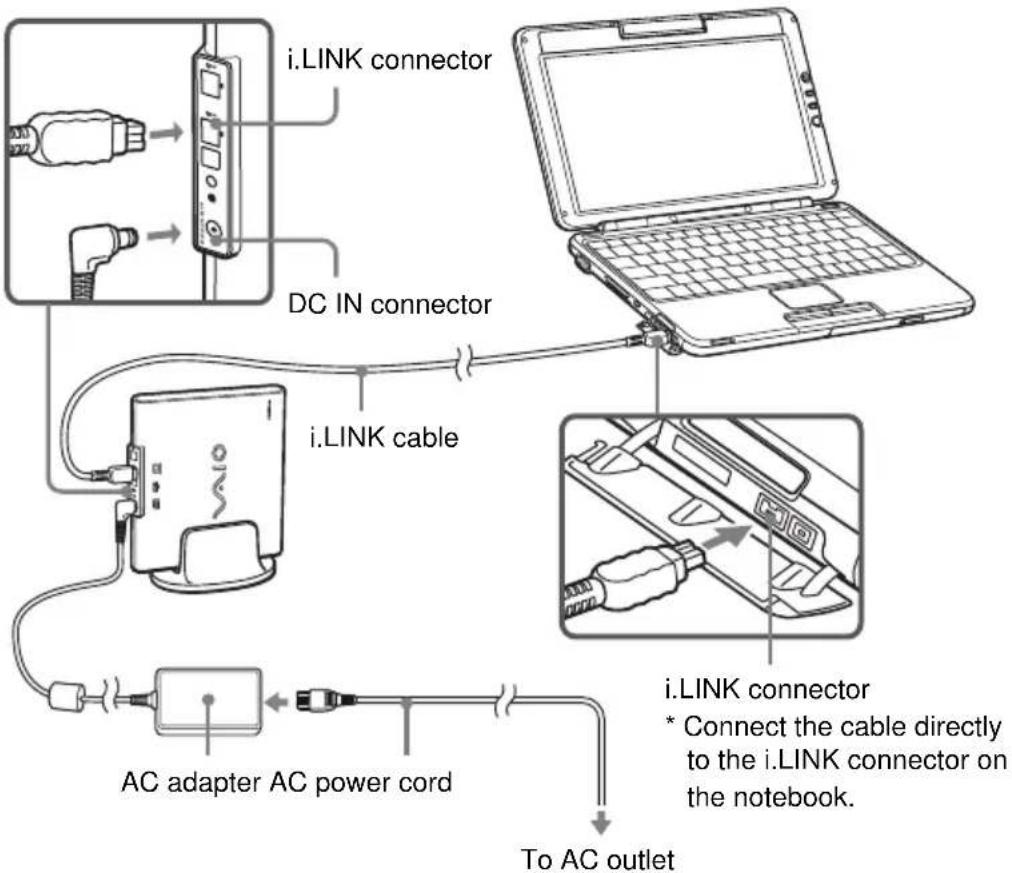
1 Turn on the power of the notebook.
2 Connect the AC power cord to the supplied AC adapter then plug the AC power cord into an AC outlet and plug the cable of the adapter into the DC IN connector on the drive.
The green POWER indicator of the drive lights up.
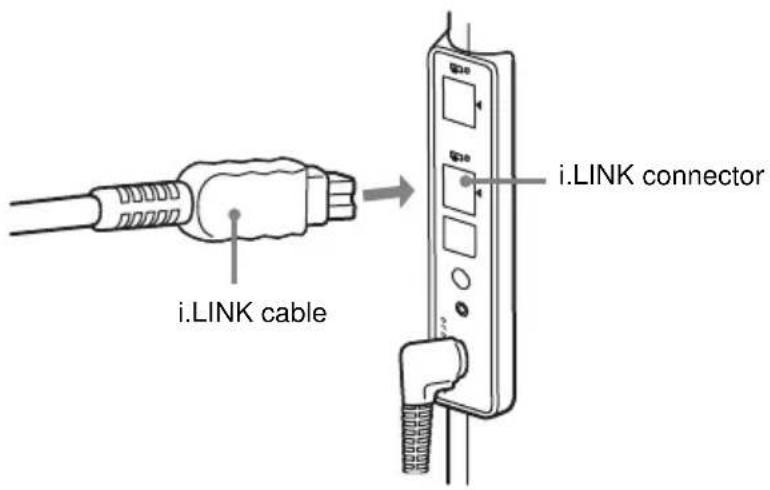
3 Connect the supplied i.LINK cable to the i.LINK connector on the rear of the drive.
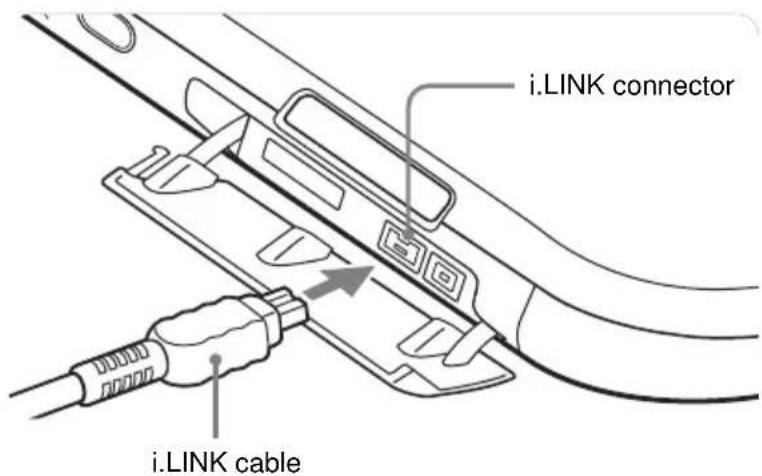
4 Connect the other end of the supplied i.LINK cable to the i.LINK connector on the notebook.
The drive is detected and identified by the notebook.
Hint
When connecting this drive to your notebook for the first time, it takes a moment for the drive to be detected.
5 Click the [Start] button, and then click [My Computer] to verify that (E: or other drive name) has been added in the "My Computer" window.
Connecting a Digital Video Camera Recorder
Using the Click to DVD™ software provided, you can connect a Digital Video Camera Recorder to the drive and use video from the Digital Video Camera Recorder to create DVD videos. The procedure for connecting a Digital Video Camera Recorder to the drive is different than that for a notebook.
The Digital Video Camera Recorder that you can connect to the drive must be a Sony Digital Video Camera Recorder that:
- Can record video in DV or MICROMV formats.
- Is equipped with a DV output terminal, and can be connected to a notebook using an i.LINK cable (a DV cable).
Note
The drive does not support analog format and some types of Digital Video Camera Recorder formats.
The following models cannot be used.
(As of June, 2003)
For Customers in the U.S.A. and Canada
- DCR-VX1000
- DCR-VX700 (versions with an upgraded DV terminal)
For Customers in Europe
-DCR-VX1000E
- DCR-VX700E
Use the supplied "Click to DVD" software to create DVD videos using the video captured with your Digital Video Camera Recorder. To install the supplied software, see "Installing the Software" (page 32).
- When connecting the drive to your notebook with the supplied peripheral cable
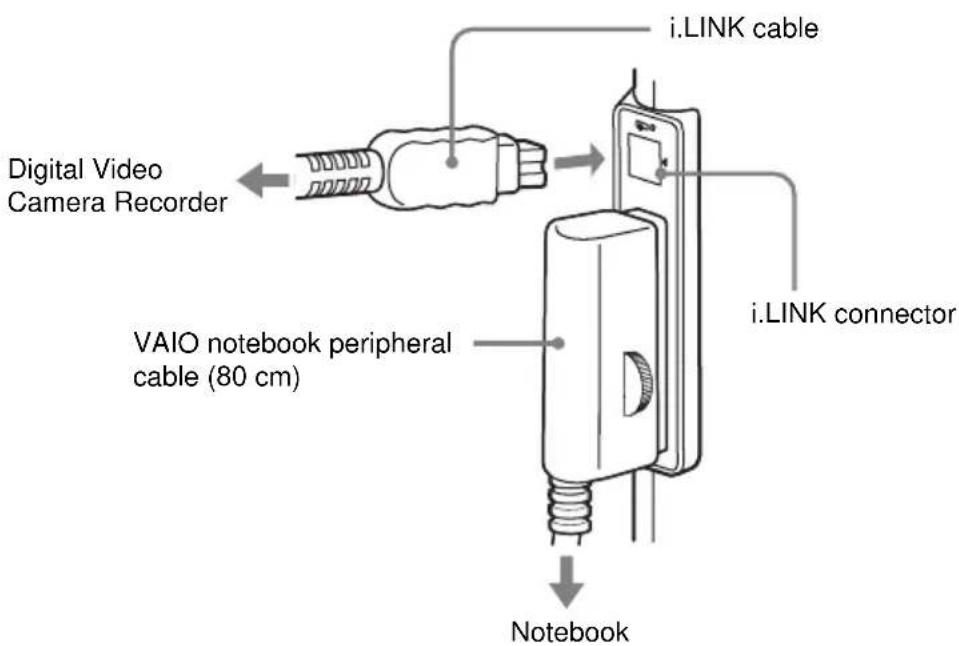
To use the supplied "Click to DVD" software with the drive connected to your notebook using the supplied VAIO notebook peripheral cable, connect your Digital Video Camera Recorder to the drive's i.LINK connector using the supplied i.LINK cable, as shown below.
Notes
- Connect the drive to your notebook before connecting the Digital Video Camera Recorder (see page 17).
- When connecting a Digital Video Camera Recorder to the drive, connect the Digital Video Camera Recorder's AC adapter/charger to the Digital Video Camera Recorder and set the AC adapter/charger mode switch to "VCR/Camera/Player" before connecting the AC adapter/charger to a power outlet.
Hint
Also refer to the manual for the Digital Video Camera Recorder you want to connect.
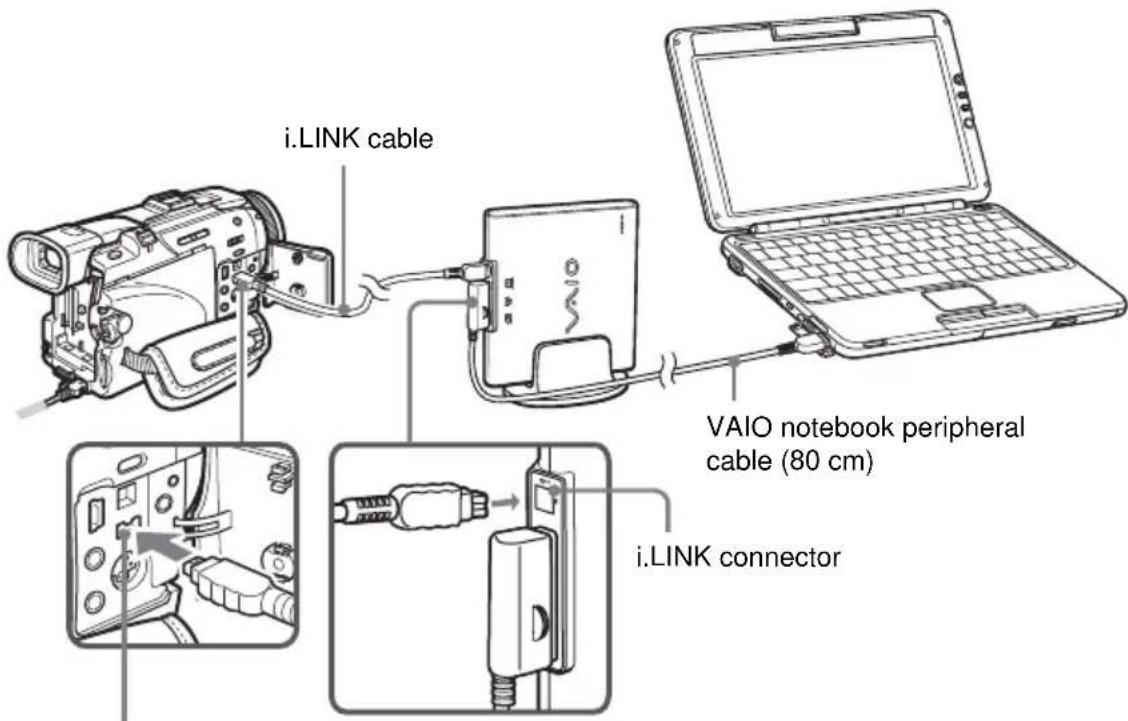
DV input/output terminal
1 Turn the Digital Video Camera Recorder's power on, and set it to video playback mode.
For details of Digital Video Camera Recorder operations, refer to your Digital Video Camera Recorder manual.
2 Connect the supplied i.LINK cable to the DV input/output terminal on the Digital Video Camera Recorder.
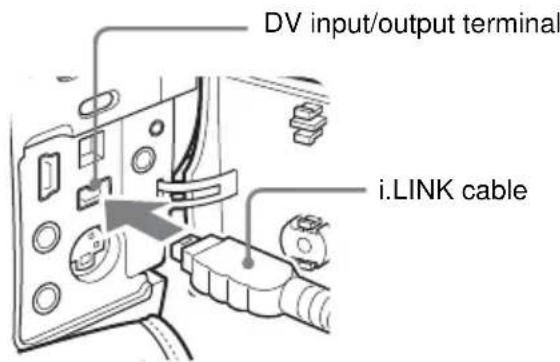
3 Connect the other end of the i.LINK cable to the i.LINK connector on the back of the drive.
Note
Do not connect any i.LINK equipment other than a Digital Video Camera Recorder to the i.LINK connector on the drive.
4 Click the [Start] button, and then click [My Computer] to verify that (Sony DV camcorder or other equipment) has been added in the "My Computer" window.
- When connecting the drive to your notebook with the supplied i.LINK cable
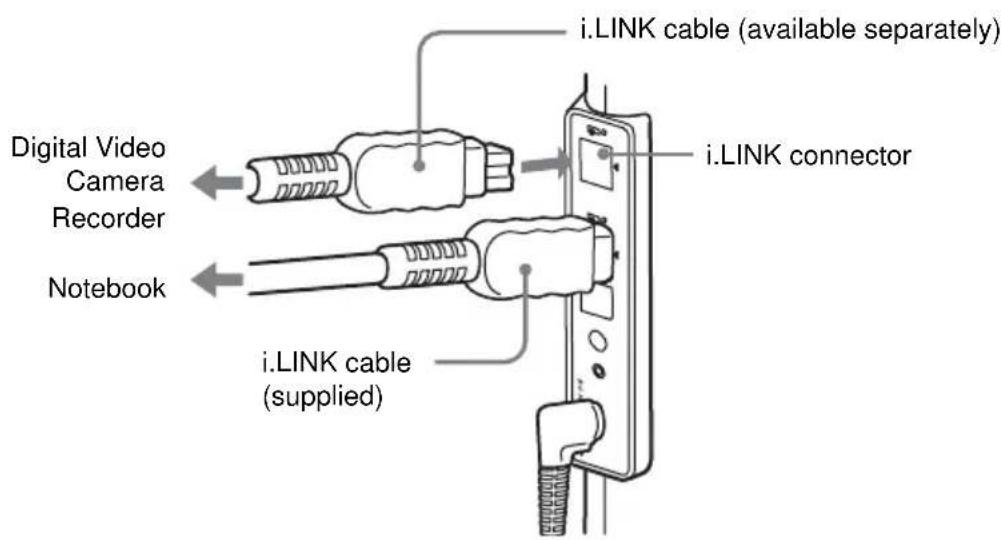
To use the supplied "Click to DVD" software with the drive connected to your notebook using the supplied i.LINK cable, connect your Digital Video Camera Recorder to the drive's i.LINK connector using another i.LINK cable (available separately), as shown below.
Notes
- To connect your Digital Video Camera Recorder, purchase an i.LINK cable.
- Connect the drive to your notebook before connecting the Digital Video Camera Recorder (see page 19).
- When connecting a Digital Video Camera Recorder to the drive, connect the Digital Video Camera Recorder's AC adapter/charger to the Digital Video Camera Recorder and set the AC adapter/charger mode switch to "VCR/Camera/Player" before connecting the AC adapter/charger to a power outlet.
Hint
Refer also to the manual for the Digital Video Camera Recorder you want to connect.
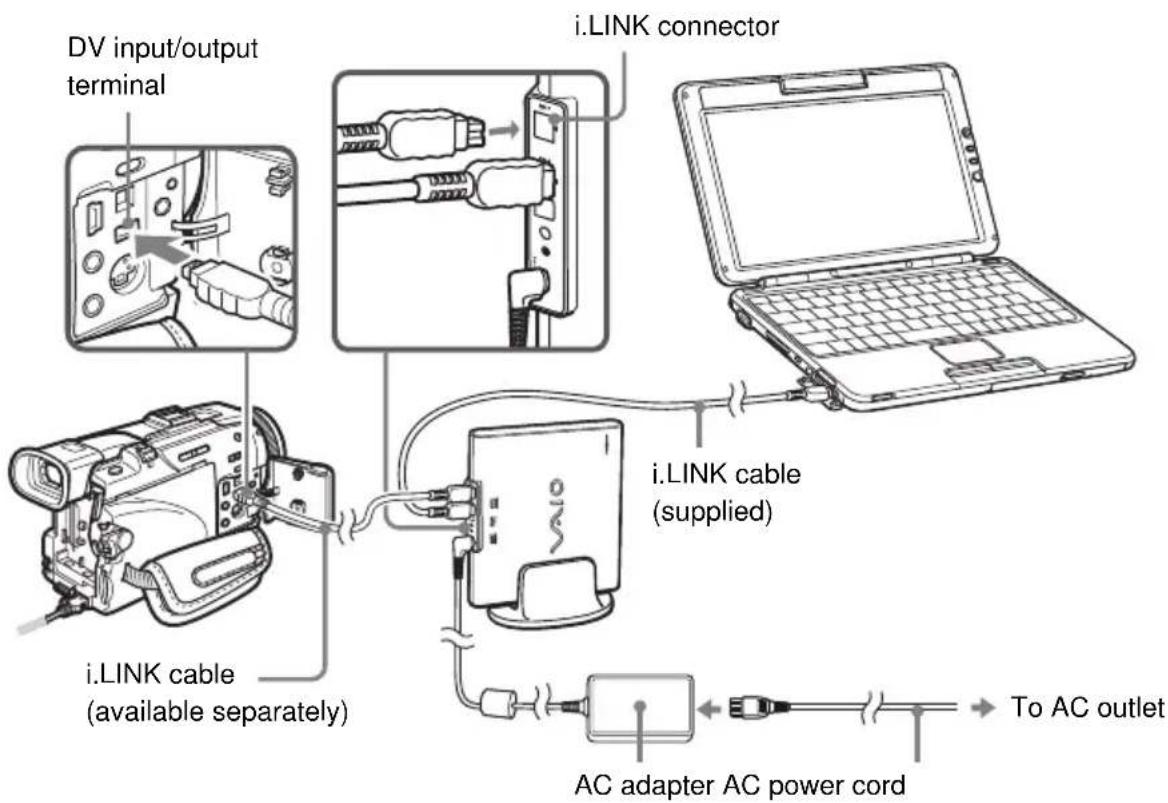
- The connection diagram shows the DCR-TRV50 model Digital Video Camera as an example.
1 Turn the Digital Video Camera Recorder's power on, and set it to video playback mode.
For details of Digital Video Camera Recorder operations, refer to the Digital Video Camera Recorder manual.
2 Connect the sold separately i.LINK cable to the DV input/output terminal on the Digital Video Camera Recorder.
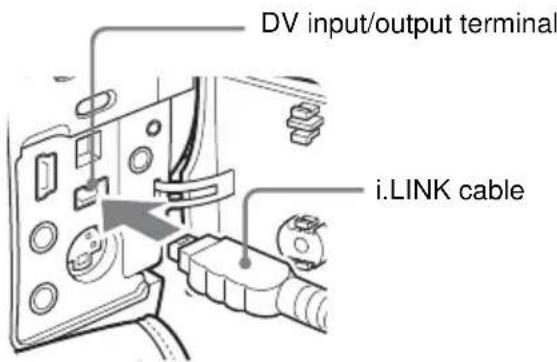
3 Connect the other end of the i.LINK cable to the i.LINK connector on the back of the drive.
Note
Do not connect any i.LINK equipment other than a Digital Video Camera Recorder to the i.LINK connector on the drive.
4 Click the [Start] button, and then click [My Computer] to verify that (Sony DV camcorder or other equipment) has been added in the "My Computer" window.
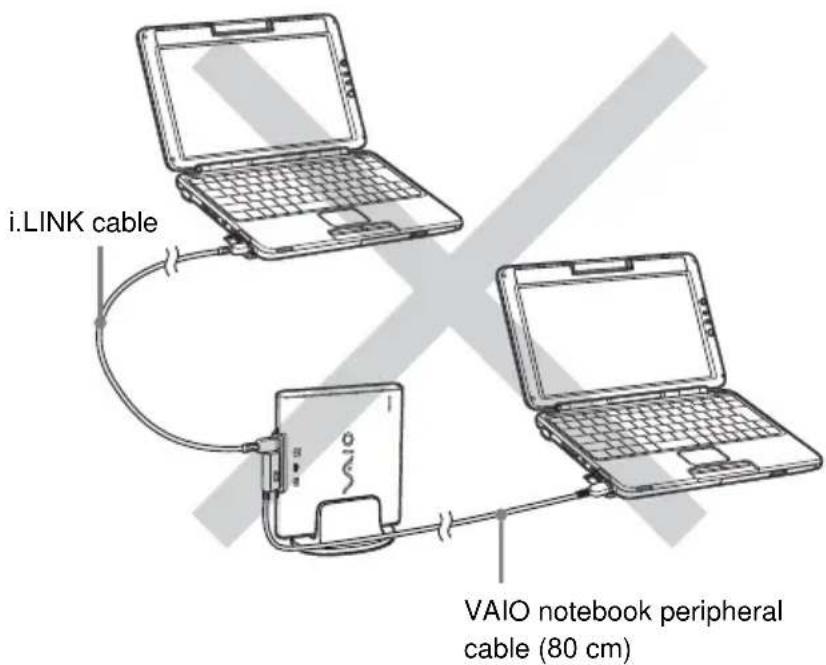
Limitations (wrong connection example)
Do not connect this drive to two notebooks as shown below.
Disconnecting the drive from the notebook
With the Windows XP operating system, no special procedures are needed to disconnect the drive. Simply make sure that no application programs are active and that the drive's BUSY indicator is not on, then disconnect the VAIO notebook peripheral cable (80 cm) or i.LINK cable.
Notes
- Before disconnecting the drive, close any running software.
- When a Digital Video Camera Recorder is connected to the drive, disconnect the i.LINK cable from the Digital Video Camera Recorder before turning off the Digital Video Camera Recorder's power.
Hint
To use the drive again after disconnecting the VAIO notebook peripheral cable (80 cm) or i.LINK cable, perform the steps described in the section "Connecting the Drive" on page 15. The drive will be detected automatically by your Windows operating system.
Basic Operation
Power management information
When using the power management function of the notebook, observe the following points:
- Ensure that the power saving modes will not be activated while the BUSY indicator of the drive is flashing. For details, refer to the manuals provided with your notebook.
- Before activating the power saving modes of the notebook, verify that the BUSY indicator of the drive is not on and close all running software applications.
- While the notebook is in a power saving mode, do not connect or disconnect the VAIO notebook peripheral cable (80 cm), i.LINK cable or AC adapter.
Inserting a disc
Turn on the power of the notebook and connect this drive before inserting a disc.

The illustrations show the drive in a vertical position, but operation is the same when the drive is positioned horizontally.
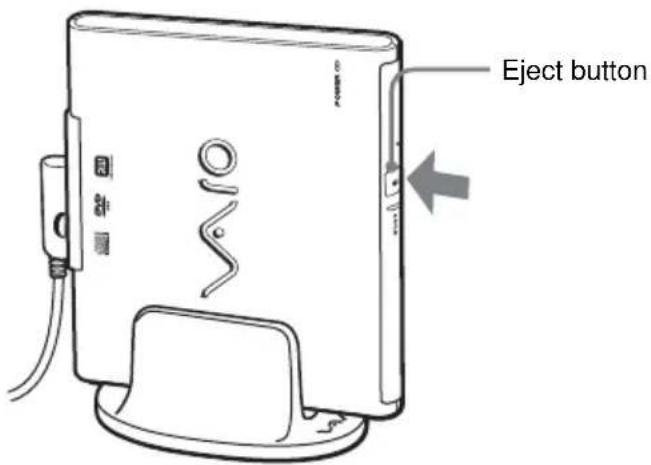
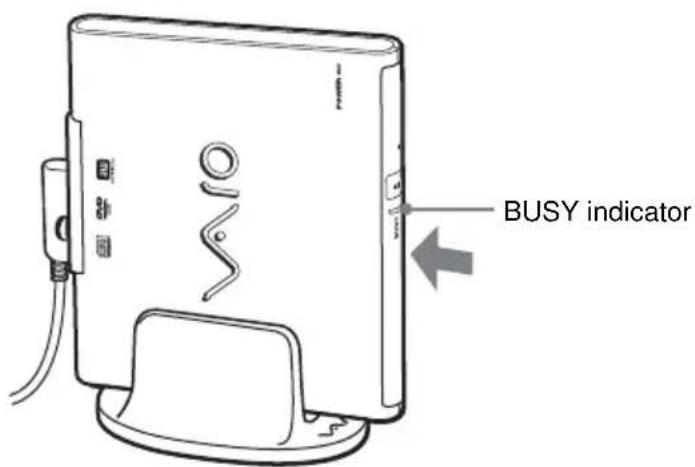
1 Press the eject button.
The tray pops out.
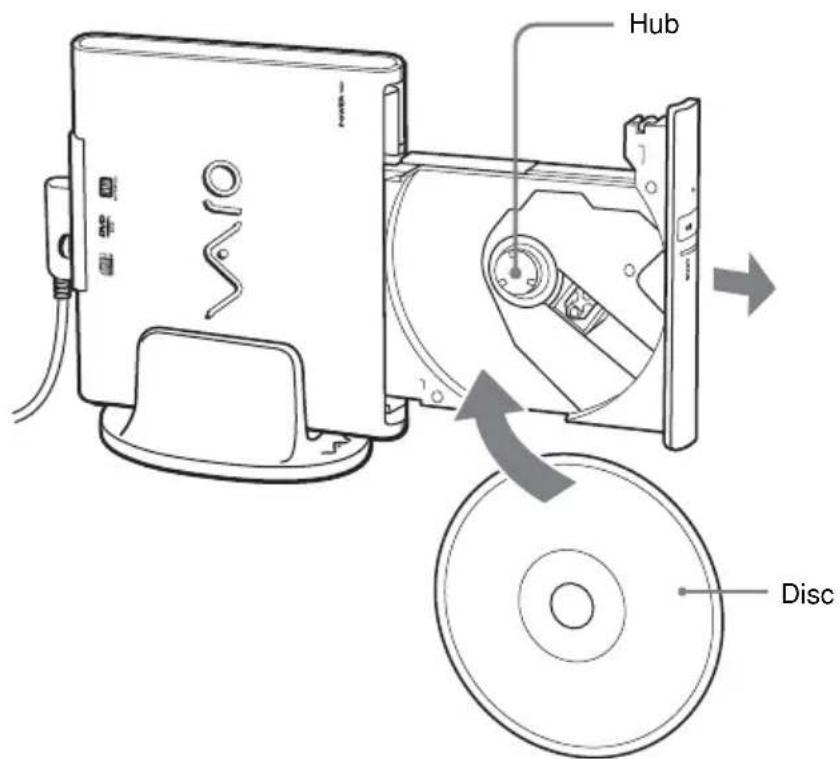
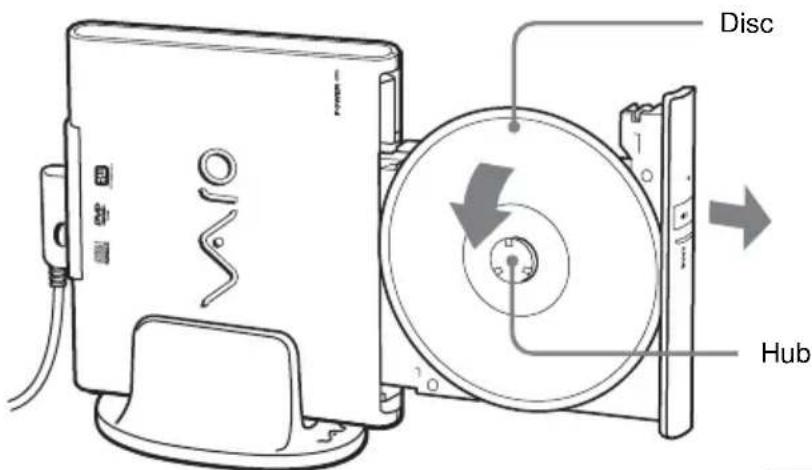
2 Pull the tray fully out until it stops. While supporting the tray with your hand from the other side, place the disc on the hub in the center of the tray.
Make sure that the disc audibly clicks into place and is firmly seated.
Notes
- Do not touch the lens assembly in the tray or the metal section on the rear.
- If you close the tray while the disc is not properly seated, the disc may be damaged and the tray may jam.
3 Close the disc tray by gently pushing it.
While data is being read, the BUSY indicator flashes.
Removing a disc

Hint
The illustrations show the drive in a vertical position, but operation is the same when the drive is positioned horizontally.
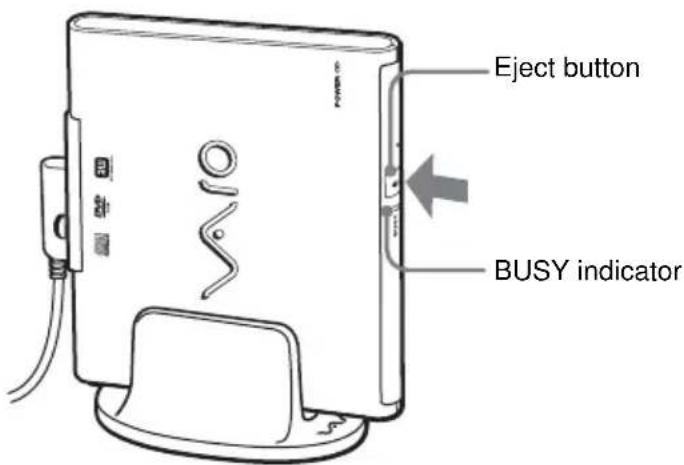
1 Verify that the BUSY indicator is not flashing and press the eject button.
The tray pops out.
2 Pull the tray fully out until it stops. While supporting the tray with your hand, remove the disc.
To release the disc, push on the hub in the center.
Notes
- Do not touch the lens assembly in the tray or the metal section on the rear.
- When using writing software or DVD playback software, you may not be able to eject discs simply by pressing the eject button. For details, refer to Help or the Quick Reference manual provided with the writing software or DVD playback software.
Continued on next page
If the disc does not eject
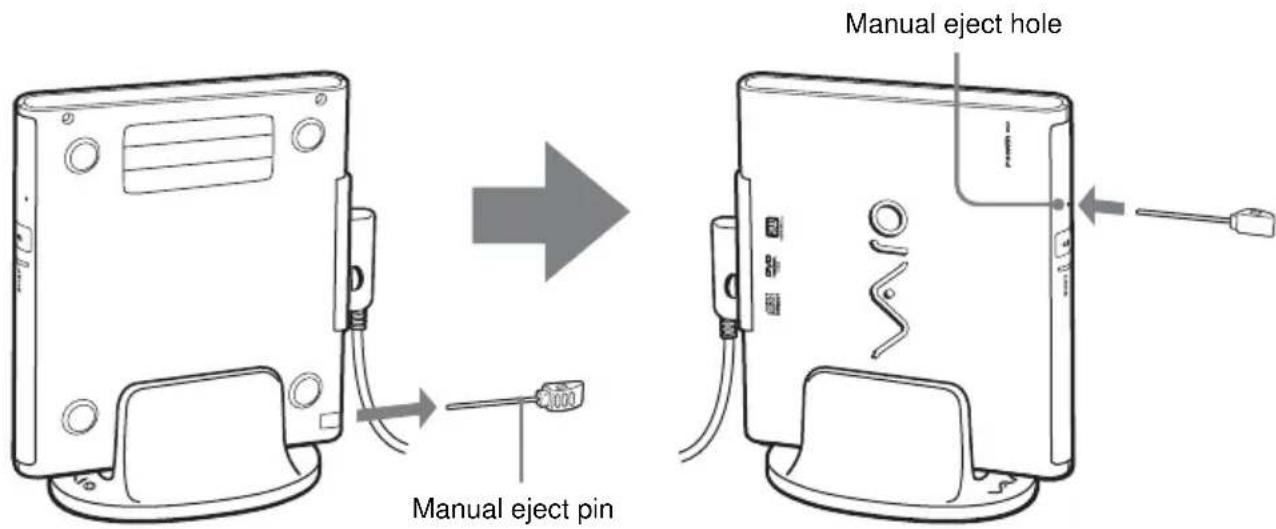
1 Confirm that the BUSY indicator is not flashing.
2 Detach the manual eject pin from the holder at the bottom of the drive, and insert the pin in the manual eject hole.
The tray pops out and you can remove the disc.
Transporting the unit (using the cable clip)
With the supplied cable clip, you can quickly and easily coil the VAIO notebook peripheral cable (80 cm) or i.LINK cable into a neat loop for transport as described below. When the drive is connected using the VAIO notebook peripheral cable (80 cm), you only have to remove the connector from the notebook. You can transport the drive with the cable attached.
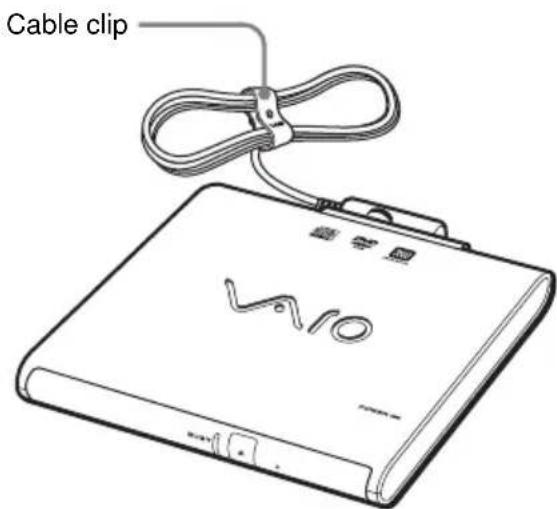
Using the cable clip
1 Coil the VAIO notebook peripheral cable (80 cm) or i.LINK cable as shown and slip the coil into the cable clip.
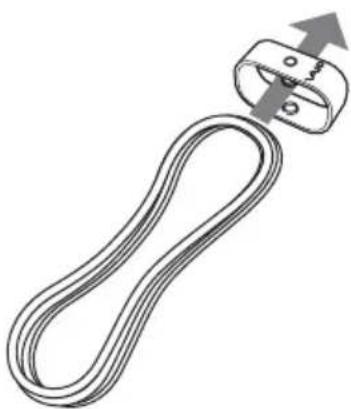
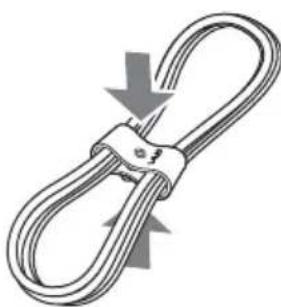
2 Push the sides of the cable clip together from the top and bottom to lock the cable into the sides of the clip.
Installing the software
About the supplied software
The software below is installed from the supplied CD-ROM.
- Click to DVD
Software that enables you to create your own original DVDs using video captured with a Digital Video Camera Recorder or pictures and videos stored on your notebook.
Drag'n Drop CD+DVD
This software is used to create data CD/DVD, music CDs, and CD/DVD backups.
Installing and using Drag'n Drop CD+DVD
This software must only be used in conjunction with the product with which this software is shipped.
If you attempt to use this software with other previously installed or add-on products, we cannot guarantee the performance of the software, nor provide support.
Before using this product, please first carefully read the software license agreement.
■ SonicStage Ver.1.x DVD±RW Drive Support Update Program
Makes it possible to write a CD-R or CD-RW disc from SonicStage using this drive.
Follow the procedure below to install the software.
Notes
- Log on to the computer as an "administrator" before installing the software.
- In order to use Click to DVD, you must first install Drag'n Drop CD+DVD.
- The SonicStage Ver.1.x DVD±RW Drive Support Update Program can only be installed if Drag'n Drop CD+DVD and the SonicStage CD-R Writing Module are already installed. The SonicStage CD-R Writing Module can be found on the Sony applications CD-ROM supplied with your notebook.
- Shut down all other Windows applications before installing the software. Otherwise installation may not complete normally.
- During installation, the notebook may seem to have stopped, but if the access indicator on the drive or the hard disk indicator of the notebook is lit or flashing, the installation is still in progress. Do not attempt to stop the installation or shut down the notebook. Otherwise it may become impossible to install the software the next time and a reinstallation of the operating system may become necessary.
- Before installing Drag'n Drop CD+DVD on a notebook where Drag'n Drop CD is already installed, you must uninstall Drag'n Drop CD. To do this, proceed as follows. On the [Start] menu, click [Control Panel] and click [Add or Remove Programs]. Select Drag'n Drop CD from the list and click [Remove].
- The SonicStage Ver.1.x DVD±RW Drive Support Update Program will not be installed if the existing SonicStage on the notebook is a newer version.
For Customers in the U.S.A. and Canada
1 Turn your notebook on, and prepare the drive for installation as necessary.
To install the drive, see "Connecting the Drive" (page 15), and connect the drive to your notebook.
2 Insert the supplied software CD-ROM into the drive you prepared in step 1.
3 On the [Start] menu, click [My Computer], double-click [Drive E*], open "Click to DVD", and then double-click "Setup.exe".
- Drive E may have a different name depending on the notebook you are using.
4 Follow the on-screen instructions.
5 On the [Start] menu, click [My Computer], double-click [Drive E], open "Drag'n Drop CD+DVD", and then double-click "Setup.exe".
Drive E may have a different name depending on the notebook you are using.
6 Follow the on-screen instructions.
7 Restart your notebook after installing "Click to DVD" and "Drag'n Drop CD+DVD" software.
8 On the [Start] menu, click [My Computer], double-click [Drive E], open "SonicStage Update Program", and then double-click "Setup.exe".
Drive E may have a different name depending on the notebook you are using.
9 Click the [Start] button, point to [All Programs] and check that "Click to DVD" and "Drag'n Drop CD+DVD" are displayed.
For Customers in Europe
1 Turn on your notebook and prepare the drive for installation as necessary.
To install the drive, see "Connecting the Drive" (page 15).
2 Insert the supplied software CD-ROM into the drive that you prepared in step 1.
The installer starts.
Note
If the installer does not start automatically, on [Start] menu, click [My Computer], and then double-click the drive labeled [PCGA-DDRW1].
3 Click [English].
4 Click [Install Drag'n Drop CD+DVD].
The Drag'n Drop CD+DVD setup starts.
5 Select [English] and click [OK].
Follow the instructions on the screen to proceed.
6 When it is displayed, click [Yes] to accept the license agreement.
Follow the instructions on the screen to complete the setup.
7 When you are prompted, restart your notebook.
8 When your notebook restarts, on the [Start] menu, click [My Computer], and then double-click the drive labeled [PCGA-DDRW1].
9 Click [English].
10 Click [Install Click to DVD].
The Click to DVD setup starts. Follow the instructions on the screen to complete the setup.
11 When the Click to DVD setup is complete, click [SonicStage Update Program].
The installation wizard starts.
12 Click [Next].
Follow the instructions on the screen to complete the procedure.
13 When the procedure is complete, click [Exit] to close the installer.
Precautions before use
Precautions when writing data
Please observe the following precautions when writing data to DVD+R, DVD+RW, DVD-R, DVD-RW, CD-R, or CD-RW discs.
- Be sure to power the notebook from its AC adapter. Do not run the computer on battery power.
- When inserting discs, do not touch the recording surface. Dirt on the recording surface can impair data writing.
- While writing data and while inserting or removing discs, protect the drive and the notebook from shocks and vibrations.
- Turn off the screen saver of the notebook. If the screen saver is activated while writing data, the data transfer rate will drop considerably, which can lead to loss of data.
- Make sure that your notebook's power management function is not enabled during data writing. Otherwise data transfer rate will become extremely slow, resulting in data loss. For details of your notebook's power management settings, refer to the manuals provided with your notebook.
- Do not disconnect or manually operate any devices (such as a Digital Video Camera Recorder) connected to this drive while writing data to DVD+R, DVD+RW, DVD-R, or DVD-RW discs.
- Installing or updating the driver during data writing can result in operating problems.
- Do not disconnect devices such as USB equipment or PC cards while writing data.
- Do not switch users while writing data. This may result in data loss.
- Avoid using any resident disc management utilities or utilities to speed up disc access as these can impair operation stability and cause data loss.
- Writing to a CD-R or CD-RW with an operating speed of 1· or 2· is not supported.
- Use CD-R discs that support a data writing speed of 8 or higher.
-
Use CD-RW discs that support a data writing speed of 4 or higher.
The use of High Speed CD-RW discs is supported. -
DVD+R, DVD+RW, DVD-R, DVD-RW, CD-R, or CD-RW discs formatted with packet writing software such as "DirectCD" (including commercially available preformatted discs) cannot be read in this drive.
- The use of Sony DVD+R, DVD+RW, DVD-R, DVD-RW, CD-R, or CD-RW discs is recommended.
Precautions for using "Click to DVD"
- Close any other software (including software running in the background) before using "Click to DVD" and "Drag'n Drop CD+DVD" to write data.
- You should have at least 256 MB of RAM in your notebook when using "Click to DVD" to write data. For details on expanding memory, refer to the manuals provided with your notebook.
- To write data using "Click to DVD", log on as a user with computer administrator privileges.
- When writing data to DVD+R, DVD+RW, DVD-R, or DVD-RW discs, the discs are written using the "Disc-at-once" function. Therefore, it is not possible to add data to the disc later. For DVD+RW or DVD-RW discs, you can rewrite the disc once you have deleted all the data on it.
- Writing to DVD+R, DVD+RW, DVD-R, or DVD-RW discs can vary from a few hours to several dozen hours. The actual writing time depends on the notebook model and the length of the source material.
- Because data is temporarily stored on your notebook's hard disk when using "Click to DVD Automatic Mode" to create a DVD video, there must be enough free space on the hard disk. The values below are a general guide for the amount of hard disk space used to create a DVD video for different video recording lengths. Further, the video bit rate is automatically adjusted according to the length of the recording.
| Length of recording Hard disk space used Bit rate |
| 30 minutes 6 GB 9 Mbps |
| 60 minutes 10 GB 8 Mbps |
| 80 minutes 10 GB 6 Mbps |
| 120 minutes 10 GB 4 Mbps |
- With Click to DVD you can use the following file formats. For details, refer to the Click to DVD help.
Video files: DV-AVI, MPEG1, MPEG2
Picture files: Bitmap, JPEG, TIFF
To display "Click to DVD" help, click the [Start] button, point to [All Programs] and select [Click to DVD Help] from [Click to DVD].
- Because data is temporarily stored on your notebook's hard disk when using "Click to DVD" to create a DVD video, there must be enough free space on the hard disk. The amount of hard disk space required varies according to the length of the video and the video bit rate, as listed below. (The values listed are not applicable to "Click to DVD Automatic Mode".)
When creating a DVD video from MPEG files
| Bit rate L Time (4.6 Mbps) (6 | Long Play Standard 4 Mbps) (8.1 Mbps) | ||
| 60 minutes 5 GB 7 GB | 10 GB | ||
| 90 minutes 7 GB 10 GB - | |||
| 120 minutes 10 GB - | - | ||
When creating a DVD video with video captured from a Digital Video Camera Recorder
| Bit rate L Time (4.6 Mbps) (6 | Long Play Standard 4 Mbps) (8.1 Mbps) | ||
| 30 minutes 9.75 GB 1 | 1.4 GB 12.3 GB | ||
| 60 minutes 19.5 GB 2 | 2.8 GB 24.6 GB | ||
| 90 minutes 29.25 GB | 34.2 GB 36.9 GB |
- Generally, the length of video file you can record on a single disc depends on the video bit rate, as shown below.
| Bit rate Approximate maximum recording time | |
| 4 Mbps | About 120 minutes |
| 6 Mbps | About 90 minutes |
| 8 Mbps | About 60 minutes |
Precautions for using "Drag'n Drop CD+DVD"
- Close any other writing software before using "Drag'n Drop CD+DVD" to write data.
- When using "Drag'n Drop CD+DVD" to write data, you cannot use DVD+R, DVD+RW, DVD-R, DVD-RW, CD-R, or CD-RW discs preformatted with packet writing software such as "DirectCD" (including commercially available preformatted discs). However, it is possible to use preformatted DVD+RW, DVD-RW, and CD-RW discs by deleting the format with the [Erase RW disc...] function in "Drag'n Drop CD+DVD". To use this function, right-click one of the "Drag'n Drop CD+DVD" boxes, and select [Erase RW disc...] from the menu that appears.
- When backing up rewritable DVD media, it is recommended that you use the same DVD media type as a target. For details, refer to the Drag'n Drop CD+DVD online help or the website.
- To play music CDs created on CD-R or CD-RW, equipment is required that supports the playback of these types of media.
- When using DVD+R, DVD+RW, DVD-R, DVD-RW, DVD-ROM, CD-R, CD-RW, or CD-ROM discs to copy data, only copy works for which you own the copyright or have permission from the copyright holder to duplicate the data.

Registering Users
Follow the procedure below to register users in "Drag'n Drop CD+DVD". Registering users enables you to acquire more detailed information.
Click the [Start] button, point to [All Programs] and select [User registration & Support] from [Drag'n Drop CD+DVD] (your notebook must be connected to the Internet to register users).
"Drag'n Drop CD+DVD" Enquiries:
Easy Systems Japan Ltd.
Website: http://www.ddcd.jp/dd3c/sony/cd/
Playing an Audio CD
For users of notebooks with a built-in CD-ROM drive
Play the audio CD with the built-in drive of the notebook. For details, refer to the manuals provided with your Sony computer.
For users of notebooks without a built-in CD-ROM drive
Audio CDs can be played through the speakers or headphone jack of the notebook, simply by connecting this drive.
Playing a DVD video
Please refer to the manuals provided with your notebook for how to play back DVD videos.
Notes about playing a DVD video
- Depending on the disc, there may be functional limitations, sound interruptions, or dropped frames. Some discs may not play at all.
- During playback of DVD video discs, do not attempt to modify display settings such as the resolution or colors. Doing so could destabilize the operation of the notebook or make it impossible to modify settings. Always close the DVD playback software before modifying display settings.
- During playback of some DVD video discs with high sound quality (20-bit or 24-bit sampling), noise during playback or other problems may occur. When playing such discs via the notebook connected to an audio system, turn down the volume and test for normal playback first, in order to prevent the possibility of damage to the speakers.
- When a DVD video disc is inserted in the drive, you cannot use the Jog Dial™ control or the
key + or key combinations to toggle between the LCD and a television monitor or other type of display. - When using a PCG-C1M series notebook, a part of the image may be cut off with some DVD video discs.
- When playing back a DVD video disc, use the software that is preinstalled on the notebook.
- Do not press the eject button during playback of DVD video discs.
- Do not use a screen saver while playing a DVD video with DVD playback software.
Notes about DVD video discs
Region code of playable DVD videos
Region code indications such as ① are labeled on some DVD videos to indicate which type of drive or player can play the discs. If this regional code indication contains a number other than the one for your region or ALL, you cannot play the disc in this drive. If you try to do so, a message will appear indicating that playback is prohibited due to area limits.
Depending on the DVD video, there may be no region code indication printed on the label even though playing the DVD video is prohibited due to the area limits.
Note on playback operations of DVD videos
Some playback operations of DVD videos may be intentionally limited by software producers. Since this drive plays DVD videos according to the disc contents provided by the software producers, some playback features may not be available. Also refer to the instructions supplied with the DVD videos.
Symbols on DVD video discs
The following symbols are labeled on DVD video discs or their packages. Each symbol details the contents or features recorded on the disc.
Depending on the DVD video, there may be no symbols or indications printed on the label even though the disc has some contents or features.
For more information about these marks, see the instructions on the DVD video discs.
| Mark Meaning | |
| 3 | Indicates the number of audio tracks. |
| 2 | Indicates the number of subtitles. |
| 3 | Indicates the number of angles. |
| 16:9 LB | Indicates the ratio of display aspects you can select. |
| 1 | Indicates region code. |
Performing a System Recovery on a Notebook
To reset your notebook using the drive, use the recovery disc provided with the notebook.
About notebooks that you can recover
Notebooks that can be reset using this drive are Sony notebooks with the Windows XP operating system preinstalled. However, if your notebook has an integrated drive, use that drive to reset the notebook. (As of June, 2003)
For more details about resetting your notebook, refer to the manuals provided with your notebook.
Notes
- Be sure to power the notebook from its AC adapter when performing a system recovery. Do not run the notebook on battery power.
- If you use a notebook that cannot be reset using the VAIO notebook peripheral cable, connect the supplied i.LINK cable and AC adapter to reset the notebook. See page 15 for connection details.
- Disconnect all other peripherals from the notebook and the drive before performing this installation.
Precautions
Usage and storage locations
Do not use or store this drive in locations subject to high humidity, high temperatures, strong vibrations, or direct sunlight.
Operation
- Do not move the drive during operation, to prevent the possibility of malfunctions.
- Place the drive on a level surface for operation.
- Do not place any objects on top of the drive.
- Protect the drive from sudden temperature changes. Do not use the drive immediately after moving it from a cold to a warm location or after the ambient temperature has risen drastically. Otherwise, condensation inside the drive can occur. If the temperature changes drastically during operation, stop using the drive while keeping power to the drive turned on and let it stand for about an hour, then turn the power off.
Transportation
- When you transport the drive, use the original box and packing materials.
- Before moving the drive, make sure you remove the disc from the drive.
Bus Reset
The computer constantly monitors the i.LINK connection status. When an i.LINK compatible component is connected to or disconnected from the computer, or when power to an i.LINK compatible component is turned on or off, a bus reset is carried out to accommodate the new condition. If a bus reset occurs while data are being transferred to this drive, the data may be corrupted or lost. Be sure to avoid this condition.
Lens
Do not touch the lens in this drive. Furthermore, to avoid dust sticking to the lens, do not open the tray other than to remove or insert the disc.
Notes on discs
Note the following in order to protect data stored on discs.
- Do not stick any labels on the disc nor scratch or otherwise damage the disc.

- Do not touch the data side of the disc (opposite the label), and hold the disc as shown below.

- Do not store the disc in locations subject to high humidity, high temperatures, direct sunlight, or high levels of dust.
Take care not to spill any liquid on the disc. - Return the disc to its case when not in use in order to prevent data damage.
- Use an oil-based felt pen when writing on a disc.
- Do not use a disc with tape, seals, or paste on it, as the disc may damage the drive.
Maintenance
Cleaning the cabinet
Wipe the outside of the drive with a soft, dry cloth. To remove stubborn stains, moisten the cloth with a mild, neutral detergent. Do not use solvents, cleaning alcohol, benzine or other substances that may damage the finish.
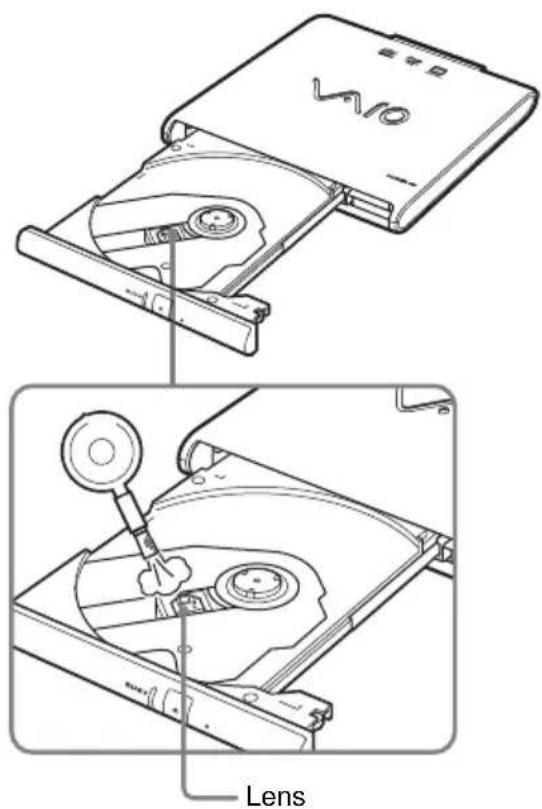
Cleaning the lens
If you accidentally touch the lens with dirty fingers or if dust on the lens prevents the drive from operating properly, clean the lens.
Cleaning the disc
- Fingerprints and other contamination on the disc surface can lead to reading errors. Always keep the disc clean.
To clean the disc, lightly wipe it from the center outwards.
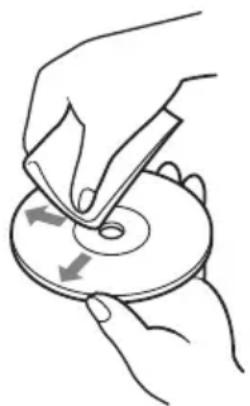
- To remove stubborn stains, lightly moisten the cloth before wiping the disc, and use a dry cloth afterwards.
- Do not use benzine, record cleaning liquid, antistatic fluids or other substances that may damage the surface of the disc.
- Never use cleaners on an unused disc. Use specific CD cleaners to take off dust.
- You may not be able to write on the discs if there are scratches or dust on the unrecorded area. Be careful not to damage the discs.
Getting Help
This section provides information on how to get help and support from Sony, and on troubleshooting tips for your DVD±RW drive.
About Sony's support options
Sony provides several support options for your DVD±RW drive. When you have questions about your DVD±RW drive or the software, refer to the following:
This guide explains how to use your DVD±RW drive.
For customers in the United States and Canada
The Sony Customer Information Service Center offers information about your notebook and other Sony products that work with your notebook. To contact Sony Customer Information Service Center, call 1-888-4SONYPC (1-888-476-6972).
The Sony fax-back service provides you with answers to frequently asked questions. You can use this automated service to request a list of available topics and then select the topics that you want to receive. To contact the Sony fax-back service, call 1-888-4SONYPC (1-888-476-6972).
The Sony e-mail support service answers your questions by electronic mail. Just send your question in an e-mail message, and a customer service representative will send you a reply. To send a question to Sony e-mail support, address the message to SOS@info.sel.sony.com.
For customers in Europe
VAIO-Link. For addresses and numbers, refer to your Customer Service Guide.
For customers in other regions
VAIO Website provides Frequently Asked Questions and solutions.
vaio-online.sony.com/
Specifications
Compatible discs
DVD+R
DVD+RW
DVD-R
DVD-RW
DVD-ROM
DVD-Video
CD-R
CD-RW (Ultra Speed CD-RW not supported)
CD-ROM
CD-DA (audio CD)
CD Extra (CD + ) CD TEXT
Photo CD
Disc diameter: 12cm 8 cm (reading only)
Drive performance
Data transfer rate
Data read
DVD+R/DVD+RW: max. 2· speed
DVD-R/DVD-RW: max. 2· speed
DVD-ROM: max. 5· speed
CD-R/CD-ROM: max. 24· speed
Data write
DVD+R/DVD+RW: max. 2· speed
DVD-R/DVD-RW: 1· speed
CD-R: max. 16· speed
CD-RW: max. 8· speed
(DVD: 1· speed = 1350 KB/s, CD: 1· speed = 150 KB/s)
Multi-session supported, 12/8 cm tray type
Laser diode properties
Laser output CD: 180 W DVD: 74.1 W Wavelength CD: 784~nm DVD: 658~nm
Connectors
i.LINK (IEEE 1394) S400 (4-pin) connector (2)
$$ \mathrm {S} 4 0 0 = 4 0 0 \mathrm {M b p s} $$
DCIN (1)
VAIO Notebook peripheral device DC IN (1)
Operating environment
Operating temperature
41^ to 95^ (5^ to 35^)
(temperature gradient less than 18^ (10^)/ hour)
Operating humidity
20% to 80% (no condensation),
provided that humidity is less than 65% at 95^ (35^)
(hygrometer reading of less than 84^ (29^)
Storage temperature
-4^ to 140^ (-20^ to 60^)
(temperature gradient less than 18^ (10^) /hour)
Storage humidity
20% to 90% (no condensation),
provided that humidity is less than 20% at 140^ (60^)
(hygrometer reading of less than 95^ (35^)
AC adapter*
Power requirements
100-240 V AC, 50/60 Hz
Output voltage and current
10 V, 1.5 A (max.)
- Not included in some product configurations
Other specifications
Power consumption
Read/write: approx. 8 W
Dimensions
Approx. 5.7· 0.9· 6.1 inches
(144·21·154 mm) (w·h·d)
(maximum dimensions including protruding parts)
Mass
Approx. 14.5 oz. (410g) (main unit only)
Design and specifications are subject to change without notice.
Troubleshooting
If a problem occurs during operation of the unit, refer to the information provided in this section and in your Sony notebook documentation. If the problem persists, consult your nearest Sony dealer. For contact information, see "Getting Help" on page 45. Also refer to the manuals provided with your notebook.
| Symptom Cause/Remedy | |
| Tray does not open when eject button on unit is pressed. | →If the drive is connected with the VAIO notebook peripheral cable (80 cm), make sure that the cable is connected correctly to the connector on the notebook, and the notebook is turned on. |
| →If the drive is connected with an i.LINK cable, make sure that the AC adapter and i.LINK cable are connected correctly, and the notebook is turned on. | |
| →In some cases, the tray does not open when the eject button is pressed. For information on how to remove the disc, see “Removing a disc” on page 29. | |
| Tray does not open when eject button in software application is clicked. | →The software may be inhibiting disc access. For information on how to remove the disc, see “Removing a disc” on page 29. |
| Tray is not locked. | →Push tray in fully. |
| Tray locks then opens again. | →Make sure that the disc is inserted with the label side facing up. |
| →The disc or lens may be dirty. Clean as described on page 44. | |
| →The disc may be damaged. To confirm that the drive is not malfunctioning, insert another disc. | |
| →There may be condensation in the drive or the disc. Remove the disc and allow the unit to stand for approximately one hour. | |
| Drive is not detected by the notebook. | →The drive may not be connected correctly to the notebook via i.LINK. See “Connecting the Drive” on page 15. |
| →The operating system is not Windows XP. | |
| →To reset the i.LINK interface, shut down your Windows operating system, turn the notebook off, disconnect the power cord, and then reconnect and turn the power back on. | |
| →If there are notebooks connected to both i.LINK connectors on the drive, the drive may not function properly and data reading and writing may not be possible. Disconnect the unused notebook from the drive, and reconnect correctly (see page 26). | |
| →Some types of notebook cannot exchange data with the drive. For details, see “Compatible notebooks” (page 8) and the manuals provided with your Sony notebook. | |
| →Disconnect the i.LINK cable and then reconnect it. If there is still no communication with the drive, restart the notebook. | |
| →Depending on network settings, communications with the drive may be cut after the notebook is released from sleep mode. If this happens, configure your notebook so that it does not switch into sleep mode. (For details, refer to the manuals provided with your Sony notebook.) | |
| No sound from audio CD. | →The volume control of the notebook may be set to “Mute”. (For details, refer to the manuals provided with your Sony notebook.) |
| →The volume control of the computer may be set too low. (For details, refer to the manuals provided with your Sony notebook.) | |
| Sound skips during audio CD playback. | →The disc may be scratched or dirty. Clean the disc or use another disc (see page 45). |
| →Another application may be running. Shut down the other application. | |
| →The power management function of the notebook may be active. Check the CPU speed setting. (For details, refer to the manuals provided with your Sony notebook.) | |
| Disc is inserted but sound skips or data cannot be read. | Make sure that the disc is inserted with the label side facing up. The type of disc may not be compatible with this drive. The disc or lens may be dirty. Clean as described on page 44. The disc may be damaged. To confirm that the drive is not malfunctioning, insert another disc. The disc tray may be dirty. There may be condensation in the drive or the disc. Remove the disc and allow the unit to stand for approximately one hour. |
| Data transfer rate is low. | The power management function of the notebook may be active. Check the CPU speed setting. (For details, refer to the manuals provided with your Sony notebook.) |
| Notebook to which this drive is connected does not go into power saving mode. | When the drive is operating, the notebook may not go into power saving mode. To ensure a stable operation of the drive, set up the notebook so that power saving modes will not be enabled. (For details, refer to the manuals provided with your Sony notebook.) |
| DVD+R, DVD+RW, DVD-R, DVD-RW, CD-R, or CD-RW data reading or data writing failure. | See “Precautions when writing data” on page 36. A bus reset may have occurred during the writing process. For information, see “Bus Reset” on page 43. If writing fails due to a shortage of virtual memory in your notebook, increase the amount of virtual memory, and then rewrite the data. To increase the amount of virtual memory, do the following: 1 On the [Start] menu, click [Control Panel], click [Performance and Maintenance], and then click [System]. 2 Click the [Advanced] tab, and then click [Settings] in [Performance]. 3 Click the [Advanced] tab, and then click [Change] in [Virtual Memory]. 4 Increase the value of [Custom size]. Frame drop may can occur if your hard disk is not optimized. If this happens, optimize your hard disk. To optimize your hard disk, do the following: 1 Click the [Start] button, and then click [My Computer]. 2 Right-click the icon for the drive you want to optimize, and then click [Properties]. 3 Click the [Tools] tab, and click [Defragmentation]. |
Symptom Cause/Remedy
Cannot write data.
If this drive has not been recognized correctly by the notebook, normal read/write operation is not possible. See the section "Drive is not detected by notebook" on page 49.
If the supplied software has not been installed correctly, writing is not possible.
If the drive was brought from a cold to a warm location, condensation may have formed inside the drive. Allow the unit to stand for a while.
If a CD-R or CD-RW was written with "Drag'n Drop CD+DVD", it is not possible to add data after:
- Creating a music CD with the "Music" box.
- Creating a DVD or CD backup with the "DISC Backup" box.
- Selecting "Close disc" in the "DATA DISC Options".
The DVD+R, DVD+RW, DVD-R, DVD-RW, CD-R, or CD-RW disc may already be full. If a disc is full, you cannot add data.
You cannot write data to DVD+RW, DVD-RW, or CD-R discs to which data writing ended in failure. Delete the data and then rewrite the disc. Follow the procedure below to delete data from DVD+RW, DVD-RW, or CD-RW disc (Use "Drag'n Drop CD+DVD").
1 Close all applications other than "Drag'n Drop CD", then insert the disc that you want to clear into the drive.
2 Right-click over the "Drag'n Drop CD+DVD" box, and then select "Erase RW disc".
3 Select "Quick erase" or "Full erase", and then click the "OK" button.
You cannot reuse DVD+R, DVD-R, or CD-R discs to which data writing ended in failure.
Make sure that the disc has been inserted correctly, with the side to be played facing down.
| Symptom Cause/Remedy | |
| Cannot playDVD-ROM orDVD video. | →The region code of the DVD does not match the regioncode of the drive. This drive is set to region code 1 (USA,Canada) or 2 (Europe) at the factory. It can play only discswith the region codes “1”, “2” or “ALL”. For details, see“Notes about DVD video discs” on page 41.→If the DVD-ROM is dirty, carefully wipe it with a softcloth. For information on disc maintenance, see “Cleaning the disc” on page 45. |
| Cannot perform notebook recovery. | →The notebook model may not support recovery of theoperating system using this drive. For details, see“Performing a System Recovery on a Notebook” on page 42.→Make sure that the inserted disc is the recovery CD thatcame with the notebook. |
| Dropped frames during DVD playback. | →The power management function of the notebook may be active.Check the CPU speed setting. (For details, refer to themanuals provided with your Sony notebook.) |
| The video control button on the Digital Video CameraRecorder does not work. | →Set the power switch to “Video”. (For details, refer to themanual provided with your Digital Video CameraRecorder.) |
| Nothing happens even with the camera power switch set to “Video”or “Camera”. | →The AC adapter/charger may be unplugged from the poweroutlet. Confirm that the plug is correctly inserted into thepower outlet.→Set the AC adapter/charger mode switch to “VCR/Camera/Player”. (For details, refer to the manual provided withyour Digital Video Camera Recorder.)→There might not be a battery in the camera, or the batteryhas run out or nearing the end of its charge. Replace thebattery with a fully charged one. |
| The Digital Video Camera Recorder®or ®cons flash, and nothing works except the cassette eject switch. | →There might be condensation in the Digital Video CameraRecorder. Remove the cassette, leave the Digital VideoCamera Recorder for one hour, and then replace thecassette. |
Symptom Cause/Remedy
The Digital Video Camera Recorder connected to this drive cannot be used. Or, a message appears on the notebook indicating that the Digital Video Camera Recorder is either powered off or is not operating.
Make sure the Digital Video Camera Recorder's power is turned on and the cables are properly connected. For details, see "Connecting a Digital Video Camera Recorder" (page 21) or the manuals provided with your notebook.
The i.LINK interface is designed to support multiple connection of peripheral devices, but some devices can cause instability when there is more than one device connected. Turn off the power to all connected devices, unplug any unstable devices, check the cable connections and then turn the power back on.
Disconnect the i.LINK cable, turn off the Digital Video Camera Recorder's power, then turn the power back on. Preinstalled notebook software may not recognize MICROMV or analog type cameras. For details, see "Connecting a Digital Video Camera Recorder" (page 21) or the manuals provided with your notebook.
Click to DVD
| Symptom Cause/Remedy | |
| Cannot capture video from an external device. | →Make sure the device is properly connected to your notebook. (For details, refer to the manuals provided with the device and your notebook.) With a Digital Video Camera Recorder to the drive, see “Connecting a Digital Video Camera Recorder” (page 21). |
| →Disconnect all devices, restart the notebook and then reconnect correctly. | |
| →Because video data captured from an external device with “Click to DVD” is temporarily stored on your hard disk, capturing video data might not be possible if there is not enough free space on the hard disk. To avoid this, check your hard disk and delete any unnecessary files. Also, change the “Click to DVD” settings so that the temporary files are saved in a different location. Refer to “Click to DVD” help for details. | |
| Cannot use video files. | →With Click to DVD you can only use the following video file formats: DV-AVI, MPEG1, MPEG2. |
| →You cannot use combinations of video files in different formats. Write different file formats separately. | |
| Cannot write to DVD disc | →The DVD+R, DVD+RW, DVD-R, or DVD-RW disc you are using may already contain data. You cannot add data to such discs. →You should have at least 256 MB of RAM in your notebook when using “Click to DVD” to write data. For details on expanding memory, refer to the manuals provided with your notebook. →You cannot add data to DVD+R, DVD+RW, DVD-R, or DVD-RW discs that already have data on them. →To write data using “Click to DVD”, log on as a user with computer administrator privileges. |
| Music tracks on DVD discs you create do not replay. | →If you create a DVD that contains only a small amount of video/picture data, the music tracks specified when you created the DVD might not play normally. |
| Frame drop occurs when playing a DVD that you have created. | →Frame drop can occur if there is too much workload on your notebook. To solve the problem, do the following: ·Disconnect all external devices except your digital video camera recorder. ·Close all applications except “Click to DVD and “Drag'n Drop CD+DVD”. ·Optimize (defragment) all available hard disk. For details, refer to “Click to DVD” help. |
| Cannot start Click to DVD. | →An old version of PXEngine (the burning engine) is being used. Please install Drag'n Drop CD+DVD in order to install an updated version of the engine. |
| Unable to install Click to DVD. | →PXEngine (the burning engine) is missing. Install Drag'n Drop CD+DVD before installing Click to DVD. |
ACHTUNG
Easy Systems Japan, Ltd.
Website: http://www.ddcd.jp/dd3g/sony/cd/
Installation vertical
Printed on 100% recycled paper using VOC (Volatile Organic Compound)-free vegetable oil based ink.
- For customers in the U.S.A. Owner's Record
- FCC Notice
- Declaration of Conformity
- Caution
- For customers in Canada
- For customers in Europe
- AVVERTENZA
- Overview
- Note
- What is i.LINKTM?
- Compatible notebooks
- Notes
- DVD+R
- DVD+RW
- DVD-R
- DVD-RW
- DVD-ROM
- CD-R
- - CD-RW
- - CD-ROM
- Supplied Accessories
- Locating the Controls and Connectors
- Front
- Rear
- Bottom
- Setting up the Drive
- Vertical installation
- Connecting the Drive
- - If the notebook is equipped with a VAIO notebook peripheral device DC OUT connector (see page 17)
- - If the notebook is not equipped with a VAIO notebook peripheral device DC OUT connector (see page 19)
- Connecting the drive to your notebook with the supplied peripheral cable
- Hint
- Connecting the drive to your notebook with the supplied i.LINK cable
- Connecting a Digital Video Camera Recorder
- For Customers in the U.S.A. and Canada
- - When connecting the drive to your notebook with the supplied peripheral cable
- - When connecting the drive to your notebook with the supplied i.LINK cable
- Limitations (wrong connection example)
- Disconnecting the drive from the notebook
- Basic Operation
- Power management information
- Inserting a disc
- Removing a disc
- If the disc does not eject
- Transporting the unit (using the cable clip)
- Using the cable clip
- Installing the software
- About the supplied software
- - Click to DVD
- Drag'n Drop CD+DVD
- Installing and using Drag'n Drop CD+DVD
- ■ SonicStage Ver.1.x DVD±RW Drive Support Update Program
- Precautions before use
- Precautions when writing data
- Precautions for using "Click to DVD"
- Precautions for using "Drag'n Drop CD+DVD"
- Registering Users
- Playing an Audio CD
- For users of notebooks with a built-in CD-ROM drive
- For users of notebooks without a built-in CD-ROM drive
- Playing a DVD video
- Notes about playing a DVD video
- Notes about DVD video discs
- Region code of playable DVD videos
- Note on playback operations of DVD videos
- Symbols on DVD video discs
- Performing a System Recovery on a Notebook
- About notebooks that you can recover
- Precautions
- Usage and storage locations
- Operation
- Transportation
- Bus Reset
- Lens
- Notes on discs
- Maintenance
- Cleaning the cabinet
- Cleaning the lens
- Cleaning the disc
- Getting Help
- About Sony's support options
- For customers in the United States and Canada
- For customers in other regions
- Specifications
- Compatible discs
- Drive performance
- Data transfer rate
- Laser diode properties
- Connectors
- Operating environment
- Operating temperature
- Operating humidity
- Storage temperature
- Storage humidity
- AC adapter*
- Power requirements
- Output voltage and current
- Other specifications
- Power consumption
- Dimensions
- Mass
- Troubleshooting
- Symptom Cause/Remedy
- Click to DVD
- ACHTUNG
- Installation vertical
Brand : SONY
Model : PCGADDRW1
Category : Other computer accessories