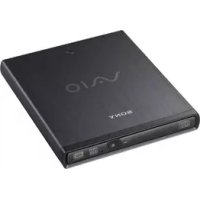
VGPUDRW1 - Other computer accessories SONY - Free user manual and instructions
Find the device manual for free VGPUDRW1 SONY in PDF.



| Product type | External USB DVD±RW burner |
| Brand | Sony |
| Model | VGPUDRW1 |
| Dimensions (w × h × d) | Approx. 135.5 × 19 × 155 mm |
| Weight | Approx. 440 g (main unit only) |
| Power supply | AC adapter VGP-AC5V1: input 100-240 V AC, 50/60 Hz; output 5.2 V DC, 2.9 A |
| Power consumption | Approx. 5 W (read/write) |
| Interface | USB mini-B |
| Compatible discs (read and write) | DVD+R DL, DVD+R, DVD+RW, DVD-R DL, DVD-R, DVD-RW, DVD-RAM, CD-R, CD-RW |
| Compatible discs (read only) | DVD-ROM, DVD-Video, CD-ROM, CD audio, CD Extra, CD TEXT, Photo CD |
| Maximum read speed | DVD: 8x; CD: 24x |
| Maximum write speed | DVD+R/DVD+RW/DVD-R: 8x; DVD-RW: 6x; DVD+R DL/DVD-R DL: 4x; DVD-RAM: 5x; CD-R/CD-RW: 24x |
| Operating temperature | 5 °C to 35 °C |
| Operating humidity | 20% to 80% (non-condensing) |
| Care of the casing | Clean with a soft, dry cloth; for stubborn stains, use a mild detergent |
| Care of the lens | Clean carefully if dusty; do not touch directly |
| Safety | Class 1 laser product (EN 60825-1); do not open the chassis; use only the supplied adapter |
| Spare parts and repairability | Have maintenance performed by a Sony authorized technician; contact after-sales service |
| General information | Manufacturer: Sony Corporation, Japan; EU Representative: Sony Deutschland GmbH |
Frequently Asked Questions - VGPUDRW1 SONY
User questions about VGPUDRW1 SONY
0 question about this device. Answer the ones you know or ask your own.
Ask a new question about this device
Download the instructions for your Other computer accessories in PDF format for free! Find your manual VGPUDRW1 - SONY and take your electronic device back in hand. On this page are published all the documents necessary for the use of your device. VGPUDRW1 by SONY.
USER MANUAL VGPUDRW1 SONY
Printed on 70% or more recycled paper using VOC (Volatile Organic Compound)-free vegetable oil based ink.
http://www.sony.net/
© 2008 Sony Corporation / Printed in Japan
3-287-428-12 (1)

WARNING
To reduce the risk of fire or electric shock, do not expose this apparatus to rain or moisture.
Dangerously high voltages are present inside the unit. Do not open the cabinet. Refer servicing to qualified personnel only.
When connecting to the USB port, please connect to the USB port with mark.
- Use this product only with the supplied AC adapter.
- To disconnect this product completely from mains voltage, unplug the AC adapter.
- The socket outlet shall be installed near the equipment and shall be easily accessible.
Owner's Record
The model number and the serial number are located on the bottom of the drive. Record the serial number in the space provided below. Refer to this number whenever you call your Sony dealer regarding this product.
Model No. VGP-UDRW1
Serial No. ____
For customers in the U.S.A.
FCC Notice
This equipment has been tested and found to comply with the limits for a Class B digital device, pursuant to Part 15 of the FCC Rules. These limits are designed to provide reasonable protection against harmful interference in a residential installation. This equipment generates, uses, and can radiate radio frequency energy and, if not installed and used in accordance with the instructions, may cause harmful interference to radio communications. However, there is no guarantee that interference will not occur in a particular installation. If this equipment does cause harmful interference to radio or television reception, which can be determined by turning the equipment off and on, the user is encouraged to try to correct the interference by one or more of the following measures:
- Reorient or relocate the receiving antenna.
- Increase the separation between the equipment and receiver.
- Connect the equipment into an outlet on a circuit different from that to which the receiver is connected.
- Consult the dealer or an experienced radio/TV technician for help.
The supplied interface cable must be used with the equipment in order to comply with the limits for a digital device pursuant to Subpart B of Part 15 of FCC Rules.
Changes or modifications not expressly approved by the party responsible for compliance could void the user's authority to operate the equipment.
NOTE: The manufacturer is not responsible for any radio or TV interference caused by unauthorized modifications to this equipment. Such modifications could void the user's authority to operate the equipment.
For questions regarding your product or for the Sony Customer Information Service Center nearest you, call 1-888-476-6972 in the United States or 1-800-961-7669 in Canada.
The number below is for FCC related matters only.
Declaration of Conformity
Trade Name: SONY
Model No.: VGP-UDRW1
Responsible Party: Sony Electronics Inc.
Address: 16530 Via Esprillo, San
Diego, CA 92127 U.S.A.
Telephone No.: 858-942-2230
This device complies with Part 15 of the FCC Rules. Operation is subject to the following two conditions: (1) This device may not cause harmful interference, and (2) this device must accept any interference received, including interference that may cause undesired operation.
For customer in the U.S.A. and Canada
Caution - The use of optical instruments with this product will increase eye hazard. As the laser beam used in this product is harmful to the eyes, do not attempt to disassemble the cabinet. Refer servicing to the qualified personnel only.
For this optical equipment: Caution - Class 3B visible and invisible laser radiation when open. Avoid exposure to the beam.
For customers in Canada
This Class B digital apparatus complies with Canadian ICES-003.
For customers in Europe
This product conforms with the following European Directives:
2006/95/EC (Low Voltage Directives)
2004/108/EC (EMC Directives)
This product complies with European standards EN55022 Class B and EN55024 for use in the following areas: residential, commercial and light industrial.
The optical drive included with this product is classified as a CLASS 1 LASER PRODUCT and complies with the Laser Product Safety Standard EN 60825-1. Class 3B visible and invisible laser radiation when open; avoid exposure to the laser beam. Repair and maintenance only by authorized Sony technicians. Improper repairs and use can create safety hazards.
CLASS 1 LASER PRODUCT TO EN 60825-1
This equipment has been tested and found to comply with the limits set out in the EMC Directive by using connection cables not longer than 3 meters.
The supplied interface cable must be used with the equipment in order with the limits for a digital device pursuant to EN55022.
The manufacturer of this product is Sony Corporation, 1-7-1 Konan Minato-ku Tokyo, 108-0075 Japan. The Authorized Representative for EMC and product safety is Sony Deutschland GmbH, Hedelfinger Strasse 61, 70327 Stuttgart, Germany. For any service or guarantee matters please refer to the addresses given in separate service or guarantee documents.
Disposal of Old Electrical & Electronic Equipment (Applicable in the European Union and other European countries with separate collection systems)
This symbol on the product or on its packaging indicates that this product shall not be treated as household waste.
Instead it shall be handed over to the applicable collection point for the recycling of electrical and electronic equipment. By ensuring this product is disposed of correctly, you will help prevent potential negative consequences for the environment and human health, which could otherwise be caused by inappropriate waste handling of this product. The recycling of materials will help to conserve natural resources. For more detailed information about recycling of this product, please contact your local Civic Office, your household waste disposal service or the shop where you purchased the product.
Making copies of and using CD-ROMs, DVD-ROMs, DVD video discs, or music CDs may violate copyright laws or the terms of the End-user Licenses provided with such discs. Be sure to comply with copyright laws and the terms of the End User Software License when making or using original CDs and DVDs. If you have any questions regarding copyright laws or the terms of the End-user Software License, please consult the appropriate legal experts.
• VAIO is a trademark of Sony Corporation.
- Microsoft, Windows, and Windows Vista are registered trademarks of Microsoft Corporation in the United States and/or other countries.
- Sony personal computers equipped with this drive incorporate copyright protection technology that is protected by U.S. patents and other intellectual property rights. Use of this copyright protection technology must be authorized by Macrovision and is intended for home and other limited viewing uses only unless otherwise authorized by Macrovision. Reverse engineering or disassembly is prohibited.
- All other names of systems, products, and services are trademarks of their respective owners.
- In the manual, the ^TM or ^® marks are not specified.
- In this manual, Microsoft ^ Windows ^ XP Home Edition and Microsoft ^ Windows ^ XP Professional are referred to as Windows XP.
- In this manual, Windows Vista ^® Home Basic, Windows Vista ^® Home Premium, Windows Vista ^® Business and Windows Vista ^® Ultimate are referred to as Windows Vista.
- IBM and PC/AT are registered trademarks of International Business Machines Corporation.
Table of Contents
Overview 5
Compatible personal computers ..... 6
Compatible discs 7
Supplied Accessories 10
Locating the Controls and Connectors. 11
Connecting the Drive 12
Disconnecting the drive from the personal computer 14
Basic Operation 15
Power management information ... 15
Inserting a disc 15
Removing a disc 17
Precautions When Writing Data ...... 19
Recording Data on a DVD or CD...... 20
Notes about Playing a DVD Video ..... 20
Notes about DVD Video Discs...... 21
Performing a System Recovery on a Personal Computer 22
Precautions 23
Maintenance 24
Getting Help 25
Specifications 26
Troubleshooting 28
Overview
This product is a DVD±RW drive with the USB interface. The drive has the following features:
- You can write data to a variety of discs such as DVD+R DL (Double Layer), DVD+R, DVD+RW, DVD-R DL (Dual Layer), DVD-R, DVD-RW, DVD-RAM, CD-R, and CD-RW. For information on the data transfer rate during data write, see “Specifications” (page 26).
- Reads DVD+R DL (Double Layer), DVD+R, DVD+RW, DVD-R DL (Dual Layer), DVD-R, DVD-RW, DVD-RAM, DVD-ROM, CD-R, CD-RW, and CD-ROM discs. DVD-ROM discs are read at a speed of 8× max. (10800 KB/s), and CD-ROM discs at a speed of 24× max. (3600 KB/s).
- You can enjoy playing digital audio CDs and DVD videos on your personal computer using the drive, if the personal computer supports this function.
- Can be used to easily reinstall the operating system on the personal computer using a recovery disc, if the personal computer supports this function (see page 22).
Note
This drive is region encoded and is only for use in the country or region of purchase.
Compatible personal computers
This drive can be used with the following personal computers. Except for models with a built-in optical drive (as of December 2007):
- Sony VAIO personal computer preinstalled with Windows XP or Windows Vista VGN-UX**, VGN-G**, VGN-TZ** (“**” is the model number.)
- IBM PC/AT compatible personal computers preinstalled with Windows XP or Windows Vista
See the website referred to in “Getting Help” (page 25) regarding specific models.
Notes
- This drive does not support Microsoft ^ Windows ^ Millennium Edition, Microsoft ^ Windows ^ 2000 Professional, Microsoft ^ Windows ^ 98 Second Edition, or earlier versions of the Windows ^ operating system.
- This drive can be used for performing a system recovery on a personal computer using a recovery disc. See “Performing a System Recovery on a Personal Computer” on page 22 for devices with which recovery is possible.
- Use with the above configuration is not necessarily guaranteed.
- Use with a home-built computer, “White box” computer, computer with an upgraded operating system, or a computer installed with a dual operating system is not guaranteed.
• DVD+R DL (Double Layer)
Discs for storing computer programs and data, and video data. While they use the same format as DVD+R discs, they differ in that there are 2 recording layers on one single side of a DVD+R DL disc. DVD+R DL discs can store up to 8.5 GB of data, or roughly 13 times that of CD-R discs.
- DVD+R
Write-once discs for storing computer programs and data, video data, and audio data. Note that DVD+R and DVD-R are different types of discs. DVD+R discs can store up to 4.7 GB of data, roughly 7 times that of a CD-R. Though data cannot be erased from these discs, computer programs or data may be added to them depending on the writing method used.
- DVD+RW
Discs for storing computer programs and data, video data, and audio data. These discs can be erased and rewritten many times. Note that DVD+RW and DVD-RW are different types of discs. DVD+RW discs can store up to 4.7 GB of data, roughly 7 times that of a CD-RW.
• DVD-R DL (Dual Layer)
Discs for storing computer programs and data, and video data. While they use the same format as DVD-R discs, they differ in that there are 2 recording layers on one single side of a DVD-R DL disc. DVD-R DL discs can store up to 8.5 GB of data, or roughly 13 times that of CD-R discs.
• DVD-R
Write-once discs for storing computer programs and data, video data, and audio data. DVD-R discs can store up to 4.7 GB of data, roughly 7 times that of a CD-R. Though data cannot be erased from these discs, computer programs or data may be added to them depending on the writing method used.
• DVD-RW
Discs for storing computer programs and data, video data, and audio data. These discs can be erased and rewritten many times. DVD-RW discs can store up to 4.7 GB of data, roughly 7 times that of a CD-RW.
- DVD-RAM
Rewritable discs for storing computer programs, data and video data. The contents of these discs can be erased and rewritten many times. DVD-RAM discs can store up to 4.7 GB of data, roughly 7 times that of a CD-RW.
- DVD-ROM
Read-only discs with a high data capacity.
• CD-R
Write-once discs for storing computer programs and data. After having been written, data cannot be erased from these discs. Data may be added to them, however, depending on the writing method used and the amount of available space on the disc.
- CD-RW
Rewritable discs for storing computer programs and data. The contents of these discs can be erased and rewritten many times.
- CD-ROM
Read-only discs onto which you cannot write your data.
Compatible discs with this drive are listed below.
●: both plays and records
○: plays only (recording unavailable)
| Disc type Enable/Disable | |
| DVD-ROM ○ | |
| DVD-Video ○ | |
| DVD+R DL (Double Layer) ● | *1 |
| DVD-R DL (Dual Layer) ● | *2 |
| DVD+R/RW ● | |
| DVD-R/RW ● | *3 *4 |
| DVD-RAM ● | *5 *6 |
| CD-ROM ○ | |
| Audio CD ○ | |
| CD Extra ○ | |
| CD-R/RW ● | |
| Video CD ○ | |
*1 For writing to DVD+R Double Layer, only DVD+R discs corresponding to DVD+R Double Layer are compatible.
*2 For writing to DVD-R Dual Layer, only DVD-R discs corresponding to DVD-R Dual Layer are compatible.
*3 DVD-R discs are compatible for writing to DVD-R General Ver.2.0/2.1 discs.
*4 DVD-RW discs are compatible for writing to DVD-RW Ver.1.1/1.2 discs.
*5 Cartridge type DVD-RAM discs cannot be used. Use only discs without a cartridge, or the cartridge removable type discs.
*6 DVD-RAM discs are not compatible for writing to DVD-RAM Ver. 1.0 (single-sided, one layer discs with a capacity of 2.6 GB)
This drive is not compatible for writing to DVD-RAM Ver. 2.2/Revision 5.0, recording speed 12x max.
Notes
- You may not be able to record or play on some CDs.
- This drive does not support writing to 8-cm discs.
- Use only circular discs in this drive. Do not use discs with any other shape (star, heart, etc.), as they may damage the drive.
- Other DVD drives may not be able to read the data added using this drive.
- For DVD+R/+RW, DVD-R/-RW, CD-R/-RW, we recommend that you use Sony-manufactured discs.
- You cannot backup discs which are not available for copying.
- This drive is designed to playback discs that conform to the Compact Disc Digital Audio standard specifications (CD Standard). Recently, some record companies have started to sell CDs which do not correspond to the CD standard in order to protect music copyrights; we do not guarantee that such discs can be played on this product.
- A DualDisc is a two sided disc with audio (CD) material on one side and video (DVD) material on the other side. The CD audio side of a DualDisc may not be played on this drive if it does not conform to the Compact Disc Digital Audio standard specifications (CD Standard). We make no guarantee such discs can be played on this product.
- To play DVD-RW/-RAM discs corresponding to CPRM, it is necessary that your personal computer is connected to the Internet.
(*Content Protection for Recordable Media (CPRM) is copyright protection technology for one time recordable programs.)
- You cannot record one time recordable programs on DVD-R/RW/-RAM discs corresponding to CPRM.
- Some types of CD players may not play music CDs created on CD-R/-RW discs.
- Some types of DVD players may not play DVD videos created on DVD+R DL (Double Layer)/-R DL, DVD+R/+RW, DVD-R/-RW/-RAM discs.
- DVD players corresponding to CPRM can play DVD-RW/DVD-RAM discs corresponding to CRPM on which the recorded digital broadcast programs are moved. However, players compatible with DVD-RWs playback (VR mode) have some limitations, for example, DVD discs that have moved programs to DVD-RWs corresponding to CRPM cannot be played, etc.
Supplied Accessories
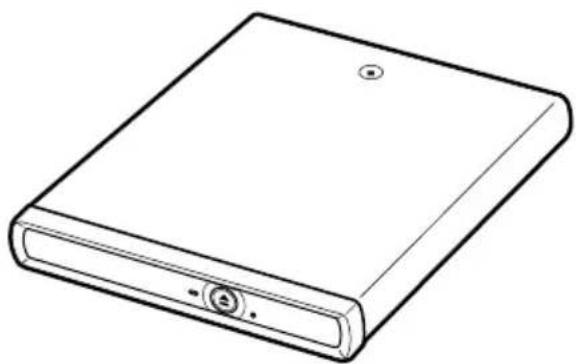
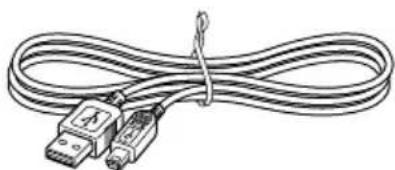
After unpacking the unit, make sure that the accessories listed below are present. If anything is missing, contact the Sony dealer where you purchased this product or a Sony service representative in your area.
- DVD±RW drive (1)
natural_image
Line drawing of a rectangular electronic device with a circular button and mounting holes (no text or symbols)- USB cable (1)
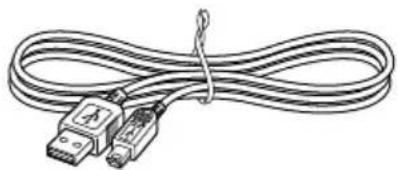
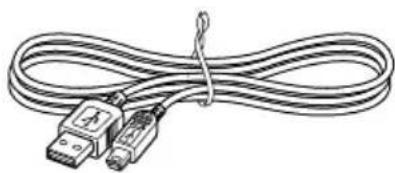
natural_image
Line drawing of a multi-core cable with two USB connectors (no text or symbols)- AC adapter (1)
- AC power cord (1)
- Operating Instructions (this document) (1)
Locating the Controls and Connectors
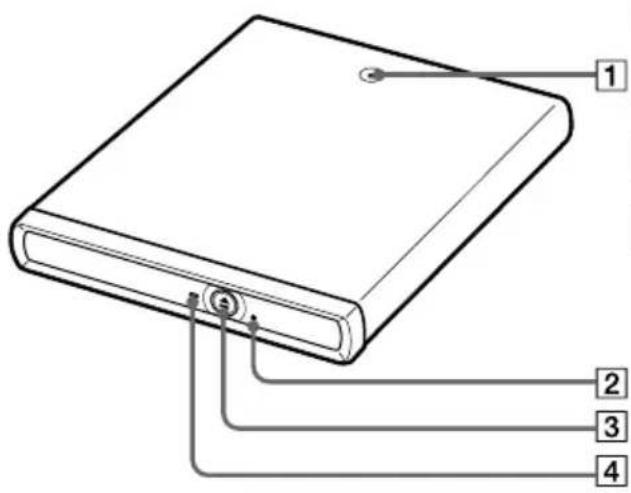
Front
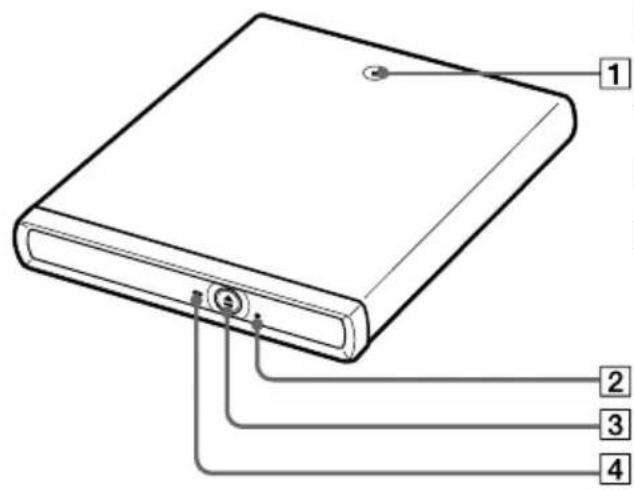
1 POWER indicator (see page 12)
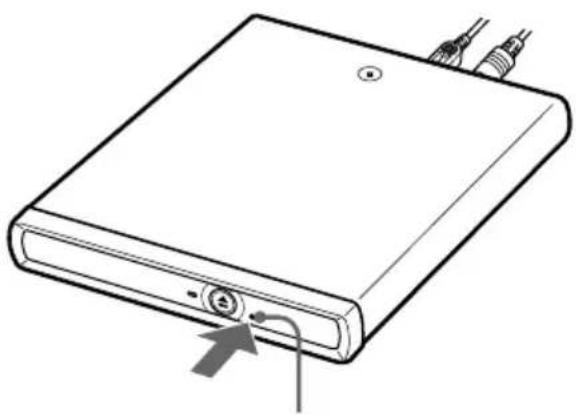
2 Manual eject hole (see page 18)
③Eject button (see page 15, 17)
4BUSY indicator (see page 14, 15)
Rear
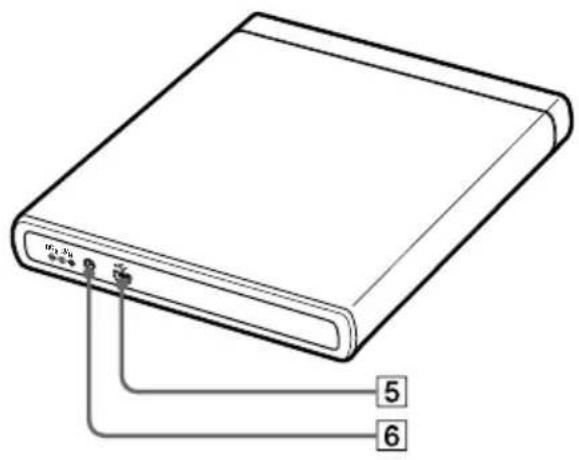
5USB connector (see page 12)
6DC IN connector (see page 12)
Connecting the Drive
You can connect this drive to a personal computer using the supplied USB cable.
Notes
- Place this drive on a flat surface.
- Do not connect this drive to an external USB hub. (except for the docking station or port replicator specially designed for your personal computer)
- Disconnect the AC power cord from an AC outlet when not using for a long period of time.
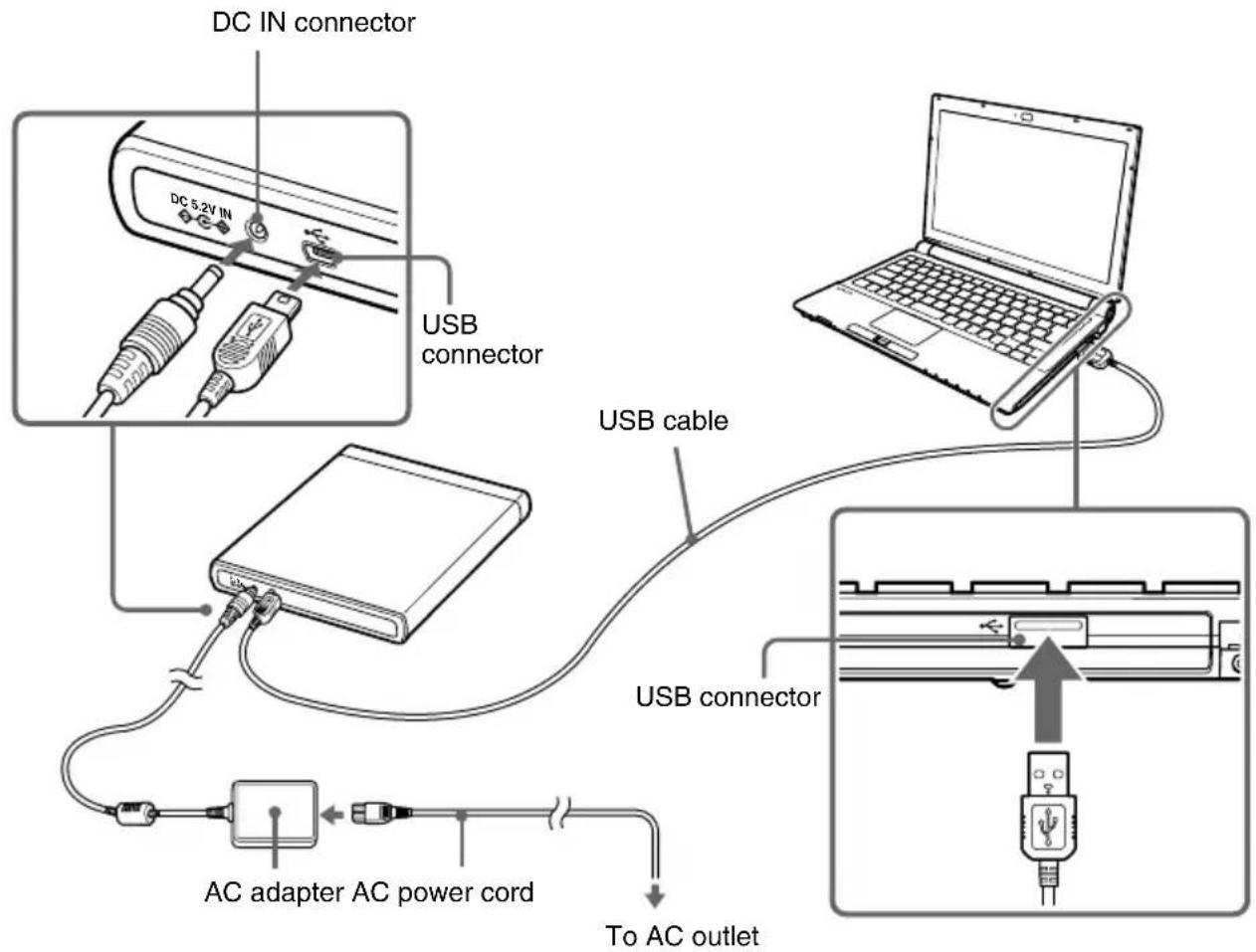
1 Turn on the personal computer.
2 Connect the AC power cord to the supplied AC adapter, plug the AC power cord into an AC outlet, and then plug the cable of the adapter into the DC IN connector on the drive.
The green POWER indicator of the drive lights up.
3 Connect the supplied USB cable to the USB connector on the rear of the drive.
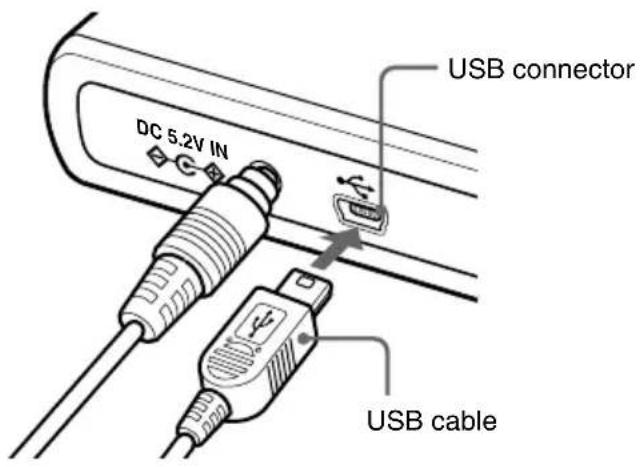
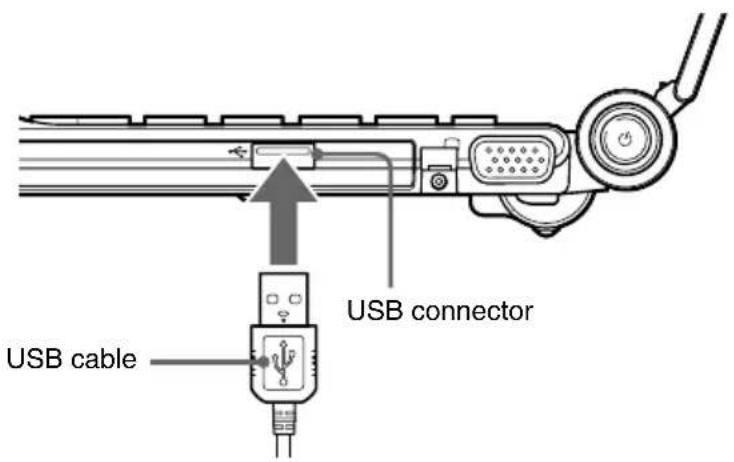
4 Connect the other end of the supplied USB cable to the USB connector on the personal computer.
The drive is detected and identified by the personal computer.
Hint
When this drive is connected to your personal computer for the first time, it takes a moment for the personal computer to detect the drive.
5 Click "Start", and then click "My Computer" to verify that (H: DVD-RW Drive) has been added in the "My Computer" window*.
* This operation is an example of Windows Vista.
Note
Use only the AC adapter VGP-AC5V1 supplied with this product. If you use an AC adapter other than the one specified above, your speaker or computer may be damaged.
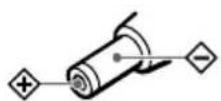
Polarity of the plug
Disconnecting the drive from the personal computer
Follow the procedure below to disconnect this drive from your computer. (The following procedures are for Windows Vista.)
Notes
- Before disconnecting the drive, remove the disc inserted in the drive.
- If the message below appears when you attempt to disconnect the drive, close any programs or Windows currently in use with the drive, wait for a while and then repeat the procedure.
“Problem Ejecting USB Mass Storage Device. The device cannot be stopped right now, as it is in use. Close any programs or Windows currently in use with the device, then try again”.
The icon appears on the taskbar when the drive is recognized by the computer. To disconnect the drive from the computer, use the icon.
1 Click the icon on the taskbar.
The “Safely remove USB Mass Storage Device” message appears.
2 Click "Safely remove USB Mass Storage Device".
The message “The USB Mass Storage Device device can now be safely removed from the system” appears.
3 Disconnect the USB cable.
Basic Operation
Power management information
When using the power management features of your personal computer, observe the following points:
- Ensure that the power-saving modes will not be activated automatically while the BUSY indicator of the drive is flashing. For details, refer to the manuals provided with your personal computer.
- Before activating the power-saving modes of the personal computer, verify that the BUSY indicator of the drive goes off, and close any programs or Windows currently in use with the drive.
- While the personal computer is in a power-saving mode, do not connect or disconnect the USB cable, or AC adapter.
Inserting a disc
Turn on the computer, and connect this drive before inserting a disc.
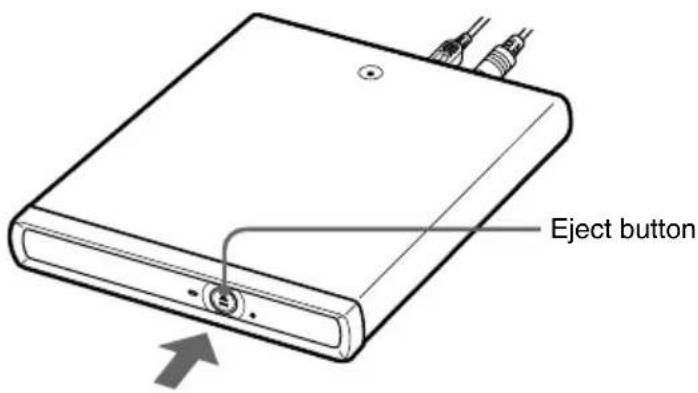
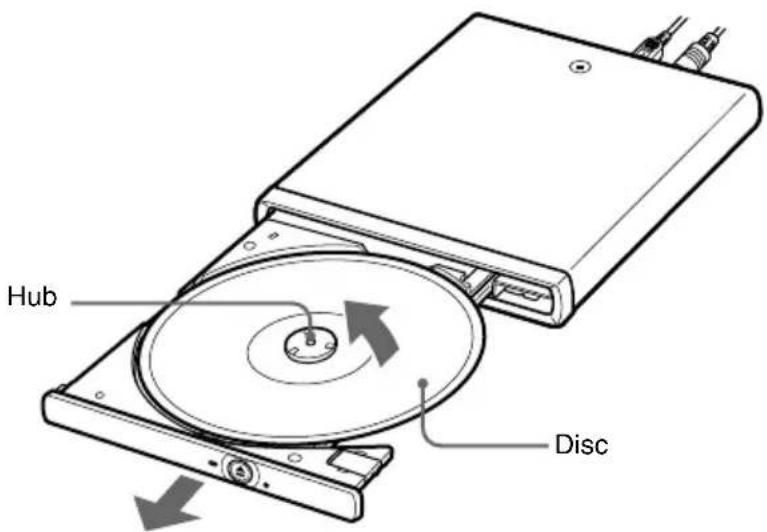
1 Press the eject button.
The tray pops out.
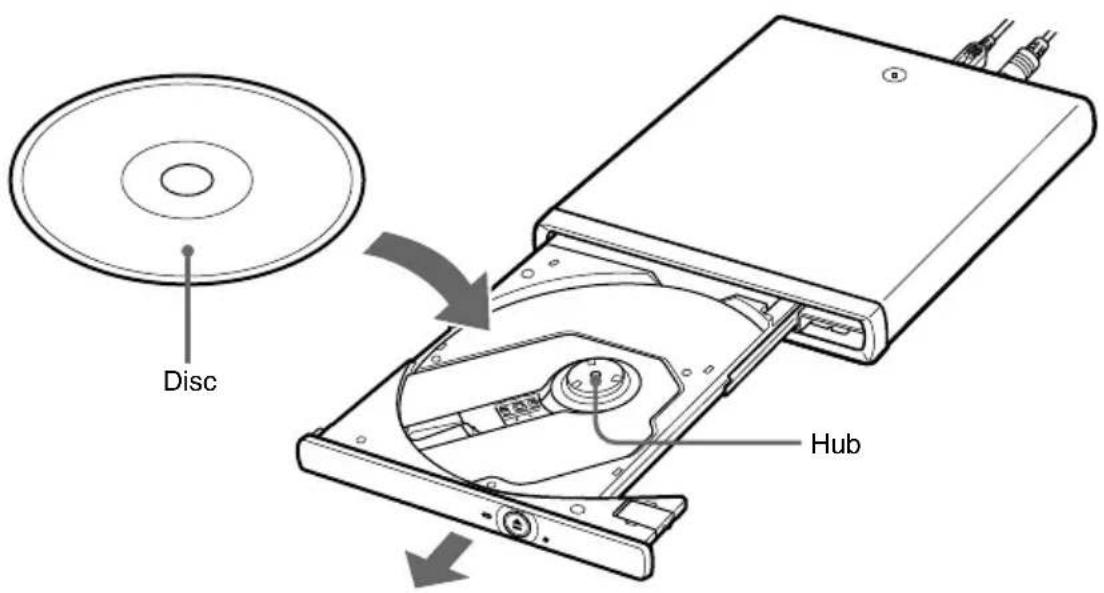
2 Pull the tray out fully until it stops. While supporting the tray from the other side with your hand, place the disc on the hub in the center of the tray.
Make sure that the disc audibly clicks into place and is firmly seated.
Notes
- Do not touch the lens assembly in the tray or the metal section on the rear.
- If you close the tray while the disc is not properly seated, the disc may be damaged and the tray may jam.
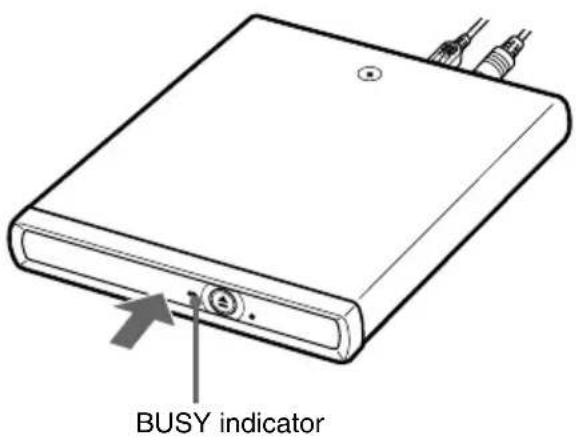
3 Close the disc tray by gently pushing it in.
While data is being read, the BUSY indicator flashes.
Removing a disc
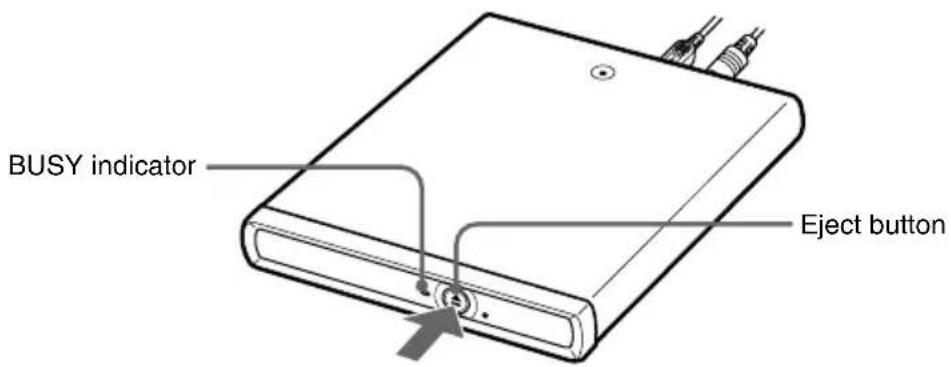
1 Verify that the BUSY indicator is not flashing, and press the eject button.
The tray pops out.
2 Pull the tray out fully until it stops. While supporting the tray with your hand, remove the disc.
To release the disc, push on the hub in the center.
Notes
- Do not touch the lens assembly in the tray or the metal section on the rear.
- While a software is currently in use with the drive, you may not be able to remove discs simply by pressing the eject button. For details, refer to Help or the manuals provided with the software.
If the disk does not eject
If you may not be able to remove discs simply by pressing the eject button, verify the BUSY indicator is not flashing, then insert a pin or thick paperclip, etc., into the manual eject hole. The tray pops out, allowing you to remove the disc
natural_image
Line drawing of a flat electronic device with two cables and a power connector (no text or symbols)Manual eject hole
Precautions When Writing Data
Please observe the following precautions when writing data to discs. We do not guarantee performance in cases of failure to follow these precautions.
- Be sure to power the personal computer from its AC adapter. Do not run the personal computer on battery power. If the personal computer is powered by battery and you run out of battery power while writing data, the written data may be lost or damaged.
- Avoid straining CPU power or the hard disc capacity of the personal computer. Before writing data, disable software applications such as screen savers, etc.
- Avoid using any resident disc management utilities or utilities to speed up disc access as these can impair operation stability and cause data loss.
- Do not switch users while writing data. This may result in data loss.
- While writing data and while inserting or removing discs, protect the drive and the personal computer from shocks and vibrations.
- While writing data do not connect or disconnect the USB cable to the personal computer or other USB device and do not turn on or off this drive or the USB device.
- While writing data do not access the Internet, other personal computers, or a network, and do not send or receive E-mail.
- When inserting discs, do not touch the recording surface. Dirt on the recording surface can impair data writing.
- Make sure that your personal computer's power management function is not enabled during data writing. Otherwise, the data may be lost. For details of your personal computer's power management settings, refer to the manuals provided with your personal computer.
- Installing or updating the driver software for the drive while writing data can result in operating problems.
Recording Data on a DVD or CD
You can write text or video data stored on the hard disk to DVD+R DL (Double Layer), DVD+R, DVD+RW, DVD-R DL (Dual Layer), DVD-R, DVD-RW, DVD-RAM, CD-R, and CD-RW.
For details on operation, refer to “Help and Support” of Windows.
Note
If you record using Windows feature with Windows XP, recording is possible only on CD-R, CD-RW, or DVD-RAM. You cannot record on other discs.
Notes about Playing a DVD Video
You can enjoy watching DVD videos on your personal computer, using this drive. For details on operation, refer to “Help” of Windows Media Player.
Notes
- Before playing a DVD video, see “Region code of playable DVD videos” on page 21.
- Compatibility with the wide range of DVDs in circulation cannot be guaranteed. Depending on the disc, there may be functional limitations, sound interruptions, or dropped frames. Some discs may not play at all.
- D uring playback of DVD video discs, do not attempt to modify display settings such as the screen resolution or color quality. Doing so could destabilize the operation of the personal computer or make it impossible to modify settings. Always close Windows Media Player before modifying display settings.
- Do not press the drive's eject button during playback of DVD video discs.
- Make sure that your personal computer's power management function is not enabled during data writing.
Be sure to quit Windows Media Player if the power management function is activated. For details on the power management function, refer to the manuals provided with your personal computer. - D uring playback of some DVD video discs with high quality sound (20-bit or 24-bit sampling), noise during playback or other problems may occur. When playing such discs via the personal computer connected to an audio system, turn down the volume, and test for normal playback first to prevent the possibility of damage to the speakers.
- Do not use a screen saver while playing a DVD video with Windows Media Player.
- Other personal computers (made by companies other than SONY) may not be able to play back DVD video discs. To play back DVD video discs, DVD playback software is required.
Notes about DVD Video Discs
Region code of playable DVD videos
Region code indications such as ① are labeled on some DVD videos to indicate which type of drive or player can play the discs. If this regional code indication contains a number other than the one for your region or ALL, you cannot play the disc in this drive. If you try to do so, a message appears indicating that playback is prohibited due to area limitations.
Depending on the DVD video, there may be no region code indication printed on the label even though playing the DVD video is prohibited due to the area limits.
Note on playback operations of DVD videos
Some playback operations of DVD videos may be intentionally limited by software producers. Since this drive plays DVD videos according to the disc contents provided by the software producers, some playback features may not be available. Also refer to the instructions supplied with the DVD videos.
Symbols on DVD video discs
The following symbols are labeled on some DVD video discs or their packages. Each symbol provides information about the contents or features recorded on the disc.
Depending on the DVD video, there may be no symbols or indications printed on the label describing the disc's contents or features.
For more information about these marks, see the instructions on the DVD video discs.
| Mark Meaning | |
 | The number of audio tracks |
 | The number of subtitle tracks |
 | The number of angles |
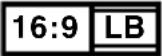 | The available aspect ratios |
 | Region code |
Performing a System Recovery on a Personal Computer
With the recovery disc, you can reset your personal computer using the drive, if the personal computer supports this function.
About personal computers that you can reset to default
Personal computers that can be reset using this drive are Sony personal computers with the Windows XP or Windows Vista operating system preinstalled; VGN-UX**, VGN-G**, VGN-TZ** (“**” is the model number.)
(As of December, 2007)
For more details about resetting your personal computer, refer to the manuals provided with your personal computer.
Notes
- Power the personal computer from its AC adapter when performing a system recovery. Do not run the personal computer on battery power.
- Disconnect all other peripherals from the personal computer before performing a recovery.
Precautions
Usage and storage locations
Do not use or store this drive in locations subject to high humidity, high temperatures, strong vibrations, or direct sunlight.
Operation
- To avoid malfunction, do not move the drive during operation.
- Operate the drive on a level surface.
- Do not place any objects on top of the drive.
- Protect the drive from sudden temperature changes. Do not use the drive immediately after moving it from a cold to a warm location or after the ambient temperature has risen drastically. Otherwise, condensation inside the drive can occur. If the temperature changes drastically during operation, stop using the drive while keeping power to the drive turned on, and let it stand for about an hour. Then turn the power off.
- Do not connect/disconnect the USB cable with a wet hand.
- Use the USB cable supplied with this drive.
Lens
Do not touch the lens in this drive.
Furthermore, to avoid dust sticking to the lens, do not open the tray other than to remove or insert a disc.
Notes on discs
Note the following in order to protect data stored on discs.
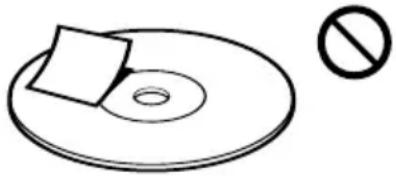
- Do not stick any labels on the disc nor scratch it as you would otherwise damage the disc.
natural_image
Simple line drawing of a CD or DVD disc with a square slot and a prohibition symbol (no text or labels)- When using a disc with improperly attached label, the label edges may peel or the label may come off entirely inside the disc drive, leading to malfunction and damage of the drive. Before inserting a disc, make sure that the label is properly attached. In no event will Sony Corporation be liable for any damage or media loss caused by improper labels. Carefully follow the instructions of any label printing software and label products. Use of such products occurs entirely at the risk of the user.
- If the edge of the label on the disc is off the disc surface or the label is not sticky enough to stay on the disc surface, the label may stick to the interior of the disc drive and cause a malfunction of your drive. Make sure that the label is properly fixed on the disc surface before using the disc.
Sony assumes no liability for any malfunction of your drive or damage to the media caused by improper labeling. Please thoroughly read instruction notes of your label software and label sheets.
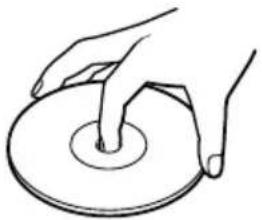
- Do not touch the data side of the disc (opposite the label), and hold the disc as shown below.
natural_image
Line drawing of a hand holding a circular object with a ring, no text or symbols present- Do not store discs in locations subject to high humidity, high temperatures, direct sunlight, or high levels of dust.
• Take care not to spill any liquid on your discs. - Return discs to their cases when not in use in order to prevent data damage.
- Use an oil-based felt pen when writing on a disc.
- Do not use a disc with tape, seals, or paste on it, as the disc may damage the drive.
Maintenance
Cleaning the cabinet
Wipe the outside of the drive with a soft, dry cloth. To remove stubborn stains, moisten the cloth with a mild, neutral detergent. Do not use solvents, cleaning alcohol, benzine, or other substances that may damage the finish.
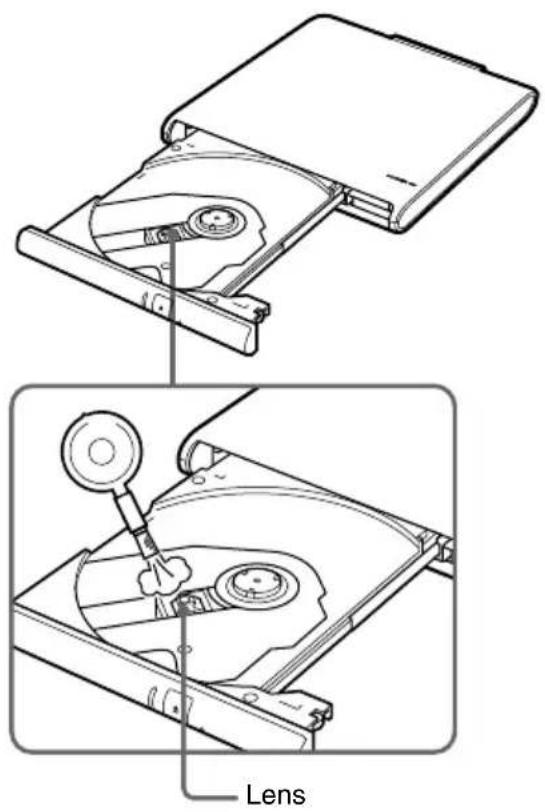
Cleaning the lens
If you accidentally touch the lens with dirty fingers or if dust on the lens prevents the drive from operating properly, clean the lens.
Cleaning the disc
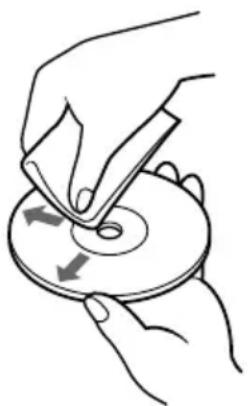
- Fingerprints and other contamination on the disc surface can lead to reading errors. Always keep the disc clean.
- To clean a disc, lightly wipe it from the center outwards.
natural_image
Illustration of hands using a tool to cut or rotate a CD into a disc (no text or symbols)• To remove stubborn stains, lightly moisten the cloth before wiping the disc, and use a dry cloth afterwards.
- Do not use benzine, record cleaning liquid, antistatic fluids, or other substances that may damage the surface of the disc.
- Never use cleaners on an unused disc. Use specific CD cleaners to take off dust.
- You may not be able to write data to a disc if there are scratches or dust on the unrecorded area. Be careful not to damage the discs.
Getting Help
This section provides information on how to get help and support from Sony, and on troubleshooting tips for your DVD±RW drive.
About Sony's support options
Sony provides several support options for your USB DVD±RW drive. When you have questions about your USB DVD±RW drive or the software, refer to the following:
☐This guide explains how to use your USB DVD±RW drive.
For customers in the United States and Canada
☐The Sony Customer Information Service Center offers information about your VAIO computer and other Sony products that work with your computer. To contact Sony Customer Information Service Center, call 1-888-4SONYPC (1-888-476-6972).
□Sony Computing Support provides instant access to information on commonly encountered problems. Type a description of the problem and the Knowledge Database searches for corresponding solutions online. You can visit Sony Online Support at: http://www.sony.com/pcsupport.
For customers in Europe
☐VAIO-Link. For addresses and phone numbers, refer to http://www.vaio-link.com
For customers in other countries and regions
☐VAIO Website provides Frequently Asked Questions and solutions. vaio-online.sony.com/
Specifications
Compatible discs
DVD+R DL (Double Layer) DVD+R DVD+RW DVD-R DL (Dual Layer) DVD-R DVD-RW DVD-ROM DVD-RAM DVD-Video CD-R CD-RW CD-ROM CD-DA (audio CD) CD Extra (CD+) CD TEXT Photo CD Disc diameter: 12 cm 8 cm (reading only)
Drive performance
Data transfer rate
Data read DVD+R/DVD+RW/DVD-R/DVD-ROM/ DVD-RW: max. 8x speed DVD+R DL (Double Layer)/ DVD-R DL (Dual Layer): max. 6x speed DVD-RAM: max. 5x speed CD-R/CD-RW/CD-ROM: max. 24x speed Data write DVD+R/DVD+RW/DVD-R*1: max. 8x speed DVD-RW*2: max. 6x speed DVD+R DL (Double Layer)*3, DVD-R DL (Dual Layer)*4: max. 4x speed DVD-RAM*5: max. 5x speed CD-R: max. 24x speed CD-RW: max. 24x speed (DVD: 1x speed = 1350 KB/s, CD: 1x speed = 150 KB/s) Multi-session supported, 12/8 cm tray type
*1 Supports writing data to DVD-R discs compliant with DVD-R for General version 2.0/2.1.
*2 Supports writing data to DVD-RW discs compliant with DVD-RW version 1.1/1.2.
*3 Writing data to DVD+R DL (Double Layer) discs is available only on discs supporting DVD+R DL (Double Layer) recording.
*4 Writing data to DVD-R DL (Dual Layer) discs is available only on discs supporting DVD-R DL (Dual Layer) recording.
*5 Cartridge type DVD-RAM cannot be used. Use only discs without a cartridge, or the cartridge removable type discs. DVD-RAM discs are not compatible for writing to DVD-RAM Ver. 1.0 (single-sided, one layer discs with a capacity of 2.6 GB)
Connectors
USB Mini-B (1)
DC IN (1)
Operating environment
Operating temperature
41^ to 95^ (5°C to 35°C)
(temperature gradient less than 18^ F ( 10^ C)/hour)
Operating humidity
20% to 80% (no condensation),
provided that humidity is less than 65% at 95^ F ( 35^ C)
(hygrometer reading of less than 84°F (29°C))
Storage temperature
-4^ to 140^ (-20^ to 60^)
(temperature gradient less than 18°F (10°C)/hour)
Storage humidity
10% to 90% (no condensation),
provided that humidity is less than 20% at 140^ F ( 60^ C)
(hygrometer reading of less than 95°F (35°C))
AC adapter
Input
AC 100-240 V, 50/60 Hz
DC Output
Output PC 5.2 V, 2.9 A
Other specifications
Power consumption
Read/write: approx. 5 W
Dimensions
Approx. 5.4 × 0.8 × 6.1 inches
(Approx. 135.5 × 19 × 155 ~mm ) (w × h × d)
Mass
Approx. 15.6 oz. (440 g) (main unit only)
Design and specifications are subject to change without notice.
Troubleshooting
If a problem occurs during operation of the unit, refer to the information provided in this section and in your Sony personal computer documentation. If the problem persists, consult your nearest Sony dealer. For contact information, see “Getting Help” on page 25. Also refer to the manuals provided with your personal computer.
| Symptom Cause/Remedy | |
| Tray does not open when the eject button on the unit is pressed. | →Make sure that the AC adapter and USB cable are connected correctly, and that the personal computer is turned on.→In some cases, the tray may not open when the eject button is pressed. For information on how to remove the disc, see “Removing a disc” on page 17 or Help of the software being used with the drive. |
| Tray does not open when the eject button in a software application is clicked. | →The software may be inhibiting disc access. For information on how to remove the disc, see “Removing a disc” on page 17, or Help of the software being used with the drive. |
| Tray is not locked. | →Push tray in fully. |
| Tray locks and then opens again. | →Make sure that the disc is inserted with the label side facing up.→The disc or lens may be dirty. Clean as described on page 25.→The disc may be damaged. To confirm that the drive is not malfunctioning, insert another disc.→There may be condensation in the drive or on the disc. Remove the disc and allow the unit to stand for approximately one hour. |
Symptom Cause/Remedy
| Drive is not connected correctly to the personal computer. | →The drive may not be connected correctly to the personal computer via USB cable. See “Connecting the Drive” on page 12. |
| →To reset the USB interface, shut down your Windows operating system, turn the personal computer off, disconnect the power cord, and then reconnect and turn the power back on. | |
| →Disconnect the USB cable and the AC power adapter, and then reconnect them. If there is still no communication with the drive, restart the personal computer. | |
| →Depending on network settings, communication with the drive may stop after the personal computer returns from sleep mode. If this happens, configure your personal computer so that it does not enter into sleep mode. (For details, refer to the manuals provided with your personal computer.) | |
| No sound from an audio CD or DVD, or low sound level. | →The volume control of the personal computer may be set to “Mute”. (For details, refer to the manuals provided with your personal computer.) |
| →The volume control of the personal computer may be set too low. (For details, refer to the instructions or electronic manuals provided with your personal computer.) | |
| Sound skips during audio CD playback. | →The disc may be scratched or dirty. Clean the disc or use another disc (see page 25). |
| →Another application may be running. Shut down the other application. | |
| →The power management function of the personal computer may be active. Check the CPU speed setting. (For details, refer to the manuals provided with your personal computer.) | |
| Symptom Cause/Remedy | |
| Disc is inserted but sound skips or data cannot be read. | →Make sure that the disc is inserted with the label side facing up.→The type of disc may not be compatible with this drive.→The disc or lens may be dirty. Clean as described on page 25.→The disc may be damaged. To confirm that the drive is not malfunctioning, insert another disc.→The disc tray may be dirty.→There may be condensation in the drive or the disc.Remove the disc and allow the unit to stand for approximately one hour. |
| Data transfer rate is low. | →The power management function of the personal computer may be active.Check the CPU speed setting. (For details, refer to the manuals provided with your personal computer.) |
| Personal computer to which this drive is connected does not go into power saving mode. | →When the drive is operating, the personal computer may not go into power saving mode.To ensure a stable operation of the drive, set up the personal computer so that power saving modes will not be enabled. (For details, refer to the manuals provided with your personal computer.) |
| A CD-R or CD-RW disc created on another personal computer cannot be read. | →You may not be able to read a CD-R or CD-RW disc that has not been created on the drive, or you may need to further process the disc on the personal computer that created the disc. For details, refer to the manuals provided with the device used to write data to the CD-R or CD-RW disc. |
| A music CD created using CD-RW cannot be played back on a CD player. | →Music CDs created using CD-RW can only be played back on a CD player supporting CD-RW playback. |
Symptom Cause/Remedy
| DVD+R DL (Double Layer), DVD+R, DVD+RW, DVD-R DL (Dual Layer), DVD-R, DVD-RW, DVD-RAM, CD-R, or CD-RW data reading or data writing failure. | →See “Precautions when writing data” on page 19.→If writing fails due to a shortage of virtual memory on your personal computer, increase the amount of virtual memory, and then rewrite the data.To increase the amount of virtual memory, refer to “Help and Support” of Windows.→Frames of video may be dropped if your hard disk is not optimized. If this happens, optimize your hard disk.To optimize your hard disk, refer to “Help and Support” of Windows. |
Symptom Cause/Remedy
| Cannot write data. | →If this drive has not been recognized correctly by the personal computer, normal read/write operation is not possible. See the section “Drive is not connected correctly to the personal computer” on page 29. |
| →If the drive was brought from a cold to a warm location, condensation may have formed inside the drive. Allow the unit to stand for about an hour. | |
| →The DVD+R DL (Double Layer), DVD+R, DVD+RW, DVD-R DL (Dual Layer), DVD-R, DVD-RW, DVD-RAM, CD-R, or CD-RW disc may already be full. If a disc is full, you cannot add data. | |
| →You cannot write data to DVD+RW, DVD-RW, DVD-RAM, or CD-R discs for which data writing ended in failure. Delete the data and then rewrite the disc. Follow the procedure below to delete data from DVD+RW, DVD-RW, or CD-RW discs. (Use the RecordNow! software.) For details on how to delete data, refer to “Help and Support” of Windows: | |
| →Once you write data to a DVD+R DL (Double Layer), DVD+R, DVD-R DL (Dual Layer), DVD-R, or CD-R disc, you cannot rewrite data on the disc. Also, you cannot delete data written on the disc. | |
| →Make sure that the disc has been inserted correctly with the side to be recorded facing down. |
Symptom Cause/Remedy
| Cannot write data on a DVD-RAM using Windows feature. | →Change settings, following the procedure below (for Windows XP).1 Click the “start” button, and then click “My Computer”.2 Right-click the DVD-RAM drive icon, then click “Properties”.3 Click the “Recording” tab, then uncheck the “Enable CD recording on this drive” check box.4 Click “OK”. |
| NoteIf the “Enable CD recording on this drive” check box is unchecked, you cannot write data on a CD-R and CD-RW.To write data on a CD-R and CD-RW, ensure it is checked.You may not be able to add data on a DVD-RAM that has been written using the software installed on your personal computer using Windows feature, as the format may be different. | |
| Cannot play DVD-ROM or DVD video. | →The region code of the DVD does not match the region code of the drive. For details, see “Notes about DVD video discs” on page 21.→If the DVD-ROM is dirty, carefully wipe it with a soft cloth. For information on disc maintenance, see “Cleaning the disc” on page 25.→Condensation may be found on this drive or a disc in the drive. Remove the disc from the drive and leave it for about one hour. |
| Cannot perform personal computer recovery. | →Make sure that the inserted disc is the recovery CD that came with the personal computer. |
| Frames are dropped during DVD playback. | →The power management function of the personal computer may be active. Check the CPU speed setting. (For details, refer to the manuals provided with your personal computer.) |
AVERTISSEMENT
natural_image
Line drawing of a rectangular electronic device with a circular button and mounting holes (no text or symbols)- Câble USB (1)
natural_image
Coiled network cable with two connectors (no text or symbols visible)natural_image
Line drawing of a rectangular electronic device with a USB port and cable connectors (no text or symbols)Orifice d'éjection manuelle
natural_image
Simple line drawing of a CD or DVD disc with a square slot and a prohibition symbol (no text or labels)natural_image
Line drawing of a hand holding a circular object with a ring, no text or symbols presentnatural_image
Illustration of hands using a tool to cut or rotate a circular object with directional arrows (no text or symbols)CLASS 1 LASER PRODUCT
•DVD+R DL(Double Layer)
•DVD-R DL(Dual Layer)
natural_image
Line drawing of a rectangular electronic device with a circular button and mounting holes (no text or symbols)•USB 케이블(1)
natural_image
Coiled cable with two connectors (no text or symbols visible)•AC 어댑터 (1)
•AC 전원 코드(1)
-사용설명서(본 문서)(1)
컨트롤 및 커넥터 위치
앞
natural_image
Line drawing of a flat electronic device with ports and cables, showing an open rear panel and cable connections (no text or symbols)수동 꺼냄 구멍
데이터 기록 시 주의 사항
natural_image
Simple line drawing of a CD or DVD disc with a square slot and a prohibition symbol (no text or labels)natural_image
Line drawing of a hand pressing down on a circular object (no text or symbols)natural_image
Illustration of hands using a tool to cut or rotate a CD into a circular disc (no text or symbols)
- WARNING
- Owner's Record
- For customers in the U.S.A.
- FCC Notice
- Declaration of Conformity
- For customer in the U.S.A. and Canada
- For customers in Canada
- For customers in Europe
- This product conforms with the following European Directives:
- CLASS 1 LASER PRODUCT TO EN 60825-1
- Disposal of Old Electrical & Electronic Equipment (Applicable in the European Union and other European countries with separate collection systems)
- Table of Contents
- Overview
- Note
- Compatible personal computers
- Notes
- • DVD+R DL (Double Layer)
- - DVD+R
- - DVD+RW
- • DVD-R DL (Dual Layer)
- • DVD-R
- • DVD-RW
- - DVD-RAM
- - DVD-ROM
- • CD-R
- - CD-RW
- - CD-ROM
- Supplied Accessories
- Locating the Controls and Connectors
- Connecting the Drive
- Hint
- Disconnecting the drive from the personal computer
- Basic Operation
- Power management information
- Inserting a disc
- Press the eject button.
- Removing a disc
- If the disk does not eject
- Precautions When Writing Data
- Recording Data on a DVD or CD
- Notes about Playing a DVD Video
- Notes about DVD Video Discs
- Region code of playable DVD videos
- Note on playback operations of DVD videos
- Symbols on DVD video discs
- Performing a System Recovery on a Personal Computer
- About personal computers that you can reset to default
- Precautions
- Usage and storage locations
- Operation
- Lens
- Notes on discs
- Maintenance
- Cleaning the cabinet
- Cleaning the lens
- Cleaning the disc
- Getting Help
- About Sony's support options
- For customers in the United States and Canada
- For customers in other countries and regions
- Specifications
- Compatible discs
- Drive performance
- Data transfer rate
- Connectors
- Operating environment
- Operating temperature
- Operating humidity
- Storage temperature
- Storage humidity
- AC adapter
- Input
- DC Output
- Other specifications
- Power consumption
- Dimensions
- Mass
- Troubleshooting
- AVERTISSEMENT
- CLASS 1 LASER PRODUCT
- •DVD+R DL(Double Layer)
- •DVD-R DL(Dual Layer)
- 컨트롤 및 커넥터 위치
- 데이터 기록 시 주의 사항
Brand : SONY
Model : VGPUDRW1
Category : Other computer accessories