CPDE240 - Other computer accessories SONY - Free user manual and instructions
Find the device manual for free CPDE240 SONY in PDF.



| Product Type | CRT Trinitron FD Monitor |
| Brand | Sony |
| Model | CPDE240 |
| Screen Size | 17 inches (diagonal measurement) |
| Cathode Ray Tube | Trinitron FD, 0.24 mm aperture grille |
| Maximum Resolution | 1280 x 1024 |
| Horizontal Frequency | 30 to 70 kHz |
| Vertical Frequency | 48 to 120 Hz |
| Power Supply | 100-240 V, 50-60 Hz, Max. 1.7 A - 0.9 A |
| Power Consumption | ≤ 100 W (normal), ≤ 3 W (inactive) |
| Dimensions (W x H x D) | Approx. 402 x 418 x 421 mm |
| Weight | Approx. 19 kg |
| Video Connector | HD15 (15-pin) |
| Tilt Angle | Adjustable (vertical pivot possible) |
| Main Features | OSD menu, brightness, contrast, geometry, convergence, degaussing, power saving mode settings |
| Care and Cleaning | Use a soft, slightly damp cloth, avoid solvents and abrasives |
| Safety | Unplug before cleaning, do not expose to moisture, do not block ventilation openings |
| Spare Parts and Repairability | Contact an authorized Sony dealer for any repairs |
| Standards | MPR II, ENERGY STAR, NUTEK |
Frequently Asked Questions - CPDE240 SONY
User questions about CPDE240 SONY
0 question about this device. Answer the ones you know or ask your own.
Ask a new question about this device
Download the instructions for your Other computer accessories in PDF format for free! Find your manual CPDE240 - SONY and take your electronic device back in hand. On this page are published all the documents necessary for the use of your device. CPDE240 by SONY.
USER MANUAL CPDE240 SONY
Trinitron® Color Computer Display
Operating Instructions US
Mode d'emploi FR
1. Manual de instrucciones ES
CPD-E240
Owner's Record
The model and serial numbers are located at the rear of the unit. Record these numbers in the spaces provided below. Refer to them whenever you call upon your dealer regarding this product. Model No. __ Serial No. ____
WARNING
To prevent fire or shock hazard, do not expose the unit to rain or moisture.
Dangerously high voltages are present inside the unit. Do not open the cabinet. Refer servicing to qualified personnel only.
FCC Notice
This equipment has been tested and found to comply with the limits for a Class B digital device, pursuant to Part 15 of the FCC Rules. These limits are designed to provide reasonable protection against harmful interference in a residential installation. This equipment generates, uses, and can radiate radio frequency energy and, if not installed and used in accordance with the instructions, may cause harmful interference to radio communications. However, there is no guarantee that interference will not occur in a particular installation. If this equipment does cause harmful interference to radio or television reception, which can be determined by turning the equipment off and on, the user is encouraged to try to correct the interference by one or more of the following measures:
Reorient or relocate the receiving antenna.
- Increase the separation between the equipment and receiver.
-
Connect the equipment into an outlet on a circuit different from that to which the receiver is connected.
-
Consult the dealer or an experienced radio/TV technician for help. You are cautioned that any changes or modifications not expressly approved in this manual could void your authority to operate this equipment.
FABRICANTE:
Tijuana, B.C. Mexico C.P. 22570
Tel. (664) 6-25-32-16, RFC STE-961001-959
DISTRIBUIDOR O IMPORTADOR:
Sony Electronicos de Mexico, S.A. de C.V.
Henry Ford No. 29
Fraccionamento Industrial San Nicolas
Tlalnepantla, Estado de Mexico C.P. 54030
Tel. (55) 3-21-10-00, RFC SEM-941001-BJA
IMPORTANT
This product complies with Swedish National Council for Metrology (MPR) standards issued in December 1990 (MPR II) for very low frequency (VLF) and extremely low frequency (ELF).
INFORMATION
This notice is applicable for USA/Canada only. If shipped to USA/Canada, install only a UL LISTED/CSA
LABELLED power supply cord meeting the following specifications:
SPECIFICATIONS
Plug Type Nema-Plug 5-15p
Cord Type SVT or SJT, minimum 3 18 AWG
Length Maximum 15 feet
Rating Minimum 7 A, 125 V
NOTICE
As an ENERGY STAR Partner, Sony Corporation has determined that this product meets the ENERGY STAR guidelines for energy efficiency.
For questions regarding your product or for the Sony Service Center nearest you call:
The number below is for FCC related matters only.
Declaration of Conformity
Trade Name: Sony
Model No.: CPD-E240
Responsible Party: Sony Electronics Inc.
Address: 680 Kinderkamack Road, Oradell, NJ 07649 USA
Telephone No.: 201-930-6972
This device complies with Part 15 of the FCC Rules. Operation is subject to the following two conditions: (1) This device may not cause harmful interference, and (2) this device must accept any interference received, including interference that may cause undesired operation.
Table of Contents
Precautions 3
Setup 4
Adjustments 4
Technical Features 6
Troubleshooting 6
Specifications 8
Appendix
Preset mode timing table
- Trin® and FDTrimitron® are registered trademarks of Sony Corporation.
Macintosh is a trademark licensed to Apple Computer, Inc., registered in the U.S.A. and other countries. - Windows® and MS-DOS are registered trademarks of Microsoft Corporation in the United States and other countries.
- IBM PC/AT and VGA are registered trademarks of IBM Corporation of the U.S.A.
- VESA and DDC are trademarks of the Video Electronics Standard Association.
ENERGY STAR is a U.S. registered mark. - All other product names mentioned herein may be the trademarks or registered trademarks of their respective companies.
- Furthermore, "TM" and "®" are not mentioned in each case in this manual.
Precautions
Warning on power connections
- Use the supplied power cord. If you use a different power cord, be sure that it is compatible with your local power supply.
For the customers in the U.S.A.
If you do not use the appropriate cord, this monitor will not conform to mandatory FCC standards.
Example of plug types

for 100 to 120 V AC
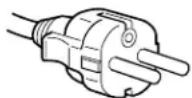
for 200 to 240 V AC
- Before disconnecting the power cord, wait at least 30 seconds after turning off the power to allow the static electricity on the screen's surface to discharge.
- After the power is turned on, the screen is demagnetized (degaussed) for about 5 seconds. This generates a strong magnetic field around the screen which may affect data stored on magnetic tapes and disks placed near the monitor. Be sure to keep magnetic recording equipment, tapes, and disks away from the monitor.
The equipment should be installed near an easily accessible outlet.
Installation
Do not install the monitor in the following places:
- on surfaces (rugs, blankets, etc.) or near materials (curtains, draperies, etc.) that may block the ventilation holes
- near heat sources such as radiators or air ducts, or in a place subject to direct sunlight
- in a place subject to severe temperature changes
- in a place subject to mechanical vibration or shock
on an unstable surface - near equipment which generates magnetism, such as a transformer or high voltage power lines
- near or on an electrically charged metal surface
- in a dusty or smoky environment
- inside an enclosed rack
Notes on cleaning the screen's surface
- The screen's surface is covered with a thin anti-reflective coating to enhance the ergonomic characteristics of the monitor. To ensure that the coating is not damaged, use a soft cloth to clean the screen's surface. If necessary, use a soft cloth lightly moistened with a mild detergent solution, such as hand soap, to wipe the screen.
- Do not use any type of abrasive pad, alkaline cleanser, scouring powder, or solvents such as alcohol or benzene as they might damage the anti-reflective coating.
- If you use a glass cleaning liquid, do not use any type of cleaner containing an anti-static solution or similar additive as this may scratch the screen's coating.
- Do not rub, touch, or tap the surface of the screen with sharp or abrasive items such as a ballpoint pen or screwdriver. This type of contact may result in a scratched picture tube.
Notes on cleaning the cabinet
- Clean the cabinet, panel and controls with a soft cloth lightly moistened with a mild detergent solution.
- Do not use any type of abrasive pad, scouring powder or solvent, such as alcohol or benzene.
Transportation
When you transport this monitor for repair or shipment, use the original carton and packing materials.
Display Stand
Do not remove this monitor's stand.
Use of the tilt-swivel
This monitor can be adjusted within the angle shown in the picture to the right. To turn the monitor vertically, hold it at the bottom with both hands. Be careful not to pinch your fingers at the back of the monitor when you tilt the monitor up vertically.

Centering line
Protection
- Do not put foreign objects into the monitor.
- Disconnect the monitor if environment exceeds 60^ / 140^ .
- Ensure AC power cord is not trapped under furniture, TV, etc.
- Do not overload wall outlets, extension cords, or convenience receptacles beyond their capacity.
- Never spill liquid of any kind on the monitor.
Setup
1 Connecting your monitor to your computer
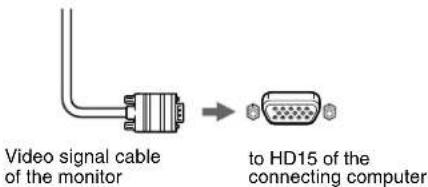
Connecting to a Macintosh or compatible computer
When connecting this monitor to a Macintosh computer, use the Macintosh adapter (not supplied) if necessary. Connect the Macintosh adapter to the computer before connecting the cable.
The pin assignment of the HD 15 video signal cable

| Pin No. Signal | |
| 1 | Red |
| 2 | Green (Sync on Green) |
| 3 | Blue |
| 4 | ID (Ground) |
| 5 | DDC Ground* |
| 6 | Red Ground |
| 7 | Green Ground |
| 8 | Blue Ground |
| Pin No. Signal | |
| 9 | DDC HOST 5V* |
| 10 | Ground |
| 11 | ID (Ground) |
| 12 | Bi-Directional Data (SDA)* |
| 13 | H. Sync |
| 14 | V. Sync |
| 15 | Data Clock (SCL)* |
- DDC (Display Data Channel) is a standard of VESA.
2 Turning on the monitor and computer
1 Connect the power cord to the monitor and press the (power) switch to turn on the monitor.
2 Turn on the computer.
No need for specific drivers
This monitor complies with the "DDC" Plug & Play standard and automatically detects all the monitor's information. No specific driver needs to be installed to the computer.
The first time you turn on your PC after connecting the monitor, the setup Wizard may appear on the screen. In this case, follow the on-screen instructions. The Plug & Play monitor is automatically selected so that you can use this monitor.
Notes
- Do not touch the pins of the video signal cable connector.
- Check the alignment of the HD15 connector to prevent bending the pins of the video signal cable connector.
Adjustments
Navigating the menu
1 Press the MENU/OK button to display the main menu.
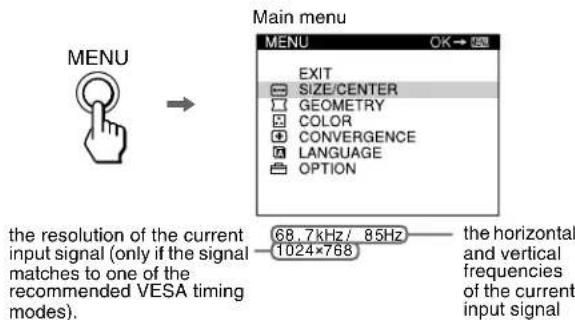
2 Move the joystick / to highlight the main menu that you want to adjust and press the MENU/OK button.

3 Move the joystick / to highlight the submenu that you want to adjust. Then move the joystick / to make adjustments.
Adjusting the brightness and contrast
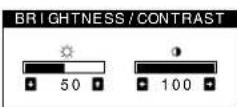
Brightness and contrast adjustments are made using a separate BRIGHTNESS/CONTRAST menu. These adjustments are effective for all input signals.
1 Move the joystick in any direction to display the BRIGHTNESS/CONTRAST menu.
2 Move the joystick / to adjust the brightness ( ), and / to adjust the contrast ( ).
Note
If you set the brightness and contrast level to "0", the picture will black out and no picture will appear.
On-Screen menu adjustments
| Main menu icons and adjustment items | Sub menu icons and adjustment items | ||
| ←→ | Adjusting the size or centering of the picture*1 | □ | Horizontal position |
| ← | Horizontal size | ||
| □ | Vertical position | ||
| □ | Vertical size | ||
| ∞ | Enlarge/reduce | ||
| Adjusting the shape of the picture | ○ | Rotating the picture *2 | |
| ○ | Expanding or contracting the picture sides*1 | ||
| ○ | Shifting the picture sides to the left or right*1 | ||
| ○ | Adjusting the picture width at the top of the screen*1 | ||
| ○ | Shifting the picture to the left or right at the top of the screen*1 | ||
| Adjusting the color of the picture*2 | See “□: To adjust the color of the picture”. | ||
| Adjusting the convergence*2 | □ | Horizontally shifts red or blue shadows | |
| ○ | Vertically shifts red or blue shadows | ||
| A | Selecting language Selecting the on-screen menu language *3 | ||
| Additional settings | ○ | DEGAUSS: demagnetizes the monitor. | |
| ○ | MOTRE ADJUST: minimizes moiré*4 | ||
| ○○ | See “To reset the adjustment”. | ||
| ○ | Protecting adjustment data (CONTROL LOCK) *5 | ||
^*1 This adjustment is effective for the current input signal.
*2This adjustment is effective for all input signals.
Language Menu
ENGLISH NEDERLANDS: Dutch
FRANCAIS: French • SVENSKA: Swedish
- DEUTsCH: German - Prrsskan
- ESPANOL: Spanish - 日本語: Japanese
ITALIANO: Italian
*4 Example of Moire

US
*5Only the (power) switch, EXIT, and On (CONTROL LOCK) menu will operate.
: To adjust the color of the picture
The COLOR settings allow you to adjust the picture's color temperature by changing the color level of the white color field. Colors appear reddish if the temperature is low, and bluish if the temperature is high. This adjustment is useful for matching the monitor's color to a printed picture's colors.
Adjustment items
You can select the preset color temperature from 5000K or 9300K. The default setting is 9300K. If necessary, you can make additional fine adjustments to the color by selecting
To reset the adjustment
The RESET option erases your customized settings. To restore your monitor to the factory settings, refer to the following steps.
Resetting the adjustment for current input signal
Move the joystick
Resetting the adjustment for all input signals
Hold the joystick for 2 seconds.
Note
When "reset the adjustment for all input signal" is activated, the customized language selection goes back to the default language of English.
Technical Features
Preset and user modes
When the monitor receives an input signal, it automatically matches the signal to one of the factory preset modes stored in the monitor's memory to provide a high quality picture (see "Preset mode timing table" on page i). For input signals that do not match one of the factory preset modes, the digital Multiscan technology of this monitor ensures that a clear picture appears on the screen for any timing in the monitor's frequency range (horizontal: 30 - 70kHz , vertical: 48 - 120Hz ). If the picture is adjusted, the adjustment data is stored as a user mode and automatically recalled whenever the same input signal is received.
Power saving function
This monitor meets the power-saving guidelines set by VESA, ENERGY STAR, and NUTEK. If no signal is received by the monitor from your computer, the monitor will automatically reduce power consumption as shown below.
| Power mode Power consumption | \( \updownarrow \) (power) indicator | |
| normal operation | \( \leq {100}\mathrm{\;W} \) green | |
| active off* | \( \leq 3\mathrm{\;W} \) orange | |
| power off \( 0\mathrm{\;W} \) (Approx.) off | ||
- When your computer is in active off mode, MONITOR IS IN POWER SAVE MODE appears on the screen if you press any button on the monitor. After a few seconds, the monitor enters the power saving mode again.
Troubleshooting
■No picture
If the (power) indicator is not lit
- Check that the power cord is properly connected.
- Check that the (power) switch is in the "on" position.
The (power) indicator is orange
- Check that the video signal cable is properly connected and all plugs are firmly seated in their sockets.
- Check that the HD15 video input connector's pins are not bent or pushed in.
- Check that the computer's power is "on".
- The computer is in power saving mode. Try pressing any key on the computer keyboard or moving the mouse.
- Check that the graphic board is completely seated in the proper bus slot.
If the (power) indicator is green or flashing orange
- Use the Self-diagnosis function.
■Picture flickers, bounces, oscillates, or is scrambled
- Isolate and eliminate any potential sources of electric or magnetic fields such as other monitors, laser printers, electric fans, fluorescent lighting, or televisions.
- Move the monitor away from power lines or place a magnetic shield near the monitor.
- Try plugging the monitor into a different AC outlet, preferably on a different circuit.
Try turning the monitor 90^ to the left or right. - Check your graphics board manual for the proper monitor setting.
- Confirm that the graphics mode and the frequency of the input signal are supported by this monitor (see "Preset mode timing table" on page i). Even if the frequency is within the proper range, some graphics board may have a sync pulse that is too narrow for the monitor to sync correctly.
- Adjust the computer's refresh rate (vertical frequency) to obtain the best possible picture.
■Picture is fuzzy
- This monitor has a high luminance mode, so small characters may not appear clearly if the monitor receives signals over 1280 · 1024 resolution. If this occurs, lower the contrast or set the computer to a lower resolution.
- Adjust the brightness and contrast.
- Degauss the monitor.*
- Adjust for minimum moir.
■Picture is ghosting
- Eliminate the use of video cable extensions and/or video switch boxes.
- Check that all plugs are firmly seated in their sockets.
■Picture is not centered or sized properly
- Adjust the size or centering. Note that with some input signals and/or graphics board the periphery of the screen is not fully utilized.
- Just after turning on the power switch, the size/center may take a while to adjust properly.
Edges of the image are curved
- Adjust the geometry.
■Wavy or elliptical pattern (moire) is visible
- Adjust for minimum moir.
- Change your desktop pattern.
Color is not uniform
- Degauss the monitor.* If you place equipment that generates a magnetic field, such as a speaker, near the monitor, or if you change the direction the monitor faces, color may lose uniformity.
■White does not look white
- Adjust the color temperature.
Monitor buttons do not operate ( appears on the screen)
- If the control lock is set to ON, set it to OFF.
Letters and lines show red or blue shadows at the edges
- Adjust the convergence.
A hum is heard right after the power is turned on
- This is the sound of the auto-degauss cycle. When the power is turned on, the monitor is automatically degaussed for five seconds.
- If a second degauss cycle is needed, allow a minimum interval of 20 minutes for the best result. A humming noise may be heard, but this is not a malfunction.
On-screen messages

1 If "OUT OF SCAN RANGE" appears:
This indicates that the input signal is not supported by the monitor's specifications. Refer to the following remedy:
- Check that the video frequency range is within that specified for the monitor. If you replaced an old monitor with this monitor, reconnect the old monitor and adjust the frequency range to the following: Horizontal: 30 - 70kHz Vertical: 48 - 120Hz
1 If "NO INPUT SIGNAL" appears:
This indicates that no input signal is present. Refer to the following remedies.
- Check that the video signal cable is properly connected and all plugs are firmly seated in their sockets.
- Check that the HD15 video input connector's pins are not bent or pushed in.
- Check that the computer's power is "on."
- Check that the graphic board is completely seated in the proper bus slot.
1 If "MONITOR IS IN POWER SAVE MODE" appears:
This indicates that the computer is in power saving mode. This message is displayed only when your computer is in a power saving mode and you press any one of the buttons on the monitor. Refer to the following remedies.
Try pressing any key on the computer keyboard or moving the mouse.
- Check that the computer's power is "on."
- Check that the graphic board is completely seated in the proper bus slot.
To display this monitor's name, serial number, and date of manufacture.
While the monitor is receiving a video signal, press and hold the center of the MENU / OK button for more than five seconds to display this monitor's information box.

If thin lines appear on the screen (damper wires)
These lines do not indicate a malfunction; they are a normal effect of the Trinitron picture tube with this monitor. These are shadows from the damper wires used to stabilize the aperture grille. The aperture grille is the essential element that makes a Trinitron picture tube unique by allowing more light to reach the screen, resulting in a brighter, more detailed picture.

Self-diagnosis function
This monitor is equipped with a self-diagnosis function. If there is a problem with your monitor or computer, the screen will go blank and the (power) indicator will either light up green or flash orange. If the (power) indicator is lit in orange, the computer is in power saving mode. Try pressing any key on the keyboard or moving the mouse.
If the (power) indicator is green
1 Disconnect the video input cable or turn off the connected computer.
2 Press the (power) button twice to turn the monitor off and then on.
3 Move the joystick for 2 seconds.
If all 4 color bars appear (white, red, green, blue), the monitor is working properly. Reconnect the video input cables. Adjust the brightness and contrast, and check the monitor. If the fault still exists, check your computer.
If the color bars do not appear, there is a potential monitor failure. Inform your authorized Sony dealer of the monitor's condition.
If the (power) indicator is flashing orange
Turn the monitor OFF and then ON.
If the (power) indicator lights up green, the monitor is working properly.
If the (power) indicator is still flashing, there is a potential monitor failure. Count the number of seconds between orange flashes of the (power) indicator and inform your authorized Sony dealer of the monitor's condition. Be sure to note the model name and serial number of your monitor. Also note the make and model of your computer and graphics board.
Specifications
CRT 0.24mm aperture grille pitch (center)
17 inches measured diagonally
90-degree deflection
FD Trinitron
Viewable image size Approx. 328· 242mm (w/h)
(13· 9^5 / _8 inches)
Viewing image 408mm (16.1 inches)
Resolution
Maximum Horizontal: 1280 dots
Vertical: 1024 lines
Recommended Horizontal: 1024 dots
Vertical: 768 lines
Standard image area Approx. 312· 234mm (w/h)
(12^3 / 8· 9^1 / 4 inches)
Deflection frequency* Horizontal: 30 to 70kHz
Vertical: 48 to 120Hz
AC input voltage/current 100 - 240V 50 - 60Hz
Max. 1.7 A - 0.9 A
Power consumption 100 W
Operating temperature 10^ to 40^
Approx. 402· 418· 421mm (w/h/d)
(157/8·161/2·165/8 inches)
Mass (Monitor weight) Approx. 19kg 41.9 lb
Plug and Play DDC2B/DDC2Bi,
GTF**
Supplied accessories Power cord (1)
Warranty card (1)
This instruction manual (1)
- Recommended horizontal and vertical timing condition
Horizontal sync width should be more than 1.0 sec
Horizontal blanking width should be more than 3.0 sec
Vertical blanking width should be more than 500~ sec
** If the input signal is Generalized Timing Formula (GTF) compliant, the GTF feature of the monitor will automatically provide an optimal image for the screen.
Design and specifications are subject to change without notice.
Table des Matieres
Précautions 3
Configuration. 4
Réglages. 4
Plug and Play DDC2B/DDC2Bi
GTF**
Accessoires fournis Cordon d'alimentation (1)
Plug and Play DDC2B/DDC2Bi
GTF
If the input signal does not match one of the factory preset modes above, the Generalized Timing Formula feature of this monitor will automatically provide an optimal image for the screen as long as the signal is GTF compliant.
- Trinitron® Color Computer Display
- Owner's Record
- WARNING
- FCC Notice
- FABRICANTE:
- DISTRIBUIDOR O IMPORTADOR:
- IMPORTANT
- INFORMATION
- NOTICE
- Declaration of Conformity
- Table of Contents
- Precautions
- Warning on power connections
- Installation
- Do not install the monitor in the following places:
- Notes on cleaning the screen's surface
- Notes on cleaning the cabinet
- Transportation
- Display Stand
- Use of the tilt-swivel
- Protection
- Setup
- Connecting your monitor to your computer
- Connecting to a Macintosh or compatible computer
- The pin assignment of the HD 15 video signal cable
- Turning on the monitor and computer
- Turn on the computer.
- No need for specific drivers
- Notes
- Adjustments
- Navigating the menu
- Adjusting the brightness and contrast
- Note
- : To adjust the color of the picture
- Adjustment items
- To reset the adjustment
- Resetting the adjustment for current input signal
- Resetting the adjustment for all input signals
- Technical Features
- Preset and user modes
- Power saving function
- Troubleshooting
- ■No picture
- If the O (power) indicator is not lit
- The O (power) indicator is orange
- If the (power) indicator is green or flashing orange
- ■Picture flickers, bounces, oscillates, or is scrambled
- ■Picture is fuzzy
- ■Picture is ghosting
- ■Picture is not centered or sized properly
- Edges of the image are curved
- ■Wavy or elliptical pattern (moire) is visible
- Color is not uniform
- ■White does not look white
- Monitor buttons do not operate ( appears on the screen)
- Letters and lines show red or blue shadows at the edges
- A hum is heard right after the power is turned on
- On-screen messages
- If "OUT OF SCAN RANGE" appears:
- If "NO INPUT SIGNAL" appears:
- If "MONITOR IS IN POWER SAVE MODE" appears:
- To display this monitor's name, serial number, and date of manufacture.
- If thin lines appear on the screen (damper wires)
- Self-diagnosis function
- If the O (power) indicator is green
- If the O (power) indicator is flashing orange
- Specifications
- Table des Matieres
Brand : SONY
Model : CPDE240
Category : Other computer accessories