
Nuendo 4 - Software license & extension STEINBERG - Free user manual and instructions
Find the device manual for free Nuendo 4 STEINBERG in PDF.



| Product type | Digital Audio Workstation (DAW) - Software license & extension |
| Version | Nuendo 4 |
| Publisher | Steinberg Media Technologies GmbH |
| Release date | April 2, 2008 |
| Distribution medium | DVD-ROM, download |
| Copy protection | Steinberg key (eLicenser) via USB port |
| Supported operating systems | Windows XP/Vista (32/64 bit), macOS 10.4 |
| Minimum configuration (Windows) | Pentium/AMD 2 GHz, 1 GB RAM, ASIO/DirectX compatible audio interface, 1024x768 resolution, Internet connection |
| Minimum configuration (Mac) | Power Mac G4 1 GHz or Core Solo 1.5 GHz, 1 GB RAM, CoreAudio audio interface, 1024x768 resolution, Internet connection |
| Supported audio formats | WAV, AIFF, MP3, Ogg Vorbis, FLAC, etc. (via import/export) |
| Audio resolution | Up to 32-bit / 192 kHz |
| Main features | Audio/MIDI recording and editing, stereo and surround mixing (5.1, LRCS), automation, VST effects, VSTi instruments, video editing, Time Warp, Control Room, MediaBay |
| Maximum audio tracks | Unlimited (system dependent) |
| Video engine | DirectShow, QuickTime (AVI, MOV, MPEG, WMV) |
| Maintenance and cleaning | Regularly update via Steinberg website, backup projects and registry (Windows) |
| Security | Never share your eLicenser key, activate software with provided code |
| Spare parts and repairability | Software is not repairable, reinstallation possible from DVD or Steinberg account |
| Available languages | French, English, German, and others (translation possible) |
| License type | Perpetual (single activation) |
Frequently Asked Questions - Nuendo 4 STEINBERG
User questions about Nuendo 4 STEINBERG
0 question about this device. Answer the ones you know or ask your own.
Ask a new question about this device
Download the instructions for your Software license & extension in PDF format for free! Find your manual Nuendo 4 - STEINBERG and take your electronic device back in hand. On this page are published all the documents necessary for the use of your device. Nuendo 4 by STEINBERG.
USER MANUAL Nuendo 4 STEINBERG
Advanced Audio and Post Production System

steinberg
Tutorials by Steve Kostrey
Working with Video and Audio Editing to Picture by Ashley Shepherd
Revision and Quality Control:
Cristina Bachmann, Heiko Bischoff, Marion Broer, Sabine Pfeifer
Thanks to: Georg Bruns, Mert Ergun
The information in this document is subject to change without notice and does not represent a commitment on the part of Steinberg Media Technologies GmbH. The software described by this document is subject to a License Agreement and may not be copied to other media except as specifically allowed in the License Agreement. No part of this publication may be copied, reproduced or otherwise transmitted or recorded, for any purpose, without prior written permission by Steinberg Media Technologies GmbH.
All product and company names are ^TM or ^® trademarks of their respective owners. Windows XP is a trademark of Microsoft Corporation. Windows Vista is either a registered trademark or trademark of Microsoft Corporation in the United States and/or other countries. The Mac logo is a trademark used under license. Macintosh and Power Macintosh are registered trademarks.
Release Date: April 02, 2008
© Steinberg Media Technologies GmbH, 2008.
Table of Contents
6 Introduction
7 About the manuals and the help
7 About the program versions
7 Key command conventions
8 How you can reach us
9 System requirements and installation
10 About this chapter
10 Minimum requirements
11 Hardware installation
12 Installing Nuendo
13 Defragmenting the hard disk (Windows only)
13 Register your software
14 Setting up your system
15 Setting up audio
19 Setting up MIDI
21 Connecting a synchronizer
21 Setting up video
22 Optimizing audio performance
24 Tutorial 1: Recording audio
25 Creating a new project
26 Setting up the VST Connections
27 Level settings and recording
30Playback
31 Recording modes with cycle off
31 Cycle recording
32 Stacked recording
34 Tutorial 2: Editing audio
35 Event operations
41 Event envelopes
41 Processing audio
43 Tutorial 3: Recording and editing MIDI
44 Introduction
44 Creating an Instrument Track
45 Browsing sounds
46 MIDI recording
47 MIDI playback
47 Recording modes with cycle off
48 Cycle recording
49 The Key Editor
51 The Controller lane
52 Tutorial 4: Working with loops
53 Loop Browser
53 Adding loops
54 Making copies
54 Insert into Project
55 Tutorial 5: External MIDI instruments
56 Introduction
56 Setting up MIDI devices
56 Setting up VST connections for external instruments
57 Monitoring external MIDI instruments
58 Recording MIDI and external instruments
59 Tutorial 6: Mixing and effects
60 Introduction
60 Setting levels
61 Setting pan
61 Mute and solo
62 Adding EQ
64 Audio effects
65 About automation
66 Exporting
69 Tutorial 7: Surround production
70 Surround busses
72 Setting up a surround mix
74 Recording in surround
74 Exporting a surround file
77 Tutorial 8: Editing audio II - tempo and groove
78 Background
78 Example 1: Drum loop, tempo known
79 Example 2: Drum loop, Auto Adjust
80 Example 3: Drum loop, Manual Adjust
82 Example 4: Working with selections
83 Tutorial 9: Media management
84 Background
84 MediaBay, Loop Browser and Sound Browser
86 Scanning with the browser
88 Searching for media
89 Auditioning media with the Scope
90 Tagging
91 Working with video
92 Introduction
92 Virtual video playback
92 Video playback engines
92 Video file compatibility
93 Adding a video file to a project
94 Video output devices
94 Video playback speed
94 Editing video
95 Rendering audio into video files
95 Video tape recorders
95 Synchronization and Machine Control
96 Layback to tape
98 Tips
99 Audio editing to picture
100 Introduction
100 Video timeline and the grid
101 Inserting audio into the project
102 Event handles
102 Event envelopes
103 Range selection
104 Range editing
105 Edit Mode
105 Text editing
106 Operations
114 Index
1
Introduction
About the manuals and the help
The Nuendo documentation is divided into several sections, as listed below. Some of the documents are in Adobe Acrobat format (extension“.pdf”) – these can be accessed in the following ways:
- You can open the pdf documents from the Documentation submenu on the Help menu in the program.
- Under Windows you can also open these documents from the Nuendo Documentation subfolder on the Windows Start menu.
- Under Mac OS X the pdf documents are located in the folder "/Library/Documentation/Steinberg/Nuendo 4".
To read the pdf documents, you need to have a suitable pdf reader application installed on your computer. An installer for Adobe Reader is provided on the program DVD.
The Getting Started book
This is the book you are reading now. The Getting Started book covers the following areas:
Computer requirements.
- Installation issues.
- Setting up your system for audio, MIDI and/or video work.
- Tutorials describing the most common procedures for recording, playing back, mixing and editing in Nuendo.
In other words, this book does not go into detail on any Nuendo windows, functions or procedures.
The Operation Manual
The Operation Manual is the main Nuendo reference documentation, with detailed descriptions of Nuendo operations, parameters, functions and techniques. You should be familiar with the concepts and methods described in the Getting Started book before moving on to the Operation Manual.
MIDI Devices
This pdf document contains descriptions of how to manage MIDI Devices and device panels.
Plug-in Reference
This manual describes the features and parameters of the included VST plug-ins, real-time audio effects and the MIDI effects.
Networking
This pdf document describes how you can use Nuendo's project sharing and networking features to collaborate with other users of Nuendo (version 2.0 or later) in a TCP/IP based peer-to-peer network.
Remote Control Devices
This pdf document lists the supported MIDI remote control devices and describes how to set them up and use them with Nuendo.
Mackie Control
This pdf document describes the supported features for the Mackie Control remote device.
Menu Reference
This pdf document provides a list of all menus and their options with a brief description, for quick reference.
The dialog help
To get information about the active dialog, click its Help button.
About the program versions
The documentation covers two different operating systems or "platforms"; Windows and Mac OS X.
Some features and settings are specific to one of the platforms, Windows or Mac OS X. This is clearly stated in the applicable cases. In other words:
If nothing else is said, all descriptions and procedures in the documentation are valid for both Windows and Mac OS X.
The screenshots are taken from the Windows version.
Key command conventions
Many of the default key commands in Nuendo use modifier keys, some of which are different depending on the operating system. For example, the default key command for Undo is [Ctrl] + [Z] under Windows and [Command] + [Z] under Mac OS X.
When key commands with modifier keys are described in this manual, they are shown with the Windows modifier key first, in the following way:
[Win modifier key]/[Mac modifier key]+[key]
For example, [Ctrl]/[Command] + [Z] means "press [Ctrl] under Windows or [Command] under Mac OS X, then press [Z]". Similarly, [Alt]/[Option] + [X] means "press [Alt] under Windows or [Option] under Mac OS X, then press [X]".
Please note that this manual often refers to "right-clicking", e.g. to open context menus, etc. If you are using a Macintosh computer with a single-button mouse, hold down [Ctrl] and click.
How you can reach us
On the Help menu in Nuendo you will find items for getting additional information and help:
- On the "Steinberg on the Web" submenu, you can find links to various Steinberg web sites. Selecting one will automatically launch your browser application and open the page.
You can find support and compatibility information, answers to frequently asked questions, links for downloading new drivers, etc. This requires that you have a web browser application installed on your computer, and a working Internet connection.
2
System requirements and installation
About this chapter
This chapter describes the requirements and installation procedures for the Windows version and the Mac version of Nuendo.
Minimum requirements
To use Nuendo, your computer must meet the following minimum requirements:
Windows
- Windows XP (Home/Professional with SP 2), or Windows Vista (32-bit and 64-bit - see below)
Intel Pentium or AMD Athlon 2 GHz processor
1GBRAM - Windows DirectX compatible audio hardware;
ASIO compatible audio hardware recommended for low latency performance. - Display resolution of 1024x768 pixels
- Steinberg Key and USB component connector
DVD ROM drive required for installation - Internet connection required for license activation
Macintosh
Mac OS X 10.4
- Power Mac G4 1 GHz or Core Solo 1.5 GHz
1GBRAM
- Display resolution of 1024x768 pixels
- CoreAudio compatible audio hardware
- Steinberg Key and USB component connector
DVD ROM drive required for installation - Internet connection required for license activation
If you want to install the 64-bit version of Nuendo, make sure you read the ReadMe document on this topic before proceeding.
You will find this document, called "Windows_Vista_64bit_[language].rft", on the installation DVD, in the ReadMe Files folder.
General notes on how to set up your system
On the Steinberg web site, under "Support-DAW Components", you can find detailed information on what to consider when setting up a computer system dedicated to audio work.
- RAM - There is a direct relation between the amount of available RAM and the number of audio channels that you can have running.
The amount of RAM specified above is the minimum requirement, but as a general rule "the more the better" applies. - Hard disk size - The size of the hard disk determines how many minutes of audio you will be able to record. Recording one minute of stereo CD quality audio requires 10 MB of hard disk space. That is, eight stereo tracks in Nuendo use up at least 80 MB of disk space per recording minute.
- Hard disk speed - The speed of the hard drive also determines the number of audio tracks you can run.
That is the quantity of information that the disk can read, usually expressed as "sustained transfer rate". Again, "the more the better" applies.
- Wheel mouse - Although a regular mouse will work fine with Nuendo, we recommend that you use a wheel mouse. This will speed up value editing and scrolling considerably.
MIDI requirements
If you intend to use the MIDI features of Nuendo, you need the following:
- A MIDI interface to connect external MIDI equipment to your computer.
- A M I D I l n s t r u m e n t.
- Any audio equipment required to listen to the sound from your MIDI devices.
Audio hardware
Nuendo will run with audio hardware that meets the following specifications:
- Stere o.
16 bit. - Support of at least the 44.1kHz sampling rate.
- Windows - The audio hardware must be supplied with a special ASIO driver, or a DirectX compatible driver, see below.
- Mac - The audio hardware must be supplied with Mac OS X-compatible drivers (CoreAudio or ASIO).
Using the built-in audio hardware of the Macintosh (Mac only)
Although Nuendo is designed with multi-channel input and output in mind, it's of course possible to use the program with "basic" stereo inputs and outputs. As of this writing, all current Macintosh models provide at least built-in 16 bit stereo audio hardware. For detailed information, refer to the documentation describing your computer.
Depending on your preferences and requirements, using the built-in audio hardware may be sufficient for use with Nuendo. It is always available for selection in Nuendo - you don't need to install any additional drivers.

Some Macintosh models have audio outputs but no inputs. This means that you can only play back audio - recording is not possible without additional audio hardware.
About drivers
A driver is a piece of software that allows a program to communicate with a certain piece of hardware. In this case, the driver allows Nuendo to use the audio hardware. For audio hardware, there are two different cases, requiring different driver configurations:
If the audio hardware has a specific ASIO driver
Professional audio cards often come with an ASIO driver written especially for the card. This allows for communication directly between Nuendo and the audio card. As a result, audio cards with specific ASIO drivers can provide lower latency (input-output delay), which is crucial when monitoring audio via Nuendo or using VST Instruments. The ASIO driver may also provide special support for multiple inputs and outputs, routing, synchronization, etc.
Audio card-specific ASIO drivers are provided by the card manufacturers. Make sure to check the manufacturer's web site for the latest driver versions.

If your audio hardware comes with a specific ASIO driver we strongly recommend that you use this.
If the audio card communicates via DirectX (Windows only)
DirectX is a Microsoft "package" for handling various types of multimedia data under Windows. Nuendo supports DirectX, or to be more precise, DirectX, which is a part of DirectX used for playing back and recording audio. This requires two types of drivers:
- A DirectX driver for the audio card, allowing it to communicate with DirectX. If the audio card supports DirectX, this driver should be supplied by the audio card manufacturer. If it isn't installed with the audio card, please check the manufacturer's web site for more information.
- The ASIO DirectX Full Duplex driver, allowing Nuendo to communicate with DirectX. This driver is included with Nuendo, and does not require any special installation.
Hardware installation
The Steinberg Key

Please read the following section before installing the Nuendo software.
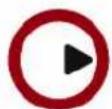
Included with the Nuendo package, you will find the Steinberg Key (also referred to as a "dongle" or "eLicenser"), a hardware copy protection device that is part of the Nuendo copy protection scheme. Nuendo will not run if there is no Steinberg Key.
The Steinberg Key
The Steinberg Key is, in fact, a little computer on which your Steinberg software licenses are stored. All hardware-protected Steinberg products use the same type of key, and you can store more than one license on one key. Also, licenses can (within certain limits) be transferred between keys - which is helpful, e.g. if you want to sell a piece of software.
The Syncrosoft License Control Center (which can be found in the Start/Programs menu under Windows or the Applications folder on a Mac) is the place where you can check the licenses installed on your Steinberg Key.
- If you are using other copy-protected Steinberg products, you may want to transfer all licenses for your applications to only one Steinberg Key, thus using only one USB port of your computer. To transfer licenses between keys, launch the License Transfer wizard of the Syncrosoft License Control Center and follow the instructions.
- Steinberg software products always come with a license activation code, but not always with a Steinberg Key - if you want to activate a license for such a Steinberg software (e.g. a VSTi) on the Steinberg Key you received with Nuendo, launch the License Download wizard of the Syn-crosoft License Control Center and follow the instructions.
More information on the transfer or activation of licenses can be found in the help for the Syncrosoft License Control Center.
Installing the audio hardware and its driver
- Install the audio card and related equipment in the computer, as described in the card's documentation.
- Install the driver for the card.
Depending on the operating system of your computer, there are different types of drivers that could apply: card-specific ASIO drivers, DirectX drivers (Windows) or Mac OS X (Mac) drivers:
Specific ASIO driver
If your audio card has a specific ASIO driver, it may be included with the audio card, but you should always make sure to check the audio card manufacturer's web site for the most recent drivers. For details on how to install the driver, refer to the manufacturer's instructions.
DirectX driver (Windows only)
If your audio card is DirectX compatible, its DirectX drivers will most likely be installed when you install the card. If you have downloaded special DirectX drivers for the audio card, you should follow the manufacturer's installation instructions.
Mac OS X drivers (Mac only)
If you are using a Macintosh computer, make sure you are using the latest Mac OS X drivers for your audio hardware. Follow the manufacturer's instructions to install the driver.
Testing the card
To make sure the audio card will work as expected, perform the following two tests:
- Use any software included with the audio card to make sure you can record and play back audio without problems.
- If the card is accessed via a standard operating system driver, try playing back audio using the computer's standard audio application (e.g. Windows Media Player or Apple iTunes).
Installing a MIDI interface/synthesizer card
Installation instructions for a MIDI interface should be included with the product. However, here's an outline of the necessary steps:
- Install the interface (or MIDI synthesizer card) inside your computer or connect it to a "port" (connector) on the computer.
Which is right for you depends on which type of interface you have. - If the interface has a power supply and/or a power switch, turn it on.
- Install the driver for the interface, as described in the documentation that comes with the interface.
You should also make sure to check the manufacturer's web site for the latest driver updates.
Installing Nuendo
The installation procedure puts all files in the right places, automatically.
Windows
- Double-click the file called "Nuendo4.msi".
- Follow the instructions on screen.
Macintosh
- Double-click the file called "Nuendo4.mpkg".
- Follow the instructions on screen.
About the tutorials
The program DVD also contains several tutorial project files and videos. These are not installed during the installation, but can be added manually from the DVD.
The tutorial chapters in this manual all refer to these tutorial projects. So, to be able to follow the instructions in this manual, you have to drag the files to your computer.
You find the Tutorial Projects in the folder "Additional Content".
About the Nuendo Expansion Kit
The Nuendo Expansion Kit adds a number of music composition functions from Steinberg's Cubase (the "Cubase Music Tools") to the standard Nuendo application. The Nuendo Expansion Kit (NEK) is a separate product and can be purchased through your Steinberg dealer.
Whenever procedures in this manual use functions available only when the NEK is installed, this is indicated in the text by "Nuendo Expansion Kit only".
Defragmenting the hard disk (Windows only)
If you plan to record audio on a hard disk where you have already stored other files, now is the time to defragment it. Defragmentation reorganizes the physical allocation of space on the hard disk in order to optimize its performance. It is done with a special defragmentation program.
It is crucial to the audio recording performance that your hard disk is optimized (defragmented). You should make sure to defragment regularly.
Register your software
We encourage you to register your software! By doing so you are entitled to technical support and kept aware of updates and other news regarding Nuendo.
There are two ways to register:
- In Nuendo, open the Help menu and select the Registration option.
This option is an Internet link that will open the Registration page of the Steinberg web site. To register, simply follow the instructions on screen. When you launch Nuendo, you will also be prompted to launch the registration process.
- Included on the Nuendo installation DVD, you can find a registration form in pdf format. To register, print out the form, enter all required information and send it to Steinberg.
Setting up your system
Setting up audio

Make sure that all equipment is turned off before making any connections!
Connecting audio
Exactly how to set up your system depends on many different factors, e.g. the kind of project you wish to create, the external equipment you want to use, the computer hardware available to you, etc. Therefore, the following sections can only serve as examples.
How you connect your equipment, i.e. whether you use digital or analog connections, also depends on your individual setup.
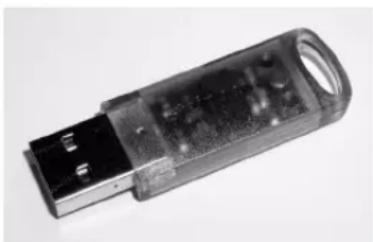
Stereo input and output - the simplest connection
If you only use a stereo input and output from Nuendo, you can connect your audio hardware, e.g. the inputs of your audio card or your audio interface, directly to the input source and the outputs to a power amplifier and speaker.
A simple stereo audio setup.
This is probably the simplest of all setups - once you have set up the internal input and output busses, you can connect your audio source, e.g. a microphone, to your audio interface and start recording.
Multi-channel input and output
Most likely however, you will have other audio equipment that you want to integrate with Nuendo, using several input and output channels. Depending on the equipment available to you, there are two ways to go: either mixing using an external mixing desk, or mixing using the mixer inside Nuendo.
- External mixing means having a hardware mixing device with a group or bus system that can be used for feeding inputs on your audio hardware.
In the example below, four busses are used for feeding signals to the audio hardware's inputs. The four outputs are connected back to the mixer for monitoring and playback. Remaining mixer inputs can be used for connecting audio sources like microphones, instruments, etc.
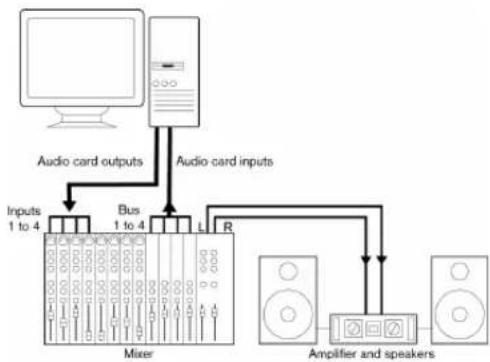
A multi-channel audio setup using an external mixer.
When connecting an input source (like a mixer) to the audio hardware, you should use output busses, sends or similar that are separate from the mixer's master output to avoid recording what you are playing back. You may also have mixing hardware that can be connected via FireWire.
- When using the Mixer inside Nuendo, you can use the inputs on your audio hardware to connect microphones and/or external devices. Use the outputs to connect your monitoring equipment.
Nuendo only: You can create very complex setups using external instruments and external effects, and integrate Nuendo seamlessly with all your external equipment using the Control Room feature (see the chapters "VST Connections: setting up input and output busses" and "The Control Room" in the Operation Manual for details).
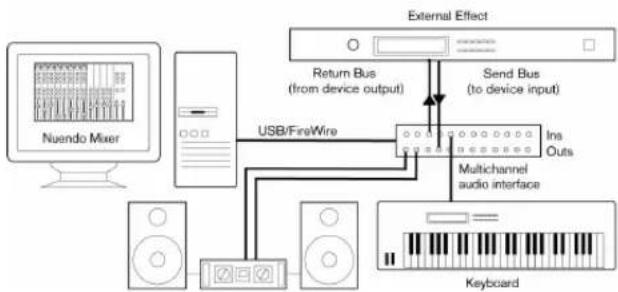
Mixing inside Nuendo
Connecting for surround sound
If you plan to mix for surround sound, you can connect the audio outputs to a multi-channel power amplifier, driving a set of surround channels.
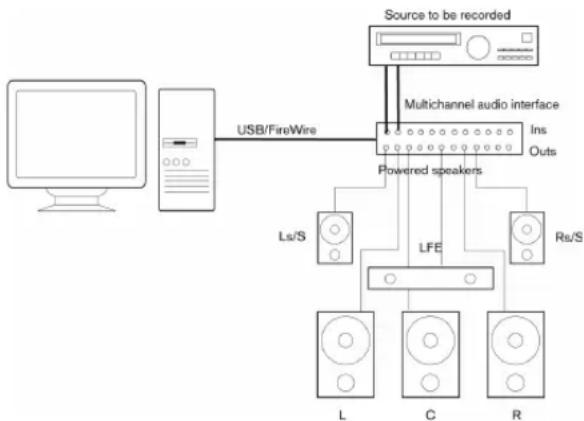
A surround sound playback configuration.
Nuendo supports a number of surround formats. The example connection above will work for mixing both LRCS (ProLogic for example) and 5.1, in which case the two surround speakers will be playing the same material (from the single surround channel). The difference between the two formats is the LFE channel, which is not used with LRCS.
Recording from a CD player
Most computers come with a CD-ROM drive that can also be used as a regular CD player. In some cases the CD player is internally connected to the audio hardware so that you can record the output of the CD player directly into Nuendo (consult the audio hardware documentation if you are uncertain).
- All routing and level adjustments for recording from a CD (if available) are done in the audio hardware setup application (see "Making settings for the audio hardware" on page 16).
- You can also grab audio tracks directly from a CD in Nuendo (see the chapter "File Handling" in the Operation Manual).
Word Clock connections
If you are using a digital audio connection, you may also need a word clock connection between the audio hardware and external devices. Please refer to the documentation that came with the audio hardware for details.

It is very important that word clock synchronization is done correctly or there might be clicks and crackles in recordings that you make!
About recording levels and inputs
When you connect your equipment, you should make sure that the impedance and levels of the audio sources and inputs are matched. Typically, different inputs may be designed for use with microphones, consumer line level (-10dBV) or professional line level (+4dBV), or you may be able to adjust input characteristics on the audio interface or in its control panel. Please check the audio hardware documentation for details.
Using the correct types of input is important to avoid distortion or noisy recordings.

Nuendo does not provide any input level adjustments for the signals coming in to your audio hardware, since these are handled differently for each card. Adjusting input levels is either done in a special application included with the hardware or from its control panel (see below).
Making settings for the audio hardware
Most audio cards come with one or more small applications that allow you to configure the inputs of the hardware to your liking.
This includes:
- Selecting which inputs/outputs are active.
- Setting up word clock synchronization (if available).
- Turning monitoring via the hardware on/off (see "About monitoring" on page 19).
- Setting levels for each input. This is very important!
- Setting levels for the outputs, so that they match the equipment you use for monitoring.
- Selecting digital input and output formats.
- Making settings for the audio buffers.
In many cases all available settings for the audio hardware are gathered in a control panel, which can be opened from within Nuendo as described below (or opened separately, when Nuendo isn't running). In some cases, there may be several different applications and panels - please refer to the audio hardware documentation for details.
Selecting a driver and making audio settings in Nuendo
The first thing you need to do is select the correct driver in Nuendo to make sure that the program can communicate with the audio hardware:
- Launch Nuendo, select Device Setup from the Devices menu and click on VST Audio System in the Devices list to the left.
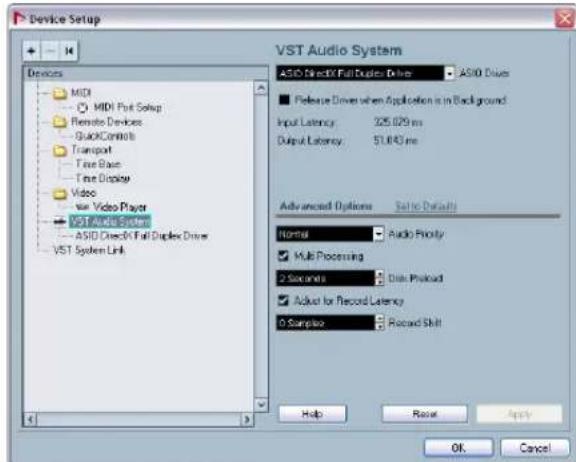
The VST Audio System page in the Device Setup dialog.
- Select your audio hardware driver from the ASIO Driver menu.
There may be several options here that all refer to the same audio hardware. When you have selected a driver, it is added to the Devices list.
!
Under Windows, we strongly recommend that you access your hardware via an ASIO driver written specifically for the hardware, if available. If no ASIO driver is installed, we recommend that you check with your audio hardware manufacturer if they have an ASIO driver available, for example for download via the Internet.
-
Select the driver in the Devices list to open the Driver settings for your audio hardware.
-
Bring up the control panel for the audio hardware and adjust the settings as recommended by the audio hardware manufacturer.
-
Under Windows, you open the control panel by clicking the Control Panel button.
The control panel that appears when you click this button is provided by the audio hardware manufacturer and not Nuendo (unless you use DirectX, see below). Hence it will be different for each audio card brand and model.
The Control panel for the ASIO DirectX driver is an exception, as it is provided by Steinberg, and is described in the dialog help, opened by clicking the Help button in the dialog. See also the notes below.
- Under Mac OS X, you will find the control panel for your audio hardware in the System Preferences ("Other" section), opened from the Apple menu or from the Dock.
If you are using the built-in audio hardware of the Macintosh, you use the "Sound" control panel in the System Preferences to set levels, balance, etc. If you are using ASIO audio hardware, you can click the Control Panel button to bring up its panel.
- If you plan to use several audio applications simultaneously, you may want to activate the option "Release Driver when Application is in Background" on the VST Audio System page. This will allow another application to play back via your audio hardware even though Nuendo is running.
The application that is currently active (i.e. the "top window" on the desktop) will get access to the audio hardware. Make sure that any other audio application accessing the audio hardware is also set to release the ASIO (or Mac OS X) driver so Nuendo can use it when it becomes the active application again.
- If your audio hardware and its driver support ASIO Direct Monitoring, you may want to activate the Direct Monitoring checkbox on the page for the driver.
Read more about monitoring later in this chapter and in the chapter "Recording" in the Operation Manual.
- Click Apply and then OK to close the dialog.
If you are using audio hardware with a DirectX driver (Windows only)
If your Windows audio hardware does not have a specific ASIO driver, a DirectX driver is the next best option.
Nuendo comes with a driver called ASIO DirectX Full Duplex, available for selection on the ASIO Driver pop-up menu (VST Audio System page).
To be able to take full advantage of DirectX Full Duplex, the audio hardware must support WDM (Windows Driver Model) in combination with DirectX version 8.1 or higher.
In all other cases, the audio inputs will be emulated by DirectX (see the dialog help for the ASIO DirectX Full Duplex Setup dialog for details about how this is reported).
During the installation of Nuendo, the latest DirectX will be installed on your computer.
When the ASIO DirectX Full Duplex driver is selected in the Device Setup dialog, you can open the ASIO Control Panel and adjust the following settings (for more details, click the Help button in the control panel):
- Direct Sound Output and Input Ports
In the list to the left in the window, all available Direct Sound output and input ports are listed. In many cases, there will be only one port in each list. To activate or deactivate a port in the list, click the checkbox in the left column. If the checkbox is ticked, the port is activated.
- You can edit the Buffer Size and Offset settings in this list if necessary, by double-clicking on the value and typing in a new value.
In most cases, the default settings will work fine. Audio buffers are used when audio data is transferred between Nuendo and the audio card. While larger buffers ensure that playback will occur without glitches, the latency (the time between the moment Nuendo sends out the data and when it actually reaches the output) will be higher.
- Offset
If a constant offset is audible during playback of Audio and MIDI recordings, you can adjust the output or input latency time using this value.
Setting up the input and output ports
Once you have selected the driver and made the settings as described above, you need to specify which inputs and outputs should be used and name these:
- In the Device Setup dialog, select your driver in the Devices list on the left to display the Driver settings for your audio hardware.
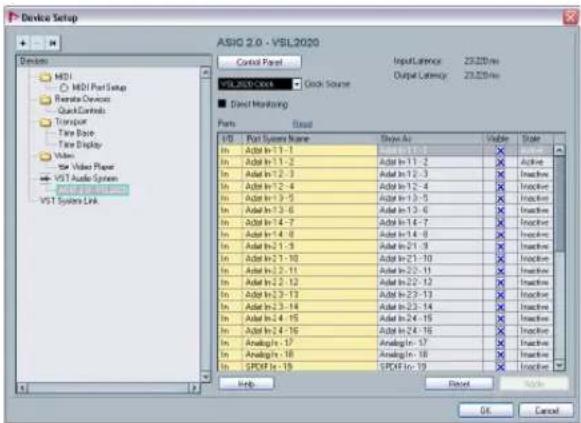
All input and output ports on the audio hardware are listed.
- To hide a port, click in the "Visible" column for the port (deselecting the checkbox).
Ports that aren't visible cannot be selected in the VST Connections window where you set up your input and output busses - see "Setting up the VST Connections" on page 26 and the chapter "VST Connections: setting up input and output busses" in the Operation Manual.
If you attempt to hide a port that is already used by a bus you will be asked whether this is really what you want - note that this will disable the port!
- To rename a port, click on its name in the "Show as" column and type in a new name.
It is a good idea to give your ports names that are related to the channel configuration (rather than to the actual hardware model)!
For example, if you are using a 5.1 surround audio setup, you could name the six ports Left, Right, Center, Life, Left Surround and Right Surround. This makes it easier to transfer your projects between different computers, e.g. in different studios - if the same port names are used on both computers, Nuendo will automatically handle the bus connections properly when you open the project on the other computer.
- Click OK to close the Device Setup dialog and apply your changes.
About monitoring
In Nuendo, monitoring means listening to the input signal while preparing to record or while recording. There are three ways to monitor:
External monitoring
External monitoring (listening to the input signal before it goes into Nuendo) requires an external mixer for mixing the audio playback with the input signal. This can be a classic mixing desk or a mixer application for your audio hardware, if this has a mode in which the input audio is sent back out again (usually called "Thru", "Direct Thru" or similar).
Via Nuendo
In this case, the audio passes from the input into Nuendo, possibly through Nuendo effects and EQ and then back to the output. You control monitoring via settings in Nuendo.
This allows you to control the monitoring level from Nuendo and add effects to the monitored signal only.
ASIO Direct Monitoring
If your audio hardware is ASIO 2.0 compatible, it may support ASIO Direct Monitoring (this feature may also be available for audio hardware with Mac OS X drivers). In this mode, the actual monitoring is done in the audio hardware, by sending the input signal back out again. However, monitoring is controlled from Nuendo. This means that the audio hardware's direct monitoring feature can be turned on or off automatically by Nuendo.
Monitoring is described in detail in the chapter "Recording" in the Operation Manual. However, when setting up, there's one thing to note:
- If you want to use the external monitoring via your audio hardware, make sure the corresponding functions are activated in the card's mixer application.
If you are using RME Audio Hammerfall DSP audio hardware, make sure that the pan law is set to -3dB in the card's preferences.
Setting up MIDI
Make sure that all equipment is turned off before making any connections!
This section describes how to connect and set up MIDI equipment. If you have no MIDI equipment, you can skip this section. Note that this is only an example - you might need or want to hook things up differently!
Connecting the MIDI equipment
In this example we assume that you have a MIDI keyboard and an external MIDI sound module. The keyboard is used both for feeding the computer with MIDI messages for recording and for playing back MIDI tracks. The sound module is used for playback only. Using Nuendo's MIDI Thru feature (described later) you will be able to hear the correct sound from the sound module while playing the keyboard or recording.
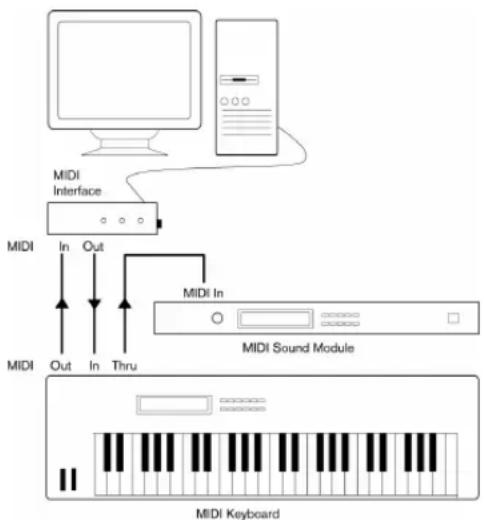
A typical MIDI Setup.
You might want to use even more instruments for playback. If you do, simply connect MIDI Thru on the sound module to MIDI In on the next instrument, and so on. In this hook-up, you will always play the first keyboard when recording. But you can still use all your devices for providing sounds on playback.
If you plan to use more than three sound sources, we recommend that you either use an interface with more than one output, or a separate MIDI Thru box instead of the Thru jacks on each unit.
Setting MIDI Thru and Local On/Off
In the "MIDI" section in the Preferences dialog (located on the File menu under Windows and on the Nuendo menu under Mac OS X), you will find a setting called "MIDI Thru Active". This is related to a setting in your instrument called "Local On/Off" or "Local Control On/Off".
- If you use a MIDI keyboard instrument, as described earlier in this chapter, MIDI Thru should be activated and that instrument should be set to Local Off (sometimes called Local Control Off - see the instrument's operation manual for details). The MIDI signal from the keyboard will be recorded in Nuendo and at the same time be re-routed back to the instrument so that you hear what you are playing, without the keyboard "triggering" its own sounds.
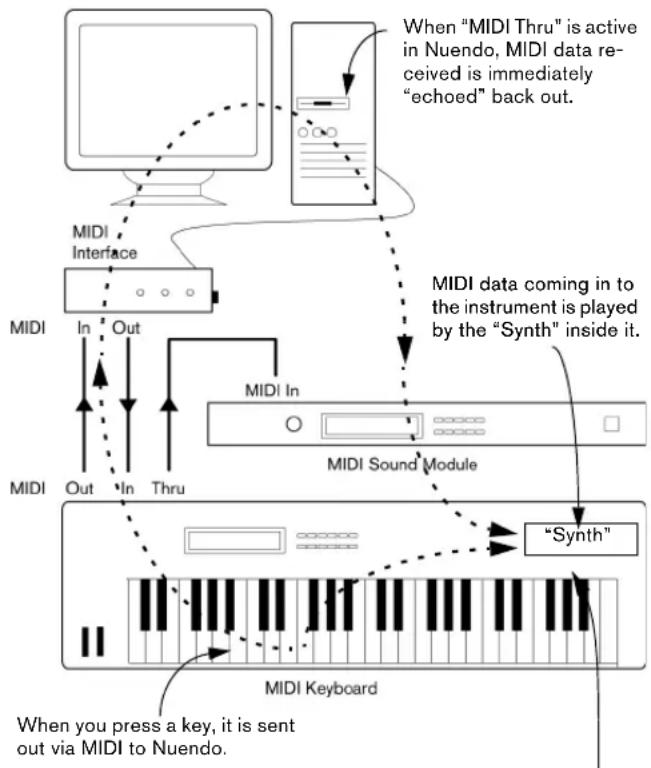
When Local Control is turned on in the instrument, the keys you press will be played by the "Synth" inside the Instrument. When Local Control is turned off, this connection is cut off.
- If you use a separate MIDI keyboard - one that does not produce any sounds itself - MIDI Thru in Nuendo should also be activated, but you don't need to look for any Local On/Off setting in your instruments.
- The only case where MIDI Thru should be deactivated is if you use Nuendo with only one keyboard instrument and that instrument cannot be set to Local Off mode.
- Note that MIDI Thru will be active only for those MIDI tracks that are record enabled and/or have the Monitor button activated. See the chapter "Recording" in the Operation Manual for more information.
Setting up MIDI ports in Nuendo
The Device Setup dialog lets you set up your MIDI system in the following ways:
Note: When you change MIDI port settings in the Device Setup dialog, these are automatically applied in the program.
Showing or hiding MIDI Ports
The MIDI ports are listed in the Device Setup dialog on the MIDI Port Setup page. By clicking in the "Visible" column for a MIDI input or output, you can specify whether or not it should be listed on the MIDI pop-up menus in the program.
If you are trying to hide a MIDI port which is already selected for a track or a MIDI device, a warning message will appear, allowing you to hide - and disconnect - the port or to cancel the operation and keep the MIDI port visible.
Setting up the "All MIDI Inputs" option
When you record MIDI in Nuendo, you can specify which MIDI input each recording MIDI track should use. However, you can also select the "In All Inputs" option for an input port, which causes any MIDI data from any MIDI input to be recorded.
The "In All Inputs" option on the MIDI Port Setup page allows you to specify which inputs should be included when you select All MIDI Inputs for a MIDI track. This can be especially useful if your system provides several instances of the same physical MIDI input - by deactivating the duplicates you make sure only the desired MIDI data is recorded.
If you have a MIDI remote control unit connected, you should also make sure to deactivate the "In All Inputs" option for that MIDI input.
This will avoid accidentally recording the data from the remote control when the "All MIDI Inputs" option is selected as input for a MIDI track.
Connecting a synchronizer
Make sure that all equipment is turned off before making any connections!
When using Nuendo with external tape transports, you will most likely need to add a synchronizer to your system. All connections and setup procedures for synchronization are described in the chapter "Synchronization" in the Operation Manual.
Setting up video
Make sure that all equipment is turned off before making any connections!
Nuendo plays back video films in AVI, QuickTime or MPEG formats. Under Windows, video playback can be done using the playback engines DirectX, DirectX Show or QuickTime. Under Mac OS X, QuickTime is used as playback engine.
There are several ways to play back video:
- Without any special hardware.
While this will be fine in many situations it does put a limit on the size of the internal video window as well as the quality of the image.
- Using FireWire (Mac OS X).
Using a FireWire port, you can play back video on an external monitor using a DV-to-analog converter or a DV camera (see also the Video chapter in the Operation Manual).
This is valid for DV video and QuickTime is used for playback.
- Using Graphics cards (Windows).
Multi-head graphics cards which support overlay functionality can be used to display the video picture on an external monitor. As of this writing, the following manufacturers have working solutions available: nVIDIA and Matrox.
- Using Video cards.
Video cards can also be used to display the video on an external monitor. As of this writing, e.g. Decklink (Blackmagic) can be used.
If you plan to use special video hardware, install it and set it up as recommended by the manufacturer.
Before you use the video hardware with Nuendo, we recommend that you test the hardware installation with the utility applications that came with the hardware and/or the Windows Media Player or QuickTime Player (Mac OS X) applications.
Optimizing audio performance
This section gives you some hints and tips on how to get the most out of your Nuendo system, performance-wise. Some of this text refers to hardware properties and can be used as a guide when upgrading your system. This text is very brief. Look for details and current information on the Nuendo web site (see "How you can reach us" on page 8)!
Two aspects of performance
There are two distinct aspects of performance in respect to Nuendo:
Tracks and effects
Simply put: the faster your computer, the more tracks, effects and EQ you will be able to play. Exactly what constitutes a "fast computer" is almost a science in itself, but some hints are given below.
Short response times (latency)
Another aspect of performance is response time. The term "latency" refers to the "buffering", i.e. the temporary storing, of small chunks of audio data during various steps of the recording and playback process on a computer. The more and larger those chunks, the higher the latency.
High latency is most irritating when playing VST Instruments and when monitoring through the computer, i.e. when listening to a live audio source via the Nuendo mixer and effects. However, very long latency times (several hundred milliseconds) can also affect other processes like mixing, e.g. when the effect of a fader movement is heard only after a noticeable delay.
While Direct Monitoring and other techniques reduce the problems associated with very long latency times, a system that responds fast will always be more convenient to work with.
- Depending on your audio hardware, it may be possible to "trim" your latency times, usually by lowering the size and the number of buffers.
For details, refer to the audio hardware documentation, or, if you are using a DirectX driver under Windows, the dialog help.
System factors that affect performance
CPU and processor cache
It goes without saying that the faster the computer processor, the better. But there are a number of factors that affect the apparent speed of a computer: the bus speed and type (PCI is strongly recommended), the processor cache size and of course, the processor type and brand. Nuendo relies heavily on floating point calculations. When shopping for a processor, please make sure you get one that is powerful in calculating floating point arithmetics.
Note also that Nuendo features full support for multi-processor systems. So, if you own a computer system with more than one processor, Nuendo can take advantage of the total capacity and evenly distribute the processing load to all available processors. See "The advanced options" on page 23.
Hard disk and controller
The number of hard disk tracks you can record and play back at the same time also depends on the speed of your hard disk and hard disk controller. If you use E-IDE disks and controllers, make sure that the transfer mode is DMA Busmaster. Under Windows, you can check the current mode by launching the Windows Device Manager and looking for properties of the IDE ATA/ATAPI Controller's primary and secondary channel. DMA transfer mode is enabled by default, but may be turned off by the system should hardware problems occur.
Audio hardware and driver
The hardware and its driver can have some effect on regular performance. A badly written driver can reduce the performance of your computer. But where the hardware driver design makes the most difference is with latency.
Again, we strongly recommend that you use audio hardware for which there is a specific ASIO driver!
This is especially true when using Nuendo for Windows:
-
Under Windows, ASIO drivers written specifically for the hardware are more efficient than a DirectX driver and produce shorter latency times.
-
Under Mac OS X, audio hardware with properly written Mac OS X (Core Audio) drivers can be very efficient and produce very low latency times.
However, there are additional features currently only available with ASIO drivers, such as the ASIO Positioning Protocol.
Making settings that affect performance
Choosing a driver for your audio hardware
As described in the section "Selecting a driver and making audio settings in Nuendo" on page 17, it is recommended to install and use a standard ASIO driver if available for your specific hardware. Check the manufacturer's web site for the latest drivers, etc.
Making audio buffer settings
Audio buffers affect how audio is sent to and from the audio hardware. The size of the audio buffers affects both the latency and the audio performance. Generally, the smaller the buffer size, the lower the latency. On the other hand, working with small buffers can be demanding for the computer. If the audio buffers are too small, you may get clicks, pops or other audio playback problems.
- Under Mac OS X, you can adjust the size of the buffers on the VST Audio System page in the Device Setup dialog. You may also find buffer settings in the control panel for the audio hardware.
- Under Windows, you adjust the buffer size settings in the control panel for the audio hardware (opened by clicking the Control Panel button on the driver page in the Device Setup dialog).
The advanced options
On the VST Audio System page you will find the "Advanced options" section. Here you find advanced settings for the VST Engine, including a Multi Processing option. When this is activated (default setting if you have a hyper-threading or multiple-CPU system) and there is more than one CPU in your system, the processing load is distributed evenly to all available CPUs, allowing Nuendo to make full use of the combined power of the multiple processors. See the dialog help for details.
Activating the "Lower Latency" option will basically disable the CPU overload protection, but allow for lower latencies. See the dialog help for details.
Optimizing processor scheduling (Windows only)
To get the lowest possible latencies when using ASIO under Windows XP (on a single-CPU system), the "system performance" has to be optimized for background tasks:
- Open the Windows Control Panel from the Start menu and select System.
- Select the Advanced tab and click the Settings button in the Performance section. The Performance Options dialog appears.
- Select the Advanced tab.
- In the Processor Scheduling section, select "Adjust for best performance of: Background services".
- Click OK to close the dialogs.
Tutorial 1: Recording audio
Creating a new project
In this section we are going to explain how to create a new project, save a project and open a saved project.
When you first open Nuendo an empty screen appears before you. You need to either create a new project or open an existing one.
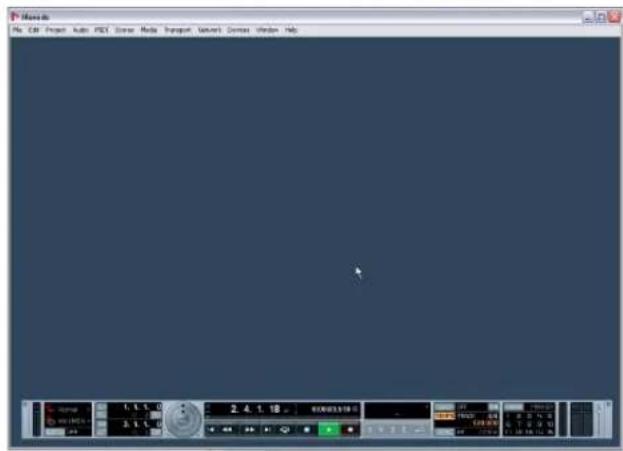
To Create a New Project:
- Let's create a new project by selecting "New Project" from the "File" Menu.
- The Templates dialog box will open up.
Templates are discussed in the "File Handling" section of the Operation Manual.
- Choose "Empty".
This will create a new project with nothing in it.
-
Click "OK".
-
Nuendo now wants to create a folder on the hard drive so that your Nuendo project file and all of its related files are stored in one safe place.
It is important that every project gets stored in its own folder. Having many different projects stored in the same folder only leads to confusion later on.
- Navigate to where you would like this project to be created.
NOTE: You are not saving the project at this point! You are creating a folder on the hard drive that your project will get saved into later. This will be explained very shortly.
-
Click "Create" on the PC or "New Folder" on the Mac to create a new folder for your project.
-
Give your new folder a name.
If your are going to name your project "My First Project" then you could call this folder "My First Project" or "First Project". What's important here is that you are creating a folder on the hard drive to store your project into it. This folder should have a unique name that is different than any other Nuendo project you have created before.

- Click "OK" on the PC or "Create" on the Mac.
Your project folder is now created on the hard drive!
-
Now click "OK" on the PC or "Choose" on the Mac.
-
You should be looking at your very first project in Nuendo now, Congratulations!
If you look at the top of the window in Nuendo (called the Project window) you'll see the name of this project is "Untitled1". Proceed further to learn how to save your first project.
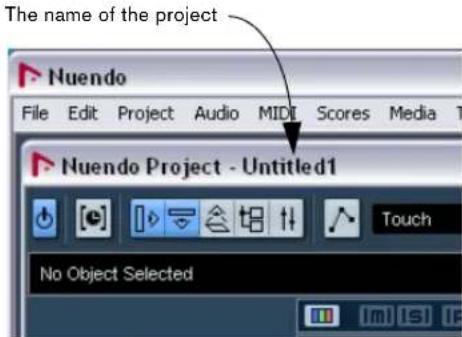
You're not done yet!
So far we've created a blank Nuendo project. We have a folder sitting on the hard drive but we haven't saved the actual Nuendo project yet.
To save a project
- Select "Save As..." from the File menu.
The difference between Save and Save As are discussed in the chapter "File Handling" in the Operation Manual. - You will notice that Nuendo is in the "My First Project" folder that you created earlier. This is where you want to save your project. Type in a name for your Project - you can use "My First Nuendo Project" for example.
- Click "Save" - and that's it!
To close a project
- Make sure the Project window is selected.
The Project window is the main window that you work in. See the chapter "The Project window" in the Operation Manual. - Select "Close" from the "File" Menu.
If you have made any changes to the project since you last saved it, you will be prompted to "Save", "Don't Save" or "Cancel". Click "Save" if you want your changes saved.
To open a project
Now that we have saved and closed your project, let's show you how to open it.
Open a project using the "Open" command
- Select "Open" from the "File" Menu.
Here you can navigate to the folder that has the project you wish to open. - Once you have found the project click "Open" and the project will load.
Open a project using the "Recent Projects" submenu
Nuendo remembers recently open projects and lists them in the "Recent Projects" submenu under the "File" menu.
- Select "Recent Projects" from the "File" Menu.
- Choose the project you wish to open by clicking once on it.
Setting up the VST Connections
The VST Connections window allows you to set up the input and output signals of Nuendo to your audio card. Nuendo calls these "busses". This section will show you how to set the busses up so that you can get playback and recording working.
Make sure you read the chapters "System requirements and installation" on page 9 and "Setting up your system" on page 14, so that your audio hardware is properly setup before proceeding.

Load the project called "VST Connections" found in the "Tutorial 1" folder.
Note that the Tutorial projects are not installed by default during the installation of Nuendo. You will find the Tutorial Projects on the program DVD, in the folder "Additional Content".
Adding outputs
- Open the "Devices" menu and choose "VST Connections".
The default key command for this is [F4].
- You'll see several tabs at the top of the window. We're only going to cover Input and Output right now. See the chapter "VST Connections" in the Operation Manual for more details.
- Let's choose "Output" first. We want to start from scratch and remove anything that is currently there, just in case it's set up incorrectly. If you see anything in the "Bus Name" column, right-click with the mouse and choose "Remove Bus".
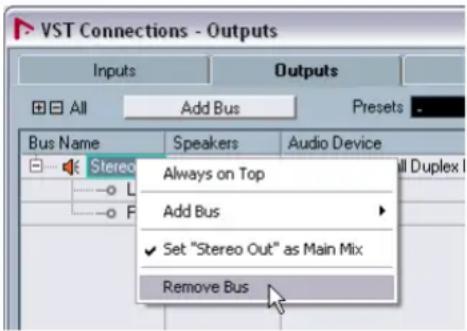
- Now click the "Add Bus" button. Choose "Stereo" for configuration and "1" for count and click OK.
This has now added a new stereo bus (Left and Right) allowing us to have audio in Nuendo route to our audio hardware.
- Since we mainly listen to our music as a stereo mix, all we need is a stereo output.
We can listen to our music with more than 2 channels. If we for example had a surround sound setup.
- Depending on your audio hardware, your outputs should be setup now. You can however select the outputs of your choice from the "Device Port" pull down menu.
Normally you'll want to choose "Out 1" and "Out 2" or "Left 1" and "Right 2" as these are the main stereo outputs of your audio card. More sophisticated setups may require you to choose different outputs and even add more busses.
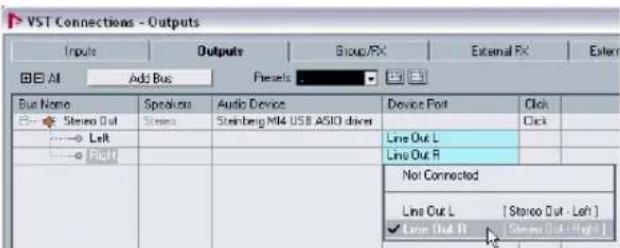
Adding Inputs
Now let's open the "Input" tab and set up the inputs we are going to use for recording into Nuendo.
- Do the same as mentioned above for the outputs. Right-click and select "Remove Bus".
- Click the "Add Bus" button. Choose "Stereo" for configuration and "1" for count and click "OK".
This has now added a new stereo bus (Left and Right) allowing us to have audio from our audio card's input route to Nuendo for recording.
- Having a stereo input is useful for recording audio with two channels. An example of this is recording a keyboard with a left and right audio channel. If we wanted to record in mono or with one channel we can make separate busses. Let's do this now.
- Click the "Add Bus" button. Choose "Mono" for configuration and "2" for count and click "OK".
This has now added two new mono busses allowing us to have audio from our audio card's input route to Nuendo for recording.
- Next, click in the "Device Port" column to select the audio inputs of your audio card for the stereo and mono inputs.
In our case we have the MI4 interface so we are selecting "MI4 Channel A" and "MI4 Channel B" for our inputs.
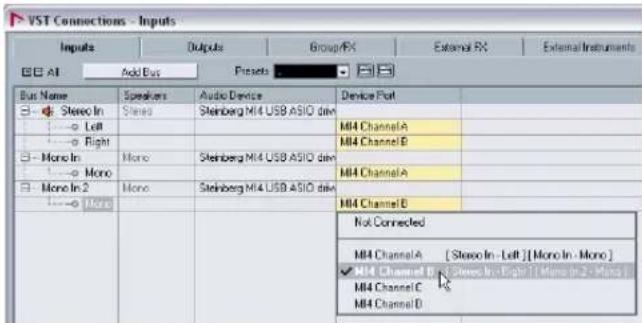
That's it! You should now be ready to record audio in Nuendo and then play it back.
Level settings and recording
For this section, we are going to record a bass guitar in mono from the input "Mono In". Make sure you have your audio card set up and you have read through the section "Setting up the VST Connections" on page 26.
! Load the project called "Recording" found in the "Tutorial 1" folder.
Adding a mono track
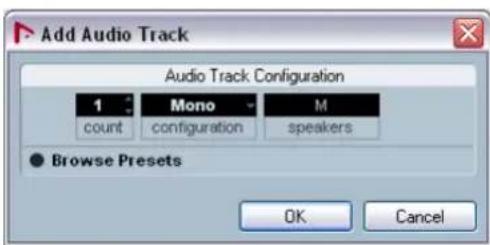
- Now let's add an audio track to record to. Open the Project menu and choose "Audio" from the "Add Track" submenu.
- Choose "Mono" for Configuration and "1" for Count. Click "OK".
This adds a mono audio track to our Project window.
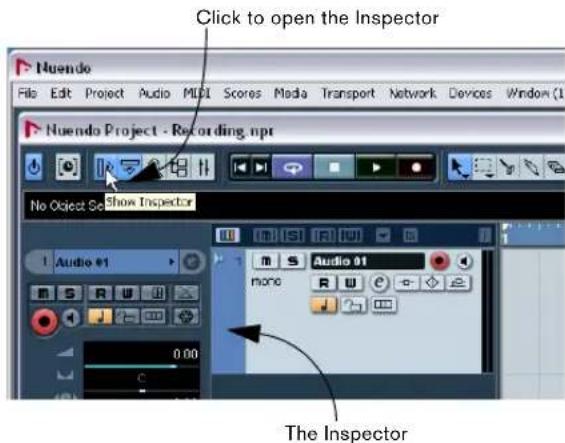
- Click on the new track you've created and make sure the Inspector is shown.
The Inspector allows us to see and manipulate a lot of information for the selected track.
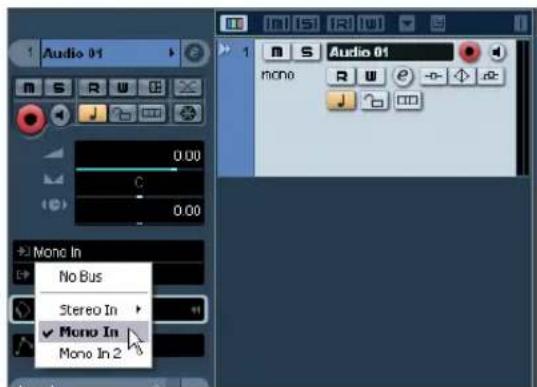
- Make sure that "Mono In" is selected for the audio track's input and that "Stereo Out" is selected for the audio tracks output.
You may have different inputs and outputs based on your audio hardware. See the chapter "VST Connections" in the Operation Manual for more detailed information. By setting "Mono In", we will be able to record the audio from the left input of our audio card into a track in Nuendo. Setting the output to "Stereo Out" allows us to hear what we are recording.
Turning on the metronome click
We'll want to have a click or metronome play in the background as we record the bass guitar so that what we record aligns with the bars and beats in Nuendo.
- Activate the "Metronome/Click" button on the Transport panel.
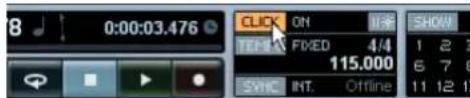
- If you would like a two bar count in before you record, also activate the "Precount/Click" button.
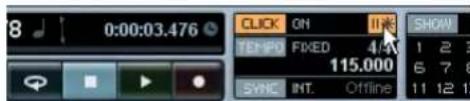
- We now need to set the speed or the tempo of our project. This will directly affect how fast the click plays. You can set the tempo just below the click.

In this picture, we have a setting of 125, which means 125bpm (beats per minute).
Setting levels
We have a bass guitar playing through an amplifier with a microphone in front of the amplifier's speaker. This microphone is plugged directly into the Steinberg MI4 microphone input. We have set the level on the MI4 so that we have enough volume without clipping.
- Clicking the Monitor button will allow us to hear the bass guitar.
You should see and hear the audio coming in to the right of the track.
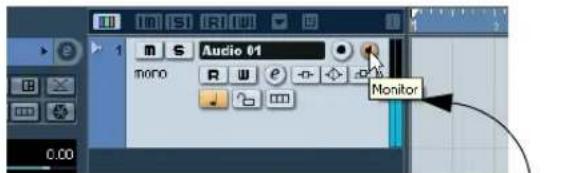
Audio coming into this track
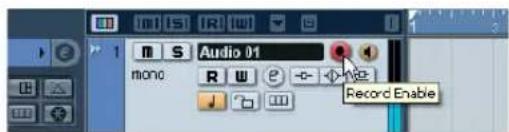
- Now click the "Record Enable" button on the track. Setting the track to Record Enable lets Nuendo know that you want to record on this track and no other one. You can have many tracks Record Enabled at a time.
- In the Inspector, open the "Channel" tab. This will display the channel fader for the selected track.
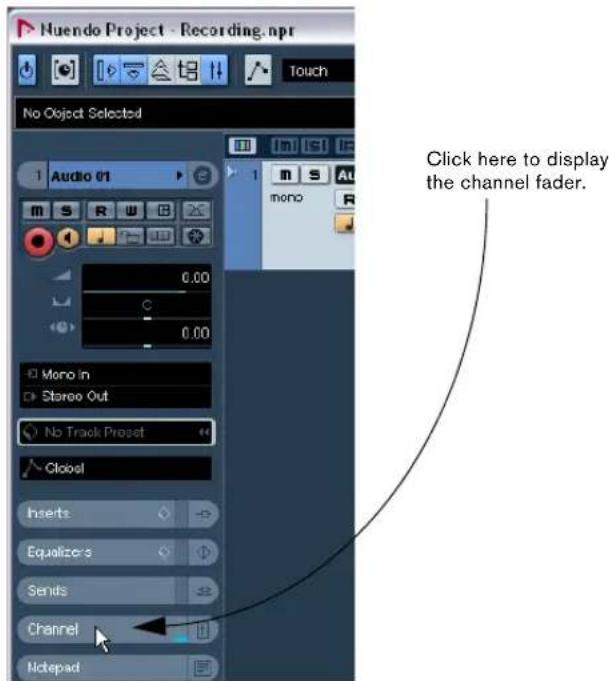
-
Do the best you can to send the maximum amount of volume to the audio inputs of your audio card before you hear any distortion. Most audio cards show some kind of level or volume indication. If yours doesn't, don't worry, we can change the amount here.
-
Move the fader up or down so that the volume is loud enough without going into the red on the channel meter. If you go into the red you may cause clipping or distortion. You will see a line near the top of the channel meter - make sure the level does not go over this line!
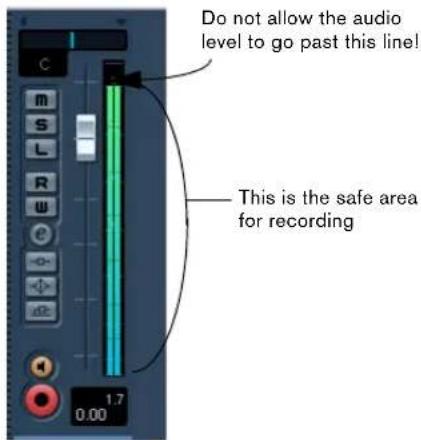
- Once the level is set, you are ready to record!
Recording bass guitar
- Position the cursor at the beginning of the project. This will make sure we start recording on bar 1.
- Click the Record button to record the bass guitar. Since the "Precount/Click" button is activated, we'll hear two bars of click before recording begins.
- Click "Stop" when you are finished.
- Turn off the Monitor and Record Enable buttons on the track so that we don't hear the input or record on the track any more.
Congratulations! You have just recorded your first piece of audio in Nuendo. Move ahead to the next section to learn how to play back audio.
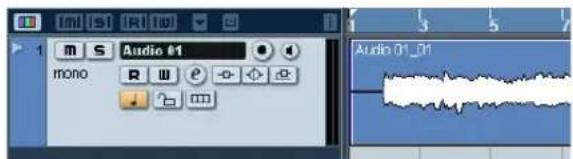
Playback
We are going to learn how to play back audio in Nuendo. You might think this is very simple - just hit "Play". It is actually this simple but there are a few tricks to learn so that you'll be playing back what you want with precision.
! Load the project called "Playback" found in the "Tutorial 1" folder.
To start playback
There are a few ways you can play back in Nuendo.
- Click the "Start" button on the Transport panel.
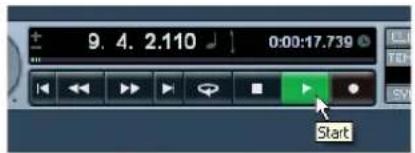
- Press the space bar on your computer keyboard. This toggles between start and stop.
- Press the [Enter] key of the numerical computer keypad.
- Double-click in the lower half of the ruler.
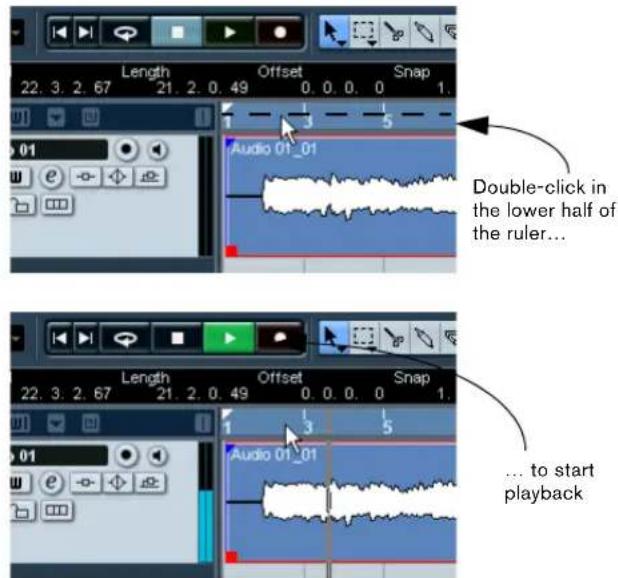
- Select the audio event called "Audio 01_01" and choose "Loop Selection" from the Transport menu.
The default key command for this is [Shift] + [G]. This is the quickest way to loop an audio event and start playback!
To stop playback
- Click the "Stop" button on the Transport panel.
- Clicking the "Stop" button twice moves the cursor to the position in the project where you started playback.
- Press the space bar on your computer keyboard. This toggles between stop and start.
- Press the "0" key of the numerical computer keypad.
Cycle playback
Nuendo has the ability to loop or cycle a section of your project. To set the cycle location you need to use the left and right locator.
- On the Transport panel, set the left locator to "1" and the right locator to "5".
This tells Nuendo that we want to loop or cycle between bars 1 and 5. Meaning we will have a 4 bar loop since the end of bar 4 is the beginning of bar 5.
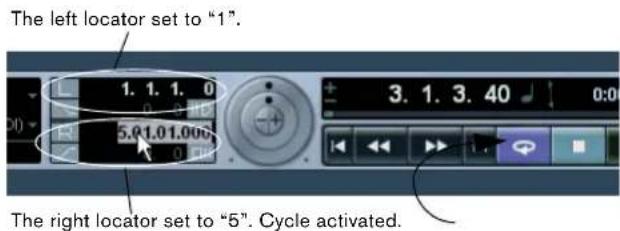
- Make sure that the "Cycle" button is activated.
- Click the Start button on the Transport panel and Nuede will play looping over and over until you click "Stop".
Don't forget - you can set the locators to encompass the selected event, turn on "Cycle" and begin playback all by the key command [Shift] + [G].
Recording modes with cycle off
There are three different modes for recording when the cycle is turned off. This is called linear recording. The three modes are:
Normal
- Merge
- Replace
When recording audio, "Normal" and "Merge" are the same. Selecting either of these will allow you to record over the top of another audio event and it will appear as an overlap. You can then select between the overlapping events and determine which one will play. This is discussed in the section "Cycle recording" on page 31.
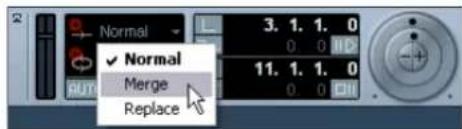
"Replace" mode when used will not overlap the audio if there is already some on the track. It will split or cut the audio where the recording takes place replacing what was there previously. Keep in mind though that the audio being replaced is not permanently deleted. It is only cut or trimmed away allowing you to recover it later.
Cycle recording
You can record audio while "cycle" is on.

Load the project called "Cycle Recording" found in the "Tutorial 1" folder.
So far we've shown you how to add tracks, record and playback. Now we are going to add an electric guitar to our bass guitar using cycle recording. Recording with cycle on allows us to make multiple passes of our recording and then pick the best take.
If you haven't reviewed the previous sections in this tutorial, please do as we are going to move a little faster now.
Recording electric guitar
- Let's add another "Mono" audio track.
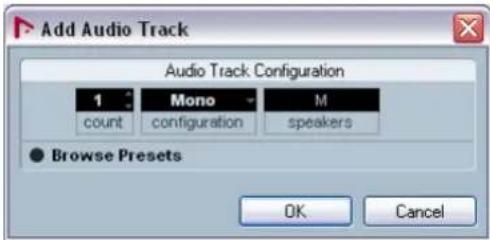
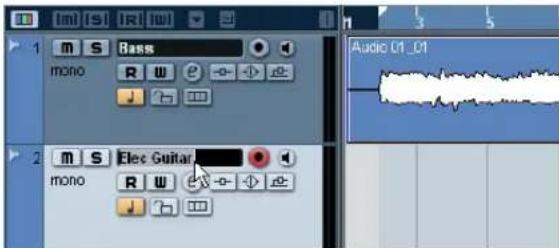
- You can see now that we have a track called "Audio 01" and "Audio 02". Up to now we haven't been concerned about naming the tracks but let's do this now.

- Double-click on "Audio 01" and re-name it "Bass".
-
Double-click on "Audio 02" and re-name it "Elec Guitar". That looks a lot better now.
-
It's always good to name your tracks before you start to record. This way the audio event will take the name of the track. Since "Audio 01" was the name of our first track the audio event is named "Audio 01_01". The suffix "_01" being the first event recorded on the "Audio 01" track. We'll show you how to re-name your audio files in the chapter "Tutorial 2: Editing audio" on page 34.
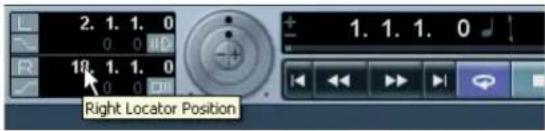
- Make sure "Cycle" is activated, set the left locator to 2 and the right locator to 18.
This will loop or cycle between bars 2 and 18.
- On the Transport panel, make sure "Mix (MIDI)" is selected for the "Cycle Record Mode".
This will allow us to record the electric guitar, and as each cycle repeats a new take will be created. We will then choose the best take to keep as our guitar line.
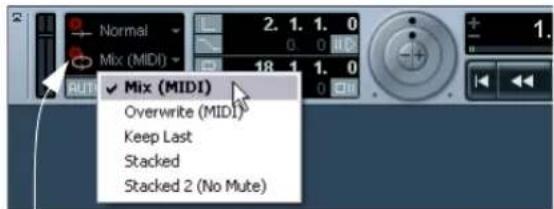
Cycle Record Mode
-
Activate the Record Enable and Monitor buttons on the "Elec Guitar" track.
-
Click the "L" button on the Transport panel once. This will make sure we start recording at the left locator.
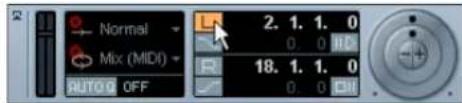
-
Click the "Record" button on the Transport panel. As you record the guitar, let the cycle repeat three times so we have three different guitar takes.
-
Click "Stop" when you're finished. We've just recorded three different guitar takes. Now let's figure out how to select the best sounding one.

Load the tutorial called "Cycle Recording 2" found in the "Tutorial 1" folder.
Selecting different takes
- Right-click on the new guitar audio event that we just recorded and choose a take from the "Set to Region" submenu.
Nuendo has recorded all of the passes we made when we were recording in loop mode (Cycle Recording). These passes are called "Takes". In our example we have three different guitar takes. We can pick between them and choose which one sounds best.
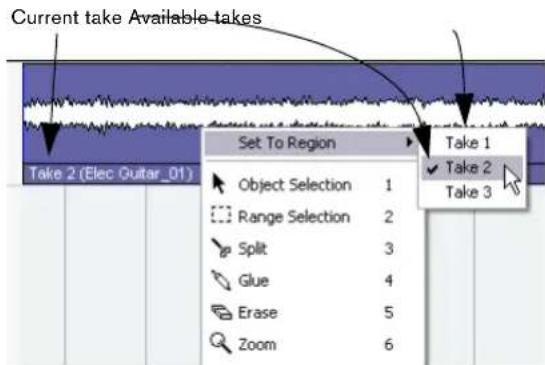
- Listen to the different takes and when you are done, choose "Take 1".
Stacked recording
Stacked recording is very similar to cycle recording but with one difference - you can see the "Takes" that you record all the time instead of them being hidden underneath.
- Create a new "Mono" track.
- Re-name the track "Guitar 2".
- On the Transport panel, select the Cycle Record Mode "Stacked".
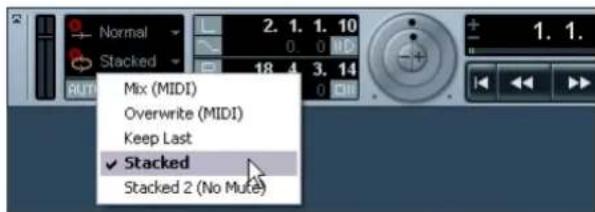
The Cycle Record Mode pop-up menu.
- Activate the Record Enable and Monitor buttons on the track "Guitar 2".
-
Click the Record button on the Transport panel.
-
When you are done recording, click "Stop".
You should see the recorded audio events appearing below each other as separate takes.
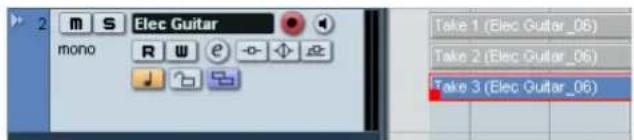
- Click the lower border of the "Guitar 2" track and drag downwards to resize it larger.
This allows you to see the audio takes much better.
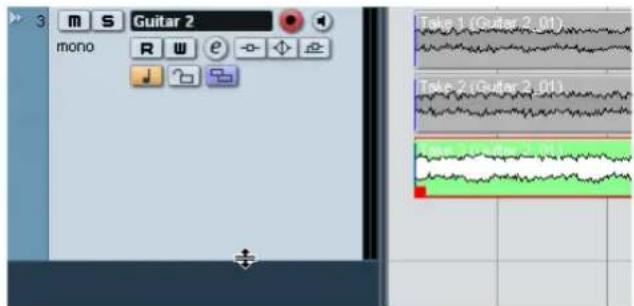
- Deactivate the Record Enable and Monitor buttons.

Load the tutorial called "Stacked Recording" found in the "Tutorial 1" folder.
- Open the Preferences dialog (Editing-Audio page) and make sure that the option "Treat Muted Audio Events like Deleted" is activated.
- On the toolbar, select the Mute tool.
This will allow us to switch between our stacked recorded takes.
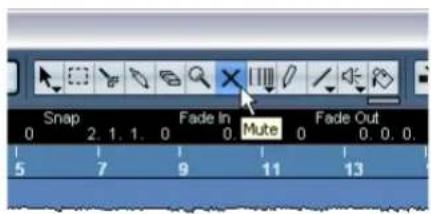
- You will see three takes. The bottom two are muted and the top one that is green colored (Take 1) is the one that will currently play.
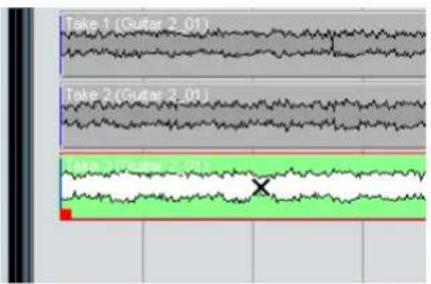
- Mute "Take 1" and un-mute "Take 2".
This allows "Take 2" to be heard. Notice that "Take" 2 is now colored green.
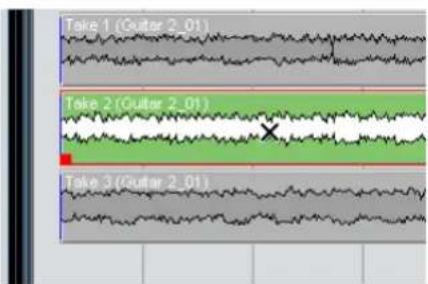
- You can do the same for "Take 3".
Continue to the following chapter, as we will show you how to edit what we've recorded using some of the tools.
Tutorial 2: Editing audio
Event operations
In this section we'll learn how to edit events or parts. This includes rename, resize, split, glue, move, copy, repeat, mute, erase and adding a fade.

Load the project called "Event Operations" found in the "Tutorial 2" folder.
Renaming
If we look at the audio events that we recorded earlier, we notice that the bass track has an audio event on it called "Audio 01_01". This is because the name of the track was originally "Audio 01" and the suffix "01" means that it is the 1st audio file to be recorded on the track. The second audio file would be called "Audio 01_02".
Naming your audio files keeps your project clean and easy to understand. Let's rename "Audio 01_01" to "Bass":
- Choose the Object Selection tool.
- Click on the event "Audio 01_01".
- Make sure "Show Event Infoline" is activated on the toolbar.
The "Event Infoline" gives us detailed information about an object or objects that are currently selected in the event display.
4. Change "Audio 01_01" to "Bass" underneath the word "File".
This changes the audio file's name directly on the hard drive - easy!
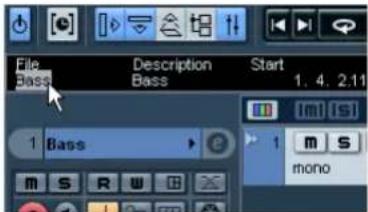
- Notice that our audio event now says "Bass".
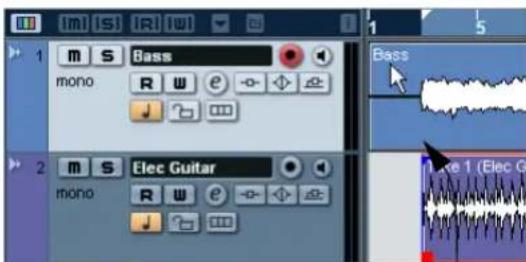
The name has changed from "Audio 01_01" to "Bass".
Resizing
You resize an event by adjusting the start and/or end of the event. Used in combination with the split tool this is usually all the editing you'll need.
- Choose the Object Selection tool.
- Click on the event you wish to resize. In our case let's change the "Bass" event.
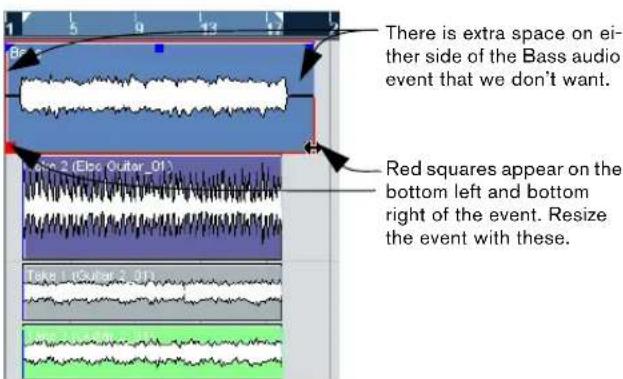
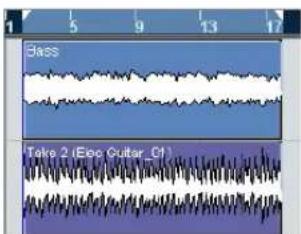
- Position the cursor over one of the squares at the bottom right or bottom left of the event. Click and adjust the "Bass" event so that it lines up with "Elec Guitar_01".
Splitting
Splitting is used to cut events. You can split or cut an event wherever you want or split them evenly to bars and beats.
Splitting with "Snap" off
Splitting with "Snap" off allows you to cut anywhere without locking to any kind of reference like bars and beats.
- Choose the Split tool.
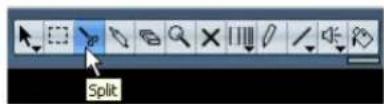
- Make sure "Snap" is off (not highlighted).
Snap allows you to edit to various time frames. The most common one is bars and beats. Meaning you can cut exactly to the bar with "Snap" turned on. With it turned off you can cut anywhere. See more about "Snap" in the chapter "The Project window" in the Operation Manual.

- You can now split or cut the audio anywhere by clicking on the event.
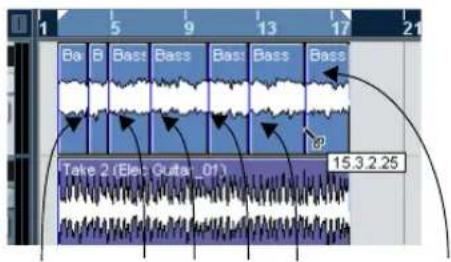
Here are the splits that were made to the Bass event.
- Undo your actions by choosing "Undo Split" from the Edit menu as many times as you used the Split tool.
Make sure there are no splits in the "Bass" event any more.
Splitting with "Snap" on
Having "Snap" on allows you to split or cut to a time reference. For example, if you want to cut the "Elec Guitar" track to bars or beats.
- Choose the Split tool.
- Make sure "Snap" is on.
Snap allows you to edit to various time frames. The most common one is bars and beats. Meaning you can cut exactly to the bar with "Snap" turned on. With it turned off you can cut anywhere. See more about "Snap" in the chapter "The Project window" in the Operation Manual.

- If you are having trouble seeing anything beyond the "Tool Buttons", right-click in the toolbar (the top bar that the "Tool Buttons" are on).
This allows you to change what you see at the top of the Project window. Customization is in the heart of Nuendo.
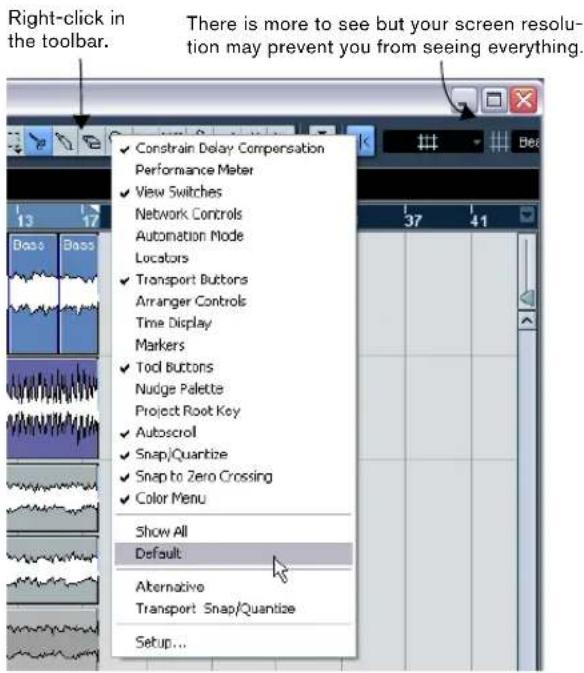
-
Choose "Default" so that if you changed anything it will return to the default settings.
-
Next, right click again and choose "Automation Mode" so that the automation tools are hidden from view. Now we can see enough for us to continue on with the Split tool.
- With most of the snap features in view, choose "Grid" from the Snap mode pop-up menu to the right of the Snap button.
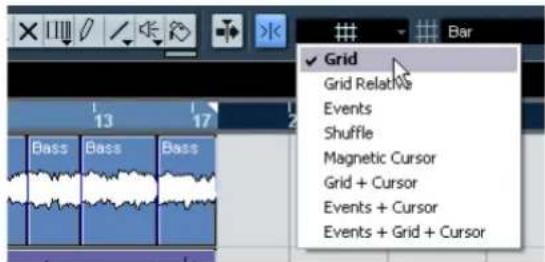
This means we'll be snapping to a grid.
- Next choose "Bar" as the "Grid Type".
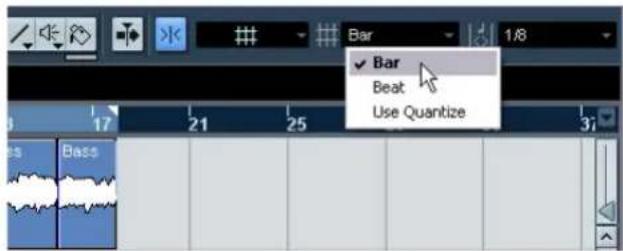
This means you will split to bars.
- You can now split the "Elec Guitar_01" event precisely to the bar. Cut on bars 6, 10 and 14.
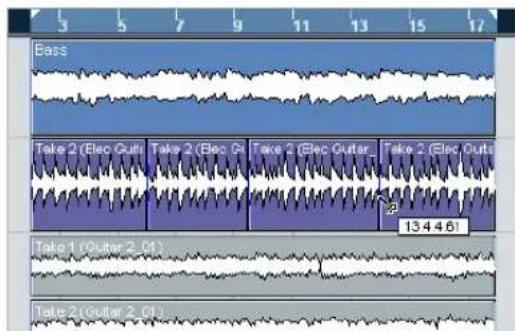
Splitting with [Alt]/[Option]
- Choose the Split tool.
- Hold down [Alt]/[Option] and click on the bass event at bar 3 and the length of the split will be repeated until the end of the event.
You can try this with "Snap" on or off.
![STEINBERG Nuendo 4 - Splitting with [Alt]/[Option] - 1](/content/2026/03/533772/images/cc18a59b3370f922cd3aeeb0760b3e173fe64c27fbca137b534a5afbedc5467c.jpg)
- Select "Undo Split" from the Edit menu and return the bass to the way it was.
Gluing or joining events
Using the Glue tool allows you to join events together that have been cut using the Split tool.
- Choose the Glue tool.
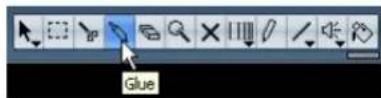
- Glue together the split events in the "Elec Guitar" track by clicking just before each split. Let's make sure we glue all of them.

Moving events
- Choose the Object Selection tool.
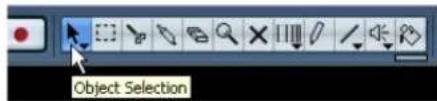
- Move all the events in the Project window from bar 2 to bar 1. Click and hold the mouse on an empty area of the Project window. Drag to create a selection of all the events. When you release the mouse button, all the events will be selected.
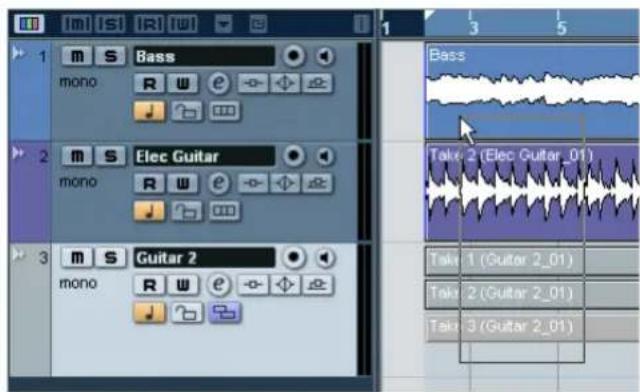
- With all the events selected, click and drag them to bar 1.
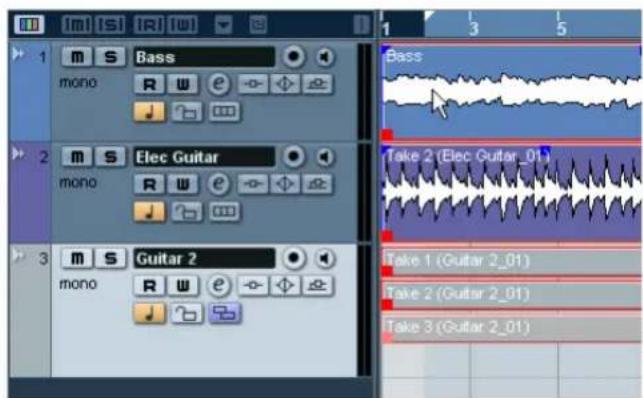
- Click on an empty area of the Project window so that no event is selected.
Copying events
Copying can be used to copy an event to another area in the Project window. If you want to make several copies in one go, see "Repeating" on page 39.
Using Copy and Paste
- To copy an audio event, click on the desired event and choose "Copy" from the Edit menu.
In our case let's choose the "Elec Guitar_01" event.
- Position the cursor at the point in the project that you wish the copy to be made.
We'll put our cursor at bar 17.
- Make sure you click on the track that you want the copied event to be copied to. Choose "Paste" from the Edit menu.
It is possible that you may have another track selected. If so the "Paste" command would paste it to a different track. Always note the track you have selected before choosing "Paste".
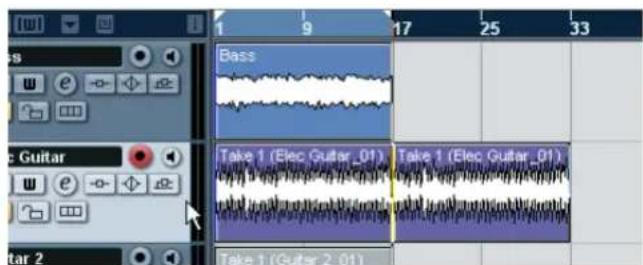
- Now we have two guitar events. Note that we also copied the takes that were on the guitar track. We can use these later.
Using the [Alt]/[Option] key
-
Choose the Object Selection tool and hold down [Alt]/ [Option].
-
We are going to copy the "Guitar 2" events. Remember that there are three events since we used stacked recording to record them. Select all of the "Guitar 2" events by clicking and dragging as described above.
-
Click and hold the selected events and drag to the position you wish the copy to be made. Then release the mouse button.
Don't worry about the "Scissor" icon that appears. As soon as you click and hold on the event you are copying it switches to an arrow with a "+" sign indicating that you are copying.
![STEINBERG Nuendo 4 - Using the [Alt]/[Option] key - 1](/content/2026/03/533772/images/93fefb4606db0faf8b784b653983d348415032376d0bdebc837e4f043f41c708.jpg)
Repeating
Repeats are great for repeating something over and over directly after the event you want to repeat.
- Click the bass event with the Object Selection tool.
- Choose "Repeat" from the Edit menu.
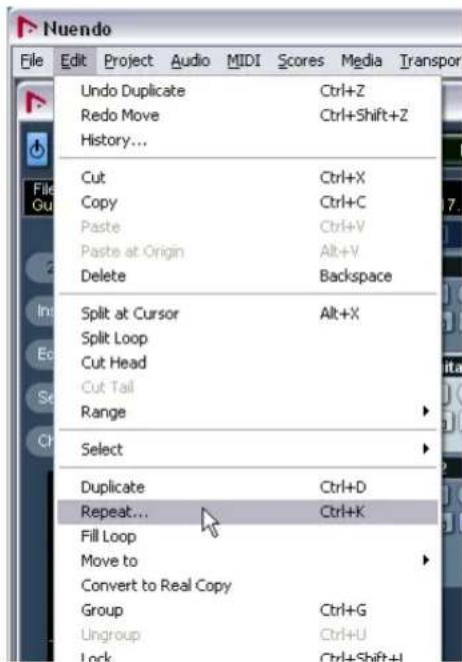
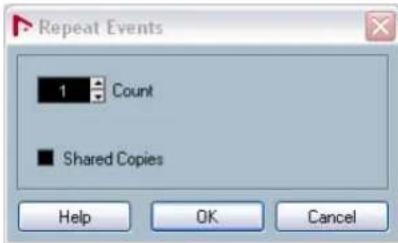
- In the dialog that opens, choose how many copies you wish to make by increasing the "Count" field.
-
You can choose to select "Shared Copies" if you want. Shared copies allow you to make aliases to the original event. This means that if you make changes to the original event (such as processing or editing), the copies will reflect those changes. This is a big time saver!
-
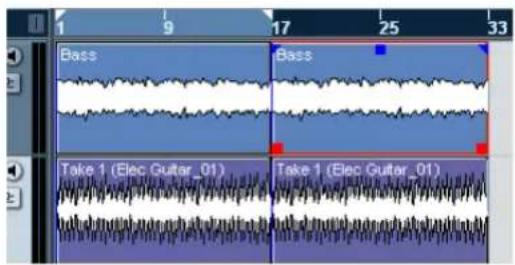
Click "OK" and the repeat will be placed directly after the Bass event.
Muting
Muting an event stops you from hearing just that event. You may want to mute events on a track so that the track continues to play except for the events you mute. Note that this is different from muting a track.
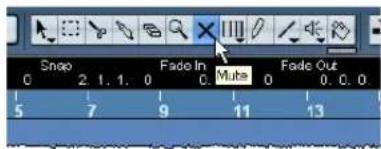
- Choose the Mute tool.
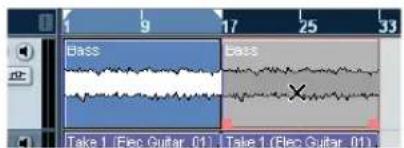
- Click on the event you wish to mute.
- To un-mute an event, click on the muted event with the Mute tool again and it returns to normal.
- If you drag with the Mute tool you can mute a number of events at a time. Equally this will un-mute events that are muted.
Erasing
- Choose the Erase tool.
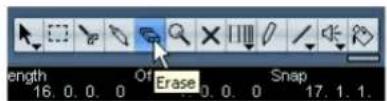
- Click on the events you wish to erase.
Adding a fade
You can add a fade to an event to give the effect that the event is fading in or fading out.
- Choose the Object Selection tool.

- Click on the event you wish to add a fade to.
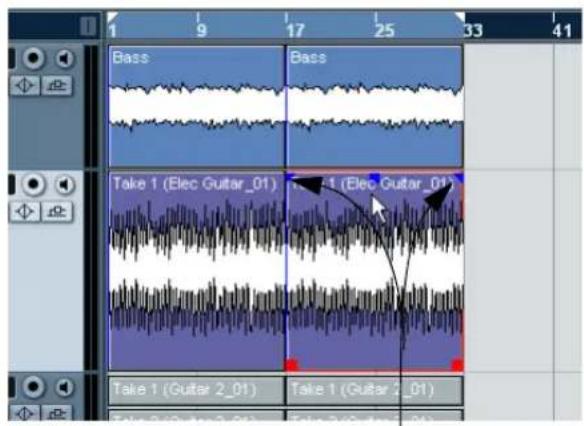
Notice the blue triangles that appear at the top left and top right of the event.
- Click on one of the blue triangles and move it so that a fade appears.
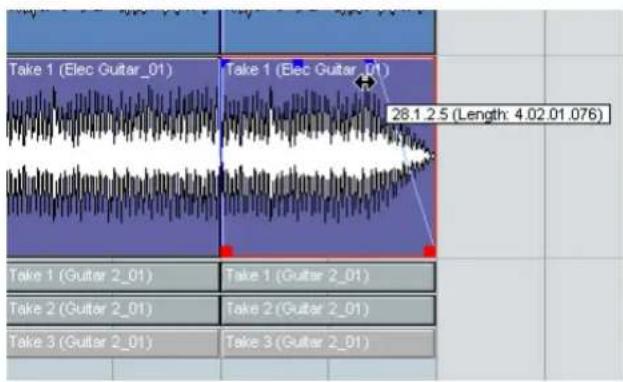
- For more advanced fades you can double-click on the fade area to open up the fade dialog. See the chapter "Fades and Crossfades" in the Operation Manual for more information.
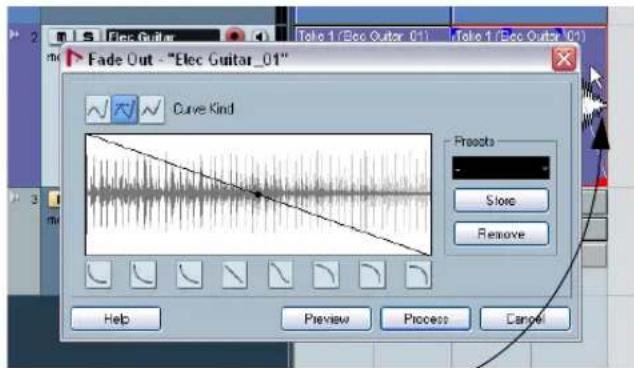
Double-click here to open the fade dialog.
Event envelopes
An envelope is a volume curve for an audio event. This allows you to adjust the volume of the event over time.
- Select the Pencil tool.
When you move the Pencil tool over an audio event, a small volume curve symbol is shown next to the tool.
- Click on the "Elec Guitar_01" event and notice that an envelope point appears.
Clicking either high or low on the event will change the event volume to either loud of soft.
- Clicking further on will create more points.
As you create more and more envelope points, you are adjusting the volume of the event over time. The waveform reflects the changes you make.
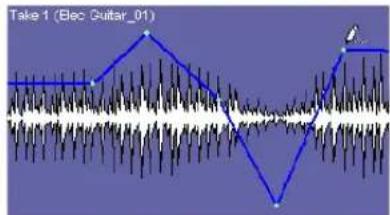
! Load the project called "Event Operations 2" found in the "Tutorial 2" folder. This project has all the event operation changes you've learned so far.
Processing audio
Nuendo has the ability to make changes to the audio in more ways than splitting and resizing. You can normalize, reverse, pitch shift and time stretch, to name a few. For a full explanation on processing audio, see the chapter "Audio processing and Functions" in the Operation Manual.
! Load the project called "Processing Audio" found in the "Tutorial 2" folder.
You can process the whole audio event or use the Range Selection tool and select just the section of audio you want.
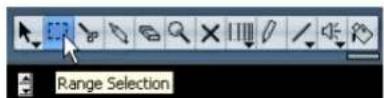
Let's show you how to Normalize and Reverse an audio event.
Normalize
Normalize raises the volume of the audio to the desired amount. Usually you adjust the slider to "0" dB or "-1" dB so that you get the maximum volume without clipping your audio. A common use for Normalizing is to raise the level of audio that was recorded at too low an input level.
Please note that in some situations, this function may lead to distortion. Therefore, you should use it carefully and listen to the audio material afterwards, to make sure it sounds as intended.
- With the Object Selection tool, click on the audio event you wish to change.
You can also use the Range Selection tool and select the section of audio you want.
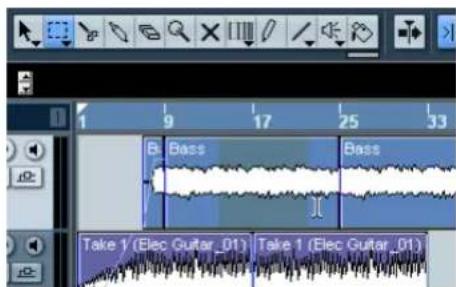
- On the Audio menu-Process submenu, select "Normalize".
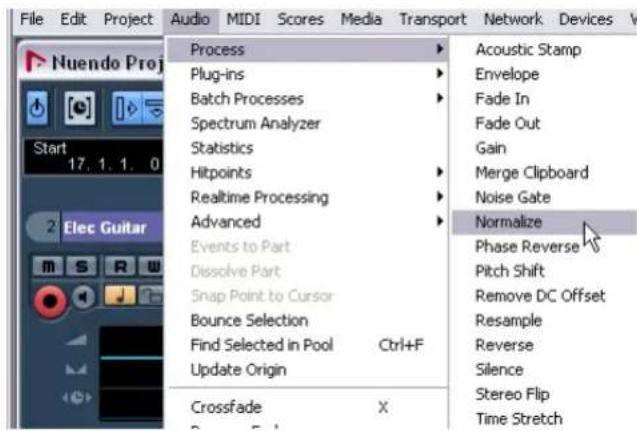
- Adjust the slider to the amount you desire. A setting of "0" db or "-1" db is common.
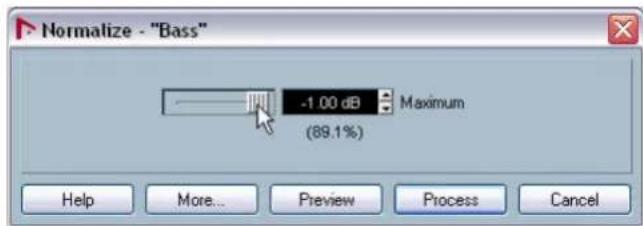
- Click the Process button and your audio is now normalized.
For a description of the "More" and "Preview" buttons, see the chapter "Audio Processing and Functions" in the Operation Manual.
Reverse
The "Reverse" command reverses the audio selection. This will sound as if you were playing a tape backwards.
- With the Object Selection tool, click on the audio event you wish to change. In our case, let's pick the bass audio event.
You can also use the "Range Selection" tool and select the section of audio you want.
-
On the Audio menu-Process submenu, select "Reverse".
-
If you have copied events in the Project window, this dialog box will open. It asks if you want all the copied events changed (Continue) or if a new version is to be created so that only your selection is affected (New Version).

- Clicking either "Continue" or "New Version" will reverse your audio.
Audio processing in Nuendo is "non-destructive", in the sense that you can always undo changes or revert to the original versions. See the chapter "Audio Processing and Functions" in the Operation Manual.
Tutorial 3: Recording and editing MIDI
Introduction
In this chapter, we are going to add some more instruments to our song. In the previous tutorials, we have recorded audio. Now we are going to record using MIDI.
There are two ways in which we can have MIDI sounds appear in Nuendo: via virtual instruments, that is a synthesizer inside your computer or through the use of a traditional hardware keyboard.
This tutorial will focus on virtual instruments, while the chapter "Tutorial 5: External MIDI instruments" on page 55 will show you how to record via a hardware synthesizer.
Creating an Instrument Track

Load the project called "Recording MIDI 1" found in the "Tutorial 3" folder.
- Let's start by adding a string part to our song. From the Project menu-Add Track submenu, select "Instrument". In previous versions of Nuendo, you needed a MIDI track routed to a virtual instrument found in the "VST Instruments" window. You can still use this method but instrument tracks are far more convenient.
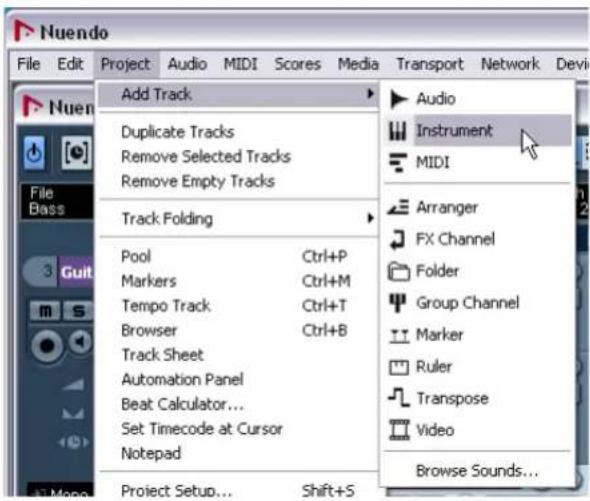
- From the "Instrument" pop-up menu, choose "HALion-One" (Nuendo Expansion Kit only), then click "OK".
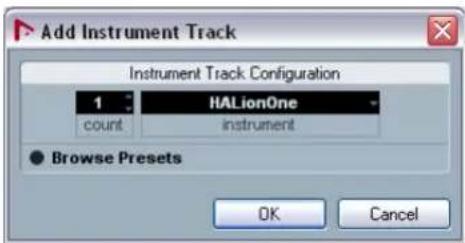
An instrument track is created below the selected track in the Project window.
- Make sure the "Inspector" is shown.
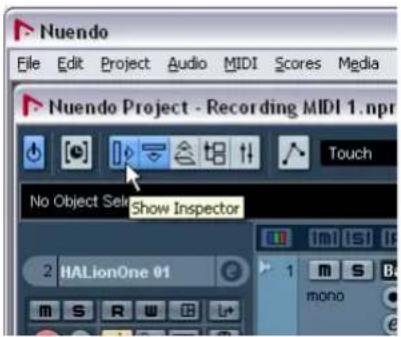
- Click in the name field of the instrument track. It should be the only instrument track you created, so the name should be "HALionOne 01". We can double-click on this and change it to "Strings".
- Click on the "Edit Instrument" button to open the control panel for "HALionOne".
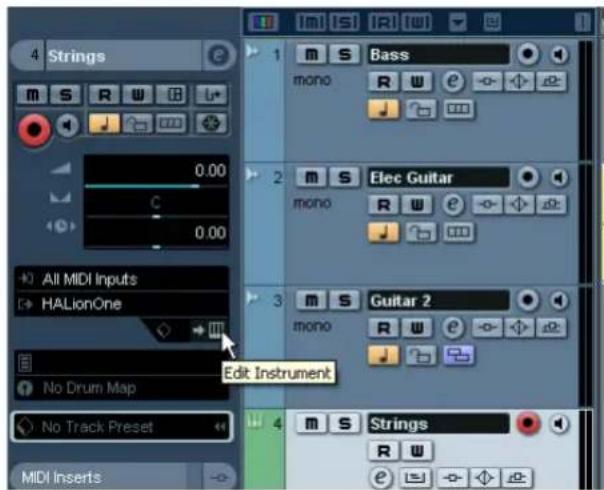
- If you want "HALionOne" to stay always on top while you are working you can right click on the bar near the top of the instrument and select "Always on Top".
Right-click here to select "Always on Top".
Browsing sounds
We are now going to load sounds into our virtual instrument "HALionOne".

Load the project called "Recording MIDI 2" found in the "Tutorial 3" folder.
- Click the "Preset" button in "HALionOne" and choose "Load Preset" from the pop-up menu.
- In the "Category" section, make sure only "Strings" is selected by deselecting anything else and clicking on "Strings". In the "Sub Category" click on "Synth". You have filtered the list to only show synth strings. Choose a string sound from the list on the right. Then click "OK".
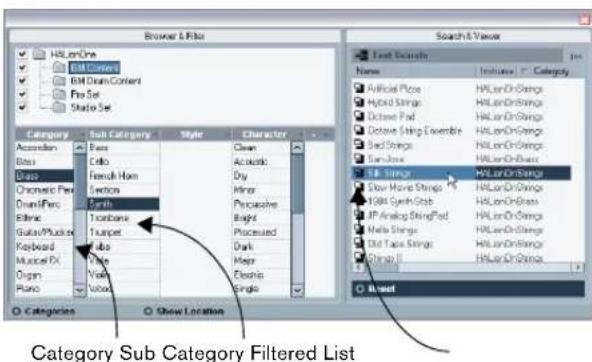
MIDI recording
Now that we have our sound, let's record something. Recording MIDI is very similar to recording audio, see the chapter "Tutorial 1: Recording audio" on page 24.
Setting MIDI input
- Make sure you have a MIDI keyboard connected to your computer either directly through USB or a MIDI interface. See the chapter "Setting up your system" on page 14 for information on setting up MIDI in your computer.
- We want to have our MIDI keyboard routed to this track and play "HALionOne". Make sure the "Inspector" is shown so we can see our MIDI input and output routing.
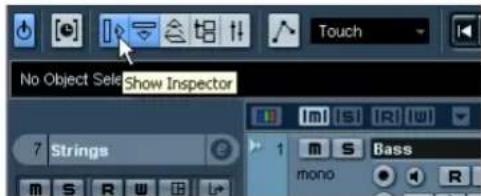
- Next, on the input routing pop-up menu, choose the MIDI input you wish to use. Most people leave this on "All MIDI Inputs" since you don't have to worry about which input is which. "All MIDI Inputs" takes the MIDI signal from all your inputs and routes it to this track. There are some cases where you wouldn't want this but for 99% of the time you'll be safe with this option selected.
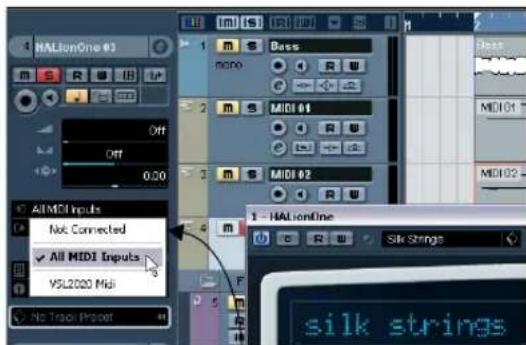
The MIDI input routing pop-up menu.
-
Below the MIDI input routing pop-up menu, you can set the MIDI output. This is set to our virtual instrument "HALionOne". If for any reason you need to change this to another instrument you can do this here.
-
Activate the Record Enable and Monitor buttons on the track and play some notes on your MIDI keyboard. You should see and hear the MIDI signals coming in to the right of the track.
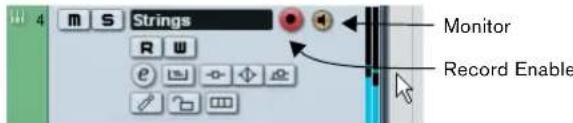
Setting the track to Record Enable lets Nuendo know that you want to record on this track. You can have many tracks Record Enabled at a time.
-
Set the left locator to bar "1" and the right locator to bar "57".
-
Make sure Cycle is turned off. We are going to record without looping. We'll cover MIDI cycle recording in the section "Cycle recording" on page 48.
-
Press [1] on the numeric keypad of your computer keyboard. This will move the cursor to the left locator.
-
Click the Record button and record a few bars of music.
-
Click the Stop button when you are finished.
-
Turn off the Monitor and Record Enable buttons on the track so that we don't hear the input or record on the track any more.
Congratulations! You have just created your first MIDI recording in Nuendo. Move ahead to the next section to learn how to play back MIDI.
MIDI playback
We are now going to learn how to play back MIDI in Nuendo. You might think this is very simple - just hit "Play". It is actually this simple, but there are a few tricks to learn so that you'll be playing back what you want with precision.

For this section, make sure you load the project "MIDI Playback" found in the "Tutorial 3" folder.
To start playback
- Click the Start button on the Transport panel.
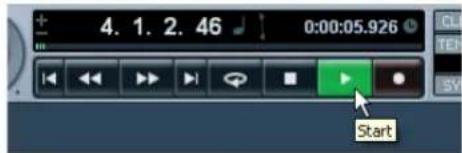
-
Press the space bar on your computer keyboard. This toggles between start and stop.
-
Press the [Enter] key of the numerical computer keypad.
-
Double-click in the lower half of the ruler.
-
Select the MIDI event called "Strings" and choose "Loop Selection" from the Transport menu.

The default key command for this is [Shift] + [G]. This is the quickest way to loop the selected MIDI event and start playback!
To stop playback
- Click the Stop button on the Transport panel.
- Clicking the Stop button twice moves the cursor to the position in the project, where you started playback.
- Press the space bar on your computer keyboard. This toggles between stop and start.
- Press the "0" key of the numerical computer keypad.
Cycle playback
Nuendo has the ability to loop or cycle a section of your project. To set the cycle location you need to use the left and right locator.
- On the Transport panel, set the left locator to "1" and the right locator to "5".
This tells Nuendo that we want to loop or cycle between bars 1 and 5. Meaning we will have a 4 bar loop since the end of bar 4 is the beginning of bar 5.
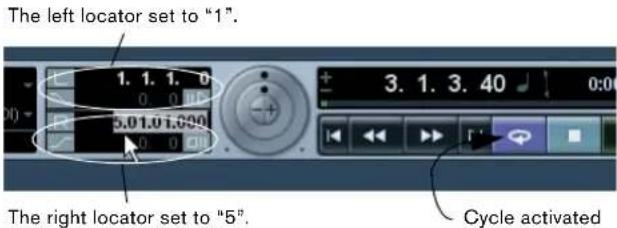
- Make sure that the Cycle button is activated.
- Click the Start button on the Transport panel and Nuedo will play looping over and over until you click Stop.
Recording modes with cycle off
There are three different modes for recording when the cycle is turned off. This is called linear recording.
Normal
"Normal" allows you to record on top of previously recorded MIDI. You will be able to see both MIDI parts on the screen overlapping each other.
Merge
"Merge" joins or merges any MIDI data previously recorded on the track. An example of this is when recording drums - adding the kick drum on one pass and then the snare drum on another pass. The MIDI data is then joined together as one MIDI part.
Replace
"Replace" mode will replace or overwrite any previous MIDI recording that was on the track.
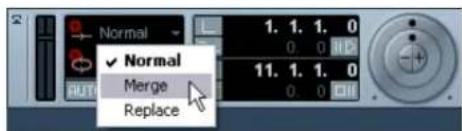
Cycle recording
You can record MIDI while the Cycle is activated.

Load the project called "Cycle Recording MIDI" found in the "Tutorial 3" folder.
Recording MIDI drums
- Let's add another "Instrument" track and choose "HALionOne" (Nuendo Expansion Kit only) as our instrument.
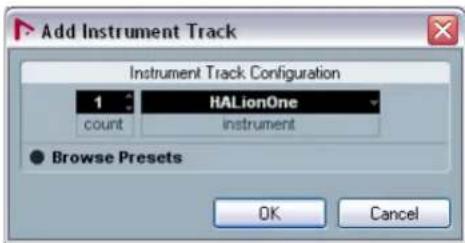
- Click in the program field in the Inspector and load up a drum sound of your choice found under the category "Drums&Perc", sub-category "Drumset".
- Rename this new track to "Drums".
- Make sure the Cycle button is activated and set the left locator to "9" and the right locator to "13".
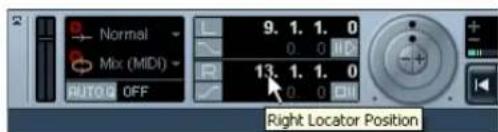
This will loop or cycle between bars 9 and 13.
- On the Transport panel, make sure "Mix (MIDI)" is selected for the "Cycle Record Mode".
This will allow us to record the drums, and as each cycle repeats, the MIDI will mix together into one part. This makes it easy to create complex drum rhythms.
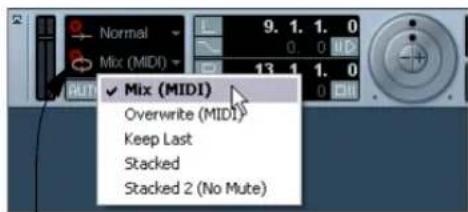
Cycle Record Mode
- Activate the "AUTO Q" button. This is the automatic quantize function which will lock our MIDI to the beat as we record it. Great if we play off time a bit.
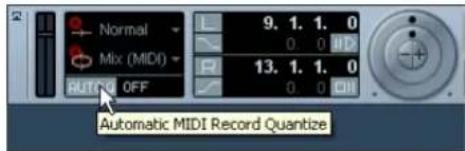
- Next we have to set the value of our quantize. This is so Nuendo knows what to lock our MIDI notes to. Choose "1/8" notes from the "Quantize Type" pop-up menu.
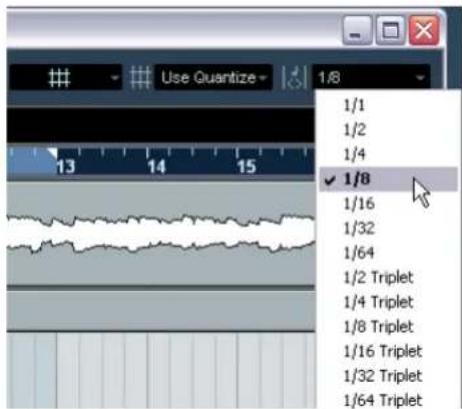
- Activate the Record Enable and Monitor buttons on the "Drums" track.
- Click the "L" button on the Transport panel once. This will make sure we start recording at the left locator.
- Activate the Record button on the Transport panel and let's record hi-hat on the first pass, kick on the second pass and then finally snare on the third.
- Hit "Stop" when you're finished.
- Now move and copy this drum part so that the rest of the song has a drum beat.
Move and copy were discussed in the chapter "Tutorial 2: Editing audio" on page 34.
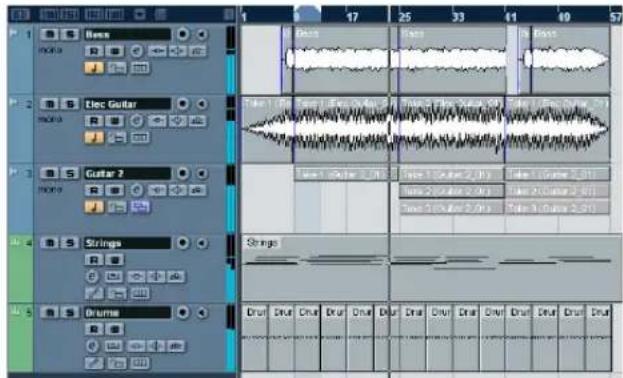
13. Glue all the parts together as one. The Glue tool was discussed in the chapter "Tutorial 2: Editing audio" on page 34.
The Key Editor
The Key Editor is where we can make changes to our MIDI data.

Load the project called "Key Editor" found in the "Tutorial 3" folder.
Erasing MIDI notes
- Double-click on the "Drums" part so that the Key Editor opens.
Here we can see our drum notes lined up with a keyboard on the left. At the bottom we have the velocity of each of the MIDI notes and at the top we can see the time ruler.
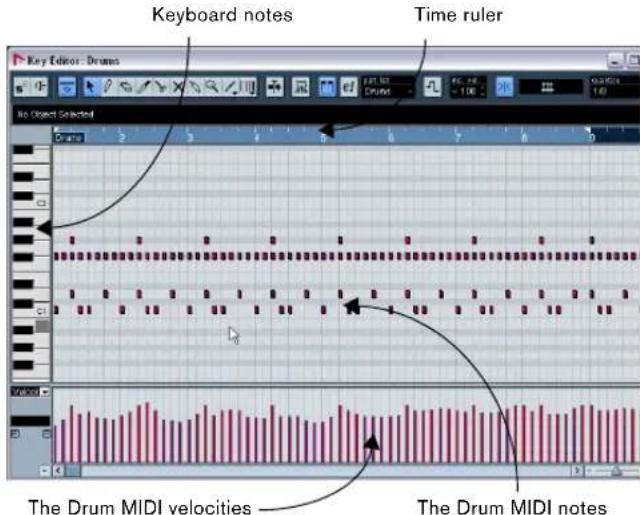
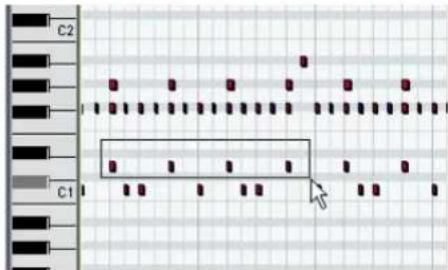
2. We want the song to start off with hi-hat and kick drum. Erase the snare by clicking once and holding the mouse while dragging a selection over the snare drum. Make your selection from bars 1 through 8. A common term for this is to "lasso" the notes.
-
Press the [Delete] key to delete the snare notes.
-
Zoom in on the bar 1 and delete all the hit-hat notes with the Erase tool of the Key Editor so that you only hear 1/4 notes.
-
Now erase all the other hi-hat notes from bar 2 through 8 using any method you like.
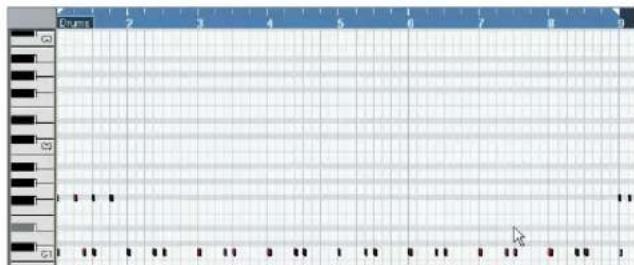
Copying MIDI notes
Let's copy the MIDI notes in bar 1 to bars 2 through 8.
- Lasso the hi-hat notes in bar 1. Hold down [Alt]/[Option] and drag the notes in bar 1 to bar 2. This copies them.
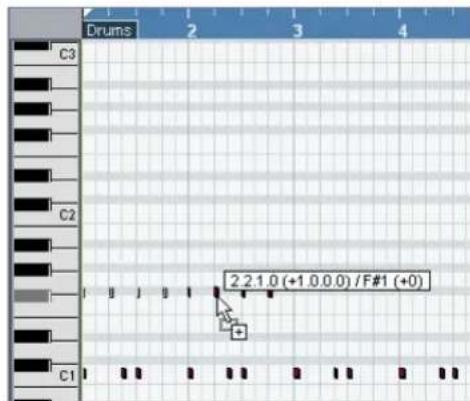
- Continue copying until bar 9.
Creating or drawing in MIDI notes
Now we need to draw in a cymbal crash in bar 25.
- Scroll over to bar 25 and click on the piano roll on the left hand side of the Key Editor. Click on the notes until you hear a crash cymbal that you like. There is a good one at C#2.
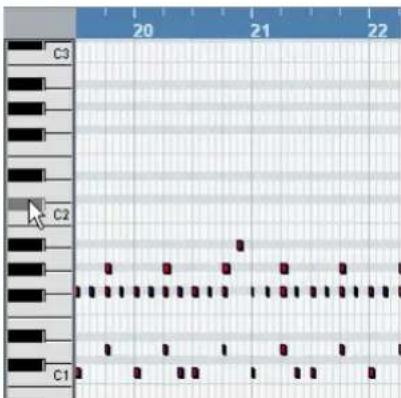
- Select the Pencil tool of the Key Editor and draw in the crash cymbal note at bar 25 by clicking and dragging for a full bar.
Click and drag with the Pencil tool
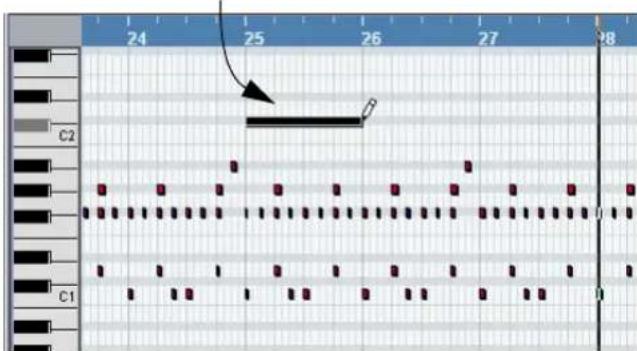
The Controller lane
The "Controller Lane" allows us to add in or modify MIDI data such as velocity and controller information. The most common use for this is to edit velocity, pitch bend and controller numbers for things like filter etc.
If you find that the MIDI velocity is too loud or quiet on certain notes, you can view and edit them at the bottom of the Key Editor.
- Make sure you can see the Controller Lane by clicking on the "Controller Lane Presets" button at the bottom left of the Key Editor.
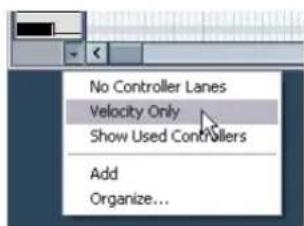
- Choose "Velocity Only" to view the velocity.
- You can choose the MIDI information you wish view or change from the pop-up menu.
- You can also select "Setup" to view more controllers.
Pick one from the list or choose setup for more controllers.
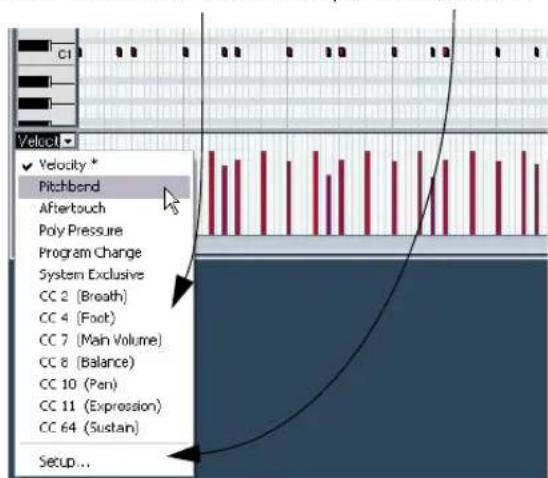
- Use the Pencil tool of the Key Editor to draw in new velocities for the notes. You can even draw in curves and ramps.
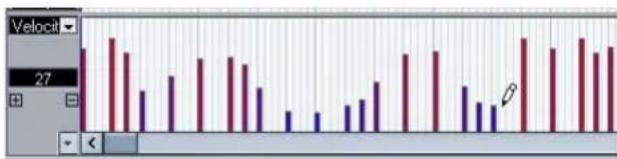
7
Tutorial 4: Working with loops
Loop Browser
The "Loop Browser" allows you to have a single window that gives you quick and easy access to all your loops. In the "Loop Browser" you can search for audio files, use tags to categorize, audition the audio in the open project's tempo and a whole lot more.
Load the project called "Loops" found in the "Tutorial 4" folder.
Adding loops
- Select "Open Loop Browser" from the Media menu.
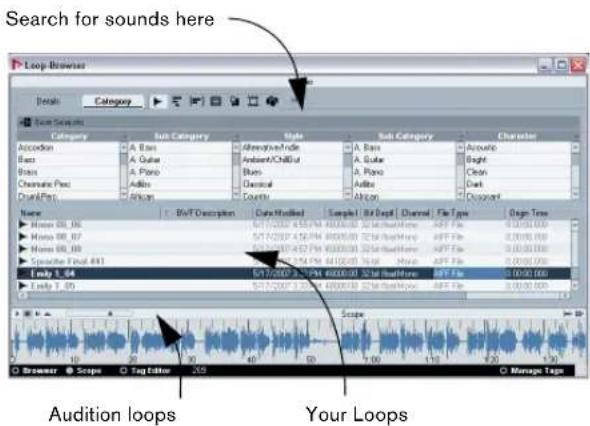
- Once the Loop Browser has finished scanning your hard disk(s) for loop files, they will be displayed in the Viewer section.
- Selecting a loop file in the Viewer section will display it graphically below in the Scope section.
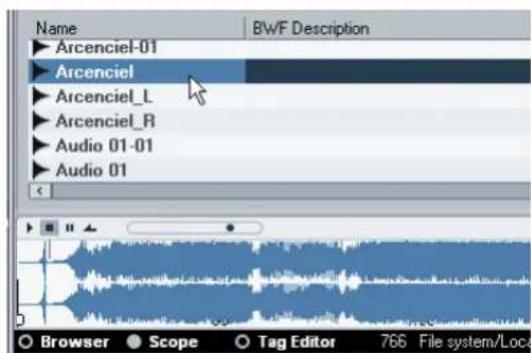
- Click the Start button to listen to the loop. The "Play in Project context" option allows you to audition the loop in the project's tempo. This is handy if the loop you are auditioning has a tempo that is different from the one you are using in your project.
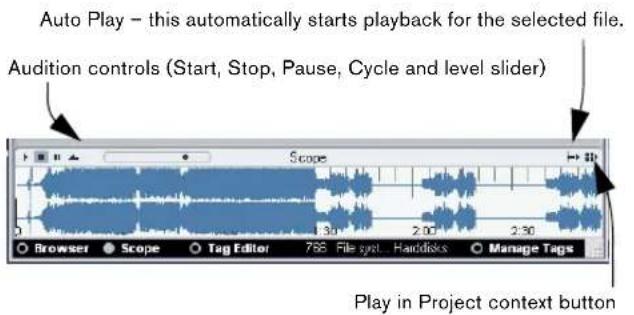
- If you have many loops you can search for them using the Filter options at the top of the Viewer section.
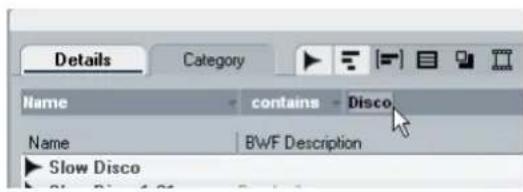
- Once you have found the loop you like, drag and drop it into your project. If you haven't made an extra audio track for the loop, one will be created automatically for you.
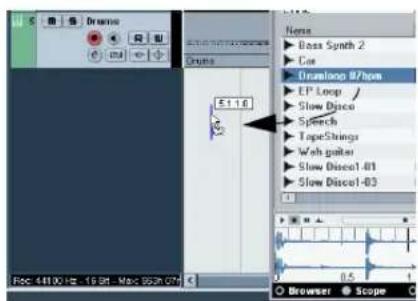
Drag from the Loop Browser into your project
- Rename the new track to "Loop 1".
Making copies
Now that we have our loop let's copy it using the "Repeat" function.
- Click on the loop event in the Project window to select it.
- Choose "Repeat" from the Edit menu.
- In the dialog that opens, set the "Count" field to "13".
- Click "OK". The loop will be copied 13 times and all repeats will be placed one after the other.
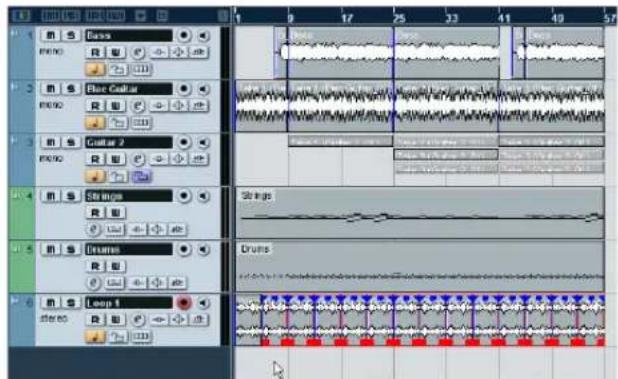
- Use the "Repeat" command to repeat the loop out until the end of the project.
Make sure you read up on the "Loop Browser" in the chapter "The MediaBay" in the Operation Manual.
Insert into Project
We are now going to add one more loop. This time we'll use the "Insert into Project" command.
- Create a new stereo audio track.
- Rename the track to "Loop 2" and make sure it is selected, as "Insert into Project" works using a selected track.
- Position your cursor where you would like the loop to be inserted. In our case, let's choose bar 9.
- In the "Loop Browser" right-click on the loop you want and choose "Insert into Project at cursor". This will drop the loop into the Project window at bar 9 on the "Loop 2" track.
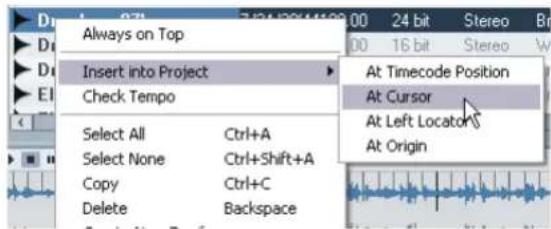
Tutorial 5: External MIDI instruments
Introduction
In this tutorial we are going to show you how to set up your MIDI devices and how to record them into Nuendo. You may have a MIDI keyboard that is playing back MIDI data from Nuendo and you want the data recorded as audio for further processing for the final mix. Learning to use the right tools will make these steps easy.
By adding External instruments in Nuendo you can have a MIDI keyboard's audio outputs plugged directly into your audio card's inputs so that Nuendo can monitor and record the signal in realtime.
Setting up MIDI devices
First let's set up the MIDI devices that you have connected to your computer. Please note that every setup is different and that you'll have to do some further reading in the Operation Manual to get everything 100% the way you want it. This tutorial covers a basic setup with the Steinberg MI4 interface and the Kurzweil K2000 keyboard.

Load the project called "External MIDI 1" found in the "Tutorial 5" folder.
- Start off by first opening the "MIDI Device Manager" from the Devices menu.
- Next click the "Install Device" button, so we can add the K2000. Select it in the list and then click "OK". You may have another keyboard other than the Kurzweil K2000 in this list. Feel free to select it now.
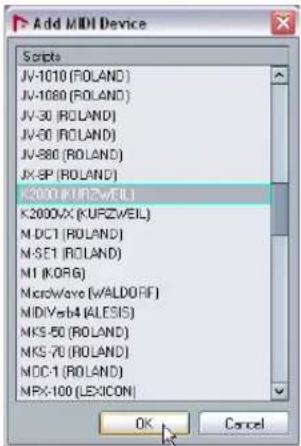
- We can then add a MIDl output to the "K2000". Select it in the "Output" pop-up menu. This will make things very handy later on!
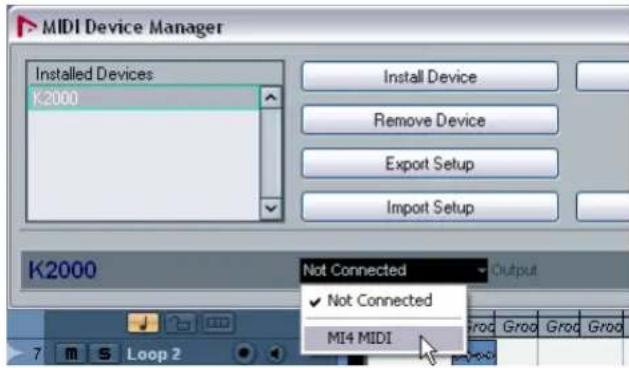
-
Close the MIDI Device Manager when you are done.
-
MIDI devices contain all the necessary information to select patches on the MIDI device that you are using. If your device is in the list, make sure you have it set up. If your MIDI device is not in the list, you can choose "Define New..." to create it. Make sure you read the separate pdf document "MIDI Devices" for more detailed information.
Setting up VST connections for external instruments
Now we have our MIDI device all set up. We are now going to set up our inputs so that we can listen to the audio output of our keyboard play into the Steinberg MI4's audio inputs. This is what is meant by "external instruments": having your external MIDI instruments play into Nuendo.

Load the project called "External MIDI 2" found in the "Tutorial 5" folder.
- On the Devices menu, choose "VST Connections". The default key command for this is [F4].
- Open the "External Instruments" tab.
-
Click on the "Add External Instrument" button and type in "K2000" into the "Name" field. You can use any name you choose if you have a different setup than what we are using in this tutorial.
-
We want the audio from the K2000 to be in stereo. This means we are going to physically plug audio cables from the K2000's output into the MI4 input. Since the MI4 has 4 inputs we are going to plug them into the Line In 3 and 4. Choose "1" for "Stereo Return(s)" since the K2000 has a left and right output.
- We created a MIDI device earlier, so let's click on "Associate MIDI Device" and choose the "K2000".
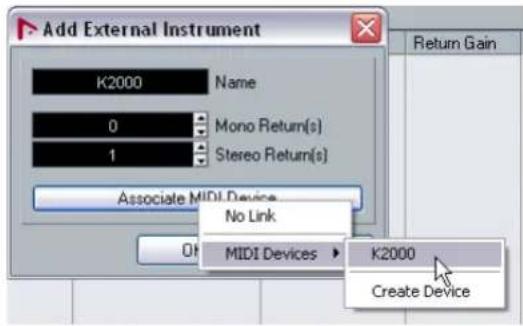
To create a new MIDI Device (e.g. if you didn't find yours on the list), select "Create Device".
-
Click "OK" to close the dialog.
-
Make sure you set the correct inputs and outputs for your new external instrument bus in the Device Port column.
This is what our external instrument bus should look like.
| Bus Name | Speakers | Audio Device | Device Port | Dela |
| K2000 | 1 Return(s) | 0.00 | ||
| Return Bus 1 | Stereo | Steinberg M4 USB ASDiver | MI4 Channel C | |
| Left | ||||
| Right | MI4 Channel D | |||
- Close the "VST Connections" window and select the "Loop 2" track.
We are going to add a new track. By selecting the "Loop 2" track, the new track will be added below this.
- Open the Project menu and, on the "Add Track" submenu, select "Instrument".
- For "instrument", choose the external instrument that we created. In our case it's the "K2000". For "count" choose "1".
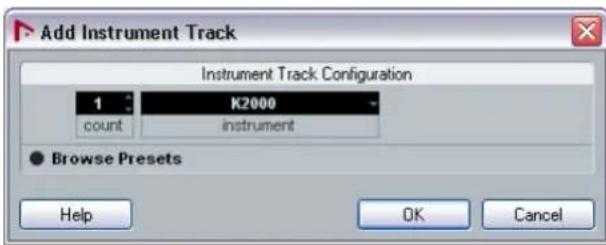
- Click "OK" to close the dialog.
Now let's go to the next section and monitor our external instrument. We'll also choose a sound and record some MIDI.
Monitoring external MIDI instruments
! Load the project called "External MIDI 3" found in the "Tutorial 5" folder.
- Activate the Record Enable and Monitor buttons on the "K2000" track.
- Play some notes on the actual K2000 keyboard. You'll see the MIDI indicators on the Transport panel light up and you'll be able to hear the K2000 playing through Nuendo. Play whichever keyboard you have created in the MIDI Device Manager for this tutorial.
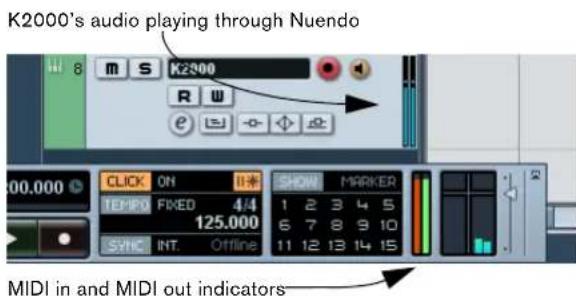
- Let's rename the track "K2000" to "Piano" since it's piano that we'll be recording on this track.
This doesn't rename the external instrument name in the "VST Connections" window, but only in the Project window.
- Remember that we created a MIDI device in the MIDI Device Manager. MIDI Devices contain valuable information about patch names, bank selections and a few other things. This helps us in that we already have all the program names for the K2000 at our disposal. Click on the "Programs" button in the inspector and choose the "Stereo Grand" piano sound.
If your MIDI device is different from the one in this tutorial choose a piano sound from your device.
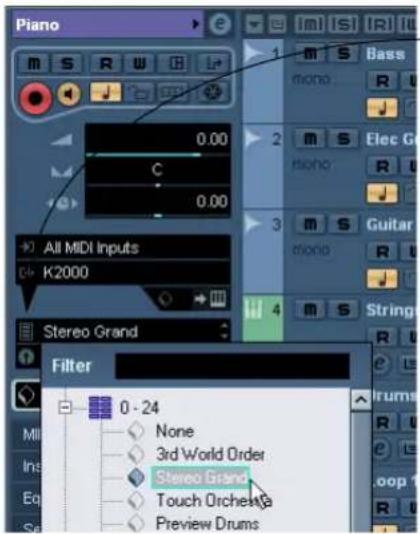
Click the "Programs" button to select a pi-ano sound.
That's it. We are now monitoring and playing our external instrument. You can add effects and EQ to the external instrument just like a virtual instrument or an audio track. We'll do this in the next tutorial. For now let's record some MIDI.
Recording MIDI and external instruments
! Load the project called "External MIDI 4" found in the "Tutorial 5" folder.
Now let's record some MIDI on our instrument track.
- Activate the Record Enable and Monitor buttons on the Piano track if they aren't already on.
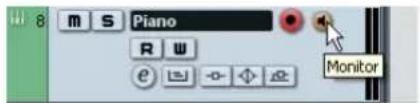
- If you find the levels low, you can click on the "Edit Instrument" button and move the "Return Gain" slider so that you hear more of the external instrument.
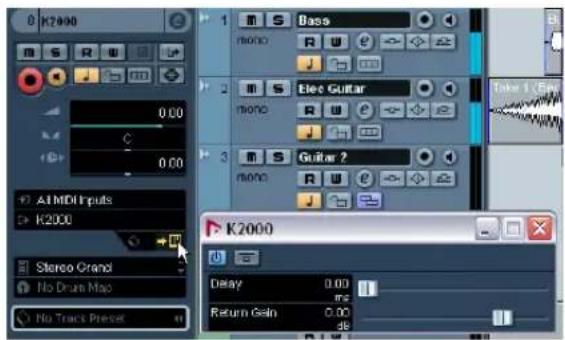
-
Click the Record button on the Transport panel and record a piano line.
-
Click the Stop button when you are finished.

- Turn off the "Record Enable" and "Monitor" buttons on the "Piano" track so that you don't hear the input any more and that you won't accidentally record on it.
Congratulations! You've just recorded your first external MIDI instrument. Move on to the next tutorial as we will discuss mixing, EQs, effects, automation and exporting.
! Load up the project called "External MIDI 5" found in the "Tutorial 5" folder to hear all the changes we've made so far.
Tutorial 6: Mixing and effects
Introduction
In this section we'll draw from the last 5 tutorials and finally get a mix ready with proper levels, EQs and effects. Automation will be added and then we'll export the audio.

Load the project called "Mixing 1" found in the "Tutorial 6" folder.
Setting levels
The first thing we want to do is to set the levels for our project. This helps us get a preliminary balance of the mix so we can add EQ and effects later.
- Select the Mixer from the Devices menu. The default key command for this is [F3].
- Hide the input channels from view (we won't be using them any more), by clicking the "Hide Input Channels" button in the common panel to the left of the Mixer.
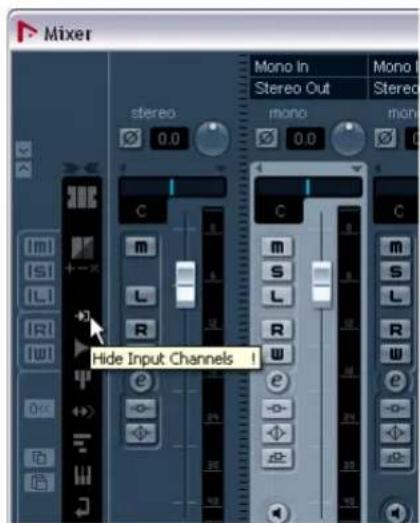
-
Click the Start button on the Transport panel and listen to your mix.
-
Move the faders for each track so that you can hear all of the mix the way you like it.
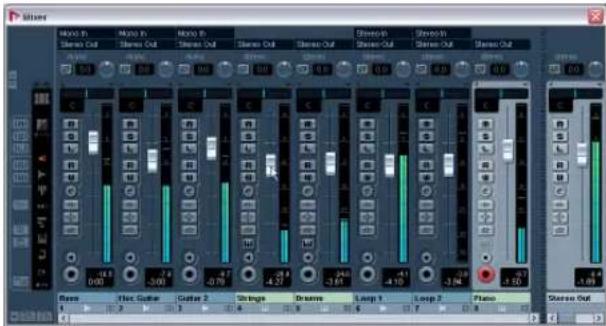
- If for any reason you need to get the fader back to 0dB (the default setting), you can [Ctrl]/[Command]-click directly in the fader area.
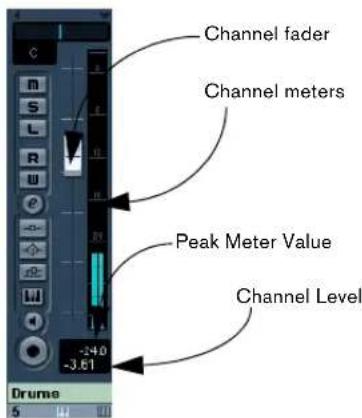
- You can also change the fader by double-clicking in the "Channel Level" area and entering the level manually.
- Be careful when it comes to how loud you raise the faders. Make sure you keep levels at a good volume so that they are as loud as possible without clipping. You will always know when you are clipping: when the "CLIP" indicator lights up on the output channel. If it does, lower your levels and click on "CLIP". This will reset the warning light.

- That's it for setting the levels. Let's look at pan next.
Setting pan
! Load the project called "Mixing 2" found in the "Tutorial 6" folder.
- Setting the pan for each track moves its position in the stereo mix. It will either keep the signal balanced in the middle of the left and right speaker, lean to the left or lean to the right or be completely in the left or right speaker.
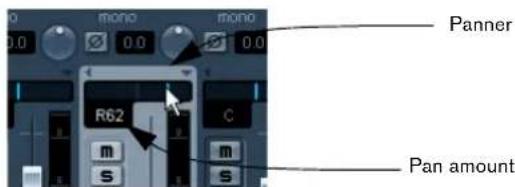
- Right-clicking in the panner for certain track types presents you with three different types of pan options. The different pan options are described in detail in the chapter "The Mixer" in the Operation Manual.
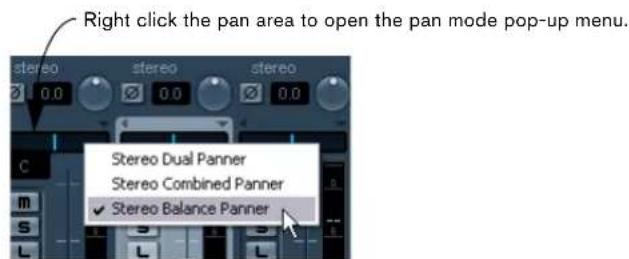
- To get the panner back to the middle (the default position), [Ctrl]/[Command]-click anywhere in the panner area.
- Let's pan our two guitars slightly left and slightly right. This will spread them out a bit.
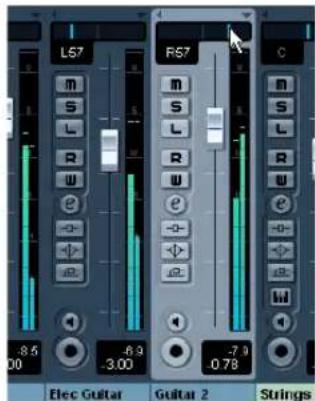
- Keep the "Drums" track in the middle but let's move "Loop 1" a bit to the left and "Loop 2" a bit to the right. This will give our rhythm section a larger, more spacious sound.
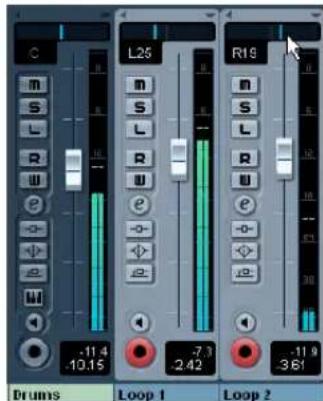
That's it for pan, let's move on to Mute and Solo.
Mute and solo
Load the project called "Mixing 3" found in the "Tutorial 6" folder.
- For each track there is an "M" for mute and "S" for solo button. Mute will prevent you from hearing the track and solo will only play that track or tracks which have "S" highlighted.
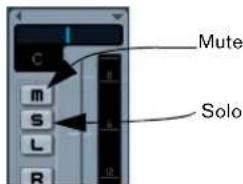
- You can have several tracks muted or soloed at a time.
-
When you solo a track, the other tracks become muted.
-
If you want to clear or deactivate all the mutes or solos, click on the "Deactivate all Mute" or "Deactivate all Solo" buttons in the common panel to the left of the Mixer.
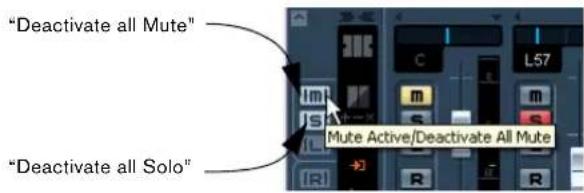
- There may be times when you want certain tracks to always play even if another track has solo active. If you [Alt]/[Option]-click on the "S" button, this will place the track in "Solo Defeat" mode. This allows the track to always play even if you solo another track.
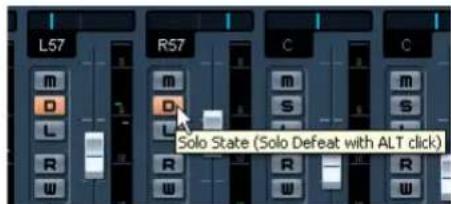
- To take a track out of "Solo Defeat" mode simply [Alt]/[Option]-click it again.
That's it for mute and solo, let's move on to adding EQ.
Adding EQ
Load up the project called "Mixing 4" found in the "Tutorial 6" folder.
EQ or equalization amplifies or attenuates frequencies so that we can place each instrument correctly in the mix. EQ is subjective and can be influenced greatly by the style of music that you are mixing.
We're going to run through the EQ features that Nuendo has to offer, but feel free to experiment and try out the different presets on your mix.
- Solo the Drums track and click the "Edit Instrument Channel Settings" button.
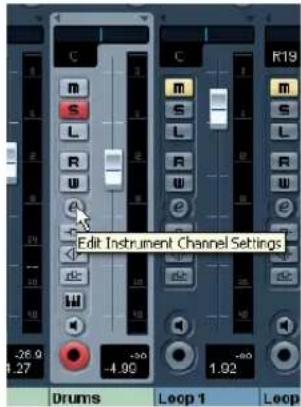
-
This will open the Channel settings window, where you can e.g. make EQ settings. Make sure you have a section of music looping so that you can hear the EQ changes you are making.
-
There are four bands of EQ on each track.
-
Click the "EQ Band Active" button for each of the EQs to turn them on. You can also click in the EQ curve area to turn on an EQ.
Click in the EQ curve area to turn on an EQ.
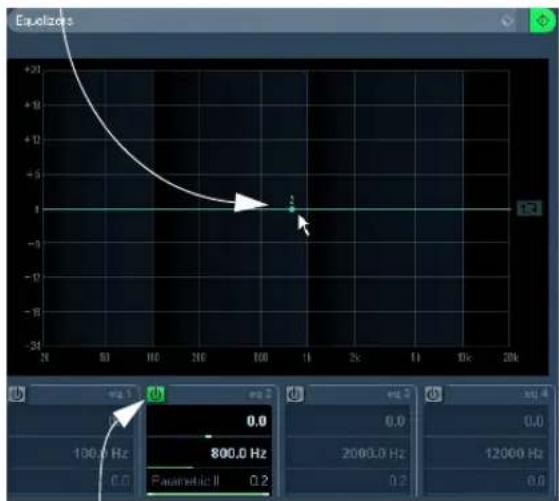
Click the "EQ Band Active" button to turn on an EQ.
- Click and move the EQ point up, down, right or left.
Moving the EQ point up or down raises or lowers the gain of the EQ. The gain makes that particular EQ louder or softer. The "EQ Band Gain" at the bottom of the EQ window gives you the value of gain.
If you hold down [Ctrl]/[Command], you can restrict the movement of the EQ to just up and down.
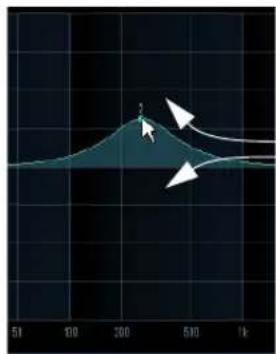
Move the EQ up or down to raise or lower the gain.
"EQ Band Gain" amount
- Moving the EQ point right or left changes the frequency of the EQ. The "EQ Band Freq" setting at the bottom of the EQ window gives you the value of the frequency.
If you hold down [Alt]/[Option], you can restrict the movement of the EQ to just right or left.
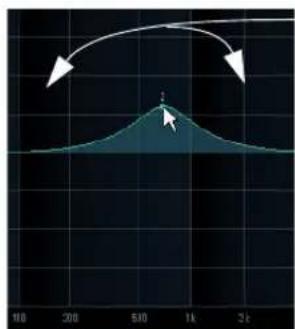
Move the EQ left or right to change the frequency

"EQ Band Freq" amount
- Holding down [Shift] while moving the EQ point up or down changes the quality of the EQ. Many people refer to this as the width of the EQ. The "EQ Band Q" setting at the bottom of the EQ window gives you the value of the quality.
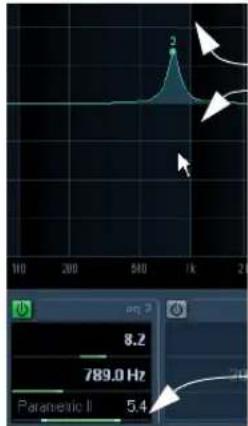
Moving the EQ up or down while holding down [Shift] changes the Q
"EQ Band Q" amount
- The "Preset Management" button allows you to recall and store presets. Choose from the list to get a sound that's close to what you want and then adjust it slightly. You can then store it as a new preset.
- You can bypass the EQs by clicking on the "Bypass Equalizers" button. If you [Alt]/[Option]-click, you can reset the EQ. A dialog window will open to confirm if you are sure you want to reset the EQs. If you are sure, click "Yes".
Experiment with the EQs on all your tracks in this tutorial. A good tip when using EQ is that it's usually better to take away EQ (lower the gain) than to add it.
We've made a whole bunch of EQ changes to this tutorial. Listen and see the changes by loading the project "Mixing 5" found in the "Tutorial 6" folder.
Now let's move on to effects.
Audio effects

Load the project called "Mixing 6" found in the "Tutorial 6" folder.
Now let's start using some effects. We can add effects by inserting the effect directly on a track or we can create an FX channel and use the auxiliary sends of each track to send to that FX channel.
Insert effects
- Make sure the Mixer is open.
You can open the Mixer from the Devices menu or by pressing [F3].
- Begin playback and loop or cycle a section of music so that you can hear everything.
The tutorial project has its locators and cycle already set for this. Feel free to change this if you like.
- Click on the "Edit Audio Channels Settings" button on the Bass track to open the VST Audio Channel Settings window.
- Let's add compression to the Bass track to smooth it out. Click on the "Select Insert Type 1" slot and choose "Compressor" from the Dynamics submenu.
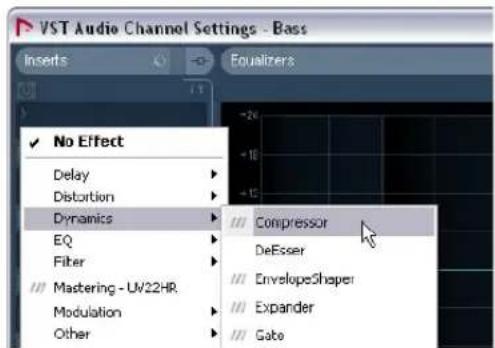
- Make changes to the compression. At the end of this section, you can load the next tutorial that will contain all of the changes we have made.
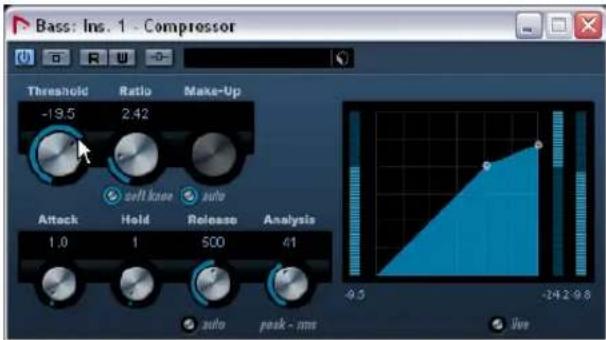
FX channels
Now let's show you how to create and use FX channels.
- Close the Mixer and choose "FX Channel" from the Add Track submenu of the Project menu.
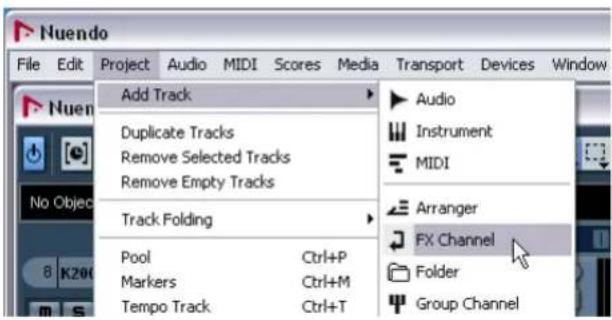
- Choose "Stereo" for "Configuration", select the "StereoDelay" effect and click OK.
- We are going to put delay on the "Elec Guitar" track. Let's set the delay so that the left side and right side have different delay settings and make sure the "Mix" is set to "100.0".
Giving the stereo delay different left and right settings creates a more dynamic effect.
- With the delay set, click the "Edit Channels Settings" button of the "Elec Guitar" track.
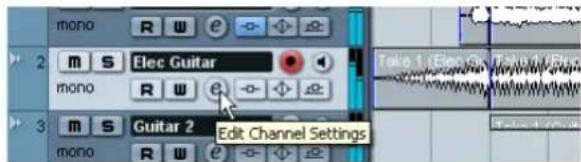
- Select "FX 1-StereoDelay" from the "Select Send Destination" pop-up menu.
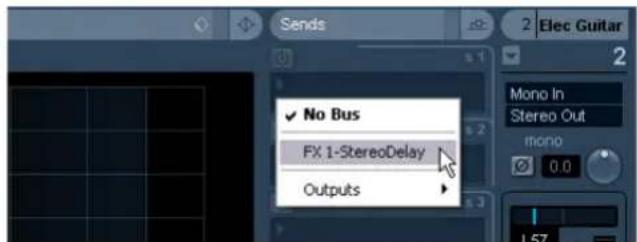
- Click the "Activate Send 1" button to turn on the send. This will allow you to send the guitar to the "StereoDelay".
- Move the slider to the right to raise the level of the send to the "StereoDelay" effect. You will begin to hear the guitar being delayed. Clicking the "S" (solo) button on the track will allow you to hear this more clearly.
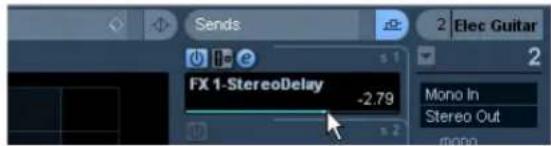
- The great thing about FX Channels is that the channel looks and feels just like a regular audio channel. When you set an EQ for an FX Channel, only this effect will be changed by the EQ. In our case changing the EQ on the "FX 1 - StereoDelay" FX channel will only change the EQ of the delay.
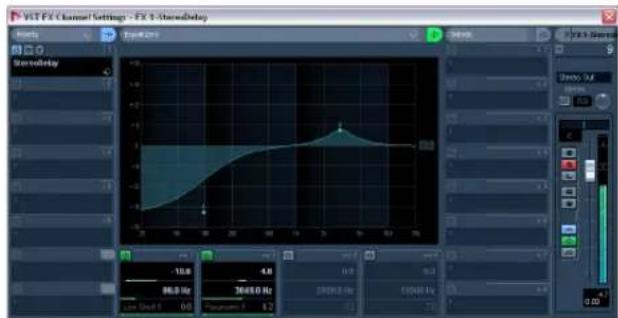
About automation
Automation allows us to make objects such as faders and knobs move by themselves. This is very handy in that we can tell Nuendo to make changes over a period of time and those changes will be remembered and will occur again without our attention.

Load up the project called "Mixing 7" found in the "Tutorial 6" folder.
- We created a fade in on the "Elec Guitar" track earlier. Let's remove the fade on this audio event and create some automation instead. Zoom in so that you can see the first audio event more clearly.
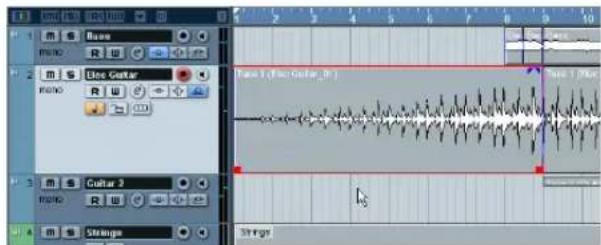
-
Select the event and choose "Remove Fades" from the Audio menu.
-
Click the "Show/Hide Automation" button at the far left of the track.
You may need to hover your mouse over the far left bottom area until you see the button appear as this is only shown when you need it.
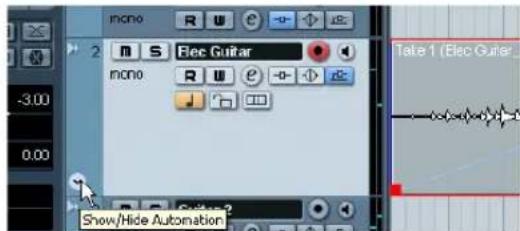
-
Select the Pencil tool.
-
In the subtract that appears below the audio event use the "Draw" tool to draw in automation so that it resembles a fade in.
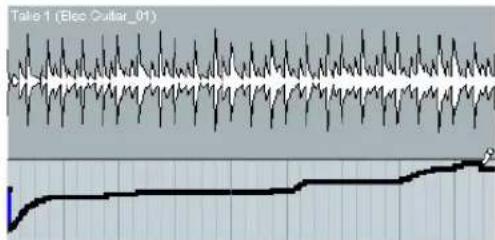
- You can also use the "Line" tool to draw in automation in a straight line. Perfect for fade in automation.
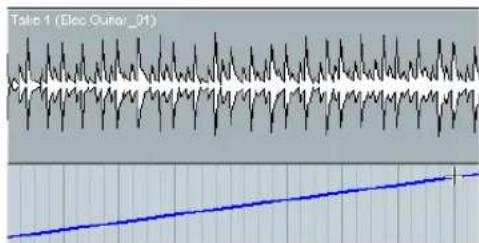
-
Listen to the fade in automation we created.
-
You may have noticed that when we used the Pencil tool to place in automation, the "R" button (Read Enable) for the track became highlighted. This means that the automation on this track is being read or played back. You can turn this off and the automation will not be read. In our case we drew in volume automation, and so in turning it off the volume will not fade in but stay at one level.
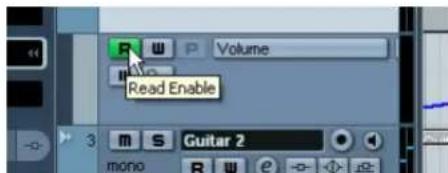
There are so many examples to show when it comes to automation. For example we could have automated our effects or our send levels. We could have even automated objects while Nuendo was playing back. The automation can be placed into write mode and moving almost any thing will create automation that we can edit for fine tuning later!
Make sure you read the chapter "Automation" in the Operation Manual to fully realize how exciting automation can be.
Exporting
Now that we have our project mixed we will want to export it so that we can import it into another program such as a CD burning application like WaveLab.
! Load the project "Mixing 8" found in the "Tutorial 6" folder.
-
Before we can export our mix we need to tell Nuendo how many bars to export. We accomplish this by setting the locators.
-
Set the left locator to bar 1 and the right locator to bar 65 on the Transport panel. This will make sure we have all the music for export.
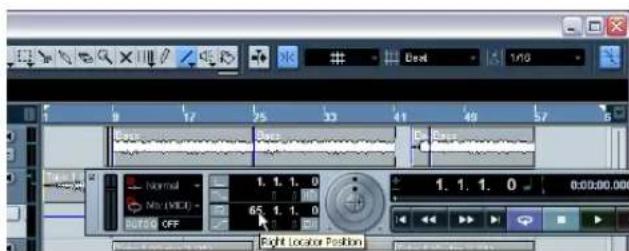
- On the File menu-Export submenu, select "Audio Mixdown...".
- The "Export Audio Mixdown" dialog opens.
This dialog is described in detail in the chapter "Export Audio Mixdown" in the "Operation Manual". Please refer to this for more complete information.
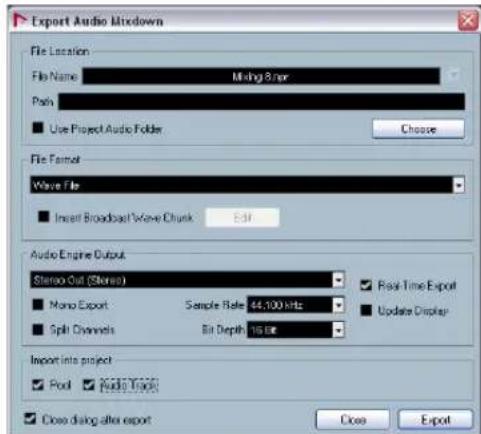
- "File Name" is for naming the file for export. Let's name our's "Mixing Mixdown".
- The "Path" is where you wish to save the exported file on your computer. Use the "Choose" button to navigate to the folder you wish to save to. For convenience there is the option "Use Project Audio Folder" which will store the exported file in your project's audio folder. This is one of the best places to keep it so it won't accidentally become erased or lost. Make sure "Use Project Audio Folder" is activated for this export.
-
Normally you'll want to save your exported file as a "Wave File" under "File Format". This of course chiefly depends on what file format the other application such as a CD burning program requires.
-
You can choose whether you want the main stereo outputs "Stereo Out (Stereo)" to be exported. This means the exported file will be generated through the main stereo outputs that we see in the Mixer. You can also choose the individual outs of each audio channel for flexibility in your export. Let's choose "Stereo Out (Stereo)".
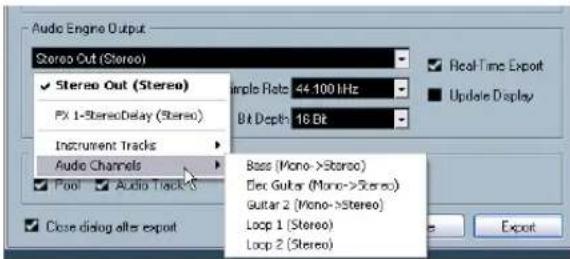
- Choose the "Sample Rate" and "Bit Depth" that will be required for your export. 44.100 kHz and 16 bit are common for CD burning.
- Activate the three options at the bottom of the dialog, as these will import the audio back into Nuendo after you export it and automatically create an audio track. The "Export Audio Mixdown" window will also close after export.
Important Feature - "Real-Time Export"!
10. Before we finish, there is one very important feature that we must select. This is "Real-Time Export". Since we have an external MIDI instrument that is playing a physical keyboard and its audio is coming back into Nuendo, we need the audio mixdown to happen in real-time. This ensures that the MIDI data is properly sent to the external MIDI instrument and recorded back in. Don't forget this step!
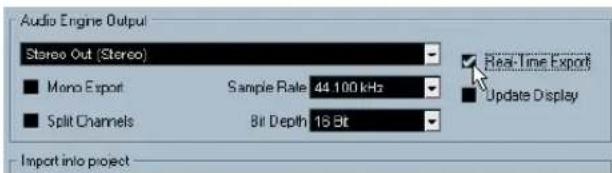
- When you are done making all the settings, click the Export button.
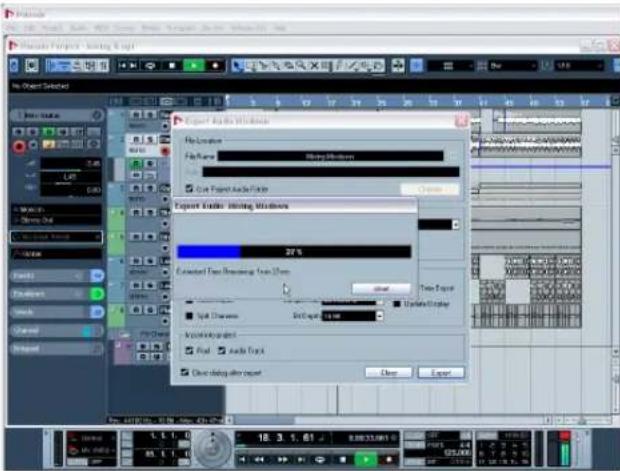
- You will now see the exported stereo mix on a new stereo track.
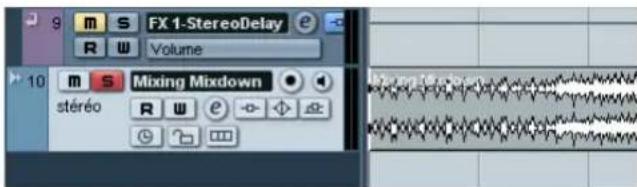
- You can check to see if the audio mixdown sounds the way you want it by soloing the mixdown track
Load the project called "Mixing 9" found in the "Tutorial 6" folder to see the results of this export.
10
Tutorial 7: Surround production
Surround busses
Using surround sound in Nuendo is effortless. Surround becomes an extension of what we've already learned - just with a few more channels added. Let's set up our inputs and outputs so that we are surround-ready.
To fully use surround sound on your computer, you will need an audio card that has 6 or more inputs and outputs. If your audio card only has between 2-5 inputs or outputs, there may be sections of this tutorial that will not apply to your configuration.
To learn more about surround beyond this tutorial, consult the chapter "Surround Sound" in the Operation Manual.

Load the project called "Surround 1" found in the "Tutorial 7" folder.
Setting up surround outputs
- Go to the Devices menu and choose "VST Connections".
The default key command for this is [F4]. - Let's choose the "Output" tab first. We want to start from scratch and remove anything that is currently there, just in case it's set up incorrectly. If you see anything in the "Bus Name" column, right-click with the mouse and choose "Remove Bus".
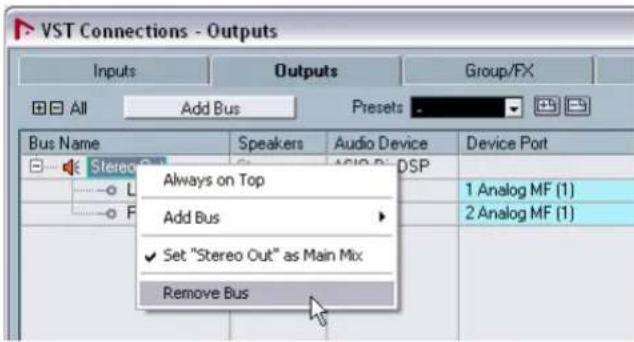
- Click the "Add Bus" button. Choose "5.1" for configuration and "1" for count and click "OK".
This will add a new surround sound 5.1 bus (Left, Right, Center, LFE, Left Surround and Right Surround) allowing us to have audio in Nuendo route to our audio hardware.
- Click in the Device Port column for the channels in the bus and select the desired outputs (those connected to your speakers) from the context menu.
Since 5.1 surround requires 6 speakers (or 6 individual outputs), make sure you select 6 separate outputs in the Device Port column.
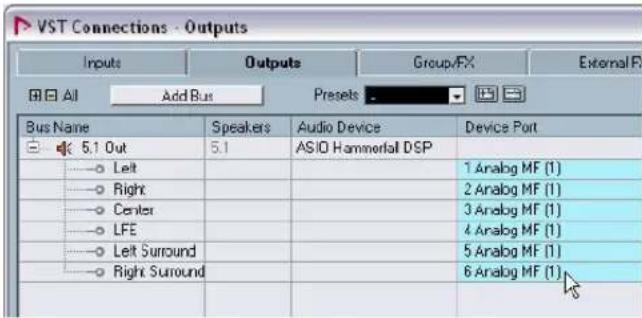
Setting up surround inputs
Now let's open the "Input" tab and set up the inputs we are going to use for recording surround sound into Nuendo.
- Do the same as mentioned above for the outputs. Right-click and select "Remove Bus".
- Now click the "Add Bus" button. Choose "5.1" for configuration and "1" for count and click "OK".
This has now added a new surround sound 5.1 bus (Left, Right, Center, LFE, Left Surround and Right Surround), allowing us to record audio into Nuendo in 5.1 surround.
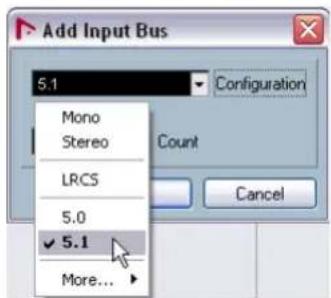
- Click in the Device Port column for the channels in the bus and select the desired inputs on your audio card from the context menu.
Since 5.1 surround requires 6 individual inputs, make sure you select 6 separate inputs in the Device Port column.
Recording with a 5.1 input bus
Having a 5.1 bus allows you to record surround as one multi-channel audio file on one audio track. This is very convenient and keeps the files aligned so they don't go out of phase. Below is an example of recording with a 5.1 bus.
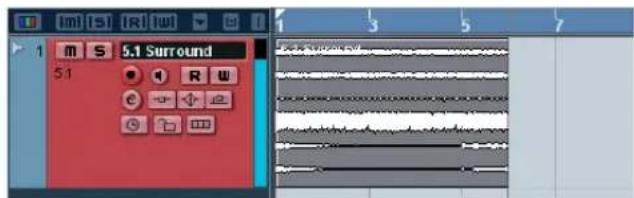
Recording with 6 mono input busses
You can however create separate mono busses for your 5.1 inputs. This allows for greater flexibility in terms of routing, EQ, effects, etc. Below is an example of recording with 6 separate mono busses.
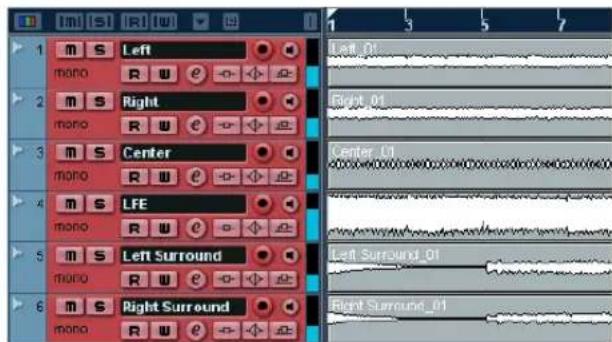
Let's show you how to record in surround sound using separate mono busses.
- Right-click on our "5.1 In" bus and select "Remove Bus".
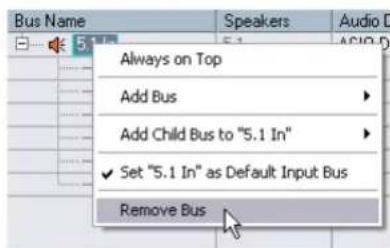
- Click the "Add Bus" button. Choose "Mono" for configuration and "6" for count and click "OK". This will add 6 separate mono busses that we will configure as a surround input setup.
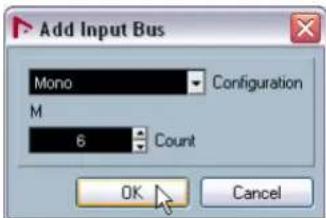
- Click in the Device Port column for the busses and select the desired inputs on your audio card from the context menu. Since 5.1 surround requires 6 individual inputs, make sure you select 6 separate inputs in the Device Port column.
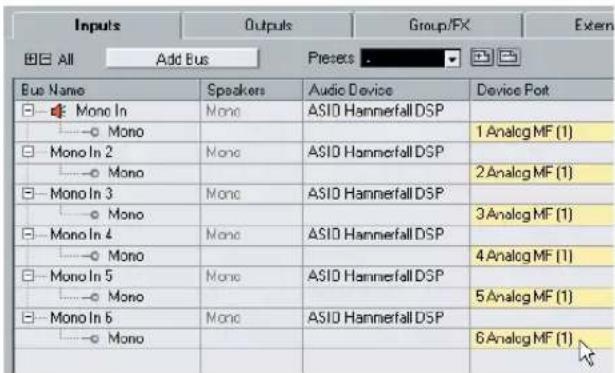
- Rename the inputs "Left", "Right", "Center", "LFE", "Left Surround" and "Right Surround".
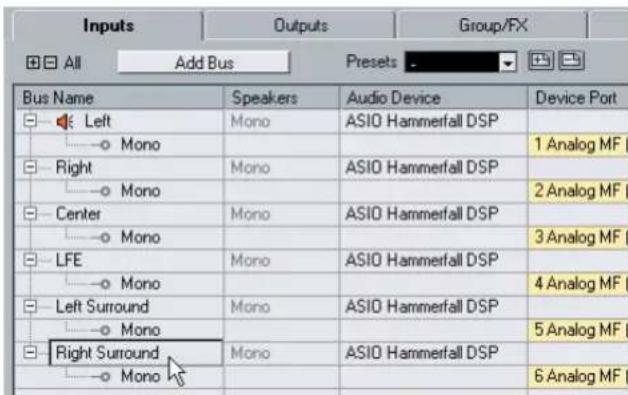
That's it for the "VST Connections" window. You are now ready to set up your tracks.
Setting up a surround mix
We have our inputs and outputs set up in the "VST Connections" window, now we need to set up the tracks in Nuendo so that they'll be properly named, have the right inputs and will output the audio correctly to our audio card.

Load the project called "Surround 2" found in the "Tutorial 7" folder.
Setting up the track inputs
- Close the "VST Connections" window and create 6 mono audio tracks.
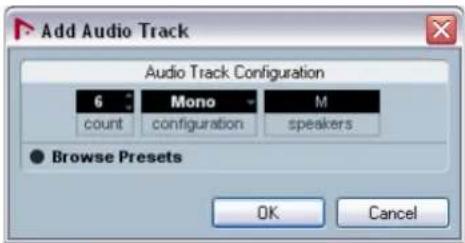
- Rename the tracks "Left", "Right", "Center", "LFE", "Left Surround" and "Right Surround".
Remember that naming your tracks before you record is the recommended way of recording. This allows your audio files to have proper names like "Left Surround_01" and "LFE_01" instead of "Audio 07_09" which can lead to confusion.
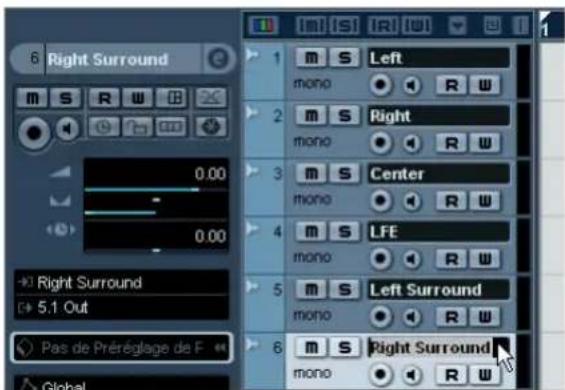
- We now need to give each track its proper input. Set the track named "Left" to the "Left" input on the "Input Routing" pop-up menu. Set the track "Right" to the "Right" input and so on.
Step 1 - Select the track.
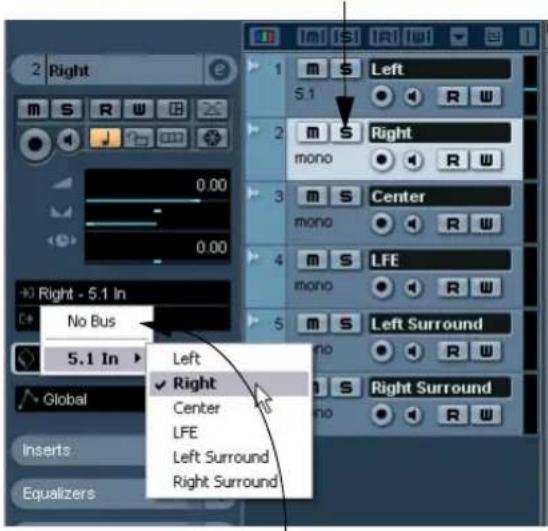
Step 2 - Open the "Input Routing" pop-up menu and select the input for the track.
At this point we've made a lot of changes to our tracks. Feel free to load the project called "Surround 3" found in the "Tutorial 7" folder. This will make sure your project corresponds to this tutorial.
Setting up the track outputs
! Load the project called "Surround 3" found in the "Tutorial 7" folder.
- Open the "Output Routing" pop-up menu for each of the tracks and assign them to their corresponding outputs. "Left" to the "Left" output, "Right" to the "Right" output, etc.
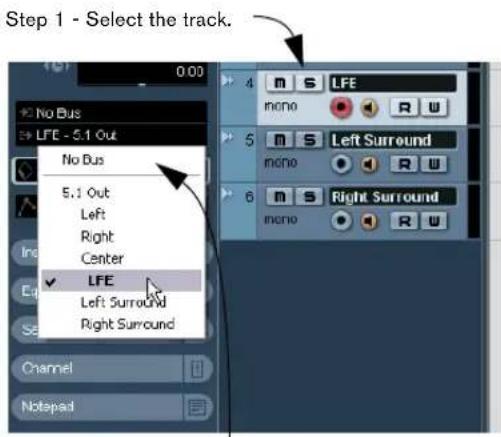
Step 2 - Open the "Output Routing" pop-up menu and select the output for the track.
- Alternatively you can select the "5.1" output for each of the tracks.
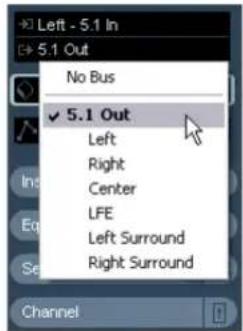
- In this case you could have a surround panner for each track.
Make sure you look up the chapter "Surround Sound" in the Operation Manual for more detailed information on the surround panner.
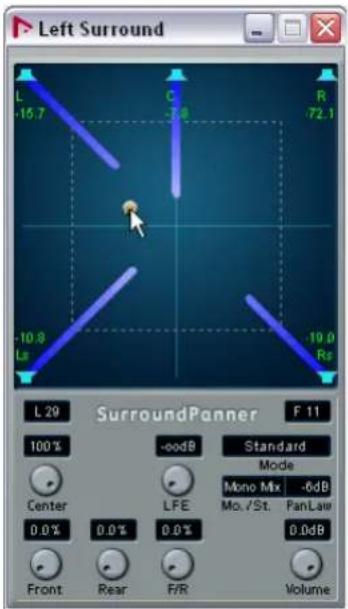
We now have all the inputs and outputs set up. Move on to the next section for information on surround recording.
Recording in surround
We are now ready to record in surround sound. This means we are going to record 6 channels at a time. These channels are routed to the 5.1 output we've set up in the "VST Connections" window. We have 6 mono inputs as the inputs. We could have used one audio track that is configured as a 5.1 track as discussed previously, but using 6 mono tracks allows us flexibility for future changes and edits.

Load the project called "Surround 4" found in the "Tutorial 7" folder.
- The basic recording procedures are described in the chapter "Tutorial 1: Recording audio" on page 24. For more detailed information see the "Recording" chapter in the Operation Manual.
Behind the scenes we have 6 channels of audio (a surround sound mix) coming in our 6 mono inputs. You'll be able to hear this once you load the next project.
- Activate the "Record Enable" and "Monitor" buttons for the tracks.
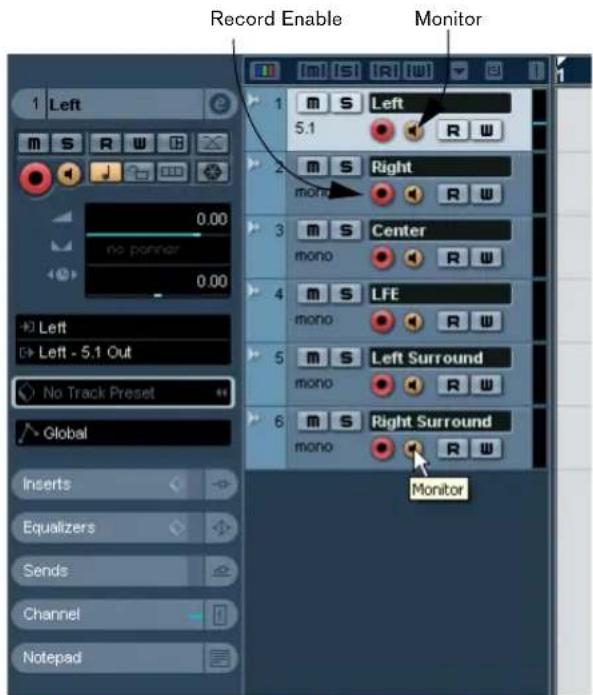
- Make sure "Cycle" is turned off (not highlighted) and that you are starting recording at bar 1.
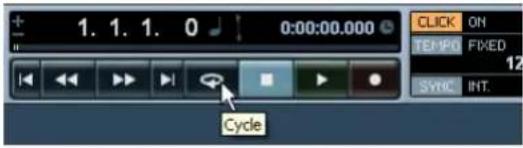
-
Click the "Record" button to record.
-
Click the "Stop" button when you are finished recording.
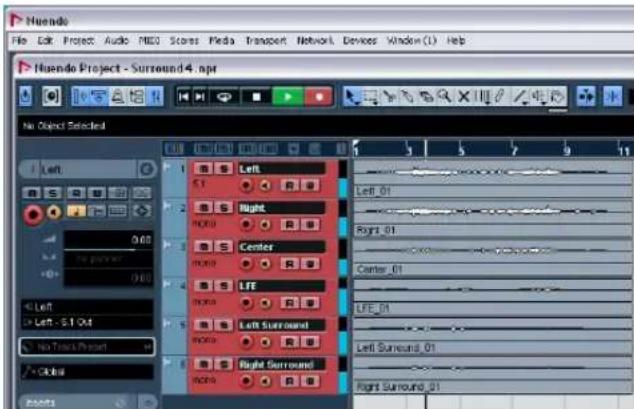
- Turn off the "Record Enable" and "Monitor" buttons for all the tracks so that we don't hear the inputs or record on the tracks any more.
Congratulations! You have just recorded a 5.1 mix in Nuendo. Move ahead to the next section to learn how to export a surround file.
Exporting a surround file
Now that we have a surround mix recorded, we will want to export it so that we can import it into another program such as a DVD authoring application.

Load the project called "Surround 5" found in the "Tutorial 7" folder.
-
Before we can export the surround mix to another program, we need to tell Nuendo how many bars to export. We accomplish this by setting the locators.
-
Set the left locator to bar 1 and the right locator to bar 26 on the Transport panel. This will make sure we have all the music for export.
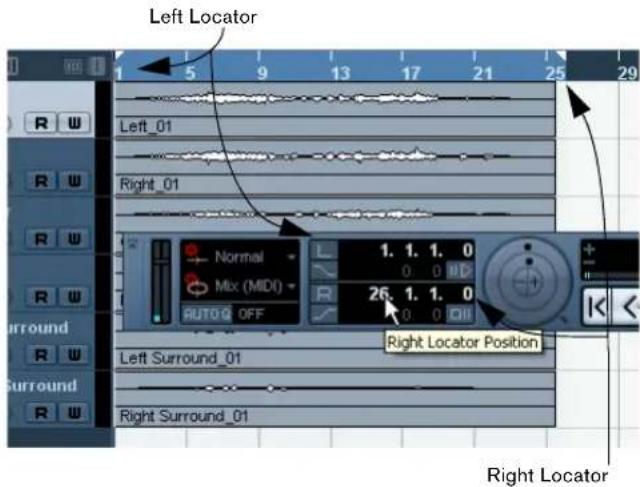
- Next, open the File menu, and on the Export submenu, select "Audio Mixdown...".
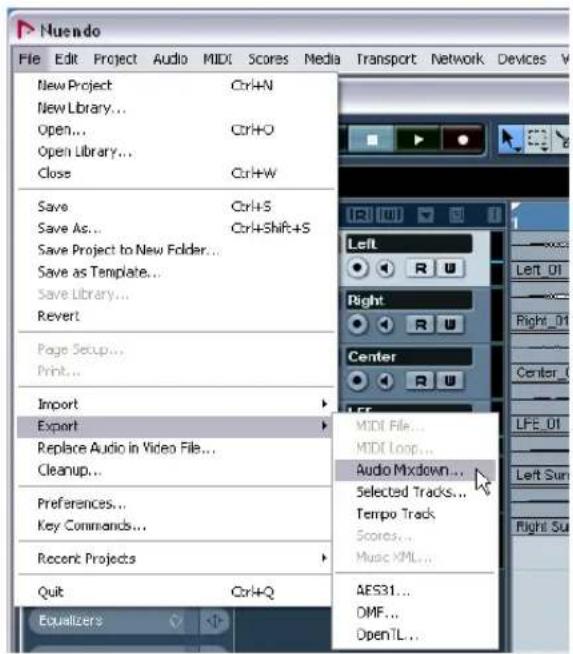
- The "Export Audio Mixdown" dialog opens.
This is described in detail in the chapter "Export Audio Mixdown" in the "Operation Manual". Please refer to this for more complete information.
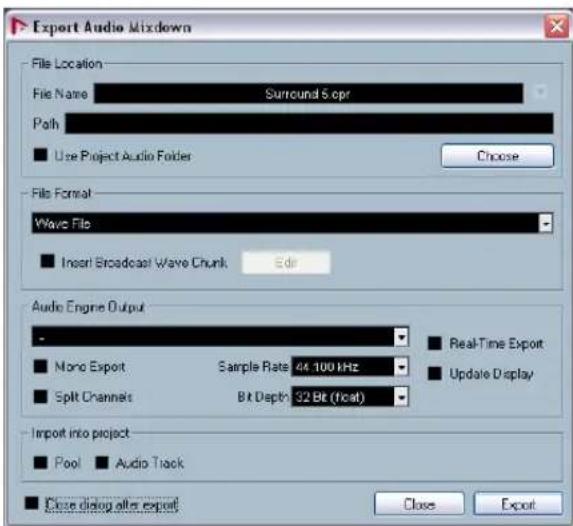
-
"File Name" is for naming the file for export. Let's name ours "Surround Tutorial Export".
-
The "Path" is where you wish to save the exported file on your computer. Use the "Choose" button to navigate to the folder you wish to save to. For convenience, there is the option "Use Project Audio Folder" which stores the exported file in your project's audio folder. This is one of the best places to keep it, so it won't accidentally become erased or lost. Make sure "Use Project Audio Folder" is activated for this export.
- Normally you'll want to save your exported file as a "Wave File" under "File Format". This of course chiefly depends on what file format the other application such as a DVD authoring program requires.
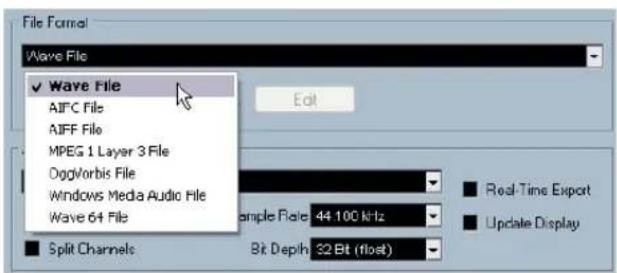
- You can choose whether you want a complete 5.1 exported mix by selecting "5.1 Out (5.1)". This means the exported file will be generated through the main 5.1 outputs that we see in the Mixer. You can also choose the individual outs of each audio channel for flexibility in your export. Let's choose "5.1 Out (5.1)".
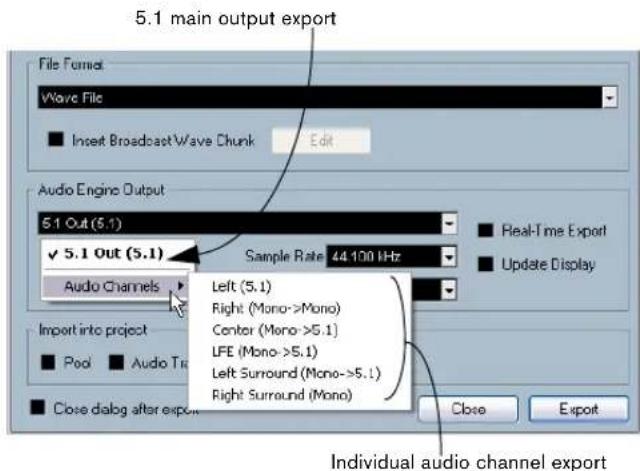
- Choose the "Sample Rate" and "Bit Depth" that will be required for your export.
- Select the three options in the bottom left corner as these will import the audio back into Nuendo after you export it and automatically create an audio track. The "Export Audio Mixdown" window will also close after export.
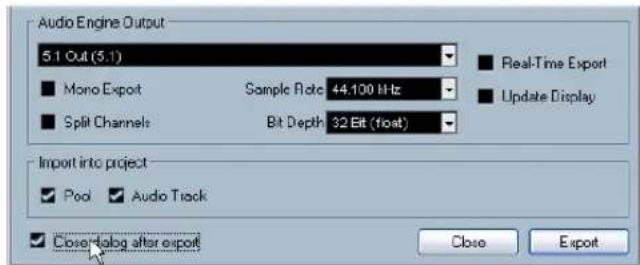
-
When you are done making all your settings, click the "Export" button.
-
You will now see your newly exported surround mix on one audio track as a 5.1 multiple channel audio file.
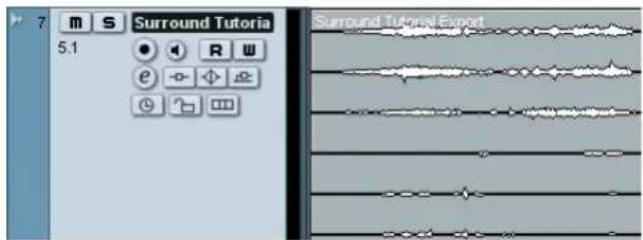
Load the project called "Surround 6" found in the "Tutorial 7" folder to see the results of this export.
Tutorial 8: Editing audio II - tempo and
groove
Background
In this section we'll walk you through various examples of audio files that have no tempo information and will show you how they can follow the project tempo of Nuendo in a few simple steps.

Load the project called "Tempo and Groove 1" found in the "Tutorial 8" folder.
Example 1: Drum loop, tempo known
In this example we have imported a drum loop and we know its tempo. This is one of the quickest ways to match the tempo of the drum loop with the project tempo.
Here we have a drum loop and we know its tempo, 100 beats per minute.
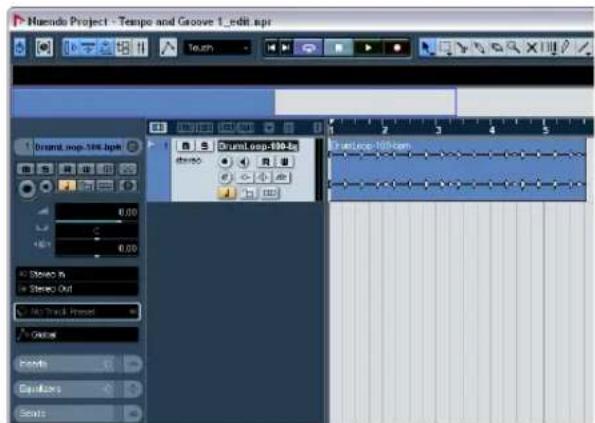
The project tempo of Nuendo is 120bpm, different from the drum loop.
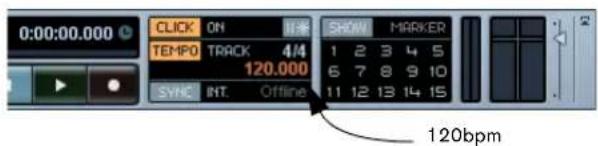
We are going to set the tempo of the drum loop to match the project tempo.
- Activate Start on the Transport panel.
You will hear that the drum loop is off time with the click.
-
Activate Stop on the Transport panel and deactivate the Click.
-
Double-click on the drum loop and the Sample Editor will open.
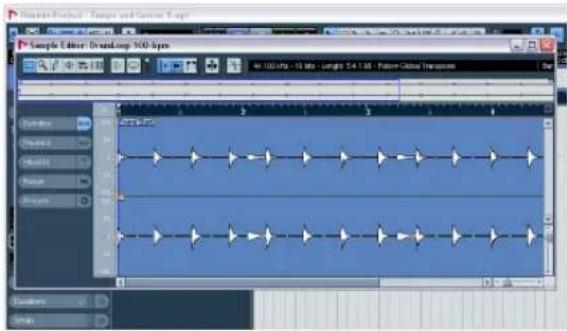
- Click on the Definition tab, and in the tempo field, enter 100.
This way Nuendo knows that the tempo of this audio file is 100 bpm. With this information Nuendo can then time stretch the audio properly. In addition to typing in the tempo, you can type in the number of bars - whatever is known. In both cases, the audio will be stretched properly.
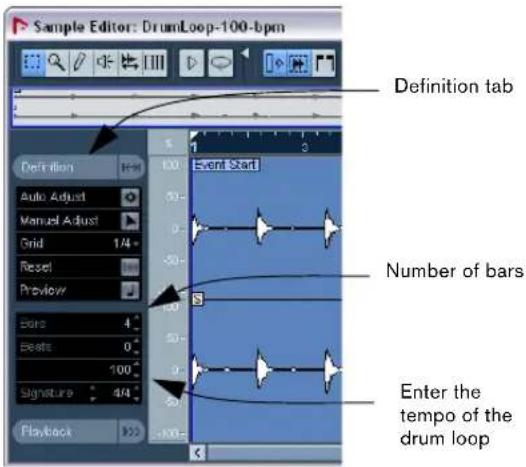
5. Activate Preview.
The drum loop is now matched to the tempo of the project.
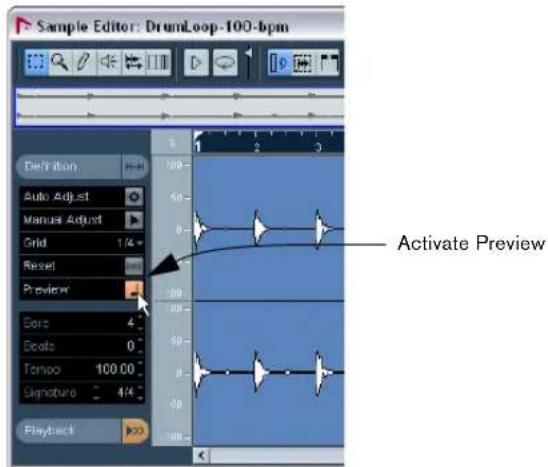
6. Close the Sample Editor.
- Select the drum loop in the project window and select Loop Selection from the Transport menu.
You can also use the corresponding key command [Shift] + [G].
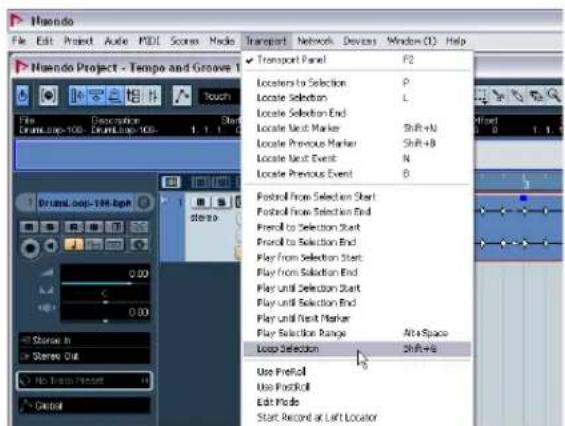
You can now hear that the drum loop is in perfect time with the project tempo. Feel free to change the tempo on the Transport panel by deactivating the Tempo Track. The drum loop will follow.

Example 2: Drum loop, Auto Adjust

Load the project called "Tempo and Groove 2" found in the "Tutorial 8" folder.
In this example we have imported a drum loop and we do not know the tempo. This is one of the quickest ways to match the tempo of the drum loop with the project tempo.
- Activate Start on the Transport panel.
You will hear that the drum loop is off time with the click.
-
Activate Stop and deactivate the Click.
-
Double-click on the drum loop.
The Sample Editor will open.
- Click on the Definition tab and activate Preview. Activating Preview allows you to hear any tempo changes direc
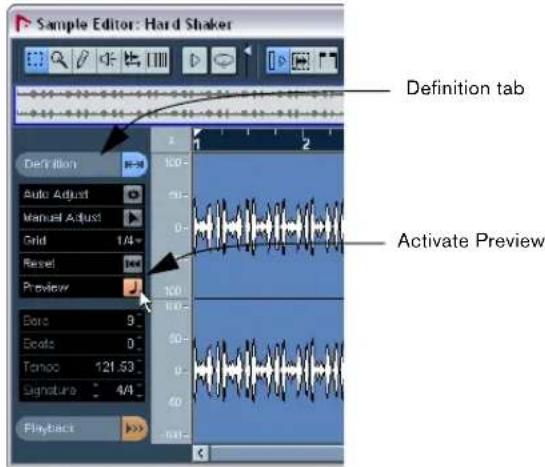
5. Zoom in on the first bar.
You can use the zoom slider on the bottom right. Zoom in so that you can see about 18 waveform shaker hits.
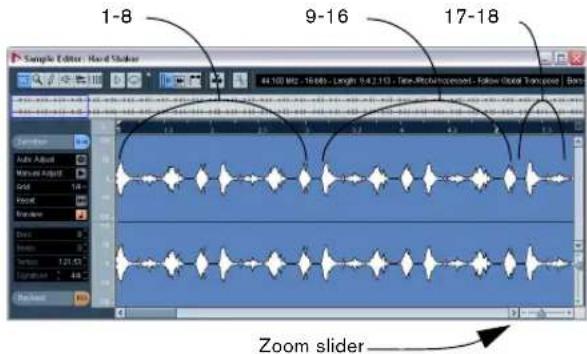
- Select the first bar of the loop (the first 16 hits, up to the 17th). Activate Audition Loop and click the Audition button.
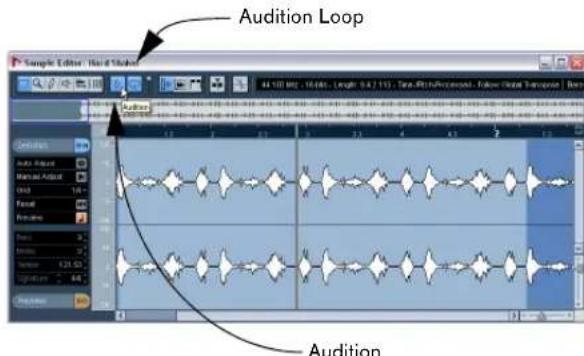
- As you listen back you may need to tweak the end of the loop to get it to loop smoothly.
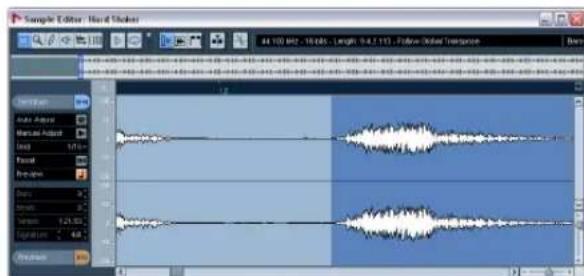
- Zoom out and click Auto Adjust on the Definition tab.

- Close the Sample Editor and listen to the loop play in time!
Example 3: Drum loop, Manual Adjust
! Load the project called "Tempo and Groove 3" found in the "Tutorial 8" folder.
This builds on what we have learned already in the previous examples. In this example we have a drum loop of unknown tempo and with timing issues that need to be corrected. You will learn how to manually correct this by adjusting the Timing Grid in the Sample Editor.
- Activate Start on the Transport panel.
You will hear that the drum loop is off time with the click. - Activate Stop.
- Double-click on the drum loop.
The Sample Editor will open. - Open the Definition tab and activate Preview.
Activating Preview allows you to hear any tempo changes directly.
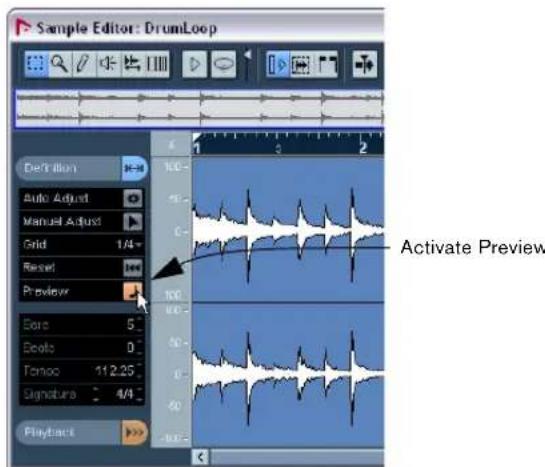
- Enter the number of bars the drum loop's length equals. In our case it's 4.
The drum loop is now matched to the project tempo.
- Activate Playback on the Transport panel.
You will hear that the drum loop doesn't exactly match with the Click. It's close, but not exact. This is because the loop has timing variations. Let's correct them.
7. Activate Manual Adjust.
This allows us to manually adjust the Timing Grid to correct any timing variations.
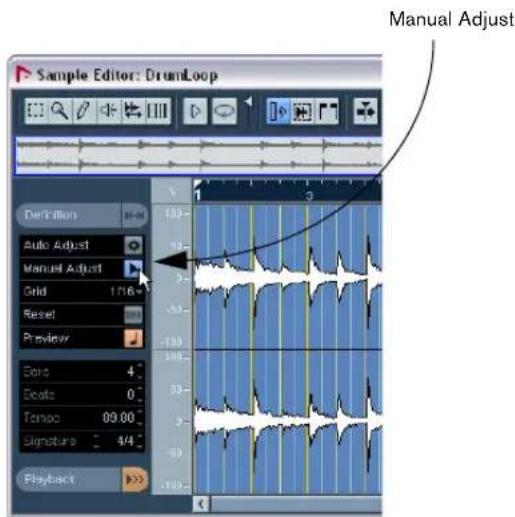
- Zoom in to the bars of the drum loop. In our case it will be bars 2, 3 and 4.
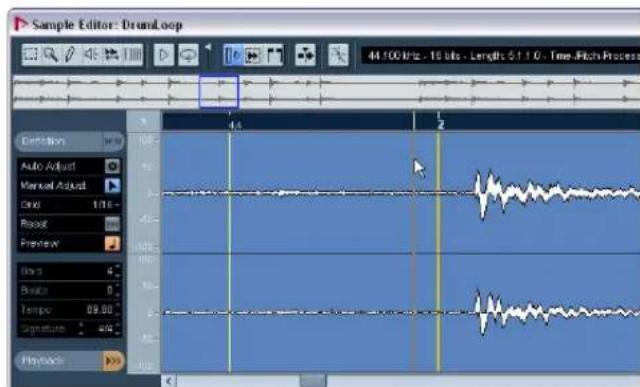
- Hold down [Alt]/[Option] and move the bar Grid lines close to the beginning of the attacks of the waveform display. Make sure you are only moving the Grid lines that are on Bars 2, 3 and 4. You should see the flag "Stretch Previous - Move Next" appear.
Holding down [Alt]/[Option] and moving the Grid lines at bar positions allows us to change the tempo of the previous bar while the following bars will be moved.
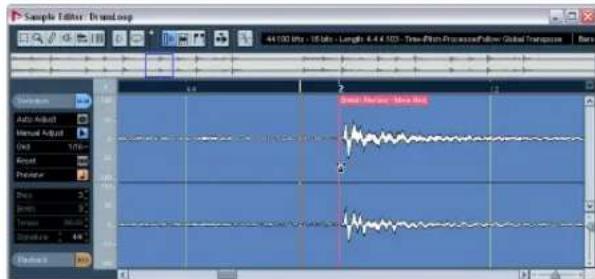
! Load the project called "Tempo and Groove 4" found in the "Tutorial 8" folder to see the bar grid line adjustments. Click on the Definition Tab in the Sample Editor and activate Manual Adjust.
- Now hold down [Ctrl]/[Command] to move the beat grid lines close to the beginning of the attacks of the waveform display.
Zoom in to line up the beat grid lines exactly. Do this for the entire drum loop in all the locations that appear to be off time.
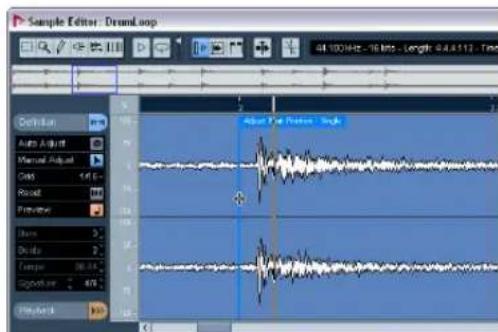
! Load the project called "Tempo and Groove 5" found in the "Tutorial 8" folder to see the beat grid line adjustments.
Click on the Definition Tab in the Sample Editor and activate Manual Adjust.
-
Close the Sample Editor.
-
Click on the drum loop and select Loop Selection from the Transport menu.
You can now hear that the drum loop is in perfect time with the project's tempo. Feel free to change the tempo on the Transport by first deactivating the Tempo Track and notice that the drum loop will follow.
Example 4: Working with selections

Load the project called "Tempo and Groove 6" found in the "Tutorial 8" folder.
In this example we have an audio file with unknown tempo. We only want to use a small section of the audio file to create a drum loop.
- Activate Start on the Transport panel and hear that the drum loop is off time with the click.
- Activate Stop and deactivate the Click.
- Double-click on the drum loop. The Sample Editor will open.
- We are going to create a 2-bar loop from this audio file. Make sure the Range Selection tool is selected. Click and drag to make a selection to a portion of the audio file that you will use as a drum loop. Somewhere just after bar 5 and just after bar 7.
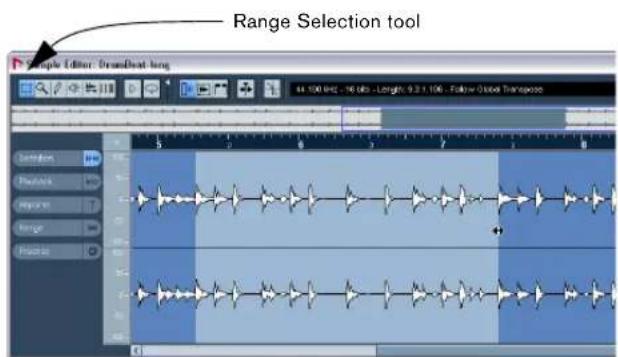
To get the selection to match our example click on the Range tab and enter 411427 in the Start field and 616843 in the End Field.
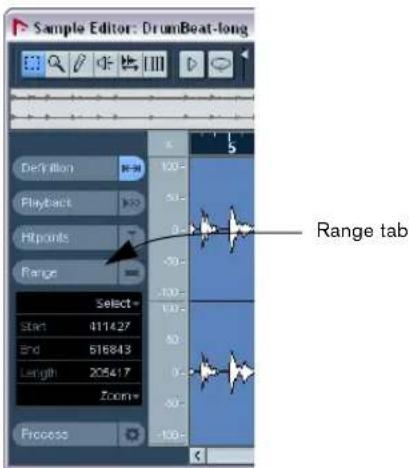
- Click on the Hitpoints tab and choose Slice & Close. You now have a loop that is cut to the selection you made and can now loop to the project tempo. The Sample Editor will close and you will be returned to the Project window.
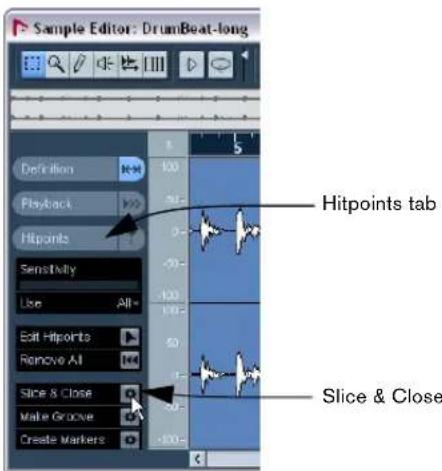
- Click on the drum loop and select Loop Selection from the Transport menu.
You can now hear that the drum loop is in perfect time with the project's tempo. Feel free to change the tempo on the Transport by first deactivating the Tempo Track and notice that the drum loop will follow.
12
Tutorial 9: Media management
Background
The MediaBay is an area in Nuendo that helps to find, identify, tag and organize your sounds (VST 3 Presets and track presets), audio/MIDI loops, video and project files.
You'll hear and read about two different terms associated with the MediaBay: VST Sound and MediaBay.
VST Sound is the overall concept of managing the ever-growing number of plug-ins, instruments, presets, etc. The tool that links all of the plug-ins, instruments and presets together is the MediaBay.
Why is the MediaBay important to me?
The MediaBay:
- Provides different views allowing you to find and tag media files, quickly import media files into projects. Media files include: audio files, MIDI files, MIDI loops and video.
- Allows you to find sounds easily so that you can begin working on your music quickly without endlessly searching for the 'right' instrument.
- Allows you to find and apply audio, MIDI and instrument presets quickly to your tracks.
- Shows you all of the Nuendo project files that are on your computer to quickly load them.
MediaBay frees you from thinking in a folder structure or by instrument. Just think about the sound you are looking for and find it across your entire library.
MediaBay, Loop Browser and Sound Browser
There are three menu options on the Media menu that allow you to call up the various MediaBay views.
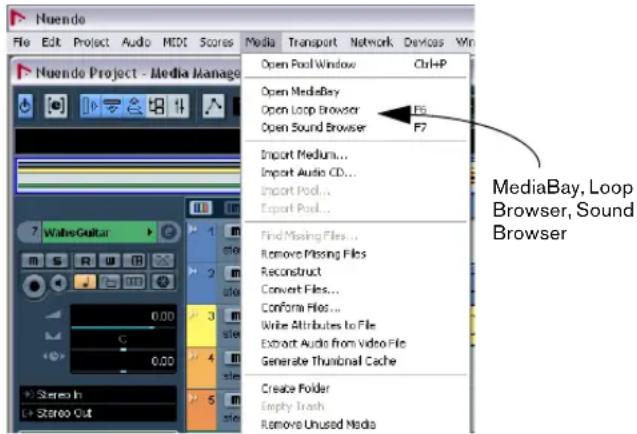
It really doesn't matter which one you pick as they all provide the same functionality. The reason you would pick one from the other is that they have various buttons and features turned on or off so that you can easily find what you are looking for.
For example, if you are looking for loops you would select the Loop Browser as this has been pre-configured for searching specifically for loops. Or if you were looking for Track Presets or VST Plug-in Presets, the Sound Browser would suit you best.
! Load the project "Media Management" found in the "Tutorial 9" folder.
To open the MediaBay
We are going to use the MediaBay view as this view has been pre-configured to allow all of the controls by default to be visible. Everything we learn in the MediaBay can be applied to the Loop or Sound Browser.
- On the Media menu, select "Open MediaBay" and click on the Category tab.
The MediaBay by default opens with the Details tab activated. For the purpose of this tutorial, the Category tab will be needed.
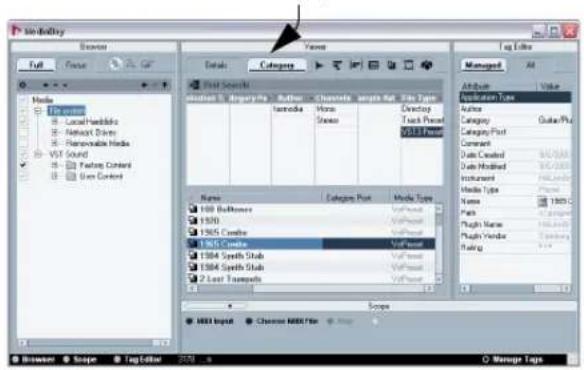
Category tab
Making visible the different sections of the MediaBay
At the bottom left hand side of the MediaBay window there are 3 buttons allowing you to show/hide the different MediaBay sections. These are:
- Brows er
- Scope
- Tag Editor
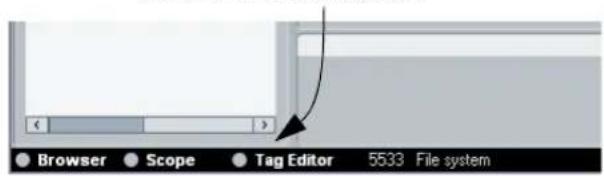
Browser, Scope and Tag Editor
- Hide the Browser, Scope and Tag Editor sections.
We are left with the Viewer display and Filter section. These two sections allow us to view and find files.

2. Show the Browser section.
This is where you can specify locations on your computer so that the MediaBay can find all of your media files.
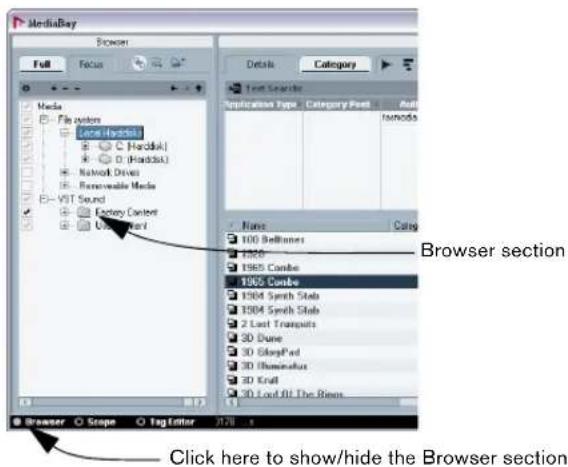
3. Show the Scope section.
The Scope section allows you to view and play back files selected in the Viewer section.
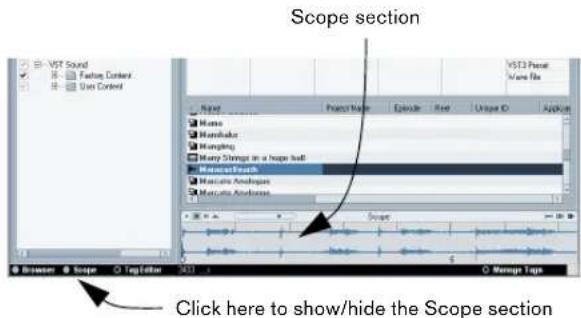
4. Show the Tag Editor section.
When a file is selected in the Viewer section, you can view and/or assign tags to the file to make organizing and searching for the file easier.
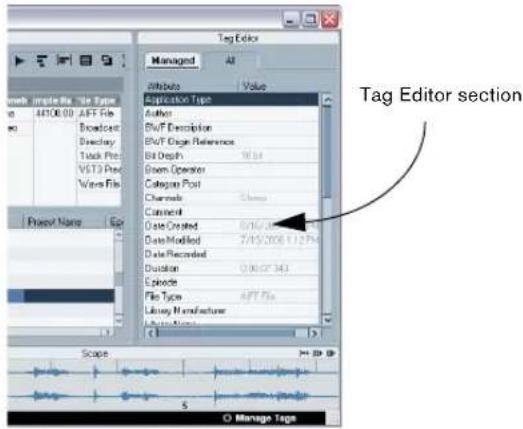
Scanning with the browser
When you open the MediaBay, the Loop Browser or the Sound Browser, a scan for the media files is performed. Specify which folders or directories should be included in the scan by activating their check boxes to the left of the name. The result of the scan is saved in the MediaBay database.
Physical and virtual scanning locations
There are 2 different locations that you can scan for media files on your computer. The File system location and the VST Sound location.
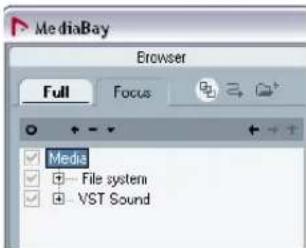
File System
The File system locations are the physical or actual locations on your computer. These locations include local and removable disks such as hard drives, external drives, CD or DVD-ROM drives, etc.
By default File system is checked, however, it contains many locations you would not want scanned. Be sure to check which areas/folders you want MediaBay to manage. The areas/folders that you pick will automatically be scanned and the result of that scan can be seen in the Viewer section.
VST Sound
The VST Sound locations are the virtual locations on your computer to any factory content or user presets created for plug-ins, instruments or MIDI-loops. Make sure that this is not turned off.
Choosing scanning locations
Generally you'll want to make sure that VST Sound is always checked since this is the factory content or content that either came with Nuendo or other compatible product such as Steinberg's Sequel. This is also the location of any user presets that were created.
- Click the plus symbol on File system to reveal its scanning locations.
These are the physical locations on your computer that you can specify so that MediaBay will search for media content. Be sure to check the areas/folders that you want the MediaBay to scan.
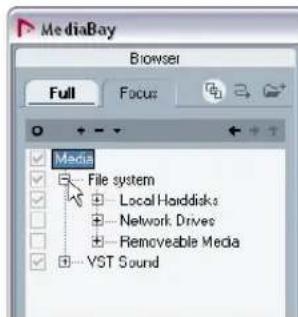
- Click the plus symbol on VST Sound to reveal the scanning locations found there.
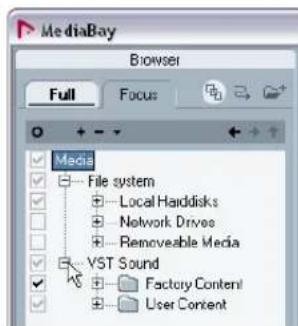
There are many locations that do not need to be checked. Spend the time un-checking the locations you feel do not need to be searched. By doing this the MediaBay is kept clean of any useless information which speeds up searches and general handling.
If you are in doubt about any of the locations, don't worry - just leave them checked.
Selecting a location (folder) automatically initiates a scan and updates the database.
Deep Results
Before we begin the scan of all our media on the computer, make sure the "Deep Results" button is activated.
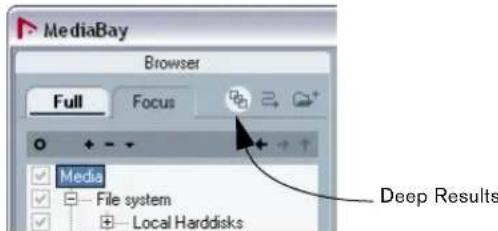
Activating "Deep Results" will show any files inside the currently selected folder, as well as any sub folder in a "flat" view - as if they were inside the same folder. This allows you to look at your media files sorted by attributes, even if they reside in a complex folder structure.
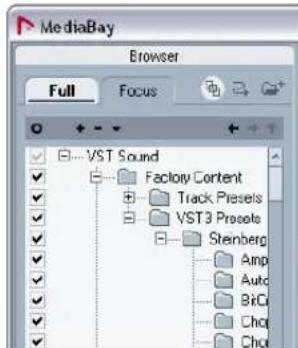
- Right-click on Media and select "Refresh" from the context menu to begin scanning.
This starts the scanning process and now the MediaBay is looking for media on your computer within the locations you have specified.
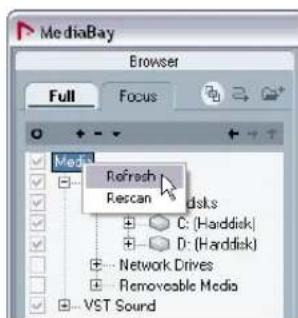
Scanning indicator and status
When the MediaBay is scanning for media on your computer, a visual indicator in the upper right hand corner of the Viewer section will be displayed.
The scanning status for the individual folders in the Browser section is indicated by the color of the icons:
- A red icon means that this folder is currently being scanned.
- A light blue icon means this folder has been scanned.
- Orange folder icons are displayed when a scanning process was interrupted.
- Yellow icons are displayed for folders that have not been scanned.
Searching for media
Now that we have selected the folders on our computer and scanned for media we can now search for an audio file and drop it into our project.
You should still have the project called "Media Management" loaded for this tutorial.
We are now going to shift our attention to the Viewer section. The Viewer section consists of two panes: the filter section at the top and below it, the Viewer display.
For the purpose of this tutorial, we need to adjust the default appearance of the filter section so that we can find the desired audio file easily.
The filter section shows six tag columns. The first two columns from the left need to be changed as follows:
- Select "Category" instead of "Application Type" and "Sub Category" instead of "Category Post".
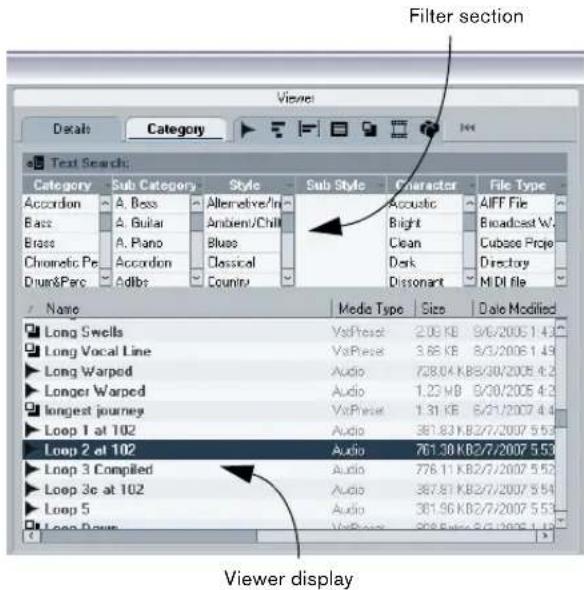
- Choose a main category from the filter section (like "Drum/Perc").
This will show us any files that have been tagged with the category Drum & Perc. See "Tagging" on page 90.
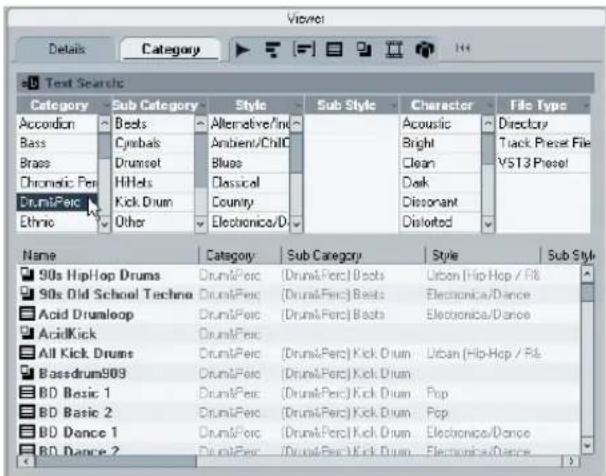
- Choose a sub category if appropriate (like "Beats").
This allows us to narrow down our search even more.
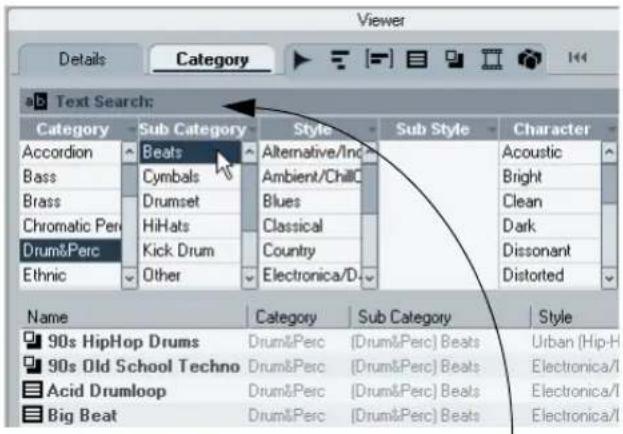
Text Search field
There is a list of drum loops that are now available to us in the Viewer display with our filter criteria. We can simply drag and drop any of these audio files into our project. Alternatively we could use the Text Search field and search for a media file by name.
Auditioning media with the Scope
We have narrowed down our search to just drum beats and now we want to audition our results before we drop it into our project.
- Show the Scope section and select an audio file from the Viewer display.
You will see the Scope display the audio file as a waveform.
The Scope section displaying an audio file.
Click here to show/hide the Scope section.
You can start, stop, pause and cycle the audio file to hear what it sounds like. You can also set the preview level.
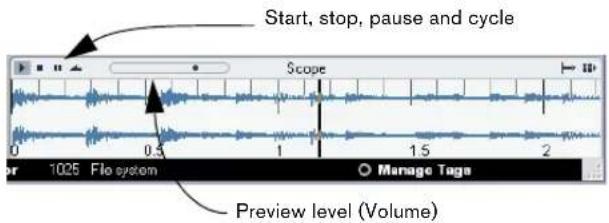
Play in project context
It's a good idea to hear our project playing while we audition our audio loop.
- Activate Play in Project context.
The loop will now play along with our project in the project tempo.
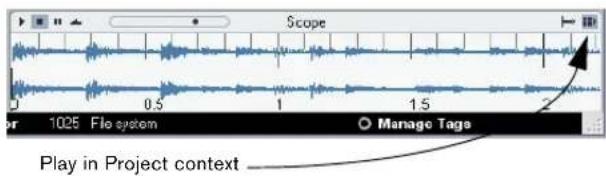
- Activate Auto Play.
With Auto Play activated we can click on many different audio files in the Viewer display and audition them quickly.
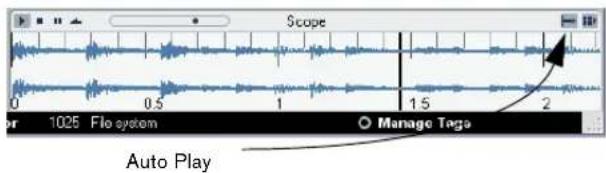
- Click Start on the Transport panel.
The project will begin to play and the audio files you have selected in the Viewer display will play along in time with the project.
- Click on different audio files to find the one that works best with the project.
You can use the up and down arrow keys on your computer keyboard to quickly audition many files.
- When you have selected the file you wish to use, drag and drop it right into the project.
You don't have to click Stop, the project will continue to play and the MediaBay will stop auditioning the file automatically.
Tagging
You are able to add musical tags to your media files so that you are able to quickly organize and find your media files for later use. Tagging also helps you to group large amounts of media into a more usable and searchable format.
- Show the Tag Editor section and select one or multiple files in the Viewer section.

- Select the Managed tab.
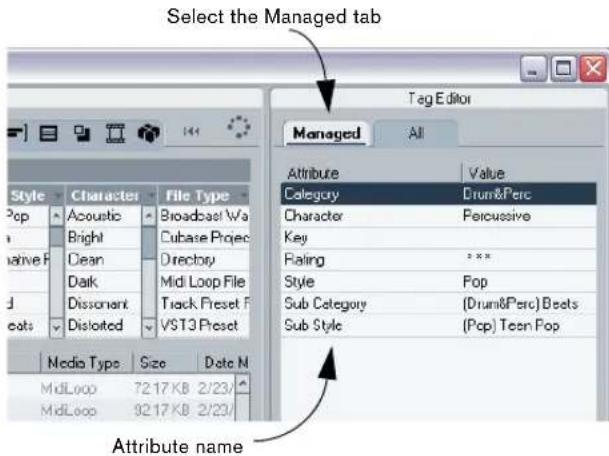
You can apply tags by clicking (double-clicking for Character) in the field next to the attribute name.
The next time you search for media using the search filters (category, sub category, style, etc.) you'll see the media you have tagged appear in the viewer section along with the other similar tagged media.
For even greater search capabilities and organization you can open the Manage Tags window and define even more tags for your media files.
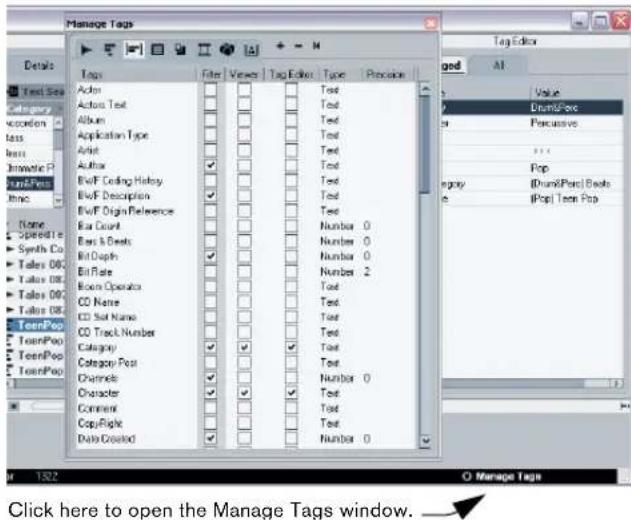
For further details refer to the MediaBay chapter in the Operation manual.
13
Working with video
Introduction
In this chapter we are going to show you how to use video files and video tape machines with Nuendo. Nuendo is a full-featured post production media tool that is capable of dealing with video content in several ways. You can work with video and create complete soundtracks from within Nuendo. The soundtrack can then be rendered into a video file, recorded onto video tape or exported as an audio file that can be married to the video or film later.
Virtual video playback
The most common method of working with video in Nuendo is using video files within the software to play video images in sync with audio and MIDl. Nuendo has its own window to display video (opened by pressing [F8]). This window can be resized to fit an entire screen or be very small and unobtrusive.
To open the video playback window, select "Video" from the devices menu or press [F8]. A blank video window will appear. Once you have imported a video file and placed it in the project window, the video can be viewed in this window.
To resize the window, simply click and drag the lower right hand corner of the window to your preferred size. However, when using the DirectShow playback engine, there are only three choices for the window size; tiny, small and big. The size of the DirectShow window can be changed by accessing the Device Setup dialog from the Devices menu. Select Video Player to see the choices of window size.
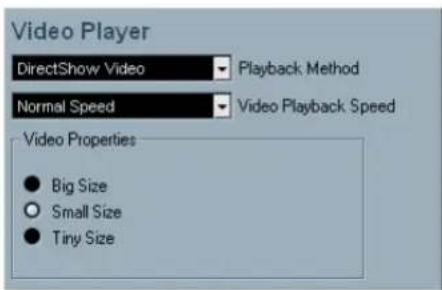
The DirectX window size options in the Device Setup dialog.
Video playback engines
There are three different playback engines that Nuendo can use to play video files.
- QuickTime (Mac and PC)
- DirectShow (PC only)
- DirectX Video (PC only)
Which one to choose depends on your computer configuration and working preferences. The available video playback engines are accessed from the Device Setup dialog.
Typically, PC users can use the native Windows video engines DirectX and DirectXShow without installing any additional software. QuickTime requires installation of the QuickTime software in Windows.
For Apple OS X computers, QuickTime is the only available playback engine. It is installed with the operating system.
Video file compatibility
With so many types of video files, determining if one will work on your system can be confusing. The simple test for this is to open the video file with the native media player on your computer.
- For windows systems, open the video file with Windows Media Player and see if it will play.
- For Apple OS X systems open the file with QuickTime and see if it will play.
If the native media player is able to play the video file back properly then Nuendo should also be able to use the video file in a project. If there is a problem playing the video file with the native player, you must either convert the file to a compatible type or install the necessary software on your computer to play that file type on your system.
A great deal of confusion arises when trying to figure out why a video file will not play properly on a given computer. Understanding video files and how they work can alleviate much of this and lead to better use of your computer's video capabilities.
Container formats
Video and other multi-media files come in a container format. This container holds various streams of information including video and audio but also metadata such as synchronization information used to play back audio and video together. Data regarding creation date, authors, chapter markings and more can also be held within the container format.
- AVI (Microsoft's standard container format)
- MOV (QuickTime's standard format)
- MPEG-2 (used for DVD authoring, can contain AC3 multi-channel audio as well)
- DV (used by camcorders, high resolution)
These container formats are cross-platform compatible. They can be used on both Mac (OS X) and PC systems. Problems arise when the computer does not have the correct software to decode compressed video and audio streams within the container file. You must also know the type of codec used to create the video file.
Codec
Codes are methods of data compression used to make video (and audio) files smaller and more manageable for computers. In order to play a video file, your computer must have the correct codec installed in the operating system to decode the video stream.
Here are some of the most commonly used video codec:
- MPEG-2 (often used for DVD encoding, also a container format)
MPEG-4 - DV (native to OS X computers, hi resolution)
H.264 (for streaming Hi-Def video over the Internet) - WMV (Windows video compression)
Part of the confusion lies in the names of both CODES and container formats. Since many container formats have the same names as the CODEs they use within the file, make sure to differentiate the container format or file type (.wmv, .mov, .dv etc.) from the codec used within it.
If your computer does not have the right codec to play a particular video file, you will most likely be able to download the necessary software to install the codec onto your system. To find available codecs, visit Microsoft's or Apple's web site and search for video codecs.
Adding a video file to a project
Adding a video file to your project is very straight forward once you know that you have a compatible video file. It is advisable to store you video files on a separate hard drive from your audio files if possible. This can help prevent data streaming problems when using hi-res video with many audio tracks.
- On the File menu-Import submenu, select "Video File...".
You may also open the Pool and click the Import button. - Locate and select the desired video file on your computer.
- Activate "Extract Audio" if you wish to also import any embedded audio streams.
If this is activated and there is no audio stream within the container file, you will get an error message, "No compatible audio stream found...". Click OK and the video stream will continue to be imported. You may also extract the audio from any video file by selecting "Extract Audio from Video File" from the Media menu.
4. Activate "Generate Thumbnail Cache" if you wish to create thumbnails during the import process.
This may also be done after a video file is imported by selecting "Generate Thumbnail Cache" from the Media menu. Be aware that displaying video thumbnails may use significant CPU resources.
- Select the video file inside the Pool's Video folder.
You may have multiple video files of various formats in the Pool.
- Drag the video file into the Project window.
If you drag the video file into the Project window and a video track has not yet been added to the project, Nuendo will automatically create one for you and place the video file in the timeline at the insertion point.
- Select one of the "Insert into Project" options from the Media menu.
You can choose to insert the video at the cursor position, at the left loca
tor, at a specific timecode number or at the origin time of the video file. The origin time can also be referred to as the timestamp of the video file. Most video files have a timestamp of 00:00:00:00. The use of a time
cod e burn-in window in the video can help place the file at the proper loc
cation. See "Tips" on page 98.
Now that your video file is placed in the Project window's timeline, you may play it along with other audio and MIDI data in the project. When you enter Play, and the cursor is within the boundaries of the video file, video will be displayed in the video window ([F8]) and via other video hardware devices you may have configured in your system.
When stopped, the current frame of video is displayed. If the cursor is to the left of the start of the video file, the first frame of the video will be displayed. If the cursor is to the right of the video file end point, the last frame of the video will be displayed.
You may have multiple video files of differing formats in the same video track of Nuendo. Assuming you have the proper codecs installed, they will all play together in one project. There can only be one video track per project.
Video output devices
Viewing video files on-screen in the video window may work just fine for many applications but often it is necessary to display video in a large format for viewing small details and so others involved in the session can also see the video. Nuendo provides the ability to use several types of video output devices in order to accomplish this. The type of devices you can use depends on the configuration of you system and what platform you use.
Multi-head graphics cards
One of the most common methods available to both Mac and PC platforms is the use of multi-head graphics cards installed in the computer. Multi-head graphics cards allow more than one computer monitor to be connected to the card, in some cases up to four monitors on one card. The video output of Nuendo can be directed to one of these outputs and then displayed full screen on a computer monitor or HD television screen.
Instead of a single multi-head graphics card, it is possible to use more than one graphics card to achieve the same results. The use of two dual display cards in one system (a total of four monitors) is a very common setup for film post-production systems. One output is dedicated to video only and the other three can be used for Nuendo and other applications.
Different graphics cards support different types of outputs including standard VGA, DVI, S-Video and component video. These options allow you to choose the type of monitor you use for video. HD televisions and digital projectors provide the largest viewing screens but a normal computer monitor can function as a very high-quality video monitor as well.
Dedicated video cards
The use of a dedicated video capture and playback card is also supported in Nuendo. These cards are normally used in video editing systems to capture video to disk and display it while editing. They usually have a high resolution and take some strain off the host CPU by providing video compression and decompression processing on the card.
The Decklink cards by Blackmagic Design are automatically recognized by Nuendo. Video will be sent directly to its output.
FireWire DV Output (Mac OS X only)
On Mac OSX systems, you have the option to use FireWire ports on the computer to output DV video streams to external converters such as various camcorders and standalone FireWire to DV conversion units. These units can be connected to a television or projector for large format viewing.
Video playback speed
Nuendo supports adjustments to the playback speed of video files necessary to compensate for film that has been transferred to video via a telecine process. For detailed information on video pull up/down, please refer to the Video chapter in the Operation Manual.
Editing video
Nuendo supports simple cut and copy style editing of video tracks. You can take a single video and copy it many times for the creation of mix variations. A video file may be trimmed using the event handles to remove a count down for instance. You may also lock video events in the same way as other events in the project window. It is not possible to fade or crossfade video events.
Note that this functionality is limited to the DirectX and QuickTime video players.
Rendering audio into video files
Once you have edited all audio and MIDI data to the video and created a final mix, you will need to put the new audio back with the video. This is described in detail in the chapter "Audio editing to picture" on page 99. You can do this by embedding the new audio in another stream within the video container file. This requires rendering of the video file again with a new audio stream.
- Export the audio file you wish to render into the video container file.
Nuendo treats the rendering process in a separate step. You must first have both the audio and video files prepared before rendering them together. Make sure you place the left locator at exactly the start of the video file in Nuendo before exporting the audio mixdown. This will ensure that your audio and video streams will be synchronized after rendering. - On the File menu, select "Replace Audio in Video File...".
A navigation window will open prompting you to locate the video file. - Locate the video file you wish to render audio into.
Next, you will be prompted to locate the corresponding audio file. This should be the one you created in step 1. - Locate the audio file to be rendered.
A progress bar shows the status of the rendering. - Once rendering has completed, open the video file in a native media player and check for proper rendering and synchronization.
Video tape recorders
The second method of working with video and Nuendo is through the use of external video playback hardware such as video tape recorders (VTRs). Video hard disk recorders also fall into this category and function in much the same way as tape machines. With this in mind, "VTR" will also refer to hard disk recorders for the purpose of this chapter.
Whenever you are interfacing Nuendo with external hardware, some additional computer hardware may be necessary. In the case of using VTRs with Nuendo, a device capable of dealing with SMPTE timecode, word clock, video reference clock, MIDI machine control and Sony 9-Pin machine control protocols will be needed.
Nuendo must be able to send and receive transport commands to and from the VTR. Speed and position information in the form of word clock, video reference clock and SMPTE must also be fed into Nuendo and the audio hardware.
Synchronization and Machine Control
The most important aspect of working with VTRs is the ability to maintain the best possible synchronization between Nuendo and the tape machine.
Regardless of your hardware setup, Nuendo will have to be configured to synchronize with the VTR using the Project Synchronization Setup dialog.
- On the Transport menu, select "Project Synchronization Setup".
This opens the Project Synchronization Setup dialog. - Select your timecode source.
In most cases, the VTR will supply the timecode. This can be read by devices like Steinberg Timebase or via Sony 9-pin. Third party TC readers can convert incoming timecode in the form of LTC or VITC to MIDI timecode (MTC) as well. - Select your Master Machine Control device.
This is the main external device you are synchronizing with.
- Make settings for the VTR.
This includes selecting the correct ports. In order to record-enable tracks on the tape machine, you must configure how many audio tracks are available. Most professional VTRs have four audio tracks available.
- Set the Master Machine Control Preferences.
There are several preferences to select that will determine how the machine control device will behave. - Click OK to close the Synchronization Setup dialog.
- On the Project menu, select "Project Setup...".
The Project Setup dialog is opened.
- Set the Project SMPTE frame rate.
The frame rate should be the same for all devices in the synchronization setup. Mixing different frame rates may lead to unpredictable results. -
Set the correct audio pull up/pull down setting.
Audio pull up/down controls are used to compensate for speed changes in the video that result from the transfer process from film. (See the Operation Manual for more information) -
Adjust the Project start time and the time display options as needed.
If the video starts at 01:00:00:00, the project start time could be 00:59:00:00. This eliminates much blank space before the start of the project but allows for things such as test tones and pre-roll of tape machines.
- Click OK to apply your settings and close the dialog.
- Activate Synchronization by clicking the Sync button in the Transport panel.
This changes the nature of the transport controls by having them send machine control commands to the tape machine which then will send timecode back to Nuendo and Nuendo will start playback in sync with incoming timecode.
This system is intelligent and is designed to appear transparent to the user. When sync is activated, any transport moves you would normally make in Nuendo, such as moving the cursor around the Project window, pressing rewind or return to zero buttons, are immediately turned into machine control commands to locate the tape machine to specific positions. Even shuttle and scrub actions do this.
Once both Nuendo and the tape transport have located to the same position, playback can begin on the tape machine which then will send the corresponding timecode out for Nuendo to synchronize to.
In the Device Settings section for each 9-pin device in the Project Synchronization Setup dialog there is the option "Displays Follow Locating Device" which will make the cursor position follow the actual tape transport as it moves physically to the locate position. This gives you feedback about the tape transport and what it is doing and when it will be ready for playback. When tape machines are located remotely in a dedicated machine room of a studio facility, having this visual feedback can be very helpful.
Once the Project Synchronization Setup has been configured, you should test the system to ensure that audio and video are properly in sync. A reference mix from the video can be helpful for this. Record the audio from the VTR into Nuendo. While listening to the original audio on the VTR and the recorded audio in Nuendo, playback the system and see if you notice any drifting in the audio between the two sources. This will give you an idea of how accurate the sync is. There should be no drift whatsoever in a properly configured system.
Layback to tape
Machine control also allows you to record-enable tracks of the remote machine. This allows you to record your final mix back on to video tape when you are finished. This process is often referred to as "laying back to tape" or simply "layback".
Two things are needed to perform a layback:
- Arming of the necessary audio tracks.
This could be as simple as two tracks for stereo or eight tracks for a 5.1 surround mix plus a stereo downmix on tracks 7 and 8. In film mixing it may be necessary to record 24 or more mixdown tracks known as "stems". Any number is possible. - The timecode values to start and stop recording on the tape machine will need to be defined.
You could manually punch in and out on the remote machine but using specific timecode numbers allows more precision and even going back and punching in sections that need remixing later without disturbing the rest of the sound track.
VTRs have two basic record modes:
-
Auto-Edit
-
Insert
Auto-Edit allows you to perform an automated punch-in and punch-out on selected tracks of the VTR. The VTR is played and using the left and right locators in Nuendo, will enter record at the left locator and go back to play (punch-out) at the right locator.
Since VTRs need a certain amount of time to get up to proper speed for playback, the Auto-Edit function allows you to start playback prior to the desired punch-in point, allowing for pre-roll. Precise edit points make it possible to record only a specific portion of the program material if needed for a correction or alteration to the overall project. When working on a feature length film that takes over an hour to layback, a quick edit in the middle can save a lot of time in the studio.
Insert mode records ALL tracks on a VTR at the same time (including the video and timecode tracks!) and is usually not used for audio layback.
Preparing an audio layback
Once you have completed the editing and mixing of a soundtrack for a video or film, inserted any required test tones and 2-pop, you are ready to layback the mix to a tape machine. Depending on the type of machine control you are using (MMC or 9-pin) the steps required are slightly different.
- Set the left and right locators at the start and end of the complete soundtrack.
If you need to record test tones of any sort, include these in this selection. Typically, program video (what the audience actually sees) starts at 01:00:00:00. Any test tones or countdown audio would happen prior to that, yielding a start time of perhaps 00:59:00:00. You may wish to also leave some blank space at the very end of the program in order to avoid clipping any audio when the tape machine punches out.
- Synchronize Nuendo to the tape machine using machine control.
If the Project Synchronization Setup dialog has been properly configured, this should be as simple as engaging the sync button in the Transport panel. To accurately layback audio to an external tape machine, Nuendo must be synchronized to the tape machine via timecode and a clock source such as video sync or word clock from a hardware synchronizer. This will ensure that audio remains in sync with the video on the tape machine throughout the layback process. Nuendo must be enabled to control the transport of the layback machine via MMC or 9-pin connections.
In many cases, the only time you would need to synchronize Nuendo with a tape machine is for audio layback. Editing usually goes much faster when using a reference video file within Nuendo. For this reason, make sure the synchronization settings are correct and working properly during this important step.
3. Position the Project cursor somewhere before the left locator.
Leave enough time for the tape machine to get up to speed (pre-roll) prior to the punch-in point at the left locator.
- Using either the MMC or 9-pin machine control Transport panels, record-enable the proper tracks on the tape machine.
Depending on the tape machine and mixdown format, you may need to enable six audio tracks or more for a surround mix and alternate downmixes. The machine control transport should have all available tracks shown on the left side.

The MMC Master control transport with six out of eight tracks record-enabled, ready to layback a 5.1 surround mix.
- For MMC machines, make sure to activate both the punch in and punch out buttons in the Transport panel. When the cursor reaches the left locator, a record command will be sent to the MMC device, placing it in record on the enabled tracks. Once the right locator is reached, the deck will punch out.

The punch-in and punch-out functions are enabled on the Transport panel. It is not necessary to use pre-roll so long as you start with enough time for the tape transport to come up to speed before the punch-in point. A pre-roll would do the same thing though.
- For 9-pin control, enable the Auto Edit function.
Many video tape machines that have 9-pin control use the Auto-Edit function as a way to punch-in on only certain tracks of the tape machine. Insert Edits will record on all tracks at the same time and will cause erasure of both video and timecode on the tape.
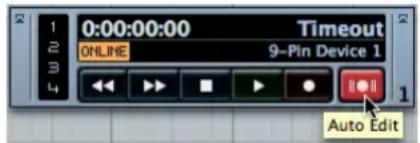
The Auto-Edit function has been turned on for this 9-pin device allowing Nuendo to punch-in on selected tracks of the video tape machine.
- Make sure the outputs of your sound card are routed to the inputs of the tape machine.
For those using the Control Room features, remember that the Main outs of Nuendo should be separate from the Control Room speaker outputs to avoid double-bussing and possible overload conditions. See the Control Room chapter in the Operation Manual for more information.
8. Press play.
Nuendo will start playback on the machine control device which will then send timecode and clock data back to Nuendo. Nuendo will then playback in sync with the tape machine and at the left locator, the tape machine will enter record on the enabled tracks. At the right locator, recording will stop. You can then stop the transport at any time.
During the layback process, try to watch video coming directly from the tape machine while listening to the audio outputs of the tape machine to ensure that proper sync has been maintained. If that is not possible, make sure to view the video afterwards to double-check. Once the program has been reviewed for errors, layback is done and the master can be delivered.
Nuendo has the capacity to have two 9-pin devices and up to 127 MMC devices connected at the same time, providing a multitude of options for tape machine control. Multiple transports may be synchronized with Nuendo at one time, allowing Nuendo to be the machine control hub in a complex system of tape machines typically found in film dub stages.
Since Nuendo may also function as a MMC slave device, it can be integrated into an existing machine control system very easily. A second Nuendo system can take the place of a stem recorder. With an extremely large number of tracks available to even a modest Nuendo system, all the stem tracks of a feature film could be recorded to a second Nuendo system in one pass, given the right amount of IO on each system.
Tips
There are so many variables within the boundaries of a multi-media project that only years of experience can cope with all of them. However, here are a few tips and good ideas you can use to help eliminate some common issues.
Pre-production planning
The single most important tip for making post-production go smoothly for a TV commercial, feature film or even internet media creation is good use of pre-production planning. Try and meet with all the people involved in a project prior to starting in order to decide how the work will flow once you get into post-production. Determining frame rates for film and video, film transfer issues, what format the location audio will be recorded in, delivery formats and other details including a working copy of the script will be invaluable to any post-production audio professional.
TC Burn-In
The timecode burn-in window (BITC) is a section of the video image that contains timecode numbers for each frame of video from the original video editor. Using this, it is possible to align a video perfectly in Nuendo so that all the timecode numbers line up exactly.
BITC is created by the video workstation and is permanently rendered into the video. Certain hardware such as Steinberg's Timebase have the capacity to insert a timecode window into a video signal in real time. However, having a permanent rendering of the original timecode from the video workstation is the most concrete reference possible. If there is any question regarding the timecode values of a particular video, the timecode burn-in eliminates the chance for error when editing audio to picture in Nuendo.
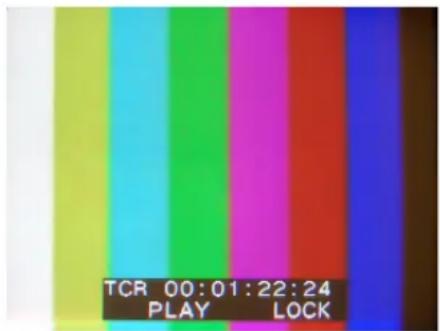
Timecode burn-in window in a video image.
14
Audio editing to picture
Introduction
Nuendo has been designed from the ground up as a production tool with features that are catered to working with video and film. The depth and versatility of Nuendo's design allow you to work very precisely and yet retain the freedom and ease that allows greater creativity in creating music and sound design for film and video.
In this chapter, the editing tools in Nuendo will be discussed as they relate to video post-production techniques. In the section "Operations" on page 106, these tools will be applied in real world situations that you would encounter while working with video. Finally, there will be a quick discussion of how to use the Time Warp feature to create tempo maps that are synchronized with video for use in scoring music to picture.
Video timeline and the grid
When working with video, every audio event and part is synchronized to the picture. Unlike music editing with an even grid of bars and beats to work with, video uses a much smaller increment of time as a basic grid: video frames. Since there are a finite number of video frames in each video, the frame becomes the basic measuring block for editing.
Video frames are numbered using SMPTE timecode. Depending on the frame rate of the video, there will be a certain amount of frames per second and then 60 seconds per minute, and 60 minutes per hour. SMPTE is displayed using colons to separate each division of time.
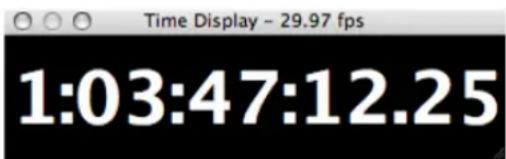
The SMPTE display from the Time Display window showing 1 hour, 3 minutes, 47 seconds, 12 frames and 25 subframes.
Make sure that the frame rate of the project matches that of the video you are using in the Project Setup dialog. It is possible for Nuendo to detect the video frame rate for you. See the Video chapter in the Operation Manual.
Film frames can be displayed as SMPTE numbers or in feet and frames (a traditional method used by film editors). Nuendo also offers a user-definable frame rate for specialized frame rates including vari-cam HD video. For more information on all the frame rates and time displays available, refer to the Operation Manual.
Subframes and days
Nuendo can also display the time between frames by using the subframe division which divides each frame into 100 subframes. Subframes appear separated from frames by a period. In order to see subframes displayed you must activate "Show Timecode Subframes" in the Preferences dialog (Transport page). If this is activated, subframes will be displayed everywhere that timecode is shown including the Transport panel, Project window, dialogs, Project Browser, Pool and the SMPTE Generator plug-in.
In case a project crosses the 24 hour mark, Nuendo will automatically display a day number to the left of the SMPTE display separated by a space, no colon. It can be necessary to use days in timecode even when the project is shorter than 24 hours. For example, during live events that take place in the evening, if the central timecode generator for the event is running "time-of-day" SMPTE that correlates to the actual time on the clock, it can very easily cross the 24 hour mark at midnight if the event goes that long. In that case, all timecode values after midnight will have a "1" displayed in the days position.
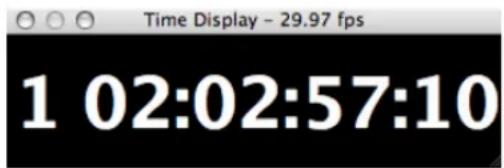
Time-of-day SMPTE that has crossed midnight or the 24 hour mark shows the day number "1" to the left of the SMPTE value. Note that subframes are not displayed in this image.
Drop-Frame SMPTE
Drop-frame timecode is used for the 29.97 frame rate used by the NTSC video standard. Since this frame rate does not correlate exactly to the actual time passing on the clock, a system has been devised that omits certain frame numbers in order to match the displayed time with the time of day. Nuendo distinguishes this frame count by separating the frame number with a semi-colon instead of a colon.
When you see timecode displayed anywhere in Nuendo with a semi-colon, you are using drop-frame timecode. This is the only indication besides looking at the Project Setup dialog, that you are using drop-frame timecode.
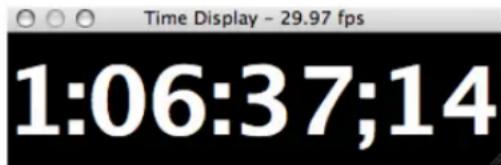
Drop-frame SMPTE timecode display with frames separated by a semicolon.
When the Project window's time display is set to time-code, the grid options change. The choices are:
- Subframe (1/100th of a frame)
- 1/4 frame(25 subframes)
- 1/2 frame(50 subframes)
1 frame - 2 frames
1 second
These grid options allow editing, nudging and moving of events, fades and automation data in increments that relate to the video frames you can see.
Understanding the divisions of time for video and how they are displayed in Nuendo will help you quickly utilize all of the editing features with precision and ease.
Inserting audio into the project
From the Pool, it is possible to insert audio events by dragging them into the Project window or by using the "Insert into Project..." options from the Media menu.
- "At Timecode Position" allows you to specify the exact time-code number where an audio event will be placed.
- "At Cursor" will place the audio event at the current location of the cursor. This method can help you place events quickly by placing the cursor at the point in the video where you want to put an audio event. Using scrub, markers and other transport techniques to get the cursor into position can make it faster than manual timecode entry.
- "At Left Locator" will position the audio event at the left locator. Since you can adjust the position of the left locator quickly and on the fly while playing, this method allows you to place audio while the project and video are still playing. Follow ac
tion scenes and place the left locator at key points while viewing the video. While Nuendo keeps playing on, you can insert an audio event back where the left locator is without stopping the transport.
- "At Origin" will place an audio event at its original timestamp position. Since many audio files can be transferred between video editing systems and Nuendo, using timestamps created by other systems can increase the speed and efficiency of positioning those audio files at the correct timecode positions in Nuendo.
All of these options can be used with video to place audio events precisely at the video frame you choose. But that is just the beginning.
Using the Markers window as a spotting list
A spotting list is created by viewing a film or video and determining where certain sound effects and other audio elements will go during post-production. The list consists of timecode values and descriptions of the sounds that will go there. For example:
TC Description
01:07:36:15 footsteps on concrete
01:07:53:02 telephone rings
01:08:06:07 explosion outside
In this list, there are three timecode locations and various sounds that are needed at those points in the video. During editing, sound effects could simply be placed using these timecode values and be relatively close to final position without much effort. To make it even faster, use the Markers window as a spotting list.
As you view a video in Nuendo, have the Markers window open and as you "spot" places where sound effects need to go, add a Marker by clicking the Add button in the Markers window or simply hitting the Insert key. With the Markers window open, you will see the newly created marker in the list and the description field will be active, ready for you to type in a description of the sound. Once you complete the description and enter it, you can create another marker instantly, making it possible to create an entire spotting list on-the-fly in Nuendo.
After importing sound effects from a library or field recordings, they can be placed in the project using the Insert at Cursor option, moving the cursor to each marker by clicking in the very left column of the Markers window next to the desired number.
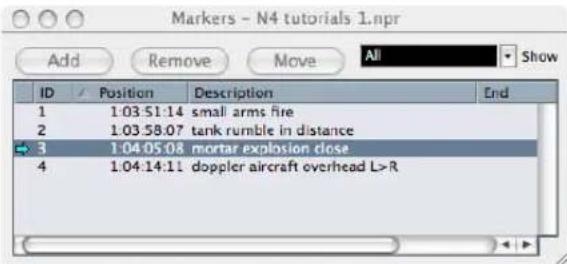
The Markers window used as a built-in spotting list.
While the positioning of the audio events in this case might not be exact, it will quickly get audio in close proximity to the needed position. Fine tuning can be done later with other editing tools and features.
Event handles
The event handles (fade in, fade out and volume) are extremely useful for working with picture since their functions are tied to the event itself, when the event moves, so do the fades and volume level.
Since the event fades and volume are handled in real time, you can hear the results of your edits instantly. So long as you have let go of the event handle before the cursor reaches the event during playback, you will hear the result of your edit. Being able to edit while playback continues gives you more time and freedom to work while others are still listening to the playback.
Event envelopes
For even more control, the event envelope provides another type of volume control over the audio event. Instead of controlling only fade ins and outs or the overall volume of the event, envelopes can alter the volume of audio anywhere within the event.
To access the event envelope, select the pencil tool and simply click within any audio event. A blue volume envelope line appears with a new curve point. Unity gain (no change) is where the envelope line is at the very top of the event. Any curve points below indicate gain reduction at that point. The waveform display reflects the change in volume for visual feedback as you edit. You can add as many curve points as you like by clicking again with the pencil tool, giving you the ability to contour the volume of the event very precisely. To remove a curve point, drag it with the pencil tool outside the event.
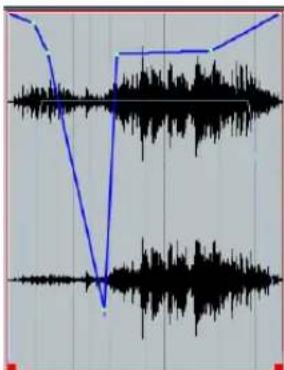
An event envelope with several curve points. Notice that the volume curve with fades and the overall volume is still displayed. The combination of the envelope and volume curve will determine the final audio level for each event.
One advantage to both the event handles (volume curve) and the event envelope is that their effects occur prior to the audio signal entering the mix engine of Nuendo. For example, if you have a compressor plug-in on a track in Nuendo and you increase the volume of an event on that track by using the volume handle, the compressor plug-in will see a greater input signal, altering its gain reduction accordingly. This can be very advantageous when evening out levels in dialog tracks for example.
Range selection
Using the Range selection tool to edit audio to picture opens up many other possibilities and functionality. When you make selections with the Range selection tool, the info line displays the start, end and length of the selection. The length indication is a handy timecode calculator when the project timeline is viewed in timecode. The start and end track numbers are also shown, outlining the top and bottom of the selection. All the values in the info line are editable.
- Altering the start moves the selection without changing its length.
- Altering the end changes the length of the selection.
- Altering the length changes the end time to match the desired length.
- Altering the first track number will change the number of the topmost track in the selection.
- Altering the last track will change the number of bottom track in the selection. All tracks in between these two will be included in the selection.
| Start | End | Length | ||
| 0:01:55:19:20 | 0:02:00:20:16 | 0:00:05:00.76 | 1 | 6 |
The info line while using the Range selection tool. Notice the top and bottom track numbers at the right of the display.
It is also possible to select non-contiguous tracks in a range selection by [Alt]/[Option]-clicking within the borders of the selection on the track you wish to add to the range. Only that track area will be added. This can be repeated to add other tracks to the range.
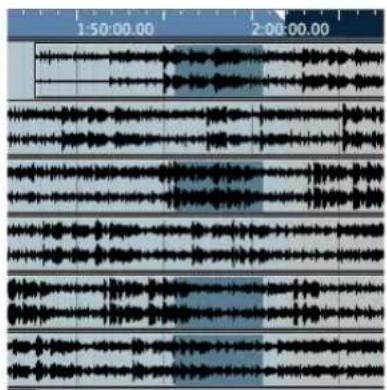
Non-contiguous range selection. The track placement of this data is retained in the clipboard.
There are also functions that let you alter the range selection using the cursor, event boundaries, left and right locators and the start and end of the project. These functions are found in the Edit menu-Select submenu.
When these operations are assigned to key commands, the increase in speed and efficiency for creating range selections can be improved:
- In Loop: This selects all areas between the left and right locators on all tracks.
- From Start to Cursor: Creates a range selection from the start of the project to the current cursor position on tracks in the range.
- From Cursor to End: Creates a range selection from the current cursor position to the end of the project.
- Left Selection Side to Cursor (by default [E]): This command moves the left side of the range selection to the current cursor position. This can be performed during playback to "capture" a selection on-the-fly.
- Right Selection Side to Cursor (by default [D]): The companion command to the above works in the same fashion only with the right side of the range selection.
- Range to Next Event: This command moves the range selection to the next event boundary on any selected track. If no tracks are selected, the range will move to the next event boundary on any track. The range selection will have no duration and will span the same tracks as the previous selection.
- Range to Previous Event: Same as above except the range is moved to the closest previous event boundary.
- Enlarge Range to Next Event: This command moves the end of the range selection to the next event boundary on selected tracks.
- Enlarge Range to Previous Event: This moves the start of the range to the previous event boundary on selected tracks.
By using these commands in various combinations, it is possible to create range selections quickly based on event boundaries, cursor and locator positions, and on-the-fly "capturing" during playback. As you will see in the section "Operations" on page 106, these workflow improvements can become indispensable for many postproduction tasks.
Range editing
Once you have a range selection defined, there are many editing operations that can be performed to the selection. Some of these range edits have been designed expressly for post-production in order to streamline workflow and increase efficiency and creativity. Others include the standard editing functions cut, copy paste; along with mouse operations to move selected audio.
- "Global Copy" does not use the range selection but rather the left and right locators to define what is to be copied. Global Copy will place every event on all tracks between the left and right locators into the clipboard. This includes all marker, automation, Score, MIDI, and video data.
- "Cut Time" removes all events and blank space in the range selection, places it in the clipboard and moves all events after the selection to the left in order to close the gap.
- "Paste Time" will place the contents of the clipboard at the insertion point. All events will be moved to the right to make room for the clipboard material. All tracks of the clipboard will be pasted to the right and beneath the top left range selection. Non-contiguous selections will be placed on their correct tracks relative to the range insertion point regardless of the range selection. All you must do is select a zero duration range in the top track of your paste location and Nuendo will place all the clipboard contents at that point across all the same number of tracks that the clipboard contains.
- "Paste Time at Origin" will place the contents of the clipboard back at its original position and on its original tracks regardless of the current range selection. All other events on those tracks will be moved to the right to make room.
- "Split" divides any event that crosses a range selection boundary into separate events.
- "Crop" will adjust the start and end of any event that falls within the range to the range boundaries. In other words, any portion of an event that falls outside of the range selection will be removed.
- "Cut Head" will remove any portion of events that fall to the left of the range selection.
- "Cut Tail" will remove any portion of events that fall to the right of the range selection.
-
"Insert Silence" will put blank space on all tracks within the range selection. This functions in a similar way to Paste Time by moving events to the right to make room for the inserted space. The amount of blank space is determined by the length of the range selection.
-
On the Audio menu there is also the "Adjust Fades to Range" command. If the range includes the beginning of an event, a fade in will be created from the event start to the right range boundary. If the range contains the end of an event, a fade out will be created from the left range boundary to the end of the event. If the range is within the boundaries of an event, both a fade in and fade out will be created from the event boundary to the range boundary.
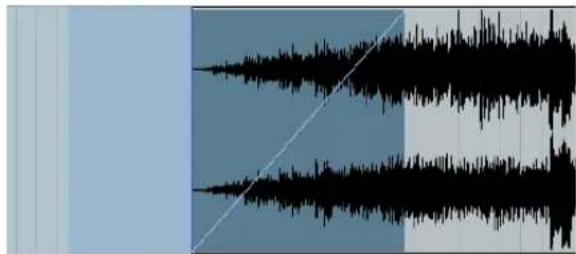
Adjust to Fades where event start is within range selection.
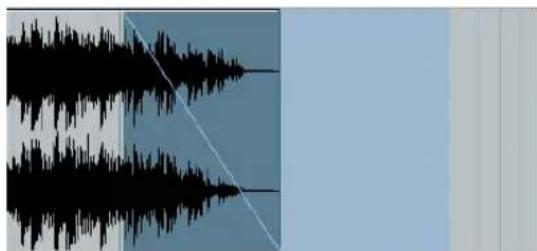
Adjust to Fades where event end is within range selection.

Adjust to Fades where range falls within an event.
! Range Editing can affect any type of event in the Project window including video, MIDI, markers and automation data. When performing edits that affect the entire timeline (editing picture changes for instance) range edits can be very effective.
Edit Mode
When editing to video, it is always important to know how each edit relates to the exact frame of video where it occurs. Under normal conditions, performing event-based or range-based editing tasks take place without being able to immediately see the video while editing. Nuendo's special "Edit Mode" solves this dilemma by making the video track follow the motions of editing operations in real time.
Enable Edit Mode by selecting "Edit Mode" on the Transport menu. The Project cursor will disappear in the Project window except in the ruler at the top. Hiding the cursor makes it possible to see the events you are editing more clearly. Edit Mode functions differently when you are using the Arrow tool than with the Range Selection tool.
Edit Mode: Arrow ("Object Selection") tool
When editing events with the Arrow tool, Edit Mode causes the video to follow your motions as you drag events and event handles. For instance, when you click and drag one or more events, the video will follow the left edge of the first event while you drag, giving you visual feedback on the position in the video. This is very helpful while placing sound effects to picture since you can see things in the video as you move sounds around in the Project window. Lining up sound effects to their visual counterparts becomes quite easy and quick.
Edit mode follows the snap point of each audio event. If the snap point has not been modified, it remains at the start of the event. It can often be necessary to align a portion of audio in the middle of the event. Adjusting the snap point to a position in the audio event that is timing sensitive will allow you to use Edit Mode to visually line up that position to the video.
For example, the sound of a car skidding to a stop might be easily timed to picture by lining up the end of the skid sound with the stopping of the car in the video. The car might come into the frame after the skidding had begun thereby making it very difficult to align the sound quickly without a starting point reference. The snap point overcomes this problem by allowing you to reference another point in the audio event. By moving the snap point to the end of the skidding sound, edit mode can be used to line that point up with the stopped car onscreen.
When adjusting fade handles, the video will follow the position of the fade handle as you move it, allowing you to time fades exactly to the video.
Edit Mode: Range Selection tool
When making range selections, Edit Mode causes the video to follow the range as you make the selection. Even adjusting the range start or end will follow the video in the same fashion.
Edit Mode: Nudge commands
Nudging of events or range selections will also cause the video to move to the nudge position. All nudge commands (start, position and end) will have this behavior in Edit Mode.
Text editing
For extremely precise editing, text entry may be used to perform most editing tasks in Nuendo. The info line in the Project window gives you instant access to any selected event's data including start and end points, duration, offset, snap point, fade in, and fade out durations. Additionally, the Project Browser allows text editing of each event in the Project in a list view including automation data, video events and Markers.
Text editing can be useful when conforming audio to edit decision lists (EDLs) created by video editors. A list of audio files will be shown with source and destination timecode values that can be used to place audio events in Nuendo.
| 001 | BL | V | C | 00:00:00:00 00:31:06:10 00:59:57:00 01:31:03:10 |
| 002 | 4 | A2 | C | 18:10:50:09 18:11:43:06 01:31:03:10 01:31:56:07 |
| * | POLICE STATION V SEES H PA (2) | |||
| * | POLICE STATION V SEES H PO (2) | |||
| >> | MEDIAFILE POLICE STATION V SEES H PA (2) | |||
| * | FROM CLIP NAME: POLICE STATION V SEES H PO (2) | |||
| * | FROM SCENE: 66A TAKE 6 | |||
| 003 | 4 | A | C | 20:02:58:11 20:03:04:17 01:31:03:10 01:31:09:16 |
| * | MOTEL V - H POV TA (4) | |||
| * | MOTEL V - H POV TAKE 2 | |||
| >> | MEDIAFILE MOTEL V - H POV TA (4) | |||
| * | FROM CLIP NAME: MOTEL V - H POV TAKE 2 | |||
| * | FROM SCENE: 69F | |||
| 004 | 4 | A | C | 19:52:52:16 19:52:54:21 01:31:09:16 01:31:11:21 |
| * | MOTEL H STAND V POVA (2) | |||
| * | MOTEL H STAND V POV (1) | |||
| >> | MEDIAFILE MOTEL H STAND V POVA (2) | |||
| * | FROM CLIP NAME: MOTEL H STAND V POV (1) | |||
| * | FROM SCENE: 69E | |||
An EDL with source and destination timecode values.
Operations
In this section, several post-production tasks will be demonstrated using the various editing techniques available in Nuendo.
Preparing a video project in Nuendo
Since video files are used commonly, this example will start by importing a video into Nuendo:
- On the File menu, select "New Project".
If you use a template for video projects, select it from the possible choices. Otherwise start with a blank project. - On the Project menu, select "Project Setup...". A dialog opens.
- In the dialog, specify the sample rate for the video. Video tape machines use 48kHz as a standard sample rate. You may use higher resolutions depending on the project requirements but keep in mind that the final result will most likely be a 48kHz master recording.
- Set the timecode frame rate.
This can vary widely depending on the type of video project involved. With NTSC, PAL, HD video, and film being some of the possible choices, having a clear understanding of the frame rate used is critical. Speaking with the video editor or other production staff about this in pre-production can save a lot of headaches later in the process. You can also extract the frame rate information from any imported video file in the Project Setup dialog.
- Import a video file.
You can do this from the Pool or the File menu-Import submenu. You will also have the option of extracting any audio streams from the video file during this step. Even if you do not plan on using the embedded audio in the project, it is advisable to extract it and use it for reference purposes. You can also extract this audio later from the Media menu.
- Place the video file in the Project window.
You can drag the video file from the Pool into the Project window and a video track will automatically be created if one does not exist. You may also use the Insert into Project options to place the video at the cursor position, a specific timecode value or at the timestamp embedded in the file.
Common practice is to place the first frame of program video starting at one hour (01:00:00:00). This helps out by leaving room prior to the video for test tones and for pre roll of tape machines including the count down and two-beep tone (a short beep sound used to indicate 2 seconds before the start of the program). Most video files do not have a correct timestamp embedded in them. Unless the first
frame of program video is easily identified visually, a timecode burn-in window should be used to correctly place the first frame of video. The idea is that the audio timecode values exactly match those used by the video editing suite.
You are now ready to start editing audio to picture.
Conforming production audio
The first step in any audio post-production project is properly synchronizing production audio with the video. Production audio refers to any sound that was originally recorded during the filming or video taping process. The audio is then edited along with the video to create a final edited piece. The video editor may choose to add sounds and music along the way to get an idea of the finished product while editing. All of these elements should be brought over to the audio editing workstation for reference and possible usage in the final product.
Audio coming from a video editing session can come in a variety of formats including:
- Reference audio that has been assembled and mixed in the video editing suite. This audio could possible be used in the final mix but usually is meant as a guide for audio editors. It may be embedded in a video file, as a separate audio file or recorded on tracks of a video tape recorder (VTR).
- Multi-channel media in the form of OMF, AAF or other embedded media files usually contain multiple tracks of audio edited by the video editing suite.
- EDLs are lists of audio files that need to be imported into Nuendo from source tapes (video tape, DATs or audio files created during the filming process). The process of editing and placing those audio files in sync with the video is known as "conforming" audio to picture.
Once you have imported your video file or synchronized Nuendo with a VTR or other external video playback system, the next step is to get any reference audio imported and running in sync with the video.
Reference audio
With video files that have embedded audio streams, the process of importing the video will allow you to also import the audio stream as well.
-
Use the "Insert into Project at Origin" command from the Media menu to place the audio file in the project.
-
If you have placed the video file at any other point than its origin time (usually 00:00:00:00), the reference audio must be placed at the same position in order to line up. In that case, use "Insert into Project at Timecode Position..." and type in the same timecode number as the video file.
- You may also use the "Snap to Events" option and drag the audio file to within range of the start of the video file and it will snap into position exactly at the beginning of the video file.
Once the reference audio file has been inserted into position, check the sync of audio to video throughout the length of the project to ensure proper synchronization. If there are any issues, it is best to fix them now before any extensive editing has occurred. Problems with timecode frame rates, sample rates and synchronization to external tape machines can wreak havoc on a production if they are discovered late in the process.
Multi-channel media
When the audio edited by the video editor is complex and has elements that will be used in the final project, multichannel media interchange formats help get the audio from one workstation to another. Nuendo is capable of handling all of the currently used formats for this type of exchange. They include:
- OMF
-AAF - O p e n T L
·AES31
This chapter will cover one of the most commonly used formats, the OMF file. OMF files come in two basic formats:
- Files with embedded audio contain everything in one file container that is easily copied from one location to another. Nuendo can read the information that tells it where to put each piece of audio and then refers to various parts of the OMF file for audio segments as if the OMF file is one very large audio file itself.
- Files that refer to external audio media contain only the information about where to place each piece of audio in the timeline. The audio files themselves have to be copied over separately in order for the OMF transfer to work.
Each format has its strengths and weaknesses and the choice of which one to use will depend on the circumstances at hand. For more information on OMF files, refer to the chapter "File Handling" in the Operation Manual.
To import an OMF file into Nuendo, proceed as follows:
- On the File menu-Import submenu, select "OMF File..." and in the dialog that appears, select the OMF file. If the OMF file has embedded audio, it is advisable that it is stored on a local drive, preferably in the current project folder and should be treated as an audio file itself. It would need to be backed up in the same way that all media relevant to any project is backed up.
- Select an exiting Project Folder or create a new folder for the created project.
Nuendo will create an untitled project that contains all the audio events in the OMF file.
- If the media needs to be located, Nuendo will prompt you to locate it.
With OMF files that refer to external media, Nuendo will need to know where to look for referenced audio files.
- Nuendo will import the OMF file and create new tracks as needed.
If the OMF file contains video events, you can have markers created for them that will allow you to easily place video files there later.
Once the OMF file has been imported, align your video file to play in sync with the OMF audio. Here is where any reference audio embedded in the video file will come in handy. By listening to both the OMF audio and reference audio tracks, you will easily be able to tell if everything is in sync.
Since the OMF audio was created during the video edit, its timecode values should be correct. Adjusting the position of the video and reference audio to match the OMF audio would be the common method of aligning the two together. Make sure you move both the video and reference audio together when making these adjustments. Grouping them together (the video event and reference audio event) in the Project window is a good method of ensuring they remain in sync with one another during editing. Alternatively, you could place all of the reference material (video and audio) into a Folder track. Moving the folder track events will move everything within the folder together.
Panning audio sources can help you synchronize events together. For example, when aligning reference audio from a video file to imported OMF audio, try panning the reference audio to one side and the OMF audio to the other. This will make it easier to discern whether one source is ahead of the other as they get closer to perfect
sync. A comb filtering effect can be heard when two identical sources become very close in sync with one another. At that point, you are getting within samples of being in perfect sync.
Once the OMF audio is imported and all video an audio events are synchronized together, you are ready to begin adding new elements and creating the complete soundtrack.
EDLs
An older method of conforming audio to video involves the use of EDLs (Edit Decision Lists) created by the video editing suite. These text files contain timecode and source tape information that can be used to align audio events to a reference video file in Nuendo. Depending on the length of the program material and the number of edits, this process can be time-consuming but also allows for the most precise control over the source material and synchronization. Since original source tapes and recordings are used, the maximum quality of those recordings can be maintained. Audio elements from OMF media and reference audio might not be first generation.
An EDL is, as the name implies, a list of edits. Each step describes a complete editing task including:
The type of edit, i.e. Audio, Video or both.
- The source material such as tape number, audio file name or video file name.
- The start and ending source timecode values. Since audio sources for video editors usually come in the form of video tapes, they will always have timecode associated with them. That is the only way to keep track of the editing steps involved
- The start and ending destination timecode values. These time-code values correspond to the location in the Project window where the audio will be placed.
This information can be used in Nuendo to place audio events in the Project window at the specific timecode positions that correspond to the edits made in the video editing suite.
To begin, you must first load in all of the source material needed by the EDL. The source material must have correct timestamps in order for the EDL timecode values to be valid. There are various ways of doing this but the most common involve the following:
- A timecode DAT machine.
Video tape machine. - A field recorder that creates audio files with timestamps embedded in them such as the Zaxcom DEVA™ hard disk recorder.
All three of these sources have audio and timecode. With the tape machines, Nuendo will have to be synchronized to the machine in order to record audio into the project at the correct timecode positions, thereby giving the audio files the correct timestamps. With the hard disk field recorder, the files can be directly imported with their embedded timestamps and then placed in the project "at Origin".
To conform an EDL edit, proceed as follows:
- Create a Folder track for the source material.
Having all your source material in one consolidated area will lessen confusion later in the process.
- Create an audio track for each source tape.
For DAT and video tape machines, having s separate track for each tape will prevent overlap of audio with the same timecode values and also keep things organized. Name each track the same name as the source tape it comes from. Each audio file you record on that track will now have the name of the source tape it came from.
- Record all the significant portions of each source tape into Nuendo.
If only a portion of a source tape is used in the EDL, it is only necessary to record that section into Nuendo. This must be done while synchronized to the tape machine so that the audio file will be placed at the correct timecode position in the Project window.
- Import any audio files from a field recorder and place them "at Origin" on as many tracks as necessary to prevent overlaps.
Once the file has been placed "at Origin", it can be used as a source for EDL conforming.
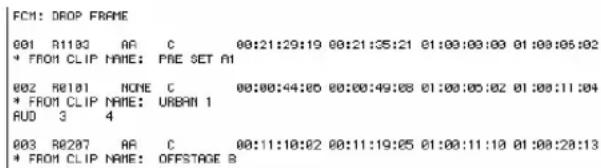
An excerpt from a CMX EDL of three audio edits.
- Using the above excerpt as an example, the first two timecode values in each line are the start and end times of the source material. Using the Range Selection tool, create a selection on the proper source track using the two source timecode values.
This can be done via manual entry in the info line. In this example, enter 00:21:29:19 for the range start and 00:21:35:21 for the range end.
- Select Copy from the Edit menu.
This copies the source material into the clipboard.
- Switch Range selections by using the Range Selection tool context menu or by pressing [2].
This switches to range selection B. Using the two different range selections (A and B), will keep the source and destination times separate. This is similar to a four-point editing model used by many video and audio editors, see "Range Selection tool four-point editing" on page 110.
- Select the destination range as defined by the EDL.
You can use manual entry to place the range selection at the destination timecode values. It is only necessary to define the left selection or start point since the paste function will automatically place an audio event of the correct size as determined by the source range. The destination track is of your choosing. The amount of destination tracks should be determined by the number used in the EDL. Some EDL formats only allow the use of 4 destination tracks. Your needs may vary according to the project itself. The main concern is getting the audio events in sync with the video. Once that is complete, placing audio events on various tracks is up to the user.
- Select Paste from the Edit menu.
This completes the edit by placing the source material at the destination location. Check for sync with the video and reference audio.
- Repeat as needed until the entire EDL is conformed. Depending on the size of the EDL and number of edits, this process could take quite some time to complete. But understanding the EDL conforming process will help you deal with any problems that arise.
Once you have successfully imported video and reference audio and conformed any production audio to the video, you are ready to begin adding new sound elements and creating the final soundtrack.
Adding Sound Design elements
Sound design elements can come from a variety of source including sound effect libraries on CD or hard drives, field recordings and even the production audio source tapes. In order to add these sounds to the project, they must be imported into the Pool or recorded into Nuendo from a tape machine.
Create various folders within the Pool to help organize all of the sound files used in your Project. With feature length films, the amount of audio can be staggering. Finding specific audio files can become daunting quickly if some organization is not used. Nuendo's MediaBay is designed to help you organize all of your sound files so that they are instantly accessible to you and can be quickly searched.
Placing events to picture
Placing audio events to picture can occur in several ways.
- Manual entry by timecode number.
- Inserting at Cursor location.
- Dragging with the mouse.
- Source/Destination four-point editing with the Range Selection tool.
Using the manual entry method requires knowing the right timecode number where you wish to place the audio event. This could come from an EDL or Cue list created earlier or it could come from a locator position or marker. In any scenario, select the audio file in the Pool and use the "Insert at Timecode" command to enter the location. The audio event will be inserted in the topmost selected track in the Project window.
Using the cursor location to place audio events is a more visual approach. You can use the shuttle and scrub tools to view the video and locate the position you want to put the new audio event. Then, in the Pool use the "Insert at Cursor" command to place the event.
While watching the video in real time, you can quickly place the left locator on the fly at the spot where you want to place the audio event. Then locate the cursor to the left locator (press [1] on the numerical keypad) and use the Insert command to place the event.
Using Edit Mode, you can drag audio events out of the Pool and place them on a track. Edit Mode will cause the video to follow the event as you move it in the Project window. Drag the event until you find the right video frame and let go. You can use the Snap function here to keep the audio event lined up with each timecode frame as you drag it into position.
Range Selection tool four-point editing
It is often necessary to go through a large sound file to find a specific sound effect among others that will be used. This is especially true of field recordings with multiple takes of each sound and dead air time in between. In this situation, it might be best to set up an area in the project consisting of several "work" tracks that can be used to sort out various sound files and prepare them for use in the final soundtrack.
Using the Range Selection tool, a four-point editing model can be used to cut ranges out of the work tracks and quickly paste them into the proper tracks in the project at specific video frames.
- Create a Folder track labelled "Work Tracks" or something similar.
In this folder track will be several audio tracks that can be used as a scratch pad for editing sound effects and preparing them for use in the project.
- Create several tracks to work on.
You might need mono, stereo and even 5.1 audio tracks depending on the source material you are working with. Create as many as you need.
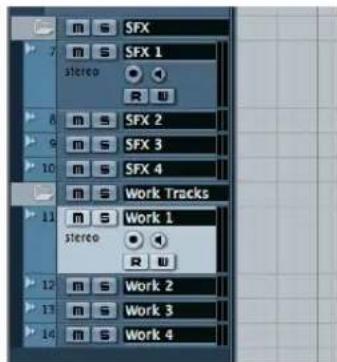
A Folder track with four stereo work tracks inside can be used to edit various sound files before they are placed to picture.
- Drag the various audio files into these work tracks.
Here it might be best to go to a time in the Project that is well after the end of the program material so that work tracks do not inadvertently get included in the final mix. Placing them where there is no video event will prevent distractions while editing the source material.
- Using the Range Selection tool, select the audio you wish to use.
As with many sound effects libraries, there can be several versions of a particular sound effect. Auditioning them and choosing which one to use can be done on work tracks. Use the Range Selection tool to select just the audio you want to use with the picture. With multiple work tracks, you can place several sound effects lined up together and select them all with the Range Selection tool for editing.
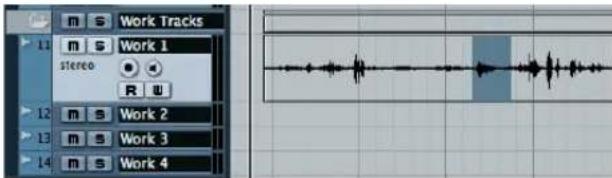
Selecting the desired sound effect with the Range Selection tool using selection A.
- Copy the portion of audio (the default key command for copy is [Ctrl]/[Command] + [C]).
This will place the desired audio in the clipboard. In this technique, you can always return to this range selection and copy it again if needed later.
- Switch range selections using the Range Selection tool context menu or using a key command, by default [2]. Selection B will be used for the destination location of the edit. Selection A is retained in memory and can be accessed again by switching the Selection or pressing [2] again.
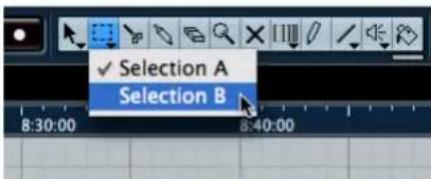
Switching the Range to Selection B.
- Define the destination range Selection B.
Using the key commands [E] and [D], you can define the range selection on the fly while watching the video or by any of the other methods mentioned in this chapter.
- Perform the edit by pasting (by default [Ctrl]/[Command] + [V]) the clipboard data into the new location.
A macro can be created to do both the copy and pasting once you have made the two selections. Assign the macro to a key command and you will have a very efficient editing model to work with.
One very handy feature in using Selections A and B, is the ability to retain the view of each selection. If your work area is far away from the edit insertion point in the video (A is far away from B), zooming in closely to either location will leave the other outside the Project window viewing area. Changing selections between A and B will also cause the viewing area of the Project window to switch between the two locations instantly. This is really the key to this technique, allowing you to move quickly between source and destination audio while retaining two selections for editing.
Adjusting events to picture
Once audio events have been placed to picture, their fades, duration and positions might have to be fine-tuned. Nuendo's nudge features are designed just for this type of use.
The nudge functions are accessed using the nudge buttons on the toolbar (or by using key commands). By default, the Nudge controls are not displayed in the toolbar. You can add them by right-clicking (Win)/[Ctrl]-clicking (Mac) on the toolbar and selecting "Nudge Palette" from the context menu.
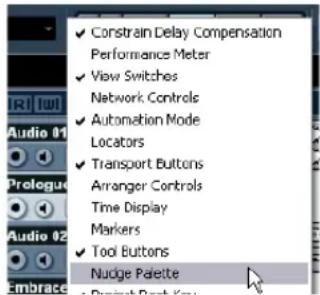
Select "Nudge Palette"...
...to add the Nudge controls
The nudge buttons can incrementally adjust the position and size by trimming and moving events. Depending on the sizing setting of the Arrow tool, the nudge buttons will trim the events by moving the boundaries or moving the contents inside the event. The size of the nudge increment is determined by the grid settings in the Project window.
A typical nudge setting for picture editing would be 1 frame. However, moving events by one frame increments might not yield the best timing to picture. Even though the video's resolution is no more than one frame, subtle timing differences less than one frame can be discerned by the viewer. Half-frame and even quarter-frame amounts could be necessary to accurately time events to picture. Subframes are also available as grid values and nudge increments.
Edit Mode is extremely helpful for fine-tuning event placement to picture. Since the video follows each edit you make with the mouse, you can instantly see where in the video your edit is taking place, whether that be the start position of an event, snap point or fade duration. This makes editing to picture fluid and more creative.
The Range Selection tool offers additional methods of editing including:
- Cut Head
Cut Tail - C r o p
- Adjust Fades to Range
In Edit Mode, creating and adjusting the range will chase video so defining a range can be done visually to picture.
Picture changes
During the post-production process, it is often necessary to make changes to the overall timeline of a project. When any change is made to the video, those changes must be reflected in the audio as well. Making those changes is often referred to as "conforming to picture changes".
There are only two possible types of picture changes:
- Removal of existing video.
- Addition of new video.
The Range Selection tool can be used to accomplish both types of picture changes. The key is to retain the relative positions of every event in the project after the edit is performed. For example, if a portion of video is removed, removal of events on all tracks including Marker, MIDI, automation and Tempo tracks is necessary for everything to remain in sync after the edit point.
Picture cut
This portion of the chapter will demonstrate how to make each type of picture change using the Range Selection tool. To make a picture change involving the removal of existing video, proceed as follows:
- Determine the starting point and duration of the section to be removed.
This information should come from the video editor in the form of time-code values specifying the start point and duration of each cut. When several changes are made to a video, information about those changes comes in the form of a "change list" or Avid's change notes. Reference video and audio can also be used to figure this out and also double check the edit once it is complete.
- Select the Range Selection tool and, on the Edit menu-Select submenu, choose "Select All" to create a selection across all tracks from beginning to end of the project.
This automatically selects all different types of tracks including MIDI, Marker, Tempo and Video.
You should de-select the video track if the current video file is the new edited version. You do not want to remove anything from the new reference video. You may also choose to lock this and any other reference track to prevent accidental editing.
- Manually type in the starting frame of the video change edit in the Start field.
This is the first video frame to be removed. You may also locate the cursor to this frame and select "Left Selection Side to Cursor" (by default [E]). Make sure that Snap is active, "Grid" mode is selected and that the Grid type is set to 1 frame.
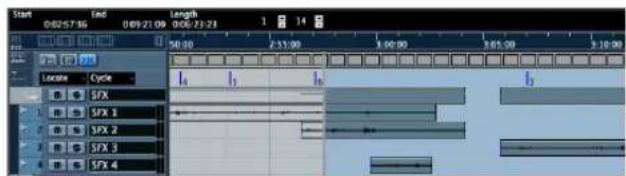
Here, the first frame of the video to be removed is 00:02:57:16.
- Set the duration of the cut in the Length field of the Info line.
Now the range selection encompasses all of the events in the project that are to be removed with the old video. In this example, the length is 00:00:04:25 (4 seconds and 25 frames).
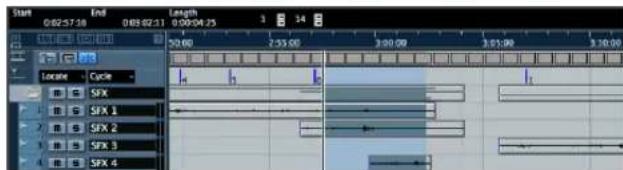
The range has been defined for the cut on all tracks.
- On the Edit menu, select "Cut Time".
This will remove the selected area and move all the following events to the left by the same amount, filling the gap. The audio should now play in sync with the new video from the edit point on to the end.
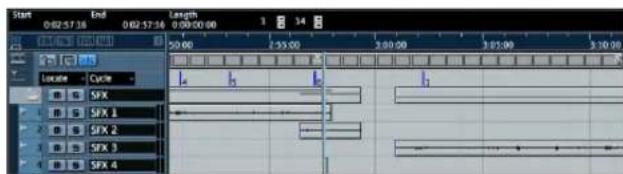
The edit is complete. All events to the right have been moved to fill in the gap.
Once the edit is complete, import the new video file and check the sync of audio to video through the edit point. When performing picture changes, reference audio from the new video can be useful for checking your edits.
Once the new video and reference audio have been placed in the Project window, you may lock those tracks to prevent inadvertent editing later.
Picture insert
The same type of technique can be used when video is added to the timeline. To make a picture change involving the addition of video material, proceed as follows:
- Locate the insertion point where the video has been
This information comes from the video editors change notes.
- With the Range Selection tool selected, press [Ctrl]/[Command] + [A].
This creates the selection across all tracks.
- Manually enter the insertion point in the Info line.
Or you can place the cursor at the insertion point and select "Left Selection Side to Cursor" on the Edit menu-Select submenu.
- Manually enter the duration of the inserted video in the Info line.
This will create a selection of the same size as the inserted video.
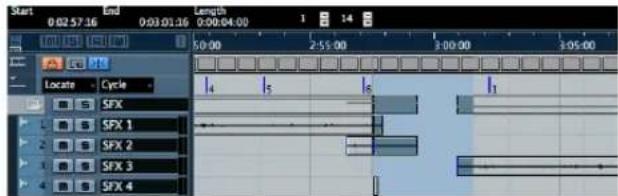
The Range has been prepared to create room for inserted video material.
- On the Edit menu-Range submenu, select "Insert Silence".
Blank space will be inserted and all events will be moved to the right to make room.
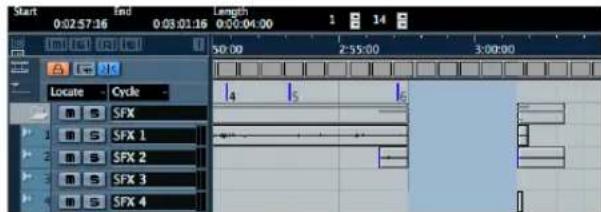
Four seconds of blank space has been inserted to accommodate the new video.
Tempo maps to picture
When scoring to picture, tempo changes in the music often need to follow specific visual elements onscreen. Using the Time Warp feature with Edit Mode allows you to make these changes easily while viewing video.
When you select the Time Warp tool, the time display automatically switches to Bars and Beats. When you grab a bar line in the Project window, the cursor and video will snap to that point and as you move the bar line around to adjust the tempo, the video will scrub along to give you visual feedback of where the bar line is in relation to the video.
Once you have found the specific video frame, [Shift]-click in the timeline. This will anchor a tempo point at that position. Adjusting bar lines after that point will change its tempo value. Using this method, you could synchronize the beat of music to various action points in a car chase for example.
Time Warp does not allow smooth changes in tempo that are often necessary in film scores. For that you must edit the Tempo track directly. See the respective chapter in the Operation Manual for more information.
Index
A
AAF 107
Adding
EQ62
Loops 53
Mono Track 27
Adding a fade 40
Advanced settings 23
AES31 107
All MIDI Inputs 21
ASIO 2.0 19
ASIO Direct Monitoring 19
ASIO driver
About 11
DirectX 11
DirectX Setup 11, 18
Installing 12
Audio
Editing 34
Processing 41
Recording 24
Audio buffer size 23
Audio hardware
Connections 15
Setup application 16
Automation
About 65
B
Browser
Scanning 86
Bus
Surround 70
C
Capturing 103
Click
Activating 28
Close
Project 26
CMX EDL 108
Comb filter 108
Conforming 105
Connecting
Audio 15
MIDI 19
Controller lane 51
Copying 38
Events 54
MIDI notes 50
Cue list 109
Cut Time 112
Cycle
Playback 30
Recording 31
Recording (MIDI) 48
D
Defragmenting
Windows 13
Demi-colon 100
Drop-frame 100
E
Edit Mode 110
Hiding the cursor 105
Editing
Adding a fade 40
Audio 34
Copying 38
Erasing 40
Gluing 37
MIDI 43
Moving 38
Muting 39
Renaming 35
Repeating 39
Resizing 35
Splitting 36
EDLs 105, 106
Effects 64
About 59
FX channels 64
Insert 64
EQ62
Equalization 62
Erasing 40
Event envelopes 41
Curve point 102
Event operations
About 35
Adding a fade 40
Copying 38
Erasing 40
Gliang 37
Moving 38
Muting 39
Renaming 35
Repeating 39
Resizing 35
Splitting 36
Volume changes 41
Export 74
Mixdown 66
Surround 74
External instruments
About 55
Monitoring 57
Recording 58
Setting up 56
External MIDI Instruments 55
F
Fades
Fade handles 102, 105
Feet and frames 100
Field recording 102, 108
FireWire DV Output 94
Four-point editing 109, 110
Frame rate 100, 106
FX channels 64
G
Gluing 37
H
Hard disk
Considerations 22
1
Info line 103, 105
Input
Adding 27
Setup Surround 70
Input level 16
Input ports 18
Insert effects 64
Insert Silence 113
Instrument Track
Creating 44
J
Joining 37
K
Key command conventions 7
Key Editor About 49
L
Latency 22
Levels 60
Setting 27, 28
Loading Sounds 45
Local On/Off 20
Loop Browser 84 About 53 Insert into Pr
Loops A W
M
Markers window 101
Media Management Background 84
MediaBay 84, 1092 Auditioning media
Open 84
Physical and virtual scanning locations 86
Play in project context 89
Scanning 86
Searching for media 88
Tagging 90
Metronome click Activating 20
MIDI
Copying notes 50
CyclePlayback47
Cycle recording 48
Editing 43
Erasing notes 49
External Instruments 55
Playback 47
Quantizing 48
Recording 43, 46
Recording modes (cycle off) 47
MIDI Devices
Setting up 56
MIDI Input Settin
MIDI Interface
Connecting 19
Installing 12
MIDI machine control 95
MIDI notes
Creating 50
Drawing 50
MIDI ports
Setting up 21
MIDI Thru Active 20
Mixing
About 59
Modifier keys 7
Monitoring About
Moving 38
Multi-Channel Media 106
Mute 61
Muting 39
N
New Project
Create 25
Save 26
Normalize 41
NTSC 106
Nudge 111
Nuendo Expansion Kit 13
0
OMF 107
Open
Project 26
Recent Projects 26
OpenTL 107
Optimizing the Hard Disk Windows 13
Output
Adding 26
Setup Surround 70
Output ports 18
P
PAL 106
Pan
Setting 61
Playback
About 30
Cycle 30
MIDI 47
Start 30
Processing
Audio 41
Normalize 41
Reverse 42
Project
Close 26
Open 26
Project Browser 105
Project Synchronization Setup 95
a
Quantizing 48
R
Range editing
Adjust Fades to Range 104
Crop 104
Cut Head 104
Cut Tail 104
Cut Time 104
Destination 110
Insert Silence 104
Paste Time 104
Paste Time at Origin 104
Source 110
Split 104
Range selection 103
Tool 110
Range tool 103
Recent Projects 26
Recording 71
Audio 24
Cycle 31
External Instruments 58
Level Settings 27
MIDI 43, 46
Modes 31
Stacked 32
Surround 74
Recording levels 16
Reference audio 106
Release Driver when Application is in Background 17
Rename 35
Repeating 39
Resizing 35
Reverse 42
s
Save
New Project 26
Setting 60
Setting levels 28, 60
Setting Pan 61
Setup
MIDI Devices 56
Surround Inputs 70
Surround Mix 72
Surround Outputs 70
VST connections for external instruments 56
SMPTE 95,100
24 hour mark 100
Time-of-day 100
Solo 61
Sony 9-Pin 95
Auto-Edit 97
Sound Browser 84
Splitting 36
Spotting List 101
Stacked recording 32
Steinberg Key
About 11
License Activation 12
License Transfer 12
Subframes 100
Surround 71, 74
Busses 70
Inputs 70
Outputs 70
Recording 71, 74
Setup 16
Setup a Mix 72
Synchronization Setup 95
Syncrosoft LCC 12
T
Time Warp 113
Timecode calculator 103
Timecode DAT 108
Track
Adding 27
Two-beep 106
V
Video
Auto-Edit 96, 97
AVI 93
BITC 98
Burn-In 98
Container formats 93
DirectShow 92
DirectX 92
Dub stages 98
DV 93
DVI 94
Extract Audio 93
Film mixing 98
H.264 93
HD 94,106
Insert Edit VTR 96
Layback to Tape 96
MOV 93
MPEG-2 93
MPEG-4 93
Planning 98
Playback Speed 94
Pre-production 98
Pre-roll 96
Pull up/pull down 94, 95
QuickTime 92
Rendering audio into video 95
Stems 98
S-Video 94
Thumbnails 93
Timestamp 93
Vari-cam HD 100
VGA 94
Windows Media Player 92
WMV 93
Video codes 93
Video frames 100
Video reference clock 95
Video setup 21
VST Audio System 17
VST Connections 26
VST input ports 18
VST output ports 18
VTR 106
W
Work Tracks 110
Workclock 95
Word-Clock-Anschlüsse
001 BL V C 00:00:00:00 00:31:06:10 00:59:57:00 00 1:31:03:10
0024 A2 C 18:10:50:09 18:11:43:06 01:31:03:10 01:31:56:07
POLICE STATION V SEES H PA (2)
POLICE STATION V SEES H PO (2)
MEDIAFILE POLICE STATION V SEES H PA (2)
FROM CLIP NAME: POLICE STATION V SEES H PO (2)
FROM SCENE:66A TAKE 6
0034 A C 20:02:58:11 20:03:04:17 01:31:03:10 01:31:09:16
MOTEL V-HPOV TA4
MOTEL V - H POV TAKE 2
MEDIAFILE MOTEL V - H POV TA (4)
FROM CLIP NAME: MOTEL V - H POV TAKE 2
FROM SCENE: 69F
004 4 A C 19:52:52:16 19:52:54:21 01:31:09:16 01:31:11:21
MOTEL H STAND V POVA (2)
MOTEL H STAND V POV (1)
^ 念 > > MEDIAFILE MOTEL H STANDV POVA (2)
FROM CLIP NAME: MOTEL H STAND V POV (1)
FROM SCENE: 69E
- OMF
-AAF - O p e n T L
A E S 31
FC1: DROP FRAME
001 R1103 AR C 00:21:29:19 00:21:35:21 01:00:00:00 01:09:05:02
+ FROM CLIP NAME: PRE SET n1
002 RE181 NONE C 00:00:44:86 00:00:49:88 01:08:05:02 01:08:11:04
+ FROM CLIP NAME: URBAN 1
FUO 3 4
003 RE287 AR C 00:11:18:22 00:11:19:05 01:08:11:10 01:08:28:13
+ FROM CLIP NAME: OFFSTAGE B
Pull-up/Pull-down 215, 216
Q
Quantisieren 168
Quelle 233
QuickTime 212, 213
R
Render 215
S
SchlieBen
Projekt 145
Schnittlste 228
Time-of-Day-SMPTE 222
Trennen 226
Events 156
U
Umbenennen 155
Umkehren 162
V
ASIO Direct Monitoring
Rappel - You've got a big problem with your book. It's not easy to get the right balance of books and volumes.
- Declenchez la lecture.
001 BL V C 00:00:00:00 00:31:06:10 00:59:57:00 00 1:31:03:10
0024 A2 C 18:10:50:09 18:11:43:06 01:31:03:10 01:31:56:07
POLICE STATION V SEES H PA (2)
POLICE STATION V SEES H PO (2)
MEDIAFILE POLICE STATION V SEES H PA (2)
-
FROM CLIP NAME: POLICE STATION V SEES H PO (2)
-
FROM SCENE:66A TAKE 6
0034 A C 20:02:58:11 20:03:04:17 01:31:03:10 01:31:09:16
MOTEL V-HPOV TA4
MOTEL V - H POV TAKE 2
MEDIAFILE MOTEL V - H POV TA (4)
-
FROM CLIP NAME: MOTEL V - H POV TAKE 2
-
FROM SCENE: 69F
0044 A C 19:52:52:16 19:52:54:21 01:31:09:16 01:31:11:21
MOTEL H STAND V POVA (2)
MOTEL H STAND V POV (1)
^ 念 > > MEDIAFILE MOTEL H STANDV POVA (2)
-
FROM CLIP NAME: MOTEL H STAND V POV (1)
-
FROM SCENE: 69E
- OMF
AAF - Open TL
AES31
FCH: DROP FRAME
001 R1100 AR C 00:21:29:19 00:21:35:21 01:00:00:00 01:00:05:02
* FROM CLIP NAME: PME SET n1
002 R8101 NONE C 00:00:44:65 00:00:49:68 01:00:05:02 01:00:11:04
* FROM CLIP NAME: URBAN 1
AUD 3 4
003 R8287 AR C 00:11:10:02 00:11:19:05 01:00:11:10 01:00:28:13
* FROM CLIP NAME: OFFSTAGE B
ASIO Direct Monitoring 260
Audio
Configuration Surround 314
Entree MIDI
Réglage 289
Entrées
Ajouter 269
Installation (Win) 254
Inversion 285
J
Joindre 281
L
Latence 263
Layback 342
Nuendo Expansion Kit 254
0
OMF 354
OpenTL 354
Configuration Surround 314
Sorties
Ajouter 268
Sound Browser 329
Source 358
Spotting (Liste de) 348
Stems 343
Subframes 346
Surround 315, 318
Bus 314
Configuration 257
- Introduction
- System requirements and installation
- Setting up your system
- Tutorial 1: Recording audio
- Tutorial 2: Editing audio
- Tutorial 3: Recording and editing MIDI
- Tutorial 4: Working with loops
- Tutorial 5: External MIDI instruments
- Tutorial 6: Mixing and effects
- Tutorial 7: Surround production
- Tutorial 8: Editing audio II - tempo and groove
- Tutorial 9: Media management
- Working with video
- Audio editing to picture
- About the manuals and the help
- The Getting Started book
- The Operation Manual
- MIDI Devices
- Plug-in Reference
- Networking
- Remote Control Devices
- Mackie Control
- Menu Reference
- The dialog help
- About the program versions
- Key command conventions
- How you can reach us
- About this chapter
- Minimum requirements
- Windows
- Macintosh
- General notes on how to set up your system
- MIDI requirements
- Audio hardware
- Using the built-in audio hardware of the Macintosh (Mac only)
- About drivers
- If the audio hardware has a specific ASIO driver
- If the audio card communicates via DirectX (Windows only)
- Hardware installation
- The Steinberg Key
- Installing the audio hardware and its driver
- Specific ASIO driver
- DirectX driver (Windows only)
- Mac OS X drivers (Mac only)
- Testing the card
- Installing a MIDI interface/synthesizer card
- Installing Nuendo
- About the tutorials
- About the Nuendo Expansion Kit
- Defragmenting the hard disk (Windows only)
- Register your software
- Setting up audio
- Connecting audio
- Stereo input and output - the simplest connection
- Multi-channel input and output
- Connecting for surround sound
- Recording from a CD player
- Word Clock connections
- About recording levels and inputs
- Making settings for the audio hardware
- Selecting a driver and making audio settings in Nuendo
- If you are using audio hardware with a DirectX driver (Windows only)
- Setting up the input and output ports
- About monitoring
- External monitoring
- Via Nuendo
- ASIO Direct Monitoring
- Setting up MIDI
- Connecting the MIDI equipment
- Setting MIDI Thru and Local On/Off
- Setting up MIDI ports in Nuendo
- Showing or hiding MIDI Ports
- Setting up the "All MIDI Inputs" option
- Connecting a synchronizer
- Setting up video
- Optimizing audio performance
- Two aspects of performance
- Tracks and effects
- Short response times (latency)
- System factors that affect performance
- CPU and processor cache
- Hard disk and controller
- Audio hardware and driver
- Making settings that affect performance
- Choosing a driver for your audio hardware
- Making audio buffer settings
- The advanced options
- Optimizing processor scheduling (Windows only)
- Creating a new project
- To Create a New Project:
- To save a project
- To close a project
- To open a project
- Open a project using the "Open" command
- Open a project using the "Recent Projects" submenu
- Setting up the VST Connections
- Adding outputs
- Adding Inputs
- Level settings and recording
- Adding a mono track
- Turning on the metronome click
- Setting levels
- Recording bass guitar
- Playback
- To start playback
- To stop playback
- Cycle playback
- Recording modes with cycle off
- Cycle recording
- Recording electric guitar
- Selecting different takes
- Stacked recording
- Event operations
- Renaming
- Resizing
- Splitting
- Splitting with "Snap" off
- Splitting with "Snap" on
- Splitting with [Alt]/[Option]
- Gluing or joining events
- Moving events
- Copying events
- Using Copy and Paste
- Using the [Alt]/[Option] key
- Repeating
- Muting
- Erasing
- Adding a fade
- Event envelopes
- Processing audio
- Normalize
- Reverse
- Tutorial 3: Recording and editing MIDI
- Introduction
- Creating an Instrument Track
- Browsing sounds
- MIDI recording
- Setting MIDI input
- MIDI playback
- Recording MIDI drums
- The Key Editor
- Erasing MIDI notes
- Copying MIDI notes
- Creating or drawing in MIDI notes
- The Controller lane
- Loop Browser
- Adding loops
- Making copies
- Insert into Project
- Setting up MIDI devices
- Setting up VST connections for external instruments
- Monitoring external MIDI instruments
- Recording MIDI and external instruments
- Setting pan
- Mute and solo
- Adding EQ
- Audio effects
- Insert effects
- FX channels
- About automation
- Exporting
- Surround busses
- Setting up surround outputs
- Setting up surround inputs
- Recording with a 5.1 input bus
- Recording with 6 mono input busses
- Setting up a surround mix
- Setting up the track inputs
- Setting up the track outputs
- Recording in surround
- Exporting a surround file
- Background
- Example 1: Drum loop, tempo known
- Activate Preview.
- Close the Sample Editor.
- Example 2: Drum loop, Auto Adjust
- Zoom in on the first bar.
- Example 3: Drum loop, Manual Adjust
- Activate Manual Adjust.
- Example 4: Working with selections
- Why is the MediaBay important to me?
- The MediaBay:
- MediaBay, Loop Browser and Sound Browser
- To open the MediaBay
- Making visible the different sections of the MediaBay
- Show the Browser section.
- Show the Scope section.
- Show the Tag Editor section.
- Scanning with the browser
- Physical and virtual scanning locations
- File System
- VST Sound
- Choosing scanning locations
- Deep Results
- Scanning indicator and status
- Searching for media
- Auditioning media with the Scope
- Play in project context
- Tagging
- Virtual video playback
- Video playback engines
- Video file compatibility
- Container formats
- Codec
- Adding a video file to a project
- Video output devices
- Multi-head graphics cards
- Dedicated video cards
- FireWire DV Output (Mac OS X only)
- Video playback speed
- Editing video
- Rendering audio into video files
- Video tape recorders
- Synchronization and Machine Control
- Layback to tape
- Preparing an audio layback
- Press play.
- Tips
- Pre-production planning
- TC Burn-In
- Video timeline and the grid
- Subframes and days
- Drop-Frame SMPTE
- Inserting audio into the project
- Using the Markers window as a spotting list
- TC Description
- Event handles
- Range selection
- Range editing
- Edit Mode
- Edit Mode: Arrow ("Object Selection") tool
- Edit Mode: Range Selection tool
- Edit Mode: Nudge commands
- Text editing
- Operations
- Preparing a video project in Nuendo
- Conforming production audio
- Reference audio
- Multi-channel media
- EDLs
- Adding Sound Design elements
- Placing events to picture
- Range Selection tool four-point editing
- Adjusting events to picture
- Picture changes
- Picture cut
- Picture insert
- Tempo maps to picture
- A
- B
- C
- D
- E
- F
- G
- H
- 1
- J
- K
- L
- M
- MIDI
- N
- 0
- P
- R
- s
- T
- V
- W
- Word-Clock-Anschlüsse
- Q
- U
Brand : STEINBERG
Model : Nuendo 4
Category : Software license & extension