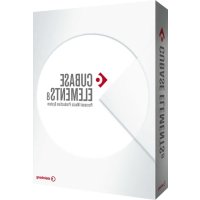
Cubase Elements 8 - Software license & extension STEINBERG - Free user manual and instructions
Find the device manual for free Cubase Elements 8 STEINBERG in PDF.



| Product Type | Software License & Extension |
| Brand | Steinberg |
| Model | Cubase Elements 8 |
| Category | Digital Audio Workstation (DAW) |
| Supported Platforms | Windows 7/8.x, OS X 10.9/10.10 |
| Required Processor | Intel or AMD dual-core |
| Minimum RAM | 4 GB |
| Required Hard Disk Space | 10 GB |
| Display Resolution | 1920 x 1080 (minimum 1366 x 768) |
| Graphics Card (Windows) | DirectX 10 and WDDM 1.1 compatible |
| Audio Interface | OS-compatible interface, ASIO driver recommended |
| Installation Method | Via Start Center or manual (Setup.exe or .pkg file) |
| Protection | Soft-eLicenser (software anti-copy system) |
| Activation Required | Yes, online at www.steinberg.net/activate |
| Product Registration | Recommended on MySteinberg for technical support access |
| Main Functions | Composition, recording, audio/MIDI editing, mixing |
| Included Plug-ins and Instruments | VST plug-ins, HALion Sonic SE, Groove Agent SE |
| Documentation | Quick guide, user manual, plug-in reference (PDF) |
| Manual Languages | French, German, English, Spanish, Italian and others |
| Support | Website, forum, social networks, online help center |
| Updates | Available via download for registered users |
| Maintenance and Cleaning | Not applicable (software); keep the system up to date |
| Trial Period (AI/LE version) | 30 days before permanent activation |
Frequently Asked Questions - Cubase Elements 8 STEINBERG
User questions about Cubase Elements 8 STEINBERG
0 question about this device. Answer the ones you know or ask your own.
Ask a new question about this device
Download the instructions for your Software license & extension in PDF format for free! Find your manual Cubase Elements 8 - STEINBERG and take your electronic device back in hand. On this page are published all the documents necessary for the use of your device. Cubase Elements 8 by STEINBERG.
USER MANUAL Cubase Elements 8 STEINBERG
Integrated Music Production Software
CUBASE LE8
Music Production Software
English
Cristina Bachmann, Heiko Bischoff, Christina Kaboth, Insa Mingers, Matthias Obrecht, Sabine Pfeifer, Kevin Quarshie, Benjamin Schütte
This PDF provides improved access for vision-impaired users. Please note that due to the complexity and number of images in this document, it is not possible to include text descriptions of images.
The information in this document is subject to change without notice and does not represent a commitment on the part of Steinberg Media Technologies GmbH. The software described by this document is subject to a License Agreement and may not be copied to other media except as specifically allowed in the License Agreement. No part of this publication may be copied, reproduced, or otherwise transmitted or recorded, for any purpose, without prior written permission by Steinberg Media Technologies GmbH. Registered licensees of the product described herein may print one copy of this document for their personal use.
All product and company names are ^TM or ^® trademarks of their respective owners. For more information, please visit www.steinberg.net/trademarks.
© Steinberg Media Technologies GmbH, 2015.
All rights reserved.
6 Introduction
6 Welcome!
7 About the Documentation and the Help
8 Typographical Conventions
9 How You Can Reach Us
10 System Requirements and Installation
10 System Requirements
11 Installing the Program
12 Activating Your License
15 Hardware Installation
17 Setting up Your System
Welcome!
Congratulations and thank you for purchasing one of the range of Cubase 8 music production systems!
Boasting core technologies proven throughout the industry to perform with consistency and deliver high quality, Cubase Elements 8 and the hardware-bundled versions, Cubase AI 8 and Cubase LE 8, feature essential tools for composing, recording, editing and mixing that will help you to turn sparks of musical inspiration into a blazing masterpiece. Combining the very best sound quality, intuitive handling with highly advanced audio and MIDI editing, version eight condenses over 30 years of Steinberg development into the most cutting-edge line-up of digital audio workstations anywhere.
Merging technology and creativity, bringing innovation and inspiration together — the list of features in Cubase perfectly reflects this approach, inviting you to venture into new artistic territory and let your creativity reign free. Whether you are a professional, a hobby musician, a student or a teacher, Cubase has it all covered and supports you through every stage of music production, from the inception of the first fleeting idea right down to the final mix.
In case you are using Cubase LE or AI versions make sure to trial the great additions to Cubase Elements by simply entering a trial activation code — there's no additional installation required!
Please keep in touch with us and let us know about your thoughts, suggestions and experiences with our software. Visit our website, drop by our forum, follow us through our social media channels, sign up for our newsletter or reach out to the contact channels available in your region.
Enjoy your copy of Cubase! We look forward to hearing from you.
Your Steinberg Cubase Team
About the Documentation and the Help
The documentation are available in the PDF format and divided into the following sections:
- To open the help in the program, select Help > Documentation.
- On Windows systems, you open the PDF documents via the Start menu, from the Steinberg Cubase folder.
- On Mac OS X systems, the PDF documents are located in the /Library/Documentation/Steinberg/Cubase 8 folder.
NOTE
To read the PDF documents, a suitable PDF reader application must be installed on your computer.
Quick Start Guide
This is the document you are reading. It covers the following areas without going into details:
- System requirements, installation procedure, and license activation.
- Setting up your system.
Operation Manual
The Operation Manual is the main Cubase reference documentation, with detailed descriptions of operations, parameters, functions, and techniques.
Plug-in Reference
This document describes the features and parameters of the included VST plug-ins and VST instruments.
HALion Sonic SE
This document describes the features and parameters of the included VST instrument HALion Sonic SE.
Groove Agent SE (Cubase Elements only)
This document describes the features and parameters of the included VST instrument Groove Agent SE.
Remote Control Devices
This document lists the supported MIDI remote control devices.
Dialog Help
To get information about the active dialog, click its Help button.
Typographical Conventions
Many of the default key commands in Cubase use modifier keys, some of which are different depending on the operating system. For example, the default key command for Undo is [Ctrl]-[Z] on Windows and [Command]-[Z] on Mac OS X.
When key commands with modifier keys are described in this manual, they are shown with the Windows modifier key first, in the following way:
- [Win modifier key]/[Mac modifier key]-[key]
For example, [Ctrl]/[Command]-[Z] means "press [Ctrl] on Windows or [Command] on Mac OS X, then press [Z]".
Similarly, [Alt]/[Option]-[X] means "press [Alt] on Windows or [Option] on Mac OS X, then press [X]".
NOTE
This manual often refers to right-clicking, for example, to open context menus. If you are using a Mac with a single-button mouse, hold down [Ctrl] and click.
How You Can Reach Us
On the Steinberg Hub menu in Cubase you find items linking to additional information.
The menu contains links to various Steinberg web pages. Selecting a menu item automatically launches your browser and opens the page. On these pages you can find support and compatibility information, answers to frequently asked questions, information about updates and other Steinberg products, etc. This requires that you have a web browser installed on your computer, and a working internet connection.
System Requirements and Installation
System Requirements
Your computer must meet the following minimum requirements for the PC and Mac versions of Cubase:
| PC Mac Windows 7/8.x OS X versions 10.9/10.10 | |
| Intel or AMD dual-core CPU 4 GB RAM 10 GB free HD space 1920 x 1080 display resolution (minimum: 1366 x 768) Graphics card with DirectX 10 and WDDM 1.1 support (Windows only) OS compatible audio hardware DVD ROM dual-layer drive Internet connection required for activation, account setup, and personal/product registration. Additional downloads may be required for the installation. |
For recommended systems and support of future operating systems, please refer to the Support section on our website www.steinberg.net.
Installing the Program
You have two possibilities to install your program, via the Start Center application or manually.
Launching Installation via the Start Center
From the Start Center application you can easily install your program and inform yourself about the package contents.
- For Steinberg software delivered with an installation medium, the Start Center launches automatically as soon as you insert the disc in your computer's CD/DVD drive, provided that autorun is activated.
- For Steinberg software downloaded from the internet, the Start Center launches when you double-click the downloaded file.
PROCEDURE
- In the Start Center, choose your preferred language.
- Click Install.
- Follow the instructions on screen.
Launching Installation Manually
If you do not want to install the program via the Start Center, you can install it manually.
- On Windows systems, double-click the file Setup.exe and follow the instructions on screen.
- On Mac OS X systems, double-click the file Cubase LE AI Elements 8. pkg and follow the instructions on screen.
Activating Your License
IMPORTANT
The process for license activation is described in detail on the Steinberg web site. To open the corresponding page, follow the Activation & Registration link in the Start Center.
Cubase Elements, Cubase AI, and Cubase LE use a software-based copy protection scheme. The so-called Soft-eLicenser is installed automatically with your version of Cubase. It can be accessed via the eLicenser Control Center application that is installed automatically with the product.
Cubase Elements
After installation, you must activate your product. For information on how to activate your product visit www.steinberg.net/activate.
Registering Cubase Elements
Register your product at the MySteinberg online customer portal. As a registered user, you are entitled to technical support, you gain access to exclusive offers such as software updates and upgrades, and more.
PREREQUISITE
Make sure that you have a working internet connection.
PROCEDURE
- Start your software.
- Select Steinberg Hub > Registration.
An online registration form opens in your web browser.
- Follow the instructions on screen to register at MySteinberg.
Cubase AI and Cubase LE
To be entitled to technical support, you must register Cubase AI and Cubase LE. Once you have subscribed to the Steinberg newsletter, you are kept aware of updates and other news regarding Cubase.
For information on how to activate your product visit www.steinberg.net/activate.
Registering and Activating the DVD-Version
If you have received Cubase AI or Cubase LE on a DVD, you can use the program out of the box for 30 days. After this period, you must register your program and activate your license permanently.
When you start Cubase AI or Cubase LE, a dialog opens that informs you for how much longer you can use the program without registration and activation.
Registering and Activating the Download-Version
If you have downloaded Cubase AI or Cubase LE from MySteinberg using a download access code, you must activate Cubase AI or Cubase LE permanently using the activation code that you have received at MySteinberg. Cubase AI or Cubase LE are automatically registered when they are activated.
For information on how to activate your product visit www.steinberg.net/activate.
Hardware Installation
Installing the Audio Hardware and its Driver
PROCEDURE
- Install the audio hardware and related equipment on the computer, as described in the hardware documentation.
- Install the driver for the audio hardware.
A driver is a piece of software that allows a program to communicate with a certain piece of hardware. In this case, the driver allows Cubase to use the audio hardware. Depending on the operating system of your computer, there are different types of drivers that can be used.
Dedicated ASIO Drivers
Professional audio hardware often comes with an ASIO driver written especially for the device. This allows for direct communication between Cubase and the audio hardware. As a result, the devices with specific ASIO drivers can provide lower latency (input-output delay), which is crucial when monitoring audio via Cubase or using VST instruments. The ASIO driver may also provide special support for multiple inputs and outputs, routing, synchronization, etc.
ASIO drivers are provided by the audio hardware manufacturers. Make sure to check the manufacturer's web site for the latest driver versions.
IMPORTANT
If your audio hardware comes with a specific ASIO driver, we strongly recommend that you use this.
Generic Low Latency ASIO Driver (Windows Only)
On Windows systems, you can use the Generic Low Latency ASIO driver. This driver provides ASIO support for any audio hardware supported by Windows, thus allowing for low latency. The Generic Low Latency ASIO driver provides the Windows Core Audio technology in Cubase. No additional driver is needed. This driver is included with Cubase and does not require any special installation.
NOTE
This driver should be used if no specific ASIO driver is available. Although the Generic Low Latency ASIO driver supports all audio devices, you might get better results with on-board audio cards than with external USB audio interfaces.
Mac OS X Drivers (Mac only)
If you are using a Macintosh computer, make sure that you are using the latest Mac OS X drivers for your audio hardware. Follow the manufacturer's instructions to install the driver.
Testing the Audio Hardware
To make sure that the audio device works as expected, perform the following tests:
- Use any software included with the hardware to make sure that you can record and play back audio without problems.
- If the hardware is accessed via a standard operating system driver, try playing back audio using the standard audio application of the computer, for example, Windows Media Player or Apple iTunes.
Installing a MIDI Interface or USB MIDI Keyboard
Although many USB MIDI keyboards and MIDI interfaces are plug&play devices, you may have to install a dedicated device driver. Follow the installation procedure described in the documentation that came with the device.
NOTE
You should also check the manufacturer's web site for the latest driver updates.
Setting up Your System
Selecting the Driver for Your Audio Device
Before you can set up the routing for your audio signals and start recording, you need to make sure that the correct ASIO driver is selected.
PROCEDURE
- Select Devices > Device Setup.
- In the Device Setup dialog, click the VST Audio System entry on the left.
The VST Audio System page is shown on the right.
- On the ASIO Driver pop-up menu, select the driver that you want to use.
- Click OK.
Setting Up the VST Connections
The VST Connections dialog allows you to set up the routing of input and output signals between Cubase and your audio hardware. These connections are called busses. In this section you learn how to set up the busses for playback and recording.
Removing Busses
Before you add busses, it is recommended to remove any outputs that were automatically added by Cubase.
PROCEDURE
- Select Devices > VST Connections.
- In the VST Connections dialog, select the Outputs tab.
- In the Bus Name column, right-click the top entry and select Remove Bus from the context menu.
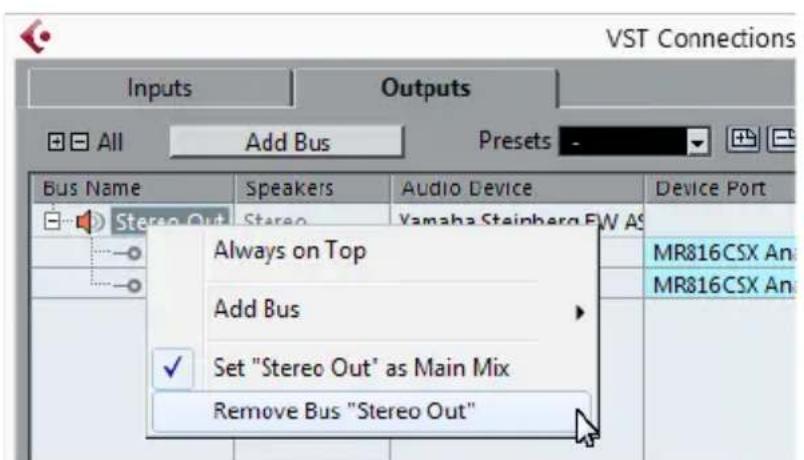
If necessary, repeat this step for any further busses.
Adding Outputs
You must set up the outputs for playing back audio in Cubase.
PREREQUISITE
Remove the busses that were automatically added by Cubase.
PROCEDURE
- Select Devices > VST Connections.
- In the VST Connections dialog, select the Outputs tab.
- Click Add Bus.
- In the Add Output Bus dialog, make your settings.
- Click Add Bus.
The new bus is added, allowing you to have audio in Cubase routed to your audio hardware.
- Optional: If you want to change the output ports that were selected automatically, open the Device Port pop-up menu and select different ports.
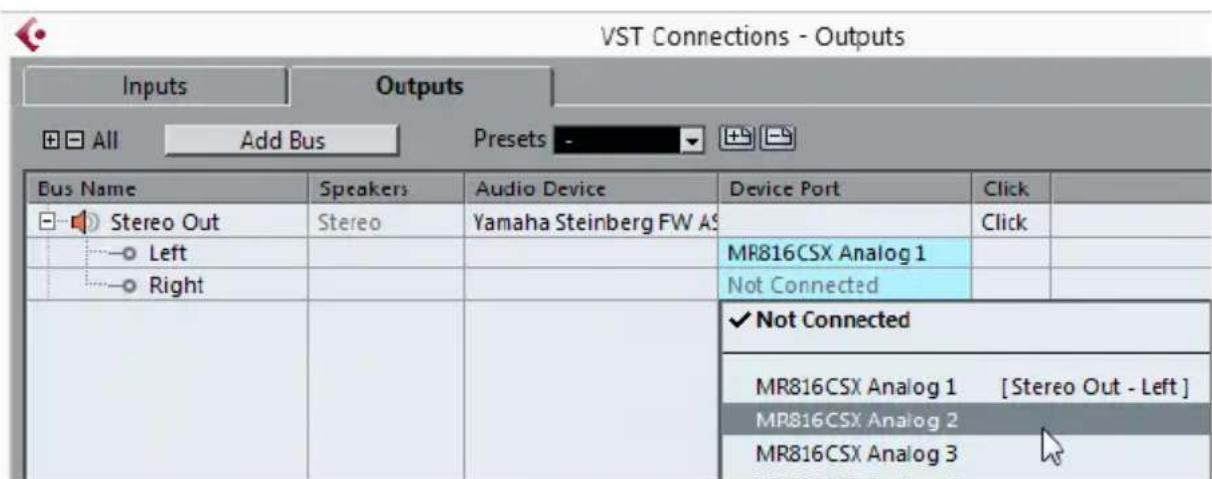
Depending on your audio hardware, more than two output ports might be available. For most cases we recommend to use the main stereo outputs.
RELATED LINKS "Removing Busses" on page 18
Adding Inputs
You must set up the inputs for recording into Cubase.
PROCEDURE
- Select Devices > VST Connections.
- In the VST Connections dialog, select the Inputs tab.
- In the Bus Name column, right-click the top entry and select Remove Bus from the context menu.
If necessary, repeat this step for any further busses.
- Click Add Bus.
- In the Add Input Bus dialog, make your settings.
- Click Add Bus.
The new bus is added, allowing you to have audio from the input of your audio device routed to Cubase for recording.
- Optional: If you want to change the input ports that were selected automatically, open the Device Port pop-up menu and select different ports.
RESULT
You are now ready to record audio in Cubase and play it back.
IMPORTANT
The Cubase Start Center provides a link to a demo project that can be downloaded from the Steinberg web site. If you can play back this project, you have set up your program properly.
NOTE
To get started with Cubase, we recommend watching the video tutorials on the Steinberg YouTube Channel including a demonstration of the new features of Cubase.
Deutsch
Cristina Bachmann, Heiko Bischoff, Christina Kaboth, Insa Mingers, Matthias Obrecht, Sabine Pfeifer, Kevin Quarshie, Benjamin Schütte
Remote Control Devices
Remote Control Devices
Remote Control Devices
Driver Mac OS X (solo Mac)
Remote Control Devices
- English
- Welcome!
- About the Documentation and the Help
- NOTE
- Quick Start Guide
- Operation Manual
- Plug-in Reference
- HALion Sonic SE
- Groove Agent SE (Cubase Elements only)
- Remote Control Devices
- Dialog Help
- Typographical Conventions
- How You Can Reach Us
- System Requirements and Installation
- System Requirements
- Installing the Program
- Launching Installation via the Start Center
- PROCEDURE
- Launching Installation Manually
- Activating Your License
- IMPORTANT
- Cubase Elements
- Registering Cubase Elements
- PREREQUISITE
- Cubase AI and Cubase LE
- Registering and Activating the DVD-Version
- Registering and Activating the Download-Version
- Hardware Installation
- Installing the Audio Hardware and its Driver
- Dedicated ASIO Drivers
- Generic Low Latency ASIO Driver (Windows Only)
- Mac OS X Drivers (Mac only)
- Testing the Audio Hardware
- Installing a MIDI Interface or USB MIDI Keyboard
- Setting up Your System
- Selecting the Driver for Your Audio Device
- Setting Up the VST Connections
- Removing Busses
- Adding Outputs
- RELATED LINKS "Removing Busses" on page 18
- Adding Inputs
- RESULT
- Deutsch
- Driver Mac OS X (solo Mac)
Brand : STEINBERG
Model : Cubase Elements 8
Category : Software license & extension