Senior C - Smartphone Konrow - Free user manual and instructions
Find the device manual for free Senior C Konrow in PDF.


| Product type | Smartphone |
| Brand | Konrow |
| Model | Senior C |
| Dual SIM | Yes (2 slots) |
| Memory card | MicroSD up to 32 GB |
| Battery | Removable, USB charging |
| Power adapter | 5V / 500 mA (model DCS02-0500500) |
| Screen | Color |
| Camera | Built-in (resolution not specified) |
| FM Radio | Yes, with built-in speaker |
| Bluetooth | Yes |
| LED flashlight | Yes, side button |
| SOS function | Yes, configurable |
| Connectivity | 2G, Bluetooth, configurable APN |
| Care and cleaning | Dry or slightly damp soft cloth |
| Security | Do not expose to moisture, do not disassemble |
| SAR (head and body) | Compliant with 2 W/kg (over 10 g of tissue) |
| Warranty | Metropolitan France, normal use |
| Manufacturing | China |
Frequently Asked Questions - Senior C Konrow
User questions about Senior C Konrow
0 question about this device. Answer the ones you know or ask your own.
Ask a new question about this device
Download the instructions for your Smartphone in PDF format for free! Find your manual Senior C - Konrow and take your electronic device back in hand. On this page are published all the documents necessary for the use of your device. Senior C by Konrow.
USER MANUAL Senior C Konrow
Simplified declaration of conformity 37
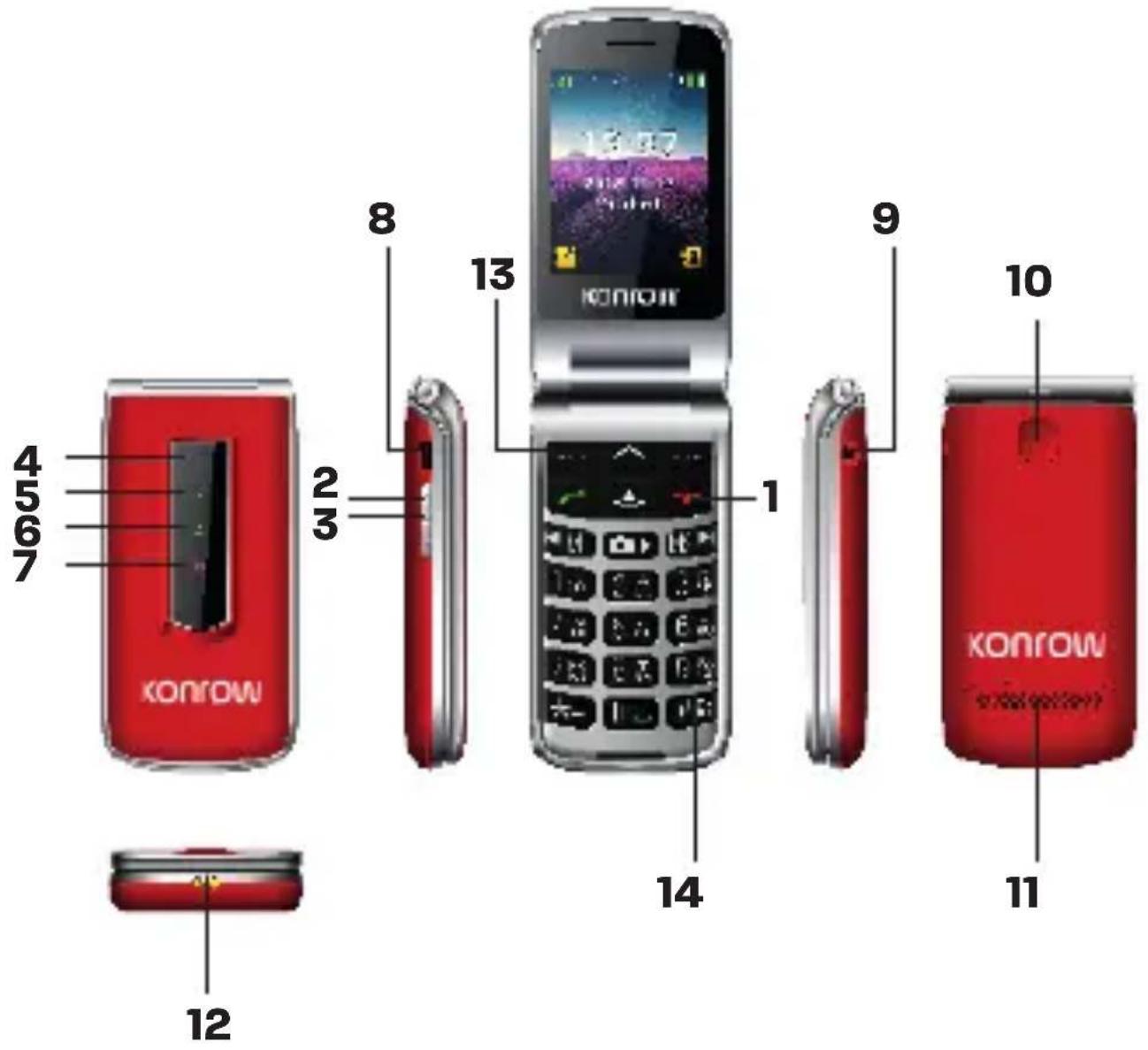
- Bouton Marche/Arrêt
- Touches Volume +/-
- Bouton Torche
- Appareil photo
- Torche
- Notifications messages
-
Voyant batterie
-
Port USB
- Prise JACK (pour écouteurs)
- Bouton d'assistance (SOS)
- Hauts-parleurs
- Prise pour Station de charge
- Bouton Menu/OK
-
Mode Normal/Silencieux
-
On/Off button
- Volume +/- keys
- Torch Button
- Camera
5.Torch - Message notifications
-
battery indicator
-
USB port
- JACK socket (for headphones)
- Assistance (SOS) button
- Speakers
- Socket for Charging Station
- Menu/OK button
-
Normal/Silent Mode
-
Botón de encendido/apagado
- Teclas de volumen
- Botón de la antorcha
- Camara
- Antorcha
- Notificaciones de mensajes
-
Indicador de la bateria
-
Puerto USB
- Hembrilla JACK (para auriculares)
- Botón de asistencia (SOS)
- Ponentes
- Enchufe para la estacion de energia
- Botón Menu/OK
-
Modo normal/silencioso
-
Aan/uit-knop
- Volume +/- toetsen
- Fakkelknop
- Camera
- Fakkel
- Berichtmeldingen
-
Batterij-indicator
-
USB-poort
- JACK-aansluiting (voor koptelefoo)
- Assistentie (SOS) knop
- Luidsprekers
- Stopcontact voor laadstation
- Menu/OK-knop
- Normale/Zachte modus
NG
Konrow you're remercie
for purchasing SENIOR C mobile phone. You will find all the information regarding the use of this cellphone in this guide.
CAUTION : The packaging materials, such as the adhesive tape, plastic film, string and labels are not part of this product.
GIFTBOX CONTENT :
-
1 Mobile phone - 1 User guide
-
Dock station
-
1 Mains adaptor / USBable
1 Headset
1 Battery
Konrow le agradece
1. Inserting a SIM card
- Turn off the phone and remove the back cover and battery.
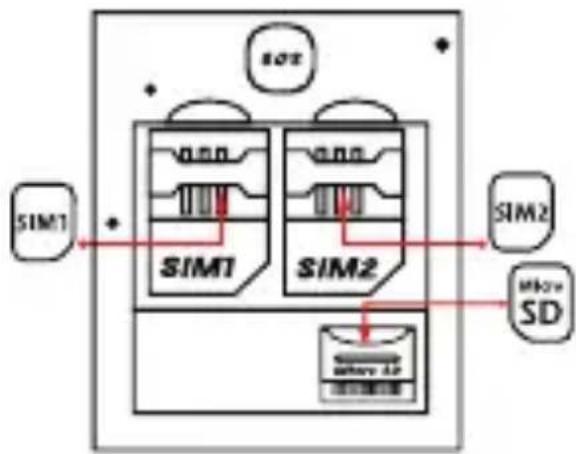
- Insert the SIM card correctly into the SIM card slot (see diagram opposite). You have 2 SIM card ports (SIM1 and SIM2). Make sure to observe the direction in which the cards are inserted.
- Then replace the battery and the rear cover.
CAUTION: Data can only be used on one SIM card.
2. Inserting a MicroSD card
It is possible to increase the internal memory of the SENIOR C device with a MicroSD card (MicroSD card up to 32GB).
- Switch off the phone and remove the back cover and the battery.
- Insert the memory card into the slot provided.
- Then replace the battery and the rear cover.
CAUTION : Inserting or removing a SIM card and MicroSD card requires the phone to be switched off completely.

3. Charging the battery
Charging the battery :
To charge the battery you have 2 options:
- Plug the USB cable (supplied) into the USB port of your mobile phone and plug the AC adapter into a power outlet or alternatively,
- Connect the USB cable from your mobile phone to the charging station and plug the AC adapter into a power outlet.
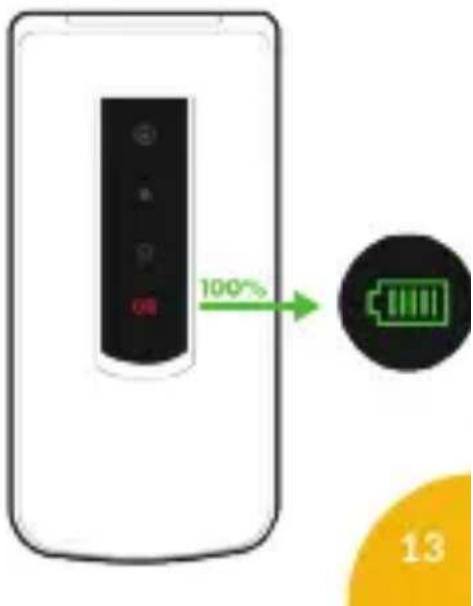
- The battery charge icon lights up during charging and indicates the charging status.
- When the battery is fully charged, you can unplug the device from the power outlet.
IMPORTANT :
- The mobile phone can only be charged via its USB port and/or the charging station.
- Be sure to fully discharge your mobile phone before charging it for the first time.
The battery should be charged for at least 5 to 8 hours
the first time.
Note: You can use the device while it is being charged. In this case, it is possible that the full charge time of the battery may be longer.
Precautions to be observed when charging the battery :
- To charge the battery, use only the AC adapter supplied with your camera. Do not use any other power supplies or electrical devices.
- The electrical outlet to which the camera is connected should be installed near the equipment and should always be easily accessible.
- Always wait at least 5 seconds after turning off the device before restarting it. Switching the appliance off and on again immediately may damage the electrical circuits.
- Do not disassemble the battery. Do not dispose of the battery in fire or water. Do not charge the battery if the ambient temperature exceeds 45^ (113°F).
- For repair or replacement of the battery, contact a qualified technician.
- The life of the battery depends largely on the use you make of it. Do not expose the battery to temperatures below 0^ or above 50^ . Doing so may affect its operation.
- Severe electromagnetic interference or electrostatic discharge may cause malfunction or loss of data. If the device does not function properly, reset the smartphone or unplug the AC adapter from the power outlet and then plug it back in.
4. Switching your mobile phone on/off
-
To turn on the phone, press and hold the On/Off button on the phone keypad for 3 seconds.
-
To turn the phone off, press the Power Button for 3 seconds.
5. Locking/unlocking SIM cards
Your SENIOR C is a dual SIM mobile phone, it allows you to make calls with two subscriptions from the same device. There are two slots for two SIM cards.
- When your phone starts up, you will be prompted to enter the PIN code of your two SIM cards one after the other. (SIM1 then SIM 2)
- The emergency call function allows you to call an emergency number without having to enter the PIN code.
CAUTION: If you forget or lose the password, PIN code will permanently block your mobile phone, in case of forgetfulness or loss, the product warranty will not take effect for such negligence. Indeed, even a reset cannot solve this problem. As a precaution, write down your password.
PASSWD:
6. Émettre et receivevoir un appel
WARNING : It is not possible to make or receive a call on both SIM cards at the same time. For example, if you are on a call on the SIM1 line, callers trying to reach you on SIM2 will automatically be sent to the answering machine.
MAKING A CALL :
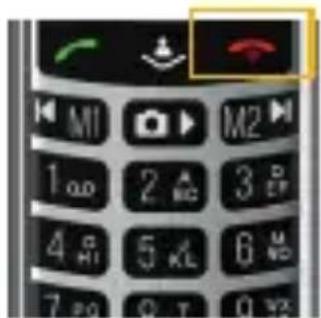
- Dial the number of your choice and press the key.
- Choose SIM 1 or SIM 2, then press ok to initiate a call
- Once the call is initiated, press the volume keys on the side of the phone to adjust the call volume
- When you want to end the call, press the key.
Receiving a call :
- When receiving a call, press the key.
- When you want to end the call, press the key
General Settings
1. User Profiles
This function allows you to switch your mobile in different modes: general, silent, meeting, or outdoor.
2. SOS
The emergency call function allows you to call an emergency number and set off an alarm signal. To set up the SOS function, go to Menu > Settings > SOS > SOS number setting.

3. Phone settings
- Time and Date: Set the time, set the date, set the date format, set the time format, and update the time settings.
- Power scheduling : Schedule the mobile phone to turn on or extend.
Language: Select the display language for the mobile phone. - Favourite input methods: Activate or deactivate automatic word input when entering a text message.
- Displayed info : Change the display settings for the screen
- Directional keys : Change the shortcuts for the directional keys.
Airplane mode: Network connections are disconnected.
4. Security settings
This function allows you to change the lock settings of the mobile phone.
5. Network settings
Allows you to choose the SIM card with the data.
6. Dual SIM Settings
This function allows you to choose SIM1 or SIM 2.
7. Connectivity
Allows you to configure APNs.
8. Restore factory settings
You can undo the settings you have made. The default security password is 1122.
Bluetooth
You can activate Bluetooth via Menu > Settings > Connectivity > Bluetooth.
- Tap Power, and then tap Activate.
- Tap Visibility to be able to connect to other devices.
Once Bluetooth is activated, the icon appears on your screen.
You can transfer data, such as music, to any other device using Bluetooth. Search for the device and receive/transfer data. Received data is automatically saved in the phonebook.
Note: In order to limit your exposure to electromagnetic fields, we recommend that you turn off Bluetooth when it is no longer in use.
Phone book
You can add and edit contacts.
Messaging
You can create a text or multimedia message, access inbox, drafts, outbox, sent messages and you can also create predefined messages in this interface. An SD card is required to receive MMS (photos/videos).
You can also when entering an SMS, change the input method by pressing the # key. If the SMS memory is full, a flashing message icon appears at the top of the screen. To receive SMS messages normally, you must delete some existing SMS messages.
Call Center
Access your call history. You can reject and block a number, once it has been entered in the blacklist of blocked numbers. You can also enable or disable automatic redial.
1. Answer mode
By default, call answering is automatic as soon as the flap is opened. You can choose other answering options via this menu. This menu can be accessed via Call Center > Call Settings > Answer Mode > Choose your options
Organizer
1. Calculator
The calculator can add, subtract, multiply and divide.
2. Calendar
Once you access this menu, there is a monthly calendar that will allow you to keep track of important appointments, etc. The days with an event will be marked.
3. Alarm (Alarm clock)
You can set up to 5 different alarms here.
4. Services
This function allows you to access to many internet websites.
Multimedia
1. Camera
To access the camera, go to Menu > Media > Camera. The phone is equipped with a camera that supports photography functions. In the capture interface, frame the phone to aim the camera and press the Camera Icon key to take pictures. The pictures will be saved to the memory card. However, an SD card is required to store your photos.
2. Image viewer
You can view all the pictures stored in the memory card. Press the direction buttons to select them and use Left Soft Key to edit the images. Press the upper right soft key to return to the previous interface.
3. Video Recorder
This function allows you to record videos. In the capture interface, press the OK button to capture the video clip. An SD card is required to store your videos.
4. Video Plauer
You can use this function to play back movie files. By pressing the direction buttons, you can control the playback process of the audio player: play/pause (OK button), previous/next video (up or down direction button).
5. Audio Plauer
You can use this function to play back audio files. By pressing the direction button, you can control the playback process of the audio player: play/pause (OK button), previous/next song (left or right direction button), fast forward (press and hold the right direction button) and rewind (press and hold the left direction button).
6. Sound Recorder
The phone supports WAV, MP3 formats.
7. FM Radio
You can use the application as a traditional FM radio with the recorded auto search channels. You don't need the headphones as an antenna. In the FM radio interface, use the left or right direction button to search channels manually, press the Camera Icon button to play/pause the playback process of the current channel.
8. File manager
Allows you to access and browse the files in the Senior C.
Torch
The phone has an LED torch that works when the phone is switched on. The button is placed on the left side of the Senior C. To turn it on and off, push the torch button for one second.
Spanish
Safety and care information
Read these instructions carefully.
Charging the battery
Always wait at least 5 seconds after switching off the device before restarting it. Switching the device off and then back on again immediately may damage the electrical circuits.
Do not disassemble the battery. Do not dispose of batteries in fire or water. Do not charge the battery if the room temperature is below 0^ or exceeds 45^ . For all repairs or to replace the battery, consult a qualified technician. The lifetime of the battery depends largely on how you use it. To recharge the battery, only use the mains adaptor supplied with your device. Do not use any other power supply or electrical device.
The power socket to which the device is connected must be near the equipment and must always be easily accessible. The power cord must be placed so that it will not be stepped on or crushed particularly at the outlet, where it is plugged in or where it is connected to the device.
Do not overload the power socket. Use the power supply only as indicated. Disconnect this device during electrical storms or when not in use for an extended period. Do not touch the power cord with wet hands and do not pull on the charger to disconnect it.
This charger is for indoor use only.
Only use adapter as per below:
Manufacturer name: Konrow
Manufacturer address : 150 Avenue des Chartreux, 13004 Marseille FRANCE
Model Name: DCS02-0500500
Rated Input : AC 100-240V~50/60Hz 0.3A Max
Rated Output: 5V = 500mA
Hearing
Prolonged use of this music player at full power may damage the user's hearing. In order to prevent these risks it is recommended not to listen at high volume levels for long periods.
While driving
In France, in accordance with Article R412-5-1 of the French Highway Code, drivers are not permitted to use hand-held phones nor the use of a device or a hands-free kit capable of distracting the attention whilst the vehicle is moving. The penalty for non-compliance with this article is a fine and point penalty on your driving licence.
NOTE: this legislation applies only in France. During trips abroad, please refer to the legislation in place in the country you are/go.
According to each environment

Do not use your device in certain locations such as aircraft, hospitals, service stations and professional garages or while driving a vehicle. The electromagnetic waves from the device can disrupt the performance of electronic devices used in these locations.
We recommend that you switch off your device or switch it to flight mode in these locations to avoid interference.
If you use an electronic implant (pacemakers, insulin pumps, neurostimulators, etc), please keep a distance of 15cm between the device and your electronic implant.
Do not expose the device to direct sunlight or other source of extreme heat or cold. Operating temperature: -10°C and 40°C.
Risk of fire or electric shock
Do not expose this device to rain or moisture. Do not expose the product to water droplets or to splashes and do not place any object filled with liquid, such as a vase, on the device. Do not use the product near flammable or explosive materials.
Device to handle with care
Do not exert excessive pressure on the screen and do not put objects on it. This could damage the screen. Do not drop the device. Do not expose the device to shocks, friction or impact.
Operating guidelines
Maintaining the device
Keep the device away from all metal objects (coins, keys, etc). Clean only with a soft cloth (dry or slightly damp).
Do not attempt to disassemble the device; it would no longer be covered by the warranty. Use only the spare parts/accessories specified by the manufacturer. Refer to a qualified person for any repairs. After any service or repair carried out on this product, ask the technician to perform a safety check.
Prevent data loss
Significant electromagnetic interference or electrostatic discharge may cause malfunction or loss of data. If the device is not working properly, restart the device or unplug the mains adaptor from the power socket then plug it in again. In order to prevent data loss, remember to make a (computer or paper) back-up of information saved on the device.
Recycling
The symbol shown here and on the product means that the product is classed as Electrical or Electronic Equipment and should not be disposed with other household or commercial waste at the end of its working life. The Waste Electrical and Electronic Equipment (WEEE) Directive (2012/19/EU) has been put in place to recycle products using best available recovery and recycling techniques to minimise the impact on the environment, treat any hazardous substances and avoid the increasing landfill.
Product disposal instructions for residential users:
If you no longer use the device, remove and dispose of the battery, as well as the device, in compliance with the local recycling procedures. For more information please contact your local authority or the retailer where the product was purchased.
Product disposal instructions for business users:
Business users should contact their suppliers and check the terms and conditions of the purchase contract and ensure that this product is not mixed with other commercial waste for disposal.
Specific Absorption Rate "SAR" - Exposure to radio frequency
Your device is designed and produced to comply with European authorities for exposure to radiofrequencies.
The SAR (Specific Absorption Rate) of devices quantifies the maximum level of exposure of the user to electromagnetic waves for normal use at the ear and use close to the body. European legislation stipulates that the SAR must not exceed 2W / kg averaged over 10g of tissue.
The value of the SAR is determined on the basis of the highest level of radio frequencies emitted during laboratory tests.
The actual value of the SAR during use of the device is lower than this level.
The value of the SAR of the device can vary according to the following factors: how far/close the device is to a relay antenna, use of accessories and others.
NOTE: The SAR value may vary, depending on national reporting and testing requirements and the network band.
Advice to reduce the level of exposure to radiation:
Please use your device where reception is good to reduce the quantity of radiation received (avoid using in an underground car park or when travelling (train or car)).
A reception icon indicates the quality of reception on your device. A 4-bar display means that reception is good.
Use of a hands-free kit also allows the level of exposure to be reduced.
When using a hands-free kit, pregnant women should keep the device away from their abdomen and teenagers should keep the device away from their lower abdomen.
If you have any problem :
Please contact the after-sales service on the contact page of our website: www.konrow.com
Made in China
2018 Konrow.
If unresolved problem, contact your retailer.
The Konrow supplier warranty is valid for normal use of the device as defined in the instructions. This warranty excludes damage caused by external circumstances.
Specifically, the warranty does not apply if the device is damaged as a result of a bump or drop, an operating error, a connection that does not comply with these instructions, lightning, a surge, or inadequate protection against heat, humidity or freezing temperatures.
The warranty is applicable only in metropolitan France.
The warranty does not cover:
- User manuals or applications, settings, content or data of any kind.
- Normal usury of the product (screens, batteries and camera).
- Damage to the product due to misuse, including in particular those caused by objects, a pressure drop.
- Any use of the label with the precautions outlined in the manual.
- Defects caused to the product with another product connected or used with an accessory or software not provided by Konrow.
- Any damage to the battery.
- The product or its accessories if it has been disassembled or modified in any way.
- Any unidentifiable product by serial number or IMEI number(s). If its elements have been removed, altered or defaced, the warranty does not apply.
- Damage done to the product caused by exposure to moisture, conditions that extreme heat or cold, corrosion, oxidation, with any liquid whatsoever
- Any damage to SIM player(s) or SIM MicroSD reader.
- The legal warranty for hidden defects applies in compliance with Articles 1541 et seq. of the French Civil Code.
kongrow
10, D-32825 Blomberg, Germany.
Telephone: +49(0)5235-9500-24
Fax: +49(0)5235-9500-28
01/01/2020 Maurice Haddad / CEO
Simplified declaration of conformity
We, Konrow - 150 Avenue des Chartreux - 13004 Marseille - FRANCE, hereby declare that the Smartphone SENIOR C complies with the essential requirements of the RED Directive 2014/53/UE:
The Full declaration of conformity is available in the following link: http://www.konrow.com/download/Declaration_de_conformite/SENIOR_C/Declaration_of_ conformity_full.pdf
The complete informations about the device can be found in the different sections below:
| Battery and manufacturer informations | On the back of the device (integrated battery location) |
| Device serial number | On the back of the device (integrated battery location) |
| IMEI | On the back of the device (integrated battery location) |
The procedure of Declaration of conformity RED was conducted under the supervision of the
following organisation:
PHOENIX TESTLAB Königswinkel
10, D-32825 Blomberg, Germany.
Telephone: +49(0)5235-9500-24
Fax: +49(0)5235-9500-28

01/01/2019 Maurice Haddad / CEO
Date (Name and signature of the duly authorised person)
French regulation require that the SAR does not exceed the maximum value of 2W/kg on 10g of tissue. The device complies with radio frequency regulations when the device is used at the ear and at a distance of 5mm from the body.
28/2/2020