
FL 01 - Smartphone BLAUPUNKT - Free user manual and instructions
Find the device manual for free FL 01 BLAUPUNKT in PDF.
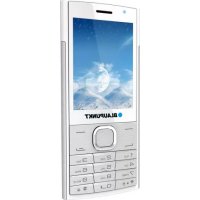



| Product type | Smartphone |
| Brand | Blaupunkt |
| Model | FL 01 |
| Network | GSM 900/1800 MHz |
| Battery type | Li-ion 3.7 V, 900 mAh |
| Internal memory | 32 MB |
| Expandable memory | microSD up to 16 GB |
| Charger | Input AC 100-240 V, 50/60 Hz, 0.15 A; Output DC 5 V, 600 mA |
| SAR values (head) | 900 MHz: 0.487 W/kg; 1800 MHz: 0.486 W/kg |
| SAR values (body) | 900 MHz: 0.708 W/kg; 1800 MHz: 0.917 W/kg |
| Camera | Present (not specified in megapixels) |
| Main functions | Calls, SMS, MMS, camera, phonebook |
| Security | PIN code, PUK code, phone password (default 1234) |
| Water resistance | No |
| Maintenance | Keep dry, use approved accessories |
| Spare parts | Removable battery, charger included, standard SIM card |
| Repairability | Only qualified personnel |
Frequently Asked Questions - FL 01 BLAUPUNKT
User questions about FL 01 BLAUPUNKT
0 question about this device. Answer the ones you know or ask your own.
Ask a new question about this device
Download the instructions for your Smartphone in PDF format for free! Find your manual FL 01 - BLAUPUNKT and take your electronic device back in hand. On this page are published all the documents necessary for the use of your device. FL 01 by BLAUPUNKT.
USER MANUAL FL 01 BLAUPUNKT
Enjoy it.
Contents
- Safety 1
- Product specifications.... 2
- Getting Started .... 3
3.1. Insert a SIM card .... 3 3.2. Insert a memory card.... 3 3.3. Insert battery 3 3.4. Remove the battery.... 3 3.5. Charging the battery 4 3.6. Security settings .... 4
- Use this unit....5
4.1. Power On/Off....5 4.2. Make a call....5 4.3. Receive call .... 5
- Menu functions .... 5
5.1. Names....5 5.2. Camera 6 5.3. Messaging ...... 6
- Declaration of Conformity .... 7
1. Safety
Emergency call
Dial 112 in any country in an emergency. Note: Due to the nature of the wireless network, the emergency call is not always guaranteed.
Please read the safety instructions carefully, as ignoring it may be dangerous or illegal.
The owner of the device is responsible for the use of this appliance.
Explosion hazards and restricted areas
Turn off the device in explosion hazardous areas. Sparks in such places may lead to an explosion or fire that may result in serious injury or death. Turn off the device at gasoline or gas filling stations, especially near the fuel pumps. Follow the instructions strictly in locations such as fuel tanks, chemical plants, and explosive substances.
Road safety
Observe the local laws and regulations regarding smartphone usage while driving. If you make a phone call while driving, observe the following rules: Focus on driving to become aware of traffic conditions; If the device has a hands-free function, use handsfree. If the traffic situation requires, stop the car before you pick up the phone.
Interference
Do not switch on the device, where it is prohibited to use a mobile phone or to interfere with radio waves.
Qualified service
The product can only be repaired by a qualified person.
Charger, battery and other accessories
Only use a battery, charger and other accessories approved by the manufacturer. Do not connect incompatible products.
Hearing protection
To avoid hearing loss, do not listen to music or radio for a long time at high volume.
Water resistance
The appliance is not waterproof, so keep it dry.
Use environment
The device complies with the recommended emission values for radio waves when kept at a minimum distance of 1.5 cm from the ear. When carrying the phone in a case, belt clip, or holder, make sure that it does not contain metal and that the phone is slightly distracted from the body. When using other accessories, it is not possible to operate in accordance with radio frequency guidelines. If you do not use a case and do not hold the phone on your ear, keep it at least 2.5 cm away from your body, especially during data transfer.
2. Product specifications
Power Supply Features:
- Input: (AC), 100-240V, 50/60HZ 0.15A • Output: (DC), 5V, 600 mA
Battery Type and Voltage:
• Li-ion battery, 3.7 V, 900 mAh
Network type:
- GSM 900/1800 MHz
SAR values:
• 1800 MHz: 0.486 W/Kg; 900 MHz: 0.487 W/Kg (Head) • 1800 MHz: 0.917 W/Kg; 900 MHz: 0.708 W/Kg (Body)
Note: Actual operating conditions depend on local conditions, network environment, and user habits.
3. Getting Started
3.1. Insert a SIM card
To use your phone, you need to insert a valid SIM card to connect to the GSM network.
To avoid losing or damaging the SIM card, please do not hold the metal part of the SIM card with your bare hands and keep it away from electromagnetic devices. If the SIM card is damaged, it cannot connect to the GSM network. Before inserting or removing the SIM card, make sure that the device is turned off and the back cover is removed.
Note: Locate the SIM card slot on the back of the device and slide the card in the direction indicated, with the contacts facing down.
3.2. Insert a memory card
The internal memory of the device is 32 MB. You need to insert a memory card to store multiple multimedia files (such as photos, music) or to send and receive MMS. The memory card is not part of the basic package. Up to 16GB memory cards can be used. Slide the memory card into the slot with the chip facing down.
3.3. Insert battery
To insert the battery, slide the back cover down and remove it. Align the gold-colored contacts of the battery with the contacts on the device and gently snap the battery into its place. Replace the back cover.
With the recess on the top two sides of the battery holder, you can unplug the battery if you want to remove it.
3.4. Remove the battery
To remove the battery, turn off the device, remove the cover, and then remove the battery.
Note: Please remove the battery when it is switched off, as it may cause abnormal operation.
3.5. Charging the battery
Connect the charger to the device and plug the other end into the socket. Flashing battery icon indicates that charging is in progress. When the flashing stops, charging is complete.
During charging, the battery and charger may become warm.
Charger operating temperature is between 0°C and 50°C. Do not use if the temperature falls outside this range.
For safety reasons, use only the manufacturer's approved charger.
Use of an improper charger may result in a warranty...
3.6. Security settings
- PIN code
The PIN code protects the SIM card from an unauthorized user. The PIN is provided by a network service provider, along with a SIM card. Carefully enter a PIN code, after 3 incorrect attempts a SIM card will be locked and an unlock PUK code will be entered.
Please contact your service provider for more information.
- PUK code
The PUK code is required to unblock the PIN code. The PUK (Personal Unblocking Code) code is provided by the network service provider along with the SIM card. Keep your PUK code in a safe place, do not discard it. If you have lost it, contact your network service provider.
If the SIM card is locked, the device asks for a PUK code. You have 10 attempts to enter the correct PUK code, after the incorrect code 10, your SIM card may be permanently locked.
Phone password
The phone password can be a 4-8-digit code that protects your device from unauthorized use.
The factory default password is "1234". When the feature is active, the phone asks for this code every time you turn it on. To protect your privacy, change the default password (Menu> Security> Change Phone Password) as soon as possible. Set a password you can easily remember.
4. Use this unit
4.1. Power On/Off
Press and hold the Power button to turn on the power. If PIN code is required, enter the PIN code (detailed description in the previous sections).
In Standby mode, press and hold the Power button to turn off the device
4.2. Make a call
In Idle mode, enter the phone number with area code, in international format. To correct, press the (right) button. To dial, press the call key or Options> Call. The name and phone number you have dialed are displayed on the screen. As soon as the call is made, a counter is displayed below the phone number, which measures the call time.
4.3. Receive call
To answer a call, press the call key or Answer (left soft key)>. To mute the incoming call, press (right soft key). To reject the call, press (after mute) or end (call end key).
5. Menu functions
5.1. Names
In Idle mode, enter the phone number and select (left) Options> Add to Names> Add as new name.
Select the storage (SIM or phone) where the phone number is saved.
Enter contact details: name, phone number.
To save, press the Save (Left) soft key.
Or: In Menu mode, select Names> Options> New.
Select storage space and enter the contact details.
5.2. Camera
In Menu mode, select Camera to open the camera.
- Point the lens towards the object and adjust the image. • Take the photo with the middle navigation key.
Options> Camera> Options> Settings. You can set the image to automatically save the image. The image is saved in JPG format.
Attention! To save images automatically, a memory card is
required.
5.3. Messaging
Message service is a network-dependent service that allows you to send and receive SMS. For more information, contact your network provider.
SMS sending
In Menu mode, select Message> Write message.
- To send a text message, select New SMS.
- To enter the recipient, enter the phone number to which you want to send the message to the top line.
- Enter the message text.
- To insert a name / phone number, press (left) and select Add contact information. From the phonebook, select the contact you want to paste using the navigation buttons, and then press the OK button.
- To resend, press Options (left) again, select Send or press (center) navigation key.
MMS sending
Attention! To use multimedia messages, insert the memory card (not part of the basic package).
In Menu mode, select Message> Write message.
- To send a multimedia message, select New MMS.
- To enter the recipient, go to Options> Add recipient and enter the phone number to which you want to send the message.
- To resend, press Options (left) again and select Send.
Incoming messages
You can store received messages on your device or on the SIM card and access it.
When you receive a message, a beep or vibration (as previously configured in the menu) will alert you to this, or a graphic will appear on the display. Press the left soft key [View] or OK to view the message, and the right soft key to return to the SMS menu to read other incoming messages.
6. Declaration of Conformity
The Blaupunkt BS 02 is compliant with the essential requirements and relevant provisions of RoHS Directive 2014/53 / EU and 2011/65 / EU. To view the Declaration of Conformity, please contact us at the following e-mail address:
For detailed instructions on how to use this product, please visit our website: www.htmmobile.hu or www.blaupunkt.com
Enjoy it.
Table of Contents

Enjoy it.
Table of Contents
Enjoy it.
Table of Contents
Enjoy it.
Table of contents
Enjoy it.
Table of contents
Enjoy it.
Table of contents
Enjoy it.
Table of contents


- CONTENTS
- SAFETY
- EMERGENCY CALL
- ROAD SAFETY
- HEARING PROTECTION
- WATER RESISTANCE
- USE ENVIRONMENT
- PRODUCT SPECIFICATIONS
- POWER SUPPLY FEATURES
- BATTERY TYPE AND VOLTAGE
- NETWORK TYPE
- SAR VALUES
- GETTING STARTED
- INSERT A SIM CARD
- INSERT A MEMORY CARD
- INSERT BATTERY
- REMOVE THE BATTERY
- CHARGING THE BATTERY
- SECURITY SETTINGS
- PIN CODE
- PUK CODE
- PHONE PASSWORD
- USE THIS UNIT
- POWER ON/OFF
- MAKE A CALL
- RECEIVE CALL
- MENU FUNCTIONS
- NAMES
- CAMERA
- MESSAGING
- SMS SENDING
- MMS SENDING
- INCOMING MESSAGES
- DECLARATION OF CONFORMITY
- TABLE OF CONTENTS
Brand : BLAUPUNKT
Model : FL 01
Category : Smartphone