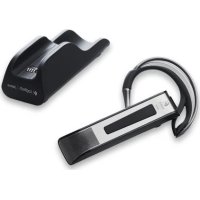
BH870 - Headphones LOGITECH - Free user manual and instructions
Find the device manual for free BH870 LOGITECH in PDF.


| Product type | Wireless headset (headset) |
| Brand | Logitech |
| Model | BH870 |
| Connection technology | Bluetooth |
| Main functions | Phone calls, touch volume control, noise reduction, microphone mute |
| Microphone | Dual noise-reducing microphone |
| Power | Rechargeable battery via travel charger (mini-USB) |
| Charge indicator | LED indicator: red (<10%), yellow (10-<100%), green (100%) |
| Package contents | BH870 headset, travel charger, Bluetooth USB adapter, mini-USB cable, power adapter, ear hook, headband (optional) |
| Compatibility | Bluetooth mobile phones, computers with USB port |
| Pairing code | 0000 |
| Care and cleaning | Clean with a dry cloth, do not use chemicals |
| Safety | Dispose of in accordance with local regulations |
| Spare parts and repairability | Not user-serviceable, contact Logitech support |
| Intended use | Hands-free communication for phone calls and telephony software |
Frequently Asked Questions - BH870 LOGITECH
User questions about BH870 LOGITECH
0 question about this device. Answer the ones you know or ask your own.
Ask a new question about this device
Download the instructions for your Headphones in PDF format for free! Find your manual BH870 - LOGITECH and take your electronic device back in hand. On this page are published all the documents necessary for the use of your device. BH870 by LOGITECH.
USER MANUAL BH870 LOGITECH
Getting started with
Première utilisation
BH870 Wireless Bluetooth® Headset
Logitech for Business
Contents
English. 4 12
www.logitech.com/support 20

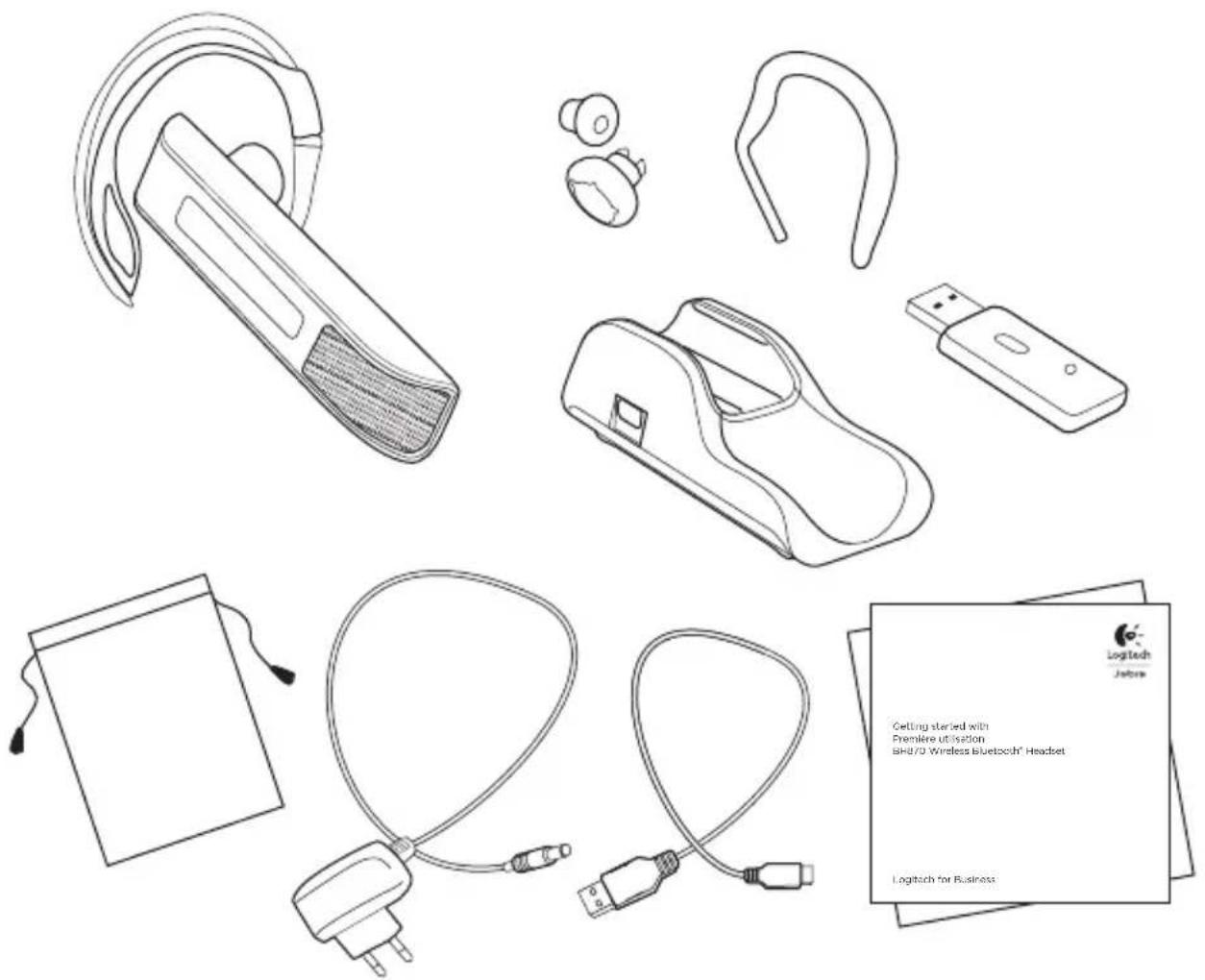
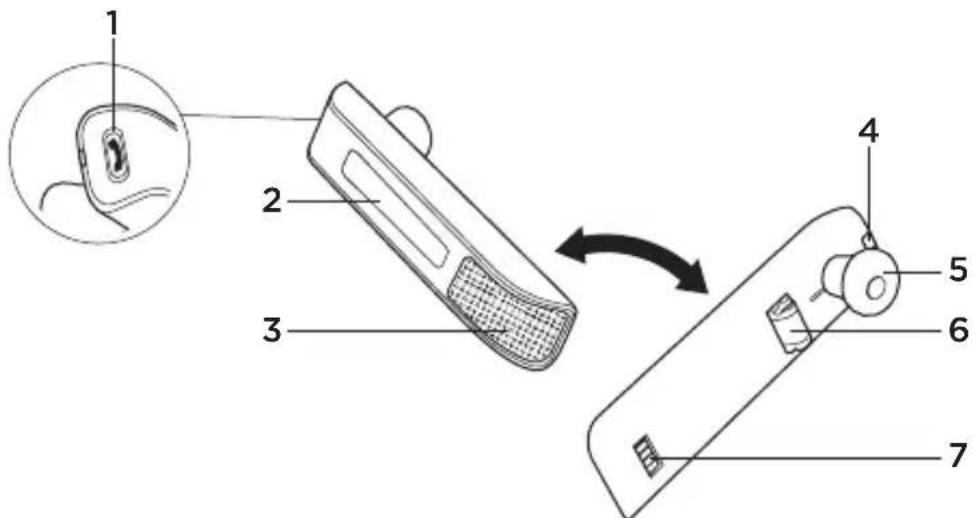
Figure 1: BH870 Wireless Bluetooth Headset diagram
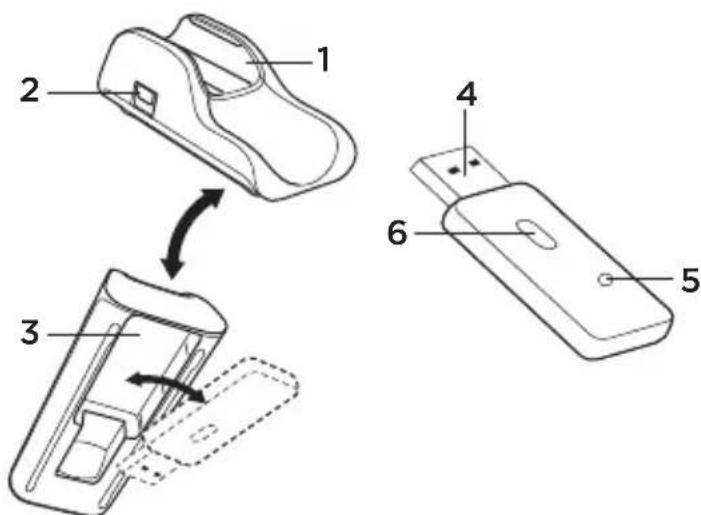
Figure 2: Travel charger and USB Bluetooth® adapter diagrams
BH870 Wireless Bluetooth Headset diagram
- Multifunction button (answer/end call, among other functions)
- Touch panel for volume and mute control
- Dual noise-blackout microphone
- Activity and status indicator (multicolor LED)
- Earbud (with speaker)
- Mount for ear-hook wearing-style attachment
- Recharge contact
Figure 1: BH870 headset as seen from the outer and inner sides, respectively
Travel charger and USB Bluetooth® adapter diagrams
- Headset cradle
- Power port
- USB Bluetooth® adapter cradle
- USB plug
- LED activity indicators
- Multifunction button
Figure 2: Travel Charger (left) and USB Bluetooth adapter (right)
Installation and setup
Step 1: Connect power to the travel charger
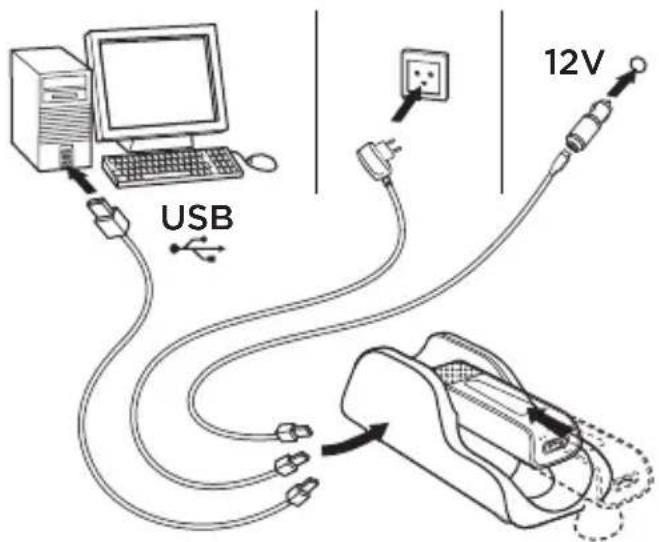
Connect the mini-USB port on the Travel Charger to one of the following power sources:
- any USB port on a powered-on computer via the supplied mini-USB-to-USB cable (charge time is longer when connected to a PC)
- a mains power socket via the supplied mains power adapter
- a car's cigarette lighter via the car charge adapter (optional accessory)
Step 2: Insert the headset into the travel charger
See the figure below: The headset LED shows the current charge
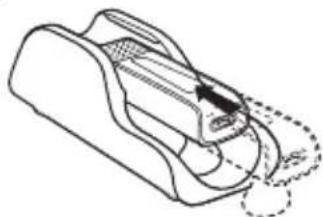
status: red (low; < 10% ), yellow (medium; 10 - < 100% ) or green when fully charged. Allow the headset to charge until it lights yellow or green before continuing (usually the headset ships with a partial charge).
Step 3: Adjust the headset wearing-style
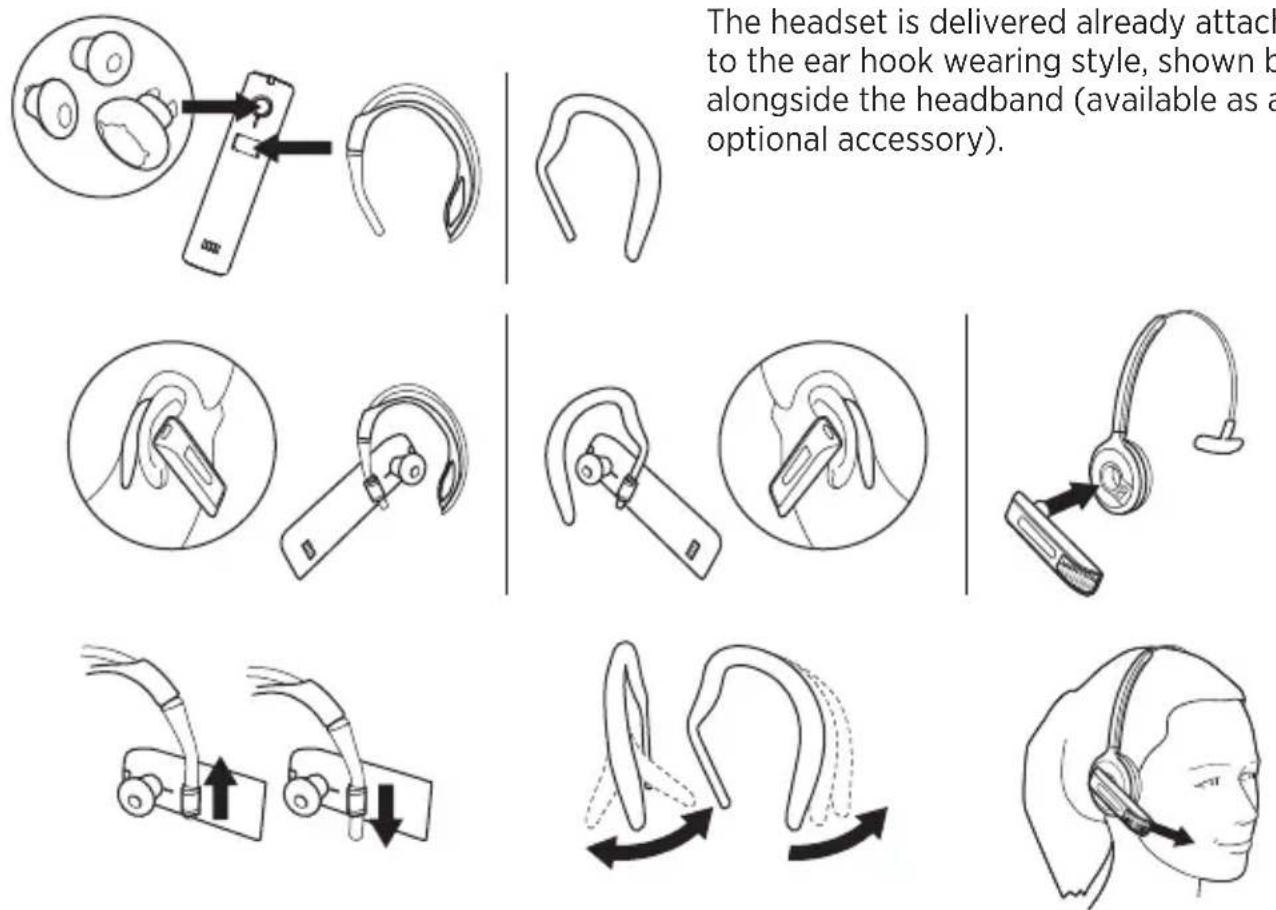
Slide the hook's attachment up or down in the hinge-like mount on the headset as shown, until the headset fits most comfortably to your ear.
The headset is delivered already attached to the ear hook wearing style, shown below alongside the headband (available as an optional accessory).
When you put on the headset, always ensure that the microphone is positioned as close to your mouth as possible. This maximizes the noise-cancelling effect of its microphone and ensures that your voice comes through loud and clear.
Step 4: Connect the headset
Connect the headset to your mobile phone
- If your headset is currently turned on, turn it off—press and hold its multifunction button for about 4 seconds.
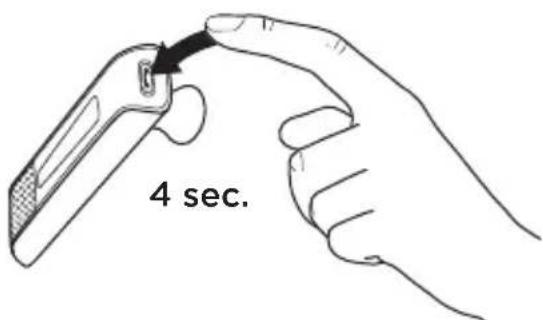
Its LED gives four quick flashes and then turns off.
- Put your (powered-off) headset into Bluetooth® pairing mode—press and hold its multifunction button for about 4 seconds.
In pairing mode, its LED lights a constant blue.
- Use the menu system of your mobile phone to put it into Bluetooth pairing mode (see also your mobile-phone documentation).
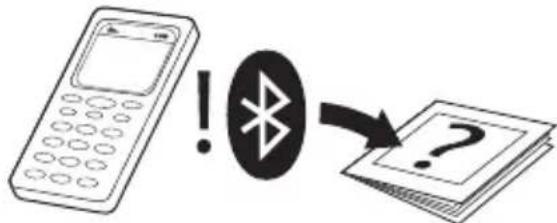
Your mobile phone shows a list of discovered devices.
- Use the phone's controls to select the BH870 device.
The phone will then ask for the headset's pass code, which is 0000 (four zeros) for all BH870 headsets.
- Enter the pass code on your phone. Your phone now pairs with and connects to the headset.
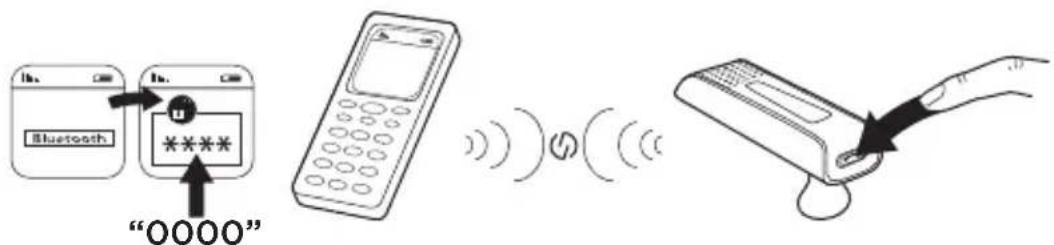
- Accept the connection on the phone.
Connect the headset to your computer
www.logitech.com/BH870_support
- Plug the BH870 USB Bluetooth® Adapter into a free USB port on your PC.
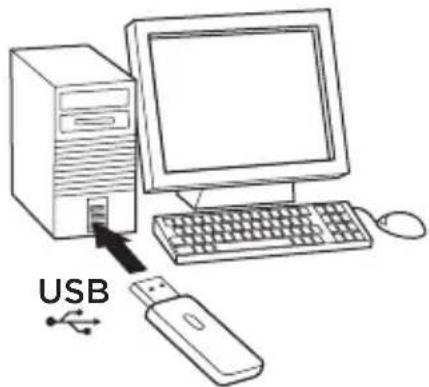
Note: The headset and USB Bluetooth® Adapter are paired at the factory, so you should not need to pair them. Please see the BH870 User manual for details on how to pair with a new adapter or to re-establish pairing, if needed.
- Open your softphone application and view the audio configuration to ensure that the BH870 headset is selected as the target for speaker and microphone.
If you would like to learn more on how to use the many advanced features of your headset solution, please refer to the full user manual. (www.logitech.com/BH870_support)
Daily Use
To make a call:
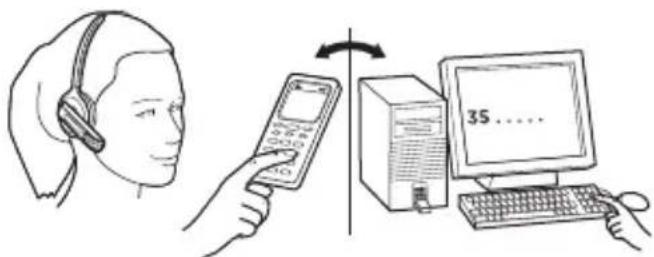
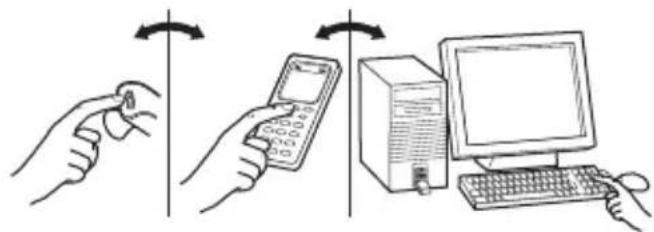
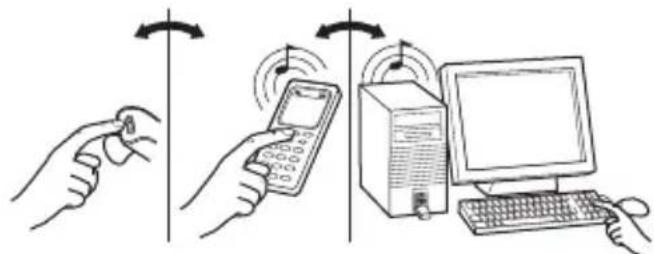
To answer an incoming call:
- Dial the number as usual, using your standard mobile-phone keypad or softphone interface.
- Press the call button on your mobile or softphone. The audio connection to your headset opens automatically.
- To hang up, either tap the headset multifunction button or click on the end-call button of your mobile phone or softphone.
- When a call comes in on your mobile or softphone, you will hear a ring tone in the headset (the tone indicates which phone is calling).
- To answer the call, either tap the headset multifunction button or click on the answer-call button of your mobile or softphone. The headset automatically answers the phone that is ringing.
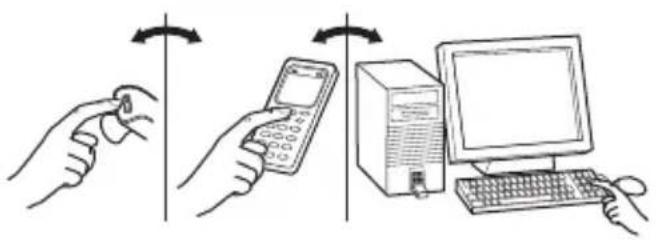
- To hang up, either tap the multifunction button on the headset or click on the end-call button of your mobile phone or softphone.
During a call:
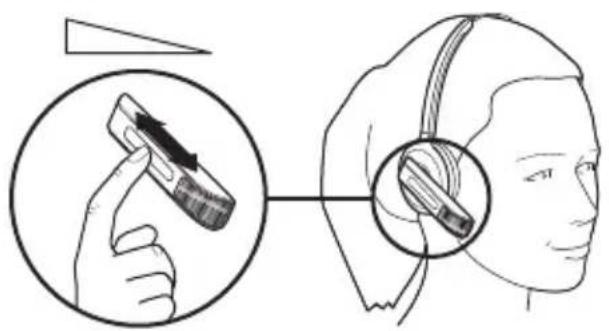
To adjust the volume you hear, slide your finger up or down the touch-sensitive panel.
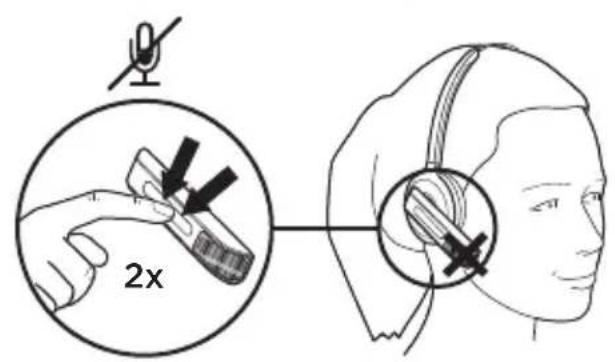
To mute or un-mute the microphone, double-tap on the touch-sensitive panel. A soft tone sounds every now and then to remind you when the microphone is muted.
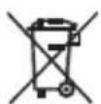
Dispose of the product according to local standards and regulations.
www.logitech.com/support

United States +1 646-454-3200
Canada +1 866-934-5644
www.logitech.com
© 2011 Logitech. All rights reserved. Logitech, the Logitech logo, and other Logitech marks are owned by Logitech and may be registered. All other trademarks are the property of their respective owners. Logitech assumes no responsibility for any errors that may appear in this manual. Information contained herein is subject to change without notice.

- Contents
- BH870 Wireless Bluetooth Headset diagram
- Travel charger and USB Bluetooth® adapter diagrams
- Installation and setup
- Step 1: Connect power to the travel charger
- Step 2: Insert the headset into the travel charger
- Step 3: Adjust the headset wearing-style
- Step 4: Connect the headset
- Connect the headset to your mobile phone
- Connect the headset to your computer
- Daily Use
- To make a call:
- To answer an incoming call:
- During a call:
Brand : LOGITECH
Model : BH870
Category : Headphones