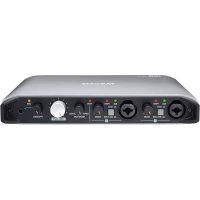
iXR - Hi-fi system TASCAM - Free user manual and instructions
Find the device manual for free iXR TASCAM in PDF.


| Product Type | USB 2.0 audio/MIDI interface for hi-fi system |
| Brand | Tascam |
| Model | iXR |
| Dimensions (W × H × D) | 210 × 35.3 × 140.7 mm (excluding protrusions) |
| Weight | 660 g |
| Power Supply | USB bus power from computer; USB AC adapter 5 V / 700 mA min. on iOS; compatible mobile battery |
| Power Consumption | 2.5 W |
| Analog Inputs | 2 combo XLR/6.35 mm jack inputs (mic/line/instrument) with preamp, 57 dB gain, +48 V phantom power |
| Analog Outputs | 2 balanced line outputs on 6.35 mm TRS jacks; 1 stereo headphone output on 3.5 mm mini-jack |
| MIDI | MIDI input and output on 5-pin DIN |
| USB Connectivity | USB 2.0 high speed (480 Mbit/s): type B port for computer/power, type A port for iOS device |
| Audio Resolution | 16/24 bits, sampling frequencies 44.1 / 48 / 88.2 / 96 kHz |
| Signal-to-Noise Ratio | 101 dB or more (MIC/LINE to LINE OUT, min gain, JEITA) |
| Distortion | 0.0025% or less (1 kHz, nominal level, JEITA) |
| Main Features | Direct monitor, gain settings, MIC/LINE/INST selector, MONITOR/LINE OUT/PHONES knobs, settings panel for iOS/Windows/Mac |
| Included Software | Cubase LE (Windows/Mac) and Cubasis LE (iOS) – downloadable |
| Operating Temperature | 5 °C to 35 °C |
| Maintenance and Cleaning | Wipe with a dry, soft cloth. Do not use chemicals, thinner, or alcohol. |
| Safety | Do not expose to water or heat sources; disconnect during storms; follow the instructions in the manual. |
| Spare Parts / Repairability | Refer any repair to qualified service personnel. Contact TASCAM customer service. |
Frequently Asked Questions - iXR TASCAM
User questions about iXR TASCAM
0 question about this device. Answer the ones you know or ask your own.
Ask a new question about this device
Download the instructions for your Hi-fi system in PDF format for free! Find your manual iXR - TASCAM and take your electronic device back in hand. On this page are published all the documents necessary for the use of your device. iXR by TASCAM.
USER MANUAL iXR TASCAM

natural_image
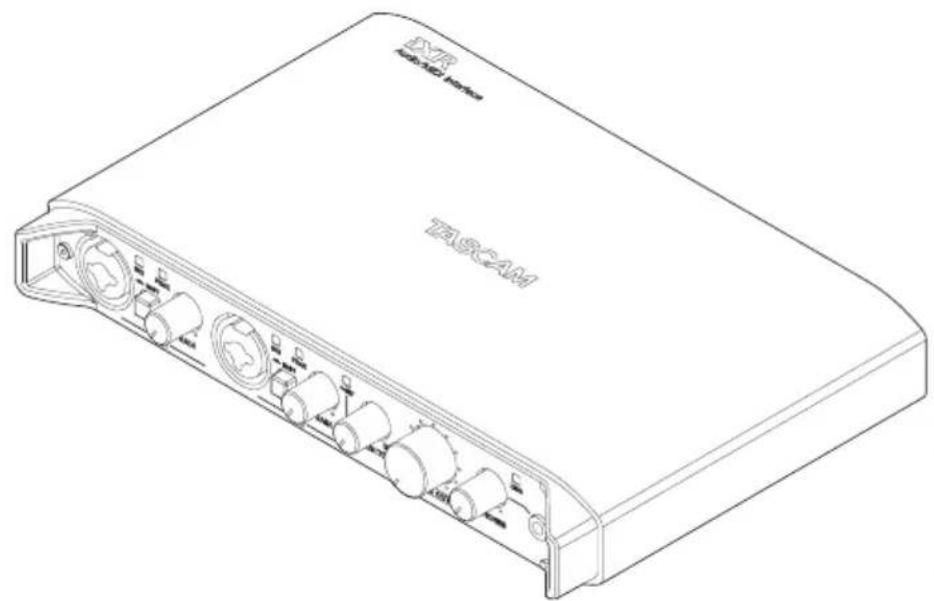
Line drawing of a T8C2AM wireless device with ports and connectors (no text or symbols on the device body)OWNER'S MANUAL
ENGLISH
MODE D'EMPLOI
FRANÇAIS
MANUAL DEL USUARIO
ESPAÑOL
BEDIENUNGSANLEITUNG
DEUTSCH
• TASCAM is a trademark of TEAC CORPORATION, registered in the U.S. and other countries.
- Microsoft, Windows and Windows Vista are either registered trademarks or trademarks of Microsoft Corporation in the United States and/or other countries.
• Apple, Mac, Mac OS, OS X, iPad, iPhone, iPod touch and Lightning are trademarks of Apple Inc.
- IOS is a trademark or registered trademark of Cisco in the U.S. and other countries and is used under license.
- App Store is a service mark of Apple Inc.
• Cubase, Cubasis and VST are registered trademarks of Steinberg Media Technologies GmbH.
• ASIO is a trademark of Steinberg Media Technologies GmbH.
- Blackfin® and the Blackfin logo are registered trademarks of Analog Devices, Inc.
- Other company names, product names and logos in this document are the trademarks or registered trademarks of their respective owners.




ティアック株式会社
http://tascam.jp/
1834 Gage Road, Montebello, California 90640 USA
TEAC MEXICO, S.A. de C.V.
http://teacmexico.net/
Phone: +52-55-5010-6000
2 Huxley Road, Surrey Research Park, Guildford, GU2 7RE, United Kingdom
TEAC EUROPE GmbH
http://tascam.eu/
Phone: +49-611-71580
Room 817, Block A, Hailrun Complex, 6021 Shenan Blvd., Futian District, Shenzhen 518040, China
IMPORTANT SAFETY PRECAUTIONS
For U.S.A.
INFORMATION TO THE USER
This equipment has been tested and found to comply with the limits for a Class B digital device, pursuant to Part 15 of the FCC Rules. These limits are designed to provide reasonable protection against harmful interference in a residential installation. This equipment generates, uses, and can radiate radio frequency energy and, if not installed and used in accordance with the instruction manual, may cause harmful interference to radio communications. However, there is no guarantee that interference will not occur in a particular installation. If this equipment does cause harmful interference to radio or television reception, which can be determined by turning the equipment off and on, the user is encouraged to try to correct the interference by one or more of the following measures.
a) Reorient or relocate the receiving antenna.
b) Increase the separation between the equipment and receiver.
c) Connect the equipment into an outlet on a circuit different from that to which the receiver is connected.
d) Consult the dealer or an experienced radio/TV technician for help.
CAUTION
Changes or modifications to this equipment not expressly approved by TEAC CORPORATION for compliance could void the user's authority to operate this equipment.
For Canada
THIS CLASS B DIGITAL APPARATUS COMPLIES WITH CANADIAN ICES-003.
CET APPAREIL NUMERIQUE DE LA CLASSE B EST CONFORME A LA NORME NMB-003 DU CANADA.
DECLARATION OF CONFORMITY
We, TEAC EUROPE GmbH. Bahnstrasse 12, 65205 Wiesbaden-Erbenheim, Germany declare in own responsibility; the TEAC product described in this manual is in compliance with the corre technical standards.

Declaration of Conformity
Responsible party: TEAC AMERICA, INC.
Address: 1834 Gage Road, Montebello, California, U.S.A.

Telephone number: 1-323-726-0303
This device complies with Part 15 of the FCC Rules. Operation is subject to the following two conditions:
(1) this device may not cause harmful interference, and (2) this device must accept any interference received, including interference that may cause undesired operation.
IMPORTANT SAFETY INSTRUCTIONS
1 Read these instructions.
2 Keep these instructions.
3 Heed all warnings.
4 Follow all instructions.
5 Do not use this apparatus near water.
6 Clean only with dry cloth.
7 Do not block any ventilation openings. Install in accordance with the manufacturer's instructions.
8 Do not install near any heat sources such as radiators, heat registers, stoves, or other apparatus (including amplifiers) that produce heat.
9 Do not defeat the safety purpose of the polarized or grounding-type plug. A polarized plug has two blades with one wider than the other. A grounding type plug has two blades and a third grounding prong. The wide blade or the third prong are provided for your safety. If the provided plug does not fit into your outlet, consult an electrician for replacement of the obsolete outlet.
10 Protect the power cord from being walked on or pinched particularly at plugs, convenience receptacles, and the point where they exit from the apparatus.
11 Only use attachments/accessories specified by the manufacturer.
12 Use only with the cart, stand, tripod, bracket, or table specified by the manufacturer, or sold with the apparatus.
When a cart is used, use

caution when moving the cart/apparatus combination to avoid injury from tip-over.
13 Unplug this apparatus during lightning storms or when unused for long periods of time.
14 Refer all servicing to qualified service personnel. Servicing is required when the apparatus has been damaged in any way, such as power-supply cord or plug is damaged, liquid has been spilled or objects
have fallen into the apparatus, the apparatus has been exposed to rain or moisture, does not operate normally, or has been dropped.
- The apparatus draws nominal non-operating power from the AC outlet with its POWER or STANDBY/ON switch not in the ON position.
- The mains plug is used as the disconnect device, the disconnect device shall remain readily operable.
- Caution should be taken when using earphones or headphones with the product because excessive sound pressure (volume) from earphones or headphones can cause hearing loss.
- If you are experiencing problems with this product, contact TEAC for a service referral. Do not use the product until it has been repaired.
CAUTION
- Do not expose this apparatus to drips or splashes.
- Do not place any objects filled with liquids, such as vases, on the apparatus.
- Do not install this apparatus in a confined space such as a book case or similar unit.
- The apparatus should be located close enough to the AC outlet so that you can easily grasp the power cord plug at any time.
- If the product uses batteries (including a battery pack or installed batteries), they should not be exposed to sunshine, fire or excessive heat.
- CAUTION for products that use replaceable lithium batteries: there is danger of explosion if a battery is replaced with an incorrect type of battery. Replace only with the same or equivalent type.
■or European Customers
Disposal of electrical and electronic equipment
(a) All electrical and electronic equipment should be disposed of separately from the municipal waste stream via designated collection facilities appointed by the government or the local authorities.
(b) By disposing of the electrical and electronic equipment correctly, you will help save valuable resources and prevent any potential negative effects on human health and the environment.
(c) Improper disposal of waste equipment can have serious effects on the environment and human health as a result of the presence of hazardous substances in electrical and electronic equipment.
(d) The crossed out wheeled dust bin symbol indicates that electrical and electronic equipment must be collected and disposed of separately from household waste.
(e) The return and collection systems are available to the end users. For more detailed information about disposal of old electrical and electronic equipment, please contact your city office, waste disposal service or the shop where you purchased the equipment.
Contents
IMPORTANT SAFETY PRECAUTIONS ....3
IMPORTANT SAFETY INSTRUCTIONS....3
Introduction......5
Note about the Reference Manual....5
Included items 5
Precautions for placement and use....5
Beware of condensation ....5
Cleaning the unit ....5
Names and functions of parts....6
Front 6
Rear panel....7
Installing the dedicated software ....7
Installing the iOS Settings Panel 7
Installing the Windows driver....7
Installing the Mac Settings Panel....8
Uninstalling the dedicated software ....9
Uninstalling the iOS Settings Panel....9
Uninstalling the Windows driver 9
Uninstalling the Mac OS Settings Panel....9
Connecting the power....9
When using an iOS device 9
When using a computer (Windows/Mac)......10
Connection illustrations.... 10
Using the USB ports when connecting iOS devices .10
Making settings on the Settings Panel screen..... 10
Adjusting the input sound 11
Troubleshooting....12
Specifications....13
Audio resolution....13
Analog audio input ratings....13
Analog audio output ratings.... 14
Control input/output ratings 14
Audio performance 14
Operation requirements....14
iOS devices....14
Windows....14
Mac OS....15
Supported audio/MIDI drivers....15
General....15
Dimensional drawings....16
Introduction
Thank you for your purchase of the iXR USB Audio/MIDI Interface.
Before using this unit, read this manual carefully so that you will be able to use it correctly and enjoy working with it for many years. After you have finished reading this manual, please keep it in a safe place for future reference.
You can also download this Owner's Manual from the TEAC Global Site (http://teac-global.com/).
Should the contents of the memory of a connected device (including hard disks and optical discs) in the same system as this unit be lost, our company will bear no responsibility for repair, including for compensation.
Before connecting this unit to a computer, you must download and install dedicated software on the computer.
This product has a Blackfin ^® 16/32-bit embedded processor made by Analog Devices, Inc. This processor controls digital signal processing. Inclusion of this Blackfin ^® processor in the product increases its performance and reduces its power consumption.
Note about the Reference Manual.
This Owner's Manual explains the main functions of this unit. Please see the Reference Manual for information about all the unit's functions.
You can download the Reference Manual from the TEAC Global Site (http://teac-global.com/).
Included items
This product includes the following items.
Keep the packing materials for transportation in the future.
Please contact TASCAM Customer Support (see back cover) if any of these items are missing or have been damaged during transportation.
- Main unit....×1
- USB cable .......× 1
• Steinberg Cubase LE installation guide .....× 1 - Owner's Manual (this document) including warranty ....x 1
- Included software (provided by download) Steinberg Cubase LE Steinberg Cubasis LE*
* A demo version of Cubasis LE can be downloaded for free from the App Store. Connecting the iOS device to this unit will
remove the restrictions of the demo version, allowing you to use it as a full version of Cubasis LE.
Precautions for placement and use
- The operating temperature range of this unit is 5–35 °C.
- Do not install this unit in the following types of locations. Doing so could make the sound quality worse or cause malfunction.
Places with significant vibrations
Near windows or other places exposed to direct sunlight
Near heaters or other extremely hot places Extremely cold places
Places with bad ventilation or high humidity Very dusty locations - To enable good heat dissipation, do not place anything on top of the unit.
- Do not place this unit on top of a power amplifier or other device that generates heat.
Beware of condensation
Condensation could occur if the unit is moved from a cold place to a warm place, it is used immediately after a cold room has been heated or it is otherwise exposed to a sudden temperature change.
Should this happen, leave the unit for one or two hours before turning the unit on and using it.
Cleaning the unit
Use a dry soft cloth to wipe the unit clean. Do not wipe with chemical cleaning cloths, thinner, alcohol or other chemical agents. Doing so could damage the surface or cause discoloration.
Names and functions of parts
Front
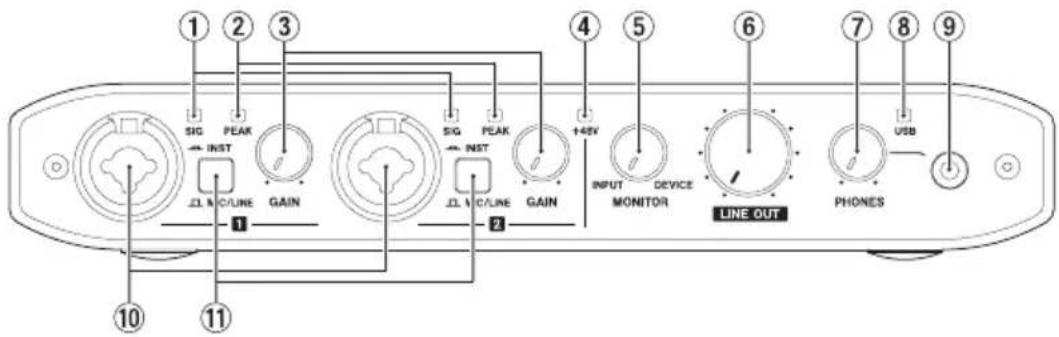
① SIG indicators
The SIG indicators light green when a signal of at least -32 dBFS is input through the IN 1/IN 2 jacks.
② PEAK indicators
The PEAK indicators light red when a signal that is about to distort (-1 dBFS or higher) is input through the IN 1/IN 2 jacks.
③ GAIN knobs
Use to adjust the input levels of the IN 1/IN 2 jacks.
④ +48V indicator
This indicator lights when the PHANTOM switch is set to +48V.
⑤ MONITOR knob
Use to adjust the balance between the signals input through the unit's input jacks and the output of the device connected by USB.
⑥ LINE OUT knob
Use to adjust the output level of the LINE OUT 1/L-2/R jacks.
⑦ PHONES knob
Use to adjust the PHONES jack output level.
CAUTION
Before connecting headphones, use the PHONES knob to minimize the volume. Failure to do so could result in a sudden loud noise that could harm hearing, for example.
⑧ USB indicator
This lights when the USB connection is active. This blinks when the USB connection is inactive. It is unlit when the unit is off.
⑨ PHONES jack
Connect stereo headphones to this stereo mini (3.5mm) jack.
The same signal is output from the LINE OUT 1/L and 2/R jacks.
Use an adapter to connect headphones with a standard (6.3mm) plug.
⑩ IN 1/IN 2 connectors
These are combo XLR/TRS input jacks. Use the MIC/LINE INST switches on the front of the unit to enable balanced line (MIC/LINE) or unbalanced (INST) input for the TRS jacks.
⑪ MIC/LINE INST switches
Set according to the IN 1/IN 2 jack input sources.
Set to MIC/LINE when connecting electronic instruments, audio devices, mics and similar equipment. Set to INST when connecting an electric guitar, electric bass or other equipment with high output impedance.
Rear panel
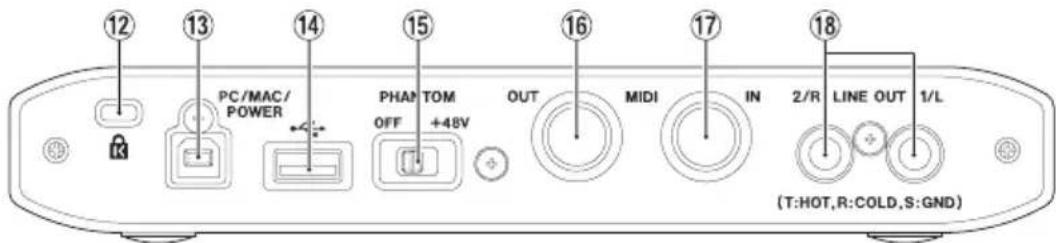
⑫ Kensington Security Slot
⑬ PC/MAC/POWER port (USB B-type)
When using this unit with an iOS device, use the included USB cable to connect the USB power adapter included with the iOS device. Doing this allows this port to function as a power supply connector.
When using this unit with a computer, use the included USB cable to connect it to the computer.
⑭ port (USB-A type)
To connect this unit with an iOS device, use the Lightning-USB cable included with the iOS device.
NOTE
This port will not provide power to the iOS device, nor will it draw power from the device.
⑮ PHANTOM switch
Use this switch to provide +48V phantom power to the IN 1/IN 2 jacks.
⑯ MIDI OUT connector
This 5-pin DIN is a standard MIDI output jack. It outputs MIDI signals.
⑰ MIDI IN connector
This 5-pin DIN is a standard MIDI input jack. Use it to input MIDI signals.
⑱ LINE OUT 1/L and 2/R jacks
These standard TRS jacks are analog line outputs. Use the Settings Panel to set the signals output from the LINE OUT 1/L and 2/R jacks. (Tip: HOT, Ring: COLD, Sleeve: GND)
Installing the dedicated software
To use this unit with a computer, dedicated software must be installed on the computer.
With some exceptions, the latest software for the operating system you are using can be downloaded from the TEAC Global Site (http://teac-global.com/).
- To use this unit with an iOS device, install the Settings Panel app. The standard iOS driver will be used. The Settings Panel app can be downloaded for free from the App Store.
- To use this unit with a Windows computer, install the driver. When you install the driver, the Settings Panel application will be installed at the same time.
- To use this unit with a Mac, install the Settings Panel application. The standard OS driver will be used.
CAUTION
Before starting to install software, quit other applications.
Installing the iOS Settings Panel
Find the TASCAM iXR Settings Panel app on the App Store and download it.
Downloading it will install it automatically.
Installing the Windows driver
CAUTION
- Complete installation of the driver on the computer before connecting the unit to it with the USB cable.
- If you already connected the unit to the computer using the USB cable before installing the driver and the Found New Hardware Wizard launched, close the message and disconnect the USB cable.
Windows driver installation procedures
- Download the latest Windows driver for the operating system you are using from the TEAC Global Site (http://teac-global.com/) and save it on the computer to be used with the unit.
- Open the saved Windows driver (zip file) on, for example, the computer desktop.
- Double-click the "iXR_Installer_XXX.exe" (XXX is the version number), file in the folder that appears after uncompression to automatically launch the installation software.
-
When a "Security Warning" or "User Account Control" screens appear, click the "Yes" button.
-
When the Setup Wizard screen appears, click the "Next" button.
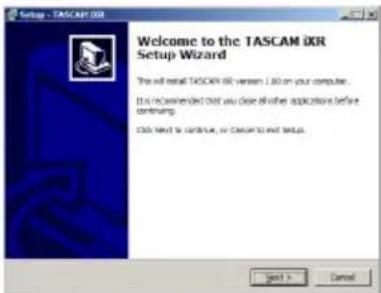
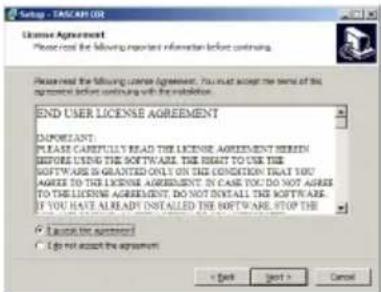
- Read the contents of the License Agreement, and select "I accept the agreement" if you agree to the terms. Then, click the "Next" button.
- Next, click the "Install" button to start installation.
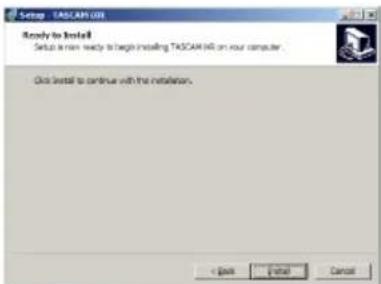
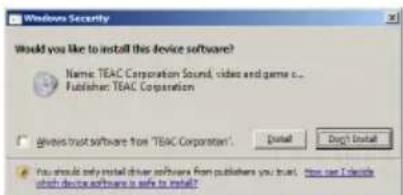
- A Windows security screen will appear twice. Click the "Install" button to proceed with installation.
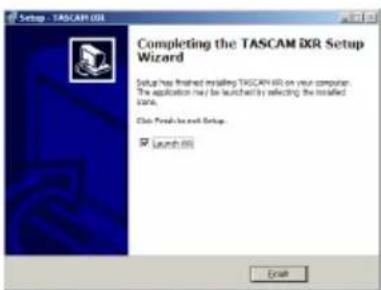
- The following screen appears when installation has completed.
Click the "Finish" button.
NOTE
After installing the driver, the device driver will be installed the first time the unit is connected by USB.
At this time, Windows will automatically search Windows Update, and it may take some time to recognize the unit connection.
If the unit is still not recognized after some time, open the software installation screen from the message area at the bottom right of the computer display, and click "Skip Obtaining Drivers From Windows Update" to cancel the search.
Installing the Mac Settings Panel
NOTE
• Install the Settings Panel on the computer before connecting the unit to it with the USB cable.
- Depending on the Gatekeeper setting, a warning message might appear during installation. For information about Gatekeeper, see "Note about Gatekeeper" in "3-Installation" of the Reference Manual.
■Settings Panel installation procedures
- Download the software for the operating system you are using from the TEAC Global Site (http://teac-global.com/) and save it on the computer to be used with the unit.
- Double-click "iXR_Installer_XXX.dmg" (XXX is the version number), which is the saved disk image file for the Mac Settings Panel, and double-click "iXR_Installer.pkg" inside the folder that opens.

iXR_Installer.pkg
NOTE
Depending on the computer's settings, the downloaded zip file might not have opened automatically. In this case, open the zip file first and then double-click the disk image file.
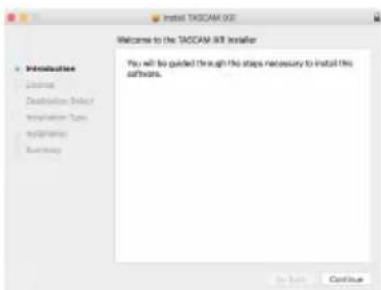
- When the installer starts, click the "Continue" button.
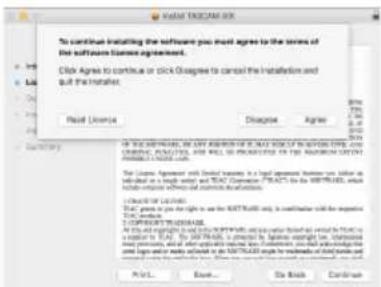
- On the software license agreement screen, click the "Continue" button to open the software license agreement confirmation screen. Click the "Read License" button and check the contents of the Software License Agreement. If you agree to the contents of the license, click "Agree".
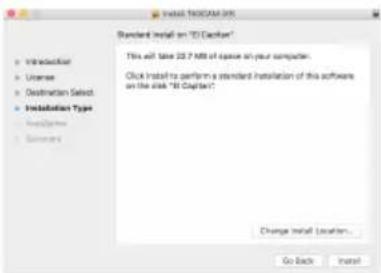
- Next, click the "Install" button to start installation.
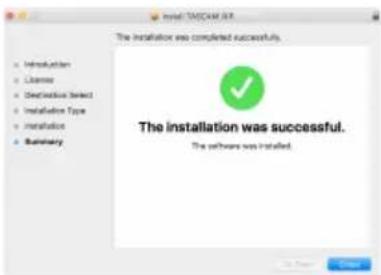
- The following screen appears when installation has completed. Click the "Close" button.
Uninstalling the dedicated software
NOTE
Normally, there is no need to uninstall the dedicated software. Follow these procedures if a problem occurs or you no longer intend to use the unit with the computer.
Uninstalling the iOS Settings Panel
Press and hold the "iXR Settings" icon to show the × mark and enable app deletion. Tap the × mark to delete the app.
Uninstalling the Windows driver
Uninstalling from the Programs and Features Control Panel.
- From the Start menu, open the Control Panel and launch Programs and Features.
NOTE
- In Windows 10, right-click the Start button and click Control Panel when it appears.
- In Windows 8.1, right-click the button at the bottom left of the Start screen and click Control Panel on the Apps screen.
-
If "View by:" is set to "Category", click "Uninstall a program" under the "Program" item. If "View by:" is set to "Large icons" or "Small icons", click "Programs and Features".
-
Double-click "TASCAM iXR" in the list.
-
Then, follow the instructions that appear on the screen.
Uninstalling the Mac OS Settings Panel
Delete "iXR_Settings Panel" from the Application folder to complete uninstallation.
Connecting the power
When using an iOS device
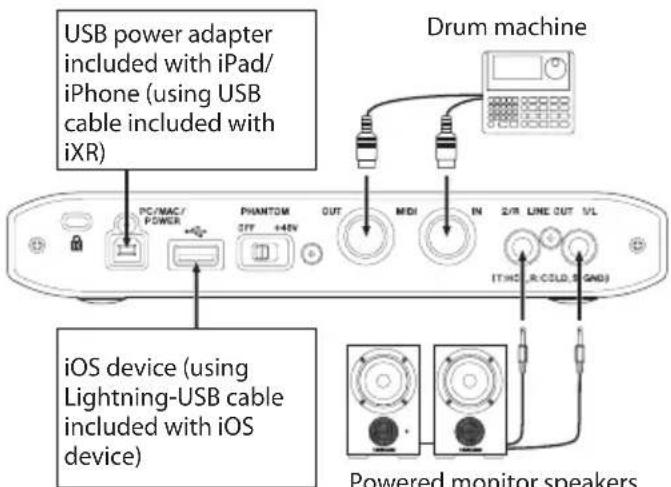
Connect the USB power adapter included with the iPad or iPhone to the USB cable included with this unit, and connect the cable to the PC/MAC/POWER port.
![USB power adapter included with iPad/ iPhone USB cable included with iXR PC/MAC/ POWER PHANTOM OFF 4-40V OUT MCH IN 2/R LINE OUT VL [THST_R/GOLD_S-GMO]](/content/2026/03/529692/images/7e75aee3ab08a428c197ffc66e42f74858d9b8f89c27e7d76cb659a765abbb1e.jpg)
CAUTION
- A USB power adapter is not included with an iPod touch. To use an iPod touch with this unit, purchase a genuine Apple USB power adapter (capable of supplying 5V and at least 700mA current).
• Operation with other USB power adapters is possible, but we strongly recommend using the genuine Apple USB power adapter included with the iPad/iPhone.
When using another USB power adapter, be sure that the power supply device meets the following specifications.
• Supplied voltage: 5 V
• Supplied current: 700 mA or more - Supplied voltage: 5 V
- Supplied current: 700 mA or more
Using a power supply device when the specifications are other than the above could cause malfunction, overheating, fire or other problems. If anything abnormal occurs, stop use
and contact the retailer where you purchased the unit or a TASCAM service center to request repair.
When using a computer (Windows/Mac)
When this unit is connected to a computer, it will operate using USB bus power, so connecting a separate power supply device is not necessary.
Connection illustrations
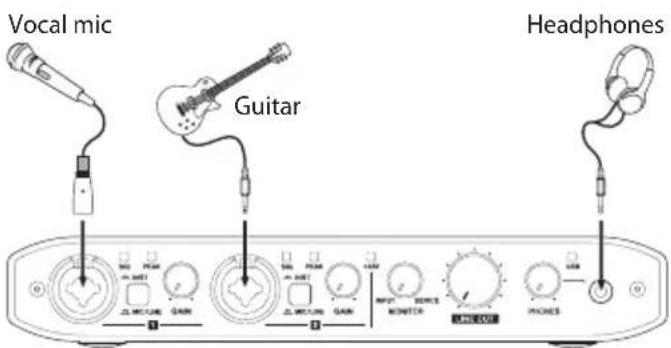
Connection example (front)
Powered monitor speakers with balanced connections
Connection example with an iOS device (rear)
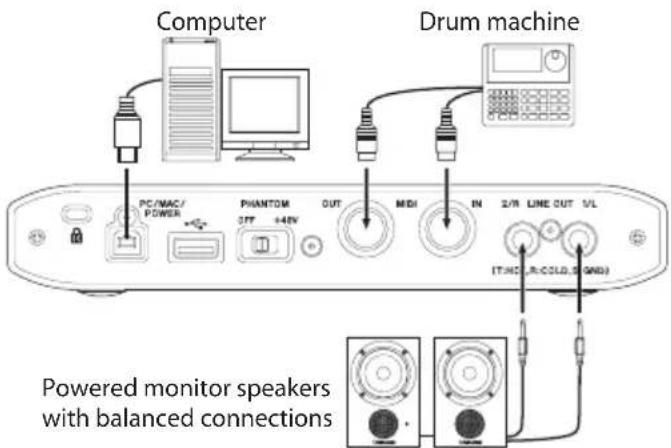
Connection example with a computer (rear)
CAUTION
- Before making connections, turn this unit and all connected devices (excluding computers/iOS devices) to be connected off (standby).
• The PHANTOM switch affects both input channels simultaneously. Do not turn phantom power on when connecting a mic that does not require phantom power. - Turning phantom power on when a dynamic mic or other mic that does not require it is connected could damage this unit and connected equipment.
- Do not connect or disconnect mics while phantom power is on. Doing so could cause a loud noise and might damage this unit and connected equipment.
- Set the LINE OUT and PHONES knobs to their minimum values before turning phantom power on/off. Depending on the connected mics, sudden loud noises from monitoring equipment could occur, and this could damage the equipment or harm hearing.
- When using condenser mics that require phantom power and dynamic mics together, be sure to use balanced dynamic mics. Unbalanced dynamic mics cannot be used when phantom power is enabled.
• Supplying phantom power to some ribbon mics will break them. If you are unsure, do not supply phantom power to a ribbon mic.
Using the USB ports when connecting iOS devices
Connect the USB power adapter included with the iPad or iPhone to the USB cable included with this unit, and connect the cable to the PC/MAC/POWER port.
To connect an iOS device, use the Lightning-USB cable included with the iOS device to connect it to the port.
A USB power adapter is not included with an iPod touch. To use an iPod touch with this unit, purchase a genuine Apple USB power adapter (capable of supplying 5V and at least 700mA current).
Making settings on the Settings Panel screen
DS device
Tap the "iXR Settings" icon on the Home Screen.
Windows
From "All Apps" (All Programs), select "iXR Settings Panel" under TASCAM.
Mac
Select "iXR Settings Panel" from Applications and launch it to open the Settings Panel on the computer display.
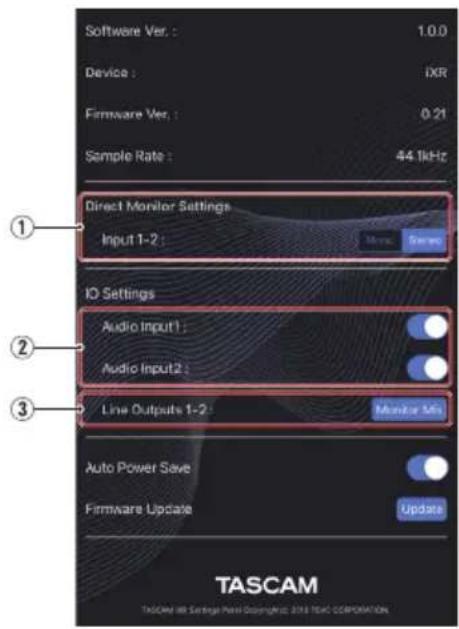
iOS Settings Panel
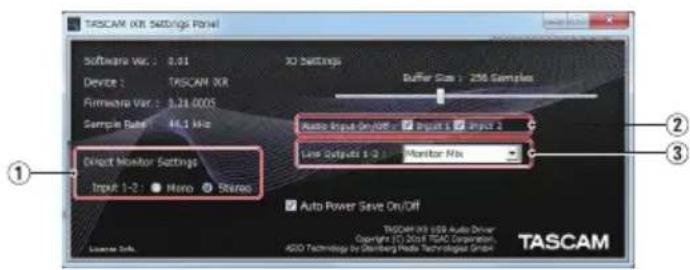
Windows Settings Panel
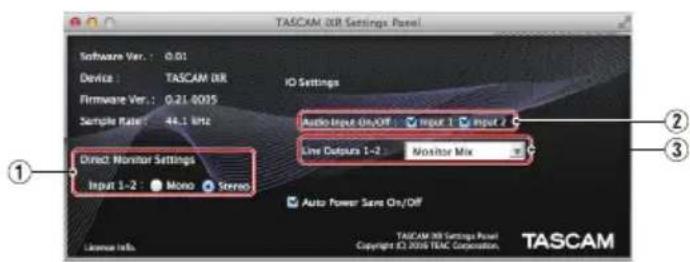
Mac Settings Panel
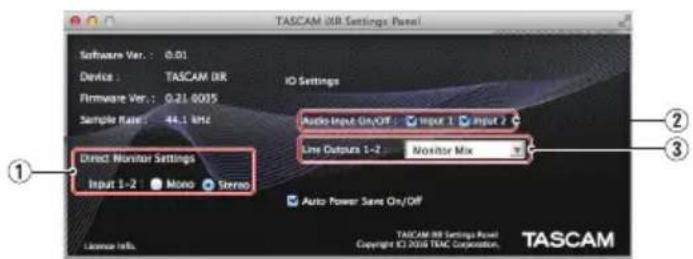
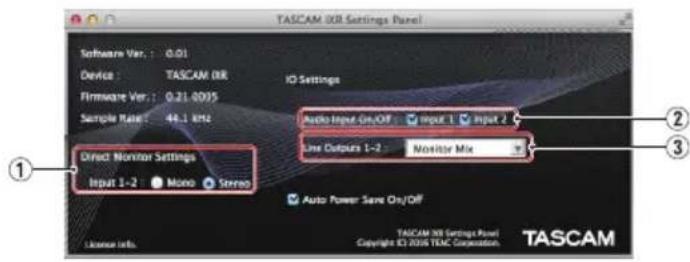
① Direct Monitor Settings Input 1-2 Set the monitoring signal for the IN 1/IN 2 jacks to Mono or Stereo.
② Audio Input On/Off Turn input on/off for each channel separately.
③ Line Outputs 1-2
Select the signals to be output from the LINE OUT 1/L-2/R and PHONES jacks.
Options
Monitor Mix
The signals input from all the input ports and the signals sent by USB from the device connected by USB (computer or iOS device) are mixed by this unit and output.
xxxx Out 1-2 (Used with an iOS device)
Only the playback signals sent from the iOS device connected by USB are output. The connected iOS device name appears in place of "xxxx".
Computer Out 1-2 (Used with a computer)
Only the playback signals sent from the computer connected by USB are output.
For details about settings other than the above, see "Settings Panel overview" in "6 – Using the Settings Panel" of the Reference Manual.
Adjusting the input sound
Analog audio signals input into this device from mics, guitars, keyboards and other audio equipment can be converted into digital signals and transmitted to the computer/iOS device by USB.
You can use the features of this unit to adjust the digital signals that are sent to the computer/iOS device.
In addition, by connecting speakers (through an amplifier) or headphones to this unit, you can monitor audio signals that are input to this unit and output from the computer/iOS device.
Use the various controls on the front of the unit as necessary while listening to the input sound.
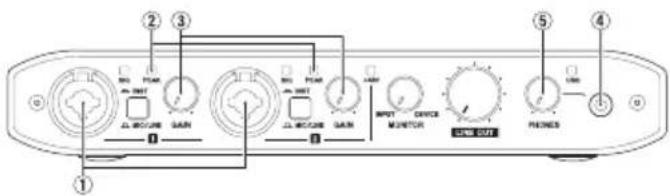
Example of operation using this unit
Use the GAIN knobs (③) to adjust the analog input levels of the IN 1/IN 2 jacks (①) so that the PEAK indicators (②) above and to the right of the knobs do not light.
To listen to the monitoring signal using headphones, connect the headphones to the PHONES jack (④) and adjust the PHONES knob (⑤).
NOTE
If you cannot hear the input sound through the headphones or the LINE OUT 1/L-2/R jacks,
check the settings of the MONITOR knob on the front of the unit and the Line Outputs item on the Settings Panel screen.
Troubleshooting
Please read this chapter if you are unable to use the unit properly even after setting it up following the procedures in this manual.
If you are still unable to resolve your problems please contact TASCAM customer support with the following information about the operating environment and details about the trouble.
Operating environment
• Computer/iOS device manufacturer
- Model
• CPU
- Memory (RAM)
- Operating system
- Applications used
- Antivirus software
- Wireless LAN use
See the end of this document for contact information.
■he dedicated software cannot be installed
- Check the operating system
The operating system you are using might not be supported by the software that you are trying to install.
Check the operating systems supported by the software that you are trying to install.
- Stop software that is running in the background
Antivirus software and other software running in the background can interfere with installation. Quit software running in the background and try installing again.
■he unit will not turn on.
- When using an iOS device, a power supply device must be connected to the PC/MAC/POWER port. Carefully read "Connecting the power" on page 9 of this operation manual and connect a suitable power supply device.
- When using this unit with a computer, the computer must support USB bus power. Check the computer specifications.
■he unit is connected, but the computer/iOS device does not recognize it.
- Install the dedicated software
- If you have not done so, install the dedicated software. See "Installing the dedicated software" on page 7 for details.
-
Change the USB port (if using a computer)
-
This unit will not work with USB 1.1. Use a USB 2.0 or USB 3.0 port.
- Do not use a USB hub. Always connect the unit directly to a USB port on the computer.
-
If the above steps do not resolve the problem, connect the unit to a different USB port on the computer.
-
Check the connection cable (when using an iOS device)
- When connecting this unit to an iOS device, always use the Lightning-USB cable included with the iOS device. Operation is not guaranteed with cables other than Apple genuine cables.
■here is no sound even when audio is playing back on the computer.
Confirm that the unit's MONITOR knob is not turned all the way to the left (toward INPUT). If that is the case, turn the MONITOR knob to the right of center.
In addition, confirm the following while the unit is connected to the computer. Moreover, if you make the following settings, sound will be output through this unit, but no sound will be output by the computer's speakers or headphone jack.
Windows
See the "Windows 10/Windows 8.1" or "Windows 7" instructions in the "Windows Media Player" section of "8 – Application guide" in the Reference Manual, and make settings as necessary for the OS.
OS X
- Quit all applications and open "System Preferences..." from the Apple menu.
- Open "Sound".
- On the Output tab, select "iXR".
After completing the setting, restart the computer and check the sound of playback.
Depending on the application that you are using, you might need to make additional device settings.
In particular, DAW applications operate using audio engines with settings that are different from the OS settings, so confirm the DAW driver settings first after installing the dedicated software for this unit.
Please see the manuals for the applications that you are using for detailed setting procedures.
■ound breaks up or there is noise.
The processing load on the computer causes sound to break up and noise to occur.
Here are some methods to reduce the load on the computer.
- A wireless LAN and software running in the background, including antivirus software, regularly put processing loads on the computer,
which can cause sound to break up and other noise.
Stop wireless LAN transmission, antivirus software and other software running in the background when using this unit.
- Set the buffer size (latency) in the audio application that you are using or in this unit's Settings Panel to a larger value. (Windows only)
NOTE
Consult the maker of the audio application that you are using for methods to reduce its load on your computer.
- Change the settings of your computer so that they are optimal for audio processing.
Using Windows
① Open the Control Panel using the appropriate method of the OS you are using (Windows 10/Windows 8.1/Windows 7).
- In Windows 10, from the Start button at the bottom left click "Control Panel" to open the Control Panel. Then, click the System icon.
- In Windows 8.1, right-click the ordinary Start screen (Metro user interface screen) and then click "All apps". Then, right-click "Computer" and select "Properties".
- In Windows 7, from the Start button at the bottom left right-click "Computer" and select "Properties".
② Click "Advanced system settings".
③ Click "Settings" in the "Performance" section of the "Advanced" tab of the "System Properties" window.
④ In the "Visual Effects" tab of the "Performance Options" window, select "Adjust for best performance".
Using OS X
① Open "System Preferences..." from the Apple menu, and select "Energy Saver".
② Set "Computer sleep" to "Never".
③ Set "Display sleep" to "Never".
NOTE
Depending on the Mac OS version and Mac computer model, these settings might not be available.
■ubase LE/Cubasis LE support
Our company does not provide support for Cubase LE or Cubasis LE.
Please refer to the corresponding help menu or operation manual for instructions about using the product.
Specifications
Audio resolution
■ampling frequencies
44.1, 48, 88.2, 96 kHz
Quantization bit depth
16/24-bit
Analog audio input ratings
■ic inputs (balanced, IN 1/IN 2)
Connector: XLR-3-31 equivalent (1: GND, 2: HOT, 3: COLD)
Input impedance: 2.2 kΩ
Nominal input level (gain knob at MAX): -65 dBu (0.0004 Vrms)
Nominal input level (gain knob at MIN): -8 dBu (0.3090 Vrms)
Maximum input level: +8 dBu (1.9467 Vrms)
Gain range: 57 dB
■instrument inputs (unbalanced, IN 1/IN 2)
(MIC/LINE INST switch set to INST)
Connector: 6.3mm (1/4") standard TS jack (Tip: HOT, Sleeve: GND)
Input impedance: 1 MΩ or more
Nominal input level (gain knob at MAX): -63 dBV (0.0007 Vrms)
Nominal input level (gain knob at MIN): -6 dBV (0.5015 Vrms)
Maximum input level: +10 dBV (3.162 Vrms)
Gain range: 57 dB
■ne inputs (balanced, IN 1/IN 2)
(MIC/LINE INST switch set to MIC/LINE)
Connector: 6.3mm (1/4") standard TRS jack (Tip: HOT, Ring: COLD, Sleeve: GND)
Input impedance: 10 kΩ
Nominal input level (gain knob at MAX): -53 dBu (0.0017 Vrms)
Nominal input level (gain knob at MIN): +4 dBu (1.228 Vrms)
Maximum input level: +20 dBu (7.75 Vrms)
Gain range: 57 dB
Analog audio output ratings
■ne outputs (balanced, LINE OUT 1/L–2/R)
Connector: 6.3mm (1/4") standard TRS jack (Tip: HOT, Ring: COLD, Sleeve: GND)
Output impedance: 110 Ω
Rated output level: +4 dBu (1.273 Vrms)
Maximum output level: +20 dBu (7.75 Vrms)
■headphone output (PHONES)
Connector: 3.5mm (1/8") stereo mini jack
Maximum output: 18 mW + 18 mW or higher
(THD+N 1% or less, into 32Ω load)
Control input/output ratings
IDI IN connector
Connector: 5-pin DIN
Format: standard MIDI
IDI OUT connector
Connector: 5-pin DIN
Format: standard MIDI
Windows/Mac/Power port
Connector: 4-pin USB B-type
Transfer rate: USB 2.0 High Speed (480 Mbps)

port
Connector: USB A-type
Transfer rate: USB 2.0 High Speed (480 Mbps)
Audio performance
■ic amp EIN (equivalent input noise)
-125 dBu or less (150Ω termination, gain knob at MAX)
frequency response
IN 1/IN 2 to LINE OUT (BALANCED), headphone (PHONES) output
At 44.1/48 kHz
20 Hz: +0 dB/-0.4 dB (JEITA)
20 kHz: +0 dB/-0.1 dB (JEITA)
20 kHz: +0 dB/-0.5 dB (HP output, JEITA)
At 88.2/96 kHz
20 Hz: +0 dB/-0.4 dB (JEITA)
40 kHz: +0 dB/-0.25 dB (JEITA)
40 kHz: +0 dB/-2.0 dB (HP output, JEITA)
N ratio
101 dB or higher (MIC/LINE input to LINE OUT, gain knob at MIN, JEITA)
■distortion
0.0025% or less (MIC/LINE input to LINE OUT, 1kHz sine wave, at nominal input level and maximum output level, JEITA)
■rosstalk
95 dB or more (MIC/LINE input to LINE OUT, 1 kHz, JEITA)
Operation requirements
Check the TEAC Global Site (http://teac-global.com/) for the latest information about supported operating systems.
iOS devices
Apple iOS devices with a Lightning connector and running iOS 8, 9 or later
Windows
■ supported operating systems
Windows 10 32-bit
Windows 10 64-bit
Windows 8.1 32-bit
Windows 8.1 64-bit
Windows 7 32-bit SP1 or later
Windows 7 64-bit SP1 or later
(Windows Vista and Windows XP are not supported)
■computer hardware requirements
Windows-compatible computer with a USB 2.0 port
■PU/processor speed
2 GHz or faster dual core processor (x86)
memory
2 GB or more
CAUTION
Operation of this unit was confirmed using standard computers that meet the above requirements. This does not guarantee operation with all computers that meet the above requirements. Even computers that meet the same system requirements might have processing capabilities that differ according to their settings and other operating conditions
Mac OS
■ supported operating systems
OS X El Capitan (10.11 or later)
OS X Yosemite (10.10 or later)
OS X Mavericks (10.9.1 or later)
OS X Mountain Lion (10.8.4 or later)
■omputer hardware requirements
Mac with a USB 2.0 port
■PU/processor speed
2 GHz or faster dual core processor
Memory
2 GB or more
Supported audio/MIDI drivers
iOS: Core Audio for iPhone
Windows: ASIO 2.0, WDM, MIDI
Mac: Core Audio, Core MIDI
General
Power
Used with a computer
USB bus power
Used with an iOS device
USB power adapter (that supplies 5 V and at least 700 mA current) ^1
Mobile battery (that supplies 5 V and at least 700 mA current)
TASCAM BP-6AA external battery pack
We strongly recommend using the USB power adapter included with the iPad/iPhone. A USB power adapter is not included with an iPod touch. To use an iPod touch with this unit, purchase a genuine Apple USB power adapter (capable of supplying 5V and at least 700mA current).
■ lower consumption
2.5 W
■ External dimensions
210 × 35.3 × 140.7 mm (width × height × depth, excluding protrusions)
Weight
660 g
■ operating temperature range
5–35 °C (41–95°F)
■ bundled DAW software (download editions)
Steinberg Cubase LE
Steinberg Cubasis LE ^2
^2 A demo version of Cubasis LE can be downloaded for free from the App Store. Connecting the iOS device to this unit will remove the restrictions of the demo version, allowing you to use it as a full version of Cubasis LE.
Dimensional drawings
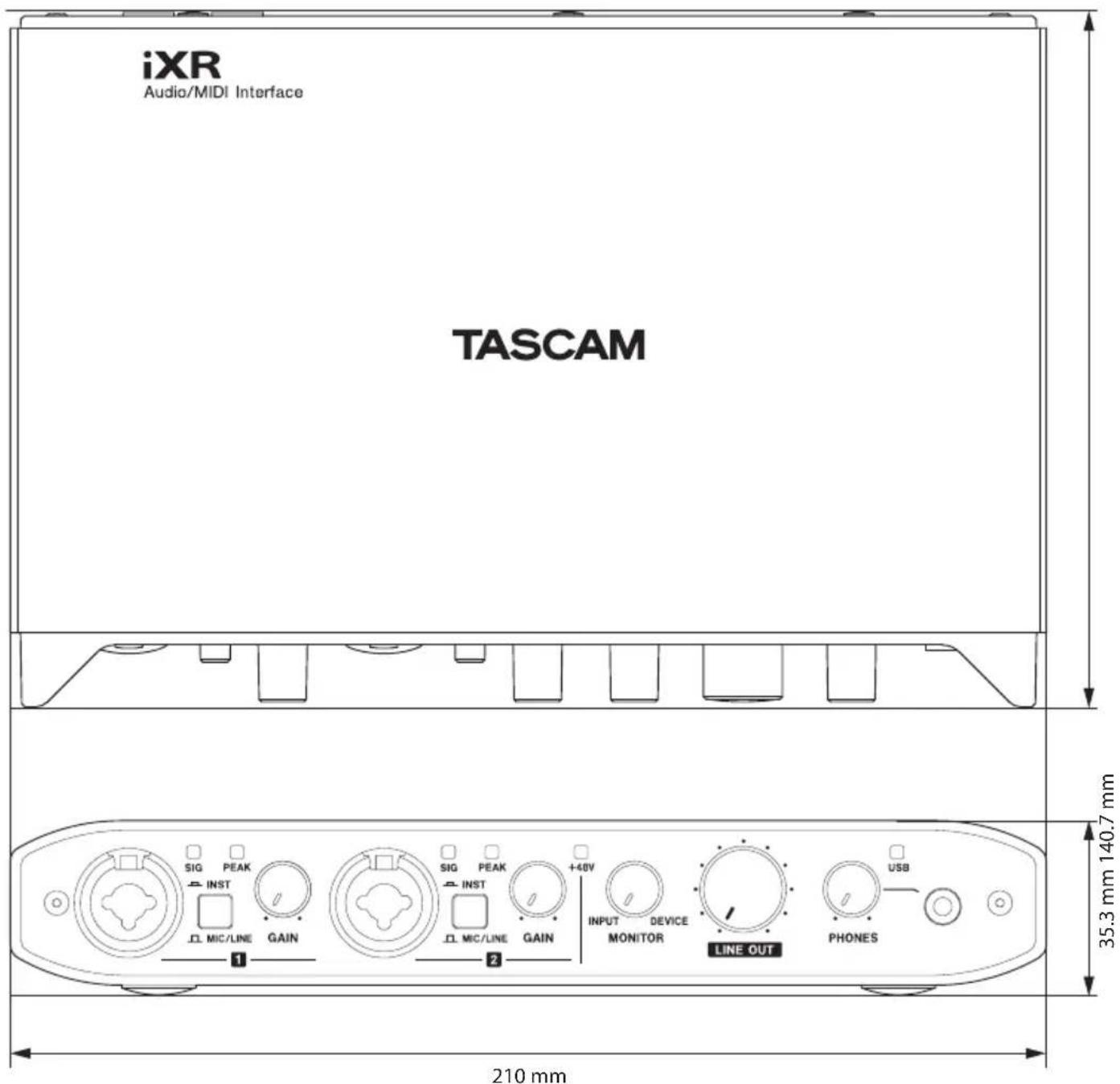
- Illustrations in this manual might differ in part from the actual product.
- Specifications and external appearance might be changed without notification to improve the product.
PRÉCAUTIONS DE SÉCURITÉ IMPORTANTES
Pour le Canada
THIS CLASS B DIGITAL APPARATUS COMPLIES WITH CANADIAN ICES-003.
CET APPAREIL NUMÉRIQUE DE LA CLASSE B EST CONFORME À LA NORME NMB-003 DU CANADA.
DÉCLARATION DE CONFORMITÉ
Performances audio....28
Configurations requises....29
Appareils iOS 29
Windows....29
Mac OS X....29
Pilotes audio/MIDI pris en charge....29
NOTE
Configurations requises
Responsible: TEAC AMERICA, INC.
NOTA
Panel de ajustes Windows
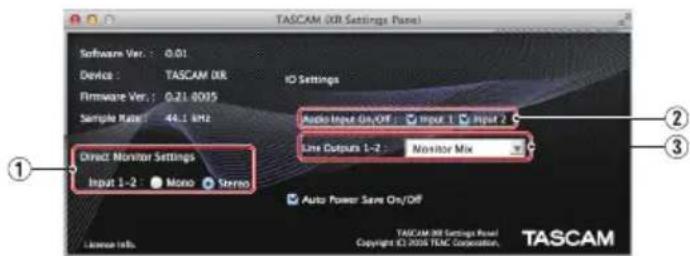
Panel de ajustes Mac
① Direct Monitor Settings Input 1-2
5-35^ (41–95° F)
XLR-3-31 (1: Masse, 2: heiß (+), 3: kalt (−))
This equipment has been tested e found to comply with the limits for a Class B digital device, pursuant to Part 15 of the FCC Rules. These limits are designed to provide reasonable protection against harmful interference in a residential installation. This equipment generates, uses, e can radiate radio frequency energy and, if not installed e used in accordance with the instruction manual, may cause harmful interference to radio communications. However, there is no guarantee that interference will not occur in a particular installation. If this equipment does cause harmful interference to radio or television reception, which can be determined by turning the equipment off e on, the user is encouraged to try to correct the interference by one o più of the following measures. a) Reorient or relocate the receiving antenna. b) Increase the separation between the equipment e receiver. c) Connect the equipment into an outlet on a circuit different from that to which the receiver is connected. d) Consult the dealer or an experienced radio/TV technician for help.
CAUTION
Changes or modifications to this equipment not expressly approved by TEAC CORPORATION for compliance could void the user's authority to operate this equipment.
NOTA
Windows Settings Panel
Mac Settings Panel
[Windows 版《Settings Panel》画面]
[Mac版《Settings Panel》画面]
[本機を使った操作例]
210 x 35.3 x 140.7mm
< In the United States >
This warranty gives you specific legal rights and you may also have other rights which vary from state to state. This warranty is only valid within the country the unit was originally purchased.
WHAT IS AND IS NOT COVERED
Except as specified below, this warranty covers all defects in materials and workmanship in this product. The following are not covered by the warranty:
- Damage to or deterioration of the external cabinet.
- Damages resulting from accident, misuse, abuse or neglect.
- Damage resulting from failure to perform basic daily maintenance and/or calibration or otherwise resulting from failure to follow instructions contained in your owner's manual.
- Damage occurring during shipment of the product. (Claims must be presented to the carrier)
- Damage resulting from repair or attempted repair by anyone other than TEAC or an authorized TASCAM service station.
- Damage resulting from causes other than product defects, including lack of technical skill, competence, or experience of the user.
- Damage to any unit which has been altered or on which the serial number has been defaced, modified or is missing.
WHO MAY ENFORCE THE WARRANTY
This warranty may be enforced only by the original purchaser. This warranty is not valid if the product was purchased through an unauthorized dealer.
LENGTH OF WARRANTY
All parts except heads and disk drives are warranted for one (1) year from the date of original purchase. Heads and disk drives are warranted to ninety (90) days from date of original purchase. Labor is warranted for ninety (90) days from date of original purchase.
WHAT WE WILL PAY FOR
We will pay all labor and material expenses for items covered by the warranty. Payment of shipping charges is discussed in the next section of this warranty.
HOW YOU CAN GET WARRANTY SERVICE
Your unit must be serviced by an authorized TASCAM service station in the United States. (This warranty is not enforceable outside the U.S.) If you are unable to locate an authorized TASCAM service station in your area, please contact us. We either will refer you to an authorized service station or instruct you to return the unit to the factory. Whenever warranty service is required, you must present a copy of the original dated sales receipt from an Authorized TASCAM Dealer. You must pay any shipping charges if it is necessary to ship the product to service. However, if the necessary repairs are covered by the warranty, we will pay return surface shipping charges to any destination within the United States.
LIMITATION OF IMPLIED WARRANTIES
Any implied warranties, INCLUDING WARRANTIES OF MERCHANTABILITY AND FITNESS FOR A PARTICULAR PURPOSE, are limited in duration to the length of this warranty.
EXCLUSION OF DAMAGES
TEAC's liability for any defective product is limited to repair or replacement of the product, at TEAC's option. TEAC shall not be liable for:
- Damages based upon inconvenience, loss of use of the product, loss of time interrupted operation or commercial loss; or
- Any other damages, whether incidental, consequential or otherwise.
Some states do not allow limitations on how long an implied warranty lasts and/or do not allow the exclusion or limitation of incidental or consequential damages, so the above limitations and exclusions may not apply to you.
To locate an Authorized Service Center in Your Area
CALL 1-800-447-8322
This product is subject to the legal warranty regulations of the country of purchase. In case of a defect or a problem, please contact the dealer where you bought the product.
These warranty provisions in Japanese are valid only in Japan.
< In other countries/areas >
This warranty gives you specific legal rights, and you may also have other rights that vary by country, state or province.
If you have a warranty claim or request, please contact the dealer where you bought the product.
If you require repair services for your TASCAM equipment, please contact the dealer where the product was purchased from or the TASCAM Distributor in your country. A list of TASCAM Distributors can be found on our website at: http://teac-global.com/
iXR
Serial No./機番